Idrive BMW X5 3.0Si 2008 E70 Owner's Manual
[x] Cancel search | Manufacturer: BMW, Model Year: 2008, Model line: X5 3.0Si, Model: BMW X5 3.0Si 2008 E70Pages: 292, PDF Size: 9.32 MB
Page 5 of 292
Reference
At a glance
Controls
Driving tips
Communications
Navigation
Entertainment
Mobility
Contents
The fastest way to find specific topics is to use
the index, refer to page270.
Using this Owner's Manual
4Notes
7Reporting safety defects
At a glance
10Cockpit
16iDrive
23Voice command system
Controls
28Opening and closing
42Adjusting
55Transporting children safely
59Driving
71Everything under control
84Technology for comfort, convenience
and safety
102Lamps
106Climate
115Practical interior accessories
Driving tips
128Things to remember when driving
Navigation
136Starting navigation system
138Destination entry
150Destination guidance
159What to do if …
Entertainment
162On/Off and settings
166Radio
172Satellite radio
175CD player and CD changer
181DVD changer
188AUX-In connection
189USB audio interface
192DVD system in rear
Communications
208Telephoning
223BMW Assist
Mobility
232Refueling
234Wheels and tires
241Under the hood
245Maintenance
247Replacing components
255Giving and receiving assistance
Reference
262Technical data
265Short commands of voice command
system
270Everything from A to Z
Page 18 of 292
iDrive
16
iDrive
iDrive combines the functions of a large number
of switches. This allows these functions to be
operated from a central position. The following
section provides an introduction to basic menu navigation. The control of the individual func-
tions is described in connection with the rele-
vant equipment.
Controls
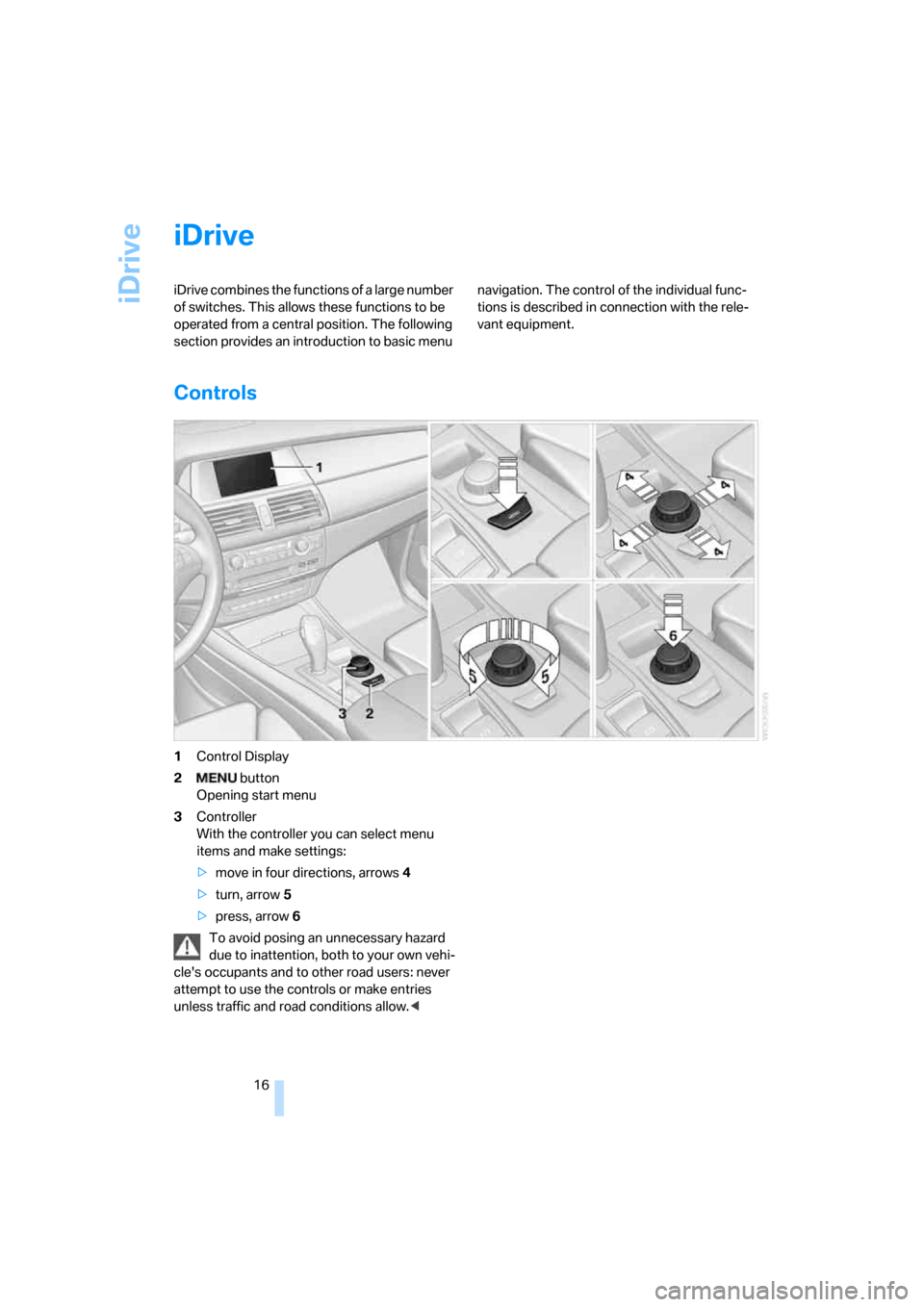
1Control Display
2 button
Opening start menu
3Controller
With the controller you can select menu
items and make settings:
>move in four directions, arrows4
>turn, arrow5
>press, arrow6
To avoid posing an unnecessary hazard
due to inattention, both to your own vehi-
cle's occupants and to other road users: never
attempt to use the controls or make entries
unless traffic and road conditions allow.<
Page 19 of 292

At a glance
17Reference
Controls
Driving tips
Communications
Navigation
Entertainment
Mobility
Menu overview
Communication
>Telephone*
>BMW Assist* or TeleService*
Navigation or onboard information
>Navigation system*
>Onboard information, e.g. for displaying
the average fuel consumption
Entertainment
>Radio
>CD player and CD changer
*
>External audio device
Climate
>Vent settings
>Seat heater distribution
*
>Automatic programs
>Parked car ventilation
*
menu
>Switching off Control Display
>Tone and display settings
>Settings for traffic information
*
>Settings for your vehicle, e.g. for the central
locking system
>Display of maintenance intervals and dead-
lines for legally mandated inspections
>Settings for telephone
*
Operating principle
From radio readiness, refer to page59, the fol-
lowing message is shown on the Control Dis-
play:
To hide the message:
Press the controller.
This displays the start menu.
On vehicles with a single drive, the message
automatically disappears after approx. 10 sec-
onds.
Start menu
You can call up all the functions of iDrive using
five menu items.
Opening start menu
Press the button.
To open the start menu from the menu:
Press the button twice.
Page 20 of 292
iDrive
18
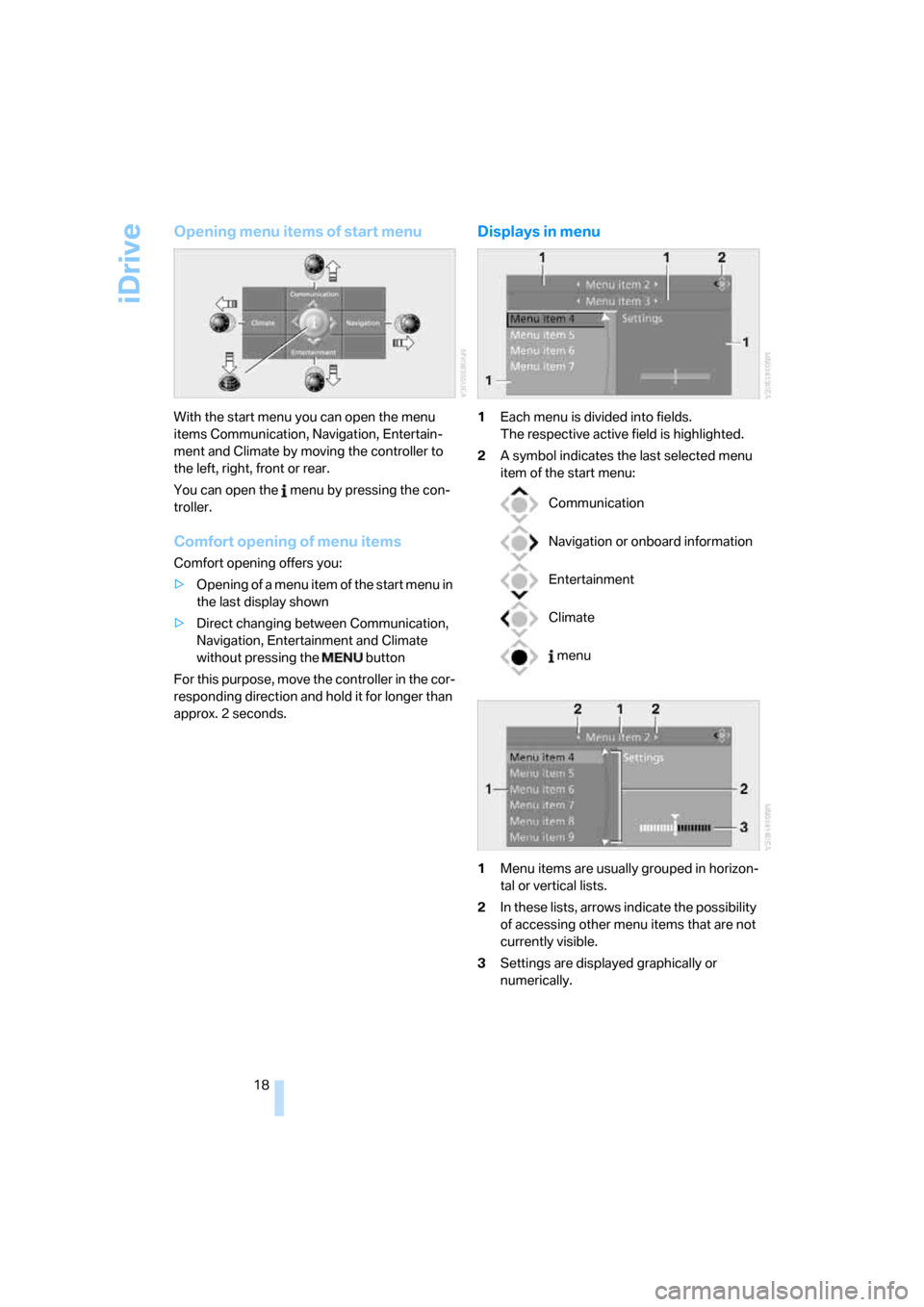
Opening menu items of start menu
With the start menu you can open the menu
items Communication, Navigation, Entertain-
ment and Climate by moving the controller to
the left, right, front or rear.
You can open the menu by pressing the con-
troller.
Comfort opening of menu items
Comfort opening offers you:
>Opening of a menu item of the start menu in
the last display shown
>Direct changing between Communication,
Navigation, Entertainment and Climate
without pressing the button
For this purpose, move the controller in the cor-
responding direction and hold it for longer than
approx. 2 seconds.
Displays in menu
1Each menu is divided into fields.
The respective active field is highlighted.
2A symbol indicates the last selected menu
item of the start menu:
1Menu items are usually grouped in horizon-
tal or vertical lists.
2In these lists, arrows indicate the possibility
of accessing other menu items that are not
currently visible.
3Settings are displayed graphically or
numerically.
Communication
Navigation or onboard information
Entertainment
Climate
menu
Page 21 of 292
At a glance
19Reference
Controls
Driving tips
Communications
Navigation
Entertainment
Mobility
Operating principle at a glance
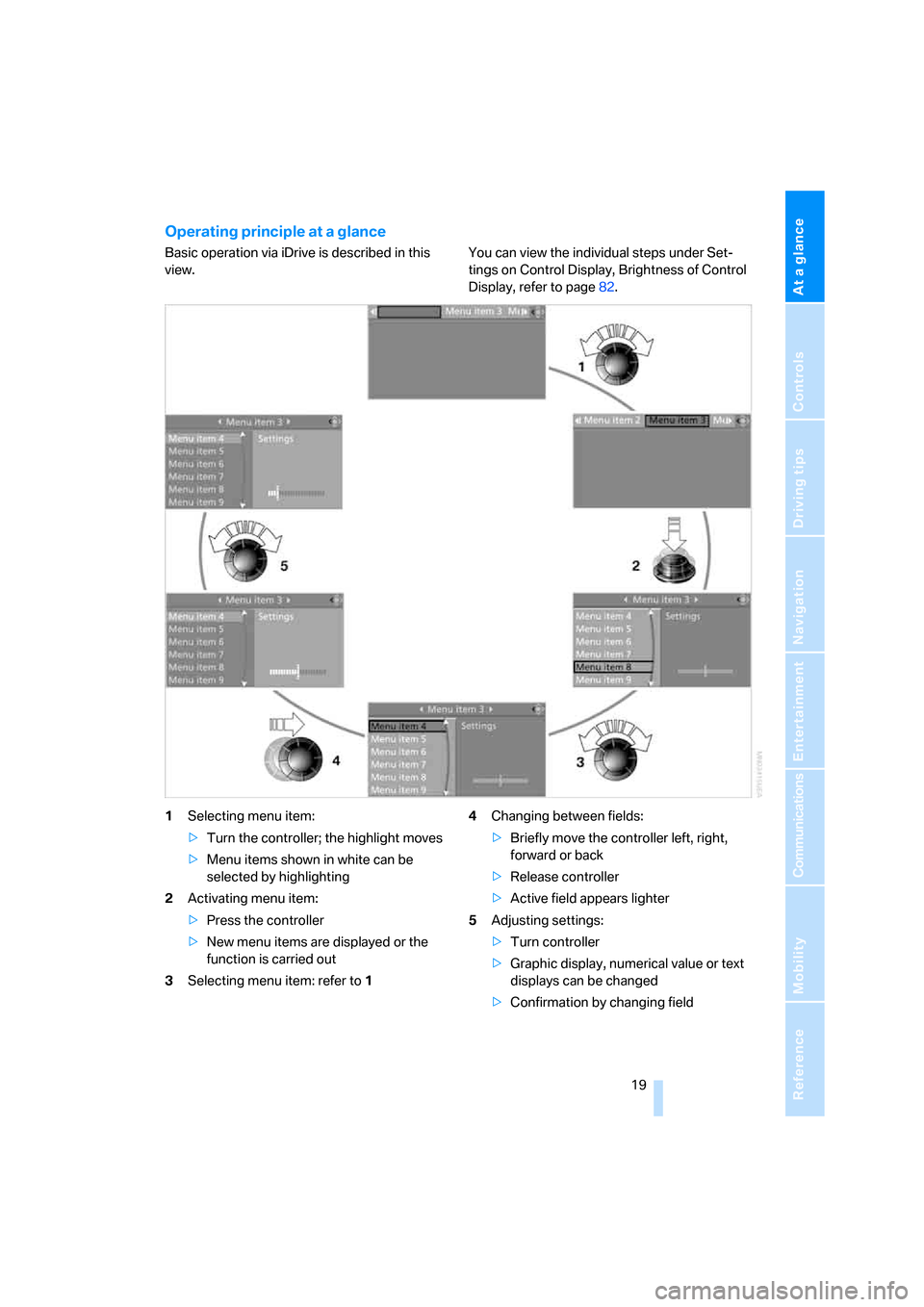
Basic operation via iDrive is described in this
view.You can view the individual steps under Set-
tings on Control Display, Brightness of Control
Display, refer to page82.
1Selecting menu item:
>Turn the controller; the highlight moves
>Menu items shown in white can be
selected by highlighting
2Activating menu item:
>Press the controller
>New menu items are displayed or the
function is carried out
3Selecting menu item: refer to 14Changing between fields:
>Briefly move the controller left, right,
forward or back
>Release controller
>Active field appears lighter
5Adjusting settings:
>Turn controller
>Graphic display, numerical value or text
displays can be changed
>Confirmation by changing field
Page 22 of 292
iDrive
20
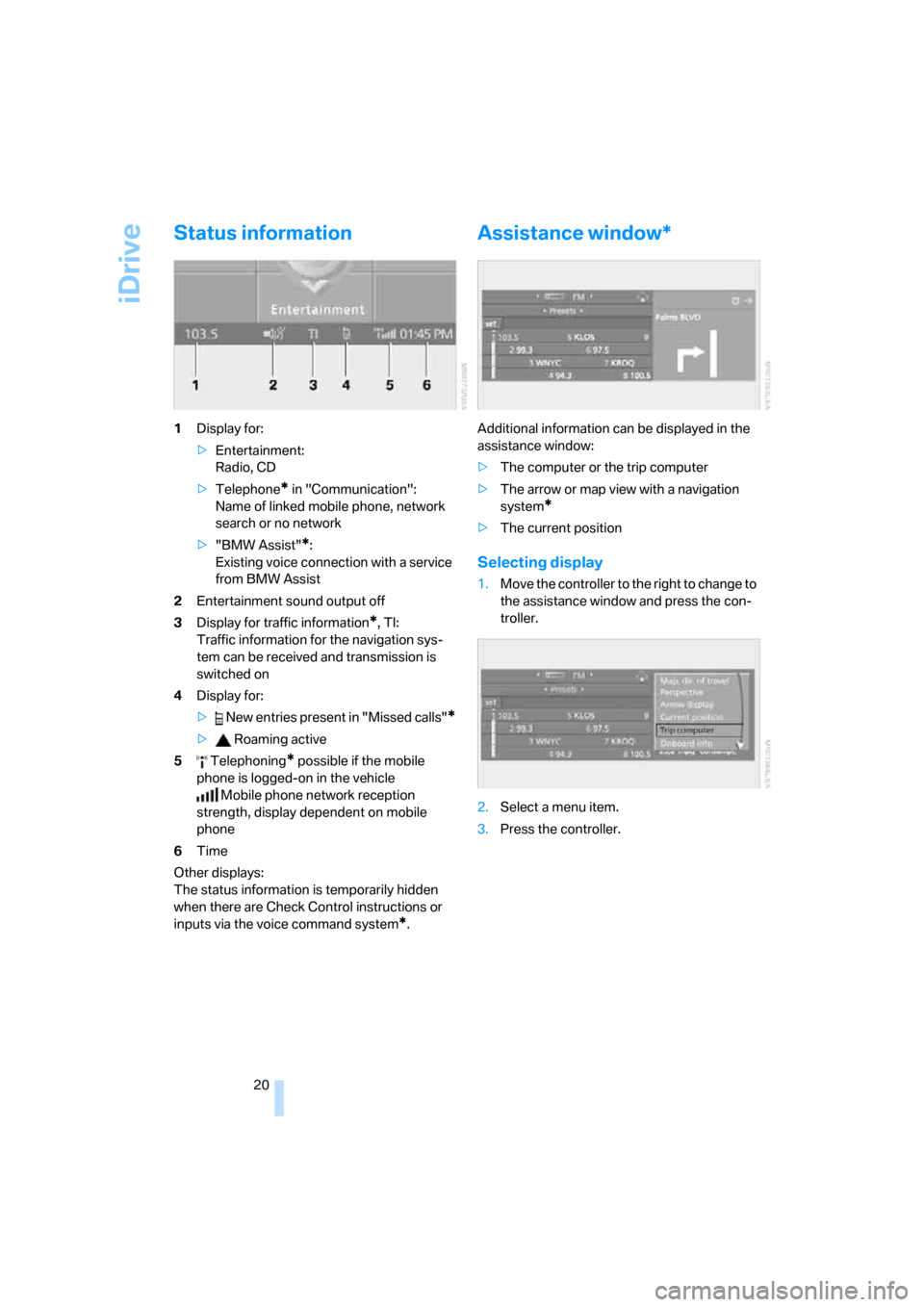
Status information
1Display for:
>Entertainment:
Radio, CD
>Telephone
* in "Communication":
Name of linked mobile phone, network
search or no network
>"BMW Assist"
*:
Existing voice connection with a service
from BMW Assist
2Entertainment sound output off
3Display for traffic information
*, TI:
Traffic information for the navigation sys-
tem can be received and transmission is
switched on
4Display for:
> New entries present in "Missed calls"
*
> Roaming active
5 Telephoning
* possible if the mobile
phone is logged-on in the vehicle
Mobile phone network reception
strength, display dependent on mobile
phone
6Time
Other displays:
The status information is temporarily hidden
when there are Check Control instructions or
inputs via the voice command system
*.
Assistance window*
Additional information can be displayed in the
assistance window:
>The computer or the trip computer
>The arrow or map view with a navigation
system
*
>The current position
Selecting display
1.Move the controller to the right to change to
the assistance window and press the con-
troller.
2.Select a menu item.
3.Press the controller.
Page 23 of 292
At a glance
21Reference
Controls
Driving tips
Communications
Navigation
Entertainment
Mobility
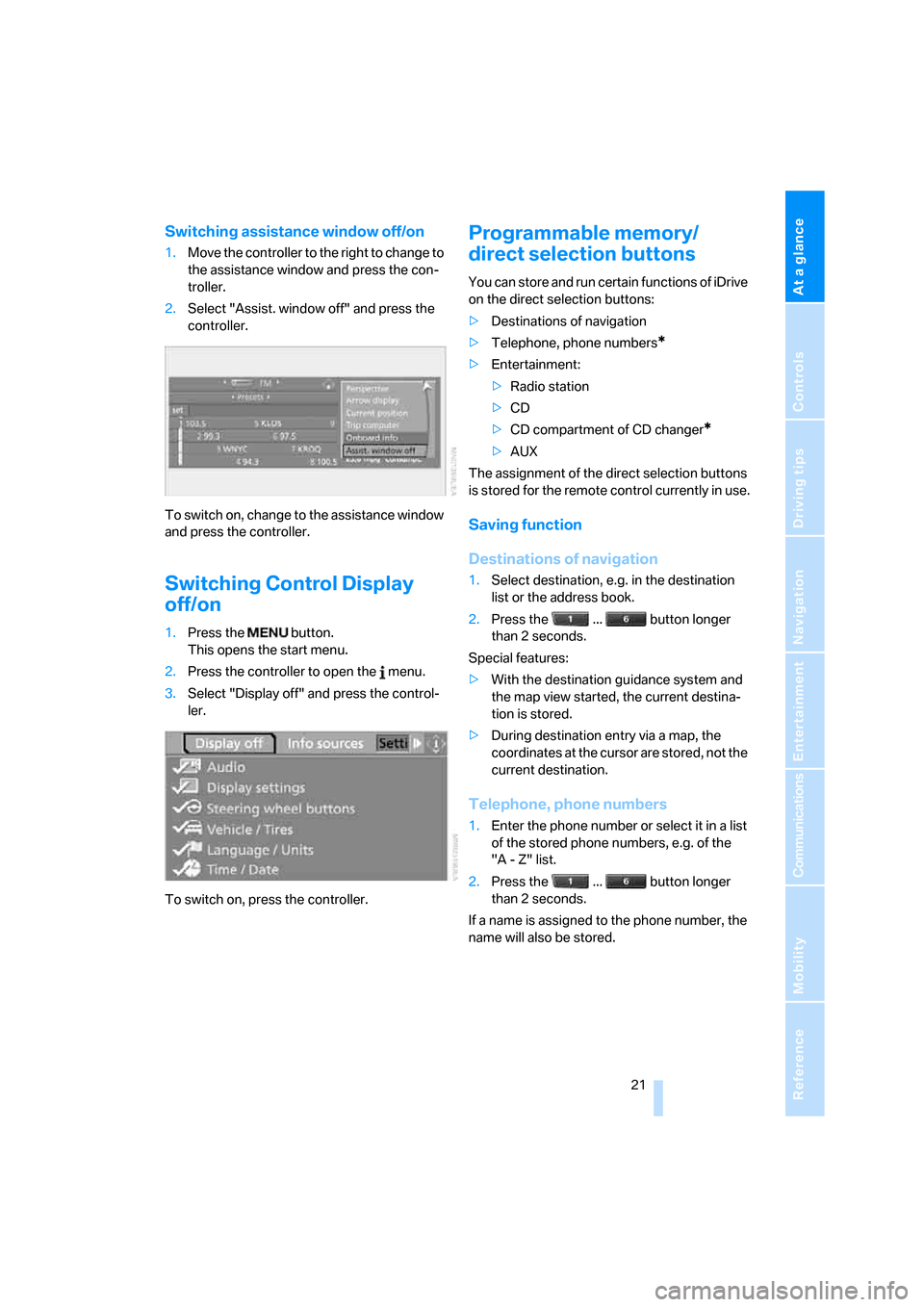
Switching assistance window off/on
1.Move the controller to the right to change to
the assistance window and press the con-
troller.
2.Select "Assist. window off" and press the
controller.
To switch on, change to the assistance window
and press the controller.
Switching Control Display
off/on
1.Press the button.
This opens the start menu.
2.Press the controller to open the menu.
3.Select "Display off" and press the control-
ler.
To switch on, press the controller.
Programmable memory/
direct selection buttons
You can store and run certain functions of iDrive
on the direct selection buttons:
>Destinations of navigation
>Telephone, phone numbers
*
>Entertainment:
>Radio station
>CD
>CD compartment of CD changer
*
>AUX
The assignment of the direct selection buttons
is stored for the remote control currently in use.
Saving function
Destinations of navigation
1.Select destination, e.g. in the destination
list or the address book.
2.Press the ... button longer
than 2 seconds.
Special features:
>With the destination guidance system and
the map view started, the current destina-
tion is stored.
>During destination entry via a map, the
coordinates at the cursor are stored, not the
current destination.
Telephone, phone numbers
1.Enter the phone number or select it in a list
of the stored phone numbers, e.g. of the
"A - Z" list.
2.Press the ... button longer
than 2 seconds.
If a name is assigned to the phone number, the
name will also be stored.
Page 24 of 292
iDrive
22
Entertainment
In the Entertainment menu, the sound source
currently heard, e.g. a radio station, is stored,
regardless of the selection on the Control Dis-
play.
1.Select the desired function, e.g. radio sta-
tion or CD.
2.Press the ... button longer
than 2 seconds.
If the vehicle is equipped with two drives,
the current track is stored for CDs with
compressed audio files.<
Running function
Press the ... button.
The function is run immediately. This means,
for example, that when a phone number is
selected, the connection is also established, or
when a navigation destination is called up, des-
tination guidance is started.
Displaying button assignment
You can display the assignment of the buttons
by touching them with your finger. Please do
not wear gloves when doing so. Touching with
an object, e.g. a pen, does not function.
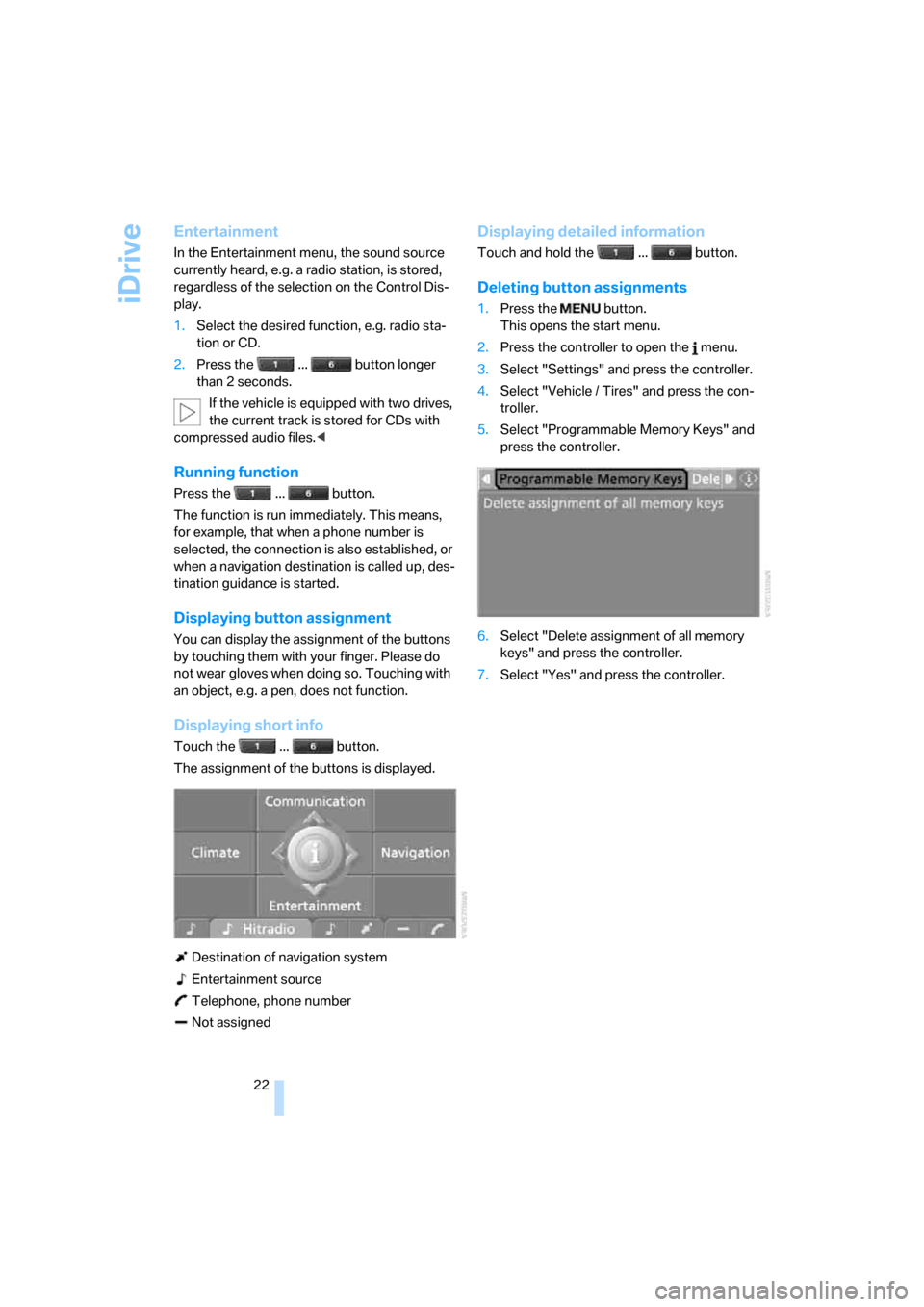
Displaying short info
Touch the ... button.
The assignment of the buttons is displayed.
Destination of navigation system
Entertainment source
Telephone, phone number
Not assigned
Displaying detailed information
Touch and hold the ... button.
Deleting button assignments
1.Press the button.
This opens the start menu.
2.Press the controller to open the menu.
3.Select "Settings" and press the controller.
4.Select "Vehicle / Tires" and press the con-
troller.
5.Select "Programmable Memory Keys" and
press the controller.
6.Select "Delete assignment of all memory
keys" and press the controller.
7.Select "Yes" and press the controller.
Page 25 of 292
At a glance
23Reference
Controls
Driving tips
Communications
Navigation
Entertainment
Mobility
Voice command system
The concept
The voice command system allows you to con-
trol operation of various vehicle systems with-
out ever removing your hands from the steering
wheel.
Individual menu items on the Control Display
can be spoken as commands. This frees you of
having to use the controller.
The voice command system transforms your
oral commands into control signals for the
selected systems and provides support in the
form of instructions or questions.
The voice command system uses a special
microphone located in the area of the interior
rearview mirror, refer to page14.
Precondition
Via iDrive, set the language that applies for the
voice command system in order to enable iden-
tification of the spoken commands. To set the
language of iDrive, refer to page83.
Symbols in Owner's Manual
Voice commands
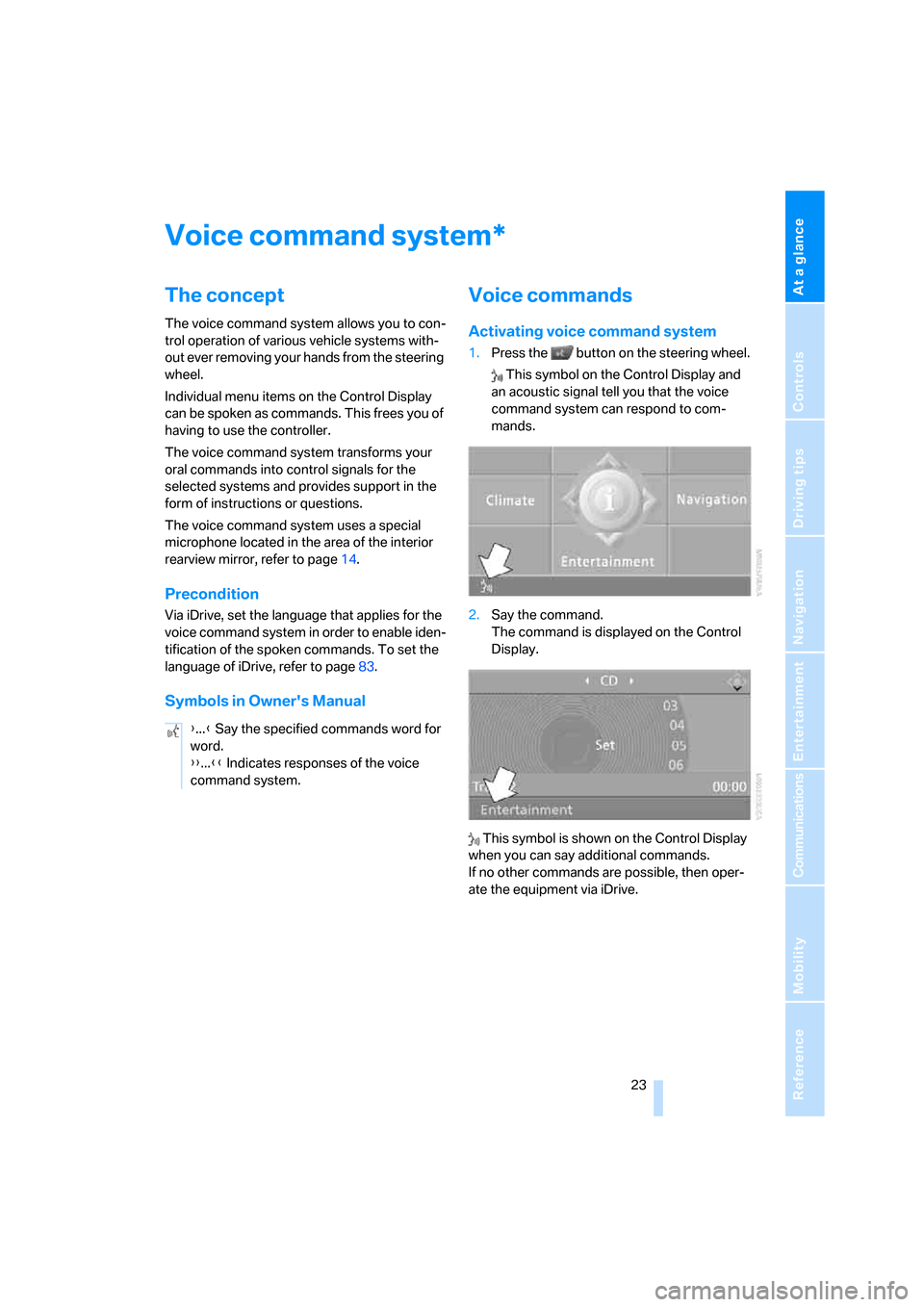
Activating voice command system
1.Press the button on the steering wheel.
This symbol on the Control Display and
an acoustic signal tell you that the voice
command system can respond to com-
mands.
2.Say the command.
The command is displayed on the Control
Display.
This symbol is shown on the Control Display
when you can say additional commands.
If no other commands are possible, then oper-
ate the equipment via iDrive.
*
{...} Say the specified commands word for
word.
{{...}} Indicates responses of the voice
command system.
Page 32 of 292
Opening and closing
30
Unlocking
Press the button.
This unlocks the vehicle.
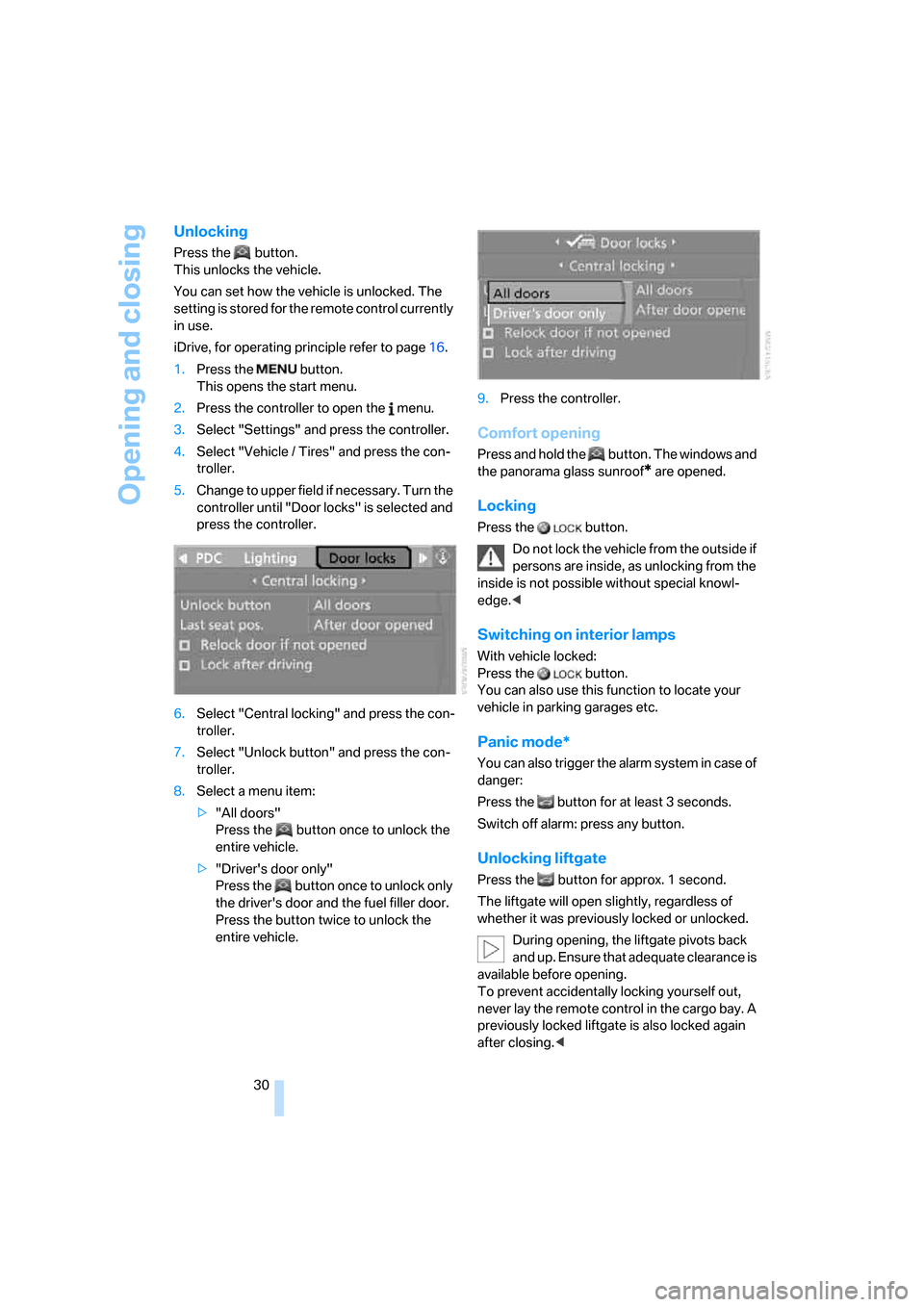
You can set how the vehicle is unlocked. The
setting is stored for the remote control currently
in use.
iDrive, for operating principle refer to page16.
1.Press the button.
This opens the start menu.
2.Press the controller to open the menu.
3.Select "Settings" and press the controller.
4.Select "Vehicle / Tires" and press the con-
troller.
5.Change to upper field if necessary. Turn the
controller until "Door locks" is selected and
press the controller.
6.Select "Central locking" and press the con-
troller.
7.Select "Unlock button" and press the con-
troller.
8.Select a menu item:
>"All doors"
Press the button once to unlock the
entire vehicle.
>"Driver's door only"
Press the button once to unlock only
the driver's door and the fuel filler door.
Press the button twice to unlock the
entire vehicle.9.Press the controller.
Comfort opening
Press and hold the button. The windows and
the panorama glass sunroof
* are opened.
Locking
Press the button.
Do not lock the vehicle from the outside if
persons are inside, as unlocking from the
inside is not possible without special knowl-
edge.<
Switching on interior lamps
With vehicle locked:
Press the button.
You can also use this function to locate your
vehicle in parking garages etc.
Panic mode*
You can also trigger the alarm system in case of
danger:
Press the button for at least 3 seconds.
Switch off alarm: press any button.
Unlocking liftgate
Press the button for approx. 1 second.
The liftgate will open slightly, regardless of
whether it was previously locked or unlocked.
During opening, the liftgate pivots back
and up. Ensure that adequate clearance is
available before opening.
To prevent accidentally locking yourself out,
never lay the remote control in the cargo bay. A
previously locked liftgate is also locked again
after closing.<