phone BMW X5 4.8I 2007 E70 User Guide
[x] Cancel search | Manufacturer: BMW, Model Year: 2007, Model line: X5 4.8I, Model: BMW X5 4.8I 2007 E70Pages: 272, PDF Size: 9.03 MB
Page 31 of 272
Controls
29Reference
At a glance
Driving tips
Communications
Navigation
Entertainment
Mobility
remote control is detected and the settings
stored for it are called up and carried out.
This means that you will always find your BMW
set to your own personal settings even if
another person with his/her own remote control
and settings has used the vehicle since the last
time you drove it. The individual settings are
stored for a maximum of three remote controls.
Personal Profile settings
Details on the settings are provided on the
specified pages.
>When unlocking with the remote control,
either unlock only the driver's door or the
entire vehicle, refer to page30
>Locking the vehicle after a short time or
after starting off, refer to page32
>Assigning the programmable buttons
* on
the steering wheel, refer to page50
>Settings for the display on the Control Dis-
play:
>Brightness of the Control Display, refer
to page78
>Measuring units for consumption, route/
distances, temperature, and pressure,
refer to page79
>Language on Control Display, refer to
page79
>12h/24h mode of the clock, refer to
page78
>Date format, refer to page78
>Showing optical warning for PDC Park Dis-
tance Control
*, refer to page81
>Selection, brightness and position of dis-
play in Head-Up Display
*, refer to page94
>For settings of automatic climate control,
refer to page102
>Positions of driver's seat, exterior mirrors,
and steering wheel
*, refer to page42
>With Adaptive Drive
*, last selected chassis
and suspension tuning setting, refer to
page86
>Audio sources, volume and tone settings,
refer to page155>Radio, displaying stored stations, refer to
page158
>Telephone, setting volume, refer to
pages192,198
>Pathway lighting, refer to page97, and
daytime running lamps, refer to page98
>Triple turn signal activation, refer to
page62
>With backup camera
*, selection of func-
tions, refer to page82 and type of display,
refer to page83
>With programmable memory/direct selec-
tion buttons, selection of stored functions,
refer to page21
Central locking system
The concept
The central locking system is ready for opera-
tion whenever the driver's door is closed.
The system simultaneously engages and
releases the locks on the following:
>Doors
>Liftgate
>Fuel filler door
Operating from outside
>via the remote control
>via the door lock
>with comfort access
* via the door handles
At the same time, the anti-theft system is also
operated. It prevents the doors from being
unlocked using the lock buttons or door han-
dles. The interior lamps and the courtesy
lamps
* are also switched on and off with the
remote control. The alarm system
is armed/dis-
armed at the same time.
You can find more detailed information on the
alarm system
on page34.
Operating from inside
Via the button for central locking, refer to
page32. The fuel filler door is not locked.
Page 52 of 272
Adjusting
50
Easy entry/exit*
To facilitate entry and exit, the steering wheel
temporarily moves into the uppermost position.
Steering wheel heating*
Press the button with the ignition switched on;
the LED lights up.
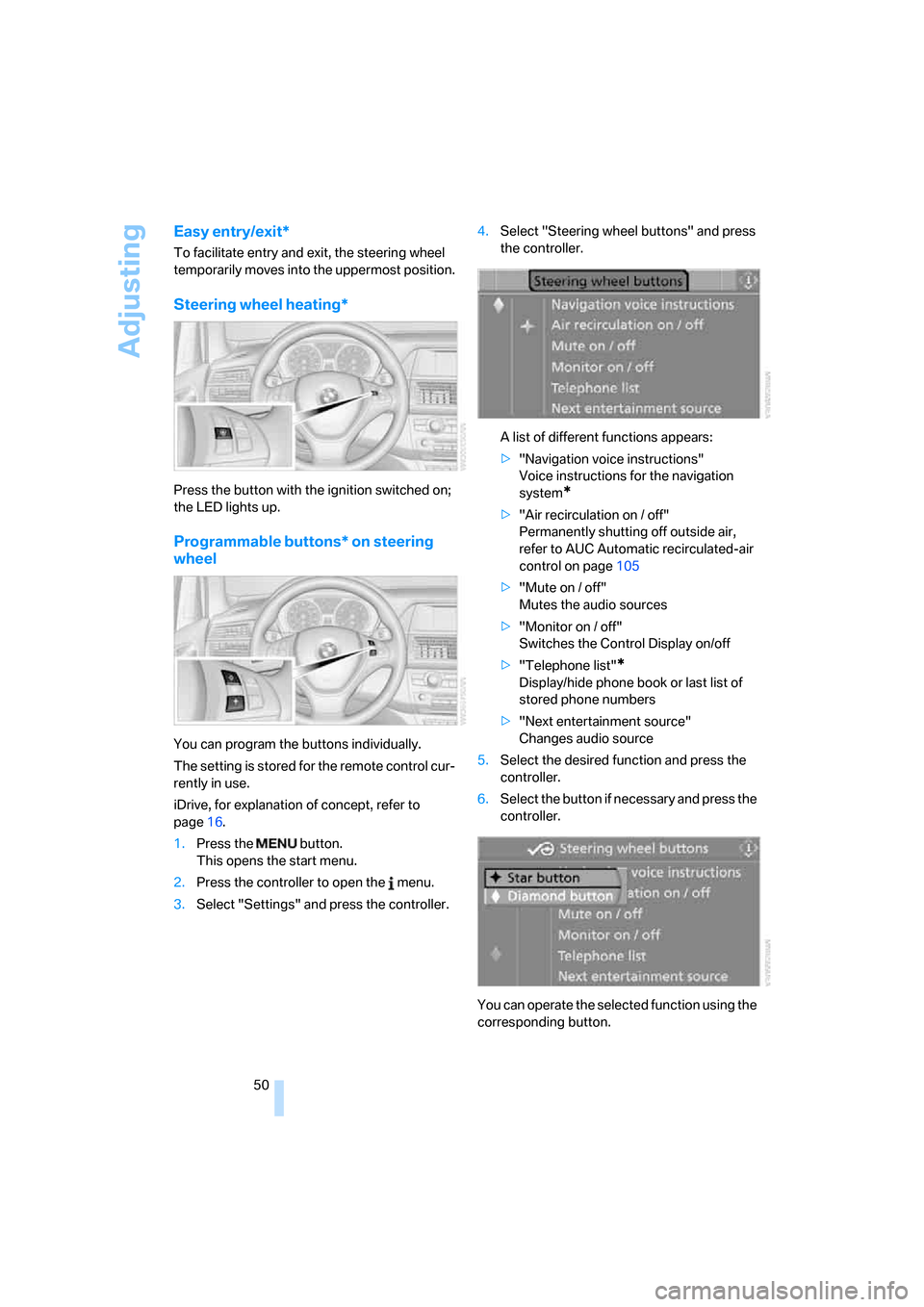
Programmable buttons* on steering
wheel
You can program the buttons individually.
The setting is stored for the remote control cur-
rently in use.
iDrive, for explanation of concept, refer to
page16.
1.Press the button.
This opens the start menu.
2.Press the controller to open the menu.
3.Select "Settings" and press the controller.4.Select "Steering wheel buttons" and press
the controller.
A list of different functions appears:
>"Navigation voice instructions"
Voice instructions for the navigation
system
*
>"Air recirculation on / off"
Permanently shutting off outside air,
refer to AUC Automatic recirculated-air
control on page105
>"Mute on / off"
Mutes the audio sources
>"Monitor on / off"
Switches the Control Display on/off
>"Telephone list"
*
Display/hide phone book or last list of
stored phone numbers
>"Next entertainment source"
Changes audio source
5.Select the desired function and press the
controller.
6.Select the button if necessary and press the
controller.
You can operate the selected function using the
corresponding button.
Page 115 of 272
Controls
113Reference
At a glance
Driving tips
Communications
Navigation
Entertainment
Mobility
Setting language
You can set the language of the display.
Press the adjustment button for approx.
12-13 seconds. Briefly press the adjustment
button again to switch between English "E" and
German "O".
The setting is automatically stored after approx.
10 seconds.
Roller sun blinds for rear side
windows*
Pull the loop of the roller sun blind and hook
onto bracket.
With roller sun blinds attached, do not
open the windows during travel. The
blinds may otherwise be damaged by the
wind.<
Glove compartment
Opening
Press the button. The covers open upward and
downward and the lighting in the glove com-
partment switches on.
To prevent injury in the event of an acci-
dent while the vehicle is being driven,
close the glove compartment immediately after
use.<
Closing
Press one of the two covers closed; both covers
are closed.
Center armrest
A storage compartment is located under the
armrest between the front seats and, depend-
ing on the vehicle's equipment, also a cover for
the mobile phone bracket or snap-in adapter.
Also refer to page188.
Opening cover
Press the button; the respective cover folds
upward.
Connection for external audio device
You can connect an external audio device, e.g. a
CD or an MP3 player, and play the sound via the
vehicle loudspeakers, refer to page171.
Rechargeable flashlight*
The flashlight can remain plugged in continu-
ously. Pull the flashlight out of the socket when
needed.
To avoid possibly damaging the lamp,
always ensure that it is switched off
before inserting it in the socket.<
Storage compartments
There are other storage compartments in the
doors as well as in the front and rear center con-
sole
*.
Storage nets
* are located on the backrests of
the front seats.
Do not stow hard or sharp-edged objects
in the storage nets or the net, otherwise
there is an increased risk of injury in an acci-
dent.<
Page 124 of 272
Things to remember when driving
122
Things to remember when driving
Break-in period
Moving parts need breaking-in time to adjust to
each other. To ensure that your vehicle contin-
ues to provide optimized economy of operation
throughout an extended service life, we request
that you devote careful attention to the follow-
ing section.
Engine and differential
Always obey all official speed limits.
Up to 1,200 miles/2,000 km
Drive at changing engine and vehicle speeds,
however do not exceed 4,500 rpm or 100 mph/
160 km/h.
Avoid full-throttle operation and use of the
transmission's kick-down mode during these
initial miles.
From 1,200 miles/2,000 km
The engine and vehicle speed can gradually be
increased.
Tires
Due to technical factors associated with their
manufacture, tires do not achieve their full trac-
tion potential until after an initial break-in
period. Therefore, drive reservedly during the
first 200 miles/300 km.
Brake system
Brakes require an initial break-in period of
approx. 300 miles/500 km to achieve optimized
contact and wear patterns between brake pads
and rotors. Drive in a reserved manner during
this break-in period.
Following part replacement
Observe the break-in instructions again if com-
ponents mentioned above must be replaced
after subsequent driving operation.
General driving notes
Closing liftgate/tailgate
Operate the vehicle only when the tail-
gate and liftgate are completely closed.
Otherwise, exhaust fumes could enter into the
passenger compartment.<
However, if special circumstances should make
it absolutely necessary to operate the vehicle
with the liftgate/tailgate open:
1.Close all windows and the panorama glass
sunroof.
2.Increase the air volume of the automatic
climate control to a high level, refer to
page103.
Hot exhaust system
As in all vehicles, extremely high temper-
atures are generated on the exhaust sys-
tem. Do not remove the heat shields installed
adjacent to it, and never apply undercoating to
them. When driving, standing at idle and while
parking take care to avoid possible contact
between the hot exhaust system and any highly
flammable materials such as hay, leaves, grass,
etc. Such contact could lead to a fire, and with it
the risk of serious property damage as well as
personal injury. Do not touch hot tailpipes, as
otherwise there is a danger of burns.<
Mobile communications devices in
vehicle
BMW discourages the use of mobile
communications devices, e. g. mobile
phones, inside the vehicle without a direct con-
nection to an outside antenna. Otherwise, the
vehicle electronics and mobile communication
device can influence one another. In addition,
there is no assurance that the radiation which
results from transmission will be dissipated
from the vehicle interior.<
Page 140 of 272
Destination entry
138 5.Select a destination and press the control-
ler.
6.Select a menu item:
>To apply the address in the destination
list and start the destination guidance:
Select "Select as destination" and press
the controller.
>To establish a telephone connection:
Select "Call" and press the controller.
To exit the menu:
Select the arrow and press the controller.
Destination list
The last 20 entered destinations are shown in
the destination list. You can display these desti-
nations and apply them in the destination guid-
ance.
For example, to plan a longer route, you can
store all destinations you want to drive to in
advance in the destination list, refer to Entering
a destination manually on page131.
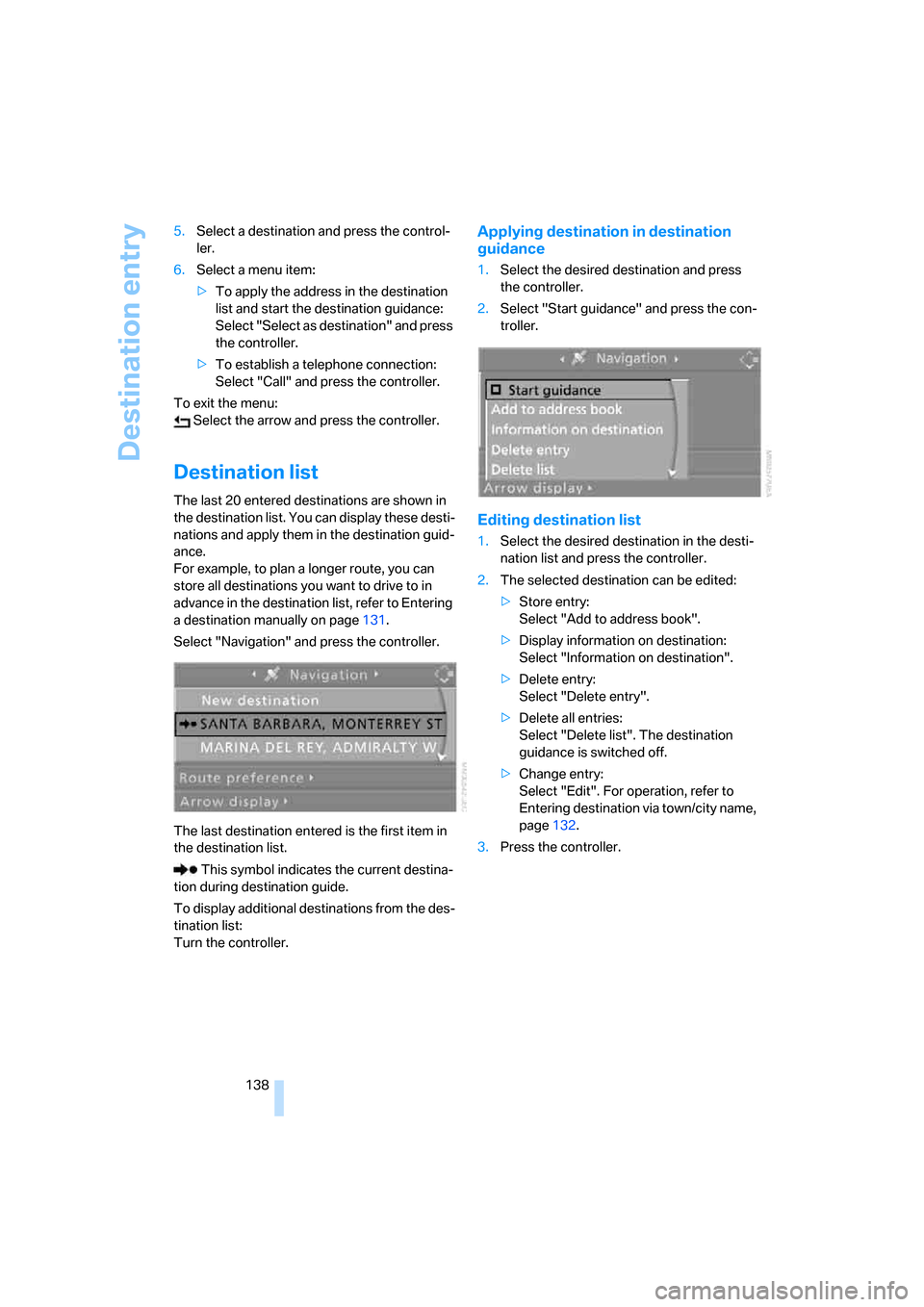
Select "Navigation" and press the controller.
The last destination entered is the first item in
the destination list.
This symbol indicates the current destina-
tion during destination guide.
To display additional destinations from the des-
tination list:
Turn the controller.
Applying destination in destination
guidance
1.Select the desired destination and press
the controller.
2.Select "Start guidance" and press the con-
troller.
Editing destination list
1.Select the desired destination in the desti-
nation list and press the controller.
2.The selected destination can be edited:
>Store entry:
Select "Add to address book".
>Display information on destination:
Select "Information on destination".
>Delete entry:
Select "Delete entry".
>Delete all entries:
Select "Delete list". The destination
guidance is switched off.
>Change entry:
Select "Edit". For operation, refer to
Entering destination via town/city name,
page132.
3.Press the controller.
Page 164 of 272
Satellite radio
162
Satellite radio
You can receive over 100 different channels
with high sound quality.
The channels are offered to you in predefined
packages. To receive the channels of your
choice, you must have this package enabled.
With this new technology the signal may
fail, causing interruptions in reception.<
Enabling or disabling
channels
iDrive, for explanation of concept, refer to
page16.
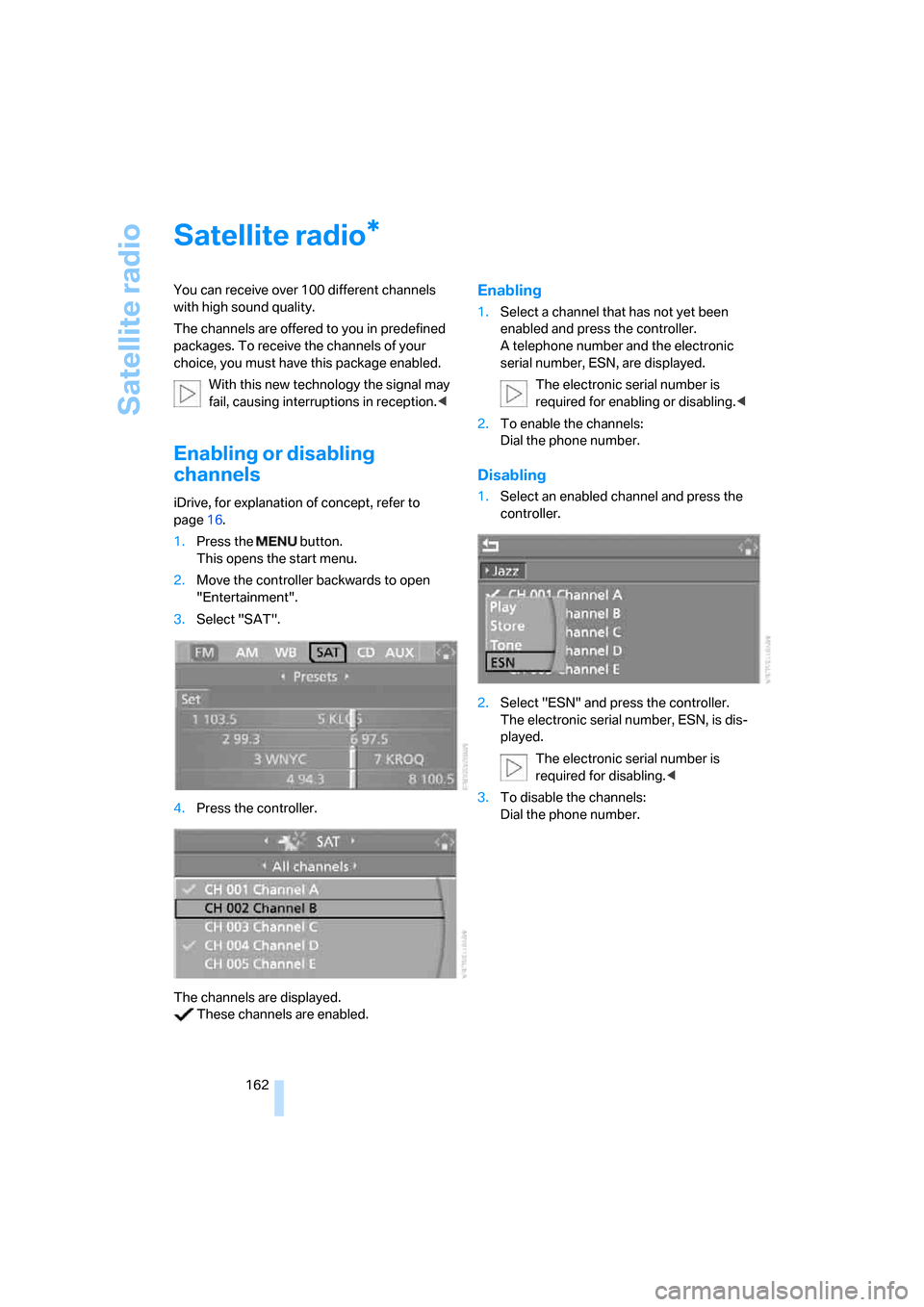
1.Press the button.
This opens the start menu.
2.Move the controller backwards to open
"Entertainment".
3.Select "SAT".
4.Press the controller.
The channels are displayed.
These channels are enabled.
Enabling
1.Select a channel that has not yet been
enabled and press the controller.
A telephone number and the electronic
serial number, ESN, are displayed.
The electronic serial number is
required for enabling or disabling.<
2.To enable the channels:
Dial the phone number.
Disabling
1.Select an enabled channel and press the
controller.
2.Select "ESN" and press the controller.
The electronic serial number, ESN, is dis-
played.
The electronic serial number is
required for disabling.<
3.To disable the channels:
Dial the phone number.
*
Page 173 of 272
Navigation
Entertainment
Driving tips
171Reference
At a glance
Controls
Communications
Mobility
External audio device
You can connect an external audio device, e.g.
an MP3 player, and play the sound via the vehi-
cle loudspeakers. The sound can be adjusted
via iDrive.
Connecting
Fold up the center armrest.
Open the covers of the center armrest.
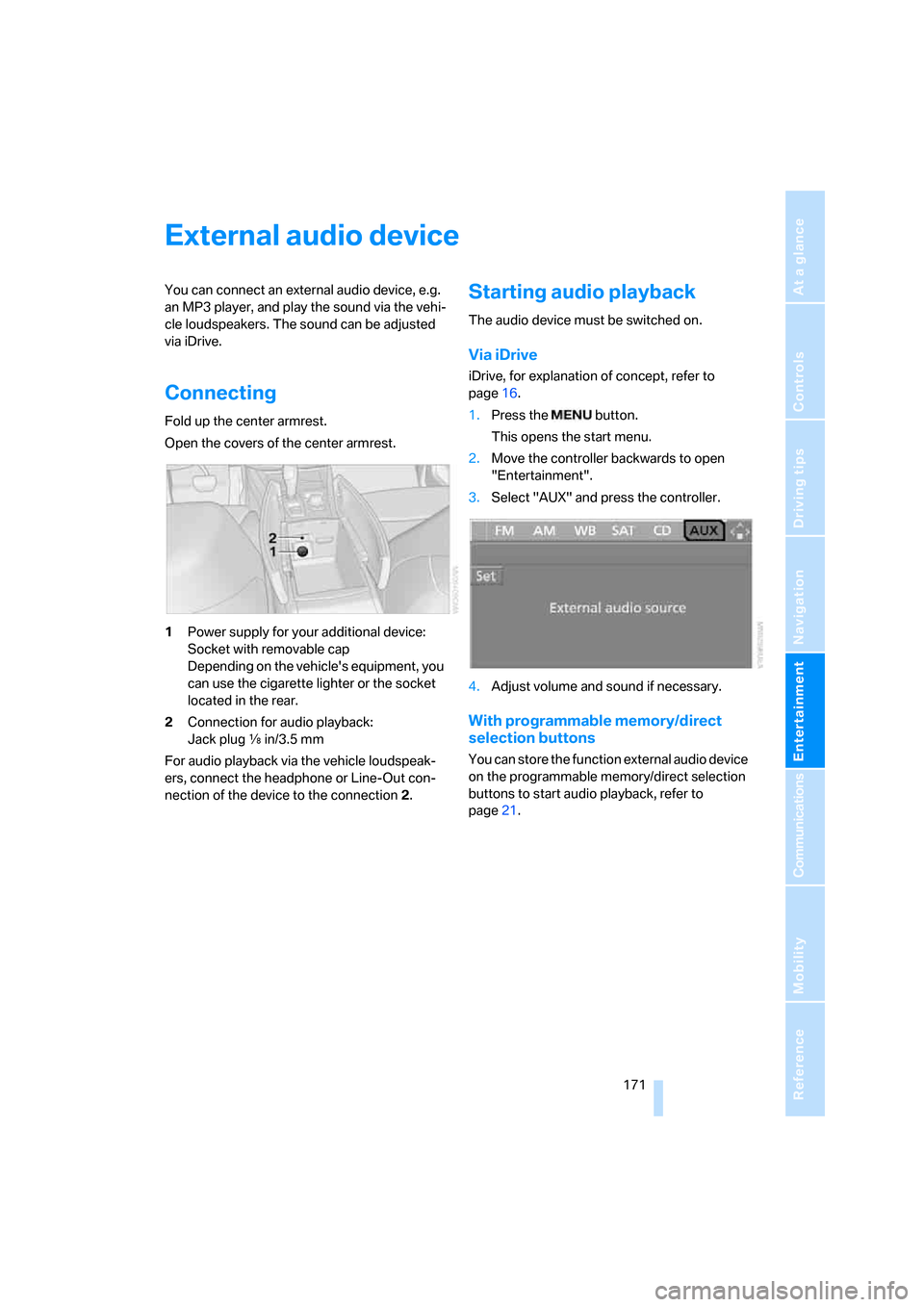
1Power supply for your additional device:
Socket with removable cap
Depending on the vehicle's equipment, you
can use the cigarette lighter or the socket
located in the rear.
2Connection for audio playback:
Jack plug εin/3.5 mm
For audio playback via the vehicle loudspeak-
ers, connect the headphone or Line-Out con-
nection of the device to the connection 2.
Starting audio playback
The audio device must be switched on.
Via iDrive
iDrive, for explanation of concept, refer to
page16.
1.Press the button.
This opens the start menu.
2.Move the controller backwards to open
"Entertainment".
3.Select "AUX" and press the controller.
4.Adjust volume and sound if necessary.
With programmable memory/direct
selection buttons
You can store the function external audio device
on the programmable memory/direct selection
buttons to start audio playback, refer to
page21.
Page 174 of 272
DVD system in rear
172
DVD system in rear
With the DVD system in the rear you can play
CDs and DVDs with audio, video and image
data. External audio and video devices can also
be connected and played via the DVD system in
the rear.
Tone output is possible both via headphones
and via the vehicle loudspeakers.
You can operate the DVD system in the rear
with the buttons on the CD/DVD player or with
the remote control.
Some functions can only be operated
with the remote control.<
Enabling DVD system
Enable the DVD system with iDrive. For expla-
nation of concept, refer to page16.
1.Press the button.
This opens the start menu.
2.Press the controller to open the menu.
3.Select "Settings" and press the controller.
4.Select "Unlock rear menu" and press the
controller.
5.Select "Rear enabled" and press the con-
troller.
The DVD system is enabled.
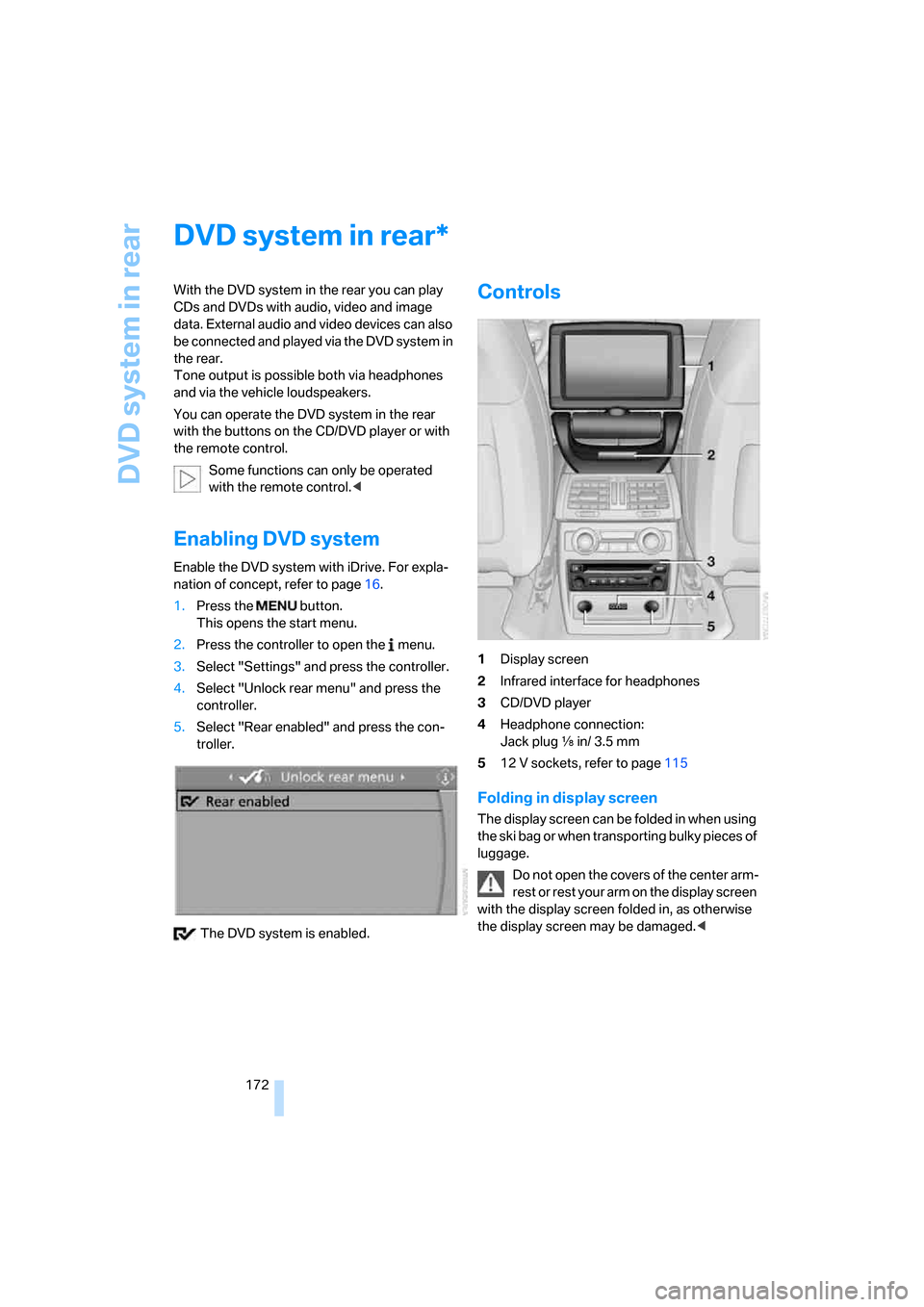
Controls
1Display screen
2Infrared interface for headphones
3CD/DVD player
4Headphone connection:
Jack plug εin/ 3.5 mm
512 V sockets, refer to page115
Folding in display screen
The display screen can be folded in when using
the ski bag or when transporting bulky pieces of
luggage.
Do not open the covers of the center arm-
rest or rest your arm on the display screen
with the display screen folded in, as otherwise
the display screen may be damaged.<
*
Page 175 of 272
Navigation
Entertainment
Driving tips
173Reference
At a glance
Controls
Communications
Mobility
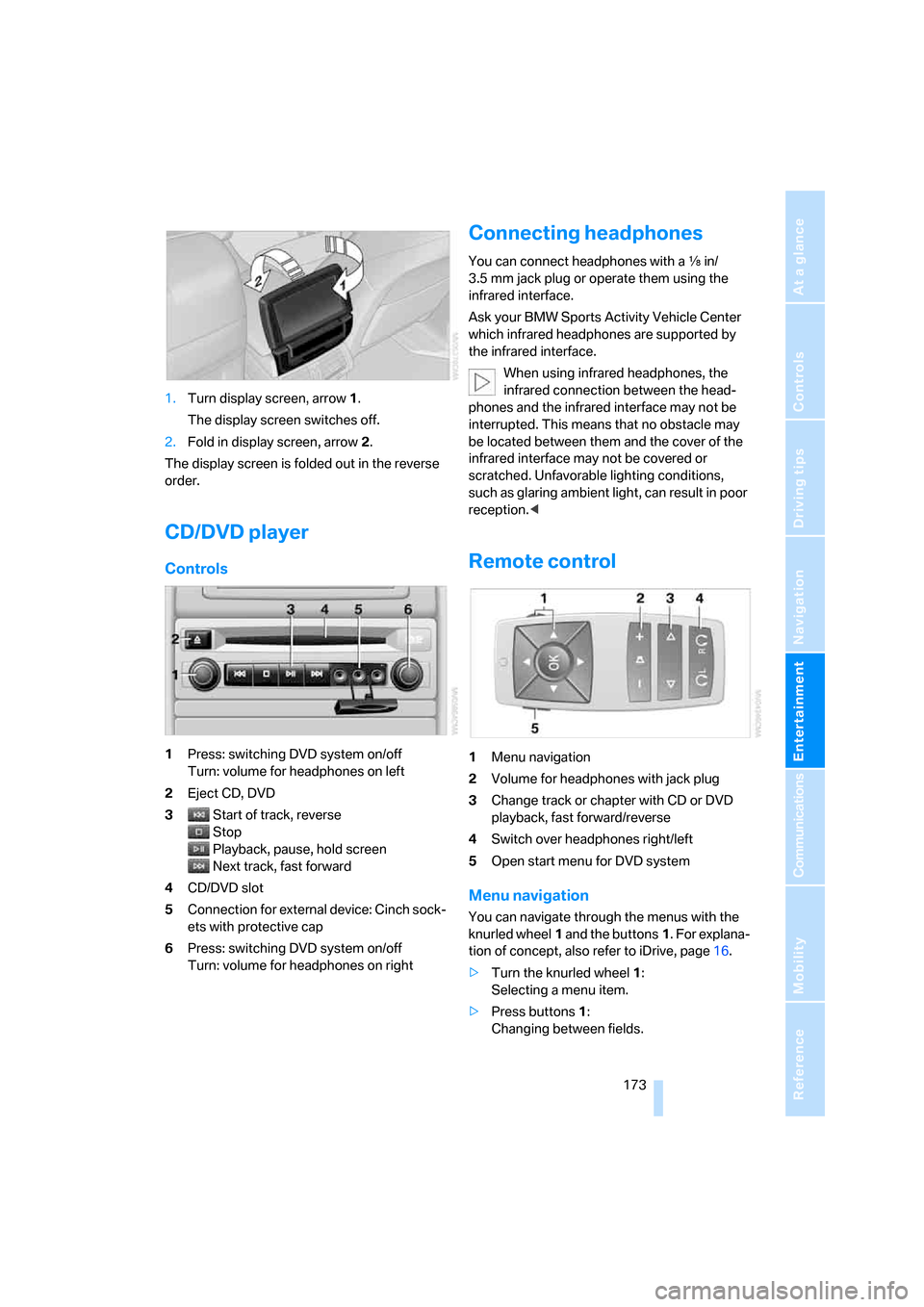
1.Turn display screen, arrow1.
The display screen switches off.
2.Fold in display screen, arrow2.
The display screen is folded out in the reverse
order.
CD/DVD player
Controls
1Press: switching DVD system on/off
Turn: volume for headphones on left
2Eject CD, DVD
3Start of track, reverse
Stop
Playback, pause, hold screen
Next track, fast forward
4CD/DVD slot
5Connection for external device: Cinch sock-
ets with protective cap
6Press: switching DVD system on/off
Turn: volume for headphones on right
Connecting headphones
You can connect headphones with a εin/
3.5 mm jack plug or operate them using the
infrared interface.
Ask your BMW Sports Activity Vehicle Center
which infrared headphones are supported by
the infrared interface.
When using infrared headphones, the
infrared connection between the head-
phones and the infrared interface may not be
interrupted. This means that no obstacle may
be located between them and the cover of the
infrared interface may not be covered or
scratched. Unfavorable lighting conditions,
such as glaring ambient light, can result in poor
reception.<
Remote control
1Menu navigation
2Volume for headphones with jack plug
3Change track or chapter with CD or DVD
playback, fast forward/reverse
4Switch over headphones right/left
5Open start menu for DVD system
Menu navigation
You can navigate through the menus with the
knurled wheel1 and the buttons1. For explana-
tion of concept, also refer to iDrive, page16.
>Turn the knurled wheel1:
Selecting a menu item.
>Press buttons1:
Changing between fields.
Page 176 of 272
DVD system in rear
174 >Press the button:
Activating menu item.
Changing batteries
1.Press the detent and remove the cover.
2.Change the batteries. The type and installa-
tion position are marked on the bottom of
the battery compartment.
3.Close the cover.
Dispose of used batteries at a collection
point or at your BMW Sports Activity
Vehicle Center.<
Sound output via
loudspeakers
In addition to the headphones, you can also play
the sound via the vehicle loudspeakers.
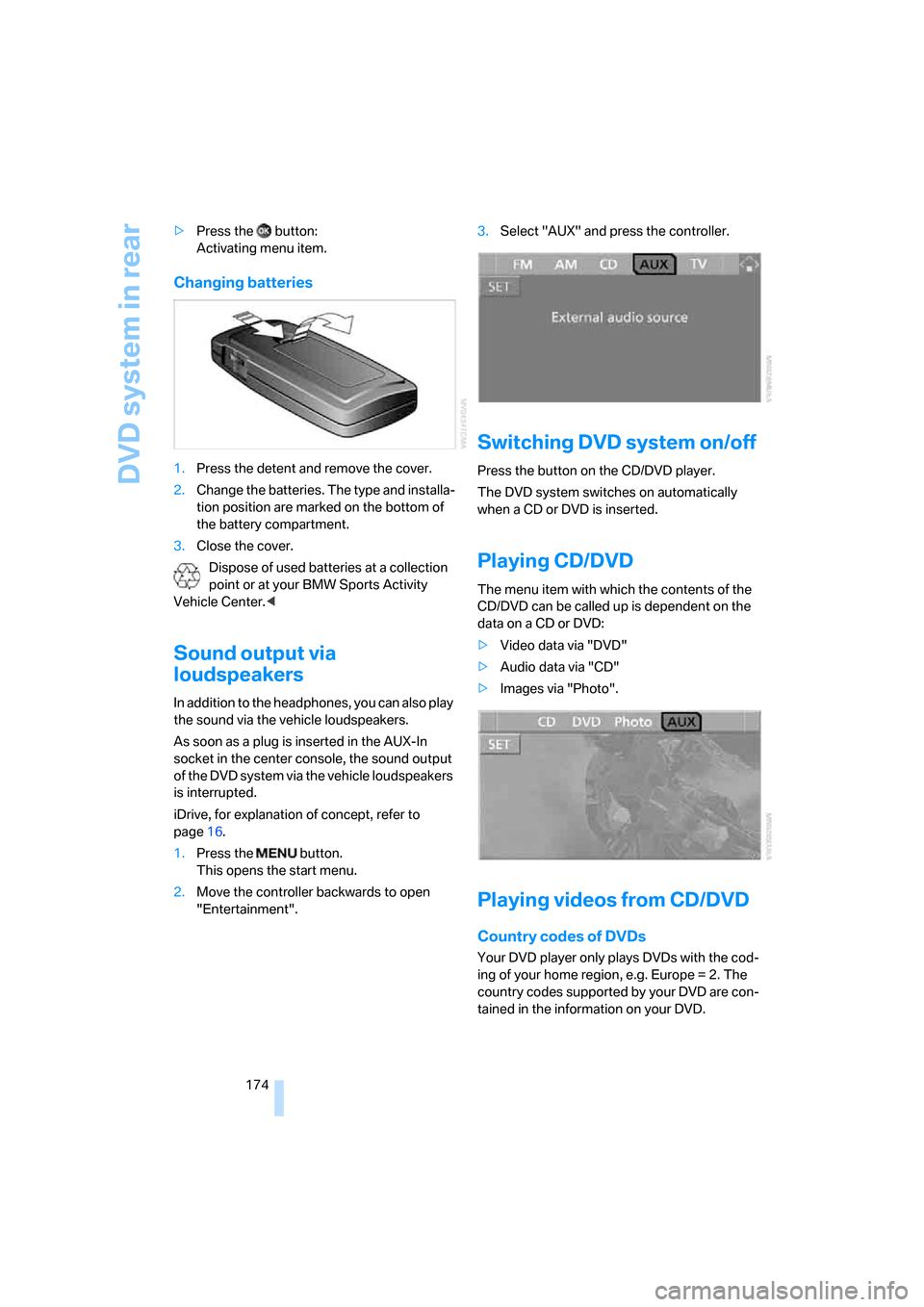
As soon as a plug is inserted in the AUX-In
socket in the center console, the sound output
of the DVD system via the vehicle loudspeakers
is interrupted.
iDrive, for explanation of concept, refer to
page16.
1.Press the button.
This opens the start menu.
2.Move the controller backwards to open
"Entertainment".3.Select "AUX" and press the controller.
Switching DVD system on/off
Press the button on the CD/DVD player.
The DVD system switches on automatically
when a CD or DVD is inserted.
Playing CD/DVD
The menu item with which the contents of the
CD/DVD can be called up is dependent on the
data on a CD or DVD:
>Video data via "DVD"
>Audio data via "CD"
>Images via "Photo".
Playing videos from CD/DVD
Country codes of DVDs
Your DVD player only plays DVDs with the cod-
ing of your home region, e.g. Europe = 2. The
country codes supported by your DVD are con-
tained in the information on your DVD.