change time BMW X5 XDRIVE 48I 2010 E70 Owner's Guide
[x] Cancel search | Manufacturer: BMW, Model Year: 2010, Model line: X5 XDRIVE 48I, Model: BMW X5 XDRIVE 48I 2010 E70Pages: 300, PDF Size: 12.41 MB
Page 162 of 300
On/off and tone
160
On/off and tone
The following audio and video sources share
the same control elements and adjustments:
>Radio
>CD/DVD player
>CD/DVD changer
*
>Video
>External devices, e.g. MP3 player
Controls
The audio and video sources can be controlled
using:
>Buttons near the CD/DVD player
>iDrive
>Buttons on the steering wheel, refer to
page11
>Programmable memory buttons, refer to
page20
>Voice activation system
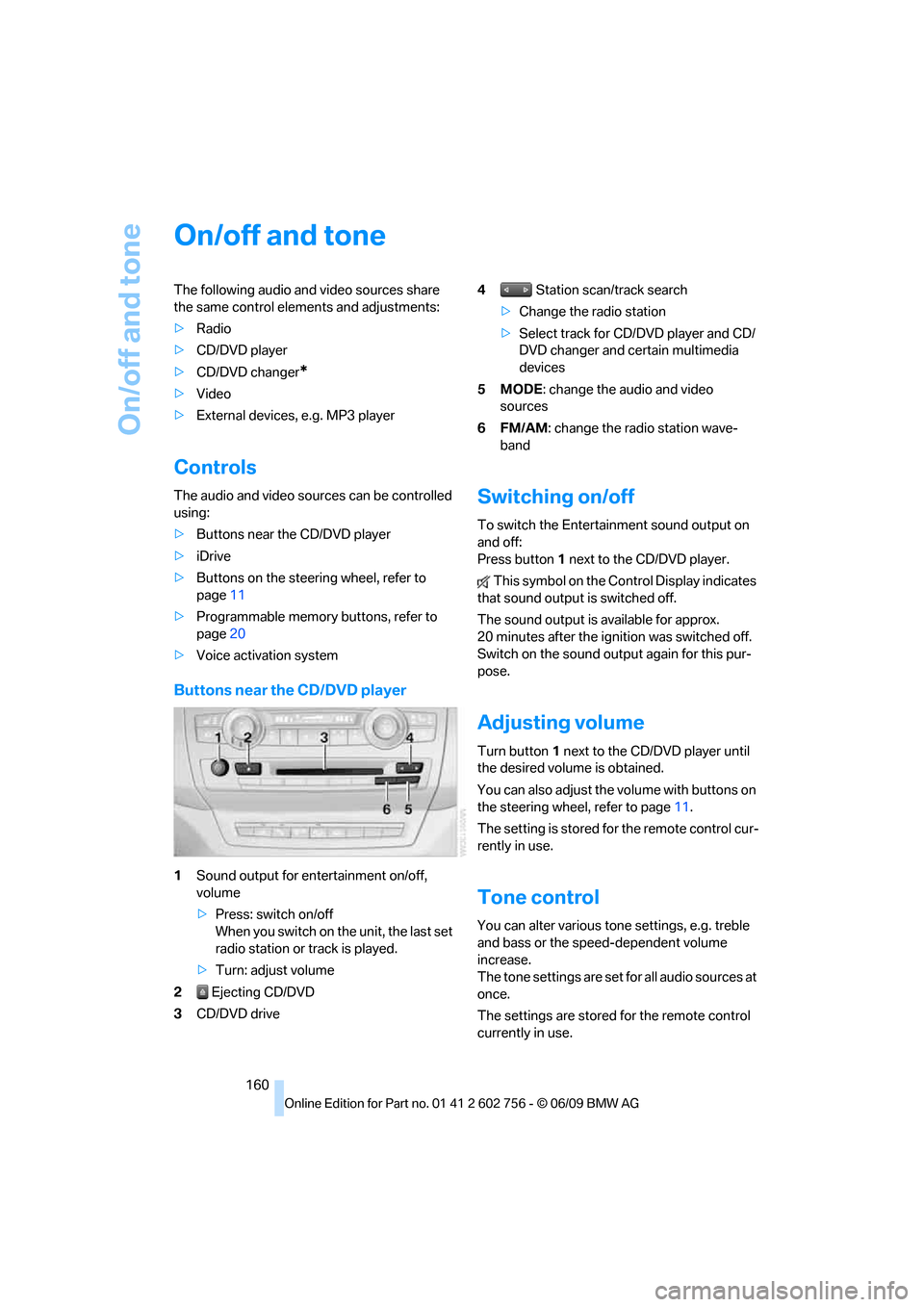
Buttons near the CD/DVD player
1Sound output for entertainment on/off,
volume
>Press: switch on/off
When you switch on the unit, the last set
radio station or track is played.
>Turn: adjust volume
2 Ejecting CD/DVD
3CD/DVD drive4 Station scan/track search
>Change the radio station
>Select track for CD/DVD player and CD/
DVD changer and certain multimedia
devices
5MODE: change the audio and video
sources
6FM/AM: change the radio station wave-
band
Switching on/off
To switch the Entertainment sound output on
and off:
Press button1 next to the CD/DVD player.
This symbol on the Control Display indicates
that sound output is switched off.
The sound output is available for approx.
20 minutes after the ignition was switched off.
Switch on the sound output again for this pur-
pose.
Adjusting volume
Turn button1 next to the CD/DVD player until
the desired volume is obtained.
You can also adjust the volume with buttons on
the steering wheel, refer to page11.
The setting is stored for the remote control cur-
rently in use.
Tone control
You can alter various tone settings, e.g. treble
and bass or the speed-dependent volume
increase.
The tone settings are set for all audio sources at
once.
The settings are stored for the remote control
currently in use.
ba8_e70ag.book Seite 160 Freitag, 5. Juni 2009 11:42 11
Page 169 of 300
Navigation
Entertainment
Driving tips
167Reference
At a glance
Controls
Communications
Mobility
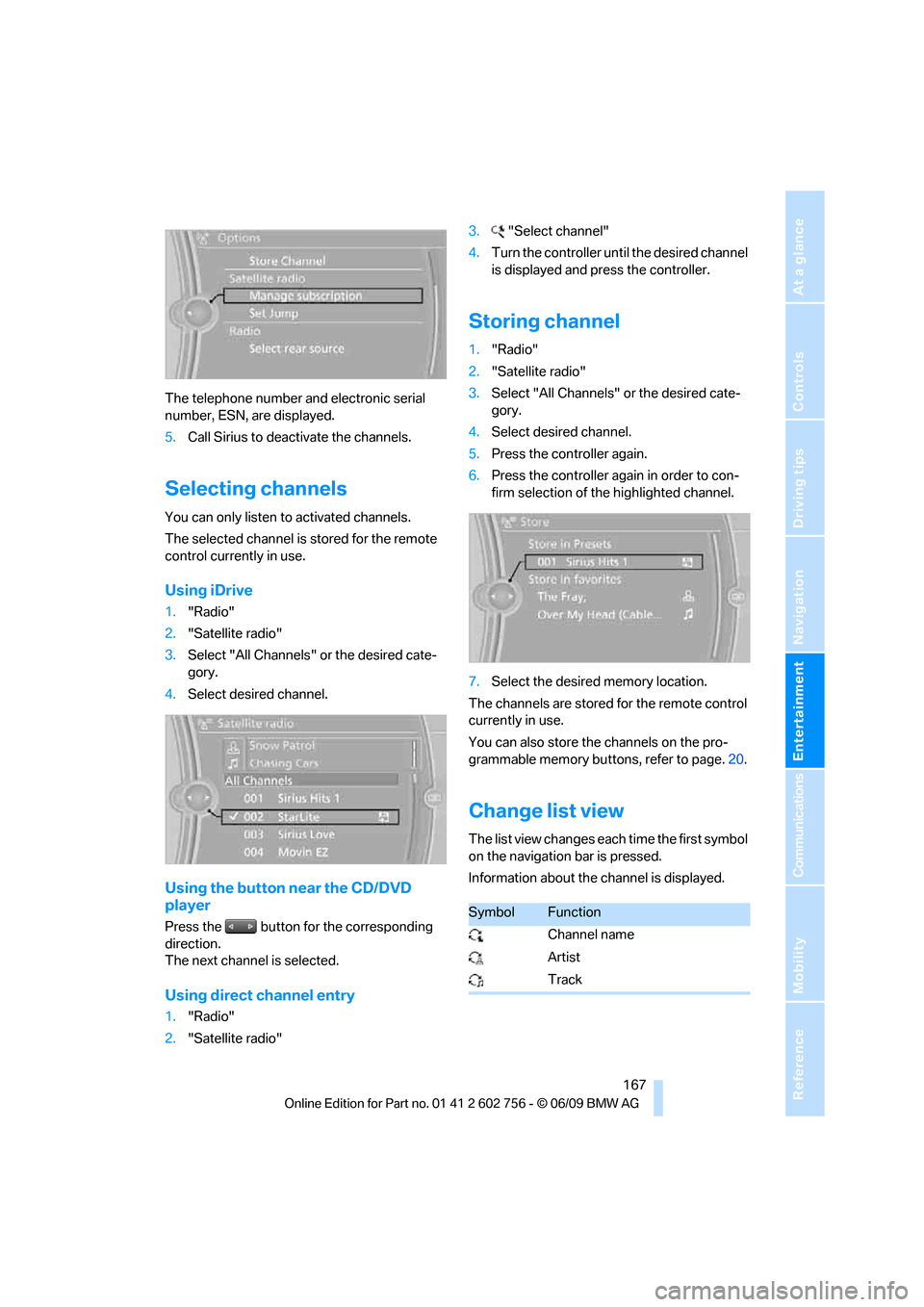
The telephone number and electronic serial
number, ESN, are displayed.
5.Call Sirius to deactivate the channels.
Selecting channels
You can only listen to activated channels.
The selected channel is stored for the remote
control currently in use.
Using iDrive
1."Radio"
2."Satellite radio"
3.Select "All Channels" or the desired cate-
gory.
4.Select desired channel.
Using the button near the CD/DVD
player
Press the button for the corresponding
direction.
The next channel is selected.
Using direct channel entry
1."Radio"
2."Satellite radio"3."Select channel"
4.Turn the controller until the desired channel
is displayed and press the controller.
Storing channel
1."Radio"
2."Satellite radio"
3.Select "All Channels" or the desired cate-
gory.
4.Select desired channel.
5.Press the controller again.
6.Press the controller again in order to con-
firm selection of the highlighted channel.
7.Select the desired memory location.
The channels are stored for the remote control
currently in use.
You can also store the channels on the pro-
grammable memory buttons, refer to page.20.
Change list view
The list view changes each time the first symbol
on the navigation bar is pressed.
Information about the channel is displayed.
SymbolFunction
Channel name
Artist
Track
ba8_e70ag.book Seite 167 Freitag, 5. Juni 2009 11:42 11
Page 173 of 300
Navigation
Entertainment
Driving tips
171Reference
At a glance
Controls
Communications
Mobility
CD/DVD player and CD/DVD changer
CD/DVD playback
Inserting CD/DVD
Push the CD/DVD into the drive with the labeled
side facing upward. The CD/DVD is automati-
cally pulled in.
Playback starts automatically if the sound out-
put is on. CDs/DVDs with compressed audio
files can take a few minutes to read, depending
on their directory structure.
Playable formats
CD/DVD player
>DVD: DVD-ROM, DVD-R, DVD+R, DVD-
RW, DVD+RW, DVD-R DL, DVD+R DL, DVD
audio (video part only), DVD video
>CD: CD-ROM, CD-R, CD-RW, CD-DA,
VCD, SVCD
>Compressed audio files: MP3, WMA, AAC
CD changer
*
>CD: CD-ROM, CD-R, CD-RW, CD-DA
DVD changer
*
>DVD: DVD-ROM, DVD-R, DVD+R, DVD-
RW, DVD+RW, DVD-R DL, DVD+R DL, DVD
audio (video part only), DVD video, CD: CD-
ROM, CD-R, CD-RW, CD-DA, VCD, SVCD
Starting playback
Using iDrive
Fill and insert CD/DVD magazine, refer to
page175.
To start playback if a CD is already located in
the player or changer:
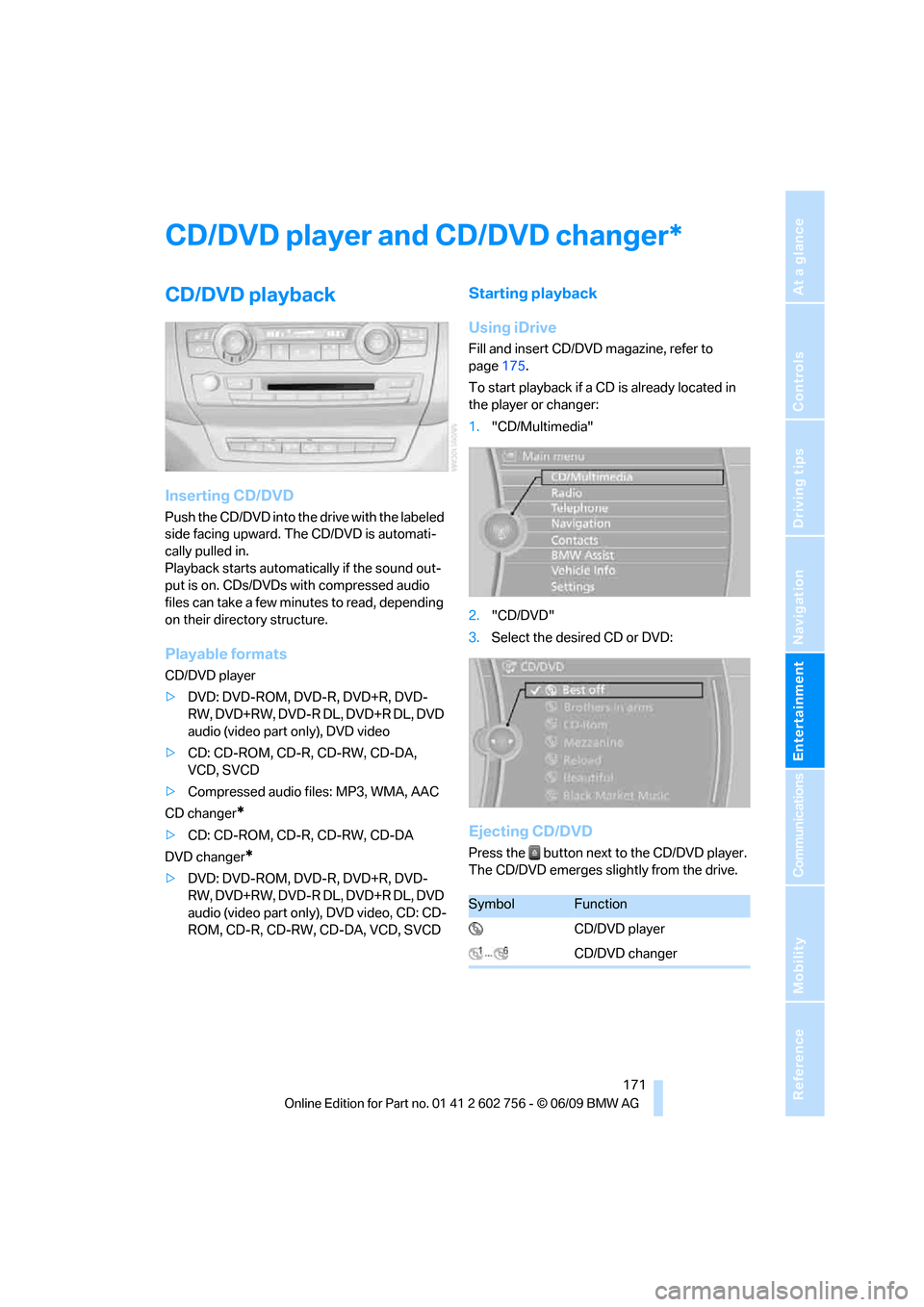
1."CD/Multimedia"
2."CD/DVD"
3.Select the desired CD or DVD:
Ejecting CD/DVD
Press the button next to the CD/DVD player.
The CD/DVD emerges slightly from the drive.
*
SymbolFunction
CD/DVD player
CD/DVD changer
ba8_e70ag.book Seite 171 Freitag, 5. Juni 2009 11:42 11
Page 174 of 300
CD/DVD player and CD/DVD changer
172
Audio playback
Selecting a track
Press the button for the corresponding
direction repeatedly until you reach the desired
track.
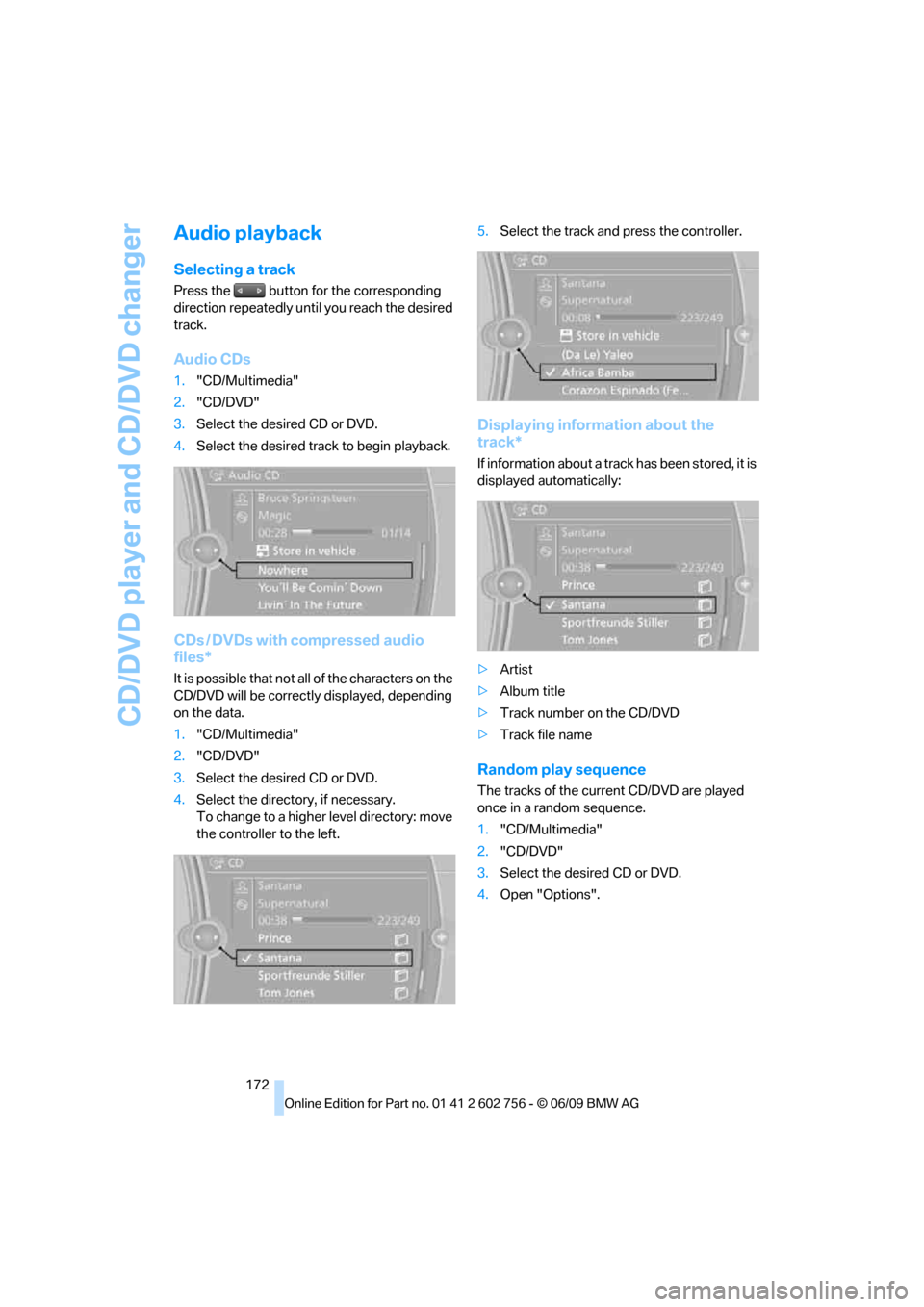
Audio CDs
1."CD/Multimedia"
2."CD/DVD"
3.Select the desired CD or DVD.
4.Select the desired track to begin playback.
CDs / DVDs with compressed audio
files*
It is possible that not all of the characters on the
CD/DVD will be correctly displayed, depending
on the data.
1."CD/Multimedia"
2."CD/DVD"
3.Select the desired CD or DVD.
4.Select the directory, if necessary.
To change to a higher level directory: move
the controller to the left.5.Select the track and press the controller.
Displaying information about the
track*
If information about a track has been stored, it is
displayed automatically:
>Artist
>Album title
>Track number on the CD/DVD
>Track file name
Random play sequence
The tracks of the current CD/DVD are played
once in a random sequence.
1."CD/Multimedia"
2."CD/DVD"
3.Select the desired CD or DVD.
4.Open "Options".
ba8_e70ag.book Seite 172 Freitag, 5. Juni 2009 11:42 11
Page 175 of 300
Navigation
Entertainment
Driving tips
173Reference
At a glance
Controls
Communications
Mobility
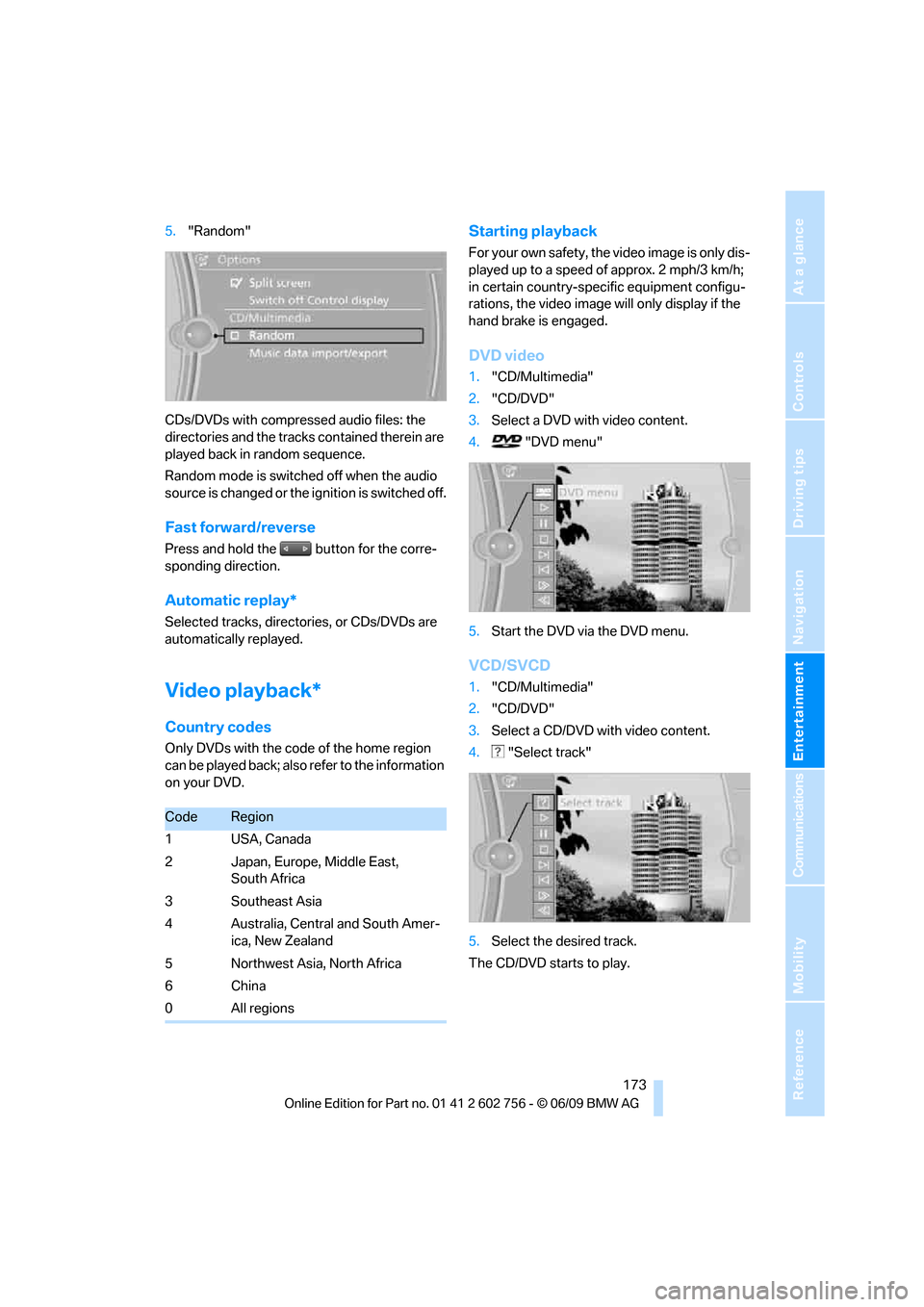
5."Random"
CDs/DVDs with compressed audio files: the
directories and the tracks contained therein are
played back in random sequence.
Random mode is switched off when the audio
source is changed or the ignition is switched off.
Fast forward/reverse
Press and hold the button for the corre-
sponding direction.
Automatic replay*
Selected tracks, directories, or CDs/DVDs are
automatically replayed.
Video playback*
Country codes
Only DVDs with the code of the home region
can be played back; also refer to the information
on your DVD.
Starting playback
For your own safety, the video image is only dis-
played up to a speed of approx. 2 mph/3 km/h;
in certain country-specific equipment configu-
rations, the video image will only display if the
hand brake is engaged.
DVD video
1."CD/Multimedia"
2."CD/DVD"
3.Select a DVD with video content.
4. "DVD menu"
5.Start the DVD via the DVD menu.
VCD/SVCD
1."CD/Multimedia"
2."CD/DVD"
3.Select a CD/DVD with video content.
4. "Select track"
5.Select the desired track.
The CD/DVD starts to play.
CodeRegion
1USA, Canada
2 Japan, Europe, Middle East,
South Africa
3 Southeast Asia
4 Australia, Central and South Amer-
ica, New Zealand
5 Northwest Asia, North Africa
6China
0 All regions
ba8_e70ag.book Seite 173 Freitag, 5. Juni 2009 11:42 11
Page 176 of 300
CD/DVD player and CD/DVD changer
174
Video menu
To open the Video menu:
1.Turn the controller during playback.
2.Press the controller when "Back" is dis-
played.
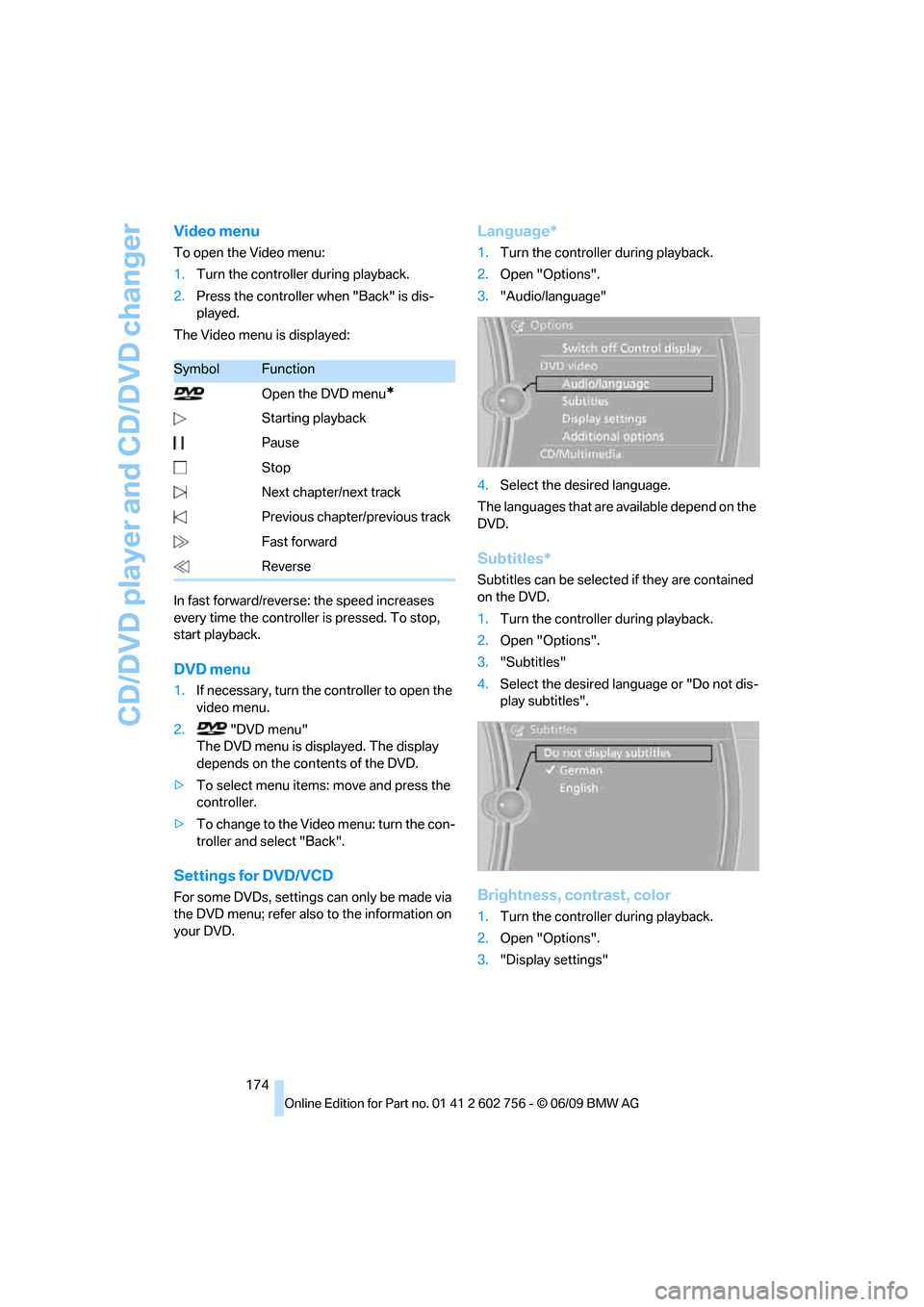
The Video menu is displayed:
In fast forward/reverse: the speed increases
every time the controller is pressed. To stop,
start playback.
DVD menu
1.If necessary, turn the controller to open the
video menu.
2. "DVD menu"
The DVD menu is displayed. The display
depends on the contents of the DVD.
>To select menu items: move and press the
controller.
>To change to the Video menu: turn the con-
troller and select "Back".
Settings for DVD/VCD
For some DVDs, settings can only be made via
the DVD menu; refer also to the information on
your DVD.
Language*
1.Turn the controller during playback.
2.Open "Options".
3."Audio/language"
4.Select the desired language.
The languages that are available depend on the
DVD.
Subtitles*
Subtitles can be selected if they are contained
on the DVD.
1.Turn the controller during playback.
2.Open "Options".
3."Subtitles"
4.Select the desired language or "Do not dis-
play subtitles".
Brightness, contrast, color
1.Turn the controller during playback.
2.Open "Options".
3."Display settings"
SymbolFunction
Open the DVD menu
*
Starting playback
Pause
Stop
Next chapter/next track
Previous chapter/previous track
Fast forward
Reverse
ba8_e70ag.book Seite 174 Freitag, 5. Juni 2009 11:42 11
Page 182 of 300
Music collection
180 4.Select the desired category.
5.To select the desired entry:
>Open "A-Z search" and enter the
desired entry.
or
>Select the desired entry from the list.
6.Select additional categories if desired.
The tracks found are listed in alphabetical
order.
Not all categories need to be selected. For
example, to search for all tracks by a certain
artist, select that artist only. All of the tracks
by that artist are then displayed.
7."Start play"
Restarting the music search
"New search"
Current playback
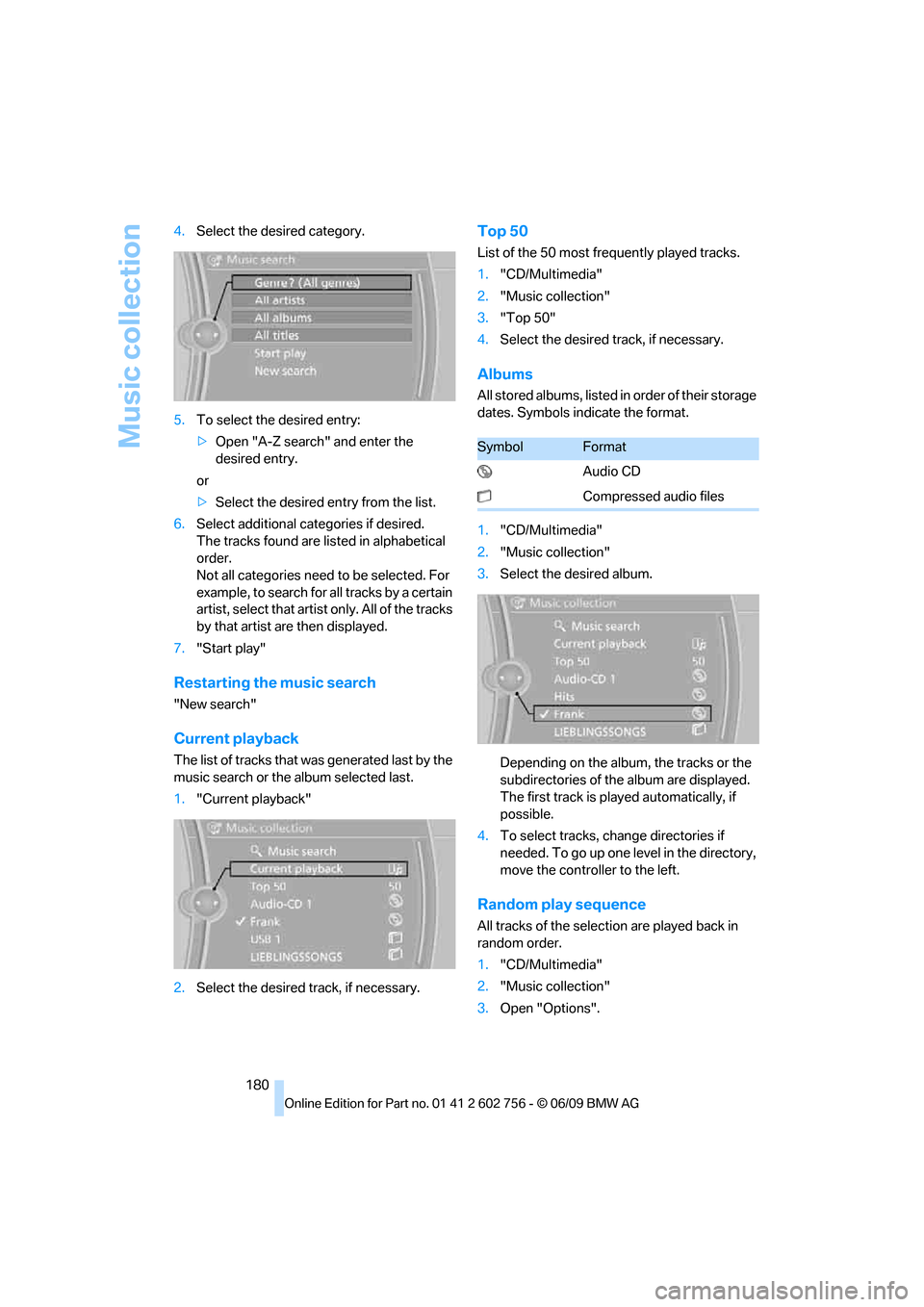
The list of tracks that was generated last by the
music search or the album selected last.
1."Current playback"
2.Select the desired track, if necessary.
Top 50
List of the 50 most frequently played tracks.
1."CD/Multimedia"
2."Music collection"
3."Top 50"
4.Select the desired track, if necessary.
Albums
All stored albums, listed in order of their storage
dates. Symbols indicate the format.
1."CD/Multimedia"
2."Music collection"
3.Select the desired album.
Depending on the album, the tracks or the
subdirectories of the album are displayed.
The first track is played automatically, if
possible.
4.To select tracks, change directories if
needed. To go up one level in the directory,
move the controller to the left.
Random play sequence
All tracks of the selection are played back in
random order.
1."CD/Multimedia"
2."Music collection"
3.Open "Options".
SymbolFormat
Audio CD
Compressed audio files
ba8_e70ag.book Seite 180 Freitag, 5. Juni 2009 11:42 11
Page 183 of 300
Navigation
Entertainment
Driving tips
181Reference
At a glance
Controls
Communications
Mobility
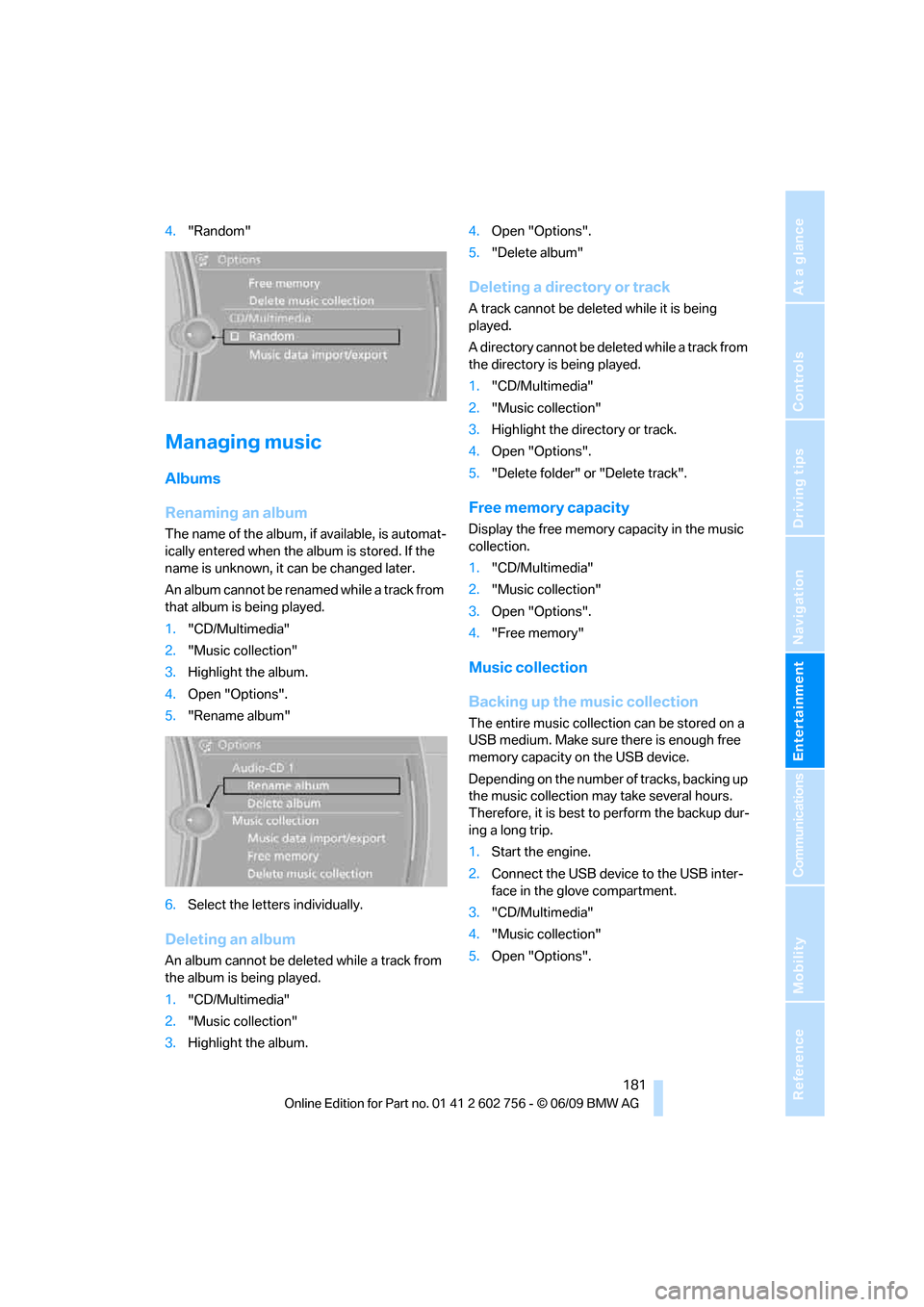
4."Random"
Managing music
Albums
Renaming an album
The name of the album, if available, is automat-
ically entered when the album is stored. If the
name is unknown, it can be changed later.
An album cannot be renamed while a track from
that album is being played.
1."CD/Multimedia"
2."Music collection"
3.Highlight the album.
4.Open "Options".
5."Rename album"
6.Select the letters individually.
Deleting an album
An album cannot be deleted while a track from
the album is being played.
1."CD/Multimedia"
2."Music collection"
3.Highlight the album.4.Open "Options".
5."Delete album"
Deleting a directory or track
A track cannot be deleted while it is being
played.
A directory cannot be deleted while a track from
the directory is being played.
1."CD/Multimedia"
2."Music collection"
3.Highlight the directory or track.
4.Open "Options".
5."Delete folder" or "Delete track".
Free memory capacity
Display the free memory capacity in the music
collection.
1."CD/Multimedia"
2."Music collection"
3.Open "Options".
4."Free memory"
Music collection
Backing up the music collection
The entire music collection can be stored on a
USB medium. Make sure there is enough free
memory capacity on the USB device.
Depending on the number of tracks, backing up
the music collection may take several hours.
Therefore, it is best to perform the backup dur-
ing a long trip.
1.Start the engine.
2.Connect the USB device to the USB inter-
face in the glove compartment.
3."CD/Multimedia"
4."Music collection"
5.Open "Options".
ba8_e70ag.book Seite 181 Freitag, 5. Juni 2009 11:42 11
Page 191 of 300
Navigation
Entertainment
Driving tips
189Reference
At a glance
Controls
Communications
Mobility
>Press the arrow buttons:
To switch between windows.
>Press the button:
To activate the menu item.
The transmission time of the remote control is
limited in accordance with legal guidelines. A
function can be repeated by pressing or turning
the appropriate button or knob.
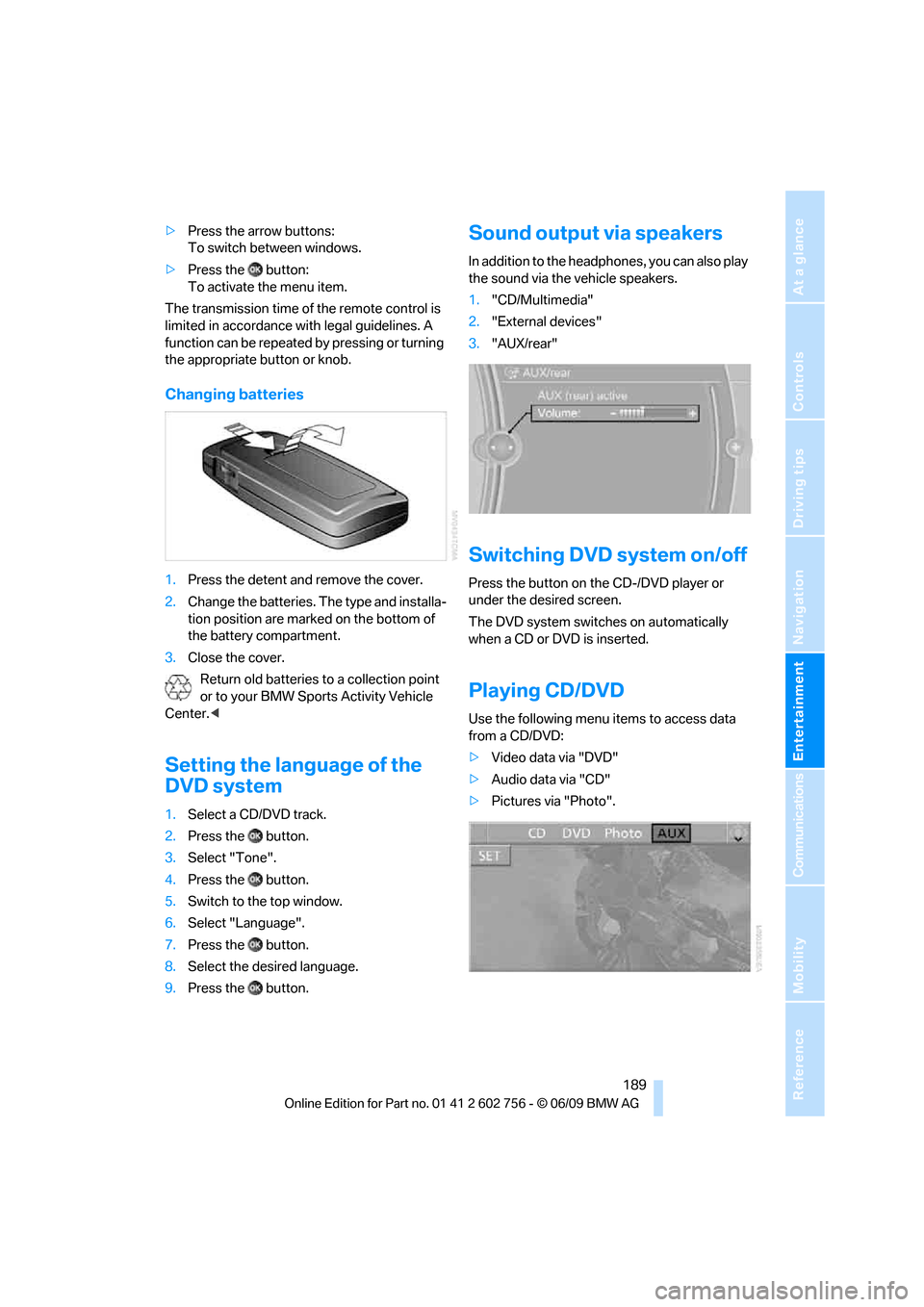
Changing batteries
1.Press the detent and remove the cover.
2.Change the batteries. The type and installa-
tion position are marked on the bottom of
the battery compartment.
3.Close the cover.
Return old batteries to a collection point
or to your BMW Sports Activity Vehicle
Center.<
Setting the language of the
DVD system
1.Select a CD/DVD track.
2.Press the button.
3.Select "Tone".
4.Press the button.
5.Switch to the top window.
6.Select "Language".
7.Press the button.
8.Select the desired language.
9.Press the button.
Sound output via speakers
In addition to the headphones, you can also play
the sound via the vehicle speakers.
1."CD/Multimedia"
2."External devices"
3."AUX/rear"
Switching DVD system on/off
Press the button on the CD-/DVD player or
under the desired screen.
The DVD system switches on automatically
when a CD or DVD is inserted.
Playing CD/DVD
Use the following menu items to access data
from a CD/DVD:
>Video data via "DVD"
>Audio data via "CD"
>Pictures via "Photo".
ba8_e70ag.book Seite 189 Freitag, 5. Juni 2009 11:42 11
Page 193 of 300
Navigation
Entertainment
Driving tips
191Reference
At a glance
Controls
Communications
Mobility
Or:
Press the button on the remote control to
exit the DVD control.
Fast forward/reverse
Forward/reverse with DVD control
1.Press the button on the remote con-
trol during playback.
2.Select the symbol.
3.Press the button.
4.Press the button several times to
increase the fast forward/reverse speed.
The DVD playback will be distorted.
To cancel fast forward/reverse:
1.Select the symbol.
2.Press the button.
Or:
Press the button on the CD/DVD player.
The DVD will start play at the point selected.
Forward/reverse with remote control
Press and hold the button until you reach
the desired point.
Or:
1.During playback, turn the thumbwheel.
Fast forward/reverse is interrupted.
2.Continue to turn the thumbwheel.
The speed is increased.
3.Press the button on the CD/DVD player.
Fast forward/reverse is interrupted. The
DVD will start play at the point selected.
Skipping chapter
You can change to the next or previous chapter
during playback.
1.Press the button on the remote con-
trol during playback.
2.Select the symbol.
3.Press the button repeatedly, continuing
until you reach the desired chapter.Or:
Press the button on the left or right on the
remote control repeatedly until you reach the
desired chapter.
Freeze frame
1.Press the button on the remote con-
trol during playback.
2.Select the symbol.
3.Press the button.
To continue playback:
1.Select the or symbol.
2.Press the button.
As an alternative, you can also stop and con-
tinue playback with the button on the CD/
DVD player.
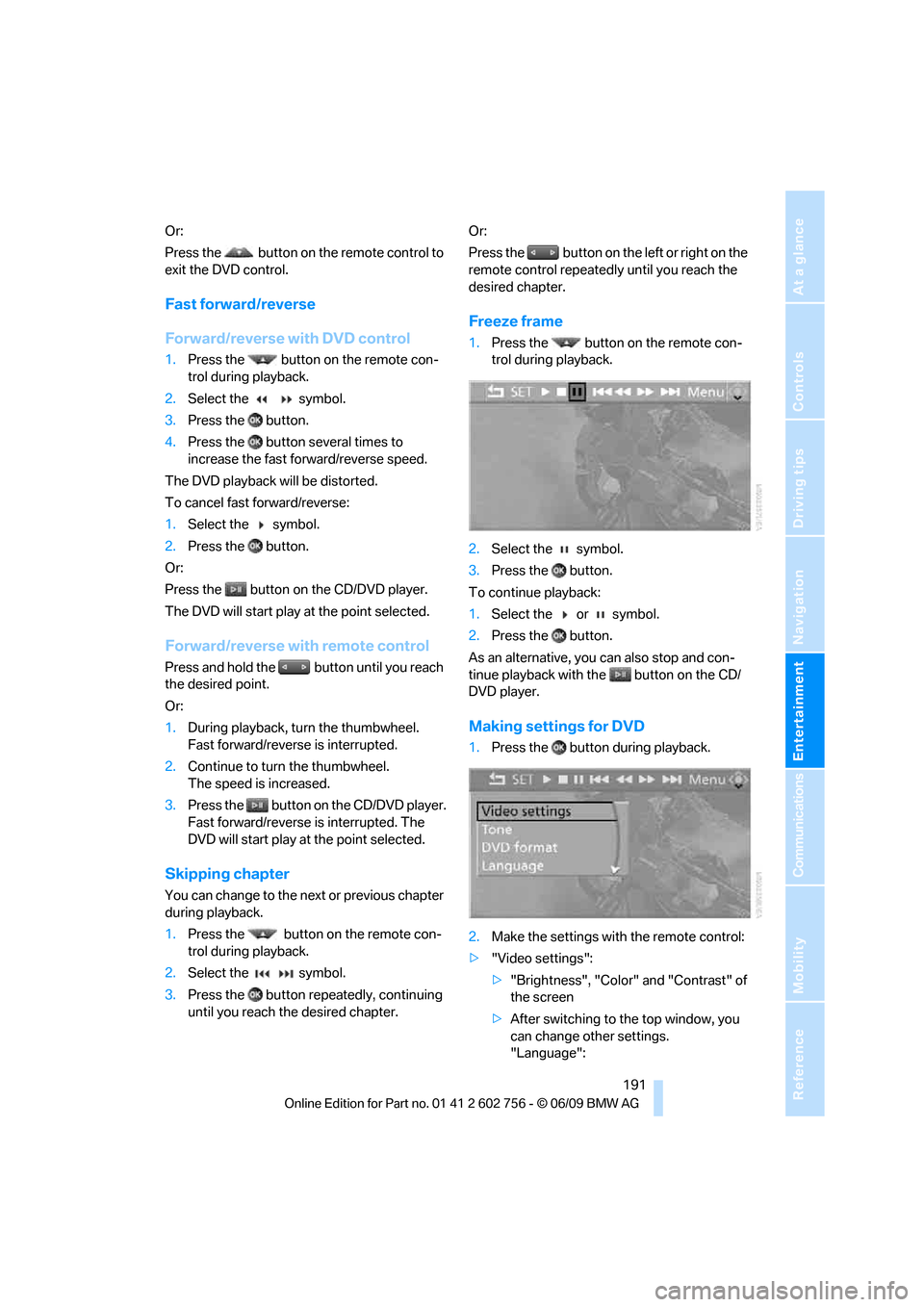
Making settings for DVD
1.Press the button during playback.
2.Make the settings with the remote control:
>"Video settings":
>"Brightness", "Color" and "Contrast" of
the screen
>After switching to the top window, you
can change other settings.
"Language":
ba8_e70ag.book Seite 191 Freitag, 5. Juni 2009 11:42 11