Amp BMW X5M 2010 E70 Repair Manual
[x] Cancel search | Manufacturer: BMW, Model Year: 2010, Model line: X5M, Model: BMW X5M 2010 E70Pages: 300, PDF Size: 12.41 MB
Page 144 of 300
Destination entry
142 Delete letters, if necessary:
>To delete individual letters:
Turn the controller to select , and
then press the controller.
>To delete all letters:
Turn the controller to select , and
then press the controller for an extended
period.
>To enter spaces:
Select the symbol.
The list gradually grows smaller each time
you enter a new letter.
2.Move the controller to the right.
3.Select the name of the town/city from the
list. The three destinations stored last are
displayed.
If there are several towns/cities with the same
name:
1.Change to the list of town/city names.
2.Highlight the town/city: a preview map is
displayed.
3.Select the town/city.
Entering the postal code
1.Select "Town/City/Postal Code" or the dis-
played town/city.
2.Select the symbol.
3.Select the digits.
4.Change to the list of postal codes and
towns/cities.
5.Highlight postal code: a preview map is dis-
played.
6.Select the postal code.
Entering street and intersection
1.Select "Street" or the displayed street.
2.Enter a street and intersection as you would
the town/city.
After the street you can also enter the intersec-
tion or the house number.If there are several streets with the same name:
1.Change to the list of street names.
2.Highlight the street: a preview map is dis-
played.
3.Select the street.
Entering a street without a destination
town/city
You can also enter a street without entering a
town/city of destination. In this case all streets
of the entered country are offered for selection.
The related town/city is displayed after the
street name.
If a town/city has already been entered, you can
undo this entry. This may be practical if the
desired street does not exist in the entered des-
tination, because, for example, it belongs to
another part of the town/city.
1."Navigation"
2."Enter address"
3.Select "Street" or the displayed street.
4.Change to the list of street names.
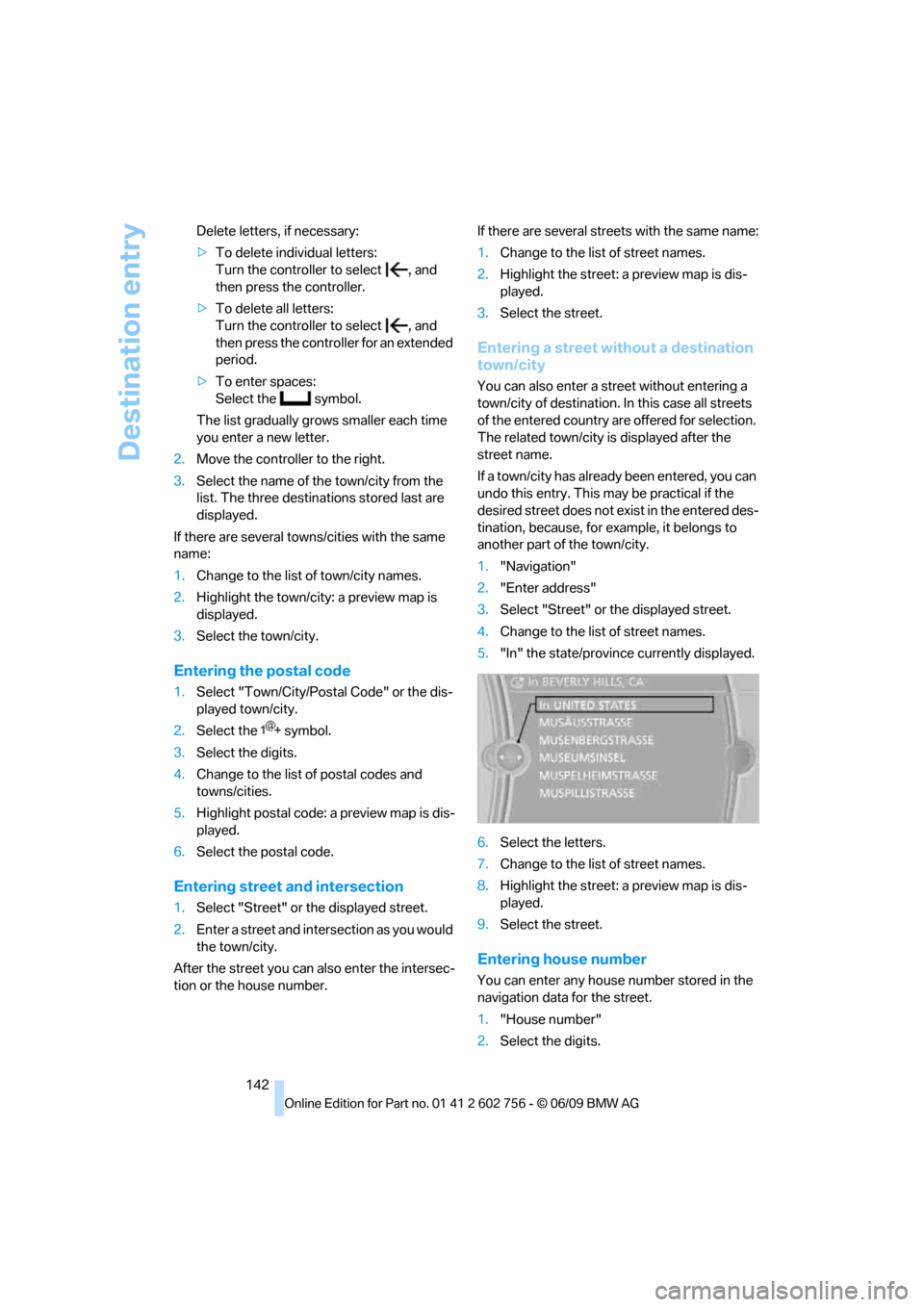
5."In" the state/province currently displayed.
6.Select the letters.
7.Change to the list of street names.
8.Highlight the street: a preview map is dis-
played.
9.Select the street.
Entering house number
You can enter any house number stored in the
navigation data for the street.
1."House number"
2.Select the digits.
ba8_e70ag.book Seite 142 Freitag, 5. Juni 2009 11:42 11
Page 146 of 300
Destination entry
144
Editing or deleting an address
1."Navigation"
2."Address book"
3.Highlight the entry.
4.Open "Options".
5."Edit in Contacts" or "Delete entry".
Using home address as destination
The home address must be stored as a destina-
tion. Refer to Specifying a contact as the home
address, page213.
1."Navigation"
2."Address book"
3."Home"
Destination guidance is started.
Last destinations
The last destinations are stored automatically.
These destinations can be called up and used
as a destination for destination guidance.
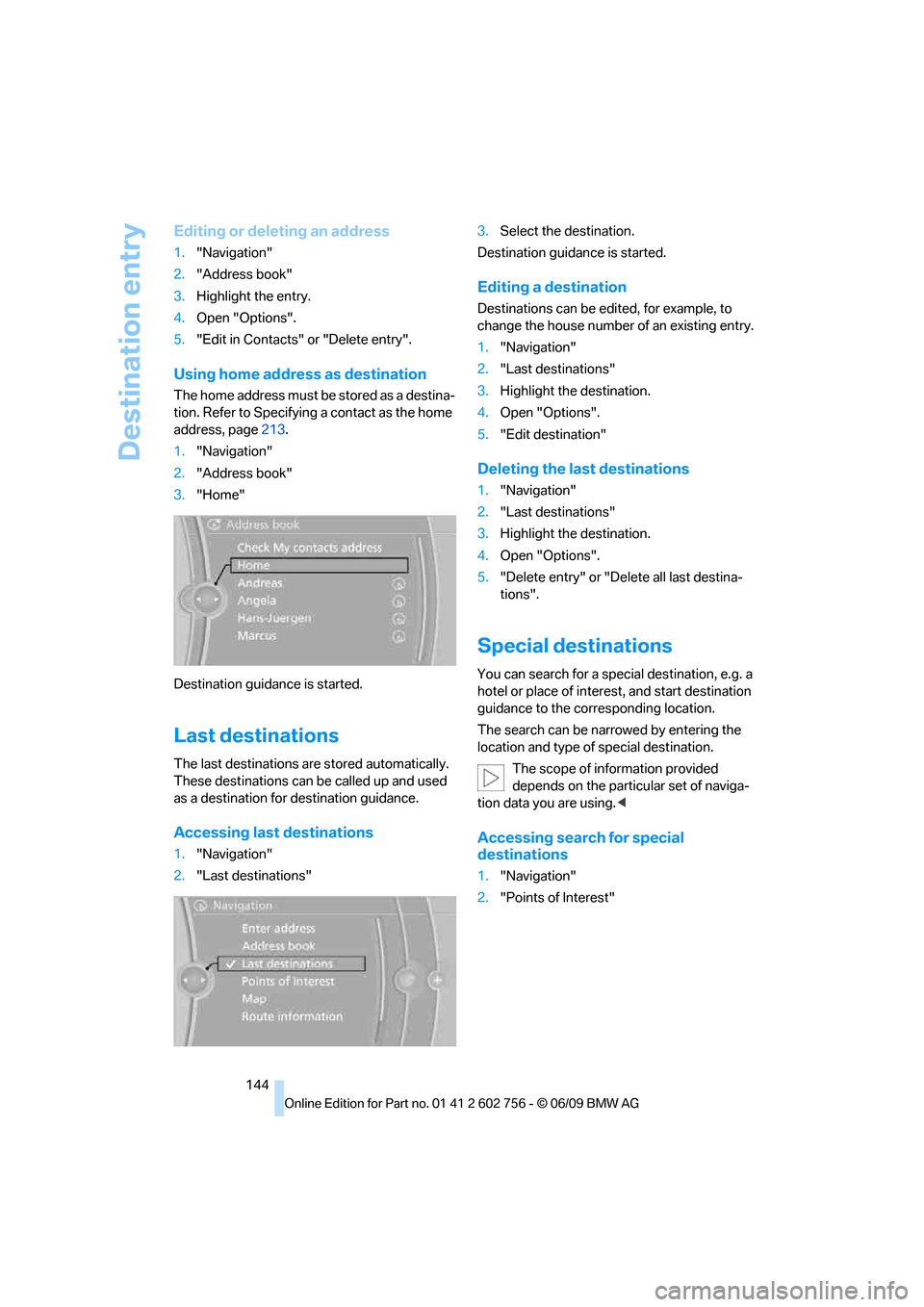
Accessing last destinations
1."Navigation"
2."Last destinations"3.Select the destination.
Destination guidance is started.
Editing a destination
Destinations can be edited, for example, to
change the house number of an existing entry.
1."Navigation"
2."Last destinations"
3.Highlight the destination.
4.Open "Options".
5."Edit destination"
Deleting the last destinations
1."Navigation"
2."Last destinations"
3.Highlight the destination.
4.Open "Options".
5."Delete entry" or "Delete all last destina-
tions".
Special destinations
You can search for a special destination, e.g. a
hotel or place of interest, and start destination
guidance to the corresponding location.
The search can be narrowed by entering the
location and type of special destination.
The scope of information provided
depends on the particular set of naviga-
tion data you are using.<
Accessing search for special
destinations
1."Navigation"
2."Points of Interest"
ba8_e70ag.book Seite 144 Freitag, 5. Juni 2009 11:42 11
Page 151 of 300
Navigation
Driving tips
149Reference
At a glance
Controls
Communications
Entertainment
Mobility
The trip is stored in the trip list under the
entered name.
Changing trips
These functions are not available for imported
trips.
Changing the trip direction
Intermediate destinations are displayed in
reverse order in the list.
1."Map"
2."Guidance"
3."Reverse order of trip dest."
Options for intermediate destinations
1."Destination in the trip"
2.Select an intermediate destination.
3.Select option:
>Shift the intermediate destination in the
list:
"Reposition dest. in the trip"
>Delete intermediate destination:
"Delete dest. in the trip"
Deleting a trip
1."Stored trips"
2.Select the desired trip.
3.Open "Options".
4."Delete all trips" or "Delete trip".
Word-matching principle
The system supports the word matching princi-
ple to make it easier for you to enter the names
of streets or towns/cities. The system runs
ongoing checks, comparing your destination
entries with the data stored in the vehicle as the
basis for instant response. The user benefits
include:
>Names of specific locations can also vary
from the official versions if you are using a
spelling that is customary in another coun-
try.Example:
Instead of "München", you can also enter
the English spelling "Munich" or the Italian
spelling "Monaco".
>When you are entering the names of towns/
cities and streets the system will complete
them automatically as soon as enough let-
ters are available to ensure unambiguous
identification.
>The system offers only those letters for
selection of name entries that are stored in
the vehicle. The system will not accept non
existent names and addresses.
ba8_e70ag.book Seite 149 Freitag, 5. Juni 2009 11:42 11
Page 155 of 300
Navigation
Driving tips
153Reference
At a glance
Controls
Communications
Entertainment
Mobility
Viewing the map
1.Select the symbol.
2.Select a setting:
>"View facing north"
>"View in dir. of travel"
>"Perspective view"
>"Arrow display"
3.Press the controller.
Changing map scale
Select interactive map.
>Moving map: move the controller in the cor-
responding direction.
>Shifting map diagonally: move the control-
ler in the corresponding direction and turn
the controller.
Changing scale
1.Select the symbol.
2.Turn the controller to change the scale.
Automatic scaling of the map
In the map display facing north, turn the control-
ler in any direction until AUTO is displayed as
the map scale.
The map shows the entire range from your loca-
tion to the destination.
Settings for the map display
The map appears on the Control Display.
1.Open "Options".
2."Settings"
3.Set the optimum map view.
>"Day/night mode"
Select according to lighting conditions
and make adjustments. This setting is
disregarded when the traffic info map is
activated.
>"Satellite images"
Satellite images
* are displayed,
depending on availability and resolution.
>"Perspective view in 3D"
Shows a three-dimensional depiction. Prominent landmarks contained in the
navigation data are displayed on the map
in 3D.
>"Traffic Info map"
Split screen settings
The map settings for the split screen can be
created separately from the main screen.
1.Open "Options".
2."Split screen"
3.Select the settings:
>"Arrow display"
>"View facing north"
>"View in dir. of travel"
>"Perspective view"
>"Exit ramp view"
Changing scale
1.Move the controller to the right until the
split screen is selected.
2.Turn the controller.
Traffic information*
You can display the traffic bulletins from radio
stations that broadcast the TMC (Traffic Mes-
sage Channel) of a traffic information service.
This information from the traffic information
service is continuously updated on the basis of
measurement data from traffic control centers
and information on traffic congestion.
During destination guidance, traffic bulletins
that are relevant to areas along the route are
automatically displayed and taken into account
in the route planning. You can open all traffic
bulletins manually using iDrive.
The traffic bulletins are shown in the map dis-
play.
Real Time Traffic Information End-User
Provisions
Certain BMW models equipped with navigation
have the capability to display real-time traffic
information. If your system has this capability
ba8_e70ag.book Seite 153 Freitag, 5. Juni 2009 11:42 11
Page 182 of 300
Music collection
180 4.Select the desired category.
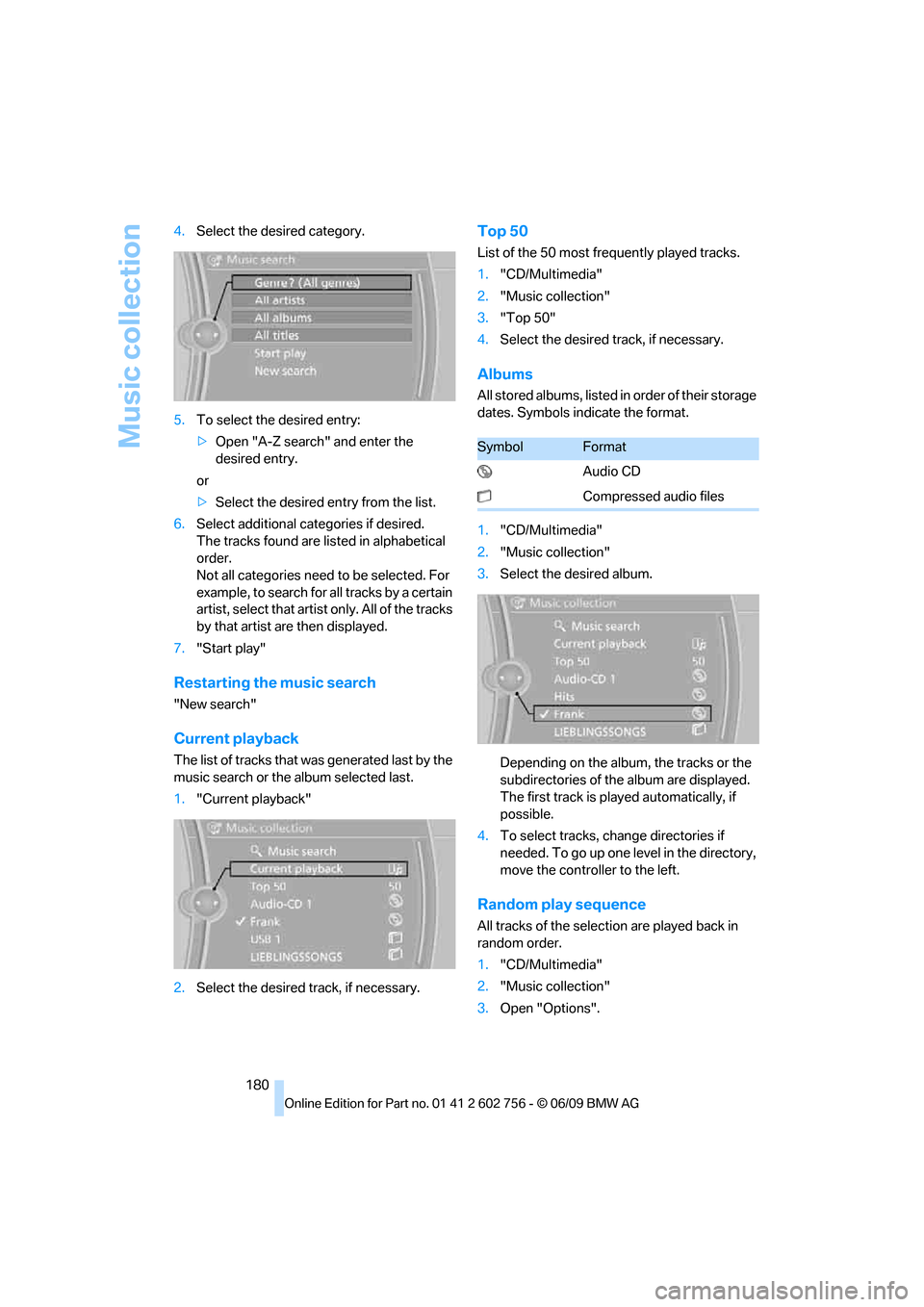
5.To select the desired entry:
>Open "A-Z search" and enter the
desired entry.
or
>Select the desired entry from the list.
6.Select additional categories if desired.
The tracks found are listed in alphabetical
order.
Not all categories need to be selected. For
example, to search for all tracks by a certain
artist, select that artist only. All of the tracks
by that artist are then displayed.
7."Start play"
Restarting the music search
"New search"
Current playback
The list of tracks that was generated last by the
music search or the album selected last.
1."Current playback"
2.Select the desired track, if necessary.
Top 50
List of the 50 most frequently played tracks.
1."CD/Multimedia"
2."Music collection"
3."Top 50"
4.Select the desired track, if necessary.
Albums
All stored albums, listed in order of their storage
dates. Symbols indicate the format.
1."CD/Multimedia"
2."Music collection"
3.Select the desired album.
Depending on the album, the tracks or the
subdirectories of the album are displayed.
The first track is played automatically, if
possible.
4.To select tracks, change directories if
needed. To go up one level in the directory,
move the controller to the left.
Random play sequence
All tracks of the selection are played back in
random order.
1."CD/Multimedia"
2."Music collection"
3.Open "Options".
SymbolFormat
Audio CD
Compressed audio files
ba8_e70ag.book Seite 180 Freitag, 5. Juni 2009 11:42 11
Page 187 of 300
Navigation
Entertainment
Driving tips
185Reference
At a glance
Controls
Communications
Mobility
Track search
You can access the tracks via the playback lists
and information. With USB devices you can also
access the tracks via the file directory.
Selection is possible via:
>Playback lists
>Information: type of music, artist, album,
title
>Additionally for USB devices: file directory,
composer
Track titles are displayed if they have been
stored in the Latin alphabet.
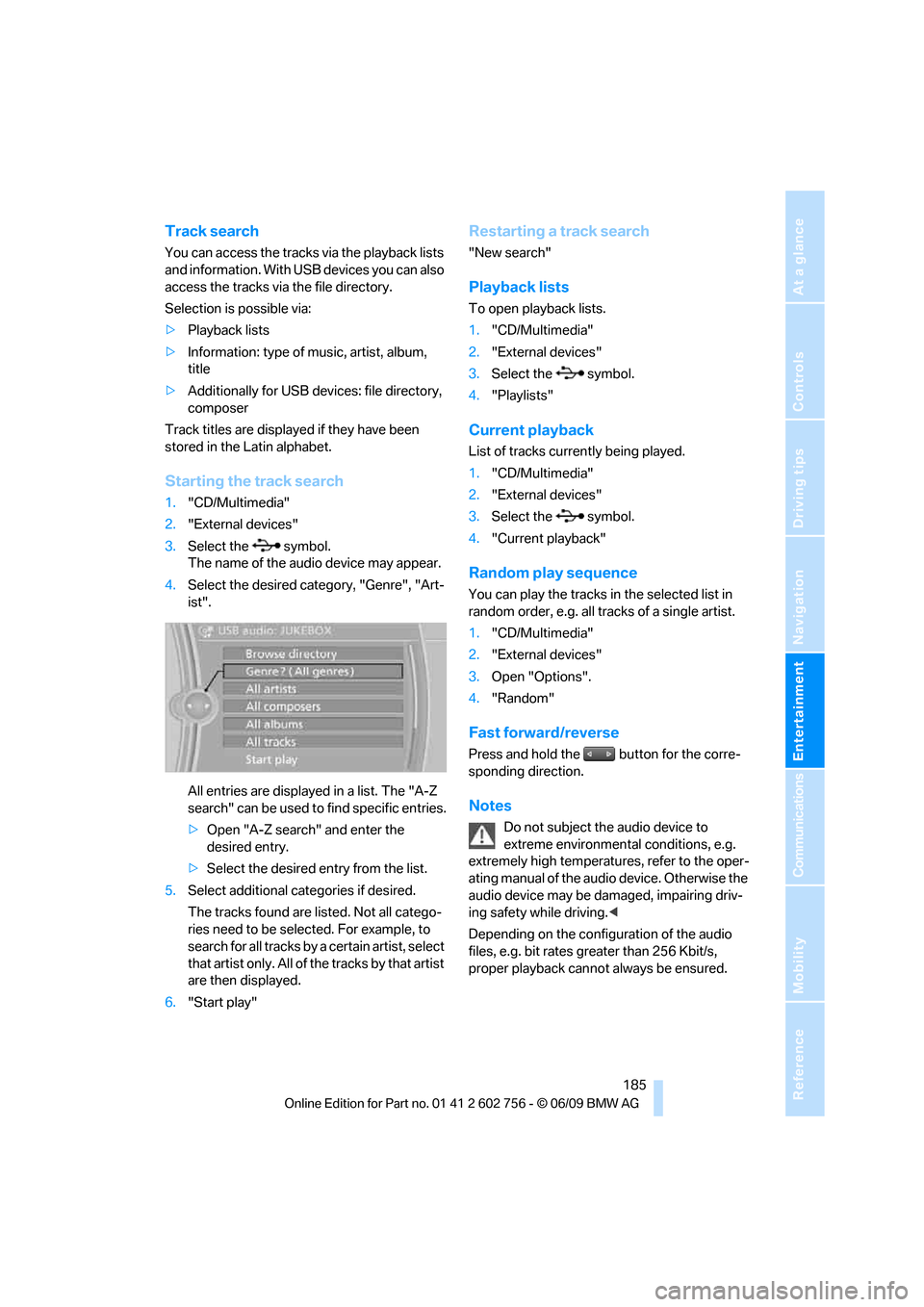
Starting the track search
1."CD/Multimedia"
2."External devices"
3.Select the symbol.
The name of the audio device may appear.
4.Select the desired category, "Genre", "Art-
ist".
All entries are displayed in a list. The "A-Z
search" can be used to find specific entries.
>Open "A-Z search" and enter the
desired entry.
>Select the desired entry from the list.
5.Select additional categories if desired.
The tracks found are listed. Not all catego-
ries need to be selected. For example, to
search for all tracks by a certain artist, select
that artist only. All of the tracks by that artist
are then displayed.
6."Start play"
Restarting a track search
"New search"
Playback lists
To open playback lists.
1."CD/Multimedia"
2."External devices"
3.Select the symbol.
4."Playlists"
Current playback
List of tracks currently being played.
1."CD/Multimedia"
2."External devices"
3.Select the symbol.
4."Current playback"
Random play sequence
You can play the tracks in the selected list in
random order, e.g. all tracks of a single artist.
1."CD/Multimedia"
2."External devices"
3.Open "Options".
4."Random"
Fast forward/reverse
Press and hold the button for the corre-
sponding direction.
Notes
Do not subject the audio device to
extreme environmental conditions, e.g.
extremely high temperatures, refer to the oper-
ating manual of the audio device. Otherwise the
audio device may be damaged, impairing driv-
ing safety while driving.<
Depending on the configuration of the audio
files, e.g. bit rates greater than 256 Kbit/s,
proper playback cannot always be ensured.
ba8_e70ag.book Seite 185 Freitag, 5. Juni 2009 11:42 11
Page 188 of 300
External devices
186
Information on connection
>The connected audio device is supplied
with a current of max. 500 mA, if the device
supports this. Therefore, do not connect
the device to the power socket in the vehi-
cle.
>Do not use force when plugging the con-
nector into the USB interface.
>Do not connect any devices, e.g. fans or
lamps, to the USB audio interface.
>Do not connect USB hard disks.
>Do not use the USB audio interface to
recharge external devices.
ba8_e70ag.book Seite 186 Freitag, 5. Juni 2009 11:42 11
Page 194 of 300
DVD system in rear
192 The system language of the DVD sys-
tem
"Display": background brightness of
screen.
>"Tone":
>"Treble / Bass" and "Balance":
Separately adjustable for the left and
right-hand headphones and the infrared
headphones.
>"Reset":
The settings are reset to the default
value.
>"DVD format":
>"Standard"
>"Zoom": full-screen playback
>"Language":
Language of the DVD playback. The lan-
guage advances one setting each time the
menu item is selected.
>"Subtitles":
Language of subtitles
or turn off subtitles
>"Title":
Selecting individual tracks on the DVD
>"Angle of view":
Camera angle
Notes or symbols that appear during the
playback of a film generally point out differ-
ent camera angles. These are usually only
briefly available.
>"Menu":
Call up the DVD-specific menu.
>"Return":
Exit menu or:
Press the buttons on the remote con-
trol.
Many DVDs offer dialogs and subtitles in vari-
ous languages or scene descriptions for the
hearing impaired. These functions are stored
on the DVD.
With some DVDs, it is only possible to
select language, subtitles, camera angle,
or title by using the DVD-specific menu.
Consult the information accompanying your
DVD.<
Opening the DVD-specific menu
Additional functions may be available on DVDs.
It is thus possible, for example, to select from
among several possible actions or to access
information about the film.
1.Press the button on the remote con-
trol during playback.
2.Select "Menu".
3.Press the button.
On some DVDs, you can use "Main
menu" and "Title" to access addi-
tional menus in which you can select maga-
zine segments about the music scene, for
example.<
To make a selection:
1.Select the symbol.
2.Press the button until the desired func-
tion is selected.
3.Select the arrow.
4.Press the button.
To return to the start menu:
1.Select the arrow.
2.Press the button.
You can also select language, subtitles,
camera angle, or title in the DVD-specific
menu.
Consult the information accompanying your
DVD.<
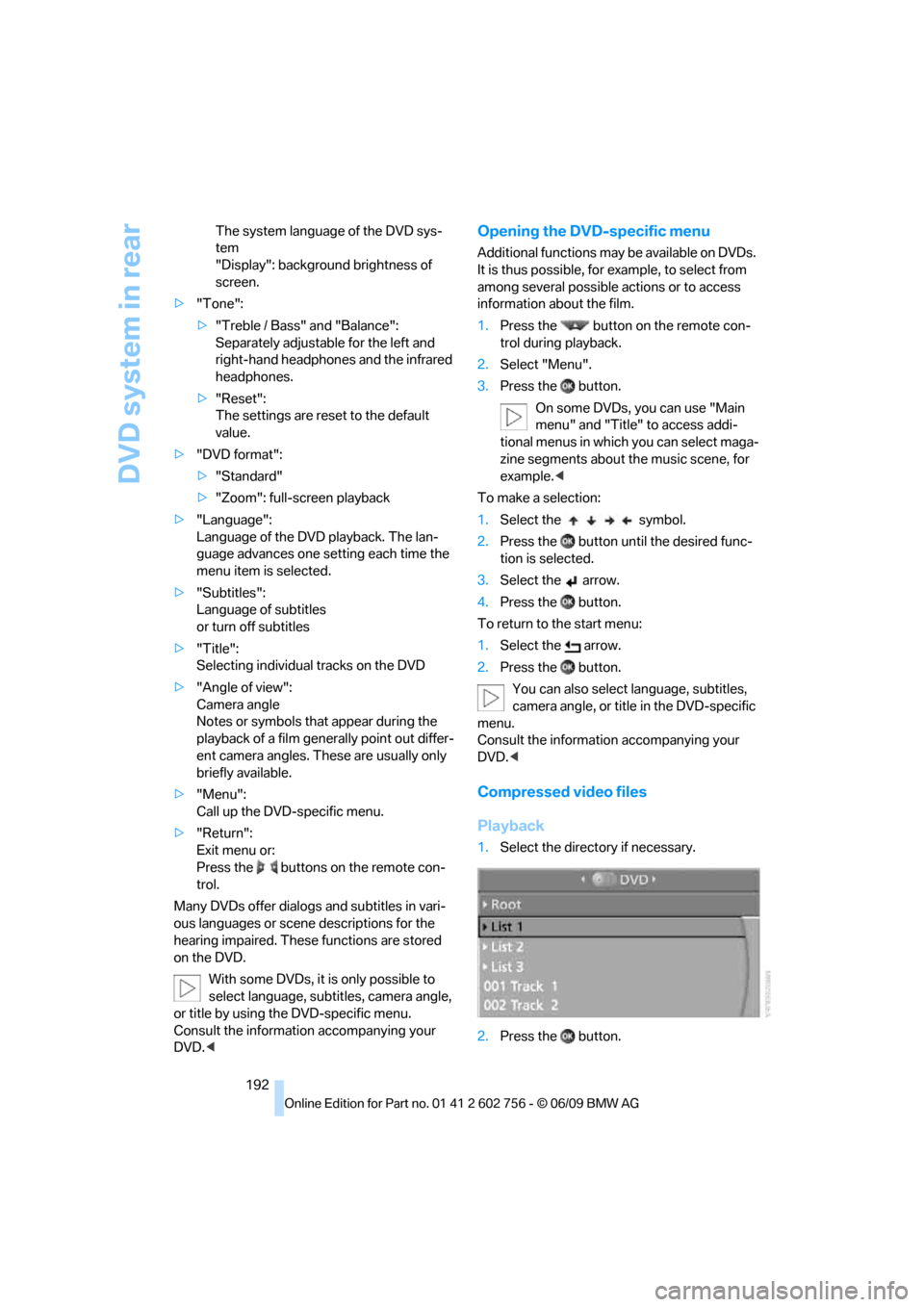
Compressed video files
Playback
1.Select the directory if necessary.
2.Press the button.
ba8_e70ag.book Seite 192 Freitag, 5. Juni 2009 11:42 11
Page 196 of 300
DVD system in rear
194
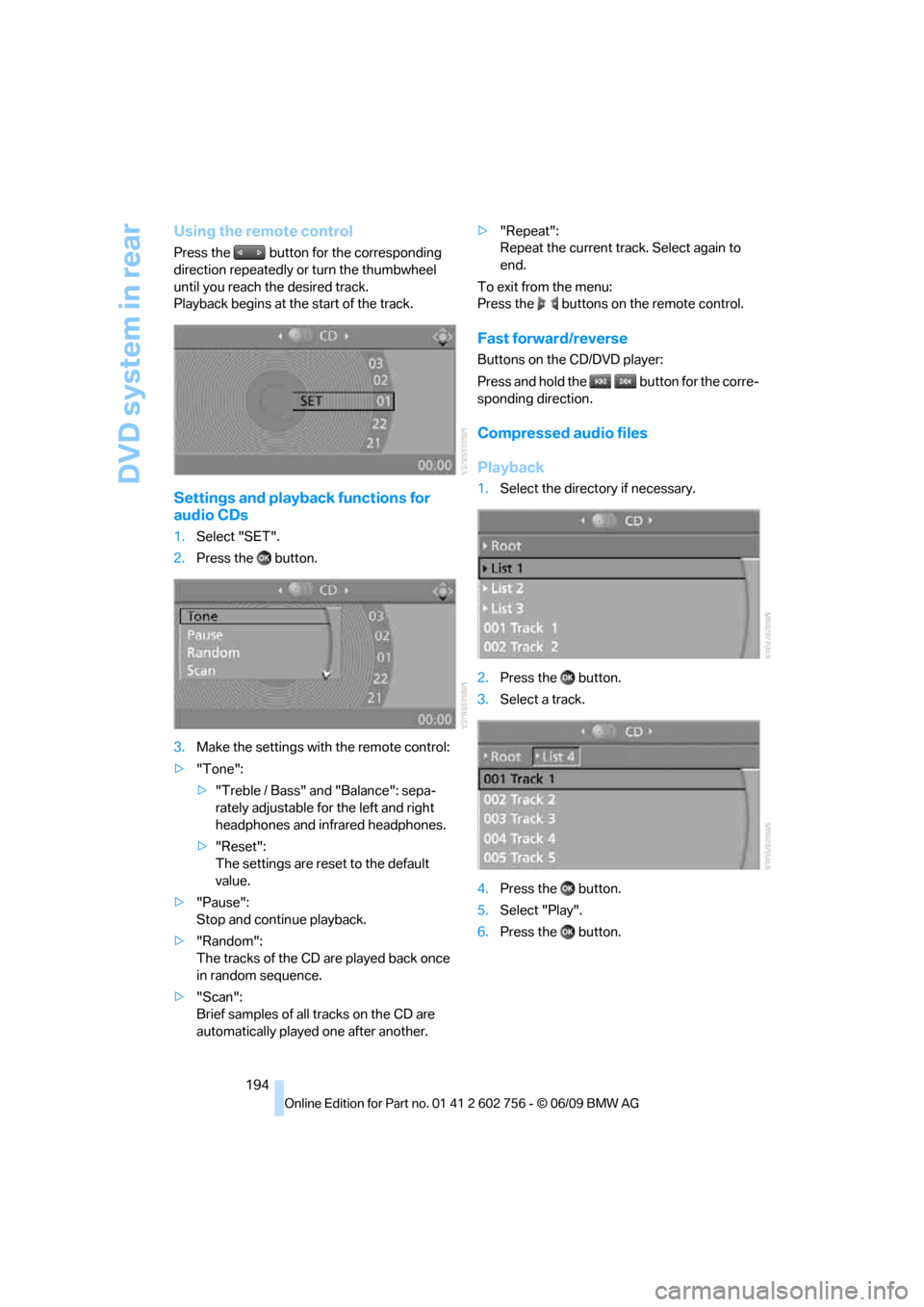
Using the remote control
Press the button for the corresponding
direction repeatedly or turn the thumbwheel
until you reach the desired track.
Playback begins at the start of the track.
Settings and playback functions for
audio CDs
1.Select "SET".
2.Press the button.
3.Make the settings with the remote control:
>"Tone":
>"Treble / Bass" and "Balance": sepa-
rately adjustable for the left and right
headphones and infrared headphones.
>"Reset":
The settings are reset to the default
value.
>"Pause":
Stop and continue playback.
>"Random":
The tracks of the CD are played back once
in random sequence.
>"Scan":
Brief samples of all tracks on the CD are
automatically played one after another.>"Repeat":
Repeat the current track. Select again to
end.
To exit from the menu:
Press the buttons on the remote control.
Fast forward/reverse
Buttons on the CD/DVD player:
Press and hold the button for the corre-
sponding direction.
Compressed audio files
Playback
1.Select the directory if necessary.
2.Press the button.
3.Select a track.
4.Press the button.
5.Select "Play".
6.Press the button.
ba8_e70ag.book Seite 194 Freitag, 5. Juni 2009 11:42 11
Page 197 of 300
Navigation
Entertainment
Driving tips
195Reference
At a glance
Controls
Communications
Mobility
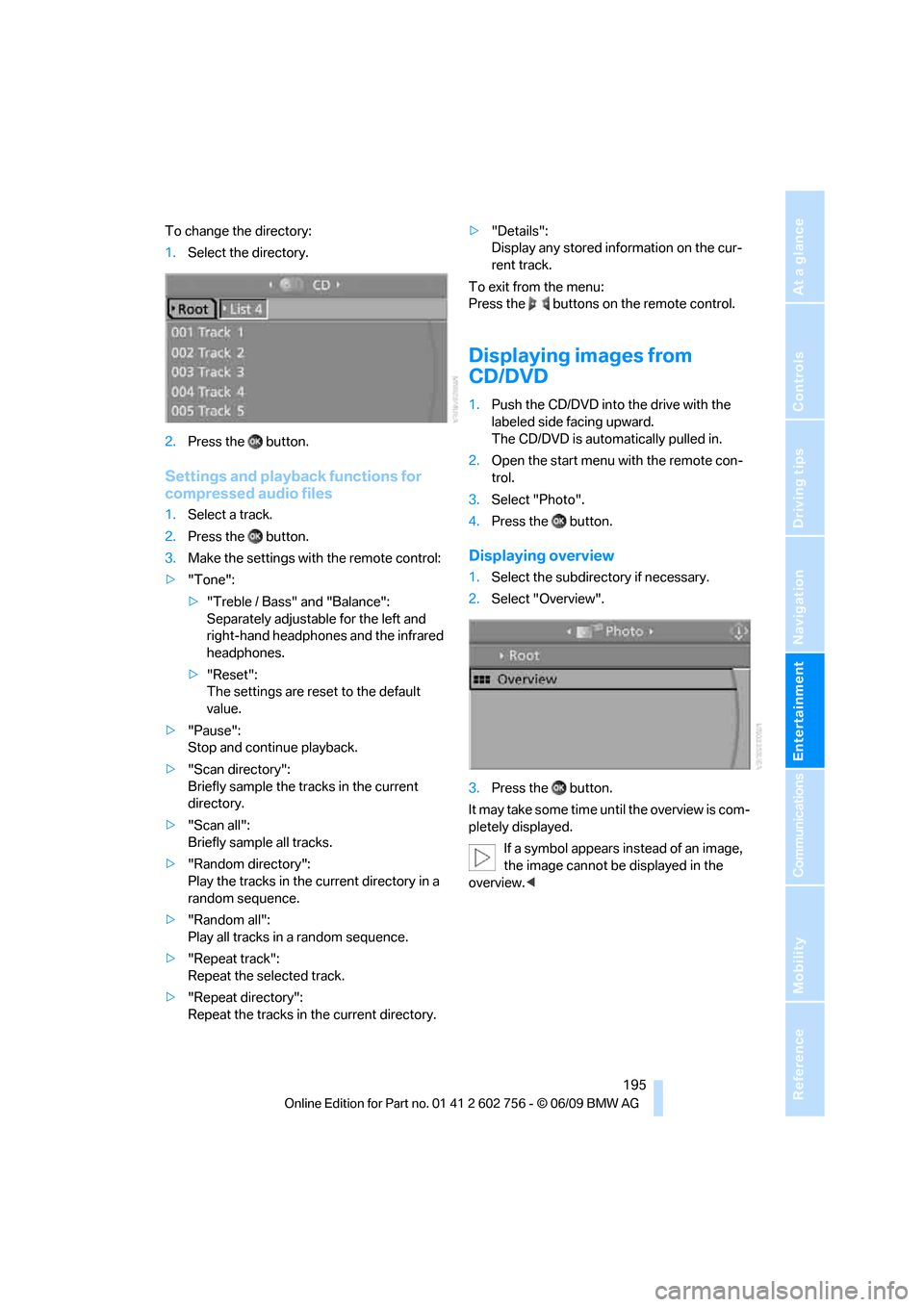
To change the directory:
1.Select the directory.
2.Press the button.
Settings and playback functions for
compressed audio files
1.Select a track.
2.Press the button.
3.Make the settings with the remote control:
>"Tone":
>"Treble / Bass" and "Balance":
Separately adjustable for the left and
right-hand headphones and the infrared
headphones.
>"Reset":
The settings are reset to the default
value.
>"Pause":
Stop and continue playback.
>"Scan directory":
Briefly sample the tracks in the current
directory.
>"Scan all":
Briefly sample all tracks.
>"Random directory":
Play the tracks in the current directory in a
random sequence.
>"Random all":
Play all tracks in a random sequence.
>"Repeat track":
Repeat the selected track.
>"Repeat directory":
Repeat the tracks in the current directory.>"Details":
Display any stored information on the cur-
rent track.
To exit from the menu:
Press the buttons on the remote control.
Displaying images from
CD/DVD
1.Push the CD/DVD into the drive with the
labeled side facing upward.
The CD/DVD is automatically pulled in.
2.Open the start menu with the remote con-
trol.
3.Select "Photo".
4.Press the button.
Displaying overview
1.Select the subdirectory if necessary.
2.Select "Overview".
3.Press the button.
It may take some time until the overview is com-
pletely displayed.
If a symbol appears instead of an image,
the image cannot be displayed in the
overview.<
ba8_e70ag.book Seite 195 Freitag, 5. Juni 2009 11:42 11