automatic transmission BMW X5M 2012 User Guide
[x] Cancel search | Manufacturer: BMW, Model Year: 2012, Model line: X5M, Model: BMW X5M 2012Pages: 317, PDF Size: 8.83 MB
Page 105 of 317
While standing
Before leaving the vehicle
Before
leaving the vehicle with the engine
running, engage position P of the automatic
transmission and apply the parking brake. Oth‐
erwise, the vehicle may begin to roll.◀
If a vehicle detected ahead of you slows to a halt
and your vehicle is also brought to a halt by the
system:
▷ If the vehicle ahead of you drives away, your
vehicle
accelerates automatically as long as
mark 1 for the desired speed in the speed‐
ometer is green.
▷ If the vehicle ahead of you drives away when
mark 1 is orange, depress the accelerator
briefly or press button 4.Rolling bars in the
distance indicator 3 mean that the vehicle
ahead of you has driven away.
If you are standing behind a vehicle with your
brake
pedal depressed and the system is deac‐
tivated or interrupted:
1. Select the desired speed using the lever, ar‐
row
1 or arrow 2, or press button 4 to retrieve
a stored speed.
2. Release the brake pedal.
3. When the vehicle ahead of you drives away,
press
on the accelerator briefly or press but‐
ton 4.
Deactivating the system
▷ When driving, press the lever up or down
twice.
▷ When stationary, do the same while de‐
pressing the brake pedal.
▷ Switch off the ignition.
The displays go out, and the stored desired
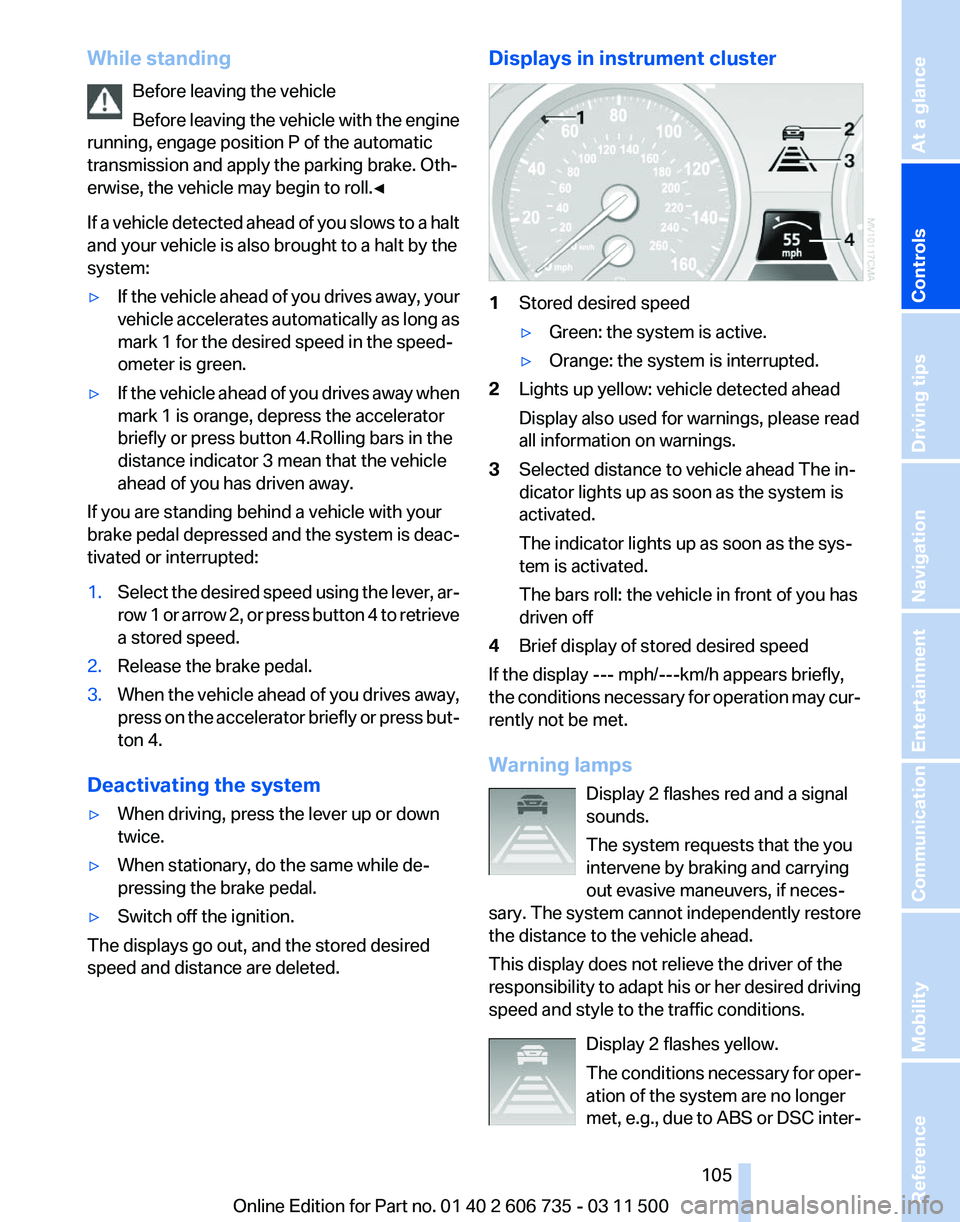
speed and distance are deleted. Displays in instrument cluster
1
Stored desired speed
▷Green: the system is active.
▷ Orange: the system is interrupted.
2 Lights up yellow: vehicle detected ahead
Display also used for warnings, please read
all information on warnings.
3 Selected distance to vehicle ahead The in‐
dicator lights up as soon as the system is
activated.
The indicator lights up as soon as the sys‐
tem is activated.
The bars roll: the vehicle in front of you has
driven off
4 Brief display of stored desired speed
If the display --- mph/---km/h appears briefly,
the conditions necessary for operation may cur‐
rently not be met.
Warning lamps
Display 2 flashes red and a signal
sounds.
The system requests that the you
intervene by braking and carrying
out evasive maneuvers, if neces‐
sary. The system cannot independently restore
the distance to the vehicle ahead.
This display does not relieve the driver of the
responsibility to adapt his or her desired driving
speed and style to the traffic conditions.
Display 2 flashes yellow.
The conditions necessary for oper‐
ation of the system are no longer
met, e.g., due to ABS or DSC inter‐ Seite 105
105Online Edition for Part no. 01 40 2 606 735 - 03 11 500
Reference Mobility Communication Entertainment Navigation Driving tips
Controls At a glance
Page 111 of 317
Switching on automatically
With
the engine running or the ignition switched
on, shift the selector lever into position R.
Switching off automatically
The system switches off and the LED goes out:
▷ After approx. 165 ft/50 m when driving for‐
ward.
▷ After approx. 22 mph/35 km/h when driving
forward.
Switch on the system again if necessary.
Switching on/off manually Press the button.
▷
On: the LED lights up.
▷ Off: the LED goes out.
Signal tones
When approaching an object, an intermittent
tone
is sounded that indicates the position of the
object. For example, if an object is detected to
the left rear of the vehicle, a signal tone sounds
from the left rear speaker.
The shorter the distance to the object becomes,
the shorter the intervals.
If the distance to a detected object is less than
approx. 12 in/30 cm, a continuous tone is
sounded.
If objects are located both in front of and behind
the vehicle, an alternating continuous signal is
sounded.
The intermittent tone is interrupted after approx.
3 seconds: ▷
If the vehicle stops in front of an object that
is detected by only one of the corner sen‐
sors.
▷ If moving parallel to a wall.
The signal tone is switched off:
▷ When the vehicle moves away from an ob‐
ject by more than approx. 4 in/10 cm.
▷ When transmission position P is engaged.
Volume
You can set the volume of the PDC signal tone,
refer to page 173.
The
setting is stored for the remote control cur‐
rently in use.
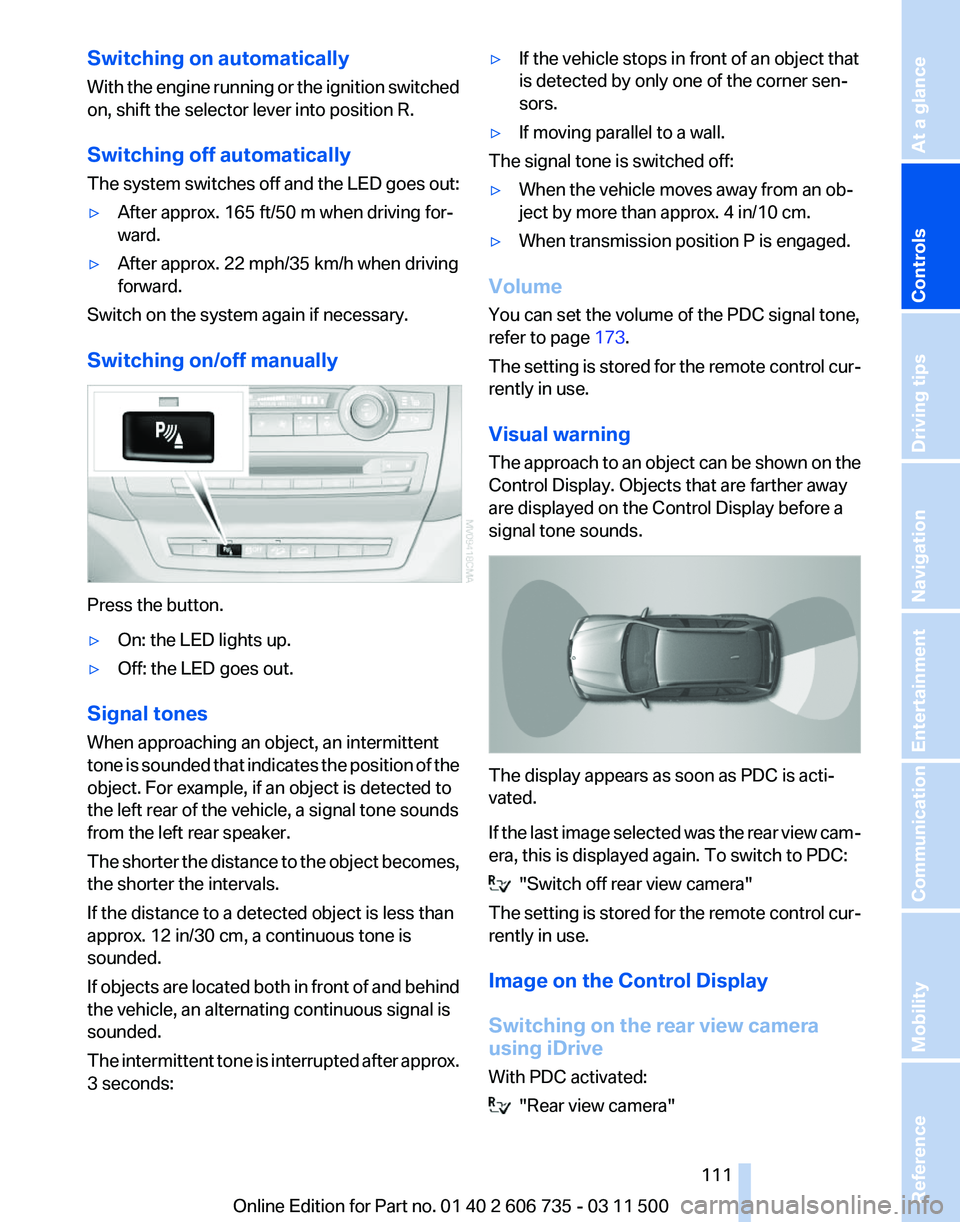
Visual warning
The approach to an object can be shown on the
Control Display. Objects that are farther away
are displayed on the Control Display before a
signal tone sounds. The display appears as soon as PDC is acti‐
vated.
If
the last image selected was the rear view cam‐
era, this is displayed again. To switch to PDC: "Switch off rear view camera"
The
setting is stored for the remote control cur‐
rently in use.
Image on the Control Display
Switching on the rear view camera
using iDrive
With PDC activated: "Rear view camera"
Seite 111
111Online Edition for Part no. 01 40 2 606 735 - 03 11 500
Reference Mobility Communication Entertainment Navigation Driving tips
Controls At a glance
Page 115 of 317
bol appears at the corresponding location on the
vehicle.
Check the traffic situation as well
Check the traffic situation around the ve‐
hicle
with your own eyes. Otherwise, an accident
could result from road users or objects located
outside the picture area of the cameras.◀
Switching on automatically
Select transmission position R with the engine
running.
The images from Top View and PDC are dis‐
played when the system has been switched on
using iDrive.
Switching off automatically
The system switches off and the LED goes out:
▷ After approx. 165 ft/50 m when driving for‐
ward.
▷ After approx. 22 mph/35 km/h when driving
forward.
Switch on the system again if necessary.
Switching on/off manually Press the button.
▷
On: the LED lights up.
▷ Off: the LED goes out.
If Top View is displayed, switch on the backup
camera via the iDrive, refer to page 114.
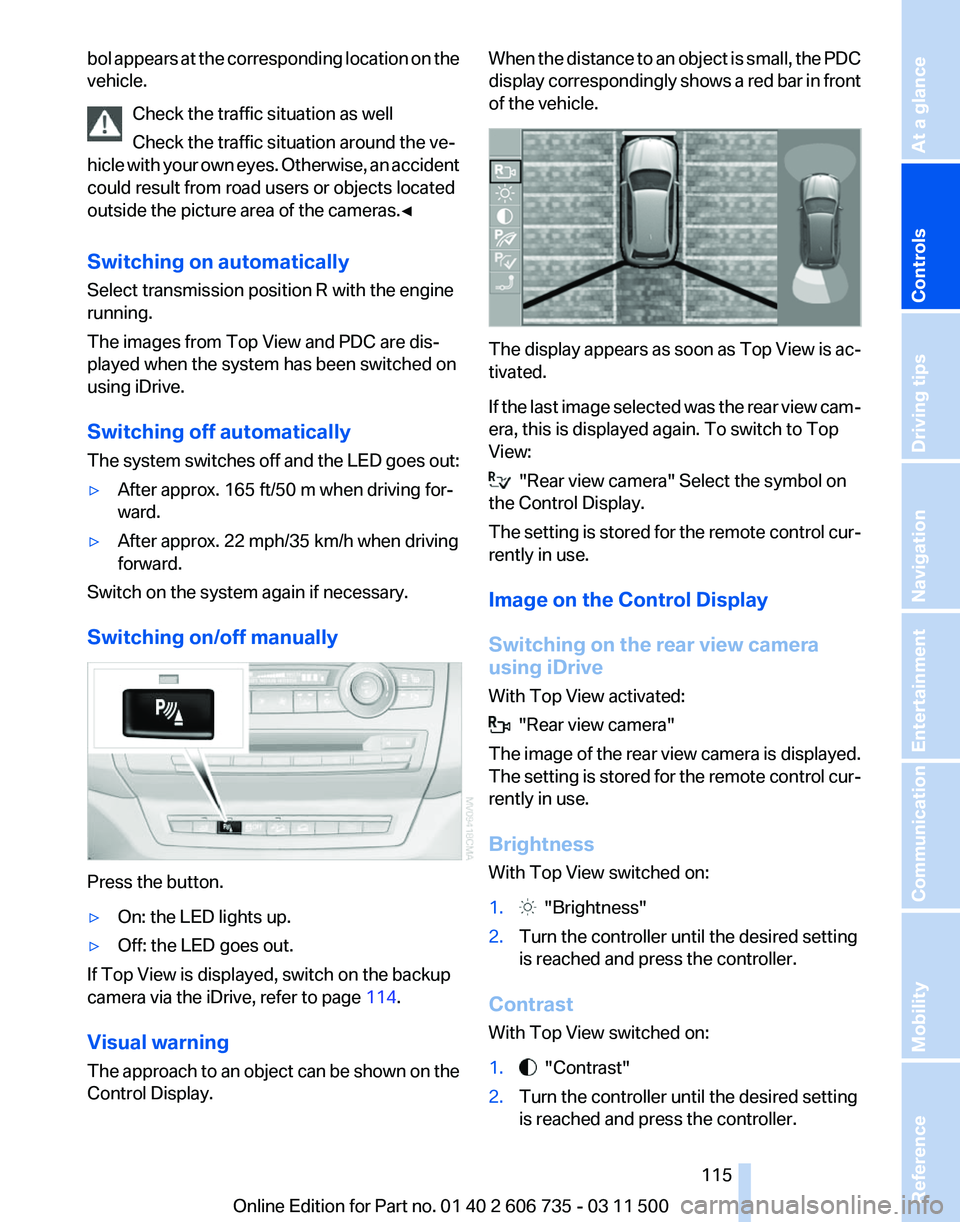
Visual warning
The
approach to an object can be shown on the
Control Display. When the distance to an object is small, the PDC
display
correspondingly shows a red bar in front
of the vehicle. The display appears as soon as Top View is ac‐
tivated.
If
the last image selected was the rear view cam‐
era, this is displayed again. To switch to Top
View: "Rear view camera" Select the symbol on
the Control Display.
The
setting is stored for the remote control cur‐
rently in use.
Image on the Control Display
Switching on the rear view camera
using iDrive
With Top View activated: "Rear view camera"
The
image of the rear view camera is displayed.
The setting is stored for the remote control cur‐
rently in use.
Brightness
With Top View switched on:
1. "Brightness"
2. Turn the controller until the desired setting
is reached and press the controller.
Contrast
With Top View switched on:
1. "Contrast"
2. Turn the controller until the desired setting
is reached and press the controller.
Seite 115
115Online Edition for Part no. 01 40 2 606 735 - 03 11 500
Reference Mobility Communication Entertainment Navigation Driving tips
Controls At a glance
Page 144 of 317
Driving in wet conditions
When
roads are wet or there is heavy rain, briefly
exert gentle pressure on the brake pedal every
few miles.
Ensure that this action does not endanger other
road users.
The heat generated in this process helps dry the
brake discs and pads.
In this way braking efficiency will be available
when you need it.
Hills
Drive long or steep downhill gradients in the gear
in which the least braking is required. Otherwise,
the brake system may overheat, resulting in a
reduction in the brake system efficiency.
The engine braking action can be further en‐
hanced by shifting down during manual opera‐
tion of the automatic transmission, refer to
page 69, if necessary all the way down to first
gear.
Avoid load on the brakes
Avoid placing excessive load on the brake
system. Light but consistent brake pressure can
lead to high temperatures, brake wear and pos‐
sibly even brake failure.◀
Do not drive in neutral
Do not drive in neutral or with the engine
stopped, as doing so disables engine braking. In
addition, steering and brake assist is unavailable
with the engine stopped.◀
Brake disc corrosion
Corrosion on the brake discs and contamination
on the brake pads are furthered by:
▷ Low mileage.
▷ Extended periods when the vehicle is not
used at all.
▷ Infrequent use of the brakes.
Corrosion occurs when the minimum pressure
that must be exerted by the pads during brake
applications to clean the discs is not reached. Should corrosion form on the brake discs, the
brakes will tend to respond with a pulsating ef‐
fect that generally cannot be corrected.
Condensation
under the parked vehicle
When using the automatic climate control, con‐
densation water develops that exits underneath
the vehicle.
Therefore, traces of condensed water under the
vehicle are normal.
Loading
Overloading the vehicle
To avoid exceeding the approved carrying
capacity of the tires, never overload the vehicle.
Overloading can lead to overheating and in‐
creases the rate at which damage develops in‐
side the tires. This could result in a sudden loss
of tire inflation pressure.◀
No fluids in the cargo area
Make sure that fluids do not leak into the
cargo area; otherwise, the vehicle may be dam‐
aged.◀
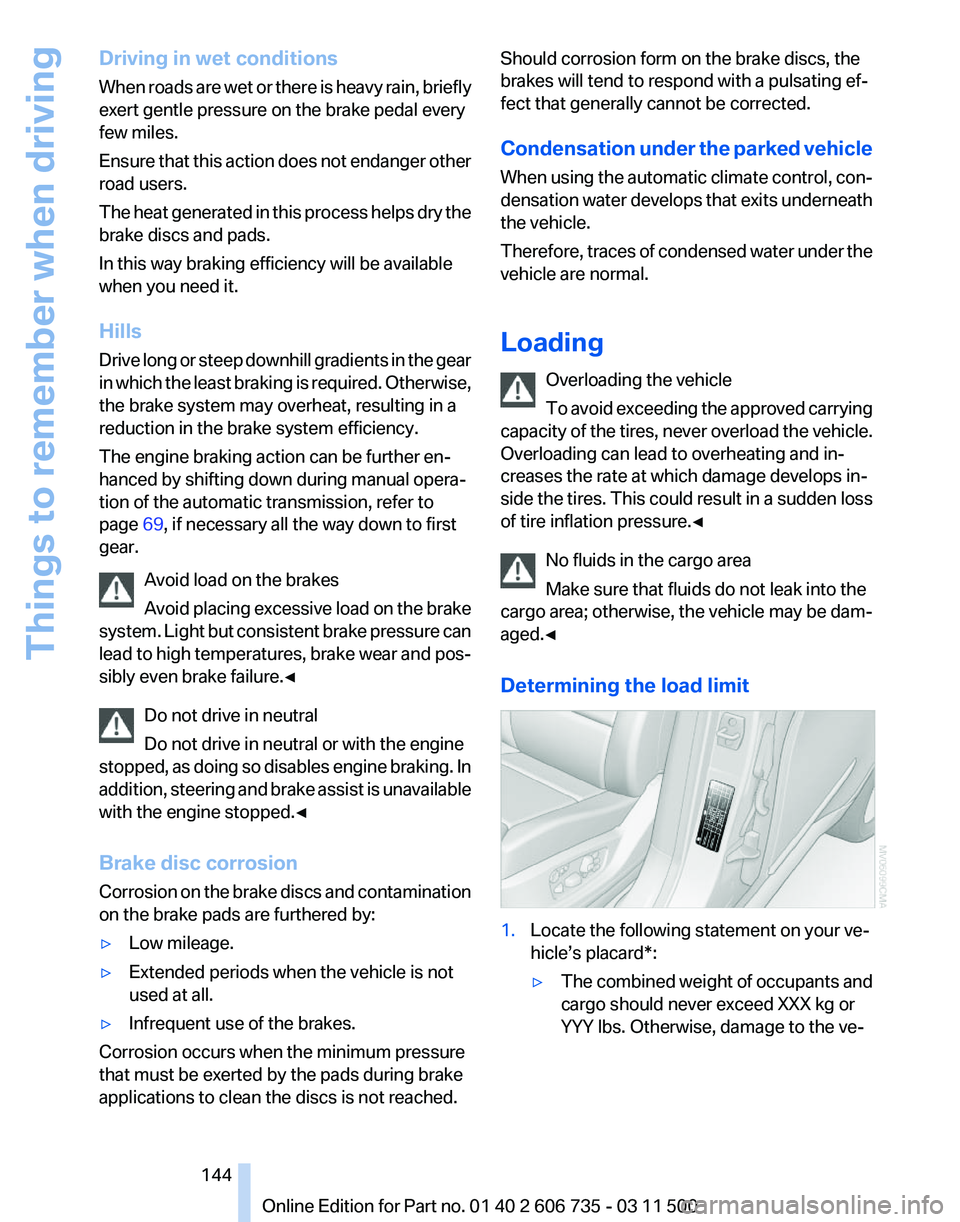
Determining the load limit 1.
Locate the following statement on your ve‐
hicle’s placard*:
▷The combined weight of occupants and
cargo should never exceed XXX kg or
YYY lbs. Otherwise, damage to the ve‐ Seite 144
144 Online Edition for Part no. 01 40 2 606 735 - 03 11 500
Things to remember when driving
Page 178 of 317
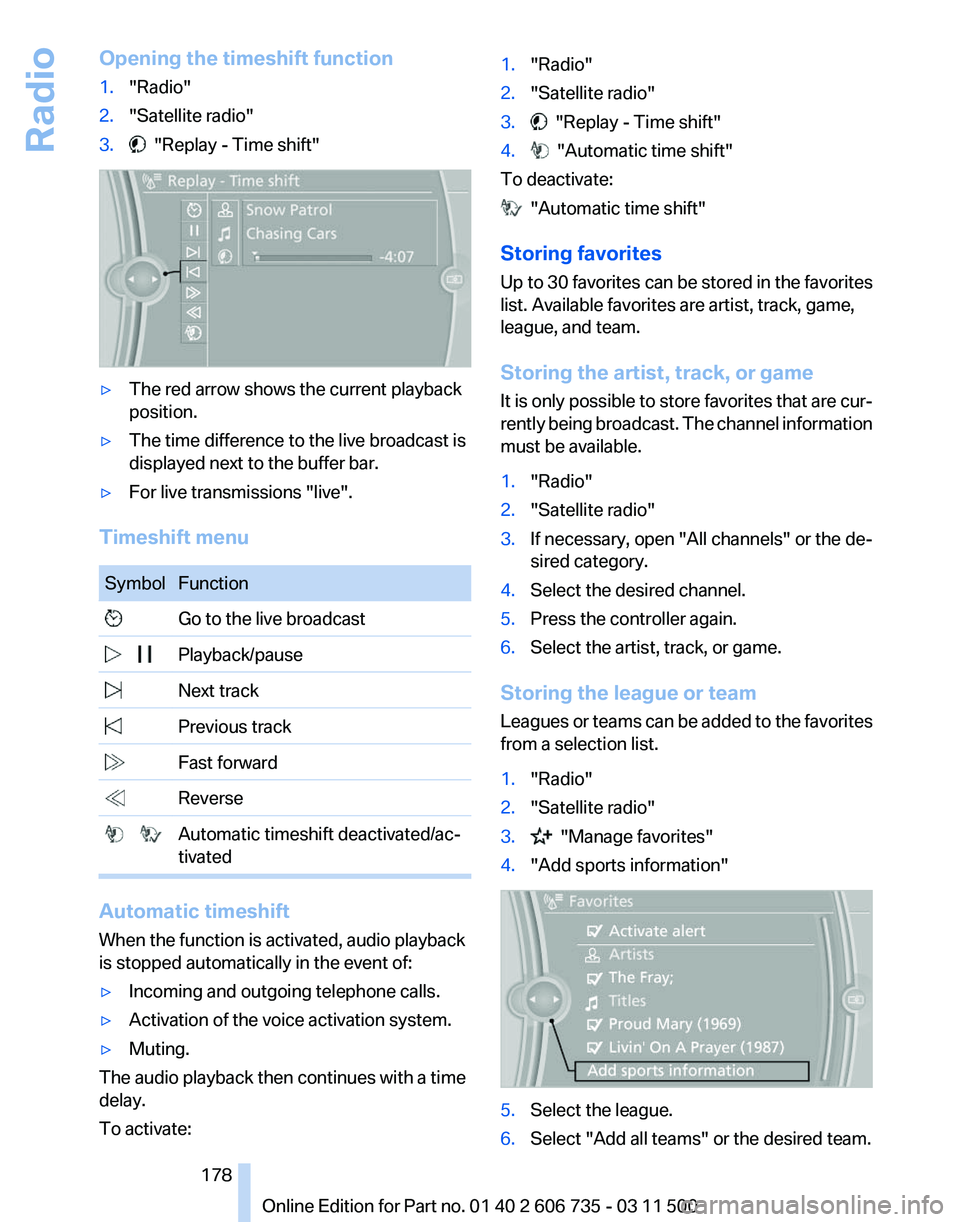
Opening the timeshift function
1.
"Radio"
2. "Satellite radio"
3. "Replay - Time shift"
▷
The red arrow shows the current playback
position.
▷ The time difference to the live broadcast is
displayed next to the buffer bar.
▷ For live transmissions "live".
Timeshift menu Symbol Function
Go to the live broadcast
Playback/pause
Next track
Previous track
Fast forward
Reverse
Automatic timeshift deactivated/ac‐
tivated Automatic timeshift
When the function is activated, audio playback
is stopped automatically in the event of:
▷
Incoming and outgoing telephone calls.
▷ Activation of the voice activation system.
▷ Muting.
The audio playback then continues with a time
delay.
To activate: 1.
"Radio"
2. "Satellite radio"
3. "Replay - Time shift"
4. "Automatic time shift"
To deactivate: "Automatic time shift"
Storing favorites
Up
to 30 favorites can be stored in the favorites
list. Available favorites are artist, track, game,
league, and team.
Storing the artist, track, or game
It is only possible to store favorites that are cur‐
rently being broadcast. The channel information
must be available.
1. "Radio"
2. "Satellite radio"
3. If necessary, open "All channels" or the de‐
sired category.
4. Select the desired channel.
5. Press the controller again.
6. Select the artist, track, or game.
Storing the league or team
Leagues
or teams can be added to the favorites
from a selection list.
1. "Radio"
2. "Satellite radio"
3. "Manage favorites"
4. "Add sports information" 5.
Select the league.
6. Select "Add all teams" or the desired team.
Seite 178
178 Online Edition for Part no. 01 40 2 606 735 - 03 11 500
Radio
Page 219 of 317
▷
"Audio"
7. "OK"
If a function has already been assigned to an‐
other connected device, the function is deacti‐
vated in that device and the device is unpaired
when the function is assigned to a new device.
Swapping
the telephone and additional
telephone
The function of the telephone and additional tel‐
ephone can be swapped automatically.
1. "Telephone"
2. "Bluetooth® (phone)"
3. "Swap phone/addit. phone"
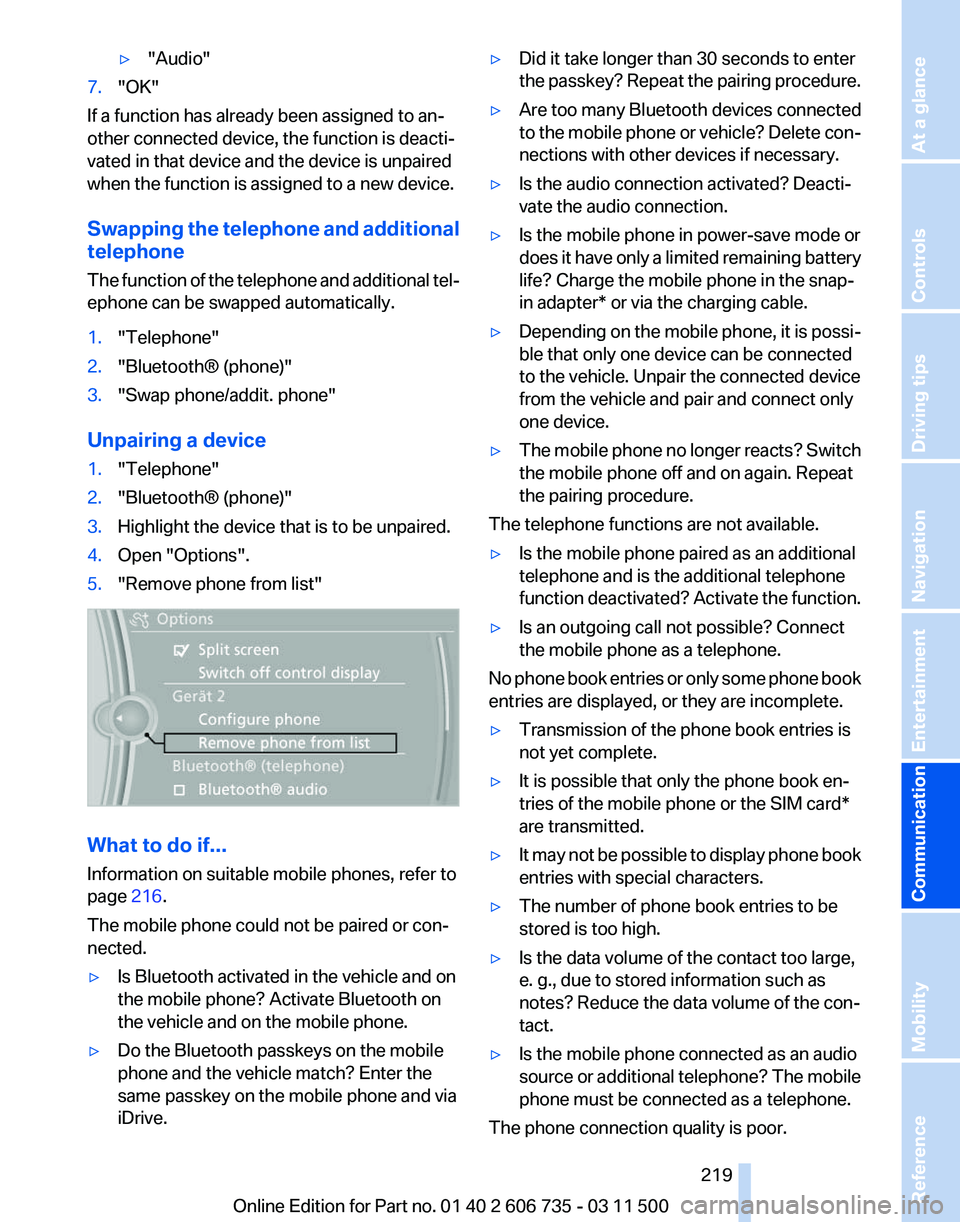
Unpairing a device
1. "Telephone"
2. "Bluetooth® (phone)"
3. Highlight the device that is to be unpaired.
4. Open "Options".
5. "Remove phone from list" What to do if...
Information on suitable mobile phones, refer to
page
216.
The mobile phone could not be paired or con‐
nected.
▷ Is Bluetooth activated in the vehicle and on
the mobile phone? Activate Bluetooth on
the vehicle and on the mobile phone.
▷ Do the Bluetooth passkeys on the mobile
phone and the vehicle match? Enter the
same passkey on the mobile phone and via
iDrive. ▷
Did it take longer than 30 seconds to enter
the
passkey? Repeat the pairing procedure.
▷ Are too many Bluetooth devices connected
to
the mobile phone or vehicle? Delete con‐
nections with other devices if necessary.
▷ Is the audio connection activated? Deacti‐
vate the audio connection.
▷ Is the mobile phone in power-save mode or
does
it have only a limited remaining battery
life? Charge the mobile phone in the snap-
in adapter* or via the charging cable.
▷ Depending on the mobile phone, it is possi‐
ble that only one device can be connected
to the vehicle. Unpair the connected device
from the vehicle and pair and connect only
one device.
▷ The mobile phone no longer reacts? Switch
the mobile phone off and on again. Repeat
the pairing procedure.
The telephone functions are not available.
▷ Is the mobile phone paired as an additional
telephone and is the additional telephone
function
deactivated? Activate the function.
▷ Is an outgoing call not possible? Connect
the mobile phone as a telephone.
No phone book entries or only some phone book
entries are displayed, or they are incomplete.
▷ Transmission of the phone book entries is
not yet complete.
▷ It is possible that only the phone book en‐
tries of the mobile phone or the
SIM card*
are transmitted.
▷ It may not be possible to display phone book
entries with special characters.
▷ The number of phone book entries to be
stored is too high.
▷ Is the data volume of the contact too large,
e. g., due to stored information such as
notes? Reduce the data volume of the con‐
tact.
▷ Is the mobile phone connected as an audio
source
or additional telephone? The mobile
phone must be connected as a telephone.
The phone connection quality is poor.
Seite 219
219Online Edition for Part no. 01 40 2 606 735 - 03 11 500
Reference Mobility
Communication Entertainment Navigation Driving tips Controls At a glance
Page 237 of 317
ConnectedDrive*
BMW Assist*
General information
BMW
Assist provides you with certain services,
e.g., transmission of the position data of your
vehicle to the BMW Assist Response Center if
an Emergency Request* has been initiated.
Many BMW Assist services depend on the indi‐
vidually agreed upon contract.
After your contract has expired, the BMW Assist
system will be deactivated by the BMW Assist
Response Center without your having to visit a
service center. After the BMW Assist system
has been deactivated, no BMW Assist services
will be available. The BMW Assist system can be
reactivated by a service center after you sign a
new contract.
Requirements
▷ The installed BMW Assist system is logged
in to a wireless communications network.
This network must be capable of transmit‐
ting the services.
▷ To transmit position data, the vehicle must
be able to determine the current position.
▷ The BMW Assist service contract was
signed with your service center or with the
BMW Assist Response Center. Enabling
must have been completed.
▷ BMW Assist is activated.
Services offered
▷ Emergency Request: when you press the
SOS button, a connection to the BMW As‐
sist Response Center is established. The
BMW Assist Response Center then speaks
with
you and takes further steps to help you.
▷ Automatic Collision Notification: under cer‐
tain conditions, a connection is established
to
the BMW Assist Response Center after a
serious accident. If possible, the BMW As‐ sist Response Center then speaks with you
and takes further steps to help you.
▷ Enhanced Roadside Assistance: BMW
Roadside Assistance* can be contacted if
assistance
is needed in the event of a break‐
down. If possible, the vehicle and position
data are transmitted in the process.
▷ Customer Relations: connection with Cus‐
tomer Relations for information on all as‐
pects of your vehicle.
▷ TeleService: data on your vehicle's service
status or required inspections are transmit‐
ted to your service center, either automati‐
cally before a service due date or when you
request a BMW service appointment.
▷ Remote Door Unlock: the BMW Assist Re‐
sponse
Center provides assistance if, for ex‐
ample, the remote control is not available
and the vehicle needs to be opened.
▷ Stolen Vehicle Recovery: after you report
that
your vehicle was stolen to the police, the
BMW Assist Response Center can deter‐
mine its position.
▷ In addition to these services, the optional
Convenience Plan offers Concierge service
and information for route planning, traffic,
and weather. A limited number of calls can
be made via the BMW Assist Response
Center with Critical Calling if, for example,
the mobile phone is not available or dis‐
charged.
Press the SOS button to contact the BMW
Assist Response Center.
TeleService*
General information
TeleService
supports communication with your
service center.
▷ Data on the vehicle's service requirements
can
be sent directly to the service center. In
this way, the service center can plan its work
Seite 237
237Online Edition for Part no. 01 40 2 606 735 - 03 11 500
Reference Mobility
Communication Entertainment Navigation Driving tips Controls At a glance
Page 239 of 317
nection is established to Roadside Assis‐
tance.
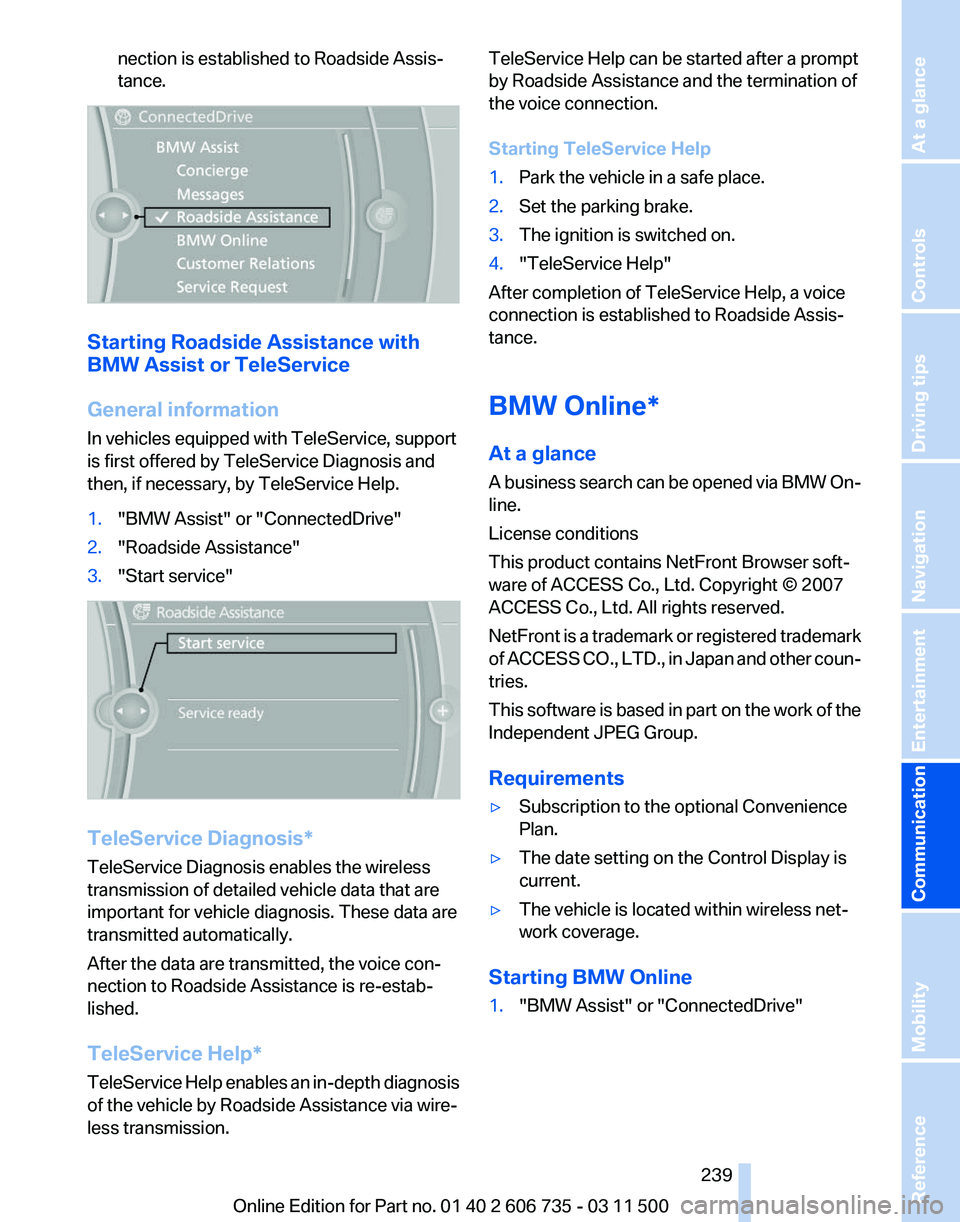
Starting Roadside Assistance with
BMW Assist or TeleService
General information
In vehicles equipped with TeleService, support
is first offered by TeleService Diagnosis and
then, if necessary, by TeleService Help.
1.
"BMW Assist" or "ConnectedDrive"
2. "Roadside Assistance"
3. "Start service" TeleService Diagnosis*
TeleService Diagnosis enables the wireless
transmission of detailed vehicle data that are
important for vehicle diagnosis. These data are
transmitted automatically.
After the data are transmitted, the voice con‐
nection to Roadside Assistance is re-estab‐
lished.
TeleService Help
*
TeleService Help enables an in-depth diagnosis
of the vehicle by Roadside Assistance via wire‐
less transmission. TeleService Help can be started after a prompt
by Roadside Assistance and the termination of
the voice connection.
Starting TeleService Help
1.
Park the vehicle in a safe place.
2. Set the parking brake.
3. The ignition is switched on.
4. "TeleService Help"
After completion of TeleService Help, a voice
connection is established to Roadside Assis‐
tance.
BMW Online*
At a glance
A
business search can be opened via BMW On‐
line.
License conditions
This product contains NetFront Browser soft‐
ware of ACCESS Co., Ltd. Copyright © 2007
ACCESS Co., Ltd. All rights reserved.
NetFront is a trademark or registered trademark
of ACCESS CO., LTD., in Japan and other coun‐
tries.
This software is based in part on the work of the
Independent JPEG Group.
Requirements
▷ Subscription to the optional Convenience
Plan.
▷ The date setting on the Control Display is
current.
▷ The vehicle is located within wireless net‐
work coverage.
Starting BMW Online
1. "BMW Assist" or "ConnectedDrive"
Seite 239
239Online Edition for Part no. 01 40 2 606 735 - 03 11 500
Reference Mobility
Communication Entertainment Navigation Driving tips Controls At a glance
Page 284 of 317
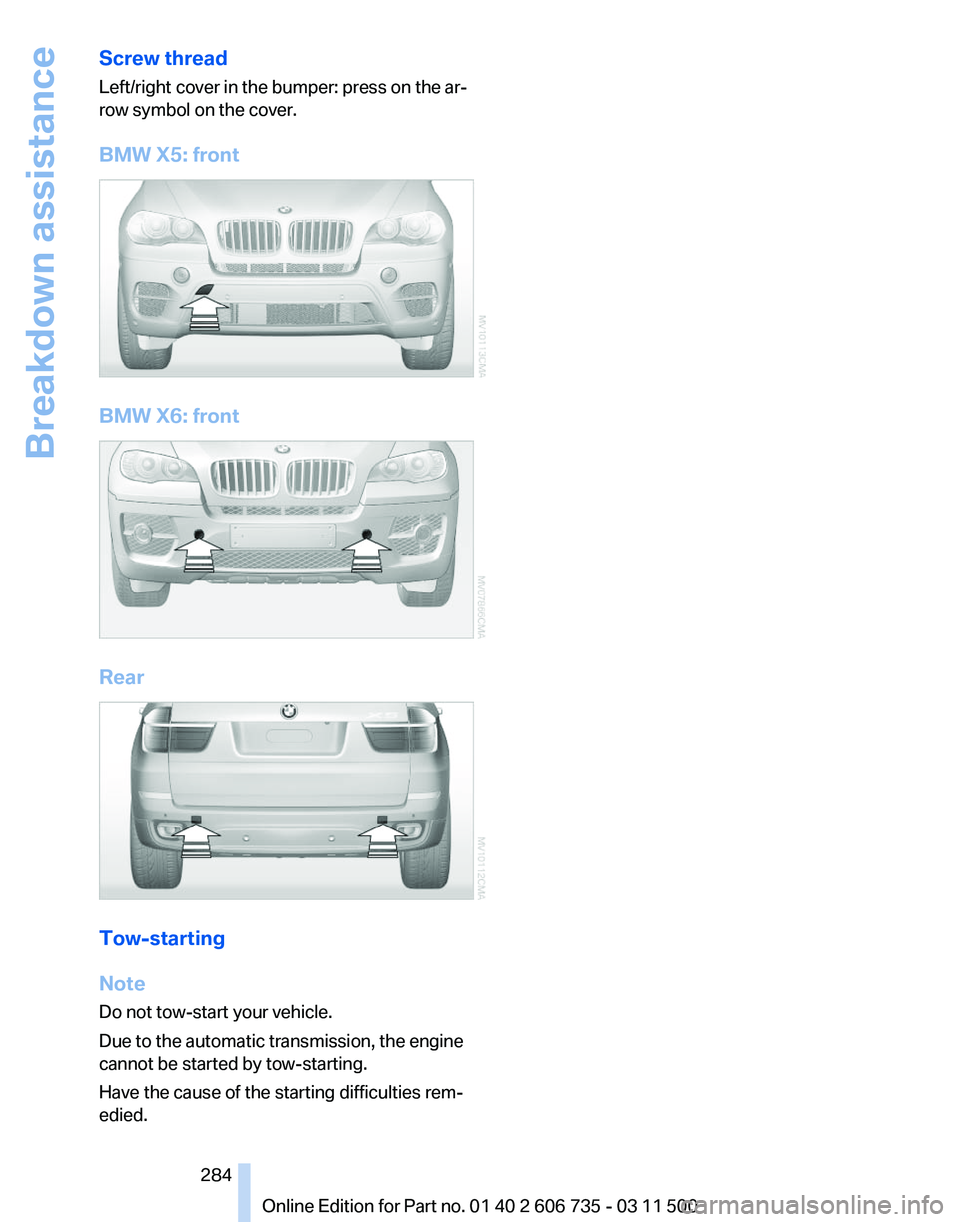
Screw thread
Left/right cover in the bumper: press on the ar‐
row symbol on the cover.
BMW X5: front
BMW X6: front
Rear
Tow-starting
Note
Do not tow-start your vehicle.
Due to the automatic transmission, the engine
cannot be started by tow-starting.
Have the cause of the starting difficulties rem‐
edied.
Seite 284
284 Online Edition for Part no. 01 40 2 606 735 - 03 11 500Breakdown assistance
Page 285 of 317
Care
Car washes
Notes
Steam jets or high-pressure washers
When using steam jets or high-pressure
washers, hold them a sufficient distance away
and use a maximum temperature of 140 ℉/
60 ℃.
Holding them too close or using excessively
high
pressures or temperatures can cause dam‐
age or preliminary damage that may then lead to
long-term damage.
Follow the operating instructions for the high-
pressure washer.◀
Cleaning sensors/cameras with high-
pressure washers
When using high-pressure washers, do not
spray the exterior sensors and cameras, for Park
Distance Control* or the backup camera*, for
instance, for extended periods of time and only
from a distance of at least 12 in/30 cm.◀
Wash your vehicle frequently, particularly in win‐
ter.
Intense soiling and road salt can damage the ve‐
hicle.
Washing in automatic car washes
Your vehicle can be washed in automatic car
washes right from the start.
Give preference to cloth car washes or those
that use soft brushes in order to avoid paint
damage.
Notes
Note the following:
▷ Make sure that the wheels and tires are not
damaged by the transport mechanisms.
▷ Fold in the exterior mirrors; otherwise, they
may
be damaged, depending on the width of
the vehicle. ▷
Deactivate rain sensor, refer to page 67, to
prevent unintentional wiper action.
▷ BMW X5: deactivate the rear window wiper
and protect it from damage. Ask the car
wash
operator about any necessary protec‐
tive measures.
▷ Remove additional attachments, for in‐
stance a spoiler or telephone antenna, if
there is a risk that these may be damaged.
Guide rails in car washes
Avoid car washes with guide rails higher
than 4 in/10 cm; otherwise, the vehicle body
could be damaged.
◀
Before driving into a car wash
The vehicle is able to roll if the following steps
are taken.
1. Insert the remote control into the ignition
lock, even with Comfort Access.
2. Engage transmission position N.
3. Release the parking brake.
4. Deactivating Automatic Hold, refer to
page 64.
5. Switch the engine off.
6. Leave the remote control in the ignition lock
so that the vehicle can roll.
Mixed tires* Note the vehicle width
Before driving into a car wash, make sure
that
the vehicle width is not too large for the car
wash, as otherwise the vehicle and the car wash
could be damaged.◀
Headlamps
▷ Do not rub dry and do not use abrasive or
caustic cleansers.
▷ Soak areas that have been soiled e.g. due to
insects, with shampoo and wash off with
water. Seite 285
285Online Edition for Part no. 01 40 2 606 735 - 03 11 500
Reference
Mobility Communication Entertainment Navigation Driving tips Controls At a glance