change language BMW X5M 2012 User Guide
[x] Cancel search | Manufacturer: BMW, Model Year: 2012, Model line: X5M, Model: BMW X5M 2012Pages: 317, PDF Size: 8.83 MB
Page 210 of 317
To play the information on the other side, turn
over the DVD.
Supported formats
Depending on the compression method used,
not all files of the specified formats can be
opened.
Images
▷
JPEG/JPG.
With very large image files, it can take longer for
the images to be displayed.
Compressed audio files
▷ MP3.
▷ WMA.
▷ OGG.
▷ AAC.
Compressed video files
▷ SVCD.
▷ MPEG1.
▷ MPEG2.
▷ MPEG4/DivX.
Digital Rights Management (DRM)
In some cases, it may not be possible to play
CDs/DVDs with integrated Digital Rights Man‐
agement (DRM).
General malfunctions
▷ CD/DVD changers and players have been
optimized for performance in vehicles. In
some
instances they may be more sensitive
to faulty CDs/DVDs than stationary devices
would be.
▷ If a CD/DVD cannot be played, first check
whether it has been inserted correctly.
Foreign bodies/liquids in the CD/DVD slot
Make sure that no foreign objects or liq‐
uids get into the CD/DVD slot; otherwise, the
CD/DVD player will be damaged.
◀ Humidity
High
levels of humidity can lead to condensation
on the CD/DVD or the laser's scan lens, and
temporarily prevent playback.
Malfunctions involving individual CDs/
DVDs
If malfunctions occur only with particular CDs/
DVDs, this can be due to one of the following
causes.
Copied or self-recorded CDs/DVDs
▷ Possible reasons for malfunctions with
home-recorded
CDs/DVDs are inconsistent
data creation or recording processes, or
poor quality or old age of the blank CD/DVD.
▷ Only label CDs/DVDs on the upper side with
a pen intended for this purpose.
Damaged CDs/DVDs
▷ Avoid fingerprints, dust, scratches and
moisture.
▷ Store CDs/DVDs in a sleeve.
▷ Do not subject CDs/DVDs to temperatures
over 122 ℉/50 ℃, high humidity or direct
sunlight.
CDs/DVDs with copy protection
CDs/DVDs are often provided with a copy pro‐
tection
feature by the manufacturer. As a result,
some CDs/DVDs cannot be played, can only be
played to a limited degree, or cause the system
to switch off. In this case, wait a short while and
then switch the system back on again. Then re‐
move the CD/DVD from the drive.
CDs/DVDs with compressed audio files
If the language set for the CD/DVD player does
not match the language of the music track, the
music tracks may be displayed incorrectly.
Seite 210
210 Online Edition for Part no. 01 40 2 606 735 - 03 11 500
DVD system in rear
Page 211 of 317
External device
Connecting
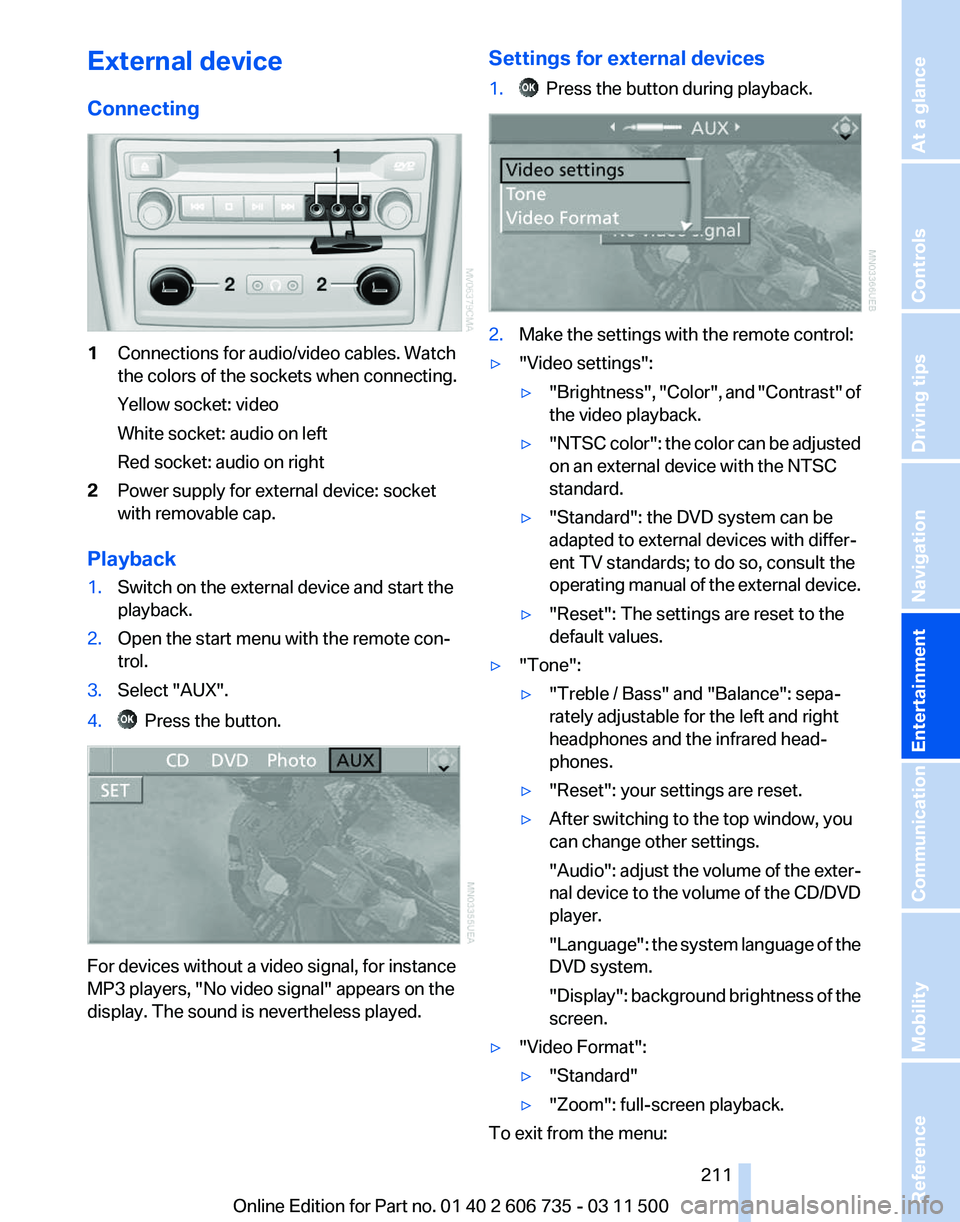
1
Connections for audio/video cables. Watch
the colors of the sockets when connecting.
Yellow socket: video
White socket: audio on left
Red socket: audio on right
2 Power supply for external device: socket
with removable cap.
Playback
1. Switch on the external device and start the
playback.
2. Open the start menu with the remote con‐
trol.
3. Select "AUX".
4. Press the button.
For devices without a video signal, for instance
MP3 players, "No video signal"
appears on the
display. The sound is nevertheless played. Settings for external devices
1. Press the button during playback.
2.
Make the settings with the remote control:
▷ "Video settings":
▷"Brightness", "Color",
and "Contrast" of
the video playback.
▷ "NTSC
color": the color can be adjusted
on an external device with the NTSC
standard.
▷ "Standard": the DVD system can be
adapted to external devices with differ‐
ent TV standards; to do so, consult the
operating
manual of the external device.
▷ "Reset": The settings are reset to the
default values.
▷ "Tone":
▷"Treble / Bass" and "Balance": sepa‐
rately adjustable for the left and right
headphones and the infrared head‐
phones.
▷ "Reset": your settings are reset.
▷ After switching to the top window, you
can change other settings.
"Audio":
adjust the volume of the exter‐
nal device to the volume of the CD/DVD
player.
"Language": the system language of the
DVD system.
"Display": background brightness of the
screen.
▷ "Video Format":
▷"Standard"
▷ "Zoom": full-screen playback.
To exit from the menu:
Seite 211
211Online Edition for Part no. 01 40 2 606 735 - 03 11 500
Reference Mobility Communication
Entertainment Navigation Driving tips Controls At a glance
Page 225 of 317
Saving an entry
1.
›Save name‹
2. Say the name. Do not exceed the speaking
duration of approx. 2 seconds.
3. Say the phone number after being prompted
to do so by the system.
4. ›Save‹
Deleting an entry
1. ›Delete name‹
2. Say the name after being prompted to do so.
3. Confirm the query with ›Yes‹.
Deleting all entries
1. ›Delete phone book‹
The dialog for deleting the phone book is
opened.
2. Confirm the query with ›Yes‹.
3. Confirm the query again with ›Yes‹.
Reading and selecting entries
1. ›Read phone book‹
The dialog for reading the phone book is
opened.
2. Say ›Dial number‹ when the desired entry is
read.
Selecting an entry
1. ›Dial name‹
2. Say the name after being prompted to do so.
3. Confirm the query with ›Yes‹.
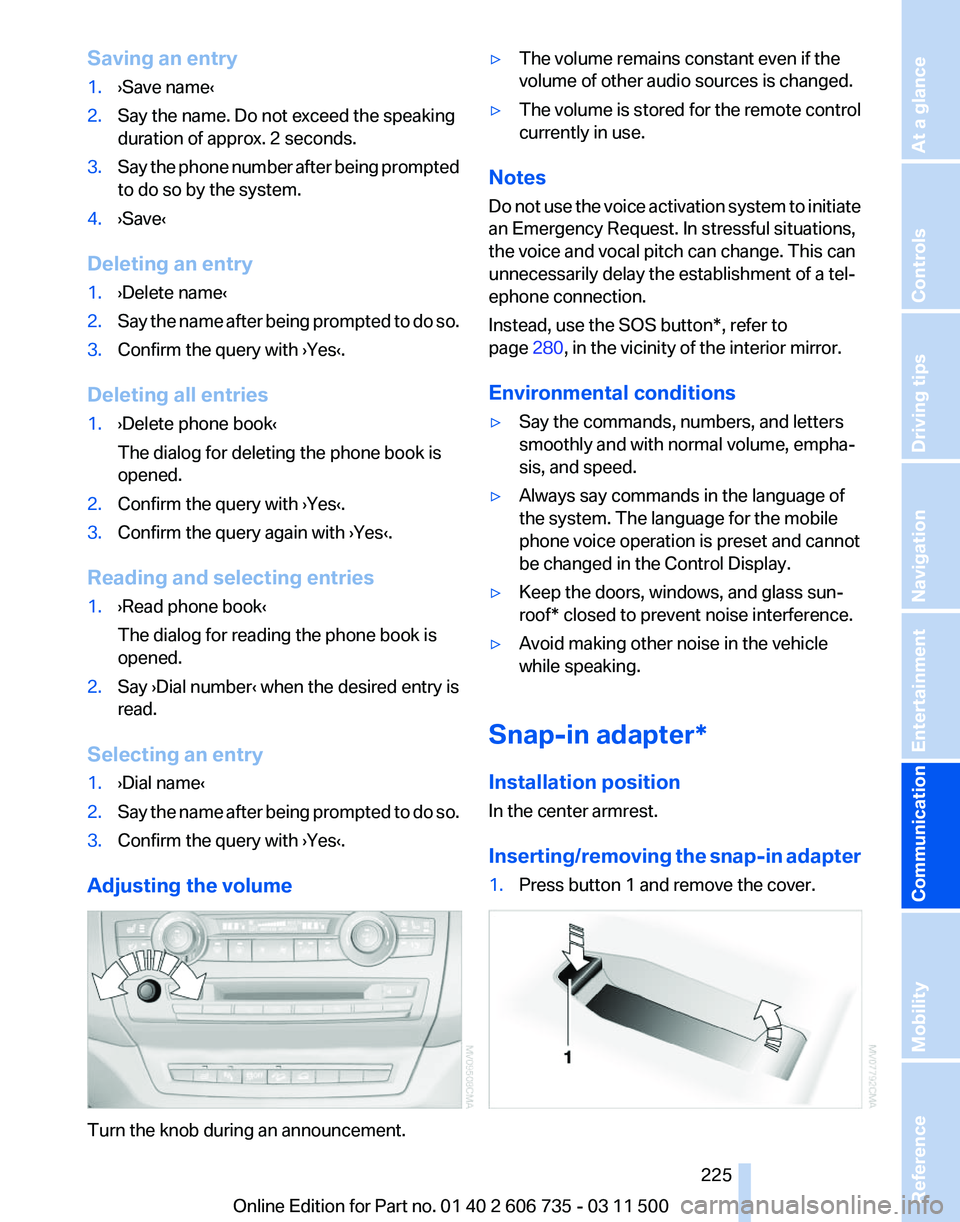
Adjusting the volume Turn the knob during an announcement. ▷
The volume remains constant even if the
volume of other audio sources is changed.
▷ The volume is stored for the remote control
currently in use.
Notes
Do not use the voice activation system to initiate
an Emergency Request. In stressful situations,
the voice and vocal pitch can change. This can
unnecessarily delay the establishment of a tel‐
ephone connection.
Instead, use the SOS button*, refer to
page 280, in the vicinity of the interior mirror.
Environmental conditions
▷ Say the commands, numbers, and letters
smoothly and with normal volume, empha‐
sis, and speed.
▷ Always say commands in the language of
the system. The language for the mobile
phone voice operation is preset and cannot
be changed in the Control Display.
▷ Keep the doors, windows, and glass sun‐
roof* closed to prevent noise interference.
▷ Avoid making other noise in the vehicle
while speaking.
Snap-in adapter*
Installation position
In the center armrest.
Inserting/removing
the snap-in adapter
1. Press button 1 and remove the cover. Seite 225
225Online Edition for Part no. 01 40 2 606 735 - 03 11 500
Reference Mobility
Communication Entertainment Navigation Driving tips Controls At a glance