change wheel BMW X5M 2012 User Guide
[x] Cancel search | Manufacturer: BMW, Model Year: 2012, Model line: X5M, Model: BMW X5M 2012Pages: 317, PDF Size: 8.83 MB
Page 93 of 317
should stop and check your tires as soon as
possible, and inflate them to the proper pres‐
sure.
Driving on a significantly under-inflated tire
causes the tire to overheat and can lead to tire
failure. Under-inflation also reduces fuel effi‐
ciency and tire tread life, and may affect the ve‐
hicle's handling and stopping ability.
Please note that the TPMS is not a substitute for
proper tire maintenance, and it is the driver's re‐
sponsibility to maintain correct tire pressure,
even if under-inflation has not reached the level
to trigger illumination of the TPMS low tire pres‐
sure telltale.
Your vehicle has also been equipped with a
TPMS malfunction indicator to indicate when
the system is not operating properly. The TPMS
malfunction indicator is combined with the low
tire pressure telltale. When the system detects
a malfunction, the telltale will flash for approxi‐
mately one minute and then remain continu‐
ously illuminated. This sequence will continue
upon subsequent vehicle startups as long as the
malfunction exists. When the malfunction indi‐
cator is illuminated, the system may not be able
to detect or signal low tire pressure as intended.
TPMS malfunctions may occur for a variety of
reasons, including the installation of replace‐
ment or alternate tires or wheels on the vehicle
that prevent the TPMS from functioning prop‐
erly. Always check the TPMS malfunction tell‐
tale after replacing one or more tires or wheels
on your vehicle to ensure that the replacement
or alternate tires and wheels allow the TPMS to
continue to function properly.
Lane departure warning*
The concept
This system issues a warning at speeds above
approx. 40 mph/65 km/h if the vehicle is about
to leave the lane on roads with lane markings.
The steering wheel begins vibrating lightly.
The system does not issue a warning if the turn
signal is set before leaving the lane. Switching on/off
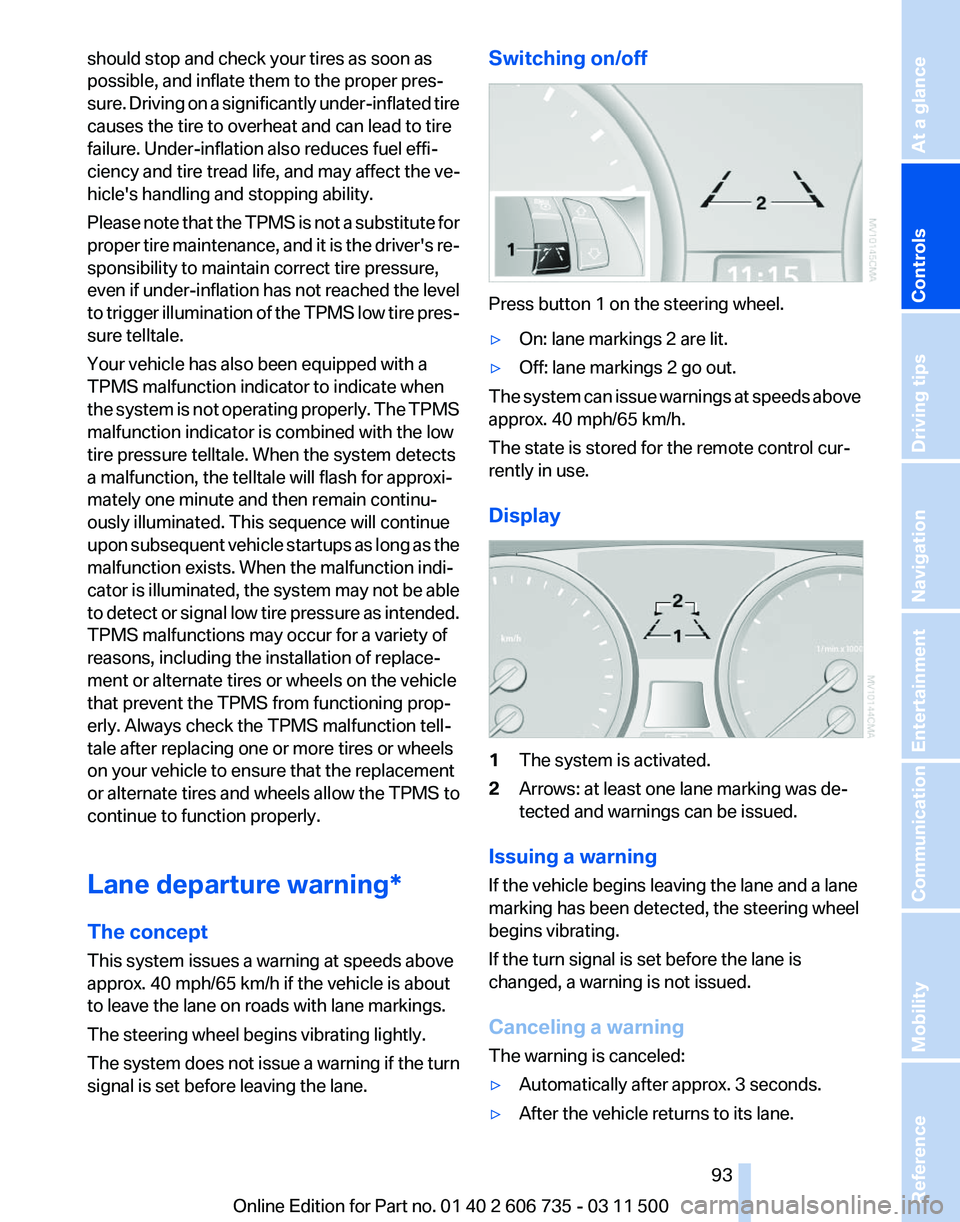
Press button 1 on the steering wheel.
▷
On: lane markings 2 are lit.
▷ Off: lane markings 2 go out.
The system can issue warnings at speeds above
approx. 40 mph/65 km/h.
The state is stored for the remote control cur‐
rently in use.
Display 1
The system is activated.
2 Arrows: at least one lane marking was de‐
tected and warnings can be issued.
Issuing a warning
If the vehicle begins leaving the lane and a lane
marking has been detected, the steering wheel
begins vibrating.
If the turn signal is set before the lane is
changed, a warning is not issued.
Canceling a warning
The warning is canceled:
▷ Automatically after approx. 3 seconds.
▷ After the vehicle returns to its lane.
Seite 93
93Online Edition for Part no. 01 40 2 606 735 - 03 11 500
Reference Mobility Communication Entertainment Navigation Driving tips
Controls At a glance
Page 96 of 317
Driving stability control systems
Antilock Brake System ABS
ABS
prevents locking of the wheels during brak‐
ing.
The vehicle remains steerable even during full
brake applications, thus increasing active
safety.
ABS is operational every time you start the en‐
gine.
CBC Cornering Brake Control
When braking during curves or when braking
during a lane change, driving stability and steer‐
ing response are improved further.
Electronic brake-force
distribution
The system controls the brake pressure in the
rear wheels to ensure stable braking behavior.
Brake assistant
When you apply the brakes rapidly, this system
automatically produces the maximum braking
force boost. It thus helps to achieve the shortest
possible braking distance during full braking.
This system utilizes all of the benefits provided
by ABS.
Do not reduce the pressure on the brake pedal
for the duration of the full braking.
Dynamic Stability Control
DSC
The concept
DSC prevents traction loss in the driving wheels
when driving away and accelerating. DSC also recognizes unstable vehicle condi‐
tions,
such as fishtailing or nose-diving. Subject
to physical limits, DSC helps to keep the vehicle
on a steady course by reducing engine speed
and by applying brakes to the individual wheels.
Adjust your driving style to the situation
An appropriate driving style is always the
responsibility of the driver.
The laws of physics cannot be repealed, even
with DSC.
Do not reduce the additional safety margin with
a risky driving style, as otherwise there is a risk
of an accident.◀
Deactivating DSC: DSC OFF
When DSC is deactivated, driving stability is re‐
duced during acceleration and when driving in
bends.
To increase vehicle stability, activate DSC again
as soon as possible.
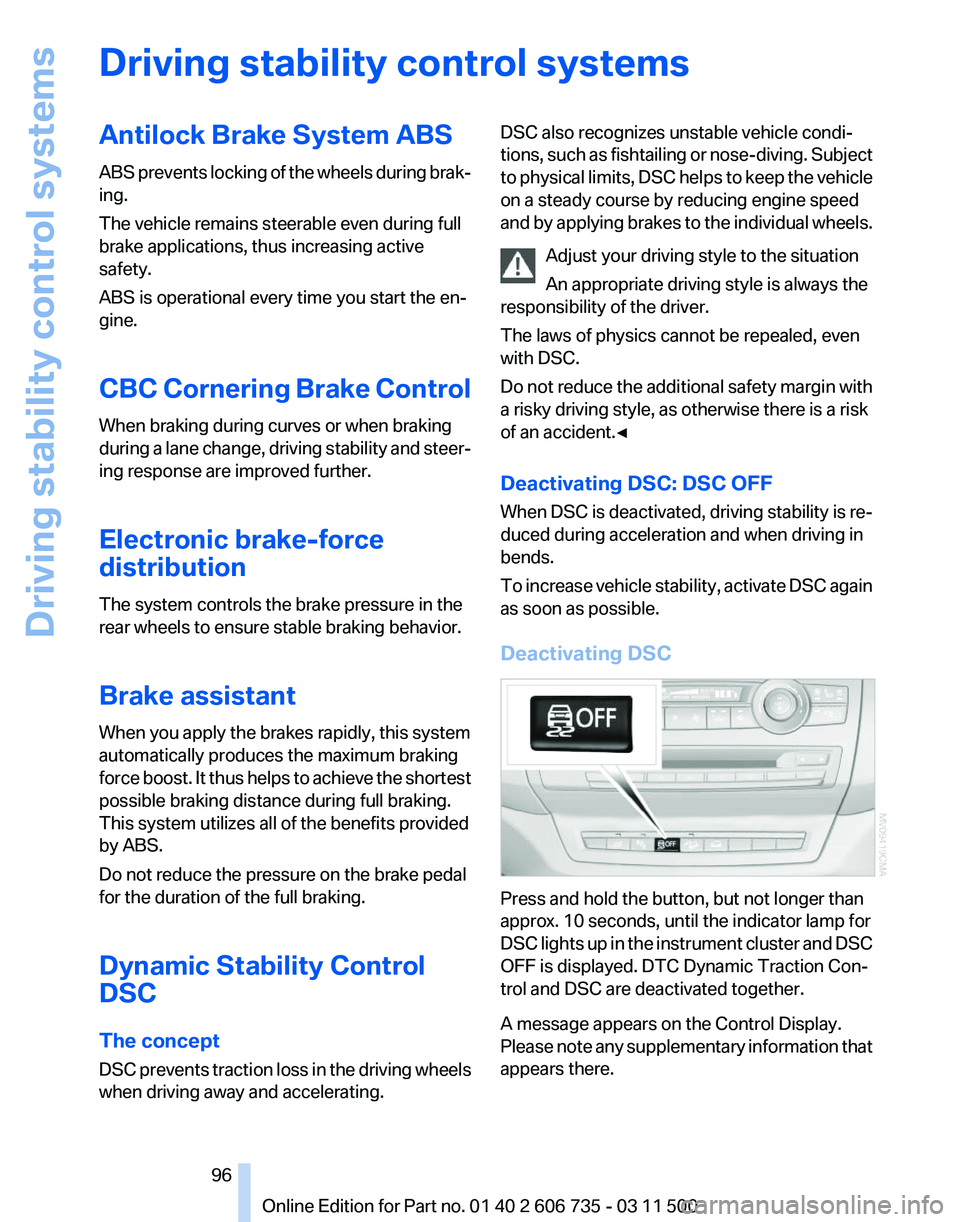
Deactivating DSC Press and hold the button, but not longer than
approx. 10 seconds, until the indicator lamp for
DSC
lights up in the instrument cluster and DSC
OFF is displayed. DTC Dynamic Traction Con‐
trol and DSC are deactivated together.
A message appears on the Control Display.
Please note any supplementary information that
appears there. Seite 96
96 Online Edition for Part no. 01 40 2 606 735 - 03 11 500
Driving stability control systems
Page 98 of 317
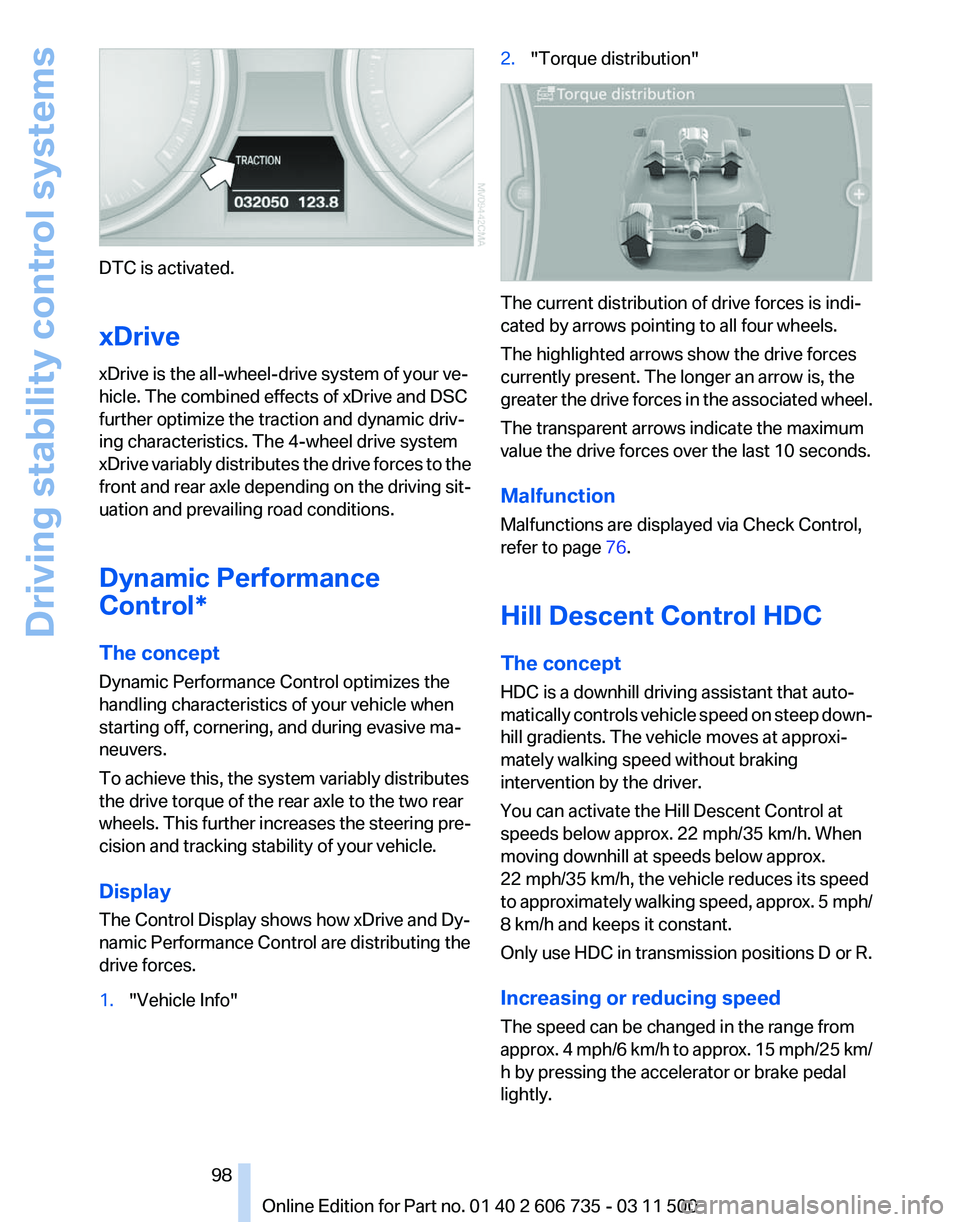
DTC is activated.
xDrive
xDrive is the all-wheel-drive system of your ve‐
hicle. The combined effects of xDrive and DSC
further optimize the traction and dynamic driv‐
ing characteristics. The 4-wheel drive system
xDrive
variably distributes the drive forces to the
front and rear axle depending on the driving sit‐
uation and prevailing road conditions.
Dynamic Performance
Control*
The concept
Dynamic Performance Control optimizes the
handling characteristics of your vehicle when
starting off, cornering, and during evasive ma‐
neuvers.
To achieve this, the system variably distributes
the drive torque of the rear axle to the two rear
wheels. This further increases the steering pre‐
cision and tracking stability of your vehicle.
Display
The Control Display shows how xDrive and Dy‐
namic Performance Control are distributing the
drive forces.
1. "Vehicle Info" 2.
"Torque distribution" The current distribution of drive forces is indi‐
cated by arrows pointing to all four wheels.
The highlighted arrows show the drive forces
currently present. The longer an arrow is, the
greater
the drive forces in the associated wheel.
The transparent arrows indicate the maximum
value the drive forces over the last 10 seconds.
Malfunction
Malfunctions are displayed via Check Control,
refer to page 76.
Hill Descent Control HDC
The concept
HDC is a downhill driving assistant that auto‐
matically controls vehicle speed on steep down‐
hill gradients. The vehicle moves at approxi‐
mately walking speed without braking
intervention by the driver.
You can activate the Hill Descent Control at
speeds below approx. 22 mph/35 km/h. When
moving downhill at speeds below approx.
22 mph/35 km/h, the vehicle reduces its speed
to approximately walking speed, approx. 5 mph/
8 km/h and keeps it constant.
Only use HDC in transmission positions D or R.
Increasing or reducing speed
The speed can be changed in the range from
approx. 4 mph/6 km/h to approx. 15 mph/25 km/
h by pressing the accelerator or brake pedal
lightly.
Seite 98
98 Online Edition for Part no. 01 40 2 606 735 - 03 11 500
Driving stability control systems
Page 106 of 317
vention. The system applies the brakes until you
actively assume control.
Radar sensor
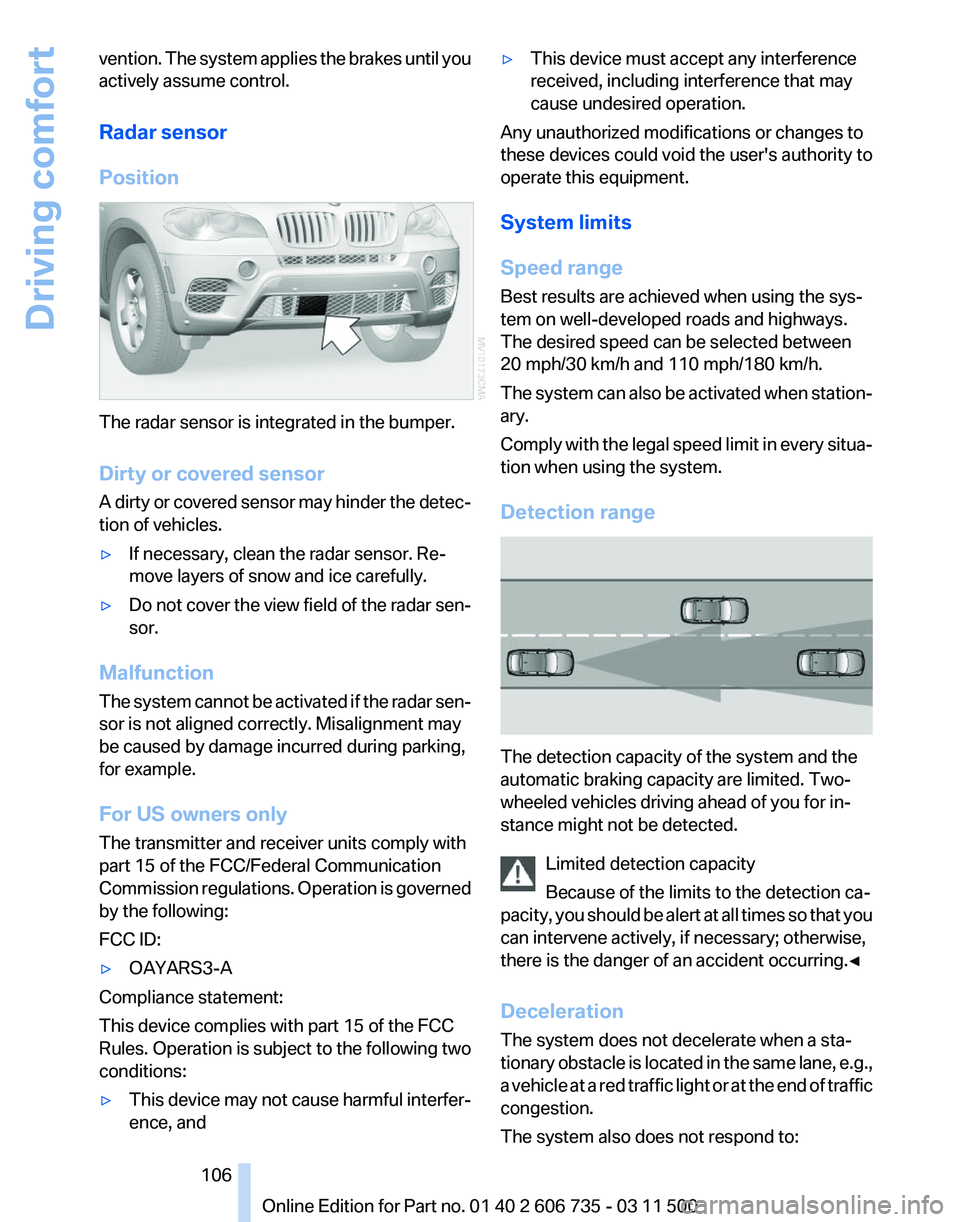
Position
The radar sensor is integrated in the bumper.
Dirty or covered sensor
A
dirty or covered sensor may hinder the detec‐
tion of vehicles.
▷ If necessary, clean the radar sensor. Re‐
move layers of snow and ice carefully.
▷ Do not cover the view field of the radar sen‐
sor.
Malfunction
The
system cannot be activated if the radar sen‐
sor is not aligned correctly. Misalignment may
be caused by damage incurred during parking,
for example.
For US owners only
The transmitter and receiver units comply with
part 15 of the FCC/Federal Communication
Commission regulations. Operation is governed
by the following:
FCC ID:
▷ OAYARS3-A
Compliance statement:
This device complies with part 15 of the FCC
Rules. Operation is subject to the following two
conditions:
▷ This device may not cause harmful interfer‐
ence, and ▷
This device must accept any interference
received, including interference that may
cause undesired operation.
Any unauthorized modifications or changes to
these devices could void the user's authority to
operate this equipment.
System limits
Speed range
Best results are achieved when using the sys‐
tem on well-developed roads and highways.
The desired speed can be selected between
20 mph/30 km/h and 110 mph/180 km/h.
The
system can also be activated when station‐
ary.
Comply with the legal speed limit in every situa‐
tion when using the system.
Detection range The detection capacity of the system and the
automatic braking capacity are limited. Two-
wheeled vehicles driving ahead of you for in‐
stance might not be detected.
Limited detection capacity
Because of the limits to the detection ca‐
pacity,
you should be alert at all times so that you
can intervene actively, if necessary; otherwise,
there is the danger of an accident occurring.◀
Deceleration
The system does not decelerate when a sta‐
tionary obstacle is located in the same lane, e.g.,
a vehicle at a red traffic light or at the end of traffic
congestion.
The system also does not respond to: Seite 106
106 Online Edition for Part no. 01 40 2 606 735 - 03 11 500
Driving comfort
Page 123 of 317
Switching on
1.
Switch off the ignition.
2. Press the right-hand button. REST appears on the display of the automatic
climate
control when the residual heat utilization
is switched on.
From radio readiness the interior temperature,
the air volume and the air distribution can be set.
Switching off
You can select the lowest blower speed by
pressing and holding the left side. Pressing
again switches off the residual heat utilization.
REST disappears from the display of the auto‐
matic climate control.
Switching on/off the automatic climate
control
Switching off
With the blower at its lowest setting,
press the left side of the button to
switch off the automatic climate control.
Switching on
Press any button to switch the automatic cli‐
mate control back on.
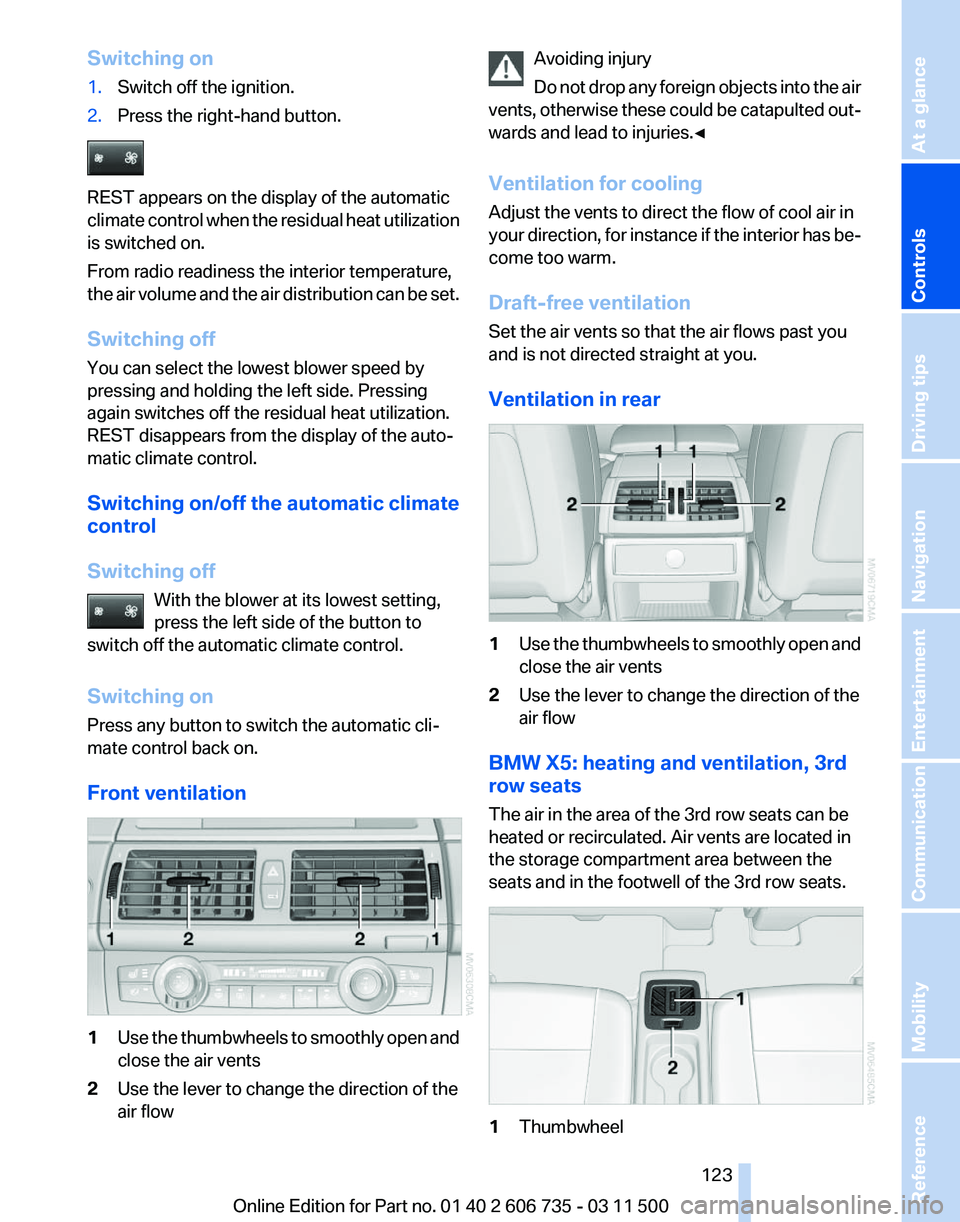
Front ventilation 1
Use the thumbwheels to smoothly open and
close the air vents
2 Use the lever to change the direction of the
air flow Avoiding injury
Do
not drop any foreign objects into the air
vents, otherwise these could be catapulted out‐
wards and lead to injuries.◀
Ventilation for cooling
Adjust the vents to direct the flow of cool air in
your direction, for instance if the interior has be‐
come too warm.
Draft-free ventilation
Set the air vents so that the air flows past you
and is not directed straight at you.
Ventilation in rear 1
Use the thumbwheels to smoothly open and
close the air vents
2 Use the lever to change the direction of the
air flow
BMW X5: heating and ventilation, 3rd
row seats
The air in the area of the 3rd row seats can be
heated or recirculated. Air vents are located in
the storage compartment area between the
seats and in the footwell of the 3rd row seats. 1
Thumbwheel Seite 123
123Online Edition for Part no. 01 40 2 606 735 - 03 11 500
Reference Mobility Communication Entertainment Navigation Driving tips
Controls At a glance
Page 125 of 317
AUTO program
The AUTO program automatically
sets the air distribution toward the
upper body and in the footwell, as
well as the air flow rate. It also
adapts your instructions for the
temperature to outside influences throughout
the year.
Temperature
Set the desired temperature indi‐
vidually on the left and right side.
The automatic climate control achieves this
temperature
as quickly as possible regardless of
the season, using maximum cooling or heating
power if necessary, and then maintains it.
When switching between different temperature
settings in rapid succession, the automatic cli‐
mate control does not have sufficient time to
adjust the set temperature.
Air volume, manual
The air flow rate can be varied by press‐
ing on the corresponding side. The au‐
tomatic mode for the air flow rate can be
switched on again using the AUTO button.
Switching off rear automatic climate
control
With the blower at its lowest setting,
press the left side of the button to
switch off the automatic climate control.
The automatic climate control can also be
switched off with iDrive. To switch on the auto‐
matic climate control again, the system must
first be reactivated, refer to Activating/deacti‐
vating.
The system is switched on again by pressing
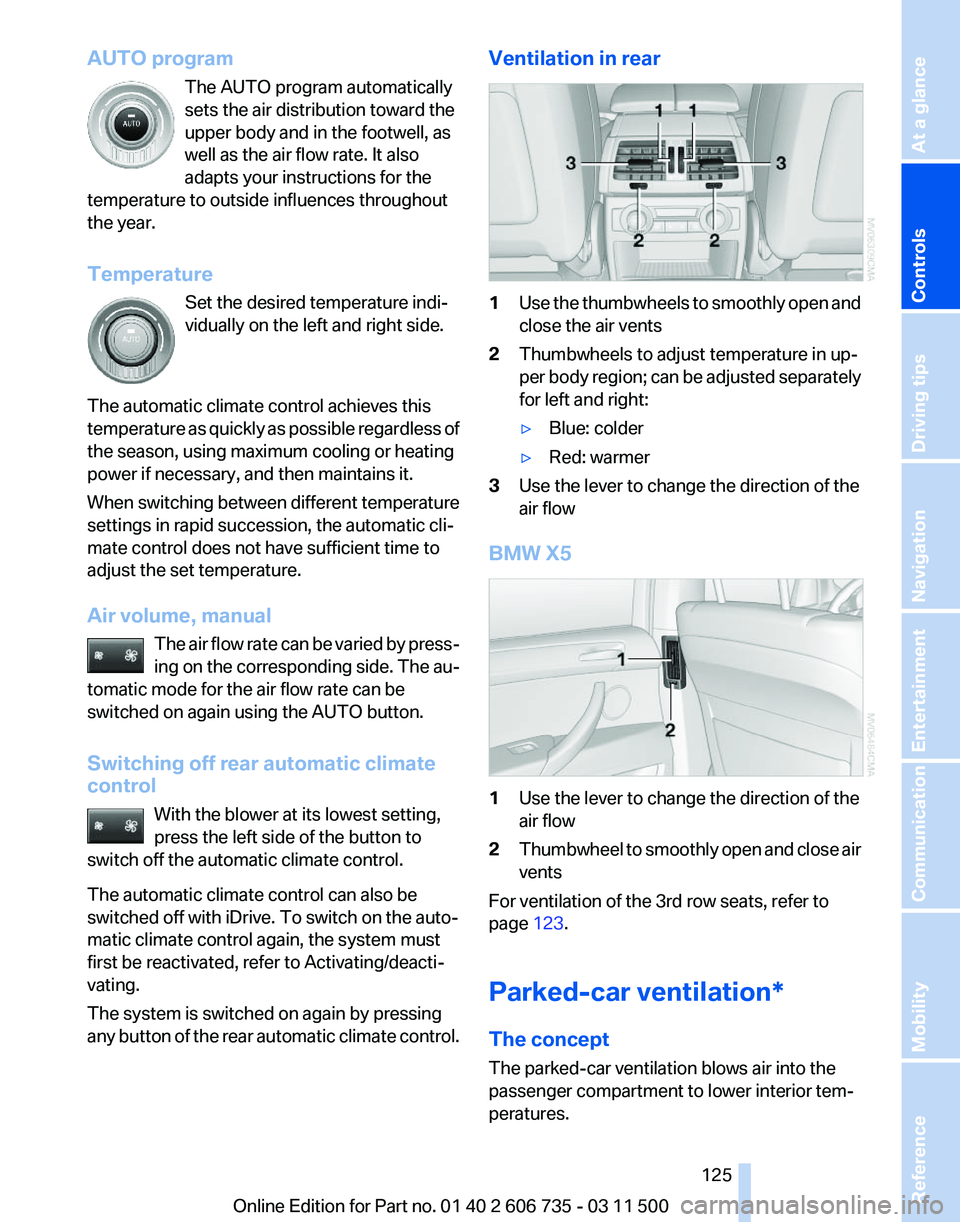
any button of the rear automatic climate control. Ventilation in rear
1
Use the thumbwheels to smoothly open and
close the air vents
2 Thumbwheels to adjust temperature in up‐
per
body region; can be adjusted separately
for left and right:
▷ Blue: colder
▷ Red: warmer
3 Use the lever to change the direction of the
air flow
BMW X5 1
Use the lever to change the direction of the
air flow
2 Thumbwheel to smoothly open and close air
vents
For ventilation of the 3rd row seats, refer to
page 123.
Parked-car ventilation*
The concept
The parked-car ventilation blows air into the
passenger compartment to lower interior tem‐
peratures.
Seite 125
125Online Edition for Part no. 01 40 2 606 735 - 03 11 500
Reference Mobility Communication Entertainment Navigation Driving tips
Controls At a glance
Page 158 of 317
Specifying the street
If
the system does not recognize the street, one
of the following pieces of information is dis‐
played:
▷ A street name in the vicinity.
▷ The county.
▷ The coordinates of the destination.
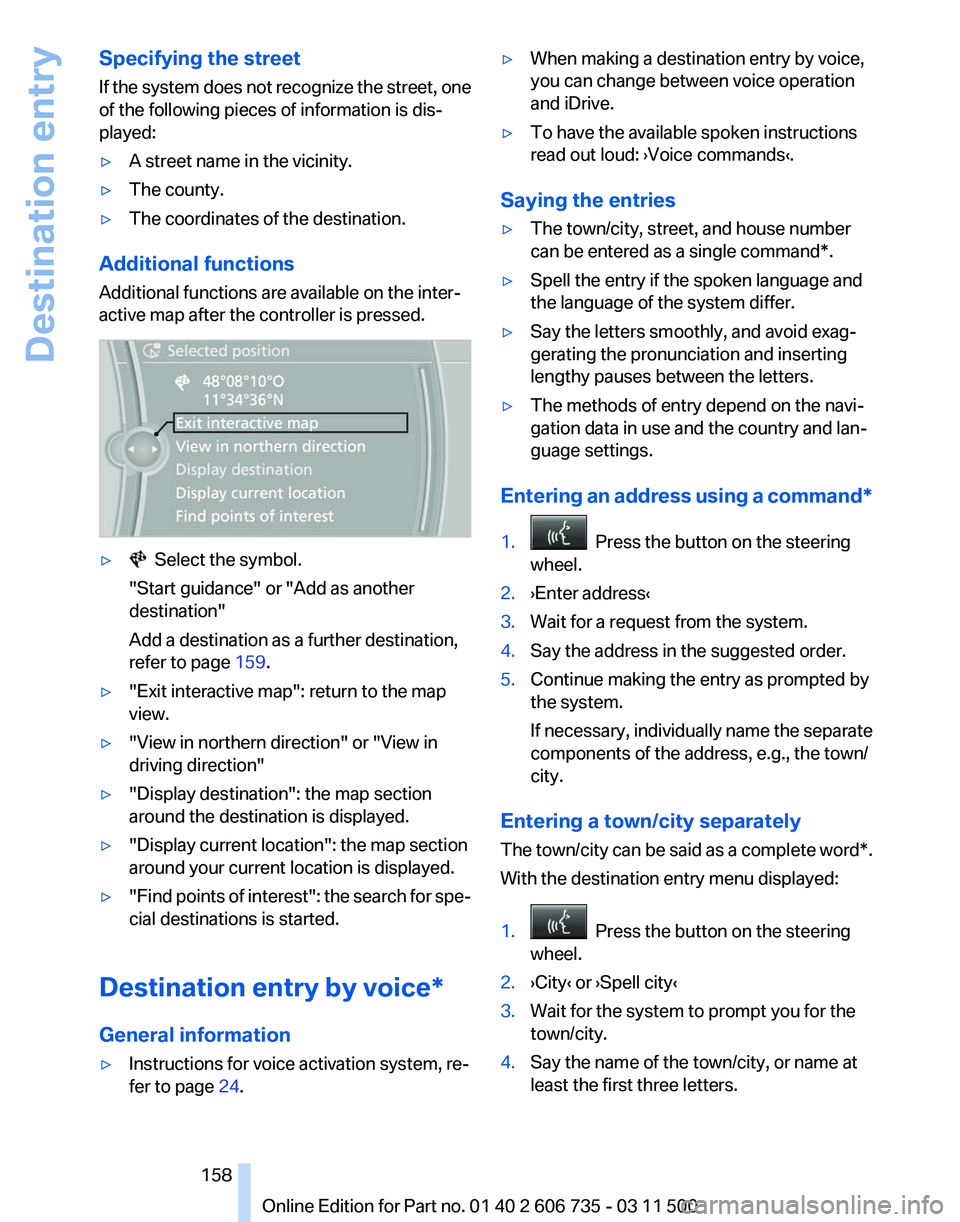
Additional functions
Additional functions are available on the inter‐
active map after the controller is pressed. ▷ Select the symbol.
"Start guidance" or "Add as another
destination"
Add a destination as a further destination,
refer to page 159.
▷ "Exit interactive map": return to the map
view.
▷ "View in northern direction" or "View in
driving direction"
▷ "Display destination": the map section
around the destination is displayed.
▷ "Display current location": the map section
around your current location is displayed.
▷ "Find
points of interest": the search for spe‐
cial destinations is started.
Destination entry by voice*
General information
▷ Instructions for voice activation system, re‐
fer to page 24. ▷
When making a destination entry by voice,
you can change between voice operation
and iDrive.
▷ To have the available spoken instructions
read out loud: ›Voice commands
‹.
Saying the entries
▷ The town/city, street, and house number
can be entered as a single command
*.
▷ Spell the entry if the spoken language and
the language of the system differ.
▷ Say the letters smoothly, and avoid exag‐
gerating the pronunciation and inserting
lengthy pauses between the letters.
▷ The methods of entry depend on the navi‐
gation data in use and the country and lan‐
guage settings.
Entering an address using a command*
1. Press the button on the steering
wheel.
2. ›Enter address‹
3. Wait for a request from the system.
4. Say the address in the suggested order.
5. Continue making the entry as prompted by
the system.
If
necessary, individually name the separate
components of the address, e.g., the town/
city.
Entering a town/city separately
The
town/city can be said as a complete word*.
With the destination entry menu displayed:
1. Press the button on the steering
wheel.
2. ›City‹ or ›Spell city‹
3. Wait for the system to prompt you for the
town/city.
4. Say the name of the town/city, or name at
least the first three letters.
Seite 158
158 Online Edition for Part no. 01 40 2 606 735 - 03 11 500
Destination entry
Page 174 of 317
Radio
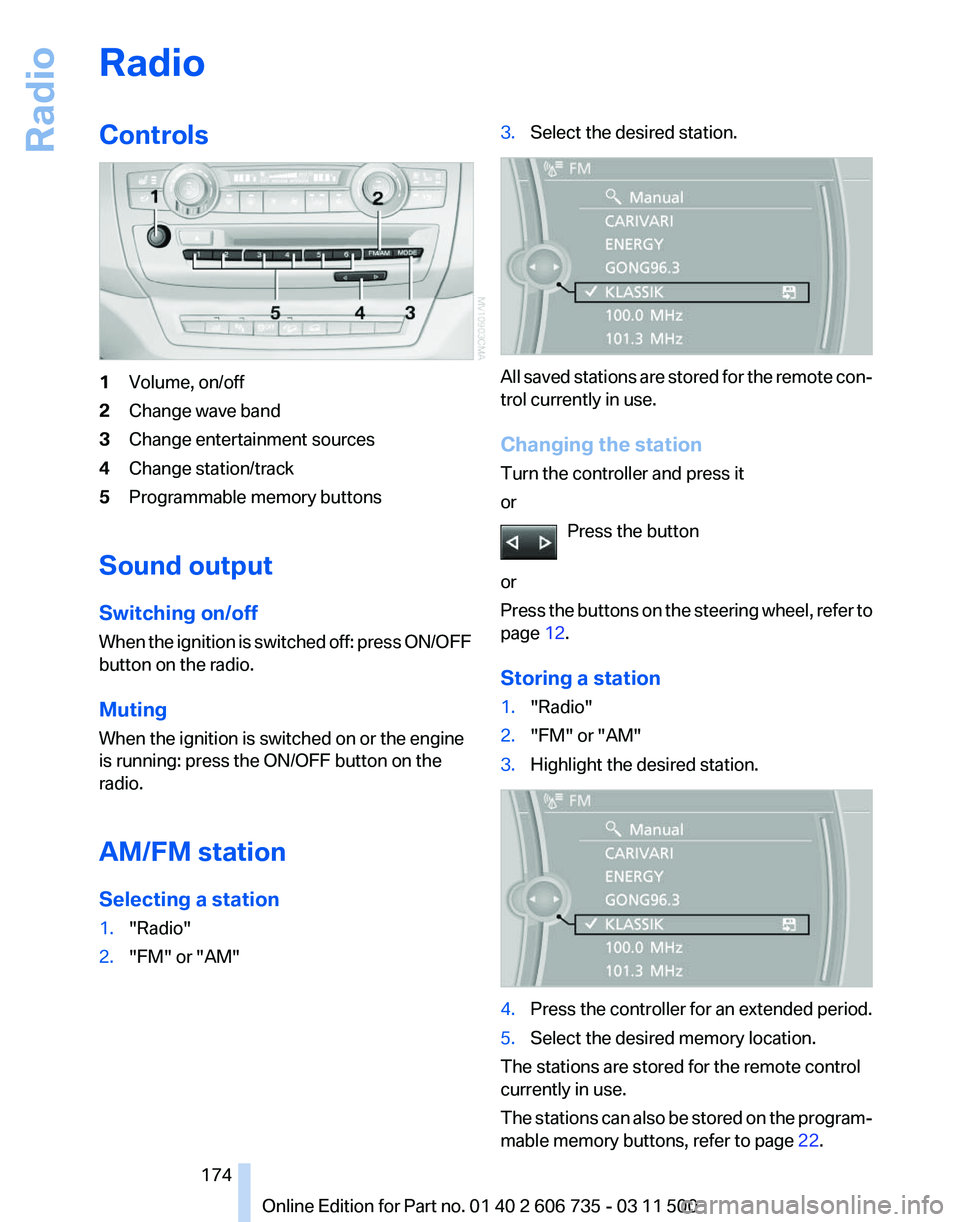
Controls
1
Volume, on/off
2 Change wave band
3 Change entertainment sources
4 Change station/track
5 Programmable memory buttons
Sound output
Switching on/off
When
the ignition is switched off: press ON/OFF
button on the radio.
Muting
When the ignition is switched on or the engine
is running: press the ON/OFF button on the
radio.
AM/FM station
Selecting a station
1. "Radio"
2. "FM" or "AM" 3.
Select the desired station. All saved stations are stored for the remote con‐
trol currently in use.
Changing the station
Turn the controller and press it
or
Press the button
or
Press
the buttons on the steering wheel, refer to
page 12.
Storing a station
1. "Radio"
2. "FM" or "AM"
3. Highlight the desired station. 4.
Press the controller for an extended period.
5. Select the desired memory location.
The stations are stored for the remote control
currently in use.
The
stations can also be stored on the program‐
mable memory buttons, refer to page 22. Seite 174
174 Online Edition for Part no. 01 40 2 606 735 - 03 11 500
Radio
Page 201 of 317
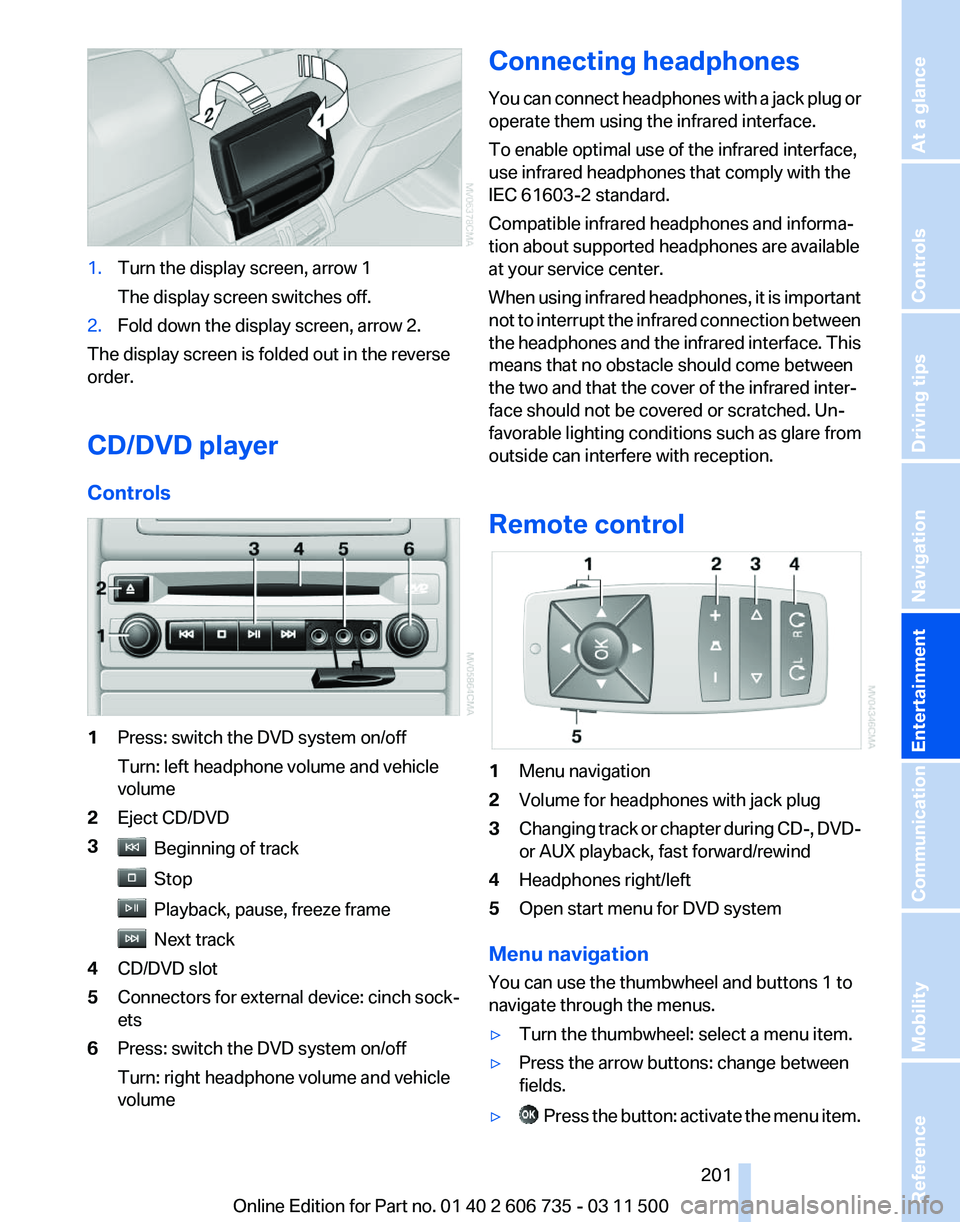
1.
Turn the display screen, arrow 1
The display screen switches off.
2. Fold down the display screen, arrow 2.
The display screen is folded out in the reverse
order.
CD/DVD player
Controls 1
Press: switch the DVD system on/off
Turn: left headphone volume and vehicle
volume
2 Eject CD/DVD
3 Beginning of track
Stop
Playback, pause, freeze frame
Next track
4 CD/DVD slot
5 Connectors for external device: cinch sock‐
ets
6 Press: switch the DVD system on/off
Turn: right headphone volume and vehicle
volume Connecting headphones
You
can connect headphones with a jack plug or
operate them using the infrared interface.
To enable optimal use of the infrared interface,
use infrared headphones that comply with the
IEC 61603-2 standard.
Compatible infrared headphones and informa‐
tion about supported headphones are available
at your service center.
When using infrared headphones, it is important
not to interrupt the infrared connection between
the headphones and the infrared interface. This
means that no obstacle should come between
the two and that the cover of the infrared inter‐
face should not be covered or scratched. Un‐
favorable lighting conditions such as glare from
outside can interfere with reception.
Remote control 1
Menu navigation
2 Volume for headphones with jack plug
3 Changing track or chapter during CD-, DVD-
or AUX playback, fast forward/rewind
4 Headphones right/left
5 Open start menu for DVD system
Menu navigation
You can use the thumbwheel and buttons 1 to
navigate through the menus.
▷ Turn the thumbwheel: select a menu item.
▷ Press the arrow buttons: change between
fields.
▷ Press the button: activate the menu item.
Seite 201
201Online Edition for Part no. 01 40 2 606 735 - 03 11 500
Reference Mobility Communication
Entertainment Navigation Driving tips Controls At a glance
Page 204 of 317
Fast forward/reverse
Forward/reverse with DVD control
1.
Press the button on the remote control
during playback.
2. Select the symbol.
3. Press the button.
4. Press the button several times to in‐
crease the fast forward/reverse speed.
The DVD playback will be distorted.
To cancel fast forward/reverse:
1. Select the symbol.
2. Press the button.
Or: Press the button on the CD/DVD player. The
DVD will start play at the point selected.
Forward/reverse with remote control Press and hold the button until you reach
the desired point.
Or:
1. During playback, turn the thumbwheel. Fast
forward/reverse is interrupted.
2. Continue to turn the thumbwheel. The
speed is increased.
3. Press the button on the CD/DVD player.
Fast forward/reverse is interrupted. The
DVD will start play at the point selected.
Skipping chapter
You can change to the next or previous chapter
during playback.
1. Press the button on the remote control
during playback.
2. Select the symbol.
3. Press the button repeatedly, continuing
until you reach the desired chapter.
Or: Press the button on the left or right on the
remote control repeatedly until you reach the
desired chapter. Freeze frame
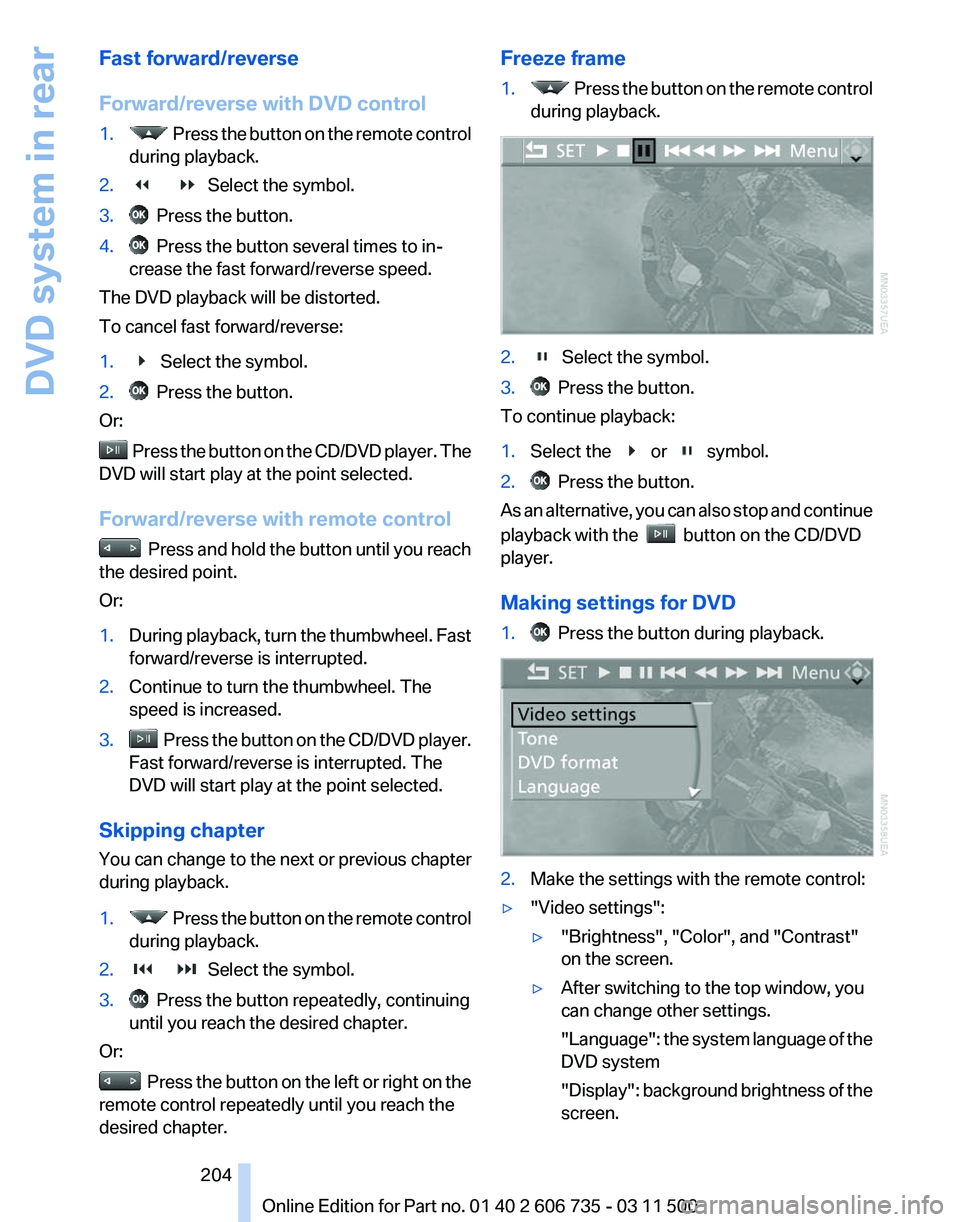
1. Press the button on the remote control
during playback. 2. Select the symbol.
3. Press the button.
To continue playback:
1. Select the or symbol.
2. Press the button.
As an alternative, you can also stop and continue
playback with the button on the CD/DVD
player.
Making settings for DVD
1. Press the button during playback.
2.
Make the settings with the remote control:
▷ "Video settings":
▷"Brightness", "Color", and "Contrast"
on the screen.
▷ After switching to the top window, you
can change other settings.
"Language":
the system language of the
DVD system
"Display": background brightness of the
screen.
Seite 204
204 Online Edition for Part no. 01 40 2 606 735 - 03 11 500
DVD system in rear