buttons BMW X5M 2012 Owner's Manual
[x] Cancel search | Manufacturer: BMW, Model Year: 2012, Model line: X5M, Model: BMW X5M 2012Pages: 317, PDF Size: 8.83 MB
Page 186 of 317
Sliding in CDs/DVDs
Do not insert the CD/DVD until the LEDs
on
the DVD slot are flashing; otherwise, the CD/
DVD or the CD/DVD changer could be damaged.
Do not continue to push on the CD/DVD; this
may cause it to jam and prevent it from being
able to eject again.◀
Filling all vacant CD/DVD
compartments
1. Press the button for a longer period.
The LEDs on the empty CD compartments
flash.
2. Wait for the LEDs on the DVD slot to begin
flashing
and then insert each CD or DVD into
the center of the slot.
The CDs/DVDs are drawn in automatically
and placed into the vacant compartments.
Sliding in CDs/DVDs
Do not insert the CD/DVD until the LEDs
on
the DVD slot are flashing; otherwise, the CD/
DVD or the CD/DVD changer could be damaged.
Do not continue to push on the CD/DVD; this
may cause it to jam and prevent it from being
able to eject again.◀
After they are inserted, it may take several mi‐
nutes for the CDs/DVDs to be read in.
Removing a single CD/DVD
1. Press the button.
2. Select the CD/DVD compartment.
The CD/DVD is partially ejected.
3. Remove the CD/DVD.
Removing all CDs/DVDs
1. Press the button for a longer period.
2. Remove the CDs/DVDs.
Malfunctions
If
all LEDs on the CD/DVD changer flash rapidly,
the system is malfunctioning. To eliminate the malfunction:
1.
Press one of the buttons:
▷ ▷
The CD/DVD last inserted is ejected.
2. Remove the CD/DVD.
If the LEDs stop flashing rapidly, the CD/DVD
changer is functional again.
Audio playback*
The audio track of a DVD can be played back
even if video playback is not possible in the ve‐
hicle.
Only
the main film without the previews or extras
can be played back.
Starting playback
A DVD is located in the DVD changer.
1. "CD/Multimedia"
2. "CD/DVD"
3. Select the desired DVD.
Selecting a chapter using the button Press the button repeatedly until the
desired chapter is played.
Selecting a chapter using iDrive
1. "CD/Multimedia"
2. "CD/DVD"
3. Select the desired DVD.
4. Select the desired chapter.
Fast forward/reverse Press and hold the button.
Selecting the language
*
The languages that are available depend on the
DVD. Seite 186
186 Online Edition for Part no. 01 40 2 606 735 - 03 11 500
CD/multimedia
Page 199 of 317
▷
Switch the radio on and off again.
Music files can only be played back softly.
▷ Adjust the volume settings on the device.
Playback is disturbed when buttons are pressed
or by other messages on the device.
▷ Switch off the button tones and other signal
tones on the device.
Playback is interrupted by a telephone call or
traffic bulletin and is not resumed automatically.
▷ Switch the radio on and off again.
Playback is not possible if the mobile phone is
connected
both via Bluetooth Audio and via the
extended connectivity of the music player in the
mobile phone*.
▷ Disconnect one of the two connections; for
example, disconnect the audio connection,
refer to page 198, and restart playback.
If all points in this list have been checked and the
required function is still not available, please
contact the hotline or service center.
Software Update*
The vehicle supports various external devices
depending
on the current software version. With
a software update, the vehicle can support new
cell phones or new external device, for example.
▷ USB.
Software updates and related current infor‐
mation is available at www.bmw.com/up‐
date.
Displaying the current version
The currently installed software is displayed.
1. "Settings"
2. "Software update"
3. "Show current version"
Select desired version* to display additional in‐
formation*.
Updating software via USB
*
The software may only be updated when the ve‐
hicle is stationary. 1.
Store the file for the software-update in the
main director of a USB flash drive.
2. Insert the USB flash drive into the USB in‐
terface of the USB audio interface in the
center armrest. An update via the USB in‐
terface
in the glove compartment is not pos‐
sible.
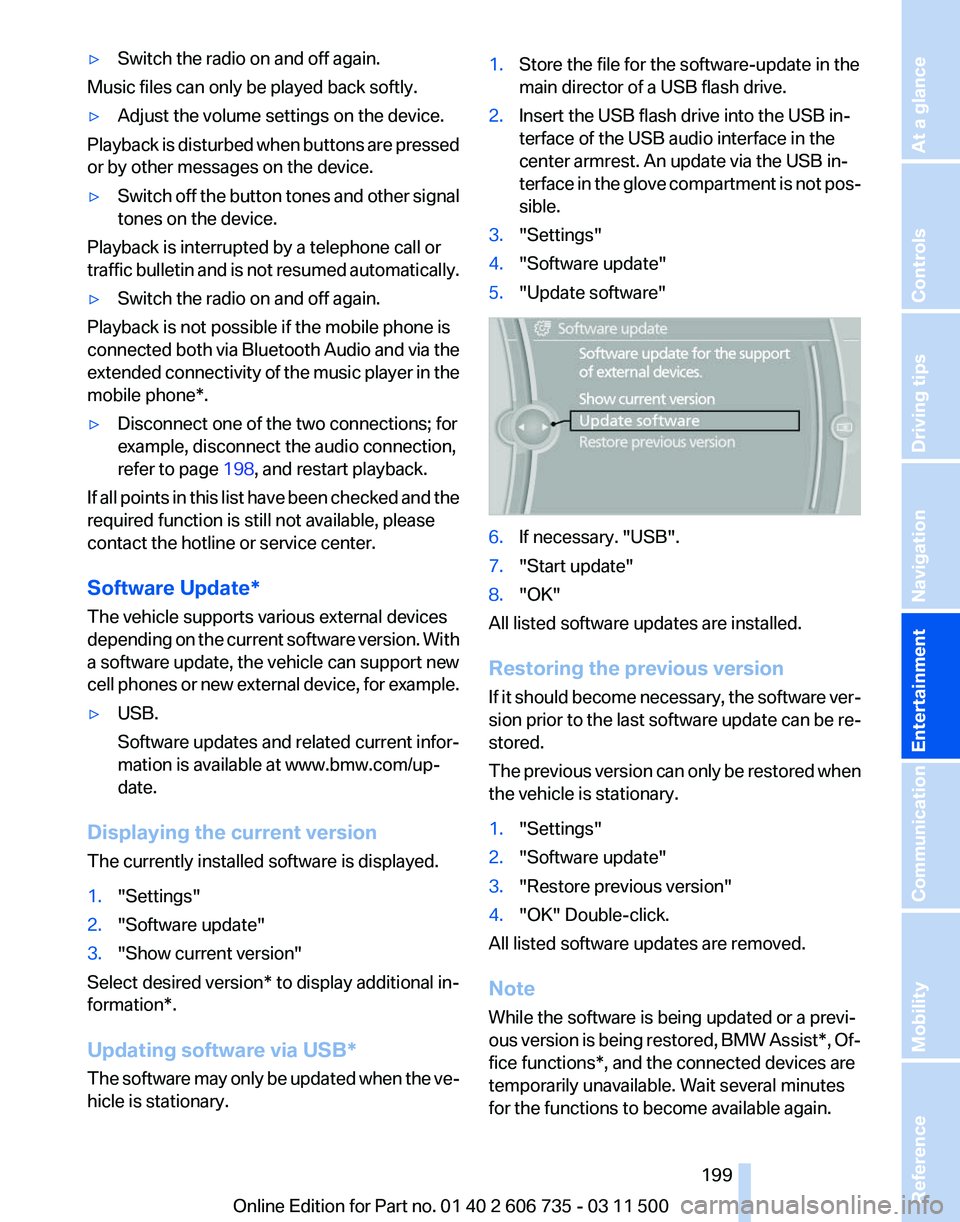
3. "Settings"
4. "Software update"
5. "Update software" 6.
If necessary. "USB".
7. "Start update"
8. "OK"
All listed software updates are installed.
Restoring the previous version
If
it should become necessary, the software ver‐
sion prior to the last software update can be re‐
stored.
The previous version can only be restored when
the vehicle is stationary.
1. "Settings"
2. "Software update"
3. "Restore previous version"
4. "OK" Double-click.
All listed software updates are removed.
Note
While the software is being updated or a previ‐
ous
version is being restored, BMW Assist*, Of‐
fice functions*, and the connected devices are
temporarily unavailable. Wait several minutes
for the functions to become available again.
Seite 199
199Online Edition for Part no. 01 40 2 606 735 - 03 11 500
Reference Mobility Communication
Entertainment Navigation Driving tips Controls At a glance
Page 201 of 317
1.
Turn the display screen, arrow 1
The display screen switches off.
2. Fold down the display screen, arrow 2.
The display screen is folded out in the reverse
order.
CD/DVD player
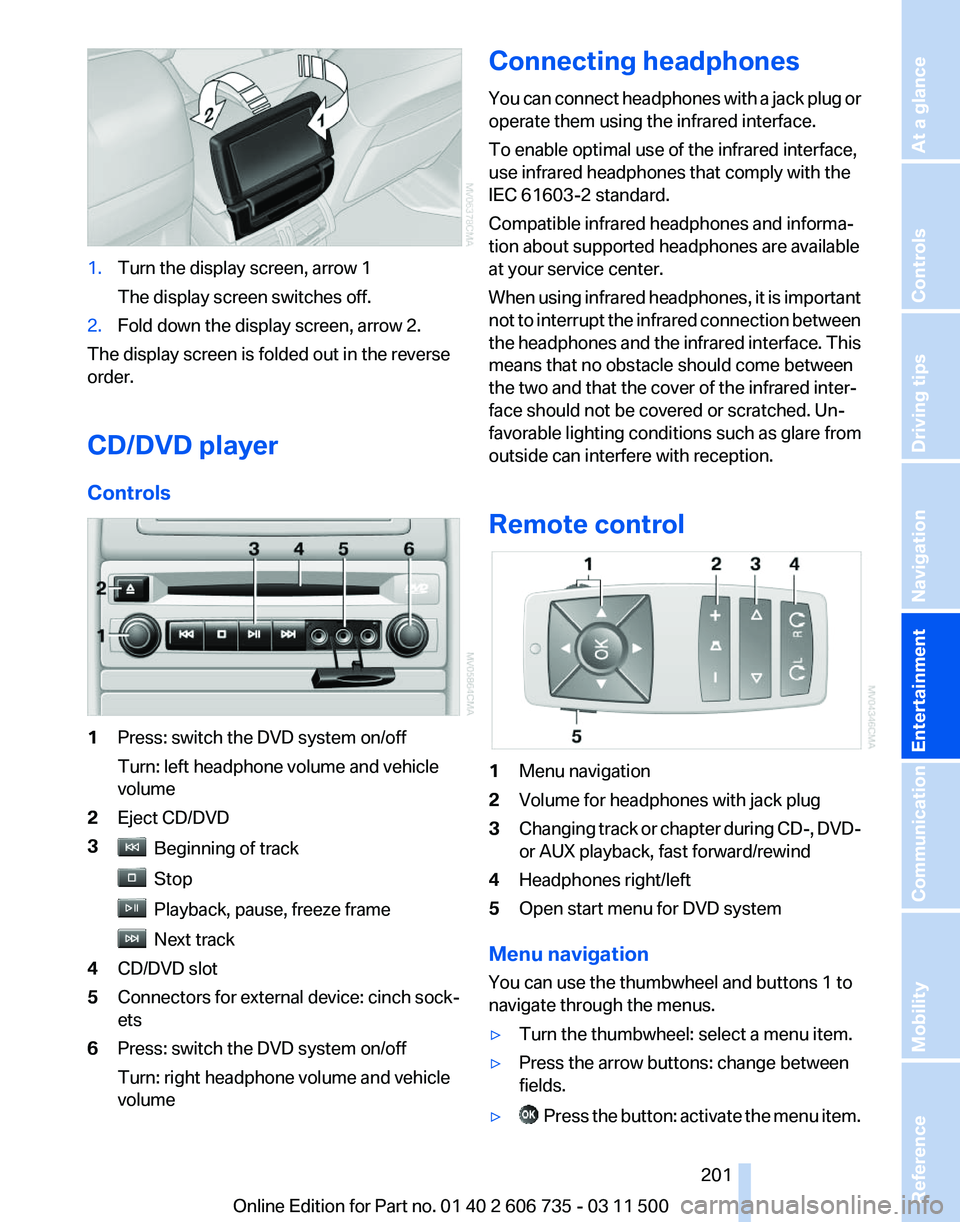
Controls 1
Press: switch the DVD system on/off
Turn: left headphone volume and vehicle
volume
2 Eject CD/DVD
3 Beginning of track
Stop
Playback, pause, freeze frame
Next track
4 CD/DVD slot
5 Connectors for external device: cinch sock‐
ets
6 Press: switch the DVD system on/off
Turn: right headphone volume and vehicle
volume Connecting headphones
You
can connect headphones with a jack plug or
operate them using the infrared interface.
To enable optimal use of the infrared interface,
use infrared headphones that comply with the
IEC 61603-2 standard.
Compatible infrared headphones and informa‐
tion about supported headphones are available
at your service center.
When using infrared headphones, it is important
not to interrupt the infrared connection between
the headphones and the infrared interface. This
means that no obstacle should come between
the two and that the cover of the infrared inter‐
face should not be covered or scratched. Un‐
favorable lighting conditions such as glare from
outside can interfere with reception.
Remote control 1
Menu navigation
2 Volume for headphones with jack plug
3 Changing track or chapter during CD-, DVD-
or AUX playback, fast forward/rewind
4 Headphones right/left
5 Open start menu for DVD system
Menu navigation
You can use the thumbwheel and buttons 1 to
navigate through the menus.
▷ Turn the thumbwheel: select a menu item.
▷ Press the arrow buttons: change between
fields.
▷ Press the button: activate the menu item.
Seite 201
201Online Edition for Part no. 01 40 2 606 735 - 03 11 500
Reference Mobility Communication
Entertainment Navigation Driving tips Controls At a glance
Page 203 of 317
Code Region
3 Southeast Asia
4 Australia, Central and South America,
New Zealand
5 Northwest Asia, North Africa
6 China DVDs with the code 0 can be played on all devi‐
ces.
Starting playback
1.
Push the CD/DVD into the drive with the la‐
beled side facing upward. The CD/DVD is
automatically pulled in.
▷Playback begins automatically after a
few seconds.
▷ Otherwise: select "DVD".
2. If the DVD control or the DVD-specific menu
is
displayed when a DVD is inserted, use the
remote control buttons for menu navigation
to select the desired option.
Or: Press the button on the CD/DVD player.
You can control the playback with the buttons
on the CD/DVD player or the DVD control.
Video CDs (VCDs) and Super Video CDs
(SVCDs) can only be played if they do not have
a DVD-specific menu.
Eject CD/DVD Press
the button on the CD/DVD player. The
DVD emerges slightly from the drive.
DVD control
With the DVD control, you can select the title and
chapter, open the DVD-specific menu, and op‐
erate functions such as Language, Fast forward
and Reverse or Freeze frame.
A DVD can briefly deactivate functions of the
DVD control, under certain circumstances while
the entire DVD is being played. It is not possible
to operate the DVD control under these circum‐ stances. In this case, try to make the selection
using the DVD-specific menu.
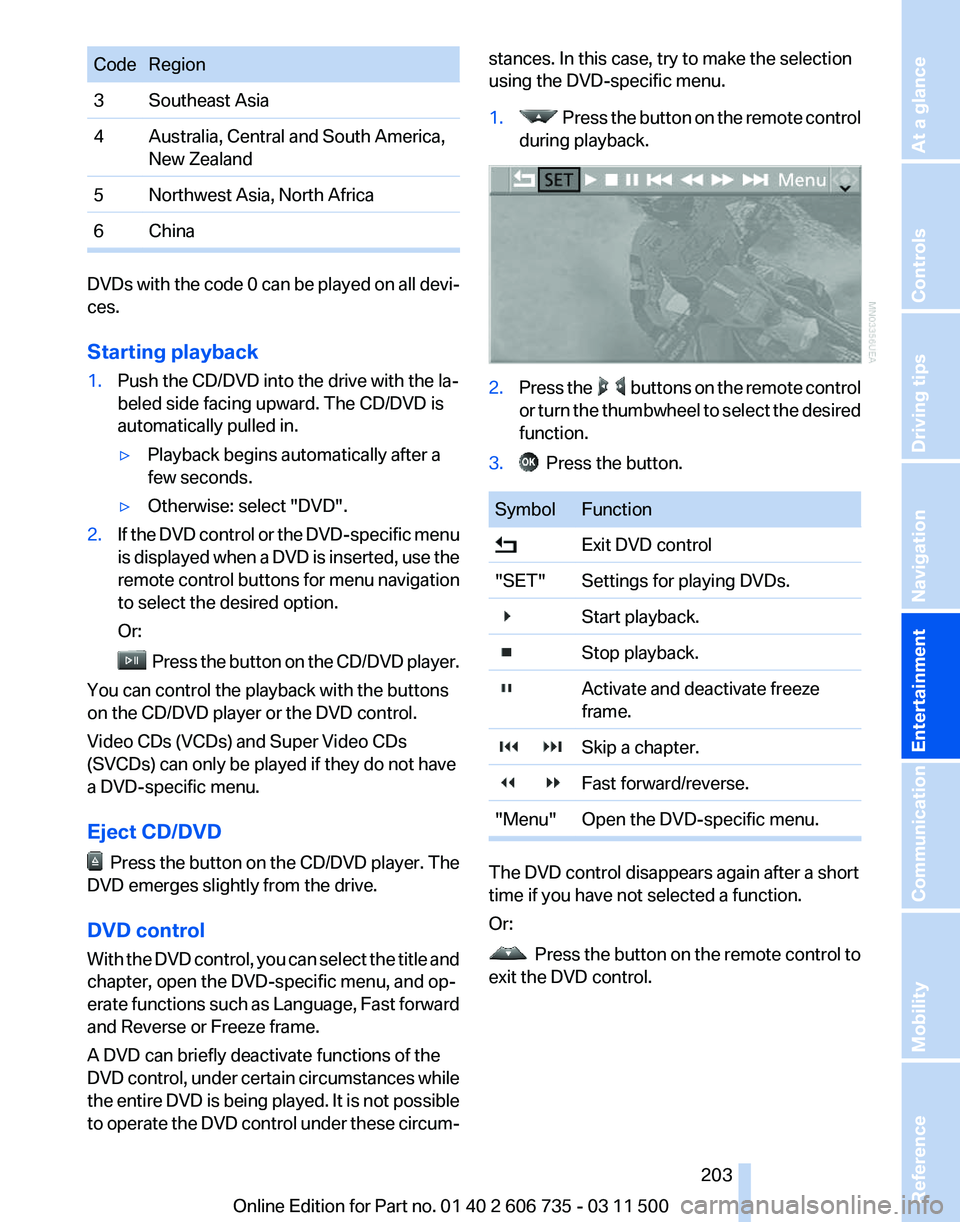
1. Press the button on the remote control
during playback. 2.
Press the buttons on the remote control
or
turn the thumbwheel to select the desired
function.
3. Press the button.
Symbol Function
Exit DVD control
"SET" Settings for playing DVDs.
Start playback.
Stop playback.
Activate and deactivate freeze
frame.
Skip a chapter.
Fast forward/reverse.
"Menu" Open the DVD-specific menu. The DVD control disappears again after a short
time if you have not selected a function.
Or:
Press
the button on the remote control to
exit the DVD control.
Seite 203
203Online Edition for Part no. 01 40 2 606 735 - 03 11 500
Reference Mobility Communication
Entertainment Navigation Driving tips Controls At a glance
Page 205 of 317
▷
"Tone":
▷"Treble / Bass" and "Balance": sepa‐
rately adjustable for the left and right
headphones and the infrared head‐
phones.
▷ "Reset": the settings are reset to the de‐
fault values.
▷ "DVD format":
▷"Standard"
▷ "Zoom": full-screen playback.
▷ "Language":
language of the DVD playback.
The language advances one setting each
time the menu item is selected.
▷ "Subtitles":
language of the subtitles or turn
off the subtitles.
▷ "Title": select individual tracks on the DVD.
▷ "Angle of view": camera angle.
Information or symbols that appear during
the
playback of a film generally point out dif‐
ferent camera angles. These are usually only
briefly available.
▷ "Menu": open the DVD-specific menu.
▷ "Return": exit the menu, or: Press the buttons on the remote con‐
trol.
Many DVDs offer dialogs and subtitles in various
languages
or scene descriptions for the hearing
impaired. These functions are stored on the
DVD.
With some DVDs, it is only possible to select
language, subtitles, camera angle, or title by us‐
ing the DVD-specific menu. Consult the infor‐
mation accompanying your DVD.
Opening the DVD-specific menu
Additional functions may be available on DVDs.
It is thus possible, for example, to select from
among several possible actions or to access in‐
formation about the film.
1. Press the button on the remote control
during playback.
2. Select "Menu".
3. Press the button. On some DVDs, you can use "Main menu"
and "Title" to access additional menus in
which you can select music scenes, for ex‐
ample.
To make a selection:
1. Select the symbol.
2. Press the button until the desired func‐
tion is selected.
3. Select the arrow.
4. Press the button.
To return to the start menu:
1. Select the arrow.
2. Press the button.
You can also select language, subtitles, camera
angle,
or title in the DVD-specific menu. Consult
the information accompanying your DVD.
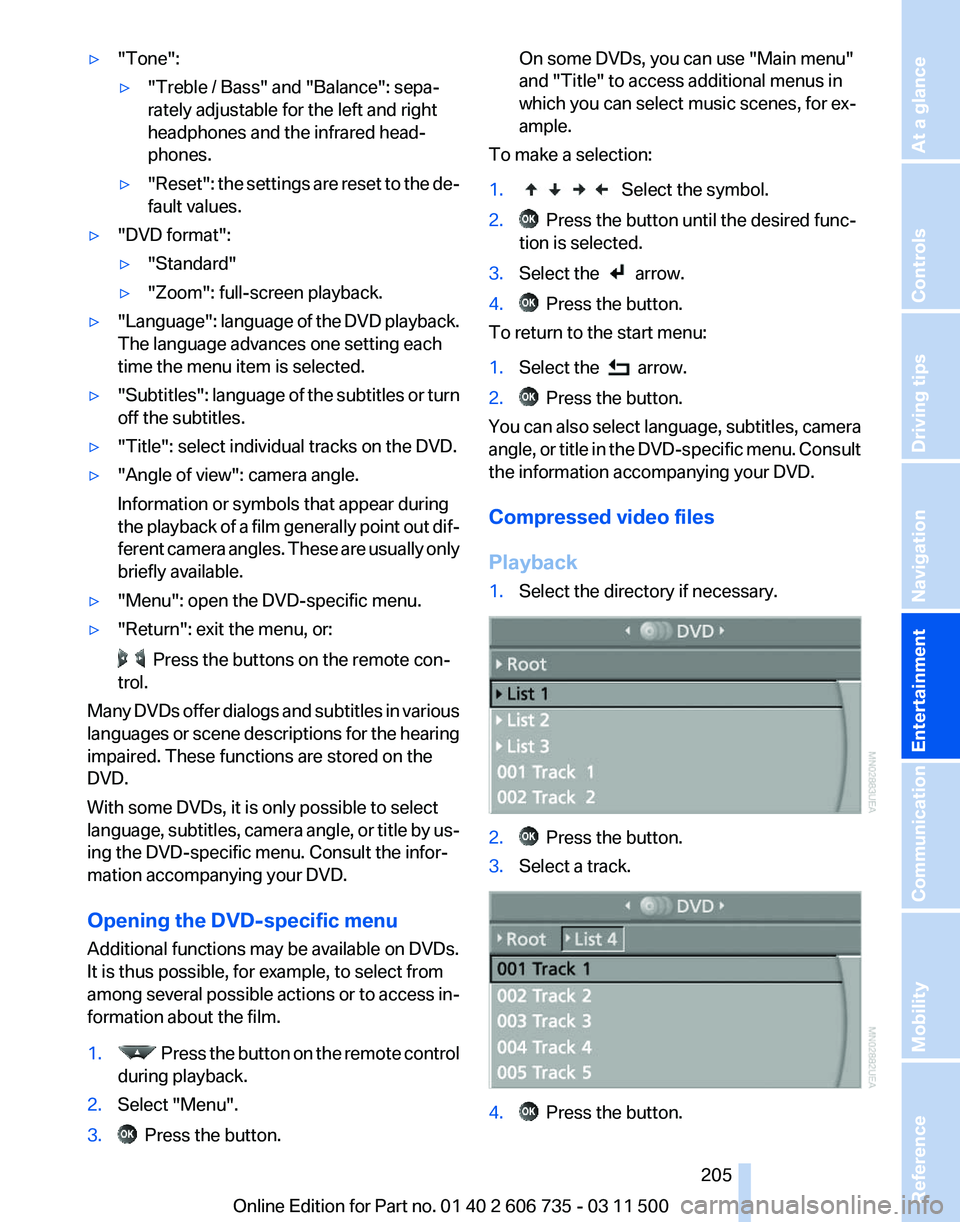
Compressed video files
Playback
1. Select the directory if necessary. 2. Press the button.
3. Select a track. 4. Press the button.
Seite 205
205Online Edition for Part no. 01 40 2 606 735 - 03 11 500
Reference Mobility Communication
Entertainment Navigation Driving tips Controls At a glance
Page 206 of 317
5.
Select "Play".
6. Press the button.
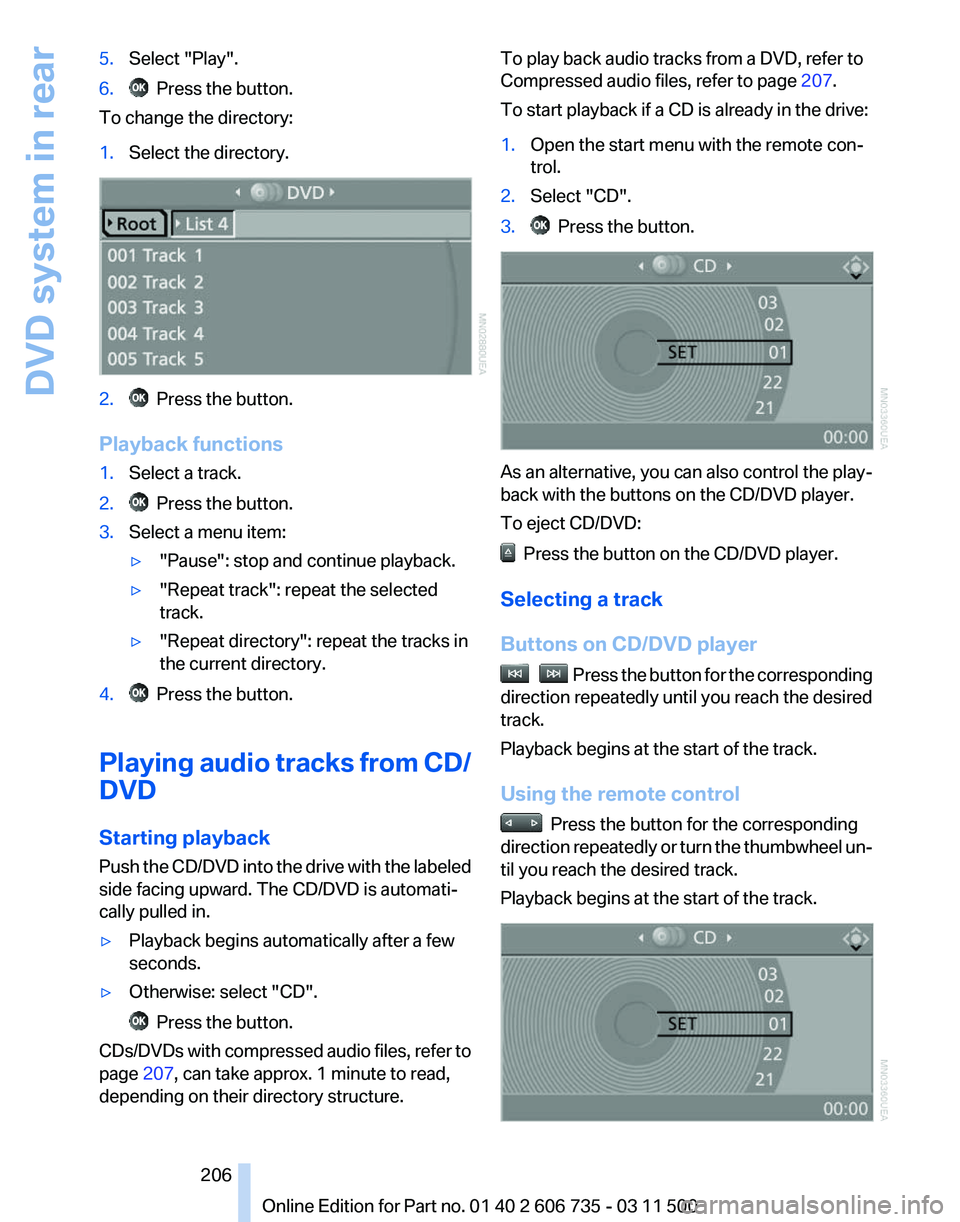
To change the directory:
1. Select the directory. 2. Press the button.
Playback functions
1. Select a track.
2. Press the button.
3. Select a menu item:
▷"Pause": stop and continue playback.
▷ "Repeat track": repeat the selected
track.
▷ "Repeat directory": repeat the tracks in
the current directory.
4. Press the button.
Playing audio tracks from CD/
DVD
Starting playback
Push
the CD/DVD into the drive with the labeled
side facing upward. The CD/DVD is automati‐
cally pulled in.
▷ Playback begins automatically after a few
seconds.
▷ Otherwise: select "CD". Press the button.
CDs/DVDs with compressed audio files, refer to
page 207, can take approx. 1 minute to read,
depending on their directory structure. To play back audio tracks from a DVD, refer to
Compressed audio files, refer to page
207.
To start playback if a CD is already in the drive:
1. Open the start menu with the remote con‐
trol.
2. Select "CD".
3. Press the button.
As an alternative, you can also control the play‐
back with the buttons on the CD/DVD player.
To eject CD/DVD:
Press the button on the CD/DVD player.
Selecting a track
Buttons on CD/DVD player Press the button for the corresponding
direction repeatedly until you reach the desired
track.
Playback begins at the start of the track.
Using the remote control Press the button for the corresponding
direction
repeatedly or turn the thumbwheel un‐
til you reach the desired track.
Playback begins at the start of the track. Seite 206
206 Online Edition for Part no. 01 40 2 606 735 - 03 11 500
DVD system in rear
Page 207 of 317
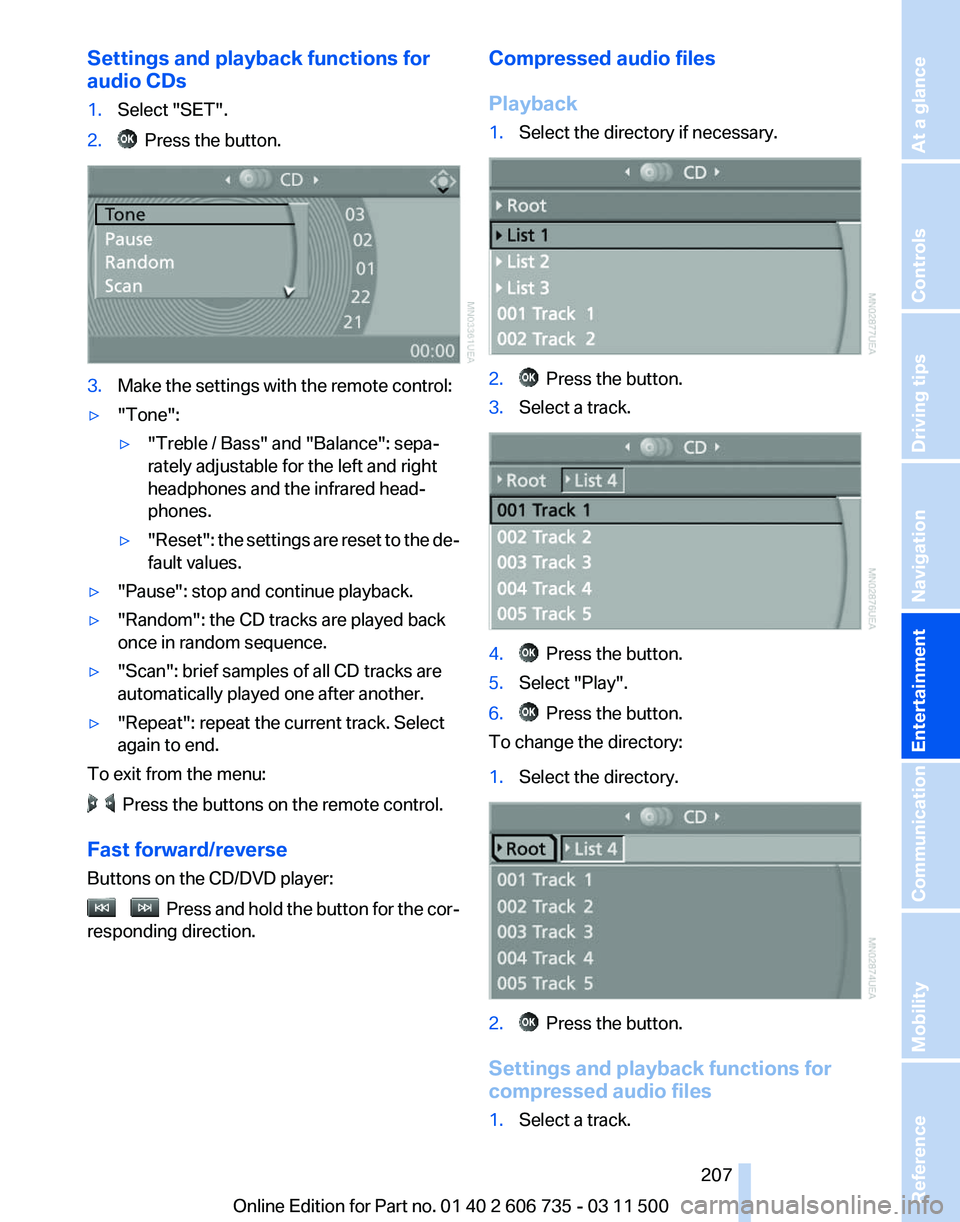
Settings and playback functions for
audio CDs
1.
Select "SET".
2. Press the button.
3.
Make the settings with the remote control:
▷ "Tone":
▷"Treble / Bass" and "Balance": sepa‐
rately adjustable for the left and right
headphones and the infrared head‐
phones.
▷ "Reset": the settings are reset to the de‐
fault values.
▷ "Pause": stop and continue playback.
▷ "Random": the CD tracks are played back
once in random sequence.
▷ "Scan": brief samples of all CD tracks are
automatically played one after another.
▷ "Repeat": repeat the current track. Select
again to end.
To exit from the menu: Press the buttons on the remote control.
Fast forward/reverse
Buttons on the CD/DVD player: Press and hold the button for the cor‐
responding direction. Compressed audio files
Playback
1.
Select the directory if necessary. 2. Press the button.
3. Select a track. 4. Press the button.
5. Select "Play".
6. Press the button.
To change the directory:
1. Select the directory. 2. Press the button.
Settings and playback functions for
compressed audio files
1. Select a track.
Seite 207
207Online Edition for Part no. 01 40 2 606 735 - 03 11 500
Reference Mobility Communication
Entertainment Navigation Driving tips Controls At a glance
Page 208 of 317
2. Press the button.
3. Make the settings with the remote control:
▷ "Tone":
▷"Treble / Bass" and "Balance": sepa‐
rately adjustable for the left and right
headphones and the infrared head‐
phones.
▷ "Reset": the settings are reset to the de‐
fault values.
▷ "Pause": stop and continue playback.
▷ "Scan directory": briefly sample the tracks
in the current directory.
▷ "Scan all": briefly sample all tracks.
▷ "Random directory": play the tracks in the
current directory in a random sequence.
▷ "Random
all": play all tracks in a random se‐
quence.
▷ "Repeat track": repeat the selected track.
▷ "Repeat directory": repeat the tracks in the
current directory.
▷ "Details": display any stored information on
the current track.
To exit from the menu: Press the buttons on the remote control.
Displaying images from CD/
DVD
1. Push the CD/DVD into the drive with the la‐
beled side facing upward. The CD/DVD is
automatically pulled in.
2. Open the start menu with the remote con‐
trol.
3. Select "Photo".
4. Press the button.
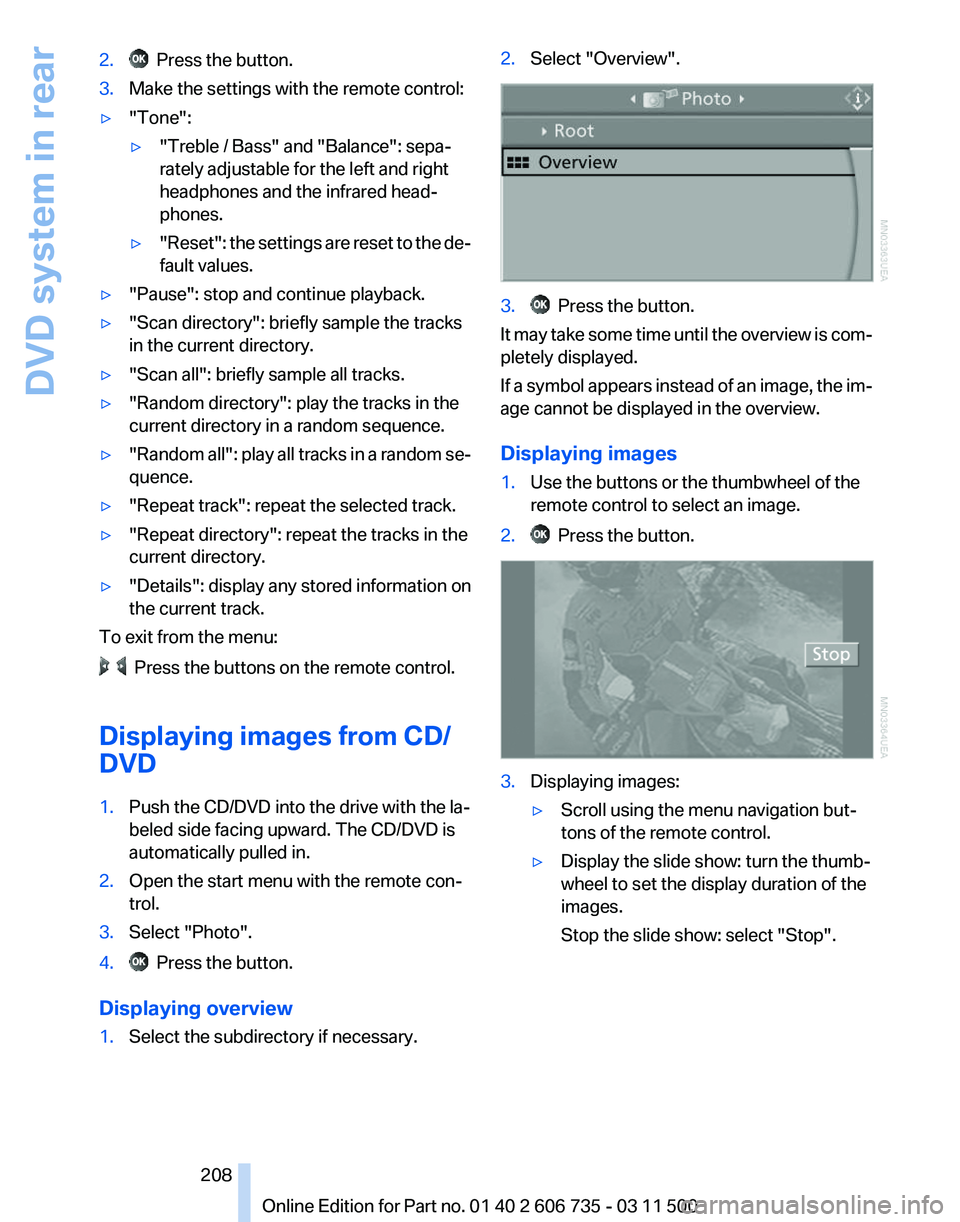
Displaying overview
1. Select the subdirectory if necessary. 2.
Select "Overview". 3. Press the button.
It may take some time until the overview is com‐
pletely displayed.
If
a symbol appears instead of an image, the im‐
age cannot be displayed in the overview.
Displaying images
1. Use the buttons or the thumbwheel of the
remote control to select an image.
2. Press the button.
3.
Displaying images:
▷Scroll using the menu navigation but‐
tons of the remote control.
▷ Display the slide show: turn the thumb‐
wheel to set the display duration of the
images.
Stop the slide show: select "Stop".
Seite 208
208 Online Edition for Part no. 01 40 2 606 735 - 03 11 500
DVD system in rear
Page 212 of 317
Press the buttons on the remote control.
Seite 212
212 Online Edition for Part no. 01 40 2 606 735 - 03 11 500DVD system in rear
Page 216 of 317
Telephone*
At a glance
The concept
Mobile
phones or other external devices such as
audio players can be connected to the vehicle
via Bluetooth.
Bluetooth® is a registered trademark of Blue‐
tooth® SIG, Inc.
After these devices are paired once, they are
recognized automatically when the ignition is
switched on as soon as they are in the vehicle
and can then be operated via iDrive, the buttons
on the steering wheel, and via voice activation*.
Depending on their functionality, external devi‐
ces can be used via the vehicle as a telephone
or as an audio source. The telephone functions
are described in the following. Operating the au‐
dio functions, refer to page 196.
Up to four external devices can be paired.
Certain functions may need to be enabled by the
mobile phone provider or service provider.
Using the mobile phone while driving
Make entries only when traffic and road
conditions allow. Do not hold the mobile phone
in your hand while you are driving; use the
hands-free system instead. If you do not ob‐
serve this precaution, you can endanger the ve‐
hicle occupants and other road users.◀
Snap-in adapter*
The snap-in adapter is used to:
▷ Hold the mobile phone.
▷ Recharge the battery.
▷ Connect the mobile phone to an outside an‐
tenna of the vehicle.
This provides for better network reception
and consistent sound quality.
Approved mobile phones
Details on which mobile phones and external
devices with a Bluetooth interface are sup‐ ported by the mobile phone preparation pack‐
age
can be obtained at www.bmwusa.com/blue‐
tooth.
Displaying the vehicle identification
number and software part number
The vehicle identification number and software
part number are needed to determine which mo‐
bile phones are supported by the mobile phone
preparation package. The software version of
the mobile phone may also be required.
1. "Telephone"
2. Open "Options".
3. "Bluetooth® info"
4. "Display system information"
These approved mobile phones with a certain
software version, support the vehicle functions
described below.
Malfunctions may occur with other mobile
phones or software versions.
Do
not operate a mobile phone that is connected
to the vehicle on the mobile phone keypad, as
this may lead to a malfunction.
A software update, refer to page 199, can be
performed if necessary.
Pairing/unpairing the mobile
phone
General information
The following functions are available:
▷ Use of a mobile phone as a telephone.
▷ Use of a mobile phone as an additional tele‐
phone.
▷ Use of a mobile phone as an audio source.
▷ Use of an audio device as an audio source,
refer to page 196.
Seite 216
216 Online Edition for Part no. 01 40 2 606 735 - 03 11 500
Telephone