change time BMW X5M 2012 Owner's Manual
[x] Cancel search | Manufacturer: BMW, Model Year: 2012, Model line: X5M, Model: BMW X5M 2012Pages: 317, PDF Size: 8.83 MB
Page 186 of 317
Sliding in CDs/DVDs
Do not insert the CD/DVD until the LEDs
on
the DVD slot are flashing; otherwise, the CD/
DVD or the CD/DVD changer could be damaged.
Do not continue to push on the CD/DVD; this
may cause it to jam and prevent it from being
able to eject again.◀
Filling all vacant CD/DVD
compartments
1. Press the button for a longer period.
The LEDs on the empty CD compartments
flash.
2. Wait for the LEDs on the DVD slot to begin
flashing
and then insert each CD or DVD into
the center of the slot.
The CDs/DVDs are drawn in automatically
and placed into the vacant compartments.
Sliding in CDs/DVDs
Do not insert the CD/DVD until the LEDs
on
the DVD slot are flashing; otherwise, the CD/
DVD or the CD/DVD changer could be damaged.
Do not continue to push on the CD/DVD; this
may cause it to jam and prevent it from being
able to eject again.◀
After they are inserted, it may take several mi‐
nutes for the CDs/DVDs to be read in.
Removing a single CD/DVD
1. Press the button.
2. Select the CD/DVD compartment.
The CD/DVD is partially ejected.
3. Remove the CD/DVD.
Removing all CDs/DVDs
1. Press the button for a longer period.
2. Remove the CDs/DVDs.
Malfunctions
If
all LEDs on the CD/DVD changer flash rapidly,
the system is malfunctioning. To eliminate the malfunction:
1.
Press one of the buttons:
▷ ▷
The CD/DVD last inserted is ejected.
2. Remove the CD/DVD.
If the LEDs stop flashing rapidly, the CD/DVD
changer is functional again.
Audio playback*
The audio track of a DVD can be played back
even if video playback is not possible in the ve‐
hicle.
Only
the main film without the previews or extras
can be played back.
Starting playback
A DVD is located in the DVD changer.
1. "CD/Multimedia"
2. "CD/DVD"
3. Select the desired DVD.
Selecting a chapter using the button Press the button repeatedly until the
desired chapter is played.
Selecting a chapter using iDrive
1. "CD/Multimedia"
2. "CD/DVD"
3. Select the desired DVD.
4. Select the desired chapter.
Fast forward/reverse Press and hold the button.
Selecting the language
*
The languages that are available depend on the
DVD. Seite 186
186 Online Edition for Part no. 01 40 2 606 735 - 03 11 500
CD/multimedia
Page 187 of 317
1.
"CD/Multimedia"
2. "CD/DVD"
3. Select the desired DVD.
4. Open "Options".
5. "Audio/language"
6. Select the desired language.
Notes
CD/DVD player and changer Do not remove the cover
BMW CD/DVD players and changers are
officially designated Class 1 laser products. Do
not operate if the cover is damaged; otherwise,
severe eye damage can result.◀
CDs and DVDs
Use of CDs/DVDs
▷Do not use self-recorded CDs/DVDs
with labels applied, as these can be‐
come detached during playback due
to
heat buildup and can cause irrepar‐
able damage to the device.
▷ Only use round CDs/DVDs with a standard
diameter of 4.7 in/12 cm and do not play
CDs/DVDs
with an adapter, e.g., single CDs;
otherwise, the CDs or the adapter may jam
and no longer eject.
▷ Do not use combined CDs/DVDs, e.g., DVD
Plus, as the CDs/DVDs can jam and will no
longer eject.◀
General malfunctions
▷ CD/DVD changers and players have been
optimized for performance in vehicles. In
some
instances they may be more sensitive
to faulty CDs/DVDs than stationary devices
would be.
▷ If a CD/DVD cannot be played, first check
whether it has been inserted correctly. Humidity
High
levels of humidity can lead to condensation
on the CD/DVD or the laser's scan lens, and
temporarily prevent playback.
Malfunctions involving individual CDs/
DVDs
If malfunctions occur only with particular CDs/
DVDs, this can be due to one of the following
causes:
Home-recorded CDs/DVDs
▷ Possible reasons for malfunctions with
home-recorded
CDs/DVDs are inconsistent
data creation or recording processes, or
poor quality or old age of the blank CD/DVD.
▷ Only label CDs/DVDs on the upper side with
a pen intended for this purpose.
Damage
▷ Avoid fingerprints, dust, scratches and
moisture.
▷ Store CDs/DVDs in a sleeve.
▷ Do not subject CDs/DVDs to temperatures
over 122 ℉/50 ℃, high humidity or direct
sunlight.
CDs/DVDs with copy protection
CDs/DVDs are often provided with a copy pro‐
tection feature by the manufacturer. This can
mean
that some CDs/DVDs cannot be played or
can only be played to a limited extent.
MACROVISION
This product contains copyrighted technology
that is based on multiple registered US patents
and the intellectual property of the Macrovision
Corporation and other manufacturers. The use
of this copy protection must be approved by
Macrovision. Media protected by this product -
unless otherwise agreed with Macrovision - may
only be used for private purposes. Copying of
this technology is prohibited.
Seite 187
187Online Edition for Part no. 01 40 2 606 735 - 03 11 500
Reference Mobility Communication
Entertainment Navigation Driving tips Controls At a glance
Page 191 of 317
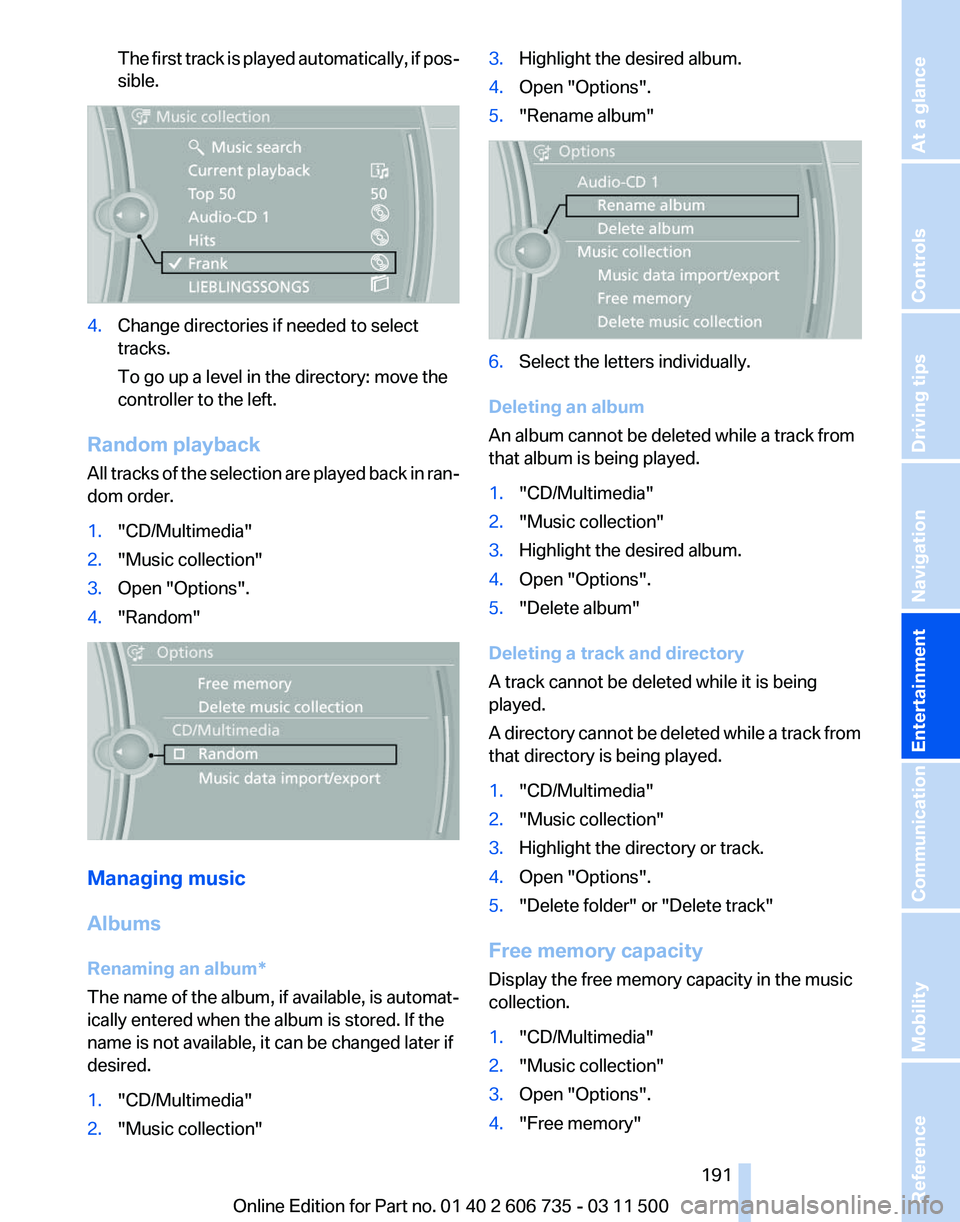
The first track is played automatically, if pos‐
sible.
4.
Change directories if needed to select
tracks.
To go up a level in the directory: move the
controller to the left.
Random playback
All tracks of the selection are played back in ran‐
dom order.
1. "CD/Multimedia"
2. "Music collection"
3. Open "Options".
4. "Random" Managing music
Albums
Renaming an album
*
The name of the album, if available, is automat‐
ically entered when the album is stored. If the
name is not available, it can be changed later if
desired.
1. "CD/Multimedia"
2. "Music collection" 3.
Highlight the desired album.
4. Open "Options".
5. "Rename album" 6.
Select the letters individually.
Deleting an album
An album cannot be deleted while a track from
that album is being played.
1. "CD/Multimedia"
2. "Music collection"
3. Highlight the desired album.
4. Open "Options".
5. "Delete album"
Deleting a track and directory
A track cannot be deleted while it is being
played.
A
directory cannot be deleted while a track from
that directory is being played.
1. "CD/Multimedia"
2. "Music collection"
3. Highlight the directory or track.
4. Open "Options".
5. "Delete folder" or "Delete track"
Free memory capacity
Display the free memory capacity in the music
collection.
1. "CD/Multimedia"
2. "Music collection"
3. Open "Options".
4. "Free memory"
Seite 191
191Online Edition for Part no. 01 40 2 606 735 - 03 11 500
Reference Mobility Communication
Entertainment Navigation Driving tips Controls At a glance
Page 197 of 317
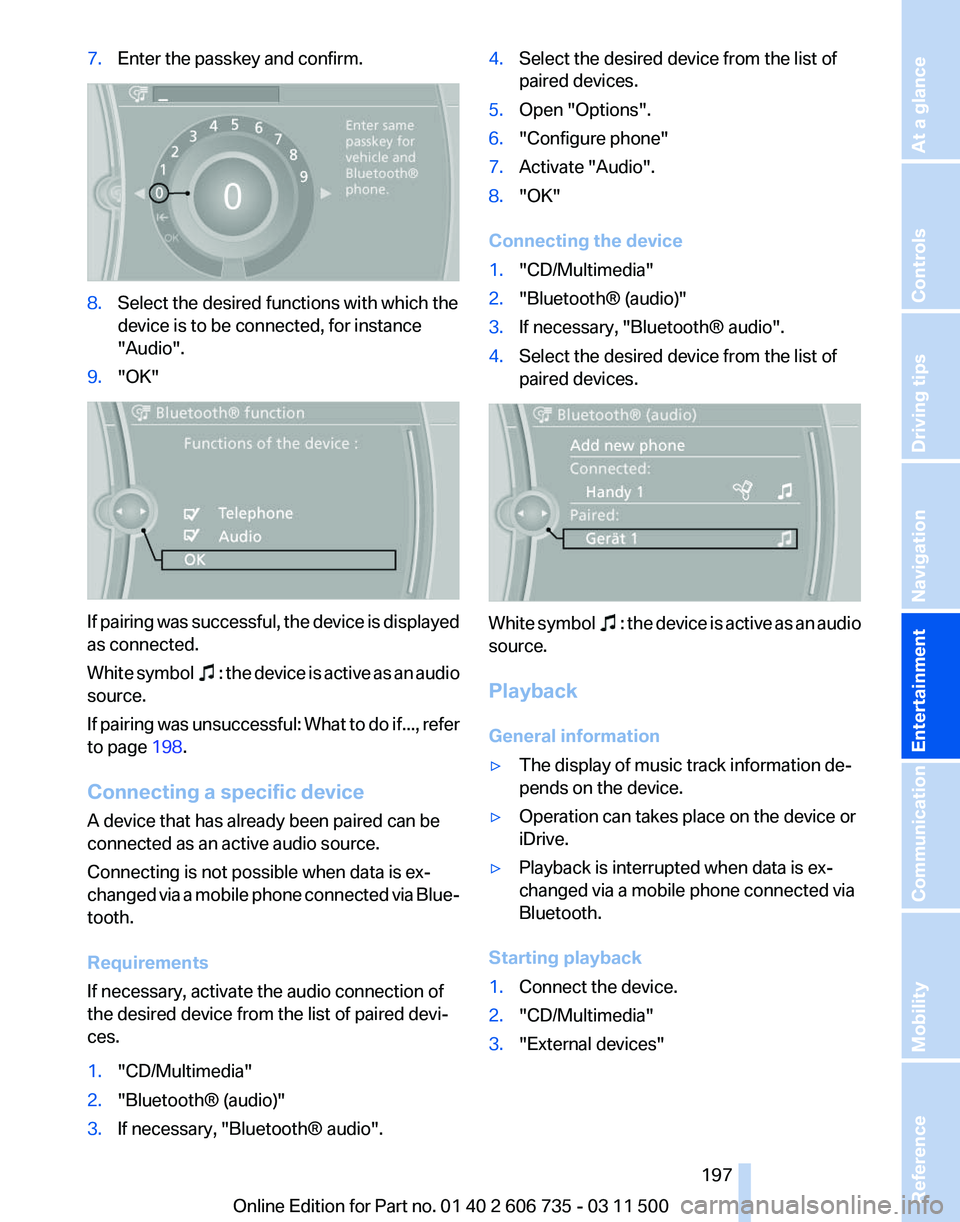
7.
Enter the passkey and confirm. 8.
Select the desired functions with which the
device is to be connected, for instance
"Audio".
9. "OK" If pairing was successful, the device is displayed
as connected.
White
symbol : the device is active as an audio
source.
If
pairing was unsuccessful: What to do if..., refer
to page 198.
Connecting a specific device
A device that has already been paired can be
connected as an active audio source.
Connecting is not possible when data is ex‐
changed via a mobile phone connected via Blue‐
tooth.
Requirements
If necessary, activate the audio connection of
the desired device from the list of paired devi‐
ces.
1. "CD/Multimedia"
2. "Bluetooth® (audio)"
3. If necessary, "Bluetooth® audio". 4.
Select the desired device from the list of
paired devices.
5. Open "Options".
6. "Configure phone"
7. Activate "Audio".
8. "OK"
Connecting the device
1. "CD/Multimedia"
2. "Bluetooth® (audio)"
3. If necessary, "Bluetooth® audio".
4. Select the desired device from the list of
paired devices. White symbol : the device is active as an audio
source.
Playback
General information
▷ The display of music track information de‐
pends on the device.
▷ Operation can takes place on the device or
iDrive.
▷ Playback is interrupted when data is ex‐
changed via a mobile phone connected via
Bluetooth.
Starting playback
1. Connect the device.
2. "CD/Multimedia"
3. "External devices"
Seite 197
197Online Edition for Part no. 01 40 2 606 735 - 03 11 500
Reference Mobility Communication
Entertainment Navigation Driving tips Controls At a glance
Page 202 of 317
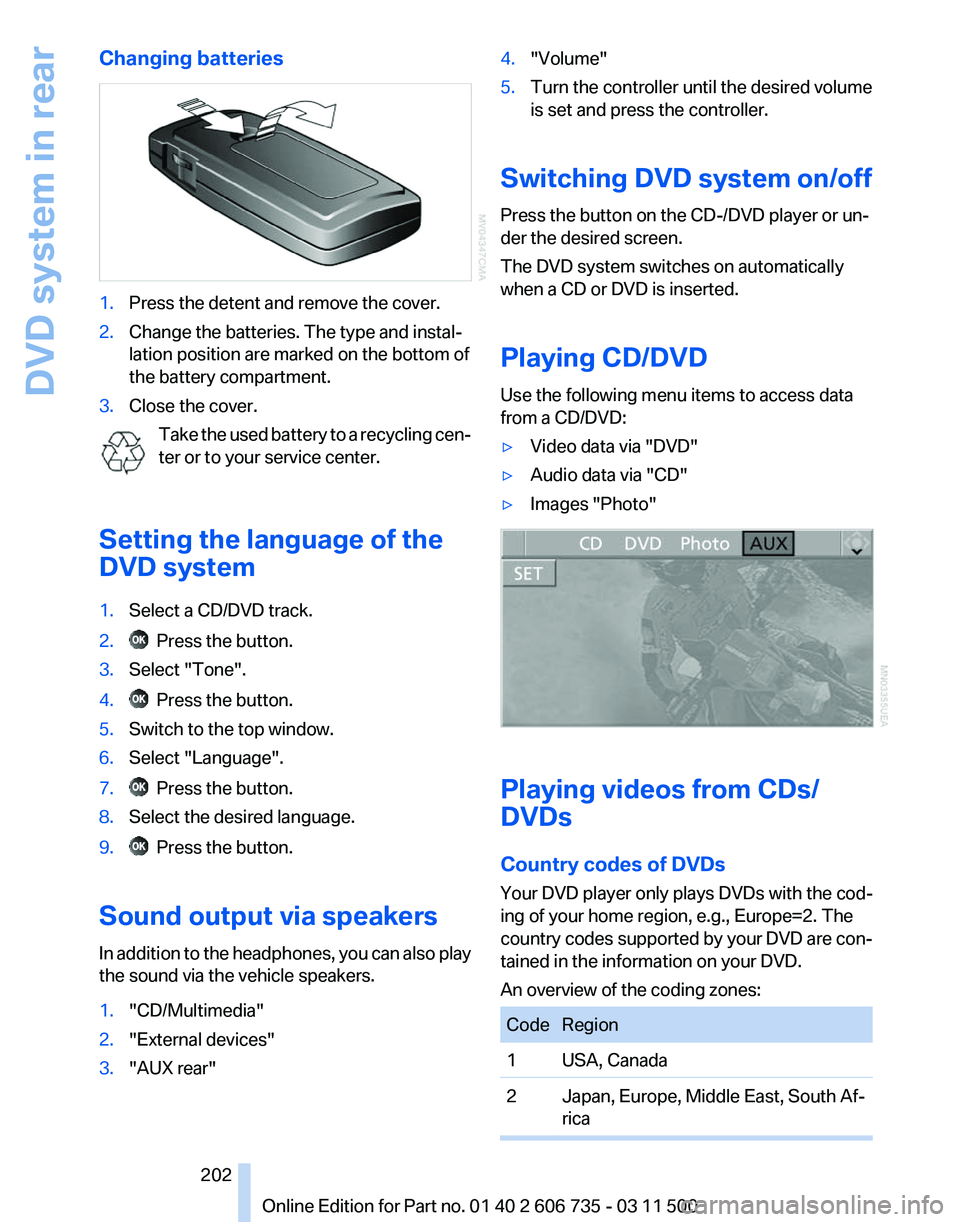
Changing batteries
1.
Press the detent and remove the cover.
2. Change the batteries. The type and instal‐
lation position are marked on the bottom of
the battery compartment.
3. Close the cover.
Take the used battery to a recycling cen‐
ter or to your service center.
Setting the language of the
DVD system
1. Select a CD/DVD track.
2. Press the button.
3. Select "Tone".
4. Press the button.
5. Switch to the top window.
6. Select "Language".
7. Press the button.
8. Select the desired language.
9. Press the button.
Sound output via speakers
In addition to the headphones, you can also play
the sound via the vehicle speakers.
1. "CD/Multimedia"
2. "External devices"
3. "AUX rear" 4.
"Volume"
5. Turn the controller until the desired volume
is set and press the controller.
Switching DVD system on/off
Press the button on the CD-/DVD player or un‐
der the desired screen.
The DVD system switches on automatically
when a CD or DVD is inserted.
Playing CD/DVD
Use the following menu items to access data
from a CD/DVD:
▷ Video data via "DVD"
▷ Audio data via "CD"
▷ Images "Photo" Playing videos from CDs/
DVDs
Country codes of DVDs
Your DVD player only plays DVDs with the cod‐
ing of your home region, e.g., Europe=2. The
country
codes supported by your DVD are con‐
tained in the information on your DVD.
An overview of the coding zones: Code Region
1 USA, Canada
2 Japan, Europe, Middle East, South Af‐
rica Seite 202
202 Online Edition for Part no. 01 40 2 606 735 - 03 11 500
DVD system in rear
Page 204 of 317
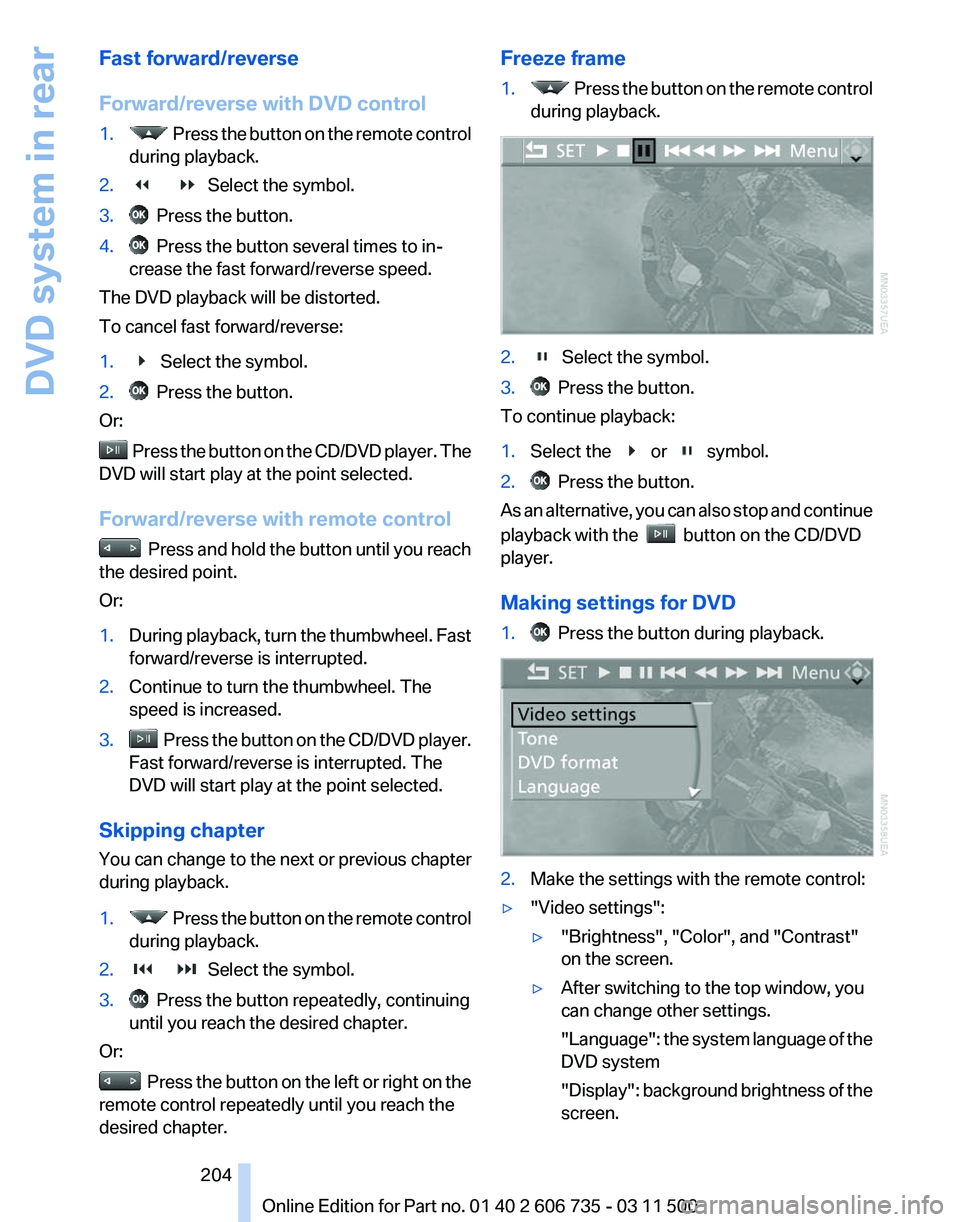
Fast forward/reverse
Forward/reverse with DVD control
1.
Press the button on the remote control
during playback.
2. Select the symbol.
3. Press the button.
4. Press the button several times to in‐
crease the fast forward/reverse speed.
The DVD playback will be distorted.
To cancel fast forward/reverse:
1. Select the symbol.
2. Press the button.
Or: Press the button on the CD/DVD player. The
DVD will start play at the point selected.
Forward/reverse with remote control Press and hold the button until you reach
the desired point.
Or:
1. During playback, turn the thumbwheel. Fast
forward/reverse is interrupted.
2. Continue to turn the thumbwheel. The
speed is increased.
3. Press the button on the CD/DVD player.
Fast forward/reverse is interrupted. The
DVD will start play at the point selected.
Skipping chapter
You can change to the next or previous chapter
during playback.
1. Press the button on the remote control
during playback.
2. Select the symbol.
3. Press the button repeatedly, continuing
until you reach the desired chapter.
Or: Press the button on the left or right on the
remote control repeatedly until you reach the
desired chapter. Freeze frame
1. Press the button on the remote control
during playback. 2. Select the symbol.
3. Press the button.
To continue playback:
1. Select the or symbol.
2. Press the button.
As an alternative, you can also stop and continue
playback with the button on the CD/DVD
player.
Making settings for DVD
1. Press the button during playback.
2.
Make the settings with the remote control:
▷ "Video settings":
▷"Brightness", "Color", and "Contrast"
on the screen.
▷ After switching to the top window, you
can change other settings.
"Language":
the system language of the
DVD system
"Display": background brightness of the
screen.
Seite 204
204 Online Edition for Part no. 01 40 2 606 735 - 03 11 500
DVD system in rear
Page 271 of 317
Do not touch the bulbs
Do not touch the glass of new bulbs with
your bare hands, as even minute amounts of
contamination will burn into the bulb's surface
and reduce its service life.
Use
a clean tissue, cloth or something similar, or
hold the bulb by its base.◀
Light-emitting diodes LED
Light-emitting diodes installed behind translu‐
cent lenses serve as the light source for many of
the controls, displays and other equipment in
your vehicle.
These light-emitting diodes, which operate us‐
ing a concept similar to that applied in conven‐
tional lasers, are officially designated as Class 1
light-emitting diodes.
Do not remove the covers
Do not remove the covers, and never stare
into the unfiltered light for several hours; other‐
wise, irritation of the retina could result.◀
Headlamp glass
Condensation can form on the inside of the ex‐
ternal lamps in cool or humid weather. When the
light is switched on, the condensation evapo‐
rates after a short time. The headlamp glasses
do not need to be changed.
If there is a large amount of moisture, e.g., water
droplets form in the lamp, have the lamp
checked by your service center.
BMW X5: bulb replacement
Xenon headlamps
Because of the long life of these bulbs, the like‐
lihood of failure is very low. Switching the lamps
on and off frequently shortens their life.
If a bulb fails, switch on the front fog lamps* and
continue the trip with great care. Comply with
local regulations. Do not perform work/bulb replacement on
xenon headlamps
Have
any work on the xenon lighting system, in‐
cluding bulb replacement, performed only by a
service center.
Due to the high voltage present in the system,
there is the danger of fatal injuries if work is car‐
ried out improperly.◀
Parking lamps, roadside parking lamps,
daytime running lights*
These lamps are made using LED technology.
Contact your service center in the event of a
malfunction.
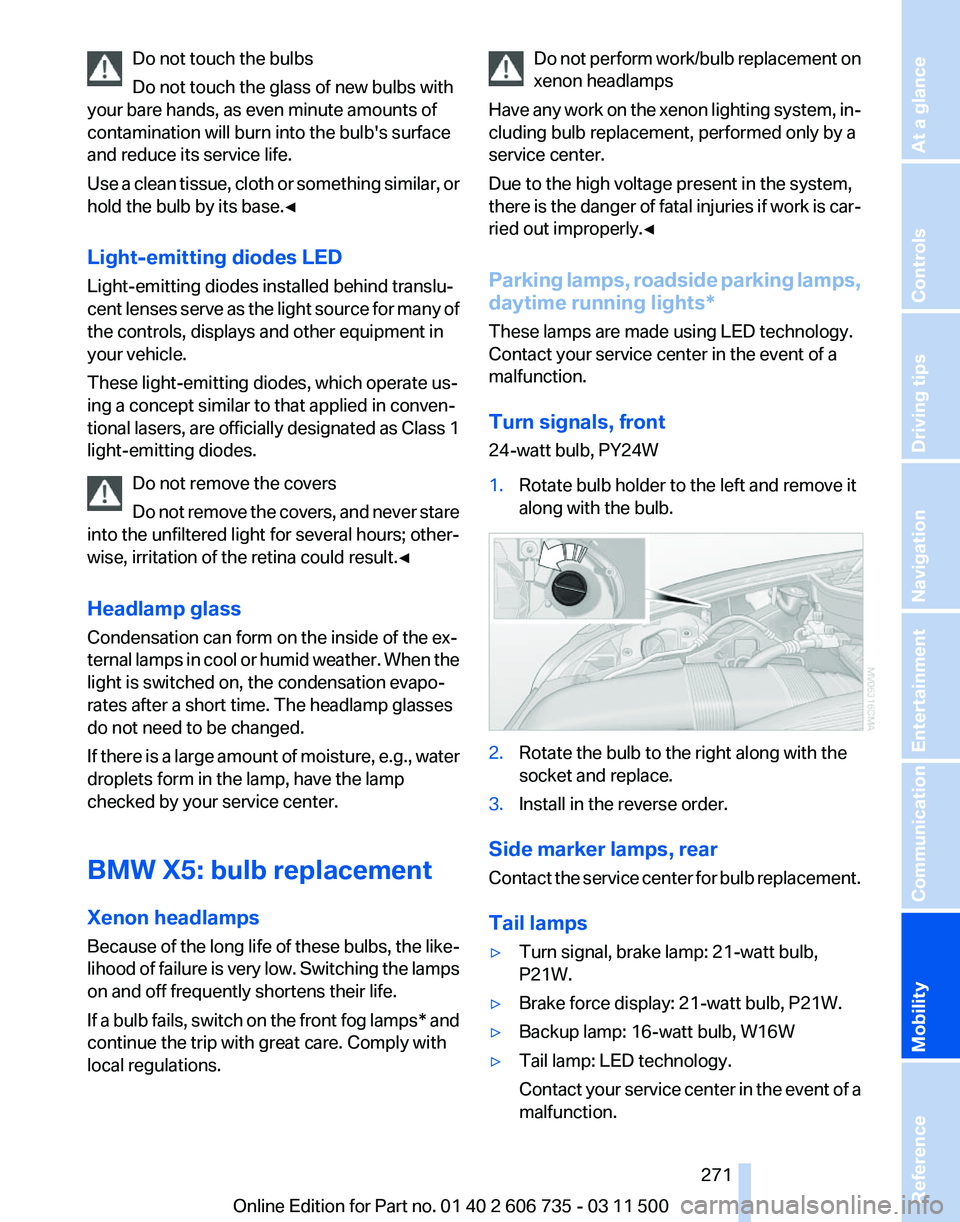
Turn signals, front
24-watt bulb, PY24W
1. Rotate bulb holder to the left and remove it
along with the bulb. 2.
Rotate the bulb to the right along with the
socket and replace.
3. Install in the reverse order.
Side marker lamps, rear
Contact
the service center for bulb replacement.
Tail lamps
▷ Turn signal, brake lamp: 21-watt bulb,
P21W.
▷ Brake force display: 21-watt bulb, P21W.
▷ Backup lamp: 16-watt bulb, W16W
▷ Tail lamp: LED technology.
Contact
your service center in the event of a
malfunction. Seite 271
271Online Edition for Part no. 01 40 2 606 735 - 03 11 500
Reference
Mobility Communication Entertainment Navigation Driving tips Controls At a glance
Page 278 of 317
The defective wheel cannot be stored under
the floor panel flap due to its size.
3. Check and correct the tire inflation pressure
at the earliest opportunity.
4. Initialize the Flat Tire Monitor, refer to
page 88,
or reset the Tire Pressure Monitor,
refer to page 90.
5. Replace the damaged tire as soon as possi‐
ble and have the new wheel/tire balanced.
Driving with compact wheel Do not exceed a speed of 50 mph/80 km/
h.
Drive
conservatively and do not exceed a speed
of 50 mph/80 km/h. Otherwise, changes in the
driving characteristics could result, for example
reduced track stability on braking, extended
braking distance, and altered self-steering char‐
acteristics in the limit range. In conjunction with
winter tires, these characteristics are more pro‐
nounced.◀
Only mount one compact wheel
Only one compact wheel may be
mounted. Restore the wheels and tires to their
original size as quickly as possible. Failure to do
so is a safety risk.◀
Vehicle battery
Maintenance
The battery is maintenance-free, i.e., the elec‐
trolyte will last for the life of the battery.
Your service center will be glad to advise you on
questions regarding the battery.
Battery replacement
Use approved vehicle batteries
Only use vehicle batteries that have been
approved for your vehicle by the manufacturer;
otherwise, the vehicle could be damaged and
systems or functions may not be fully availa‐
ble.◀ After a battery replacement, have the battery
registered
on the vehicle by your service center
to ensure that all comfort functions are fully
available.
Charging the battery
In the vehicle, only charge the battery via the
terminals in the engine compartment, refer to
page 281, with the engine switched off.
Power failure
After a temporary power loss, some equipment
needs to be reinitialized.
Individual settings need to be reprogrammed:
▷ Seat and mirror memory: store the positions
again, refer to page 53.
▷ Time: update, refer to page 78.
▷ Date: update, refer to page 79.
▷ Radio station: save again, refer to page 174.
▷ Navigation system: wait for the navigation
system to be operational.
▷ Glass sunroof/panoramic glass sunroof: it
may
only be possible to raise the roof. Have
the system initialized by the service center.
▷ Digital compass: recalibrate, refer to
page 129.
▷ Active steering: the system automatically in‐
itializes for a short time as you drive. During
this
time, the system is deactivated, refer to
page 101.
▷ xDrive: the system automatically initializes
as you drive. During this time, indicator
lamps
light up. If the lamps do not disappear
during the current trip, have the system
checked.
Disposing of old batteries Have old batteries disposed of by your
service center or bring them to a recy‐
cling center.
Maintain the battery in an upright position for
transport and storage. Secure the battery so
that it does not tip over during transport. Seite 278
278 Online Edition for Part no. 01 40 2 606 735 - 03 11 500
Replacing components
Page 313 of 317
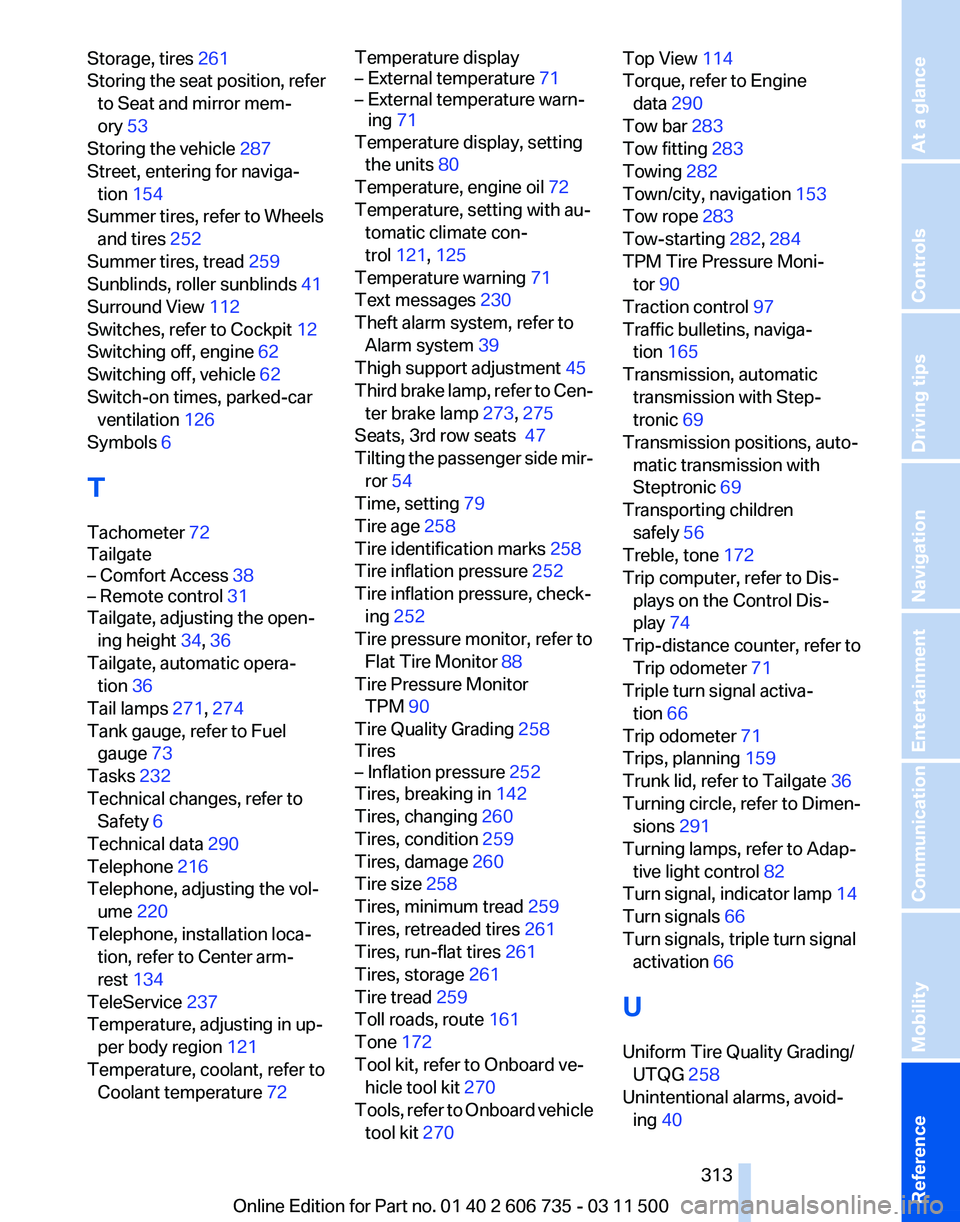
Storage, tires 261
Storing
the seat position, refer
to Seat and mirror mem‐
ory 53
Storing the vehicle 287
Street, entering for naviga‐ tion 154
Summer tires, refer to Wheels and tires 252
Summer tires, tread 259
Sunblinds, roller sunblinds 41
Surround View 112
Switches, refer to Cockpit 12
Switching off, engine 62
Switching off, vehicle 62
Switch-on times, parked-car ventilation 126
Symbols 6
T
Tachometer 72
Tailgate
– Comfort Access 38
– Remote control 31
Tailgate, adjusting the open‐
ing height 34, 36
Tailgate, automatic opera‐ tion 36
Tail lamps 271, 274
Tank gauge, refer to Fuel gauge 73
Tasks 232
Technical changes, refer to Safety 6
Technical data 290
Telephone 216
Telephone, adjusting the vol‐ ume 220
Telephone, installation loca‐ tion, refer to Center arm‐
rest 134
TeleService 237
Temperature, adjusting in up‐ per body region 121
Temperature, coolant, refer to Coolant temperature 72 Temperature display
– External temperature
71
– External temperature warn‐ ing 71
Temperature display, setting
the units 80
Temperature, engine oil 72
Temperature, setting with au‐ tomatic climate con‐
trol 121, 125
Temperature warning 71
Text messages 230
Theft alarm system, refer to Alarm system 39
Thigh support adjustment 45
Third
brake lamp, refer to Cen‐
ter brake lamp 273, 275
Seats, 3rd row seats 47
Tilting the passenger side mir‐ ror 54
Time, setting 79
Tire age 258
Tire identification marks 258
Tire inflation pressure 252
Tire inflation pressure, check‐ ing 252
Tire pressure monitor, refer to Flat Tire Monitor 88
Tire Pressure Monitor TPM 90
Tire Quality Grading 258
Tires
– Inflation pressure 252
Tires, breaking in 142
Tires, changing 260
Tires, condition 259
Tires, damage 260
Tire size 258
Tires, minimum tread 259
Tires, retreaded tires 261
Tires, run-flat tires 261
Tires, storage 261
Tire tread 259
Toll roads, route 161
Tone 172
Tool kit, refer to Onboard ve‐ hicle tool kit 270
Tools,
refer to Onboard vehicle
tool kit 270 Top View 114
Torque, refer to Engine
data 290
Tow bar 283
Tow fitting 283
Towing 282
Town/city, navigation 153
Tow rope 283
Tow-starting 282, 284
TPM Tire Pressure Moni‐ tor 90
Traction control 97
Traffic bulletins, naviga‐ tion 165
Transmission, automatic transmission with Step‐
tronic 69
Transmission positions, auto‐ matic transmission with
Steptronic 69
Transporting children safely 56
Treble, tone 172
Trip computer, refer to Dis‐ plays on the Control Dis‐
play 74
Trip-distance counter, refer to Trip odometer 71
Triple turn signal activa‐ tion 66
Trip odometer 71
Trips, planning 159
Trunk lid, refer to Tailgate 36
Turning circle, refer to Dimen‐ sions 291
Turning lamps, refer to Adap‐ tive light control 82
Turn signal, indicator lamp 14
Turn signals 66
Turn signals, triple turn signal activation 66
U
Uniform Tire Quality Grading/ UTQG 258
Unintentional alarms, avoid‐ ing 40
Seite 313
313Online Edition for Part no. 01 40 2 606 735 - 03 11 500
Reference Mobility Communication Entertainment Navigation Driving tips Controls At a glance