display BMW X6 2008 Owners Manual
[x] Cancel search | Manufacturer: BMW, Model Year: 2008, Model line: X6, Model: BMW X6 2008Pages: 288, PDF Size: 8.08 MB
Page 190 of 288
USB audio interface
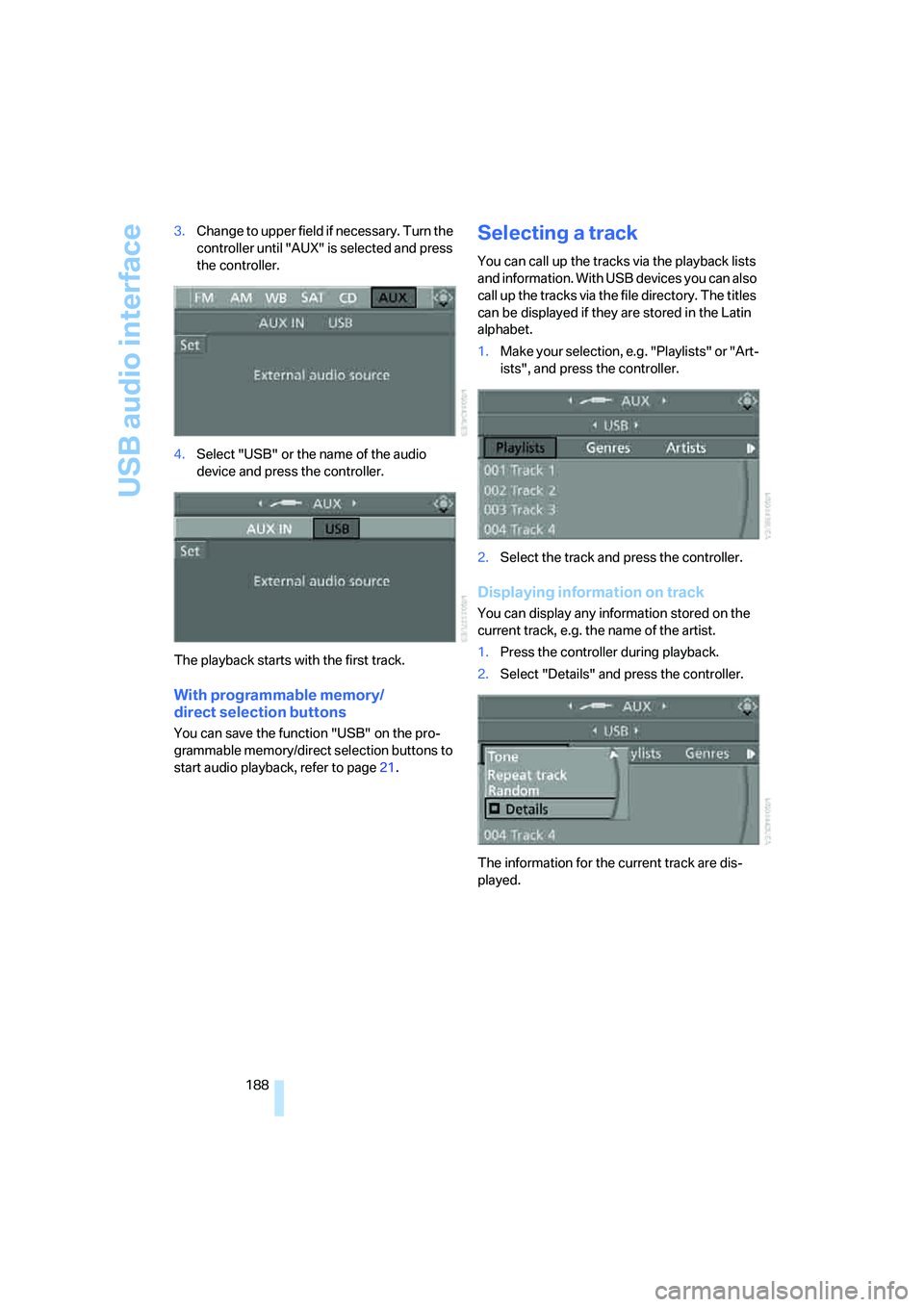
188 3.Change to upper field if necessary. Turn the
controller until "AUX" is selected and press
the controller.
4.Select "USB" or the name of the audio
device and press the controller.
The playback starts with the first track.
With programmable memory/
direct selection buttons
You can save the function "USB" on the pro-
grammable memory/direct selection buttons to
start audio playback, refer to page21.
Selecting a track
You can call up the tracks via the playback lists
and information. With USB devices you can also
call up the tracks via the file directory. The titles
can be displayed if they are stored in the Latin
alphabet.
1.Make your selection, e.g. "Playlists" or "Art-
ists", and press the controller.
2.Select the track and press the controller.
Displaying information on track
You can display any information stored on the
current track, e.g. the name of the artist.
1.Press the controller during playback.
2.Select "Details" and press the controller.
The information for the current track are dis-
played.
Page 192 of 288
DVD system in rear
190
DVD system in rear
With the DVD system in the rear you can play
CDs and DVDs with audio, video and image
data. External audio and video devices can also
be connected and played via the DVD system in
the rear.
Tone output is possible both via headphones
and via the vehicle loudspeakers.
You can operate the DVD system in the rear
with the buttons on the CD/DVD player or with
the remote control.
Some functions can only be operated
with the remote control.<
Enabling DVD system
Enable the DVD system with iDrive.
For operating principle refer to page16.
1.Press the button.
This opens the start menu.
2.Press the controller to open the menu.
3.Select "Settings" and press the controller.
4.Select "Unlock rear menu" and press the
controller.
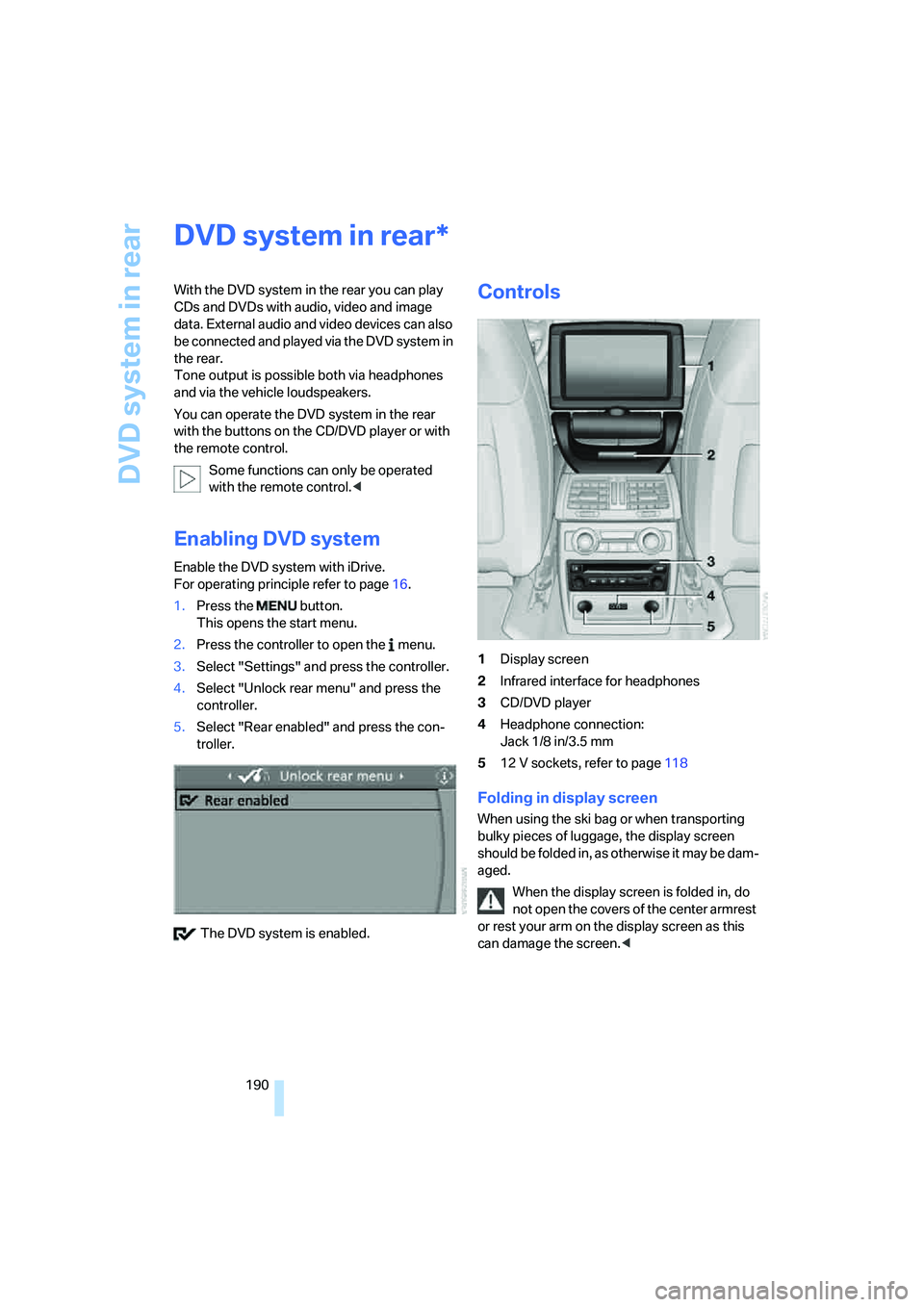
5.Select "Rear enabled" and press the con-
troller.
The DVD system is enabled.
Controls
1Display screen
2Infrared interface for headphones
3CD/DVD player
4Headphone connection:
Jack 1/8 in/3.5 mm
512 V sockets, refer to page118
Folding in display screen
When using the ski bag or when transporting
bulky pieces of luggage, the display screen
should be folded in, as otherwise it may be dam-
aged.
When the display screen is folded in, do
not open the covers of the center armrest
or rest your arm on the display screen as this
can damage the screen.<
*
Page 193 of 288
Navigation
Entertainment
Driving tips
191Reference
At a glance
Controls
Communications
Mobility
1.Turn display screen, arrow1.
The display screen switches off.
2.Fold in display screen, arrow2.
The display screen is folded out in the reverse
order.
CD/DVD player
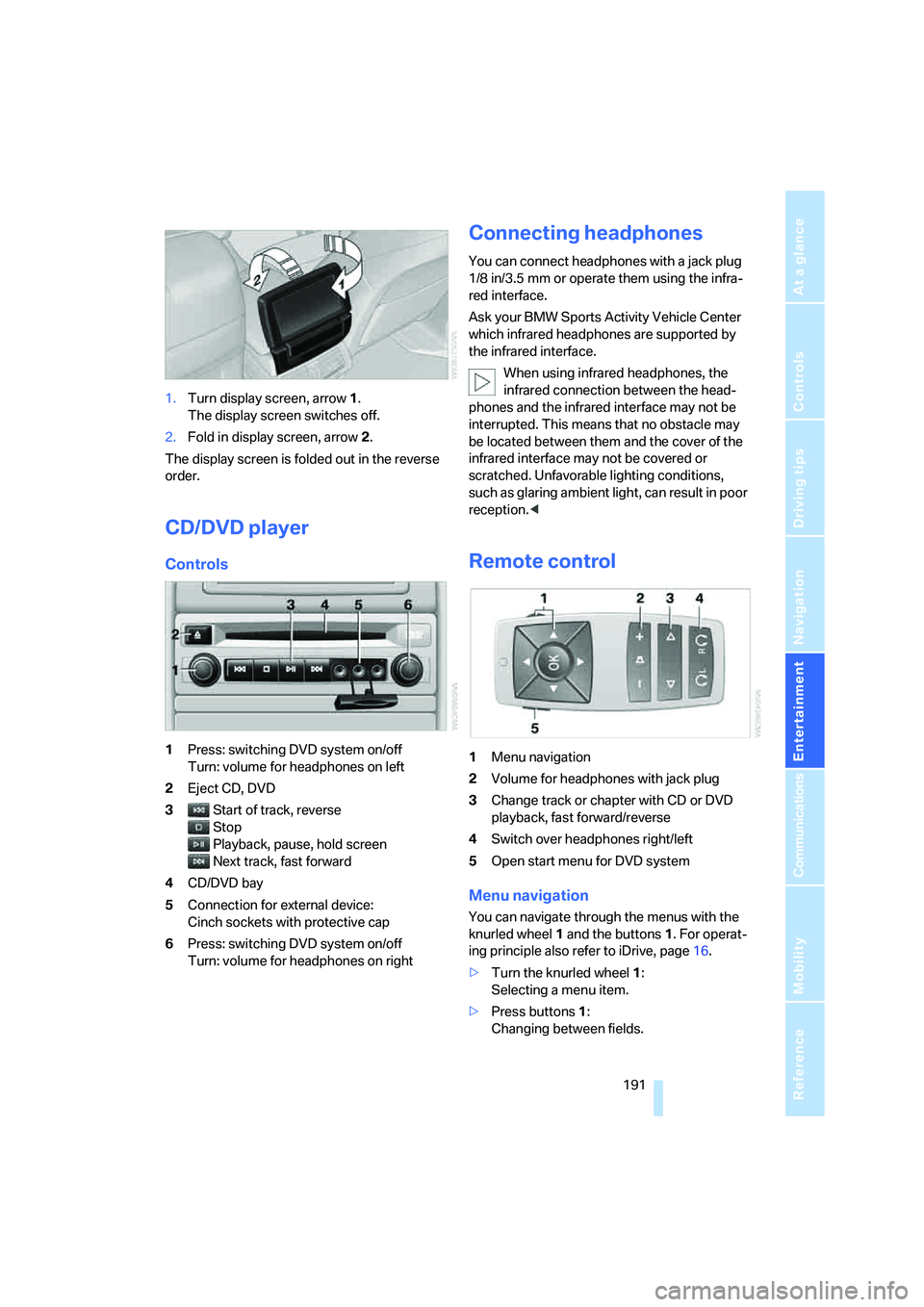
Controls
1Press: switching DVD system on/off
Turn: volume for headphones on left
2Eject CD, DVD
3Start of track, reverse
Stop
Playback, pause, hold screen
Next track, fast forward
4CD/DVD bay
5Connection for external device:
Cinch sockets with protective cap
6Press: switching DVD system on/off
Turn: volume for headphones on right
Connecting headphones
You can connect headphones with a jack plug
1/8 in/3.5 mm or operate them using the infra-
red interface.
Ask your BMW Sports Activity Vehicle Center
which infrared headphones are supported by
the infrared interface.
When using infrared headphones, the
infrared connection between the head-
phones and the infrared interface may not be
interrupted. This means that no obstacle may
be located between them and the cover of the
infrared interface may not be covered or
scratched. Unfavorable lighting conditions,
such as glaring ambient light, can result in poor
reception.<
Remote control
1Menu navigation
2Volume for headphones with jack plug
3Change track or chapter with CD or DVD
playback, fast forward/reverse
4Switch over headphones right/left
5Open start menu for DVD system
Menu navigation
You can navigate through the menus with the
knurled wheel1 and the buttons1. For operat-
ing principle also refer to iDrive, page16.
>Turn the knurled wheel1:
Selecting a menu item.
>Press buttons1:
Changing between fields.
Page 195 of 288
Navigation
Entertainment
Driving tips
193Reference
At a glance
Controls
Communications
Mobility
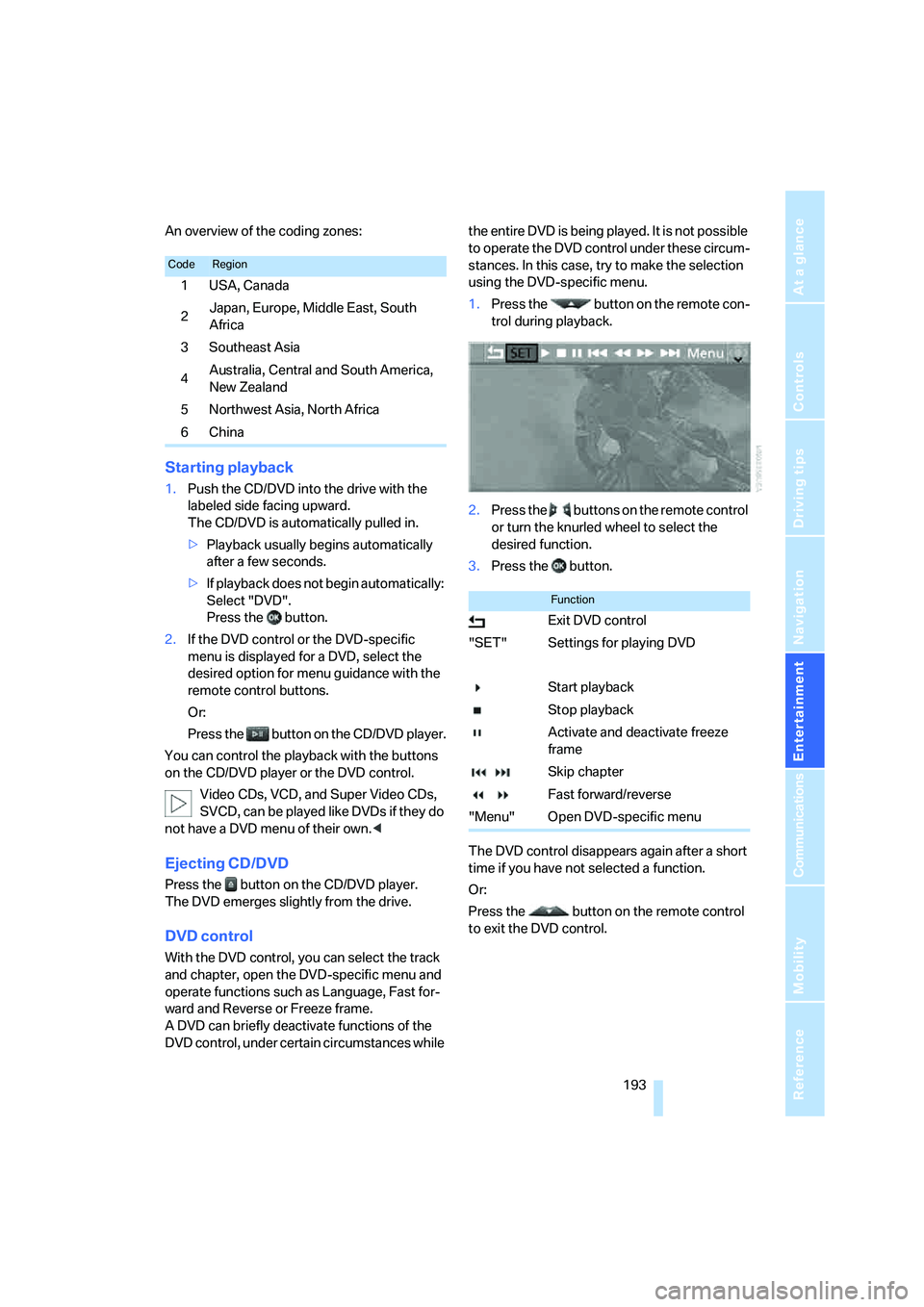
An overview of the coding zones:
Starting playback
1.Push the CD/DVD into the drive with the
labeled side facing upward.
The CD/DVD is automatically pulled in.
>Playback usually begins automatically
after a few seconds.
>If playback does not begin automatically:
Select "DVD".
Press the button.
2.If the DVD control or the DVD-specific
menu is displayed for a DVD, select the
desired option for menu guidance with the
remote control buttons.
Or:
Press the button on the CD/DVD player.
You can control the playback with the buttons
on the CD/DVD player or the DVD control.
Video CDs, VCD, and Super Video CDs,
SVCD, can be played like DVDs if they do
not have a DVD menu of their own.<
Ejecting CD/DVD
Press the button on the CD/DVD player.
The DVD emerges slightly from the drive.
DVD control
With the DVD control, you can select the track
and chapter, open the DVD-specific menu and
operate functions such as Language, Fast for-
ward and Reverse or Freeze frame.
A DVD can briefly deactivate functions of the
DVD control, under certain circumstances while the entire DVD is being played. It is not possible
to operate the DVD control under these circum-
stances. In this case, try to make the selection
using the DVD-specific menu.
1.Press the button on the remote con-
trol during playback.
2.Press the buttons on the remote control
or turn the knurled wheel to select the
desired function.
3.Press the button.
The DVD control disappears again after a short
time if you have not selected a function.
Or:
Press the button on the remote control
to exit the DVD control.
CodeRegion
1USA, Canada
2Japan, Europe, Middle East, South
Africa
3Southeast Asia
4Australia, Central and South America,
New Zealand
5Northwest Asia, North Africa
6China
Function
Exit DVD control
"SET" Settings for playing DVD
Start playback
Stop playback
Activate and deactivate freeze
frame
Skip chapter
Fast forward/reverse
"Menu" Open DVD-specific menu
Page 196 of 288
DVD system in rear
194
Fast forward/reverse
Forward/reverse with DVD control
1.Press the button on the remote con-
trol during playback.
2.Select the symbol.
3.Press the button.
4.Press the button several times to
increase the fast forward/reverse speed.
The DVD playback will be distorted.
To cancel fast forward/reverse:
1.Select the symbol.
2.Press the button.
Or:
Press the button on the CD/DVD player.
The DVD will start play at the point selected.
Forward/reverse with remote control
Press and hold the button until you reach
the desired point.
Or:
1.During playback, turn the knurled wheel.
Fast forward/reverse is interrupted.
2.Continue to turn the knurled wheel.
The speed is increased.
3.Press the button on the CD/DVD player.
Fast forward/reverse is interrupted.
The DVD will start play at the point selected.
Skipping chapter
You can change to the next or previous chapter
during playback.
1.Press the button on the remote con-
trol during playback.
2.Select the symbol.
3.Press the button repeatedly, continuing
until you reach the desired chapter.
Or:
Press the button on the left or right on the
remote control repeatedly until you reach the
desired chapter.
Freeze frame
1.Press the button on the remote con-
trol during playback.
2.Select the symbol.
3.Press the button.
To continue playback:
1.Select the or symbol.
2.Press the button.
As an alternative you can also stop and con-
tinue playback with the button on the
CD/DVD player.
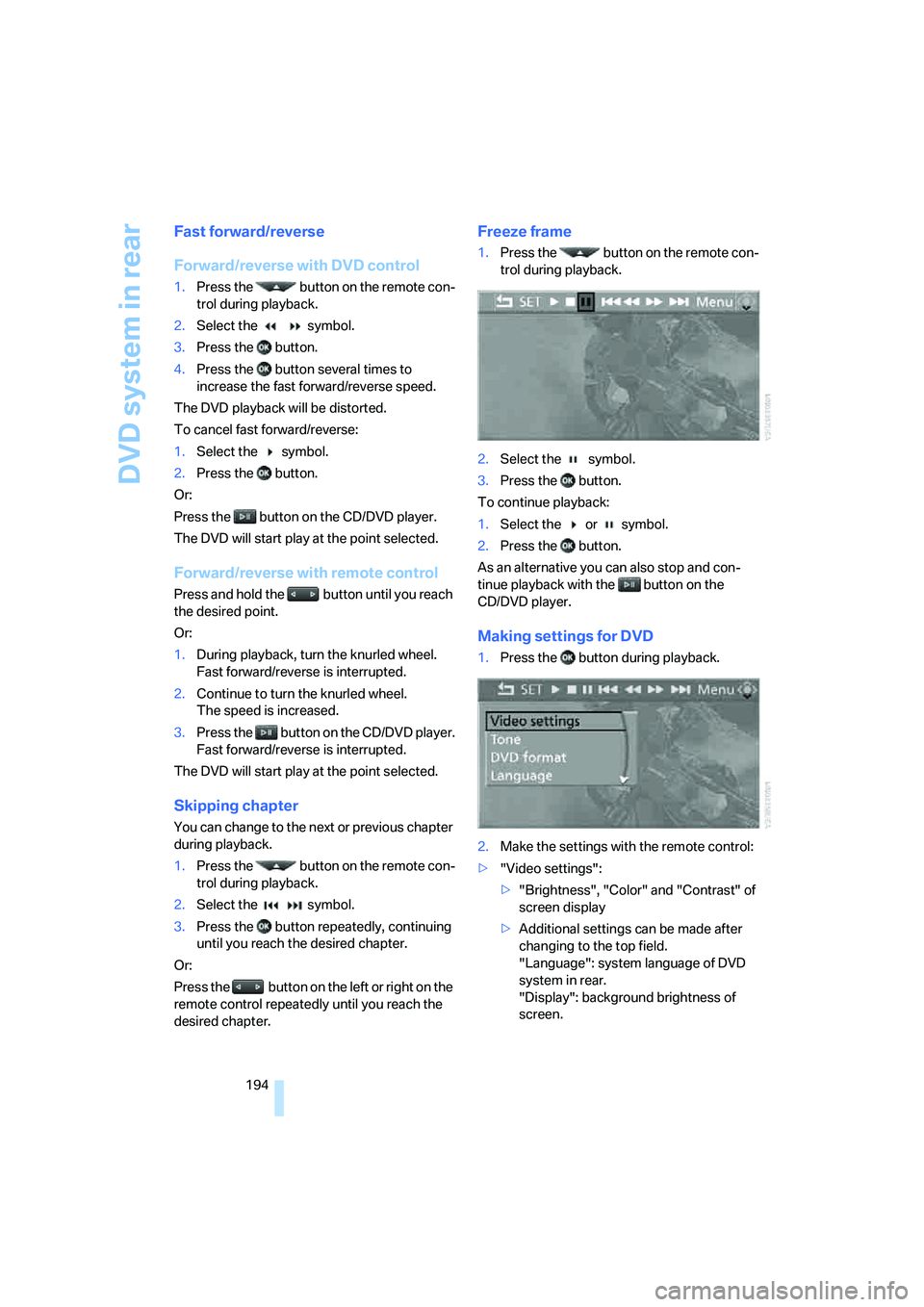
Making settings for DVD
1.Press the button during playback.
2.Make the settings with the remote control:
>"Video settings":
>"Brightness", "Color" and "Contrast" of
screen display
>Additional settings can be made after
changing to the top field.
"Language": system language of DVD
system in rear.
"Display": background brightness of
screen.
Page 197 of 288
Navigation
Entertainment
Driving tips
195Reference
At a glance
Controls
Communications
Mobility
>"Tone":
>"Treble / Bass" and "Balance":
Separately adjustable for the left and
right-hand headphones and the infrared
headphones.
>"Reset":
The settings are reset to the default
value.
>"DVD format":
>"Standard"
>"Zoom": full-screen playback
>"Language":
Language or sound track of DVD playback.
The language advances one setting each
time the menu item is selected.
>"Subtitles":
Language of subtitles
"00 n/a": no subtitles.
>"Title":
Selection of a single track of the DVD.
>"Angle of view":
Camera angle
Notes or symbols that appear during the
playback of a film generally point out differ-
ent camera angles. These are usually only
briefly available.
>"Menu":
Call up the DVD-specific menu.
>"Return":
Exit menu or:
Press the buttons on the remote con-
trol.
Many DVDs offer dialogs and subtitles in vari-
ous languages or scene descriptions for the
hearing impaired. These functions are stored
on the DVD.
With some DVDs, it is only possible to
select language, subtitles, camera angle,
or title by using the DVD-specific menu.
Refer to the information on your DVD for possi-
ble selections.
Menu entries that appear in gray cannot be
selected.
For example, it is possible to select from several
possible plots or display information on the film.
1.Press the button on the remote con-
trol during playback.
2.Select "Menu".
3.Press the button.
On some DVDs, selecting "Menu"
and "Title" gives you the option of
selecting from additional menus.<
To make a selection:
1.Use the buttons on the remote control to
select the desired function in the DVD-spe-
cific menu.
2.Press the button.
You can also select language, subtitles,
camera angle, or title in the DVD-specific
menu.
Consult the documentation for your DVD.<
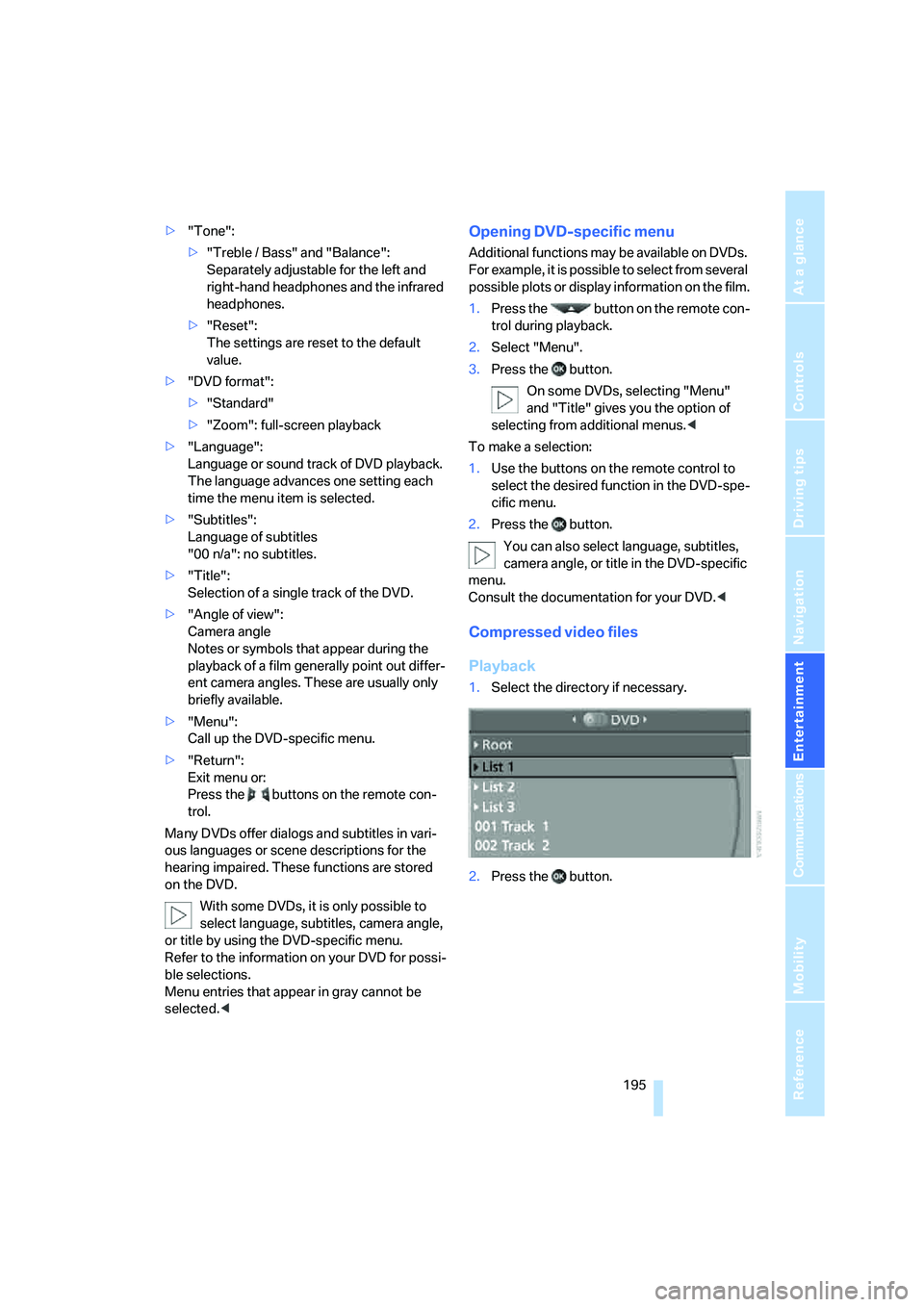
Compressed video files
Playback
1.Select the directory if necessary.
2.Press the button.
Page 200 of 288
DVD system in rear
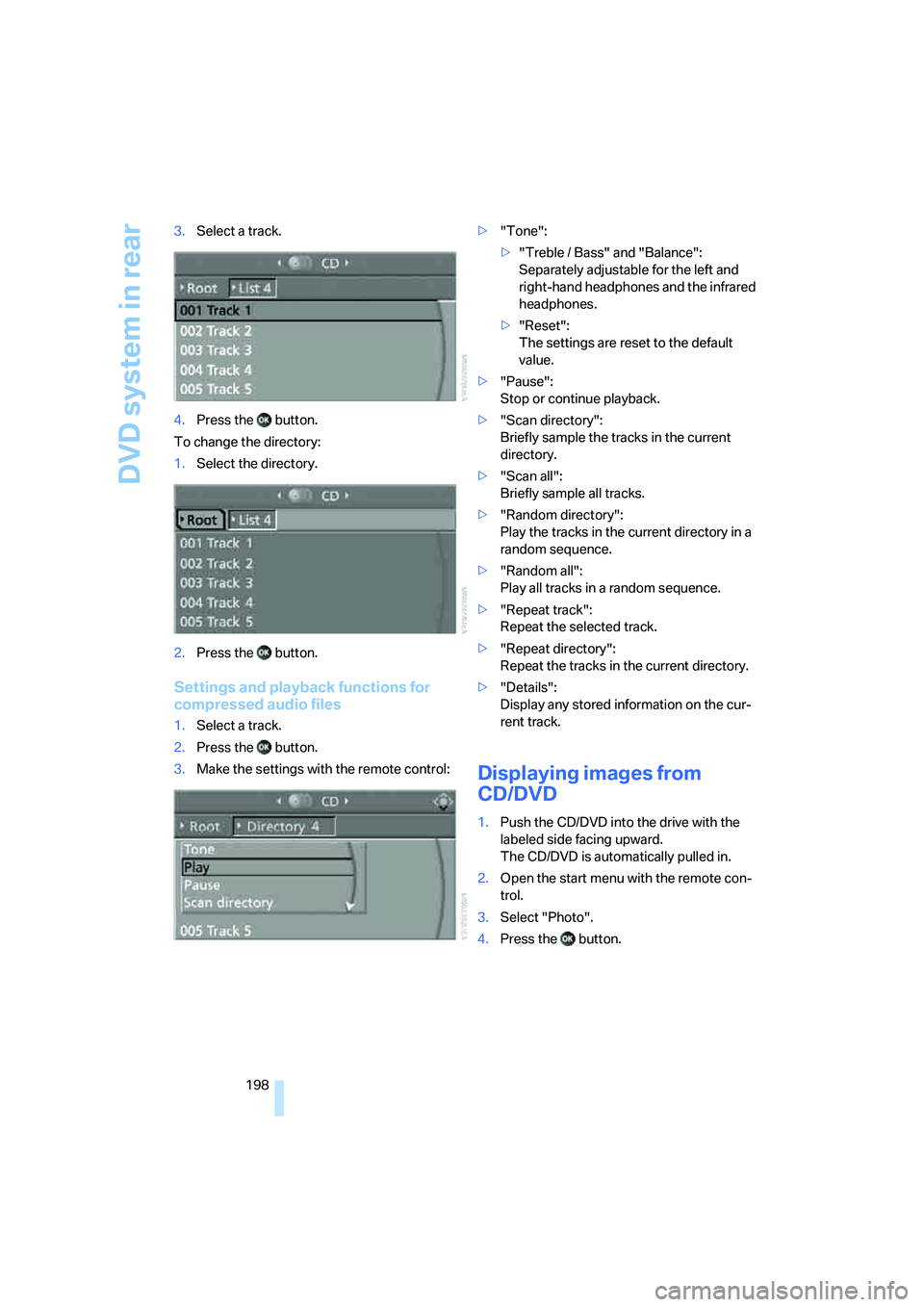
198 3.Select a track.
4.Press the button.
To change the directory:
1.Select the directory.
2.Press the button.
Settings and playback functions for
compressed audio files
1.Select a track.
2.Press the button.
3.Make the settings with the remote control:>"Tone":
>"Treble / Bass" and "Balance":
Separately adjustable for the left and
right-hand headphones and the infrared
headphones.
>"Reset":
The settings are reset to the default
value.
>"Pause":
Stop or continue playback.
>"Scan directory":
Briefly sample the tracks in the current
directory.
>"Scan all":
Briefly sample all tracks.
>"Random directory":
Play the tracks in the current directory in a
random sequence.
>"Random all":
Play all tracks in a random sequence.
>"Repeat track":
Repeat the selected track.
>"Repeat directory":
Repeat the tracks in the current directory.
>"Details":
Display any stored information on the cur-
rent track.
Displaying images from
CD/DVD
1.Push the CD/DVD into the drive with the
labeled side facing upward.
The CD/DVD is automatically pulled in.
2.Open the start menu with the remote con-
trol.
3.Select "Photo".
4.Press the button.
Page 201 of 288
Navigation
Entertainment
Driving tips
199Reference
At a glance
Controls
Communications
Mobility
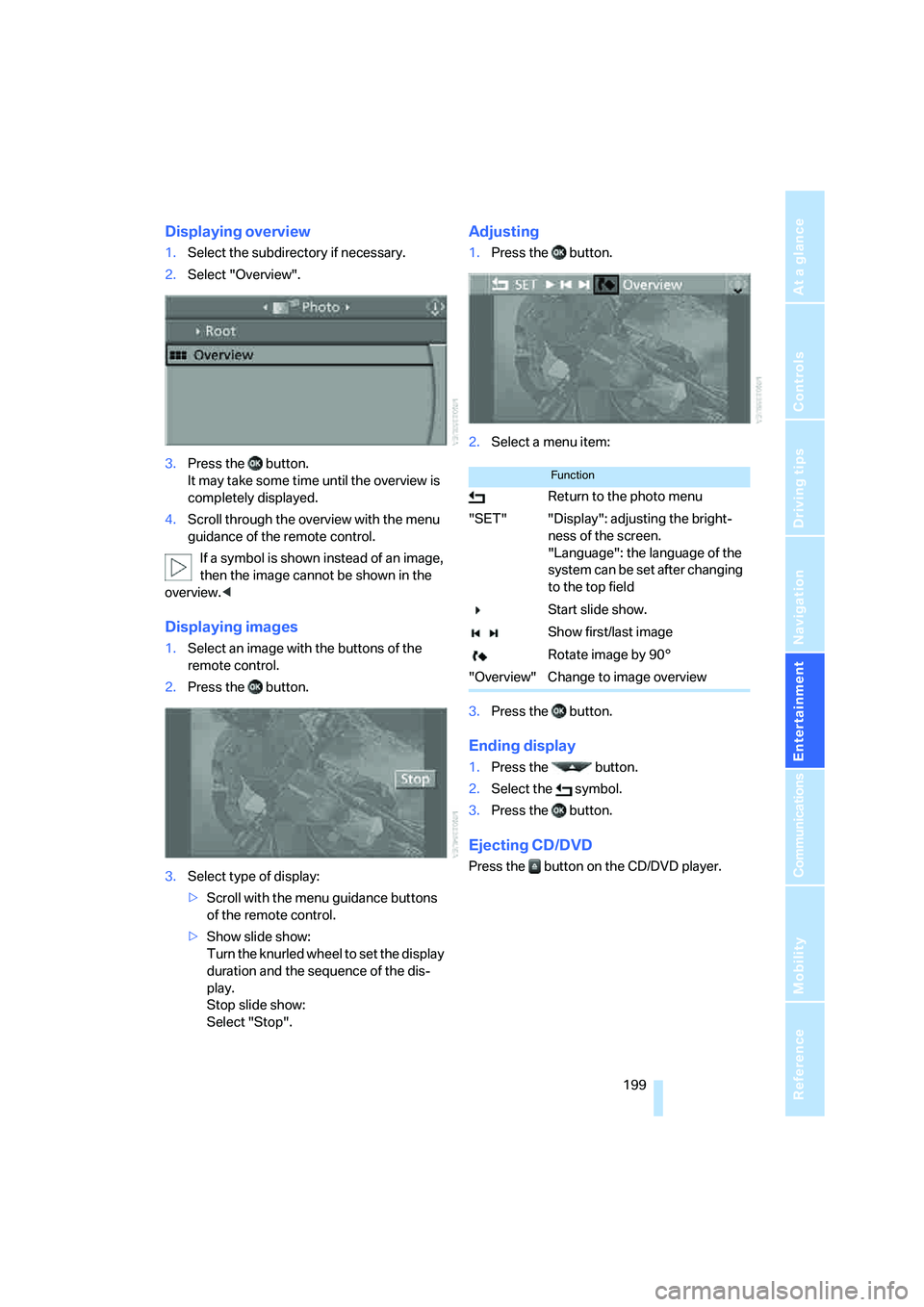
Displaying overview
1.Select the subdirectory if necessary.
2.Select "Overview".
3.Press the button.
It may take some time until the overview is
completely displayed.
4.Scroll through the overview with the menu
guidance of the remote control.
If a symbol is shown instead of an image,
then the image cannot be shown in the
overview.<
Displaying images
1.Select an image with the buttons of the
remote control.
2.Press the button.
3.Select type of display:
>Scroll with the menu guidance buttons
of the remote control.
>Show slide show:
Turn the knurled wheel to set the display
duration and the sequence of the dis-
play.
Stop slide show:
Select "Stop".
Adjusting
1.Press the button.
2.Select a menu item:
3.Press the button.
Ending display
1.Press the button.
2.Select the symbol.
3.Press the button.
Ejecting CD/DVD
Press the button on the CD/DVD player.
Function
Return to the photo menu
"SET" "Display": adjusting the bright-
ness of the screen.
"Language": the language of the
system can be set after changing
to the top field
Start slide show.
Show first/last image
Rotate image by 90°
"Overview" Change to image overview
Page 203 of 288
Navigation
Entertainment
Driving tips
201Reference
At a glance
Controls
Communications
Mobility
Humidity
High levels of humidity can lead to condensa-
tion on the CD/DVD or the laser's scan lens and
temporarily prevent playback.
Malfunctions with individual CDs/DVDs
If malfunctions occur only with particular CDs/
DVDs, this can be due to one of the following
causes.
Copied or self-recorded CDs/DVDs
Possible reasons for malfunctions with copied
or self-recorded CDs/DVDs are, e.g., inconsis-
tent data-creation or recording processes, or
poor quality or high age of the CD/DVD blank.
Only label CDs/DVDs on the side with the label
using a pen intended for this purpose.
Damaged CDs/DVDs
Avoid fingerprints, dust, scratches and mois-
ture.
Store CDs/DVDs in a sleeve.
Do not subject CDs/DVDs to temperatures over
1227/506, high levels of humidity or direct
sunlight.
CDs/DVDs with copy protection
CDs/DVDs are often provided with a copy pro-
tection feature by the manufacturer. As a result,
some CDs/DVDs cannot be played, can only be
played to a limited degree, or cause the system
to switch off. In this case, wait a short while and
then switch the system back on again. Then
remove the CD/DVD from the drive.
CDs/DVDs with compressed audio files
If the language set for the CD/DVD player does
not match the language of the music track, the
music tracks may be displayed incorrectly.
Care instructions
Do not use cleaning CDs with a brush.
External device
Connecting
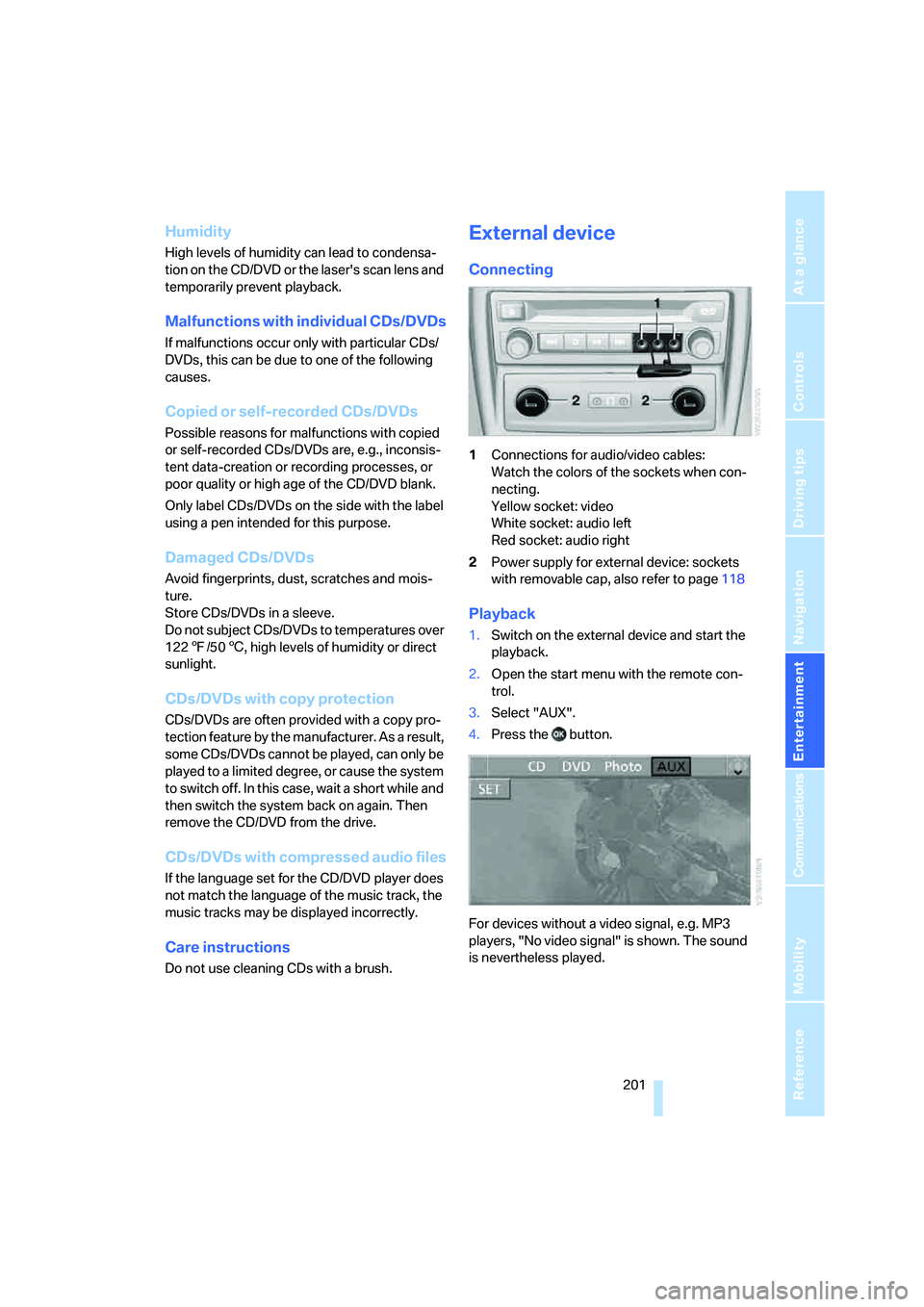
1Connections for audio/video cables:
Watch the colors of the sockets when con-
necting.
Yellow socket: video
White socket: audio left
Red socket: audio right
2Power supply for external device: sockets
with removable cap, also refer to page118
Playback
1.Switch on the external device and start the
playback.
2.Open the start menu with the remote con-
trol.
3.Select "AUX".
4.Press the button.
For devices without a video signal, e.g. MP3
players, "No video signal" is shown. The sound
is nevertheless played.
Page 204 of 288
DVD system in rear
202
Settings for external devices
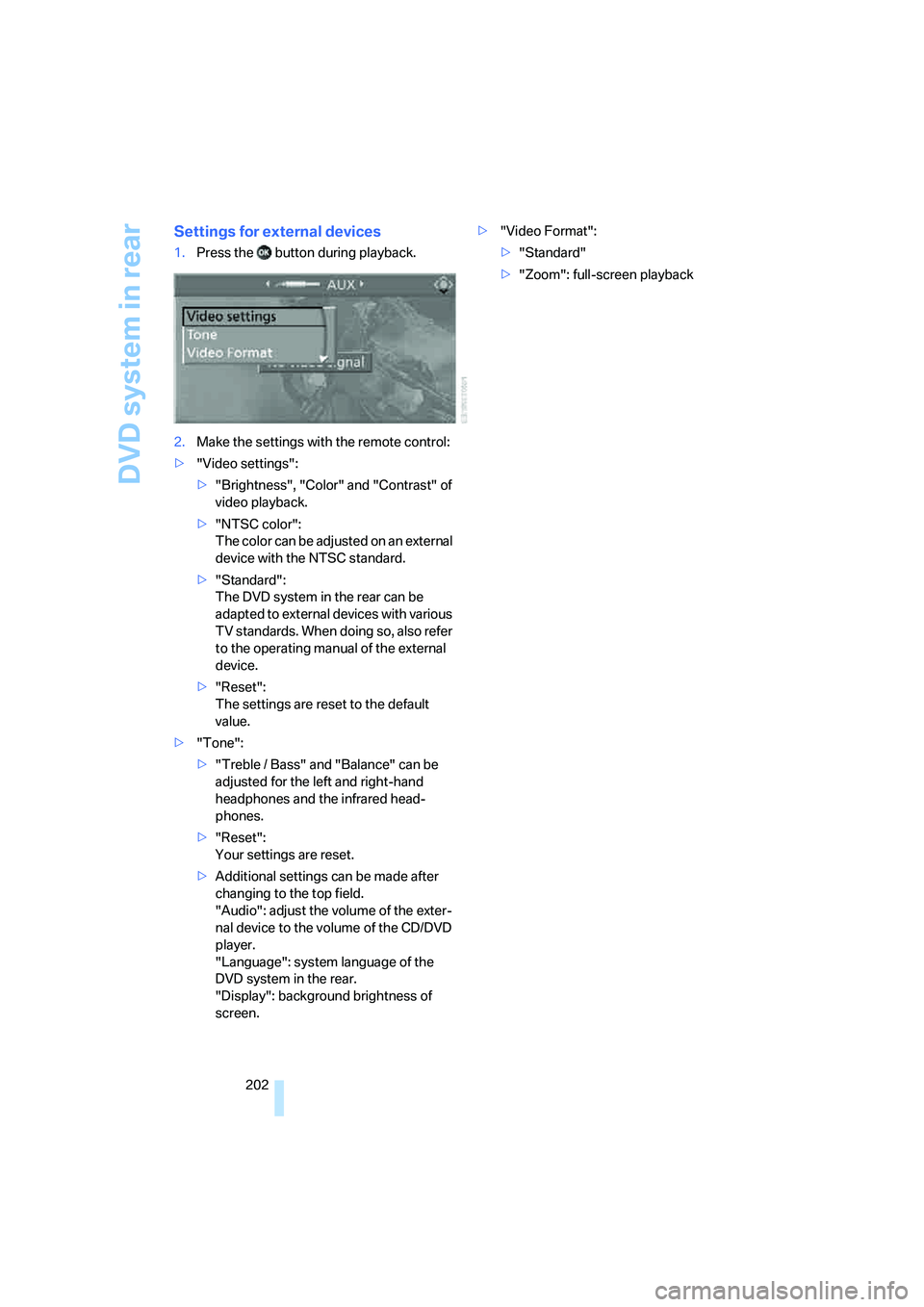
1.Press the button during playback.
2.Make the settings with the remote control:
>"Video settings":
>"Brightness", "Color" and "Contrast" of
video playback.
>"NTSC color":
The color can be adjusted on an external
device with the NTSC standard.
>"Standard":
The DVD system in the rear can be
adapted to external devices with various
TV standards. When doing so, also refer
to the operating manual of the external
device.
>"Reset":
The settings are reset to the default
value.
>"Tone":
>"Treble / Bass" and "Balance" can be
adjusted for the left and right-hand
headphones and the infrared head-
phones.
>"Reset":
Your settings are reset.
>Additional settings can be made after
changing to the top field.
"Audio": adjust the volume of the exter-
nal device to the volume of the CD/DVD
player.
"Language": system language of the
DVD system in the rear.
"Display": background brightness of
screen.>"Video Format":
>"Standard"
>"Zoom": full-screen playback