remote control BMW X6 2008 Workshop Manual
[x] Cancel search | Manufacturer: BMW, Model Year: 2008, Model line: X6, Model: BMW X6 2008Pages: 288, PDF Size: 8.08 MB
Page 200 of 288
DVD system in rear
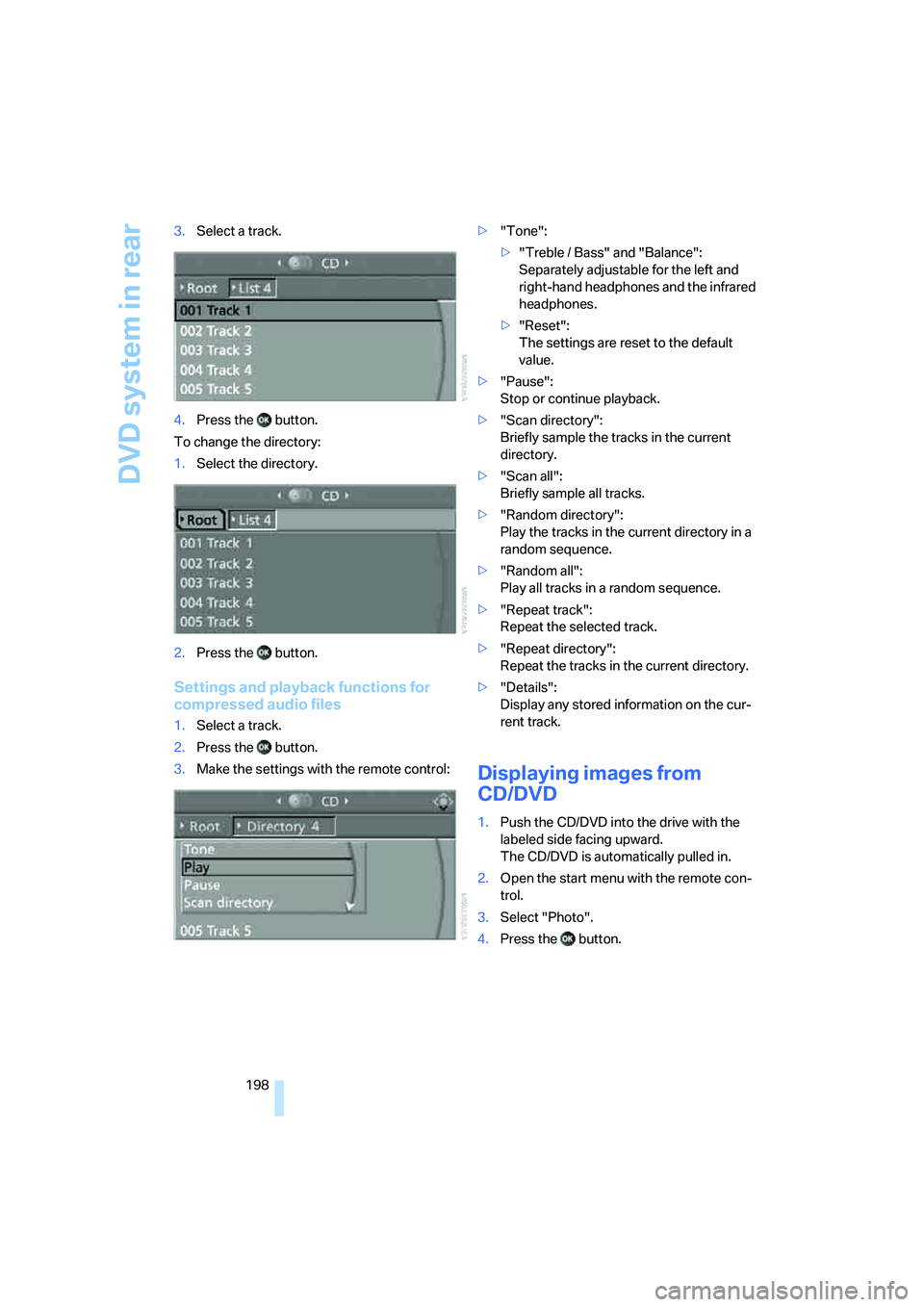
198 3.Select a track.
4.Press the button.
To change the directory:
1.Select the directory.
2.Press the button.
Settings and playback functions for
compressed audio files
1.Select a track.
2.Press the button.
3.Make the settings with the remote control:>"Tone":
>"Treble / Bass" and "Balance":
Separately adjustable for the left and
right-hand headphones and the infrared
headphones.
>"Reset":
The settings are reset to the default
value.
>"Pause":
Stop or continue playback.
>"Scan directory":
Briefly sample the tracks in the current
directory.
>"Scan all":
Briefly sample all tracks.
>"Random directory":
Play the tracks in the current directory in a
random sequence.
>"Random all":
Play all tracks in a random sequence.
>"Repeat track":
Repeat the selected track.
>"Repeat directory":
Repeat the tracks in the current directory.
>"Details":
Display any stored information on the cur-
rent track.
Displaying images from
CD/DVD
1.Push the CD/DVD into the drive with the
labeled side facing upward.
The CD/DVD is automatically pulled in.
2.Open the start menu with the remote con-
trol.
3.Select "Photo".
4.Press the button.
Page 201 of 288
Navigation
Entertainment
Driving tips
199Reference
At a glance
Controls
Communications
Mobility
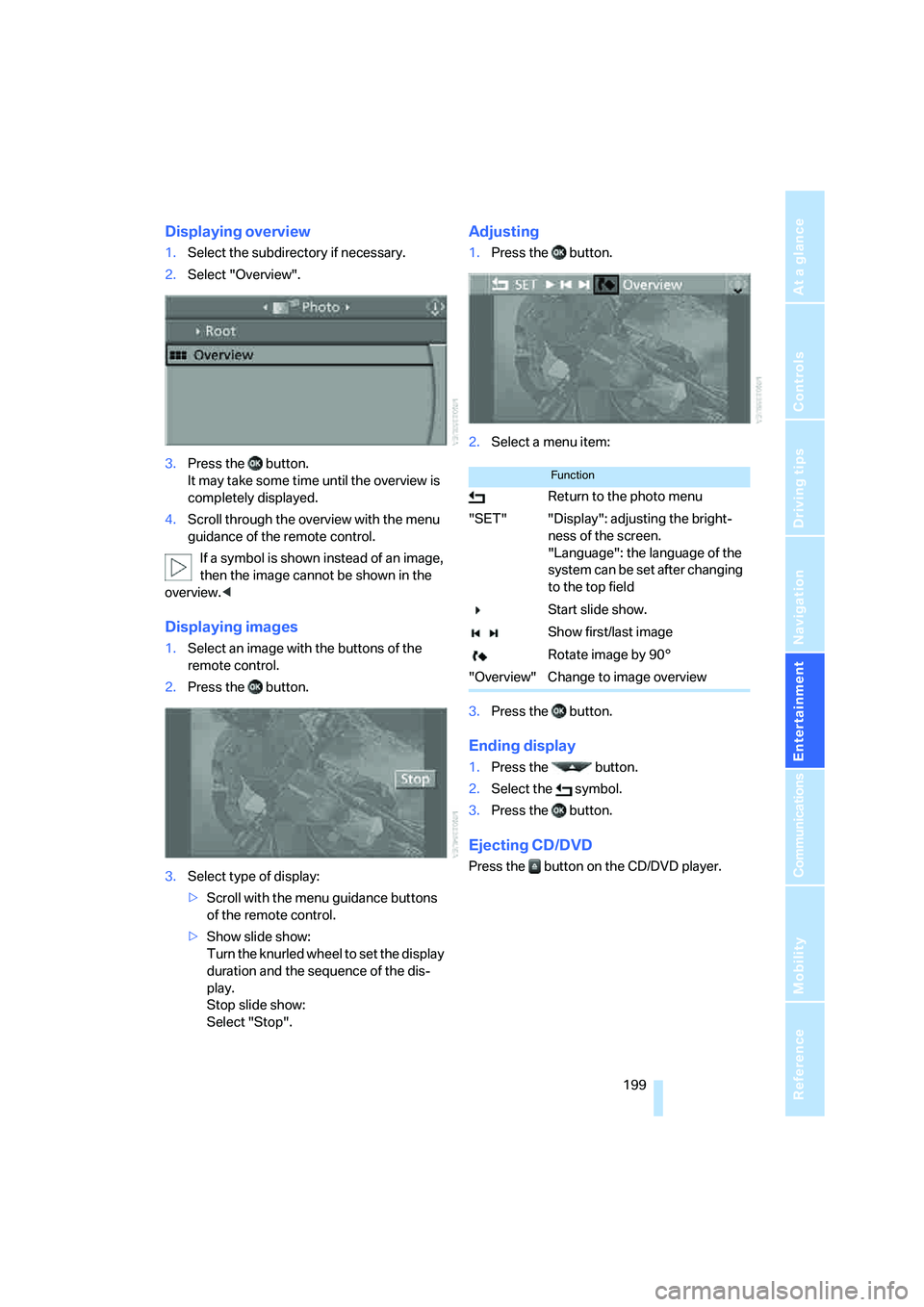
Displaying overview
1.Select the subdirectory if necessary.
2.Select "Overview".
3.Press the button.
It may take some time until the overview is
completely displayed.
4.Scroll through the overview with the menu
guidance of the remote control.
If a symbol is shown instead of an image,
then the image cannot be shown in the
overview.<
Displaying images
1.Select an image with the buttons of the
remote control.
2.Press the button.
3.Select type of display:
>Scroll with the menu guidance buttons
of the remote control.
>Show slide show:
Turn the knurled wheel to set the display
duration and the sequence of the dis-
play.
Stop slide show:
Select "Stop".
Adjusting
1.Press the button.
2.Select a menu item:
3.Press the button.
Ending display
1.Press the button.
2.Select the symbol.
3.Press the button.
Ejecting CD/DVD
Press the button on the CD/DVD player.
Function
Return to the photo menu
"SET" "Display": adjusting the bright-
ness of the screen.
"Language": the language of the
system can be set after changing
to the top field
Start slide show.
Show first/last image
Rotate image by 90°
"Overview" Change to image overview
Page 203 of 288
Navigation
Entertainment
Driving tips
201Reference
At a glance
Controls
Communications
Mobility
Humidity
High levels of humidity can lead to condensa-
tion on the CD/DVD or the laser's scan lens and
temporarily prevent playback.
Malfunctions with individual CDs/DVDs
If malfunctions occur only with particular CDs/
DVDs, this can be due to one of the following
causes.
Copied or self-recorded CDs/DVDs
Possible reasons for malfunctions with copied
or self-recorded CDs/DVDs are, e.g., inconsis-
tent data-creation or recording processes, or
poor quality or high age of the CD/DVD blank.
Only label CDs/DVDs on the side with the label
using a pen intended for this purpose.
Damaged CDs/DVDs
Avoid fingerprints, dust, scratches and mois-
ture.
Store CDs/DVDs in a sleeve.
Do not subject CDs/DVDs to temperatures over
1227/506, high levels of humidity or direct
sunlight.
CDs/DVDs with copy protection
CDs/DVDs are often provided with a copy pro-
tection feature by the manufacturer. As a result,
some CDs/DVDs cannot be played, can only be
played to a limited degree, or cause the system
to switch off. In this case, wait a short while and
then switch the system back on again. Then
remove the CD/DVD from the drive.
CDs/DVDs with compressed audio files
If the language set for the CD/DVD player does
not match the language of the music track, the
music tracks may be displayed incorrectly.
Care instructions
Do not use cleaning CDs with a brush.
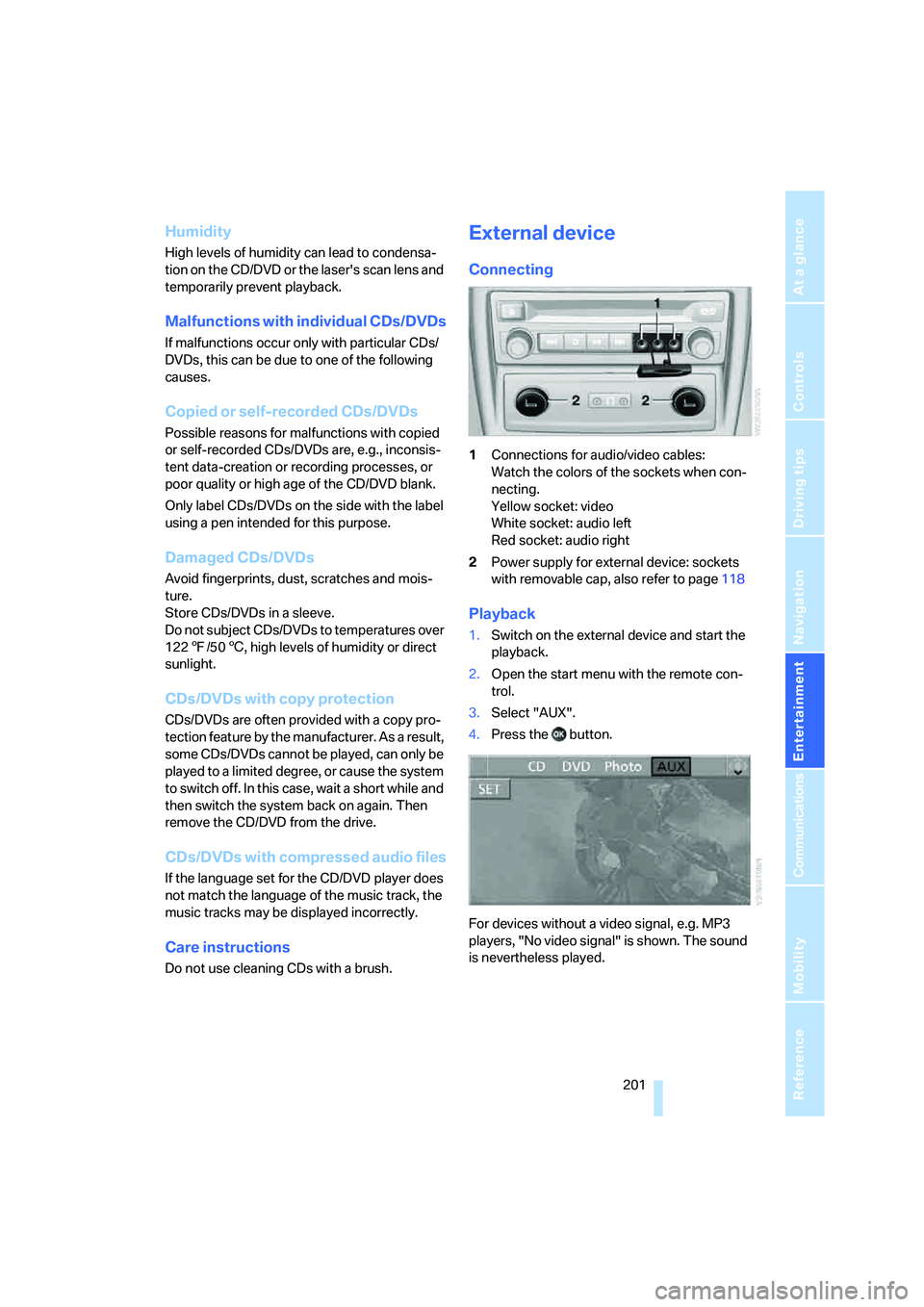
External device
Connecting
1Connections for audio/video cables:
Watch the colors of the sockets when con-
necting.
Yellow socket: video
White socket: audio left
Red socket: audio right
2Power supply for external device: sockets
with removable cap, also refer to page118
Playback
1.Switch on the external device and start the
playback.
2.Open the start menu with the remote con-
trol.
3.Select "AUX".
4.Press the button.
For devices without a video signal, e.g. MP3
players, "No video signal" is shown. The sound
is nevertheless played.
Page 204 of 288
DVD system in rear
202
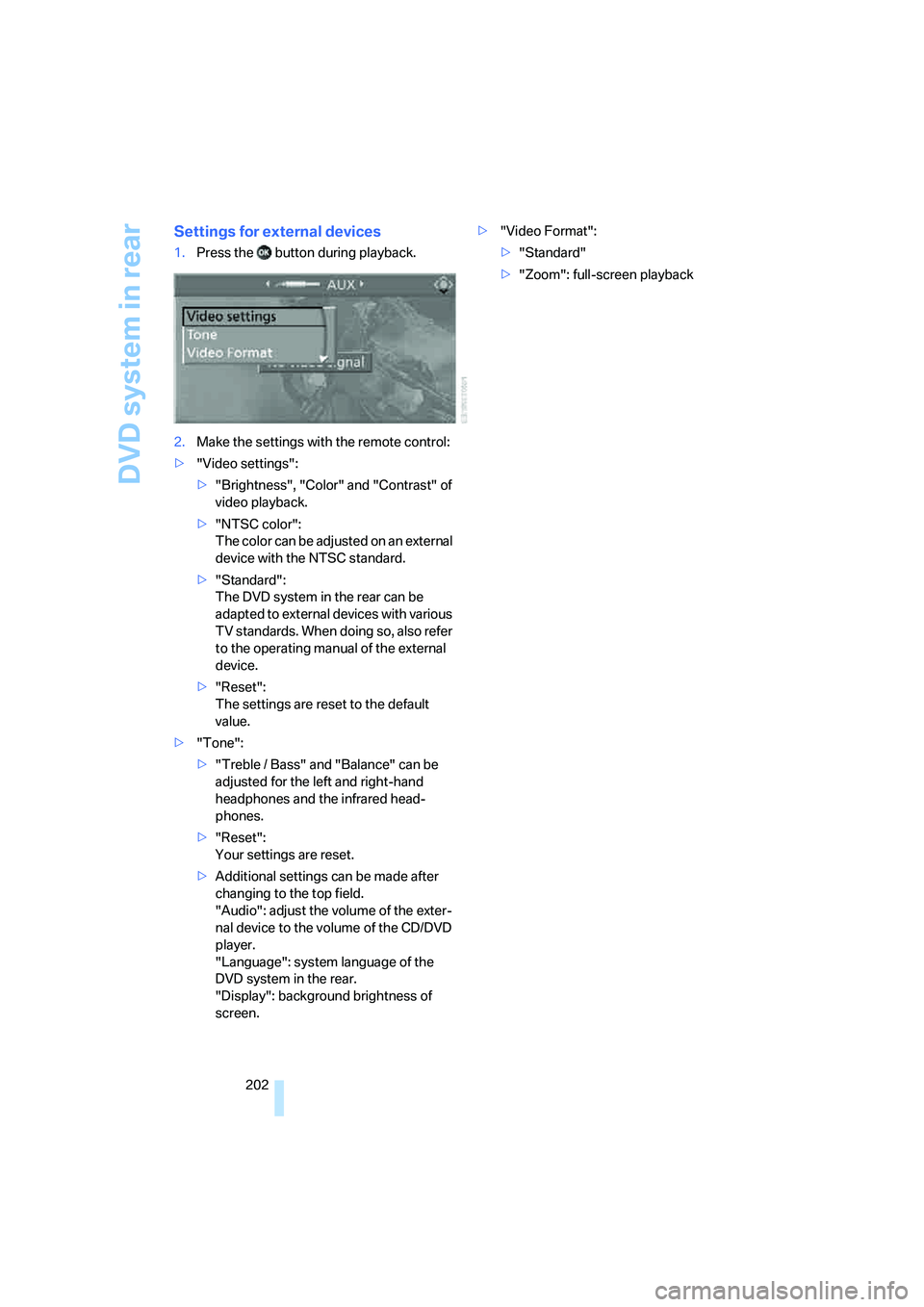
Settings for external devices
1.Press the button during playback.
2.Make the settings with the remote control:
>"Video settings":
>"Brightness", "Color" and "Contrast" of
video playback.
>"NTSC color":
The color can be adjusted on an external
device with the NTSC standard.
>"Standard":
The DVD system in the rear can be
adapted to external devices with various
TV standards. When doing so, also refer
to the operating manual of the external
device.
>"Reset":
The settings are reset to the default
value.
>"Tone":
>"Treble / Bass" and "Balance" can be
adjusted for the left and right-hand
headphones and the infrared head-
phones.
>"Reset":
Your settings are reset.
>Additional settings can be made after
changing to the top field.
"Audio": adjust the volume of the exter-
nal device to the volume of the CD/DVD
player.
"Language": system language of the
DVD system in the rear.
"Display": background brightness of
screen.>"Video Format":
>"Standard"
>"Zoom": full-screen playback
Page 209 of 288
207
Entertainment
Reference
At a glance
Controls
Driving tips Communications
Navigation
Mobility
progress. If this happens, you must log off the
mobile phone from the vehicle if you wish to
place a call with the mobile phone.
Commissioning
Logging on mobile phone on vehicle
The following prerequisites must be met:
>Suitable mobile phone: the mobile phone
is supported by the full mobile phone prep-
aration package. Information on this subject
is also provided on the Internet at:
www.bmw.com
>The mobile phone is ready to operate.
>The Bluetooth link on the vehicle, refer to
page211, and on the mobile phone is
active.
>Depending on the mobile phone, it may be
necessary to adjust the presets of the
mobile phone, e.g. via the following menu
items:
>Bluetooth activated
>Connection not with confirmation
>Reconnect
>Depending on the mobile phone model, the
setting energy saving mode can, for exam-
ple, result in vehicle failing to detect the
paired mobile phone.
>For pairing, specify any desired number as
the Bluetooth passkey, e.g. 1. This Blue-
tooth passkey is no longer required follow-
ing successful logon.
>The ignition is switched on.
Only pair the mobile phone with the vehi-
cle stopped, otherwise the passengers
and other road users can be endangered due
to a lack of attentiveness on the part of the
driver.<
Switching on ignition
1.Insert the remote control as far as possible
into the ignition lock.
2.Switch on the ignition by pressing the Start/
Stop button without depressing the brake
pedal.
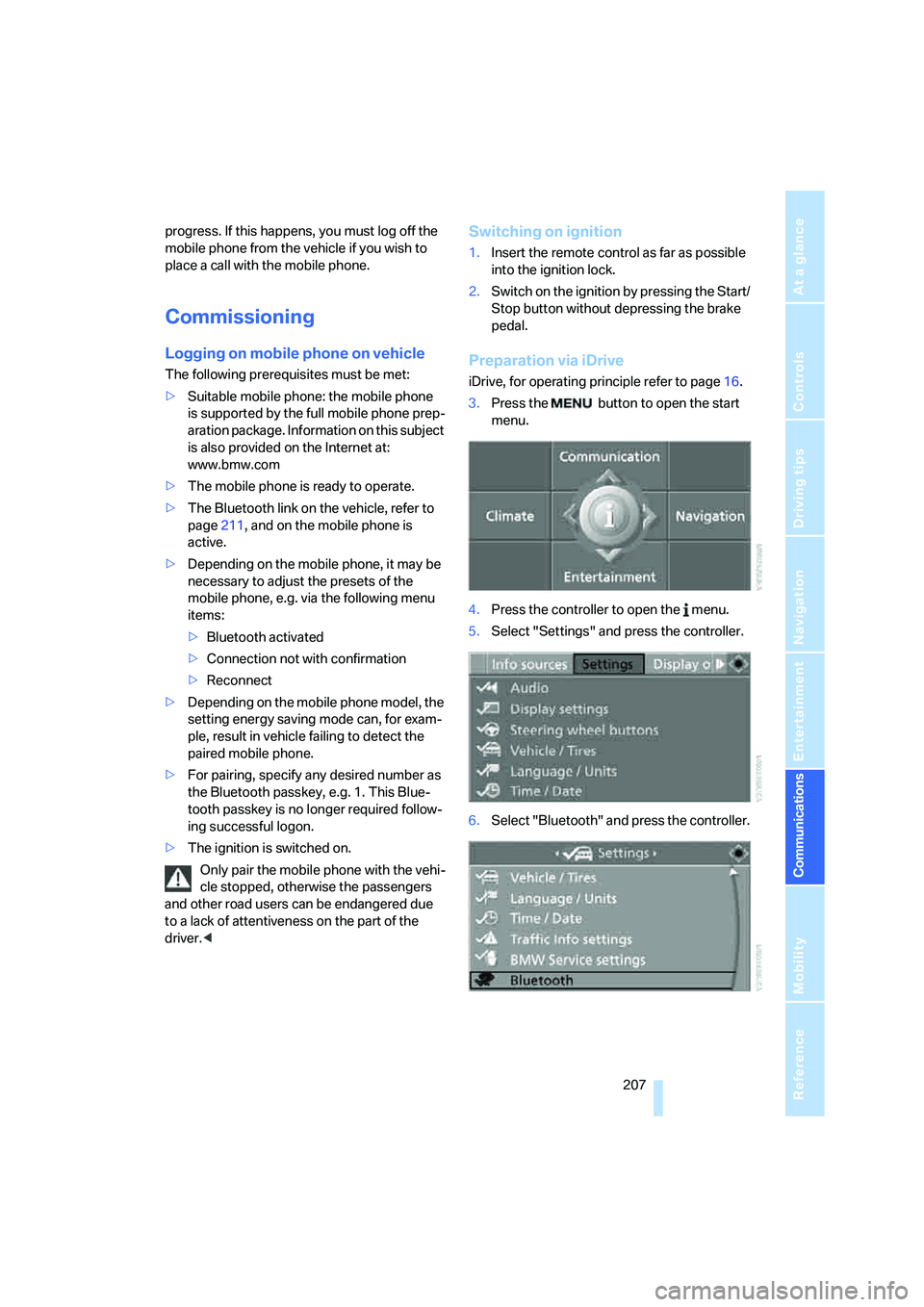
Preparation via iDrive
iDrive, for operating principle refer to page16.
3.Press the button to open the start
menu.
4.Press the controller to open the menu.
5.Select "Settings" and press the controller.
6.Select "Bluetooth" and press the controller.
Page 214 of 288
Telephoning
212
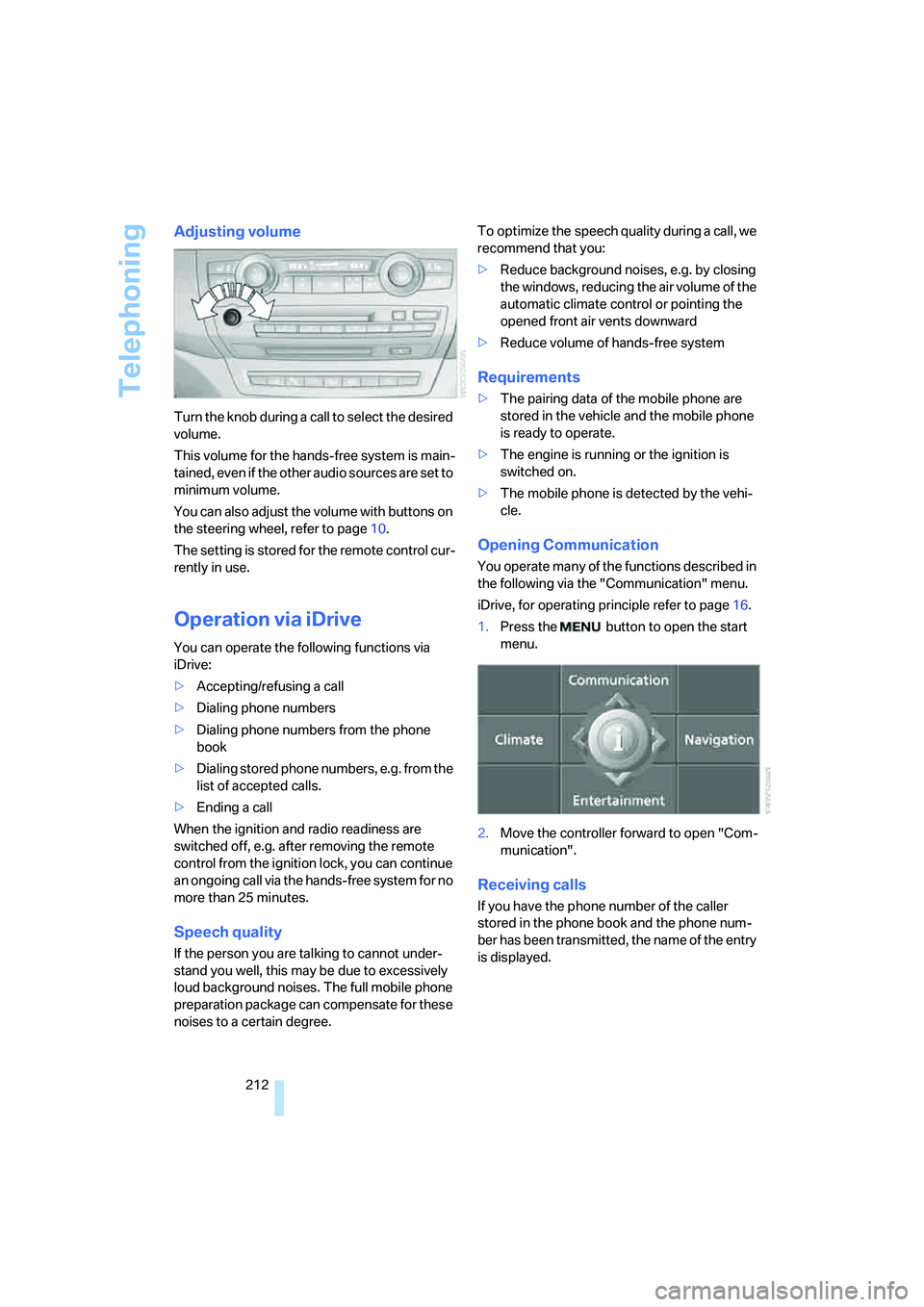
Adjusting volume
Turn the knob during a call to select the desired
volume.
This volume for the hands-free system is main-
tained, even if the other audio sources are set to
minimum volume.
You can also adjust the volume with buttons on
the steering wheel, refer to page10.
The setting is stored for the remote control cur-
rently in use.
Operation via iDrive
You can operate the following functions via
iDrive:
>Accepting/refusing a call
>Dialing phone numbers
>Dialing phone numbers from the phone
book
>Dialing stored phone numbers, e.g. from the
list of accepted calls.
>Ending a call
When the ignition and radio readiness are
switched off, e.g. after removing the remote
control from the ignition lock, you can continue
an ongoing call via the hands-free system for no
more than 25 minutes.
Speech quality
If the person you are talking to cannot under-
stand you well, this may be due to excessively
loud background noises. The full mobile phone
preparation package can compensate for these
noises to a certain degree. To optimize the speech quality during a call, we
recommend that you:
>Reduce background noises, e.g. by closing
the windows, reducing the air volume of the
automatic climate control or pointing the
opened front air vents downward
>Reduce volume of hands-free system
Requirements
>The pairing data of the mobile phone are
stored in the vehicle and the mobile phone
is ready to operate.
>The engine is running or the ignition is
switched on.
>The mobile phone is detected by the vehi-
cle.
Opening Communication
You operate many of the functions described in
the following via the "Communication" menu.
iDrive, for operating principle refer to page16.
1.Press the button to open the start
menu.
2.Move the controller forward to open "Com-
munication".
Receiving calls
If you have the phone number of the caller
stored in the phone book and the phone num-
ber has been transmitted, the name of the entry
is displayed.
Page 218 of 288
Telephoning
216 You can select the displayed service phone
number if your mobile phone is logged on in the
vehicle:
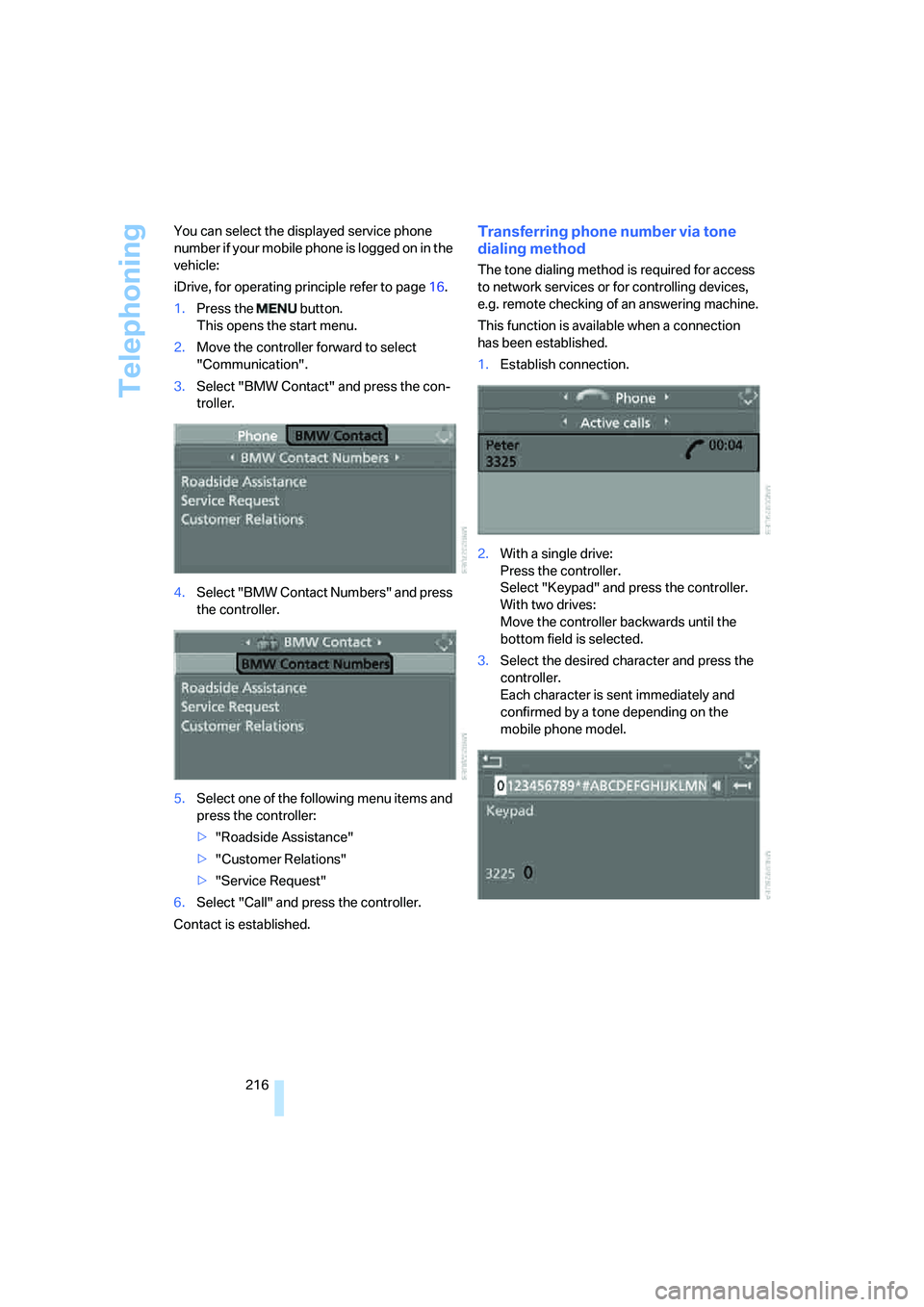
iDrive, for operating principle refer to page16.
1.Press the button.
This opens the start menu.
2.Move the controller forward to select
"Communication".
3.Select "BMW Contact" and press the con-
troller.
4.Select "BMW Contact Numbers" and press
the controller.
5.Select one of the following menu items and
press the controller:
>"Roadside Assistance"
>"Customer Relations"
>"Service Request"
6.Select "Call" and press the controller.
Contact is established.
Transferring phone number via tone
dialing method
The tone dialing method is required for access
to network services or for controlling devices,
e.g. remote checking of an answering machine.
This function is available when a connection
has been established.
1.Establish connection.
2.With a single drive:
Press the controller.
Select "Keypad" and press the controller.
With two drives:
Move the controller backwards until the
bottom field is selected.
3.Select the desired character
and press the
controller.
Each character is sent immediately and
confirmed by a tone depending on the
mobile phone model.
Page 220 of 288
Telephoning
218
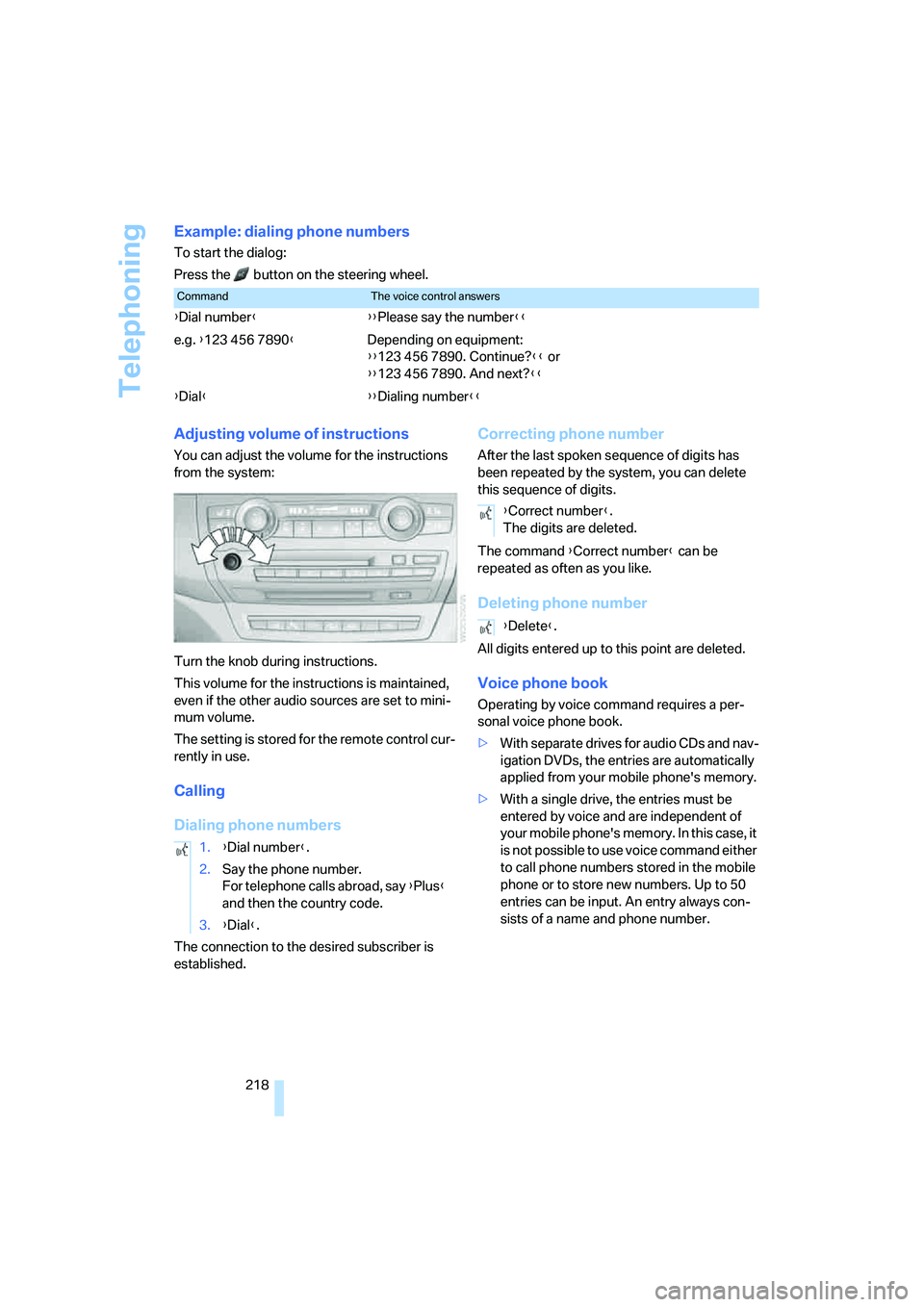
Example: dialing phone numbers
To start the dialog:
Press the button on the steering wheel.
Adjusting volume of instructions
You can adjust the volume for the instructions
from the system:
Turn the knob during instructions.
This volume for the instructions is maintained,
even if the other audio sources are set to mini-
mum volume.
The setting is stored for the remote control cur-
rently in use.
Calling
Dialing phone numbers
The connection to the desired subscriber is
established.
Correcting phone number
After the last spoken sequence of digits has
been repeated by the system, you can delete
this sequence of digits.
The command {Correct number} can be
repeated as often as you like.
Deleting phone number
All digits entered up to this point are deleted.
Voice phone book
Operating by voice command requires a per-
sonal voice phone book.
>With separate drives for audio CDs and nav-
igation DVDs, the entries are automatically
applied from your mobile phone's memory.
>With a single drive, the entries must be
entered by voice and are independent of
your mobile phone's memory. In this case, it
is not possible to use voice command either
to call phone numbers stored in the mobile
phone or to store new numbers. Up to 50
entries can be input. An entry always con-
sists of a name and phone number.
CommandThe voice control answers
{Dial number}{{Please say the number}}
e.g. {123 456 7890}Depending on equipment:
{{123 456 7890. Continue?}} or
{{123 456 7890. And next?}}
{Dial}{{Dialing number}}
1.{Dial number}.
2.Say the phone number.
For telephone calls abroad, say {Plus}
and then the country code.
3.{Dial}.
{Correct number}.
The digits are deleted.
{Delete}.
Page 223 of 288
221
Entertainment
Reference
At a glance
Controls
Driving tips Communications
Navigation
Mobility
BMW Assist
BMW Assist provides you with various services.
For example, the position data of your vehicle
can be transferred to the BMW Assist
Response Center if an emergency request
* has
been initiated.
Many BMW Assist services depend on the indi-
vidually agreed contract.
After your contract has expired, the BMW
Assist system will be deactivated by the BMW
Assist Response Center without you having to
visit a BMW Sports Activity Vehicle Center.
After the BMW Assist system has been deacti-
vated, no BMW Assist service will be available.
The BMW Assist system can be reactivated by
a BMW Sports Activity Vehicle Center after
signing a new contract.
Requirements
If the following requirements are met, you can
use BMW Assist:
>The installed BMW Assist system is logged
in on a wireless communications network.
This network must be capable of transmit-
ting the services.
>To transmit position data, the vehicle must
be able to determine the current position.
>To activate and update BMW Assist, a GPS
signal must be available.
>You have subscribed to BMW Assist with
your BMW Sports Activity Vehicle Center or
with the BMW Assist Response Center.
Enabling must have been completed.
>BMW Assist is activated, refer to page226.
Offered services
The following services are available via
BMW Assist:
>Emergency requests, refer to page252:
When you press the SOS button, a connec-
tion is established to the BMW Assist
Response Center. The BMW Assist
Response Center contacts you and takes
further steps to help you.
>Automatic collision notification:
Under certain conditions, a connection is
established to the BMW Assist Response
Center after a serious accident. If possible,
the BMW Assist Response Center contacts
you and takes further steps to help you.
>Enhanced roadside assistance:
You can call BMW Roadside Assistance
*
should you require help in the event of a
breakdown. If possible, the vehicle and
position data are transmitted in the process.
>BMW Customer Relations:
For information on all aspects of your vehi-
cle, you can be connected to BMW Cus-
tomer Relations.
>TeleService:
The data on the service status of your vehi-
cle or on required inspections are transmit-
ted to your BMW Sports Activity Vehicle
Center either automatically prior to the due
date or when you request a BMW service
appointment.
>Remote door unlock:
Inform the BMW Assist Response Center,
e.g. if your remote control is not available
and you want to have the vehicle unlocked.
>Stolen vehicle recovery:
After your vehicle has been reported to the
police as stolen, the BMW Assist Response
Center can locate its position.
In addition, you can be provided with other ser-
vices, e.g. the concierge service or information
on route planning, traffic conditions, and the
*
Page 245 of 288
Mobility
243Reference
At a glance
Controls
Driving tips
Communications
Navigation
Entertainment
Maintenance
BMW maintenance system
The BMW maintenance system supports the
preservation of the traffic and operating safety
of your BMW. The service schedule also
includes operations related to the vehicle's
comfort and convenience features, such as
replacement of the filters for the inside air.
The ultimate objective is to ensure economical
maintenance by providing the ideal service for
your vehicle.
Should the day come when you decide to sell
your BMW, a complete dealer service history
will prove to be an asset of inestimable value.
CBS Condition Based Service
Sensors and special algorithms take the differ-
ent driving conditions of your BMW into
account. Condition Based Service uses this to
determine the current and future service
requirements. By letting you define a service
and maintenance regimen that reflects your
own individual requirements, the system builds
the basis for trouble-free driving.
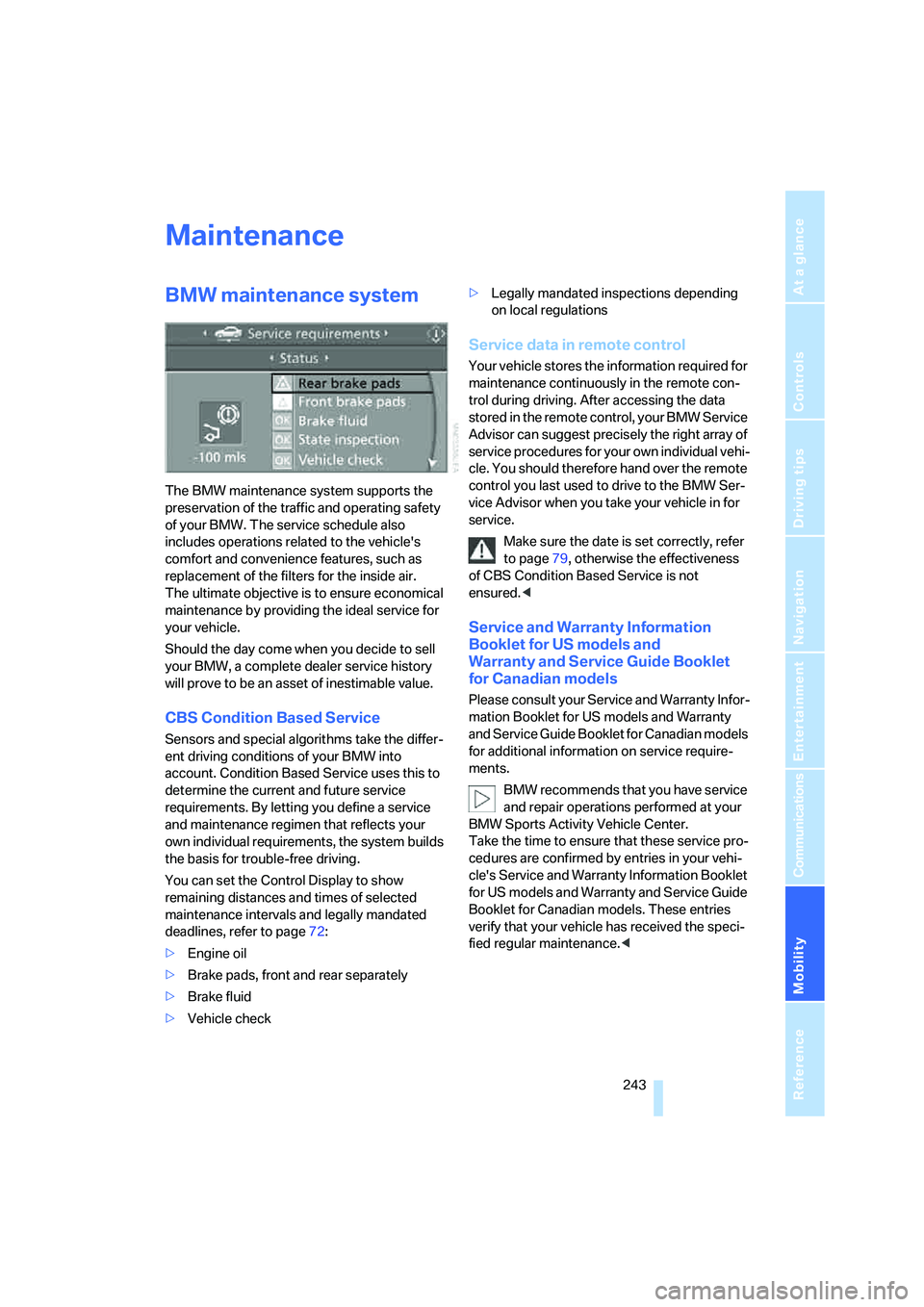
You can set the Control Display to show
remaining distances and times of selected
maintenance intervals and legally mandated
deadlines, refer to page72:
>Engine oil
>Brake pads, front and rear separately
>Brake fluid
>Vehicle check>Legally mandated inspections depending
on local regulations
Service data in remote control
Your vehicle stores the information required for
maintenance continuously in the remote con-
trol during driving. After accessing the data
stored in the remote control, your BMW Service
Advisor can suggest precisely the right array of
service procedures for your own individual vehi-
cle. You should therefore hand over the remote
control you last used to drive to the BMW Ser-
vice Advisor when you take your vehicle in for
service.
Make sure the date is set correctly, refer
to page79, otherwise the effectiveness
of CBS Condition Based Service is not
ensured.<
Service and Warranty Information
Booklet for US models and
Warranty and Service Guide Booklet
for Canadian models
Please consult your Service and Warranty Infor-
mation Booklet for US models and Warranty
and Service Guide Booklet for Canadian models
for additional information on service require-
ments.
BMW recommends that you have service
and repair operations performed at your
BMW Sports Activity Vehicle Center.
Take the time to ensure that these service pro-
cedures are confirmed by entries in your vehi-
cle's Service and Warranty Information Booklet
for US models and Warranty and Service Guide
Booklet for Canadian models. These entries
verify that your vehicle has received the speci-
fied regular maintenance.<