radio BMW X6 2008 Owners Manual
[x] Cancel search | Manufacturer: BMW, Model Year: 2008, Model line: X6, Model: BMW X6 2008Pages: 288, PDF Size: 8.08 MB
Page 5 of 288
Reference
At a glance
Controls
Driving tips
Communications
Navigation
Entertainment
Mobility
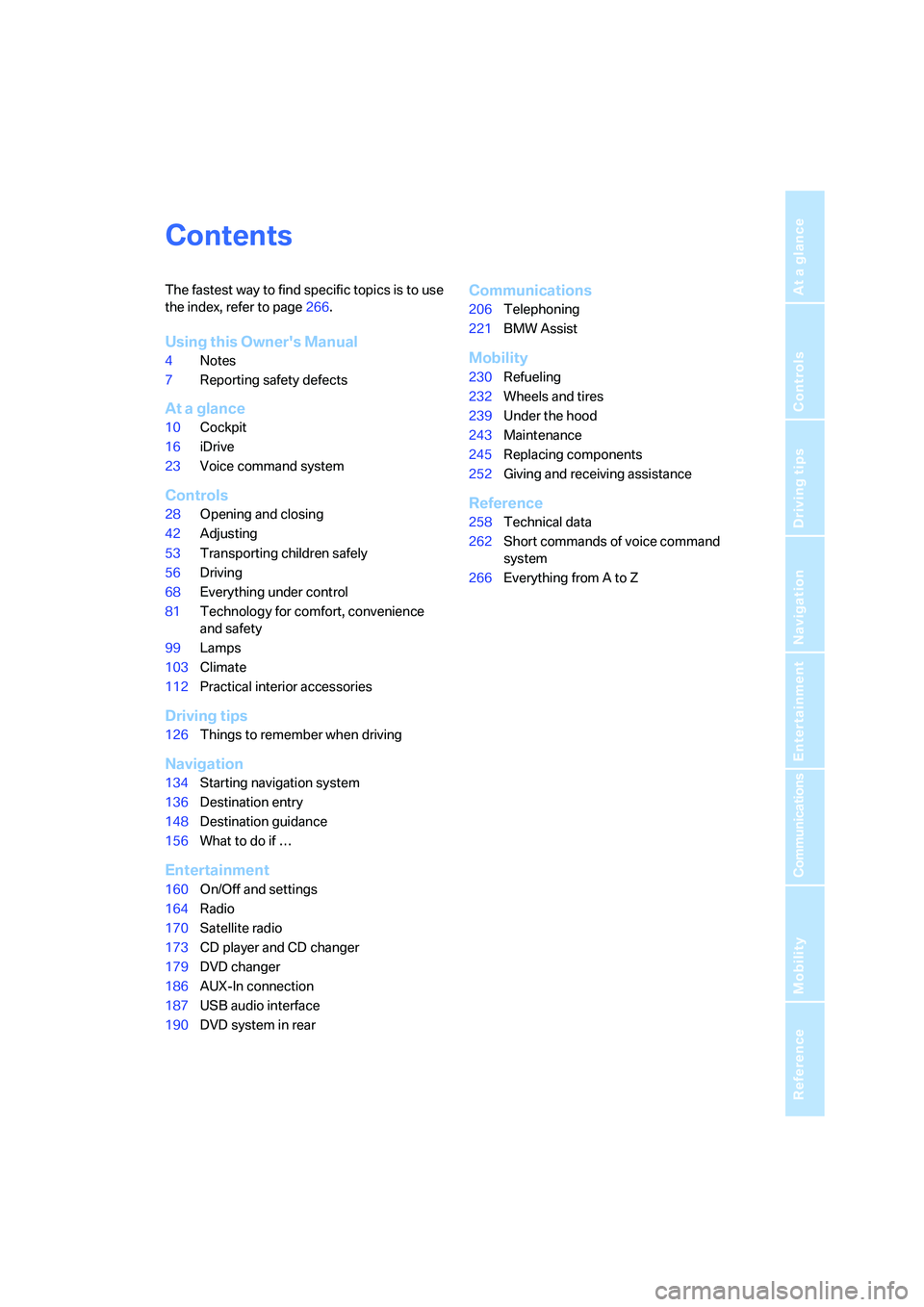
Contents
The fastest way to find specific topics is to use
the index, refer to page266.
Using this Owner's Manual
4Notes
7Reporting safety defects
At a glance
10Cockpit
16iDrive
23Voice command system
Controls
28Opening and closing
42Adjusting
53Transporting children safely
56Driving
68Everything under control
81Technology for comfort, convenience
and safety
99Lamps
103Climate
112Practical interior accessories
Driving tips
126Things to remember when driving
Navigation
134Starting navigation system
136Destination entry
148Destination guidance
156What to do if …
Entertainment
160On/Off and settings
164Radio
170Satellite radio
173CD player and CD changer
179DVD changer
186AUX-In connection
187USB audio interface
190DVD system in rear
Communications
206Telephoning
221BMW Assist
Mobility
230Refueling
232Wheels and tires
239Under the hood
243Maintenance
245Replacing components
252Giving and receiving assistance
Reference
258Technical data
262Short commands of voice command
system
266Everything from A to Z
Page 8 of 288
Notes
6
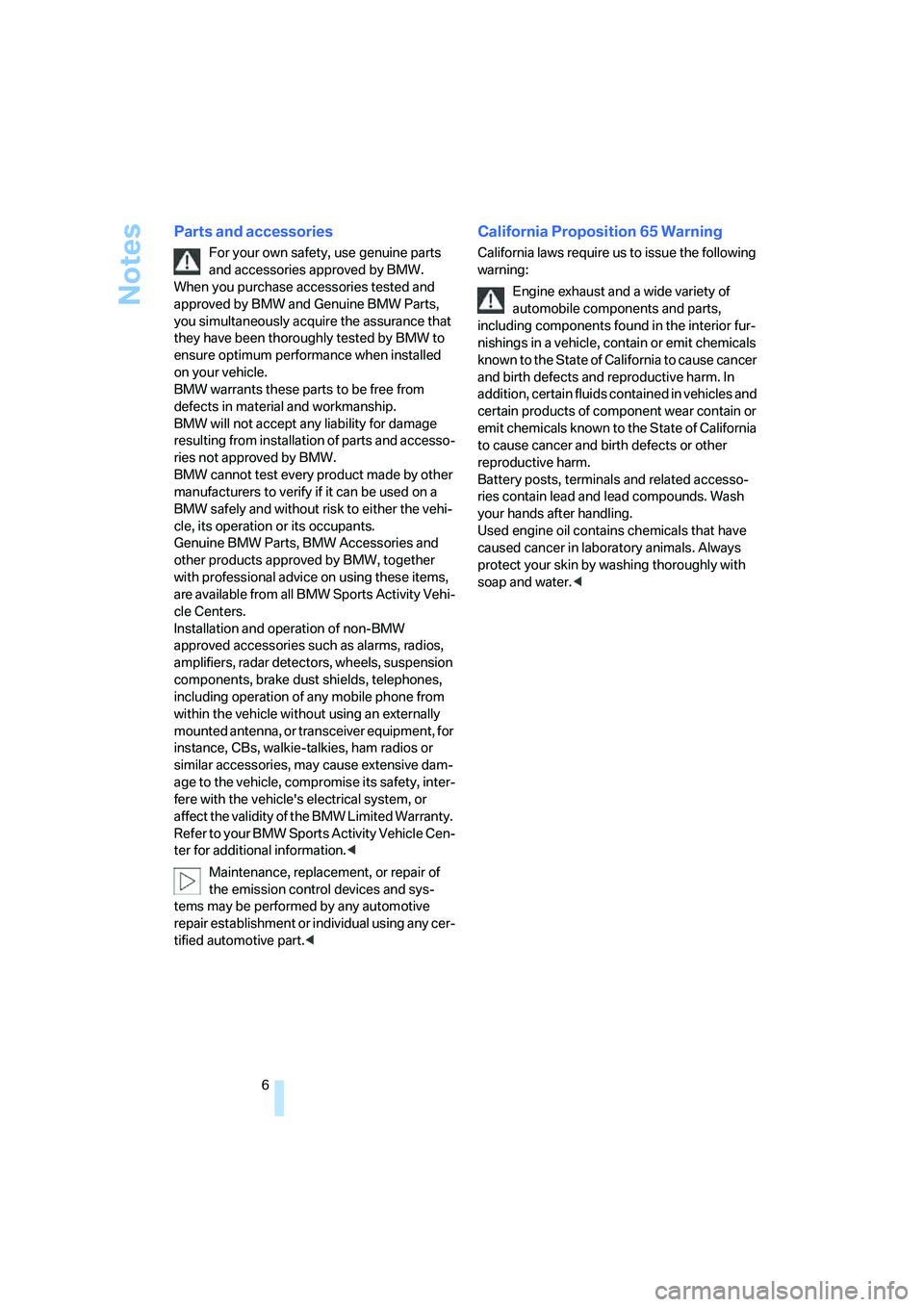
Parts and accessories
For your own safety, use genuine parts
and accessories approved by BMW.
When you purchase accessories tested and
approved by BMW and Genuine BMW Parts,
you simultaneously acquire the assurance that
they have been thoroughly tested by BMW to
ensure optimum performance when installed
on your vehicle.
BMW warrants these parts to be free from
defects in material and workmanship.
BMW will not accept any liability for damage
resulting from installation of parts and accesso-
ries not approved by BMW.
BMW cannot test every product made by other
manufacturers to verify if it can be used on a
BMW safely and without risk to either the vehi-
cle, its operation or its occupants.
Genuine BMW Parts, BMW Accessories and
other products approved by BMW, together
with professional advice on using these items,
are available from all BMW Sports Activity Vehi-
cle Centers.
Installation and operation of non-BMW
approved accessories such as alarms, radios,
amplifiers, radar detectors, wheels, suspension
components, brake dust shields, telephones,
including operation of any mobile phone from
within the vehicle without using an externally
mounted antenna, or transceiver equipment, for
instance, CBs, walkie-talkies, ham radios or
similar accessories, may cause extensive dam-
age to the vehicle, compromise its safety, inter-
fere with the vehicle's electrical system, or
affect the validity of the BMW Limited Warranty.
Refer to your BMW Sports Activity Vehicle Cen-
ter for additional information.<
Maintenance, replacement, or repair of
the emission control devices and sys-
tems may be performed by any automotive
repair establishment or individual using any cer-
tified automotive part.<
California Proposition 65 Warning
California laws require us to issue the following
warning:
Engine exhaust and a wide variety of
automobile components and parts,
including components found in the interior fur-
nishings in a vehicle, contain or emit chemicals
known to the State of California to cause cancer
and birth defects and reproductive harm. In
addition, certain fluids contained in vehicles and
certain products of component wear contain or
emit chemicals known to the State of California
to cause cancer and birth defects or other
reproductive harm.
Battery posts, terminals and related accesso-
ries contain lead and lead compounds. Wash
your hands after handling.
Used engine oil contains chemicals that have
caused cancer in laboratory animals. Always
protect your skin by washing thoroughly with
soap and water.<
Page 13 of 288
At a glance
11Reference
Controls
Driving tips
Communications
Navigation
Entertainment
Mobility
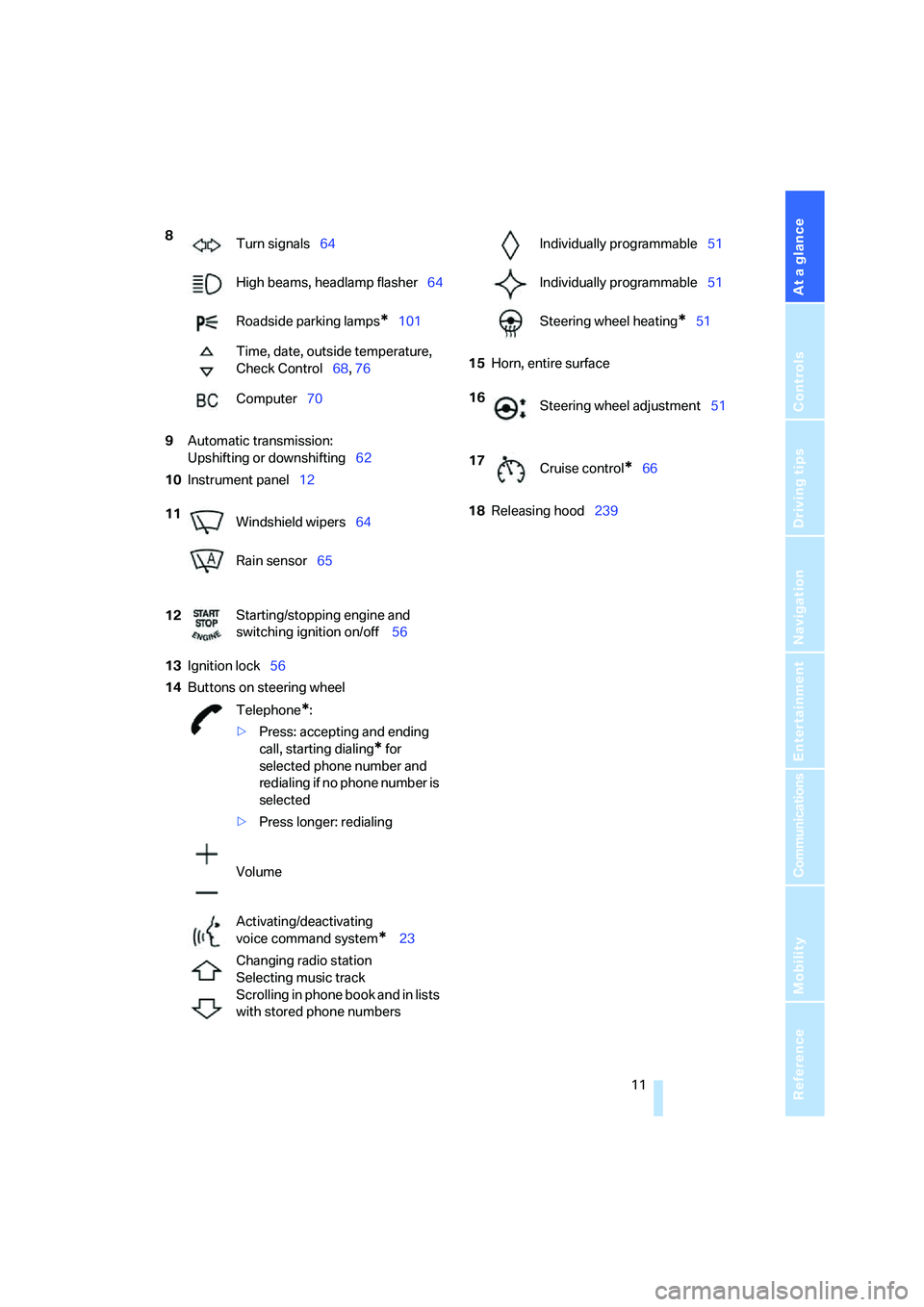
9Automatic transmission:
Upshifting or downshifting62
10Instrument panel12
13Ignition lock56
14Buttons on steering wheel15Horn, entire surface
18Releasing hood239 8
Turn signals64
High beams, headlamp flasher64
Roadside parking lamps
*101
Time, date, outside temperature,
Check Control68, 76
Computer70
11
Windshield wipers64
Rain sensor65
12Starting/stopping engine and
switching ignition on/off 56
Telephone
*:
>Press: accepting and ending
call, starting dialing
* for
selected phone number and
redialing if no phone number is
selected
>Press longer: redialing
Volume
Activating/deactivating
voice command system
* 23
Changing radio station
Selecting music track
Scrolling in phone book and in lists
with stored phone numbers
Individually programmable51
Individually programmable51
Steering wheel heating
*51
16
Steering wheel adjustment51
17
Cruise control
*66
Page 17 of 288
At a glance
15Reference
Controls
Driving tips
Communications
Navigation
Entertainment
Mobility
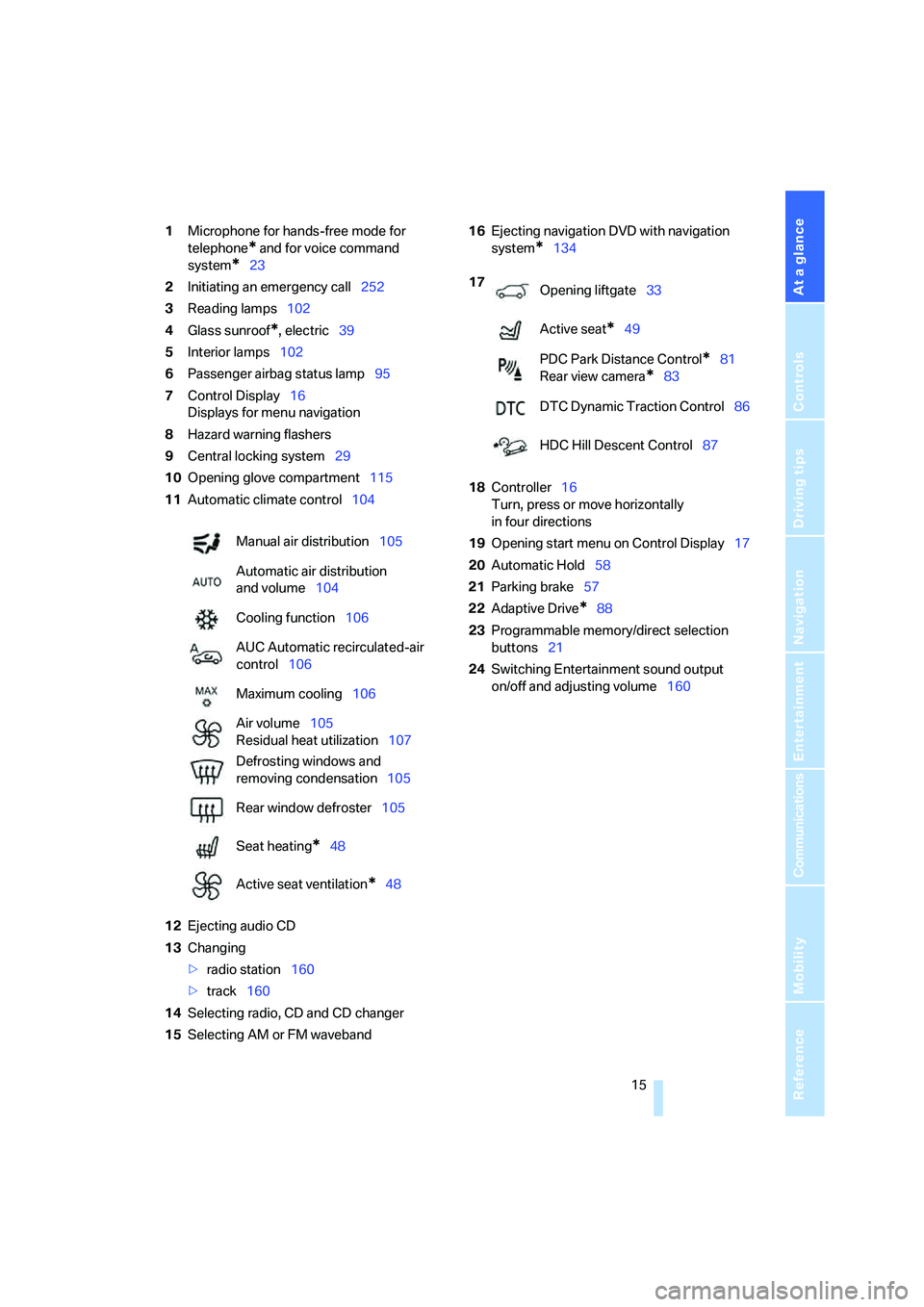
1Microphone for hands-free mode for
telephone
* and for voice command
system
*23
2Initiating
an emergency call252
3Reading lamps102
4Glass sunroof
*, electric39
5Interior lamps102
6Passenger airbag status lamp95
7Control Display16
Displays for menu navigation
8Hazard warning flashers
9Central locking system29
10Opening glove compartment115
11Automatic climate control104
12Ejecting audio CD
13Changing
>radio station160
>track160
14Selecting radio, CD and CD changer
15Selecting AM or FM waveband16Ejecting navigation DVD with navigation
system
*134
18Controller16
Turn, press or move horizontally
in four directions
19Opening start menu on Control Display17
20Automatic Hold58
21Parking brake57
22Adaptive Drive
*88
23Programmable memory/direct selection
buttons21
24Switching Entertainment sound output
on/off and adjusting volume160 Manual air distribution105
Automatic air distribution
and volume104
Cooling function106
AUC Automatic recirculated-air
control106
Maximum cooling106
Air volume105
Residual heat utilization107
Defrosting windows and
removing condensation105
Rear window defroster105
Seat heating
*48
Active seat ventilation
*48
17
Opening liftgate33
Active seat
*49
PDC Park Distance Control
*81
Rear view camera
*83
DTC Dynamic Traction Control86
HDC Hill Descent Control87
Page 19 of 288
At a glance
17Reference
Controls
Driving tips
Communications
Navigation
Entertainment
Mobility
Menu overview
Communication
>Telephone*
>BMW Assist* or TeleService*
Navigation or onboard information
>Navigation system*
>Onboard information, e.g. for displaying
the average fuel consumption
Entertainment
>Radio
>CD player and CD changer
*
>External audio device
Climate
>Vent settings
>Seat heater distribution
*
>Automatic programs
>Parked car ventilation
*
menu
>Switching off Control Display
>Tone and display settings
>Settings for traffic information
*
>Settings for your vehicle, e.g. for the central
locking system
>Display of maintenance intervals and dead-
lines for legally mandated inspections
>Settings for telephone
*
Operating principle
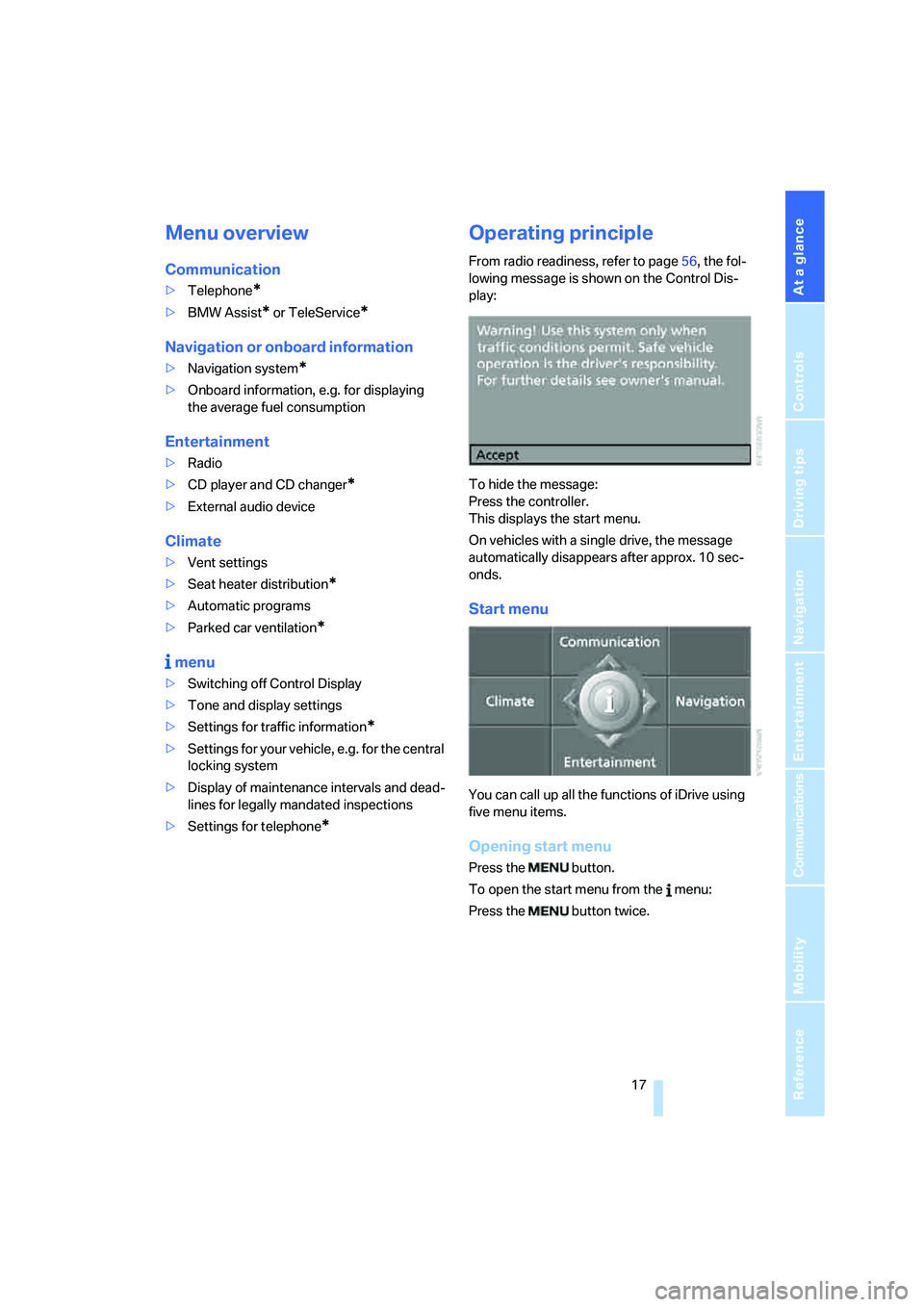
From radio readiness, refer to page56, the fol-
lowing message is shown on the Control Dis-
play:
To hide the message:
Press the controller.
This displays the start menu.
On vehicles with a single drive, the message
automatically disappears after approx. 10 sec-
onds.
Start menu
You can call up all the functions of iDrive using
five menu items.
Opening start menu
Press the button.
To open the start menu from the menu:
Press the button twice.
Page 22 of 288
iDrive
20
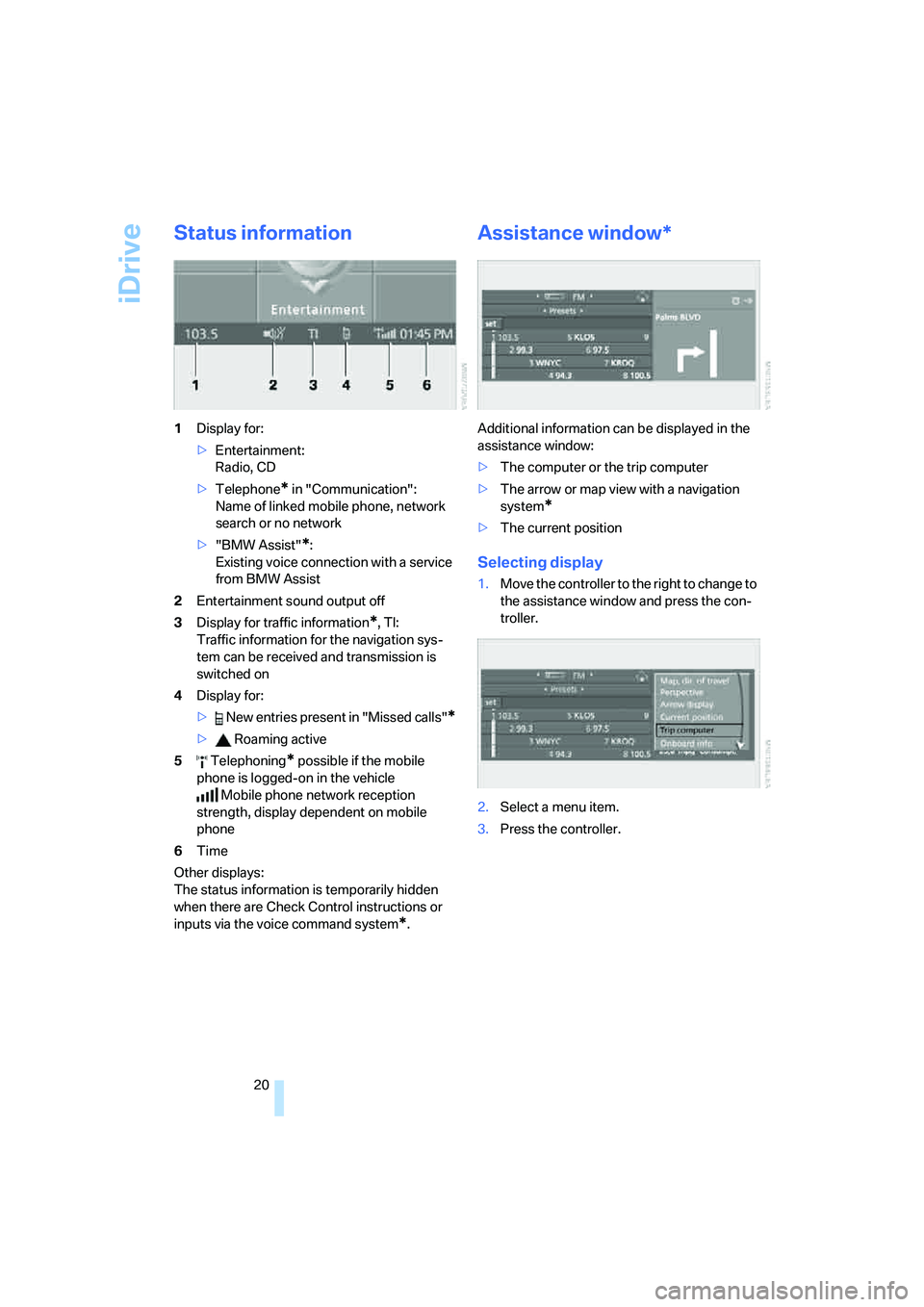
Status information
1Display for:
>Entertainment:
Radio, CD
>Telephone
* in "Communication":
Name of linked mobile phone, network
search or no network
>"BMW Assist"
*:
Existing voice connection with a service
from BMW Assist
2Entertainment sound output off
3Display for traffic information
*, TI:
Traffic information for the navigation sys-
tem can be received and transmission is
switched on
4Display for:
> New entries present in "Missed calls"
*
> Roaming active
5 Telephoning
* possible if the mobile
phone is logged-on in the vehicle
Mobile phone network reception
strength, display dependent on mobile
phone
6Time
Other displays:
The status information is temporarily hidden
when there are Check Control instructions or
inputs via the voice command system
*.
Assistance window*
Additional information can be displayed in the
assistance window:
>The computer or the trip computer
>The arrow or map view with a navigation
system
*
>The current position
Selecting display
1.Move the controller to the right to change to
the assistance window and press the con-
troller.
2.Select a menu item.
3.Press the controller.
Page 23 of 288
At a glance
21Reference
Controls
Driving tips
Communications
Navigation
Entertainment
Mobility
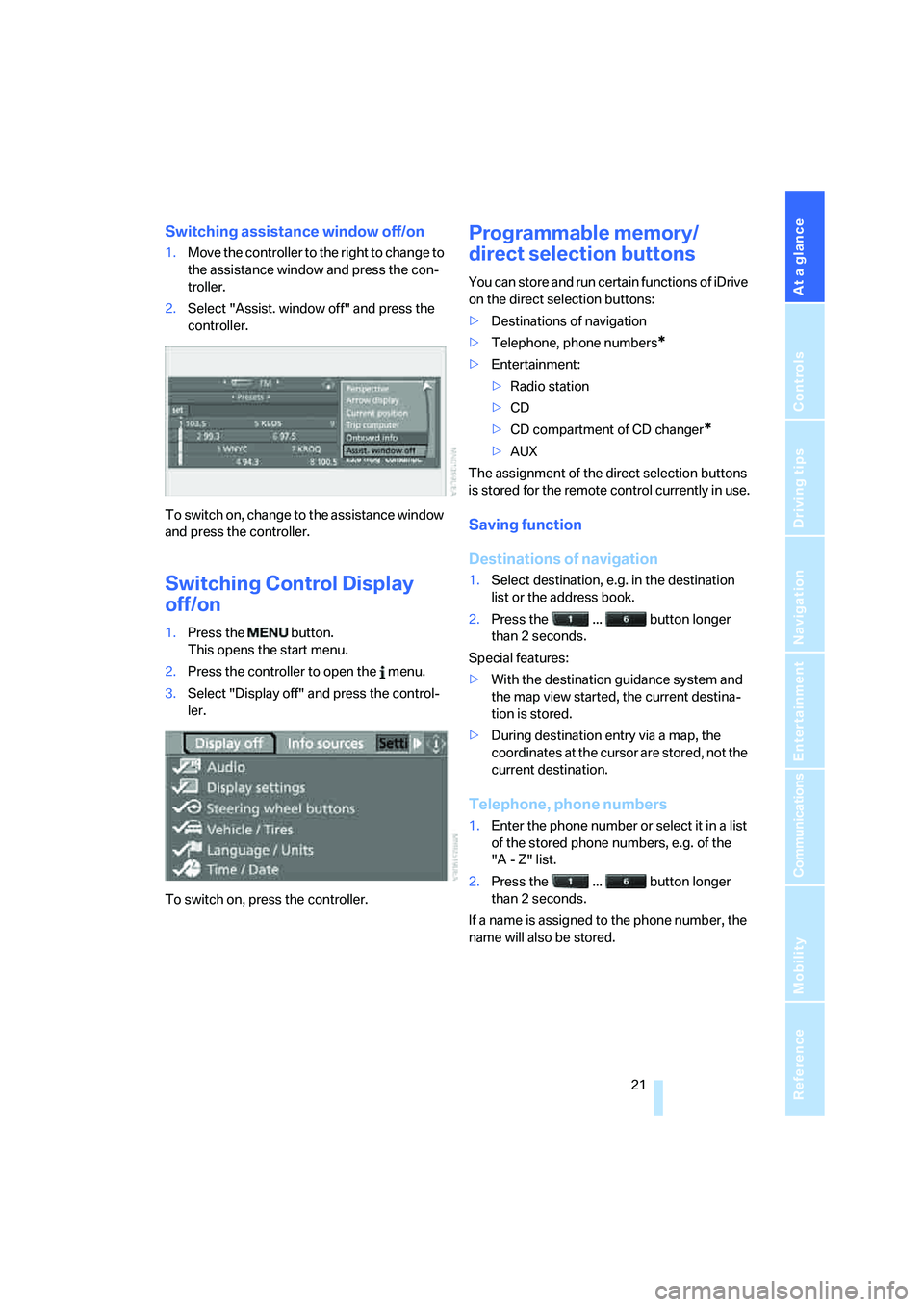
Switching assistance window off/on
1.Move the controller to the right to change to
the assistance window and press the con-
troller.
2.Select "Assist. window off" and press the
controller.
To switch on, change to the assistance window
and press the controller.
Switching Control Display
off/on
1.Press the button.
This opens the start menu.
2.Press the controller to open the menu.
3.Select "Display off" and press the control-
ler.
To switch on, press the controller.
Programmable memory/
direct selection buttons
You can store and run certain functions of iDrive
on the direct selection buttons:
>Destinations of navigation
>Telephone, phone numbers
*
>Entertainment:
>Radio station
>CD
>CD compartment of CD changer
*
>AUX
The assignment of the direct selection buttons
is stored for the remote control currently in use.
Saving function
Destinations of navigation
1.Select destination, e.g. in the destination
list or the address book.
2.Press the ... button longer
than 2 seconds.
Special features:
>With the destination guidance system and
the map view started, the current destina-
tion is stored.
>During destination entry via a map, the
coordinates at the cursor are stored, not the
current destination.
Telephone, phone numbers
1.Enter the phone number or select it in a list
of the stored phone numbers, e.g. of the
"A - Z" list.
2.Press the ... button longer
than 2 seconds.
If a name is assigned to the phone number, the
name will also be stored.
Page 24 of 288
iDrive
22
Entertainment
In the Entertainment menu, the sound source
currently heard, e.g. a radio station, is stored,
regardless of the selection on the Control Dis-
play.
1.Select the desired function, e.g. radio sta-
tion or CD.
2.Press the ... button longer
than 2 seconds.
If the vehicle is equipped with two drives,
the current track is stored for CDs with
compressed audio files.<
Running function
Press the ... button.
The function is run immediately. This means,
for example, that when a phone number is
selected, the connection is also established,
or when a navigation destination is called up,
destination guidance is started.
Displaying button assignment
You can display the assignment of the buttons
by touching them with your finger. Please do
not wear gloves when doing so. Touching with
an object, e.g. a pen, does not function.
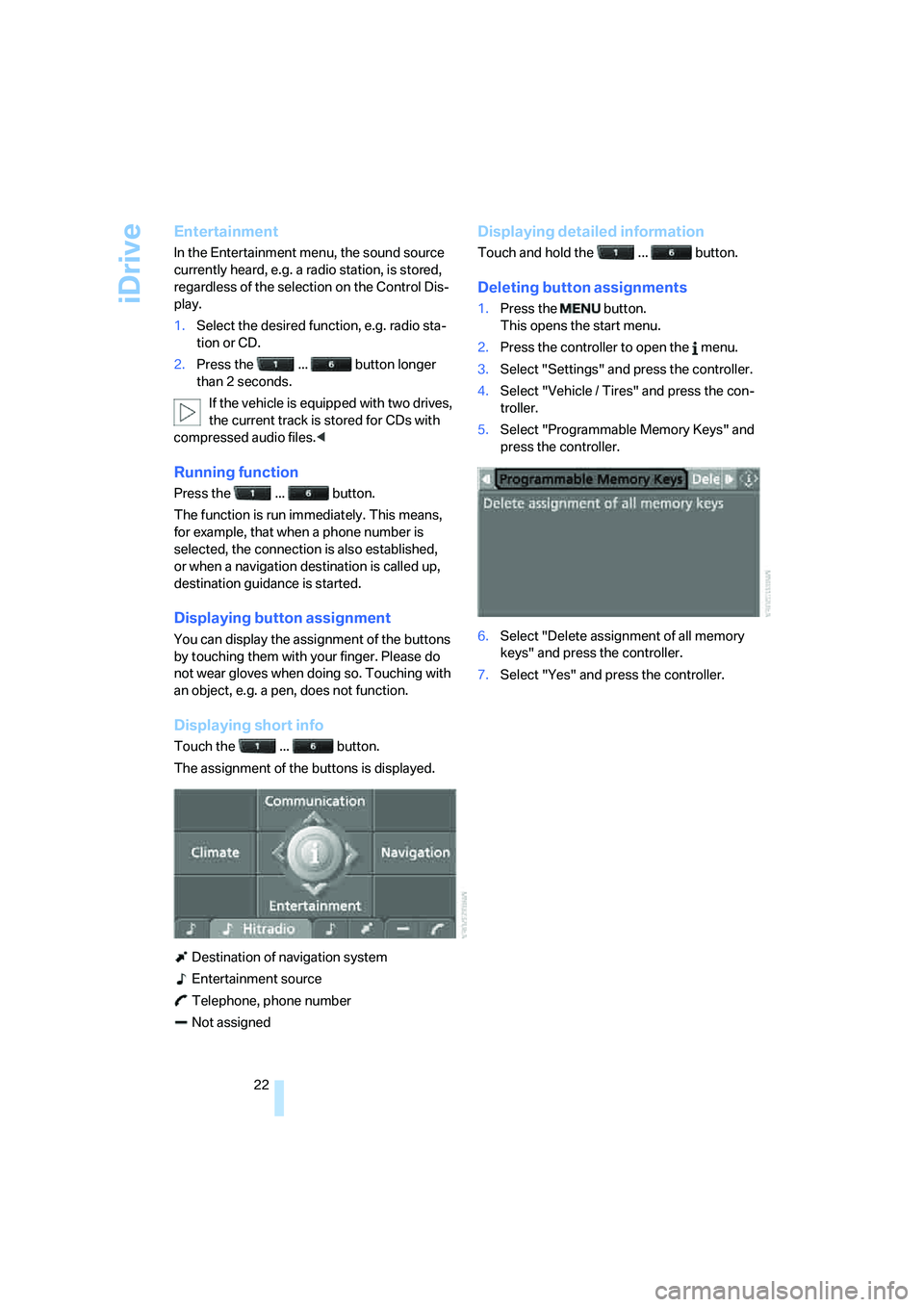
Displaying short info
Touch the ... button.
The assignment of the buttons is displayed.
Destination of navigation system
Entertainment source
Telephone, phone number
Not assigned
Displaying detailed information
Touch and hold the ... button.
Deleting button assignments
1.Press the button.
This opens the start menu.
2.Press the controller to open the menu.
3.Select "Settings" and press the controller.
4.Select "Vehicle / Tires" and press the con-
troller.
5.Select "Programmable Memory Keys" and
press the controller.
6.Select "Delete assignment of all memory
keys" and press the controller.
7.Select "Yes" and press the controller.
Page 26 of 288
Voice command system
24
Terminating or canceling voice
command system
Press the button on the steering wheel
or
Commands
Having possible commands read aloud
You can have the system read aloud the possi-
ble commands related to the selected menu
item on the Control Display.
To have the system list the possible com-
mands:
For example, if you have selected "CD", the
system will read aloud the possible commands
for operating the CD player and the CD
changer
*.
Opening help
Using alternative commands
There are often a number of commands to run a
function, e.g.:
Running functions directly with short
commands
With short commands you can carry out certain
functions directly, regardless of which menu
item is selected, refer to page262.
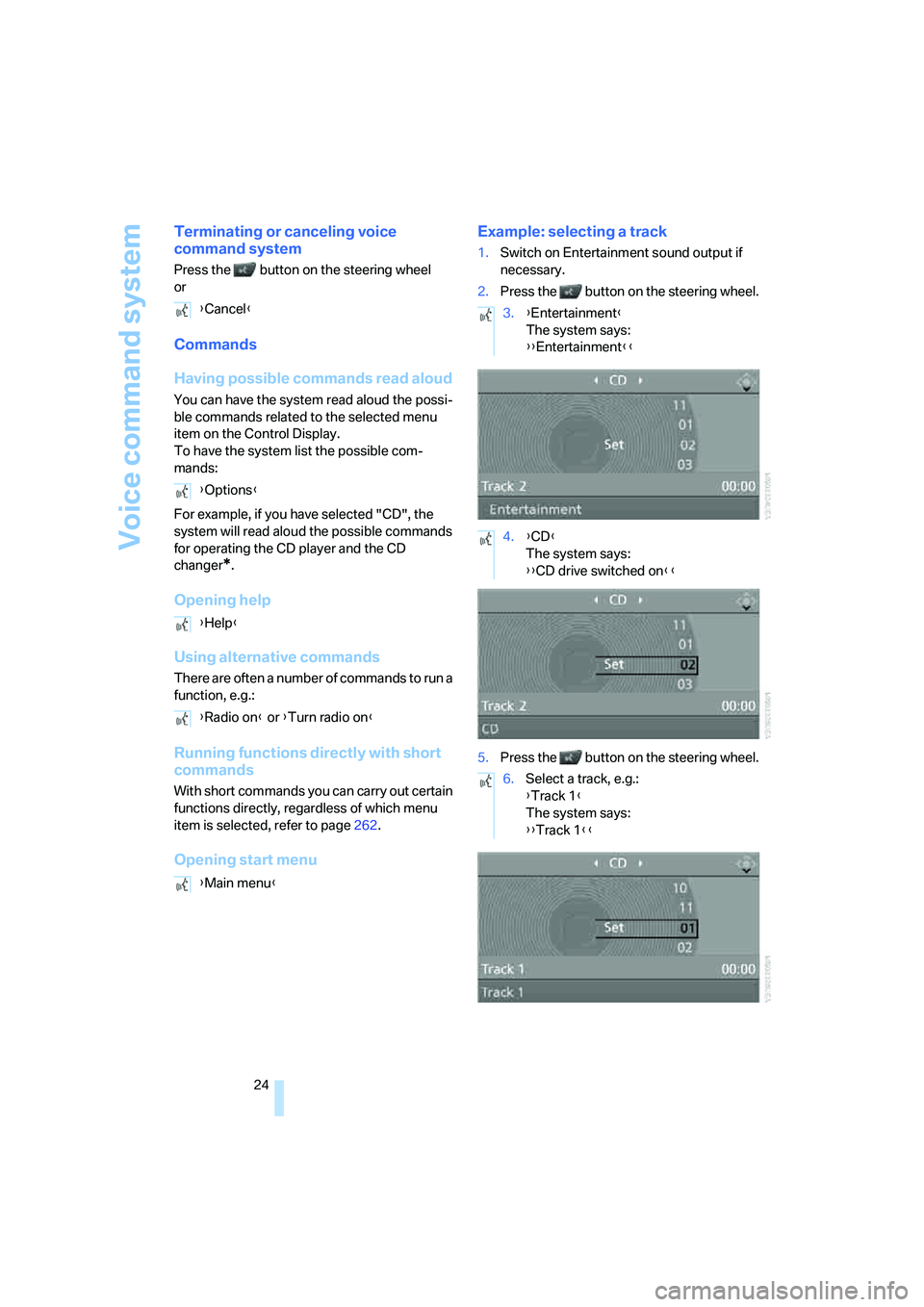
Opening start menuExample: selecting a track
1.Switch on Entertainment sound output if
necessary.
2.Press the button on the steering wheel.
5.Press the button on the steering wheel. {Cancel}
{Options}
{Help}
{Radio on} or {Turn radio on}
{Main menu}
3.{Entertainment}
The system says:
{{Entertainment}}
4.{CD}
The system says:
{{CD drive switched on}}
6.Select a track, e.g.:
{Track 1}
The system says:
{{Track 1}}
Page 27 of 288
At a glance
25Reference
Controls
Driving tips
Communications
Navigation
Entertainment
Mobility
Notes
The mobile phone can also be operated
with voice commands, refer to
page217.<
For voice commands, bear the following in
mind:
>Say the commands and numbers smoothly
and at normal volume, avoiding excessive
emphases and pauses. This also applies to
spelling when entering the destination.
>Always issue commands in the language of
the voice command system.
>When selecting a radio station, use the
common pronunciation of the station name.
>For entries in the voice-activated phone
book, only use names in the language of the
voice command system and no abbrevia-
tions.
>Keep the doors, windows and glass sun-
roof
* closed to prevent interference from
ambient noise.
>Avoid making other noise in the vehicle
while speaking.