CD player BMW X6 2012 E71 User Guide
[x] Cancel search | Manufacturer: BMW, Model Year: 2012, Model line: X6, Model: BMW X6 2012 E71Pages: 312, PDF Size: 8.91 MB
Page 188 of 312
CD/DVD player and CD/DVD changer
186 the DTS logos are trademarks of DTS Inc. ©
DTS, Inc. All rights reserved.
Page 189 of 312
Navigation
Entertainment
Driving tips
187Reference
At a glance
Controls
Communications
Mobility
Music collection
Music, storing
The music tracks from CDs, DVDs and USB
devices can be stored in the music collection in
the vehicle and played from there.
>Audio CD: tracks are converted into a com-
pressed audio format when they are stored.
If available, information on the album, such
as the artist, is stored as well.
>CD/DVD or USB device with compressed
audio files: the entire content of the CD/
DVD or the USB device is stored in the vehi-
cle as an album. After storing, the tracks and
directories can be deleted individually. Files
are only stored in the WMA, MP3, and AAC
formats.
Tracks with DRM copy protection can be
stored in the vehicle but cannot be played
back.
Regularly back up the music data; other-
wise, it could be lost if there is a fault on
the hard drives.<
Music recognition technology and
related data are provided by
Gracenote®. Gracenote® is the industry stan-
dard in music recognition technology and
related content delivery. For more information,
please visit www.gracenote.com.
CD and music-related data from Gracenote,
Inc., copyright © 2000-2009 Gracenote.
Gracenote Software, copyright 2000-2009
Gracenote. This product and service may prac-
tice one or more of the following U.S. Patents:
#5,987,525; #6,061,680; #6,154,773,
#6,161,132, #6,230,192, #6,230,207,
#6,240,459, #6,330,593, and other patents
issued or pending. Some services supplied
under license from Open Globe, Inc. for U.S.
Patent: #6,304,523.
Gracenote and CDDB are registered trade-
marks of Gracenote. The Gracenote logo and
logotype, and the "Powered by Gracenote"
logo are trademarks of Gracenote.
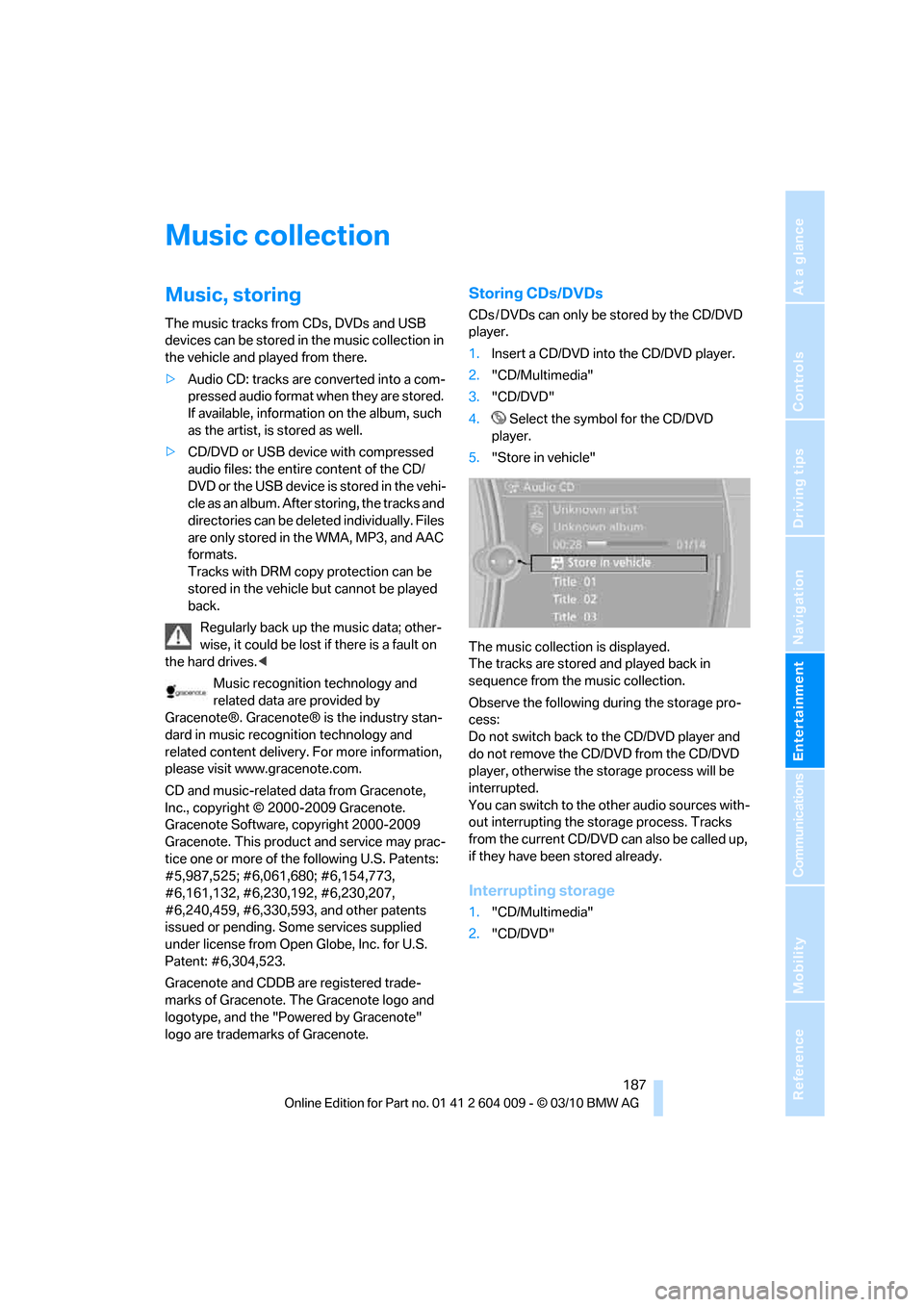
Storing CDs/DVDs
CDs / DVDs can only be stored by the CD/DVD
player.
1.Insert a CD/DVD into the CD/DVD player.
2."CD/Multimedia"
3."CD/DVD"
4. Select the symbol for the CD/DVD
player.
5."Store in vehicle"
The music collection is displayed.
The tracks are stored and played back in
sequence from the music collection.
Observe the following during the storage pro-
cess:
Do not switch back to the CD/DVD player and
do not remove the CD/DVD from the CD/DVD
player, otherwise the storage process will be
interrupted.
You can switch to the other audio sources with-
out interrupting the storage process. Tracks
from the current CD/DVD can also be called up,
if they have been stored already.
Interrupting storage
1."CD/Multimedia"
2."CD/DVD"
Page 190 of 312
Music collection
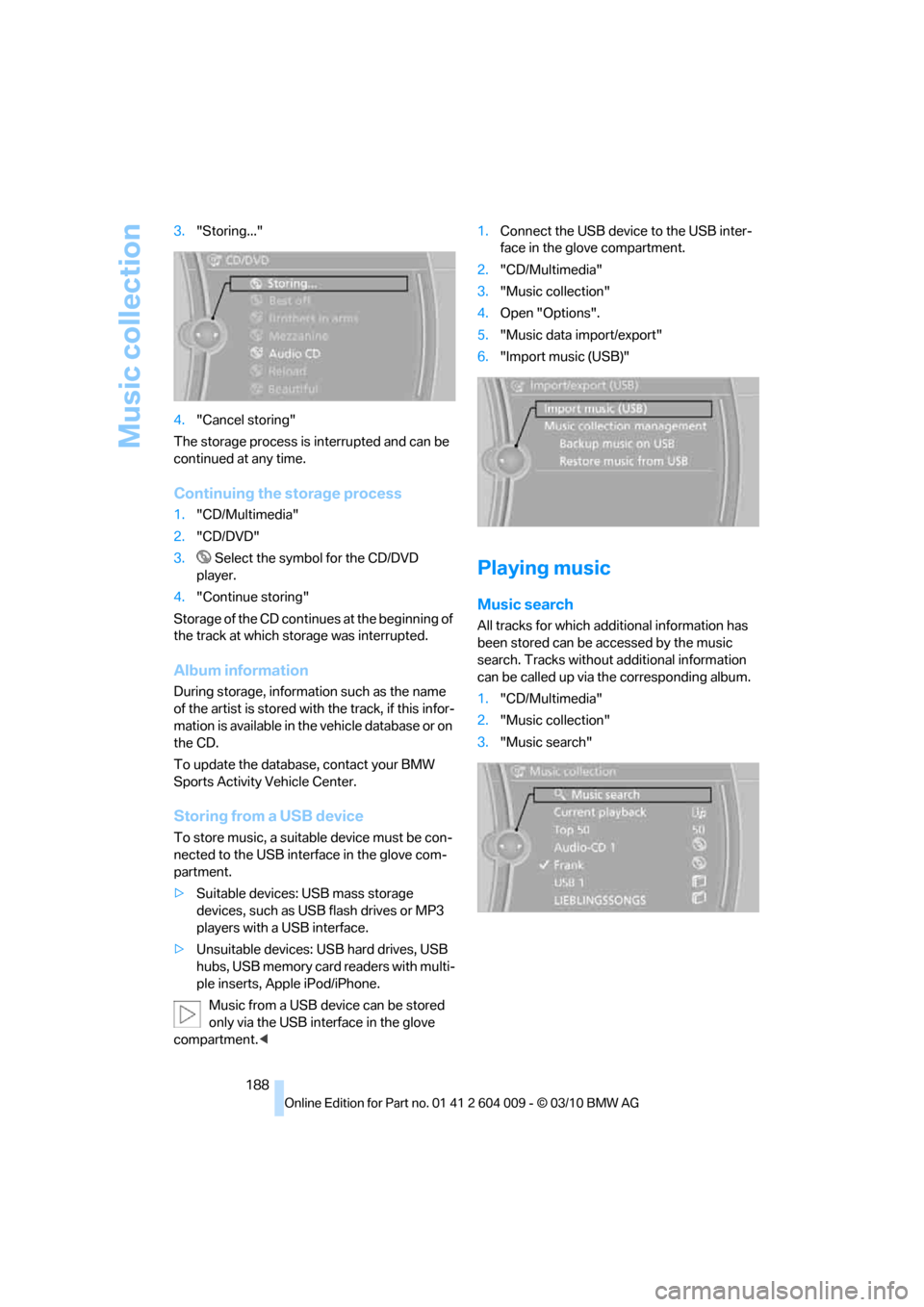
188 3."Storing..."
4."Cancel storing"
The storage process is interrupted and can be
continued at any time.
Continuing the storage process
1."CD/Multimedia"
2."CD/DVD"
3. Select the symbol for the CD/DVD
player.
4."Continue storing"
Storage of the CD continues at the beginning of
the track at which storage was interrupted.
Album information
During storage, information such as the name
of the artist is stored with the track, if this infor-
mation is available in the vehicle database or on
the CD.
To update the database, contact your BMW
Sports Activity Vehicle Center.
Storing from a USB device
To store music, a suitable device must be con-
nected to the USB interface in the glove com-
partment.
>Suitable devices: USB mass storage
devices, such as USB flash drives or MP3
players with a USB interface.
>Unsuitable devices: USB hard drives, USB
hubs, USB memory card readers with multi-
ple inserts, Apple iPod/iPhone.
Music from a USB device can be stored
only via the USB interface in the glove
compartment.<1.Connect the USB device to the USB inter-
face in the glove compartment.
2."CD/Multimedia"
3."Music collection"
4.Open "Options".
5."Music data import/export"
6."Import music (USB)"
Playing music
Music search
All tracks for which additional information has
been stored can be accessed by the music
search. Tracks without additional information
can be called up via the corresponding album.
1."CD/Multimedia"
2."Music collection"
3."Music search"
Page 194 of 312
External devices
192
External devices
Overview
AUX-IN connection
You can connect an external audio device, e.g.
an MP3 player, and play the sound via the vehi-
cle speakers. The sound can be adjusted via
iDrive.
Connecting
Open the lid of the center armrest.
Connection for audio playback:
TRS connector 1/8"/3.5 mm
To play audio tracks through the vehicle's
speaker system, connect the headphone or
line-out port of the device with the AUX-IN con-
nection.
Starting audio playback
Connect the audio device, switch it on and
select a track. Operate the system on the audio
device.
Using iDrive
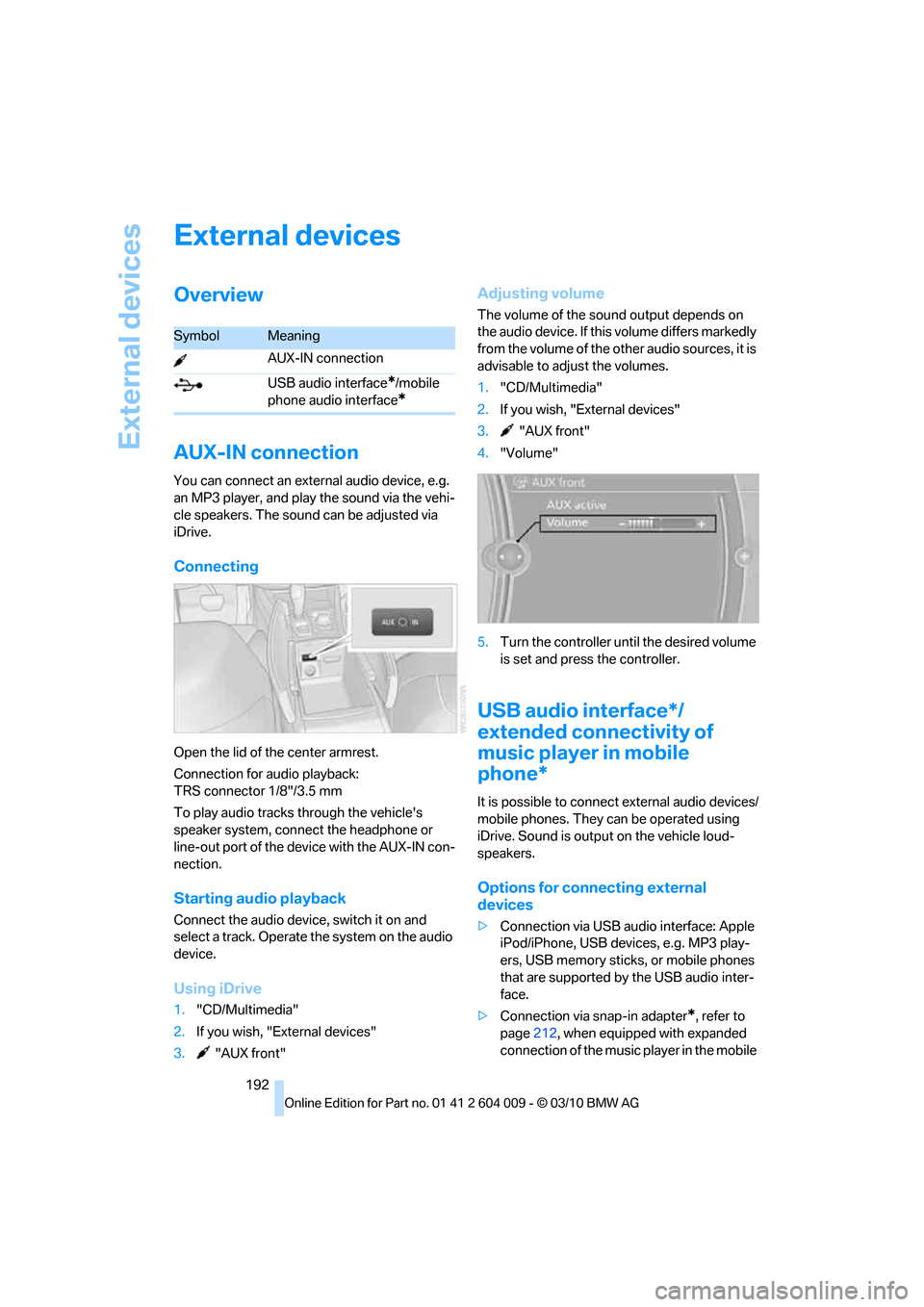
1."CD/Multimedia"
2.If you wish, "External devices"
3. "AUX front"
Adjusting volume
The volume of the sound output depends on
the audio device. If this volume differs markedly
from the volume of the other audio sources, it is
advisable to adjust the volumes.
1."CD/Multimedia"
2.If you wish, "External devices"
3. "AUX front"
4."Volume"
5.Turn the controller until the desired volume
is set and press the controller.
USB audio interface*/
extended connectivity of
music player in mobile
phone*
It is possible to connect external audio devices/
mobile phones. They can be operated using
iDrive. Sound is output on the vehicle loud-
speakers.
Options for connecting external
devices
>Connection via USB audio interface: Apple
iPod/iPhone, USB devices, e.g. MP3 play-
ers, USB memory sticks, or mobile phones
that are supported by the USB audio inter-
face.
>Connection via snap-in adapter
*, refer to
page212, when equipped with expanded
connection of the music player in the mobile
SymbolMeaning
AUX-IN connection
USB audio interface
*/mobile
phone audio interface
*
Page 198 of 312
DVD system in rear
196
DVD system in rear
With the DVD system in the rear you can play
CDs and DVDs with audio, video and image
data. The DVD system can also play data from
attached external audio and video devices.
Audio output is possible both via headphones
and via the vehicle speakers.
You can control the DVD system using the but-
tons on the CD-/DVD player or using the remote
control.
Some functions are operated using the
remote control.<
Enabling DVD system
The DVD system can be enabled via iDrive.
1."Settings"
2."Allow rear control"
3."Rear DVD system active"
DVD-System is enabled.
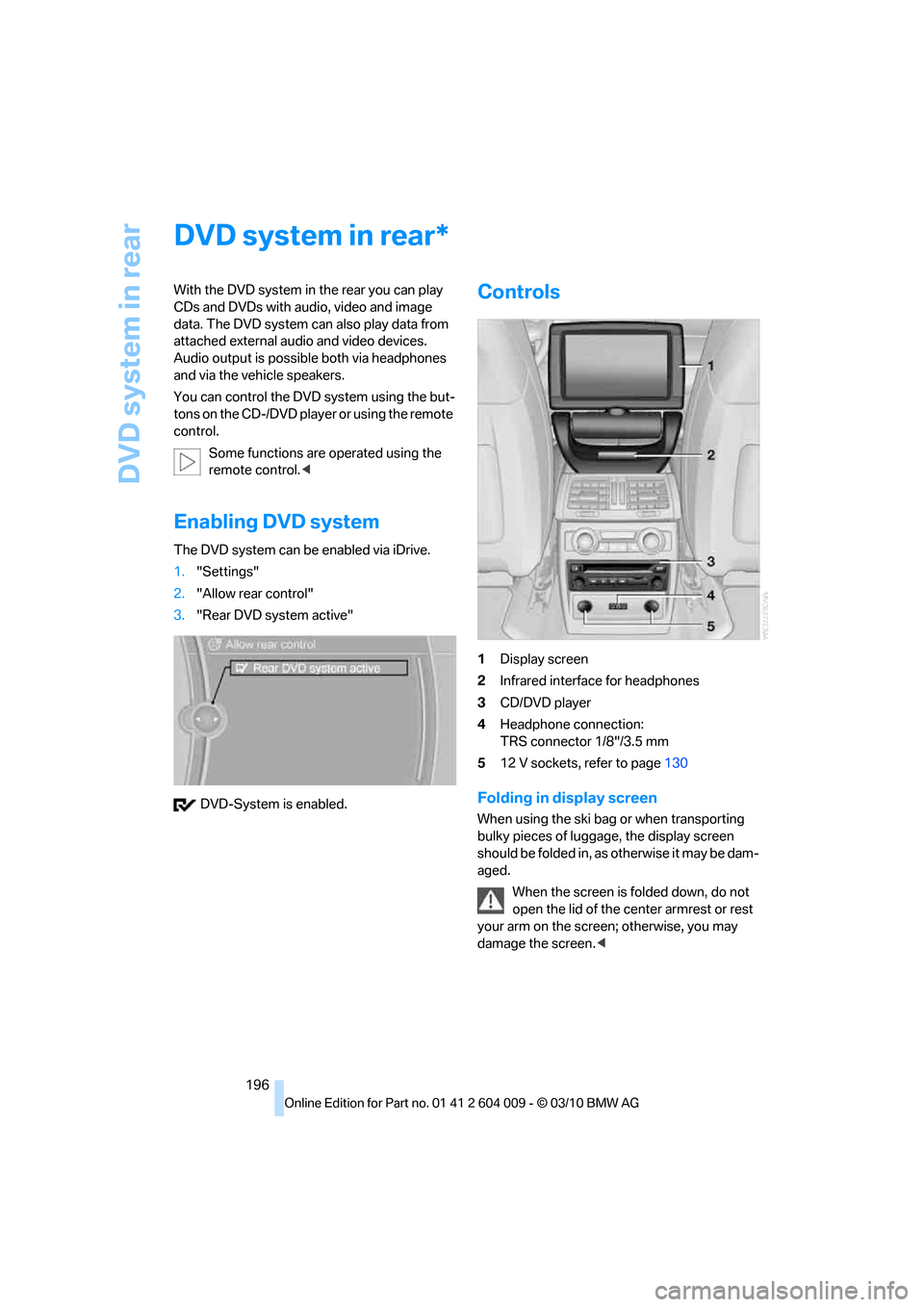
Controls
1Display screen
2Infrared interface for headphones
3CD/DVD player
4Headphone connection:
TRS connector 1/8"/3.5 mm
512 V sockets, refer to page130
Folding in display screen
When using the ski bag or when transporting
bulky pieces of luggage, the display screen
should be folded in, as otherwise it may be dam-
aged.
When the screen is folded down, do not
open the lid of the center armrest or rest
your arm on the screen; otherwise, you may
damage the screen.<
*
Page 199 of 312
Navigation
Entertainment
Driving tips
197Reference
At a glance
Controls
Communications
Mobility
1.Turn display screen, arrow1.
The display screen switches off.
2.Fold in display screen, arrow2.
The display screen is folded out in the reverse
order.
CD/DVD player
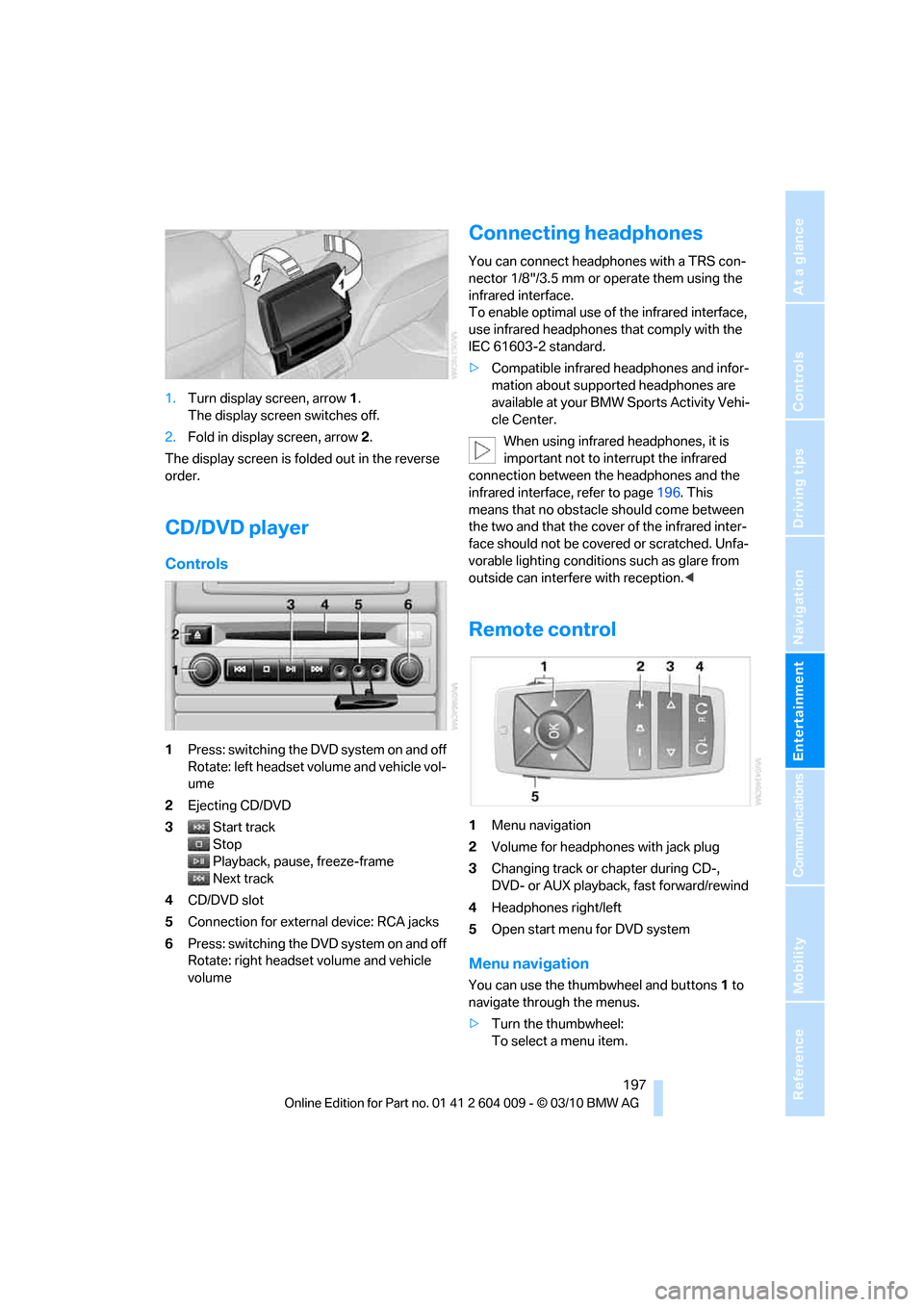
Controls
1Press: switching the DVD system on and off
Rotate: left headset volume and vehicle vol-
ume
2Ejecting CD/DVD
3Start track
Stop
Playback, pause, freeze-frame
Next track
4CD/DVD slot
5Connection for external device: RCA jacks
6Press: switching the DVD system on and off
Rotate: right headset volume and vehicle
volume
Connecting headphones
You can connect headphones with a TRS con-
nector 1/8"/3.5 mm or operate them using the
infrared interface.
To enable optimal use of the infrared interface,
use infrared headphones that comply with the
IEC 61603-2 standard.
>Compatible infrared headphones and infor-
mation about supported headphones are
available at your BMW Sports Activity Vehi-
cle Center.
When using infrared headphones, it is
important not to interrupt the infrared
connection between the headphones and the
infrared interface, refer to page196. This
means that no obstacle should come between
the two and that the cover of the infrared inter-
face should not be covered or scratched. Unfa-
vorable lighting conditions such as glare from
outside can interfere with reception.<
Remote control
1Menu navigation
2Volume for headphones with jack plug
3Changing track or chapter during CD-,
DVD- or AUX playback, fast forward/rewind
4Headphones right/left
5Open start menu for DVD system
Menu navigation
You can use the thumbwheel and buttons1 to
navigate through the menus.
>Turn the thumbwheel:
To select a menu item.
Page 200 of 312
DVD system in rear
198 >Press the arrow buttons:
To switch between windows.
>Press the button:
To activate the menu item.
The transmission time of the remote control is
limited in accordance with legal guidelines. A
function can be repeated by pressing or turning
the appropriate button or knob.
Changing batteries
1.Press the detent and remove the cover.
2.Change the batteries. The type and installa-
tion position are marked on the bottom of
the battery compartment.
3.Close the cover.
Return old batteries to a recycling center
or to your BMW Sports Activity Vehicle
Center.<
Setting the language of the
DVD system
1.Select a CD/DVD track.
2.Press the button.
3.Select "Tone".
4.Press the button.
5.Switch to the top window.
6.Select "Language".
7.Press the button.
8.Select the desired language.
9.Press the button.
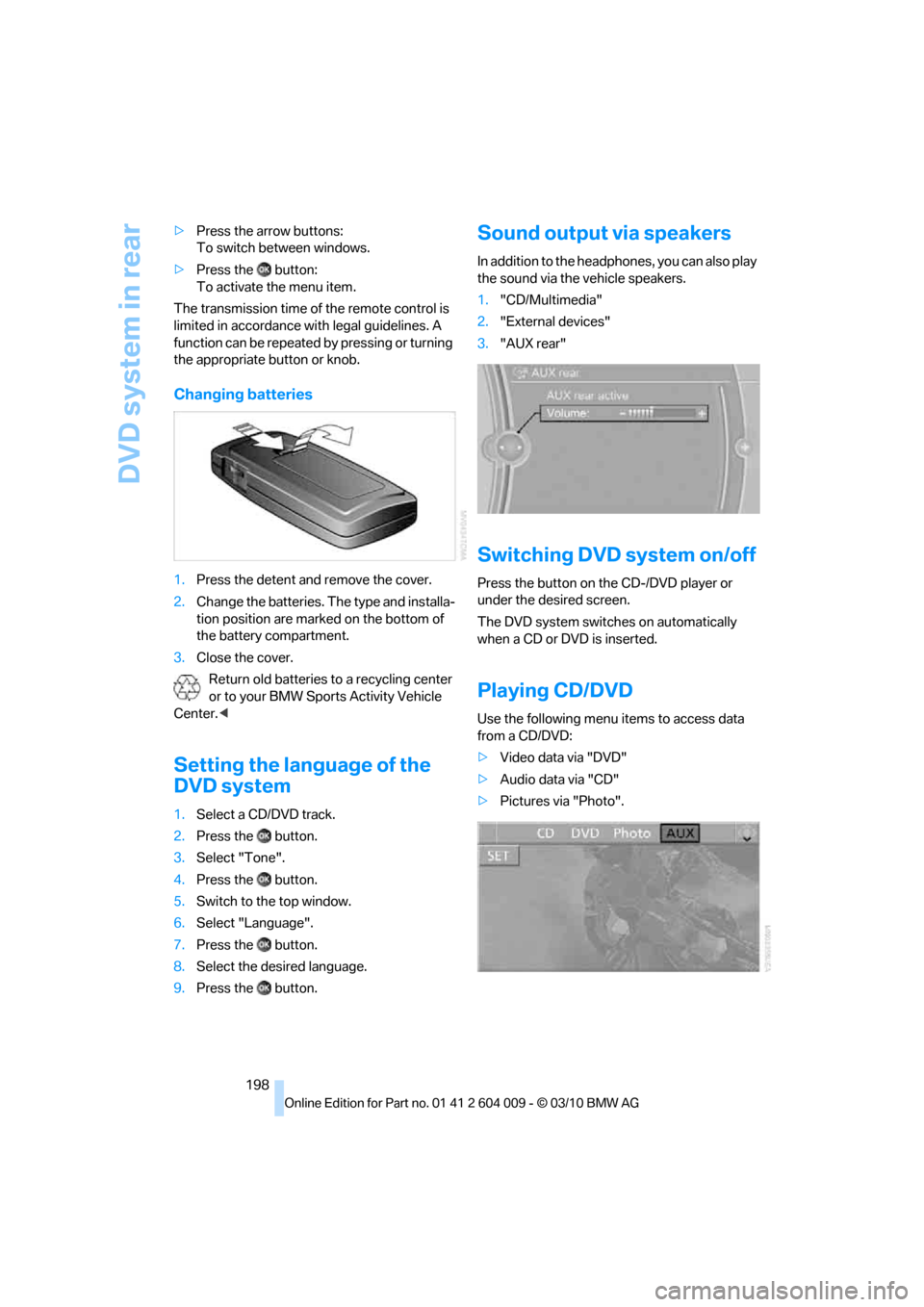
Sound output via speakers
In addition to the headphones, you can also play
the sound via the vehicle speakers.
1."CD/Multimedia"
2."External devices"
3."AUX rear"
Switching DVD system on/off
Press the button on the CD-/DVD player or
under the desired screen.
The DVD system switches on automatically
when a CD or DVD is inserted.
Playing CD/DVD
Use the following menu items to access data
from a CD/DVD:
>Video data via "DVD"
>Audio data via "CD"
>Pictures via "Photo".
Page 201 of 312
Navigation
Entertainment
Driving tips
199Reference
At a glance
Controls
Communications
Mobility
Playing videos from CDs/
DVDs
Country codes of DVDs
Your DVD player only plays DVDs with the cod-
ing of your home region, e.g. Europe = 2. The
country codes supported by your DVD are con-
tained in the information on your DVD.
An overview of the coding zones:
D V D s w i t h t he c o d e 0 c a n b e p l a y e d o n a l l
devices.<
Starting playback
1.Push the CD/DVD into the drive with the
labeled side facing upward.
The CD/DVD is automatically pulled in.
>Playback begins automatically after a
few seconds.
>If it does not:
Select "DVD".
Press the button.
2.If the DVD control or the DVD-specific
menu is displayed when a DVD is inserted,
use the remote control buttons for menu
navigation to select the desired option.
Or:
Press the button on the CD/DVD player.
You can control the playback with the buttons
on the CD/DVD player or the DVD control.
Video CDs (VCDs) and Super Video CDs
(SVCDs) can only be played if they do not
have a DVD-specific menu.<
Ejecting CD/DVD
Press the button on the CD/DVD player.
The DVD emerges slightly from the drive.
DVD control
With the DVD control, you can select the title
and chapter, open the DVD-specific menu and
operate functions such as Language, Fast for-
ward and Reverse or Freeze frame.
A DVD can briefly deactivate functions of the
DVD control, under certain circumstances while
the entire DVD is being played. It is not possible
to operate the DVD control under these circum-
stances. In this case, try to make the selection
using the DVD-specific menu.
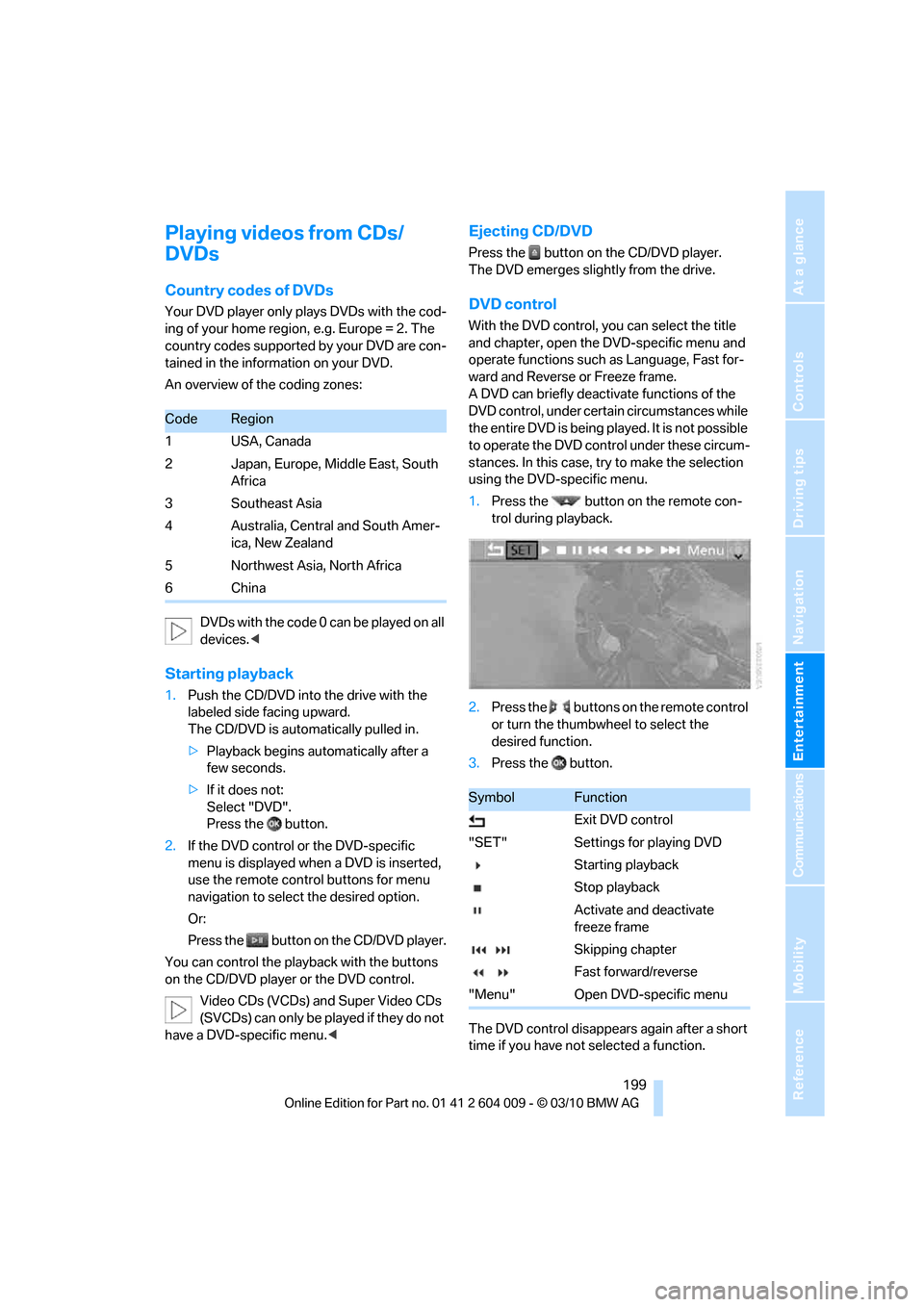
1.Press the button on the remote con-
trol during playback.
2.Press the buttons on the remote control
or turn the thumbwheel to select the
desired function.
3.Press the button.
The DVD control disappears again after a short
time if you have not selected a function.
CodeRegion
1USA, Canada
2 Japan, Europe, Middle East, South
Africa
3 Southeast Asia
4 Australia, Central and South Amer-
ica, New Zealand
5 Northwest Asia, North Africa
6China
SymbolFunction
Exit DVD control
"SET" Settings for playing DVD
Starting playback
Stop playback
Activate and deactivate
freeze frame
Skipping chapter
Fast forward/reverse
"Menu" Open DVD-specific menu
Page 202 of 312
DVD system in rear
200 Or:
Press the button on the remote control to
exit the DVD control.
Fast forward/reverse
Forward/reverse with DVD control
1.Press the button on the remote con-
trol during playback.
2.Select the symbol.
3.Press the button.
4.Press the button several times to
increase the fast forward/reverse speed.
The DVD playback will be distorted.
To cancel fast forward/reverse:
1.Select the symbol.
2.Press the button.
Or:
Press the button on the CD/DVD player.
The DVD will start play at the point selected.
Forward/reverse with remote control
Press and hold the button until you reach
the desired point.
Or:
1.During playback, turn the thumbwheel.
Fast forward/reverse is interrupted.
2.Continue to turn the thumbwheel.
The speed is increased.
3.Press the button on the CD/DVD player.
Fast forward/reverse is interrupted. The
DVD will start play at the point selected.
Skipping chapter
You can change to the next or previous chapter
during playback.
1.Press the button on the remote con-
trol during playback.
2.Select the symbol.
3.Press the button repeatedly, continuing
until you reach the desired chapter.Or:
Press the button on the left or right on the
remote control repeatedly until you reach the
desired chapter.
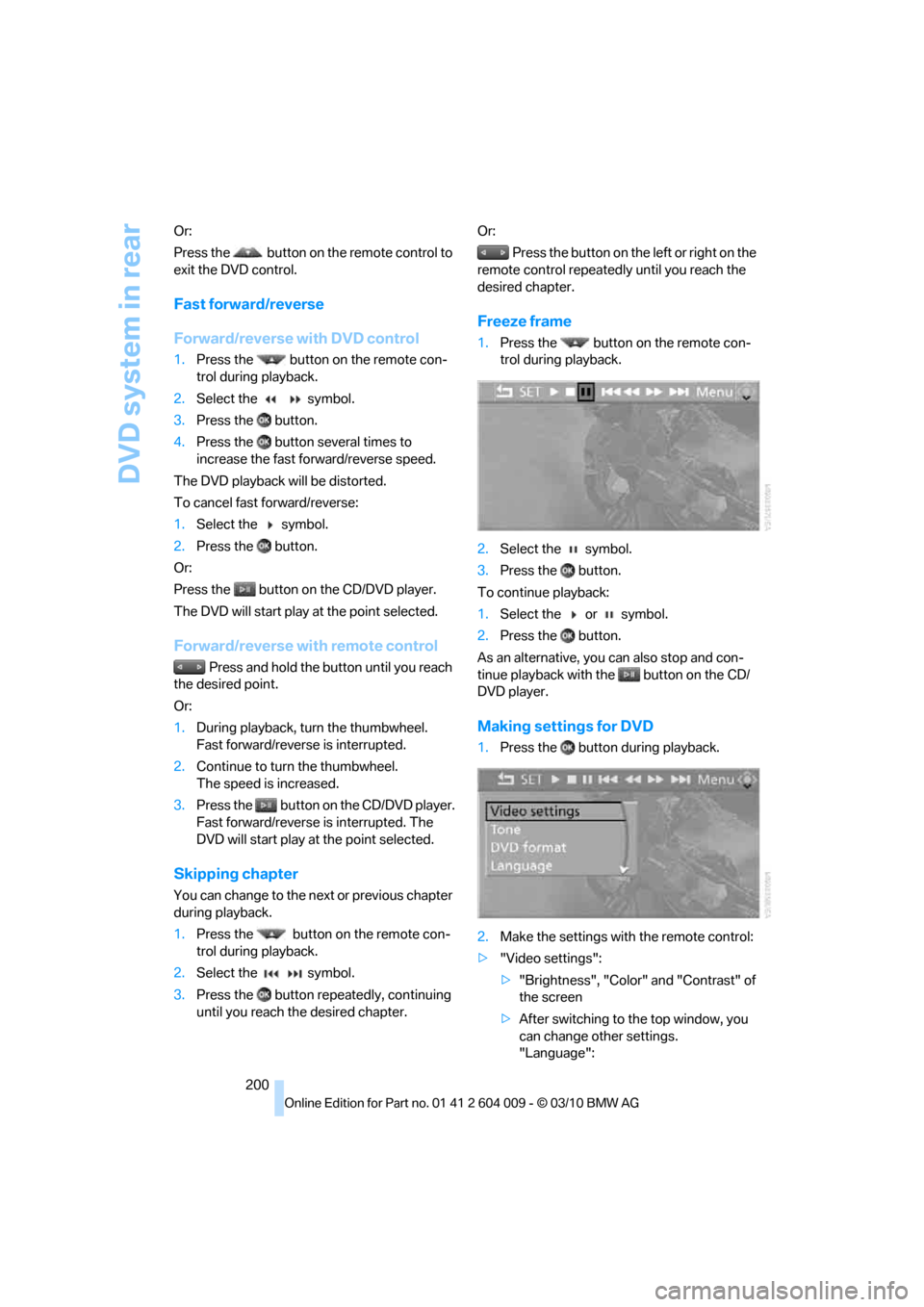
Freeze frame
1.Press the button on the remote con-
trol during playback.
2.Select the symbol.
3.Press the button.
To continue playback:
1.Select the or symbol.
2.Press the button.
As an alternative, you can also stop and con-
tinue playback with the button on the CD/
DVD player.
Making settings for DVD
1.Press the button during playback.
2.Make the settings with the remote control:
>"Video settings":
>"Brightness", "Color" and "Contrast" of
the screen
>After switching to the top window, you
can change other settings.
"Language":
Page 204 of 312
DVD system in rear
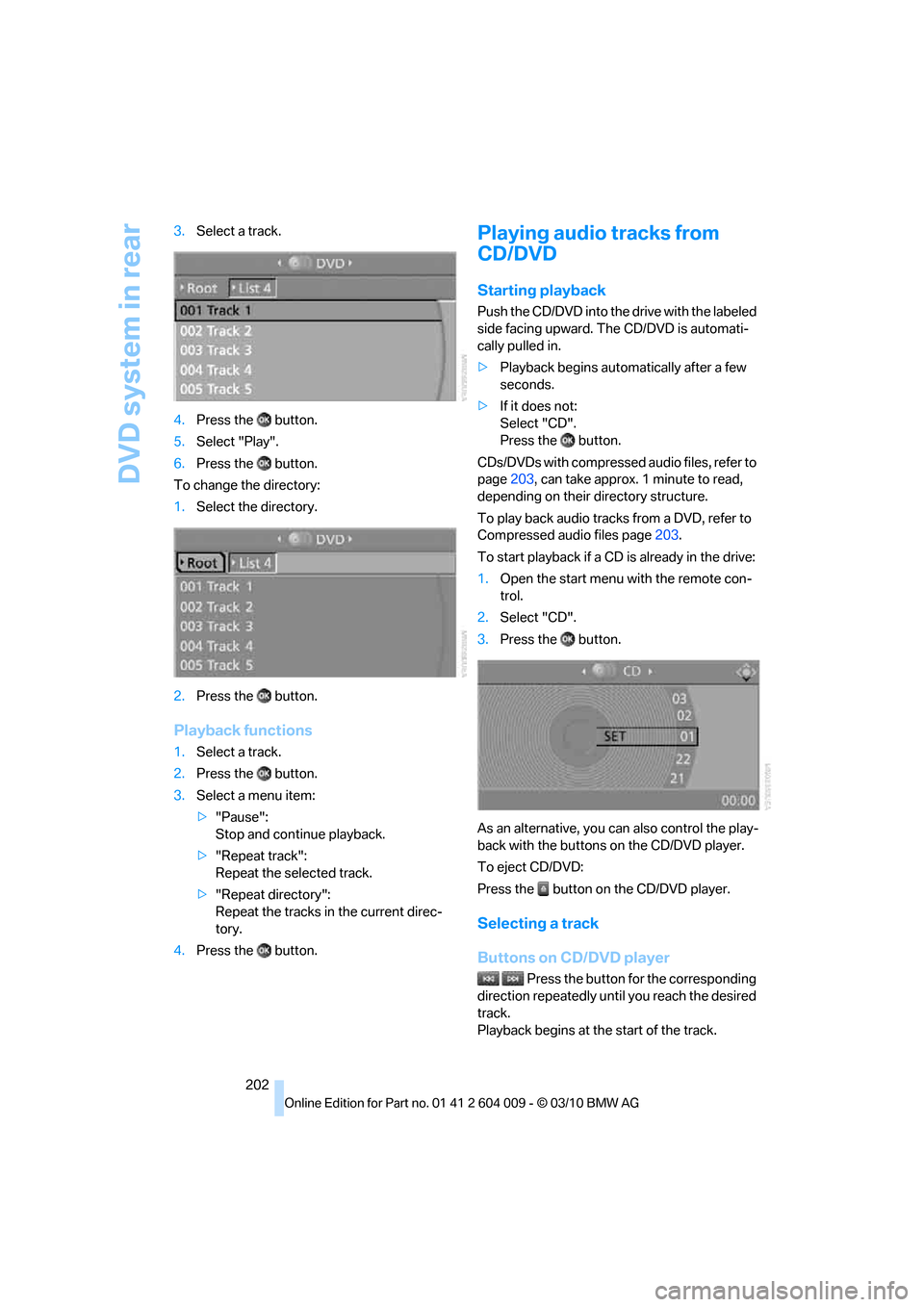
202 3.Select a track.
4.Press the button.
5.Select "Play".
6.Press the button.
To change the directory:
1.Select the directory.
2.Press the button.
Playback functions
1.Select a track.
2.Press the button.
3.Select a menu item:
>"Pause":
Stop and continue playback.
>"Repeat track":
Repeat the selected track.
>"Repeat directory":
Repeat the tracks in the current direc-
tory.
4.Press the button.
Playing audio tracks from
CD/DVD
Starting playback
Push the CD/DVD into the drive with the labeled
side facing upward. The CD/DVD is automati-
cally pulled in.
>Playback begins automatically after a few
seconds.
>If it does not:
Select "CD".
Press the button.
CDs/DVDs with compressed audio files, refer to
page203, can take approx. 1minute to read,
depending on their directory structure.
To play back audio tracks from a DVD, refer to
Compressed audio files page203.
To start playback if a CD is already in the drive:
1.Open the start menu with the remote con-
trol.
2.Select "CD".
3.Press the button.
As an alternative, you can also control the play-
back with the buttons on the CD/DVD player.
To eject CD/DVD:
Press the button on the CD/DVD player.
Selecting a track
Buttons on CD/DVD player
Press the button for the corresponding
direction repeatedly until you reach the desired
track.
Playback begins at the start of the track.