Side view BMW X6 2012 E71 User Guide
[x] Cancel search | Manufacturer: BMW, Model Year: 2012, Model line: X6, Model: BMW X6 2012 E71Pages: 312, PDF Size: 8.91 MB
Page 110 of 312
Technology for comfort, convenience and safety
108 indicated by the indicator lamp over the interior
rearview mirror, refer to Operating state of front
passenger airbags in the following.<
Before transporting a child on the front
passenger seat, read the safety informa-
tion and follow the instructions under Trans-
porting children safely, refer to page54.
When teenagers and adults assume certain sit-
ting positions, this can cause the front and side
airbags to deactivate. The indicator lamp for the
front passenger airbags lights up when this
occurs. In these cases, change the sitting posi-
tion so that the front passenger airbags are acti-
vated and the indicator lamp goes out. If the
desired status cannot be produced by changing
the sitting position, transport the correspond-
ing person on the rear seat. Do not fit seat cov-
ers, seat cushion padding, ball mats or other
items onto the front passenger seat unless they
are specifically recommended by BMW. Do not
lay objects under the seat which could press
against the seat from below. Otherwise a cor-
rect evaluation of the occupied seat surface
cannot be ensured.<
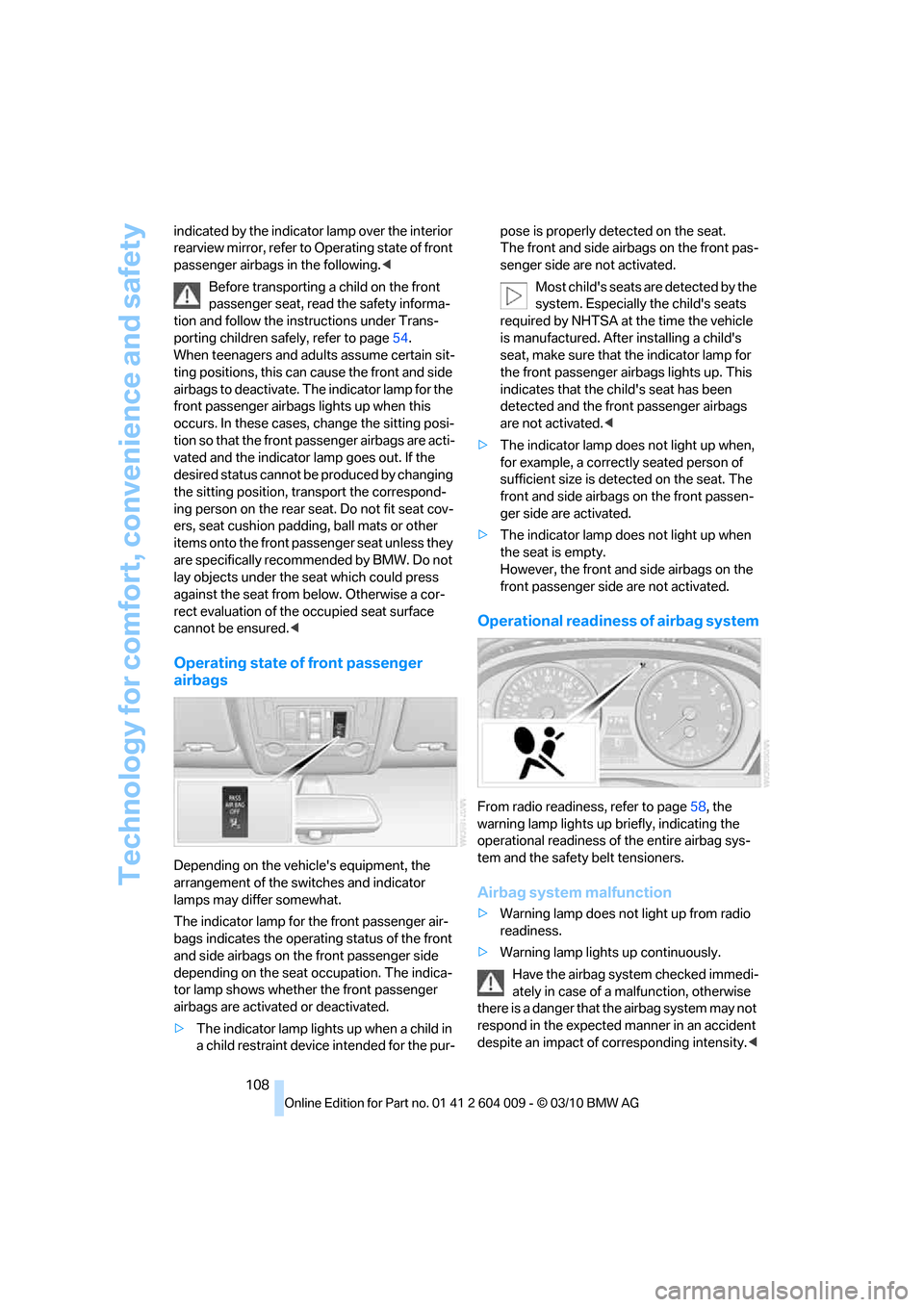
Operating state of front passenger
airbags
Depending on the vehicle's equipment, the
arrangement of the switches and indicator
lamps may differ somewhat.
The indicator lamp for the front passenger air-
bags indicates the operating status of the front
and side airbags on the front passenger side
depending on the seat occupation. The indica-
tor lamp shows whether the front passenger
airbags are activated or deactivated.
>The indicator lamp lights up when a child in
a child restraint device intended for the pur-pose is properly detected on the seat.
The front and side airbags on the front pas-
senger side are not activated.
Most child's seats are detected by the
system. Especially the child's seats
required by NHTSA at the time the vehicle
is manufactured. After installing a child's
seat, make sure that the indicator lamp for
the front passenger airbags lights up. This
indicates that the child's seat has been
detected and the front passenger airbags
are not activated.<
>The indicator lamp does not light up when,
for example, a correctly seated person of
sufficient size is detected on the seat. The
front and side airbags on the front passen-
ger side are activated.
>The indicator lamp does not light up when
the seat is empty.
However, the front and side airbags on the
front passenger side are not activated.
Operational readiness of airbag system
From radio readiness, refer to page58, the
warning lamp lights up briefly, indicating the
operational readiness of the entire airbag sys-
tem and the safety belt tensioners.
Airbag system malfunction
>Warning lamp does not light up from radio
readiness.
>Warning lamp lights up continuously.
Have the airbag system checked immedi-
ately in case of a malfunction, otherwise
there is a danger that the airbag system may not
respond in the expected manner in an accident
despite an impact of corresponding intensity.<
Page 115 of 312
Controls
113Reference
At a glance
Driving tips
Communications
Navigation
Entertainment
Mobility
High beams/
roadside parking lamps
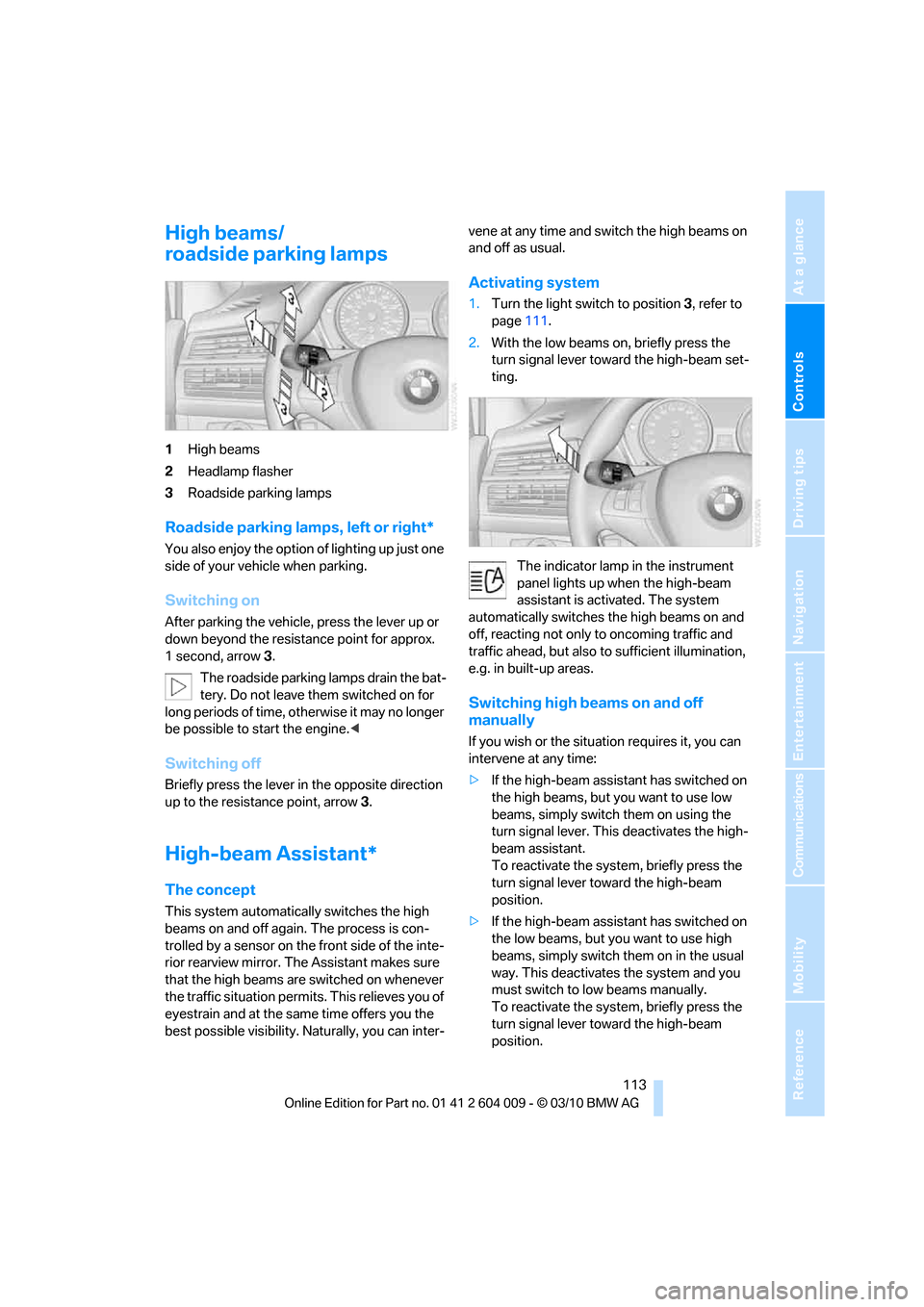
1High beams
2Headlamp flasher
3Roadside parking lamps
Roadside parking lamps, left or right*
You also enjoy the option of lighting up just one
side of your vehicle when parking.
Switching on
After parking the vehicle, press the lever up or
down beyond the resistance point for approx.
1 second, arrow3.
The roadside parking lamps drain the bat-
tery. Do not leave them switched on for
long periods of time, otherwise it may no longer
be possible to start the engine.<
Switching off
Briefly press the lever in the opposite direction
up to the resistance point, arrow 3.
High-beam Assistant*
The concept
This system automatically switches the high
beams on and off again. The process is con-
trolled by a sensor on the front side of the inte-
rior rearview mirror. The Assistant makes sure
that the high beams are switched on whenever
the traffic situation permits. This relieves you of
eyestrain and at the same time offers you the
best possible visibility. Naturally, you can inter-vene at any time and switch the high beams on
and off as usual.
Activating system
1.Turn the light switch to position3, refer to
page111.
2.With the low beams on, briefly press the
turn signal lever toward the high-beam set-
ting.
The indicator lamp in the instrument
panel lights up when the high-beam
assistant is activated. The system
automatically switches the high beams on and
off, reacting not only to oncoming traffic and
traffic ahead, but also to sufficient illumination,
e.g. in built-up areas.
Switching high beams on and off
manually
If you wish or the situation requires it, you can
intervene at any time:
>If the high-beam assistant has switched on
the high beams, but you want to use low
beams, simply switch them on using the
turn signal lever. This deactivates the high-
beam assistant.
To reactivate the system, briefly press the
turn signal lever toward the high-beam
position.
>If the high-beam assistant has switched on
the low beams, but you want to use high
beams, simply switch them on in the usual
way. This deactivates the system and you
must switch to low beams manually.
To reactivate the system, briefly press the
turn signal lever toward the high-beam
position.
Page 116 of 312
Lamps
114 >Use the headlamp flasher as usual when the
low beams are on.
System limits
The high-beam assistant cannot replace
personal judgment about the use of high
beams. In situations that require it, you should
therefore switch to low beams manually; failure
to do so can constitute a safety hazard.<
In the following sample situations, the system
will not function or will only function to a limited
degree, possibly requiring the driver to react
personally:
>In extremely unfavorable weather condi-
tions such as fog or heavy precipitation
>When you perceive poorly illuminated road
users such as pedestrians, cyclists, horse-
back riders, carriages, when rail or shipping
traffic is close to the road, or at deer cross-
ings
>In sharp curves, on steep hilltops or dips,
when there cross-traffic, or in the presence
of half-concealed oncoming traffic on the
highway
>In poorly lit areas and in the presence of
highly reflective signs
>In the low speed range
>When the windshield in the region of the
interior rearview mirror is fogged, dirty, or
covered by stickers, decals, etc.
>When the sensor is dirty. Clean the sensor
on the front side of the interior rearview mir-
ror with a cloth moistened with a little glass
cleaner.
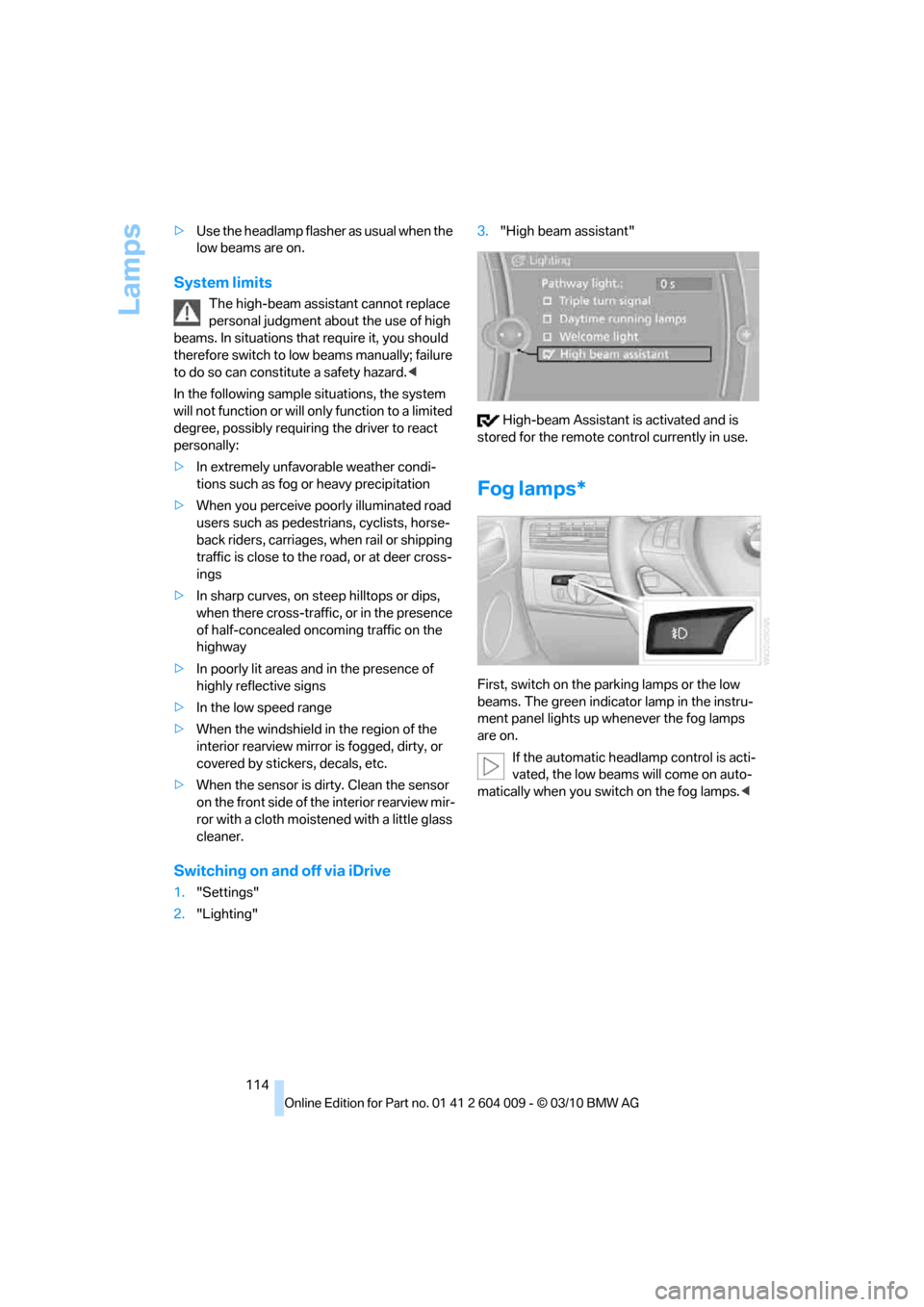
Switching on and off via iDrive
1."Settings"
2."Lighting"3."High beam assistant"
High-beam Assistant is activated and is
stored for the remote control currently in use.
Fog lamps*
First, switch on the parking lamps or the low
beams. The green indicator lamp in the instru-
ment panel lights up whenever the fog lamps
are on.
If the automatic headlamp control is acti-
vated, the low beams will come on auto-
matically when you switch on the fog lamps.<
Page 161 of 312
Navigation
Driving tips
159Reference
At a glance
Controls
Communications
Entertainment
Mobility
The setting applies to the current route and to
the planning of future routes.
Dynamic destination guidance
"Dynamic guidance" is switched on:
The route is automatically changed in the event
of traffic obstructions. The system does not
point out traffic obstructions along the original
route.
Depending on the type of road and the nature
and length of the traffic obstruction, the route
can also be calculated so that you travel
through the traffic obstruction.
Activating dynamic destination
guidance
1."Navigation"
2.Open "Options".
3."Dynamic guidance"
If the "Avoid highways", "Avoid toll roads"
or "Avoid ferries" route criteria are
selected, route calculation may take consider-
ably longer.<
Route
General information
Depending on the equipment in your vehicle,
various views of the route are available during
destination guidance:
>List of streets and towns/cities
>Map view, refer to page160
>Arrow display in the Head-up Display
*
Displaying a list of the streets or towns/
cities on the route
When destination guidance is started, a list of
the streets and towns/cities on the route is dis-
played. The driving distances and traffic bulle-
tins are displayed for each route section.
1."Navigation"
2."Route information"
3.Highlight a section.The section is displayed in the preview map.
Bypassing a section of the route
During destination guidance, you can revise the
navigation system's route recommendations to
avoid particular stretches of road. Enter the
number of miles/kilometers that you want to
travel before returning to the original route.
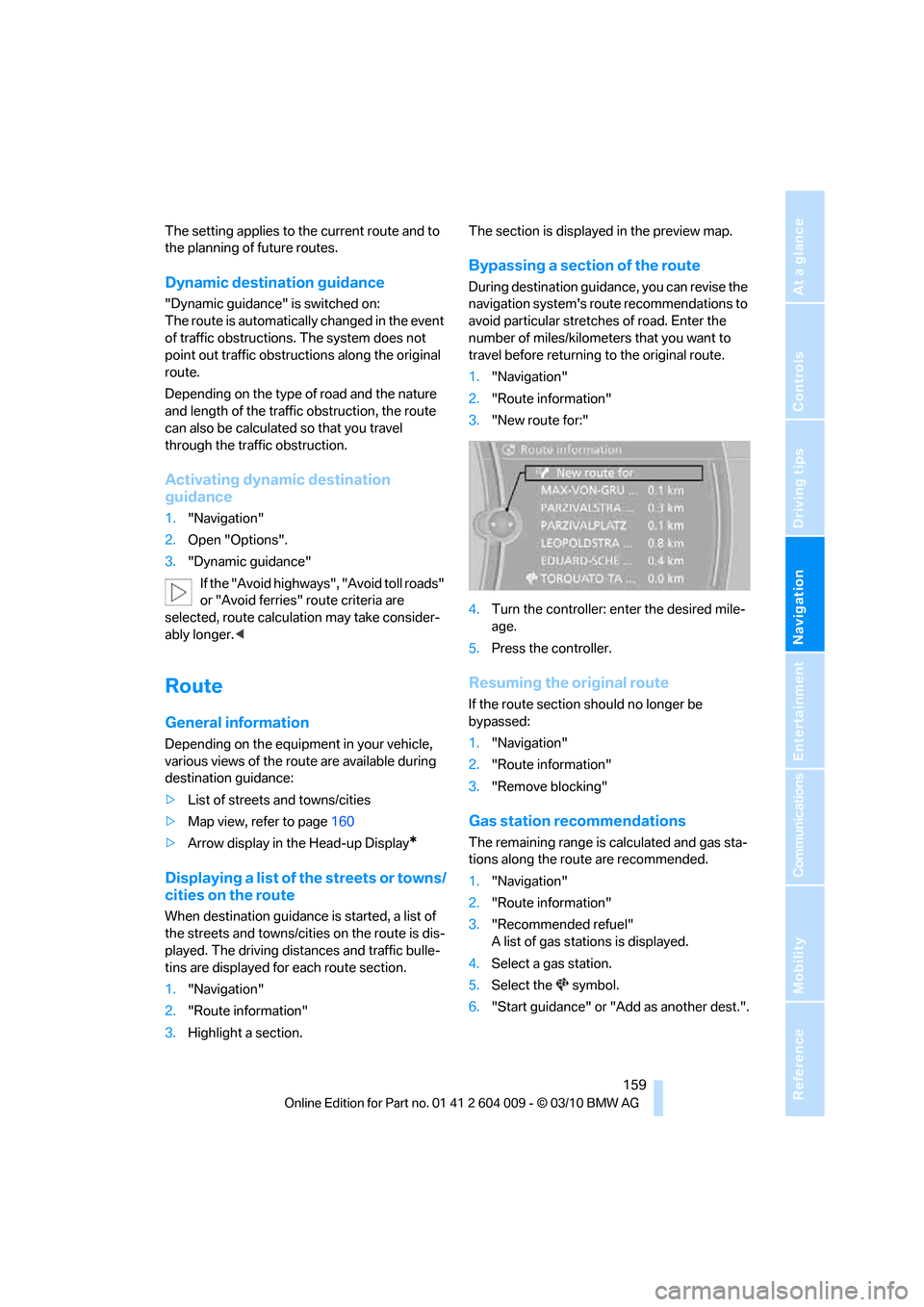
1."Navigation"
2."Route information"
3."New route for:"
4.Turn the controller: enter the desired mile-
age.
5.Press the controller.
Resuming the original route
If the route section should no longer be
bypassed:
1."Navigation"
2."Route information"
3."Remove blocking"
Gas station recommendations
The remaining range is calculated and gas sta-
tions along the route are recommended.
1."Navigation"
2."Route information"
3."Recommended refuel"
A list of gas stations is displayed.
4.Select a gas station.
5.Select the symbol.
6."Start guidance" or "Add as another dest.".
Page 165 of 312
Navigation
Driving tips
163Reference
At a glance
Controls
Communications
Entertainment
Mobility
1.Select the symbol.
2.Additional information is displayed.
3.To exit from the menu:
Move the controller to the left.
Traffic bulletins in the map
When the traffic info map is activated, the pic-
ture on the Control Display is switched to a
grayscale. This permits an optimized depiction
of traffic information. The day/night mode is dis-
regarded in this setting. The symbols for the
special destinations are no longer displayed.
1."Navigation"
2."Map"
3.Open "Options".
4."Settings"
5."Traffic conditions/gray map"
Symbols in map view
The symbols of traffic obstructions are dis-
played differently, depending on the scale of
the map and location of the traffic obstruction in
relation to the route.
Additional information in the map
display
Depending on the map scale, the length, direc-
tion, and effects of a traffic obstruction are
depicted by traffic symbols in the map or by
bars along the planned route. The colors dis-
played depend on the information sent by the
traffic information service.
>Red: traffic congestion
>Orange: stop-and-go traffic
>Yellow: heavy traffic
>Green: clear roads
>Gray: general traffic information such as
road construction
Filtering of traffic bulletins
You can filter which traffic bulletins are to be
displayed by the system:
1."Navigation"
2."Map"3.Open "Options".
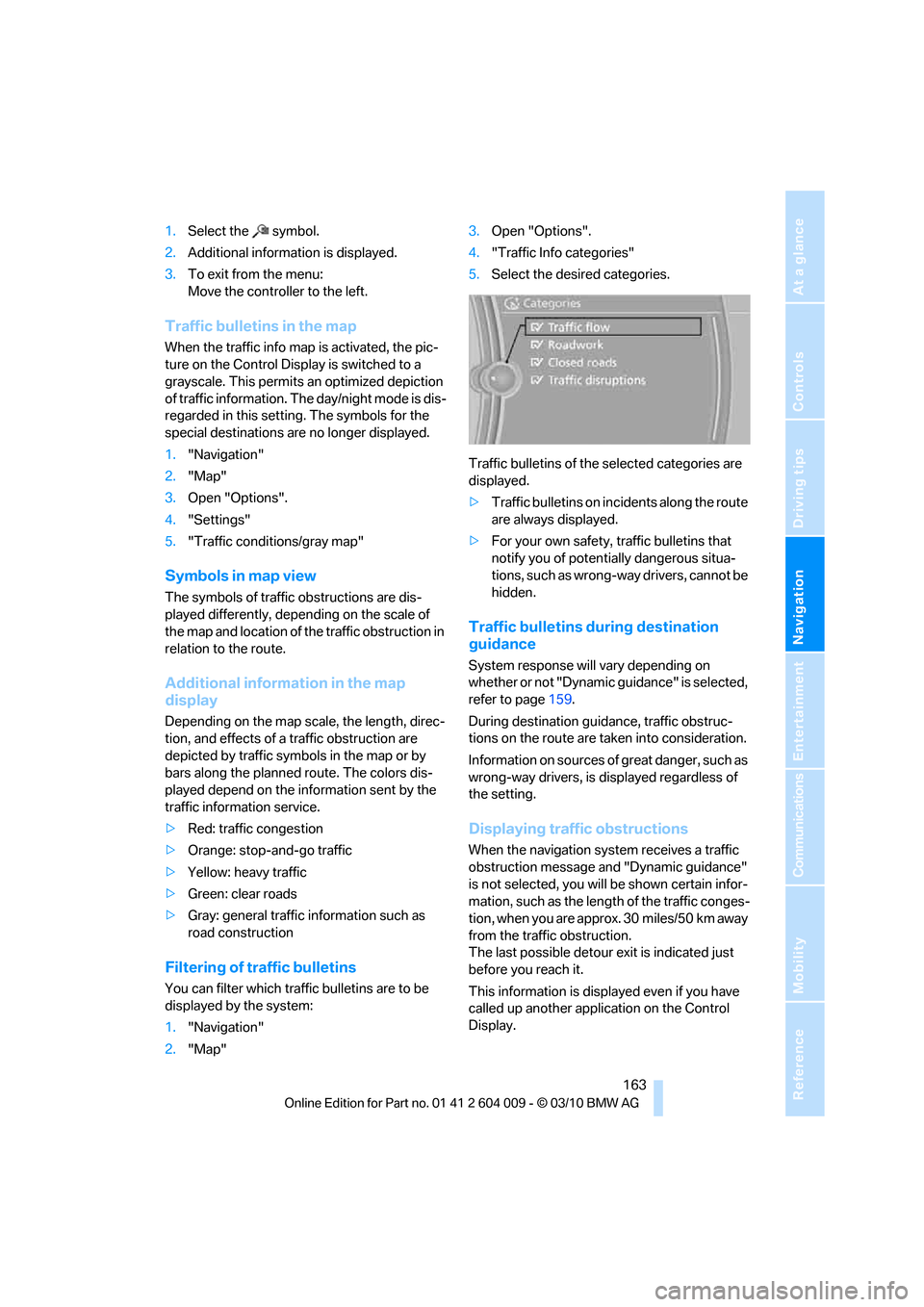
4."Traffic Info categories"
5.Select the desired categories.
Traffic bulletins of the selected categories are
displayed.
>Traffic bulletins on incidents along the route
are always displayed.
>For your own safety, traffic bulletins that
notify you of potentially dangerous situa-
tions, such as wrong-way drivers, cannot be
hidden.
Traffic bulletins during destination
guidance
System response will vary depending on
whether or not "Dynamic guidance" is selected,
refer to page159.
During destination guidance, traffic obstruc-
tions on the route are taken into consideration.
Information on sources of great danger, such as
wrong-way drivers, is displayed regardless of
the setting.
Displaying traffic obstructions
When the navigation system receives a traffic
obstruction message and "Dynamic guidance"
is not selected, you will be shown certain infor-
mation, such as the length of the traffic conges-
tion, when you are approx. 30 miles/50 km away
from the traffic obstruction.
The last possible detour exit is indicated just
before you reach it.
This information is displayed even if you have
called up another application on the Control
Display.
Page 201 of 312
Navigation
Entertainment
Driving tips
199Reference
At a glance
Controls
Communications
Mobility
Playing videos from CDs/
DVDs
Country codes of DVDs
Your DVD player only plays DVDs with the cod-
ing of your home region, e.g. Europe = 2. The
country codes supported by your DVD are con-
tained in the information on your DVD.
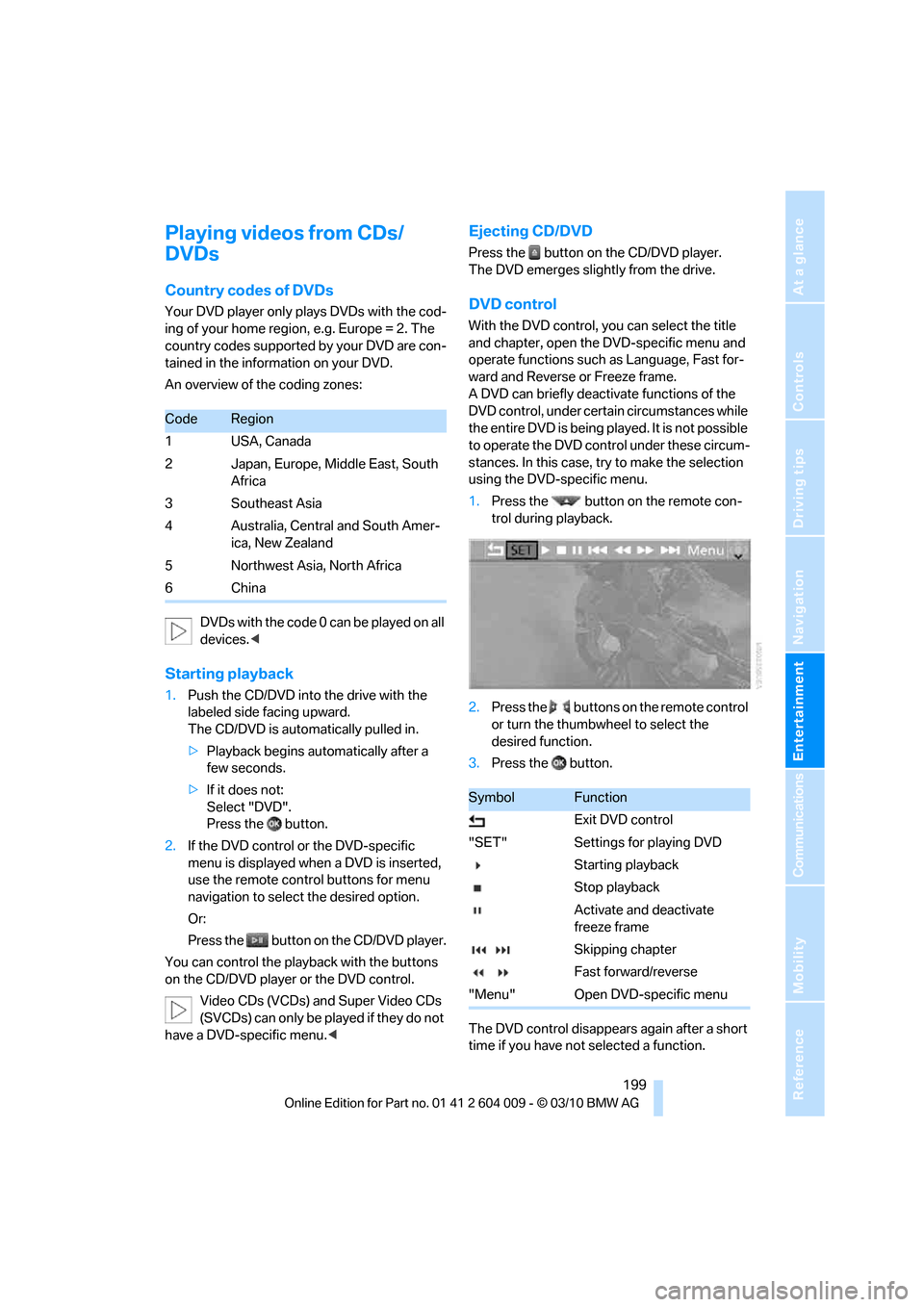
An overview of the coding zones:
D V D s w i t h t he c o d e 0 c a n b e p l a y e d o n a l l
devices.<
Starting playback
1.Push the CD/DVD into the drive with the
labeled side facing upward.
The CD/DVD is automatically pulled in.
>Playback begins automatically after a
few seconds.
>If it does not:
Select "DVD".
Press the button.
2.If the DVD control or the DVD-specific
menu is displayed when a DVD is inserted,
use the remote control buttons for menu
navigation to select the desired option.
Or:
Press the button on the CD/DVD player.
You can control the playback with the buttons
on the CD/DVD player or the DVD control.
Video CDs (VCDs) and Super Video CDs
(SVCDs) can only be played if they do not
have a DVD-specific menu.<
Ejecting CD/DVD
Press the button on the CD/DVD player.
The DVD emerges slightly from the drive.
DVD control
With the DVD control, you can select the title
and chapter, open the DVD-specific menu and
operate functions such as Language, Fast for-
ward and Reverse or Freeze frame.
A DVD can briefly deactivate functions of the
DVD control, under certain circumstances while
the entire DVD is being played. It is not possible
to operate the DVD control under these circum-
stances. In this case, try to make the selection
using the DVD-specific menu.
1.Press the button on the remote con-
trol during playback.
2.Press the buttons on the remote control
or turn the thumbwheel to select the
desired function.
3.Press the button.
The DVD control disappears again after a short
time if you have not selected a function.
CodeRegion
1USA, Canada
2 Japan, Europe, Middle East, South
Africa
3 Southeast Asia
4 Australia, Central and South Amer-
ica, New Zealand
5 Northwest Asia, North Africa
6China
SymbolFunction
Exit DVD control
"SET" Settings for playing DVD
Starting playback
Stop playback
Activate and deactivate
freeze frame
Skipping chapter
Fast forward/reverse
"Menu" Open DVD-specific menu
Page 206 of 312
DVD system in rear
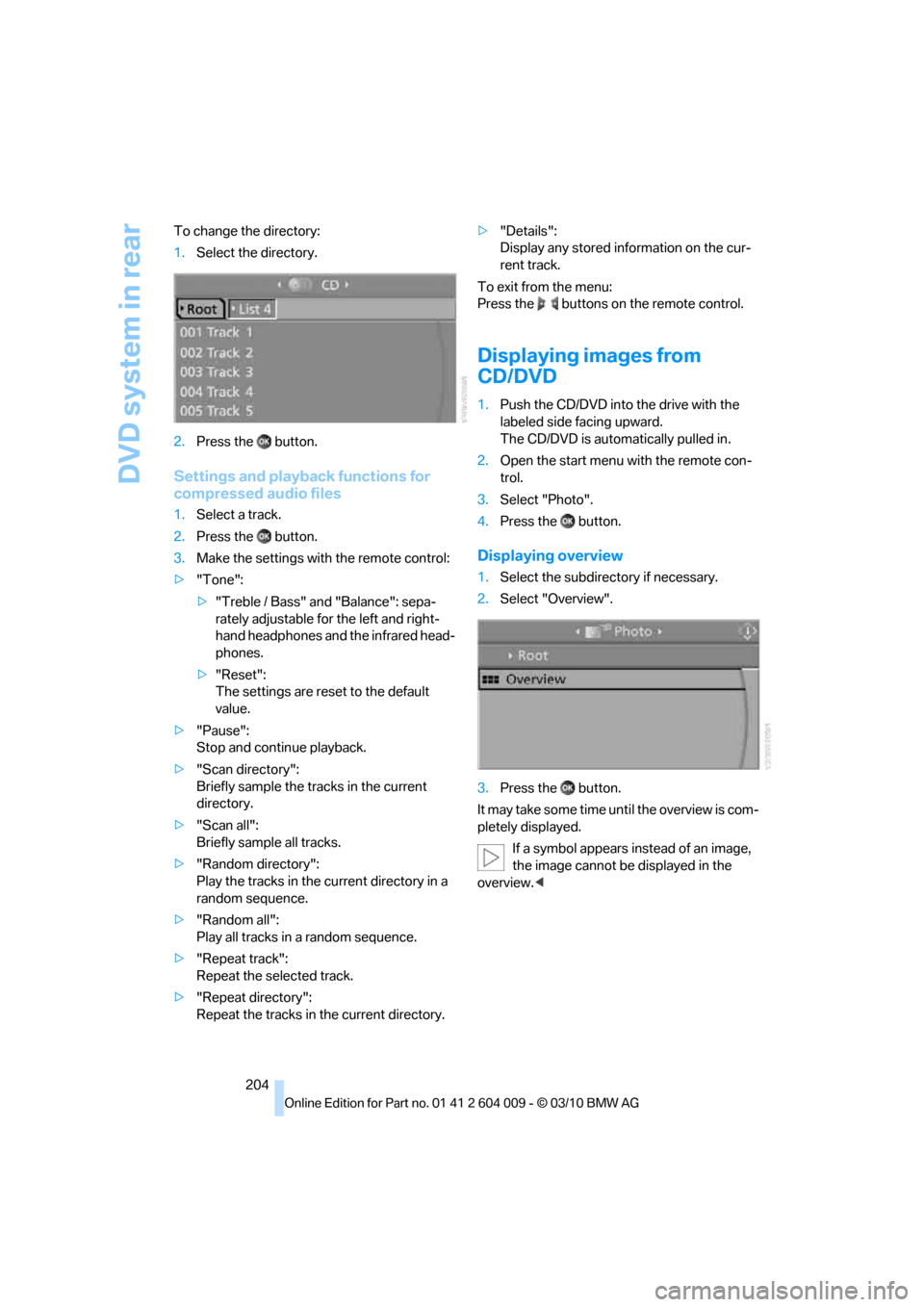
204 To change the directory:
1.Select the directory.
2.Press the button.
Settings and playback functions for
compressed audio files
1.Select a track.
2.Press the button.
3.Make the settings with the remote control:
>"Tone":
>"Treble / Bass" and "Balance": sepa-
rately adjustable for the left and right-
hand headphones and the infrared head-
phones.
>"Reset":
The settings are reset to the default
value.
>"Pause":
Stop and continue playback.
>"Scan directory":
Briefly sample the tracks in the current
directory.
>"Scan all":
Briefly sample all tracks.
>"Random directory":
Play the tracks in the current directory in a
random sequence.
>"Random all":
Play all tracks in a random sequence.
>"Repeat track":
Repeat the selected track.
>"Repeat directory":
Repeat the tracks in the current directory.>"Details":
Display any stored information on the cur-
rent track.
To exit from the menu:
Press the buttons on the remote control.
Displaying images from
CD/DVD
1.Push the CD/DVD into the drive with the
labeled side facing upward.
The CD/DVD is automatically pulled in.
2.Open the start menu with the remote con-
trol.
3.Select "Photo".
4.Press the button.
Displaying overview
1.Select the subdirectory if necessary.
2.Select "Overview".
3.Press the button.
It may take some time until the overview is com-
pletely displayed.
If a symbol appears instead of an image,
the image cannot be displayed in the
overview.<
Page 230 of 312
BMW Assist
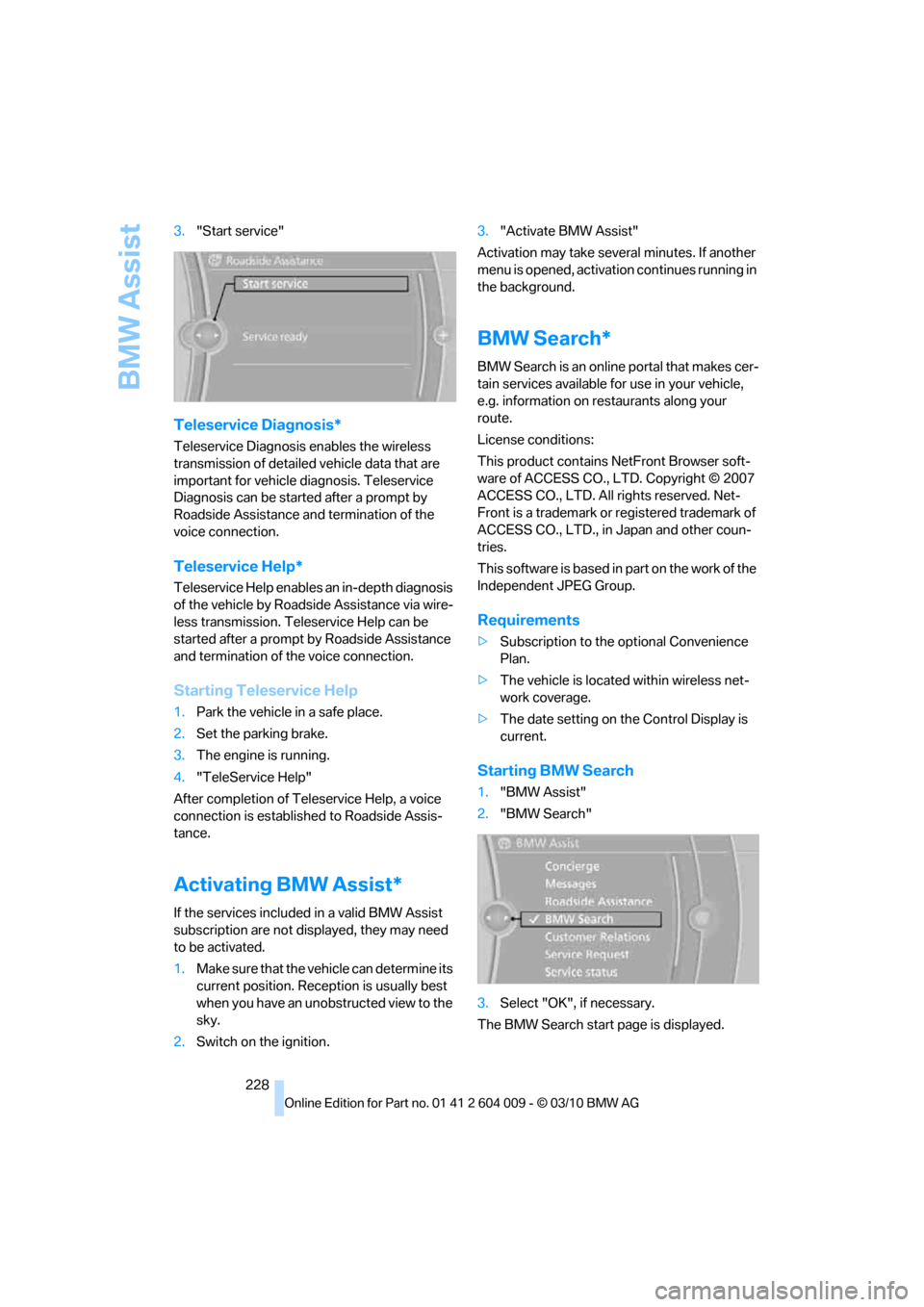
228 3."Start service"
Teleservice Diagnosis*
Teleservice Diagnosis enables the wireless
transmission of detailed vehicle data that are
important for vehicle diagnosis. Teleservice
Diagnosis can be started after a prompt by
Roadside Assistance and termination of the
voice connection.
Teleservice Help*
Teleservice Help enables an in-depth diagnosis
of the vehicle by Roadside Assistance via wire-
less transmission. Teleservice Help can be
started after a prompt by Roadside Assistance
and termination of the voice connection.
Starting Teleservice Help
1.Park the vehicle in a safe place.
2.Set the parking brake.
3.The engine is running.
4."TeleService Help"
After completion of Teleservice Help, a voice
connection is established to Roadside Assis-
tance.
Activating BMW Assist*
If the services included in a valid BMW Assist
subscription are not displayed, they may need
to be activated.
1.Make sure that the vehicle can determine its
current position. Reception is usually best
when you have an unobstructed view to the
sky.
2.Switch on the ignition.3."Activate BMW Assist"
Activation may take several minutes. If another
menu is opened, activation continues running in
the background.
BMW Search*
BMW Search is an online portal that makes cer-
tain services available for use in your vehicle,
e.g. information on restaurants along your
route.
License conditions:
This product contains NetFront Browser soft-
ware of ACCESS CO., LTD. Copyright © 2007
ACCESS CO., LTD. All rights reserved. Net-
Front is a trademark or registered trademark of
ACCESS CO., LTD., in Japan and other coun-
tries.
T h i s s o f t w a r e i s b a s e d i n p a r t o n t h e w o r k o f t h e
Independent JPEG Group.
Requirements
>Subscription to the optional Convenience
Plan.
>The vehicle is located within wireless net-
work coverage.
>The date setting on the Control Display is
current.
Starting BMW Search
1."BMW Assist"
2."BMW Search"
3.Select "OK", if necessary.
The BMW Search start page is displayed.
Page 261 of 312
Mobility
259Reference
At a glance
Controls
Driving tips
Communications
Navigation
Entertainment
Steam cleaners/high-pressure
cleaning jets
When using steam cleaners or high-pres-
sure cleaning jets, make sure to maintain
a sufficient distance and stay below a maximum
temperature of 1407/606.
Insufficient distance or excessive pressure or
temperature can damage parts of the vehicle or
can result in water penetration. Follow the oper-
ating instructions for the high-pressure clean-
ing jets.<
Do not spray the sensors and cameras,
e.g. of Park Distance Control, Top View,
or rear view camera, with high-pressure clean-
ers for long periods and keep the spray nozzle
at least 12 in/30 cm away from them.<
Hand washing
When washing the vehicle by hand, use plenty
of water and car washing shampoo. Clean the
vehicle with gentle pressure using a sponge or a
washing brush.
Before cleaning the windshield, deacti-
vate the rain sensor or switch off the igni-
tion to prevent unwanted wiper operation.<
Follow local guidelines for washing vehi-
cles by hand.<
Headlamps
Do not rub dry and never use abrasives or
strong solvents to clean the covers.
Loosen dirt, e.g. insects, with shampoo or
insect remover and wash away with plenty of
water.
Use a window de-icer to remove accumulated
ice and snow, not a scraper.
Windows
Use a glass cleaner to clean the inside and out-
side surfaces of the windows and the glass sur-
faces of the mirrors.
Do not use quartz-containing cleansers
to clean glass surfaces of the mirrors.<
Caring for the vehicle finish
Regular care helps your vehicle retain its value
and protects the paint from the long-term
effects of aggressive substances.
Regionally occurring environmental factors can
affect and damage vehicle finish. It is therefore
important to tailor the frequency and extent of
your car care accordingly.
Immediately remove particularly aggressive
substances such as spilled fuel, oil, grease,
brake fluid, tree resin, or bird droppings; other-
wise, they may damage your paint.
Repairing paint damage
Repair stone damage or scratches imme-
diately, depending on the severity of the
damage, to prevent the formation of rust.<
BMW recommends having paint damage pro-
fessionally repaired using Genuine BMW finish
materials in accordance with factory guidelines.
Waxing
Sealant is required when water no longer beads
on the clean surface of the paint. Use only prod-
ucts that contain carnauba wax or synthetic wax
to seal your finish.
Rubber gaskets
Treat only with water or a rubber care product.
To avoid noise or damage, do not use
products that contain silicone to care for
rubber gaskets.<
Chrome components
Particularly after exposure to road salt, thor-
oughly cleanse parts like the radiator grille, door
handles, or window frames with plenty of water
with shampoo added to it. For additional treat-
ment, use chrome polish.
Alloy wheels
Depending on your system, braking can gener-
ate dust, which settles on the light-alloy wheels.
Remove this dust regularly with acid-free wheel
cleaner.
Page 262 of 312
Care
260 Do not use aggressive, acid-containing,
strongly alkaline, or coarse cleansers and
do not use steam cleaners at temperatures
greater than 1407/606; otherwise you may
damage your vehicle.<
Aluminum running boards
A rust film on the aluminum running boards can
be removed with a special cleaning agent.
Outside sensors/cameras
Make sure that sensors and cameras out-
side the vehicle, e.g. Park Distance Con-
trol, Top View, or rear view camera, are kept
clean and free of ice in order to assure full func-
tionality.<
Interior care
Upholstery materials/cloth-covered
paneling
Clean regularly with a vacuum cleaner in order
to remove surface dirt.
In the event of more serious soiling such as bev-
erage stains, use a soft sponge or a lint-free
microfiber cloth in combination with suitable
interior cleaners. Follow the instructions on the
packaging.
Clean upholstery material over a large
area extending out to the seams. Avoid
intense friction.<
Open Velcro fasteners on pants or other
items of clothing can cause damage to
the seat covering. Make sure that the Velcro
fasteners are closed.<
Leather/leather-covered paneling
The leather used by BMW is a high quality
natural product. Slight patterns in the
grain are part of the typical properties of a natu-
ral leather.<
Dust and dirt from the road chafe in pores and
folds and result in considerable wear and cause
the leather surface to become prematurely brit-
tle. We therefore suggest that you clean the leather with a dust cloth or vacuum cleaner at
regular intervals.
Particularly with light-colored leather, make
sure to clean it regularly since it has a greater
tendency to become soiled.
Treat the leather twice a year with a leather
lotion since dirt and grease harm the protective
layer of the leather.
Carpeting/floor mats*
Floor mats can be removed for cleaning.
If the carpets are very dirty, clean with a microfi-
ber cloth and water or an interior cleaner. To
prevent matting of the carpet, rub back and
forth in the direction of travel only.
Plastic components inside
>Vinyl upholstery surfaces
>Lamp lenses
>Cover glass of instrument cluster
>Matte parts
Should be cleaned with water and, if necessary,
solvent-free plastic cleaner.
Fine wooden components
Use a damp cloth to clean fine wooden trim
panels and components. Follow up by drying
with a soft cloth.
Safety belts
Soiled seatbelt straps hinder the reeling, thus
reducing safety.
Do not use chemical cleansers as they
can destroy the webbing.<
Inside sensors/cameras
Clean inside sensors and cameras, such as
those of the high-beam assistant, using a lint-
free cloth moistened with glass cleaner.
Displays
Clean displays like the radio or the instrument
cluster using a display-cleaning cloth or a soft,
nonabrasive lint-free cloth.