phone BMW X6 2012 E71 User Guide
[x] Cancel search | Manufacturer: BMW, Model Year: 2012, Model line: X6, Model: BMW X6 2012 E71Pages: 312, PDF Size: 8.91 MB
Page 29 of 312
Controls
27Reference
At a glance
Driving tips
Communications
Navigation
Entertainment
Mobility
>Displays on Control Display:
>Brightness of the Control Display, refer
to page86
>Measuring units for consumption, route/
distances, temperature, and pressure,
refer to page86
>Language on Control Display, refer to
page86
>12h/24h clock format, refer to page85
>Date format, refer to page85
>Lighting settings:
>Triple turn signal activation, refer to
page65
>Welcome lamps, refer to page111
>Pathway lighting, refer to page112
>Daytime driving lamps
*, refer to
page112
>High-beam Assistant
*, refer to
page113
>PDC Park Distance Control
*: optical warn-
ing, refer to page89
>Top View
*: optical warning, refer to
page91
>Side View
*, refer to page92
>Rear view camera
*:
>Selecting functions, refer to page93
>Type of display, refer to page95
>Lane departure warning
*: last status, on/
off, refer to page104
>Head-up Display
*: selection, brightness
and position of display, refer to page109
>Automatic climate control: AUTO program
and intensity, cooling function, and auto-
matic recirculated-air control/recirculated-
air mode, temperature, air distribution, ven-
tilation temperature, starting on page117
>Programmable memory buttons: selecting
stored functions, refer to page20
>Positions of driver's seat, outside mirrors,
and steering wheel
*, refer to page44
>Adaptive Drive
*: selected chassis and sus-
pension tuning, refer to page98>Audio sources: volume and tone settings,
refer to page168
>Radio:
>Display of stored stations, refer to
page173
>Switching RDS Radio Data System on/
off
*, refer to page172
>Phone: volume setting, refer to
pages215,220
Central locking system
The concept
The central locking system functions when the
driver's door is closed.
The system simultaneously engages and
releases the locks on the following:
>Doors
>Liftgate
>Fuel filler flap
Operating from outside
>Using the remote control
>Using the door lock
>With Comfort Access
* using the door han-
dles
The interior lamps and the courtesy lamps
* are
also switched on and off with the remote con-
trol. The alarm system
is armed/disarmed at the
same time.
You can find more detailed information on the
alarm system
on page34.
Operating from inside
Using the button for central locking, refer to
page30. The fuel filler flap is not locked.
In an accident of sufficient severity, the central
locking system automatically unlocks the vehi-
cle. In addition, the hazard warning flashers and
interior lamps come on.
Page 109 of 312
Controls
107Reference
At a glance
Driving tips
Communications
Navigation
Entertainment
Mobility
Airbags
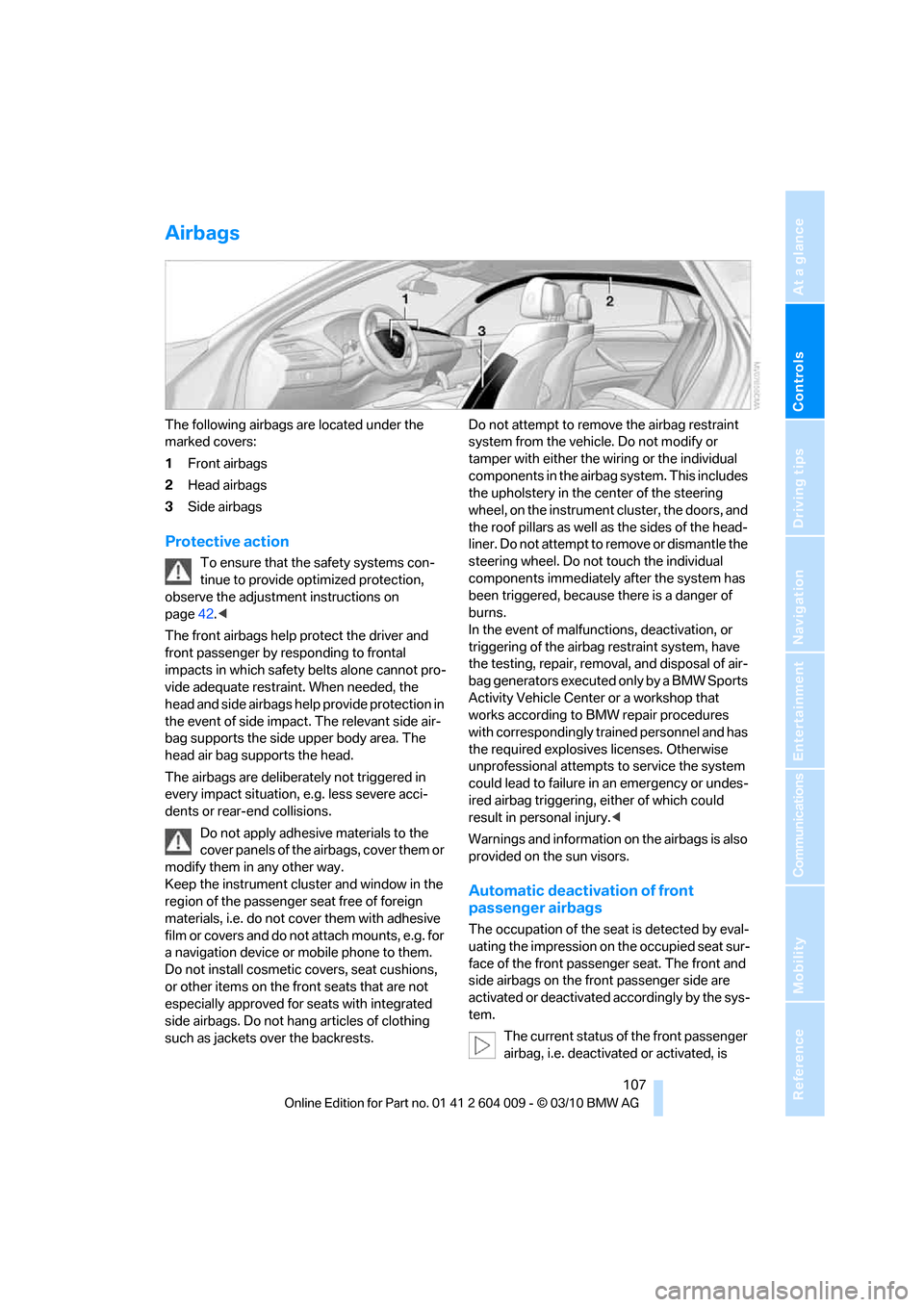
The following airbags are located under the
marked covers:
1Front airbags
2Head airbags
3Side airbags
Protective action
To ensure that the safety systems con-
tinue to provide optimized protection,
observe the adjustment instructions on
page42.<
The front airbags help protect the driver and
front passenger by responding to frontal
impacts in which safety belts alone cannot pro-
vide adequate restraint. When needed, the
head and side airbags help provide protection in
the event of side impact. The relevant side air-
bag supports the side upper body area. The
head air bag supports the head.
The airbags are deliberately not triggered in
every impact situation, e.g. less severe acci-
dents or rear-end collisions.
Do not apply adhesive materials to the
cover panels of the airbags, cover them or
modify them in any other way.
Keep the instrument cluster and window in the
region of the passenger seat free of foreign
materials, i.e. do not cover them with adhesive
film or covers and do not attach mounts, e.g. for
a navigation device or mobile phone to them.
Do not install cosmetic covers, seat cushions,
or other items on the front seats that are not
especially approved for seats with integrated
side airbags. Do not hang articles of clothing
such as jackets over the backrests.Do not attempt to remove the airbag restraint
system from the vehicle. Do not modify or
tamper with either the wiring or the individual
components in the airbag system. This includes
the upholstery in the center of the steering
wheel, on the instrument cluster, the doors, and
the roof pillars as well as the sides of the head-
liner. Do not attempt to remove or dismantle the
steering wheel. Do not touch the individual
components immediately after the system has
been triggered, because there is a danger of
burns.
In the event of malfunctions, deactivation, or
triggering of the airbag restraint system, have
the testing, repair, removal, and disposal of air-
bag generators executed only by a BMW Sports
Activity Vehicle Center or a workshop that
works according to BMW repair procedures
with correspondingly trained personnel and has
the required explosives licenses. Otherwise
unprofessional attempts to service the system
could lead to failure in an emergency or undes-
ired airbag triggering, either of which could
result in personal injury.<
Warnings and information on the airbags is also
provided on the sun visors.
Automatic deactivation of front
passenger airbags
The occupation of the seat is detected by eval-
uating the impression on the occupied seat sur-
face of the front passenger seat. The front and
side airbags on the front passenger side are
activated or deactivated accordingly by the sys-
tem.
The current status of the front passenger
airbag, i.e. deactivated or activated, is
Page 130 of 312
Practical interior accessories
128
Center armrest front
A storage compartment is located under the
armrest between the front seats and, depend-
ing on the vehicle's equipment, also a cover for
the mobile phone bracket or the snap-in
adapter. Also refer to page212.
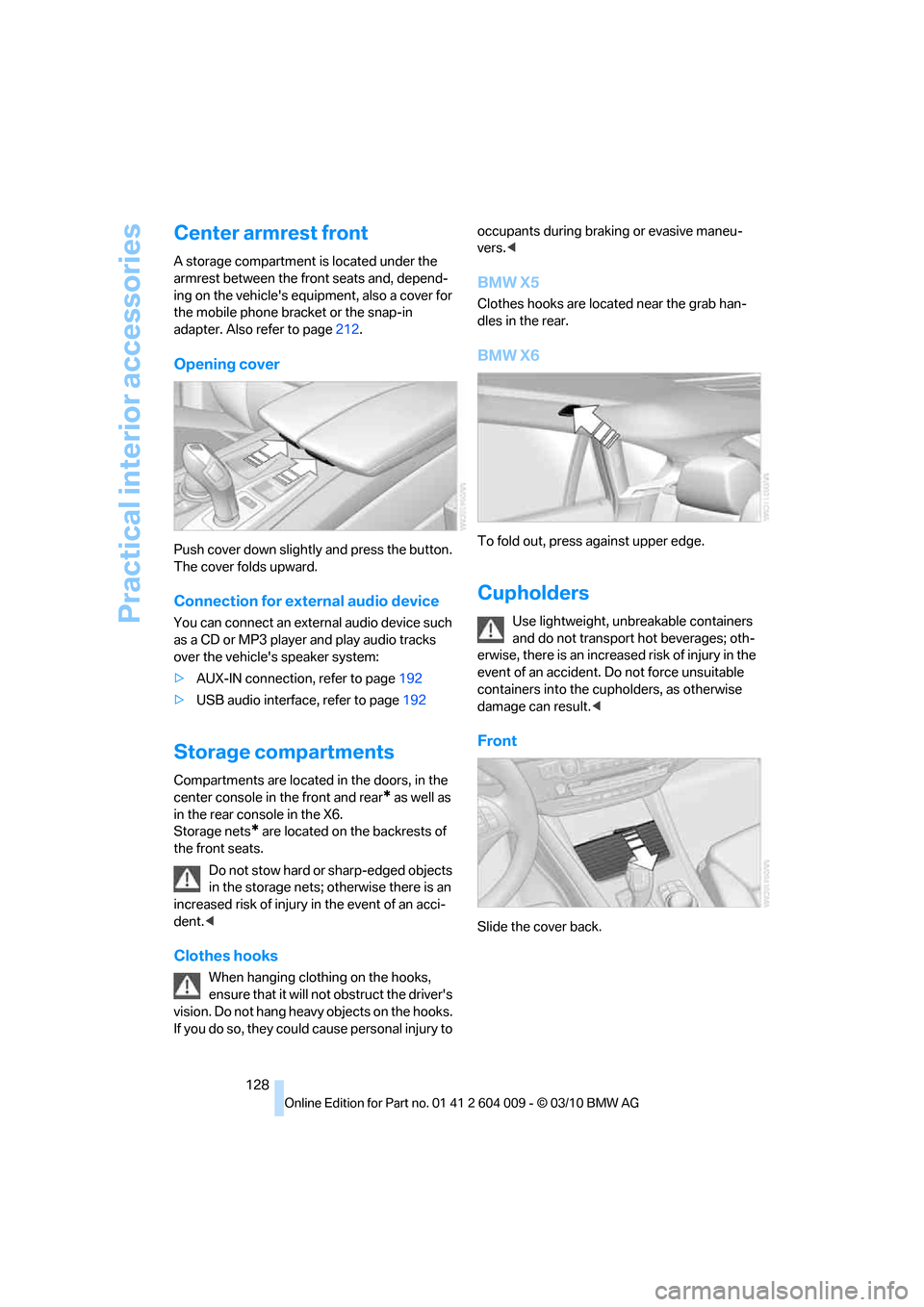
Opening cover
Push cover down slightly and press the button.
The cover folds upward.
Connection for external audio device
You can connect an external audio device such
as a CD or MP3 player and play audio tracks
over the vehicle's speaker system:
>AUX-IN connection, refer to page192
>USB audio interface, refer to page192
Storage compartments
Compartments are located in the doors, in the
center console in the front and rear
* as well as
in the rear console in the X6.
Storage nets
* are located on the backrests of
the front seats.
Do not stow hard or sharp-edged objects
in the storage nets; otherwise there is an
increased risk of injury in the event of an acci-
dent.<
Clothes hooks
When hanging clothing on the hooks,
ensure that it will not obstruct the driver's
vision. Do not hang heavy objects on the hooks.
If you do so, they could cause personal injury to occupants during braking or evasive maneu-
vers.<
BMW X5
Clothes hooks are located near the grab han-
dles in the rear.
BMW X6
To fold out, press against upper edge.
Cupholders
Use lightweight, unbreakable containers
and do not transport hot beverages; oth-
erwise, there is an increased risk of injury in the
event of an accident. Do not force unsuitable
containers into the cupholders, as otherwise
damage can result.<
Front
Slide the cover back.
Page 153 of 312
Navigation
Driving tips
151Reference
At a glance
Controls
Communications
Entertainment
Mobility
3.Change to the list of house numbers.
4.Select a house number or range of house
numbers.
Starting destination guidance after
entering the destination
1."Accept destination"
2."Start guidance" or "Add as another dest.".
>Set your "Route preference",
Refer to page158.
>Search for "Points of Interest at loc.",
Refer to page152.
Address book
To create contacts, refer to page224.
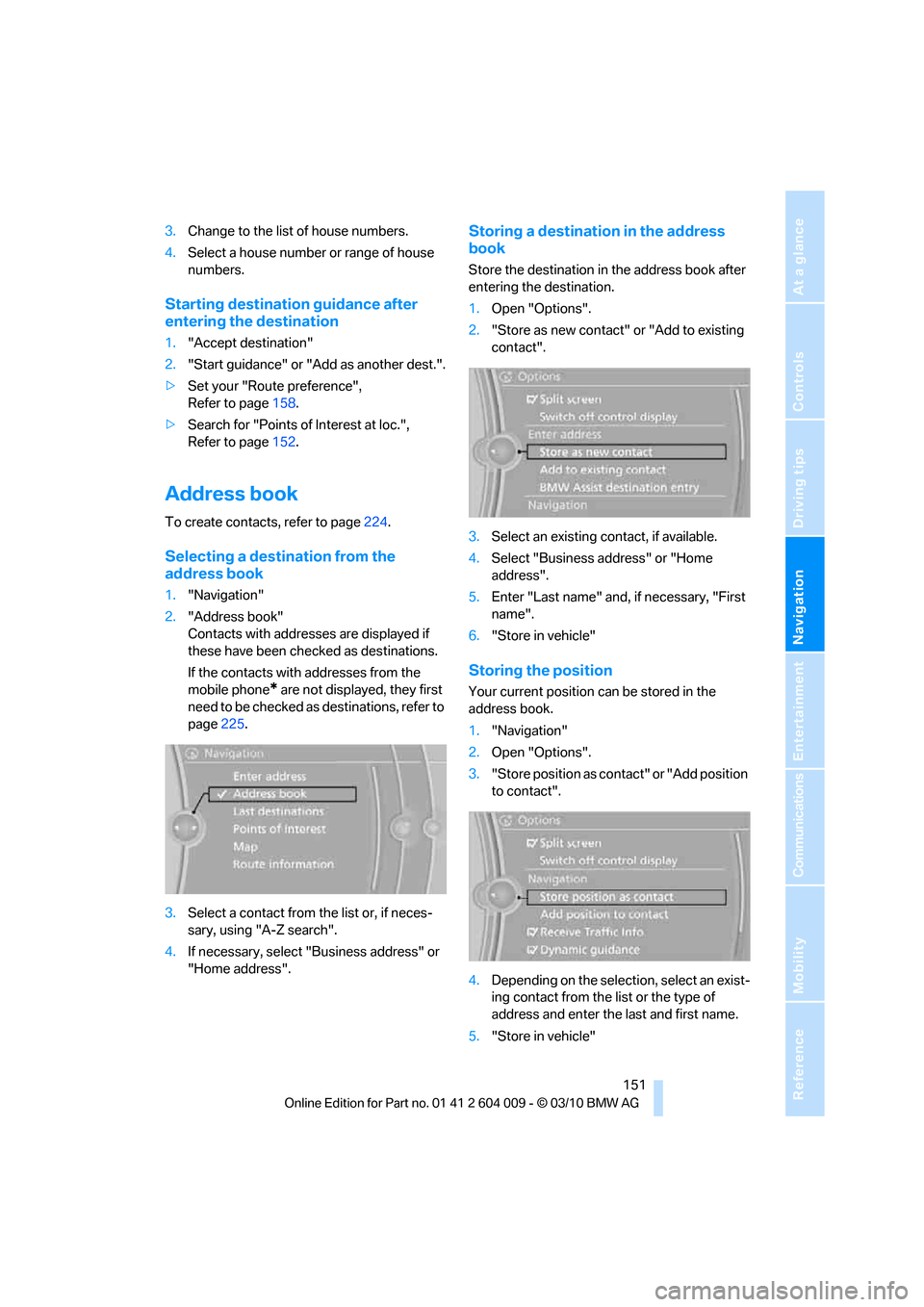
Selecting a destination from the
address book
1."Navigation"
2."Address book"
Contacts with addresses are displayed if
these have been checked as destinations.
If the contacts with addresses from the
mobile phone
* are not displayed, they first
need to be checked as destinations, refer to
page225.
3.Select a contact from the list or, if neces-
sary, using "A-Z search".
4.If necessary, select "Business address" or
"Home address".
Storing a destination in the address
book
Store the destination in the address book after
entering the destination.
1.Open "Options".
2."Store as new contact" or "Add to existing
contact".
3.Select an existing contact, if available.
4.Select "Business address" or "Home
address".
5.Enter "Last name" and, if necessary, "First
name".
6."Store in vehicle"
Storing the position
Your current position can be stored in the
address book.
1."Navigation"
2.Open "Options".
3."Store position as contact" or "Add position
to contact".
4.Depending on the selection, select an exist-
ing contact from the list or the type of
address and enter the last and first name.
5."Store in vehicle"
Page 155 of 312
Navigation
Driving tips
153Reference
At a glance
Controls
Communications
Entertainment
Mobility
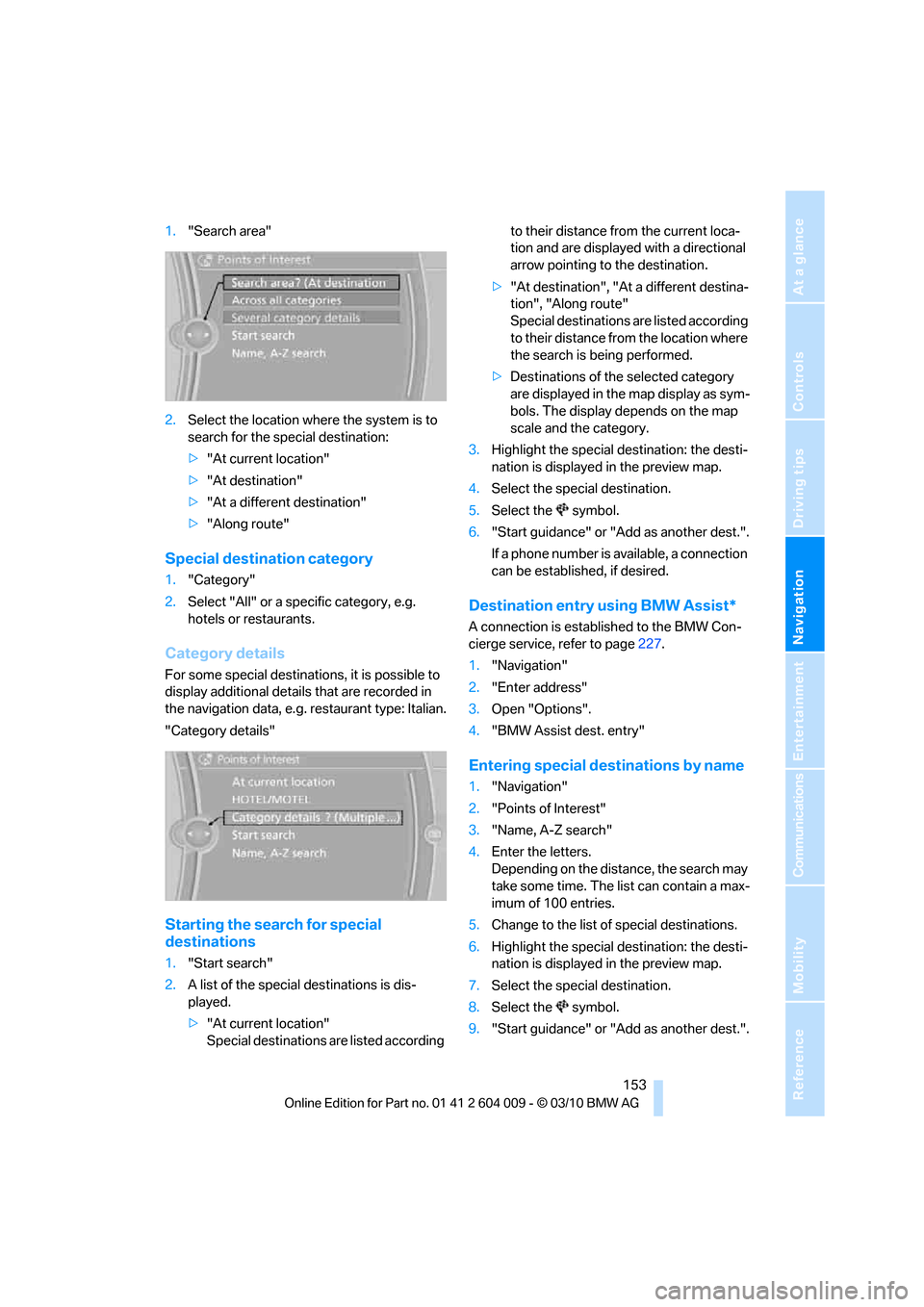
1."Search area"
2.Select the location where the system is to
search for the special destination:
>"At current location"
>"At destination"
>"At a different destination"
>"Along route"
Special destination category
1."Category"
2.Select "All" or a specific category, e.g.
hotels or restaurants.
Category details
For some special destinations, it is possible to
display additional details that are recorded in
the navigation data, e.g. restaurant type: Italian.
"Category details"
Starting the search for special
destinations
1."Start search"
2.A list of the special destinations is dis-
played.
>"At current location"
Special destinations are listed according to their distance from the current loca-
tion and are displayed with a directional
arrow pointing to the destination.
>"At destination", "At a different destina-
tion", "Along route"
Special destinations are listed according
to their distance from the location where
the search is being performed.
>Destinations of the selected category
are displayed in the map display as sym-
bols. The display depends on the map
scale and the category.
3.Highlight the special destination: the desti-
nation is displayed in the preview map.
4.Select the special destination.
5.Select the symbol.
6."Start guidance" or "Add as another dest.".
If a phone number is available, a connection
can be established, if desired.
Destination entry using BMW Assist*
A connection is established to the BMW Con-
cierge service, refer to page227.
1."Navigation"
2."Enter address"
3.Open "Options".
4."BMW Assist dest. entry"
Entering special destinations by name
1."Navigation"
2."Points of Interest"
3."Name, A-Z search"
4.Enter the letters.
Depending on the distance, the search may
take some time. The list can contain a max-
imum of 100 entries.
5.Change to the list of special destinations.
6.Highlight the special destination: the desti-
nation is displayed in the preview map.
7.Select the special destination.
8.Select the symbol.
9."Start guidance" or "Add as another dest.".
Page 176 of 312
Satellite radio
174
Satellite radio
General information
The channels are offered in fixed packages.
Packages must be activated by telephone.
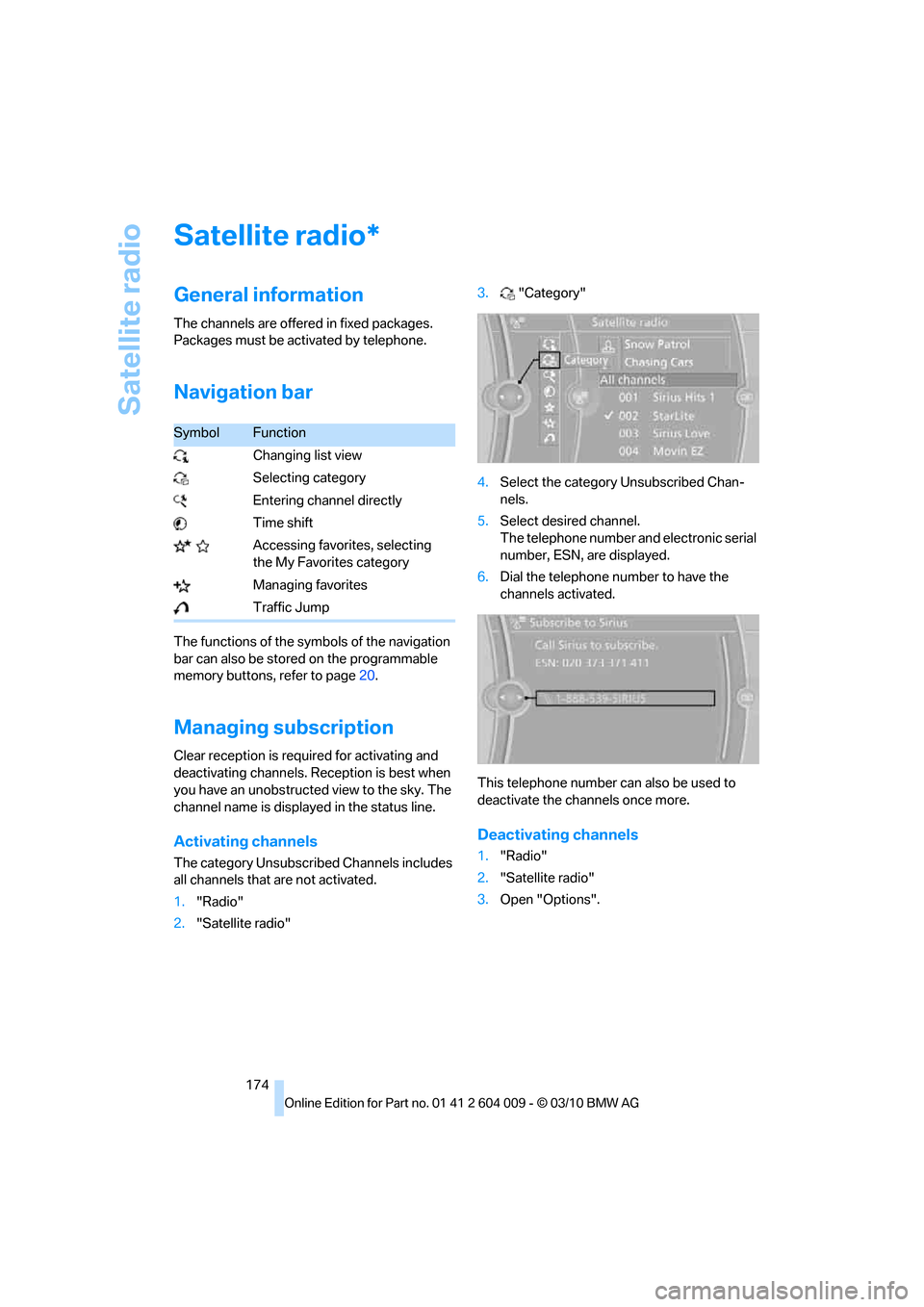
Navigation bar
The functions of the symbols of the navigation
bar can also be stored on the programmable
memory buttons, refer to page20.
Managing subscription
Clear reception is required for activating and
deactivating channels. Reception is best when
you have an unobstructed view to the sky. The
channel name is displayed in the status line.
Activating channels
The category Unsubscribed Channels includes
all channels that are not activated.
1."Radio"
2."Satellite radio"3."Category"
4.Select the category Unsubscribed Chan-
nels.
5.Select desired channel.
The telephone number and electronic serial
number, ESN, are displayed.
6.Dial the telephone number to have the
channels activated.
This telephone number can also be used to
deactivate the channels once more.
Deactivating channels
1."Radio"
2."Satellite radio"
3.Open "Options".
*
SymbolFunction
Changing list view
Selecting category
Entering channel directly
Time shift
Accessing favorites, selecting
the My Favorites category
Managing favorites
Traffic Jump
Page 177 of 312
Navigation
Entertainment
Driving tips
175Reference
At a glance
Controls
Communications
Mobility
4."Manage subscription"
The telephone number and electronic serial
number, ESN, are displayed.
5.Call Sirius to deactivate the channels.
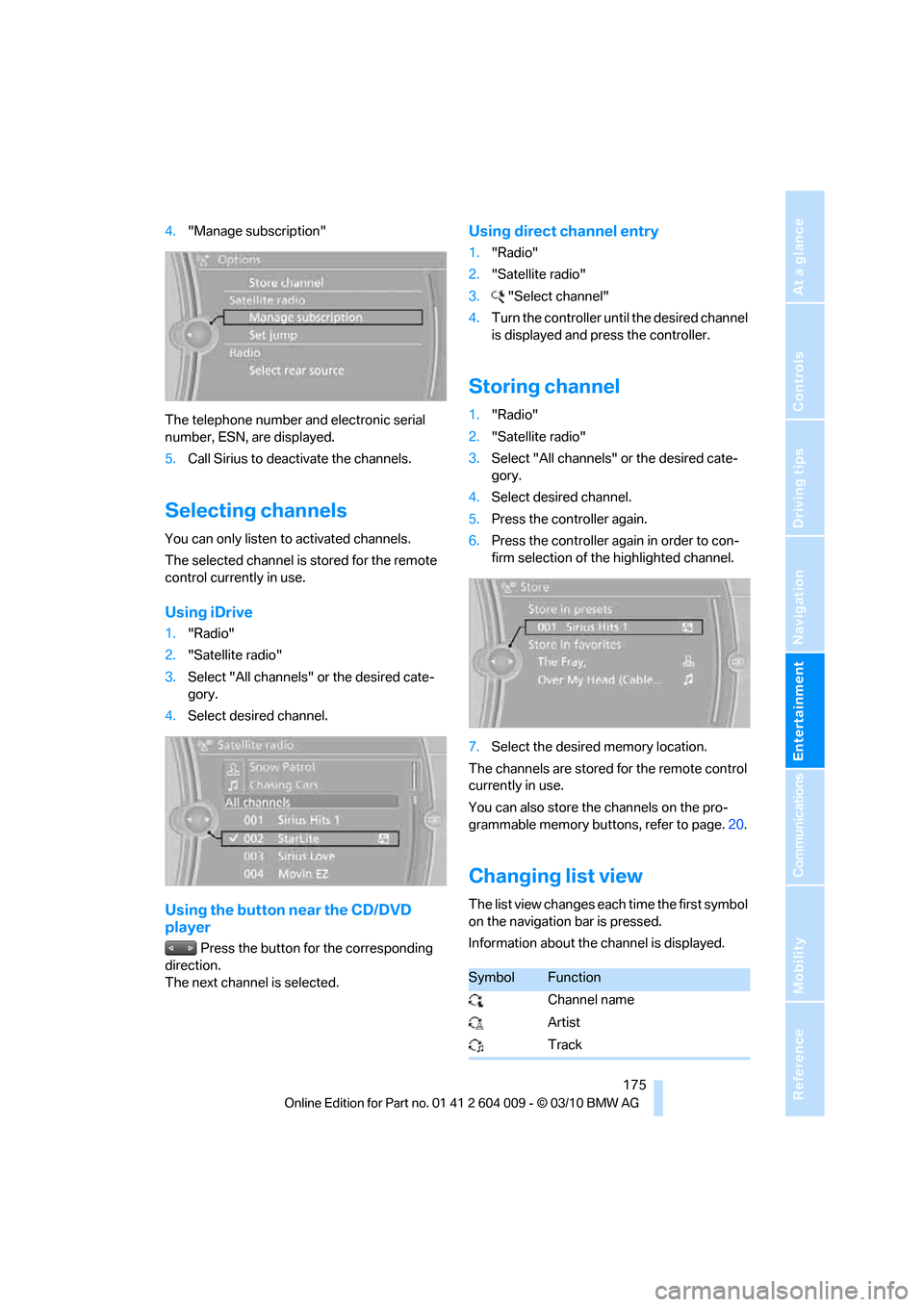
Selecting channels
You can only listen to activated channels.
The selected channel is stored for the remote
control currently in use.
Using iDrive
1."Radio"
2."Satellite radio"
3.Select "All channels" or the desired cate-
gory.
4.Select desired channel.
Using the button near the CD/DVD
player
Press the button for the corresponding
direction.
The next channel is selected.
Using direct channel entry
1."Radio"
2."Satellite radio"
3."Select channel"
4.Turn the controller until the desired channel
is displayed and press the controller.
Storing channel
1."Radio"
2."Satellite radio"
3.Select "All channels" or the desired cate-
gory.
4.Select desired channel.
5.Press the controller again.
6.Press the controller again in order to con-
firm selection of the highlighted channel.
7.Select the desired memory location.
The channels are stored for the remote control
currently in use.
You can also store the channels on the pro-
grammable memory buttons, refer to page.20.
Changing list view
The list view changes each time the first symbol
on the navigation bar is pressed.
Information about the channel is displayed.
SymbolFunction
Channel name
Artist
Track
Page 178 of 312
Satellite radio
176
Selecting category
1."Radio"
2."Satellite radio"
3."Category"
4.Select the desired category.
Time shift
Approximately one hour of the channel cur-
rently being listened to is temporarily stored in a
cache memory. Precondition: the signal must
be available.
The stored audio track can be played back at a
different time from the live broadcast. If the
cache memory is full, then the older tracks are
recorded over. The cache memory is deleted if
a new channel is selected.
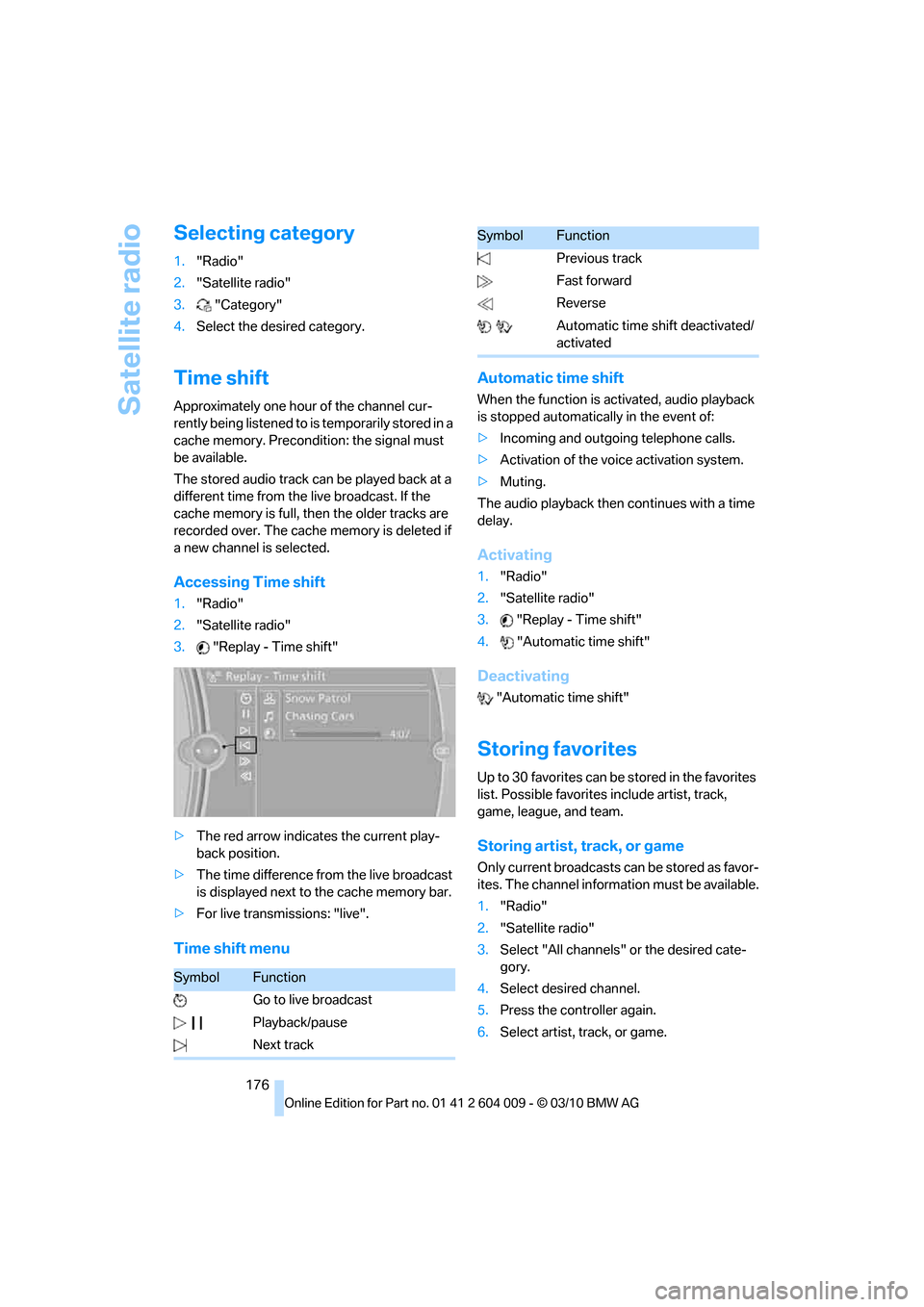
Accessing Time shift
1."Radio"
2."Satellite radio"
3."Replay - Time shift"
>The red arrow indicates the current play-
back position.
>The time difference from the live broadcast
is displayed next to the cache memory bar.
>For live transmissions: "live".
Time shift menuAutomatic time shift
When the function is activated, audio playback
is stopped automatically in the event of:
>Incoming and outgoing telephone calls.
>Activation of the voice activation system.
>Muting.
The audio playback then continues with a time
delay.
Activating
1."Radio"
2."Satellite radio"
3."Replay - Time shift"
4."Automatic time shift"
Deactivating
"Automatic time shift"
Storing favorites
Up to 30 favorites can be stored in the favorites
list. Possible favorites include artist, track,
game, league, and team.
Storing artist, track, or game
Only current broadcasts can be stored as favor-
ites. The channel information must be available.
1."Radio"
2."Satellite radio"
3.Select "All channels" or the desired cate-
gory.
4.Select desired channel.
5.Press the controller again.
6.Select artist, track, or game.
SymbolFunction
Go to live broadcast
Playback/pause
Next track
Previous track
Fast forward
Reverse
Automatic time shift deactivated/
activated
SymbolFunction
Page 190 of 312
Music collection
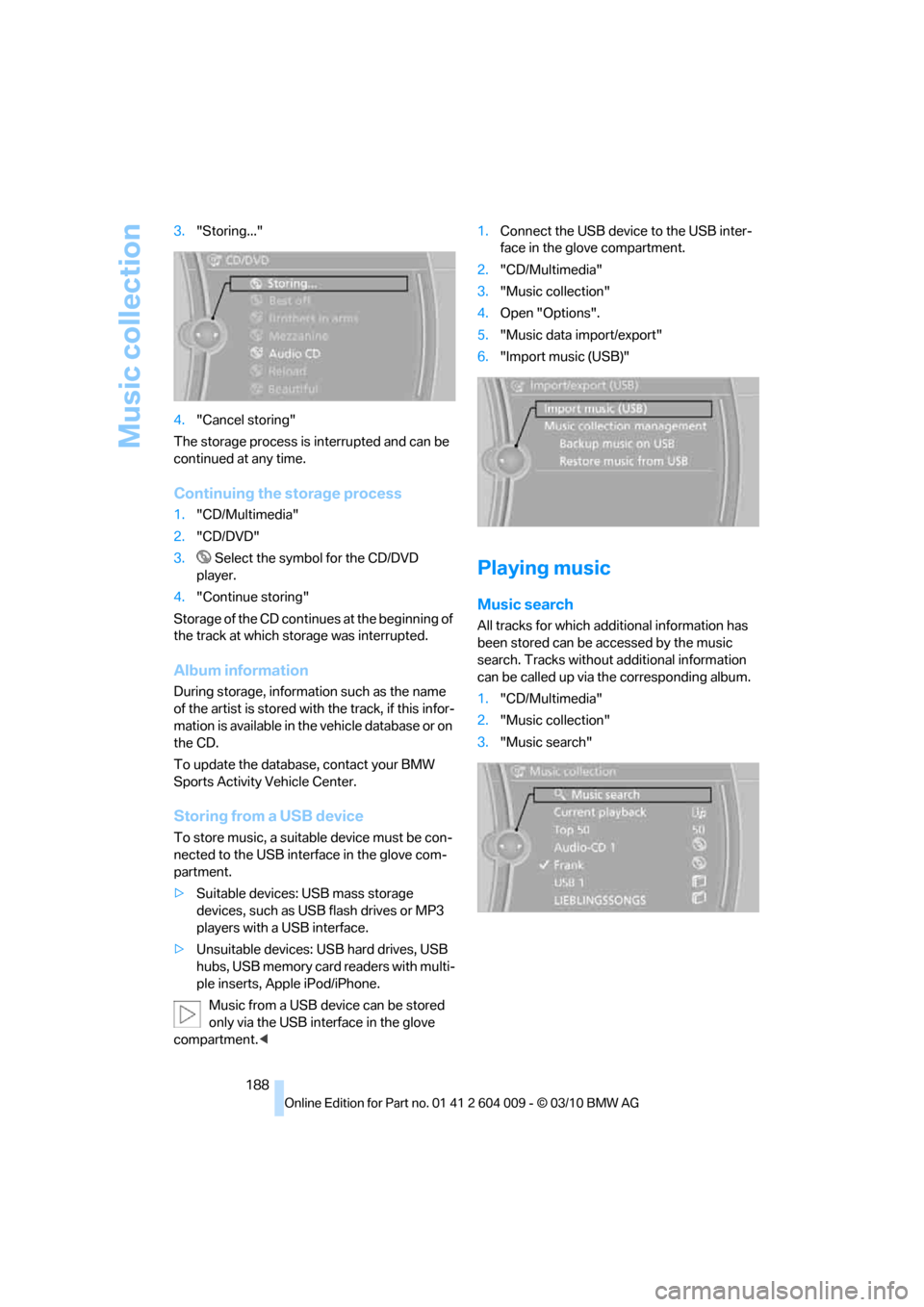
188 3."Storing..."
4."Cancel storing"
The storage process is interrupted and can be
continued at any time.
Continuing the storage process
1."CD/Multimedia"
2."CD/DVD"
3. Select the symbol for the CD/DVD
player.
4."Continue storing"
Storage of the CD continues at the beginning of
the track at which storage was interrupted.
Album information
During storage, information such as the name
of the artist is stored with the track, if this infor-
mation is available in the vehicle database or on
the CD.
To update the database, contact your BMW
Sports Activity Vehicle Center.
Storing from a USB device
To store music, a suitable device must be con-
nected to the USB interface in the glove com-
partment.
>Suitable devices: USB mass storage
devices, such as USB flash drives or MP3
players with a USB interface.
>Unsuitable devices: USB hard drives, USB
hubs, USB memory card readers with multi-
ple inserts, Apple iPod/iPhone.
Music from a USB device can be stored
only via the USB interface in the glove
compartment.<1.Connect the USB device to the USB inter-
face in the glove compartment.
2."CD/Multimedia"
3."Music collection"
4.Open "Options".
5."Music data import/export"
6."Import music (USB)"
Playing music
Music search
All tracks for which additional information has
been stored can be accessed by the music
search. Tracks without additional information
can be called up via the corresponding album.
1."CD/Multimedia"
2."Music collection"
3."Music search"
Page 194 of 312
External devices
192
External devices
Overview
AUX-IN connection
You can connect an external audio device, e.g.
an MP3 player, and play the sound via the vehi-
cle speakers. The sound can be adjusted via
iDrive.
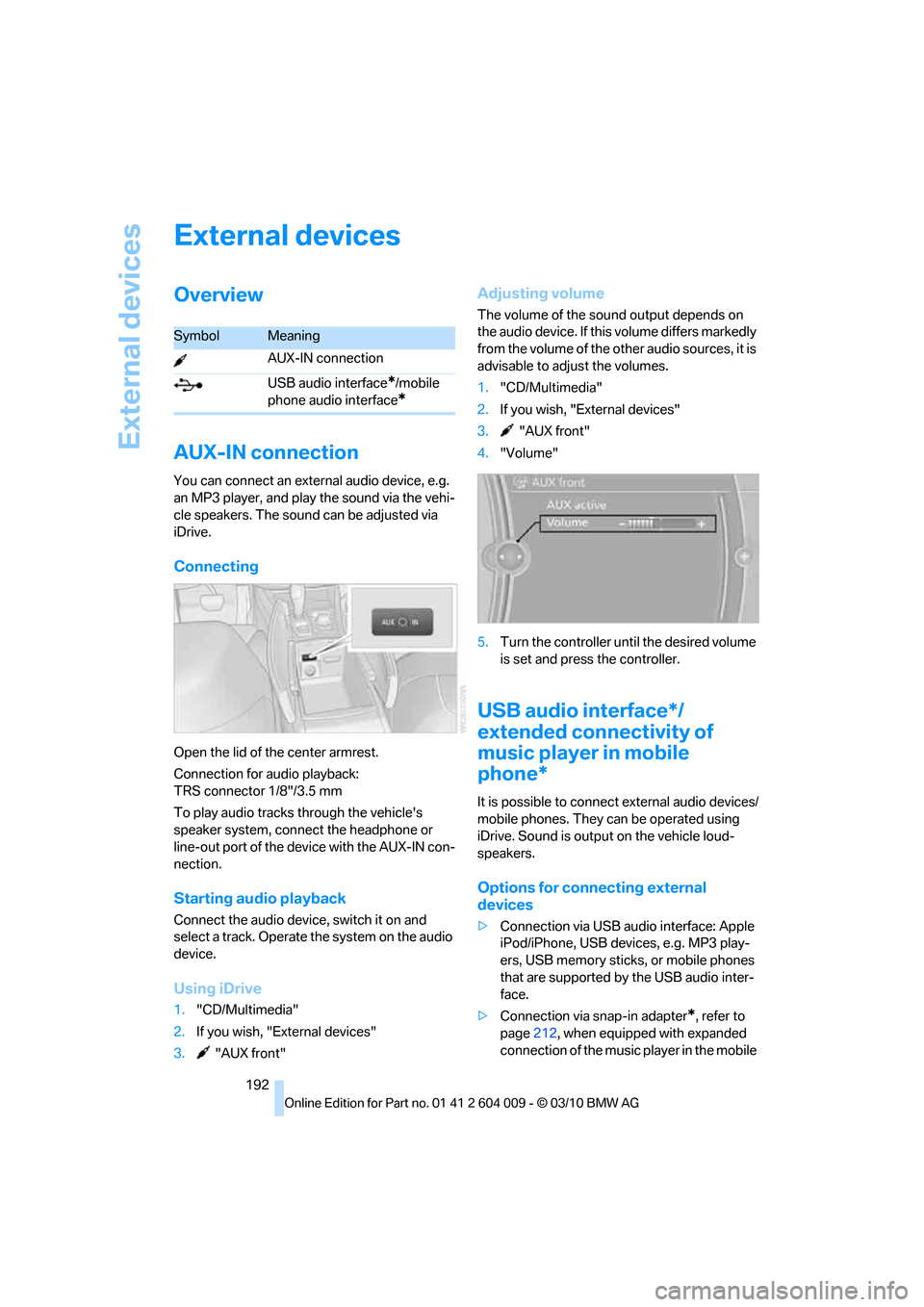
Connecting
Open the lid of the center armrest.
Connection for audio playback:
TRS connector 1/8"/3.5 mm
To play audio tracks through the vehicle's
speaker system, connect the headphone or
line-out port of the device with the AUX-IN con-
nection.
Starting audio playback
Connect the audio device, switch it on and
select a track. Operate the system on the audio
device.
Using iDrive
1."CD/Multimedia"
2.If you wish, "External devices"
3. "AUX front"
Adjusting volume
The volume of the sound output depends on
the audio device. If this volume differs markedly
from the volume of the other audio sources, it is
advisable to adjust the volumes.
1."CD/Multimedia"
2.If you wish, "External devices"
3. "AUX front"
4."Volume"
5.Turn the controller until the desired volume
is set and press the controller.
USB audio interface*/
extended connectivity of
music player in mobile
phone*
It is possible to connect external audio devices/
mobile phones. They can be operated using
iDrive. Sound is output on the vehicle loud-
speakers.
Options for connecting external
devices
>Connection via USB audio interface: Apple
iPod/iPhone, USB devices, e.g. MP3 play-
ers, USB memory sticks, or mobile phones
that are supported by the USB audio inter-
face.
>Connection via snap-in adapter
*, refer to
page212, when equipped with expanded
connection of the music player in the mobile
SymbolMeaning
AUX-IN connection
USB audio interface
*/mobile
phone audio interface
*