bmw x6 BMW X6 2012 E71 Repair Manual
[x] Cancel search | Manufacturer: BMW, Model Year: 2012, Model line: X6, Model: BMW X6 2012 E71Pages: 312, PDF Size: 8.91 MB
Page 164 of 312
Destination guidance
162 in the route planning. You can open all traffic
bulletins manually using iDrive.
The traffic bulletins are shown in the map dis-
play.
Real Time Traffic Information End-User
Provisions
Certain BMW models equipped with navigation
have the capability to display real-time traffic
information. If your system has this capability
the following additional terms and conditions
apply:
An End-User shall no longer have the right to
use the Traffic Data in the event that the End-
User is in material breach of the terms and con-
ditions contained herein.
A. Total Traffic Network, a division of Clear
Channel Broadcasting, Inc. ("Total Traffic Net-
work") holds the rights to the traffic incident
data and RDS-TMC network through which it is
delivered. You may not modify, copy, scan or
use any other method to reproduce, duplicate,
republish, transmit or distribute in any way any
portion of traffic incident data. You agree to
indemnify, defend and hold harmless BMW of
North America, LLC. ("BMW NA") and Total
Traffic Network, Inrix, Inc. (and their affiliates)
against any and all claims, damages, costs or
other expenses that arise directly or indirectly
out of (a) your unauthorized use of the traffic
incident data or the RDS-TMC network, (b) your
violation of this directive and/or (c) any unautho-
rized or unlawful activities by you in connection
herewith.
B. Total Traffic Network traffic data is informa-
tional only. User assumes all risk of use. Total
Traffic Network, BMW NA, and their suppliers
make no representations about content, traffic
and road conditions, route usability, or speed.
C. The licensed material is provided to license
"as is," and "where is". Total Traffic Network,
including, but not limited to, any and all third
party providers of any of the licensed material,
expressly disclaims, to the fullest extent permit-
ted by law, all warranties or representations
with respect to the licensed material (including,
without limitation, that the licensed material will be error-free, will operate without interruption
or that the traffic data will be accurate), express,
implied or statutory, including, without limita-
tion, the implied warranties of merchantability,
non-infringement fitness for a particular pur-
pose, or those arising from a course of dealing
or usage of trade.
D. Neither Total Traffic Network, Inrix, Inc. nor
BMW NA will be liable to you for any indirect,
special, consequential, exemplary, or incidental
damages (including, without limitation, lost rev-
enues, anticipated revenues, or profits relating
to the same) arising from any claim relating
directly or indirectly to use of the traffic data,
and even if Total Traffic Network, Inrix, Inc. or
BMW NA is aware of the possibility of such
damages. These limitations apply to all claims,
including, without limitation, claims in contract
and tort (such as negligence, product liability
and strict liability). Some states do not allow the
exclusion or limitation of incidental or conse-
quential damages, so those particular limita-
tions may not apply to you.
Activating/deactivating reception
1."Navigation"
2.Open "Options".
3.Activate/deactivate "Receive Traffic Info".
Traffic bulletins in a list
A list of the traffic bulletins can be opened via
the menu or map display.
Opening traffic bulletins
1."Navigation"
2."Map"
3.Move the controller to the left, if necessary.
4.Select the symbol: "Traffic Info"
First, the traffic bulletins on the planned
route are displayed. The traffic bulletins are
sorted in the order of their distance from the
current vehicle position.
5.Select a traffic bulletin.
Additional information can be displayed for
some traffic bulletins:
Page 185 of 312
Navigation
Entertainment
Driving tips
183Reference
At a glance
Controls
Communications
Mobility
4."Zoom mode"
Selecting title
DVD video:
1.Turn the controller when the DVD menu is
displayed.
2.Open "Options".
3."Additional options"
4."Select title"
5.Select the desired track.
VCD/SVCD:
1."Select track"
2.Select the desired track.
Camera angle*
The camera angle depends on the DVD.
1.Turn the controller during playback.
2.Open "Options".
3."Additional options"
4."Viewing angle"
5.Select the desired camera angle.
Opening the main menu, back
These functions are not contained on every
DVD. Therefore, they may not be available for
use.
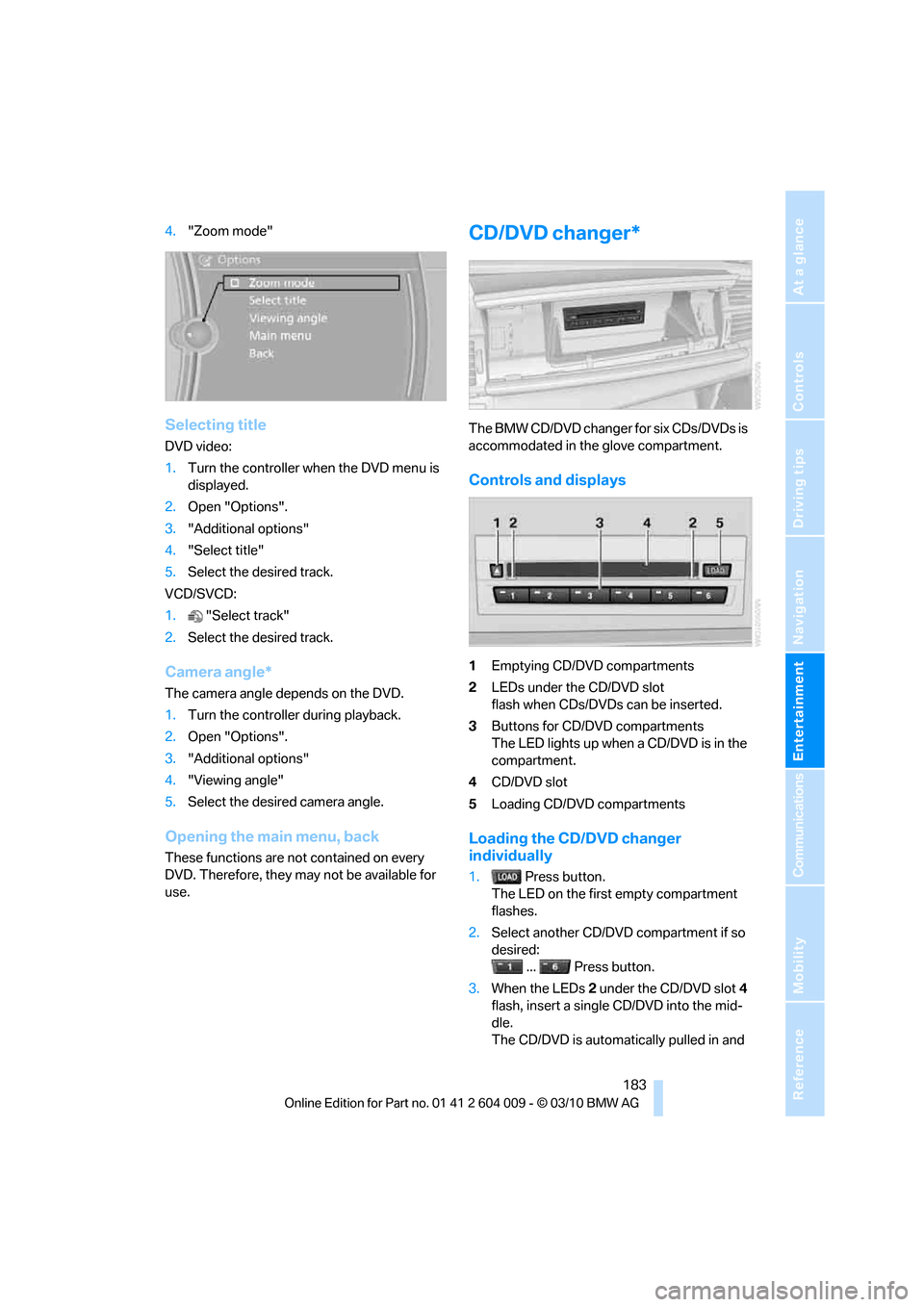
CD/DVD changer*
The BMW CD/DVD changer for six CDs/DVDs is
accommodated in the glove compartment.
Controls and displays
1Emptying CD/DVD compartments
2LEDs under the CD/DVD slot
flash when CDs/DVDs can be inserted.
3Buttons for CD/DVD compartments
The LED lights up when a CD/DVD is in the
compartment.
4CD/DVD slot
5Loading CD/DVD compartments
Loading the CD/DVD changer
individually
1. Press button.
The LED on the first empty compartment
flashes.
2.Select another CD/DVD compartment if so
desired:
... Press button.
3.When the LEDs 2 under the CD/DVD slot4
flash, insert a single CD/DVD into the mid-
dle.
The CD/DVD is automatically pulled in and
Page 187 of 312
Navigation
Entertainment
Driving tips
185Reference
At a glance
Controls
Communications
Mobility
Selecting the language*
The languages that are available depend on the
DVD.
1."CD/Multimedia"
2."CD/DVD"
3.Select the desired DVD.
4.Open "Options".
5."Audio/language"
6.Select the desired language.
Notes
BMW CD/DVD players and changers are
officially designated Class 1 laser prod-
ucts. Do not operate if the cover is damaged,
otherwise severe eye damage can result.
Do not use self-recorded CDs/DVDs with labels
applied as these can become detached during
playback due to heat buildup and can cause
irreparable damage to the device.
Only use round CDs/DVDs with a standard
diameter of 4.7 inch/12 cm and do not play
CDs/DVDs with an adapter, e.g. CD singles, as
otherwise the CDs or the adapter may jam and
no longer eject properly.
Do not use a combined CD/DVD, e.g. DVD
Plus,
otherwise the CD/DVD may jam and no longer
eject properly.<
General malfunctions
BMW CD/DVD changers and players have been
optimized for performance in vehicles. In some
instances they may be more sensitive to faulty
CDs/DVDs than stationary devices would be.
If a CD/DVD cannot be played, first check
whether it has been inserted correctly.
Humidity
High levels of humidity can lead to condensa-
tion on the CD/DVD or the laser's scan lens and
temporarily prevent playback.
Malfunctions with individual CDs/DVDs
If malfunctions occur only with particular CDs/
DVDs, this can be due to one of the following
causes:
Self-recorded CDs/DVDs
Possible reasons for malfunctions with self-
recorded CDs/DVDs are, e.g., inconsistent
data-creation or recording processes, or poor
quality or old age of the CD/DVD blank.
Only label CDs/DVDs on the upper side with a
pen intended for this purpose.
Damage
Avoid fingerprints, dust, scratches and mois-
ture.
Store CDs/DVDs in a sleeve.
Do not subject CDs/DVDs to temperatures
above 1227/506, nor to high humidity levels
or direct sunlight.
CDs/DVDs with copy protection
CDs/DVDs are often provided with a copy pro-
tection feature by the manufacturer. This can
m e a n t h a t s o m e C D s / D V D s c a n n o t b e p l a y e d o r
can only be played to a limited extent.
MACROVISION
This product contains copyrighted technology
that is based on multiple registered U.S. pat-
ents and the intellectual property of the Macro-
vision Corporation and other manufacturers.
Use of this copyrighted material must be
approved by Macrovision. Unless otherwise
agreed with Macrovision, media with this pro-
tection may only be used for private purposes.
The copying of this technology is strictly forbid-
den.
DTS Digital Surround™
Manufactured under license under U.S.
Patent Numbers: 5,451,942;
5,956,674; 5,974,380; 5,978,762; 6,487,535 &
and other patents granted and registered in the
USA and worldwide. DTS and the logo are reg-
istered trademarks & DTS Digital Surround and
Page 190 of 312
Music collection
188 3."Storing..."
4."Cancel storing"
The storage process is interrupted and can be
continued at any time.
Continuing the storage process
1."CD/Multimedia"
2."CD/DVD"
3. Select the symbol for the CD/DVD
player.
4."Continue storing"
Storage of the CD continues at the beginning of
the track at which storage was interrupted.
Album information
During storage, information such as the name
of the artist is stored with the track, if this infor-
mation is available in the vehicle database or on
the CD.
To update the database, contact your BMW
Sports Activity Vehicle Center.
Storing from a USB device
To store music, a suitable device must be con-
nected to the USB interface in the glove com-
partment.
>Suitable devices: USB mass storage
devices, such as USB flash drives or MP3
players with a USB interface.
>Unsuitable devices: USB hard drives, USB
hubs, USB memory card readers with multi-
ple inserts, Apple iPod/iPhone.
Music from a USB device can be stored
only via the USB interface in the glove
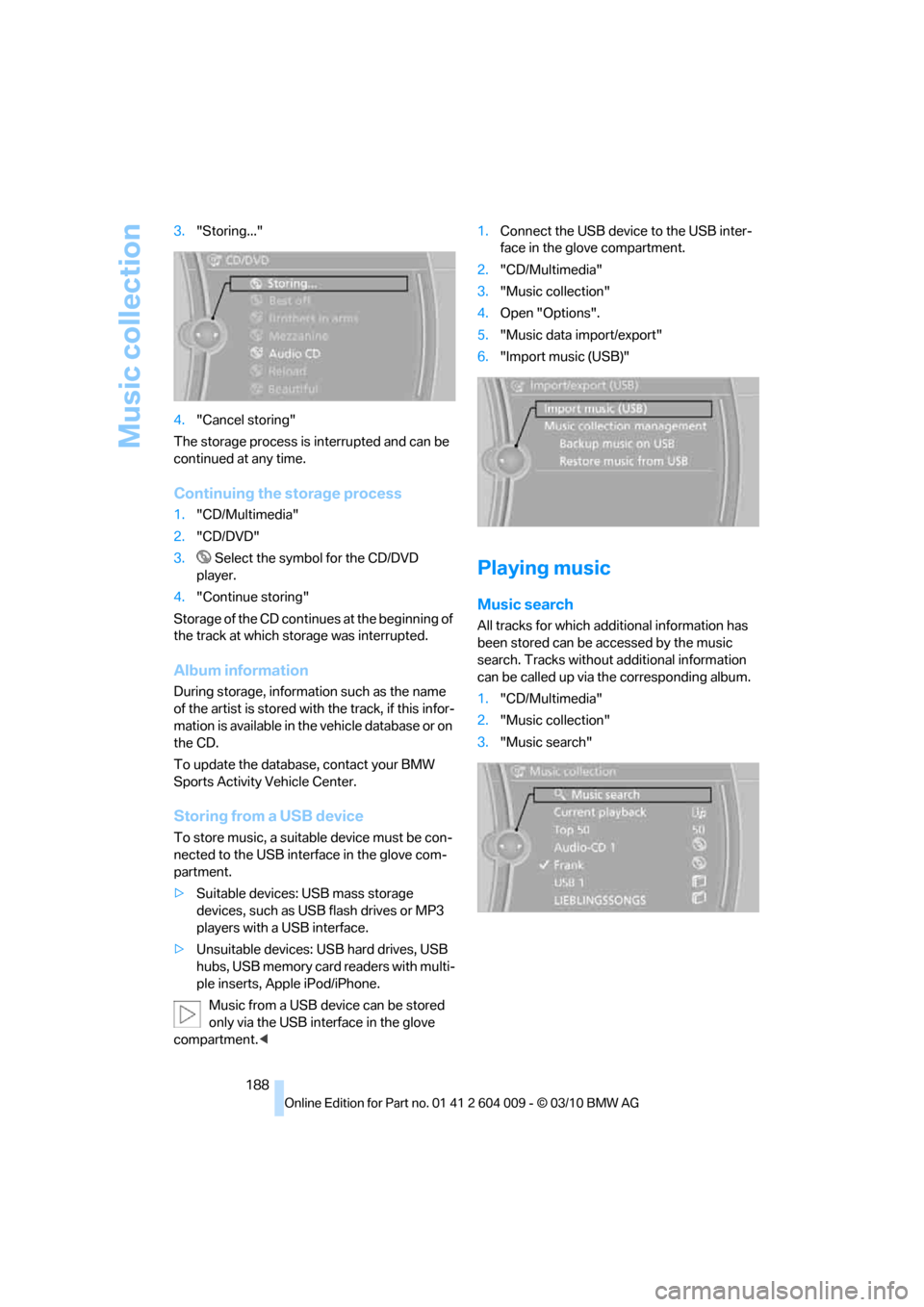
compartment.<1.Connect the USB device to the USB inter-
face in the glove compartment.
2."CD/Multimedia"
3."Music collection"
4.Open "Options".
5."Music data import/export"
6."Import music (USB)"
Playing music
Music search
All tracks for which additional information has
been stored can be accessed by the music
search. Tracks without additional information
can be called up via the corresponding album.
1."CD/Multimedia"
2."Music collection"
3."Music search"
Page 195 of 312
Navigation
Entertainment
Driving tips
193Reference
At a glance
Controls
Communications
Mobility
phone: Apple iPhone/mobile phones. Play-
back is possible only if no audio device/
mobile phone is connected to the USB
audio interface.
Due to the vast array of audio devices/mobile
phones on the market, it is not possible to
assure that every audio device/mobile phone
can be operated via the vehicle.
Ask your BMW Sports Activity Vehicle Center,
which audio devices/mobile phones are com-
patible.
Audio files
Standard audio formats, e.g. MP3, WMA, WAV
(PCM) and AAC, and playlists in the M3U format
can be played.
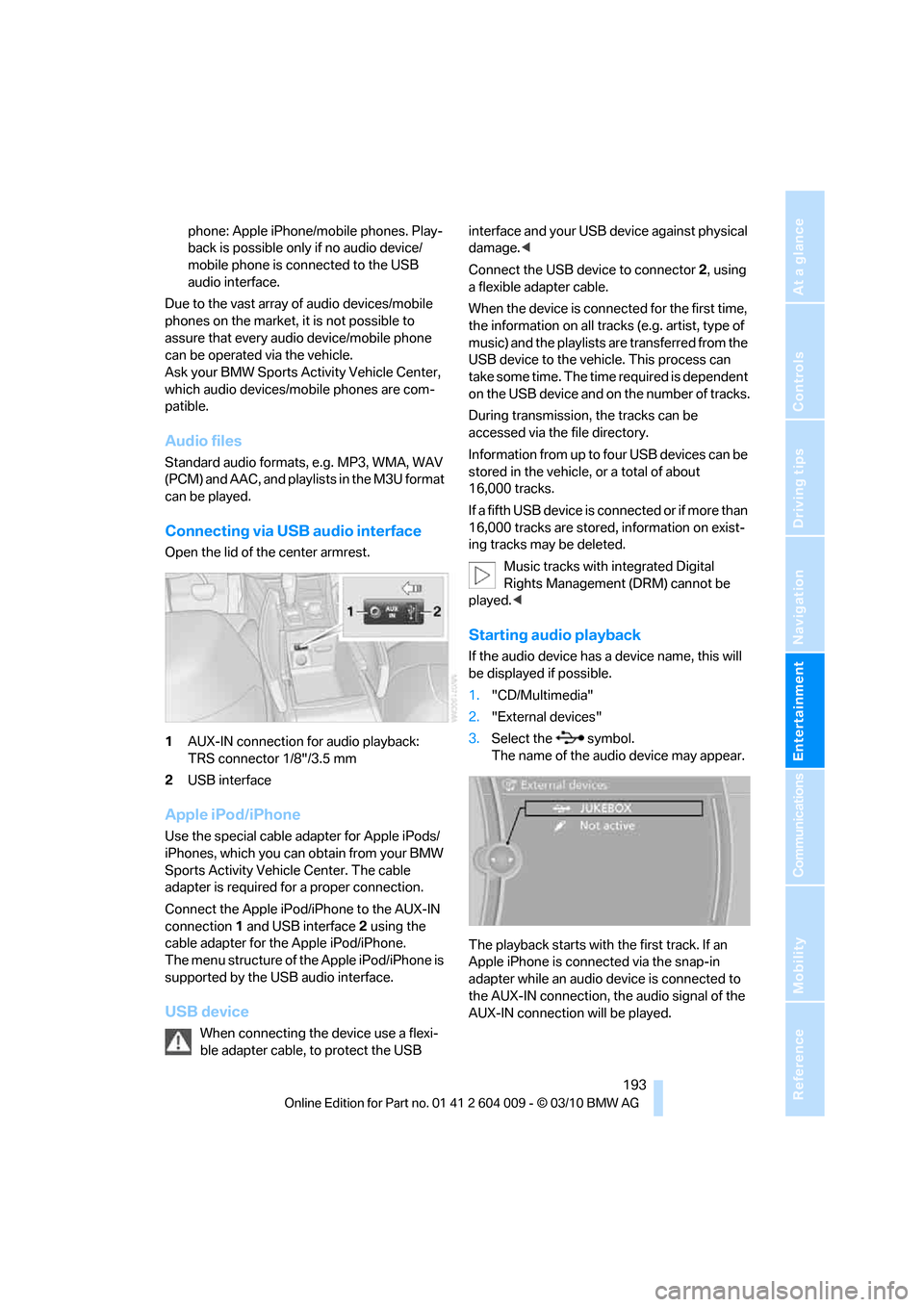
Connecting via USB audio interface
Open the lid of the center armrest.
1AUX-IN connection for audio playback:
TRS connector 1/8"/3.5 mm
2USB interface
Apple iPod/iPhone
Use the special cable adapter for Apple iPods/
iPhones, which you can obtain from your BMW
Sports Activity Vehicle Center. The cable
adapter is required for a proper connection.
Connect the Apple iPod/iPhone to the AUX-IN
connection1 and USB interface2 using the
cable adapter for the Apple iPod/iPhone.
The menu structure of the Apple iPod/iPhone is
supported by the USB audio interface.
USB device
When connecting the device use a flexi-
ble adapter cable, to protect the USB interface and your USB device against physical
damage.<
Connect the USB device to connector 2, using
a flexible adapter cable.
When the device is connected for the first time,
the information on all tracks (e.g. artist, type of
music) and the playlists are transferred from the
USB device to the vehicle. This process can
take some time. The time required is dependent
on the USB device and on the number of tracks.
During transmission, the tracks can be
accessed via the file directory.
Information from up to four USB devices can be
stored in the vehicle, or a total of about
16,000 tracks.
I f a f i f t h U S B d e v i c e i s c o n n e c t e d o r i f m o r e t h a n
16,000 tracks are stored, information on exist-
ing tracks may be deleted.
Music tracks with integrated Digital
Rights Management (DRM) cannot be
played.<
Starting audio playback
If the audio device has a device name, this will
be displayed if possible.
1."CD/Multimedia"
2."External devices"
3.Select the symbol.
The name of the audio device may appear.
The playback starts with the first track. If an
Apple iPhone is connected via the snap-in
adapter while an audio device is connected to
the AUX-IN connection, the audio signal of the
AUX-IN connection will be played.
Page 199 of 312
Navigation
Entertainment
Driving tips
197Reference
At a glance
Controls
Communications
Mobility
1.Turn display screen, arrow1.
The display screen switches off.
2.Fold in display screen, arrow2.
The display screen is folded out in the reverse
order.
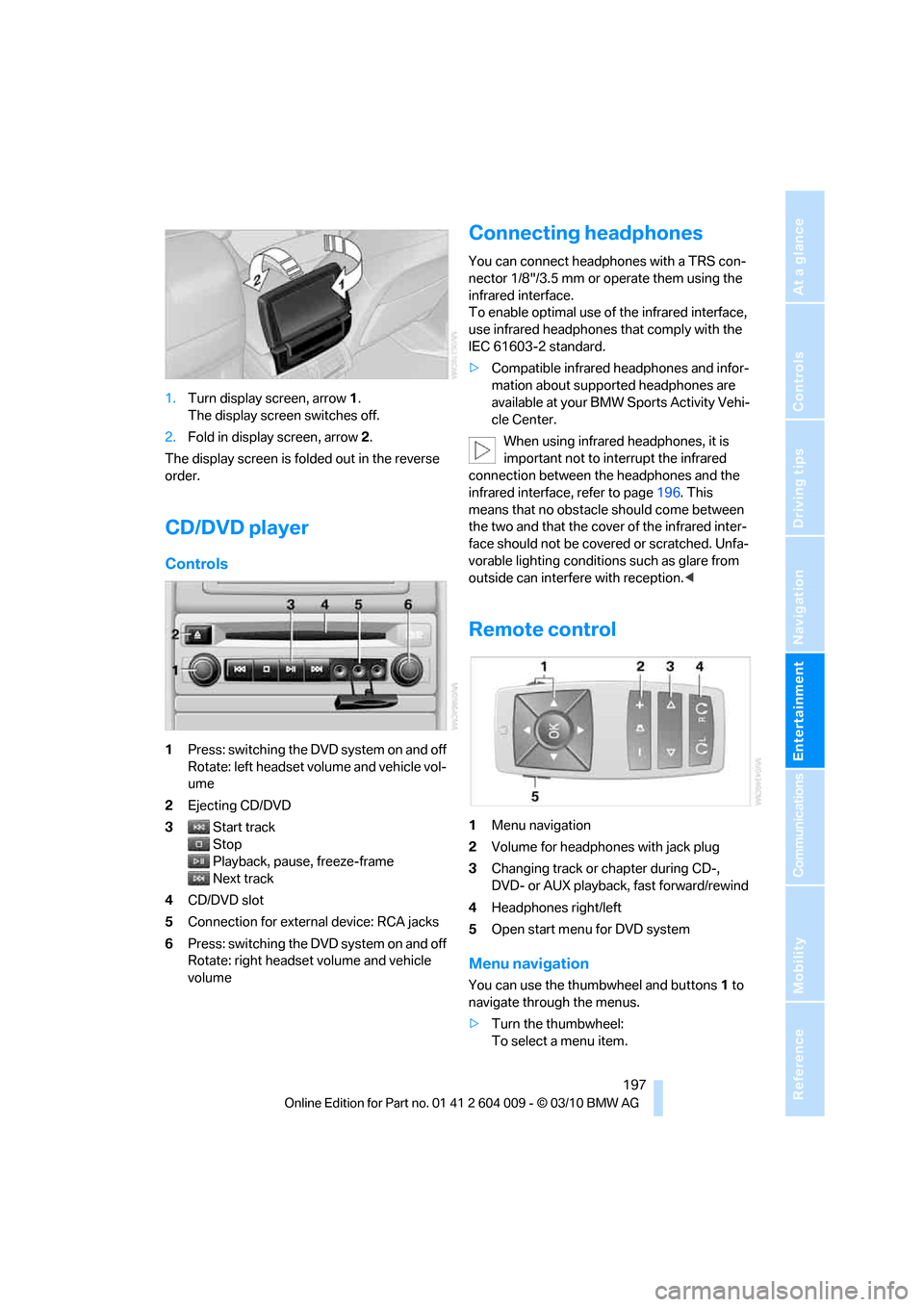
CD/DVD player
Controls
1Press: switching the DVD system on and off
Rotate: left headset volume and vehicle vol-
ume
2Ejecting CD/DVD
3Start track
Stop
Playback, pause, freeze-frame
Next track
4CD/DVD slot
5Connection for external device: RCA jacks
6Press: switching the DVD system on and off
Rotate: right headset volume and vehicle
volume
Connecting headphones
You can connect headphones with a TRS con-
nector 1/8"/3.5 mm or operate them using the
infrared interface.
To enable optimal use of the infrared interface,
use infrared headphones that comply with the
IEC 61603-2 standard.
>Compatible infrared headphones and infor-
mation about supported headphones are
available at your BMW Sports Activity Vehi-
cle Center.
When using infrared headphones, it is
important not to interrupt the infrared
connection between the headphones and the
infrared interface, refer to page196. This
means that no obstacle should come between
the two and that the cover of the infrared inter-
face should not be covered or scratched. Unfa-
vorable lighting conditions such as glare from
outside can interfere with reception.<
Remote control
1Menu navigation
2Volume for headphones with jack plug
3Changing track or chapter during CD-,
DVD- or AUX playback, fast forward/rewind
4Headphones right/left
5Open start menu for DVD system
Menu navigation
You can use the thumbwheel and buttons1 to
navigate through the menus.
>Turn the thumbwheel:
To select a menu item.
Page 200 of 312
DVD system in rear
198 >Press the arrow buttons:
To switch between windows.
>Press the button:
To activate the menu item.
The transmission time of the remote control is
limited in accordance with legal guidelines. A
function can be repeated by pressing or turning
the appropriate button or knob.
Changing batteries
1.Press the detent and remove the cover.
2.Change the batteries. The type and installa-
tion position are marked on the bottom of
the battery compartment.
3.Close the cover.
Return old batteries to a recycling center
or to your BMW Sports Activity Vehicle
Center.<
Setting the language of the
DVD system
1.Select a CD/DVD track.
2.Press the button.
3.Select "Tone".
4.Press the button.
5.Switch to the top window.
6.Select "Language".
7.Press the button.
8.Select the desired language.
9.Press the button.
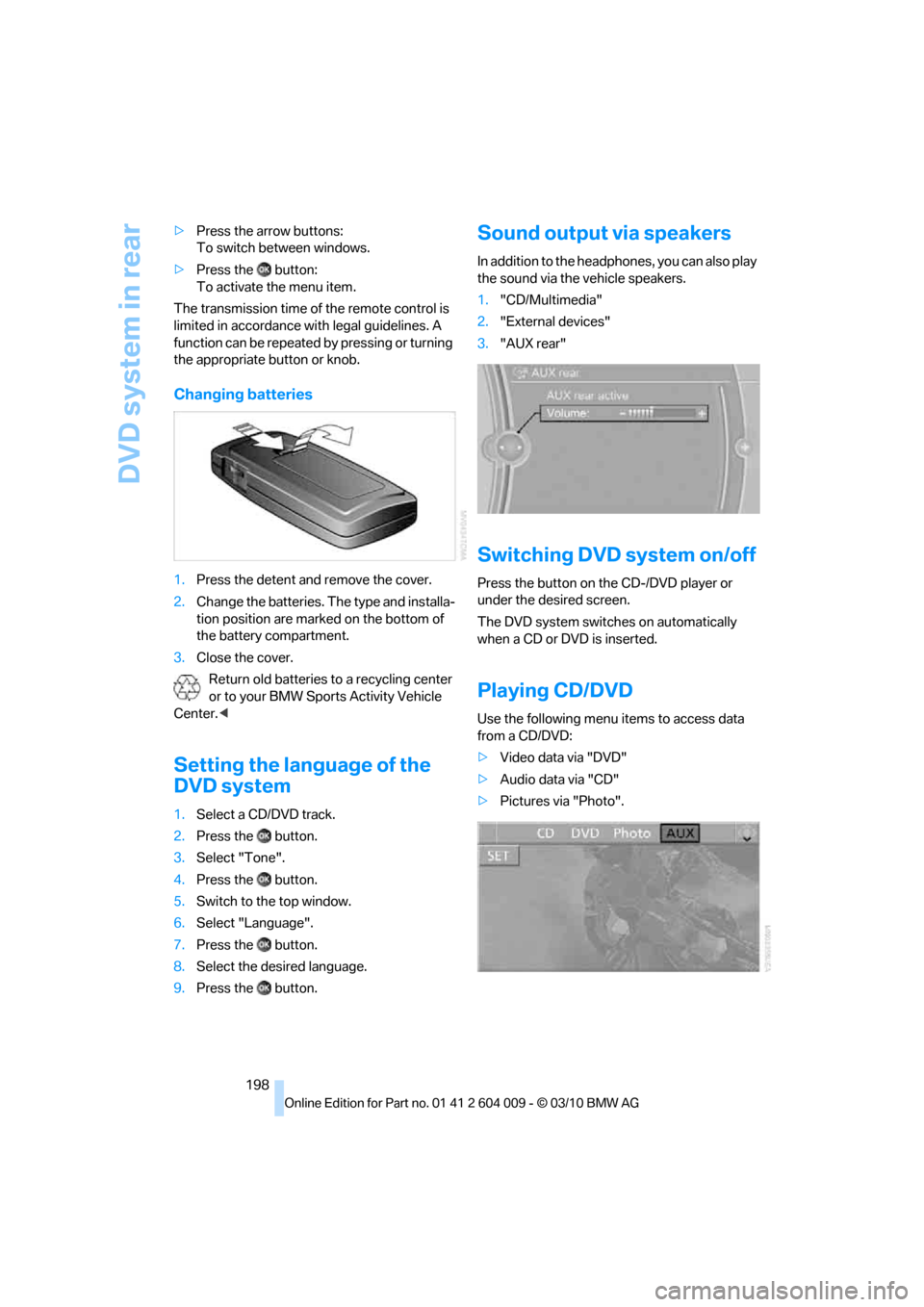
Sound output via speakers
In addition to the headphones, you can also play
the sound via the vehicle speakers.
1."CD/Multimedia"
2."External devices"
3."AUX rear"
Switching DVD system on/off
Press the button on the CD-/DVD player or
under the desired screen.
The DVD system switches on automatically
when a CD or DVD is inserted.
Playing CD/DVD
Use the following menu items to access data
from a CD/DVD:
>Video data via "DVD"
>Audio data via "CD"
>Pictures via "Photo".
Page 207 of 312
Navigation
Entertainment
Driving tips
205Reference
At a glance
Controls
Communications
Mobility
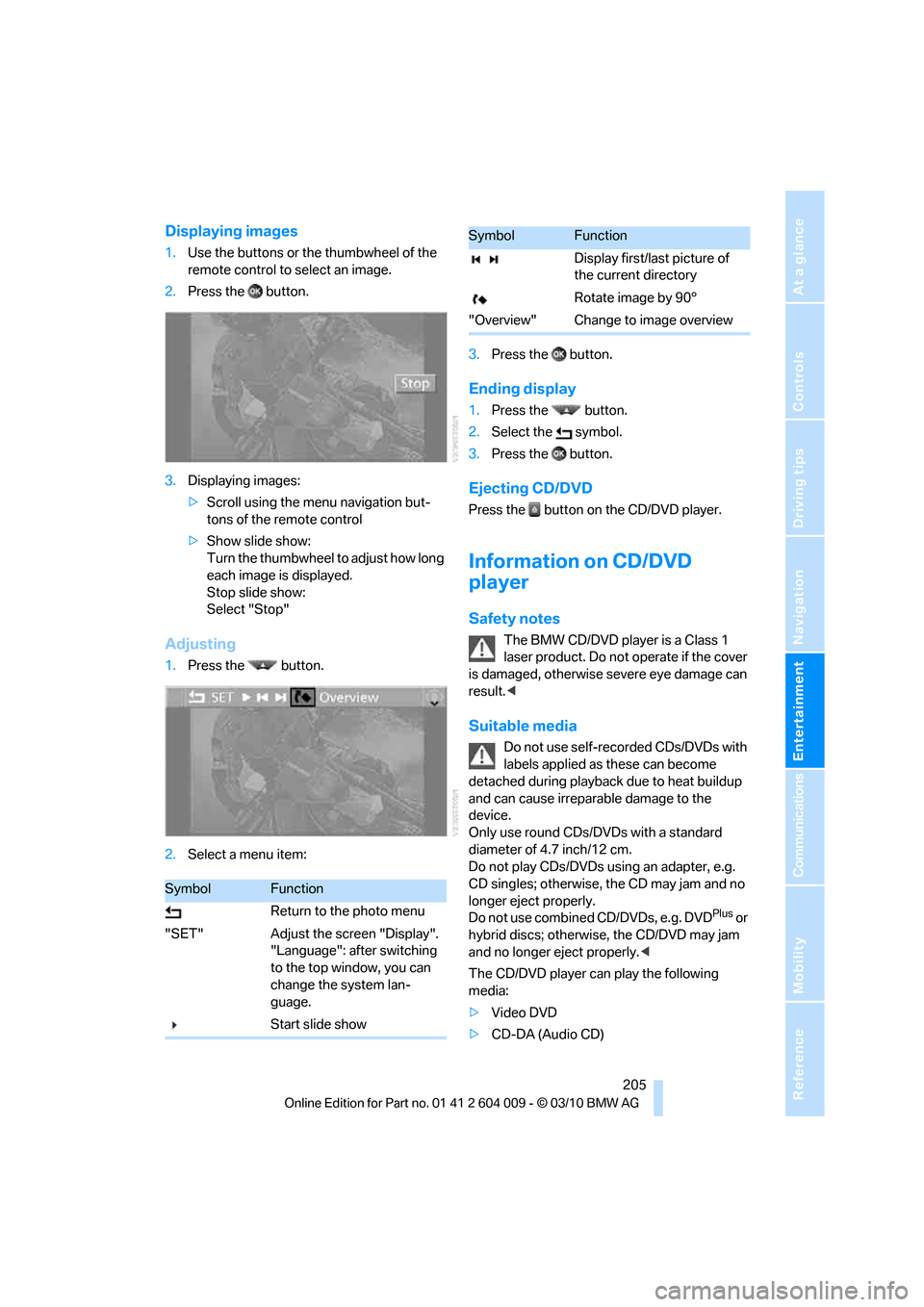
Displaying images
1.Use the buttons or the thumbwheel of the
remote control to select an image.
2.Press the button.
3.Displaying images:
>Scroll using the menu navigation but-
tons of the remote control
>Show slide show:
Turn the thumbwheel to adjust how long
each image is displayed.
Stop slide show:
Select "Stop"
Adjusting
1.Press the button.
2.Select a menu item:3.Press the button.
Ending display
1.Press the button.
2.Select the symbol.
3.Press the button.
Ejecting CD/DVD
Press the button on the CD/DVD player.
Information on CD/DVD
player
Safety notes
The BMW CD/DVD player is a Class 1
laser product. Do not operate if the cover
is damaged, otherwise severe eye damage can
result.<
Suitable media
Do not use self-recorded CDs/DVDs with
labels applied as these can become
detached during playback due to heat buildup
and can cause irreparable damage to the
device.
Only use round CDs/DVDs with a standard
diameter of 4.7 inch/12 cm.
Do not play CDs/DVDs using an adapter, e.g.
CD singles; otherwise, the CD may jam and no
longer eject properly.
Do not use combined CD/DVDs, e.g. DVD
Plus or
hybrid discs; otherwise, the CD/DVD may jam
and no longer eject properly.<
The CD/DVD player can play the following
media:
>Video DVD
>CD-DA (Audio CD)
SymbolFunction
Return to the photo menu
"SET" Adjust the screen "Display".
"Language": after switching
to the top window, you can
change the system lan-
guage.
Start slide show
Display first/last picture of
the current directory
Rotate image by 90°
"Overview" Change to image overview
SymbolFunction
Page 208 of 312
DVD system in rear
206 >CDs/DVDs with compressed image data
>CDs/DVDs with compressed audio data
>CDs/DVDs with compressed video data
The DVD player does not support DVD audio.
However, many audio DVDs available in stores
also contain a video track in the DVD Video for-
mat in addition to the audio track. These DVDs
can be played back by the DVD player. Refer to
the information on your DVD to determine
whether your audio DVD contains an additional
video track. Depending on the authoring used, it
is possible that not all functions are available
during playback.
Dual-sided DVDs available from retail suppliers
are coated on both sides and bear no markings.
This means both sides are information carriers.
To play the information on the other side, turn
over the DVD.
Supported formats
Depending on the compression method used,
not all files of the specified formats can be
opened.
Images
JPEG/JPG
With very large image files, it can take longer for
the images to be displayed.
Compressed audio files
>MP3
>WMA
>OGG
>AAC
Compressed video files
>SVCD
>MPEG1
>MPEG2
>MPEG4/DivX
Digital Rights Management (DRM)
In some cases, it may not be possible to play
CDs/DVDs with integrated Digital Rights Man-
agement (DRM).
General malfunctions
The BMW CD/DVD player is optimized for oper-
ation in the vehicle. It may react more sensi-
tively to defective CDs/DVDs than devices
intended for stationary use.
If a CD/DVD cannot be played, first check
whether it has been inserted correctly.
Make sure that no foreign objects or liq-
uids get into the CD/DVD slot; otherwise,
the CD/DVD player will be damaged.<
Humidity
High levels of humidity can lead to condensa-
tion on the CD/DVD or the laser's scan lens and
temporarily prevent playback.
Malfunctions with individual CDs/DVDs
If malfunctions occur only with particular CDs/
DVDs, this can be due to one of the following
causes.
Copied or self-recorded CDs/DVDs
Possible reasons for malfunctions with copied
or self-recorded CDs/DVDs may include incon-
sistent data-creation or recording processes, or
poor quality or significant aging of the CD/DVD
blank.
Only label CDs/DVDs on the upper side with a
pen intended for this purpose.
Damaged CDs/DVDs
Avoid fingerprints, dust, scratches and mois-
ture.
Store CDs/DVDs in a sleeve.
Do not subject CDs/DVDs to temperatures
above 1227/506 o r t o h i g h h u m i d i t y l e v e l s o r
direct sunlight.
CDs/DVDs with copy protection
CDs/DVDs are often provided with a copy pro-
tection feature by the manufacturer. As a result,
Page 213 of 312
Communications
This chapter summarizes how to operate your
mobile phone using iDrive or voice command
and how to use BMW Assist or BMW
TeleService.
Communications