ACC BMW X6 2012 E71 Manual Online
[x] Cancel search | Manufacturer: BMW, Model Year: 2012, Model line: X6, Model: BMW X6 2012 E71Pages: 312, PDF Size: 8.91 MB
Page 160 of 312
Destination guidance
158
Destination guidance
Starting destination
guidance
1."Navigation"
2."Enter address"
3.Select the destination.
4."Accept destination"
5."Start guidance"
The route is displayed on the Control Display
after it is calculated.
The distance to the destination/intermediate
destination and the estimated time of arrival are
displayed in the map view.
Terminating destination
guidance
1."Navigation"
2."Map"
3.Select the symbol.
4."Stop guidance"
Continuing destination
guidance
If the destination was not reached during the
last trip, destination guidance can be resumed.
"Resume guidance"
Route criteria
General information
You can influence the calculated route by
choosing certain route criteria. You can change
the route criteria as often as you like while
entering the destination and whenever the des-
tination guidance is active.
The route is planned according to fixed rules.
The road type is taken into account, e.g. whether it is a highway or a winding road. As a
result, the routes recommended by the naviga-
tion system may not always be the same ones
that you would choose based on personal expe-
rience.
The settings are stored for the remote control
currently in use.
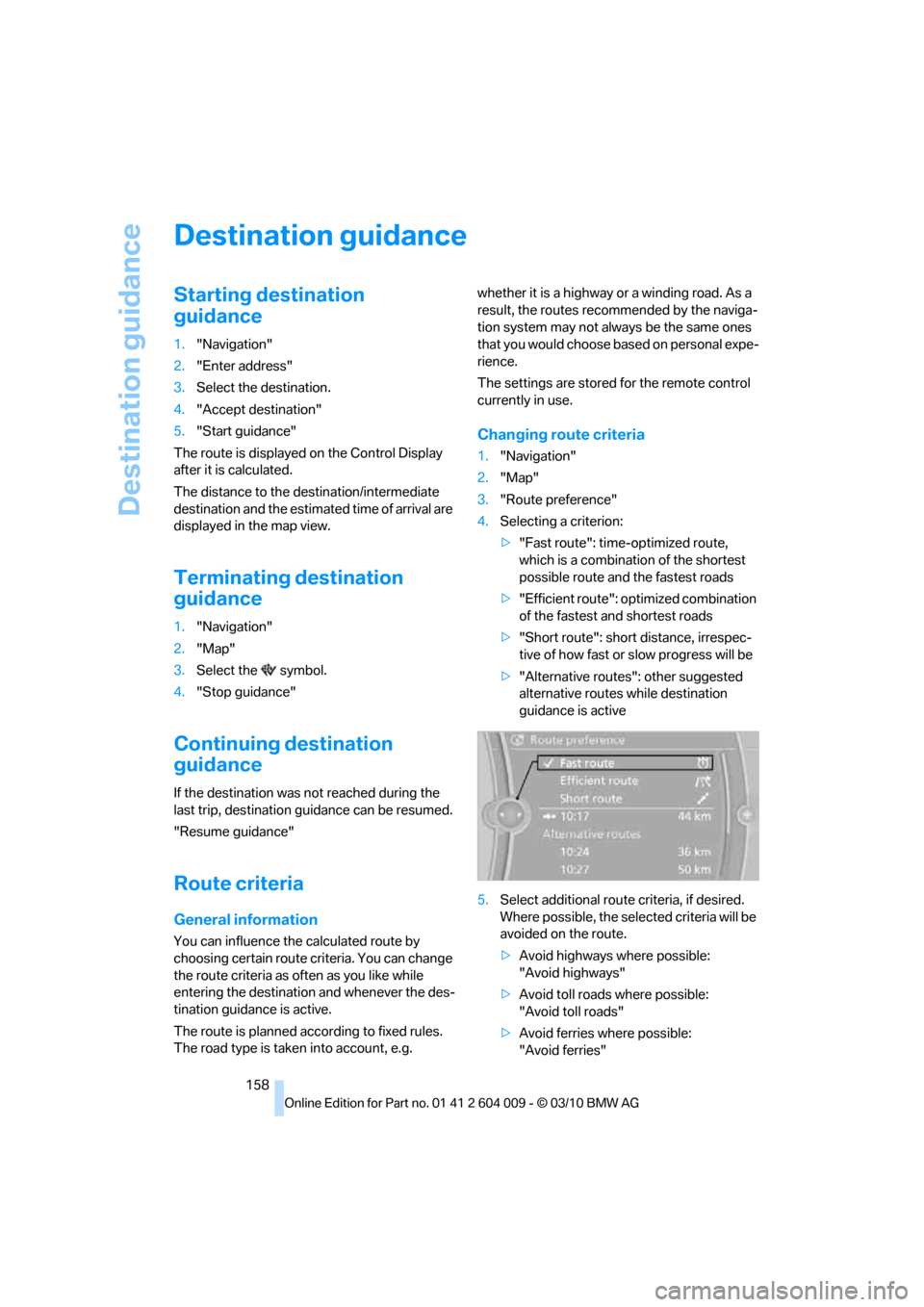
Changing route criteria
1."Navigation"
2."Map"
3."Route preference"
4.Selecting a criterion:
>"Fast route": time-optimized route,
which is a combination of the shortest
possible route and the fastest roads
>"Efficient route": optimized combination
of the fastest and shortest roads
>"Short route": short distance, irrespec-
tive of how fast or slow progress will be
>"Alternative routes": other suggested
alternative routes while destination
guidance is active
5.Select additional route criteria, if desired.
Where possible, the selected criteria will be
avoided on the route.
>Avoid highways where possible:
"Avoid highways"
>Avoid toll roads where possible:
"Avoid toll roads"
>Avoid ferries where possible:
"Avoid ferries"
Page 162 of 312
Destination guidance
160
Destination guidance via
voice instructions
Switching voice instructions on/off
Voice instructions can be switched on or off
during destination guidance.
1."Navigation"
2."Map"
3.Select the symbol.
For rapid access, the feature can be stored on a
programmable memory button, refer to
page20.
Repeating a voice instruction
1."Navigation"
2."Map"
3. Highlight the symbol.
4.Press the controller twice.
Adjusting the volume of voice
instructions*
The volume can be adjusted only while a voice
instruction is being issued.
1.Repeat the last voice instruction, if neces-
sary.
2.Turn the knob during the voice instruction
to select the desired volume.
The setting is stored for the remote control cur-
rently in use.
Map display
Displaying map view
You can have your current position displayed on
a map. After starting the destination guidance,
the planned route is shown on the map.
1."Navigation"
2."Map"
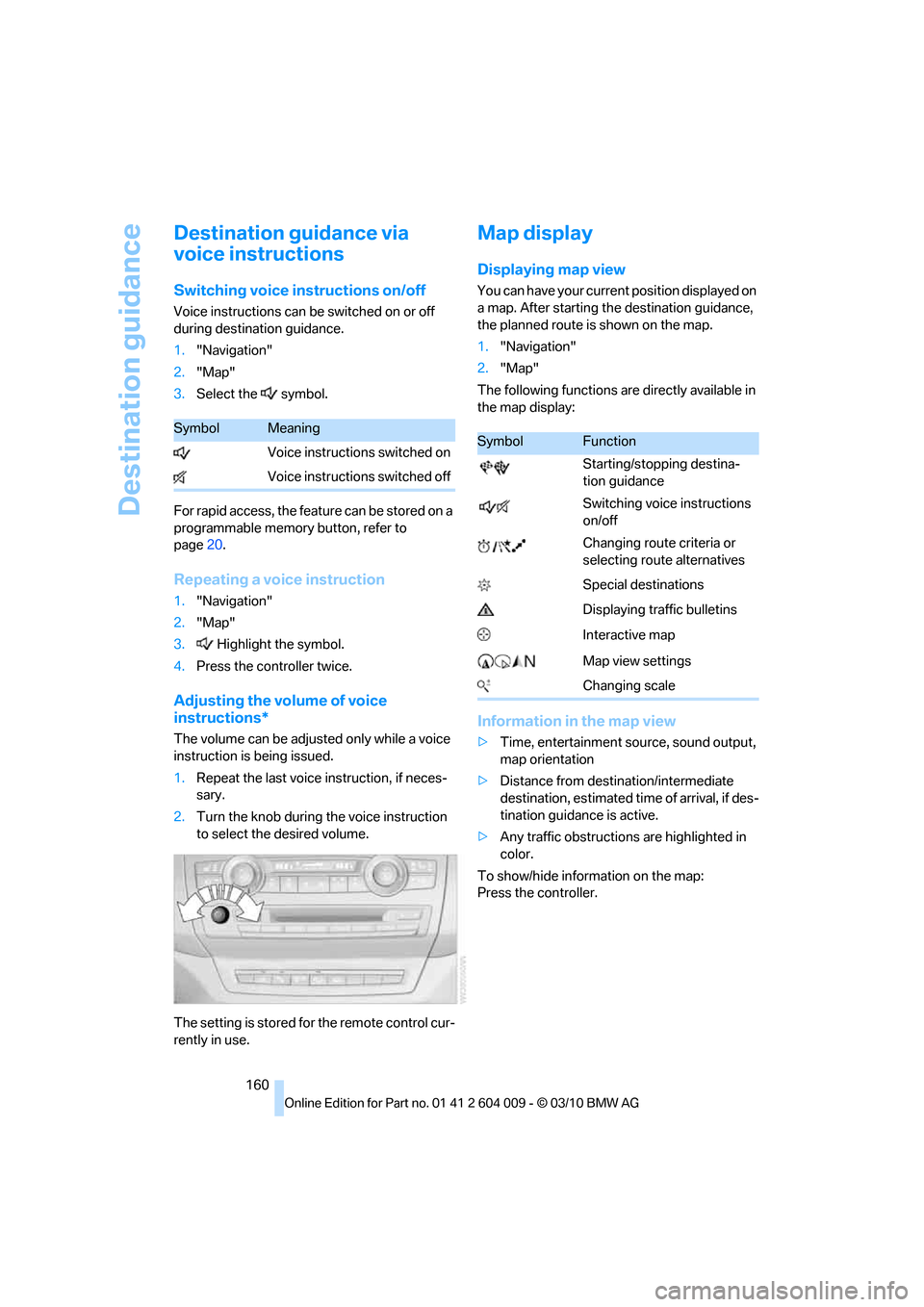
The following functions are directly available in
the map display:
Information in the map view
>Time, entertainment source, sound output,
map orientation
>Distance from destination/intermediate
destination, estimated time of arrival, if des-
tination guidance is active.
>Any traffic obstructions are highlighted in
color.
To show/hide information on the map:
Press the controller.
SymbolMeaning
Voice instructions switched on
Voice instructions switched offSymbolFunction
Starting/stopping destina-
tion guidance
Switching voice instructions
on/off
Changing route criteria or
selecting route alternatives
Special destinations
Displaying traffic bulletins
Interactive map
Map view settings
Changing scale
Page 163 of 312
Navigation
Driving tips
161Reference
At a glance
Controls
Communications
Entertainment
Mobility
Viewing the map
1.Select the symbol.
2.Select a setting:
>"View facing north"
>"View in dir. of travel"
>"Perspective view"
>"Arrow display"
3.Press the controller.
Changing map scale
Select "Interactive map".
>Moving map: move the controller in the cor-
responding direction.
>Shifting map diagonally: move the control-
ler in the corresponding direction and turn
the controller.
Changing scale
1.Select the symbol.
2.Turn the controller to change the scale.
Automatic scaling of the map
In the map display facing north, turn the control-
ler in any direction until AUTO is displayed as
the map scale.
The map shows the entire range from your loca-
tion to the destination.
Settings for the map display
The map appears on the Control Display.
1.Open "Options".
2."Settings"
3.Set the optimum map view.
>"Day/night mode"
Select and create the necessary settings
depending on the light conditions. If
"Traffic conditions/gray map" is acti-
vated, this setting is disregarded.
>"Satellite images"
Depending on availability and resolution, satellite images
* are displayed at scales
of 1 mile to 600 miles/2 km to 1,000 km .
>"Perspective view in 3D"
Displays a spatial view. Prominent land-
marks contained in the navigation data
are displayed on the map in 3D.
>"Traffic conditions/gray map"
The map is optimized to display traffic
information. Symbols for the special
destinations are no longer displayed.
Map view for the split screen display
The map view for the split screen can be
selected separately from the main screen.
1.Open "Options".
2."Split screen"
The split screen is switched on.
3.Move the controller to the right repeatedly
until the split screen content is selected.
4.Select the map view:
>"Arrow display"
>"Map facing north"
>"Map direction of travel"
>"Map view with perspective"
>"Exit ramp view"
Changing scale
1.Move the controller to the right until the
split screen is selected.
2.Turn the controller.
Traffic information*
You can display the traffic bulletins from radio
stations that broadcast the TMC (Traffic Mes-
sage Channel) of a traffic information service.
This information from the traffic information
service is continuously updated on the basis of
measurement data from traffic control centers
and information on traffic congestion.
During destination guidance, traffic bulletins
that are relevant to areas along the route are
automatically displayed and taken into account
Page 164 of 312
Destination guidance
162 in the route planning. You can open all traffic
bulletins manually using iDrive.
The traffic bulletins are shown in the map dis-
play.
Real Time Traffic Information End-User
Provisions
Certain BMW models equipped with navigation
have the capability to display real-time traffic
information. If your system has this capability
the following additional terms and conditions
apply:
An End-User shall no longer have the right to
use the Traffic Data in the event that the End-
User is in material breach of the terms and con-
ditions contained herein.
A. Total Traffic Network, a division of Clear
Channel Broadcasting, Inc. ("Total Traffic Net-
work") holds the rights to the traffic incident
data and RDS-TMC network through which it is
delivered. You may not modify, copy, scan or
use any other method to reproduce, duplicate,
republish, transmit or distribute in any way any
portion of traffic incident data. You agree to
indemnify, defend and hold harmless BMW of
North America, LLC. ("BMW NA") and Total
Traffic Network, Inrix, Inc. (and their affiliates)
against any and all claims, damages, costs or
other expenses that arise directly or indirectly
out of (a) your unauthorized use of the traffic
incident data or the RDS-TMC network, (b) your
violation of this directive and/or (c) any unautho-
rized or unlawful activities by you in connection
herewith.
B. Total Traffic Network traffic data is informa-
tional only. User assumes all risk of use. Total
Traffic Network, BMW NA, and their suppliers
make no representations about content, traffic
and road conditions, route usability, or speed.
C. The licensed material is provided to license
"as is," and "where is". Total Traffic Network,
including, but not limited to, any and all third
party providers of any of the licensed material,
expressly disclaims, to the fullest extent permit-
ted by law, all warranties or representations
with respect to the licensed material (including,
without limitation, that the licensed material will be error-free, will operate without interruption
or that the traffic data will be accurate), express,
implied or statutory, including, without limita-
tion, the implied warranties of merchantability,
non-infringement fitness for a particular pur-
pose, or those arising from a course of dealing
or usage of trade.
D. Neither Total Traffic Network, Inrix, Inc. nor
BMW NA will be liable to you for any indirect,
special, consequential, exemplary, or incidental
damages (including, without limitation, lost rev-
enues, anticipated revenues, or profits relating
to the same) arising from any claim relating
directly or indirectly to use of the traffic data,
and even if Total Traffic Network, Inrix, Inc. or
BMW NA is aware of the possibility of such
damages. These limitations apply to all claims,
including, without limitation, claims in contract
and tort (such as negligence, product liability
and strict liability). Some states do not allow the
exclusion or limitation of incidental or conse-
quential damages, so those particular limita-
tions may not apply to you.
Activating/deactivating reception
1."Navigation"
2.Open "Options".
3.Activate/deactivate "Receive Traffic Info".
Traffic bulletins in a list
A list of the traffic bulletins can be opened via
the menu or map display.
Opening traffic bulletins
1."Navigation"
2."Map"
3.Move the controller to the left, if necessary.
4.Select the symbol: "Traffic Info"
First, the traffic bulletins on the planned
route are displayed. The traffic bulletins are
sorted in the order of their distance from the
current vehicle position.
5.Select a traffic bulletin.
Additional information can be displayed for
some traffic bulletins:
Page 167 of 312
Navigation
Driving tips
165Reference
At a glance
Controls
Communications
Entertainment
Mobility
What to do if …
What to do if …
>The current position cannot be displayed?
The position is in an unrecognized region, in
a poor reception area, or the system is in the
process of determining the position.
Reception is best when you have an unob-
structed view to the sky.
>The destination guidance does not accept
an address without the street name?
A downtown area cannot be determined for
the town or city that has been entered. Input
any street in the selected town/city and
start destination guidance.
>The destination guidance does not accept a
destination?
The destination data is not contained in the
navigation data. Select a destination that is
as close as possible to the original.
>The letters for a destination cannot be
selected during destination entry?
Stored data do not contain the data of the
destination. Select a destination that is as
close as possible to the original.
>The map view is displayed in grayscale?
When the traffic info map is activated, the
picture on the Control Display is switched to
a grayscale. This permits an optimized
depiction of traffic information.
>Voice instructions are no longer issued
before intersections during destination
guidance?
The area has not been fully recorded yet, or
you have left the recommended route and
the system requires a few seconds to calcu-
late a new route suggestion.
Page 176 of 312
Satellite radio
174
Satellite radio
General information
The channels are offered in fixed packages.
Packages must be activated by telephone.
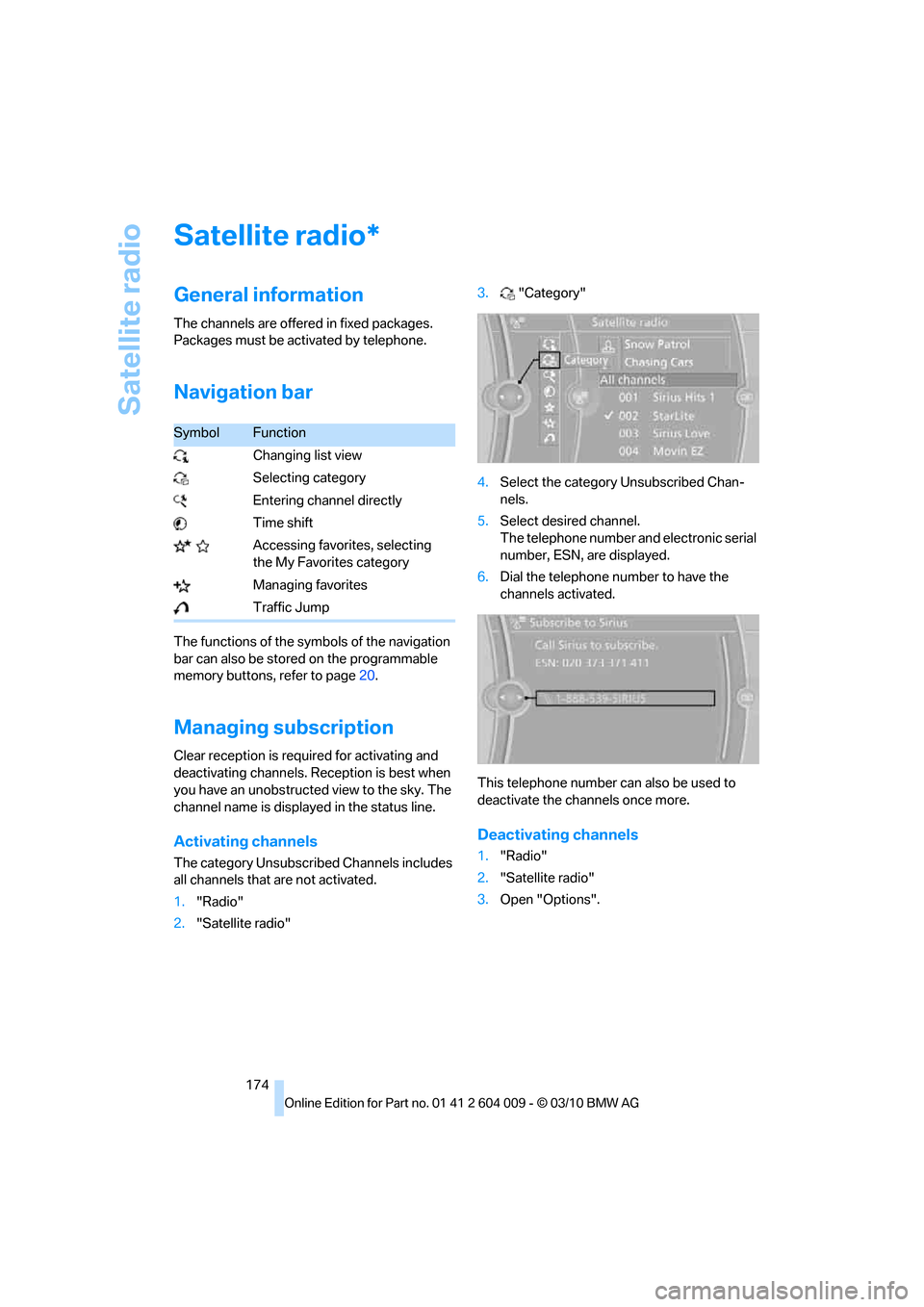
Navigation bar
The functions of the symbols of the navigation
bar can also be stored on the programmable
memory buttons, refer to page20.
Managing subscription
Clear reception is required for activating and
deactivating channels. Reception is best when
you have an unobstructed view to the sky. The
channel name is displayed in the status line.
Activating channels
The category Unsubscribed Channels includes
all channels that are not activated.
1."Radio"
2."Satellite radio"3."Category"
4.Select the category Unsubscribed Chan-
nels.
5.Select desired channel.
The telephone number and electronic serial
number, ESN, are displayed.
6.Dial the telephone number to have the
channels activated.
This telephone number can also be used to
deactivate the channels once more.
Deactivating channels
1."Radio"
2."Satellite radio"
3.Open "Options".
*
SymbolFunction
Changing list view
Selecting category
Entering channel directly
Time shift
Accessing favorites, selecting
the My Favorites category
Managing favorites
Traffic Jump
Page 178 of 312
Satellite radio
176
Selecting category
1."Radio"
2."Satellite radio"
3."Category"
4.Select the desired category.
Time shift
Approximately one hour of the channel cur-
rently being listened to is temporarily stored in a
cache memory. Precondition: the signal must
be available.
The stored audio track can be played back at a
different time from the live broadcast. If the
cache memory is full, then the older tracks are
recorded over. The cache memory is deleted if
a new channel is selected.
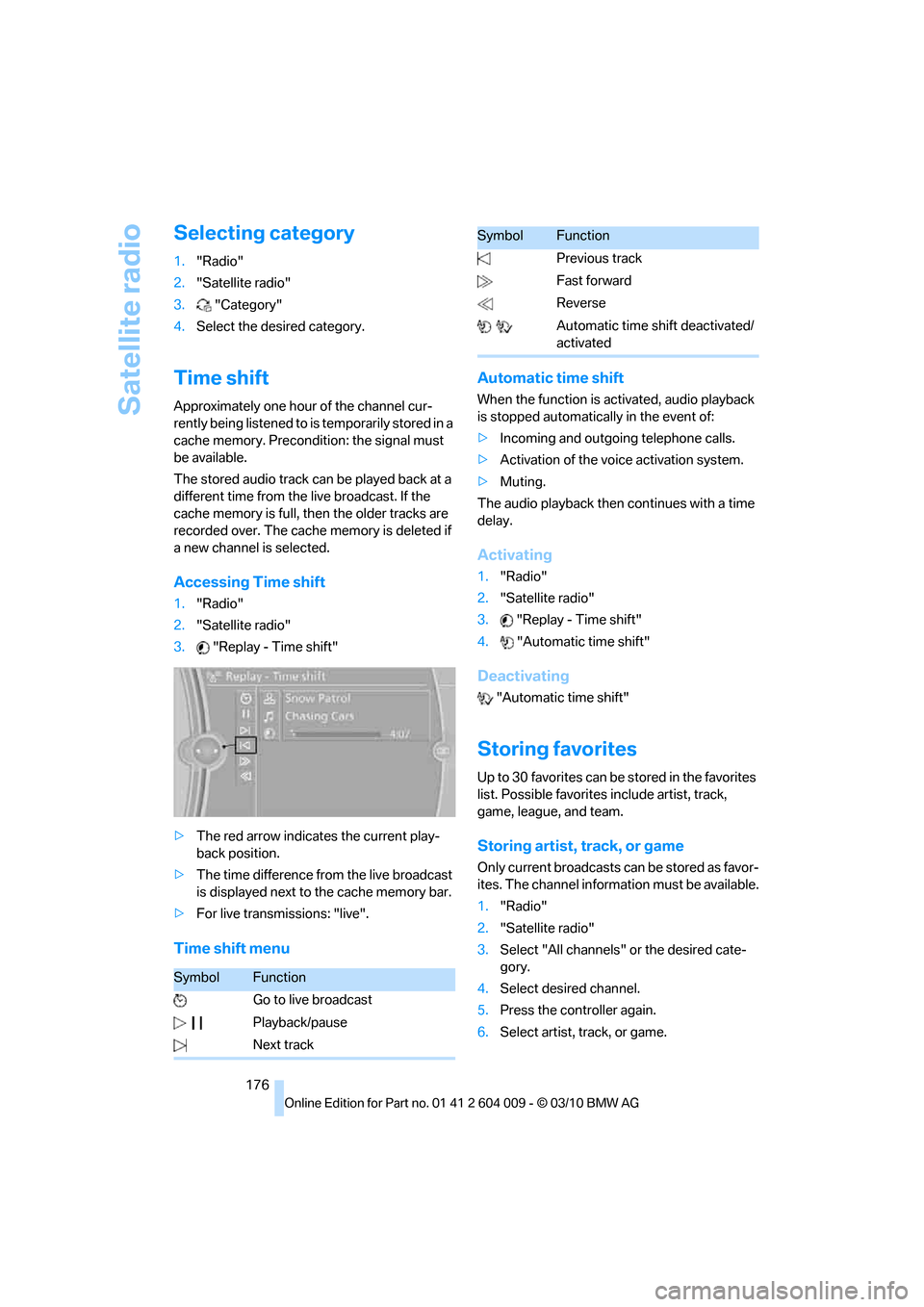
Accessing Time shift
1."Radio"
2."Satellite radio"
3."Replay - Time shift"
>The red arrow indicates the current play-
back position.
>The time difference from the live broadcast
is displayed next to the cache memory bar.
>For live transmissions: "live".
Time shift menuAutomatic time shift
When the function is activated, audio playback
is stopped automatically in the event of:
>Incoming and outgoing telephone calls.
>Activation of the voice activation system.
>Muting.
The audio playback then continues with a time
delay.
Activating
1."Radio"
2."Satellite radio"
3."Replay - Time shift"
4."Automatic time shift"
Deactivating
"Automatic time shift"
Storing favorites
Up to 30 favorites can be stored in the favorites
list. Possible favorites include artist, track,
game, league, and team.
Storing artist, track, or game
Only current broadcasts can be stored as favor-
ites. The channel information must be available.
1."Radio"
2."Satellite radio"
3.Select "All channels" or the desired cate-
gory.
4.Select desired channel.
5.Press the controller again.
6.Select artist, track, or game.
SymbolFunction
Go to live broadcast
Playback/pause
Next track
Previous track
Fast forward
Reverse
Automatic time shift deactivated/
activated
SymbolFunction
Page 179 of 312
Navigation
Entertainment
Driving tips
177Reference
At a glance
Controls
Communications
Mobility
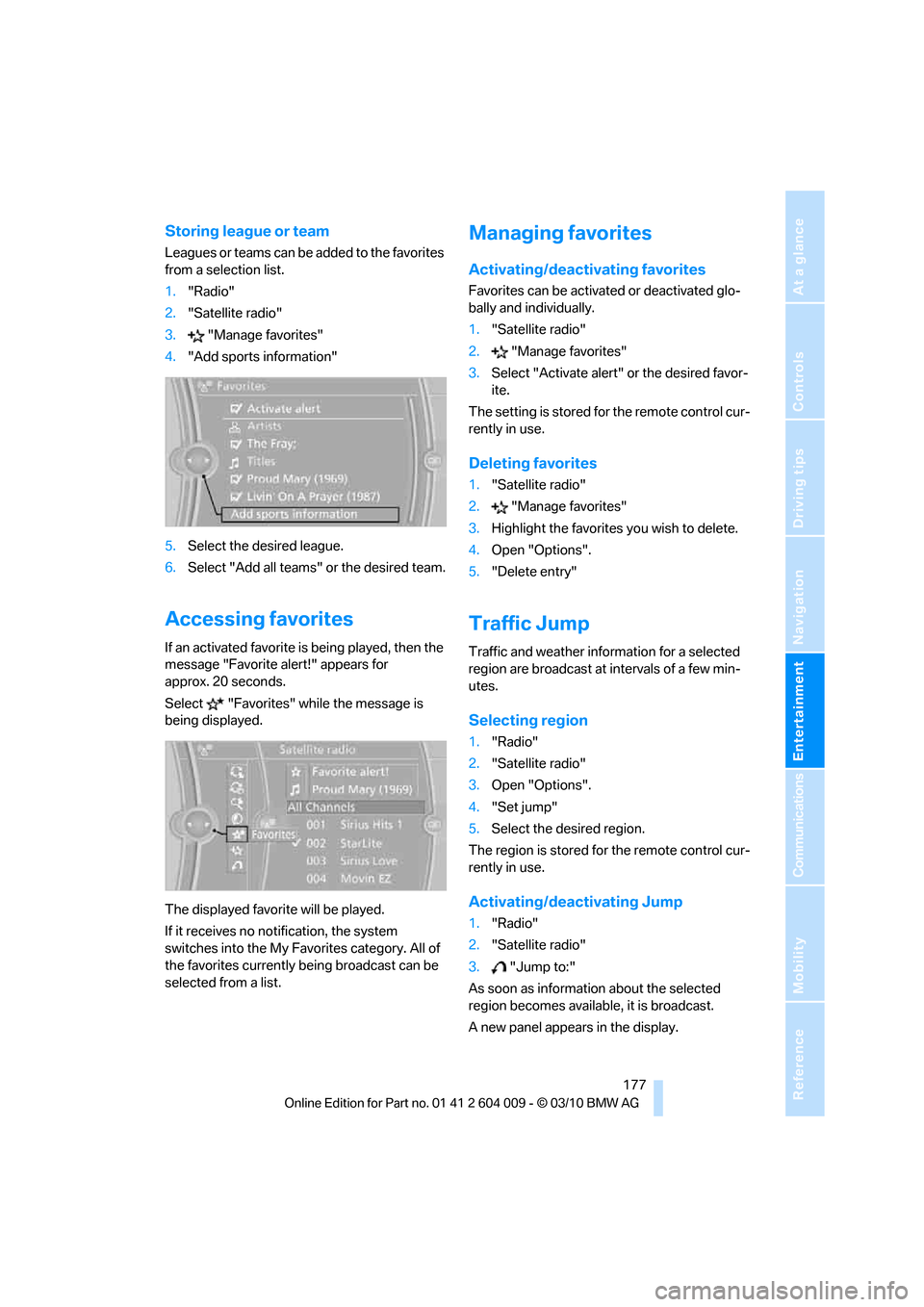
Storing league or team
Leagues or teams can be added to the favorites
from a selection list.
1."Radio"
2."Satellite radio"
3."Manage favorites"
4."Add sports information"
5.Select the desired league.
6.Select "Add all teams" or the desired team.
Accessing favorites
If an activated favorite is being played, then the
message "Favorite alert!" appears for
approx. 20 seconds.
Select "Favorites" while the message is
being displayed.
The displayed favorite will be played.
If it receives no notification, the system
switches into the My Favorites category. All of
the favorites currently being broadcast can be
selected from a list.
Managing favorites
Activating/deactivating favorites
Favorites can be activated or deactivated glo-
bally and individually.
1."Satellite radio"
2."Manage favorites"
3.Select "Activate alert" or the desired favor-
ite.
The setting is stored for the remote control cur-
rently in use.
Deleting favorites
1."Satellite radio"
2."Manage favorites"
3.Highlight the favorites you wish to delete.
4.Open "Options".
5."Delete entry"
Traffic Jump
Traffic and weather information for a selected
region are broadcast at intervals of a few min-
utes.
Selecting region
1."Radio"
2."Satellite radio"
3.Open "Options".
4."Set jump"
5.Select the desired region.
The region is stored for the remote control cur-
rently in use.
Activating/deactivating Jump
1."Radio"
2."Satellite radio"
3."Jump to:"
As soon as information about the selected
region becomes available, it is broadcast.
A new panel appears in the display.
Page 185 of 312
Navigation
Entertainment
Driving tips
183Reference
At a glance
Controls
Communications
Mobility
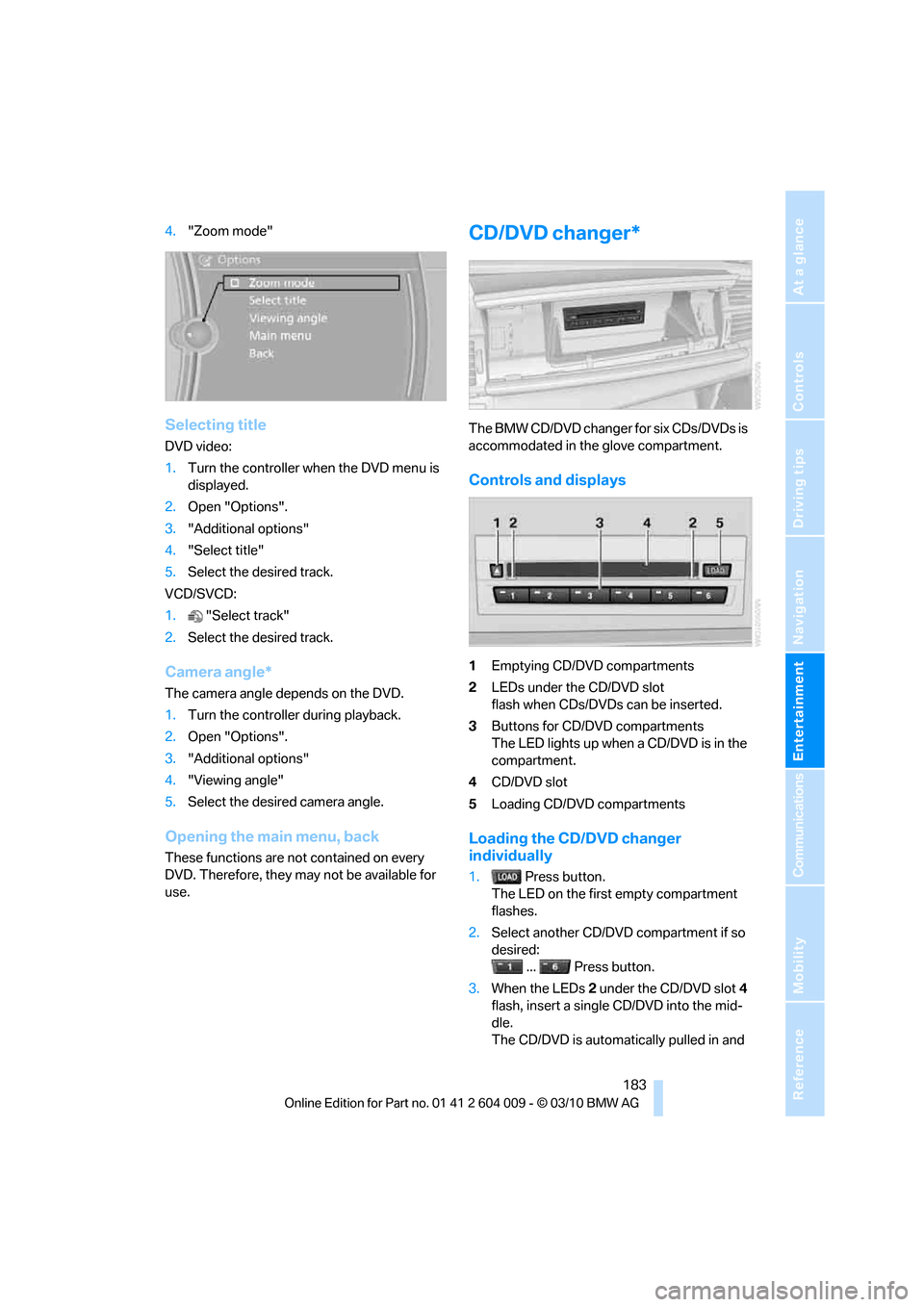
4."Zoom mode"
Selecting title
DVD video:
1.Turn the controller when the DVD menu is
displayed.
2.Open "Options".
3."Additional options"
4."Select title"
5.Select the desired track.
VCD/SVCD:
1."Select track"
2.Select the desired track.
Camera angle*
The camera angle depends on the DVD.
1.Turn the controller during playback.
2.Open "Options".
3."Additional options"
4."Viewing angle"
5.Select the desired camera angle.
Opening the main menu, back
These functions are not contained on every
DVD. Therefore, they may not be available for
use.
CD/DVD changer*
The BMW CD/DVD changer for six CDs/DVDs is
accommodated in the glove compartment.
Controls and displays
1Emptying CD/DVD compartments
2LEDs under the CD/DVD slot
flash when CDs/DVDs can be inserted.
3Buttons for CD/DVD compartments
The LED lights up when a CD/DVD is in the
compartment.
4CD/DVD slot
5Loading CD/DVD compartments
Loading the CD/DVD changer
individually
1. Press button.
The LED on the first empty compartment
flashes.
2.Select another CD/DVD compartment if so
desired:
... Press button.
3.When the LEDs 2 under the CD/DVD slot4
flash, insert a single CD/DVD into the mid-
dle.
The CD/DVD is automatically pulled in and
Page 190 of 312
Music collection
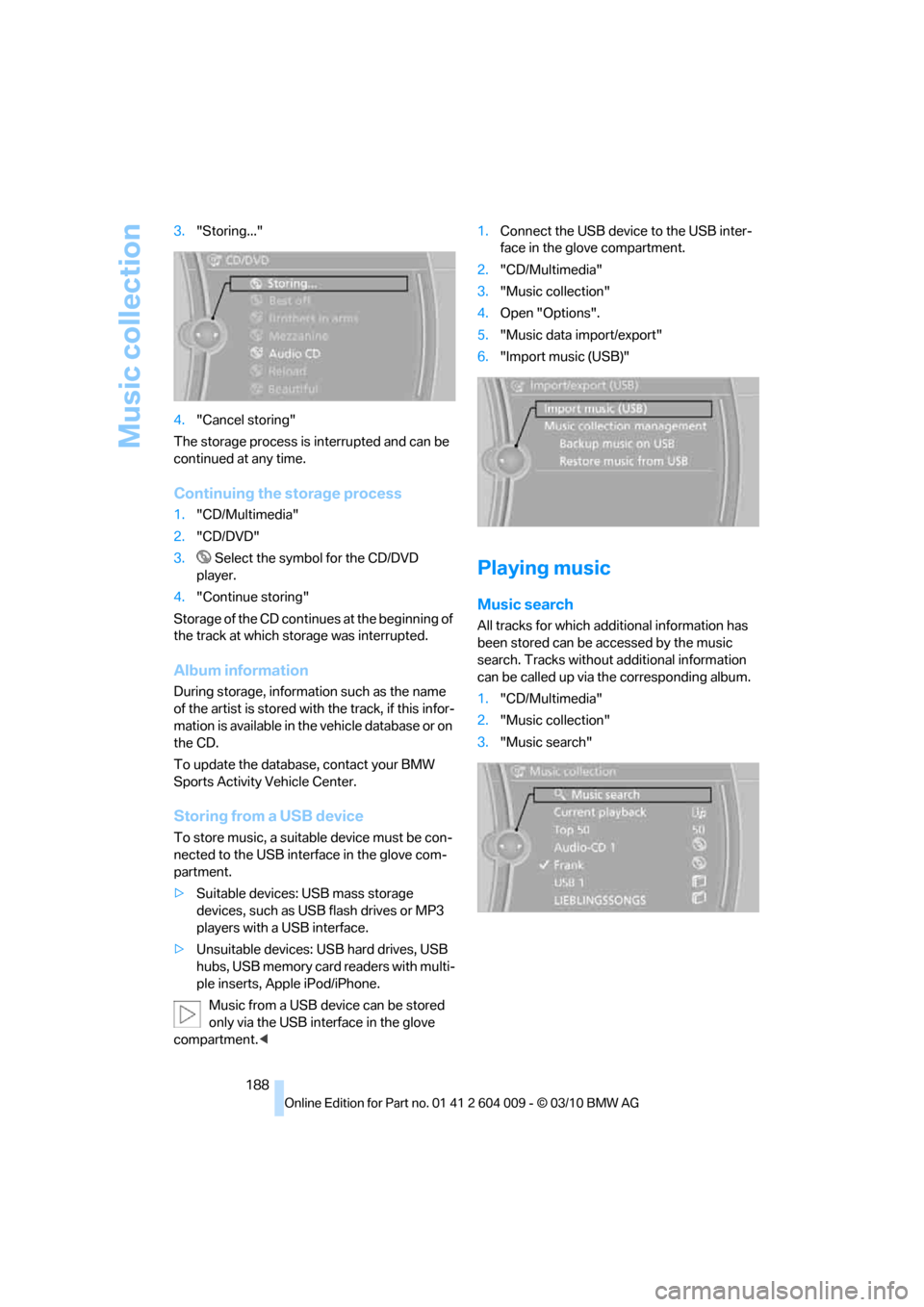
188 3."Storing..."
4."Cancel storing"
The storage process is interrupted and can be
continued at any time.
Continuing the storage process
1."CD/Multimedia"
2."CD/DVD"
3. Select the symbol for the CD/DVD
player.
4."Continue storing"
Storage of the CD continues at the beginning of
the track at which storage was interrupted.
Album information
During storage, information such as the name
of the artist is stored with the track, if this infor-
mation is available in the vehicle database or on
the CD.
To update the database, contact your BMW
Sports Activity Vehicle Center.
Storing from a USB device
To store music, a suitable device must be con-
nected to the USB interface in the glove com-
partment.
>Suitable devices: USB mass storage
devices, such as USB flash drives or MP3
players with a USB interface.
>Unsuitable devices: USB hard drives, USB
hubs, USB memory card readers with multi-
ple inserts, Apple iPod/iPhone.
Music from a USB device can be stored
only via the USB interface in the glove
compartment.<1.Connect the USB device to the USB inter-
face in the glove compartment.
2."CD/Multimedia"
3."Music collection"
4.Open "Options".
5."Music data import/export"
6."Import music (USB)"
Playing music
Music search
All tracks for which additional information has
been stored can be accessed by the music
search. Tracks without additional information
can be called up via the corresponding album.
1."CD/Multimedia"
2."Music collection"
3."Music search"