transmission BMW X6 2013 E71 Owner's Guide
[x] Cancel search | Manufacturer: BMW, Model Year: 2013, Model line: X6, Model: BMW X6 2013 E71Pages: 327, PDF Size: 7.71 MB
Page 190 of 327
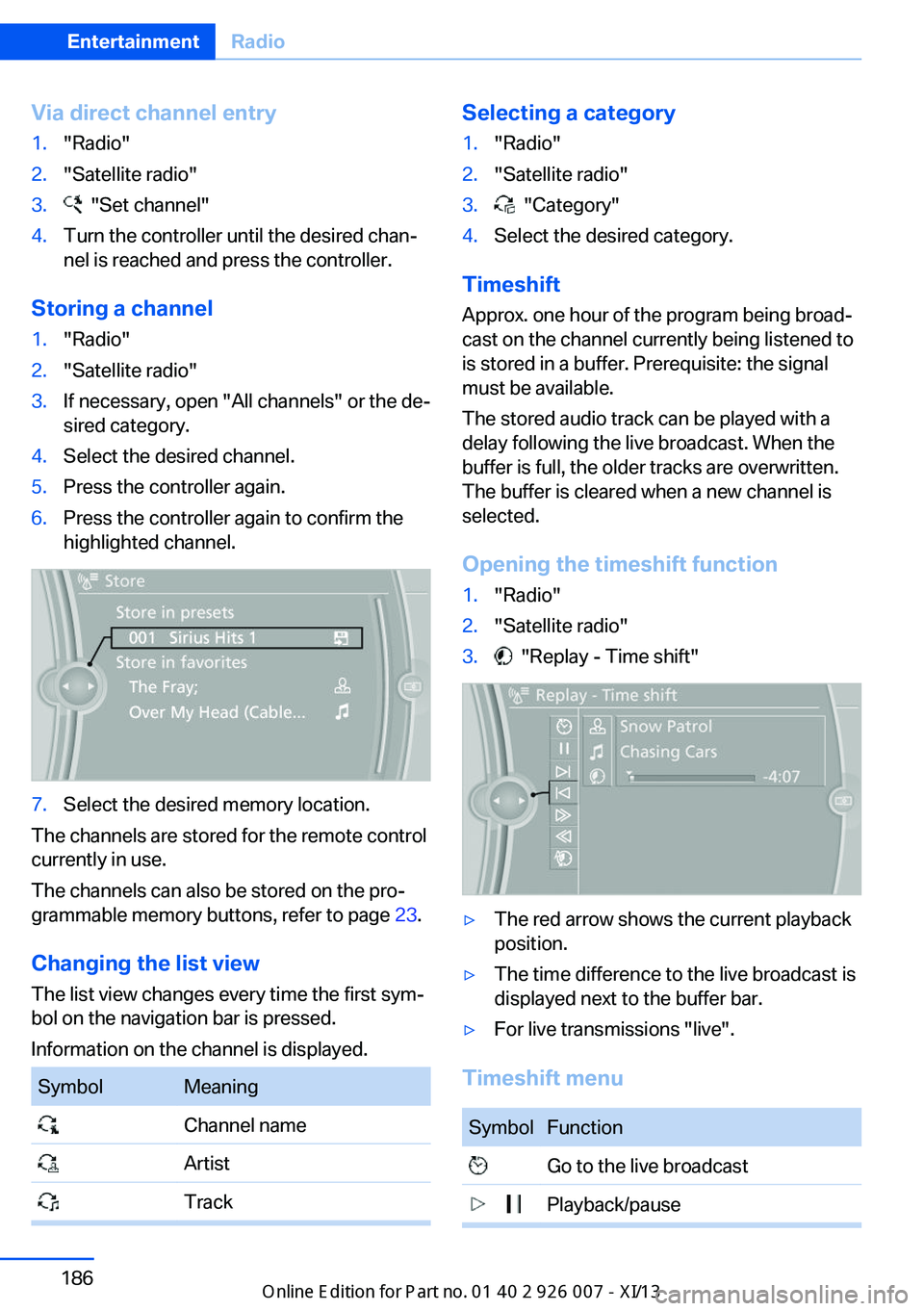
Via direct channel entry1."Radio"2."Satellite radio"3. "Set channel"4.Turn the controller until the desired chan‐
nel is reached and press the controller.
Storing a channel
1."Radio"2."Satellite radio"3.If necessary, open "All channels" or the de‐
sired category.4.Select the desired channel.5.Press the controller again.6.Press the controller again to confirm the
highlighted channel.7.Select the desired memory location.
The channels are stored for the remote control
currently in use.
The channels can also be stored on the pro‐
grammable memory buttons, refer to page 23.
Changing the list view
The list view changes every time the first sym‐
bol on the navigation bar is pressed.
Information on the channel is displayed.
SymbolMeaning Channel name Artist TrackSelecting a category1."Radio"2."Satellite radio"3. "Category"4.Select the desired category.
Timeshift
Approx. one hour of the program being broad‐
cast on the channel currently being listened to
is stored in a buffer. Prerequisite: the signal
must be available.
The stored audio track can be played with a
delay following the live broadcast. When the
buffer is full, the older tracks are overwritten.
The buffer is cleared when a new channel is
selected.
Opening the timeshift function
1."Radio"2."Satellite radio"3. "Replay - Time shift"▷The red arrow shows the current playback
position.▷The time difference to the live broadcast is
displayed next to the buffer bar.▷For live transmissions "live".
Timeshift menu
SymbolFunction Go to the live broadcast Playback/pauseSeite 186EntertainmentRadio186
Online Edition for Part no. 01 40 2 910 876 - VII/13
Page 207 of 327
Connectors for external devices▷Connection via USB audio interface: Apple
iPod/iPhone, USB devices, e.g., MP3 play‐
ers, USB flash drives, or mobile phones
that are supported by the USB audio inter‐
face.▷Connection via snap-in adapter, refer to
page 237, when equipped with the music
interface for smartphones: Apple iPhone or
mobile phones.
Playback is only possible if no audio device
is connected to the analog AUX-IN port.
Due to the large number of different audio de‐
vices available on the market, it cannot be en‐
sured that every audio device/mobile phone is
operable on the vehicle.
Ask your service center about suitable audio
devices/mobile phones.
Audio files
Standard audio files can be played back:
▷MP3.▷WMA.▷WAV (PCM).▷AAC, M4A.▷Playback lists: M3U, WPL, PLS.
File system
Standard file systems for USB devices are
supported. The FAT 32 format is recom‐
mended.
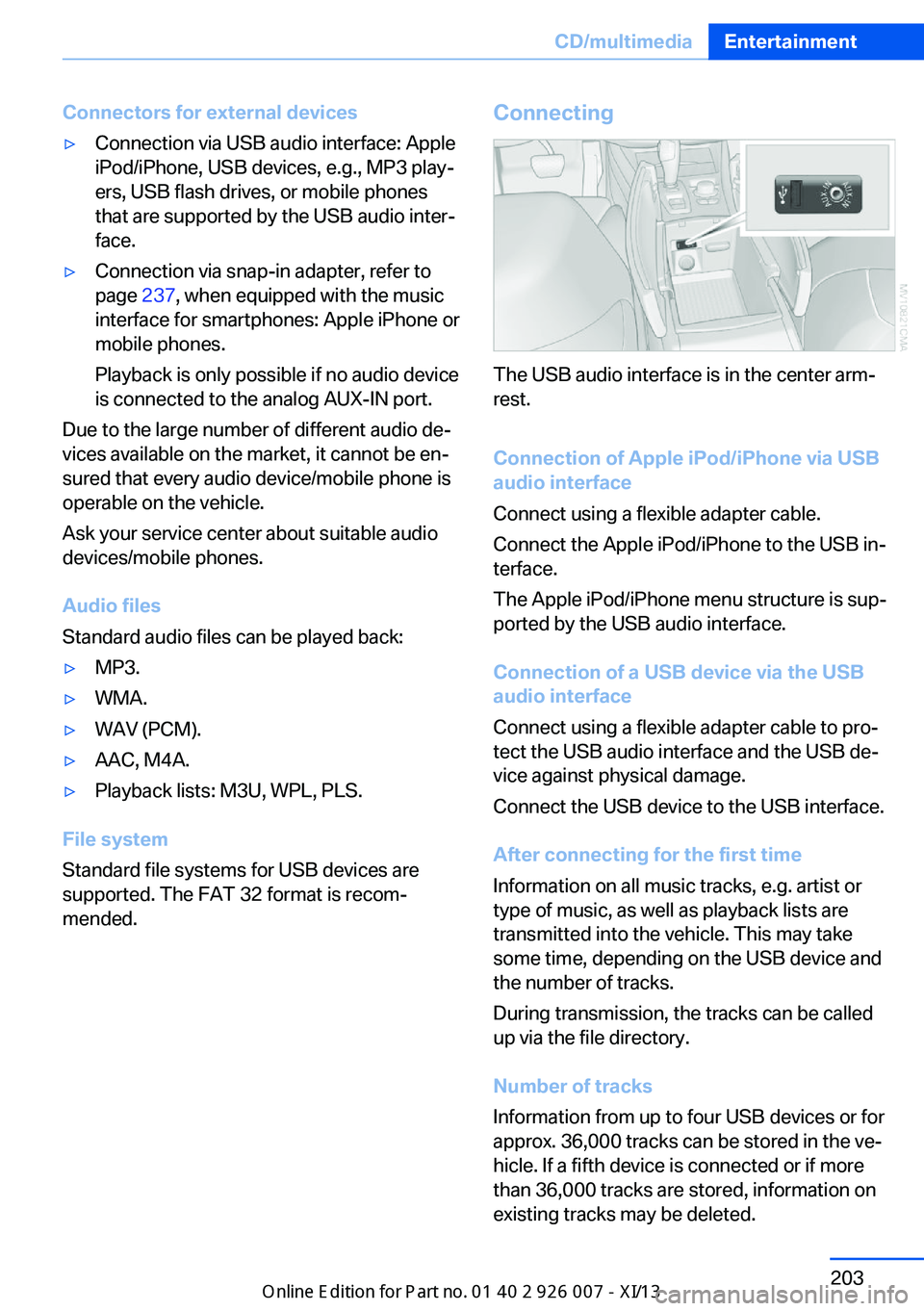
Connecting
The USB audio interface is in the center arm‐
rest.
Connection of Apple iPod/iPhone via USB
audio interface
Connect using a flexible adapter cable.
Connect the Apple iPod/iPhone to the USB in‐
terface.
The Apple iPod/iPhone menu structure is sup‐
ported by the USB audio interface.
Connection of a USB device via the USB
audio interface
Connect using a flexible adapter cable to pro‐
tect the USB audio interface and the USB de‐
vice against physical damage.
Connect the USB device to the USB interface.
After connecting for the first time
Information on all music tracks, e.g. artist or
type of music, as well as playback lists are
transmitted into the vehicle. This may take
some time, depending on the USB device and
the number of tracks.
During transmission, the tracks can be called
up via the file directory.
Number of tracks
Information from up to four USB devices or for
approx. 36,000 tracks can be stored in the ve‐
hicle. If a fifth device is connected or if more
than 36,000 tracks are stored, information on
existing tracks may be deleted.
Seite 203CD/multimediaEntertainment203
Online Edition for Part no. 01 40 2 910 876 - VII/13
Page 234 of 327
nected mobile phone from the vehicle and
pair and connect only one mobile phone.
The mobile phone no longer reacts.
▷Switch the mobile phone off and on again.▷Is the ambient temperature too high or
low? Do not expose the mobile phone to
extreme environmental conditions.
The telephone functions are not available.
▷Is the mobile phone paired as an additional
telephone and is the additional telephone
function deactivated? Activate the func‐
tion.▷Is an outgoing call not possible? Connect
the mobile phone as a telephone.
No phone book entries or only some phone
book entries are displayed, or they are incom‐
plete.
▷Transmission of the phone book entries is
not yet complete.▷It is possible that only the phone book en‐
tries of the mobile phone or the SIM card
are transmitted.▷It may not be possible to display phone
book entries with special characters.▷The number of phone book entries to be
stored is too high.▷Is the data volume of the contact too large,
e. g., due to stored information such as
notes? Reduce the data volume of the con‐
tact.▷Is the mobile phone connected as an audio
source or additional telephone? The mo‐
bile phone must be connected as a tele‐
phone.
The phone connection quality is poor.
▷The strength of the Bluetooth signal on the
mobile phone can be adjusted, depending
on the mobile phone.▷Insert the mobile phone into the snap-in
adapter or place it in the area of the center
console.▷Adjust the volume of the microphone and
loudspeakers separately.
If all points in this list have been checked and
the required function is still not available, con‐
tact Customer Relations or the service center.
Controls
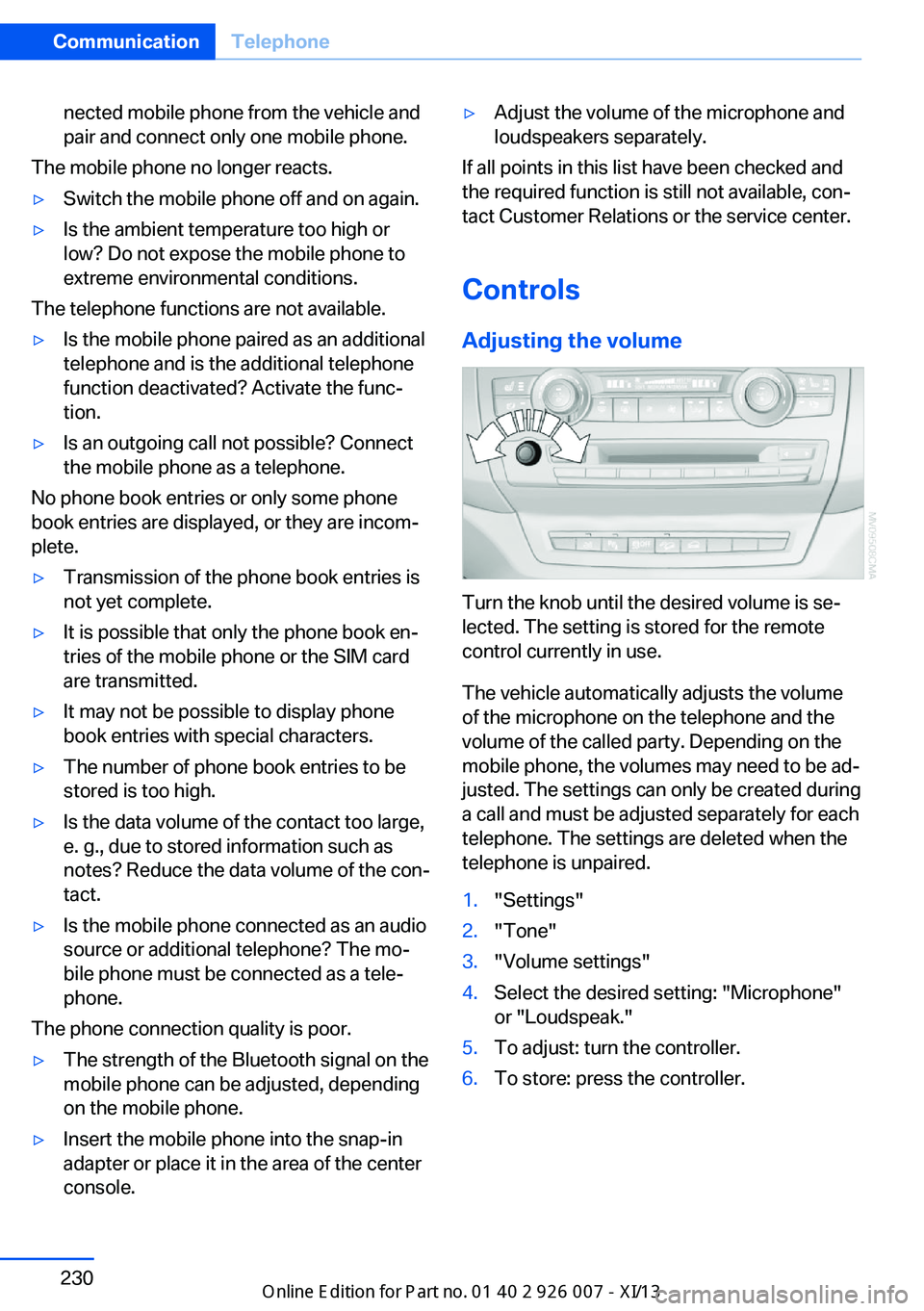
Adjusting the volume
Turn the knob until the desired volume is se‐
lected. The setting is stored for the remote
control currently in use.
The vehicle automatically adjusts the volume
of the microphone on the telephone and the
volume of the called party. Depending on the
mobile phone, the volumes may need to be ad‐
justed. The settings can only be created during
a call and must be adjusted separately for each
telephone. The settings are deleted when the
telephone is unpaired.
1."Settings"2."Tone"3."Volume settings"4.Select the desired setting: "Microphone"
or "Loudspeak."5.To adjust: turn the controller.6.To store: press the controller.Seite 230CommunicationTelephone230
Online Edition for Part no. 01 40 2 910 876 - VII/13
Page 246 of 327
Show contact picturesPictures stored with the contacts are stored in
the vehicle when the mobile phone is con‐
nected to the vehicle. The number of transmit‐ ted pictures depends on the mobile phone.
The mobile phone must support this function.1."Office"2."Contacts"3.Open "Options".4."Configure Bluetooth®"5."Show images"
Display of all contact pictures is activated or
deactivated.
Deleting contacts
Only contacts that are stored in the vehicle are
deleted. The contacts on the mobile phone
cannot be deleted.
1."Office"2."Contacts"3.Highlight the contact.4.Open "Options".5."Delete contact" or "Delete all contacts"6.If necessary. "Yes"
Messages
General information
Whether or not text messages and e-mails
from the mobile phone are displayed depends
on whether transmission from the mobile
phone to the vehicle is supported. Text mes‐
sages and e-mails may not be supported by
the service provider, or the function may need
to be enabled separately. After the mobile
phone is first paired, transmission may take
several minutes. Messages are only displayed
in full length when the vehicle is stationary.
Messages from the additional telephone are
not transmitted.
Displaying messages1."Office"2."Messages"
A symbol identifies the type of message.
SymbolMessage type Text messages. My Info Message from the Concierge serv‐
ice. E-mail from mobile phone.
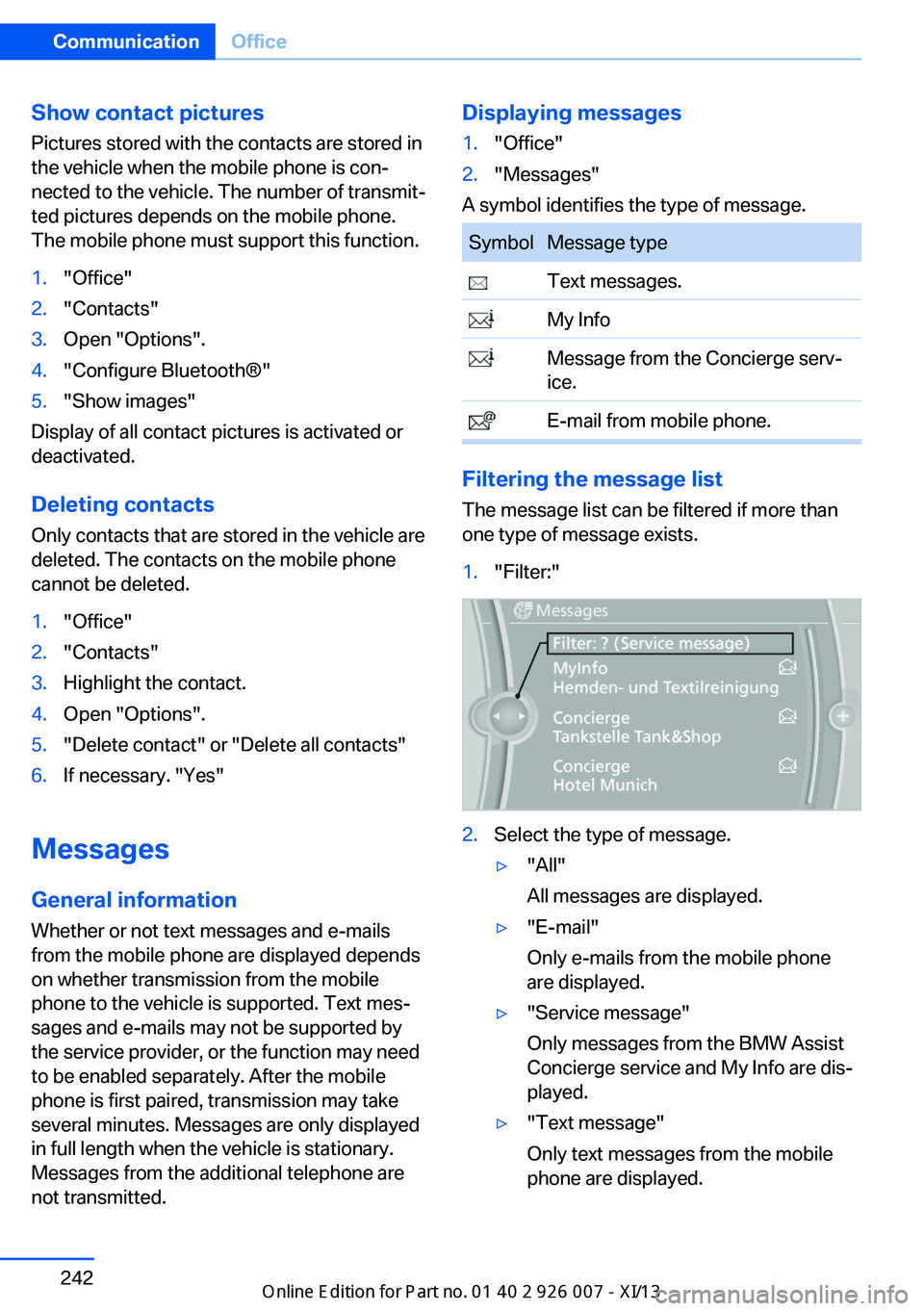
Filtering the message list
The message list can be filtered if more than
one type of message exists.
1."Filter:"2.Select the type of message.▷"All"
All messages are displayed.▷"E-mail"
Only e-mails from the mobile phone
are displayed.▷"Service message"
Only messages from the BMW Assist
Concierge service and My Info are dis‐
played.▷"Text message"
Only text messages from the mobile
phone are displayed.Seite 242CommunicationOffice242
Online Edition for Part no. 01 40 2 910 876 - VII/13
Page 256 of 327
Roadside Assistance
At a glance BMW Roadside Assistance can be contacted if
assistance is needed in the event of a break‐ down.
Roadside Assistance can also be contacted via
a Check Control message, refer to page 76.
Starting Roadside Assistance without
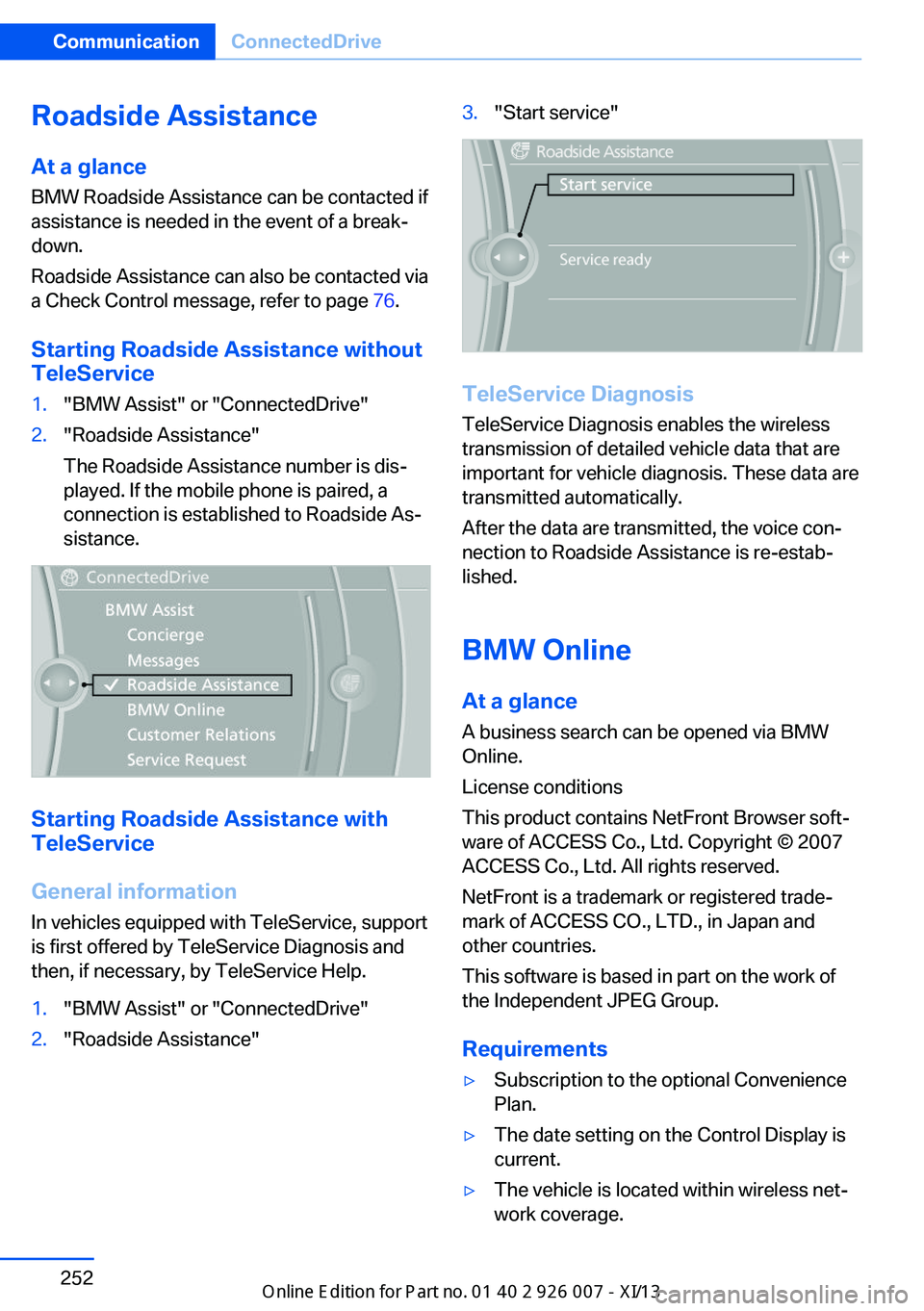
TeleService1."BMW Assist" or "ConnectedDrive"2."Roadside Assistance"
The Roadside Assistance number is dis‐
played. If the mobile phone is paired, a
connection is established to Roadside As‐
sistance.
Starting Roadside Assistance with
TeleService
General information
In vehicles equipped with TeleService, support
is first offered by TeleService Diagnosis and
then, if necessary, by TeleService Help.
1."BMW Assist" or "ConnectedDrive"2."Roadside Assistance"3."Start service"
TeleService Diagnosis
TeleService Diagnosis enables the wireless
transmission of detailed vehicle data that are
important for vehicle diagnosis. These data are
transmitted automatically.
After the data are transmitted, the voice con‐
nection to Roadside Assistance is re-estab‐
lished.
BMW Online
At a glance
A business search can be opened via BMW
Online.
License conditions
This product contains NetFront Browser soft‐
ware of ACCESS Co., Ltd. Copyright © 2007
ACCESS Co., Ltd. All rights reserved.
NetFront is a trademark or registered trade‐
mark of ACCESS CO., LTD., in Japan and
other countries.
This software is based in part on the work of
the Independent JPEG Group.
Requirements
▷Subscription to the optional Convenience
Plan.▷The date setting on the Control Display is
current.▷The vehicle is located within wireless net‐
work coverage.Seite 252CommunicationConnectedDrive252
Online Edition for Part no. 01 40 2 910 876 - VII/13
Page 259 of 327
Data transfer
During the updating of BMW services, display
the status of the data transfer.1."BMW Assist" or "ConnectedDrive"2.Open "Options".3."Data transfer"
Apps
At a glance Certain software applications of a suitable mo‐
bile phone can be integrated in the vehicle.
These software applications are displayed on
the Control Display.
They are operated via iDrive.
Requirements
▷The mobile phone is suitable.▷The mobile phone operating system sup‐
ports the software applications of Apps.▷Software applications are installed on the
mobile phone and ready to use.▷Corresponding mobile wireless contract.
Any additionally incurred costs are not a
part of Apps.▷Use only BMW approved software applica‐
tions; otherwise, it may result in malfunc‐
tions.
Information about suitable mobile phones,
available software applications and their instal‐
lation can be found at www.bmw.com/connec‐
tivity or at the service center.
Create the entries.
Make entries only when traffic and road
conditions allow. Otherwise, the vehicle occu‐
pants and other road users may be put in dan‐
ger because of the distraction from driving.
For reasons of safety, some software applica‐
tions are usable only while the vehicle is sta‐
tionary.◀
Operating Apps1.Connect the mobile phone via the snap-in
adapter or via the USB audio interface.2."ConnectedDrive"3.Select the desired software application.
Displaying status
Information about the currently available soft‐
ware applications can be displayed.
1."ConnectedDrive"2."BMW apps"
Notes
▷The ranges of Apps that can be displayed
on the Control Display depend on the
range of installed software applications on
the mobile phone.▷The data transmission of the software ap‐
plications from the mobile phone to the ve‐
hicle can last some time. Some software
applications depend on the speed of the
available Internet connection of the mobile
phone.▷Some mobile phones cannot simultane‐
ously use Apps and the Bluetooth hands-
free system.
If necessary, restart the software applica‐
tion on the mobile phone after a phone
conversation.Seite 255ConnectedDriveCommunication255
Online Edition for Part no. 01 40 2 910 876 - VII/13
Page 294 of 327
To avoid jerking and the associated stresses
on the vehicle components when towing, al‐
ways use nylon ropes or nylon straps.
Attaching the tow rope correctly
Only secure the tow rope on the tow fit‐
ting; otherwise, damage can occur when it is
secured on other parts of the vehicle.◀
Tow fitting
The screw-in tow fitting should always be car‐
ried in the vehicle. It can be screwed in at the
front or rear of the BMW.
It is stored with the tool kit under the cargo
floor cover in the cargo area, refer to page 276.
Tow fitting, information on use▷Use only the tow fitting provided with
the vehicle and screw it all the way in.▷Use the tow fitting for towing on paved
roads only.▷Avoid lateral loading of the tow fitting, e.g.,
do not lift the vehicle by the tow fitting.
Otherwise, damage to the tow fitting and the
vehicle can occur.◀
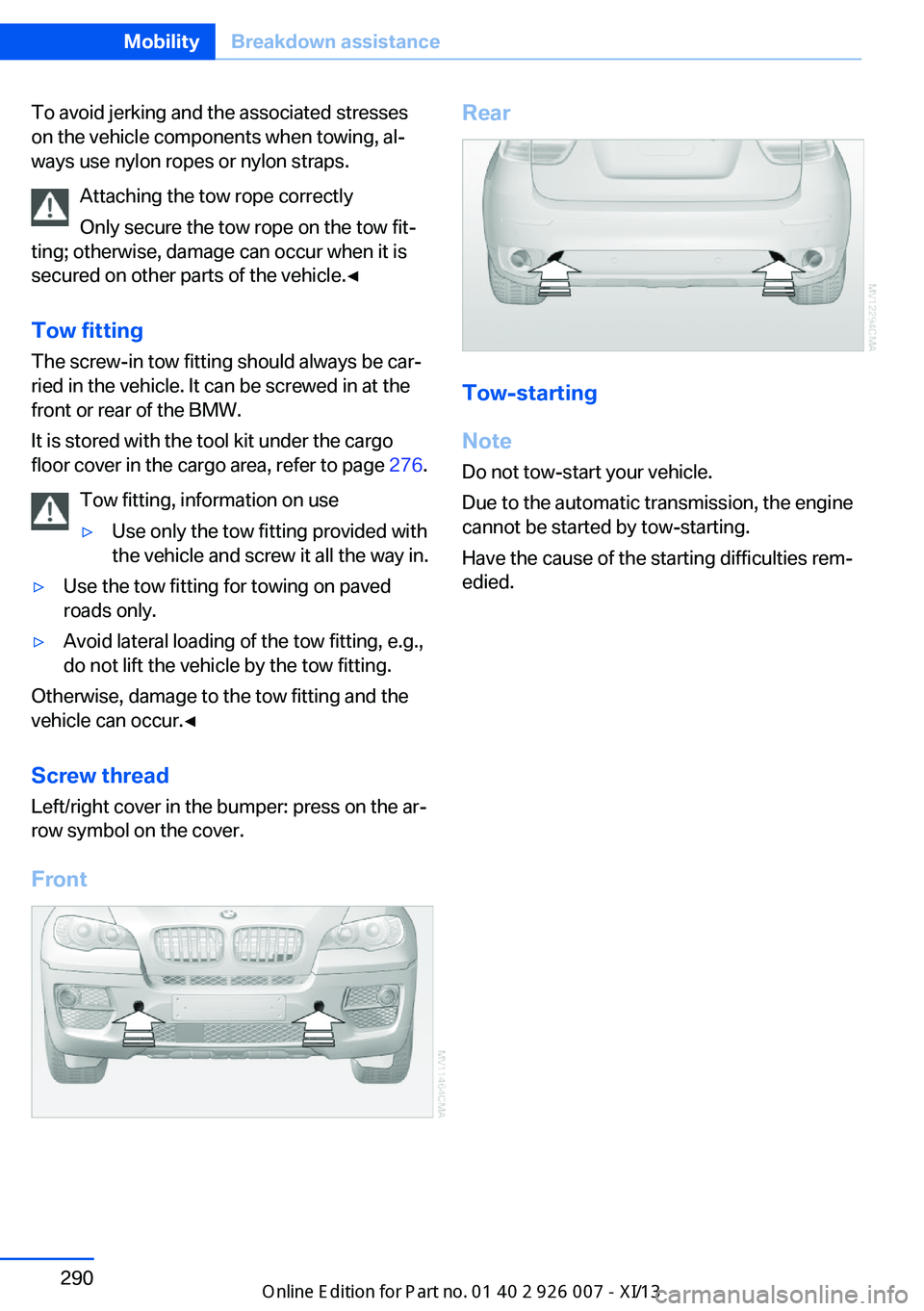
Screw thread Left/right cover in the bumper: press on the ar‐
row symbol on the cover.
Front
Rear
Tow-starting
Note Do not tow-start your vehicle.
Due to the automatic transmission, the engine
cannot be started by tow-starting.
Have the cause of the starting difficulties rem‐
edied.
Seite 290MobilityBreakdown assistance290
Online Edition for Part no. 01 40 2 910 876 - VII/13
Page 295 of 327
CareVehicle equipmentThis chapter describes all series equipment as
well as country-specific and special equipment
offered for this model series.Therefore, it also
describes equipment that may not be found in
your vehicle, for instance due to the selected
special equipment or the country version. This
also applies to safety-related functions and
systems.
Car washes
Notes Steam jets or high-pressure washers
When using steam jets or high-pressure
washers, hold them a sufficient distance away
and use a maximum temperature of
140 ℉/60 ℃.
Holding them too close or using excessively
high pressures or temperatures can cause
damage or preliminary damage that may then lead to long-term damage.
Follow the operating instructions for the high-
pressure washer.◀
Cleaning sensors/cameras with high-
pressure washers
When using high-pressure washers, do not
spray the exterior sensors and cameras, for
Park Distance Control or the backup camera,
for instance, for extended periods of time and
only from a distance of at least 12 in/30 cm.◀
Regularly remove foreign bodies, such as
leaves, from the area below the windshield
when the hood is open.
Wash your vehicle frequently, particularly in
winter.
Intense soiling and road salt can damage the
vehicle.Washing in automatic car washes
Give preference to cloth car washes or those
that use soft brushes in order to avoid paint
damage.
Notes
Note the following:▷Make sure that the wheels and tires are not
damaged by the transport mechanisms.▷Fold in the exterior mirrors; otherwise, they
may be damaged, depending on the width
of the vehicle.▷Deactivate rain sensor, refer to page 66, to
prevent unintentional wiper action.▷Remove additional attachments, for in‐
stance a spoiler or telephone antenna, if
there is a risk that these may be damaged.
Guide rails in car washes
Avoid car washes with guide rails higher
than 4 in/10 cm; otherwise, the vehicle body
could be damaged.◀
Before driving into a car wash The vehicle is able to roll if the following steps
are taken.
1.Insert the remote control into the ignition
lock, even with Comfort Access.2.Engage transmission position N.3.Release the parking brake.4.Deactivating Automatic Hold, refer to
page 62.5.Switch the engine off.6.Leave the remote control in the ignition
lock so that the vehicle can roll.
Transmission position P will be engaged:
▷Automatically after approx. 30 minutes.Seite 291CareMobility291
Online Edition for Part no. 01 40 2 910 876 - VII/13
Page 313 of 327
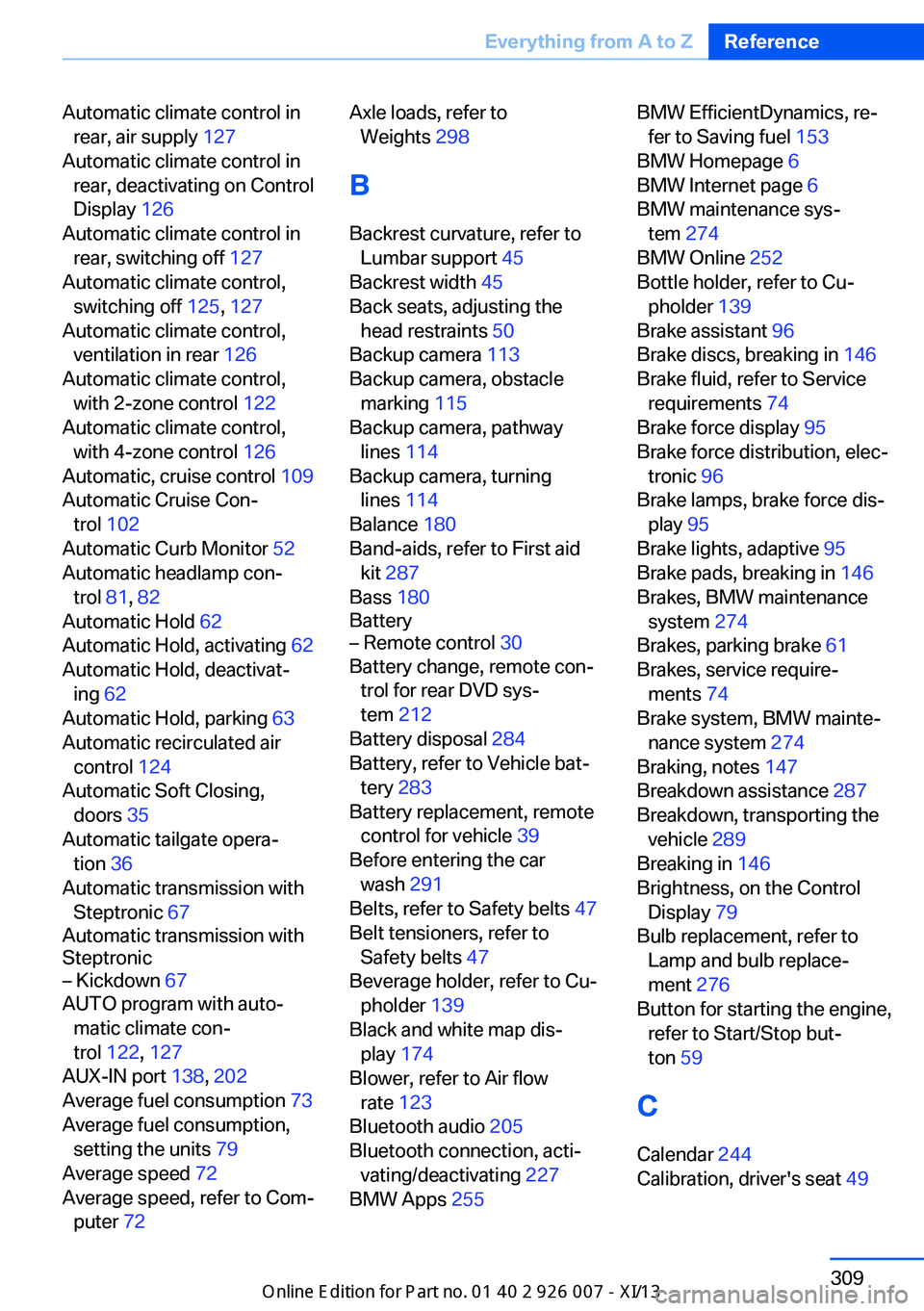
Automatic climate control inrear, air supply 127
Automatic climate control in rear, deactivating on Control
Display 126
Automatic climate control in rear, switching off 127
Automatic climate control, switching off 125, 127
Automatic climate control, ventilation in rear 126
Automatic climate control, with 2-zone control 122
Automatic climate control, with 4-zone control 126
Automatic, cruise control 109
Automatic Cruise Con‐ trol 102
Automatic Curb Monitor 52
Automatic headlamp con‐ trol 81, 82
Automatic Hold 62
Automatic Hold, activating 62
Automatic Hold, deactivat‐ ing 62
Automatic Hold, parking 63
Automatic recirculated air control 124
Automatic Soft Closing, doors 35
Automatic tailgate opera‐ tion 36
Automatic transmission with Steptronic 67
Automatic transmission with
Steptronic– Kickdown 67
AUTO program with auto‐
matic climate con‐
trol 122 , 127
AUX-IN port 138, 202
Average fuel consumption 73
Average fuel consumption, setting the units 79
Average speed 72
Average speed, refer to Com‐ puter 72
Axle loads, refer to
Weights 298
B
Backrest curvature, refer to Lumbar support 45
Backrest width 45
Back seats, adjusting the head restraints 50
Backup camera 113
Backup camera, obstacle marking 115
Backup camera, pathway lines 114
Backup camera, turning lines 114
Balance 180
Band-aids, refer to First aid kit 287
Bass 180
Battery– Remote control 30
Battery change, remote con‐
trol for rear DVD sys‐
tem 212
Battery disposal 284
Battery, refer to Vehicle bat‐ tery 283
Battery replacement, remote control for vehicle 39
Before entering the car wash 291
Belts, refer to Safety belts 47
Belt tensioners, refer to Safety belts 47
Beverage holder, refer to Cu‐ pholder 139
Black and white map dis‐ play 174
Blower, refer to Air flow rate 123
Bluetooth audio 205
Bluetooth connection, acti‐ vating/deactivating 227
BMW Apps 255
BMW EfficientDynamics, re‐
fer to Saving fuel 153
BMW Homepage 6
BMW Internet page 6
BMW maintenance sys‐ tem 274
BMW Online 252
Bottle holder, refer to Cu‐ pholder 139
Brake assistant 96
Brake discs, breaking in 146
Brake fluid, refer to Service requirements 74
Brake force display 95
Brake force distribution, elec‐ tronic 96
Brake lamps, brake force dis‐ play 95
Brake lights, adaptive 95
Brake pads, breaking in 146
Brakes, BMW maintenance system 274
Brakes, parking brake 61
Brakes, service require‐ ments 74
Brake system, BMW mainte‐ nance system 274
Braking, notes 147
Breakdown assistance 287
Breakdown, transporting the vehicle 289
Breaking in 146
Brightness, on the Control Display 79
Bulb replacement, refer to Lamp and bulb replace‐
ment 276
Button for starting the engine, refer to Start/Stop but‐
ton 59
C
Calendar 244
Calibration, driver's seat 49 Seite 309Everything from A to ZReference309
Online Edition for Part no. 01 40 2 910 876 - VII/13
Page 317 of 327
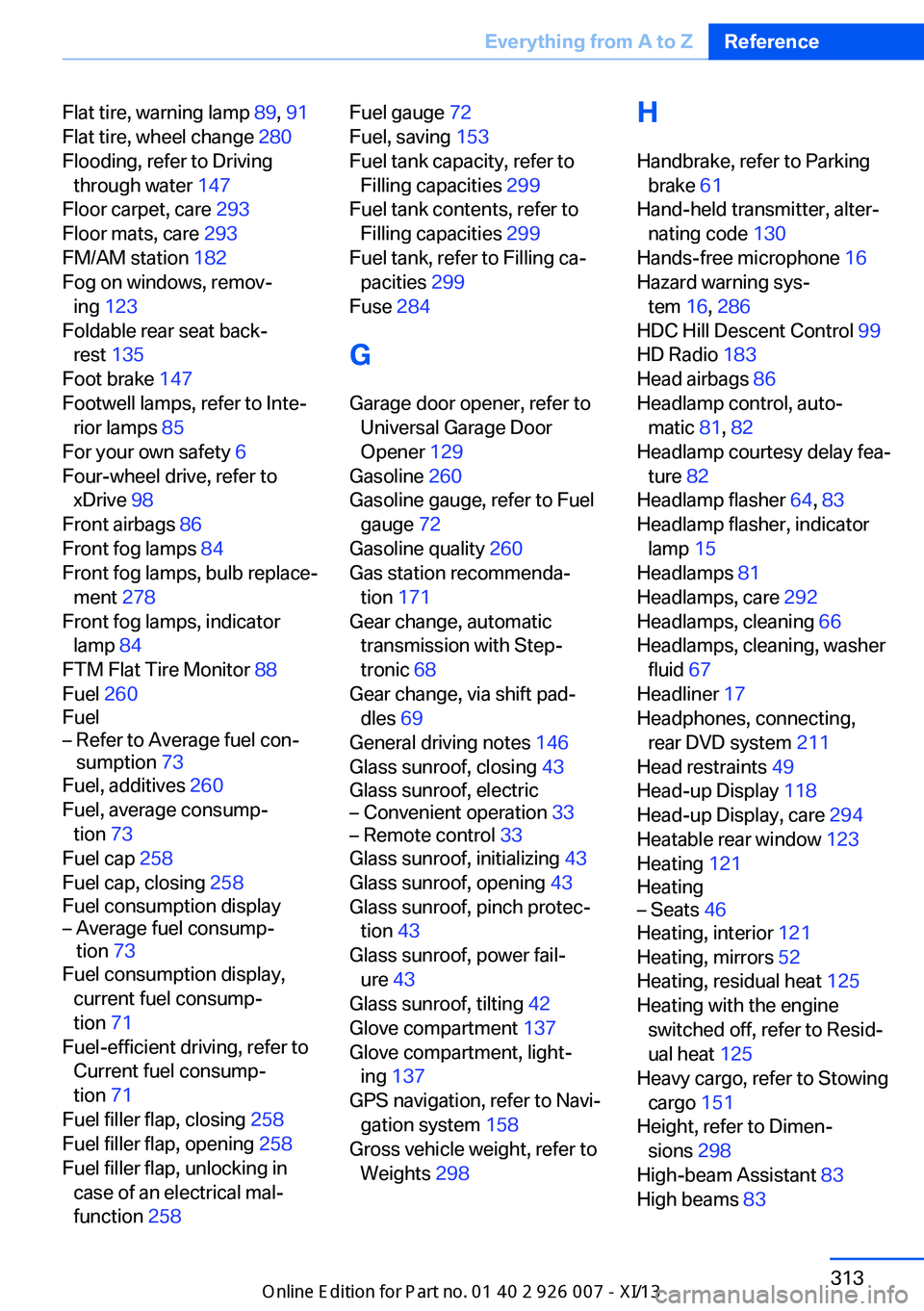
Flat tire, warning lamp 89, 91
Flat tire, wheel change 280
Flooding, refer to Driving through water 147
Floor carpet, care 293
Floor mats, care 293
FM/AM station 182
Fog on windows, remov‐ ing 123
Foldable rear seat back‐ rest 135
Foot brake 147
Footwell lamps, refer to Inte‐ rior lamps 85
For your own safety 6
Four-wheel drive, refer to xDrive 98
Front airbags 86
Front fog lamps 84
Front fog lamps, bulb replace‐ ment 278
Front fog lamps, indicator lamp 84
FTM Flat Tire Monitor 88
Fuel 260
Fuel– Refer to Average fuel con‐
sumption 73
Fuel, additives 260
Fuel, average consump‐ tion 73
Fuel cap 258
Fuel cap, closing 258
Fuel consumption display
– Average fuel consump‐
tion 73
Fuel consumption display,
current fuel consump‐
tion 71
Fuel-efficient driving, refer to Current fuel consump‐
tion 71
Fuel filler flap, closing 258
Fuel filler flap, opening 258
Fuel filler flap, unlocking in case of an electrical mal‐
function 258
Fuel gauge 72
Fuel, saving 153
Fuel tank capacity, refer to Filling capacities 299
Fuel tank contents, refer to Filling capacities 299
Fuel tank, refer to Filling ca‐ pacities 299
Fuse 284
G
Garage door opener, refer to Universal Garage Door
Opener 129
Gasoline 260
Gasoline gauge, refer to Fuel gauge 72
Gasoline quality 260
Gas station recommenda‐ tion 171
Gear change, automatic transmission with Step‐
tronic 68
Gear change, via shift pad‐ dles 69
General driving notes 146
Glass sunroof, closing 43
Glass sunroof, electric– Convenient operation 33– Remote control 33
Glass sunroof, initializing 43
Glass sunroof, opening 43
Glass sunroof, pinch protec‐ tion 43
Glass sunroof, power fail‐ ure 43
Glass sunroof, tilting 42
Glove compartment 137
Glove compartment, light‐ ing 137
GPS navigation, refer to Navi‐ gation system 158
Gross vehicle weight, refer to Weights 298
H
Handbrake, refer to Parking brake 61
Hand-held transmitter, alter‐ nating code 130
Hands-free microphone 16
Hazard warning sys‐ tem 16, 286
HDC Hill Descent Control 99
HD Radio 183
Head airbags 86
Headlamp control, auto‐ matic 81, 82
Headlamp courtesy delay fea‐ ture 82
Headlamp flasher 64, 83
Headlamp flasher, indicator lamp 15
Headlamps 81
Headlamps, care 292
Headlamps, cleaning 66
Headlamps, cleaning, washer fluid 67
Headliner 17
Headphones, connecting, rear DVD system 211
Head restraints 49
Head-up Display 118
Head-up Display, care 294
Heatable rear window 123
Heating 121
Heating– Seats 46
Heating, interior 121
Heating, mirrors 52
Heating, residual heat 125
Heating with the engine switched off, refer to Resid‐
ual heat 125
Heavy cargo, refer to Stowing cargo 151
Height, refer to Dimen‐ sions 298
High-beam Assistant 83
High beams 83
Seite 313Everything from A to ZReference313
Online Edition for Part no. 01 40 2 910 876 - VII/13