Head up display BMW X6 2013 E71 User Guide
[x] Cancel search | Manufacturer: BMW, Model Year: 2013, Model line: X6, Model: BMW X6 2013 E71Pages: 345, PDF Size: 9.45 MB
Page 127 of 345
Switching off automatically when
driving forward
The system switches off when a certain dis‐
tance or speed is exceeded.
Switch on the system again if necessary.
Switching on/off manually
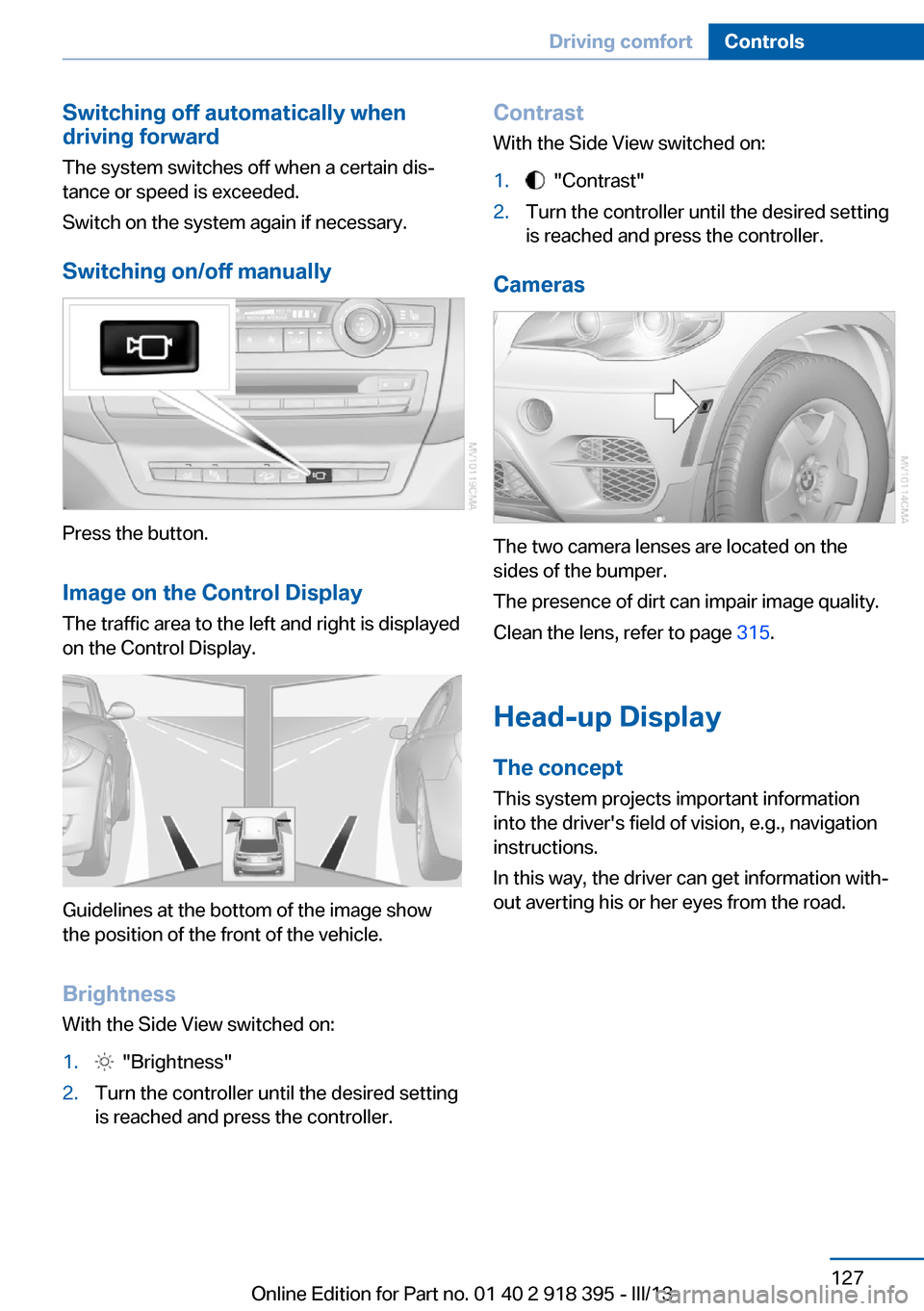
Press the button.
Image on the Control Display
The traffic area to the left and right is displayed
on the Control Display.
Guidelines at the bottom of the image show
the position of the front of the vehicle.
Brightness With the Side View switched on:
1. "Brightness"2.Turn the controller until the desired setting
is reached and press the controller.Contrast
With the Side View switched on:1. "Contrast"2.Turn the controller until the desired setting
is reached and press the controller.
Cameras
The two camera lenses are located on the
sides of the bumper.
The presence of dirt can impair image quality.
Clean the lens, refer to page 315.
Head-up Display
The concept This system projects important information
into the driver's field of vision, e.g., navigation
instructions.
In this way, the driver can get information with‐
out averting his or her eyes from the road.
Seite 127Driving comfortControls127
Online Edition for Part no. 01 40 2 918 395 - III/13
Page 128 of 345
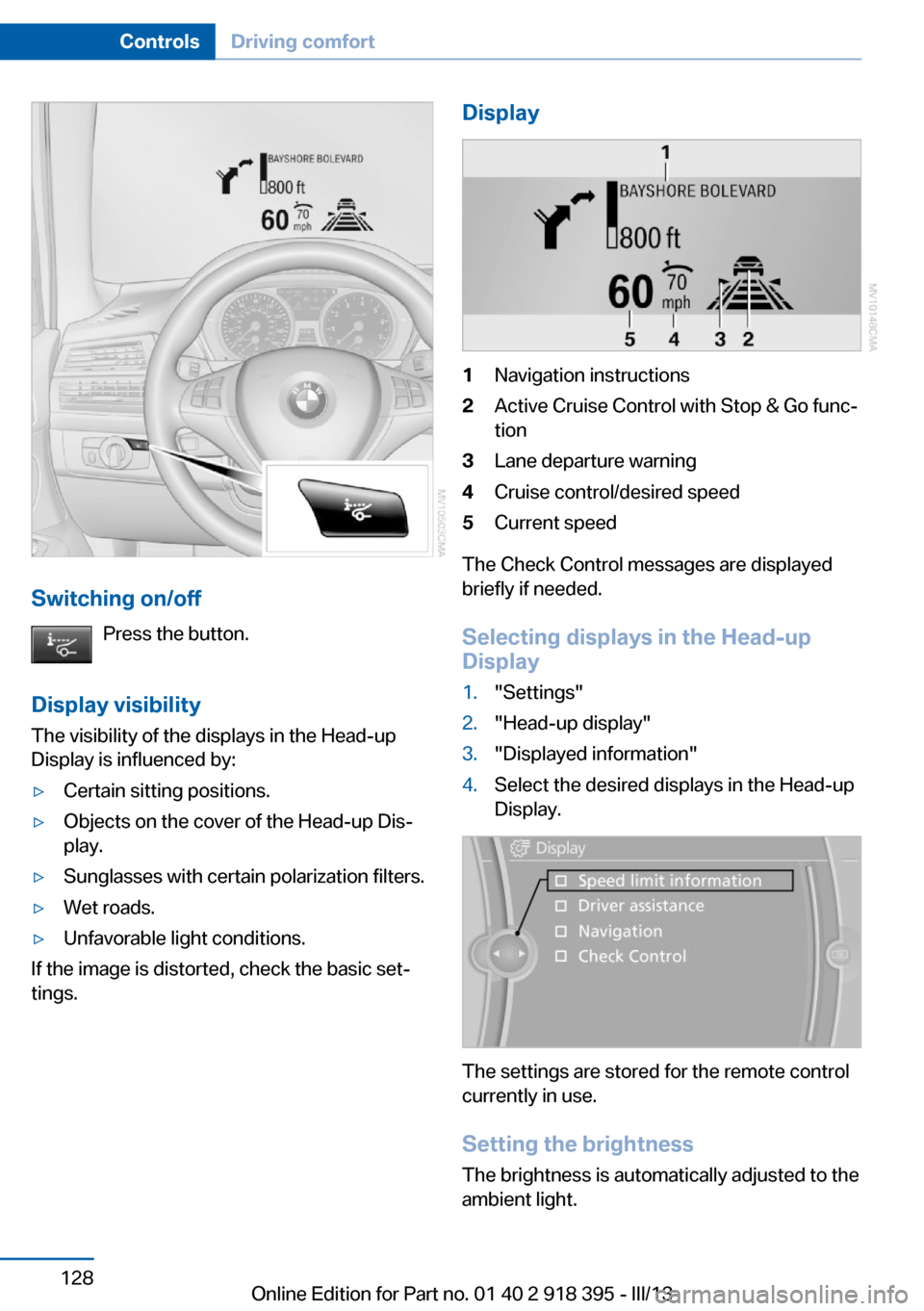
Switching on/offPress the button.
Display visibility The visibility of the displays in the Head-up
Display is influenced by:
▷Certain sitting positions.▷Objects on the cover of the Head-up Dis‐
play.▷Sunglasses with certain polarization filters.▷Wet roads.▷Unfavorable light conditions.
If the image is distorted, check the basic set‐
tings.
Display1Navigation instructions2Active Cruise Control with Stop & Go func‐
tion3Lane departure warning4Cruise control/desired speed5Current speed
The Check Control messages are displayed
briefly if needed.
Selecting displays in the Head-up
Display
1."Settings"2."Head-up display"3."Displayed information"4.Select the desired displays in the Head-up
Display.
The settings are stored for the remote control
currently in use.
Setting the brightness
The brightness is automatically adjusted to the
ambient light.
Seite 128ControlsDriving comfort128
Online Edition for Part no. 01 40 2 918 395 - III/13
Page 129 of 345
The basic setting can be adjusted manually.1."Settings"2."Head-up display"3."Brightness"4.Turn the controller.
The brightness is adjusted.
With the low beams switched on, the bright‐
ness can also be adjusted with the thumb‐
wheel of the instrument lighting.
The setting is stored for the remote control
currently in use.
Height adjustment
1."Settings"2."Head-up display"3."Height"4.Turn the controller.
The height is adjusted.
The setting is stored for the remote control
currently in use.
Special windshield
The windshield is part of the system.
The shape of the windshield makes it possible
to display a precise image.
A film in the windshield prevents double im‐
ages from being displayed.
Therefore, have the special windshield re‐
placed by a service center only.
Seite 129Driving comfortControls129
Online Edition for Part no. 01 40 2 918 395 - III/13
Page 142 of 345
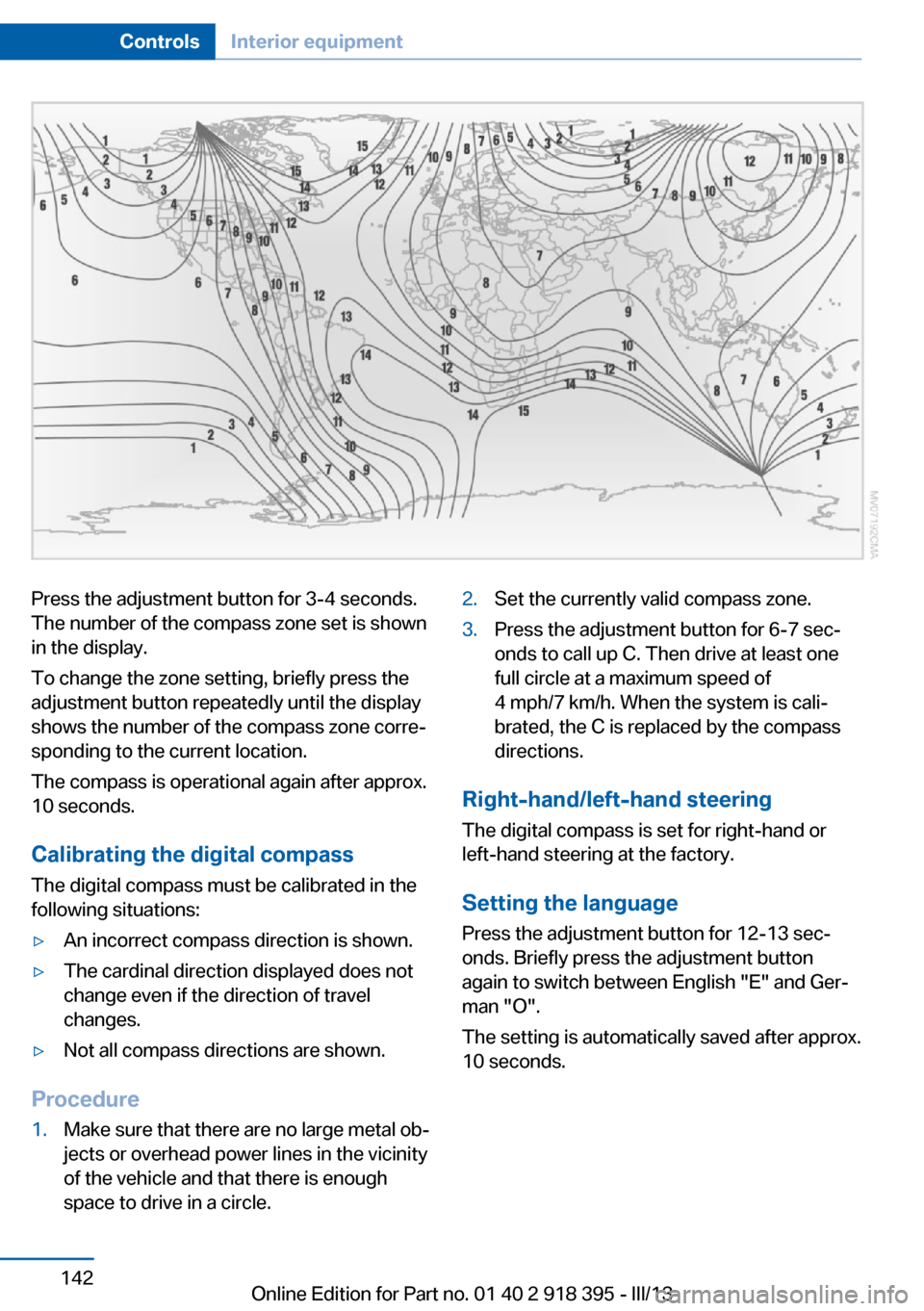
Press the adjustment button for 3‑4 seconds.
The number of the compass zone set is shown
in the display.
To change the zone setting, briefly press the
adjustment button repeatedly until the display
shows the number of the compass zone corre‐
sponding to the current location.
The compass is operational again after approx.
10 seconds.
Calibrating the digital compass
The digital compass must be calibrated in the
following situations:▷An incorrect compass direction is shown.▷The cardinal direction displayed does not
change even if the direction of travel
changes.▷Not all compass directions are shown.
Procedure
1.Make sure that there are no large metal ob‐
jects or overhead power lines in the vicinity
of the vehicle and that there is enough
space to drive in a circle.2.Set the currently valid compass zone.3.Press the adjustment button for 6‑7 sec‐
onds to call up C. Then drive at least one
full circle at a maximum speed of
4 mph/7 km/h. When the system is cali‐
brated, the C is replaced by the compass
directions.
Right-hand/left-hand steering
The digital compass is set for right-hand or
left-hand steering at the factory.
Setting the language Press the adjustment button for 12‑13 sec‐
onds. Briefly press the adjustment button
again to switch between English "E" and Ger‐
man "O".
The setting is automatically saved after approx.
10 seconds.
Seite 142ControlsInterior equipment142
Online Edition for Part no. 01 40 2 918 395 - III/13
Page 179 of 345
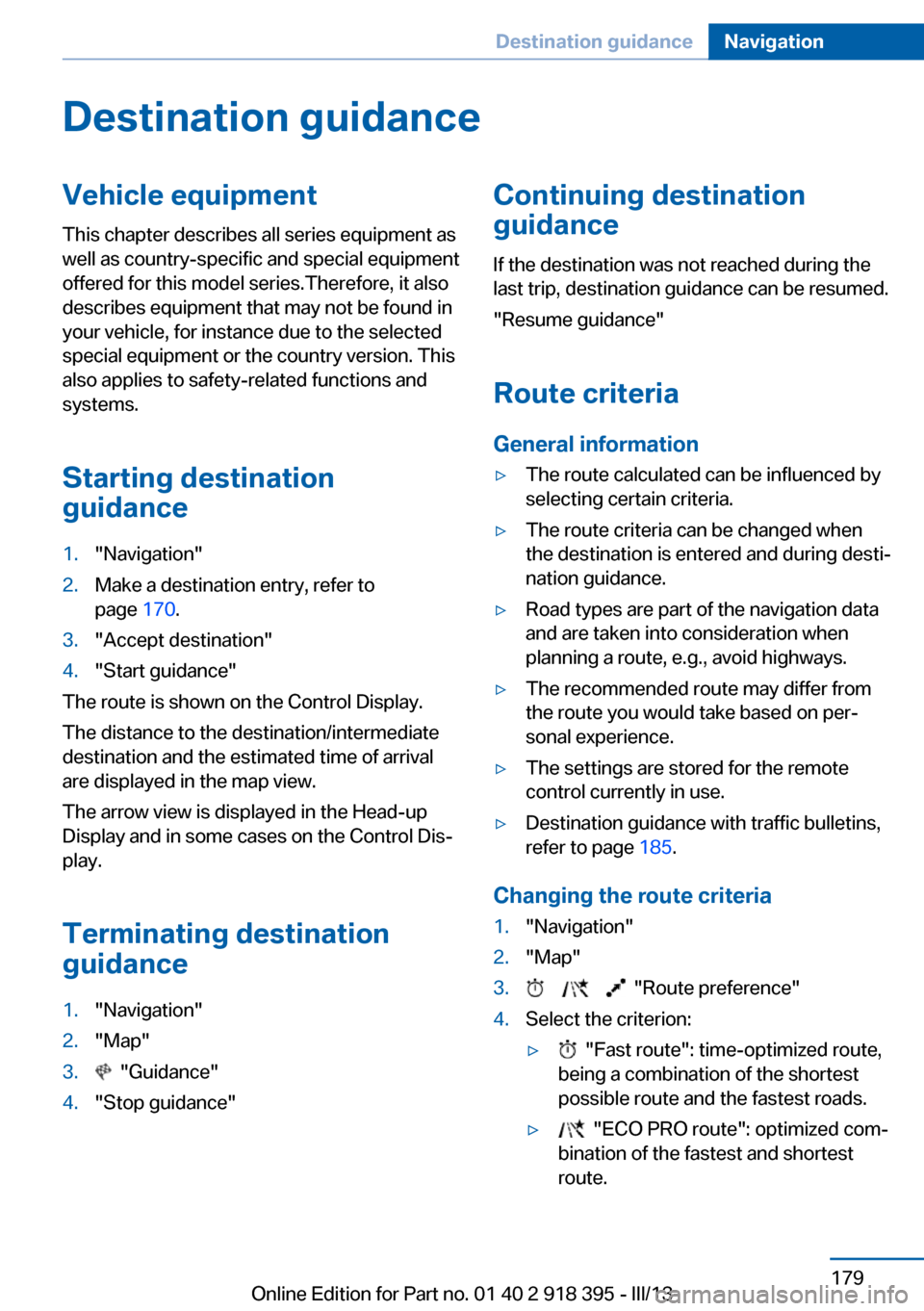
Destination guidanceVehicle equipmentThis chapter describes all series equipment as
well as country-specific and special equipment
offered for this model series.Therefore, it also
describes equipment that may not be found in
your vehicle, for instance due to the selected
special equipment or the country version. This
also applies to safety-related functions and
systems.
Starting destination
guidance1."Navigation"2.Make a destination entry, refer to
page 170.3."Accept destination"4."Start guidance"
The route is shown on the Control Display.
The distance to the destination/intermediate
destination and the estimated time of arrival
are displayed in the map view.
The arrow view is displayed in the Head-up
Display and in some cases on the Control Dis‐
play.
Terminating destination
guidance
1."Navigation"2."Map"3. "Guidance"4."Stop guidance"Continuing destination
guidance
If the destination was not reached during thelast trip, destination guidance can be resumed.
"Resume guidance"
Route criteria
General information▷The route calculated can be influenced by
selecting certain criteria.▷The route criteria can be changed when
the destination is entered and during desti‐
nation guidance.▷Road types are part of the navigation data
and are taken into consideration when
planning a route, e.g., avoid highways.▷The recommended route may differ from
the route you would take based on per‐
sonal experience.▷The settings are stored for the remote
control currently in use.▷Destination guidance with traffic bulletins,
refer to page 185.
Changing the route criteria
1."Navigation"2."Map"3. "Route preference"4.Select the criterion:▷ "Fast route": time-optimized route,
being a combination of the shortest
possible route and the fastest roads.▷ "ECO PRO route": optimized com‐
bination of the fastest and shortest
route.Seite 179Destination guidanceNavigation179
Online Edition for Part no. 01 40 2 918 395 - III/13
Page 180 of 345
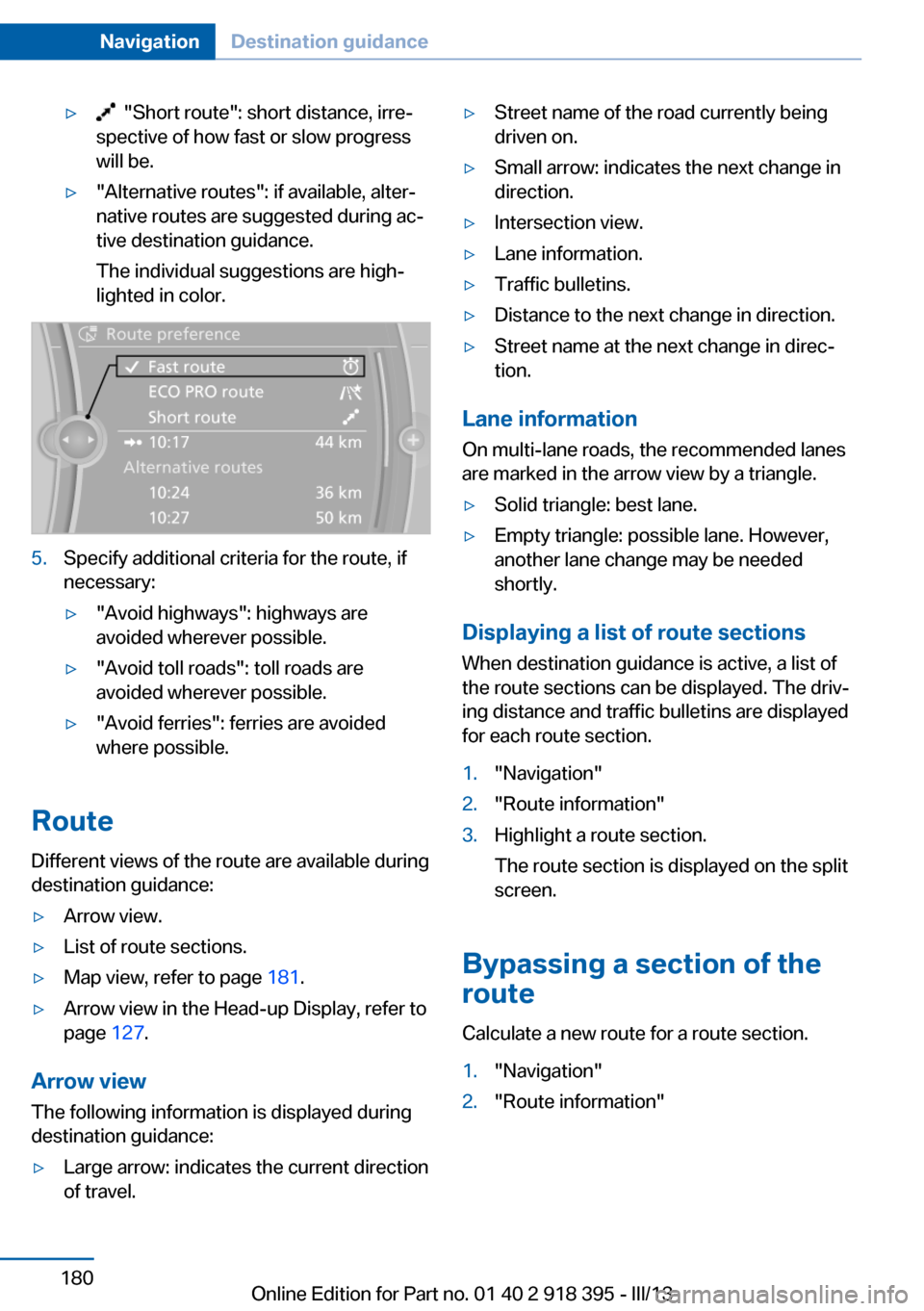
▷ "Short route": short distance, irre‐
spective of how fast or slow progress
will be.▷"Alternative routes": if available, alter‐
native routes are suggested during ac‐
tive destination guidance.
The individual suggestions are high‐
lighted in color.5.Specify additional criteria for the route, if
necessary:▷"Avoid highways": highways are
avoided wherever possible.▷"Avoid toll roads": toll roads are
avoided wherever possible.▷"Avoid ferries": ferries are avoided
where possible.
Route
Different views of the route are available during
destination guidance:
▷Arrow view.▷List of route sections.▷Map view, refer to page 181.▷Arrow view in the Head-up Display, refer to
page 127.
Arrow view
The following information is displayed during
destination guidance:
▷Large arrow: indicates the current direction
of travel.▷Street name of the road currently being
driven on.▷Small arrow: indicates the next change in
direction.▷Intersection view.▷Lane information.▷Traffic bulletins.▷Distance to the next change in direction.▷Street name at the next change in direc‐
tion.
Lane information
On multi-lane roads, the recommended lanes
are marked in the arrow view by a triangle.
▷Solid triangle: best lane.▷Empty triangle: possible lane. However,
another lane change may be needed
shortly.
Displaying a list of route sections
When destination guidance is active, a list of
the route sections can be displayed. The driv‐
ing distance and traffic bulletins are displayed
for each route section.
1."Navigation"2."Route information"3.Highlight a route section.
The route section is displayed on the split
screen.
Bypassing a section of the
route
Calculate a new route for a route section.
1."Navigation"2."Route information"Seite 180NavigationDestination guidance180
Online Edition for Part no. 01 40 2 918 395 - III/13
Page 220 of 345
DVD system in rearVehicle equipmentThis chapter describes all series equipment as
well as country-specific and special equipment
offered for this model series.Therefore, it also
describes equipment that may not be found in
your vehicle, for instance due to the selected
special equipment or the country version. This
also applies to safety-related functions and
systems.
General information
With the DVD system in the rear you can play
CDs and DVDs with audio, video and image
data. The DVD system can also play data from
attached external audio and video devices. Au‐
dio output is possible both via headphones
and via the vehicle speakers.
You can control the DVD system using the but‐
tons on the CD-/DVD player or using the re‐
mote control.
Some functions are operated using the remote
control.
Enabling DVD system
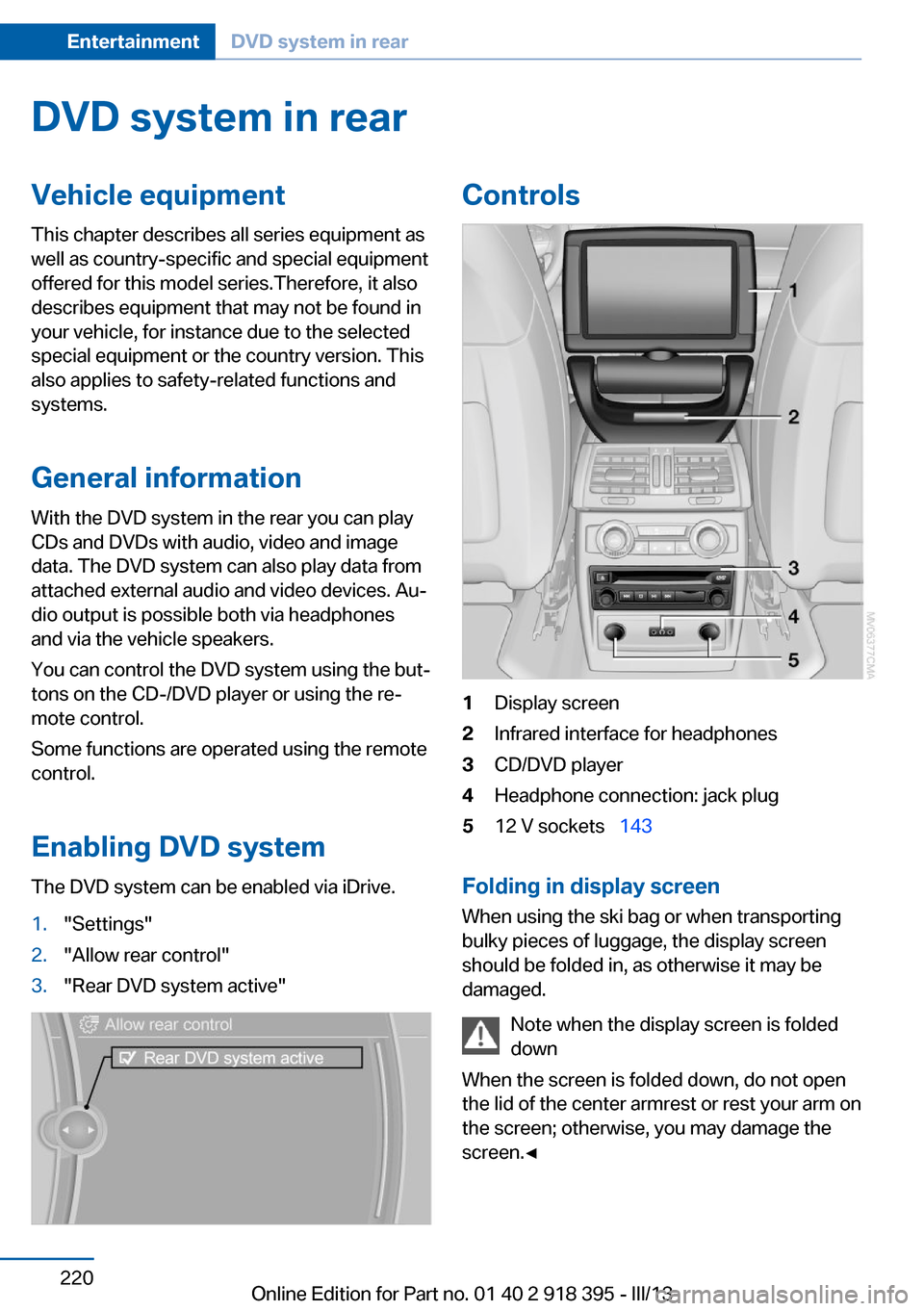
The DVD system can be enabled via iDrive.1."Settings"2."Allow rear control"3."Rear DVD system active"Controls1Display screen2Infrared interface for headphones3CD/DVD player4Headphone connection: jack plug512 V sockets 143
Folding in display screen
When using the ski bag or when transporting
bulky pieces of luggage, the display screen
should be folded in, as otherwise it may be
damaged.
Note when the display screen is folded
down
When the screen is folded down, do not open
the lid of the center armrest or rest your arm on
the screen; otherwise, you may damage the
screen.◀
Seite 220EntertainmentDVD system in rear220
Online Edition for Part no. 01 40 2 918 395 - III/13
Page 221 of 345
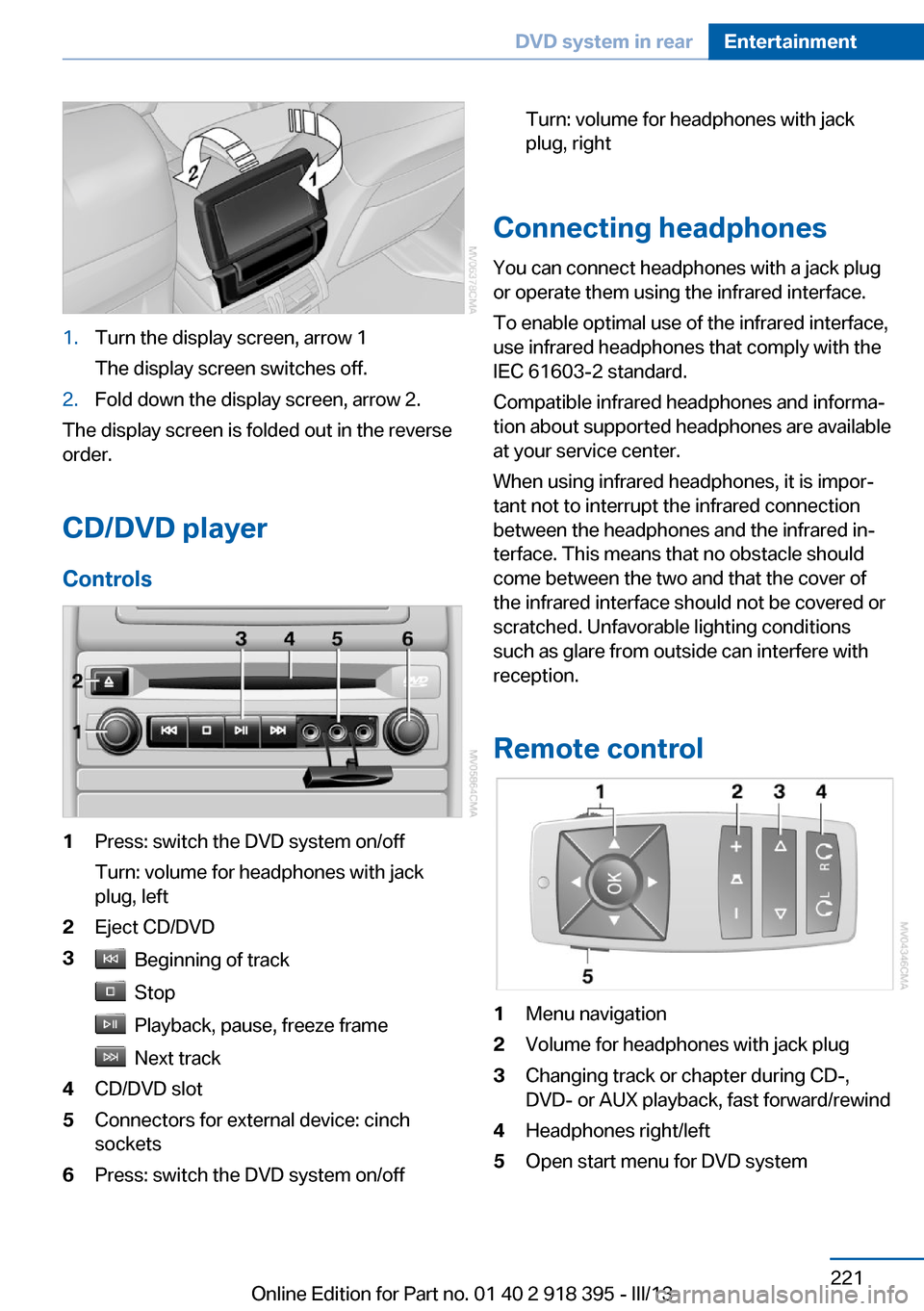
1.Turn the display screen, arrow 1
The display screen switches off.2.Fold down the display screen, arrow 2.
The display screen is folded out in the reverse
order.
CD/DVD player
Controls
1Press: switch the DVD system on/off
Turn: volume for headphones with jack
plug, left2Eject CD/DVD3 Beginning of track
Stop
Playback, pause, freeze frame
Next track
4CD/DVD slot5Connectors for external device: cinch
sockets6Press: switch the DVD system on/offTurn: volume for headphones with jack
plug, right
Connecting headphones
You can connect headphones with a jack plug
or operate them using the infrared interface.
To enable optimal use of the infrared interface,
use infrared headphones that comply with the
IEC 61603-2 standard.
Compatible infrared headphones and informa‐
tion about supported headphones are available
at your service center.
When using infrared headphones, it is impor‐
tant not to interrupt the infrared connection
between the headphones and the infrared in‐
terface. This means that no obstacle should
come between the two and that the cover of
the infrared interface should not be covered or
scratched. Unfavorable lighting conditions
such as glare from outside can interfere with
reception.
Remote control
1Menu navigation2Volume for headphones with jack plug3Changing track or chapter during CD-,
DVD- or AUX playback, fast forward/rewind4Headphones right/left5Open start menu for DVD systemSeite 221DVD system in rearEntertainment221
Online Edition for Part no. 01 40 2 918 395 - III/13
Page 225 of 345
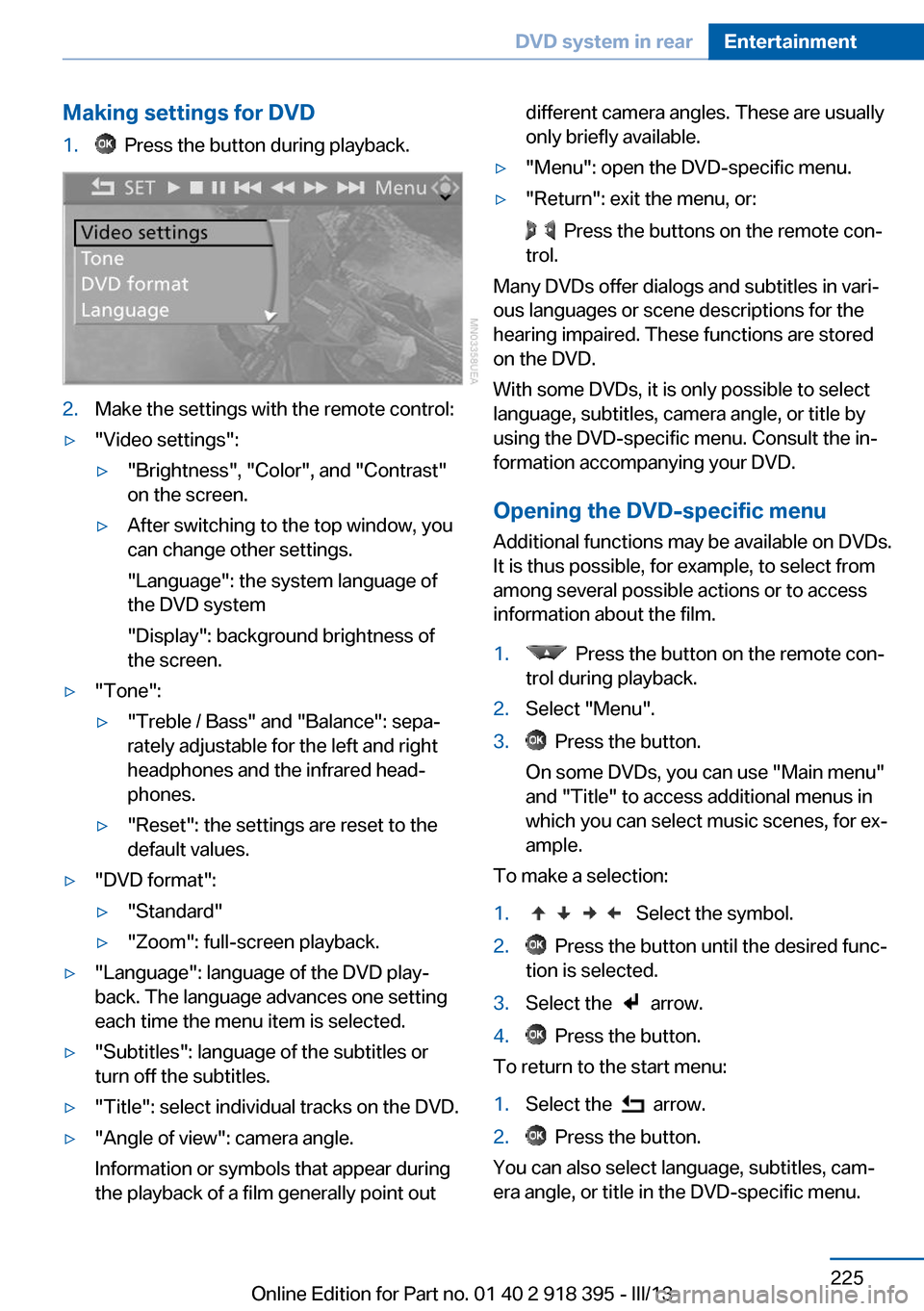
Making settings for DVD1. Press the button during playback.2.Make the settings with the remote control:▷"Video settings":▷"Brightness", "Color", and "Contrast"
on the screen.▷After switching to the top window, you
can change other settings.
"Language": the system language of
the DVD system
"Display": background brightness of
the screen.▷"Tone":▷"Treble / Bass" and "Balance": sepa‐
rately adjustable for the left and right
headphones and the infrared head‐
phones.▷"Reset": the settings are reset to the
default values.▷"DVD format":▷"Standard"▷"Zoom": full-screen playback.▷"Language": language of the DVD play‐
back. The language advances one setting
each time the menu item is selected.▷"Subtitles": language of the subtitles or
turn off the subtitles.▷"Title": select individual tracks on the DVD.▷"Angle of view": camera angle.
Information or symbols that appear during
the playback of a film generally point outdifferent camera angles. These are usually
only briefly available.▷"Menu": open the DVD-specific menu.▷"Return": exit the menu, or:
Press the buttons on the remote con‐
trol.
Many DVDs offer dialogs and subtitles in vari‐
ous languages or scene descriptions for the
hearing impaired. These functions are stored
on the DVD.
With some DVDs, it is only possible to select
language, subtitles, camera angle, or title by
using the DVD-specific menu. Consult the in‐
formation accompanying your DVD.
Opening the DVD-specific menu
Additional functions may be available on DVDs.
It is thus possible, for example, to select from
among several possible actions or to access
information about the film.
1. Press the button on the remote con‐
trol during playback.2.Select "Menu".3. Press the button.
On some DVDs, you can use "Main menu"
and "Title" to access additional menus in
which you can select music scenes, for ex‐
ample.
To make a selection:
1. Select the symbol.2. Press the button until the desired func‐
tion is selected.3.Select the arrow.4. Press the button.
To return to the start menu:
1.Select the arrow.2. Press the button.
You can also select language, subtitles, cam‐
era angle, or title in the DVD-specific menu.
Seite 225DVD system in rearEntertainment225
Online Edition for Part no. 01 40 2 918 395 - III/13
Page 228 of 345
Compressed audio files
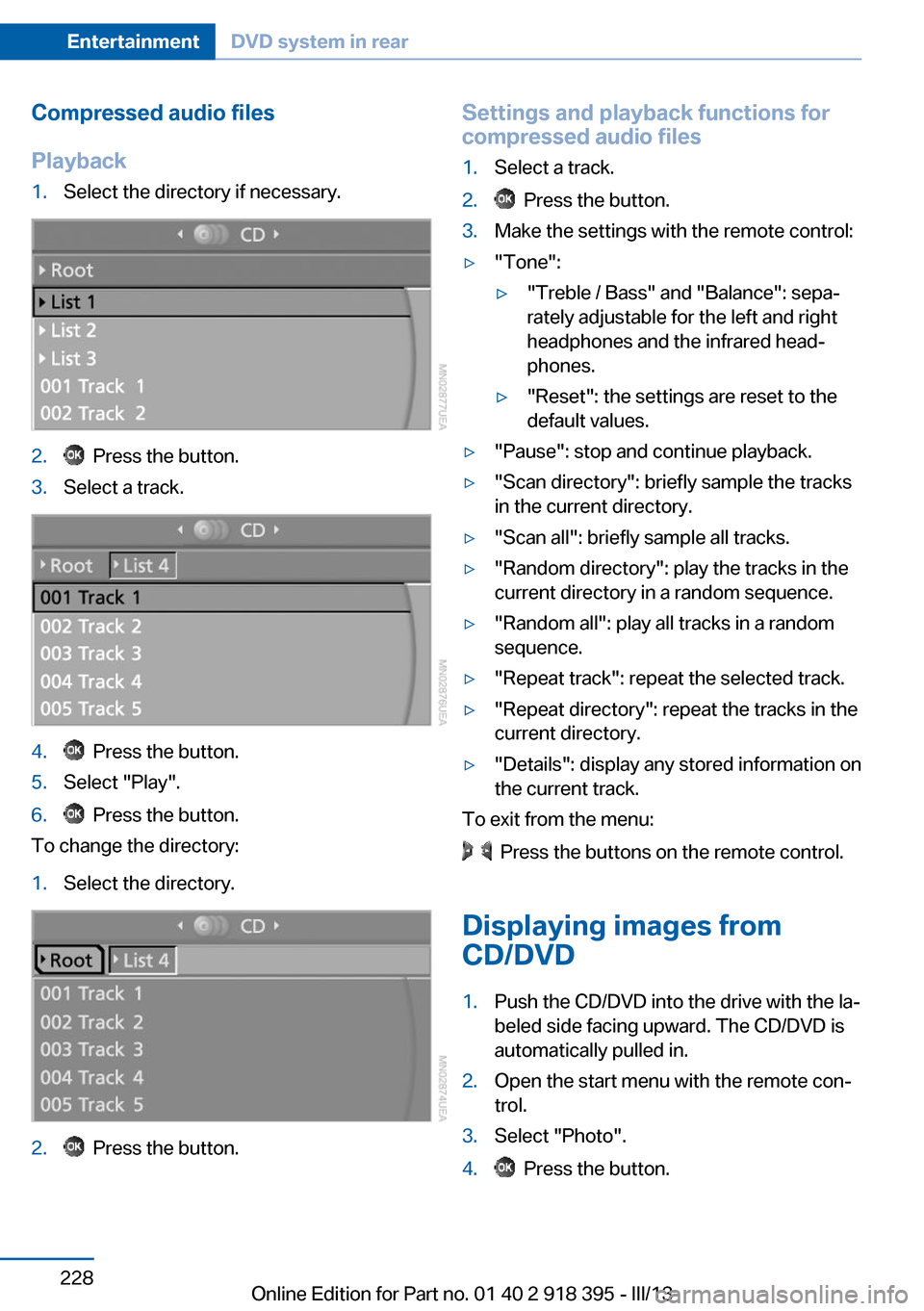
Playback1.Select the directory if necessary.2. Press the button.3.Select a track.4. Press the button.5.Select "Play".6. Press the button.
To change the directory:
1.Select the directory.2. Press the button.Settings and playback functions for
compressed audio files1.Select a track.2. Press the button.3.Make the settings with the remote control:▷"Tone":▷"Treble / Bass" and "Balance": sepa‐
rately adjustable for the left and right
headphones and the infrared head‐
phones.▷"Reset": the settings are reset to the
default values.▷"Pause": stop and continue playback.▷"Scan directory": briefly sample the tracks
in the current directory.▷"Scan all": briefly sample all tracks.▷"Random directory": play the tracks in the
current directory in a random sequence.▷"Random all": play all tracks in a random
sequence.▷"Repeat track": repeat the selected track.▷"Repeat directory": repeat the tracks in the
current directory.▷"Details": display any stored information on
the current track.
To exit from the menu:
Press the buttons on the remote control.
Displaying images from
CD/DVD
1.Push the CD/DVD into the drive with the la‐
beled side facing upward. The CD/DVD is
automatically pulled in.2.Open the start menu with the remote con‐
trol.3.Select "Photo".4. Press the button.Seite 228EntertainmentDVD system in rear228
Online Edition for Part no. 01 40 2 918 395 - III/13