audio BMW X6 M 2012 Owner's Manual
[x] Cancel search | Manufacturer: BMW, Model Year: 2012, Model line: X6 M, Model: BMW X6 M 2012Pages: 317, PDF Size: 8.83 MB
Page 197 of 317
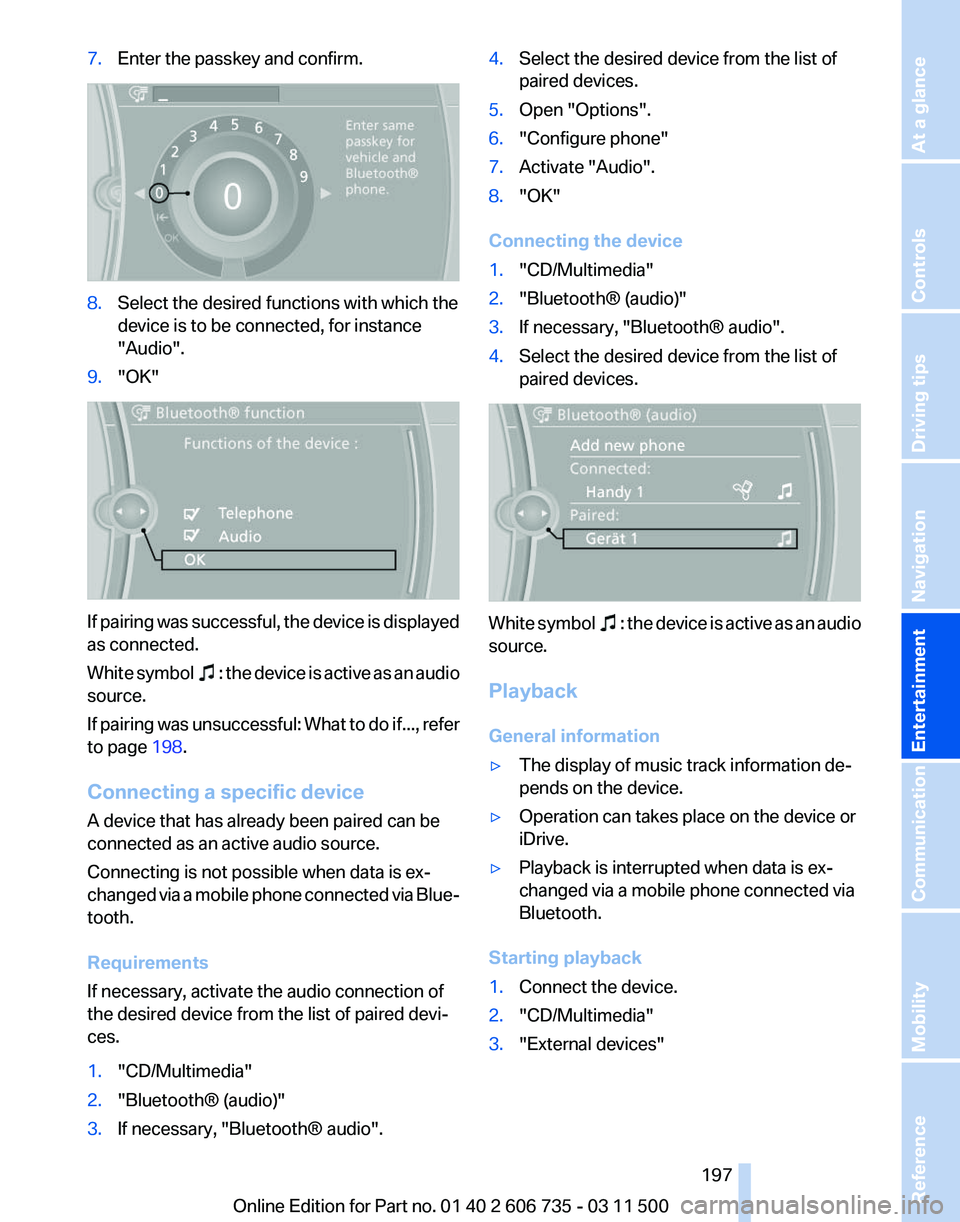
7.
Enter the passkey and confirm. 8.
Select the desired functions with which the
device is to be connected, for instance
"Audio".
9. "OK" If pairing was successful, the device is displayed
as connected.
White
symbol : the device is active as an audio
source.
If
pairing was unsuccessful: What to do if..., refer
to page 198.
Connecting a specific device
A device that has already been paired can be
connected as an active audio source.
Connecting is not possible when data is ex‐
changed via a mobile phone connected via Blue‐
tooth.
Requirements
If necessary, activate the audio connection of
the desired device from the list of paired devi‐
ces.
1. "CD/Multimedia"
2. "Bluetooth® (audio)"
3. If necessary, "Bluetooth® audio". 4.
Select the desired device from the list of
paired devices.
5. Open "Options".
6. "Configure phone"
7. Activate "Audio".
8. "OK"
Connecting the device
1. "CD/Multimedia"
2. "Bluetooth® (audio)"
3. If necessary, "Bluetooth® audio".
4. Select the desired device from the list of
paired devices. White symbol : the device is active as an audio
source.
Playback
General information
▷ The display of music track information de‐
pends on the device.
▷ Operation can takes place on the device or
iDrive.
▷ Playback is interrupted when data is ex‐
changed via a mobile phone connected via
Bluetooth.
Starting playback
1. Connect the device.
2. "CD/Multimedia"
3. "External devices"
Seite 197
197Online Edition for Part no. 01 40 2 606 735 - 03 11 500
Reference Mobility Communication
Entertainment Navigation Driving tips Controls At a glance
Page 198 of 317
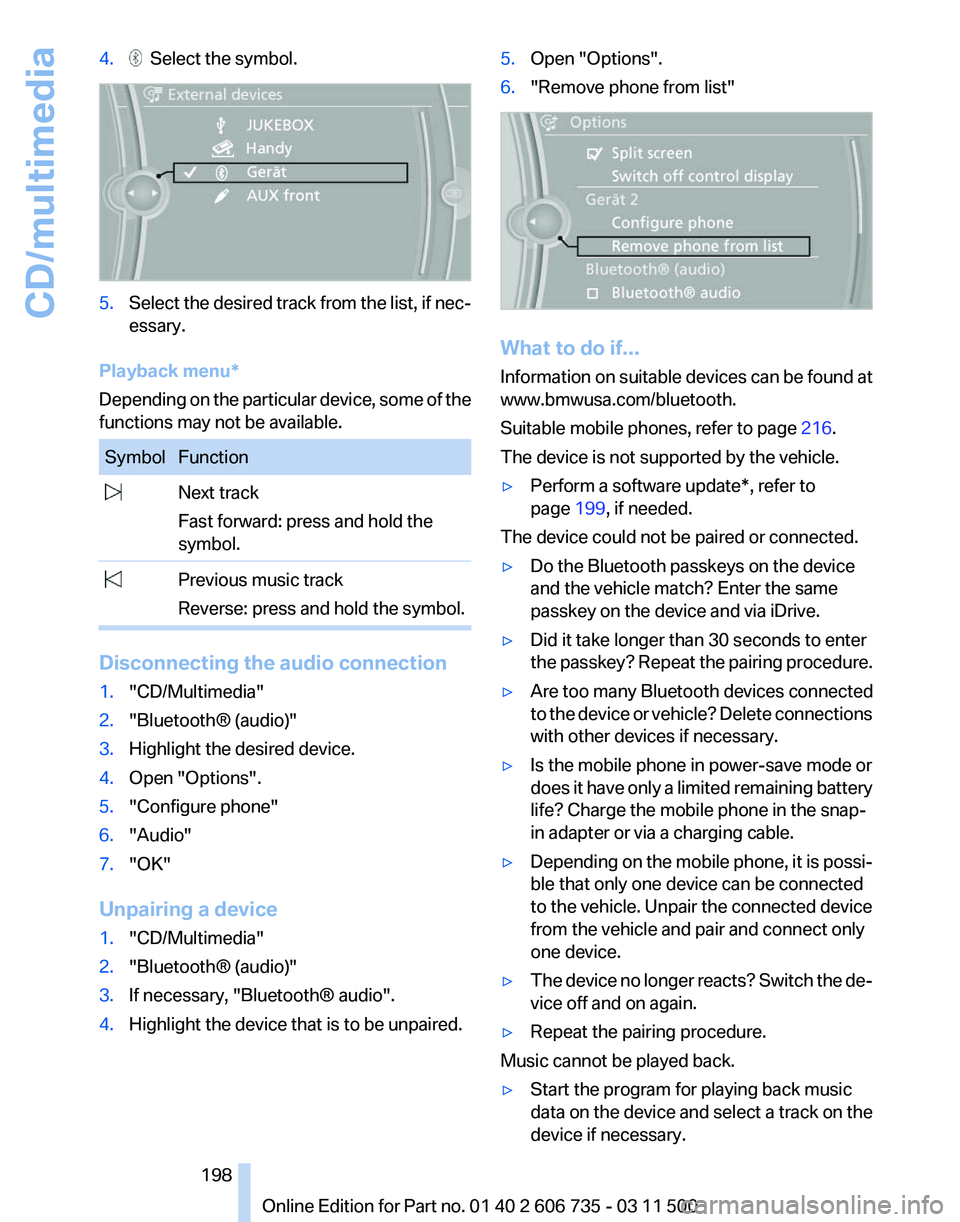
4. Select the symbol.
5.
Select the desired track from the list, if nec‐
essary.
Playback menu*
Depending on the particular device, some of the
functions may not be available. Symbol Function
Next track
Fast forward: press and hold the
symbol. Previous music track
Reverse: press and hold the symbol. Disconnecting the audio connection
1.
"CD/Multimedia"
2. "Bluetooth® (audio)"
3. Highlight the desired device.
4. Open "Options".
5. "Configure phone"
6. "Audio"
7. "OK"
Unpairing a device
1. "CD/Multimedia"
2. "Bluetooth® (audio)"
3. If necessary, "Bluetooth® audio".
4. Highlight the device that is to be unpaired. 5.
Open "Options".
6. "Remove phone from list" What to do if...
Information
on suitable devices can be found at
www.bmwusa.com/bluetooth.
Suitable mobile phones, refer to page 216.
The device is not supported by the vehicle.
▷ Perform a software update*, refer to
page 199, if needed.
The device could not be paired or connected.
▷ Do the Bluetooth passkeys on the device
and the vehicle match? Enter the same
passkey on the device and via iDrive.
▷ Did it take longer than 30 seconds to enter
the
passkey? Repeat the pairing procedure.
▷ Are too many Bluetooth devices connected
to
the device or vehicle? Delete connections
with other devices if necessary.
▷ Is the mobile phone in power-save mode or
does
it have only a limited remaining battery
life? Charge the mobile phone in the snap-
in adapter or via a charging cable.
▷ Depending on the mobile phone, it is possi‐
ble that only one device can be connected
to the vehicle. Unpair the connected device
from the vehicle and pair and connect only
one device.
▷ The device no longer reacts? Switch the de‐
vice off and on again.
▷ Repeat the pairing procedure.
Music cannot be played back.
▷ Start the program for playing back music
data on the device and select a track on the
device if necessary.
Seite 198
198 Online Edition for Part no. 01 40 2 606 735 - 03 11 500
CD/multimedia
Page 199 of 317
▷
Switch the radio on and off again.
Music files can only be played back softly.
▷ Adjust the volume settings on the device.
Playback is disturbed when buttons are pressed
or by other messages on the device.
▷ Switch off the button tones and other signal
tones on the device.
Playback is interrupted by a telephone call or
traffic bulletin and is not resumed automatically.
▷ Switch the radio on and off again.
Playback is not possible if the mobile phone is
connected
both via Bluetooth Audio and via the
extended connectivity of the music player in the
mobile phone*.
▷ Disconnect one of the two connections; for
example, disconnect the audio connection,
refer to page 198, and restart playback.
If all points in this list have been checked and the
required function is still not available, please
contact the hotline or service center.
Software Update*
The vehicle supports various external devices
depending
on the current software version. With
a software update, the vehicle can support new
cell phones or new external device, for example.
▷ USB.
Software updates and related current infor‐
mation is available at www.bmw.com/up‐
date.
Displaying the current version
The currently installed software is displayed.
1. "Settings"
2. "Software update"
3. "Show current version"
Select desired version* to display additional in‐
formation*.
Updating software via USB
*
The software may only be updated when the ve‐
hicle is stationary. 1.
Store the file for the software-update in the
main director of a USB flash drive.
2. Insert the USB flash drive into the USB in‐
terface of the USB audio interface in the
center armrest. An update via the USB in‐
terface
in the glove compartment is not pos‐
sible.
3. "Settings"
4. "Software update"
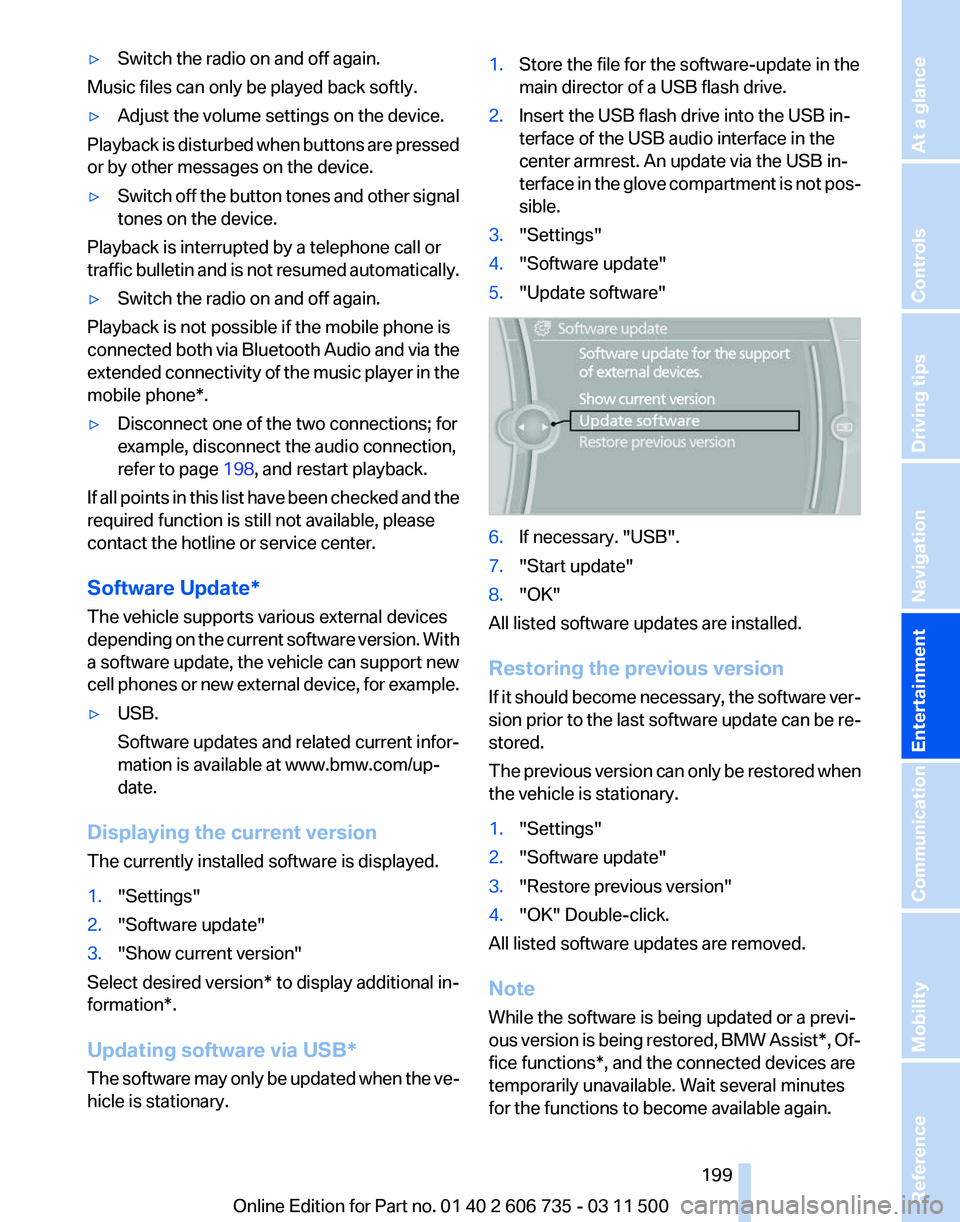
5. "Update software" 6.
If necessary. "USB".
7. "Start update"
8. "OK"
All listed software updates are installed.
Restoring the previous version
If
it should become necessary, the software ver‐
sion prior to the last software update can be re‐
stored.
The previous version can only be restored when
the vehicle is stationary.
1. "Settings"
2. "Software update"
3. "Restore previous version"
4. "OK" Double-click.
All listed software updates are removed.
Note
While the software is being updated or a previ‐
ous
version is being restored, BMW Assist*, Of‐
fice functions*, and the connected devices are
temporarily unavailable. Wait several minutes
for the functions to become available again.
Seite 199
199Online Edition for Part no. 01 40 2 606 735 - 03 11 500
Reference Mobility Communication
Entertainment Navigation Driving tips Controls At a glance
Page 200 of 317
DVD system in rear*
General information
With the DVD system in the rear you can play
CDs
and DVDs with audio, video and image data.
The DVD system can also play data from at‐
tached external audio and video devices. Audio
output is possible both via headphones and via
the vehicle speakers.
You can control the DVD system using the but‐
tons on the CD-/DVD player or using the remote
control.
Some functions are operated using the remote
control.
Enabling DVD system
The DVD system can be enabled via iDrive.
1. "Settings"
2. "Allow rear control"
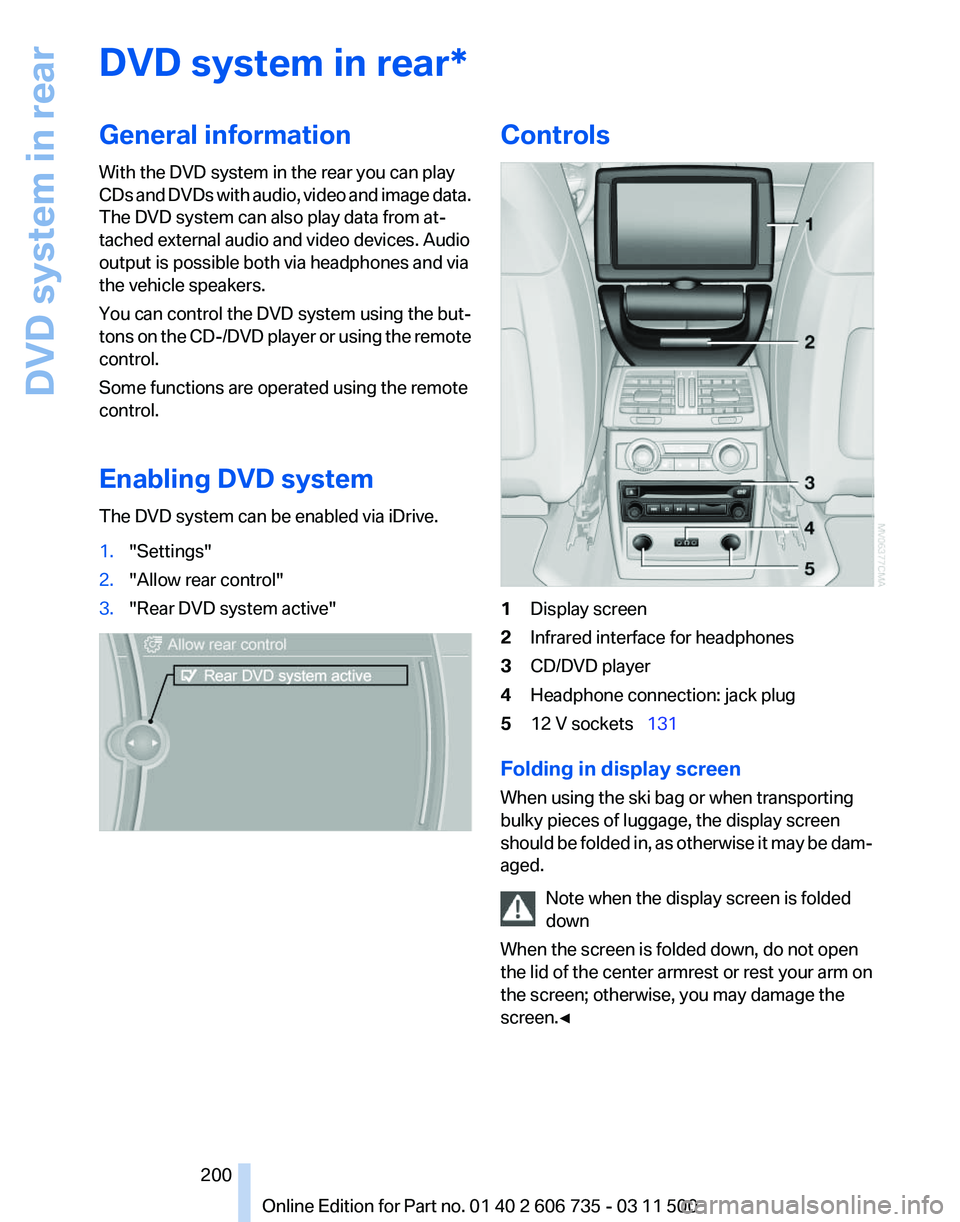
3. "Rear DVD system active" Controls
1
Display screen
2 Infrared interface for headphones
3 CD/DVD player
4 Headphone connection: jack plug
5 12 V sockets 131
Folding in display screen
When using the ski bag or when transporting
bulky pieces of luggage, the display screen
should
be folded in, as otherwise it may be dam‐
aged.
Note when the display screen is folded
down
When the screen is folded down, do not open
the lid of the center armrest or rest your arm on
the screen; otherwise, you may damage the
screen.◀ Seite 200
200 Online Edition for Part no. 01 40 2 606 735 - 03 11 500
DVD system in rear
Page 202 of 317
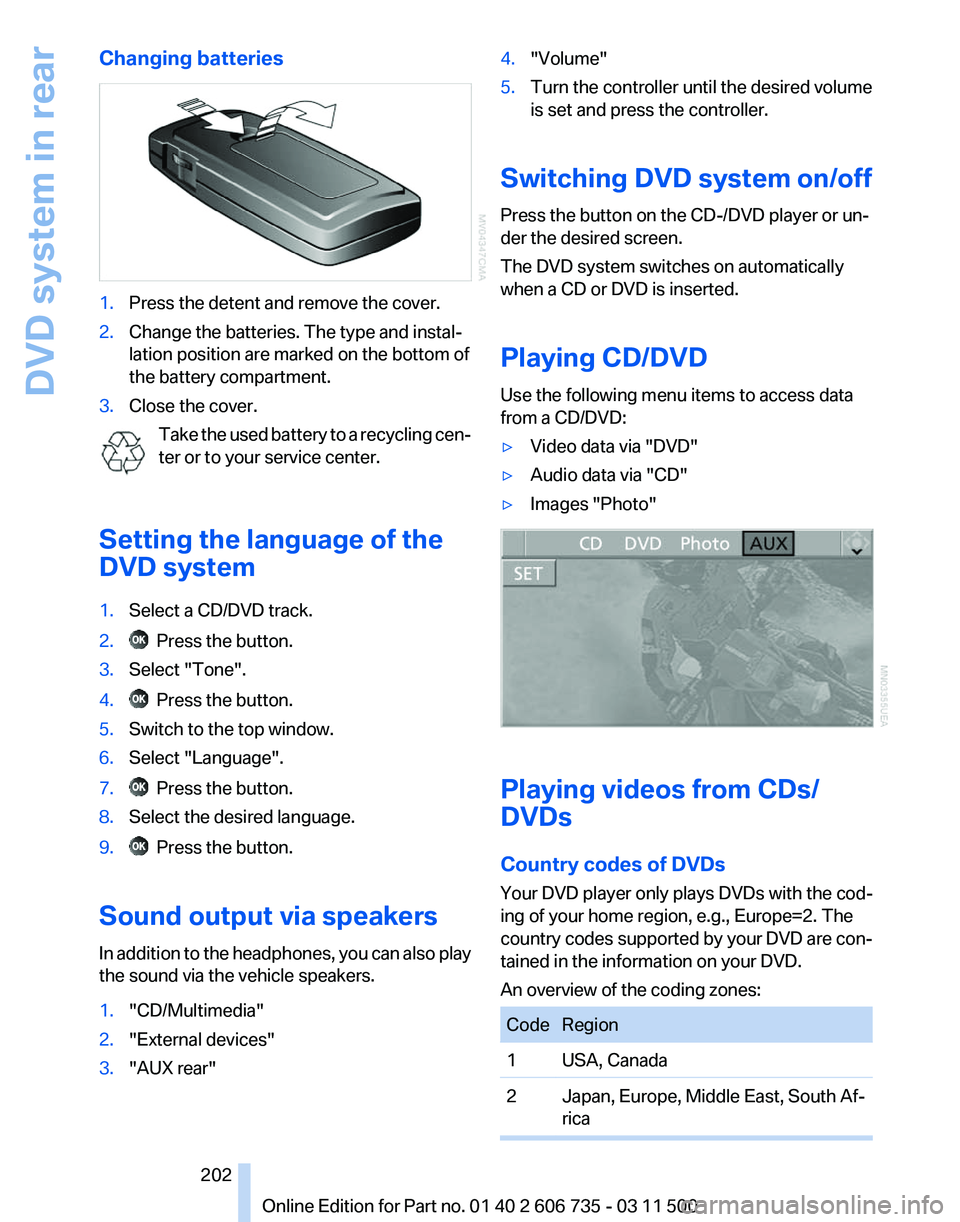
Changing batteries
1.
Press the detent and remove the cover.
2. Change the batteries. The type and instal‐
lation position are marked on the bottom of
the battery compartment.
3. Close the cover.
Take the used battery to a recycling cen‐
ter or to your service center.
Setting the language of the
DVD system
1. Select a CD/DVD track.
2. Press the button.
3. Select "Tone".
4. Press the button.
5. Switch to the top window.
6. Select "Language".
7. Press the button.
8. Select the desired language.
9. Press the button.
Sound output via speakers
In addition to the headphones, you can also play
the sound via the vehicle speakers.
1. "CD/Multimedia"
2. "External devices"
3. "AUX rear" 4.
"Volume"
5. Turn the controller until the desired volume
is set and press the controller.
Switching DVD system on/off
Press the button on the CD-/DVD player or un‐
der the desired screen.
The DVD system switches on automatically
when a CD or DVD is inserted.
Playing CD/DVD
Use the following menu items to access data
from a CD/DVD:
▷ Video data via "DVD"
▷ Audio data via "CD"
▷ Images "Photo" Playing videos from CDs/
DVDs
Country codes of DVDs
Your DVD player only plays DVDs with the cod‐
ing of your home region, e.g., Europe=2. The
country
codes supported by your DVD are con‐
tained in the information on your DVD.
An overview of the coding zones: Code Region
1 USA, Canada
2 Japan, Europe, Middle East, South Af‐
rica Seite 202
202 Online Edition for Part no. 01 40 2 606 735 - 03 11 500
DVD system in rear
Page 206 of 317
5.
Select "Play".
6. Press the button.
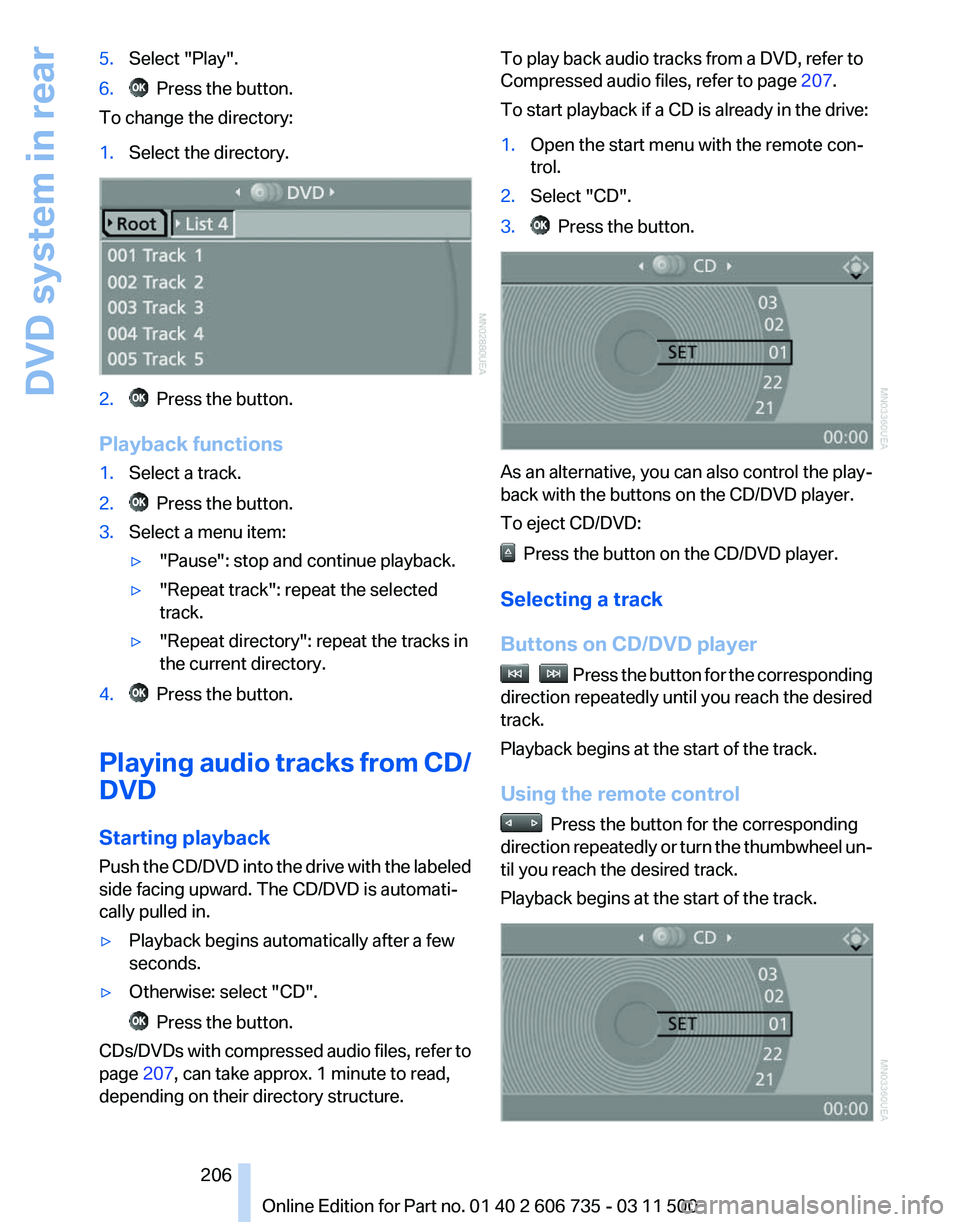
To change the directory:
1. Select the directory. 2. Press the button.
Playback functions
1. Select a track.
2. Press the button.
3. Select a menu item:
▷"Pause": stop and continue playback.
▷ "Repeat track": repeat the selected
track.
▷ "Repeat directory": repeat the tracks in
the current directory.
4. Press the button.
Playing audio tracks from CD/
DVD
Starting playback
Push
the CD/DVD into the drive with the labeled
side facing upward. The CD/DVD is automati‐
cally pulled in.
▷ Playback begins automatically after a few
seconds.
▷ Otherwise: select "CD". Press the button.
CDs/DVDs with compressed audio files, refer to
page 207, can take approx. 1 minute to read,
depending on their directory structure. To play back audio tracks from a DVD, refer to
Compressed audio files, refer to page
207.
To start playback if a CD is already in the drive:
1. Open the start menu with the remote con‐
trol.
2. Select "CD".
3. Press the button.
As an alternative, you can also control the play‐
back with the buttons on the CD/DVD player.
To eject CD/DVD:
Press the button on the CD/DVD player.
Selecting a track
Buttons on CD/DVD player Press the button for the corresponding
direction repeatedly until you reach the desired
track.
Playback begins at the start of the track.
Using the remote control Press the button for the corresponding
direction
repeatedly or turn the thumbwheel un‐
til you reach the desired track.
Playback begins at the start of the track. Seite 206
206 Online Edition for Part no. 01 40 2 606 735 - 03 11 500
DVD system in rear
Page 207 of 317
Settings and playback functions for
audio CDs
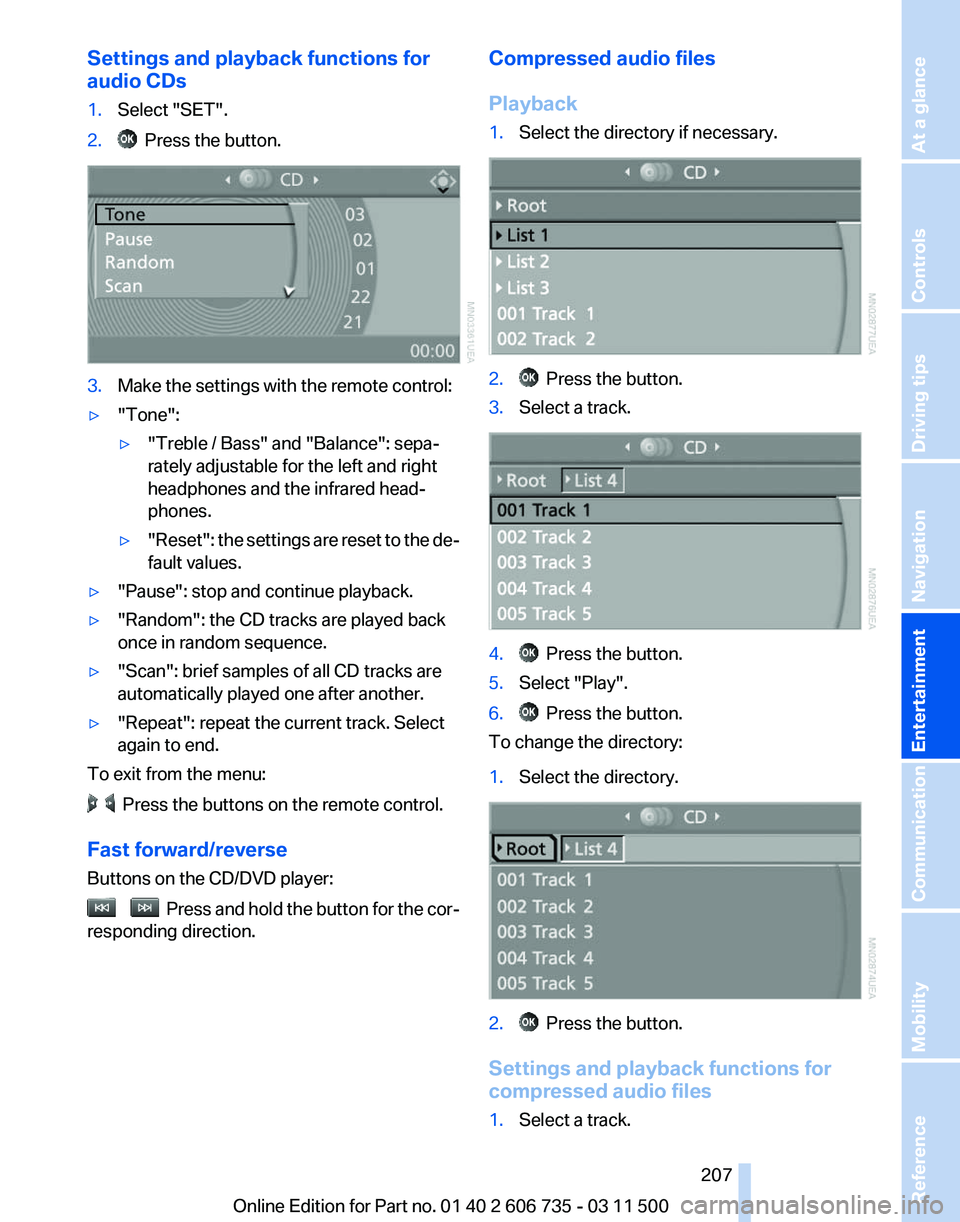
1.
Select "SET".
2. Press the button.
3.
Make the settings with the remote control:
▷ "Tone":
▷"Treble / Bass" and "Balance": sepa‐
rately adjustable for the left and right
headphones and the infrared head‐
phones.
▷ "Reset": the settings are reset to the de‐
fault values.
▷ "Pause": stop and continue playback.
▷ "Random": the CD tracks are played back
once in random sequence.
▷ "Scan": brief samples of all CD tracks are
automatically played one after another.
▷ "Repeat": repeat the current track. Select
again to end.
To exit from the menu: Press the buttons on the remote control.
Fast forward/reverse
Buttons on the CD/DVD player: Press and hold the button for the cor‐
responding direction. Compressed audio files
Playback
1.
Select the directory if necessary. 2. Press the button.
3. Select a track. 4. Press the button.
5. Select "Play".
6. Press the button.
To change the directory:
1. Select the directory. 2. Press the button.
Settings and playback functions for
compressed audio files
1. Select a track.
Seite 207
207Online Edition for Part no. 01 40 2 606 735 - 03 11 500
Reference Mobility Communication
Entertainment Navigation Driving tips Controls At a glance
Page 209 of 317
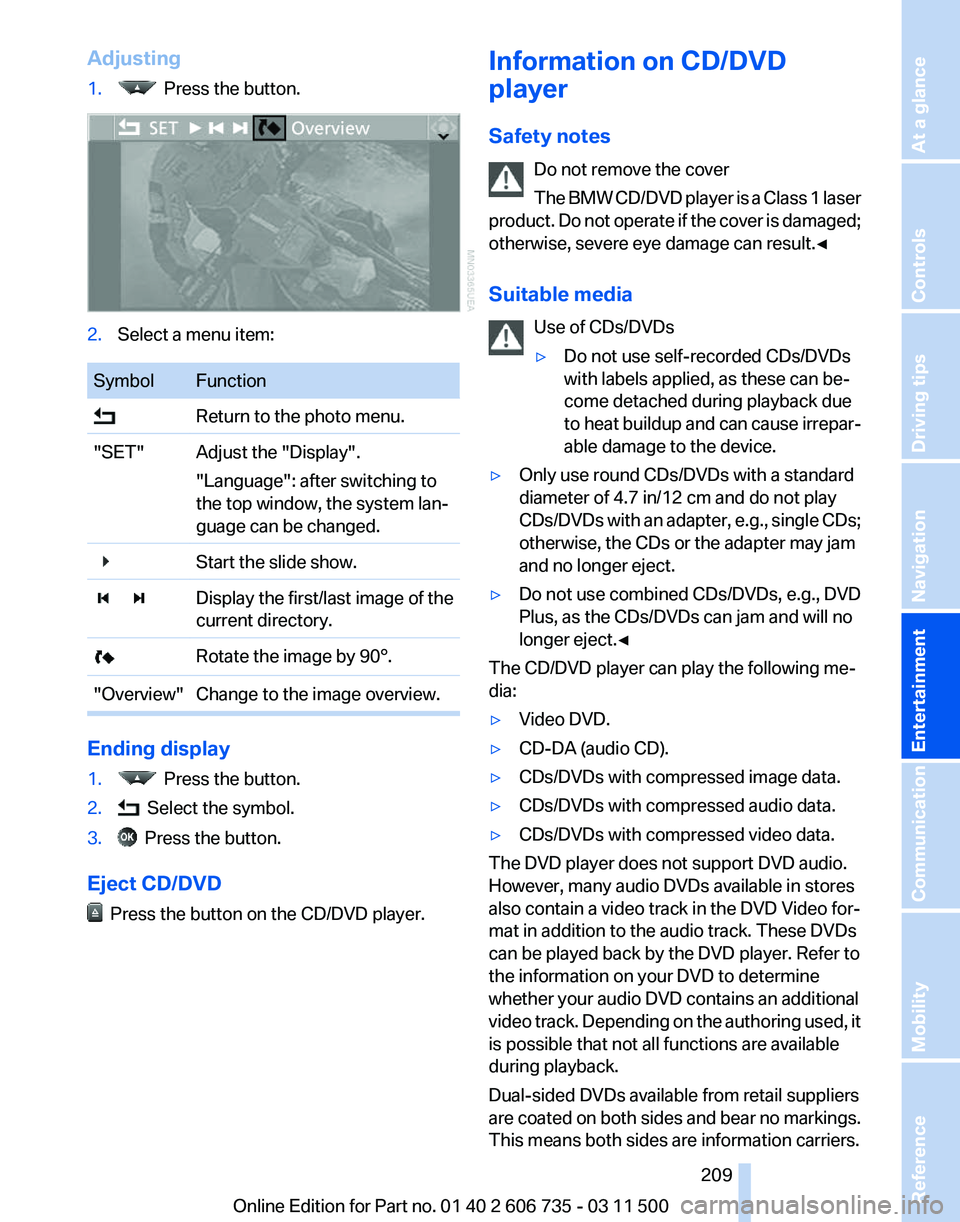
Adjusting
1.
Press the button.
2.
Select a menu item: Symbol Function
Return to the photo menu.
"SET" Adjust the "Display". "Language": after switching to
the top window, the system lan‐
guage can be changed.
Start the slide show.
Display the first/last image of the
current directory.
Rotate the image by 90°.
"Overview" Change to the image overview. Ending display
1.
Press the button.
2. Select the symbol.
3. Press the button.
Eject CD/DVD Press the button on the CD/DVD player. Information on CD/DVD
player
Safety notes
Do not remove the cover
The
BMW CD/DVD player is a Class 1 laser
product. Do not operate if the cover is damaged;
otherwise, severe eye damage can result.◀
Suitable media
Use of CDs/DVDs
▷Do not use self-recorded CDs/DVDs
with labels applied, as these can be‐
come detached during playback due
to
heat buildup and can cause irrepar‐
able damage to the device.
▷ Only use round CDs/DVDs with a standard
diameter of 4.7 in/12 cm and do not play
CDs/DVDs
with an adapter, e.g., single CDs;
otherwise, the CDs or the adapter may jam
and no longer eject.
▷ Do not use combined CDs/DVDs, e.g., DVD
Plus, as the CDs/DVDs can jam and will no
longer eject.◀
The CD/DVD player can play the following me‐
dia:
▷ Video DVD.
▷ CD-DA (audio CD).
▷ CDs/DVDs with compressed image data.
▷ CDs/DVDs with compressed audio data.
▷ CDs/DVDs with compressed video data.
The DVD player does not support DVD audio.
However, many audio DVDs available in stores
also contain a video track in the DVD Video for‐
mat in addition to the audio track. These DVDs
can be played back by the DVD player. Refer to
the information on your DVD to determine
whether your audio DVD contains an additional
video
track. Depending on the authoring used, it
is possible that not all functions are available
during playback.
Dual-sided DVDs available from retail suppliers
are coated on both sides and bear no markings.
This means both sides are information carriers. Seite 209
209Online Edition for Part no. 01 40 2 606 735 - 03 11 500
Reference Mobility Communication
Entertainment Navigation Driving tips Controls At a glance
Page 210 of 317
To play the information on the other side, turn
over the DVD.
Supported formats
Depending on the compression method used,
not all files of the specified formats can be
opened.
Images
▷
JPEG/JPG.
With very large image files, it can take longer for
the images to be displayed.
Compressed audio files
▷ MP3.
▷ WMA.
▷ OGG.
▷ AAC.
Compressed video files
▷ SVCD.
▷ MPEG1.
▷ MPEG2.
▷ MPEG4/DivX.
Digital Rights Management (DRM)
In some cases, it may not be possible to play
CDs/DVDs with integrated Digital Rights Man‐
agement (DRM).
General malfunctions
▷ CD/DVD changers and players have been
optimized for performance in vehicles. In
some
instances they may be more sensitive
to faulty CDs/DVDs than stationary devices
would be.
▷ If a CD/DVD cannot be played, first check
whether it has been inserted correctly.
Foreign bodies/liquids in the CD/DVD slot
Make sure that no foreign objects or liq‐
uids get into the CD/DVD slot; otherwise, the
CD/DVD player will be damaged.
◀ Humidity
High
levels of humidity can lead to condensation
on the CD/DVD or the laser's scan lens, and
temporarily prevent playback.
Malfunctions involving individual CDs/
DVDs
If malfunctions occur only with particular CDs/
DVDs, this can be due to one of the following
causes.
Copied or self-recorded CDs/DVDs
▷ Possible reasons for malfunctions with
home-recorded
CDs/DVDs are inconsistent
data creation or recording processes, or
poor quality or old age of the blank CD/DVD.
▷ Only label CDs/DVDs on the upper side with
a pen intended for this purpose.
Damaged CDs/DVDs
▷ Avoid fingerprints, dust, scratches and
moisture.
▷ Store CDs/DVDs in a sleeve.
▷ Do not subject CDs/DVDs to temperatures
over 122 ℉/50 ℃, high humidity or direct
sunlight.
CDs/DVDs with copy protection
CDs/DVDs are often provided with a copy pro‐
tection
feature by the manufacturer. As a result,
some CDs/DVDs cannot be played, can only be
played to a limited degree, or cause the system
to switch off. In this case, wait a short while and
then switch the system back on again. Then re‐
move the CD/DVD from the drive.
CDs/DVDs with compressed audio files
If the language set for the CD/DVD player does
not match the language of the music track, the
music tracks may be displayed incorrectly.
Seite 210
210 Online Edition for Part no. 01 40 2 606 735 - 03 11 500
DVD system in rear
Page 211 of 317
External device
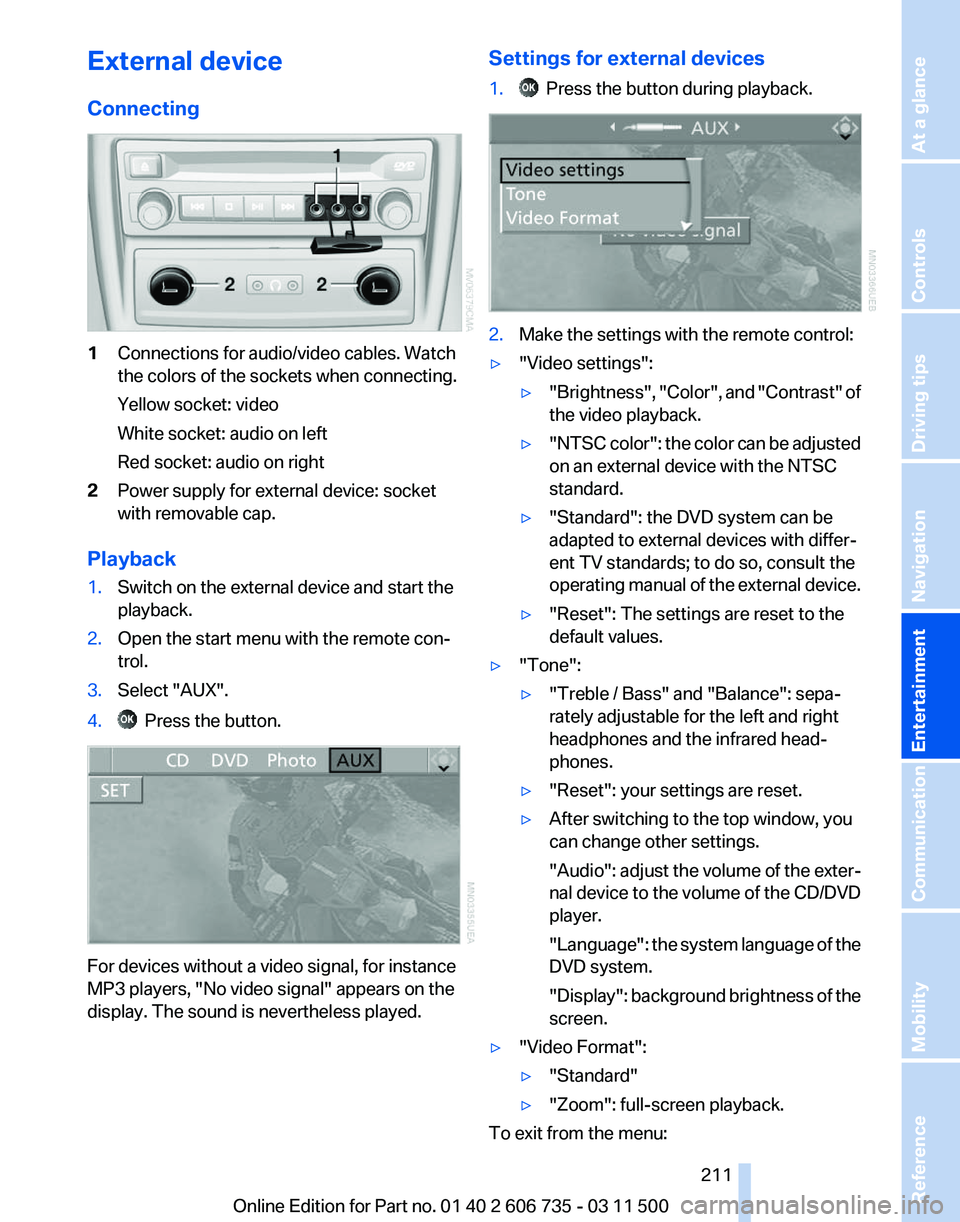
Connecting
1
Connections for audio/video cables. Watch
the colors of the sockets when connecting.
Yellow socket: video
White socket: audio on left
Red socket: audio on right
2 Power supply for external device: socket
with removable cap.
Playback
1. Switch on the external device and start the
playback.
2. Open the start menu with the remote con‐
trol.
3. Select "AUX".
4. Press the button.
For devices without a video signal, for instance
MP3 players, "No video signal"
appears on the
display. The sound is nevertheless played. Settings for external devices
1. Press the button during playback.
2.
Make the settings with the remote control:
▷ "Video settings":
▷"Brightness", "Color",
and "Contrast" of
the video playback.
▷ "NTSC
color": the color can be adjusted
on an external device with the NTSC
standard.
▷ "Standard": the DVD system can be
adapted to external devices with differ‐
ent TV standards; to do so, consult the
operating
manual of the external device.
▷ "Reset": The settings are reset to the
default values.
▷ "Tone":
▷"Treble / Bass" and "Balance": sepa‐
rately adjustable for the left and right
headphones and the infrared head‐
phones.
▷ "Reset": your settings are reset.
▷ After switching to the top window, you
can change other settings.
"Audio":
adjust the volume of the exter‐
nal device to the volume of the CD/DVD
player.
"Language": the system language of the
DVD system.
"Display": background brightness of the
screen.
▷ "Video Format":
▷"Standard"
▷ "Zoom": full-screen playback.
To exit from the menu:
Seite 211
211Online Edition for Part no. 01 40 2 606 735 - 03 11 500
Reference Mobility Communication
Entertainment Navigation Driving tips Controls At a glance