steering wheel BMW X6M 2009 E71 Owner's Guide
[x] Cancel search | Manufacturer: BMW, Model Year: 2009, Model line: X6M, Model: BMW X6M 2009 E71Pages: 317, PDF Size: 9.56 MB
Page 108 of 317
Technology for comfort, convenience and safety
106
the upholstery in the center of the steering
wheel, on the instrument cluster, the doors, and
the roof pillars as well as
the sides of the head-
liner. Do not attempt to remove or dismantle the
steering wheel. Do not touch the individual
components immediately after the system has
been triggered, because there is a danger of
burns.
In the event of malfunctions, deactivation, or
triggering of the airbag restraint system, have
the testing, repair, remova l, and disposal of air-
bag generators executed only by a BMW Sports
Activity Vehicle Center or a workshop that
works according to BMW repair procedures
with correspondingly trained personnel and has
the required explosives licenses. Otherwise
unprofessional attempts to service the system
could lead to failure in an emergency or undes-
ired airbag triggering, either of which could
result in personal injury. <
Warnings and information on the airbags is also
provided on the sun visors.
Automatic deactivation of front
passenger airbags
The occupation of the seat is detected by eval-
uating the impression on the occupied seat sur-
face of the front passeng er seat. The front and
side airbags on the front passenger side are
activated or deactivated accordingly by the sys-
tem.
The current status of the front passenger
airbag, i.e. deactivated or activated, is
indicated by the indicator lamp over the interior
rearview mirror, refer to Operating state of front
passenger airbags in the following. <
Before transporting a child on the front
passenger seat, read the safety informa-
tion and follow the inst ructions under Trans-
porting children safely, refer to page 61.
When teenagers and adults assume certain sit-
ting positions, this can cause the front and side
airbags to deactivate. The indicator lamp for the
front passenger airbags lights up when this
occurs. In these cases, change the sitting posi-
tion so that the front passenger airbags are acti-
vated and the indicator la mp goes out. If the
desired status cannot be produced by changing the sitting position, transport the correspond-
ing person on the rear se
at. Do not fit seat cov-
ers, seat cushion padding, ball mats or other
items onto the front passenger seat unless they
are specifically recomme nded by BMW. Do not
lay objects under the seat which could press
against the seat from below. Otherwise a cor-
rect evaluation of the occupied seat surface
cannot be ensured. <
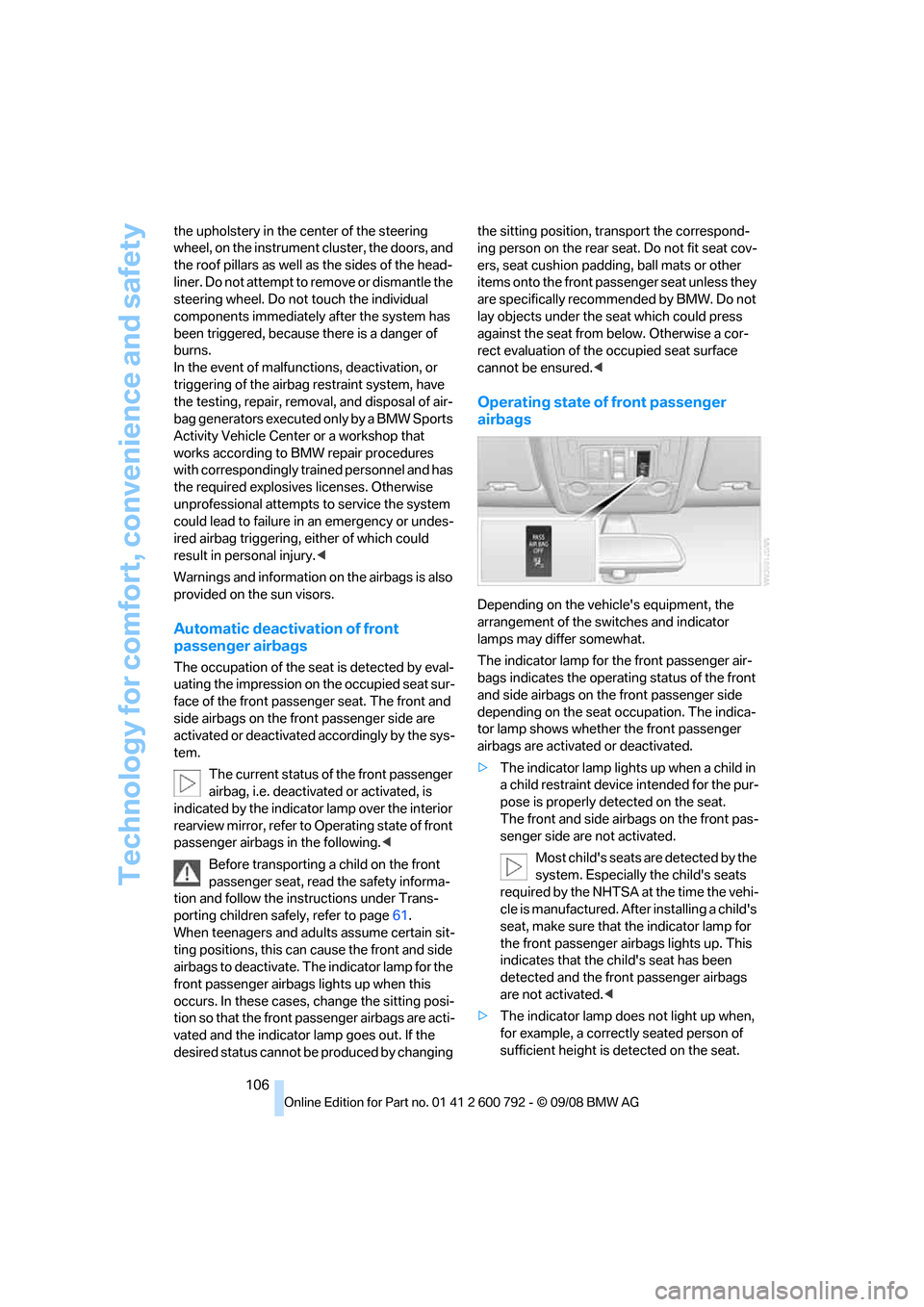
Operating state of front passenger
airbags
Depending on the vehicle's equipment, the
arrangement of the switches and indicator
lamps may differ somewhat.
The indicator lamp for the front passenger air-
bags indicates the operating status of the front
and side airbags on the front passenger side
depending on the seat occupation. The indica-
tor lamp shows whether the front passenger
airbags are activated or deactivated.
> The indicator lamp light s up when a child in
a child restraint device intended for the pur-
pose is properly detected on the seat.
The front and side airbags on the front pas-
senger side are not activated.
Most child's seats are detected by the
system. Especially the child's seats
required by the NHTSA at the time the vehi-
cle is manufactured. Af ter installing a child's
seat, make sure that the indicator lamp for
the front passenger airbags lights up. This
indicates that the child's seat has been
detected and the front passenger airbags
are not activated. <
> The indicator lamp does not light up when,
for example, a correctly seated person of
sufficient height is detected on the seat.
Page 155 of 317
Navigation
Driving tips
153Reference
At a glance
Controls
Communications
Entertainment
Mobility
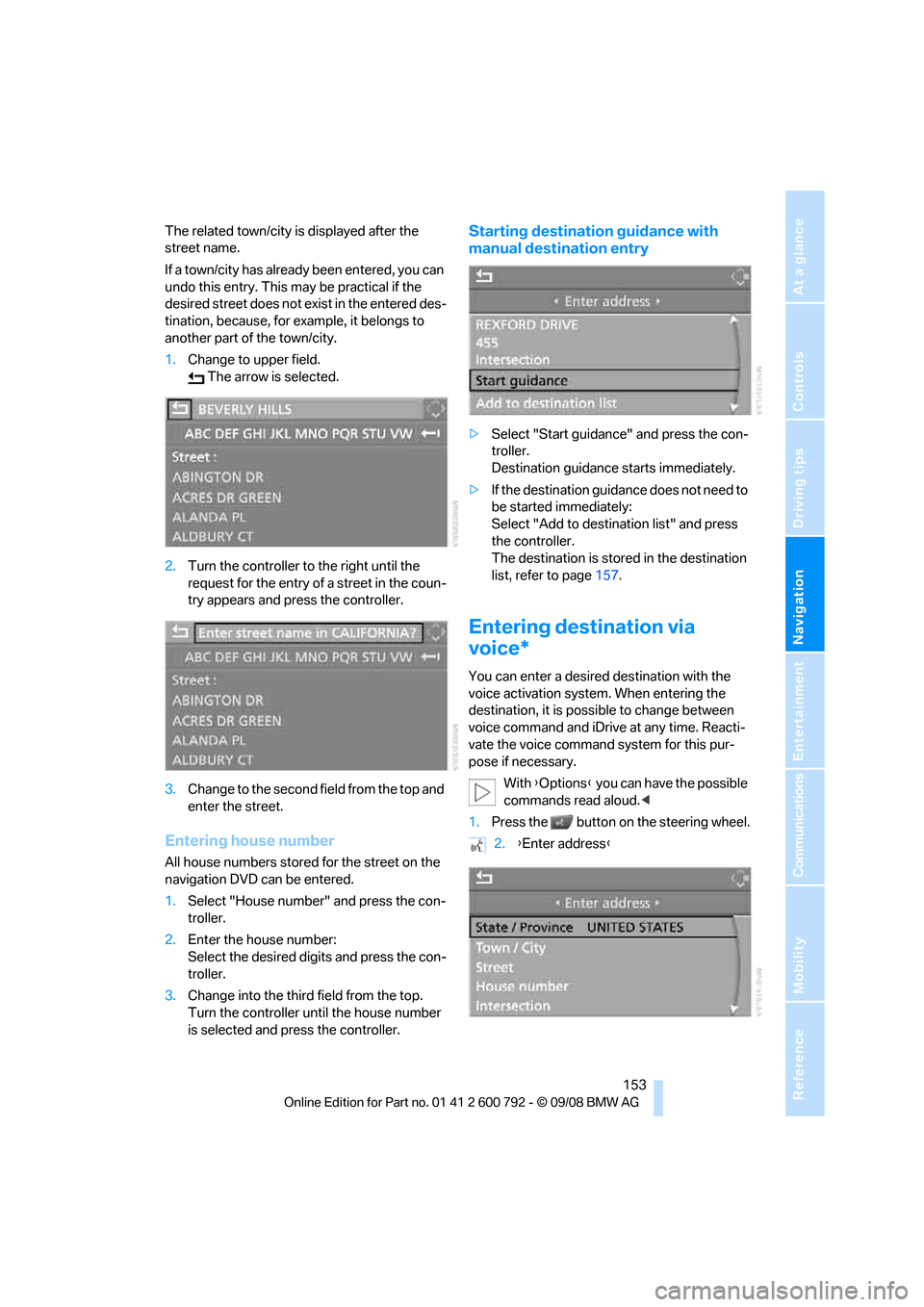
The related town/city is displayed after the
street name.
If a town/city has already been entered, you can
undo this entry. This may be practical if the
desired street does not exist in the entered des-
tination, because, for example, it belongs to
another part of the town/city.
1. Change to upper field.
The arrow is selected.
2. Turn the controller to the right until the
request for the entry of a street in the coun-
try appears and press the controller.
3. Change to the second field from the top and
enter the street.
Entering house number
All house numbers stored for the street on the
navigation DVD can be entered.
1.Select "House number" and press the con-
troller.
2. Enter the house number:
Select the desired digits and press the con-
troller.
3. Change into the third field from the top.
Turn the controller until the house number
is selected and press the controller.
Starting destination guidance with
manual destination entry
>Select "Start guidance" and press the con-
troller.
Destination guidance starts immediately.
> If the destination guidance does not need to
be started immediately:
Select "Add to destination list" and press
the controller.
The destination is stored in the destination
list, refer to page 157.
Entering destination via
voice*
You can enter a desired destination with the
voice activation system . When entering the
destination, it is possible to change between
voice command and iDrive at any time. Reacti-
vate the voice command system for this pur-
pose if necessary.
With {Options } you can have the possible
commands read aloud. <
1. Press the button on the steering wheel.
2.{Enter address }
Page 167 of 317
Navigation
Driving tips
165Reference
At a glance
Controls
Communications
Entertainment
Mobility
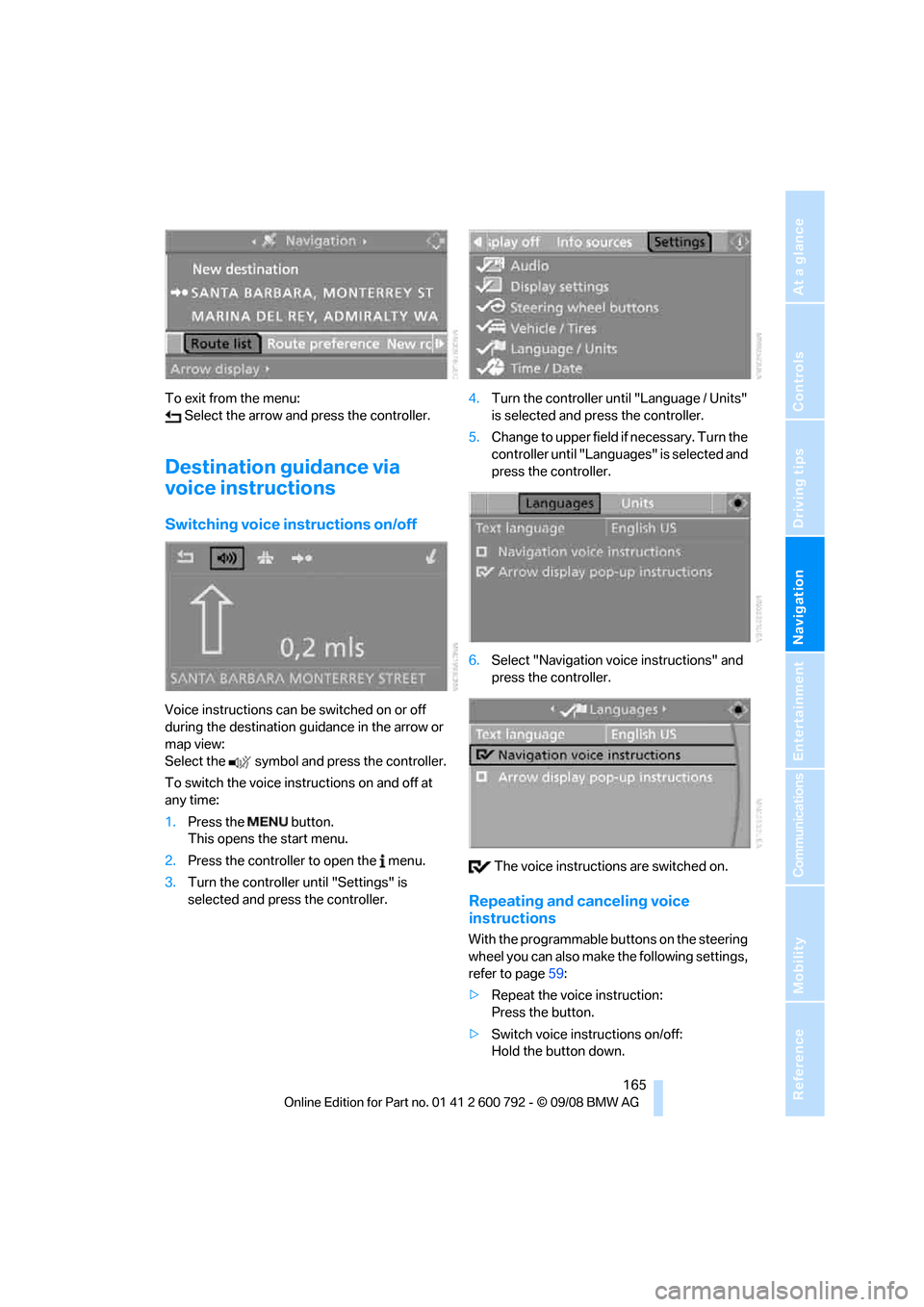
To exit from the menu: Select the arrow and press the controller.
Destination guidance via
voice instructions
Switching voice in structions on/off
Voice instructions can be switched on or off
during the destination guidance in the arrow or
map view:
Select the symbol and press the controller.
To switch the voice instructions on and off at
any time:
1.Press the button.
This opens the start menu.
2. Press the controller to open the menu.
3. Turn the controller until "Settings" is
selected and press the controller. 4.
Turn the controller until "Language / Units"
is selected and pr ess the controller.
5. Change to upper field if necessary. Turn the
controller until "Languages" is selected and
press the controller.
6. Select "Navigation voice instructions" and
press the controller.
The voice instructio ns are switched on.
Repeating and canceling voice
instructions
With the programmable buttons on the steering
wheel you can also make the following settings,
refer to page59:
> Repeat the voice instruction:
Press the button.
> Switch voice instructions on/off:
Hold the button down.
Page 176 of 317
On/Off and settings
174
On/Off and settings
The following audio sources have shared con-
trols and setting options:
> Radio
> CD player
> CD changer
*
Controls
The audio sources can be controlled using:
>Buttons in the area of the CD player
> iDrive
> Buttons
on steering wheel, refer to page 11
> Programmable memory buttons, refer to
page 21
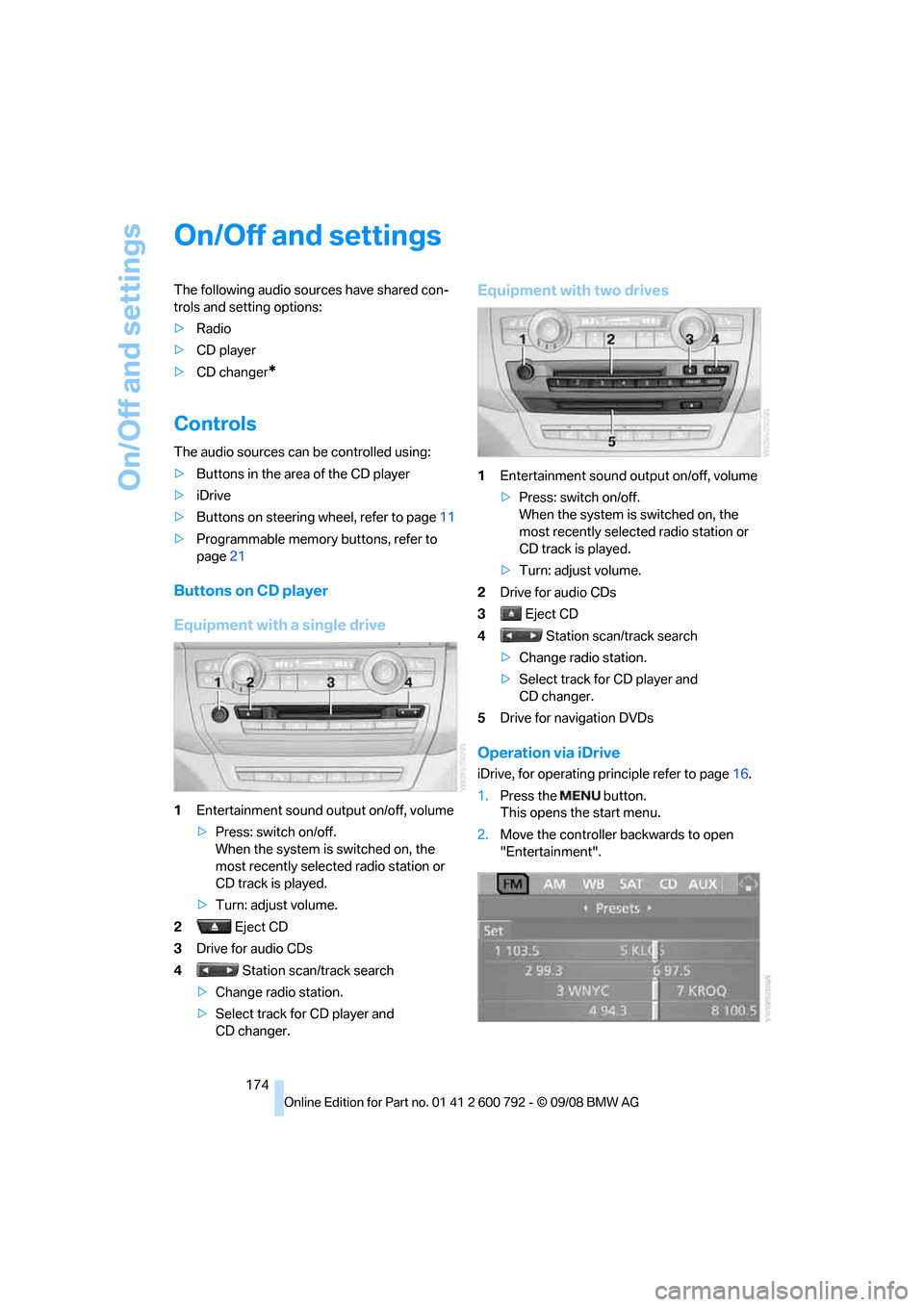
Buttons on CD player
Equipment with a single drive
1Entertainment sound output on/off, volume
>Press: switch on/off.
When the system is switched on, the
most recently select ed radio station or
CD track is played.
> Turn: adjust volume.
2 Eject CD
3 Drive for audio CDs
4 Station scan/track search
> Change radio station.
> Select track for CD player and
CD changer.
Equipment with two drives
1 Entertainment sound output on/off, volume
>Press: switch on/off.
When the system is switched on, the
most recently select ed radio station or
CD track is played.
> Turn: adjust volume.
2 Drive for audio CDs
3 Eject CD
4 Station scan/track search
> Change radio station.
> Select track for CD player and
CD changer.
5 Drive for navigation DVDs
Operation via iDrive
iDrive, for operating pr inciple refer to page16.
1. Press the button.
This opens the start menu.
2. Move the controller backwards to open
"Entertainment".
Page 177 of 317
Navigation
Entertainment
Driving tips
175Reference
At a glance
Controls
Communications
Mobility
You have the following choices:
>"FM" and "AM": radio reception
> "WB": Weather Band station
> "SAT": satellite radio
*
>"CD": CD player or changer*
>"AUX": AUX-In connection, USB audio
interface
*
>"Set": depending on the audio source,
other adjustments can be made, e.g. with
the radio: update st ation with strongest
reception, store station, tone control, sam-
ple stations.
From another menu, you can change
directly to the scr een last displayed,
refer to Comfort opening of menu items,
page 18.<
From radio readiness, the selected audio
source is stored for the remote control currently
in use.
Switching on/off
To switch the Entertainment sound output on
and off:
Press knob 1 on the CD player.
This symbol on the Control Display indi-
cates that sound output is switched off.
For equipment with a single drive, the sound
output is available for approx. 20 minutes with
the ignition switched off.
Switch on the sound output again for this pur-
pose.
Adjusting volume
Turn knob 1 on the CD player until the desired
volume is set.
You can also adjust the volume with buttons on
the steering wheel, refer to page 11.
From radio readiness, the setting is stored for
the remote control currently in use.
Tone control
You can alter various tone settings, e.g. treble
and bass, or the speed-dependent volume
increase.
The tone settings are set for all audio sources at
once.
From radio readiness, the settings are stored
for the remote contro l currently in use.
Changing tone settings
1.Press the button.
This opens the start menu.
2. Press the controller to open the menu.
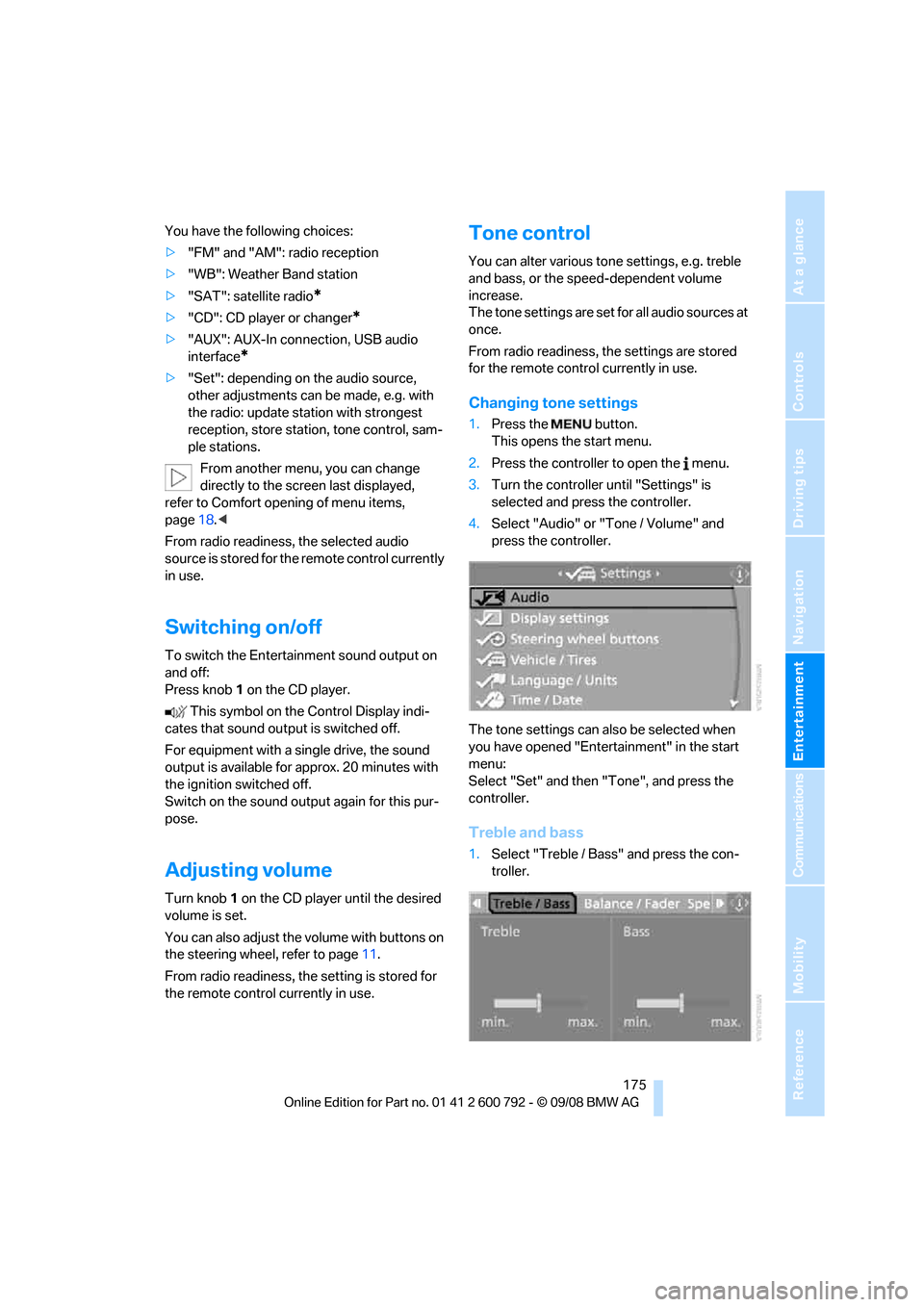
3. Turn the controller until "Settings" is
selected and press the controller.
4. Select "Audio" or "Tone / Volume" and
press the controller.
The tone settings can also be selected when
you have opened "Entertainment" in the start
menu:
Select "Set" and then "Tone", and press the
controller.
Treble and bass
1. Select "Treble / Bass" and press the con-
troller.
Page 180 of 317
Radio
178
Radio
Your radio provides reception of the FM and AM
wavebands.
Listening to radio
Press the knob if the sound output is switched
off.
iDrive, for operating principle refer to page16.
1. Press the button.
This opens the start menu.
2. Move the controller backwards to open
"Entertainment".
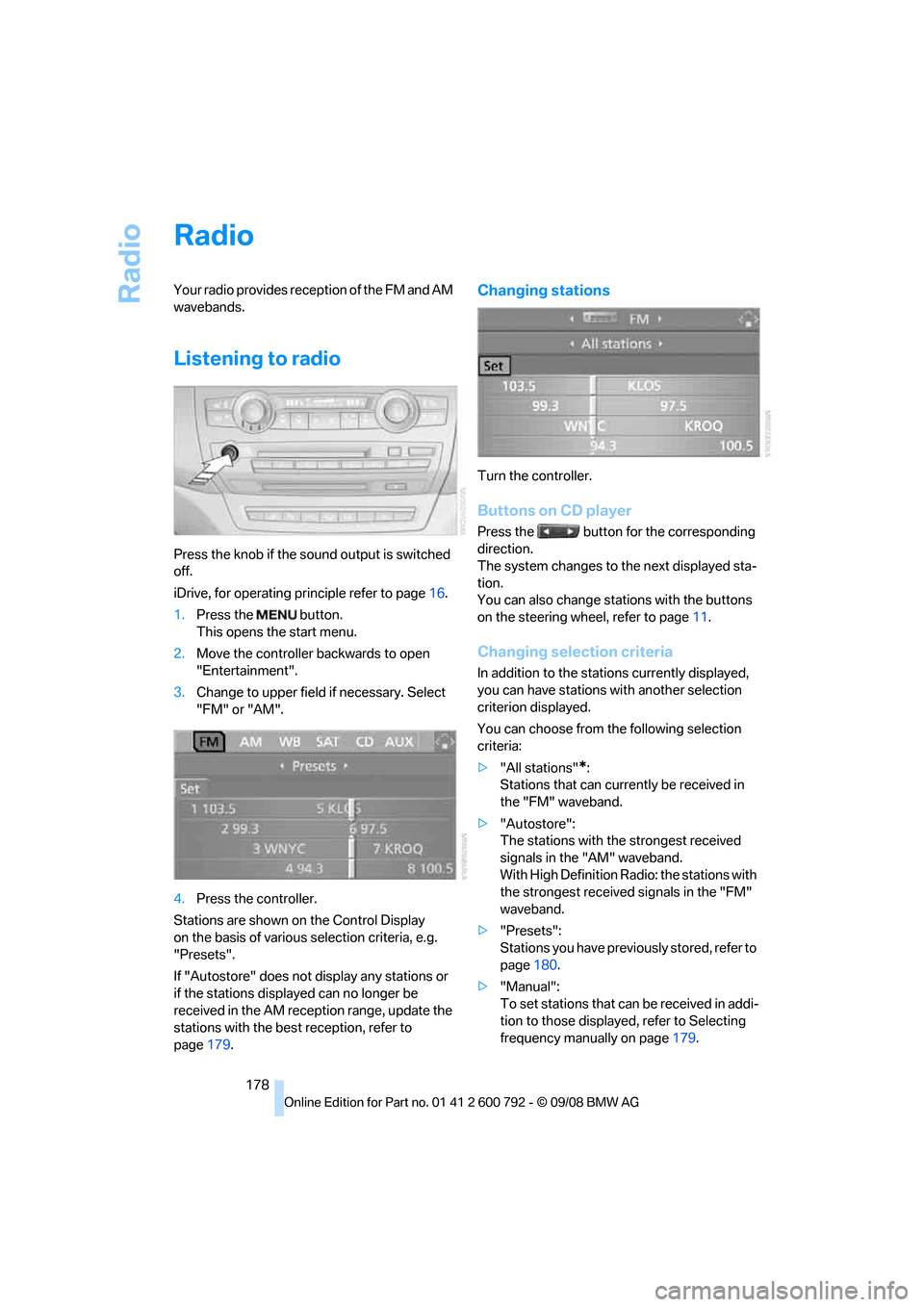
3. Change to upper field if necessary. Select
"FM" or "AM".
4. Press the controller.
Stations are shown on the Control Display
on the basis of various selection criteria, e.g.
"Presets".
If "Autostore" does not display any stations or
if the stations displayed can no longer be
received in the AM reception range, update the
stations with the best reception, refer to
page 179.
Changing stations
Turn the controller.
Buttons on CD player
Press the button for the corresponding
direction.
The system changes to the next displayed sta-
tion.
You can also change stat ions with the buttons
on the steering wheel, refer to page 11.
Changing selection criteria
In addition to the stations currently displayed,
you can have stations with another selection
criterion displayed.
You can choose from the following selection
criteria:
> "All stations"
*:
Stations that can currently be received in
the "FM" waveband.
> "Autostore":
The stations with the strongest received
signals in the "AM" waveband.
With High Definition Radio: the stations with
the strongest received signals in the "FM"
waveband.
> "Presets":
Stations you have previously stored, refer to
page 180.
> "Manual":
To set stations that ca n be received in addi-
tion to those displayed, refer to Selecting
frequency manually on page 179.
Page 184 of 317
Radio
182
With some stations the
digital signals are not
transmitted simultaneously with the analog sig-
nals. If you are in an ar ea in which the selected
station is not continuous ly received digitally,
playback changes betwee n analog and digital
reception. This can result in repetitions or inter-
ruptions. In this case it may be advisable to
deactivate digital radio reception.
Selecting programs of a digital station*
Some stations transmit several programs on
one frequency. To select one of these pro-
grams:
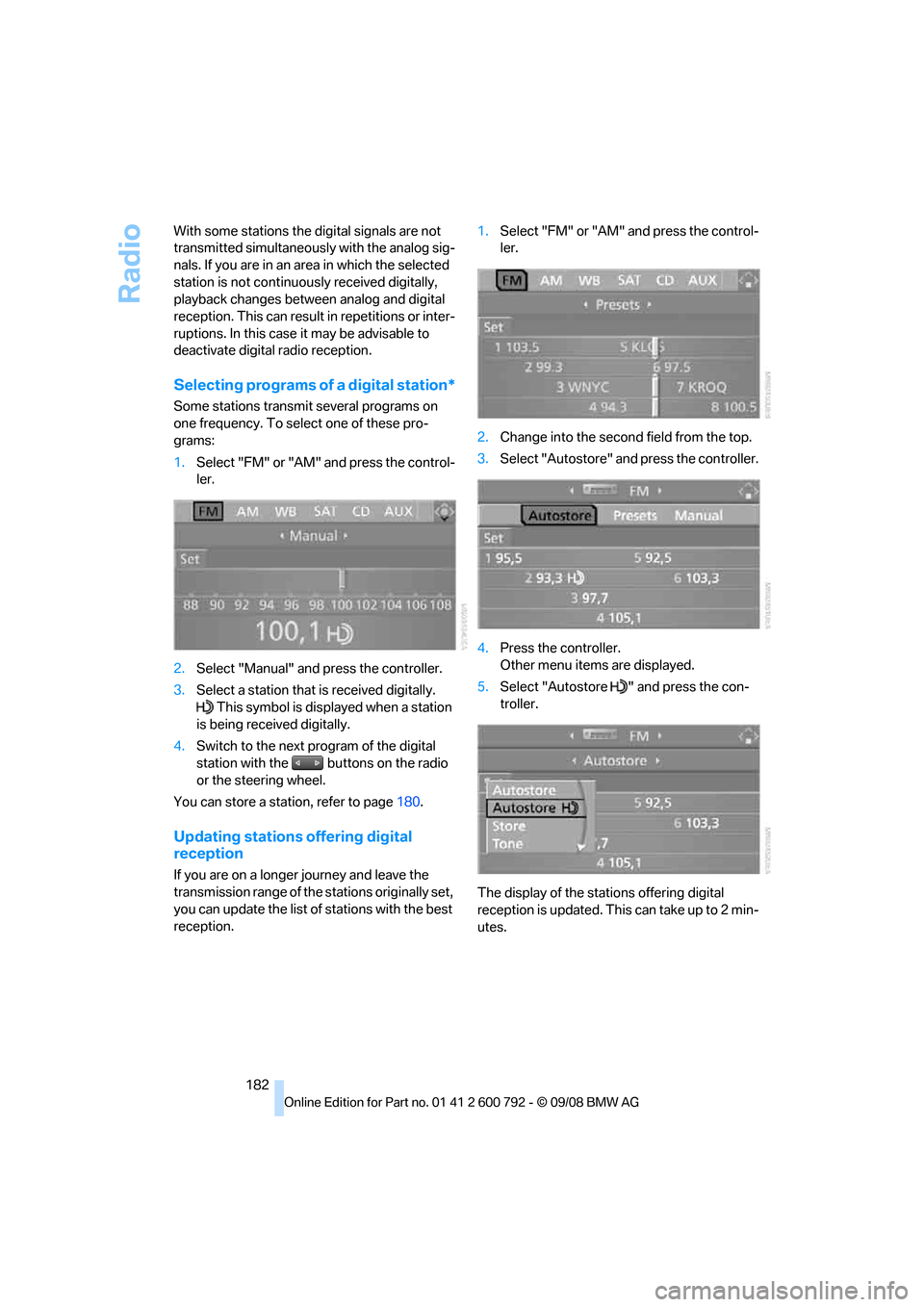
1. Select "FM" or "AM" and press the control-
ler.
2. Select "Manual" and press the controller.
3. Select a station that is received digitally.
This symbol is displayed when a station
is being received digitally.
4. Switch to the next program of the digital
station with the buttons on the radio
or the steering wheel.
You can store a station, refer to page 180.
Updating stations offering digital
reception
If you are on a longer journey and leave the
transmission range of the stations originally set,
you can update the list of stations with the best
reception. 1.
Select "FM" or "AM" and press the control-
ler.
2. Change into the second field from the top.
3. Select "Autostore" and press the controller.
4. Press the controller.
Other menu items are displayed.
5. Select "Autostore " and press the con-
troller.
The display of the stations offering digital
reception is updated. This can take up to 2 min-
utes.
Page 190 of 317
CD player and CD changer
188
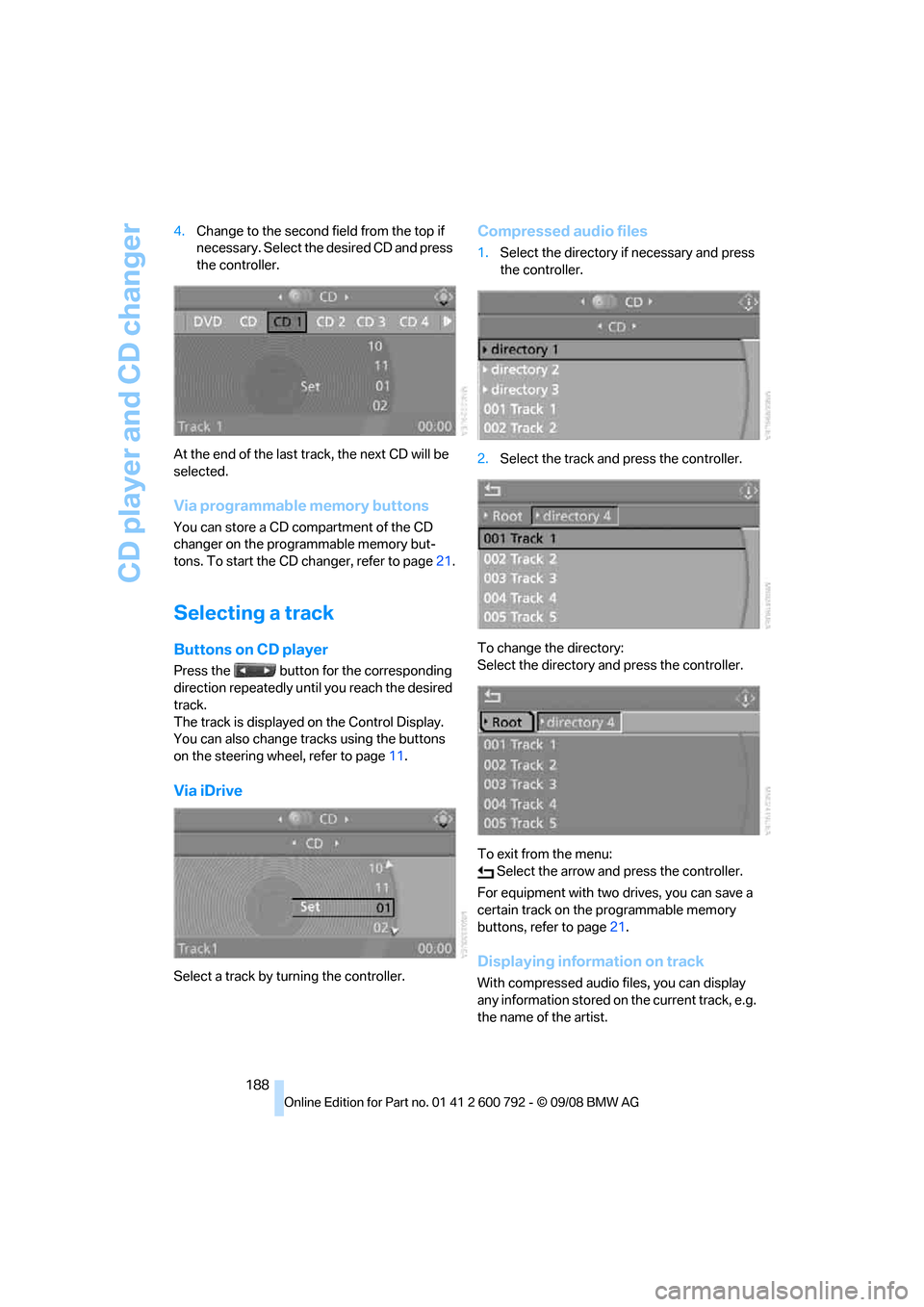
4.
Change to the second field from the top if
necessary. Select the desired CD and press
the controller.
At the end of the last tr ack, the next CD will be
selected.
Via programmable memory buttons
You can store a CD compartment of the CD
changer on the programmable memory but-
tons. To start the CD changer, refer to page 21.
Selecting a track
Buttons on CD player
Press the button for the corresponding
direction repeatedly until you reach the desired
track.
The track is displayed on the Control Display.
You can also change tracks using the buttons
on the steering wheel, refer to page 11.
Via iDrive
Select a track by turning the controller.
Compressed audio files
1.Select the directory if necessary and press
the controller.
2. Select the track and press the controller.
To change the directory:
Select the directory and press the controller.
To exit from the menu: Select the arrow and press the controller.
For equipment with two drives, you can save a
certain track on the programmable memory
buttons, refer to page 21.
Displaying information on track
With compressed audio files, you can display
any information stored on the current track, e.g.
the name of the artist.
Page 205 of 317
Navigation
Entertainment
Driving tips
203Reference
At a glance
Controls
Communications
Mobility
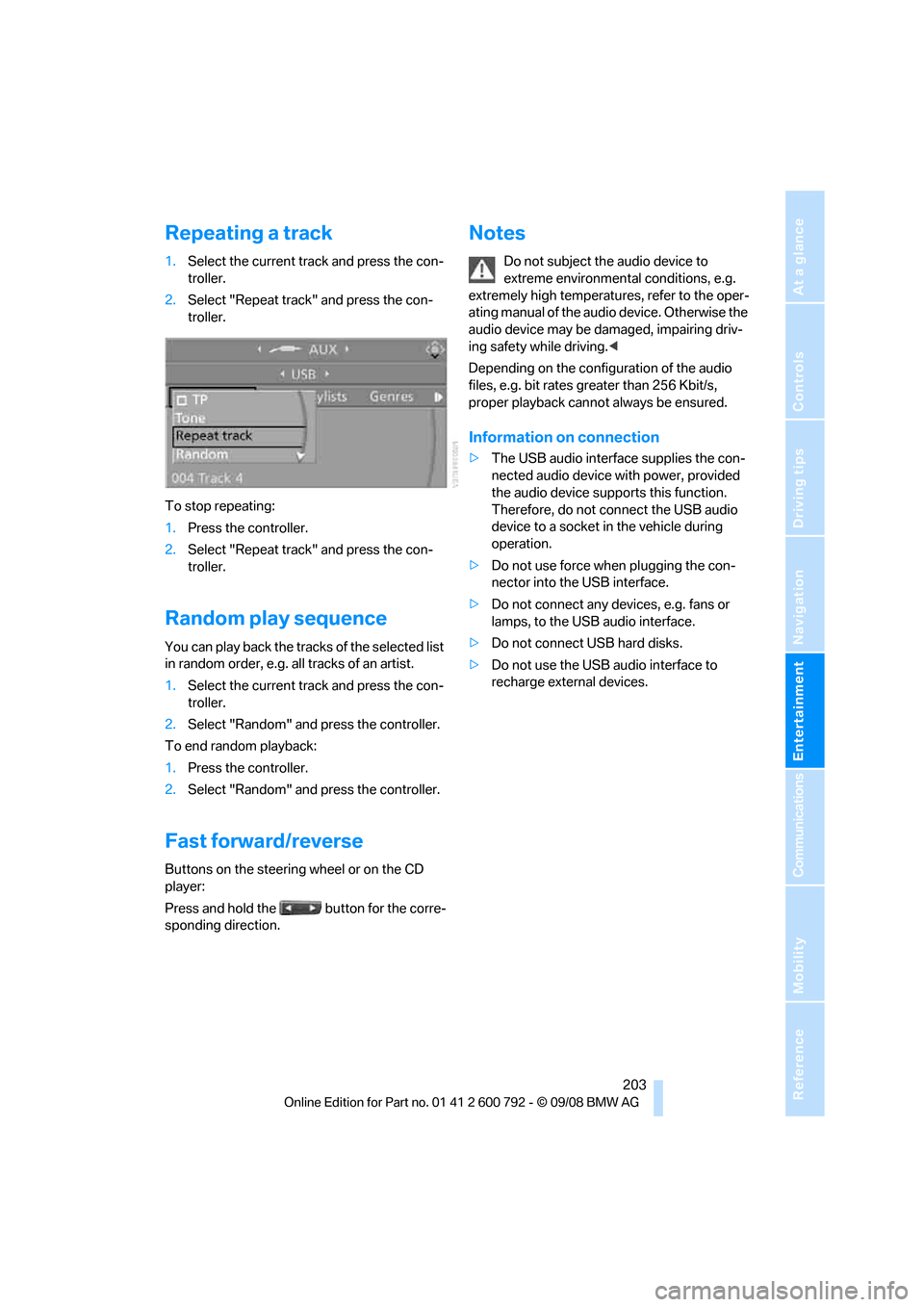
Repeating a track
1.Select the current track and press the con-
troller.
2. Select "Repeat track" and press the con-
troller.
To stop repeating:
1. Press the controller.
2. Select "Repeat track" and press the con-
troller.
Random play sequence
You can play back the trac ks of the selected list
in random order, e.g. a ll tracks of an artist.
1. Select the current track and press the con-
troller.
2. Select "Random" and press the controller.
To end random playback:
1. Press the controller.
2. Select "Random" and press the controller.
Fast forward/reverse
Buttons on the steering wheel or on the CD
player:
Press and hold the button for the corre-
sponding direction.
Notes
Do not subject the audio device to
extreme environmental conditions, e.g.
extremely high temperatures, refer to the oper-
ating manual of the audio device. Otherwise the
audio device may be damaged, impairing driv-
ing safety while driving. <
Depending on the configuration of the audio
files, e.g. bit rates greater than 256 Kbit/s,
proper playback cannot always be ensured.
Information on connection
> The USB audio interface supplies the con-
nected audio device with power, provided
the audio device suppo rts this function.
Therefore, do not connect the USB audio
device to a socket in the vehicle during
operation.
> Do not use force when plugging the con-
nector into the USB interface.
> Do not connect any devices, e.g. fans or
lamps, to the USB audio interface.
> Do not connect USB hard disks.
> Do not use the USB audio interface to
recharge external devices.
Page 222 of 317
Telephoning
220
Telephoning
The concept
Your BMW is equipped with a full mobile phone
preparation package. After pairing a suitable
mobile phone in the vehicle once, you can oper-
ate the mobile phone via iDrive, with the buttons
on the steering wheel and by voice.
Once a mobile phone has been paired in your
vehicle, it is automatically recognized as soon
as it is inside the vehicl e while the engine is run-
ning or the ignition is switched on. The pairing
data of up to four mobile phones can be stored
simultaneously. If seve ral mobile phones are
detected simultaneously, the respective last
mobile phone paired can be operated via the
vehicle.
Using a phone in your vehicle
Using snap-in adapter*
The so-called snap-in adapter, a mobile phone
cradle, enables the batte ry to be charged and
the mobile phone to be connected to the exter-
nal antenna of your vehicle. This ensures
improved network reception and a consistent
voice reproduction qu ality. Ask your BMW
Sports Activity Vehicle Center which mobile
phones snap-in adapters are offered for.
For your safety
A car phone makes life more convenient in
many ways, and can even save lives in an emer-
gency. While you should consult your mobile
phone's separate operating instructions for a
detailed description of safety precautions and
information, we request that you direct your
particular attention to the following:
Only make entries when the traffic situa-
tion allows you to do so. Do not hold the
mobile phone in your hand while you are driving;
use the hands-free system instead. If you do
not observe this precau tion, your being dis- tracted can endanger vehicle occupants and
other road users.
<
Suitable mobile phones
Ask your BMW Sports Activity Vehicle Center
which mobile phones wi th Bluetooth interface
are supported by the mo bile phone preparation
package and which mobile phones are compat-
ible with the snap-in adapter. By virtue of their
particular software ve rsions, these mobile
phones support the functions described in this
Owner's Manual. Malfunctions can occur with
other mobile phones.
Care instructions
You can find everything you need to know on
this topic by consulting the separate operating
instructions for the mobile phone.
Operating options
You can operate the mobile phone* using:
> Buttons on steering wheel, refer to page11
> iDrive, refer to page 226
> Voice commands, refer to page 231
> Programmable memory buttons, refer to
page 21
Avoid operating a mobile phone detected by
the vehicle with the keypad of the mobile
phone, otherwise malf unctions can occur.
Placing phone calls with BMW Assist
system*: BMW Assist calls
You can use the BMW Assist system via the
hands-free unit for BMW Assist calls.
When the status information "Communication"
or "BMW Assist" is displayed in "BMW Ser-
vice", only BMW Assi st calls are possible.
*