CD player BMW X6M 2013 E71 User Guide
[x] Cancel search | Manufacturer: BMW, Model Year: 2013, Model line: X6M, Model: BMW X6M 2013 E71Pages: 327, PDF Size: 7.71 MB
Page 216 of 327
Menu navigation
You can use the thumbwheel and buttons 1 to
navigate through the menus.▷Turn the thumbwheel: select a menu item.▷Press the arrow buttons: change between
fields.▷ Press the button: activate the menu
item.
Changing batteries
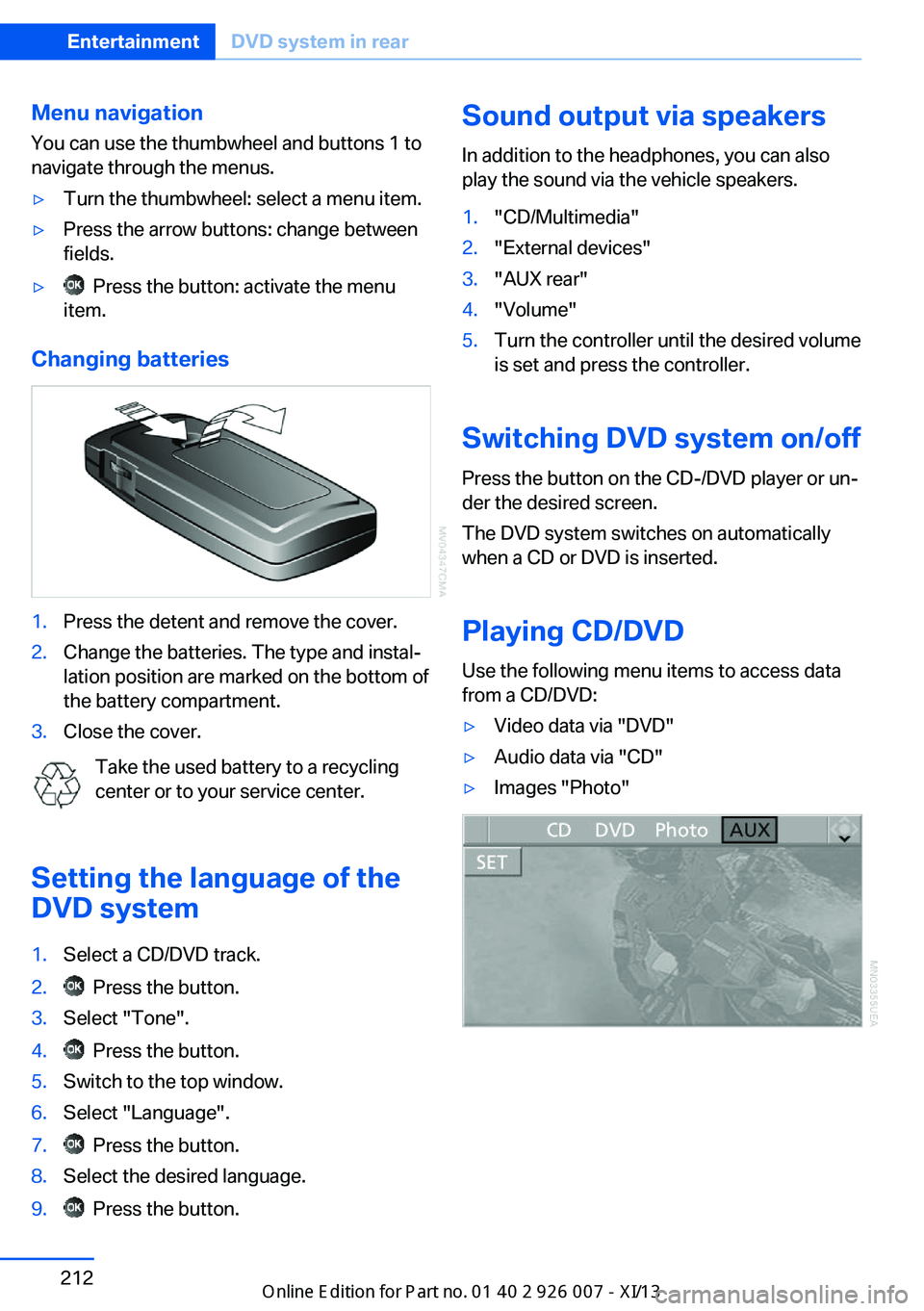
1.Press the detent and remove the cover.2.Change the batteries. The type and instal‐
lation position are marked on the bottom of
the battery compartment.3.Close the cover.
Take the used battery to a recycling
center or to your service center.
Setting the language of the
DVD system
1.Select a CD/DVD track.2. Press the button.3.Select "Tone".4. Press the button.5.Switch to the top window.6.Select "Language".7. Press the button.8.Select the desired language.9. Press the button.Sound output via speakers
In addition to the headphones, you can also
play the sound via the vehicle speakers.1."CD/Multimedia"2."External devices"3."AUX rear"4."Volume"5.Turn the controller until the desired volume
is set and press the controller.
Switching DVD system on/off
Press the button on the CD-/DVD player or un‐
der the desired screen.
The DVD system switches on automatically
when a CD or DVD is inserted.
Playing CD/DVD
Use the following menu items to access data
from a CD/DVD:
▷Video data via "DVD"▷Audio data via "CD"▷Images "Photo"Seite 212EntertainmentDVD system in rear212
Online Edition for Part no. 01 40 2 910 876 - VII/13
Page 217 of 327
Playing videos from CDs/
DVDs
Country codes of DVDs
Your DVD player only plays DVDs with the
coding of your home region, e.g., Europe=2.
The country codes supported by your DVD are
contained in the information on your DVD.
An overview of the coding zones:CodeRegion1USA, Canada2Japan, Europe, Middle East, South Af‐
rica3Southeast Asia4Australia, Central and South America,
New Zealand5Northwest Asia, North Africa6China
DVDs with the code 0 can be played on all de‐
vices.
Starting playback
1.Push the CD/DVD into the drive with the la‐
beled side facing upward. The CD/DVD is
automatically pulled in.▷Playback begins automatically after a
few seconds.▷Otherwise: select "DVD".2.If the DVD control or the DVD-specific
menu is displayed when a DVD is inserted,
use the remote control buttons for menu
navigation to select the desired option.
Or:
Press the button on the CD/DVD
player.
You can control the playback with the buttons
on the CD/DVD player or the DVD control.
Video CDs (VCDs) and Super Video CDs
(SVCDs) can only be played if they do not have
a DVD-specific menu.
Eject CD/DVD
Press the button on the CD/DVD player.
The DVD emerges slightly from the drive.
DVD control With the DVD control, you can select the title
and chapter, open the DVD-specific menu, and
operate functions such as Language, Fast for‐
ward and Reverse or Freeze frame.
A DVD can briefly deactivate functions of the
DVD control, under certain circumstances
while the entire DVD is being played. It is not
possible to operate the DVD control under
these circumstances. In this case, try to make
the selection using the DVD-specific menu.
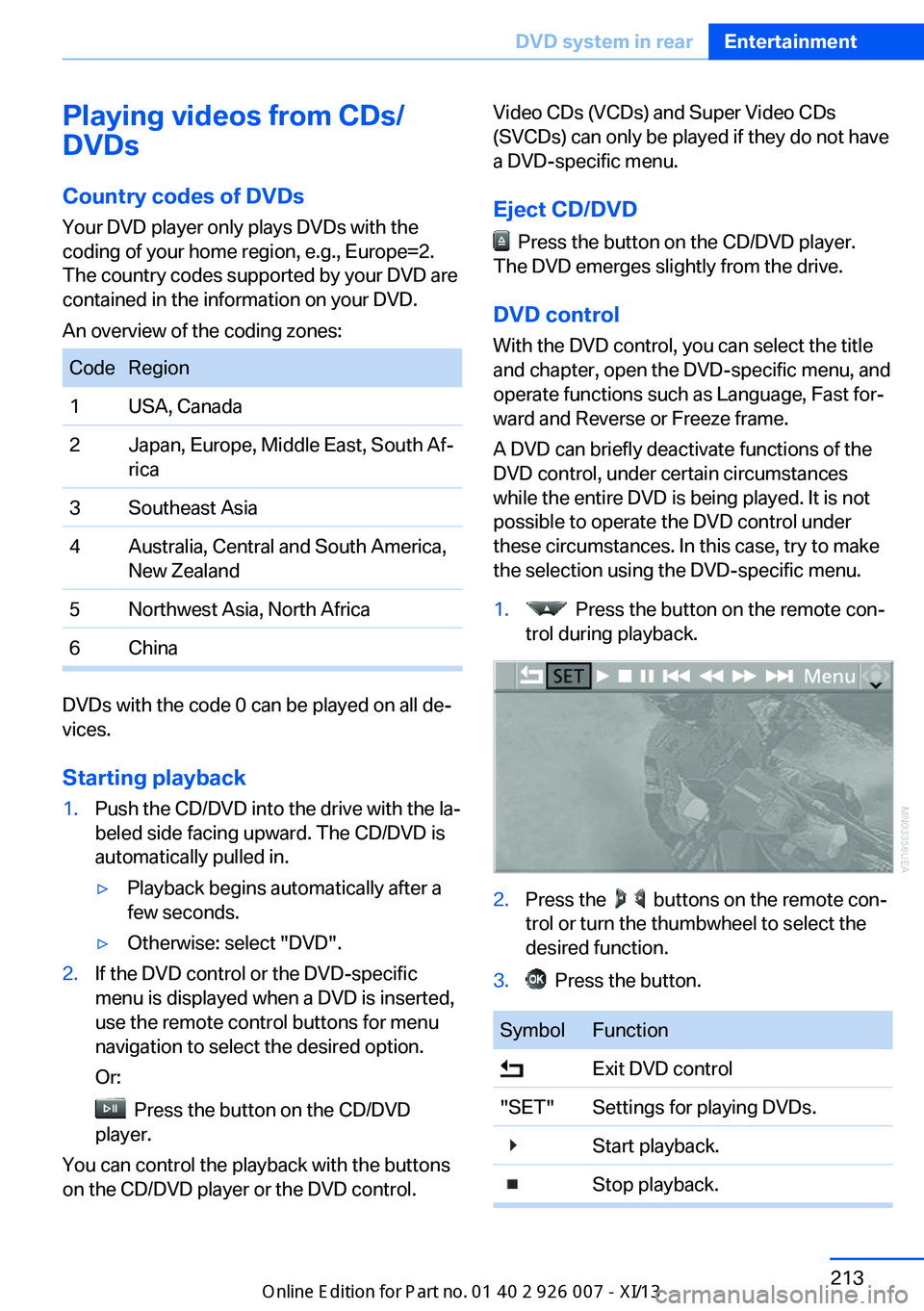
1. Press the button on the remote con‐
trol during playback.2.Press the buttons on the remote con‐
trol or turn the thumbwheel to select the
desired function.3. Press the button.SymbolFunction Exit DVD control"SET"Settings for playing DVDs. Start playback. Stop playback.Seite 213DVD system in rearEntertainment213
Online Edition for Part no. 01 40 2 910 876 - VII/13
Page 218 of 327
SymbolFunction Activate and deactivate freeze
frame. Skip a chapter. Fast forward/reverse."Menu"Open the DVD-specific menu.
The DVD control disappears again after a short
time if you have not selected a function.
Or:
Press the button on the remote control
to exit the DVD control.
Fast forward/reverse
Forward/reverse with DVD control
1. Press the button on the remote con‐
trol during playback.2. Select the symbol.3. Press the button.4. Press the button several times to in‐
crease the fast forward/reverse speed.
The DVD playback will be distorted.
To cancel fast forward/reverse:
1. Select the symbol.2. Press the button.
Or:
Press the button on the CD/DVD player.
The DVD will start play at the point selected.
Forward/reverse with remote control
Press and hold the button until you
reach the desired point.
Or:
1.During playback, turn the thumbwheel.
Fast forward/reverse is interrupted.2.Continue to turn the thumbwheel. The
speed is increased.3. Press the button on the CD/DVD
player. Fast forward/reverse is interrupted.
The DVD will start play at the point se‐
lected.
Skipping chapter
You can change to the next or previous chap‐
ter during playback.
1. Press the button on the remote con‐
trol during playback.2. Select the symbol.3. Press the button repeatedly, continuing
until you reach the desired chapter.
Or:
Press the button on the left or right on
the remote control repeatedly until you reach
the desired chapter.
Freeze frame
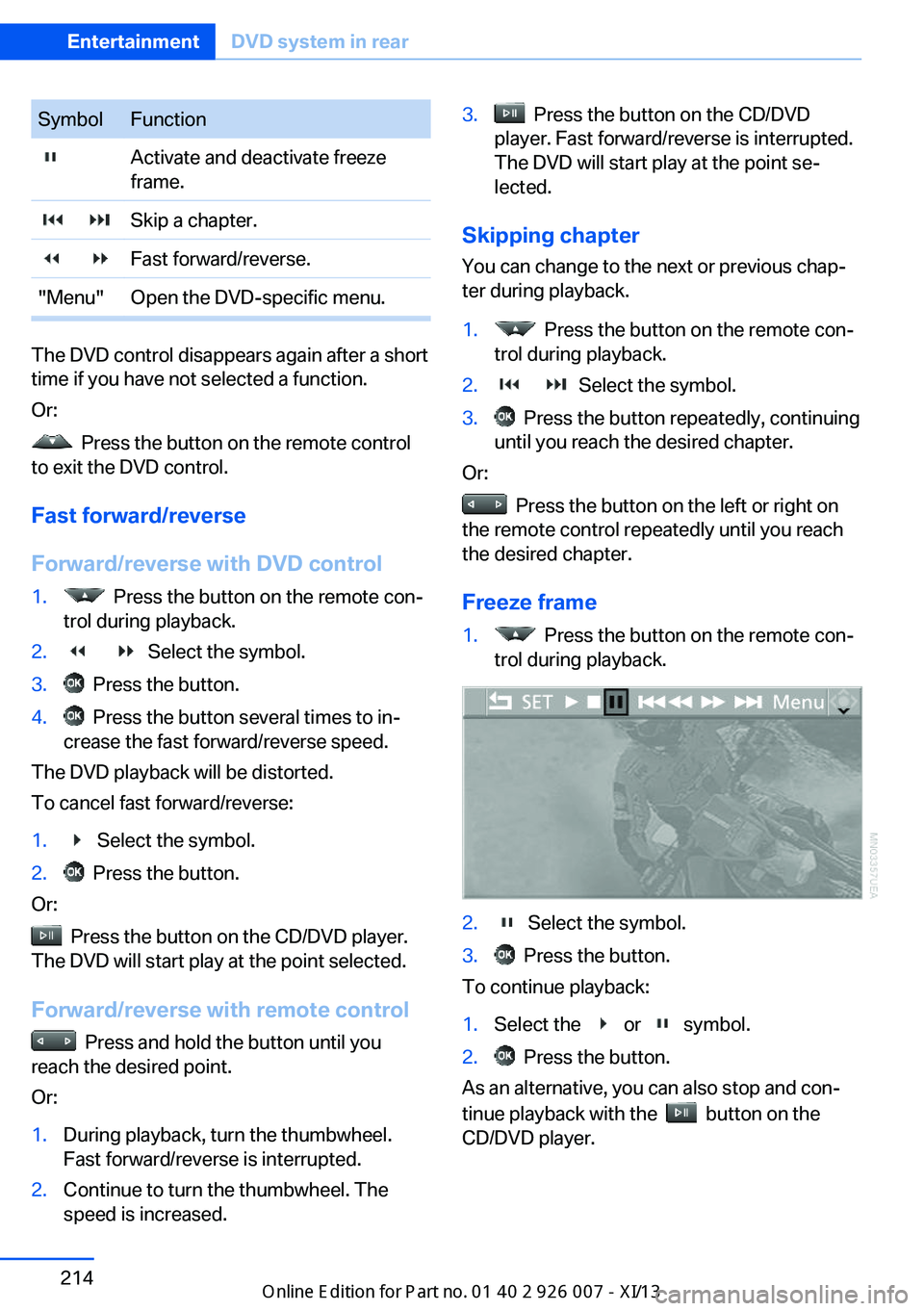
1. Press the button on the remote con‐
trol during playback.2. Select the symbol.3. Press the button.
To continue playback:
1.Select the or symbol.2. Press the button.
As an alternative, you can also stop and con‐
tinue playback with the
button on the
CD/DVD player.
Seite 214EntertainmentDVD system in rear214
Online Edition for Part no. 01 40 2 910 876 - VII/13
Page 221 of 327
3. Press the button.
As an alternative, you can also control the play‐
back with the buttons on the CD/DVD player.
To eject CD/DVD:
Press the button on the CD/DVD player.
Selecting a track
Buttons on CD/DVD player
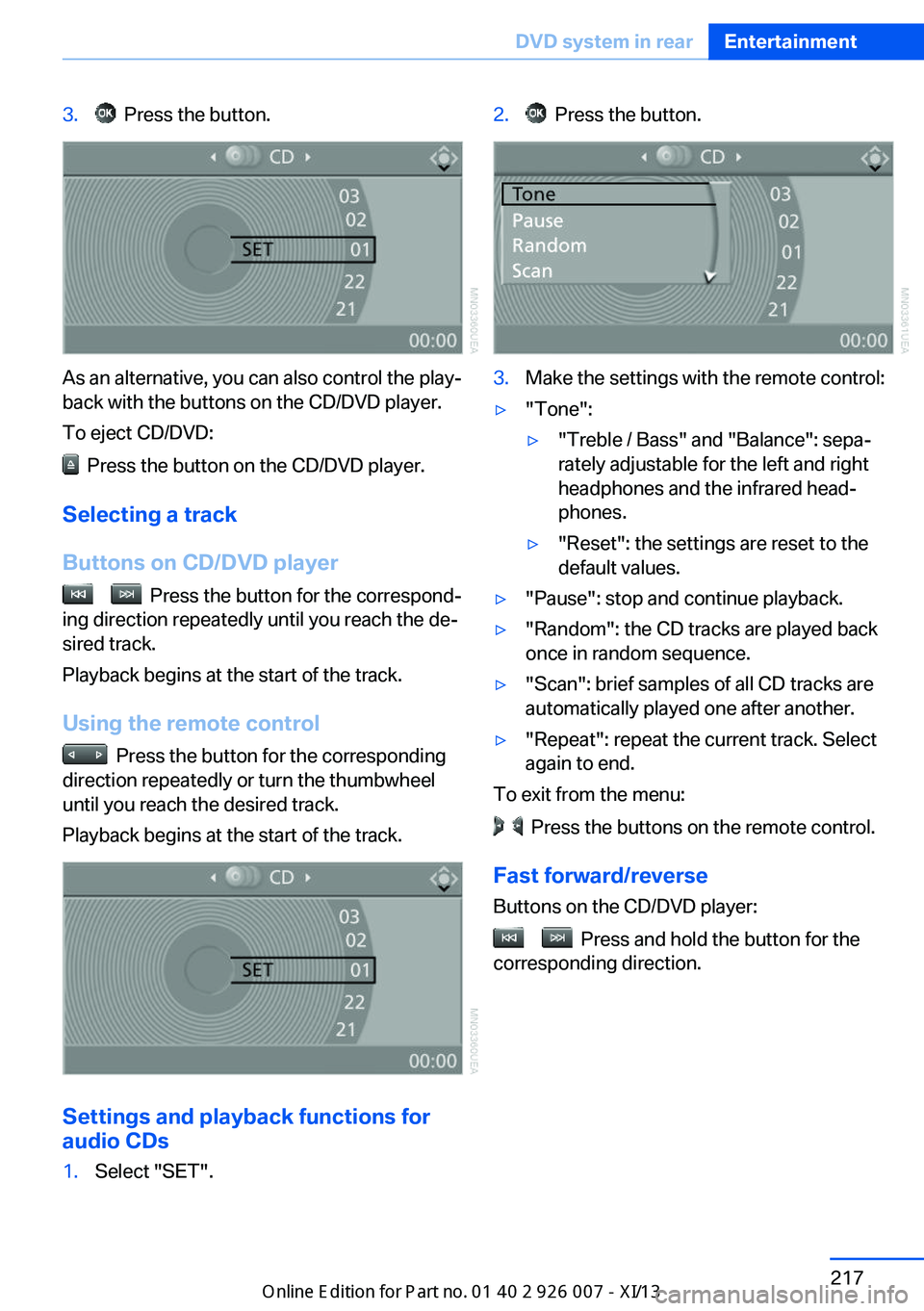
Press the button for the correspond‐
ing direction repeatedly until you reach the de‐
sired track.
Playback begins at the start of the track.
Using the remote control
Press the button for the corresponding
direction repeatedly or turn the thumbwheel
until you reach the desired track.
Playback begins at the start of the track.
Settings and playback functions for
audio CDs
1.Select "SET".2. Press the button.3.Make the settings with the remote control:▷"Tone":▷"Treble / Bass" and "Balance": sepa‐
rately adjustable for the left and right
headphones and the infrared head‐
phones.▷"Reset": the settings are reset to the
default values.▷"Pause": stop and continue playback.▷"Random": the CD tracks are played back
once in random sequence.▷"Scan": brief samples of all CD tracks are
automatically played one after another.▷"Repeat": repeat the current track. Select
again to end.
To exit from the menu:
Press the buttons on the remote control.
Fast forward/reverse Buttons on the CD/DVD player:
Press and hold the button for the
corresponding direction.
Seite 217DVD system in rearEntertainment217
Online Edition for Part no. 01 40 2 910 876 - VII/13
Page 223 of 327
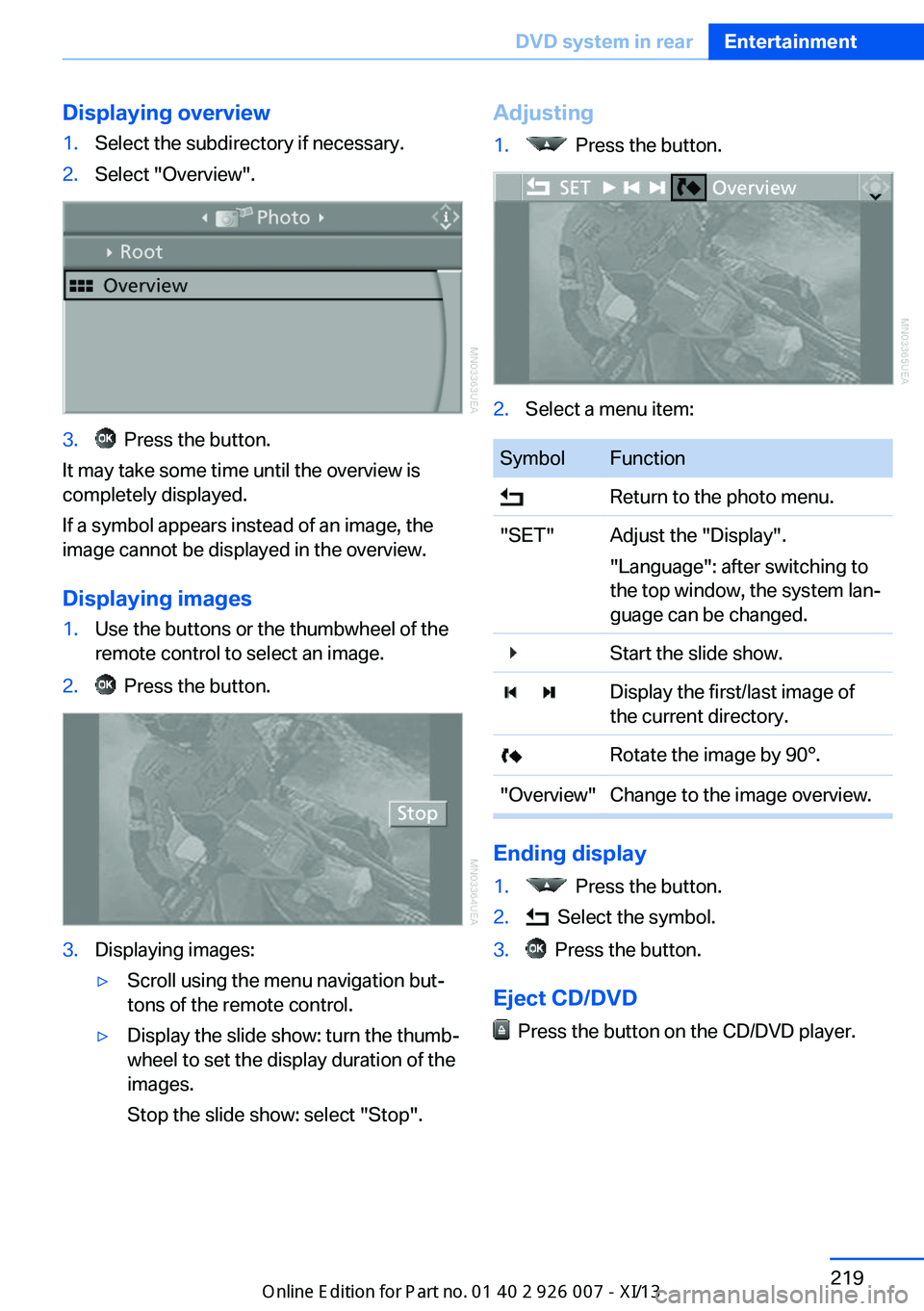
Displaying overview1.Select the subdirectory if necessary.2.Select "Overview".3. Press the button.
It may take some time until the overview is
completely displayed.
If a symbol appears instead of an image, the
image cannot be displayed in the overview.
Displaying images
1.Use the buttons or the thumbwheel of the
remote control to select an image.2. Press the button.3.Displaying images:▷Scroll using the menu navigation but‐
tons of the remote control.▷Display the slide show: turn the thumb‐
wheel to set the display duration of the
images.
Stop the slide show: select "Stop".Adjusting1. Press the button.2.Select a menu item:SymbolFunction Return to the photo menu."SET"Adjust the "Display".
"Language": after switching to
the top window, the system lan‐
guage can be changed. Start the slide show. Display the first/last image of
the current directory. Rotate the image by 90°."Overview"Change to the image overview.
Ending display
1. Press the button.2. Select the symbol.3. Press the button.
Eject CD/DVD
Press the button on the CD/DVD player.
Seite 219DVD system in rearEntertainment219
Online Edition for Part no. 01 40 2 910 876 - VII/13
Page 224 of 327
Information on CD/DVD
player
Safety notes Do not remove the cover
The BMW CD/DVD player is a Class 1 la‐
ser product. Do not operate if the cover is
damaged; otherwise, severe eye damage can
result.◀
Suitable media Use of CDs/DVDs▷Do not use self-recorded CDs/DVDs
with labels applied, as these can be‐
come detached during playback due
to heat buildup and can cause irrep‐
arable damage to the device.▷Only use round CDs/DVDs with a standard
diameter of 4.7 in/12 cm and do not play
CDs/DVDs with an adapter, e.g., single
CDs; otherwise, the CDs or the adapter
may jam and no longer eject.▷Do not use combined CDs/DVDs, e.g., DVD
Plus, as the CDs/DVDs can jam and will no
longer eject.◀
The CD/DVD player can play the following me‐
dia:
▷Video DVD.▷CD-DA (audio CD).▷CDs/DVDs with compressed image data.▷CDs/DVDs with compressed audio data.▷CDs/DVDs with compressed video data.
The DVD player does not support DVD audio.
However, many audio DVDs available in stores
also contain a video track in the DVD Video for‐
mat in addition to the audio track. These DVDs
can be played back by the DVD player. Refer to
the information on your DVD to determine
whether your audio DVD contains an additional
video track. Depending on the authoring used,
it is possible that not all functions are available
during playback.
Dual-sided DVDs available from retail suppliers
are coated on both sides and bear no mark‐
ings. This means both sides are information
carriers. To play the information on the other
side, turn over the DVD.
Supported formats
Depending on the compression method used,
not all files of the specified formats can be
opened.
Images▷JPEG/JPG.
With very large image files, it can take longer
for the images to be displayed.
Compressed audio files
▷MP3.▷WMA.▷OGG.▷AAC.
Compressed video files
▷SVCD.▷MPEG1.▷MPEG2.▷MPEG4/DivX.
Digital Rights Management (DRM)
In some cases, it may not be possible to play
CDs/DVDs with integrated Digital Rights Man‐
agement (DRM).
General malfunctions
▷CD/DVD changers and players have been
optimized for performance in vehicles. In
some instances they may be more sensi‐
tive to faulty CDs/DVDs than stationary de‐
vices would be.▷If a CD/DVD cannot be played, first check
whether it has been inserted correctly.Seite 220EntertainmentDVD system in rear220
Online Edition for Part no. 01 40 2 910 876 - VII/13
Page 225 of 327
Foreign bodies/liquids in the CD/DVD
slot
Make sure that no foreign objects or liquids get
into the CD/DVD slot; otherwise, the CD/DVD
player will be damaged.◀
Humidity High levels of humidity can lead to condensa‐
tion on the CD/DVD or the laser's scan lens,
and temporarily prevent playback.
Malfunctions involving individual CDs/DVDs
If malfunctions occur only with particular CDs/
DVDs, this can be due to one of the following
causes.
Copied or self-recorded CDs/DVDs▷Possible reasons for malfunctions with
home-recorded CDs/DVDs are inconsis‐
tent data creation or recording processes,
or poor quality or old age of the blank CD/
DVD.▷Only label CDs/DVDs on the upper side
with a pen intended for this purpose.
Damaged CDs/DVDs
▷Avoid fingerprints, dust, scratches and
moisture.▷Store CDs/DVDs in a sleeve.▷Do not subject CDs/DVDs to temperatures
over 122 ℉/50 ℃, high humidity or direct
sunlight.
CDs/DVDs with copy protection
CDs/DVDs are often provided with a copy pro‐
tection feature by the manufacturer. As a re‐
sult, some CDs/DVDs cannot be played, can
only be played to a limited degree, or cause the
system to switch off. In this case, wait a short
while and then switch the system back on
again. Then remove the CD/DVD from the
drive.
CDs/DVDs with compressed audio
files
If the language set for the CD/DVD player does
not match the language of the music track, the
music tracks may be displayed incorrectly.
External device
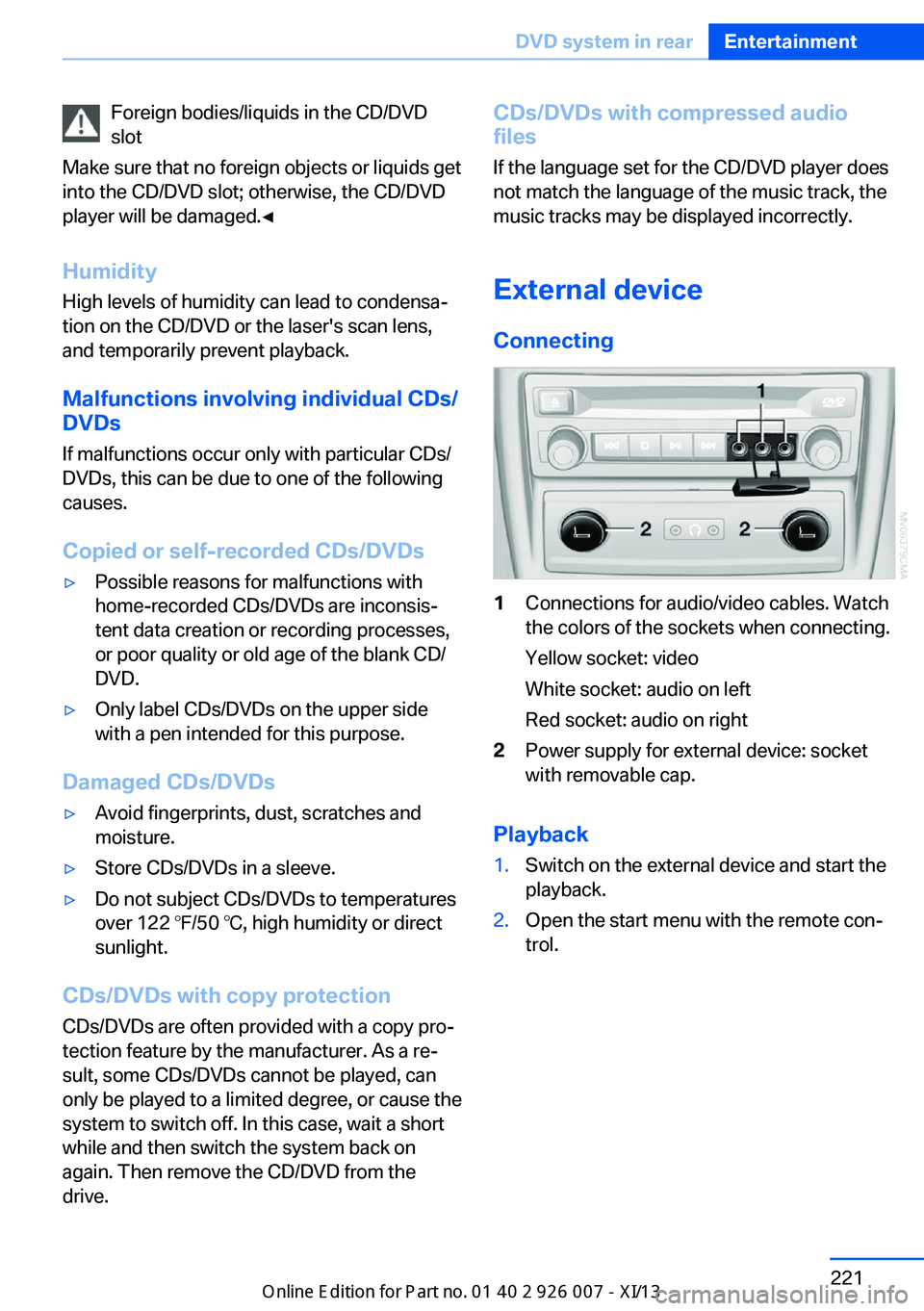
Connecting1Connections for audio/video cables. Watch
the colors of the sockets when connecting.
Yellow socket: video
White socket: audio on left
Red socket: audio on right2Power supply for external device: socket
with removable cap.
Playback
1.Switch on the external device and start the
playback.2.Open the start menu with the remote con‐
trol.Seite 221DVD system in rearEntertainment221
Online Edition for Part no. 01 40 2 910 876 - VII/13
Page 226 of 327
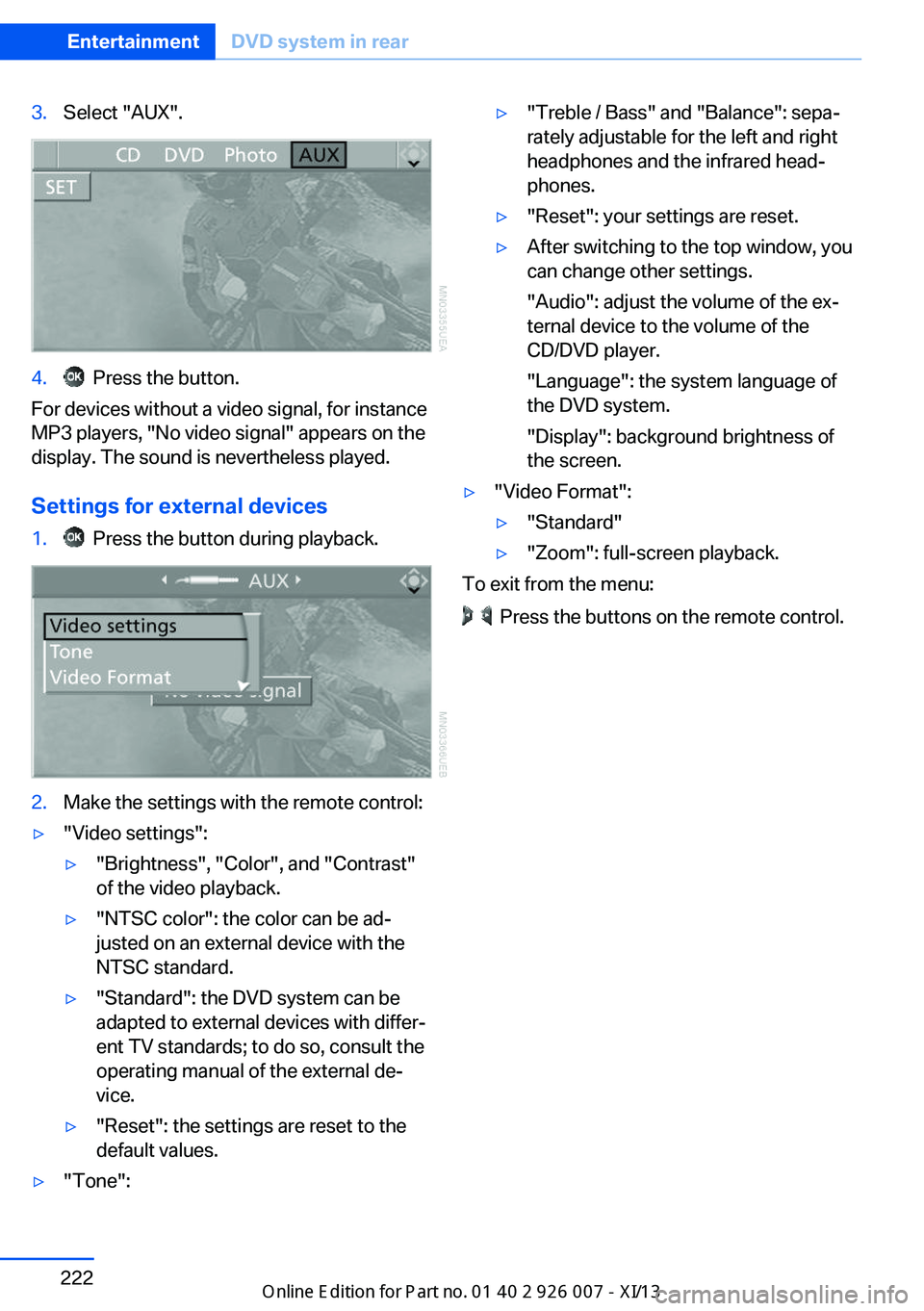
3.Select "AUX".4. Press the button.
For devices without a video signal, for instance
MP3 players, "No video signal" appears on the
display. The sound is nevertheless played.
Settings for external devices
1. Press the button during playback.2.Make the settings with the remote control:▷"Video settings":▷"Brightness", "Color", and "Contrast"
of the video playback.▷"NTSC color": the color can be ad‐
justed on an external device with the
NTSC standard.▷"Standard": the DVD system can be
adapted to external devices with differ‐
ent TV standards; to do so, consult the
operating manual of the external de‐
vice.▷"Reset": the settings are reset to the
default values.▷"Tone":▷"Treble / Bass" and "Balance": sepa‐
rately adjustable for the left and right
headphones and the infrared head‐
phones.▷"Reset": your settings are reset.▷After switching to the top window, you
can change other settings.
"Audio": adjust the volume of the ex‐
ternal device to the volume of the
CD/DVD player.
"Language": the system language of
the DVD system.
"Display": background brightness of
the screen.▷"Video Format":▷"Standard"▷"Zoom": full-screen playback.
To exit from the menu:
Press the buttons on the remote control.
Seite 222EntertainmentDVD system in rear222
Online Edition for Part no. 01 40 2 910 876 - VII/13
Page 230 of 327
TelephoneVehicle equipmentThis chapter describes all series equipment as
well as country-specific and special equipment
offered for this model series.Therefore, it also
describes equipment that may not be found in
your vehicle, for instance due to the selected
special equipment or the country version. This
also applies to safety-related functions and
systems.
At a glance
The concept Mobile phones or other external devices such
as audio players can be connected to the vehi‐
cle via Bluetooth.
Bluetooth® is a registered trademark of Blue‐
tooth® SIG, Inc.
After these devices are paired once, they are
recognized automatically when the ignition is
switched on as soon as they are in the vehicle
and can then be operated via iDrive, the but‐
tons on the steering wheel, and via voice acti‐
vation.
Depending on their functionality, external devi‐
ces can be used via the vehicle as a telephone
or as an audio source. The telephone functions
are described in the following. Operating the
audio functions, refer to page 205.
Up to four external devices can be paired.
Certain functions may need to be enabled by
the mobile phone provider or service provider.
Using the mobile phone while driving
Make entries only when traffic and road
conditions allow. Do not hold the mobile phone
in your hand while you are driving; use the
hands-free system instead. If you do not ob‐
serve this precaution, you can endanger the
vehicle occupants and other road users.◀Snap-in adapter
The snap-in adapter is used to:▷Hold the mobile phone.▷Recharge the battery.▷Connect the mobile phone to an outside
antenna of the vehicle.
This provides for better network reception
and consistent sound quality.
Approved mobile phones
Details on which mobile phones and external
devices with a Bluetooth interface are sup‐
ported by the mobile phone preparation pack‐
age can be obtained at www.bmwusa.com/
bluetooth.
Displaying the vehicle identification
number and software part number
The vehicle identification number and software part number are needed to determine which
mobile phones are supported by the mobile
phone preparation package. The software ver‐
sion of the mobile phone may also be required.
1."Telephone"2.Open "Options".3."Bluetooth® info"4."Display system information"
These approved mobile phones with a certain
software version, support the vehicle functions
described below.
Malfunctions may occur with other mobile
phones or software versions.
Do not operate a mobile phone that is con‐
nected to the vehicle on the mobile phone key‐
pad, as this may lead to a malfunction.
A software update, refer to page 208, can be
performed if necessary.
Seite 226CommunicationTelephone226
Online Edition for Part no. 01 40 2 910 876 - VII/13
Page 320 of 327
Mirrors, heating 52
Mirrors, interior mirror 52
Mobile communication devi‐ ces in the vehicle 147
Mobile phone, installation lo‐ cation, refer to Center arm‐
rest 138
Mobile phone, refer to Tele‐ phone 226
Modifications, technical, refer to Safety 6
Monitor, refer to Control Dis‐ play 19
Mounting of child restraint fix‐ ing systems 54
MP3 player 202
Multimedia 190
Music collection 197
Music search 198
Music, storing 197
N
Navigation 158
Navigation data 158
Navigation data, updat‐ ing 158
Navigation system– Destination entry by
voice 166
Neck restraints, refer to Head
restraints 49
Nets, refer to Storage com‐ partments 138
Neutral cleaner, care 293
New wheels and tires 267
Notes 6, 245
Nozzles of automatic climate control 121
Nozzles, refer to Ventila‐ tion 125
O OBD Onboard Diagnos‐ tics 275
OBD socket, refer to Socket
for OBD Onboard Diagno‐
sis 275
Octane number, refer to Fuel quality 260
Octane rating, refer to Gaso‐ line quality 260
Odometer 71
Office 239
Oil additives 272
Oil consumption 271
Oil level 271
Oil, refer to Engine oil 271
Oil types, alternative 272
Oil types, approved 272
Old batteries, disposal 284
Onboard Diagnostics OBD 275
Onboard monitor, refer to Control Display 19
Onboard vehicle tool kit 276
Opening and closing– Comfort Access 37– From the inside 35– From the outside 32– Using the door lock 34– Using the remote control 32
Opening height, adjusting 36
Operating concept, iDrive 18
Outside-air mode, automatic climate control 124
Outside air, refer to Recircu‐ lated air mode 124
Overheating of engine, refer to Coolant temperature 71
P Paint, vehicle 292
Pairing, mobile phone 227
Panic mode 33
Park Distance Control PDC 111
Parked-car ventilation 127
Parked vehicle, condensa‐ tion 148
Parking aid, refer to Park Dis‐
tance Control PDC 111
Parking assistant, refer to Park Distance Control
PDC 111
Parking brake 61
Parking brake, Automatic Hold 62
Parking brake, releasing man‐ ually 62, 63
Parking brake, setting man‐ ually 61
Parking lamps 81
Parking lamps/low beams 81
Parking with Automatic Hold 63
Passenger airbags, deactivat‐ ing 87
Passenger side mirror, tilt‐ ing 52
PDC Park Distance Con‐ trol 111
Personal information 239
Personal Profile 30
Pinch protection– Windows 41
Pinch protection, glass sun‐
roof 43
Plastic, care 293
Playing videos, rear DVD sys‐ tem 213
Pollen, refer to Microfilter/ activated-charcoal filter 126
Poor road operation 148
Position, storing 162
Postal code, entering in navi‐ gation 161
Power failure 283
Power windows
– Safety switch 42
Power windows, opening and
closing 41
Power windows, refer to Win‐ dows 41
Prescribed engine oils, refer to Approved engine oils 272
Pressure, tires 262
Seite 316ReferenceEverything from A to Z316
Online Edition for Part no. 01 40 2 910 876 - VII/13