head-up display BMW X6M 2013 E71 Owner's Manual
[x] Cancel search | Manufacturer: BMW, Model Year: 2013, Model line: X6M, Model: BMW X6M 2013 E71Pages: 327, PDF Size: 7.71 MB
Page 17 of 327
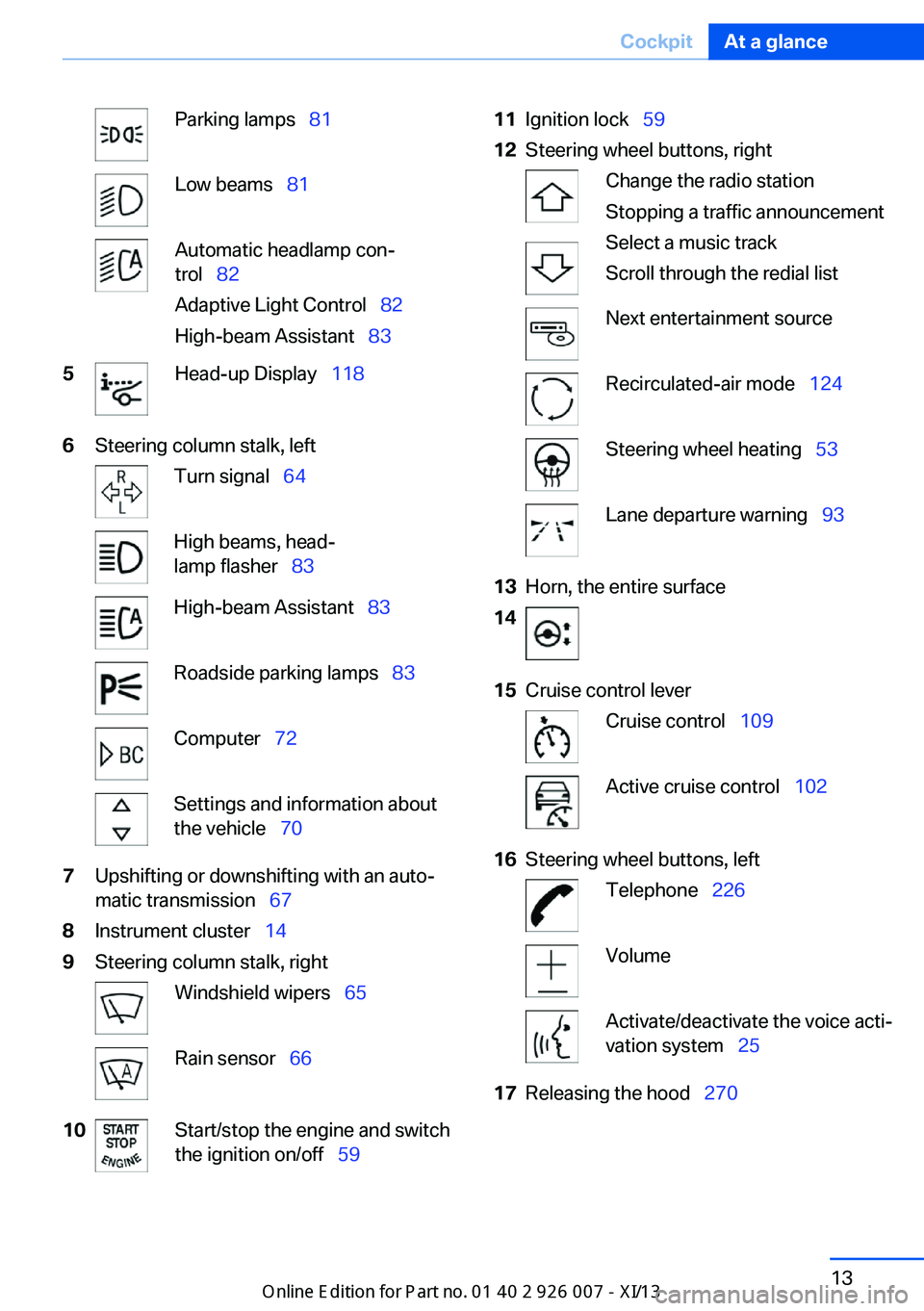
Parking lamps 81Low beams 81Automatic headlamp con‐
trol 82
Adaptive Light Control 82
High-beam Assistant 835Head-up Display 1186Steering column stalk, leftTurn signal 64High beams, head‐
lamp flasher 83High-beam Assistant 83Roadside parking lamps 83Computer 72Settings and information about
the vehicle 707Upshifting or downshifting with an auto‐
matic transmission 678Instrument cluster 149Steering column stalk, rightWindshield wipers 65Rain sensor 6610Start/stop the engine and switch
the ignition on/off 5911Ignition lock 5912Steering wheel buttons, rightChange the radio station
Stopping a traffic announcement
Select a music track
Scroll through the redial listNext entertainment sourceRecirculated-air mode 124Steering wheel heating 53Lane departure warning 9313Horn, the entire surface1415Cruise control leverCruise control 109Active cruise control 10216Steering wheel buttons, leftTelephone 226VolumeActivate/deactivate the voice acti‐
vation system 2517Releasing the hood 270Seite 13CockpitAt a glance13
Online Edition for Part no. 01 40 2 910 876 - VII/13
Page 35 of 327
▷The settings are automatically saved in the
profile currently activated in the remote
control.▷The remote control used is detected when
the vehicle is unlocked and the stored pro‐
file is called up.▷Your personal settings will be recognized
and called up again even if the vehicle has
been used in the meantime by someone
else with another remote control.
The individual settings are stored for a maxi‐
mum of four remote controls. They are stored
for two remote controls if Comfort Access is in
use.
Personal Profile settingsThe following functions and settings can be
stored in a profile.
More information on the settings can be found
under:
▷Assigning the programmable memory but‐
tons, refer to page 23.▷Response of the central locking system
when the car is being unlocked, refer to
page 32.▷Automatic locking of the vehicle, refer to
page 35.▷Driver's seat, exterior mirror and steering
wheel positions, refer to page 50.▷Settings for the display on the Control Dis‐
play and in the instrument cluster:▷12h/24h clock format, refer to
page 78.▷Date format, refer to page 79.▷Brightness of the Control Display, refer
to page 79.▷Language on the Control Display, refer
to page 79.▷Units of measure for fuel consumption,
distance covered/remaining distances,
and temperature, refer to page 79.▷Show visual warning for the Park Distance
Control PDC, refer to page 112.▷Show visual warning for Top View, refer to
page 115.▷Show Side View, refer to page 117.▷Backup camera:▷Function selection, refer to page 114.▷Type of display, refer to page 115.▷Lane departure warning: last setting, on/
off, refer to page 93.▷Head-up Display: selection, brightness and
position of the display, refer to page 118.▷Adaptive Drive: selected chassis and sus‐
pension tuning, refer to page 100.▷Light settings:▷Triple turn signal activation, refer to
page 65.▷Welcome lamps, refer to page 81.▷Headlamp courtesy delay feature, refer
to page 82.▷Daytime running lights, refer to
page 82.▷High-beam Assistant, refer to
page 83.▷Automatic climate control with 2-zone con‐
trol: settings, refer to page 122.▷Navigation:▷Voice activation, refer to page 171.▷Route criteria, refer to page 169.▷Map view settings, refer to page 173.▷Entertainment:▷Tone control, refer to page 180.▷Radio, stored stations, refer to
page 188.▷CD/multimedia, audio source listened
to last, refer to page 190.▷Telephone: volume, refer to page 230.Seite 31Opening and closingControls31
Online Edition for Part no. 01 40 2 910 876 - VII/13
Page 122 of 327
Switching off automatically when
driving forward
The system switches off when a certain dis‐
tance or speed is exceeded.
Switch on the system again if necessary.
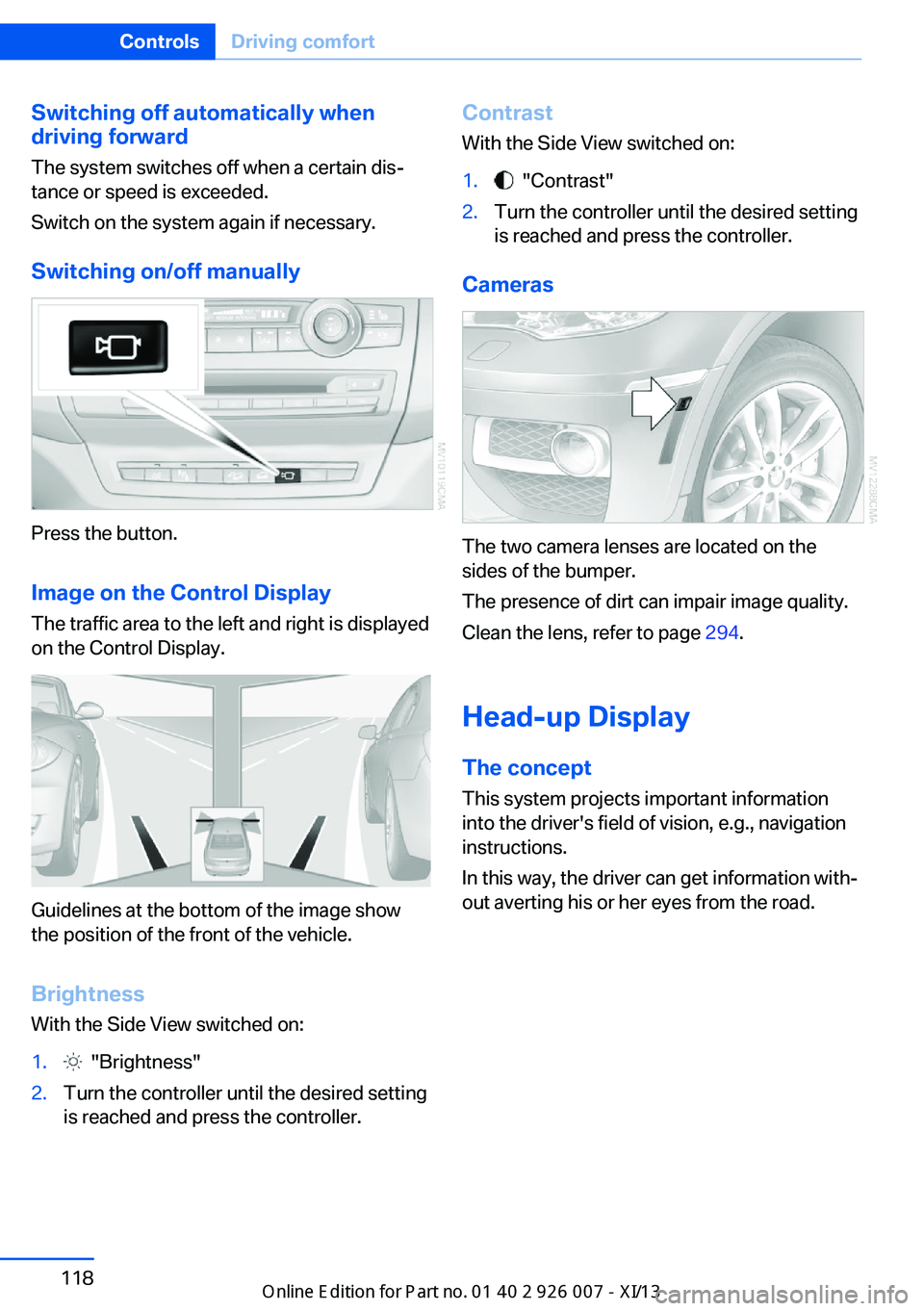
Switching on/off manually
Press the button.
Image on the Control Display
The traffic area to the left and right is displayed
on the Control Display.
Guidelines at the bottom of the image show
the position of the front of the vehicle.
Brightness With the Side View switched on:
1. "Brightness"2.Turn the controller until the desired setting
is reached and press the controller.Contrast
With the Side View switched on:1. "Contrast"2.Turn the controller until the desired setting
is reached and press the controller.
Cameras
The two camera lenses are located on the
sides of the bumper.
The presence of dirt can impair image quality.
Clean the lens, refer to page 294.
Head-up Display
The concept This system projects important information
into the driver's field of vision, e.g., navigation
instructions.
In this way, the driver can get information with‐
out averting his or her eyes from the road.
Seite 118ControlsDriving comfort118
Online Edition for Part no. 01 40 2 910 876 - VII/13
Page 123 of 327
Switching on/offPress the button.
Display visibility The visibility of the displays in the Head-up
Display is influenced by:
▷Certain sitting positions.▷Objects on the cover of the Head-up Dis‐
play.▷Sunglasses with certain polarization filters.▷Wet roads.▷Unfavorable light conditions.
If the image is distorted, check the basic set‐
tings.
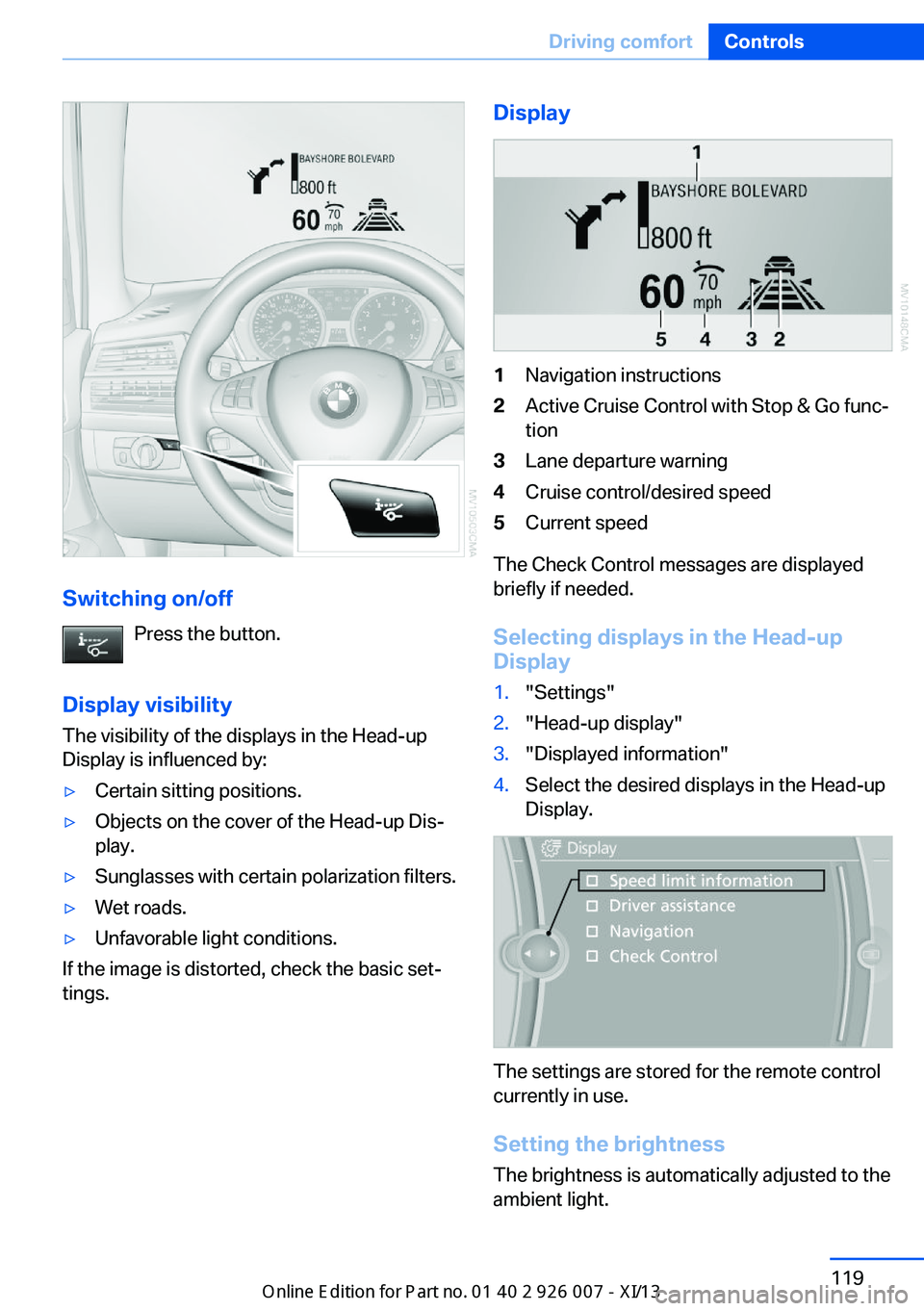
Display1Navigation instructions2Active Cruise Control with Stop & Go func‐
tion3Lane departure warning4Cruise control/desired speed5Current speed
The Check Control messages are displayed
briefly if needed.
Selecting displays in the Head-up
Display
1."Settings"2."Head-up display"3."Displayed information"4.Select the desired displays in the Head-up
Display.
The settings are stored for the remote control
currently in use.
Setting the brightness
The brightness is automatically adjusted to the
ambient light.
Seite 119Driving comfortControls119
Online Edition for Part no. 01 40 2 910 876 - VII/13
Page 124 of 327
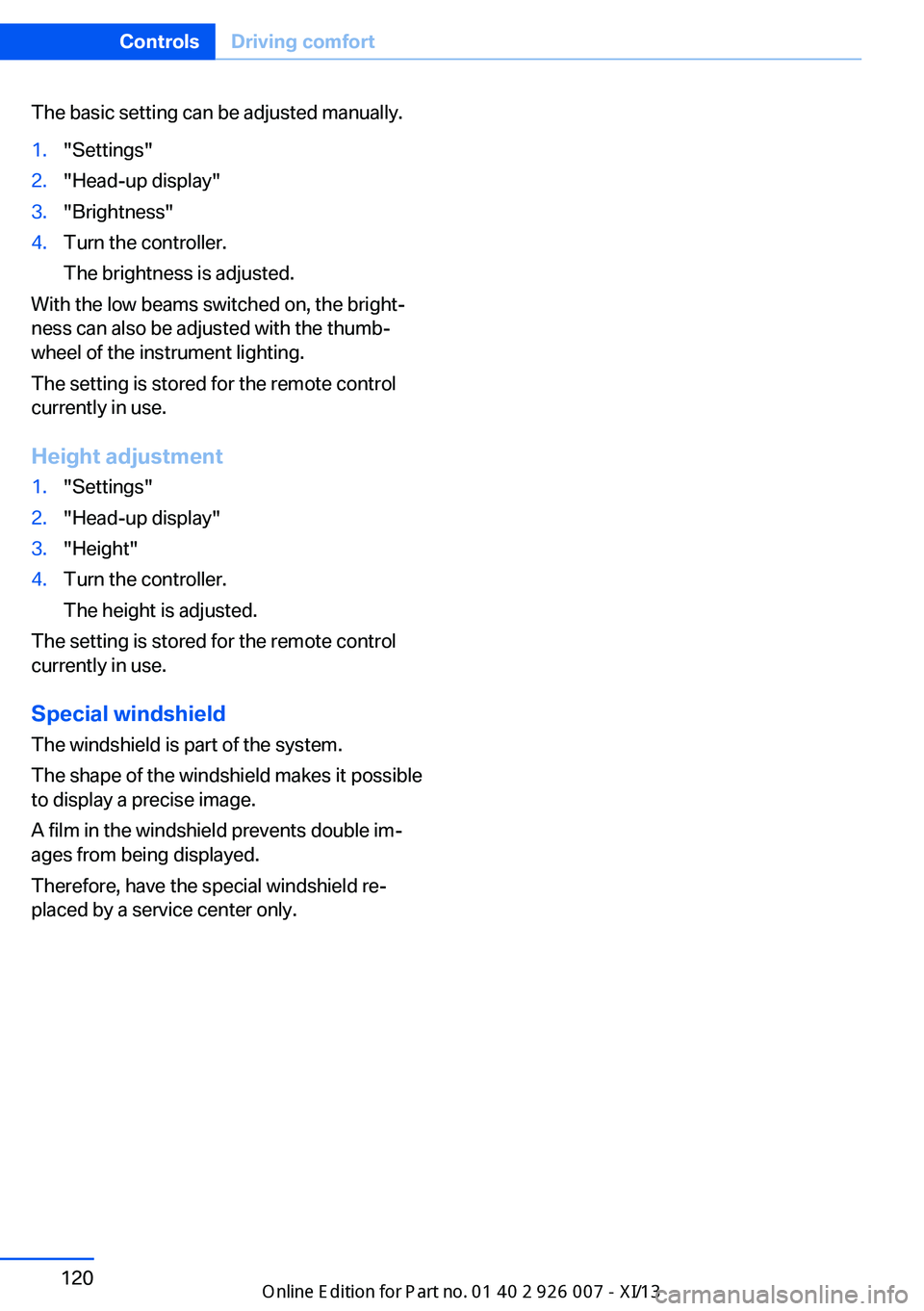
The basic setting can be adjusted manually.1."Settings"2."Head-up display"3."Brightness"4.Turn the controller.
The brightness is adjusted.
With the low beams switched on, the bright‐
ness can also be adjusted with the thumb‐
wheel of the instrument lighting.
The setting is stored for the remote control
currently in use.
Height adjustment
1."Settings"2."Head-up display"3."Height"4.Turn the controller.
The height is adjusted.
The setting is stored for the remote control
currently in use.
Special windshield
The windshield is part of the system.
The shape of the windshield makes it possible
to display a precise image.
A film in the windshield prevents double im‐
ages from being displayed.
Therefore, have the special windshield re‐
placed by a service center only.
Seite 120ControlsDriving comfort120
Online Edition for Part no. 01 40 2 910 876 - VII/13
Page 173 of 327
Destination guidanceVehicle equipmentThis chapter describes all series equipment as
well as country-specific and special equipment
offered for this model series.Therefore, it also
describes equipment that may not be found in
your vehicle, for instance due to the selected
special equipment or the country version. This
also applies to safety-related functions and
systems.
Starting destination
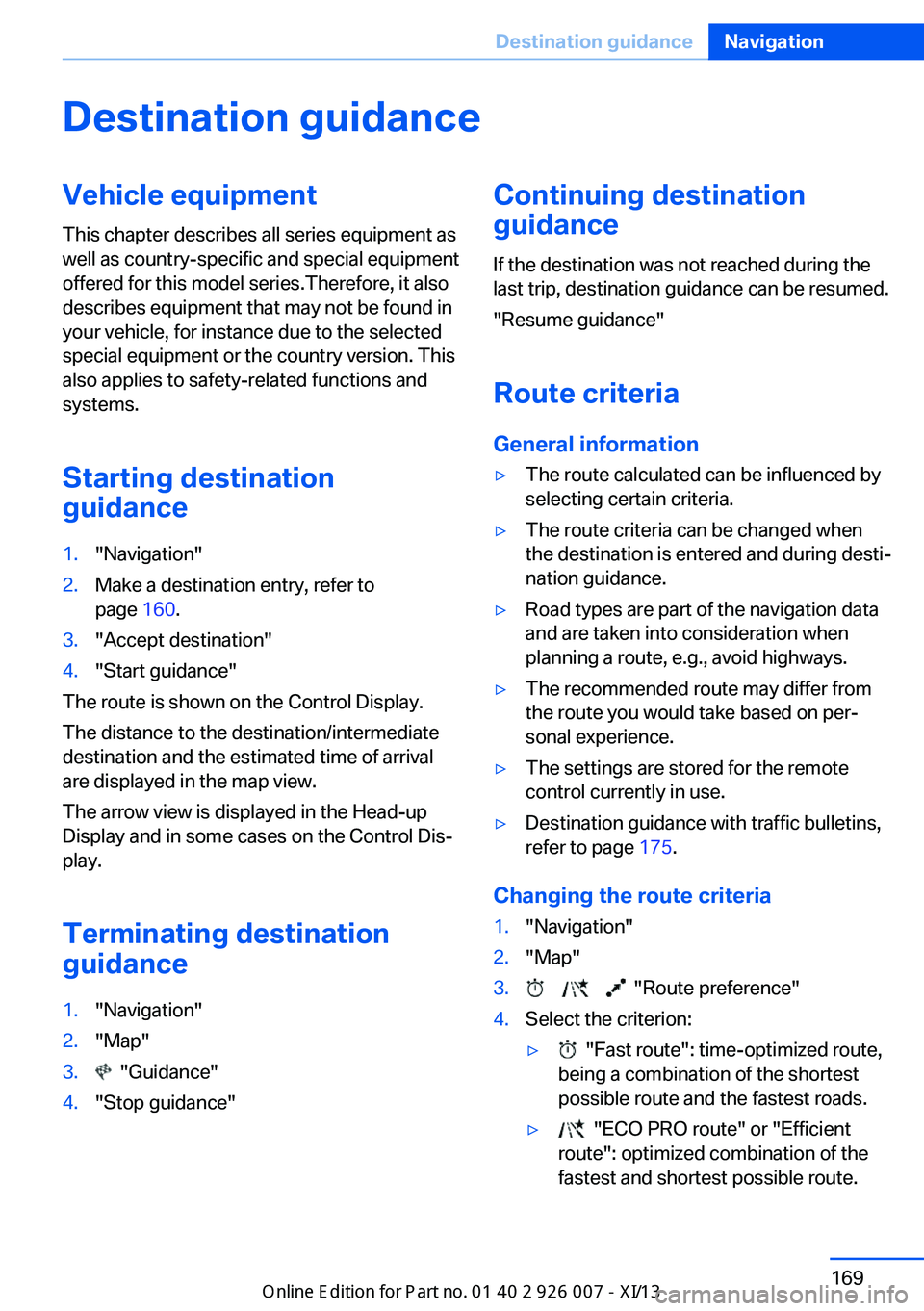
guidance1."Navigation"2.Make a destination entry, refer to
page 160.3."Accept destination"4."Start guidance"
The route is shown on the Control Display.
The distance to the destination/intermediate
destination and the estimated time of arrival
are displayed in the map view.
The arrow view is displayed in the Head-up
Display and in some cases on the Control Dis‐
play.
Terminating destination
guidance
1."Navigation"2."Map"3. "Guidance"4."Stop guidance"Continuing destination
guidance
If the destination was not reached during thelast trip, destination guidance can be resumed.
"Resume guidance"
Route criteria
General information▷The route calculated can be influenced by
selecting certain criteria.▷The route criteria can be changed when
the destination is entered and during desti‐
nation guidance.▷Road types are part of the navigation data
and are taken into consideration when
planning a route, e.g., avoid highways.▷The recommended route may differ from
the route you would take based on per‐
sonal experience.▷The settings are stored for the remote
control currently in use.▷Destination guidance with traffic bulletins,
refer to page 175.
Changing the route criteria
1."Navigation"2."Map"3. "Route preference"4.Select the criterion:▷ "Fast route": time-optimized route,
being a combination of the shortest
possible route and the fastest roads.▷ "ECO PRO route" or "Efficient
route": optimized combination of the
fastest and shortest possible route.Seite 169Destination guidanceNavigation169
Online Edition for Part no. 01 40 2 910 876 - VII/13
Page 174 of 327
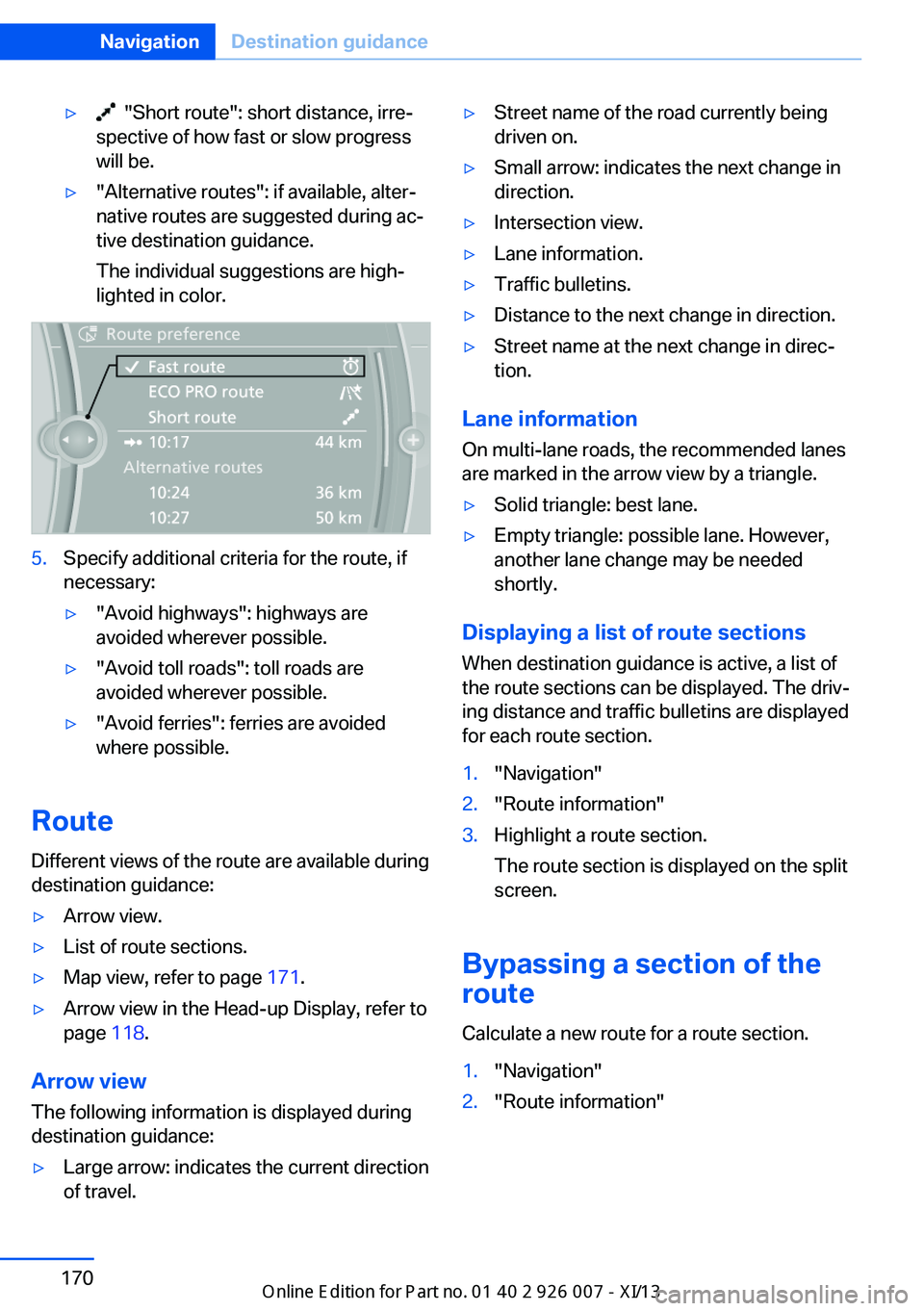
▷ "Short route": short distance, irre‐
spective of how fast or slow progress
will be.▷"Alternative routes": if available, alter‐
native routes are suggested during ac‐
tive destination guidance.
The individual suggestions are high‐
lighted in color.5.Specify additional criteria for the route, if
necessary:▷"Avoid highways": highways are
avoided wherever possible.▷"Avoid toll roads": toll roads are
avoided wherever possible.▷"Avoid ferries": ferries are avoided
where possible.
Route
Different views of the route are available during
destination guidance:
▷Arrow view.▷List of route sections.▷Map view, refer to page 171.▷Arrow view in the Head-up Display, refer to
page 118.
Arrow view
The following information is displayed during
destination guidance:
▷Large arrow: indicates the current direction
of travel.▷Street name of the road currently being
driven on.▷Small arrow: indicates the next change in
direction.▷Intersection view.▷Lane information.▷Traffic bulletins.▷Distance to the next change in direction.▷Street name at the next change in direc‐
tion.
Lane information
On multi-lane roads, the recommended lanes
are marked in the arrow view by a triangle.
▷Solid triangle: best lane.▷Empty triangle: possible lane. However,
another lane change may be needed
shortly.
Displaying a list of route sections
When destination guidance is active, a list of
the route sections can be displayed. The driv‐
ing distance and traffic bulletins are displayed
for each route section.
1."Navigation"2."Route information"3.Highlight a route section.
The route section is displayed on the split
screen.
Bypassing a section of the
route
Calculate a new route for a route section.
1."Navigation"2."Route information"Seite 170NavigationDestination guidance170
Online Edition for Part no. 01 40 2 910 876 - VII/13
Page 305 of 327
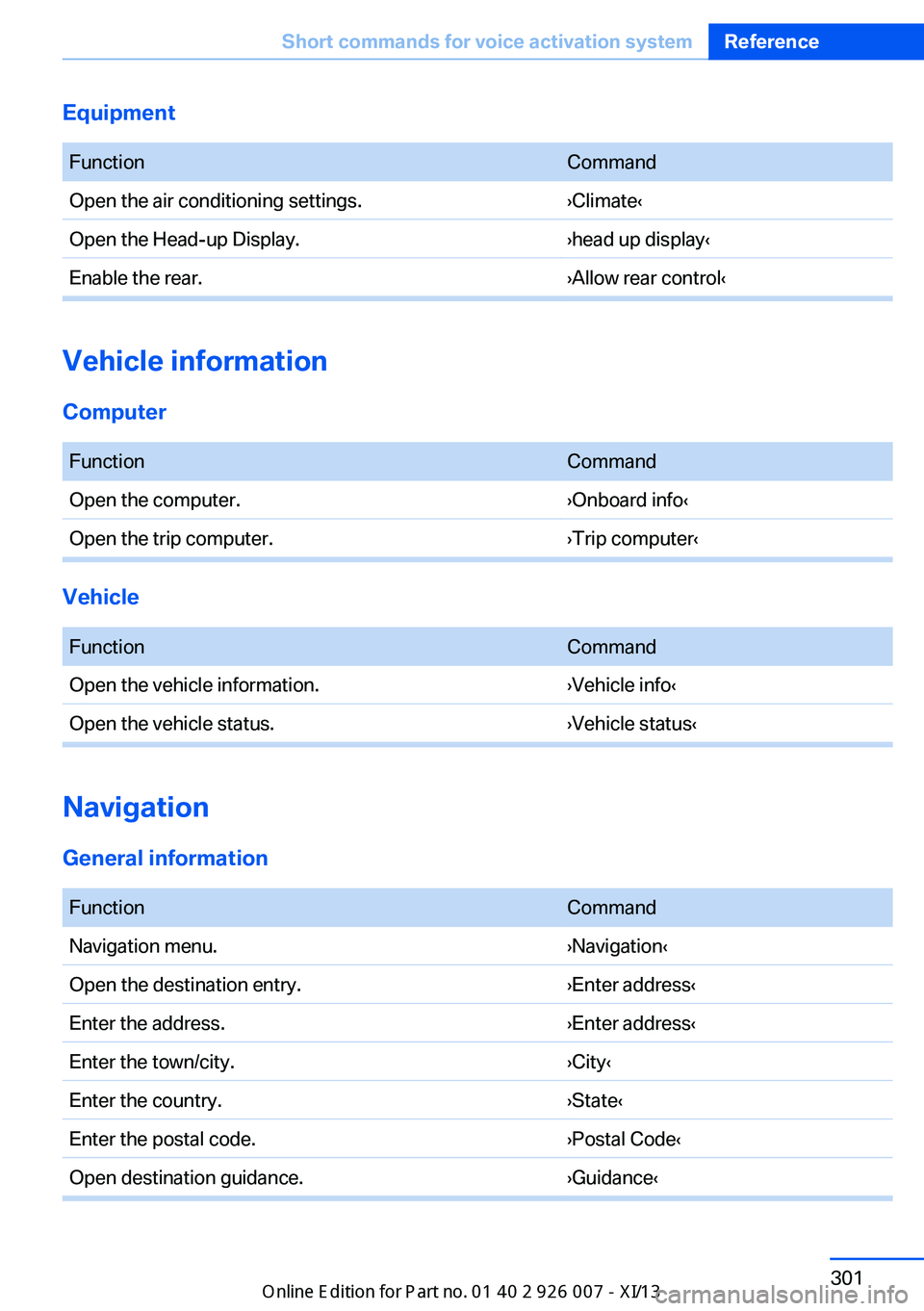
Equipment FunctionCommandOpen the air conditioning settings.›Climate‹Open the Head-up Display.›head up display‹Enable the rear.›Allow rear control‹
Vehicle information
Computer
FunctionCommandOpen the computer.›Onboard info‹Open the trip computer.›Trip computer‹
Vehicle
FunctionCommandOpen the vehicle information.›Vehicle info‹Open the vehicle status.›Vehicle status‹
Navigation
General information
FunctionCommandNavigation menu.›Navigation‹Open the destination entry.›Enter address‹Enter the address.›Enter address‹Enter the town/city.›City‹Enter the country.›State‹Enter the postal code.›Postal Code‹Open destination guidance.›Guidance‹Seite 301Short commands for voice activation systemReference301
Online Edition for Part no. 01 40 2 910 876 - VII/13
Page 317 of 327
Flat tire, warning lamp 89, 91
Flat tire, wheel change 280
Flooding, refer to Driving through water 147
Floor carpet, care 293
Floor mats, care 293
FM/AM station 182
Fog on windows, remov‐ ing 123
Foldable rear seat back‐ rest 135
Foot brake 147
Footwell lamps, refer to Inte‐ rior lamps 85
For your own safety 6
Four-wheel drive, refer to xDrive 98
Front airbags 86
Front fog lamps 84
Front fog lamps, bulb replace‐ ment 278
Front fog lamps, indicator lamp 84
FTM Flat Tire Monitor 88
Fuel 260
Fuel– Refer to Average fuel con‐
sumption 73
Fuel, additives 260
Fuel, average consump‐ tion 73
Fuel cap 258
Fuel cap, closing 258
Fuel consumption display
– Average fuel consump‐
tion 73
Fuel consumption display,
current fuel consump‐
tion 71
Fuel-efficient driving, refer to Current fuel consump‐
tion 71
Fuel filler flap, closing 258
Fuel filler flap, opening 258
Fuel filler flap, unlocking in case of an electrical mal‐
function 258
Fuel gauge 72
Fuel, saving 153
Fuel tank capacity, refer to Filling capacities 299
Fuel tank contents, refer to Filling capacities 299
Fuel tank, refer to Filling ca‐ pacities 299
Fuse 284
G
Garage door opener, refer to Universal Garage Door
Opener 129
Gasoline 260
Gasoline gauge, refer to Fuel gauge 72
Gasoline quality 260
Gas station recommenda‐ tion 171
Gear change, automatic transmission with Step‐
tronic 68
Gear change, via shift pad‐ dles 69
General driving notes 146
Glass sunroof, closing 43
Glass sunroof, electric– Convenient operation 33– Remote control 33
Glass sunroof, initializing 43
Glass sunroof, opening 43
Glass sunroof, pinch protec‐ tion 43
Glass sunroof, power fail‐ ure 43
Glass sunroof, tilting 42
Glove compartment 137
Glove compartment, light‐ ing 137
GPS navigation, refer to Navi‐ gation system 158
Gross vehicle weight, refer to Weights 298
H
Handbrake, refer to Parking brake 61
Hand-held transmitter, alter‐ nating code 130
Hands-free microphone 16
Hazard warning sys‐ tem 16, 286
HDC Hill Descent Control 99
HD Radio 183
Head airbags 86
Headlamp control, auto‐ matic 81, 82
Headlamp courtesy delay fea‐ ture 82
Headlamp flasher 64, 83
Headlamp flasher, indicator lamp 15
Headlamps 81
Headlamps, care 292
Headlamps, cleaning 66
Headlamps, cleaning, washer fluid 67
Headliner 17
Headphones, connecting, rear DVD system 211
Head restraints 49
Head-up Display 118
Head-up Display, care 294
Heatable rear window 123
Heating 121
Heating– Seats 46
Heating, interior 121
Heating, mirrors 52
Heating, residual heat 125
Heating with the engine switched off, refer to Resid‐
ual heat 125
Heavy cargo, refer to Stowing cargo 151
Height, refer to Dimen‐ sions 298
High-beam Assistant 83
High beams 83
Seite 313Everything from A to ZReference313
Online Edition for Part no. 01 40 2 910 876 - VII/13