tow BMW Z4 2015 E89 User Guide
[x] Cancel search | Manufacturer: BMW, Model Year: 2015, Model line: Z4, Model: BMW Z4 2015 E89Pages: 289, PDF Size: 7.16 MB
Page 112 of 289
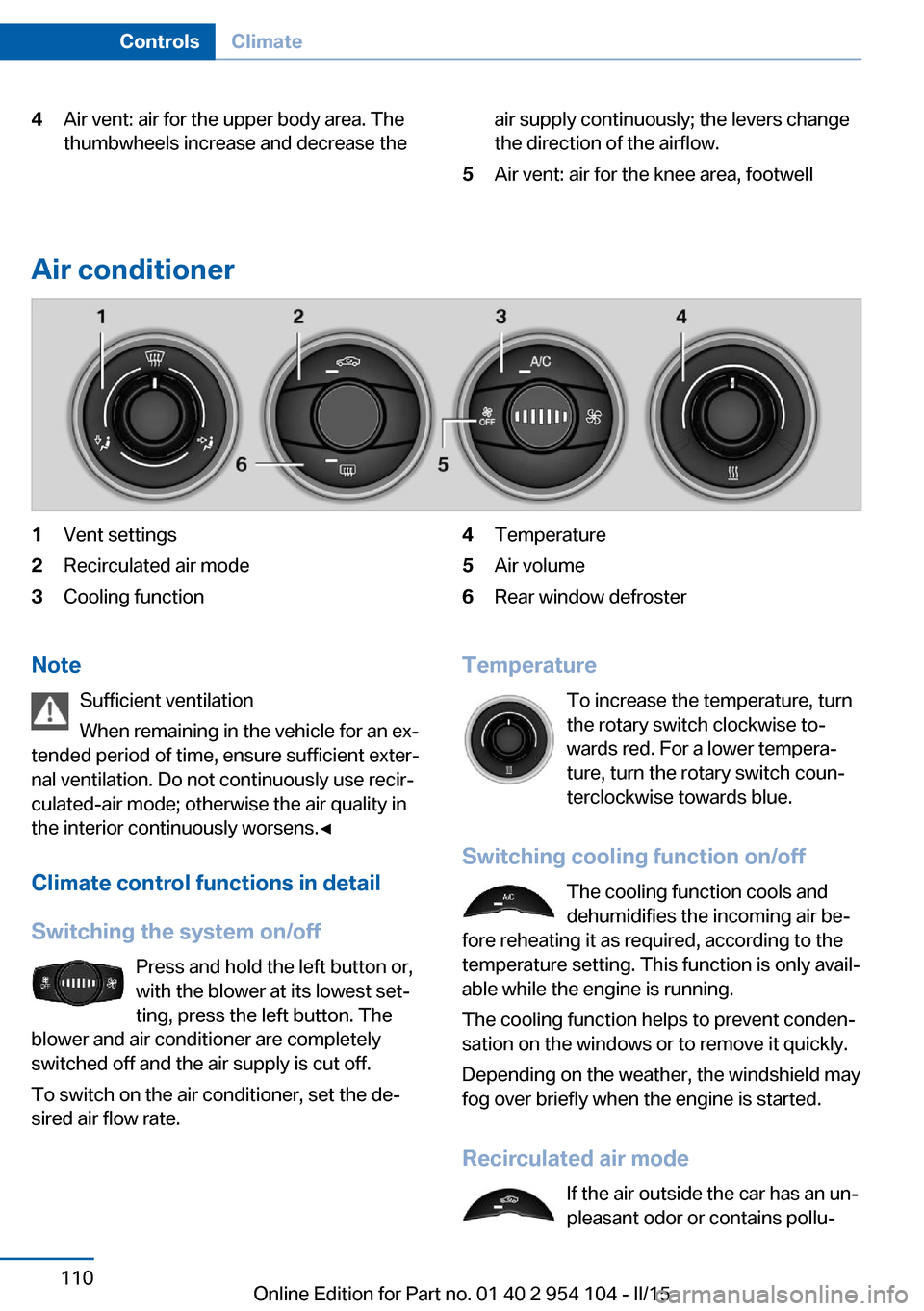
4Air vent: air for the upper body area. The
thumbwheels increase and decrease theair supply continuously; the levers change
the direction of the airflow.5Air vent: air for the knee area, footwell
Air conditioner
1Vent settings2Recirculated air mode3Cooling function4Temperature5Air volume6Rear window defrosterNote
Sufficient ventilation
When remaining in the vehicle for an ex‐
tended period of time, ensure sufficient exter‐
nal ventilation. Do not continuously use recir‐
culated-air mode; otherwise the air quality in
the interior continuously worsens.◀
Climate control functions in detail
Switching the system on/off Press and hold the left button or,
with the blower at its lowest set‐
ting, press the left button. The
blower and air conditioner are completely
switched off and the air supply is cut off.
To switch on the air conditioner, set the de‐
sired air flow rate.Temperature
To increase the temperature, turn
the rotary switch clockwise to‐
wards red. For a lower tempera‐
ture, turn the rotary switch coun‐
terclockwise towards blue.
Switching cooling function on/off The cooling function cools and
dehumidifies the incoming air be‐
fore reheating it as required, according to the
temperature setting. This function is only avail‐
able while the engine is running.
The cooling function helps to prevent conden‐
sation on the windows or to remove it quickly.
Depending on the weather, the windshield may
fog over briefly when the engine is started.
Recirculated air mode If the air outside the car has an un‐
pleasant odor or contains pollu‐Seite 110ControlsClimate110
Online Edition for Part no. 01 40 2 954 104 - II/15
Page 115 of 289
To give the automatic climate control enough
time to achieve the set temperature, do not
switch between different temperature settings
in quick succession.
Maximum heating power can be obtained with
the highest setting, regardless of the external
temperature.
The lowest setting effects continuous cooling.
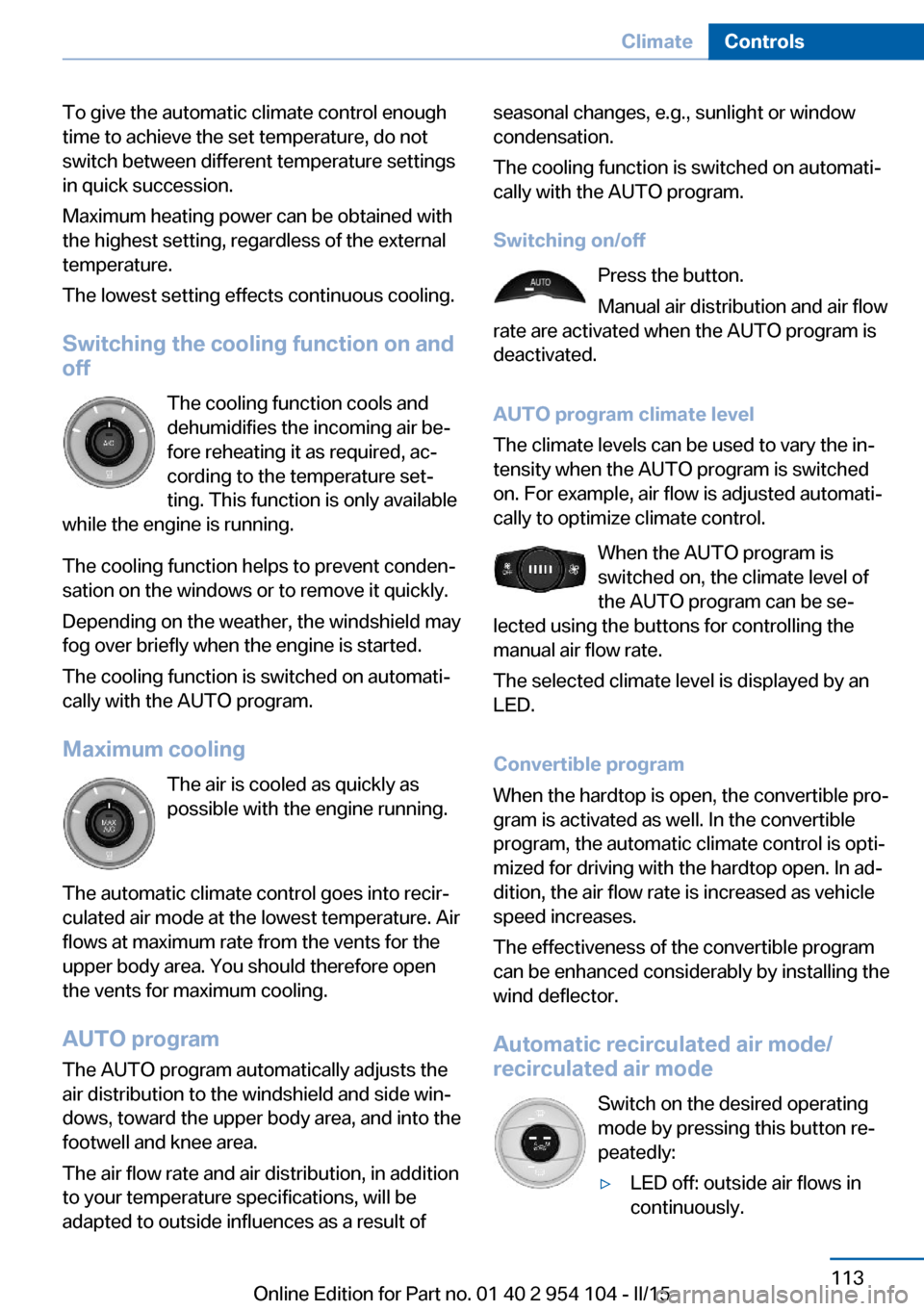
Switching the cooling function on and
off
The cooling function cools and
dehumidifies the incoming air be‐
fore reheating it as required, ac‐ cording to the temperature set‐
ting. This function is only available
while the engine is running.
The cooling function helps to prevent conden‐
sation on the windows or to remove it quickly.
Depending on the weather, the windshield may
fog over briefly when the engine is started.
The cooling function is switched on automati‐
cally with the AUTO program.
Maximum cooling The air is cooled as quickly as
possible with the engine running.
The automatic climate control goes into recir‐
culated air mode at the lowest temperature. Air
flows at maximum rate from the vents for the
upper body area. You should therefore open
the vents for maximum cooling.
AUTO program
The AUTO program automatically adjusts the
air distribution to the windshield and side win‐
dows, toward the upper body area, and into the
footwell and knee area.
The air flow rate and air distribution, in addition
to your temperature specifications, will be
adapted to outside influences as a result ofseasonal changes, e.g., sunlight or window
condensation.
The cooling function is switched on automati‐
cally with the AUTO program.
Switching on/off Press the button.
Manual air distribution and air flow
rate are activated when the AUTO program is
deactivated.
AUTO program climate level
The climate levels can be used to vary the in‐
tensity when the AUTO program is switched
on. For example, air flow is adjusted automati‐
cally to optimize climate control.
When the AUTO program is
switched on, the climate level of
the AUTO program can be se‐
lected using the buttons for controlling the
manual air flow rate.
The selected climate level is displayed by an
LED.
Convertible program
When the hardtop is open, the convertible pro‐
gram is activated as well. In the convertible
program, the automatic climate control is opti‐
mized for driving with the hardtop open. In ad‐
dition, the air flow rate is increased as vehicle
speed increases.
The effectiveness of the convertible program
can be enhanced considerably by installing the
wind deflector.
Automatic recirculated air mode/
recirculated air mode
Switch on the desired operating
mode by pressing this button re‐
peatedly:▷LED off: outside air flows in
continuously.Seite 113ClimateControls113
Online Edition for Part no. 01 40 2 954 104 - II/15
Page 123 of 289
Under the center armrest
External audio device, refer to page 125.
In the passenger footwell A socket is located on the left below the glove
compartment.
Cargo area
Depending on your vehicle's equipment, the
following storage spaces can be found in the
cargo area:▷Rubber band for securing light objects.▷Storage compartment.
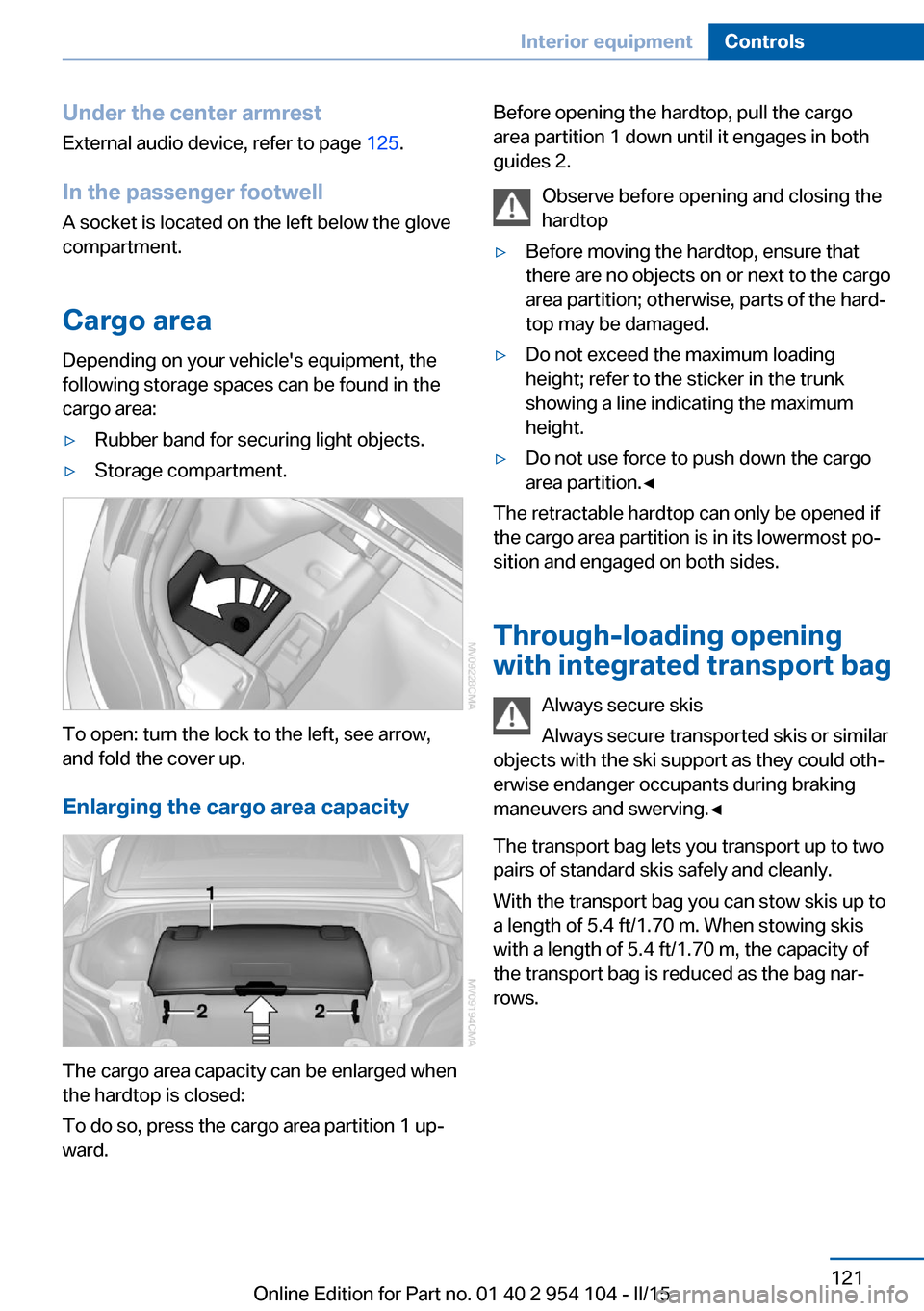
To open: turn the lock to the left, see arrow,
and fold the cover up.
Enlarging the cargo area capacity
The cargo area capacity can be enlarged when
the hardtop is closed:
To do so, press the cargo area partition 1 up‐
ward.
Before opening the hardtop, pull the cargo
area partition 1 down until it engages in both
guides 2.
Observe before opening and closing the
hardtop▷Before moving the hardtop, ensure that
there are no objects on or next to the cargo
area partition; otherwise, parts of the hard‐
top may be damaged.▷Do not exceed the maximum loading
height; refer to the sticker in the trunk
showing a line indicating the maximum
height.▷Do not use force to push down the cargo
area partition.◀
The retractable hardtop can only be opened if
the cargo area partition is in its lowermost po‐
sition and engaged on both sides.
Through-loading opening
with integrated transport bag
Always secure skis
Always secure transported skis or similar
objects with the ski support as they could oth‐
erwise endanger occupants during braking
maneuvers and swerving.◀
The transport bag lets you transport up to two
pairs of standard skis safely and cleanly.
With the transport bag you can stow skis up to a length of 5.4 ft/1.70 m. When stowing skis
with a length of 5.4 ft/1.70 m, the capacity of
the transport bag is reduced as the bag nar‐
rows.
Seite 121Interior equipmentControls121
Online Edition for Part no. 01 40 2 954 104 - II/15
Page 128 of 289
In the cargo area:
Press the handles up and fold the storage
compartment completely down.
More information on the various inserts availa‐
ble can be obtained from your service center.
Behind the seats The rear storage shelf can be used to stow
briefcases, for example.
Observe when loading the rear storage
shelf
▷When loading the rear storage shelf, do not
move both seats all the way forward while
moving them to their uppermost position
and leaning the backrests forward. Other‐
wise, the seats could hit and damage the
seal on the windshield and the sun visor.▷Only transport light and small objects on
the rear storage shelf; otherwise, braking
maneuvers and swerving may lead to a
safety hazard due to objects flying about
the passenger compartment. Only trans‐
port heavy luggage in the trunk if it has
been appropriately secured.◀
Cupholders
Shatter-proof containers and no hot
drinks
Use light and shatter-proof containers and do
not transport hot drinks. Otherwise, there is
the increased danger of injury in an accident.◀
Unsuitable containers
Do not forcefully push unsuitable con‐
tainers into the cupholders. This may result in
damage.◀
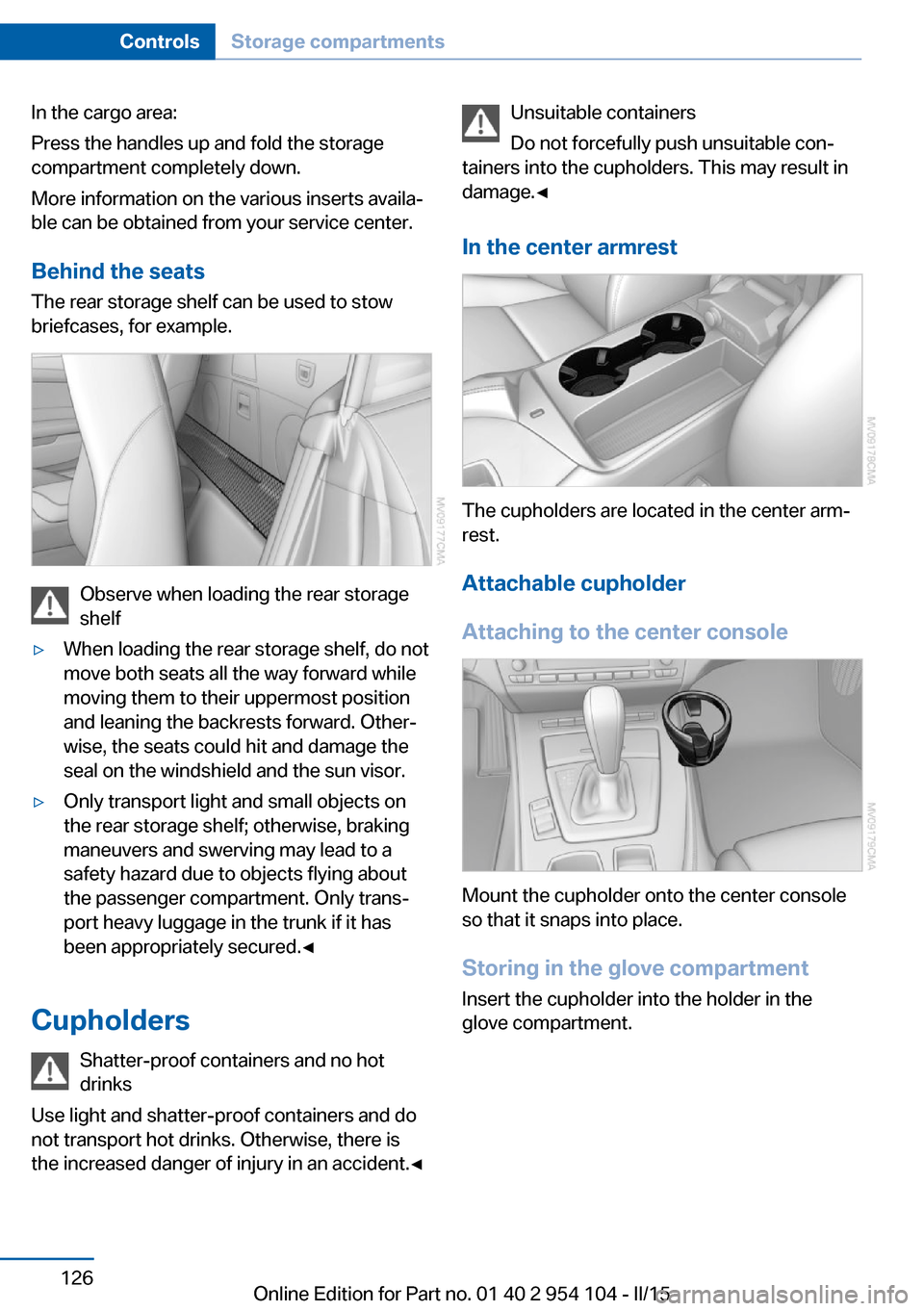
In the center armrest
The cupholders are located in the center arm‐
rest.
Attachable cupholder
Attaching to the center console
Mount the cupholder onto the center console
so that it snaps into place.
Storing in the glove compartment Insert the cupholder into the holder in the
glove compartment.
Seite 126ControlsStorage compartments126
Online Edition for Part no. 01 40 2 954 104 - II/15
Page 135 of 289
inside the tires. This could result in a sudden
loss of tire inflation pressure.◀
Secure heavy objects
Never transport unsecured heavy or hard
objects in the passenger compartment, as they
could be thrown around and pose a safety haz‐
ard to the vehicle's occupants during abrupt
braking or evasive maneuvers.◀
No fluids in the cargo area
Make sure that fluids do not leak into the
cargo area; otherwise, the vehicle may be dam‐
aged.◀
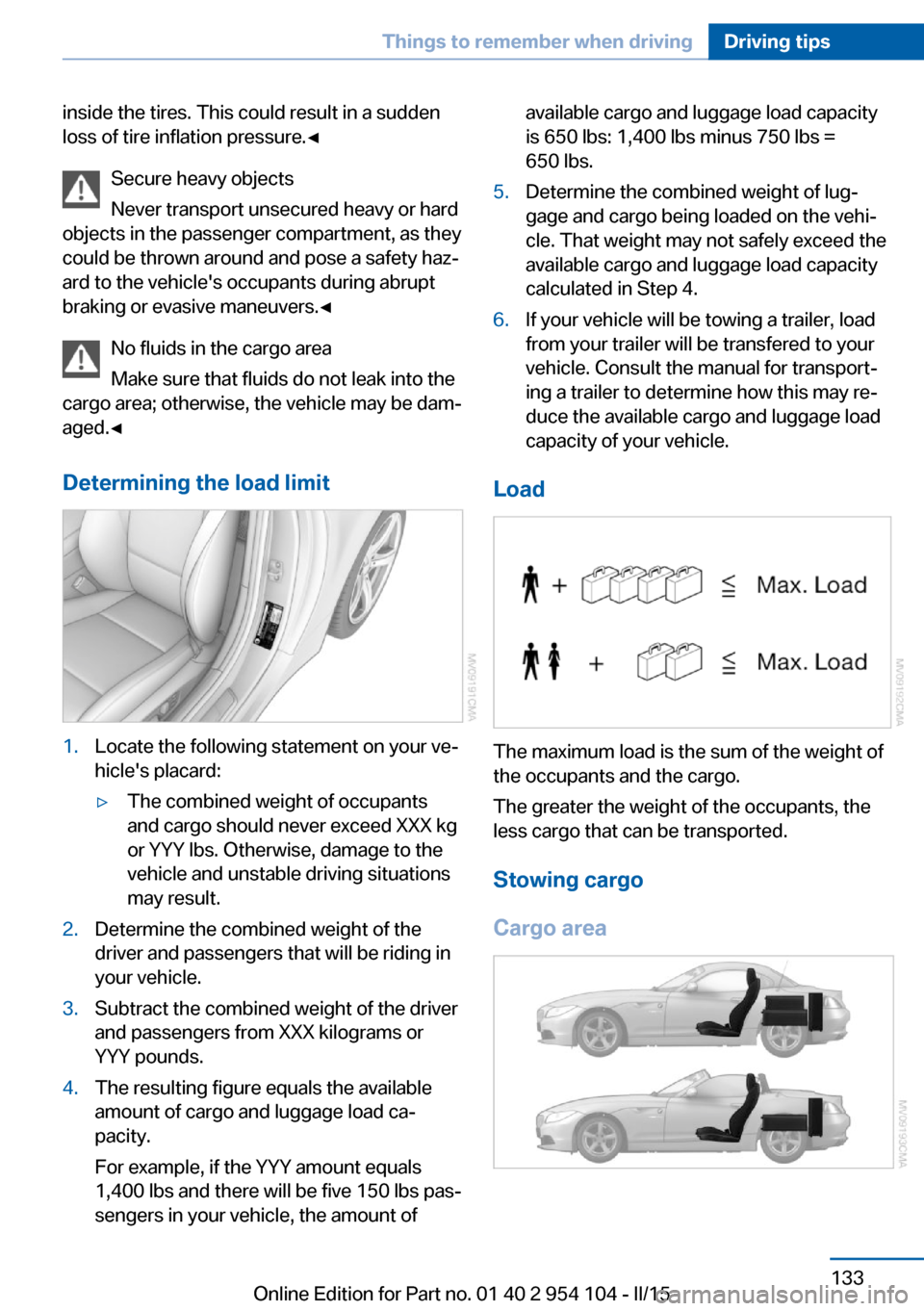
Determining the load limit1.Locate the following statement on your ve‐
hicle's placard:▷The combined weight of occupants
and cargo should never exceed XXX kg
or YYY lbs. Otherwise, damage to the
vehicle and unstable driving situations
may result.2.Determine the combined weight of the
driver and passengers that will be riding in
your vehicle.3.Subtract the combined weight of the driver
and passengers from XXX kilograms or
YYY pounds.4.The resulting figure equals the available
amount of cargo and luggage load ca‐
pacity.
For example, if the YYY amount equals
1,400 lbs and there will be five 150 lbs pas‐
sengers in your vehicle, the amount ofavailable cargo and luggage load capacity
is 650 lbs: 1,400 lbs minus 750 lbs =
650 lbs.5.Determine the combined weight of lug‐
gage and cargo being loaded on the vehi‐
cle. That weight may not safely exceed the
available cargo and luggage load capacity
calculated in Step 4.6.If your vehicle will be towing a trailer, load
from your trailer will be transfered to your
vehicle. Consult the manual for transport‐
ing a trailer to determine how this may re‐
duce the available cargo and luggage load
capacity of your vehicle.
Load
The maximum load is the sum of the weight of
the occupants and the cargo.
The greater the weight of the occupants, the
less cargo that can be transported.
Stowing cargo
Cargo area
Seite 133Things to remember when drivingDriving tips133
Online Edition for Part no. 01 40 2 954 104 - II/15
Page 136 of 289
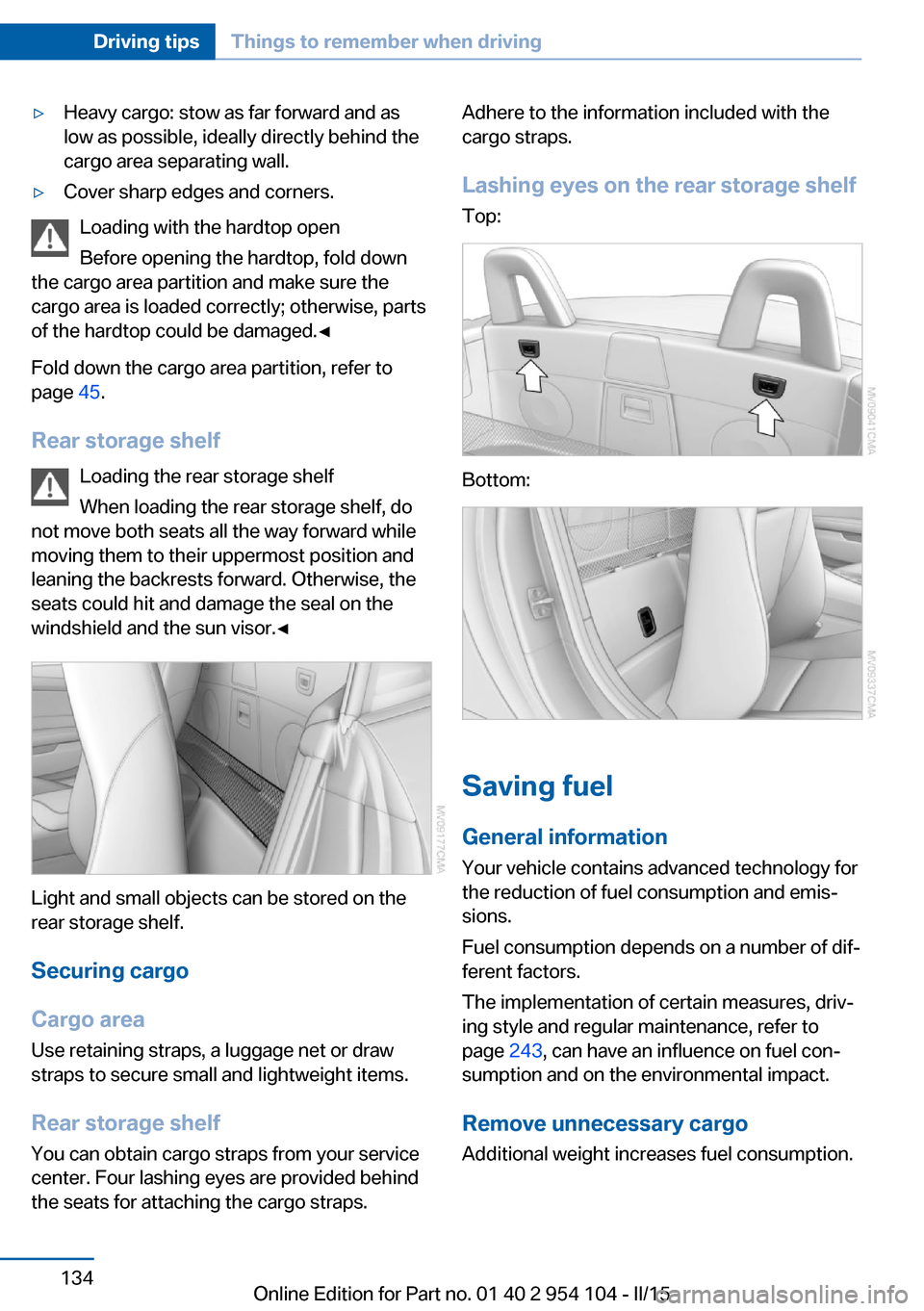
▷Heavy cargo: stow as far forward and as
low as possible, ideally directly behind the
cargo area separating wall.▷Cover sharp edges and corners.
Loading with the hardtop open
Before opening the hardtop, fold down
the cargo area partition and make sure the
cargo area is loaded correctly; otherwise, parts
of the hardtop could be damaged.◀
Fold down the cargo area partition, refer to
page 45.
Rear storage shelf Loading the rear storage shelf
When loading the rear storage shelf, do
not move both seats all the way forward while
moving them to their uppermost position and
leaning the backrests forward. Otherwise, the
seats could hit and damage the seal on the
windshield and the sun visor.◀
Light and small objects can be stored on the
rear storage shelf.
Securing cargo
Cargo area
Use retaining straps, a luggage net or draw
straps to secure small and lightweight items.
Rear storage shelf You can obtain cargo straps from your service
center. Four lashing eyes are provided behind
the seats for attaching the cargo straps.
Adhere to the information included with the
cargo straps.
Lashing eyes on the rear storage shelf
Top:
Bottom:
Saving fuel
General information
Your vehicle contains advanced technology for
the reduction of fuel consumption and emis‐
sions.
Fuel consumption depends on a number of dif‐
ferent factors.
The implementation of certain measures, driv‐
ing style and regular maintenance, refer to
page 243, can have an influence on fuel con‐
sumption and on the environmental impact.
Remove unnecessary cargo
Additional weight increases fuel consumption.
Seite 134Driving tipsThings to remember when driving134
Online Edition for Part no. 01 40 2 954 104 - II/15
Page 144 of 289
Destination entryVehicle equipment
This chapter describes all series equipment as
well as country-specific and special equipment
offered for this model series. Therefore, it also
describes equipment that may not be found in
your vehicle, for instance due to the selected
special equipment or the country version. This
also applies to safety-related functions and
systems.
When using the features and systems descri‐
bed here, adhere to local regulations.
At a glance In entering your destination you can select
from the following options:▷Enter the destination manually, see below.▷Select the destination from the address
book, refer to page 144.▷Last destinations, refer to page 145.▷Special destinations, refer to page 145.▷Destination entry via map, refer to
page 147.▷Using the home address as the destina‐
tion, refer to page 145.▷Destination entry by voice, refer to
page 148.▷Destination entry via the Concierge serv‐
ice, refer to page 147.
You can also store a navigation destination on
the programmable memory buttons, refer to
page 25.
Entries in stationary vehicle
Enter data only when the vehicle is sta‐
tionary, and always give priority to the applica‐
ble traffic regulations in the event of any con‐
tradiction between traffic and road conditions
and the instructions issued by the navigation
system. Failure to take to this precaution can
place you in violation of the law and put vehicle
occupants and other road users in danger.◀
Manual destination entry General information
The system supports you in entering street
names and house numbers by automatically
completing the entry and providing entry com‐
parisons, refer to page 25.
Stored town/city and street names can be
called up quickly.▷If the existing entries should not be
changed, the entries for the state/province
and town/city can be skipped.▷Destination guidance is started to the
town/city center if no street is entered.
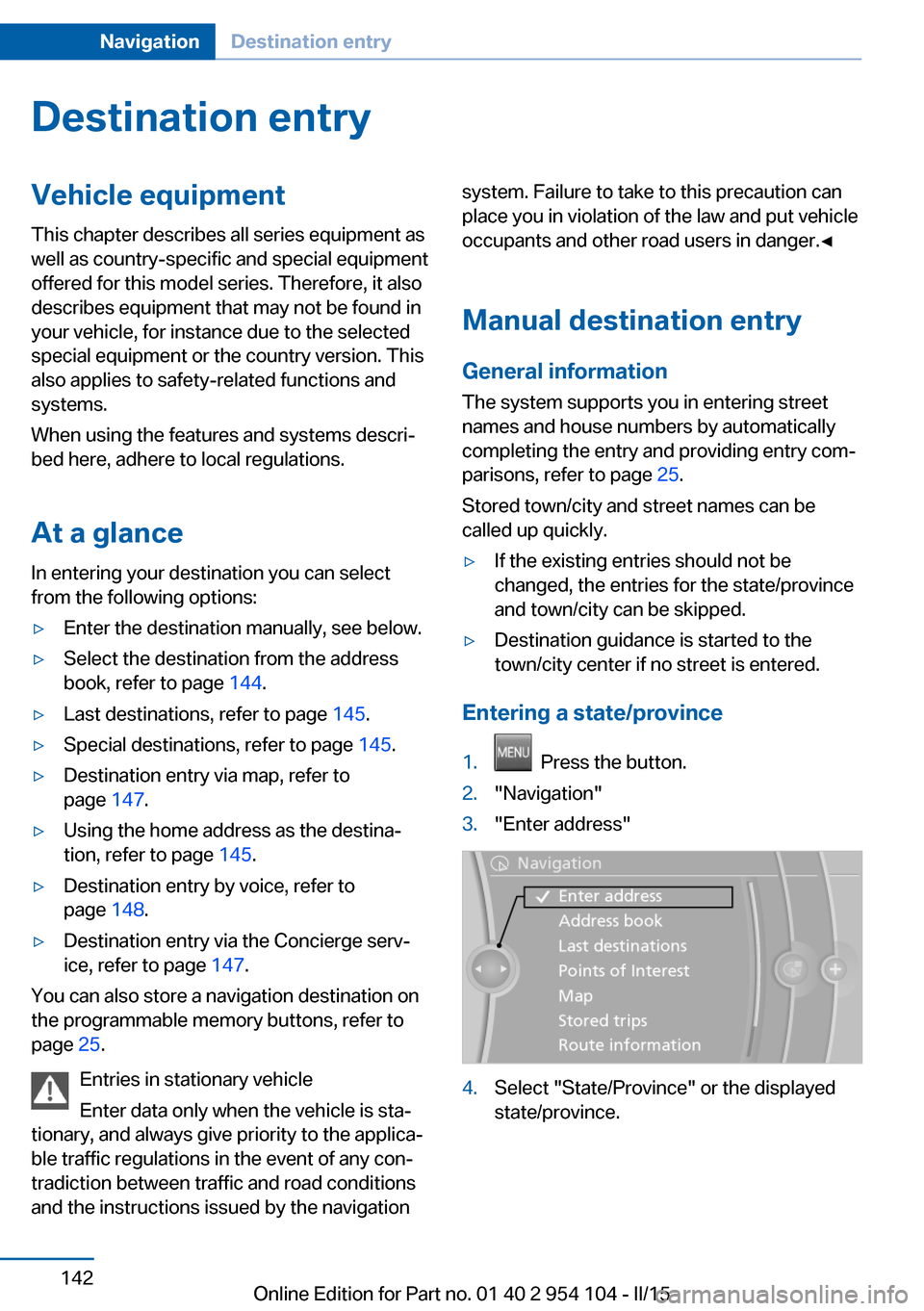
Entering a state/province
1. Press the button.2."Navigation"3."Enter address"4.Select "State/Province" or the displayed
state/province.Seite 142NavigationDestination entry142
Online Edition for Part no. 01 40 2 954 104 - II/15
Page 145 of 289
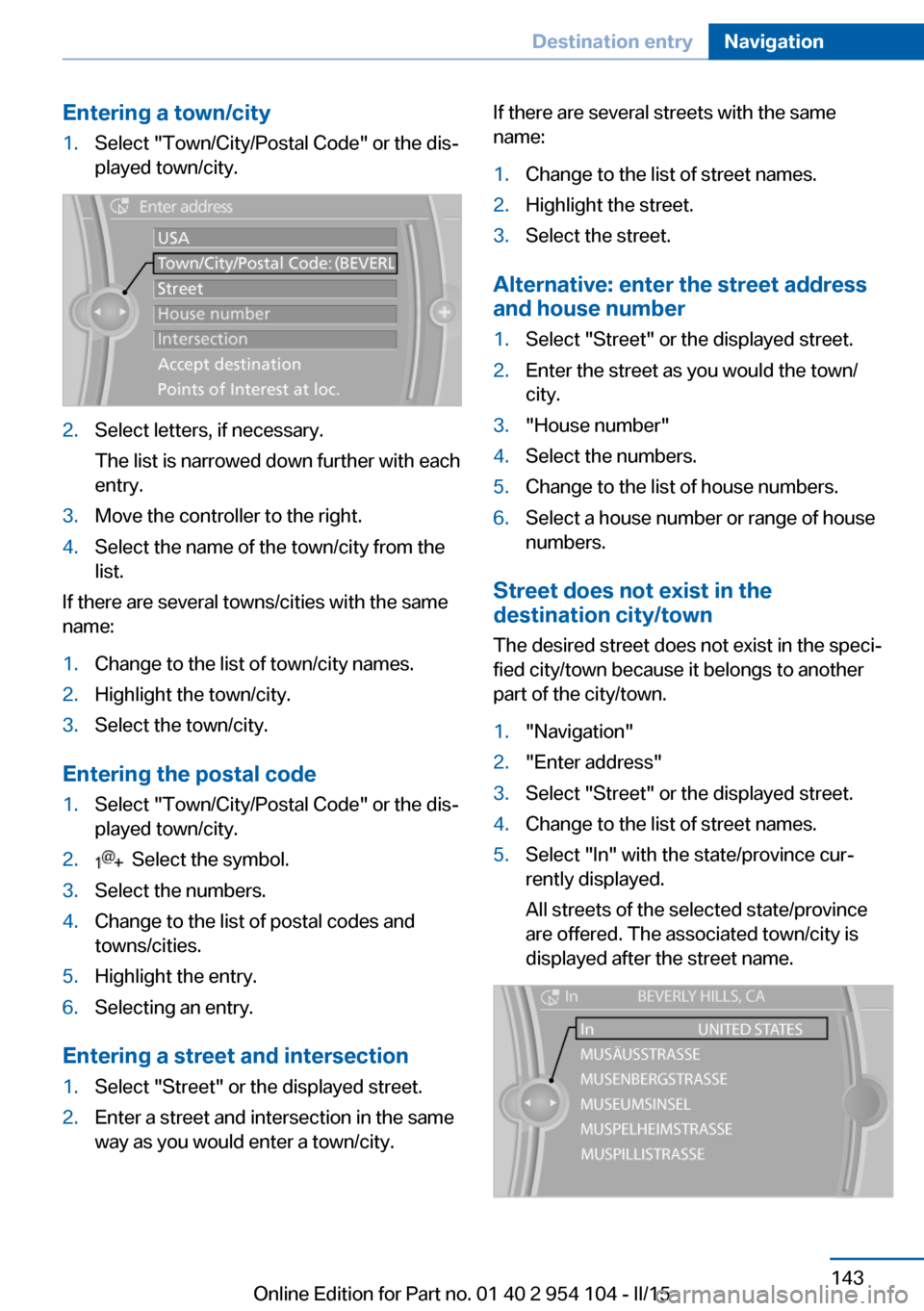
Entering a town/city1.Select "Town/City/Postal Code" or the dis‐
played town/city.2.Select letters, if necessary.
The list is narrowed down further with each
entry.3.Move the controller to the right.4.Select the name of the town/city from the
list.
If there are several towns/cities with the same
name:
1.Change to the list of town/city names.2.Highlight the town/city.3.Select the town/city.
Entering the postal code
1.Select "Town/City/Postal Code" or the dis‐
played town/city.2. Select the symbol.3.Select the numbers.4.Change to the list of postal codes and
towns/cities.5.Highlight the entry.6.Selecting an entry.
Entering a street and intersection
1.Select "Street" or the displayed street.2.Enter a street and intersection in the same
way as you would enter a town/city.If there are several streets with the same
name:1.Change to the list of street names.2.Highlight the street.3.Select the street.
Alternative: enter the street address
and house number
1.Select "Street" or the displayed street.2.Enter the street as you would the town/
city.3."House number"4.Select the numbers.5.Change to the list of house numbers.6.Select a house number or range of house
numbers.
Street does not exist in the
destination city/town
The desired street does not exist in the speci‐
fied city/town because it belongs to another
part of the city/town.
1."Navigation"2."Enter address"3.Select "Street" or the displayed street.4.Change to the list of street names.5.Select "In" with the state/province cur‐
rently displayed.
All streets of the selected state/province
are offered. The associated town/city is
displayed after the street name.Seite 143Destination entryNavigation143
Online Edition for Part no. 01 40 2 954 104 - II/15
Page 148 of 289
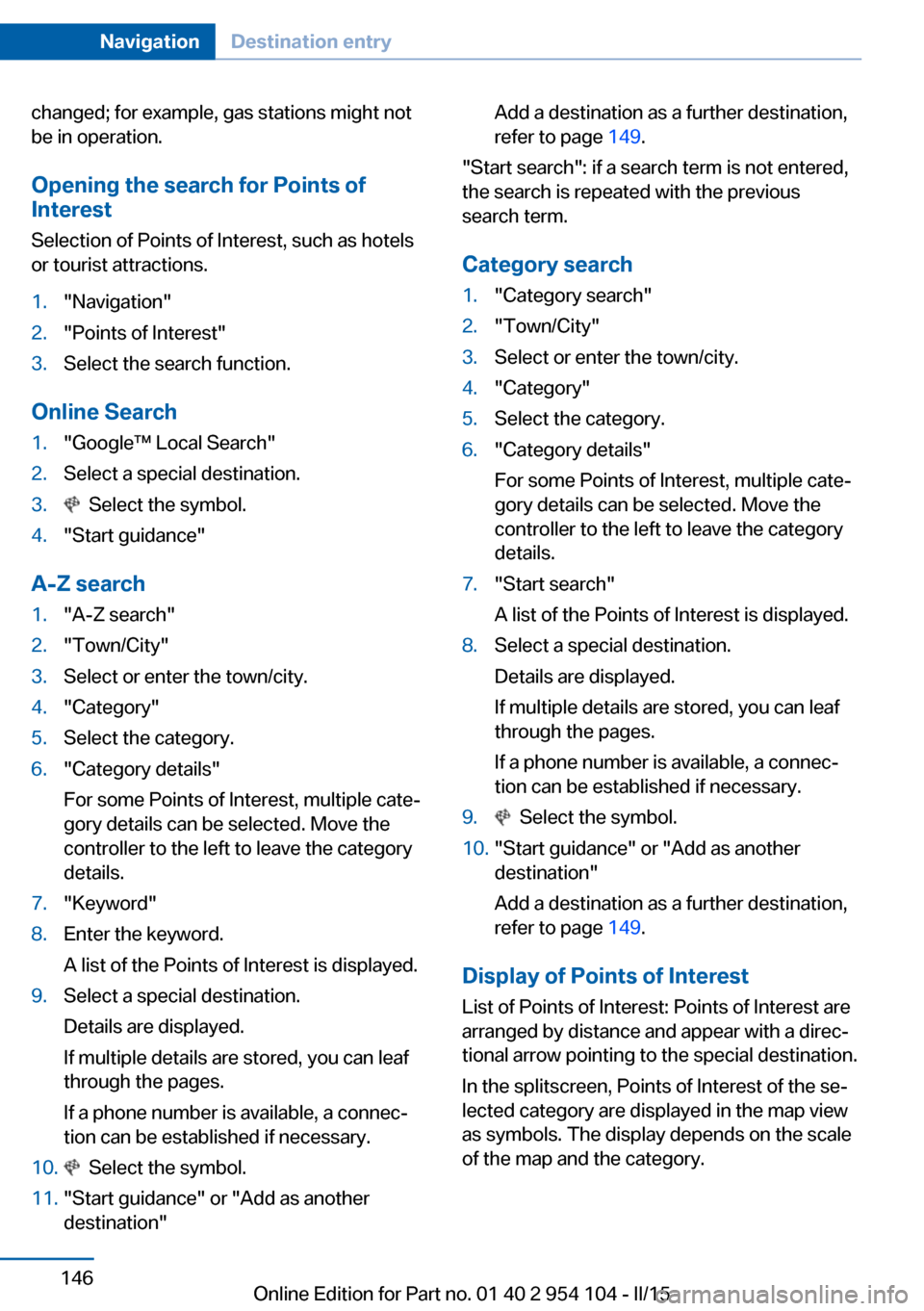
changed; for example, gas stations might not
be in operation.
Opening the search for Points ofInterest
Selection of Points of Interest, such as hotels
or tourist attractions.1."Navigation"2."Points of Interest"3.Select the search function.
Online Search
1."Google™ Local Search"2.Select a special destination.3. Select the symbol.4."Start guidance"
A-Z search
1."A-Z search"2."Town/City"3.Select or enter the town/city.4."Category"5.Select the category.6."Category details"
For some Points of Interest, multiple cate‐
gory details can be selected. Move the
controller to the left to leave the category
details.7."Keyword"8.Enter the keyword.
A list of the Points of Interest is displayed.9.Select a special destination.
Details are displayed.
If multiple details are stored, you can leaf
through the pages.
If a phone number is available, a connec‐
tion can be established if necessary.10. Select the symbol.11."Start guidance" or "Add as another
destination"Add a destination as a further destination,
refer to page 149.
"Start search": if a search term is not entered,
the search is repeated with the previous
search term.
Category search
1."Category search"2."Town/City"3.Select or enter the town/city.4."Category"5.Select the category.6."Category details"
For some Points of Interest, multiple cate‐
gory details can be selected. Move the
controller to the left to leave the category
details.7."Start search"
A list of the Points of Interest is displayed.8.Select a special destination.
Details are displayed.
If multiple details are stored, you can leaf
through the pages.
If a phone number is available, a connec‐
tion can be established if necessary.9. Select the symbol.10."Start guidance" or "Add as another
destination"
Add a destination as a further destination,
refer to page 149.
Display of Points of Interest
List of Points of Interest: Points of Interest are
arranged by distance and appear with a direc‐
tional arrow pointing to the special destination.
In the splitscreen, Points of Interest of the se‐
lected category are displayed in the map view
as symbols. The display depends on the scale
of the map and the category.
Seite 146NavigationDestination entry146
Online Edition for Part no. 01 40 2 954 104 - II/15
Page 150 of 289
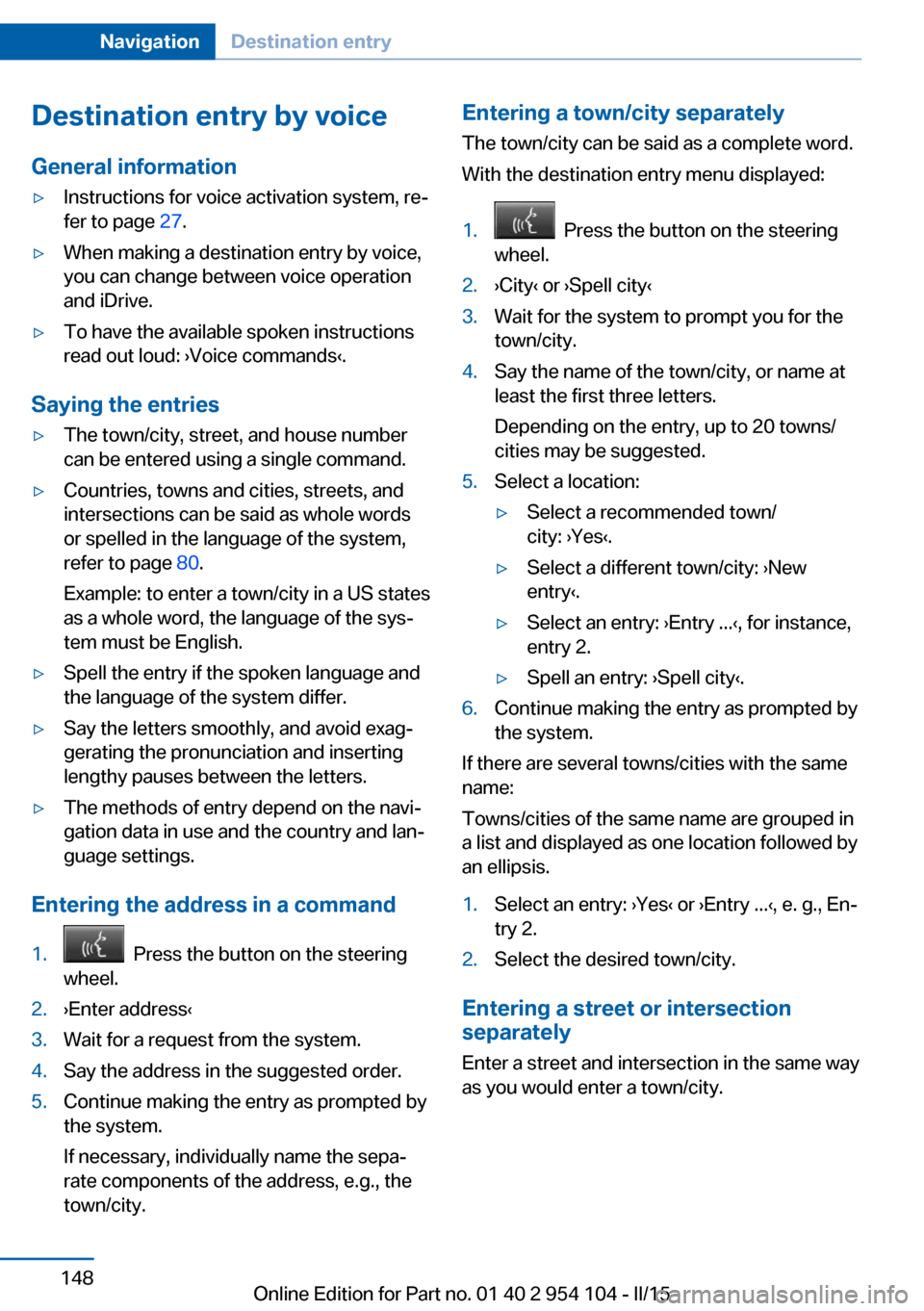
Destination entry by voiceGeneral information▷Instructions for voice activation system, re‐
fer to page 27.▷When making a destination entry by voice,
you can change between voice operation
and iDrive.▷To have the available spoken instructions
read out loud: ›Voice commands‹.
Saying the entries
▷The town/city, street, and house number
can be entered using a single command.▷Countries, towns and cities, streets, and
intersections can be said as whole words
or spelled in the language of the system,
refer to page 80.
Example: to enter a town/city in a US states
as a whole word, the language of the sys‐
tem must be English.▷Spell the entry if the spoken language and
the language of the system differ.▷Say the letters smoothly, and avoid exag‐
gerating the pronunciation and inserting
lengthy pauses between the letters.▷The methods of entry depend on the navi‐
gation data in use and the country and lan‐
guage settings.
Entering the address in a command
1. Press the button on the steering
wheel.2.›Enter address‹3.Wait for a request from the system.4.Say the address in the suggested order.5.Continue making the entry as prompted by
the system.
If necessary, individually name the sepa‐
rate components of the address, e.g., the
town/city.Entering a town/city separately
The town/city can be said as a complete word.
With the destination entry menu displayed:1. Press the button on the steering
wheel.2.›City‹ or ›Spell city‹3.Wait for the system to prompt you for the
town/city.4.Say the name of the town/city, or name at
least the first three letters.
Depending on the entry, up to 20 towns/
cities may be suggested.5.Select a location:▷Select a recommended town/
city: ›Yes‹.▷Select a different town/city: ›New
entry‹.▷Select an entry: ›Entry ...‹, for instance,
entry 2.▷Spell an entry: ›Spell city‹.6.Continue making the entry as prompted by
the system.
If there are several towns/cities with the same
name:
Towns/cities of the same name are grouped in
a list and displayed as one location followed by
an ellipsis.
1.Select an entry: ›Yes‹ or ›Entry ...‹, e. g., En‐
try 2.2.Select the desired town/city.
Entering a street or intersection
separately
Enter a street and intersection in the same way
as you would enter a town/city.
Seite 148NavigationDestination entry148
Online Edition for Part no. 01 40 2 954 104 - II/15