Idrive BMW Z4 2015 E89 Owner's Guide
[x] Cancel search | Manufacturer: BMW, Model Year: 2015, Model line: Z4, Model: BMW Z4 2015 E89Pages: 289, PDF Size: 7.16 MB
Page 196 of 289
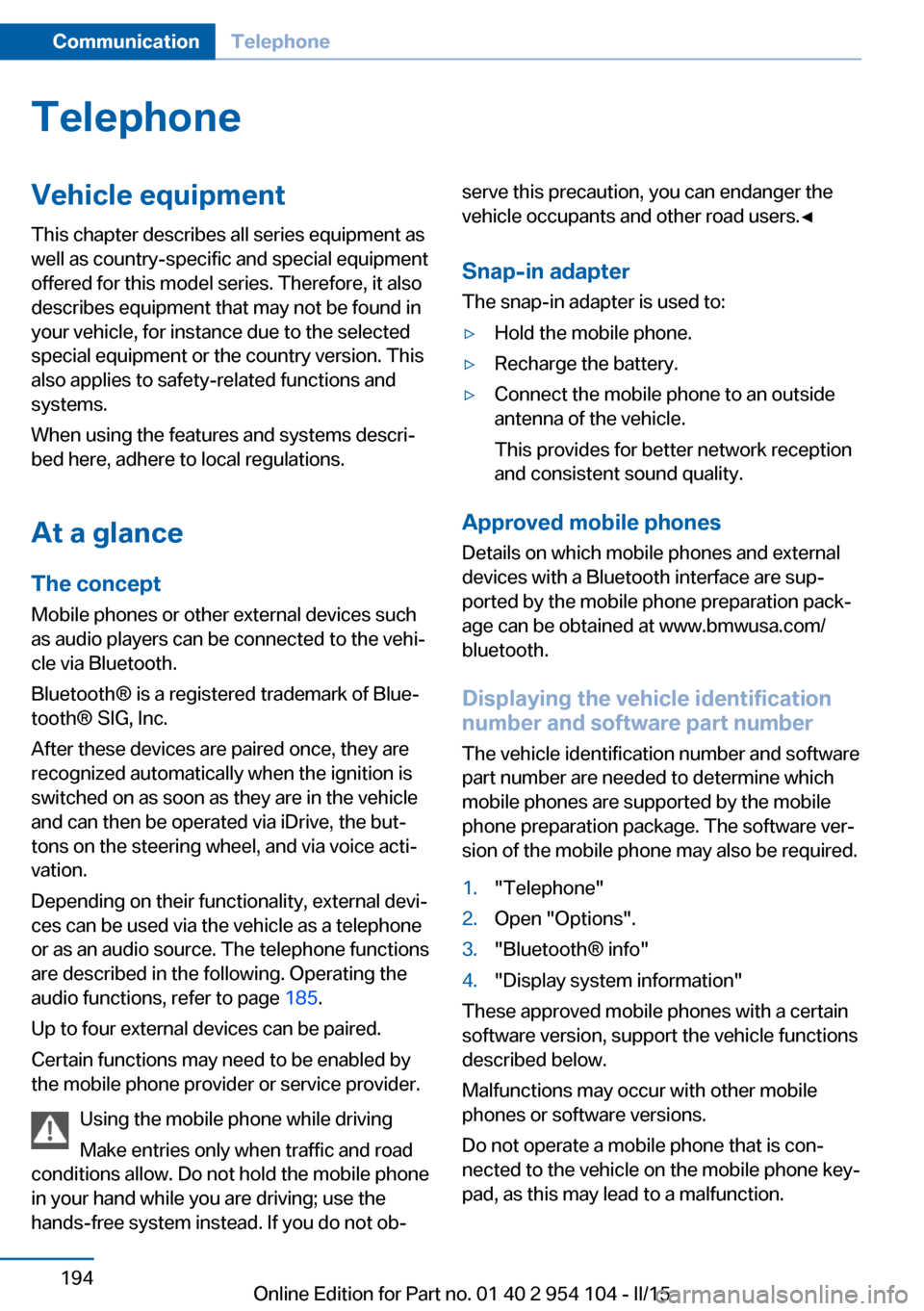
TelephoneVehicle equipmentThis chapter describes all series equipment as
well as country-specific and special equipment
offered for this model series. Therefore, it also
describes equipment that may not be found in
your vehicle, for instance due to the selected
special equipment or the country version. This
also applies to safety-related functions and
systems.
When using the features and systems descri‐
bed here, adhere to local regulations.
At a glance The conceptMobile phones or other external devices such
as audio players can be connected to the vehi‐
cle via Bluetooth.
Bluetooth® is a registered trademark of Blue‐
tooth® SIG, Inc.
After these devices are paired once, they are
recognized automatically when the ignition is
switched on as soon as they are in the vehicle
and can then be operated via iDrive, the but‐
tons on the steering wheel, and via voice acti‐
vation.
Depending on their functionality, external devi‐
ces can be used via the vehicle as a telephone
or as an audio source. The telephone functions
are described in the following. Operating the
audio functions, refer to page 185.
Up to four external devices can be paired.
Certain functions may need to be enabled by
the mobile phone provider or service provider.
Using the mobile phone while driving
Make entries only when traffic and road
conditions allow. Do not hold the mobile phone
in your hand while you are driving; use the
hands-free system instead. If you do not ob‐serve this precaution, you can endanger the
vehicle occupants and other road users.◀
Snap-in adapter The snap-in adapter is used to:▷Hold the mobile phone.▷Recharge the battery.▷Connect the mobile phone to an outside
antenna of the vehicle.
This provides for better network reception
and consistent sound quality.
Approved mobile phones
Details on which mobile phones and external
devices with a Bluetooth interface are sup‐
ported by the mobile phone preparation pack‐
age can be obtained at www.bmwusa.com/
bluetooth.
Displaying the vehicle identification
number and software part number
The vehicle identification number and software part number are needed to determine which
mobile phones are supported by the mobile
phone preparation package. The software ver‐
sion of the mobile phone may also be required.
1."Telephone"2.Open "Options".3."Bluetooth® info"4."Display system information"
These approved mobile phones with a certain
software version, support the vehicle functions
described below.
Malfunctions may occur with other mobile
phones or software versions.
Do not operate a mobile phone that is con‐
nected to the vehicle on the mobile phone key‐
pad, as this may lead to a malfunction.
Seite 194CommunicationTelephone194
Online Edition for Part no. 01 40 2 954 104 - II/15
Page 198 of 289
ceived calls are displayed on the Control Dis‐
play.
Audio source
A mobile phone can be used as an audio
source.
Pairing and connecting a mobile
phone
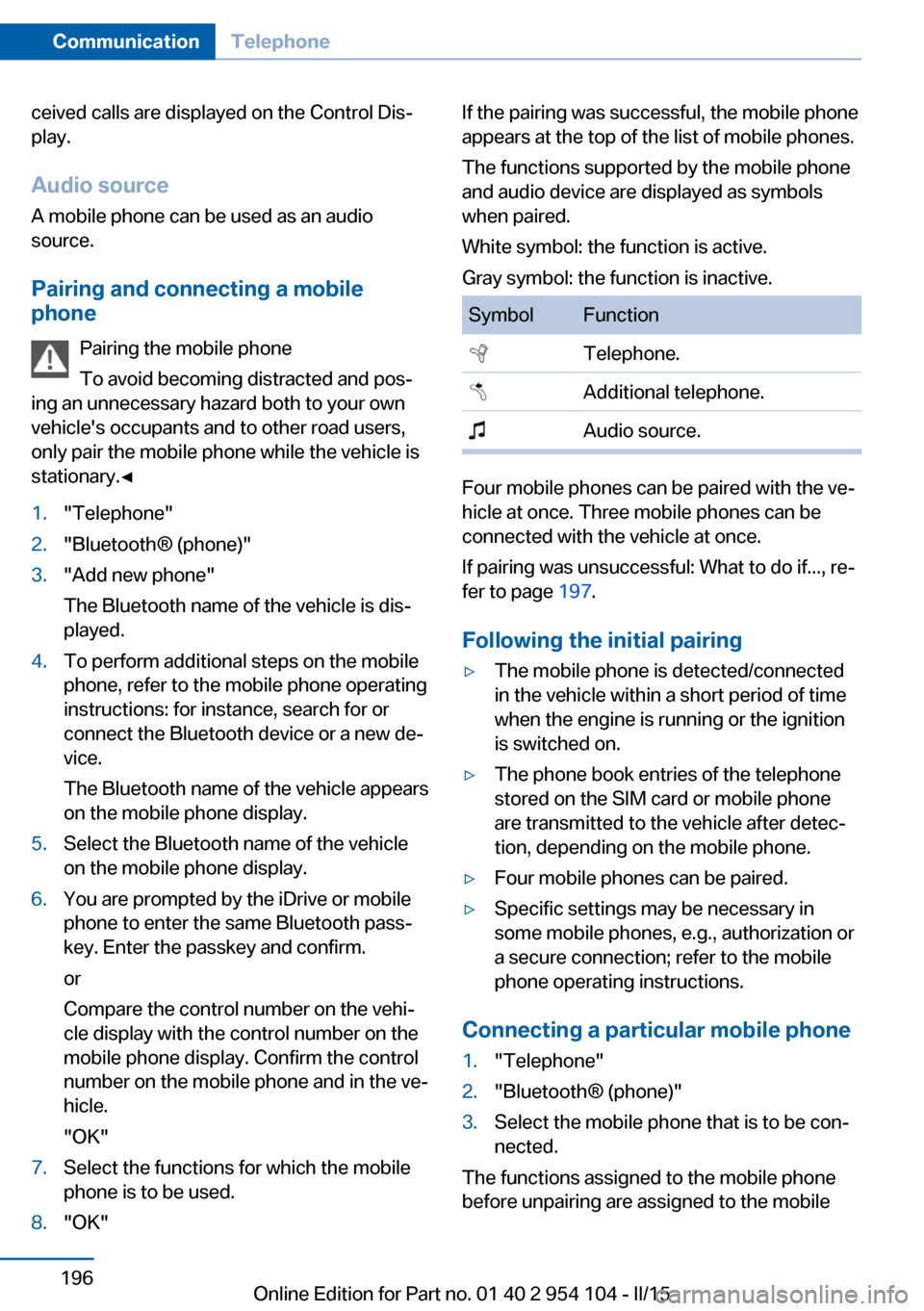
Pairing the mobile phone
To avoid becoming distracted and pos‐
ing an unnecessary hazard both to your own
vehicle's occupants and to other road users,
only pair the mobile phone while the vehicle is
stationary.◀1."Telephone"2."Bluetooth® (phone)"3."Add new phone"
The Bluetooth name of the vehicle is dis‐
played.4.To perform additional steps on the mobile
phone, refer to the mobile phone operating
instructions: for instance, search for or
connect the Bluetooth device or a new de‐
vice.
The Bluetooth name of the vehicle appears
on the mobile phone display.5.Select the Bluetooth name of the vehicle
on the mobile phone display.6.You are prompted by the iDrive or mobile
phone to enter the same Bluetooth pass‐
key. Enter the passkey and confirm.
or
Compare the control number on the vehi‐
cle display with the control number on the
mobile phone display. Confirm the control
number on the mobile phone and in the ve‐
hicle.
"OK"7.Select the functions for which the mobile
phone is to be used.8."OK"If the pairing was successful, the mobile phone
appears at the top of the list of mobile phones.
The functions supported by the mobile phone
and audio device are displayed as symbols
when paired.
White symbol: the function is active.
Gray symbol: the function is inactive.SymbolFunction Telephone. Additional telephone. Audio source.
Four mobile phones can be paired with the ve‐
hicle at once. Three mobile phones can be
connected with the vehicle at once.
If pairing was unsuccessful: What to do if..., re‐
fer to page 197.
Following the initial pairing
▷The mobile phone is detected/connected
in the vehicle within a short period of time
when the engine is running or the ignition
is switched on.▷The phone book entries of the telephone
stored on the SIM card or mobile phone
are transmitted to the vehicle after detec‐
tion, depending on the mobile phone.▷Four mobile phones can be paired.▷Specific settings may be necessary in
some mobile phones, e.g., authorization or
a secure connection; refer to the mobile
phone operating instructions.
Connecting a particular mobile phone
1."Telephone"2."Bluetooth® (phone)"3.Select the mobile phone that is to be con‐
nected.
The functions assigned to the mobile phone
before unpairing are assigned to the mobile
Seite 196CommunicationTelephone196
Online Edition for Part no. 01 40 2 954 104 - II/15
Page 199 of 289
phone when it is reconnected. These functions
are deactivated in a mobile phone that is al‐
ready connected.
Configuring the mobile phone Additional functions can be activated or deacti‐
vated for paired and connected mobile phones.1."Telephone"2."Bluetooth® (phone)"3.Highlight the mobile phone to be config‐
ured.4.Open "Options".5."Configure phone"6.At least one function must be selected.▷"Telephone"▷"Additional telephone"▷"Audio"7."OK"
If a function has already been assigned to an‐
other connected mobile phone, the function is
deactivated in that mobile phone and the mo‐
bile phone is unpaired when the function is as‐
signed to a new mobile phone.
Swapping the telephone and
additional telephone
The function of the telephone and additional
telephone can be swapped automatically.
1."Telephone"2."Bluetooth® (phone)"3."Swap phone/addit. phone"
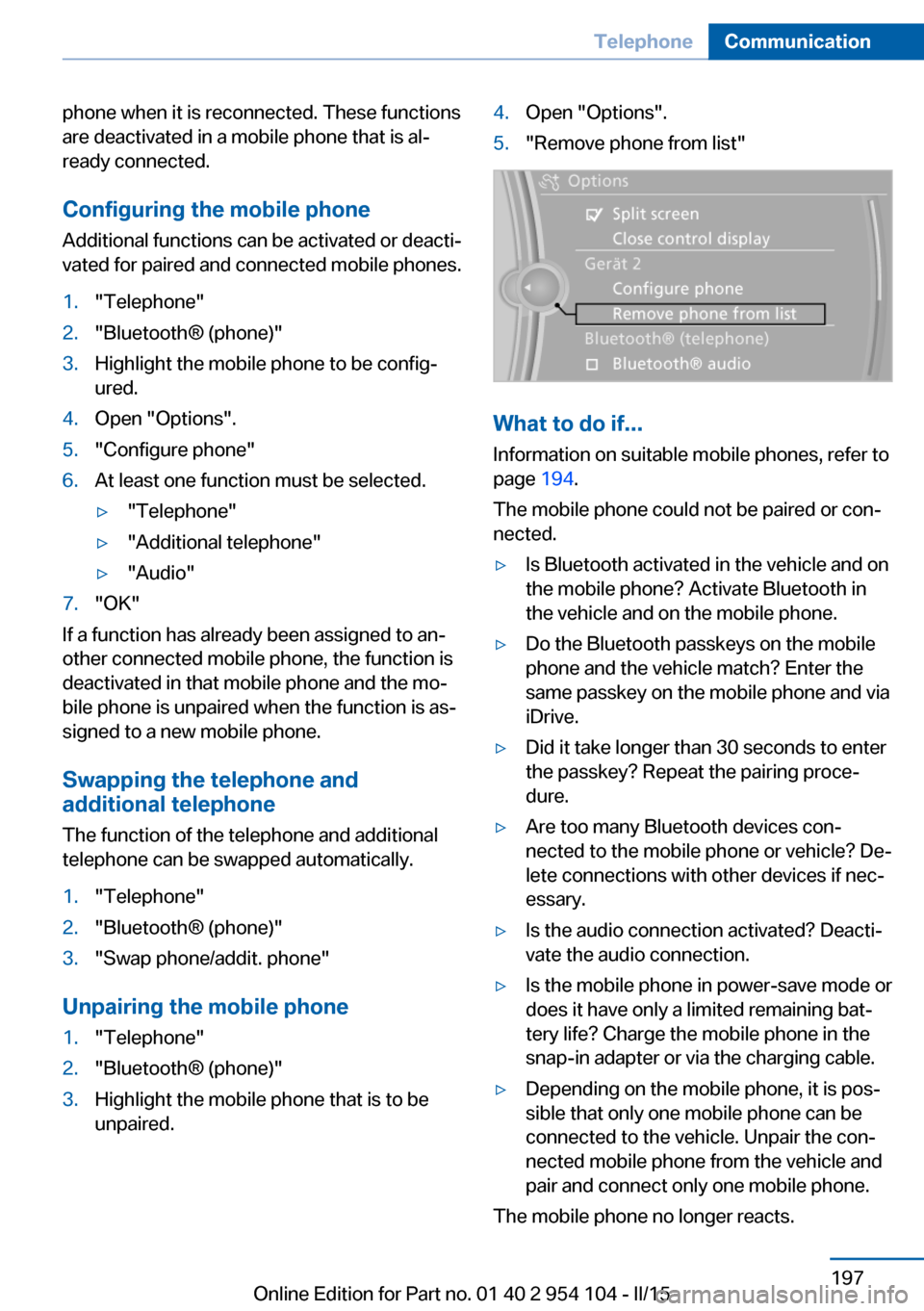
Unpairing the mobile phone
1."Telephone"2."Bluetooth® (phone)"3.Highlight the mobile phone that is to be
unpaired.4.Open "Options".5."Remove phone from list"
What to do if...
Information on suitable mobile phones, refer to
page 194.
The mobile phone could not be paired or con‐
nected.
▷Is Bluetooth activated in the vehicle and on
the mobile phone? Activate Bluetooth in
the vehicle and on the mobile phone.▷Do the Bluetooth passkeys on the mobile
phone and the vehicle match? Enter the
same passkey on the mobile phone and via
iDrive.▷Did it take longer than 30 seconds to enter
the passkey? Repeat the pairing proce‐
dure.▷Are too many Bluetooth devices con‐
nected to the mobile phone or vehicle? De‐
lete connections with other devices if nec‐
essary.▷Is the audio connection activated? Deacti‐
vate the audio connection.▷Is the mobile phone in power-save mode or
does it have only a limited remaining bat‐
tery life? Charge the mobile phone in the
snap-in adapter or via the charging cable.▷Depending on the mobile phone, it is pos‐
sible that only one mobile phone can be
connected to the vehicle. Unpair the con‐
nected mobile phone from the vehicle and
pair and connect only one mobile phone.
The mobile phone no longer reacts.
Seite 197TelephoneCommunication197
Online Edition for Part no. 01 40 2 954 104 - II/15
Page 202 of 289
If a second call comes in during an ongoing
call, a call waiting signal is sounded.
"Accept"
The call is accepted and the existing call is put
on hold.
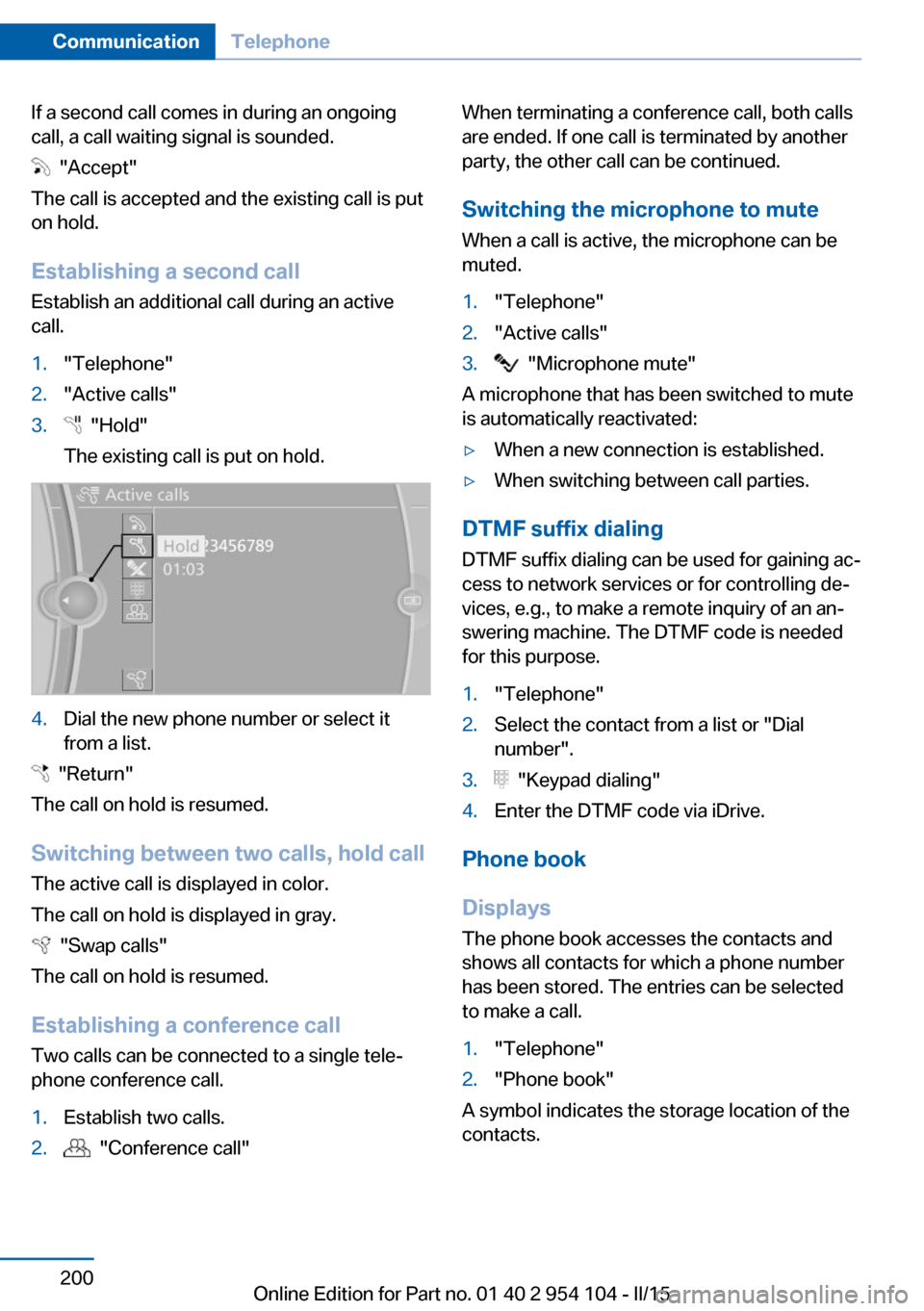
Establishing a second call
Establish an additional call during an active
call.
1."Telephone"2."Active calls"3. "Hold"
The existing call is put on hold.4.Dial the new phone number or select it
from a list.
"Return"
The call on hold is resumed.
Switching between two calls, hold call The active call is displayed in color.
The call on hold is displayed in gray.
"Swap calls"
The call on hold is resumed.
Establishing a conference call Two calls can be connected to a single tele‐
phone conference call.
1.Establish two calls.2. "Conference call"When terminating a conference call, both calls
are ended. If one call is terminated by another
party, the other call can be continued.
Switching the microphone to mute When a call is active, the microphone can be
muted.1."Telephone"2."Active calls"3. "Microphone mute"
A microphone that has been switched to mute
is automatically reactivated:
▷When a new connection is established.▷When switching between call parties.
DTMF suffix dialing
DTMF suffix dialing can be used for gaining ac‐
cess to network services or for controlling de‐
vices, e.g., to make a remote inquiry of an an‐
swering machine. The DTMF code is needed
for this purpose.
1."Telephone"2.Select the contact from a list or "Dial
number".3. "Keypad dialing"4.Enter the DTMF code via iDrive.
Phone book
Displays The phone book accesses the contacts and
shows all contacts for which a phone number
has been stored. The entries can be selected
to make a call.
1."Telephone"2."Phone book"
A symbol indicates the storage location of the
contacts.
Seite 200CommunicationTelephone200
Online Edition for Part no. 01 40 2 954 104 - II/15
Page 203 of 289
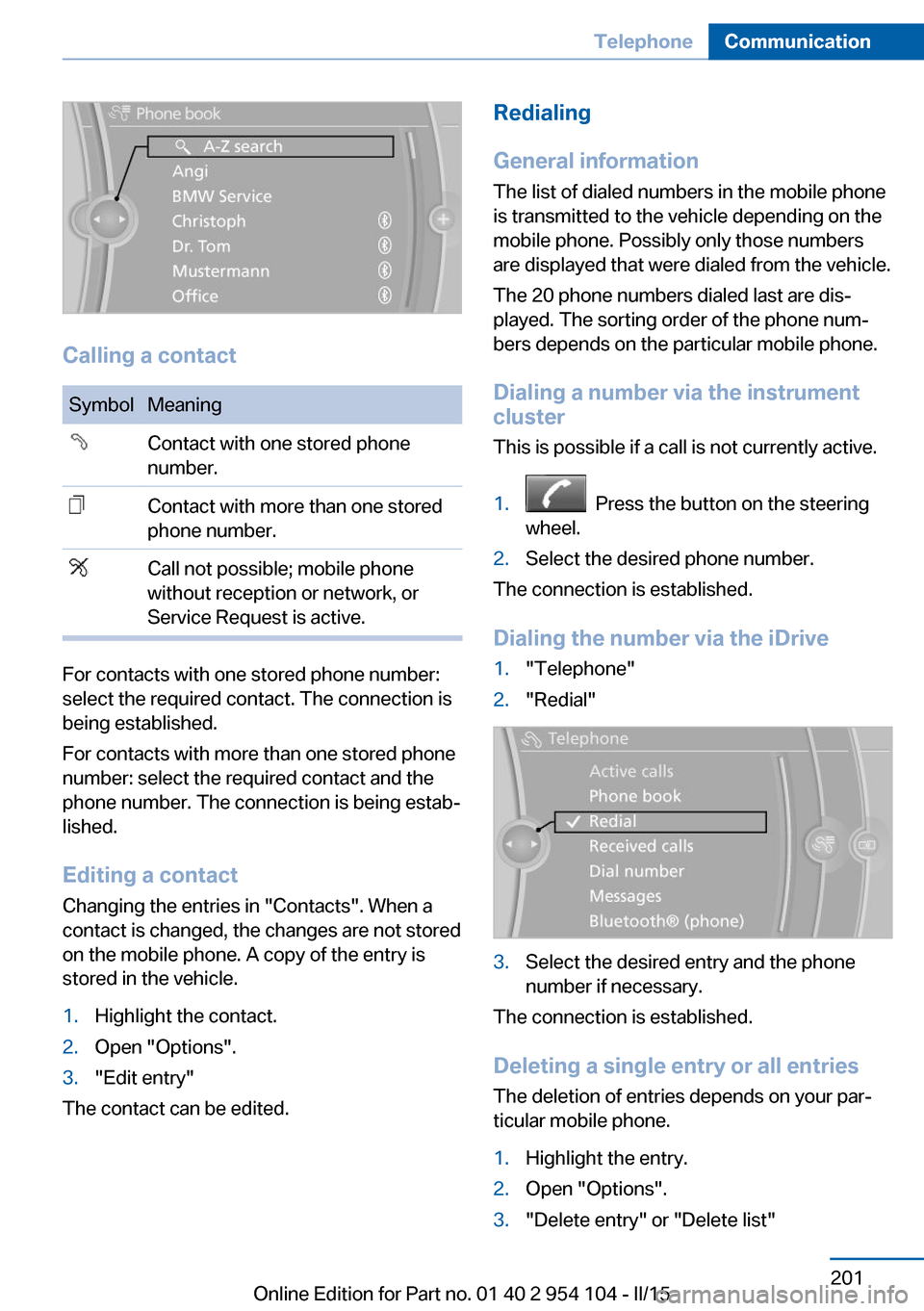
Calling a contact
SymbolMeaningContact with one stored phone
number.Contact with more than one stored
phone number.Call not possible; mobile phone
without reception or network, or
Service Request is active.
For contacts with one stored phone number:
select the required contact. The connection is
being established.
For contacts with more than one stored phone
number: select the required contact and the
phone number. The connection is being estab‐
lished.
Editing a contact Changing the entries in "Contacts". When a
contact is changed, the changes are not stored
on the mobile phone. A copy of the entry is
stored in the vehicle.
1.Highlight the contact.2.Open "Options".3."Edit entry"
The contact can be edited.
Redialing
General information
The list of dialed numbers in the mobile phone
is transmitted to the vehicle depending on the
mobile phone. Possibly only those numbers
are displayed that were dialed from the vehicle.
The 20 phone numbers dialed last are dis‐
played. The sorting order of the phone num‐
bers depends on the particular mobile phone.
Dialing a number via the instrument cluster
This is possible if a call is not currently active.1. Press the button on the steering
wheel.2.Select the desired phone number.
The connection is established.
Dialing the number via the iDrive
1."Telephone"2."Redial"3.Select the desired entry and the phone
number if necessary.
The connection is established.
Deleting a single entry or all entries The deletion of entries depends on your par‐
ticular mobile phone.
1.Highlight the entry.2.Open "Options".3."Delete entry" or "Delete list"Seite 201TelephoneCommunication201
Online Edition for Part no. 01 40 2 954 104 - II/15
Page 222 of 289
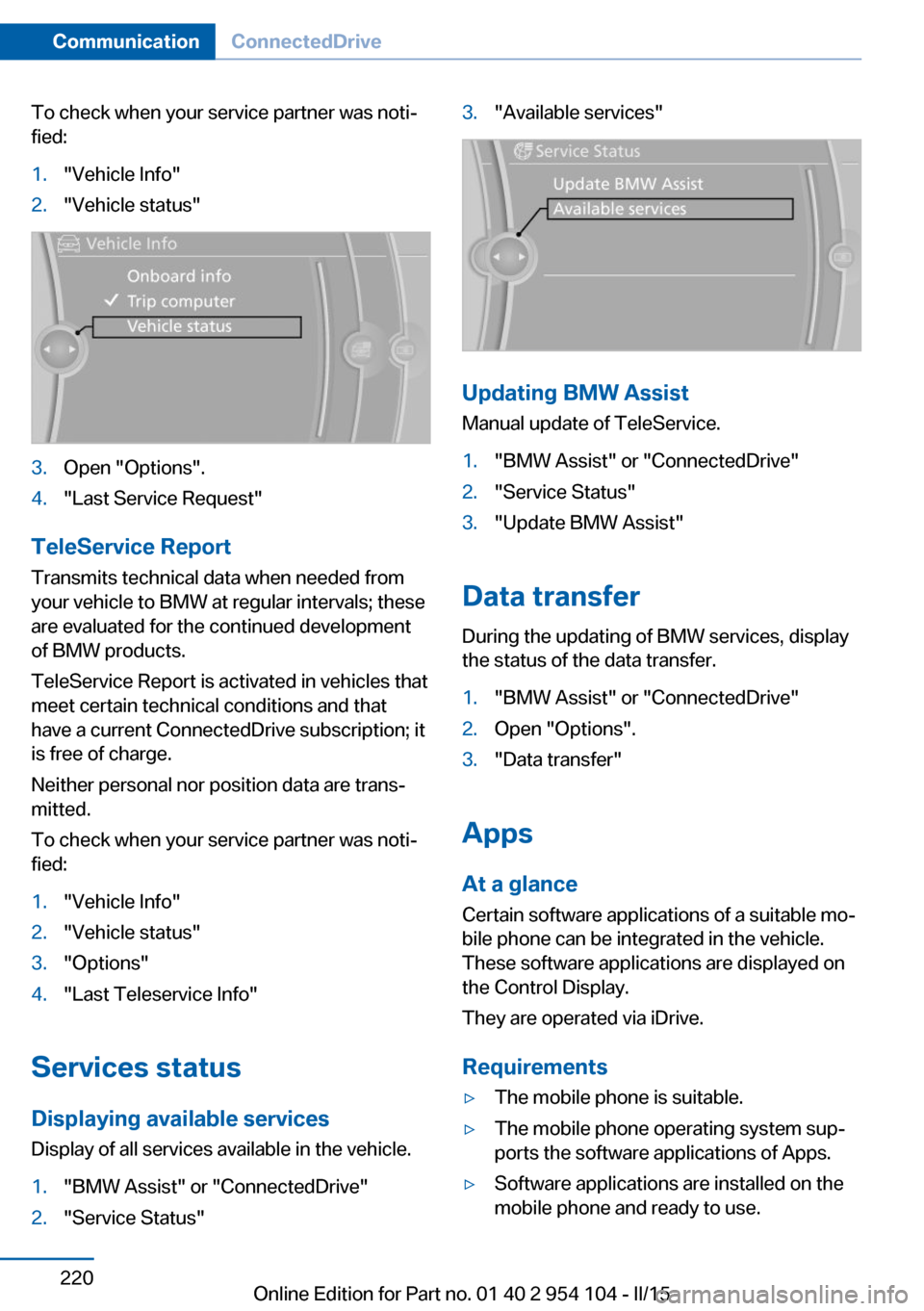
To check when your service partner was noti‐
fied:1."Vehicle Info"2."Vehicle status"3.Open "Options".4."Last Service Request"
TeleService Report
Transmits technical data when needed from
your vehicle to BMW at regular intervals; these
are evaluated for the continued development
of BMW products.
TeleService Report is activated in vehicles that
meet certain technical conditions and that
have a current ConnectedDrive subscription; it
is free of charge.
Neither personal nor position data are trans‐
mitted.
To check when your service partner was noti‐
fied:
1."Vehicle Info"2."Vehicle status"3."Options"4."Last Teleservice Info"
Services status
Displaying available services Display of all services available in the vehicle.
1."BMW Assist" or "ConnectedDrive"2."Service Status"3."Available services"
Updating BMW Assist
Manual update of TeleService.
1."BMW Assist" or "ConnectedDrive"2."Service Status"3."Update BMW Assist"
Data transfer
During the updating of BMW services, display
the status of the data transfer.
1."BMW Assist" or "ConnectedDrive"2.Open "Options".3."Data transfer"
Apps
At a glance Certain software applications of a suitable mo‐
bile phone can be integrated in the vehicle.
These software applications are displayed on
the Control Display.
They are operated via iDrive.
Requirements
▷The mobile phone is suitable.▷The mobile phone operating system sup‐
ports the software applications of Apps.▷Software applications are installed on the
mobile phone and ready to use.Seite 220CommunicationConnectedDrive220
Online Edition for Part no. 01 40 2 954 104 - II/15
Page 241 of 289
Requirements▷The engine must be running and warm af‐
ter the vehicle has been driven for at least
6.2 miles/10 km.▷The vehicle is stopped or being driven on a
level roadway.
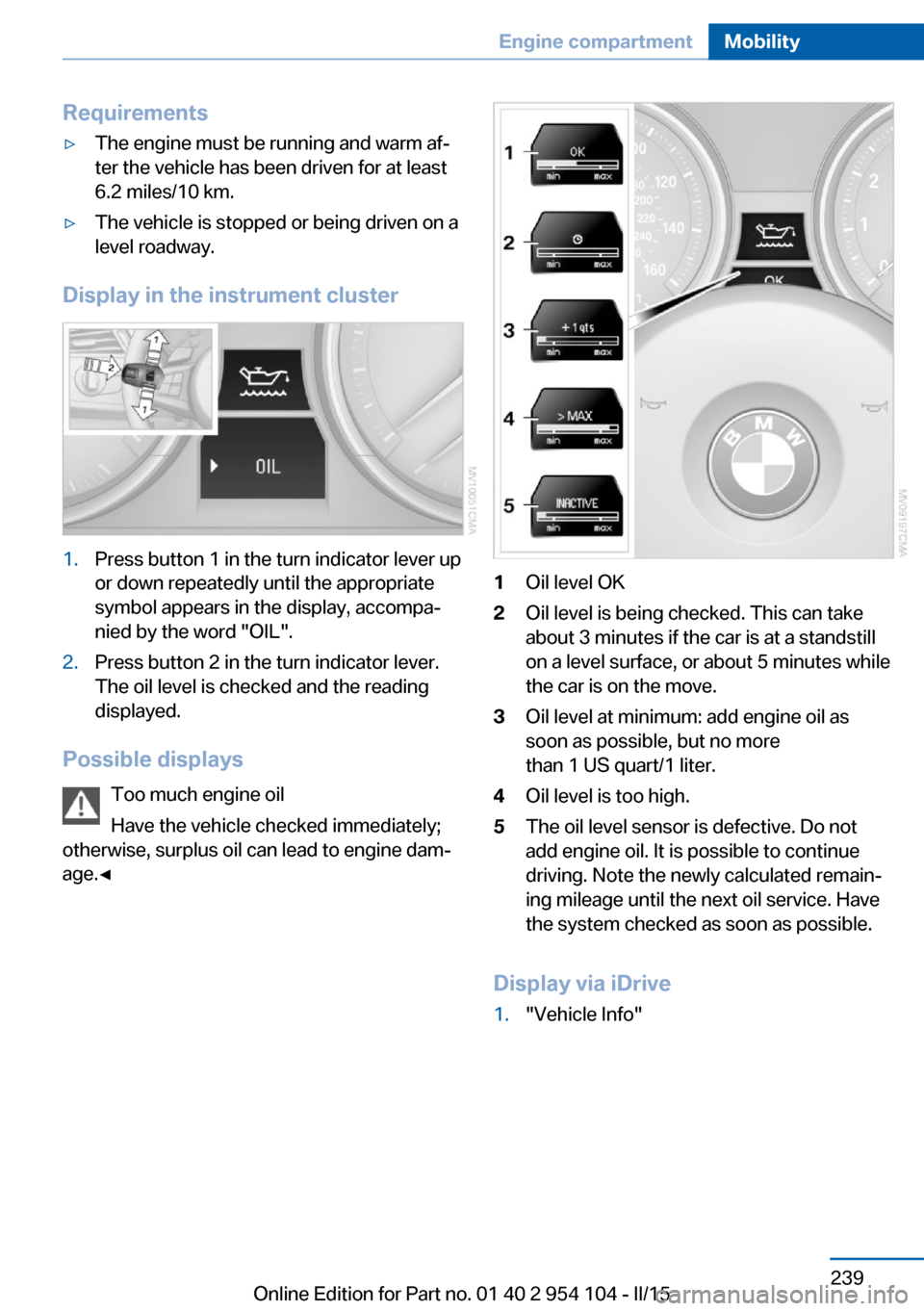
Display in the instrument cluster
1.Press button 1 in the turn indicator lever up
or down repeatedly until the appropriate
symbol appears in the display, accompa‐
nied by the word "OIL".2.Press button 2 in the turn indicator lever.
The oil level is checked and the reading
displayed.
Possible displays
Too much engine oil
Have the vehicle checked immediately;
otherwise, surplus oil can lead to engine dam‐
age.◀
1Oil level OK2Oil level is being checked. This can take
about 3 minutes if the car is at a standstill
on a level surface, or about 5 minutes while
the car is on the move.3Oil level at minimum: add engine oil as
soon as possible, but no more
than 1 US quart/1 liter.4Oil level is too high.5The oil level sensor is defective. Do not
add engine oil. It is possible to continue
driving. Note the newly calculated remain‐
ing mileage until the next oil service. Have
the system checked as soon as possible.
Display via iDrive
1."Vehicle Info"Seite 239Engine compartmentMobility239
Online Edition for Part no. 01 40 2 954 104 - II/15
Page 281 of 289
Headlamp control, auto‐matic 88
Headlamps, care 258
Headlamps, cleaning 64
Headlight courtesy delay fea‐ ture 88
Headlight flasher 62
Headlight flasher, indicator lamp 17
Headliner 19
Heatable mirrors 53
Heatable rear win‐ dow 111, 114
Heating 109
Heating, mirrors 53
Heating, seats 50
Heavy cargo, stowing 133
Height adjustment, seats 48
Height adjustment, steering wheel 54
Height, refer to Dimen‐ sions 264
High-beam Assistant 89
High-beams 62
High-beams/low beams, refer to High-beam Assistant 89
High beams, headlight flasher 89
High-beams, indicator lamp 17
High-pressure washers 257
Hills 132
Hill start assistant, refer to Drive-off assistant 104
Holder for beverages 126
Holder for remote control, re‐ fer to Ignition lock 57
Homepage 6
Hood 238
Horn 14
Hot exhaust system 131
Hotline 219
House number, entering for navigation 143
Hydroplaning 131 I
Ice warning, refer to External temperature warning 73
Icy roads, refer to External temperature warning 73
Identification marks, tires 231
iDrive 20
iDrive, changing the date and time 78
iDrive, changing the units of measure and display for‐
mat 78
Ignition 58
Ignition key position 1, refer to Radio ready state 58
Ignition key position 2, refer to Ignition on 58
Ignition key, refer to Remote control with integrated
key 32
Ignition lock 57
Ignition, switched off 58
Ignition, switched on 58
Indication of a flat tire 95
Indicator and warning lamps, Tire Pressure Monitor
TPM 98
Indicator and warning lights 17
Individual air distribution 111
Inflation pressure, refer to Tire inflation pressure 228
Inflation pressure warning, tires 94
Information on the navigation data 140
Initializing, compass, refer to Calibrating 119
Initializing, Flat Tire Monitor FTM 95
Installation location, tele‐ phone 124
Instrument cluster 16
Instrument lighting 90 Instrument panel, refer to In‐
strument cluster 16
Instruments, refer to Cock‐ pit 14
Integrated key 32
Integrated universal remote control 116
Interactive map 147
Interior equipment 116
Interior lights 91
Interior lights, remote con‐ trol 35
Interior mirror 53
Interior motion sensor 42
Interior rearview mirror, auto‐ matic dimming 53
Interior rearview mirror, com‐ pass 118
Interior temperature, setting, refer to Air conditioner 110
Interior temperature, setting, refer to Automatic climate
control 112
Intermediate destina‐ tions 149
Intermittent wipe 63
Internet page 6
Intersection, entering for navi‐ gation 143
Interval display, service re‐ quirements 80
J Jacking points 249
Joystick, refer to iDrive 20
K
Keyless Go, refer to Comfort Access 39
Keyless opening and closing, refer to Comfort Access 39
Key Memory, refer to Per‐ sonal Profile 32 Seite 279Everything from A to ZReference279
Online Edition for Part no. 01 40 2 954 104 - II/15
Page 282 of 289
Key, refer to Integrated key/remote control 32
Kickdown, 7-gear automatic transmission 70
Kickdown, 8-gear automatic transmission 66
Knee airbag 92
L
Lamps and bulbs, bulb re‐ placement 245
Lamps, replacing, refer to Lamps and bulbs 245
Language on Control Dis‐ play 80
Lap-and-shoulder belt, refer to Safety belts 50
Lashing eyes, securing cargo 134
Launch Control, acceleration assistant 71
Leather, care 258
LED, light-emitting di‐ odes 246
Length, refer to Dimen‐ sions 264
Letters and numbers, enter‐ ing 25
License plate light, bulb re‐ placement 248
Light 87
Light-alloy wheels, care 259
Light control 88
Light-emitting diodes LED 246
Lighter 120
Lighter, connecting electrical devices 120
Lighting, instruments 90
Lighting, lamps and bulbs 245
Light switch 87
Limit, refer to Speed limit 85
Load 133
Loading 132 Lockable lug bolts, refer to
Lug bolt lock 249
Lock buttons, doors, refer to Locking 38
Locking from the inside 38
Locking from the outside 35
Locking, setting the confirma‐ tion signals 36
Locking the vehicle from the inside 37
Locking the vehicle from the outside 34
Locking without remote con‐ trol, refer to Comfort Ac‐
cess 39
Low beams 87
Low beams, automatic, refer to High-beam Assistant 89
Lower back support, refer to Lumbar support 49
Lug bolt lock 249
Lumbar support 49
M
M/S, automatic transmission, 7-gear 70
M/S, automatic transmission, 8-gear 67
Maintenance 243
Maintenance require‐ ments 243
Maintenance, service require‐ ments 80
Maintenance system, BMW 243
Malfunction, door lock 37
Malfunction, fuel filler flap 224
Malfunction, parking brake 62
Malfunction warnings, refer to Check Control 84
Manual air distribution 111
Manual mode, 7-gear auto‐ matic transmission 70 Manual mode, 8-gear auto‐
matic transmission 67
Manual operation, door lock 37
Manual operation, driver's door 37
Manual operation, fuel filler flap 224
Manual operation, transmis‐ sion lock 71
Manual transmission 65
Map, destination entry 147
Map display in black and white 156
Map in split screen 155
Map view 153
Marking on approved tires 235
Marking, run-flat tires 234
Master key, refer to Remote control with integrated
key 32
Maximum cooling 113
Maximum speed, winter tires 235
Medical kit, refer to First aid kit 252
Memory, refer to Seat and mirror memory 51
Menus, of iDrive, operat‐ ing 20
Menus, refer to iDrive operat‐ ing concept 21
Message list, traffic bulle‐ tins 155
Messages 208
Microfilter for air condi‐ tioner 111
Microfilter, with automatic cli‐ mate control 114
Minimum tread depth, tires 233
Mirror, mirror memory, refer to Seat and mirror mem‐
ory 51
Mirrors 52 Seite 280ReferenceEverything from A to Z280
Online Edition for Part no. 01 40 2 954 104 - II/15
Page 283 of 289
Mirrors– Automatic Curb Monitor 52
Mirrors, exterior mirrors 52
Mirrors, folding in, before driving into a car wash 53
Mirrors, heating 53
Mirrors, interior mirror 53
Mobile communication devi‐ ces in the vehicle 131
Mobile phone, installation lo‐ cation, refer to Center arm‐
rest 124
Mobile phone, refer to Tele‐ phone 194
Modifications, technical, refer to Safety 7
Monitor, refer to Control Dis‐ play 20
MP3 player 182
Multimedia 172
Music collection 177
Music search 179
Music, storing 177
N
Navigation 140
Navigation data 140
Navigation data, updat‐ ing 140
Navigation system, destina‐ tion entry by voice 148
Nets, refer to Storage com‐ partments 125
Neutral cleaner, care 259
New wheels and tires 234
Notes 6, 211
Nozzles, refer to Air vents 109
Nozzles, refer to Ventila‐ tion 111, 115
O OBD Onboard Diagnos‐ tics 244
Odometer 73
Office 205
Oil additives 240
Oil change interval, service requirements 80
Oil consumption 238
Oil level 238
Oil, refer to Engine oil 238
Oil types, alternative 240
Oil types, approved 240
Old batteries, disposal 250
Onboard computer, refer to Computer 75
Onboard Diagnostics OBD 244
Onboard monitor, refer to Control Display 20
Onboard vehicle tool kit 245
Opening and closing, Comfort Access 39
Opening and closing from the inside 37
Opening and closing from the outside 34
Opening and closing using the door lock 37
Opening and closing, using the remote control 34
Operating principle, iDrive 20
Outside-air mode, automatic climate control 113
Outside air, refer to Recircu‐ lated air mode 110, 113
Overheating of engine, refer to Coolant temperature 74
P Paint, vehicle 258
Pairing, mobile phone 195
Park Distance Control PDC 107
Parked vehicle, condensa‐ tion 132
Parking aid, refer to PDC 107
Parking brake 61
Parking lamps 87 Passenger side mirror, tilt‐
ing 52
PDC Park Distance Con‐ trol 107
Personal information 205
Personal Profile 32
Pinch protection, win‐ dows 43
Plastic, care 259
Pollen, refer to Microfilter/ activated-charcoal filter with
automatic climate con‐
trol 114
Pollen, refer to Microfilter for air conditioner 111
Position, storing 144
Postal code, entering in navi‐ gation 143
Power failure 249
Power windows, opening and closing 43
Power windows, refer to Win‐ dows 42
Pressure, tires 228
Pressure warning, tires 94
Pressure warning, tires, Flat Tire Monitor 94
Programmable memory but‐ tons, iDrive 24
Protective function, refer to Pinch protection system,
windows 43
Push-and-turn switch, refer to Controller 21
R Radiator fluid, refer to Cool‐ ant 241
Radio-operated key, refer to Remote control with
integrated key 32
Radio ready state 58
Radio ready state, switched off 58 Seite 281Everything from A to ZReference281
Online Edition for Part no. 01 40 2 954 104 - II/15