radio BMW Z4 2015 E89 Owner's Guide
[x] Cancel search | Manufacturer: BMW, Model Year: 2015, Model line: Z4, Model: BMW Z4 2015 E89Pages: 289, PDF Size: 7.16 MB
Page 172 of 289
If there is no message, the system changes to
the My Favorites category. All favorites cur‐
rently being broadcast can be selected from a
list.
Managing the favorites
Activating/deactivating the favorites
Favorites can be activated and deactivated
globally and individually.1."Satellite radio"2. "Manage favorites"3.Select "Activate alert" or the desired favor‐
ites.
The setting is stored for the remote control
currently in use.
Deleting favorites
1."Satellite radio"2. "Manage favorites"3.Highlight the desired favorite.4.Open "Options".5."Delete entry"
Traffic Jump Traffic and weather information for a selected
region is broadcast every few minutes.
Selecting a region
1."Radio"2."Satellite radio"3.Open "Options".4."Set jump"5.Select the desired region.
The region is stored for the remote control cur‐
rently in use.
Activating/deactivating the jump
1."Radio"2."Satellite radio"3. "Jump to:"Information for the selected region is broad‐
cast as soon as it is available.
A new panel opens.
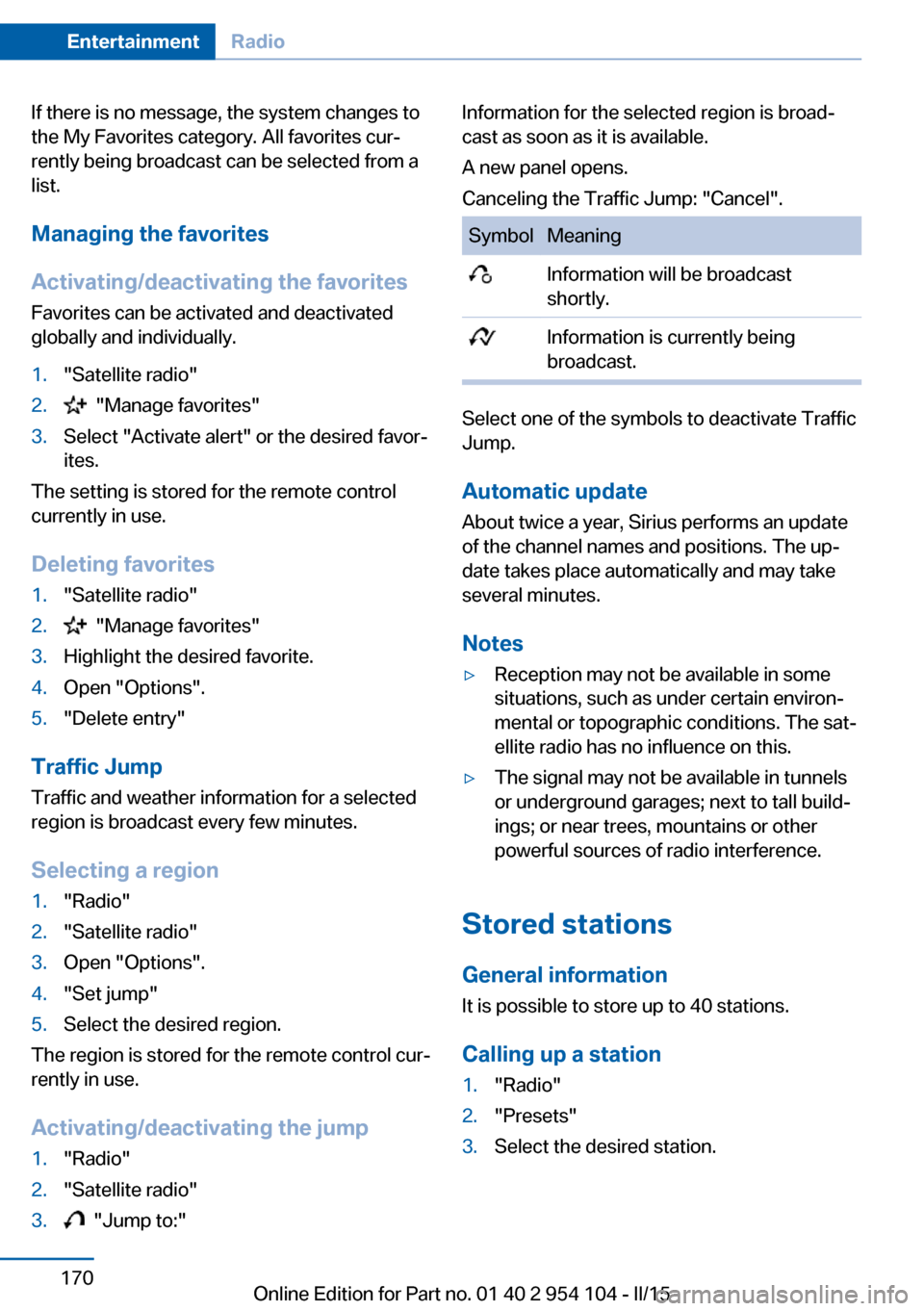
Canceling the Traffic Jump: "Cancel".SymbolMeaning Information will be broadcast
shortly. Information is currently being
broadcast.
Select one of the symbols to deactivate Traffic
Jump.
Automatic update
About twice a year, Sirius performs an update
of the channel names and positions. The up‐
date takes place automatically and may take
several minutes.
Notes
▷Reception may not be available in some
situations, such as under certain environ‐
mental or topographic conditions. The sat‐
ellite radio has no influence on this.▷The signal may not be available in tunnels
or underground garages; next to tall build‐
ings; or near trees, mountains or other
powerful sources of radio interference.
Stored stations
General information It is possible to store up to 40 stations.
Calling up a station
1."Radio"2."Presets"3.Select the desired station.Seite 170EntertainmentRadio170
Online Edition for Part no. 01 40 2 954 104 - II/15
Page 173 of 289
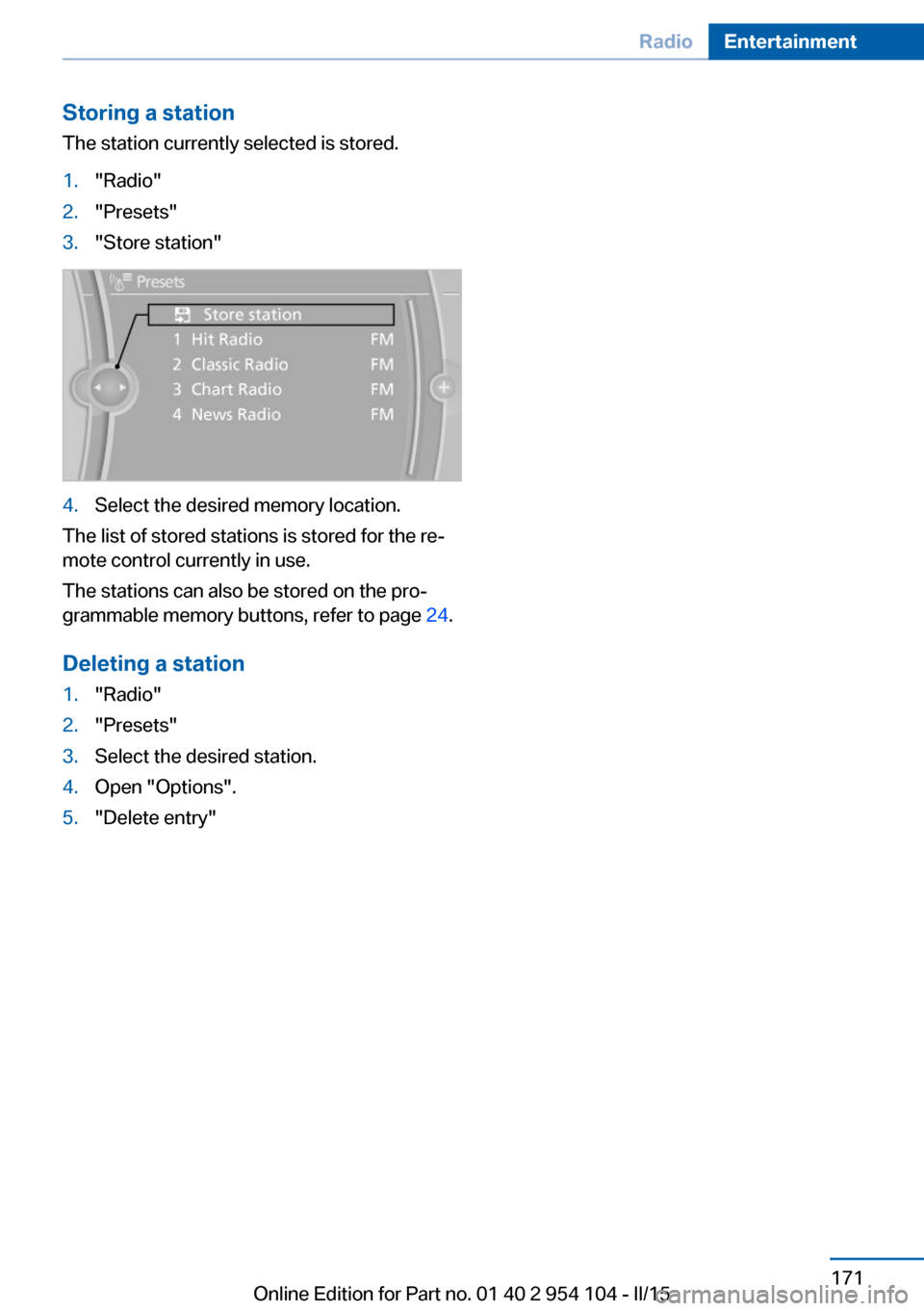
Storing a station
The station currently selected is stored.1."Radio"2."Presets"3."Store station"4.Select the desired memory location.
The list of stored stations is stored for the re‐
mote control currently in use.
The stations can also be stored on the pro‐
grammable memory buttons, refer to page 24.
Deleting a station
1."Radio"2."Presets"3.Select the desired station.4.Open "Options".5."Delete entry"Seite 171RadioEntertainment171
Online Edition for Part no. 01 40 2 954 104 - II/15
Page 174 of 289
CD/multimediaVehicle equipmentThis chapter describes all series equipment as
well as country-specific and special equipment
offered for this model series. Therefore, it also
describes equipment that may not be found in
your vehicle, for instance due to the selected
special equipment or the country version. This
also applies to safety-related functions and
systems.
When using the features and systems descri‐
bed here, adhere to local regulations.
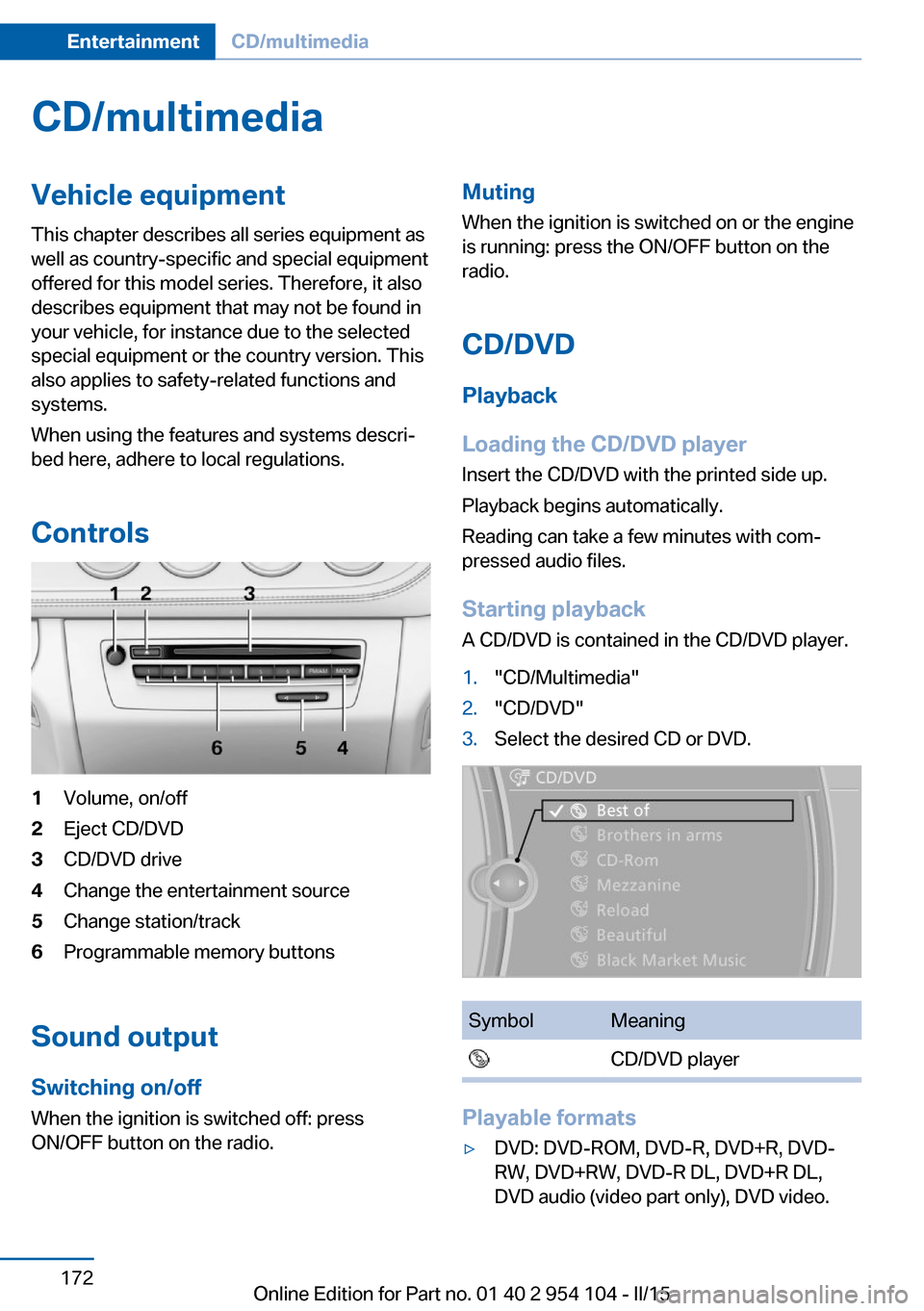
Controls1Volume, on/off2Eject CD/DVD3CD/DVD drive4Change the entertainment source5Change station/track6Programmable memory buttons
Sound output Switching on/offWhen the ignition is switched off: press
ON/OFF button on the radio.
Muting
When the ignition is switched on or the engine
is running: press the ON/OFF button on the
radio.
CD/DVD
Playback
Loading the CD/DVD player
Insert the CD/DVD with the printed side up.
Playback begins automatically.
Reading can take a few minutes with com‐
pressed audio files.
Starting playback A CD/DVD is contained in the CD/DVD player.1."CD/Multimedia"2."CD/DVD"3.Select the desired CD or DVD.SymbolMeaning CD/DVD player
Playable formats
▷DVD: DVD-ROM, DVD-R, DVD+R, DVD-
RW, DVD+RW, DVD-R DL, DVD+R DL,
DVD audio (video part only), DVD video.Seite 172EntertainmentCD/multimedia172
Online Edition for Part no. 01 40 2 954 104 - II/15
Page 191 of 289
Music cannot be played back.▷Start the program for playing back music
data on the device and select a track on the
device if necessary.▷Switch the radio on and off again.
Music files can only be played back softly.
▷Adjust the volume settings on the device.
Playback is disturbed when buttons are
pressed or by other messages on the device.
▷Switch off the button tones and other sig‐
nal tones on the device.
Playback is interrupted by a telephone call or
traffic bulletin and is not resumed automati‐
cally.
▷Switch the radio on and off again.
Playback is not possible if the mobile phone is
connected via Bluetooth Audio while it is also
connected via the USB interface or the snap-in
adapter.
▷Disconnect one of the two connections; for
example, disconnect the audio connection,
refer to page 188. Start playback again.
If all points in this list have been checked and
the required function is still not available,
please contact the hotline or service center.
Software Update
The vehicle supports various external devices
depending on the current software version.
With a software update, the vehicle can sup‐
port new mobile phones or new external de‐
vice, for example.
▷USB.
Software updates and related current infor‐
mation is available at www.bmw.com/
update.
Displaying the current version
The currently installed software is displayed.
1."Settings"2."Software update"3."Show current version"
Select desired version to display additional in‐
formation.
Updating software via USB The software may only be updated when the
vehicle is stationary.
1.Store the file for the software-update in the
main director of a USB flash drive.2.Insert the USB flash drive into the USB au‐
dio interface in the center armrest. An up‐
date via the USB interface in the glove
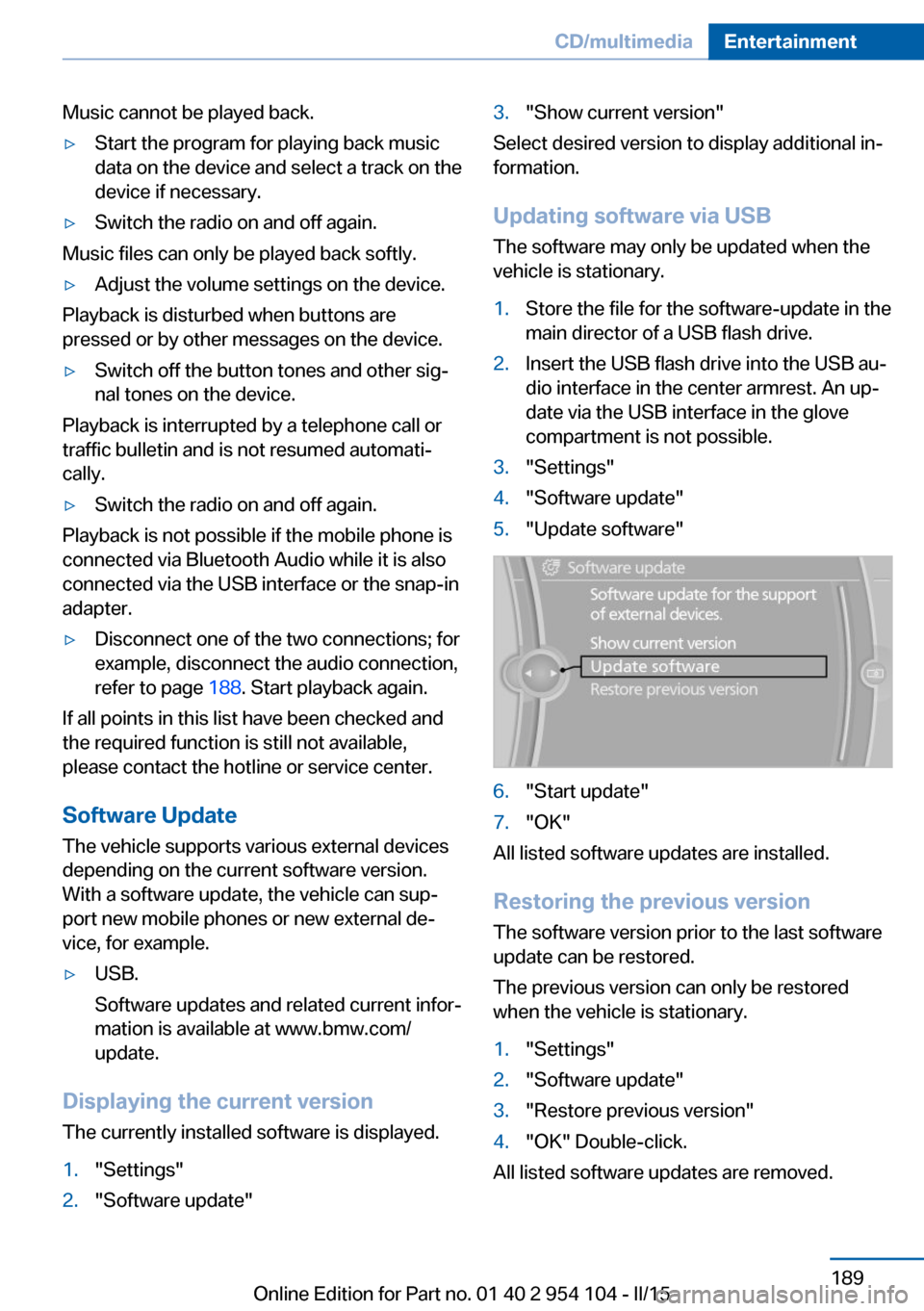
compartment is not possible.3."Settings"4."Software update"5."Update software"6."Start update"7."OK"
All listed software updates are installed.
Restoring the previous version
The software version prior to the last software
update can be restored.
The previous version can only be restored
when the vehicle is stationary.
1."Settings"2."Software update"3."Restore previous version"4."OK" Double-click.
All listed software updates are removed.
Seite 189CD/multimediaEntertainment189
Online Edition for Part no. 01 40 2 954 104 - II/15
Page 205 of 289
Snap-in adapter
General information More information on compatible snap-in
adapters that support the functions of the mo‐
bile phone is available at the service center.
Notes At high temperatures, the charging function of
the mobile phone may be limited and functions
may not be executed.
When using the mobile phone via the vehicle,
note the operating instructions of the mobile
phone.
Installation position
In the center armrest.
Inserting/removing the snap-in
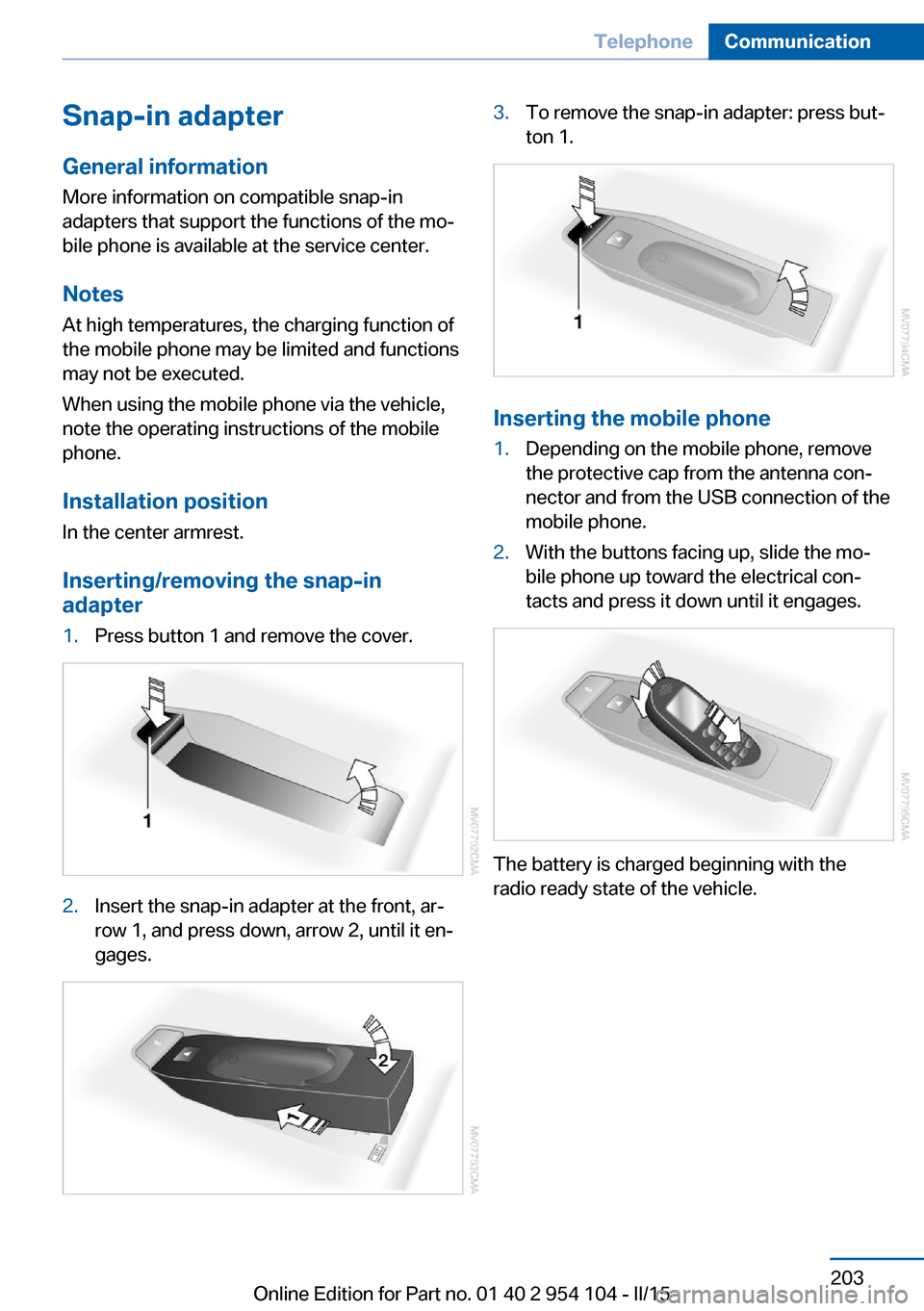
adapter1.Press button 1 and remove the cover.2.Insert the snap-in adapter at the front, ar‐
row 1, and press down, arrow 2, until it en‐
gages.3.To remove the snap-in adapter: press but‐
ton 1.
Inserting the mobile phone
1.Depending on the mobile phone, remove
the protective cap from the antenna con‐
nector and from the USB connection of the
mobile phone.2.With the buttons facing up, slide the mo‐
bile phone up toward the electrical con‐
tacts and press it down until it engages.
The battery is charged beginning with the
radio ready state of the vehicle.
Seite 203TelephoneCommunication203
Online Edition for Part no. 01 40 2 954 104 - II/15
Page 252 of 289
▷Radio station: store again, refer to
page 164.▷Navigation system: wait for the operability
of the navigation.▷Interior rearview mirror with digital com‐
pass: recalibrate, refer to page 118.
Disposing of old batteries
Have old batteries disposed of by your
service center or bring them to a recy‐
cling center.
Maintain the battery in an upright position for
transport and storage. Secure the battery so
that it does not tip over during transport.
Fuses Notes Replacing fuses
Never attempt to repair a blown fuse and
do not replace a defective fuse with a substi‐
tute of another color or amperage rating; this could lead to a circuit overload, ultimately re‐
sulting in a fire in the vehicle.◀
A pair of plastic tweezers is found on the cur‐
rent distributor.
See the inside of the cover for information on
fuse assignment.
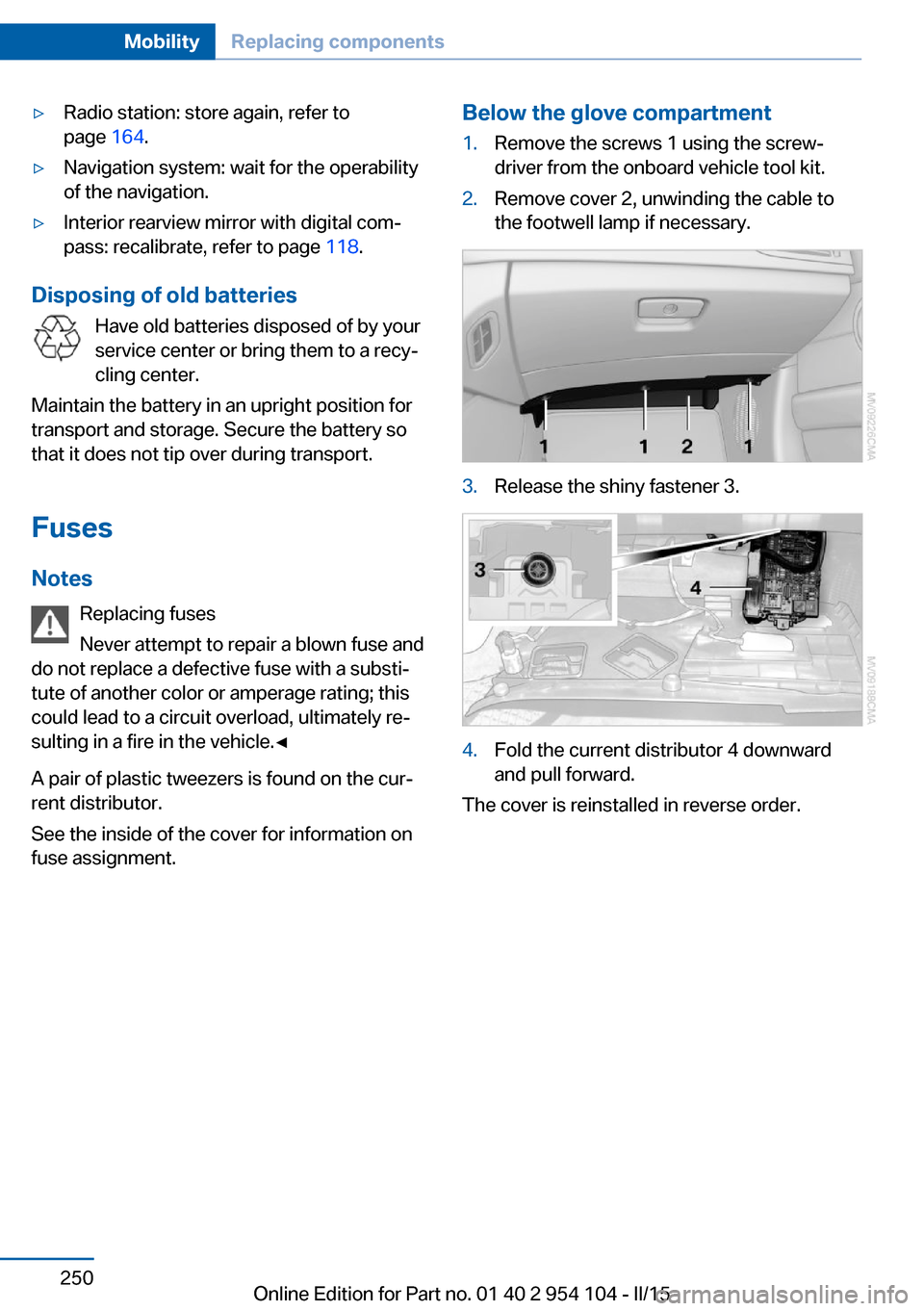
Below the glove compartment1.Remove the screws 1 using the screw‐
driver from the onboard vehicle tool kit.2.Remove cover 2, unwinding the cable to
the footwell lamp if necessary.3.Release the shiny fastener 3.4.Fold the current distributor 4 downward
and pull forward.
The cover is reinstalled in reverse order.
Seite 250MobilityReplacing components250
Online Edition for Part no. 01 40 2 954 104 - II/15
Page 253 of 289
Breakdown assistanceVehicle equipment
This chapter describes all series equipment as
well as country-specific and special equipment
offered for this model series. Therefore, it also
describes equipment that may not be found in
your vehicle, for instance due to the selected
special equipment or the country version. This
also applies to safety-related functions and
systems.
When using the features and systems descri‐
bed here, adhere to local regulations.
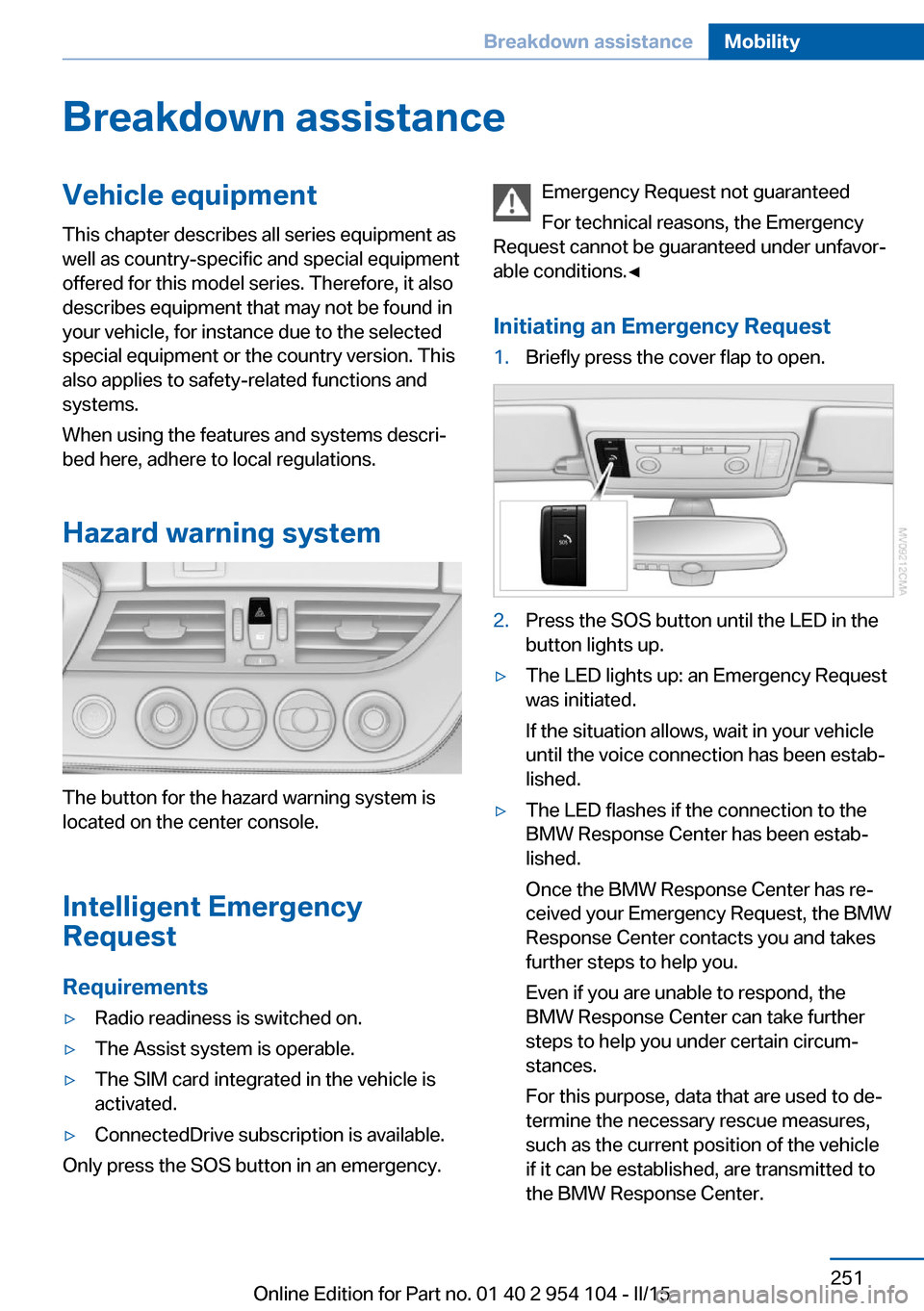
Hazard warning system
The button for the hazard warning system is
located on the center console.
Intelligent Emergency
Request
Requirements
▷Radio readiness is switched on.▷The Assist system is operable.▷The SIM card integrated in the vehicle is
activated.▷ConnectedDrive subscription is available.
Only press the SOS button in an emergency.
Emergency Request not guaranteed
For technical reasons, the Emergency
Request cannot be guaranteed under unfavor‐
able conditions.◀
Initiating an Emergency Request1.Briefly press the cover flap to open.2.Press the SOS button until the LED in the
button lights up.▷The LED lights up: an Emergency Request
was initiated.
If the situation allows, wait in your vehicle
until the voice connection has been estab‐
lished.▷The LED flashes if the connection to the
BMW Response Center has been estab‐
lished.
Once the BMW Response Center has re‐
ceived your Emergency Request, the BMW
Response Center contacts you and takes
further steps to help you.
Even if you are unable to respond, the
BMW Response Center can take further
steps to help you under certain circum‐
stances.
For this purpose, data that are used to de‐
termine the necessary rescue measures,
such as the current position of the vehicle
if it can be established, are transmitted to
the BMW Response Center.Seite 251Breakdown assistanceMobility251
Online Edition for Part no. 01 40 2 954 104 - II/15
Page 271 of 289
FunctionCommandSplit screen, facing the direction of travel.›Split screen map in direction of
travel‹Split screen, perspective.›Split screen perspective‹Split screen, expanded intersection zoom.›Splitscreen Exit ramp view‹Split screen scale...feet.›Split screen scale ... feet‹ e.g., split
screen scale 100 feetSplit screen scale...meters.›Split screen scale ... meters‹ e.g.,
split screen scale 100 metersSplit screen scale...kilometers.›Split screen scale ... kilometers‹ e.g.,
split screen scale 5 kilometersSplit screen scale...miles.›Split screen scale ... miles‹ e.g., split
screen scale 5 milesSplit screen, highlight the traffic situation.›Split screen, Traffic conditions‹Split screen, computer.›Split screen on board info‹Split screen, trip computer.›Splitscreen trip computer‹Split screen, scale automatically.›Split screen automatic scaling‹
Destination guidance with intermediate destinations
FunctionCommandEnter a new destination.›Enter address‹Trip list.›Stored trips‹
Radio
FM
FunctionCommandOpen a frequency.›Frequency ... megahertz‹ e.g.,
93.5 megahertz or frequency 93.5Open the radio.›Radio‹Open the FM stations.›F M‹Seite 269Short commands of the voice activation systemReference269
Online Edition for Part no. 01 40 2 954 104 - II/15
Page 272 of 289
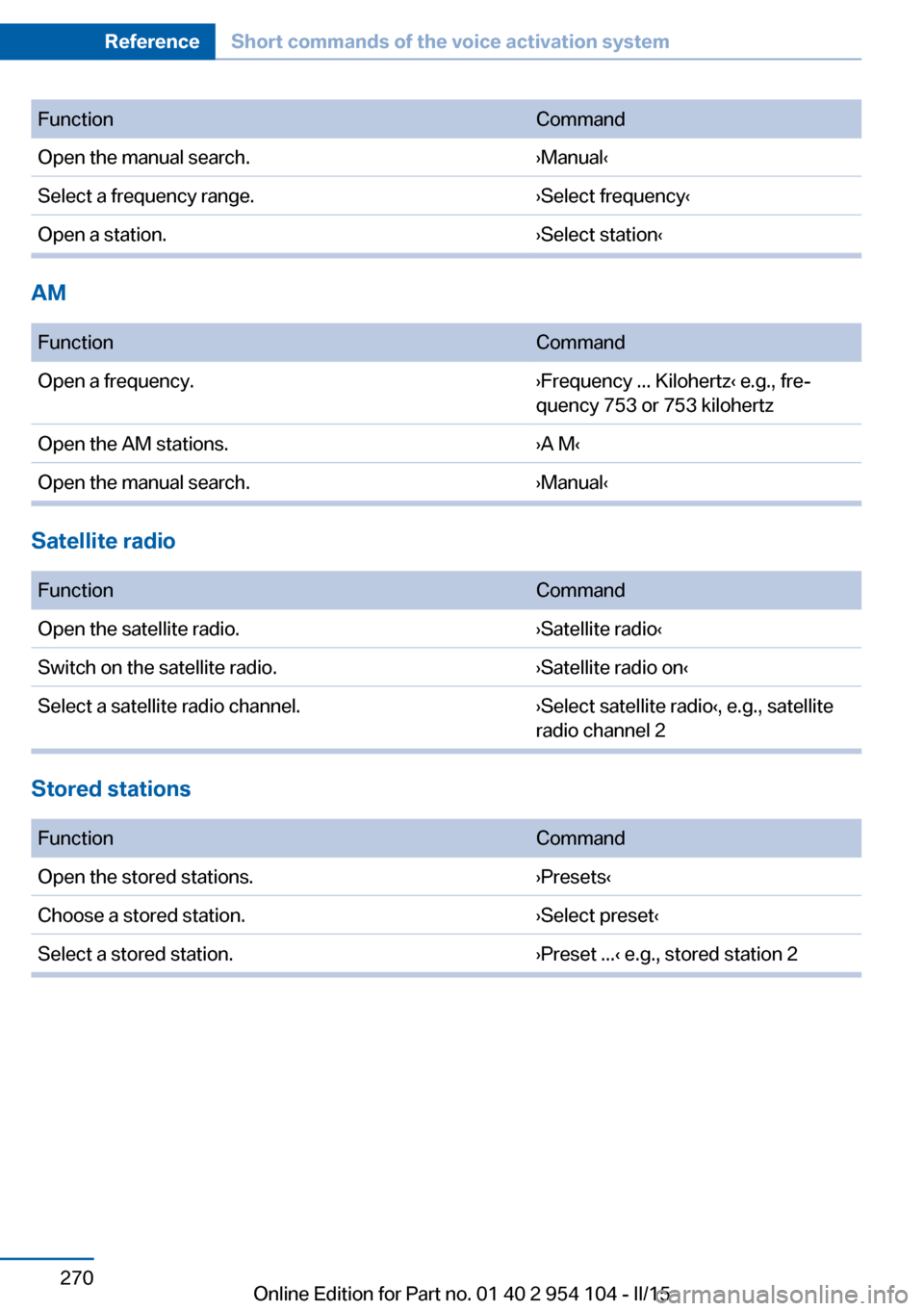
FunctionCommandOpen the manual search.›Manual‹Select a frequency range.›Select frequency‹Open a station.›Select station‹
AM
FunctionCommandOpen a frequency.›Frequency ... Kilohertz‹ e.g., fre‐
quency 753 or 753 kilohertzOpen the AM stations.›A M‹Open the manual search.›Manual‹
Satellite radio
FunctionCommandOpen the satellite radio.›Satellite radio‹Switch on the satellite radio.›Satellite radio on‹Select a satellite radio channel.›Select satellite radio‹, e.g., satellite
radio channel 2
Stored stations
FunctionCommandOpen the stored stations.›Presets‹Choose a stored station.›Select preset‹Select a stored station.›Preset ...‹ e.g., stored station 2Seite 270ReferenceShort commands of the voice activation system270
Online Edition for Part no. 01 40 2 954 104 - II/15
Page 279 of 289
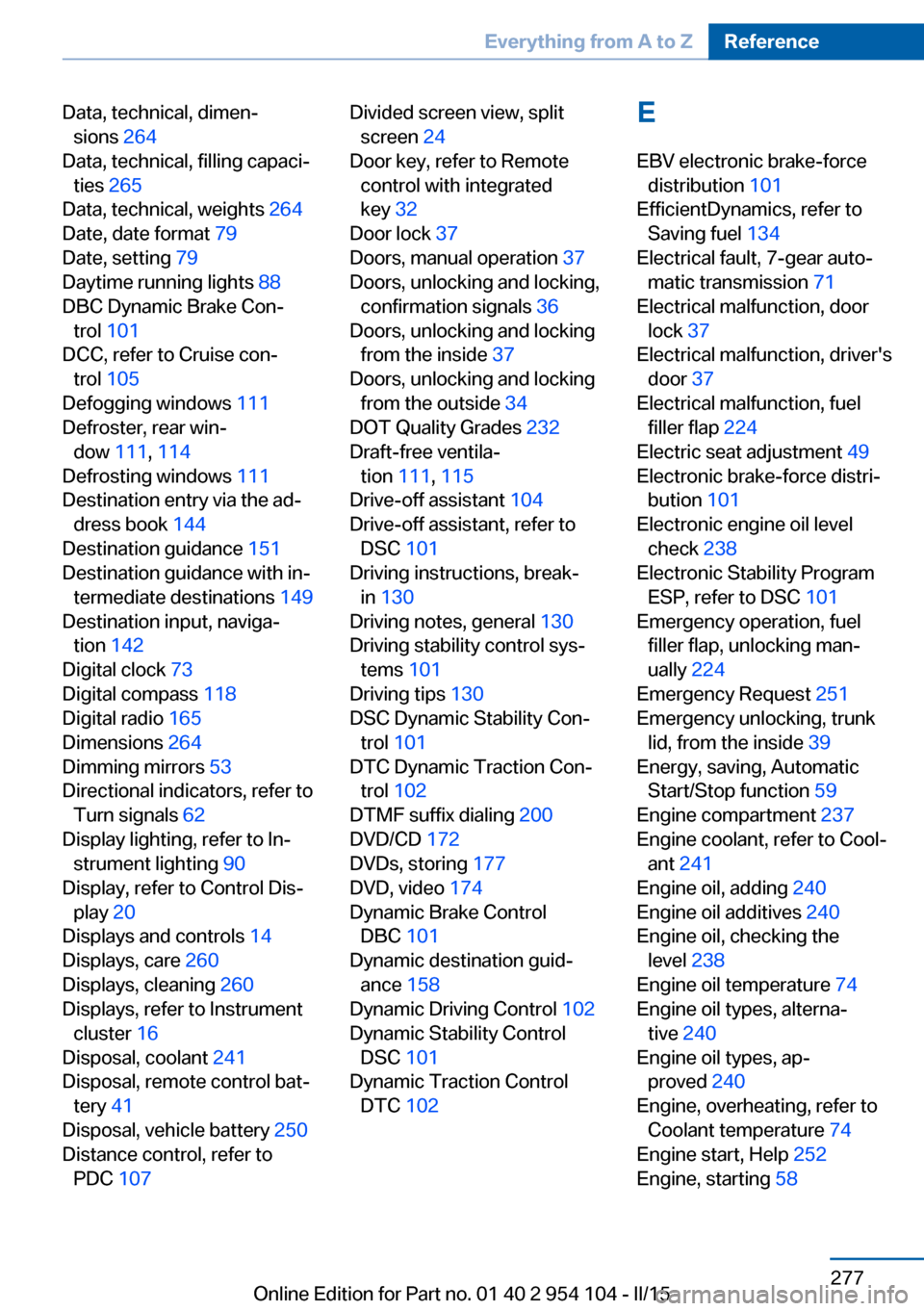
Data, technical, dimen‐sions 264
Data, technical, filling capaci‐ ties 265
Data, technical, weights 264
Date, date format 79
Date, setting 79
Daytime running lights 88
DBC Dynamic Brake Con‐ trol 101
DCC, refer to Cruise con‐ trol 105
Defogging windows 111
Defroster, rear win‐ dow 111, 114
Defrosting windows 111
Destination entry via the ad‐ dress book 144
Destination guidance 151
Destination guidance with in‐ termediate destinations 149
Destination input, naviga‐ tion 142
Digital clock 73
Digital compass 118
Digital radio 165
Dimensions 264
Dimming mirrors 53
Directional indicators, refer to Turn signals 62
Display lighting, refer to In‐ strument lighting 90
Display, refer to Control Dis‐ play 20
Displays and controls 14
Displays, care 260
Displays, cleaning 260
Displays, refer to Instrument cluster 16
Disposal, coolant 241
Disposal, remote control bat‐ tery 41
Disposal, vehicle battery 250
Distance control, refer to PDC 107 Divided screen view, split
screen 24
Door key, refer to Remote control with integrated
key 32
Door lock 37
Doors, manual operation 37
Doors, unlocking and locking, confirmation signals 36
Doors, unlocking and locking from the inside 37
Doors, unlocking and locking from the outside 34
DOT Quality Grades 232
Draft-free ventila‐ tion 111, 115
Drive-off assistant 104
Drive-off assistant, refer to DSC 101
Driving instructions, break- in 130
Driving notes, general 130
Driving stability control sys‐ tems 101
Driving tips 130
DSC Dynamic Stability Con‐ trol 101
DTC Dynamic Traction Con‐ trol 102
DTMF suffix dialing 200
DVD/CD 172
DVDs, storing 177
DVD, video 174
Dynamic Brake Control DBC 101
Dynamic destination guid‐ ance 158
Dynamic Driving Control 102
Dynamic Stability Control DSC 101
Dynamic Traction Control DTC 102 E
EBV electronic brake-force distribution 101
EfficientDynamics, refer to Saving fuel 134
Electrical fault, 7-gear auto‐ matic transmission 71
Electrical malfunction, door lock 37
Electrical malfunction, driver's door 37
Electrical malfunction, fuel filler flap 224
Electric seat adjustment 49
Electronic brake-force distri‐ bution 101
Electronic engine oil level check 238
Electronic Stability Program ESP, refer to DSC 101
Emergency operation, fuel filler flap, unlocking man‐
ually 224
Emergency Request 251
Emergency unlocking, trunk lid, from the inside 39
Energy, saving, Automatic Start/Stop function 59
Engine compartment 237
Engine coolant, refer to Cool‐ ant 241
Engine oil, adding 240
Engine oil additives 240
Engine oil, checking the level 238
Engine oil temperature 74
Engine oil types, alterna‐ tive 240
Engine oil types, ap‐ proved 240
Engine, overheating, refer to Coolant temperature 74
Engine start, Help 252
Engine, starting 58 Seite 277Everything from A to ZReference277
Online Edition for Part no. 01 40 2 954 104 - II/15