Storage BMW Z4 2016 E89 User Guide
[x] Cancel search | Manufacturer: BMW, Model Year: 2016, Model line: Z4, Model: BMW Z4 2016 E89Pages: 289, PDF Size: 7.13 MB
Page 180 of 289
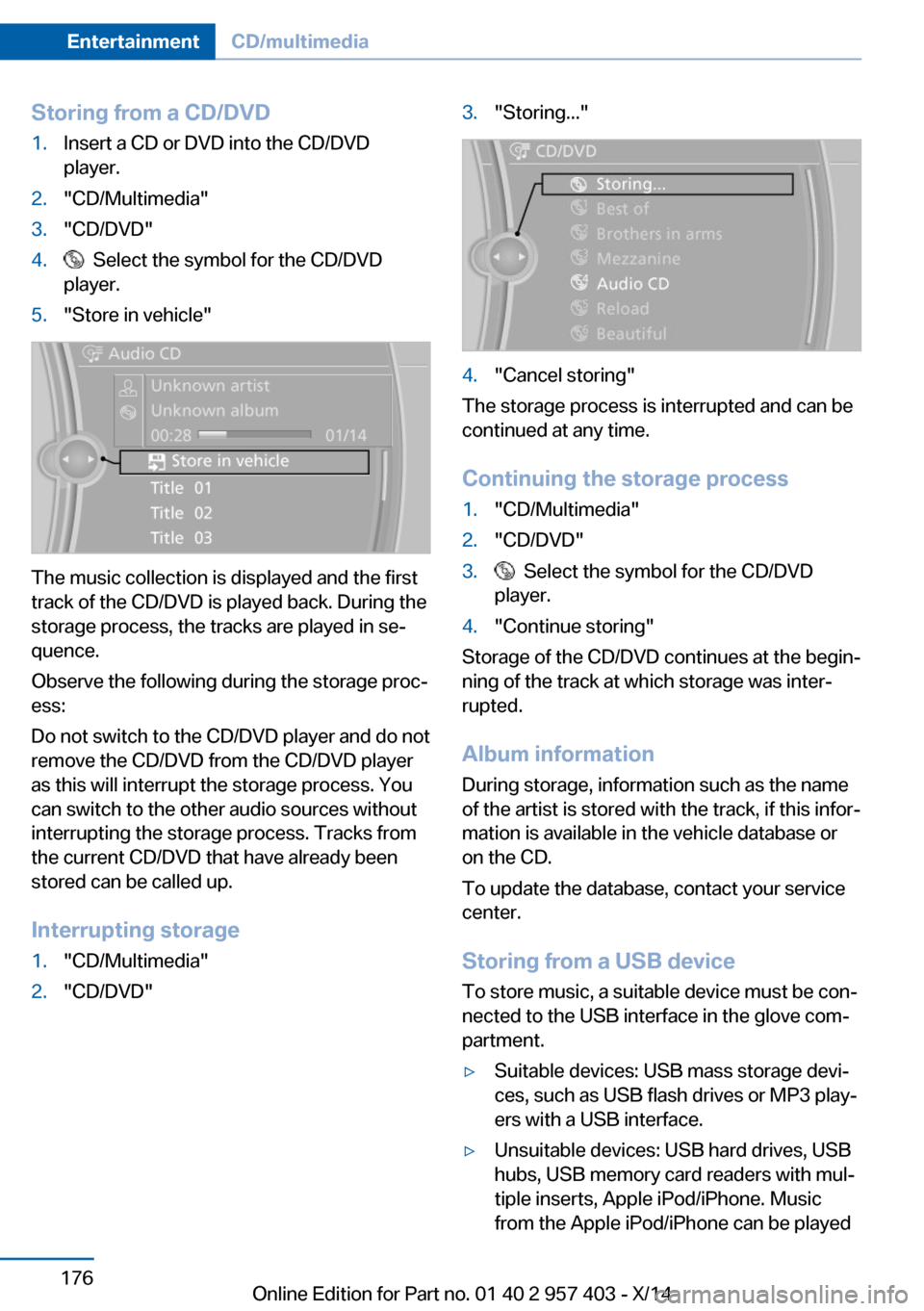
Storing from a CD/DVD1.Insert a CD or DVD into the CD/DVD
player.2."CD/Multimedia"3."CD/DVD"4. Select the symbol for the CD/DVD
player.5."Store in vehicle"
The music collection is displayed and the first
track of the CD/DVD is played back. During the
storage process, the tracks are played in se‐
quence.
Observe the following during the storage proc‐
ess:
Do not switch to the CD/DVD player and do not
remove the CD/DVD from the CD/DVD player
as this will interrupt the storage process. You
can switch to the other audio sources without
interrupting the storage process. Tracks from
the current CD/DVD that have already been
stored can be called up.
Interrupting storage
1."CD/Multimedia"2."CD/DVD"3."Storing..."4."Cancel storing"
The storage process is interrupted and can be
continued at any time.
Continuing the storage process
1."CD/Multimedia"2."CD/DVD"3. Select the symbol for the CD/DVD
player.4."Continue storing"
Storage of the CD/DVD continues at the begin‐
ning of the track at which storage was inter‐
rupted.
Album information
During storage, information such as the name
of the artist is stored with the track, if this infor‐
mation is available in the vehicle database or
on the CD.
To update the database, contact your service
center.
Storing from a USB device
To store music, a suitable device must be con‐
nected to the USB interface in the glove com‐
partment.
▷Suitable devices: USB mass storage devi‐
ces, such as USB flash drives or MP3 play‐
ers with a USB interface.▷Unsuitable devices: USB hard drives, USB
hubs, USB memory card readers with mul‐
tiple inserts, Apple iPod/iPhone. Music
from the Apple iPod/iPhone can be playedSeite 176EntertainmentCD/multimedia176
Online Edition for Part no. 01 40 2 957 403 - X/14
Page 202 of 289
If a second call comes in during an ongoing
call, a call waiting signal is sounded.
"Accept"
The call is accepted and the existing call is put
on hold.
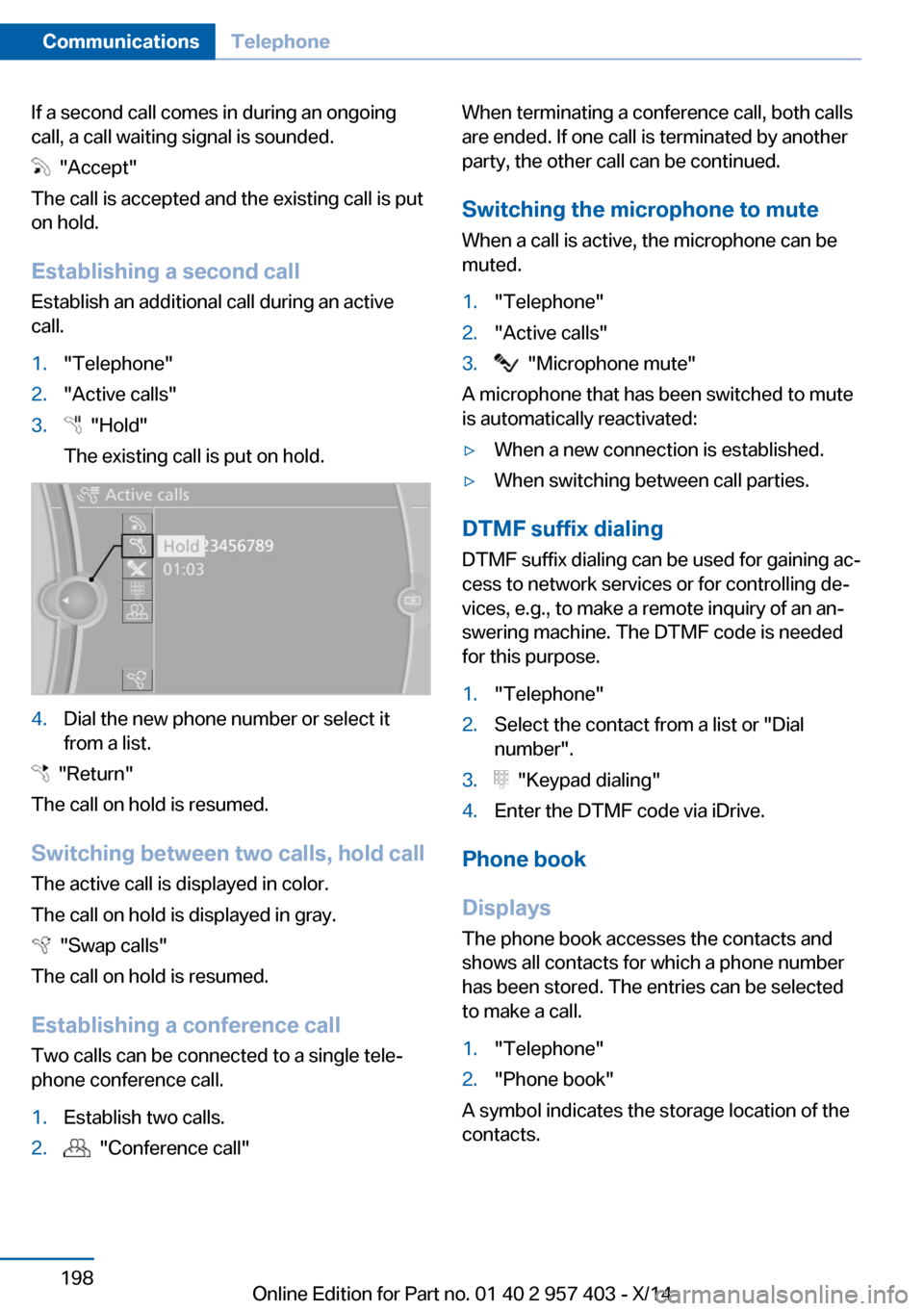
Establishing a second call
Establish an additional call during an active
call.
1."Telephone"2."Active calls"3. "Hold"
The existing call is put on hold.4.Dial the new phone number or select it
from a list.
"Return"
The call on hold is resumed.
Switching between two calls, hold call The active call is displayed in color.
The call on hold is displayed in gray.
"Swap calls"
The call on hold is resumed.
Establishing a conference call Two calls can be connected to a single tele‐
phone conference call.
1.Establish two calls.2. "Conference call"When terminating a conference call, both calls
are ended. If one call is terminated by another
party, the other call can be continued.
Switching the microphone to mute When a call is active, the microphone can be
muted.1."Telephone"2."Active calls"3. "Microphone mute"
A microphone that has been switched to mute
is automatically reactivated:
▷When a new connection is established.▷When switching between call parties.
DTMF suffix dialing
DTMF suffix dialing can be used for gaining ac‐
cess to network services or for controlling de‐
vices, e.g., to make a remote inquiry of an an‐
swering machine. The DTMF code is needed
for this purpose.
1."Telephone"2.Select the contact from a list or "Dial
number".3. "Keypad dialing"4.Enter the DTMF code via iDrive.
Phone book
Displays The phone book accesses the contacts and
shows all contacts for which a phone number
has been stored. The entries can be selected
to make a call.
1."Telephone"2."Phone book"
A symbol indicates the storage location of the
contacts.
Seite 198CommunicationsTelephone198
Online Edition for Part no. 01 40 2 957 403 - X/14
Page 208 of 289
ContactsNote
Equipment version with the mobile phone
preparation package.
At a glance
Contacts can be created and edited. The con‐
tacts from the mobile phone are displayed as
well if this function is supported by the mobile
phone. The addresses can be adopted as des‐
tinations for navigation and the phone num‐
bers can be dialed.
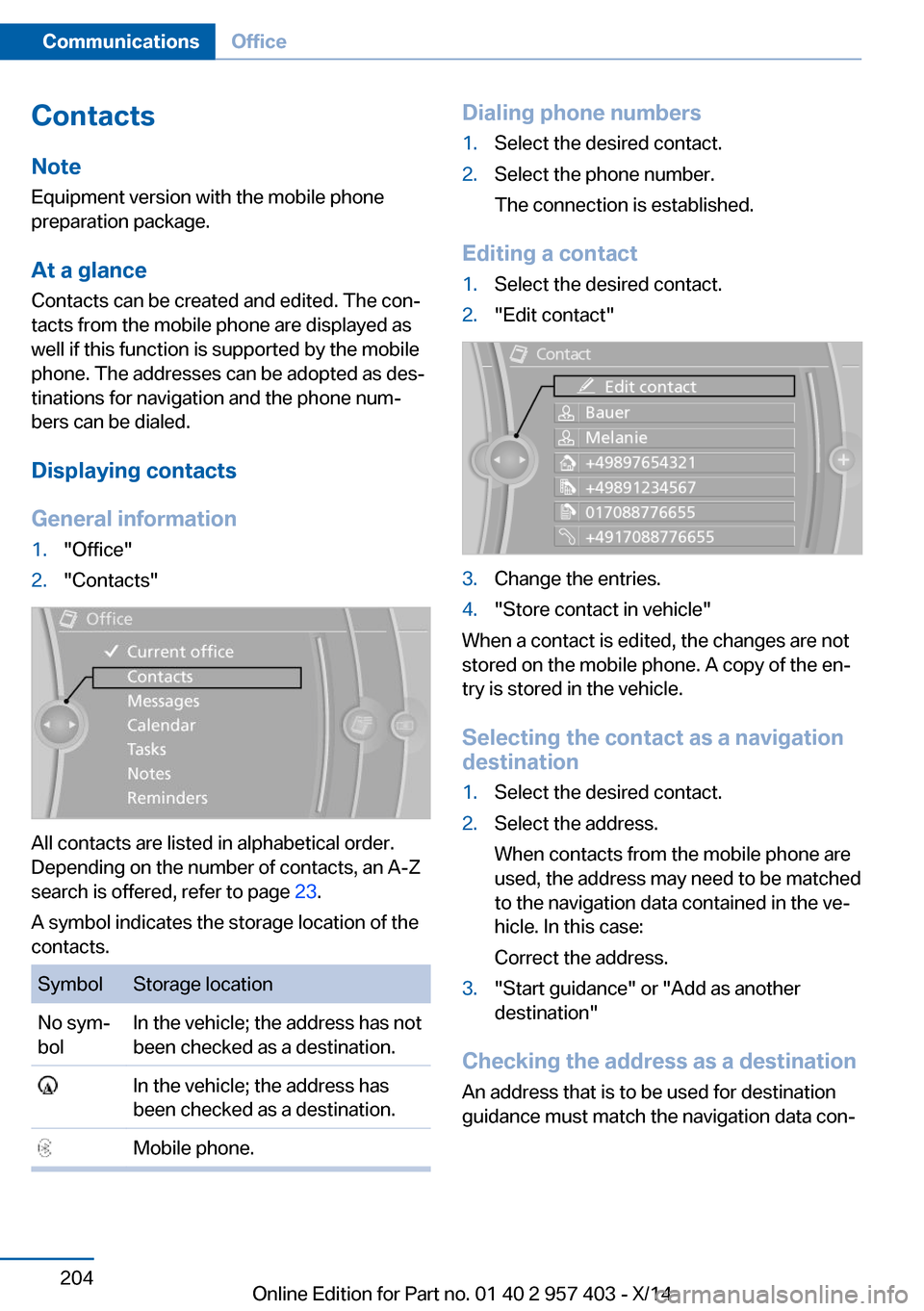
Displaying contacts
General information1."Office"2."Contacts"
All contacts are listed in alphabetical order.
Depending on the number of contacts, an A-Z
search is offered, refer to page 23.
A symbol indicates the storage location of the
contacts.
SymbolStorage locationNo sym‐
bolIn the vehicle; the address has not
been checked as a destination. In the vehicle; the address has
been checked as a destination. Mobile phone.Dialing phone numbers1.Select the desired contact.2.Select the phone number.
The connection is established.
Editing a contact
1.Select the desired contact.2."Edit contact"3.Change the entries.4."Store contact in vehicle"
When a contact is edited, the changes are not
stored on the mobile phone. A copy of the en‐
try is stored in the vehicle.
Selecting the contact as a navigation
destination
1.Select the desired contact.2.Select the address.
When contacts from the mobile phone are
used, the address may need to be matched
to the navigation data contained in the ve‐
hicle. In this case:
Correct the address.3."Start guidance" or "Add as another
destination"
Checking the address as a destination
An address that is to be used for destination
guidance must match the navigation data con‐
Seite 204CommunicationsOffice204
Online Edition for Part no. 01 40 2 957 403 - X/14
Page 217 of 289
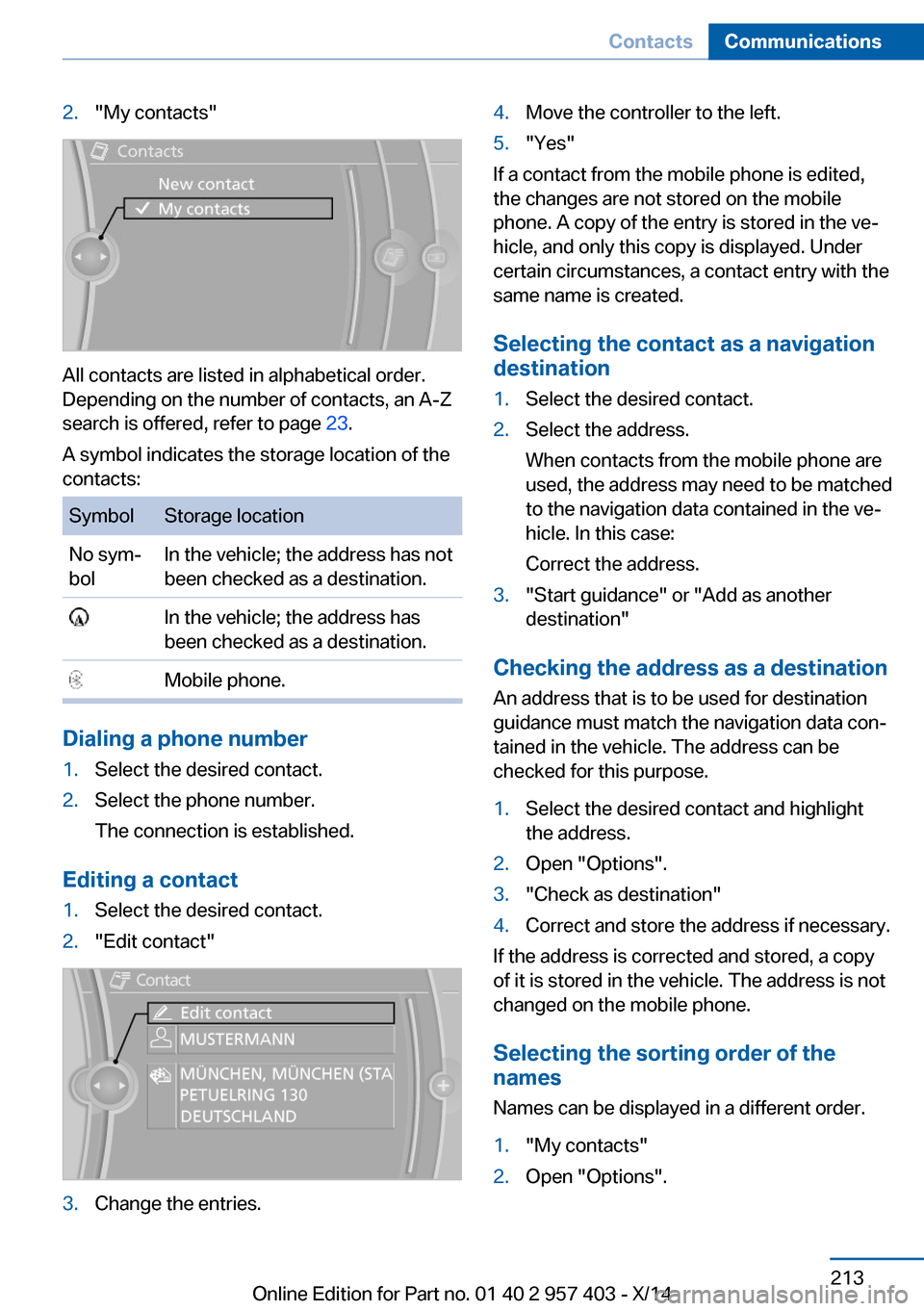
2."My contacts"
All contacts are listed in alphabetical order.
Depending on the number of contacts, an A-Z
search is offered, refer to page 23.
A symbol indicates the storage location of the
contacts:
SymbolStorage locationNo sym‐
bolIn the vehicle; the address has not
been checked as a destination. In the vehicle; the address has
been checked as a destination. Mobile phone.
Dialing a phone number
1.Select the desired contact.2.Select the phone number.
The connection is established.
Editing a contact
1.Select the desired contact.2."Edit contact"3.Change the entries.4.Move the controller to the left.5."Yes"
If a contact from the mobile phone is edited,
the changes are not stored on the mobile
phone. A copy of the entry is stored in the ve‐
hicle, and only this copy is displayed. Under
certain circumstances, a contact entry with the
same name is created.
Selecting the contact as a navigation
destination
1.Select the desired contact.2.Select the address.
When contacts from the mobile phone are
used, the address may need to be matched
to the navigation data contained in the ve‐
hicle. In this case:
Correct the address.3."Start guidance" or "Add as another
destination"
Checking the address as a destination
An address that is to be used for destination
guidance must match the navigation data con‐
tained in the vehicle. The address can be
checked for this purpose.
1.Select the desired contact and highlight
the address.2.Open "Options".3."Check as destination"4.Correct and store the address if necessary.
If the address is corrected and stored, a copy
of it is stored in the vehicle. The address is not
changed on the mobile phone.
Selecting the sorting order of the
names
Names can be displayed in a different order.
1."My contacts"2.Open "Options".Seite 213ContactsCommunications213
Online Edition for Part no. 01 40 2 957 403 - X/14
Page 237 of 289
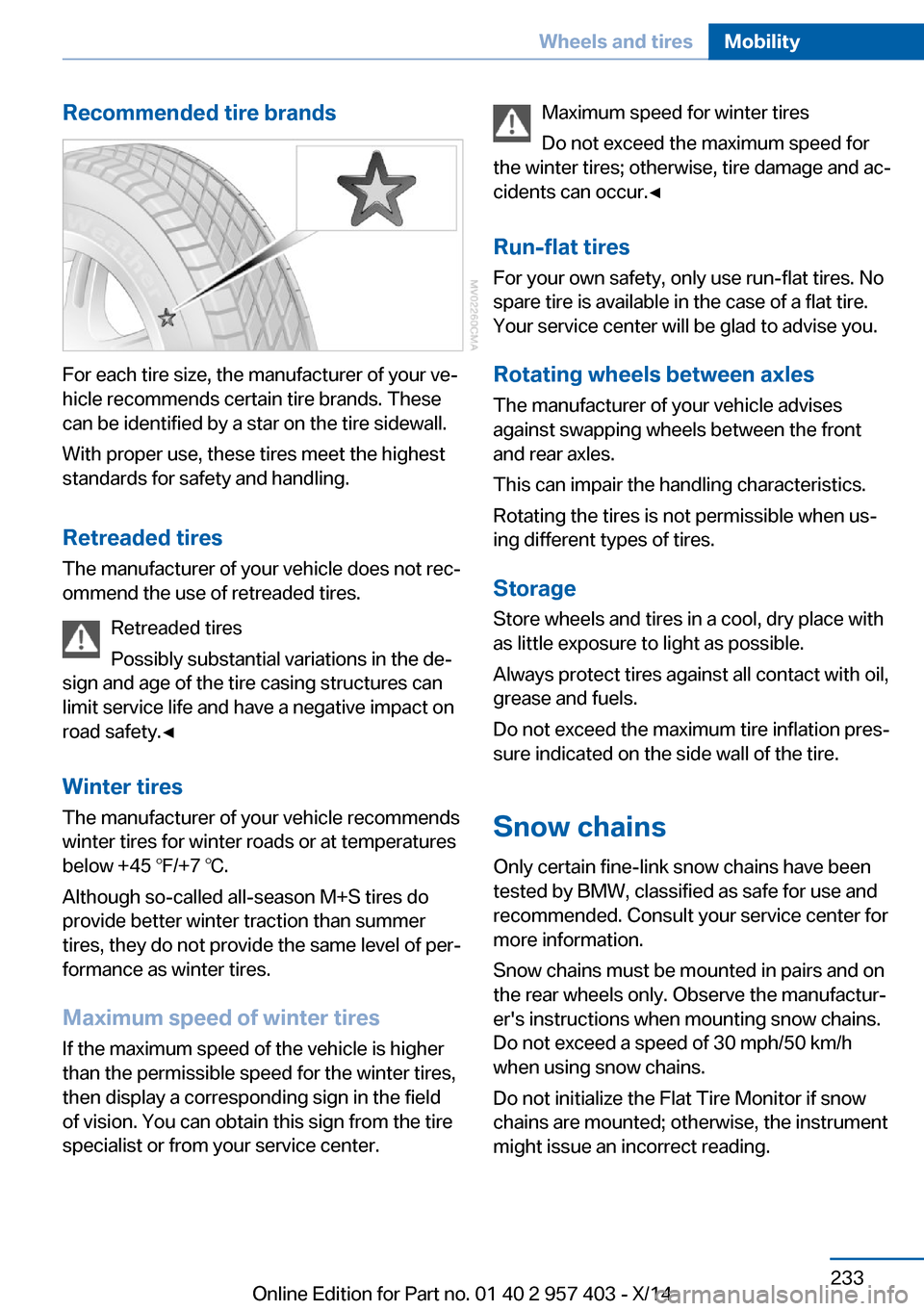
Recommended tire brands
For each tire size, the manufacturer of your ve‐
hicle recommends certain tire brands. These
can be identified by a star on the tire sidewall.
With proper use, these tires meet the highest
standards for safety and handling.
Retreaded tires The manufacturer of your vehicle does not rec‐
ommend the use of retreaded tires.
Retreaded tires
Possibly substantial variations in the de‐
sign and age of the tire casing structures can
limit service life and have a negative impact on
road safety.◀
Winter tires
The manufacturer of your vehicle recommends
winter tires for winter roads or at temperatures
below +45 ℉/+7 ℃.
Although so-called all-season M+S tires do
provide better winter traction than summer tires, they do not provide the same level of per‐
formance as winter tires.
Maximum speed of winter tires
If the maximum speed of the vehicle is higher
than the permissible speed for the winter tires,
then display a corresponding sign in the field
of vision. You can obtain this sign from the tire
specialist or from your service center.
Maximum speed for winter tires
Do not exceed the maximum speed for
the winter tires; otherwise, tire damage and ac‐
cidents can occur.◀
Run-flat tires
For your own safety, only use run-flat tires. No
spare tire is available in the case of a flat tire.
Your service center will be glad to advise you.
Rotating wheels between axlesThe manufacturer of your vehicle advises
against swapping wheels between the front
and rear axles.
This can impair the handling characteristics.
Rotating the tires is not permissible when us‐
ing different types of tires.
Storage Store wheels and tires in a cool, dry place with
as little exposure to light as possible.
Always protect tires against all contact with oil,
grease and fuels.
Do not exceed the maximum tire inflation pres‐
sure indicated on the side wall of the tire.
Snow chains Only certain fine-link snow chains have been
tested by BMW, classified as safe for use and
recommended. Consult your service center for
more information.
Snow chains must be mounted in pairs and on
the rear wheels only. Observe the manufactur‐
er's instructions when mounting snow chains.
Do not exceed a speed of 30 mph/50 km/h
when using snow chains.
Do not initialize the Flat Tire Monitor if snow
chains are mounted; otherwise, the instrument
might issue an incorrect reading.Seite 233Wheels and tiresMobility233
Online Edition for Part no. 01 40 2 957 403 - X/14
Page 245 of 289
MaintenanceVehicle equipment
This chapter describes all series equipment as
well as country-specific and special equipment
offered for this model series. Therefore, it also
describes equipment that may not be found in
your vehicle, for instance due to the selected
special equipment or the country version. This
also applies to safety-related functions and
systems.
When using the features and systems descri‐
bed here, adhere to local regulations.
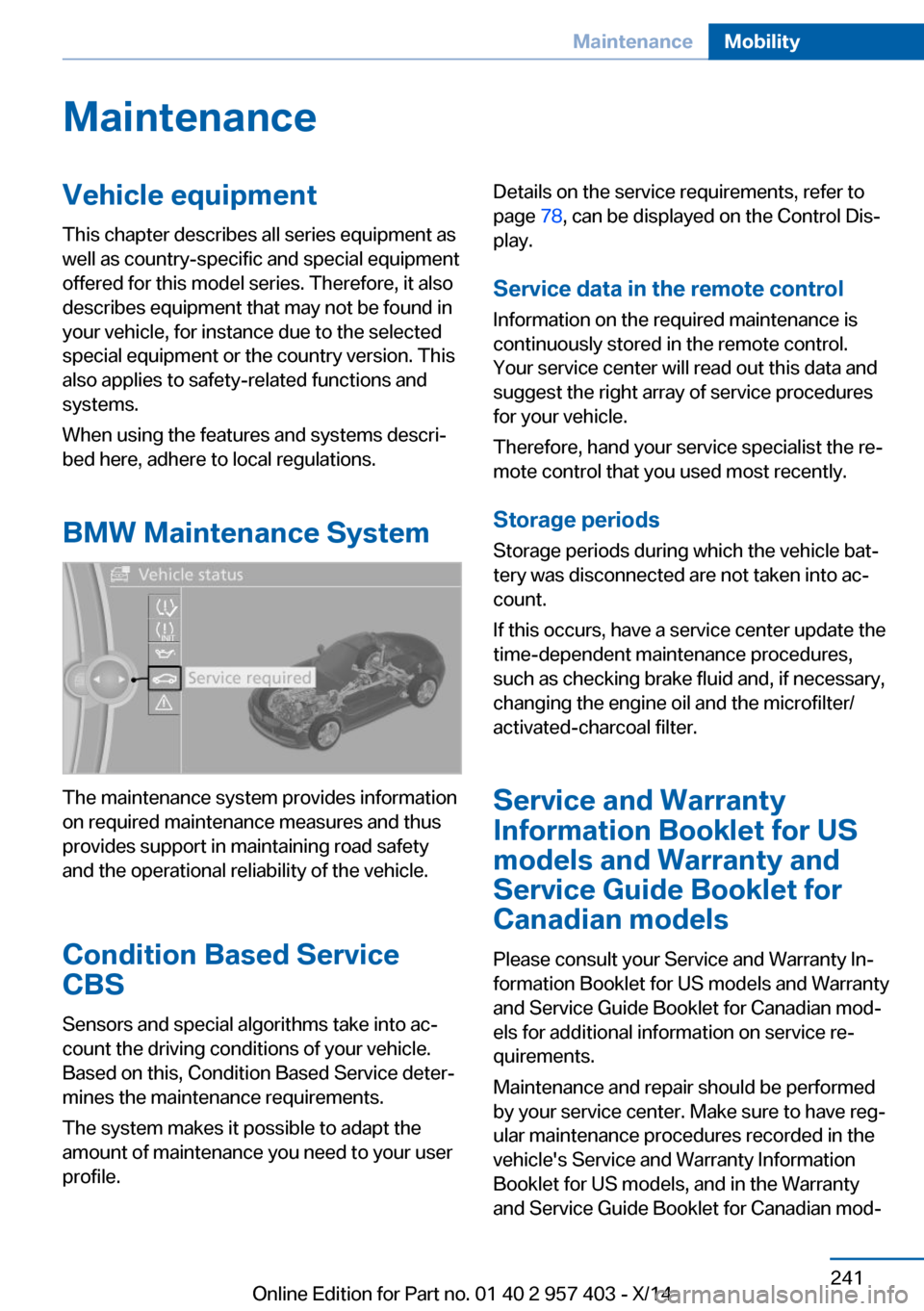
BMW Maintenance System
The maintenance system provides information
on required maintenance measures and thus
provides support in maintaining road safety
and the operational reliability of the vehicle.
Condition Based Service
CBS
Sensors and special algorithms take into ac‐
count the driving conditions of your vehicle.
Based on this, Condition Based Service deter‐
mines the maintenance requirements.
The system makes it possible to adapt the
amount of maintenance you need to your user
profile.
Details on the service requirements, refer to
page 78, can be displayed on the Control Dis‐
play.
Service data in the remote control
Information on the required maintenance is
continuously stored in the remote control.
Your service center will read out this data and
suggest the right array of service procedures
for your vehicle.
Therefore, hand your service specialist the re‐
mote control that you used most recently.
Storage periods
Storage periods during which the vehicle bat‐
tery was disconnected are not taken into ac‐
count.
If this occurs, have a service center update the
time-dependent maintenance procedures,
such as checking brake fluid and, if necessary,
changing the engine oil and the microfilter/
activated-charcoal filter.
Service and Warranty
Information Booklet for US
models and Warranty and
Service Guide Booklet for
Canadian models
Please consult your Service and Warranty In‐
formation Booklet for US models and Warranty
and Service Guide Booklet for Canadian mod‐
els for additional information on service re‐
quirements.
Maintenance and repair should be performed
by your service center. Make sure to have reg‐
ular maintenance procedures recorded in the
vehicle's Service and Warranty Information
Booklet for US models, and in the Warranty
and Service Guide Booklet for Canadian mod‐Seite 241MaintenanceMobility241
Online Edition for Part no. 01 40 2 957 403 - X/14
Page 252 of 289
▷Radio station: store again, refer to
page 162.▷Navigation system: wait for the operability
of the navigation.▷Interior rearview mirror with digital com‐
pass: recalibrate, refer to page 116.
Disposing of old batteries
Have old batteries disposed of by your
service center or bring them to a recy‐
cling center.
Maintain the battery in an upright position for
transport and storage. Secure the battery so
that it does not tip over during transport.
Fuses Notes Replacing fuses
Never attempt to repair a blown fuse and
do not replace a defective fuse with a substi‐
tute of another color or amperage rating; this could lead to a circuit overload, ultimately re‐
sulting in a fire in the vehicle.◀
A pair of plastic tweezers is found on the cur‐
rent distributor.
See the inside of the cover for information on
fuse assignment.
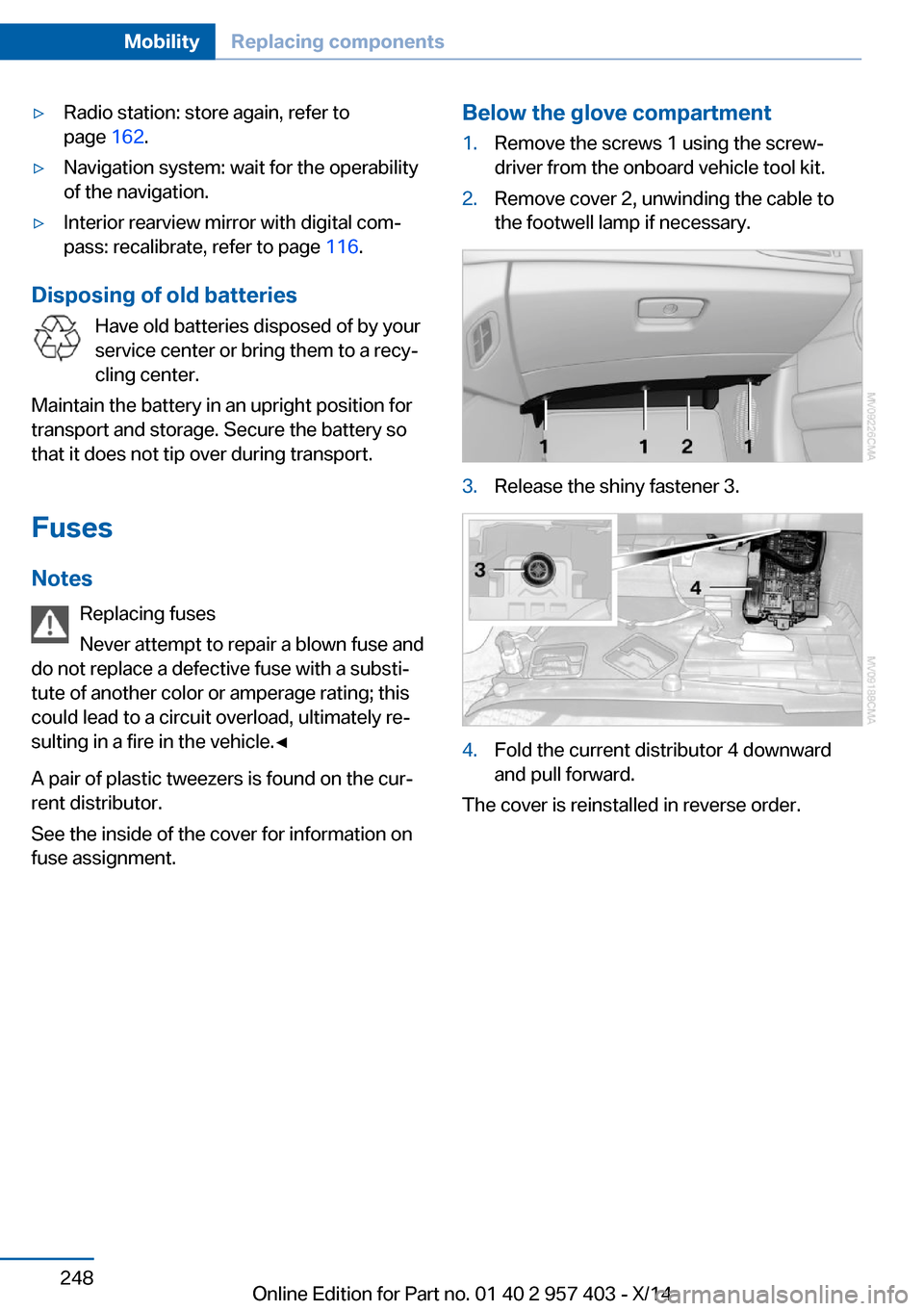
Below the glove compartment1.Remove the screws 1 using the screw‐
driver from the onboard vehicle tool kit.2.Remove cover 2, unwinding the cable to
the footwell lamp if necessary.3.Release the shiny fastener 3.4.Fold the current distributor 4 downward
and pull forward.
The cover is reinstalled in reverse order.
Seite 248MobilityReplacing components248
Online Edition for Part no. 01 40 2 957 403 - X/14
Page 254 of 289
▷If the LED is flashing but the BMW Re‐
sponse Center cannot be heard on the
hands-free system, the hands-free system
may be malfunctioning. However, the
BMW Response Center may still be able to
hear you.
Initiating an Emergency Request
automatically
Under certain conditions, an Emergency Re‐
quest is automatically initiated immediately af‐
ter a severe accident. Automatic Collision Noti‐
fication is not affected by pressing the SOS
button.
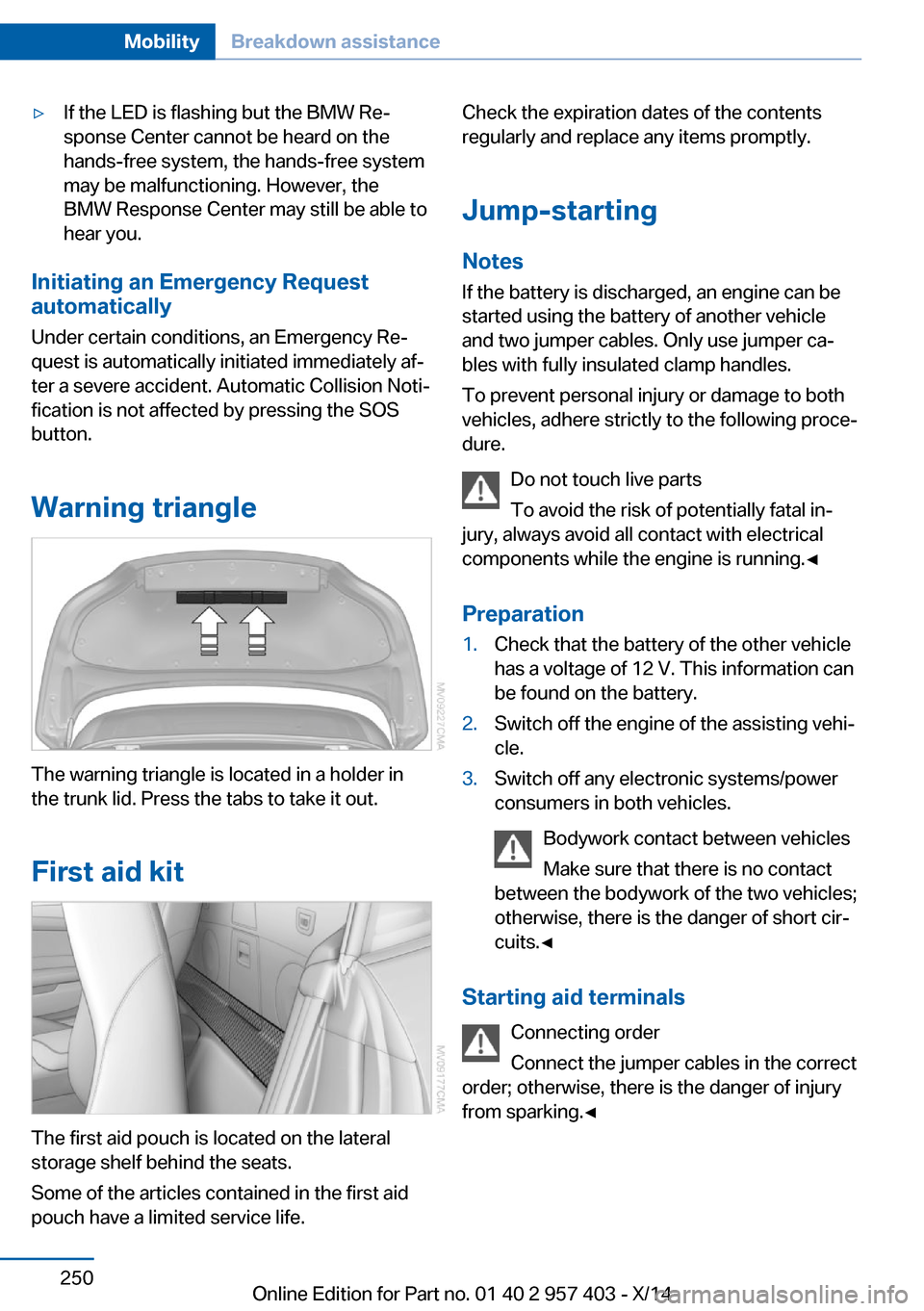
Warning triangle
The warning triangle is located in a holder in
the trunk lid. Press the tabs to take it out.
First aid kit
The first aid pouch is located on the lateral
storage shelf behind the seats.
Some of the articles contained in the first aid
pouch have a limited service life.
Check the expiration dates of the contents
regularly and replace any items promptly.
Jump-starting
Notes If the battery is discharged, an engine can be
started using the battery of another vehicle
and two jumper cables. Only use jumper ca‐
bles with fully insulated clamp handles.
To prevent personal injury or damage to both
vehicles, adhere strictly to the following proce‐
dure.
Do not touch live parts
To avoid the risk of potentially fatal in‐
jury, always avoid all contact with electrical
components while the engine is running.◀
Preparation1.Check that the battery of the other vehicle
has a voltage of 12 V. This information can
be found on the battery.2.Switch off the engine of the assisting vehi‐
cle.3.Switch off any electronic systems/power
consumers in both vehicles.
Bodywork contact between vehicles
Make sure that there is no contact
between the bodywork of the two vehicles;
otherwise, there is the danger of short cir‐
cuits.◀
Starting aid terminals
Connecting order
Connect the jumper cables in the correct
order; otherwise, there is the danger of injury
from sparking.◀
Seite 250MobilityBreakdown assistance250
Online Edition for Part no. 01 40 2 957 403 - X/14
Page 262 of 289
Do not allow the reels to retract the safety
belts until they are dry.
Carpets and floor mats No objects in the area around the pedals
Keep floor mats, carpets, and any other
objects out of the area of motion of the pedals;
otherwise, the function of the pedals could be
impeded while driving
Do not place additional floor mats over existing
mats or other objects.
Only use floor mats that have been approved
for the vehicle and can be properly fixed in
place.
Ensure that the floor mats are securely fas‐
tened again when they are returned after being
removed, such as for cleaning.◀
Floor mats can be removed from the passen‐
ger compartment for cleaning.
When returning the floor mats, secure them
again to prevent slipping.
If the floor carpets are very dirty, clean with a
microfiber cloth and water or a textile cleaner.
To prevent matting of the carpet, rub back and
forth in the direction of travel only.
Cleaning the interior
When cleaning the interior, do not move
both seats all the way forward while moving
them to their uppermost position and leaning
the backrests forward. Otherwise, the seats
could hit and damage the seal on the wind‐
shield and the sun visor.◀
Sensors/cameras
To clean the sensors or cameras of equipment
such as the High-beam Assistant or Park Dis‐
tance Control PDC, use a cloth moistened with
a small amount of glass cleaner.
Displays/screens
Clean the displays with an anti-static micro‐
fiber cloth.Cleaning displays
Do not use chemical or household
cleansers.
Keep all fluids and moisture away from the
unit.
Otherwise, they could affect or damage surfa‐
ces or electrical components.
Avoid pressing too hard when cleaning and do
not use abrasive materials; otherwise, damage
can result.◀
Long-term vehicle storage
Your service center can advise you on what to
consider when storing the vehicle for longer
than three months.Seite 258MobilityCare258
Online Edition for Part no. 01 40 2 957 403 - X/14
Page 278 of 289
Center armrest 122
Center brake light– Bulb replacement 246
Center console, refer to
Around the center con‐
sole 16
Central locking
– Comfort Access 37– From the inside 35– Setting the unlocking char‐
acteristics 32
Central locking system
– From the outside 31– Principle 31
Central screen, refer to Con‐
trol Display 18
Changes, technical, refer to Safety 6
Changing wheels/tires 232
Chassis number, refer to En‐ gine compartment 235
Check Control 82
Children, transporting safely 53
Child restraint fixing sys‐ tem 53
Child seats, refer to Trans‐ porting children safely 53
Chrome parts, care 257
Cigarette lighter, refer to Lighter 118
Circulation of air, refer to Re‐ circulated air
mode 108, 112
Cleaning, displays 258
Cleaning your BMW, refer to Care 255
Clock 71
Clock
– 12h/24h format 77– Setting the time and date 76
Closing
– From the inside 35– From the outside 32
Cockpit 12
Cold start, refer to Starting the engine 56
Combination instrument, refer
to Instrument cluster 14
Combination switch– Refer to Washer/wiper sys‐
tem 61
Combination switch, refer to
Turn signal, high beams,
headlamp flasher 60
Comfort Access 37
Comfort Access
– Battery replacement 39– In a car wash 38
Comfort area, refer to Around
the center console 16
COMFORT program, Dy‐ namic Driving Control 101
Compartment for remote control, refer to Ignition
lock 55
Compartments, refer to Stor‐ age compartments 123
Compass 116
Computer 73
Computer
– Displays on the Control Dis‐
play 73
Concierge service 215
Condensation under the vehi‐ cle 130
Condition Based Service CBS 241
Confirmation signals for lock‐ ing/unlocking the vehicle 34
Connecting, mobile phone, refer to Pairing the mobile
phone 193
Consumption, refer to Aver‐ age fuel consumption 73
Contacts 204, 212
Control Display 18
Control Display, care 258
Control Display, settings 78
Controller 19
Controls and displays 12
Control systems, driving sta‐ bility 99
Convenient loading 33
Convenient opening and clos‐
ing– Retractable hardtop 33– Window 33
Convertible top, refer to Re‐
tractable hardtop 42
Coolant 239
Coolant
– Checking the level 239– Temperature 72
Cooling, maximum 111
Cooling system, refer to Cool‐ ant 239
Corrosion on brake discs 130
Courtesy lamps, refer to Inte‐ rior lamps 89
Cradle for telephone or mo‐
bile phone
– Refer to Snap-in adapter in
center armrest storage
compartment 122
Cradle for telephone or mo‐
bile phone, refer to Snap-in
adapter 201
Cruise control 103
Cruise control
– Malfunction 105
Cupholder 124
Curb weight, refer to Weights 262
Current location, storing 142
D
Damage, tires 231
Dashboard lighting, refer to Instrument lighting 88
Dashboard, refer to Cock‐ pit 12
Data, technical
– Dimensions 262– Filling capacities 263– Weights 262
Date
– Date format 77– Setting 77
Daytime running lights 86
Seite 274ReferenceEverything from A to Z274
Online Edition for Part no. 01 40 2 957 403 - X/14