top BMW Z4 2016 E89 Owner's Manual
[x] Cancel search | Manufacturer: BMW, Model Year: 2016, Model line: Z4, Model: BMW Z4 2016 E89Pages: 289, PDF Size: 7.13 MB
Page 9 of 289
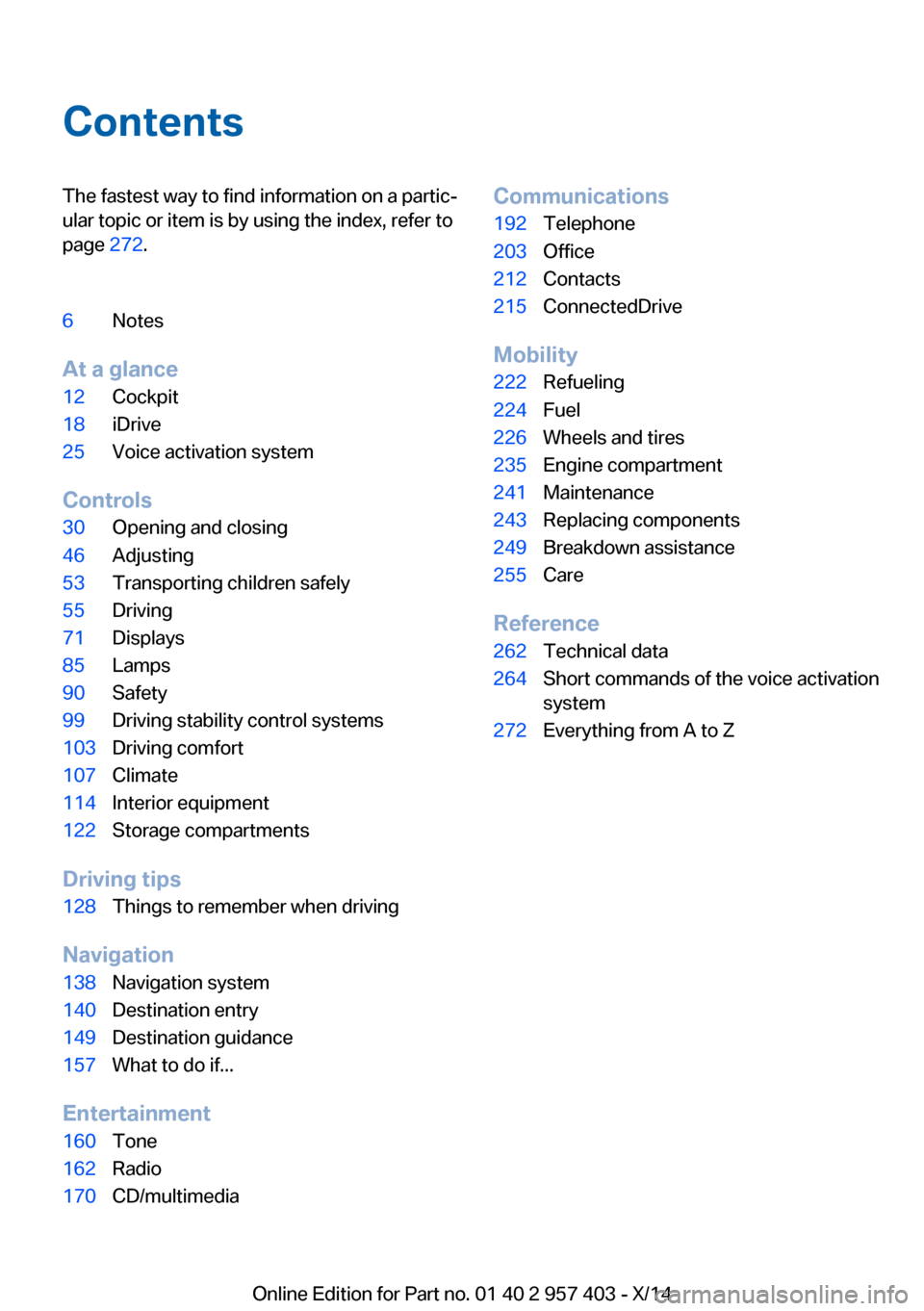
ContentsThe fastest way to find information on a partic‐
ular topic or item is by using the index, refer to
page 272.6Notes
At a glance
12Cockpit18iDrive25Voice activation system
Controls
30Opening and closing46Adjusting53Transporting children safely55Driving71Displays85Lamps90Safety99Driving stability control systems103Driving comfort107Climate114Interior equipment122Storage compartments
Driving tips
128Things to remember when driving
Navigation
138Navigation system140Destination entry149Destination guidance157What to do if...
Entertainment
160Tone162Radio170CD/multimediaCommunications192Telephone203Office212Contacts215ConnectedDrive
Mobility
222Refueling224Fuel226Wheels and tires235Engine compartment241Maintenance243Replacing components249Breakdown assistance255Care
Reference
262Technical data264Short commands of the voice activation
system272Everything from A to Z
Online Edition for Part no. 01 40 2 957 403 - X/14
Page 10 of 289
NotesUsing this Owner's Manual
The fastest way to find information on a partic‐
ular topic is by using the index.
An initial overview of the vehicle is provided in
the first chapter.
Additional sources of information Should you have any questions, your service
center will be glad to advise you at any time.
Information on BMW, e.g., on technology, is
available on the Internet: bmwusa.com
Symbols
Indicates precautions that must be followed
precisely in order to avoid the possibility of
personal injury and serious damage to the
vehicle.
◄ Marks the end of a specific item of
information.
"..." Identifies display texts in vehicle used to
select individual functions.
›...‹ Verbal instructions to use with the voice
activation system.
››...‹‹ Identifies the answers generated by the
voice activation system.
Refers to measures that can be taken to
help protect the environment.
Symbols on vehicle components
Indicates that you should consult the
relevant section of this Owner's Manual for
information on a particular part or assembly.
Vehicle equipment
This Owner's Manual describes all models, all
series equipment, as well as country-specific
and special equipment offered in the model
series.Therefore, this Owner's Manual also de‐
scribes and depicts equipment that may not be
contained in your vehicle because of the se‐
lected special equipment or country version,
for example.
This also applies to safety-related functions
and systems.
For options and equipment not described in
this Owner's Manual, please refer to the Sup‐
plementary Owner's Manuals.
On right-hand drive vehicles, some controls
are arranged differently than shown in the illus‐
trations.
Status of this Owner's
Manual at time of printing
The manufacturer of your vehicle pursues a
policy of constant development that is con‐
ceived to ensure that our vehicles continue to
embody the highest quality and safety stan‐
dards. In rare cases, therefore, the features de‐
scribed in this Owner's Manual may differ from
those in your vehicle.
Updates made after the editorial
deadline
Any updates made after the editorial deadline
for the Owner's Manuals are located in the ap‐
pendix of the printed quick reference for the
vehicle.
For your own safety Warranty
Your vehicle is technically configured for the
operating conditions and registration require‐
ments applying in the country of first delivery
— homologation. If your vehicle is to be oper‐
ated in a different country it might be neces‐Seite 6Notes6
Online Edition for Part no. 01 40 2 957 403 - X/14
Page 17 of 289
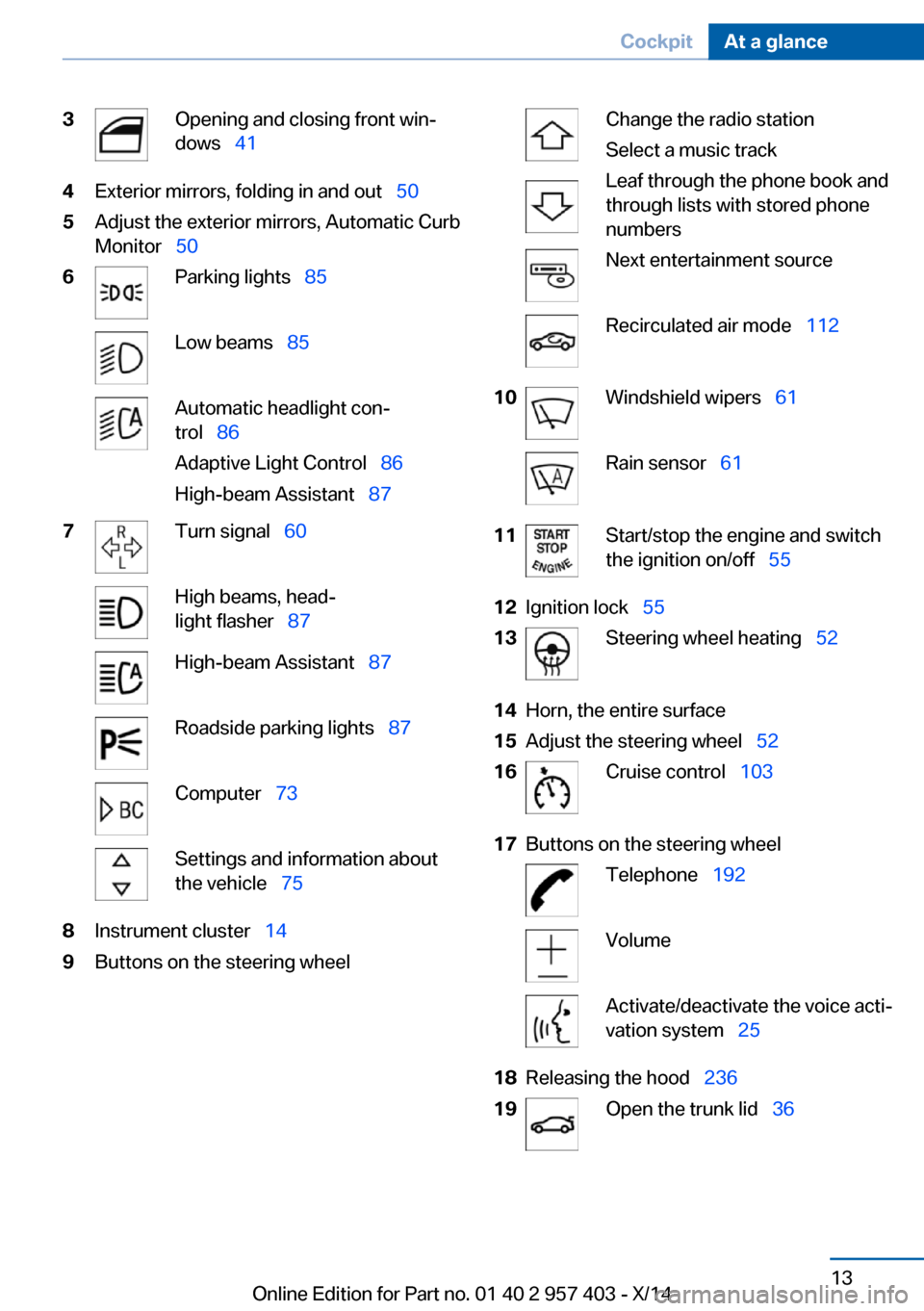
3Opening and closing front win‐
dows 414Exterior mirrors, folding in and out 505Adjust the exterior mirrors, Automatic Curb
Monitor 506Parking lights 85Low beams 85Automatic headlight con‐
trol 86
Adaptive Light Control 86
High-beam Assistant 877Turn signal 60High beams, head‐
light flasher 87High-beam Assistant 87Roadside parking lights 87Computer 73Settings and information about
the vehicle 758Instrument cluster 149Buttons on the steering wheelChange the radio station
Select a music track
Leaf through the phone book and
through lists with stored phone
numbersNext entertainment sourceRecirculated air mode 11210Windshield wipers 61Rain sensor 6111Start/stop the engine and switch
the ignition on/off 5512Ignition lock 5513Steering wheel heating 5214Horn, the entire surface15Adjust the steering wheel 5216Cruise control 10317Buttons on the steering wheelTelephone 192VolumeActivate/deactivate the voice acti‐
vation system 2518Releasing the hood 23619Open the trunk lid 36Seite 13CockpitAt a glance13
Online Edition for Part no. 01 40 2 957 403 - X/14
Page 20 of 289
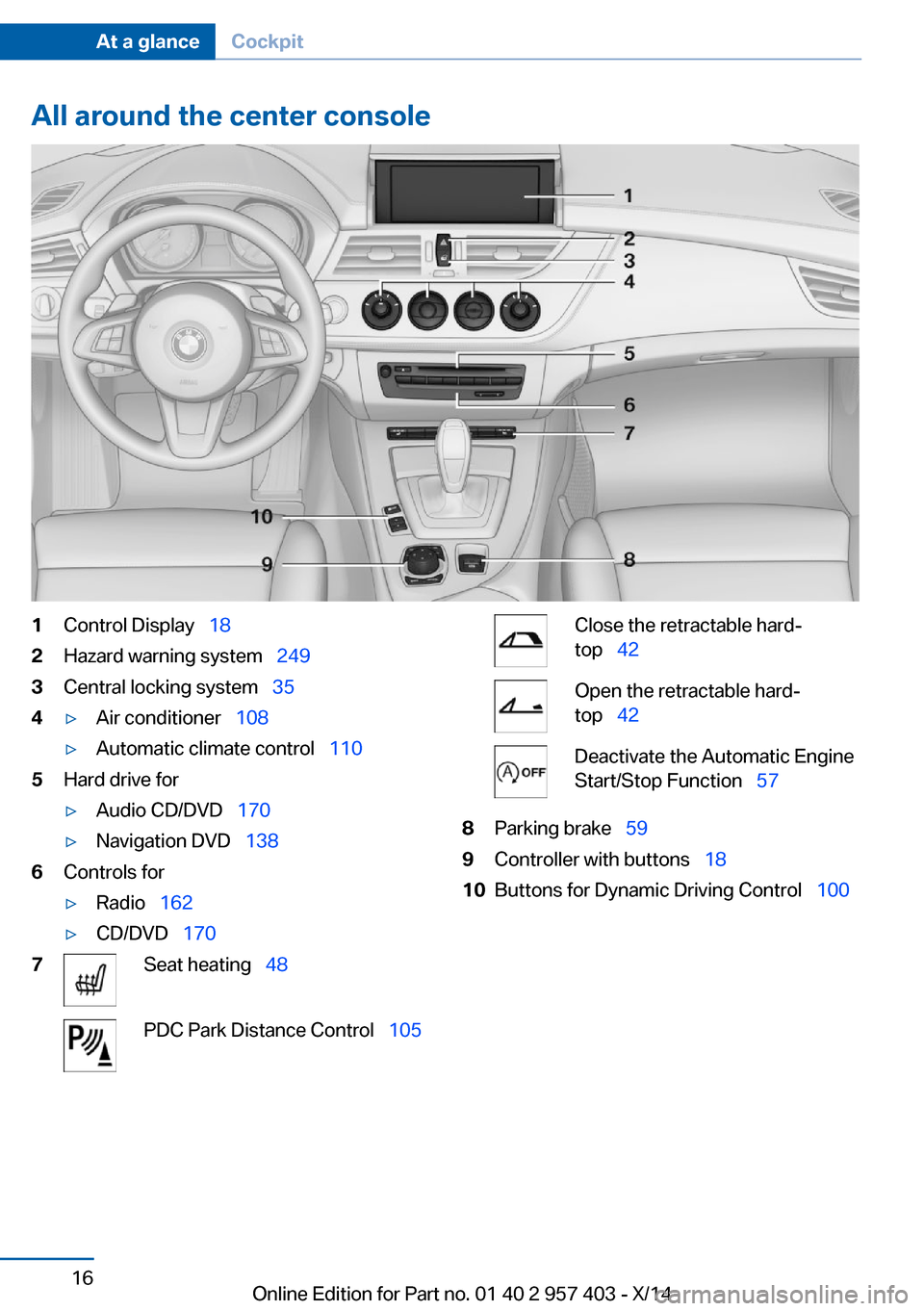
All around the center console1Control Display 182Hazard warning system 2493Central locking system 354▷Air conditioner 108▷Automatic climate control 1105Hard drive for▷Audio CD/DVD 170▷Navigation DVD 1386Controls for▷Radio 162▷CD/DVD 1707Seat heating 48PDC Park Distance Control 105Close the retractable hard‐
top 42Open the retractable hard‐
top 42Deactivate the Automatic Engine
Start/Stop Function 578Parking brake 599Controller with buttons 1810Buttons for Dynamic Driving Control 100Seite 16At a glanceCockpit16
Online Edition for Part no. 01 40 2 957 403 - X/14
Page 24 of 289
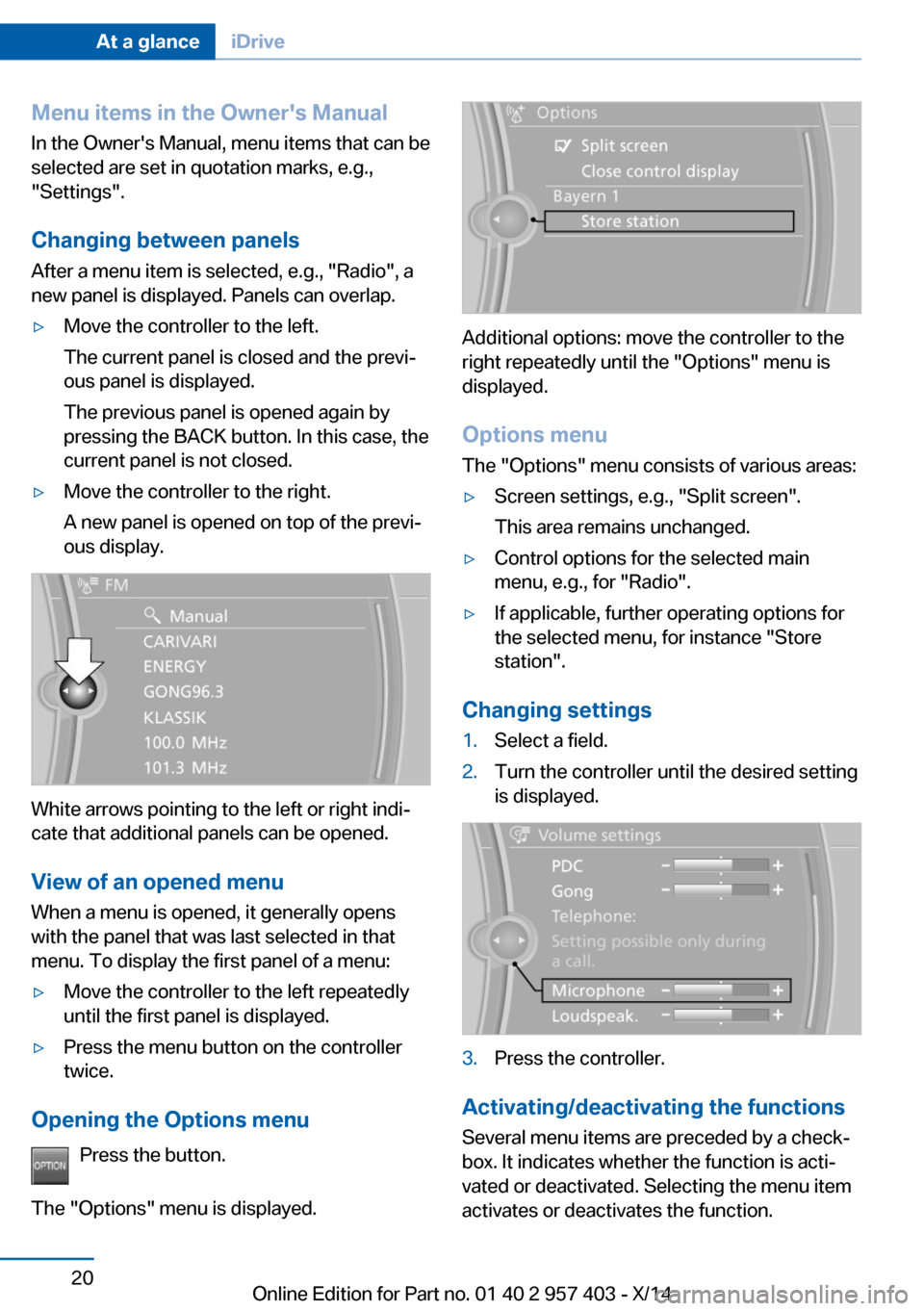
Menu items in the Owner's ManualIn the Owner's Manual, menu items that can be
selected are set in quotation marks, e.g.,
"Settings".
Changing between panels
After a menu item is selected, e.g., "Radio", a
new panel is displayed. Panels can overlap.▷Move the controller to the left.
The current panel is closed and the previ‐
ous panel is displayed.
The previous panel is opened again by
pressing the BACK button. In this case, the
current panel is not closed.▷Move the controller to the right.
A new panel is opened on top of the previ‐
ous display.
White arrows pointing to the left or right indi‐
cate that additional panels can be opened.
View of an opened menu
When a menu is opened, it generally opens
with the panel that was last selected in that
menu. To display the first panel of a menu:
▷Move the controller to the left repeatedly
until the first panel is displayed.▷Press the menu button on the controller
twice.
Opening the Options menu
Press the button.
The "Options" menu is displayed.
Additional options: move the controller to the
right repeatedly until the "Options" menu is
displayed.
Options menu The "Options" menu consists of various areas:
▷Screen settings, e.g., "Split screen".
This area remains unchanged.▷Control options for the selected main
menu, e.g., for "Radio".▷If applicable, further operating options for
the selected menu, for instance "Store
station".
Changing settings
1.Select a field.2.Turn the controller until the desired setting
is displayed.3.Press the controller.
Activating/deactivating the functions
Several menu items are preceded by a check‐
box. It indicates whether the function is acti‐
vated or deactivated. Selecting the menu item
activates or deactivates the function.
Seite 20At a glanceiDrive20
Online Edition for Part no. 01 40 2 957 403 - X/14
Page 25 of 289
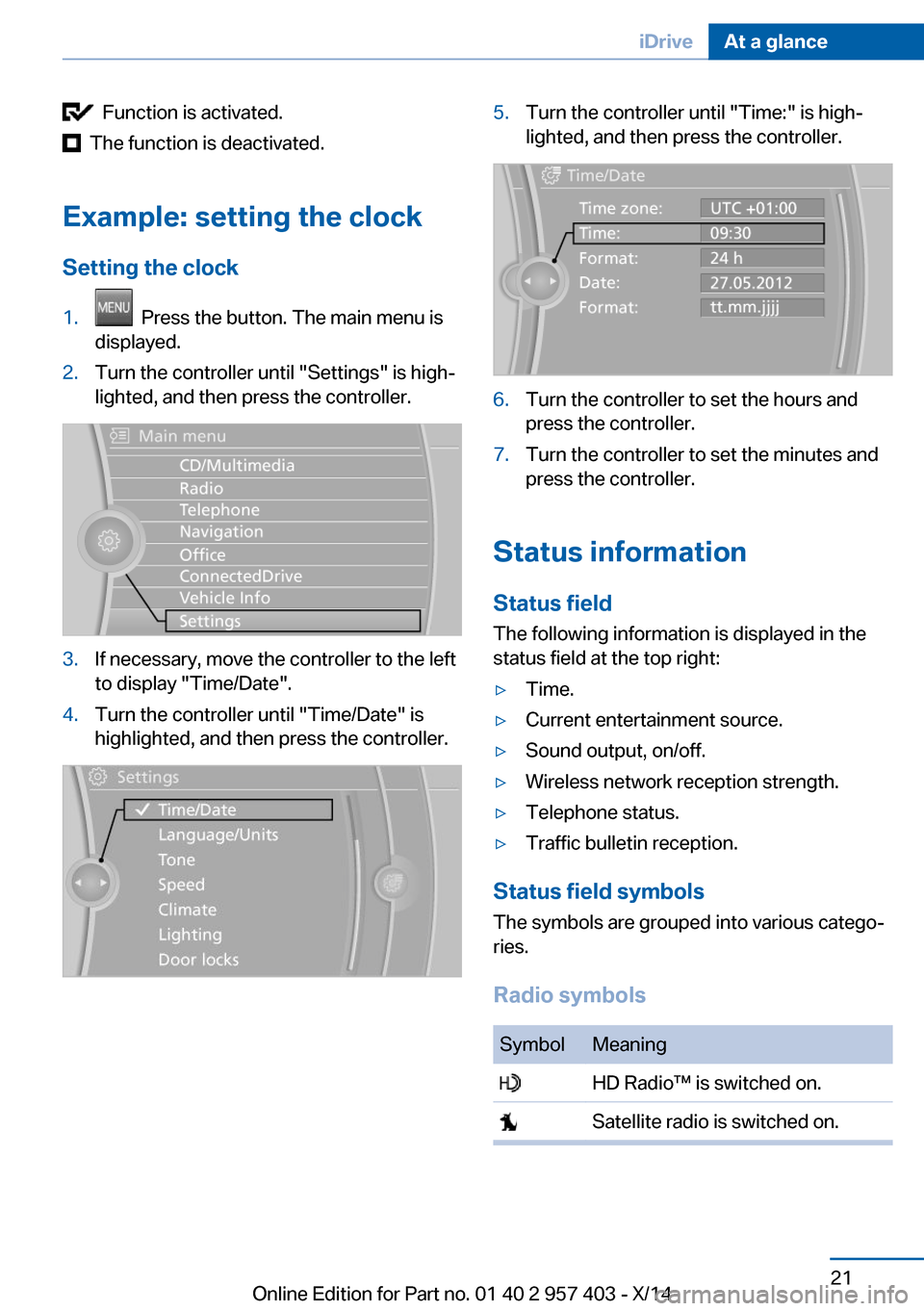
Function is activated.
The function is deactivated.
Example: setting the clock Setting the clock
1. Press the button. The main menu is
displayed.2.Turn the controller until "Settings" is high‐
lighted, and then press the controller.3.If necessary, move the controller to the left
to display "Time/Date".4.Turn the controller until "Time/Date" is
highlighted, and then press the controller.5.Turn the controller until "Time:" is high‐
lighted, and then press the controller.6.Turn the controller to set the hours and
press the controller.7.Turn the controller to set the minutes and
press the controller.
Status information
Status field The following information is displayed in the
status field at the top right:
▷Time.▷Current entertainment source.▷Sound output, on/off.▷Wireless network reception strength.▷Telephone status.▷Traffic bulletin reception.
Status field symbols
The symbols are grouped into various catego‐
ries.
Radio symbols
SymbolMeaning HD Radio™ is switched on. Satellite radio is switched on.Seite 21iDriveAt a glance21
Online Edition for Part no. 01 40 2 957 403 - X/14
Page 27 of 289
tions, phone numbers and entry points into the
menu.
The settings are stored for the remote control
currently in use.
Saving a function1.Highlight the function via the iDrive.2. Press the desired button for more
than two seconds.
Running a function
Press the button.
The function will run immediately. This
means, for example, that the number is dialed
when a phone number is selected.
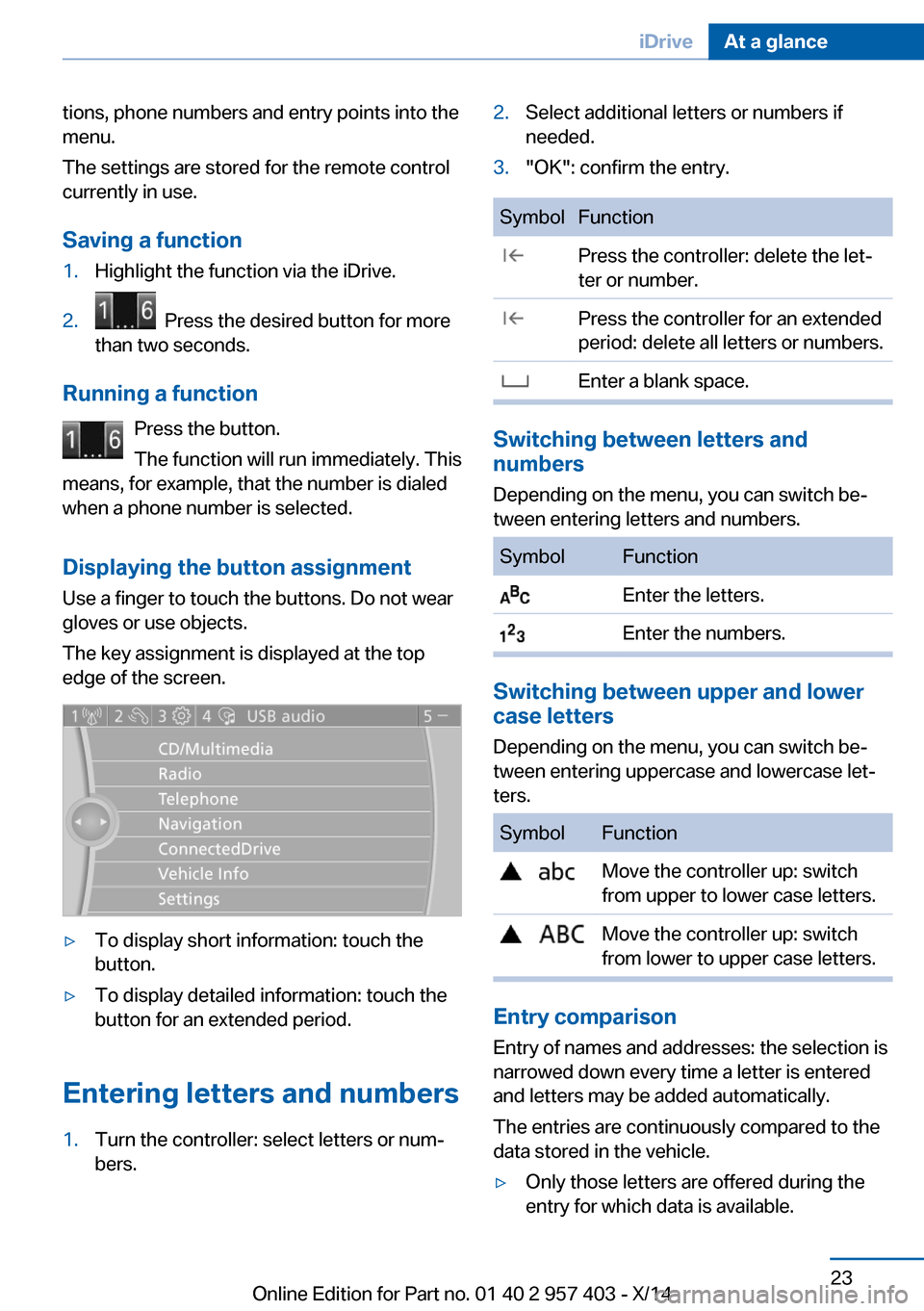
Displaying the button assignment Use a finger to touch the buttons. Do not wear
gloves or use objects.
The key assignment is displayed at the top
edge of the screen.
▷To display short information: touch the
button.▷To display detailed information: touch the
button for an extended period.
Entering letters and numbers
1.Turn the controller: select letters or num‐
bers.2.Select additional letters or numbers if
needed.3."OK": confirm the entry.SymbolFunction Press the controller: delete the let‐
ter or number. Press the controller for an extended
period: delete all letters or numbers. Enter a blank space.
Switching between letters and
numbers
Depending on the menu, you can switch be‐
tween entering letters and numbers.
SymbolFunction Enter the letters. Enter the numbers.
Switching between upper and lower
case letters
Depending on the menu, you can switch be‐
tween entering uppercase and lowercase let‐
ters.
SymbolFunction Move the controller up: switch
from upper to lower case letters. Move the controller up: switch
from lower to upper case letters.
Entry comparison
Entry of names and addresses: the selection is
narrowed down every time a letter is entered
and letters may be added automatically.
The entries are continuously compared to the
data stored in the vehicle.
▷Only those letters are offered during the
entry for which data is available.Seite 23iDriveAt a glance23
Online Edition for Part no. 01 40 2 957 403 - X/14
Page 31 of 289
▷The volume remains constant even if the
volume of other audio sources is changed.▷The volume is stored for the remote con‐
trol currently in use.
Notes on Emergency
Requests
Do not use the voice activation system to ini‐
tiate an Emergency Request. In stressful situa‐
tions, the voice and vocal pitch can change.
This can unnecessarily delay the establish‐
ment of a telephone connection.
Instead, use the SOS button, refer to
page 249, in the vicinity of the interior mirror.
Environmental conditions
▷Say the commands, numbers, and letters
smoothly and with normal volume, empha‐
sis, and speed.▷Always say commands in the language of
the voice activation system.▷Keep the doors, windows, and retractable
hardtop closed to prevent noise interfer‐
ence.▷Avoid making other noise in the vehicle
while speaking.Seite 27Voice activation systemAt a glance27
Online Edition for Part no. 01 40 2 957 403 - X/14
Page 36 of 289
▷Trunk lid.▷Fuel filler flap.▷Center armrest.
Operating from the outside
▷Via the remote control.▷Via the driver's door lock.▷In cars with Comfort Access, via the door
handles on the driver's and front passen‐
ger sides.
The following takes place simultaneously
when locking/unlocking the vehicle via the re‐
mote control:
▷The welcome lamps, interior lamps and
courtesy lamps are switched on and off.▷The alarm system is armed or disarmed,
refer to page 39.
Operating from the inside
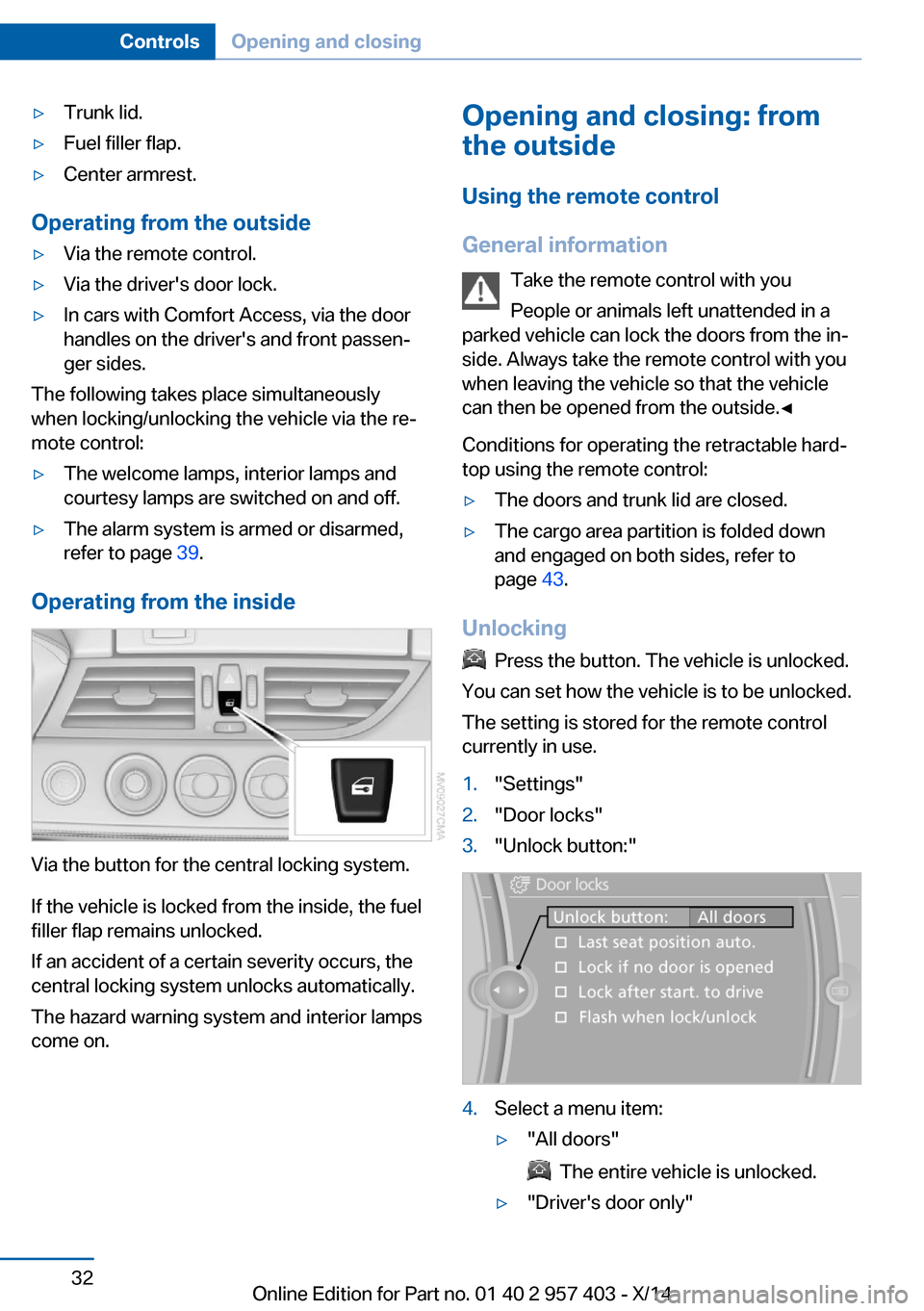
Via the button for the central locking system.
If the vehicle is locked from the inside, the fuel
filler flap remains unlocked.
If an accident of a certain severity occurs, the
central locking system unlocks automatically.
The hazard warning system and interior lamps
come on.
Opening and closing: from
the outside
Using the remote control
General information Take the remote control with you
People or animals left unattended in a
parked vehicle can lock the doors from the in‐
side. Always take the remote control with you
when leaving the vehicle so that the vehicle
can then be opened from the outside.◀
Conditions for operating the retractable hard‐
top using the remote control:▷The doors and trunk lid are closed.▷The cargo area partition is folded down
and engaged on both sides, refer to
page 43.
Unlocking
Press the button. The vehicle is unlocked.
You can set how the vehicle is to be unlocked.
The setting is stored for the remote control
currently in use.
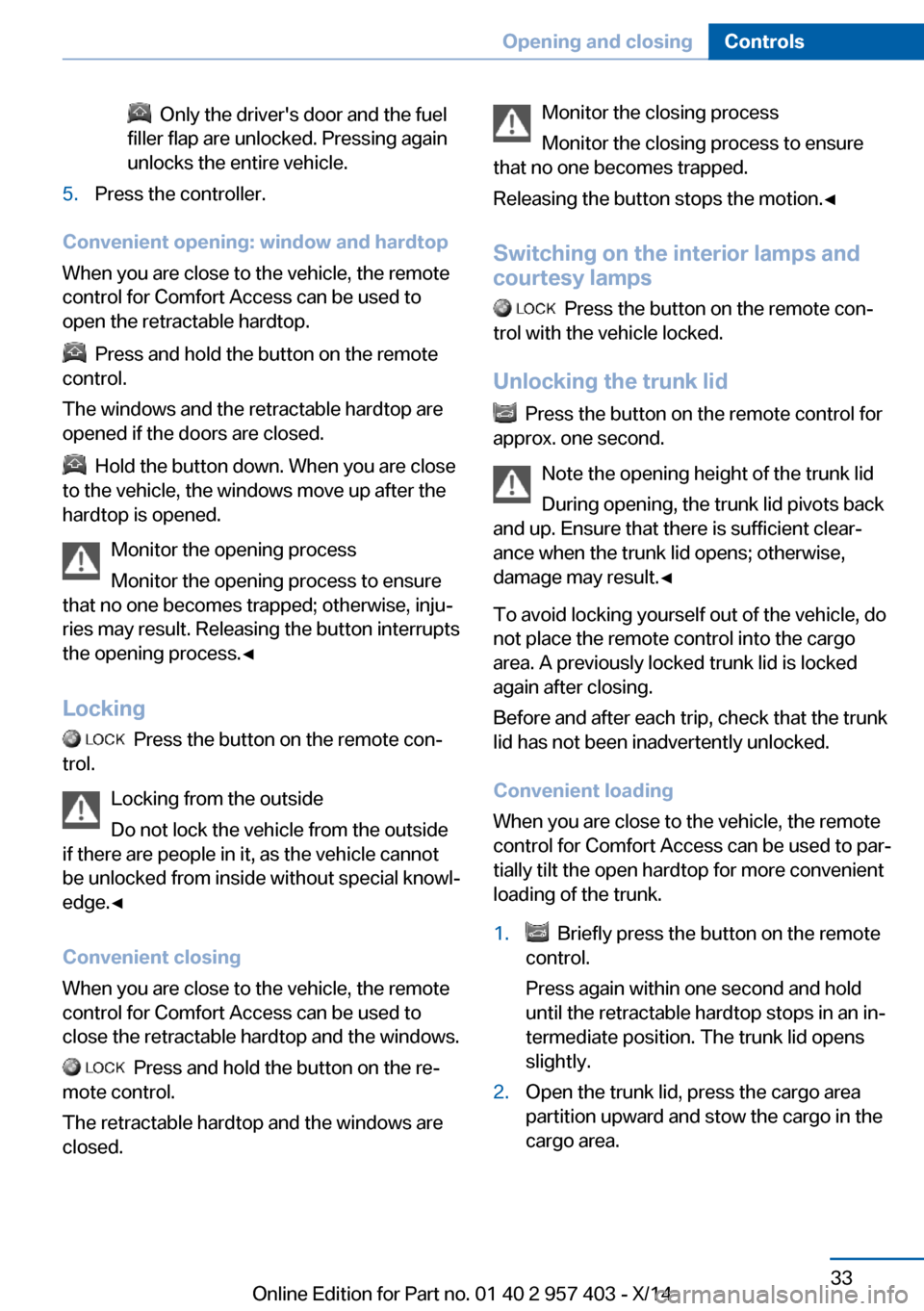
1."Settings"2."Door locks"3."Unlock button:"4.Select a menu item:▷"All doors"
The entire vehicle is unlocked.
▷"Driver's door only"Seite 32ControlsOpening and closing32
Online Edition for Part no. 01 40 2 957 403 - X/14
Page 37 of 289
Only the driver's door and the fuel
filler flap are unlocked. Pressing again
unlocks the entire vehicle.5.Press the controller.
Convenient opening: window and hardtop
When you are close to the vehicle, the remote
control for Comfort Access can be used to
open the retractable hardtop.
Press and hold the button on the remote
control.
The windows and the retractable hardtop are
opened if the doors are closed.
Hold the button down. When you are close
to the vehicle, the windows move up after the
hardtop is opened.
Monitor the opening process
Monitor the opening process to ensure
that no one becomes trapped; otherwise, inju‐
ries may result. Releasing the button interrupts
the opening process.◀
Locking
Press the button on the remote con‐
trol.
Locking from the outside
Do not lock the vehicle from the outside
if there are people in it, as the vehicle cannot
be unlocked from inside without special knowl‐
edge.◀
Convenient closing
When you are close to the vehicle, the remote
control for Comfort Access can be used to
close the retractable hardtop and the windows.
Press and hold the button on the re‐
mote control.
The retractable hardtop and the windows are
closed.
Monitor the closing process
Monitor the closing process to ensure
that no one becomes trapped.
Releasing the button stops the motion.◀
Switching on the interior lamps and courtesy lamps
Press the button on the remote con‐
trol with the vehicle locked.
Unlocking the trunk lid
Press the button on the remote control for
approx. one second.
Note the opening height of the trunk lid
During opening, the trunk lid pivots back
and up. Ensure that there is sufficient clear‐
ance when the trunk lid opens; otherwise,
damage may result.◀
To avoid locking yourself out of the vehicle, do
not place the remote control into the cargo
area. A previously locked trunk lid is locked
again after closing.
Before and after each trip, check that the trunk
lid has not been inadvertently unlocked.
Convenient loading
When you are close to the vehicle, the remote
control for Comfort Access can be used to par‐
tially tilt the open hardtop for more convenient
loading of the trunk.
1. Briefly press the button on the remote
control.
Press again within one second and hold
until the retractable hardtop stops in an in‐
termediate position. The trunk lid opens
slightly.2.Open the trunk lid, press the cargo area
partition upward and stow the cargo in the
cargo area.Seite 33Opening and closingControls33
Online Edition for Part no. 01 40 2 957 403 - X/14