navigation system BMW Z4 SDRIVE30I 2009 Service Manual
[x] Cancel search | Manufacturer: BMW, Model Year: 2009, Model line: Z4 SDRIVE30I, Model: BMW Z4 SDRIVE30I 2009Pages: 248, PDF Size: 7.63 MB
Page 147 of 248
Navigation
Entertainment
Driving tips
145Reference
At a glance
Controls
Communications
Mobility
Selecting a channel
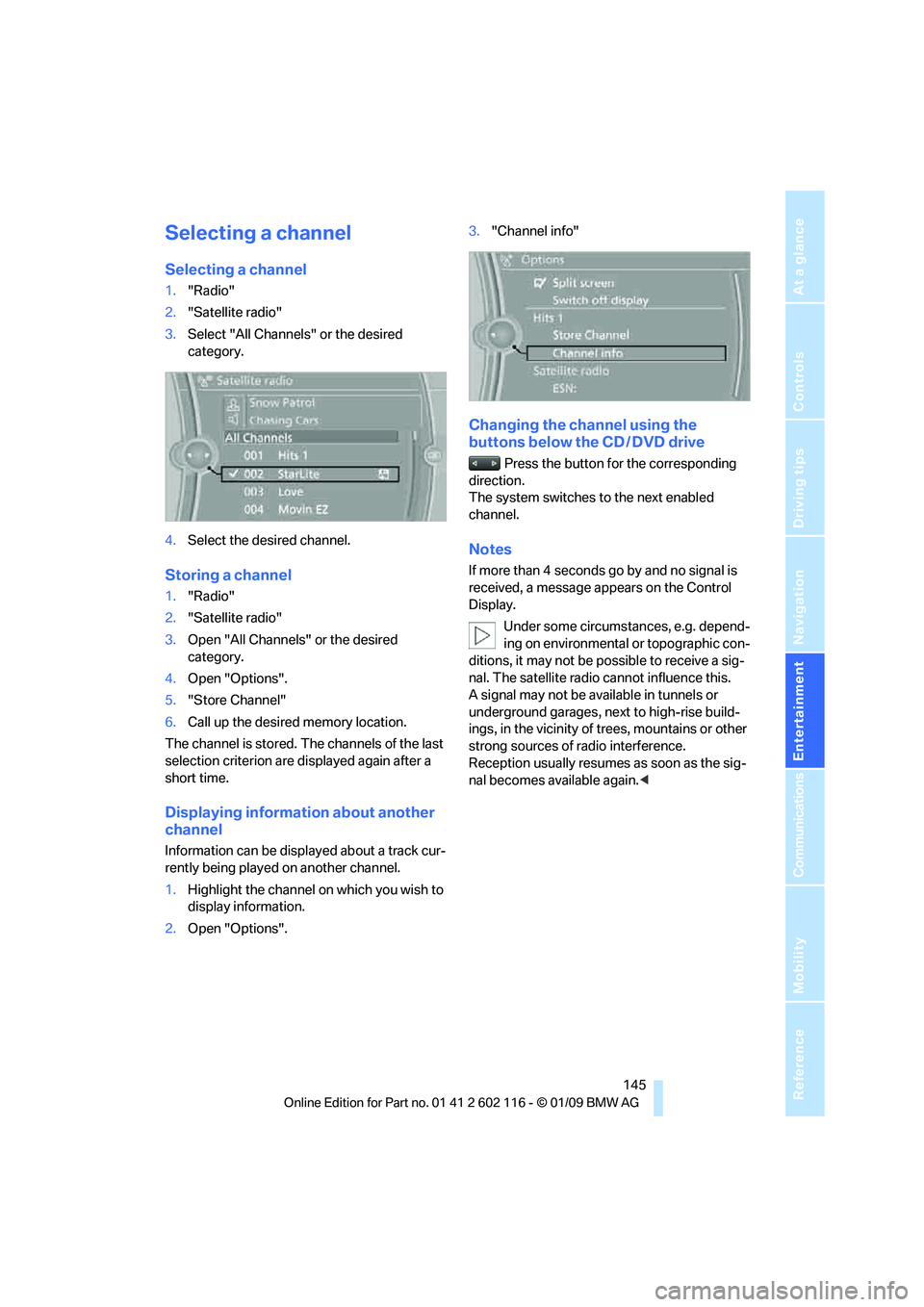
Selecting a channel
1."Radio"
2. "Satellite radio"
3. Select "All Channels" or the desired
category.
4. Select the desired channel.
Storing a channel
1."Radio"
2. "Satellite radio"
3. Open "All Channels" or the desired
category.
4. Open "Options".
5. "Store Channel"
6. Call up the desired memory location.
The channel is stored. The channels of the last
selection criterion are displayed again after a
short time.
Displaying information about another
channel
Information can be displayed about a track cur-
rently being played on another channel.
1. Highlight the channel on which you wish to
display information.
2. Open "Options". 3.
"Channel info"
Changing the channel using the
buttons below the CD / DVD drive
Press the button for the corresponding
direction.
The system switches to the next enabled
channel.
Notes
If more than 4 seconds go by and no signal is
received, a message appears on the Control
Display.
Under some circumstances, e.g. depend-
ing on environmental or topographic con-
ditions, it may not be possible to receive a sig-
nal. The satellite radio cannot influence this.
A signal may not be av ailable in tunnels or
underground garages, ne xt to high-rise build-
ings, in the vicinity of trees, mountains or other
strong sources of radio interference.
Reception usually resumes as soon as the sig-
nal becomes available again. <
Page 153 of 248
Navigation
Entertainment
Driving tips
151Reference
At a glance
Controls
Communications
Mobility
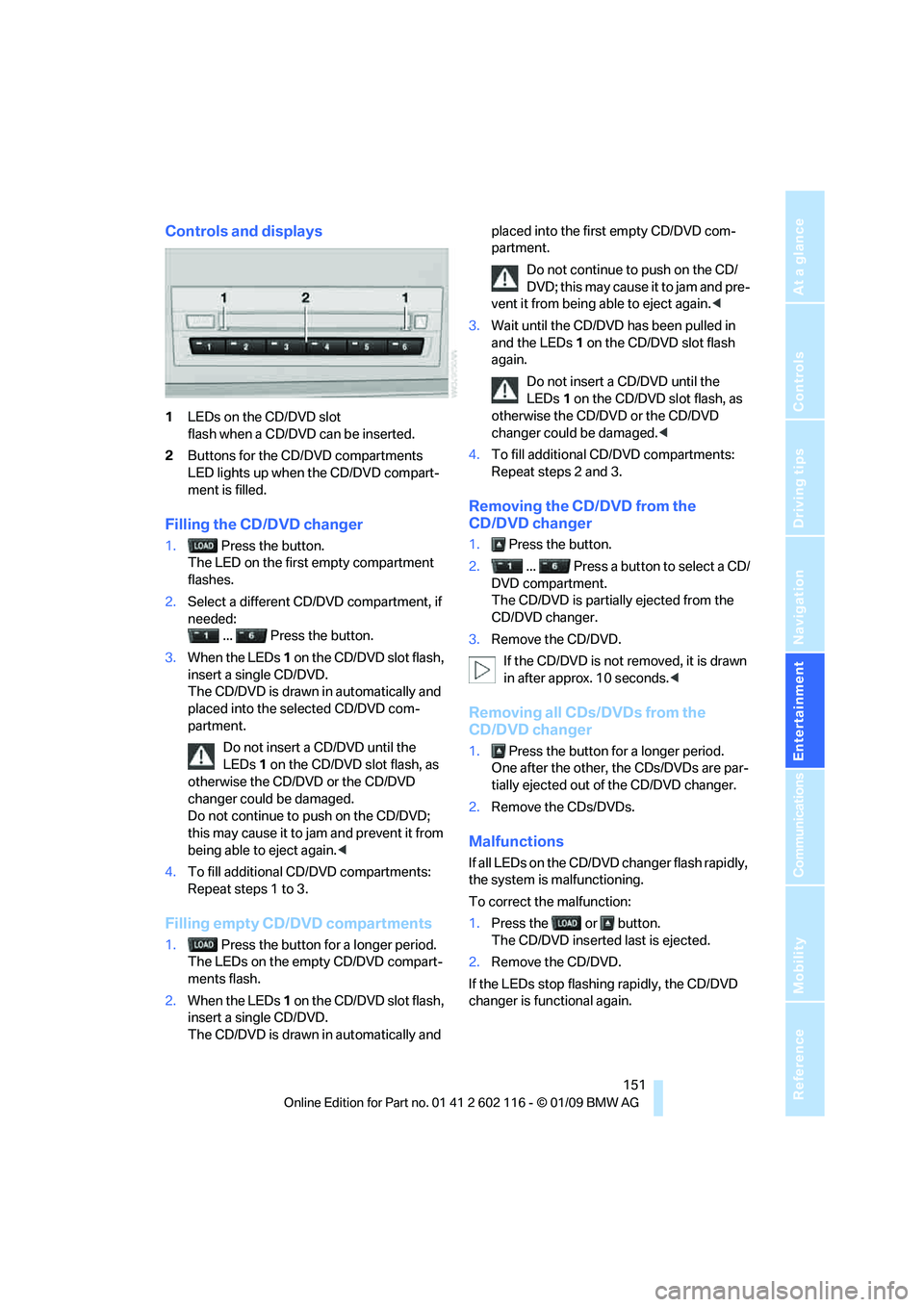
Controls and displays
1LEDs on the CD/DVD slot
flash when a CD/DVD can be inserted.
2 Buttons for the CD/DVD compartments
LED lights up when the CD/DVD compart-
ment is filled.
Filling the CD/DVD changer
1. Press the button.
The LED on the first empty compartment
flashes.
2. Select a different CD/DVD compartment, if
needed:
... Press the button.
3. When the LEDs 1 on the CD/DVD slot flash,
insert a single CD/DVD.
The CD/DVD is drawn in automatically and
placed into the selected CD/DVD com-
partment.
Do not insert a CD/DVD until the
LEDs 1 on the CD/DVD slot flash, as
otherwise the CD/DVD or the CD/DVD
changer could be damaged.
Do not continue to push on the CD/DVD;
this may cause it to jam and prevent it from
being able to eject again. <
4. To fill additional CD/DVD compartments:
Repeat steps 1 to 3.
Filling empty CD/DVD compartments
1. Press the button for a longer period.
The LEDs on the empty CD/DVD compart-
ments flash.
2. When the LEDs 1 on the CD/DVD slot flash,
insert a single CD/DVD.
The CD/DVD is drawn in automatically and placed into the first empty CD/DVD com-
partment.
Do not continue to push on the CD/
DVD; this may cause it to jam and pre-
vent it from being able to eject again. <
3. Wait until the CD/DVD has been pulled in
and the LEDs 1 on the CD/DVD slot flash
again.
Do not insert a CD/DVD until the
LEDs 1 on the CD/DVD slot flash, as
otherwise the CD/DVD or the CD/DVD
changer could be damaged.<
4. To fill additional CD/DVD compartments:
Repeat steps 2 and 3.
Removing the CD/DVD from the
CD/DVD changer
1. Press the button.
2. ... Press a button to select a CD/
DVD compartment.
The CD/DVD is partia lly ejected from the
CD/DVD changer.
3. Remove the CD/DVD.
If the CD/DVD is not removed, it is drawn
in after approx. 10 seconds. <
Removing all CDs/DVDs from the
CD/DVD changer
1. Press the button for a longer period.
One after the other, the CDs/DVDs are par-
tially ejected out of the CD/DVD changer.
2. Remove the CDs/DVDs.
Malfunctions
If all LEDs on the CD/DVD changer flash rapidly,
the system is malfunctioning.
To correct the malfunction:
1.Press the or button.
The CD/DVD inserted last is ejected.
2. Remove the CD/DVD.
If the LEDs stop flashing rapidly, the CD/DVD
changer is functional again.
Page 169 of 248
167
Entertainment
Reference
At a glance
Controls
Driving tips
Communications
Navigation
Mobility
can be used in combin ation with the mobile
phone, e.g. a laptop. <
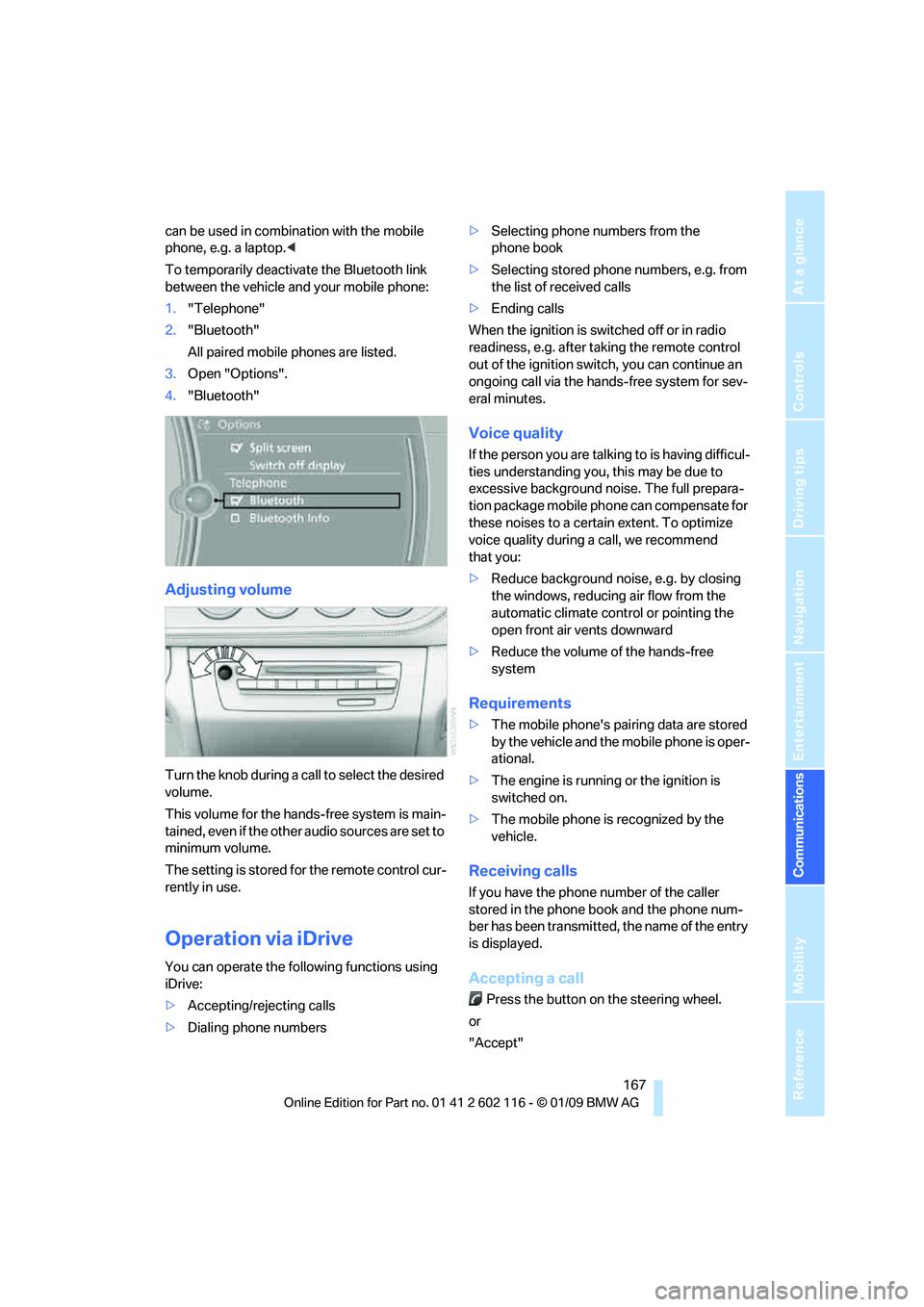
To temporarily deactiva te the Bluetooth link
between the vehicle and your mobile phone:
1. "Telephone"
2. "Bluetooth"
All paired mobile phones are listed.
3. Open "Options".
4. "Bluetooth"
Adjusting volume
Turn the knob during a call to select the desired
volume.
This volume for the hands-free system is main-
tained, even if the other audio sources are set to
minimum volume.
The setting is stored for the remote control cur-
rently in use.
Operation via iDrive
You can operate the following functions using
iDrive:
> Accepting/rejecting calls
> Dialing phone numbers >
Selecting phone numbers from the
phone book
> Selecting stored phone numbers, e.g. from
the list of received calls
> Ending calls
When the ignition is switched off or in radio
readiness, e.g. after ta king the remote control
out of the ignition switch, you can continue an
ongoing call via the hands-free system for sev-
eral minutes.
Voice quality
If the person you are talk ing to is having difficul-
ties understanding you, this may be due to
excessive background noise. The full prepara-
tion package mobile phone can compensate for
these noises to a certain extent. To optimize
voice quality during a call, we recommend
that you:
> Reduce background noise, e.g. by closing
the windows, reducing air flow from the
automatic climate cont rol or pointing the
open front air vents downward
> Reduce the volume of the hands-free
system
Requirements
>The mobile phone's pair ing data are stored
by the vehicle and the mobile phone is oper-
ational.
> The engine is running or the ignition is
switched on.
> The mobile phone is recognized by the
vehicle.
Receiving calls
If you have the phone number of the caller
stored in the phone b ook and the phone num-
ber has been transmitted, the name of the entry
is displayed.
Accepting a call
Press the button on the steering wheel.
or
"Accept"
Page 173 of 248
171
Entertainment
Reference
At a glance
Controls
Driving tips
Communications
Navigation
Mobility
Displaying messages
1. "Telephone"
2. "Messages"
A symbol identifies the type of message.
3. Select the desired message.
SMS
Calling the sender of an SMS:
1. Select the desired message.
2. Open "Options".
3. "Call sender"
Saving the sender in the contacts:
1. Select the desired message.
2. Open "Options".
3. "Store as new contact"or"Add to existing
contact"
My Info
Replying:
Send a predefined reply.
1. Select the desired message.
2. Open "Options".
3. "Answer"
Starting destination guidance:
1. Select the message that contains the
desired destination.
2. Open "Options".
3. "Start guidance"or"Insert as dest. in the
trip"
Dialing the number in the message:
1. Select the message that contains the
desired number.
2. Open "Options".
3. "Call"
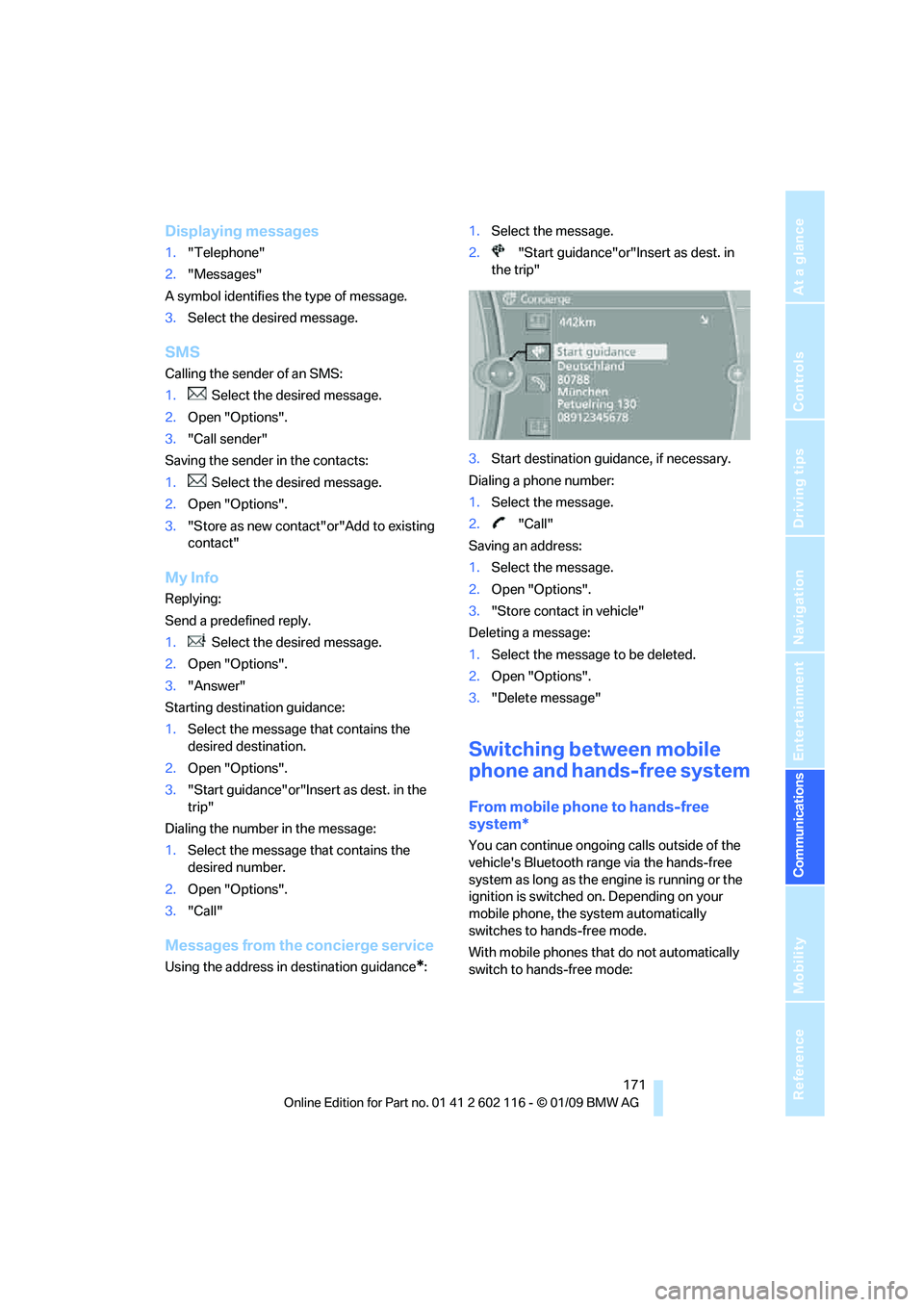
Messages from the concierge service
Using the address in destination guidance*:1.
Select the message.
2. "Start guidance"or"Insert as dest. in
the trip"
3. Start destination guidance, if necessary.
Dialing a phone number:
1. Select the message.
2. "Call"
Saving an address:
1. Select the message.
2. Open "Options".
3. "Store contact in vehicle"
Deleting a message:
1. Select the message to be deleted.
2. Open "Options".
3. "Delete message"
Switching between mobile
phone and hands-free system
From mobile phone to hands-free
system*
You can continue ongoing calls outside of the
vehicle's Bluetooth range via the hands-free
system as long as the engine is running or the
ignition is switched on. Depending on your
mobile phone, the sy stem automatically
switches to hands-free mode.
With mobile phones that do not automatically
switch to hands-free mode:
Page 175 of 248
173
Entertainment
Reference
At a glance
Controls
Driving tips
Communications
Navigation
Mobility
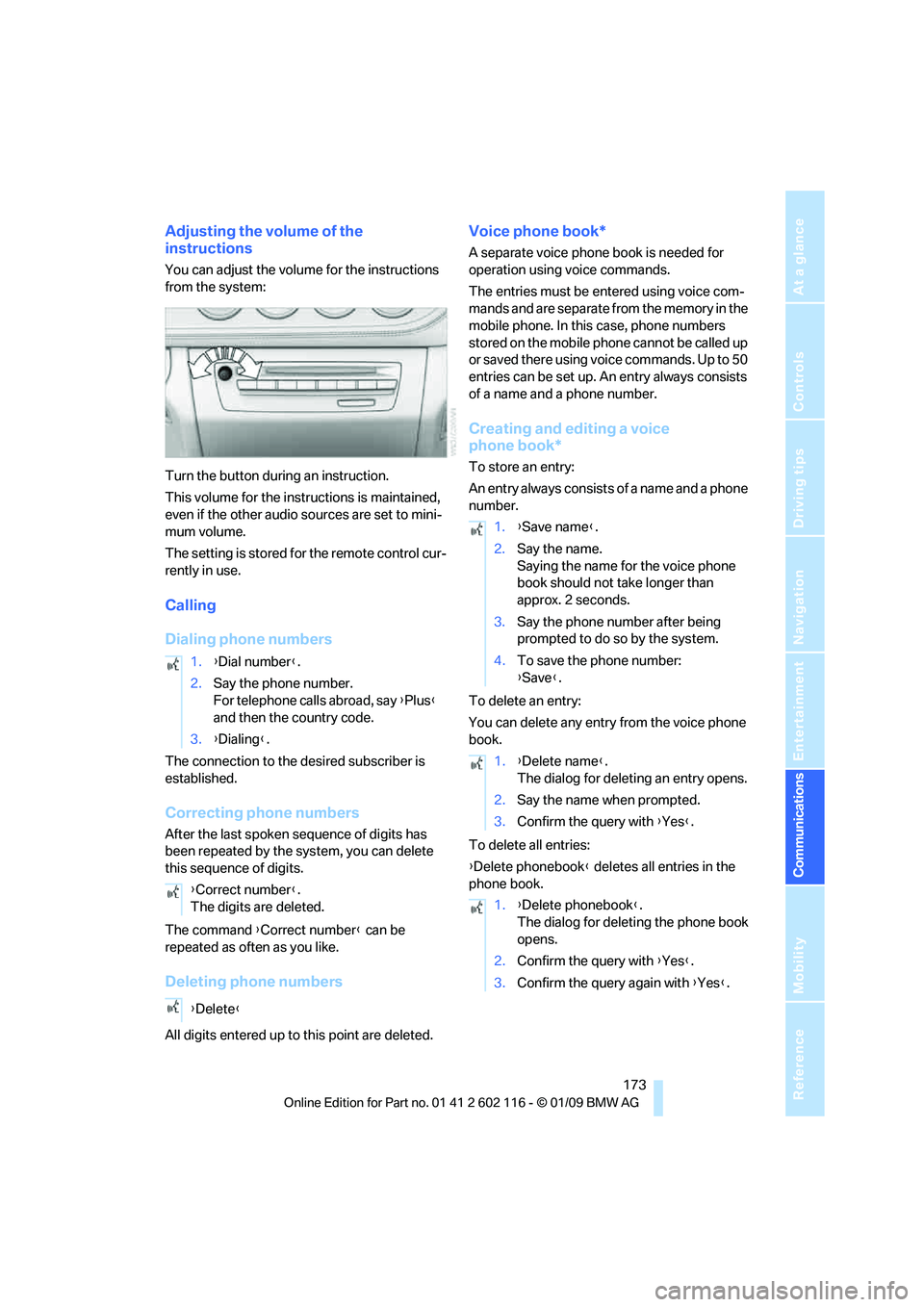
Adjusting the volume of the
instructions
You can adjust the volume for the instructions
from the system:
Turn the button during an instruction.
This volume for the instructions is maintained,
even if the other audio sources are set to mini-
mum volume.
The setting is stored for the remote control cur-
rently in use.
Calling
Dialing phone numbers
The connection to the desired subscriber is
established.
Correcting phone numbers
After the last spoken sequence of digits has
been repeated by the system, you can delete
this sequence of digits.
The command {Correct number } can be
repeated as often as you like.
Deleting phone numbers
All digits entered up to this point are deleted.
Voice phone book*
A separate voice phone book is needed for
operation using voice commands.
The entries must be entered using voice com-
mands and are separate from the memory in the
mobile phone. In this case, phone numbers
stored on the mobile phone cannot be called up
or saved there using voice commands. Up to 50
entries can be set up. An entry always consists
of a name and a phone number.
Creating and editing a voice
phone book*
To store an entry:
An entry always consists of a name and a phone
number.
To delete an entry:
You can delete any entr y from the voice phone
book.
To delete all entries:
{ Delete phonebook } deletes all entries in the
phone book.
1.
{Dial number }.
2. Say the phone number.
For telephone calls abroad, say {Plus }
and then the country code.
3. {Dialing} .
{ Correct number }.
The digits are deleted.
{ Delete }
1.{Save name }.
2. Say the name.
Saying the name for the voice phone
book should not take longer than
approx. 2 seconds.
3. Say the phone number after being
prompted to do so by the system.
4. To save the phone number:
{Save }.
1. {Delete name }.
The dialog for deleting an entry opens.
2. Say the name when prompted.
3. Confirm the query with {Yes }.
1. {Delete phonebook }.
The dialog for deleting the phone book
opens.
2. Confirm the query with {Yes }.
3. Confirm the query again with {Yes }.
Page 178 of 248
Contacts
176
Contacts
You can create and edit contacts. The contacts
of the mobile phone
* are also displayed. The
addresses can be used as destinations for nav-
igation and the phone numbers can be dialed.
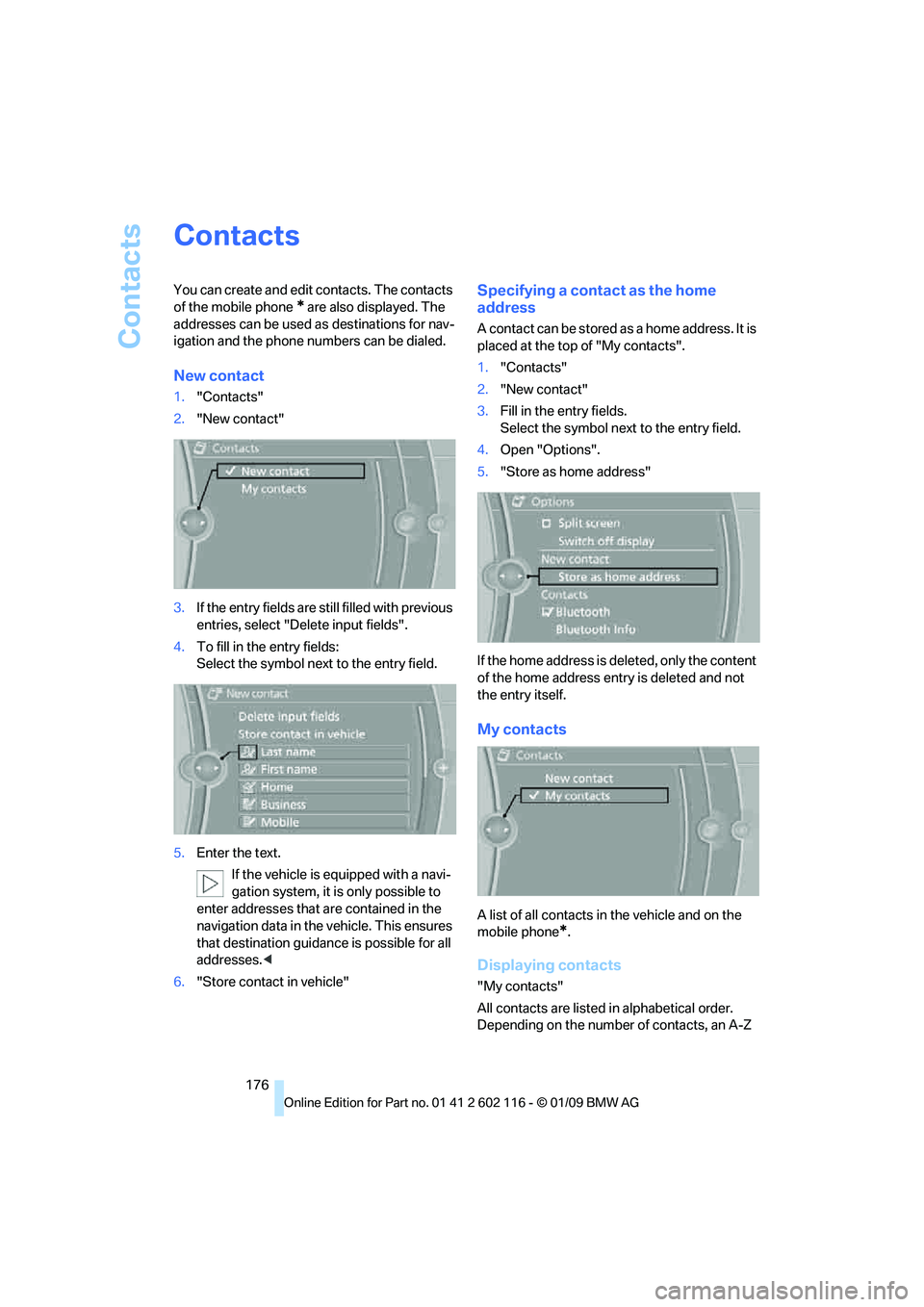
New contact
1. "Contacts"
2. "New contact"
3. If the entry fields are still filled with previous
entries, select "Delete input fields".
4. To fill in the entry fields:
Select the symbol next to the entry field.
5. Enter the text.
If the vehicle is equipped with a navi-
gation system, it is only possible to
enter addresses that are contained in the
navigation data in the vehicle. This ensures
that destination guidance is possible for all
addresses. <
6. "Store contact in vehicle"
Specifying a contact as the home
address
A contact can be stored as a home address. It is
placed at the top of "My contacts".
1."Contacts"
2. "New contact"
3. Fill in the entry fields.
Select the symbol next to the entry field.
4. Open "Options".
5. "Store as home address"
If the home address is deleted, only the content
of the home address entry is deleted and not
the entry itself.
My contacts
A list of all contacts in the vehicle and on the
mobile phone
*.
Displaying contacts
"My contacts"
All contacts are listed in alphabetical order.
Depending on the number of contacts, an A-Z
Page 181 of 248
179
Entertainment
Reference
At a glance
Controls
Driving tips
Communications
Navigation
Mobility
TeleService*
TeleService supports commu nication with your
BMW center.
> Data on the vehicle's service requirements
can be sent directly to the BMW center. In
this way, the BMW center can plan its work
in advance. This shortens the duration of
the service appointment.
> In the event of a breakdown, data on the
vehicle's condition can be sent directly to
Roadside Assistance.
> The offer varies by country.
> Connection costs may ensue.
> Services may be restricted abroad.
Requirements
>BMW Assist is activated.
> Wireless reception is available.
> The engine is running.
Concierge service*
When you call the BMW Assist Concierge, you
can obtain information about, for example, res-
taurants, emergency pharmacy services, gas
stations or hotels, as well as receive the corre-
sponding telephone numbers and addresses.
You can then dial a phone number directly or
use an address for destination guidance
*.
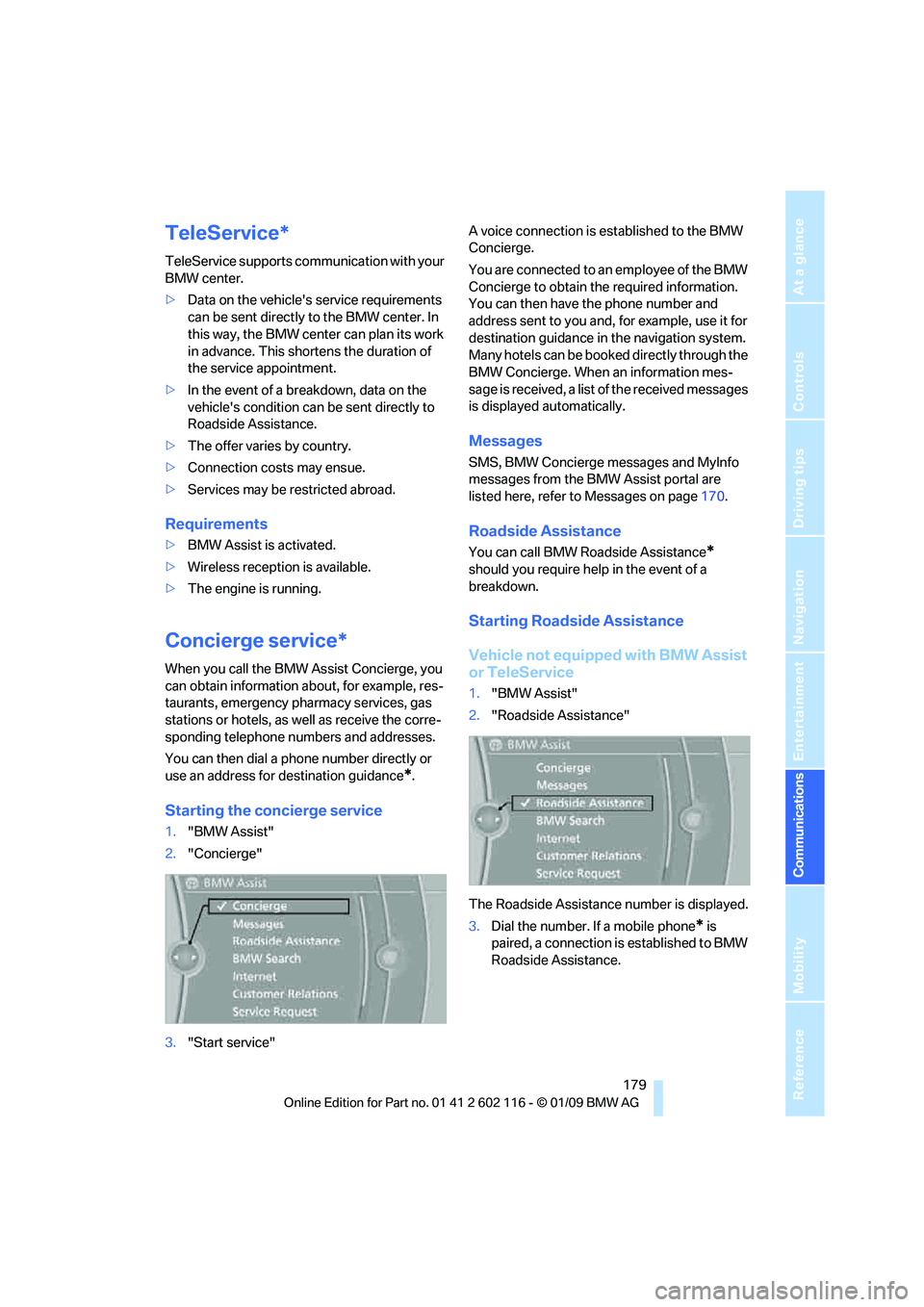
Starting the concierge service
1."BMW Assist"
2. "Concierge"
3. "Start service" A voice connection is established to the BMW
Concierge.
You are connected to an employee of the BMW
Concierge to obtain the required information.
You can then have the phone number and
address sent to you and, for example, use it for
destination guidance in
the navigation system.
Many hotels can be book ed directly through the
BMW Concierge. When an information mes-
sage is received, a list of the received messages
is displayed automatically.
Messages
SMS, BMW Concierge messages and MyInfo
messages from the BMW Assist portal are
listed here, refer to Messages on page 170.
Roadside Assistance
You can call BMW Roadside Assistance*
should you require help in the event of a
breakdown.
Starting Roadside Assistance
Vehicle not equipped with BMW Assist
or TeleService
1. "BMW Assist"
2. "Roadside Assistance"
The Roadside Assistance number is displayed.
3. Dial the number. If a mobile phone
* is
paired, a connection is established to BMW
Roadside Assistance.
Page 191 of 248
Mobility
189Reference
At a glance
Controls
Driving tips
Communications
Navigation
Entertainment
Fuel specifications
Do not fill the tank with leaded fuel as this
would cause permanent damage to the
catalytic converter.
Do not fill the tank with E85, i.e. fuel containing
85 % ethanol, nor with Fl exFuel. Otherwise, the
engine and fuel suppl y system will be dam-
aged. <
Required fuel
Super Premium Gasoline/AKI 91
This gasoline is hi ghly recommended.
However, you may also use gasoline with less
AKI. The minimum AKI Rating is:
> Z4 sDrive30i: 87
> Z4 sDrive35i: 89
If you use gasoline with this minimum AKI Rat-
ing, the engine may produce knocking sounds
when starting at high outside temperatures.
This has no effect on the engine life.
Do not use any gasoline below the speci-
fied minimum fuel grade. Otherwise the
engine could be damaged. <
Use high-quality brands
Field experience has indicated significant dif-
ferences in fuel quality: volatility, composition,
additives, etc., among ga solines offered for sale
in the United States and Canada. Fuels contain-
ing up to and including 10 % ethanol or other
oxygenates with up to 2.8 % oxygen by weight,
that is, 15 % MTBE or 3 % methanol plus an
equivalent amount of co-solvent, will not void
the applicable warranti es with respect to
defects in materials or workmanship.
The use of poor-quality fuels may result in
driveability, starting and stalling problems
especially under certai n environmental condi-
tions such as high ambient temperature and
high altitude.
Should you encounter driveability problems
which you suspect could be related to the fuel
you are using, we recommend that you respond
by switching to a recognized high-quality brand such as gasoline
that is advertised as Top Tier
Detergent Gasoline.
Failure to comply with these recommendations
may also result in un scheduled maintenance. <
Page 197 of 248
Mobility
195Reference
At a glance
Controls
Driving tips
Communications
Navigation
Entertainment
Tire age
For various reasons, such as the development
of brittleness, BMW recommends tire replace-
ment after no more than 6 years, regardless of
the actual wear of the tires.
The manufacturing date of tires is contained in
the tire coding:
DOT ... 0709 means that the tire was manufac-
tured in week 7 of 2009.
Run-Flat Tires
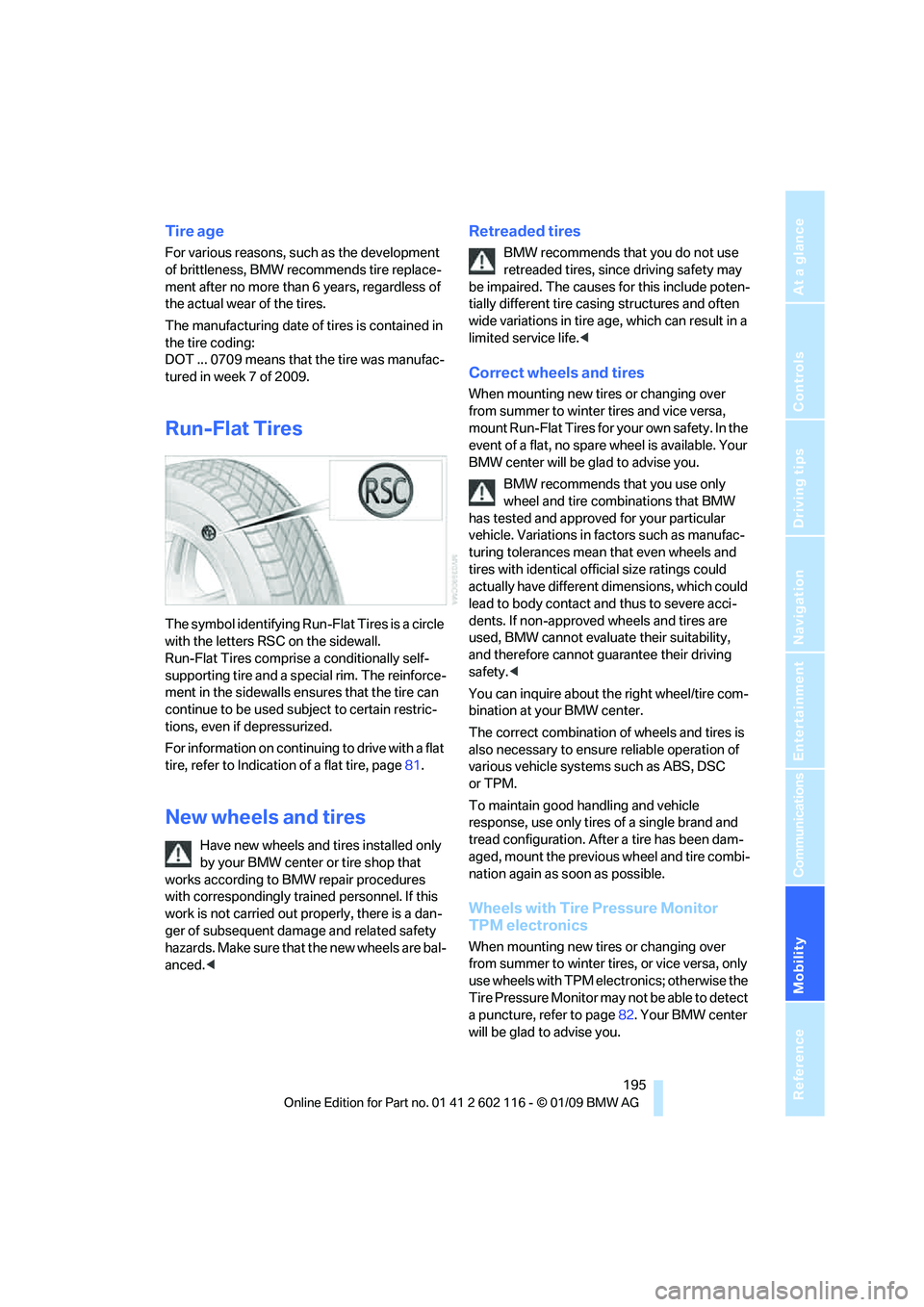
The symbol identifying Run-Flat Tires is a circle
with the letters RSC on the sidewall.
Run-Flat Tires comprise a conditionally self-
supporting tire and a special rim. The reinforce-
ment in the sidewalls ensures that the tire can
continue to be used su bject to certain restric-
tions, even if depressurized.
For information on continuing to drive with a flat
tire, refer to Indication of a flat tire, page 81.
New wheels and tires
Have new wheels and tires installed only
by your BMW center or tire shop that
works according to BMW repair procedures
with correspondingly trai ned personnel. If this
work is not carried out properly, there is a dan-
ger of subsequent dama ge and related safety
hazards. Make sure that the new wheels are bal-
anced. <
Retreaded tires
BMW recommends that you do not use
retreaded tires, since driving safety may
be impaired. The causes for this include poten-
tially different tire casi ng structures and often
wide variations in tire ag e, which can result in a
limited service life. <
Correct wheels and tires
When mounting new tires or changing over
from summer to winter tires and vice versa,
mount Run-Flat Tires for your own safety. In the
event of a flat, no spare wheel is available. Your
BMW center will be glad to advise you.
BMW recommends that you use only
wheel and tire combinations that BMW
has tested and approved for your particular
vehicle. Variations in factors such as manufac-
turing tolerances mean that even wheels and
tires with identical official size ratings could
actually have different dimensions, which could
lead to body contact and thus to severe acci-
dents. If non-approved wheels and tires are
used, BMW cannot evaluate their suitability,
and therefore cannot guarantee their driving
safety. <
You can inquire about the right wheel/tire com-
bination at your BMW center.
The correct combination of wheels and tires is
also necessary to ensure reliable operation of
various vehicle systems such as ABS, DSC
or TPM.
To maintain good handling and vehicle
response, use only tires of a single brand and
tread configuration. After a tire has been dam-
aged, mount the previous wheel and tire combi-
nation again as soon as possible.
Wheels with Tire Pressure Monitor
TPM electronics
When mounting new tires or changing over
from summer to winter tires, or vice versa, only
use wheels with TPM electronics; otherwise the
Tire Pressure Monitor may not be able to detect
a puncture, refer to page 82. Your BMW center
will be glad to advise you.
Page 201 of 248
Mobility
199Reference
At a glance
Controls
Driving tips
Communications
Navigation
Entertainment
2.Press button 2 in the turn in dicator lever.
The oil level is checke d and the reading dis-
played.
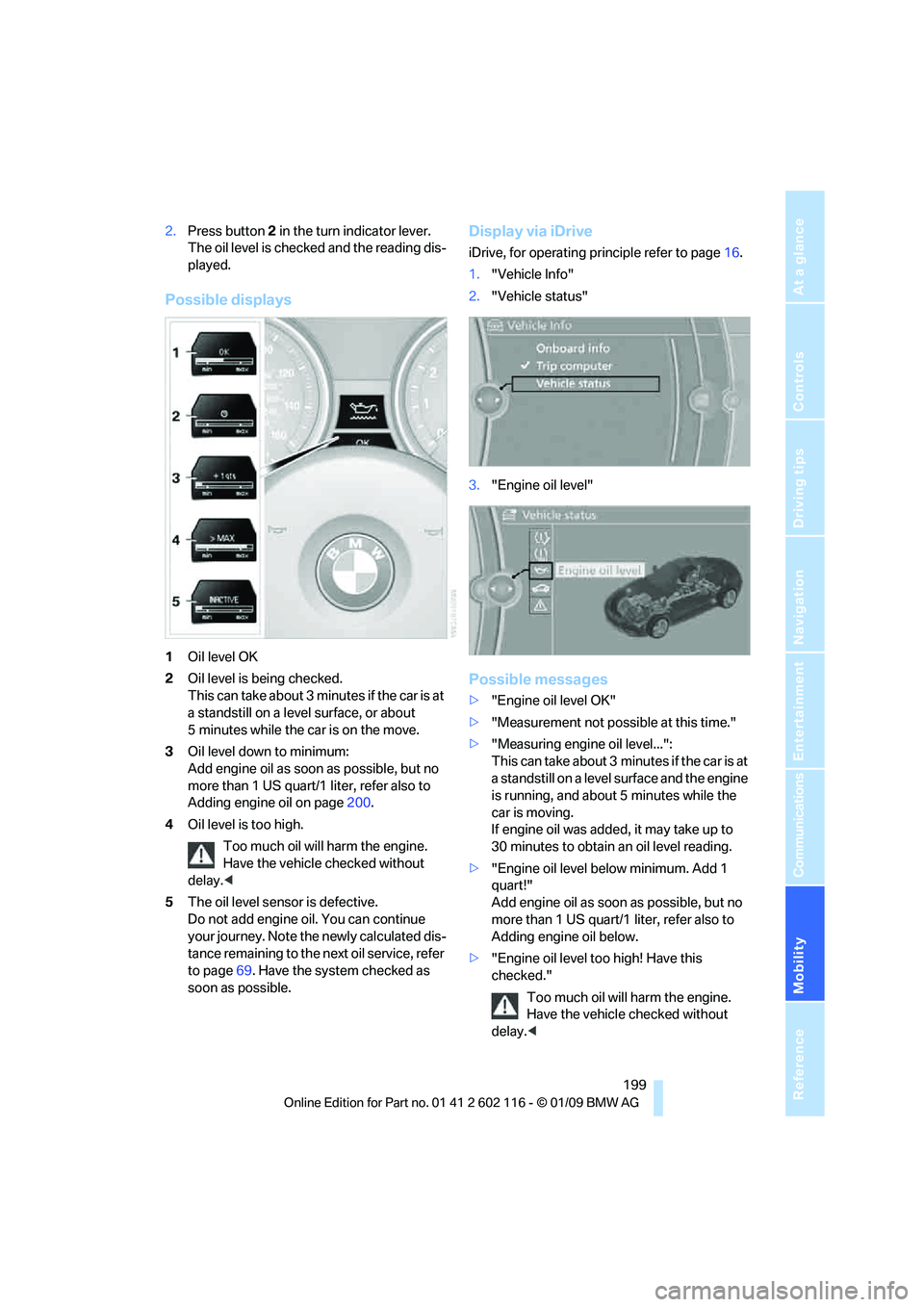
Possible displays
1 Oil level OK
2 Oil level is being checked.
This can take about 3 minutes if the car is at
a standstill on a level surface, or about
5 minutes while the car is on the move.
3 Oil level down to minimum:
Add engine oil as soon as possible, but no
more than 1 US quart/1 liter, refer also to
Adding engine oil on page 200.
4 Oil level is too high.
Too much oil will harm the engine.
Have the vehicle checked without
delay. <
5 The oil level sensor is defective.
Do not add engine o il. You can continue
your journey. Note the newly calculated dis-
tance remaining to the next oil service, refer
to page 69. Have the system checked as
soon as possible.
Display via iDrive
iDrive, for operating pr inciple refer to page16.
1. "Vehicle Info"
2. "Vehicle status"
3. "Engine oil level"
Possible messages
>"Engine oil level OK"
> "Measurement not possi ble at this time."
> "Measuring engine oil level...":
This can take about 3 minutes if the car is at
a standstill on a level surface and the engine
is running, and about 5 minutes while the
car is moving.
If engine oil was added, it may take up to
30 minutes to obtain an oil level reading.
> "Engine oil level below minimum. Add 1
quart!"
Add engine oil as soon as possible, but no
more than 1 US quart/1 liter, refer also to
Adding engine oil below.
> "Engine oil level too high! Have this
checked."
Too much oil will harm the engine.
Have the vehicle checked without
delay. <