display BMW Z4 SDRIVE30I 2010 User Guide
[x] Cancel search | Manufacturer: BMW, Model Year: 2010, Model line: Z4 SDRIVE30I, Model: BMW Z4 SDRIVE30I 2010Pages: 254, PDF Size: 8.04 MB
Page 21 of 254
At a glance
19Reference
Controls
Driving tips
Communications
Navigation
Entertainment
Mobility
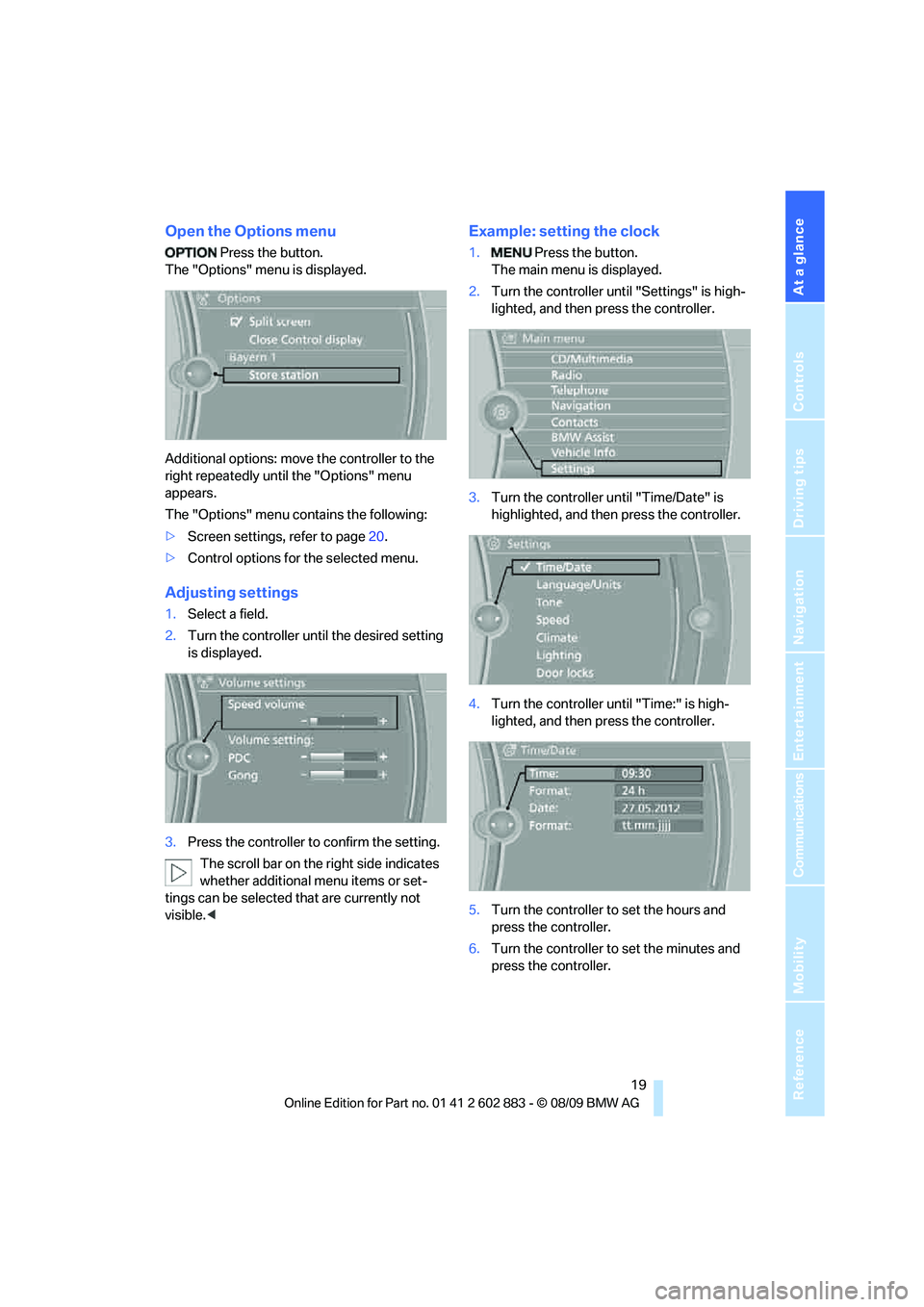
Open the Options menu
Press the button.
The "Options" menu is displayed.
Additional options: move the controller to the
right repeatedly until the "Options" menu
appears.
The "Options" menu contains the following:
>Screen settings, refer to page20.
>Control options for the selected menu.
Adjusting settings
1.Select a field.
2.Turn the controller until the desired setting
is displayed.
3.Press the controller to confirm the setting.
The scroll bar on the right side indicates
whether additional menu items or set-
tings can be selected that are currently not
visible.<
Example: setting the clock
1. Press the button.
The main menu is displayed.
2.Turn the controller until "Settings" is high-
lighted, and then press the controller.
3.Turn the controller until "Time/Date" is
highlighted, and then press the controller.
4.Turn the controller until "Time:" is high-
lighted, and then press the controller.
5.Turn the controller to set the hours and
press the controller.
6.Turn the controller to set the minutes and
press the controller.
Page 22 of 254
iDrive
20
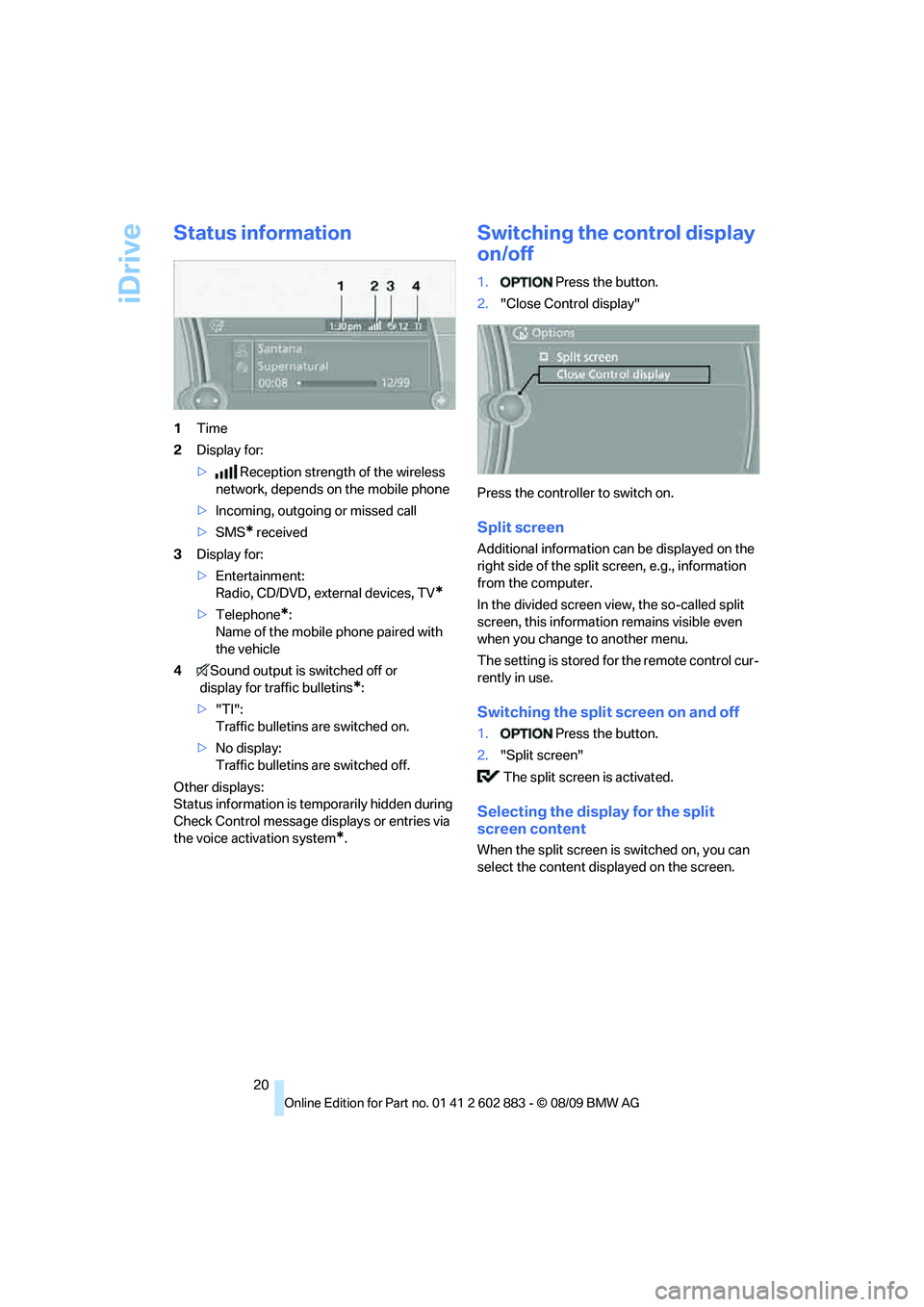
Status information
1Time
2Display for:
>Reception strength of the wireless
network, depends on the mobile phone
>Incoming, outgoing or missed call
>SMS
* received
3Display for:
>Entertainment:
Radio, CD/DVD, external devices, TV
*
>Telephone*:
Name of the mobile phone paired with
the vehicle
4Sound output is switched off or
display for traffic bulletins
*:
>"TI":
Traffic bulletins are switched on.
>No display:
Traffic bulletins are switched off.
Other displays:
Status information is temporarily hidden during
Check Control message displays or entries via
the voice activation system
*.
Switching the control display
on/off
1. Press the button.
2."Close Control display"
Press the controller to switch on.
Split screen
Additional information can be displayed on the
right side of the split screen, e.g., information
from the computer.
In the divided screen view, the so-called split
screen, this information remains visible even
when you change to another menu.
The setting is stored for the remote control cur-
rently in use.
Switching the split screen on and off
1. Press the button.
2."Split screen"
The split screen is activated.
Selecting the display for the split
screen content
When the split screen is switched on, you can
select the content displayed on the screen.
Page 23 of 254
At a glance
21Reference
Controls
Driving tips
Communications
Navigation
Entertainment
Mobility
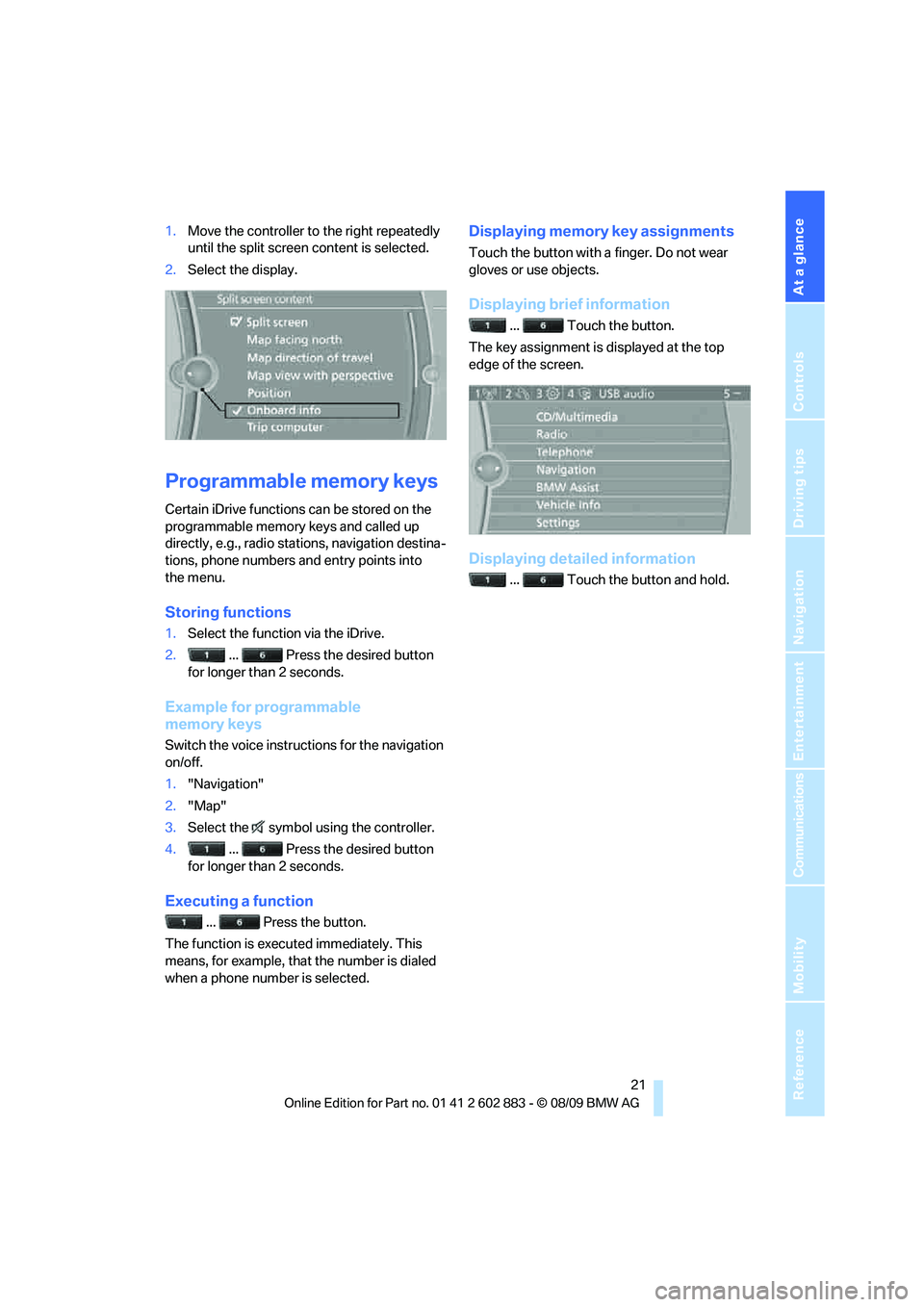
1.Move the controller to the right repeatedly
until the split screen content is selected.
2.Select the display.
Programmable memory keys
Certain iDrive functions can be stored on the
programmable memory keys and called up
directly, e.g., radio stations, navigation destina-
tions, phone numbers and entry points into
the menu.
Storing functions
1.Select the function via the iDrive.
2. ... Press the desired button
for longer than 2 seconds.
Example for programmable
memory keys
Switch the voice instructions for the navigation
on/off.
1."Navigation"
2."Map"
3.Select the symbol using the controller.
4. ... Press the desired button
for longer than 2 seconds.
Executing a function
... Press the button.
The function is executed immediately. This
means, for example, that the number is dialed
when a phone number is selected.
Displaying memory key assignments
Touch the button with a finger. Do not wear
gloves or use objects.
Displaying brief information
... Touch the button.
The key assignment is displayed at the top
edge of the screen.
Displaying detailed information
... Touch the button and hold.
Page 24 of 254
Letters and numbers
22
Letters and numbers
Entering letters and numbers
1.Turn the controller: select the letters or
numbers.
2.Select additional letters or numbers if
needed.
3."OK": confirm the entry.
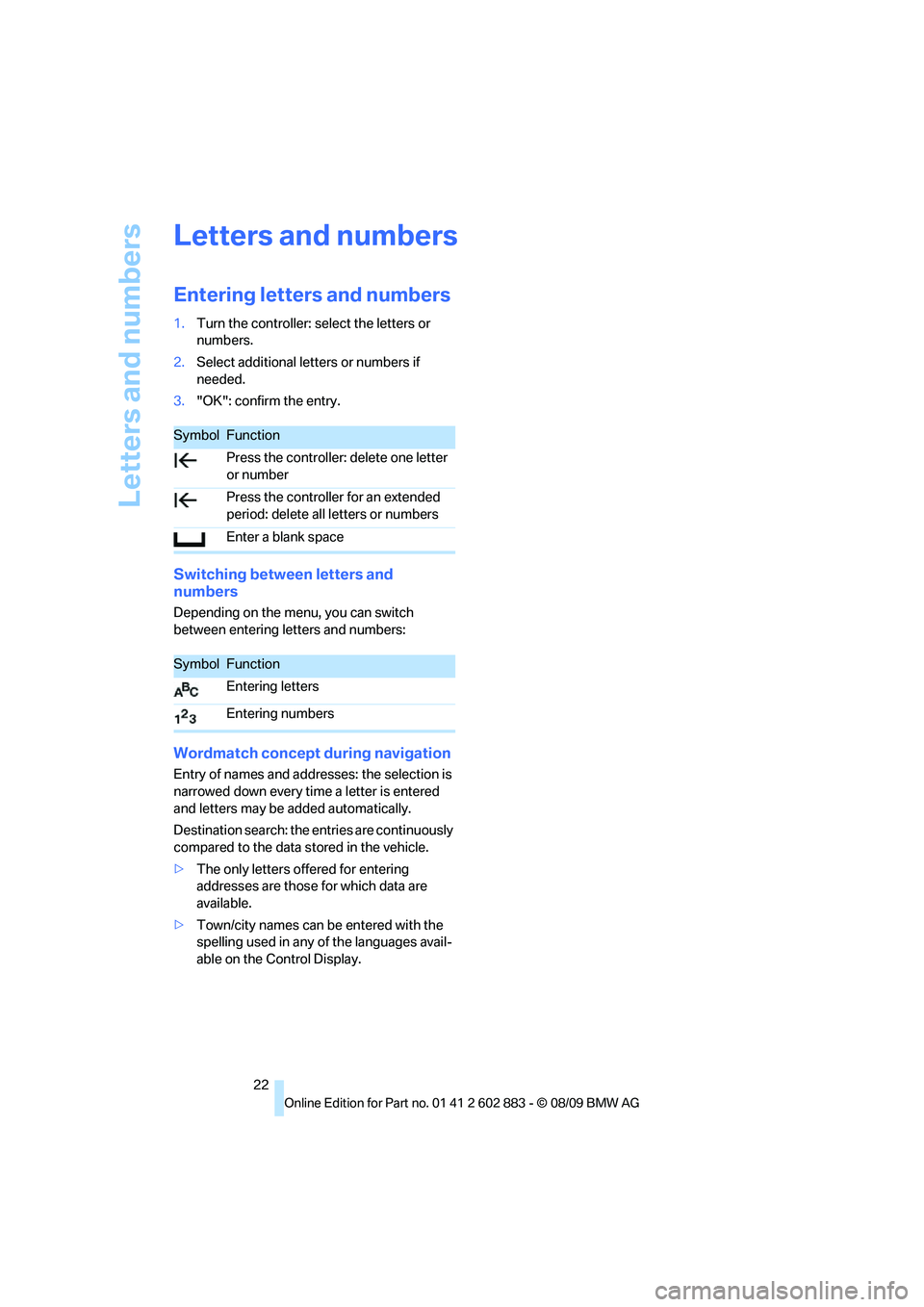
Switching between letters and
numbers
Depending on the menu, you can switch
between entering letters and numbers:
Wordmatch concept during navigation
Entry of names and addresses: the selection is
narrowed down every time a letter is entered
and letters may be added automatically.
Destination search: the entries are continuously
compared to the data stored in the vehicle.
>The only letters offered for entering
addresses are those for which data are
available.
>Town/city names can be entered with the
spelling used in any of the languages avail-
able on the Control Display.
SymbolFunction
Press the controller: delete one letter
or number
Press the controller for an extended
period: delete all letters or numbers
Enter a blank space
SymbolFunction
Entering letters
Entering numbers
Page 25 of 254
At a glance
23Reference
Controls
Driving tips
Communications
Navigation
Entertainment
Mobility
Voice activation system
The concept
The voice activation system allows you to con-
trol operation of various vehicle systems with-
out removing your hands from the steering
wheel.
Individual menu items on the Control Display
can be spoken as commands. It is not neces-
sary to use the controller.
The voice activation system transforms your
oral commands into control signals for the
selected systems and provides support in the
form of instructions or questions.
The voice activation system uses a special
microphone located in the area of the steering
column.
Precondition
Via iDrive, select the language in which the
voice activation system is operating, so that the
spoken commands can be identified. Selecting
the language for iDrive, refer to page75.
Symbols in the Owner's Manual
Saying commands
Activating voice activation system
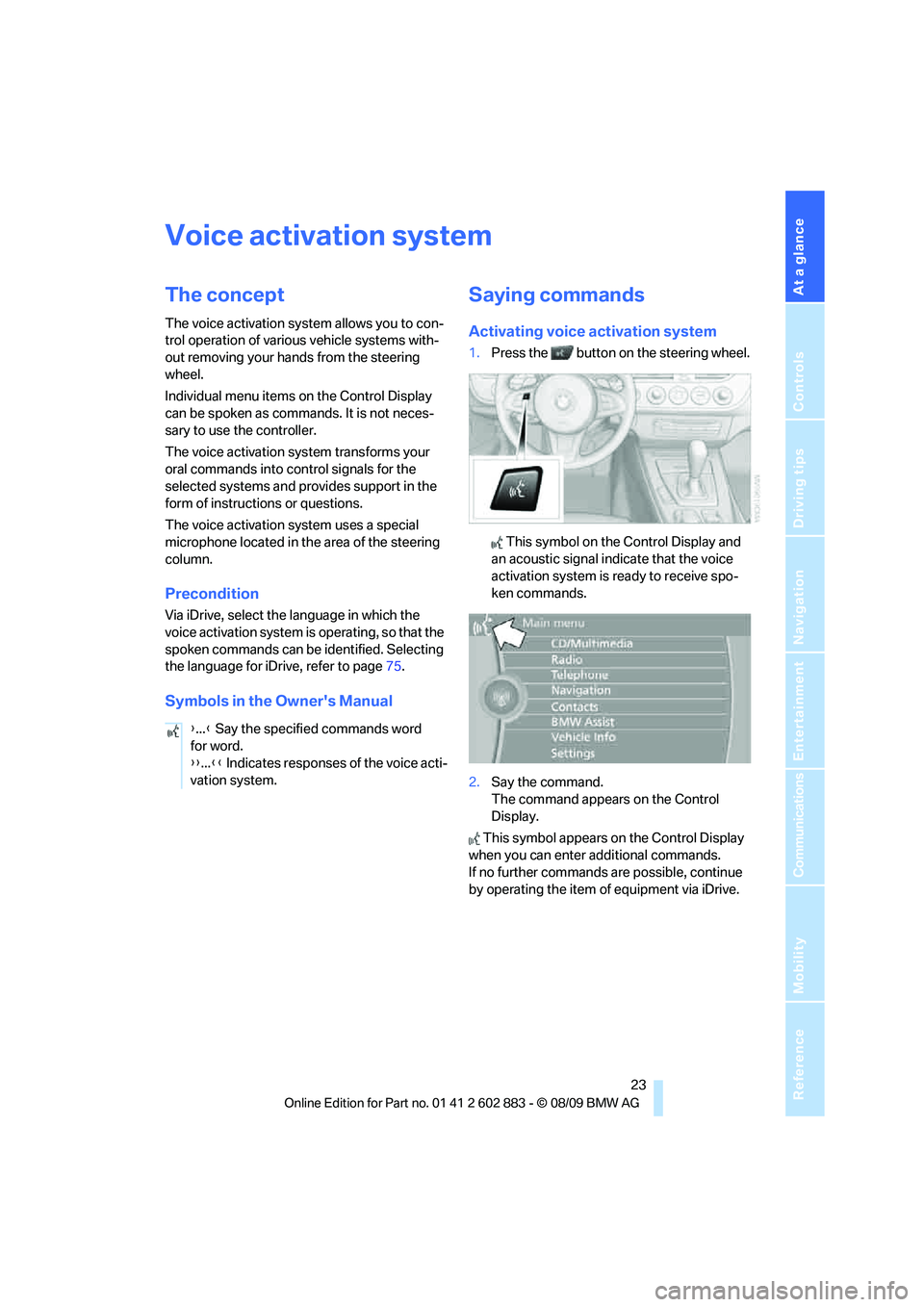
1.Press the button on the steering wheel.
This symbol on the Control Display and
an acoustic signal indicate that the voice
activation system is ready to receive spo-
ken commands.
2.Say the command.
The command appears on the Control
Display.
This symbol appears on the Control Display
when you can enter additional commands.
If no further commands are possible, continue
by operating the item of equipment via iDrive. {...} Say the specified commands word
for word.
{{...}} Indicates responses of the voice acti-
vation system.
Page 26 of 254
Voice activation system
24
Terminating or canceling voice
activation system
Press the button on the steering wheel
or
In dialogs that call for a text of your choice, the
procedure can only be canceled using the but-
ton on the steering wheel.
Possible commands
The commands available in each case depend
on the menu item selected on the Control
Display.
Having the possible commands read aloud
For example, if "CD/DVD" is selected, the com-
mands for operating CD/Multimedia are read
aloud.
Calling up functions immediately via
short commands
Short commands enable you to perform certain
functions immediately, irrespective of which
menu item is selected, refer to page229.
Example: selecting the track of a CD
1.If necessary, switch on entertainment audio
output.
2.Press the button on the steering wheel.
Setting the voice dialog
You can set whether the system should use the
standard dialog or a shorter variant. In the
shorter variant of the voice dialog, the prompts
and responses from the system are abbre-
viated.
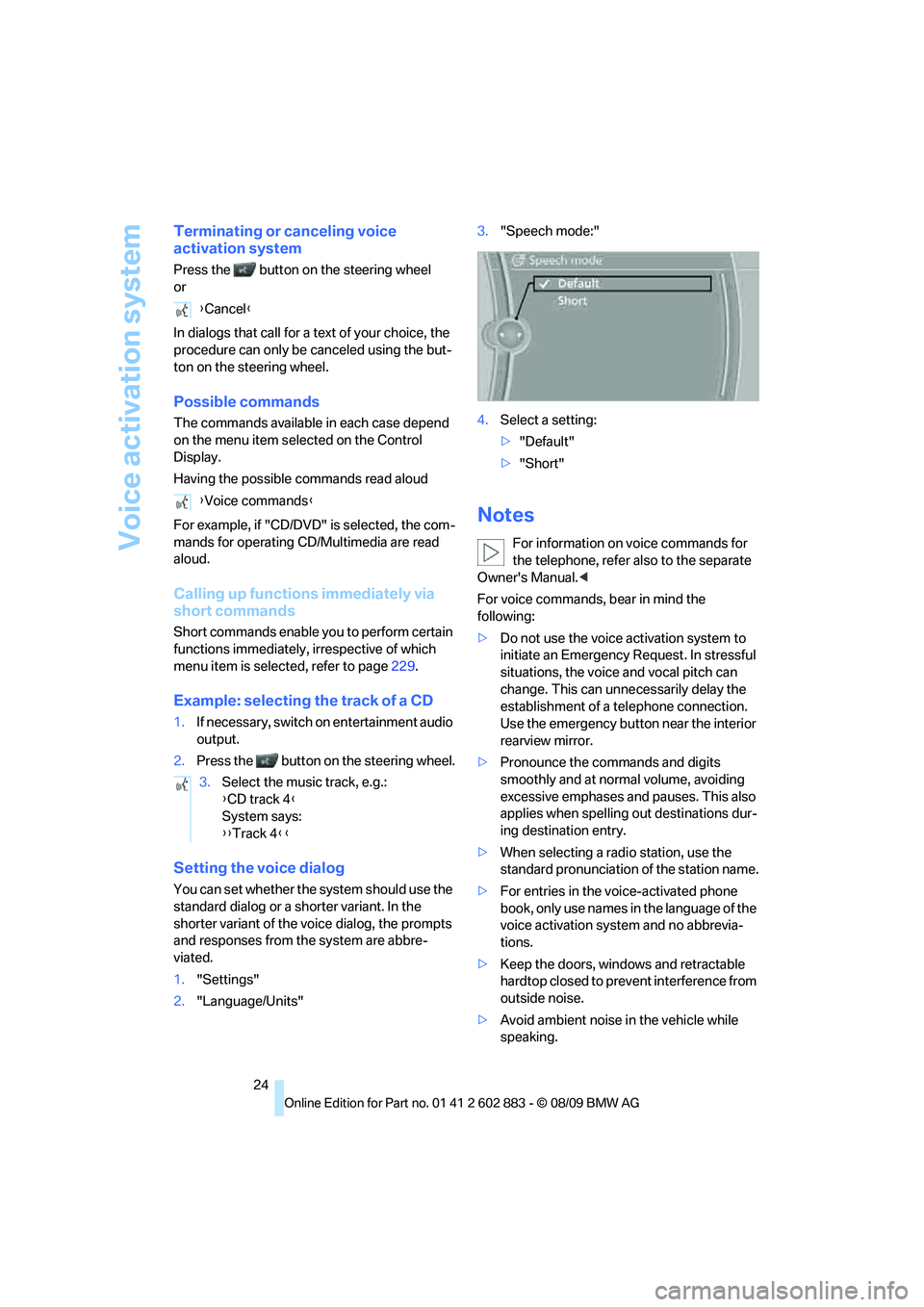
1."Settings"
2."Language/Units"3."Speech mode:"
4.Select a setting:
>"Default"
>"Short"
Notes
For information on voice commands for
the telephone, refer also to the separate
Owner's Manual.<
For voice commands, bear in mind the
following:
>Do not use the voice activation system to
initiate an Emergency Request. In stressful
situations, the voice and vocal pitch can
change. This can unnecessarily delay the
establishment of a telephone connection.
Use the emergency button near the interior
rearview mirror.
>Pronounce the commands and digits
smoothly and at normal volume, avoiding
excessive emphases and pauses. This also
applies when spelling out destinations dur-
ing destination entry.
>When selecting a radio station, use the
standard pronunciation of the station name.
>For entries in the voice-activated phone
book, only use names in the language of the
voice activation system and no abbrevia-
tions.
>Keep the doors, windows and retractable
hardtop closed to prevent interference from
outside noise.
>Avoid ambient noise in the vehicle while
speaking. {Cancel}
{Voice commands}
3.Select the music track, e.g.:
{CD track 4}
System says:
{{Track 4}}
Page 31 of 254
Controls
29Reference
At a glance
Driving tips
Communications
Navigation
Entertainment
Mobility
>Settings for the display on the Control Dis-
play and in the instrument cluster:
>12h/24h format of the clock, refer
to page71
>Date format, refer to page72
>Brightness of Control Display, refer
to page76
>Language on the Control Display, refer
to page75
>Split screen, refer to page20
>Units of measure for fuel consumption,
distance covered/remaining distances,
and temperature, refer to page68
>Show visual warning for Park Distance Con-
trol PDC
*, refer to page77
>Light settings:
>Welcome lamps, refer to page88
>Pathway lighting, refer to page89
>Daytime running lights, refer to page89
>High-beam assistant
*, refer to page90
>Automatic climate control: activating/deac-
tivating AUTO program, cooling function
and automatic recirculated-air control, set-
ting temperature, air flow rate and distribu-
tion, refer to page96 ff
>Entertainment:
>Tone control, refer to page140
>Volume, refer to page142
Central locking system
The concept
The central locking system functions when the
driver's door is closed.
The system simultaneously engages and
releases the locks on the following:
>Doors
>Luggage compartment lid
>Fuel filler flap
>Center armrest
*
Operating from outside
>Via the remote control
>Using the door lock
>In cars with Comfort Access
*, via the han-
dles on the driver's and passenger doors
In addition, if the remote control is used, the
welcome lamps, interior lamps and the door's
courtesy lamps
* are switched on or off. The
alarm system
* is also armed or disarmed.
For further details of the alarm system,
refer
to page33.
Operating from inside
By means of the button for central locking, refer
to page32.
In the event of a sufficiently severe accident, the
central locking system unlocks automatically. In
addition, the hazard warning flashers and inte-
rior lamps come on.
Opening and closing:
Using the remote control
Persons or animals in a parked vehicle
could lock the doors from the inside. You
should therefore take the remote control with
you when you leave the vehicle so that the latter
can be opened from outside.<
To operate the retractable hardtop with
the remote control, the doors and lug-
gage compartment lid must be closed and the
cargo area partition must be folded down and
engaged on both sides. Refer also to page38.<
Unlocking
Press the button.
The interior lamps, the courtesy lamps
* and the
welcome lamps come on.
Setting unlocking characteristics
You can set whether only the driver's door or
the entire vehicle is to be unlocked when the
button is pressed for the first time.
Page 36 of 254
Opening and closing
34
Switching off an alarm
>Unlock the car with the remote control, refer
to page29.
>Insert the remote control all the way into the
ignition lock.
Indicator lamp displays
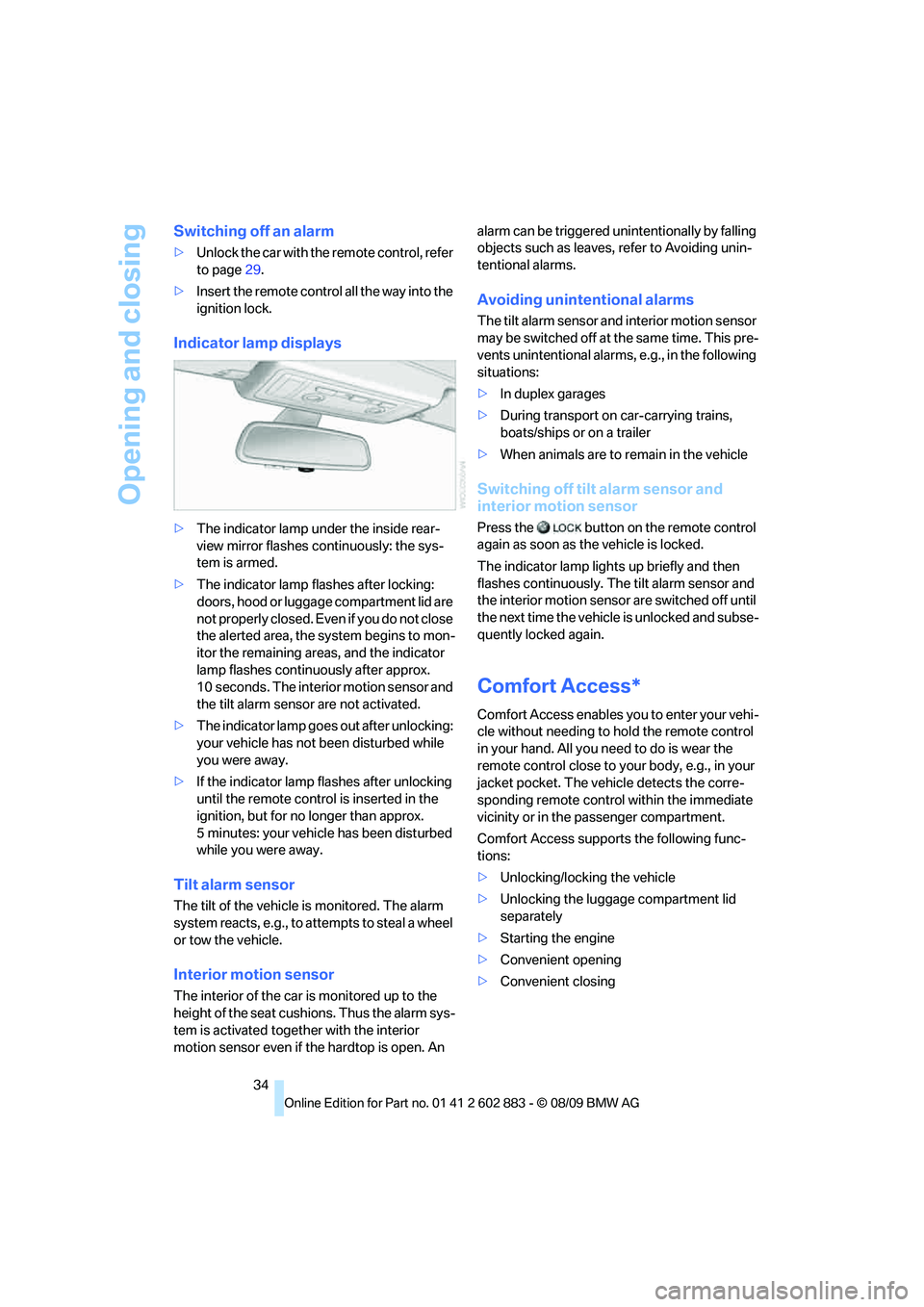
>The indicator lamp under the inside rear-
view mirror flashes continuously: the sys-
tem is armed.
>The indicator lamp flashes after locking:
doors, hood or luggage compartment lid are
not properly closed. Even if you do not close
the alerted area, the system begins to mon-
itor the remaining areas, and the indicator
lamp flashes continuously after approx.
10 seconds. The interior motion sensor and
the tilt alarm sensor are not activated.
>The indicator lamp goes out after unlocking:
your vehicle has not been disturbed while
you were away.
>If the indicator lamp flashes after unlocking
until the remote control is inserted in the
ignition, but for no longer than approx.
5 minutes: your vehicle has been disturbed
while you were away.
Tilt alarm sensor
The tilt of the vehicle is monitored. The alarm
system reacts, e.g., to attempts to steal a wheel
or tow the vehicle.
Interior motion sensor
The interior of the car is monitored up to the
height of the seat cushions. Thus the alarm sys-
tem is activated together with the interior
motion sensor even if the hardtop is open. An alarm can be triggered unintentionally by falling
objects such as leaves, refer to Avoiding unin-
tentional alarms.
Avoiding unintentional alarms
The tilt alarm sensor and interior motion sensor
may be switched off at the same time. This pre-
vents unintentional alarms, e.g., in the following
situations:
>In duplex garages
>During transport on car-carrying trains,
boats/ships or on a trailer
>When animals are to remain in the vehicle
Switching off tilt alarm sensor and
interior motion sensor
Press the button on the remote control
again as soon as the vehicle is locked.
The indicator lamp lights up briefly and then
flashes continuously. The tilt alarm sensor and
the interior motion sensor are switched off until
the next time the vehicle is unlocked and subse-
quently locked again.
Comfort Access*
Comfort Access enables you to enter your vehi-
cle without needing to hold the remote control
in your hand. All you need to do is wear the
remote control close to your body, e.g., in your
jacket pocket. The vehicle detects the corre-
sponding remote control within the immediate
vicinity or in the passenger compartment.
Comfort Access supports the following func-
tions:
>Unlocking/locking the vehicle
>Unlocking the luggage compartment lid
separately
>Starting the engine
>Convenient opening
>Convenient closing
Page 38 of 254
Opening and closing
36
Before driving a vehicle with automatic
transmission into a car wash
1.Insert the remote control into the ignition
switch.
2.Depress the brake.
3.Move the selector lever to position N.
4.Switch off the engine.
The vehicle can roll.
Malfunction
Comfort Access may malfunction due to local
radio waves. If this happens, open or close the
vehicle via the buttons on the remote control or
using the integrated key. To start the engine
afterward, insert the remote control into the
ignition switch.
Warning lamps
The warning lamp in the instrument
cluster lights up when you attempt to
start the engine: the engine cannot
be started. The remote control is not inside the
vehicle or is malfunctioning. Take the remote
control with you inside the vehicle or have it
checked. If necessary, insert another remote
control into the ignition switch.
The warning lamp in the instrument
cluster lights up while the engine is
running: the remote control is no
longer inside the vehicle. After the engine is
switched off, the engine can only be restarted
within approx. 10 seconds.
The indicator lamp in the instrument
cluster comes on and a message
appears on the Control Display:
replace the battery in the remote control.
Replacing the battery
The remote control for Comfort Access con-
tains a battery that will need to be replaced from
time to time.
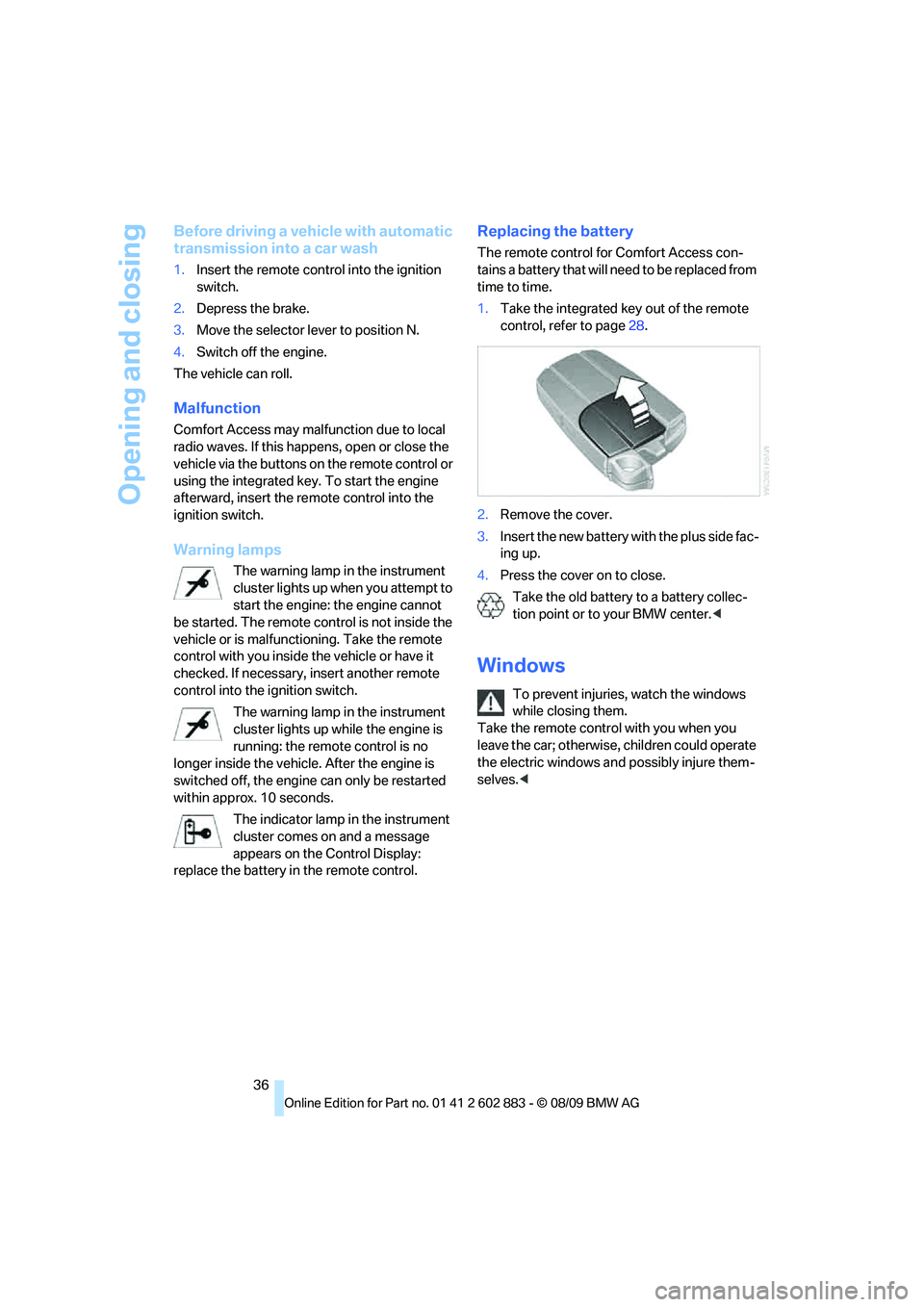
1.Take the integrated key out of the remote
control, refer to page28.
2.Remove the cover.
3.Insert the new battery with the plus side fac-
ing up.
4.Press the cover on to close.
Take the old battery to a battery collec-
tion point or to your BMW center.<
Windows
To prevent injuries, watch the windows
while closing them.
Take the remote control with you when you
leave the car; otherwise, children could operate
the electric windows and possibly injure them-
selves.<
Page 40 of 254
Opening and closing
38
Retractable hardtop
The retractable hardtop combines reliable
weather protection with simple and convenient
operation.
Please note:
>It is advisable that you close the retractable
hardtop when you park the vehicle. Not only
does the closed hardtop protect the vehicle
interior against unanticipated weather dam-
age, it also offers theft protection. However,
even when the hardtop is closed, valuables
should only be stored in the locked
cargo area.
>Do not attach roof rack systems to the
retractable hardtop, and in particular do not
attach magnetic racks.
>Do not attach rack systems to the luggage
compartment lid, and in particular do not
attach magnetic racks.
>When the retractable hardtop is operated,
the luggage compartment lid swings back
and up. Before operating the retractable
hardtop, ensure that there is enough clear-
ance, e.g., in tight parking spaces.
>If you open the hardtop while it is wet, e.g.,
after driving in the rain, water may drip into
the cargo area. If necessary, remove items
from the cargo area beforehand to avoid
water stains or soiling.
Do not place any objects on the retract-
able hardtop or on the luggage compart-
ment lid; otherwise, they could fall during move-
ments of the retractable hardtop and cause
damage or injury.
Driving when the hardtop is not fully opened or
not fully closed may result in damage or injury.
Do not reach into the mechanism while the
hardtop is opening or closing. Keep children
away from the swiveling area of the retractable
hardtop.<
The retractable hardtop cannot be moved
at temperatures below + 147/–106. A
message appears on the Control Display.
stationary. To avoid causing damage, do not
drive off until the hardtop has stopped
moving.<
Before opening and closing
Do not let the hardtop stop in an interme-
diate position when opening or closing.
Otherwise, there is the danger of personal injury
since the hardtop will be lowered automatically
after a few minutes.<
>Comply with the safety precautions
described above.
>Ensure that the luggage compartment lid is
closed.
>The vehicle should be parked on fairly level
ground. Excessive angle is indicated by
alamp.
>Fold down the cargo area partition and
make sure it engages, refer to the instruc-
tions below.
>Do not place any objects next to or on the
cargo area partition and close the storage
compartment on the left side of the
cargo area.
>Do not exceed the maximum loading height
under the cargo area partition; refer to the
label in the cargo area showing a line indi-
cating the maximum height.
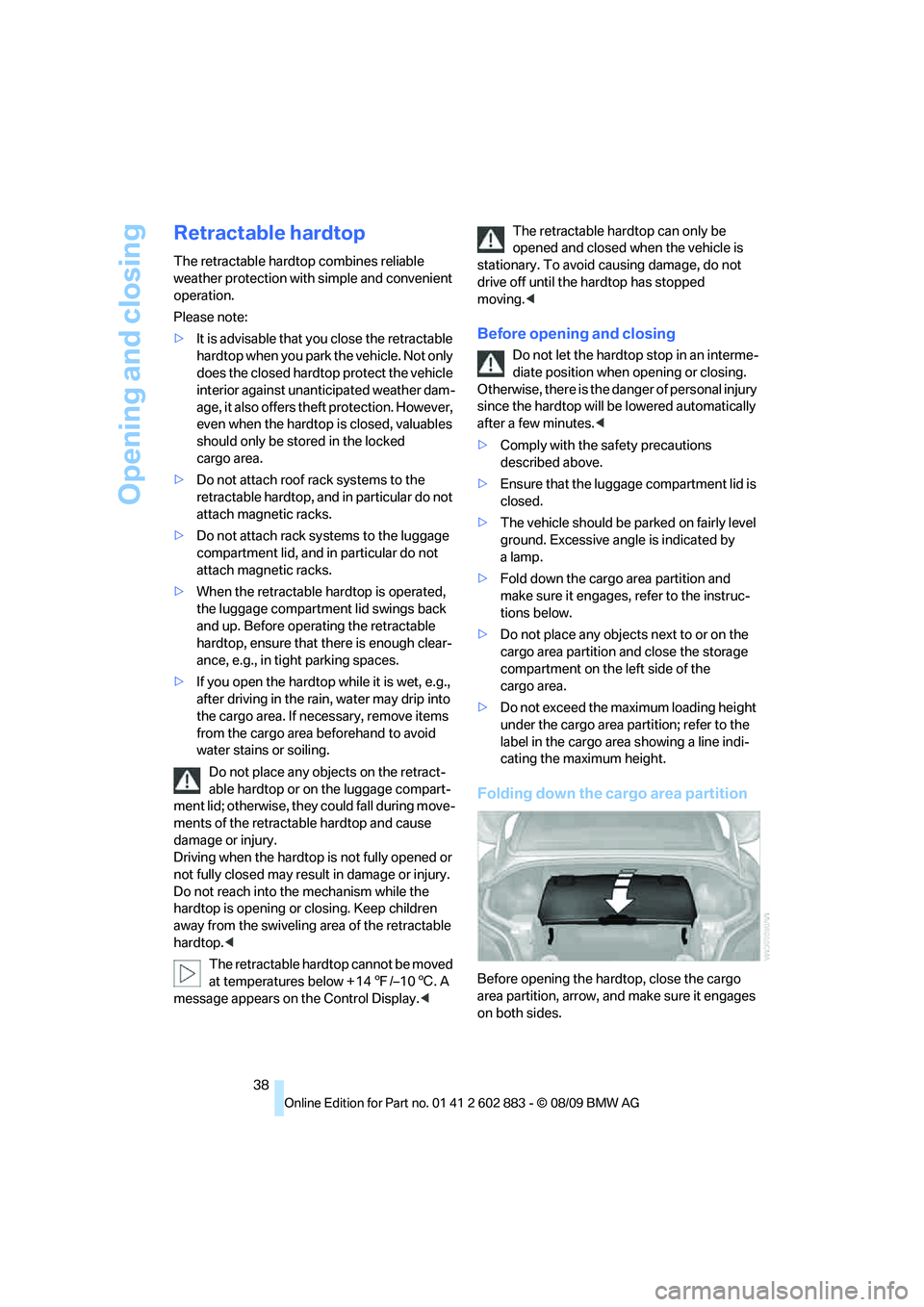
Folding down the cargo area partition
Before opening the hardtop, close the cargo
area partition, arrow, and make sure it engages
on both sides.