memory BMW Z4 SDRIVE35I 2009 User Guide
[x] Cancel search | Manufacturer: BMW, Model Year: 2009, Model line: Z4 SDRIVE35I, Model: BMW Z4 SDRIVE35I 2009Pages: 248, PDF Size: 7.63 MB
Page 144 of 248
Radio
142
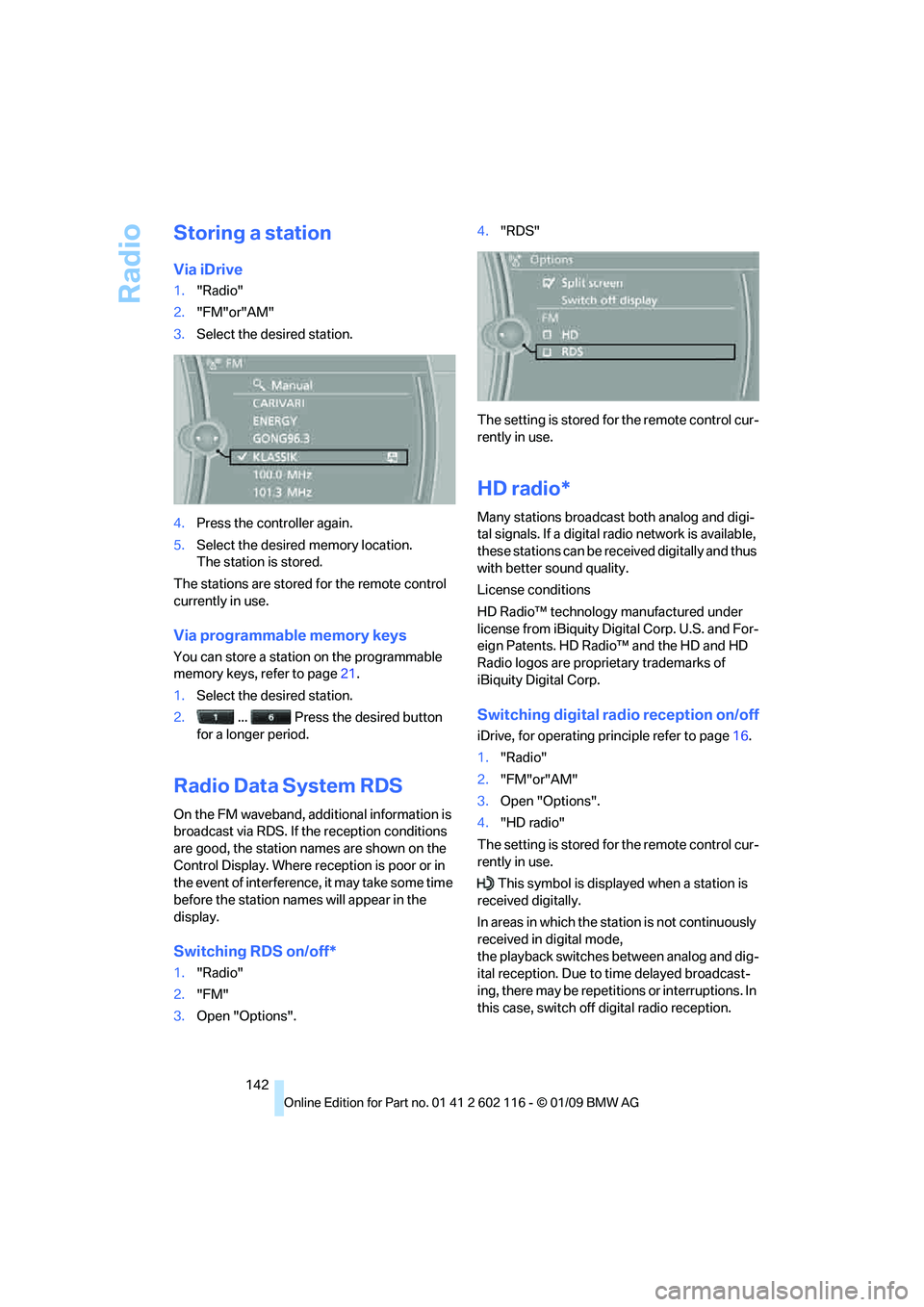
Storing a station
Via iDrive
1."Radio"
2. "FM"or"AM"
3. Select the desired station.
4. Press the controller again.
5. Select the desired memory location.
The station is stored.
The stations are stored for the remote control
currently in use.
Via programmable memory keys
You can store a station on the programmable
memory keys, refer to page 21.
1. Select the desired station.
2. ... Press the desired button
for a longer period.
Radio Data System RDS
On the FM waveband, additional information is
broadcast via RDS. If the reception conditions
are good, the station names are shown on the
Control Display. Where re ception is poor or in
the event of interference, it may take some time
before the station name s will appear in the
display.
Switching RDS on/off*
1. "Radio"
2. "FM"
3. Open "Options". 4.
"RDS"
The setting is stored fo r the remote control cur-
rently in use.
HD radio*
Many stations broadcast both analog and digi-
tal signals. If a digital radio network is available,
these stations can be rece ived digitally and thus
with better sound quality.
License conditions
HD Radio™ technology manufactured under
license from iBiquity Digital Corp. U.S. and For-
eign Patents. HD Radio™ and the HD and HD
Radio logos are proprietary trademarks of
iBiquity Digital Corp.
Switching digital radio reception on/off
iDrive, for operating pr inciple refer to page16.
1. "Radio"
2. "FM"or"AM"
3. Open "Options".
4. "HD radio"
The setting is stored fo r the remote control cur-
rently in use.
This symbol is displa yed when a station is
received digitally.
In areas in which the stat ion is not continuously
received in digital mode,
the playback switches between analog and dig-
ital reception. Due to time delayed broadcast-
ing, there may be repetitions or interruptions. In
this case, switch off digital radio reception.
Page 145 of 248
Navigation
Entertainment
Driving tips
143Reference
At a glance
Controls
Communications
Mobility
Displaying additional information
Some stations broadcast additional information
on the current track, such as the name of the
artist.
1.Select the desired station.
2. Open "Options".
3. "Station info"
Selecting a substation
1.Select the desired station.
2. Press the controller.
3. Select the substation.
Presets
It is possible to stor e up to 40 stations.
Calling up a station
1."Radio"
2. "Presets"
3. Call up the desired station.
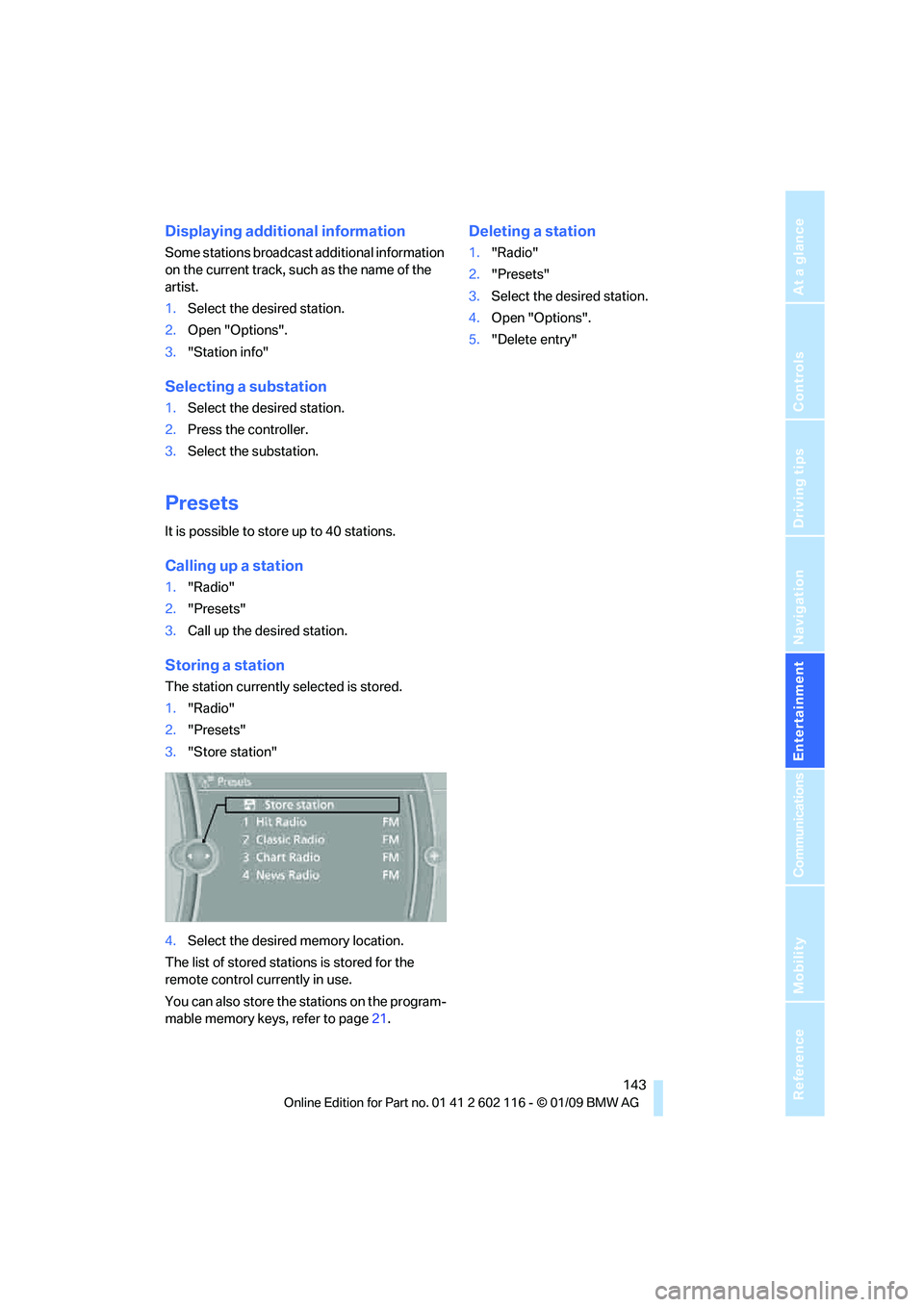
Storing a station
The station currently selected is stored.
1."Radio"
2. "Presets"
3. "Store station"
4. Select the desired memory location.
The list of stored stations is stored for the
remote control currently in use.
You can also store the st ations on the program-
mable memory keys, refer to page 21.
Deleting a station
1."Radio"
2. "Presets"
3. Select the desired station.
4. Open "Options".
5. "Delete entry"
Page 147 of 248
Navigation
Entertainment
Driving tips
145Reference
At a glance
Controls
Communications
Mobility
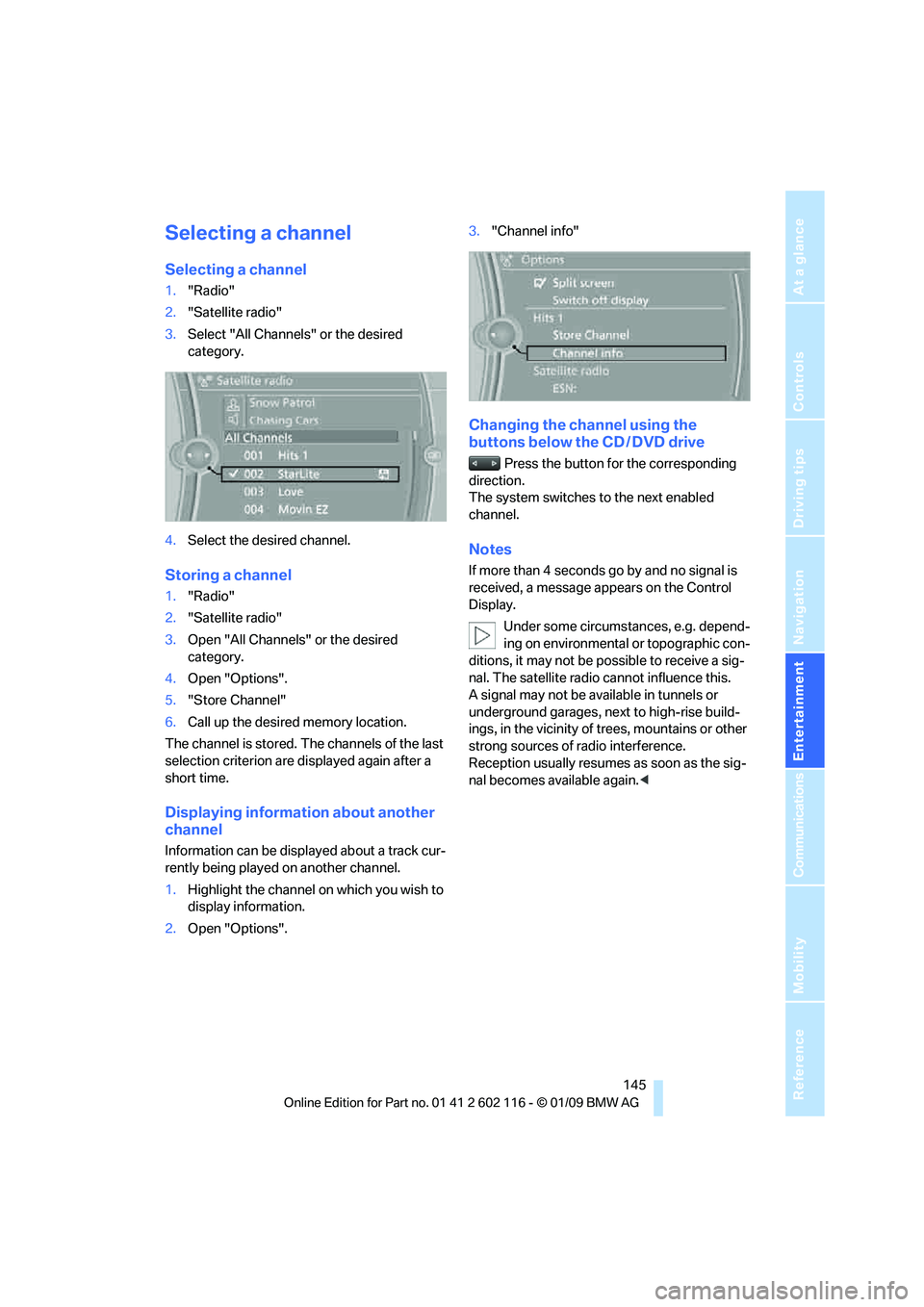
Selecting a channel
Selecting a channel
1."Radio"
2. "Satellite radio"
3. Select "All Channels" or the desired
category.
4. Select the desired channel.
Storing a channel
1."Radio"
2. "Satellite radio"
3. Open "All Channels" or the desired
category.
4. Open "Options".
5. "Store Channel"
6. Call up the desired memory location.
The channel is stored. The channels of the last
selection criterion are displayed again after a
short time.
Displaying information about another
channel
Information can be displayed about a track cur-
rently being played on another channel.
1. Highlight the channel on which you wish to
display information.
2. Open "Options". 3.
"Channel info"
Changing the channel using the
buttons below the CD / DVD drive
Press the button for the corresponding
direction.
The system switches to the next enabled
channel.
Notes
If more than 4 seconds go by and no signal is
received, a message appears on the Control
Display.
Under some circumstances, e.g. depend-
ing on environmental or topographic con-
ditions, it may not be possible to receive a sig-
nal. The satellite radio cannot influence this.
A signal may not be av ailable in tunnels or
underground garages, ne xt to high-rise build-
ings, in the vicinity of trees, mountains or other
strong sources of radio interference.
Reception usually resumes as soon as the sig-
nal becomes available again. <
Page 156 of 248
Music collection
154
3.
"Storing..."
4. "Cancel storing"
The storage process is interrupted and can be
continued at any time.
Continuing the storage process
1. "CD/Multimedia"
2. "CD/DVD"
3. Select the symbol for the CD/DVD
player.
4. "Continue storing"
Storage of the CD continues at the beginning of
the track at which storage was interrupted.
Album information
During storage, information such as the name
of the artist is stored with the track, if this infor-
mation is available in th e vehicle database or on
the CD.
Storing from a USB device
To store music, a suitable device must be con-
nected to the USB interface in the glove com-
partment.
> Suitable devices: USB mass storage
devices, such as USB flash drives or MP3
players with a USB interface.
> Unsuitable devices: USB hard disks, USB
hubs, USB memory card readers with multi-
ple inserts, Apple iPod/iPhone.
It is only possible to store music from a
USB device via the USB interface in the
glove compartment. < 1.
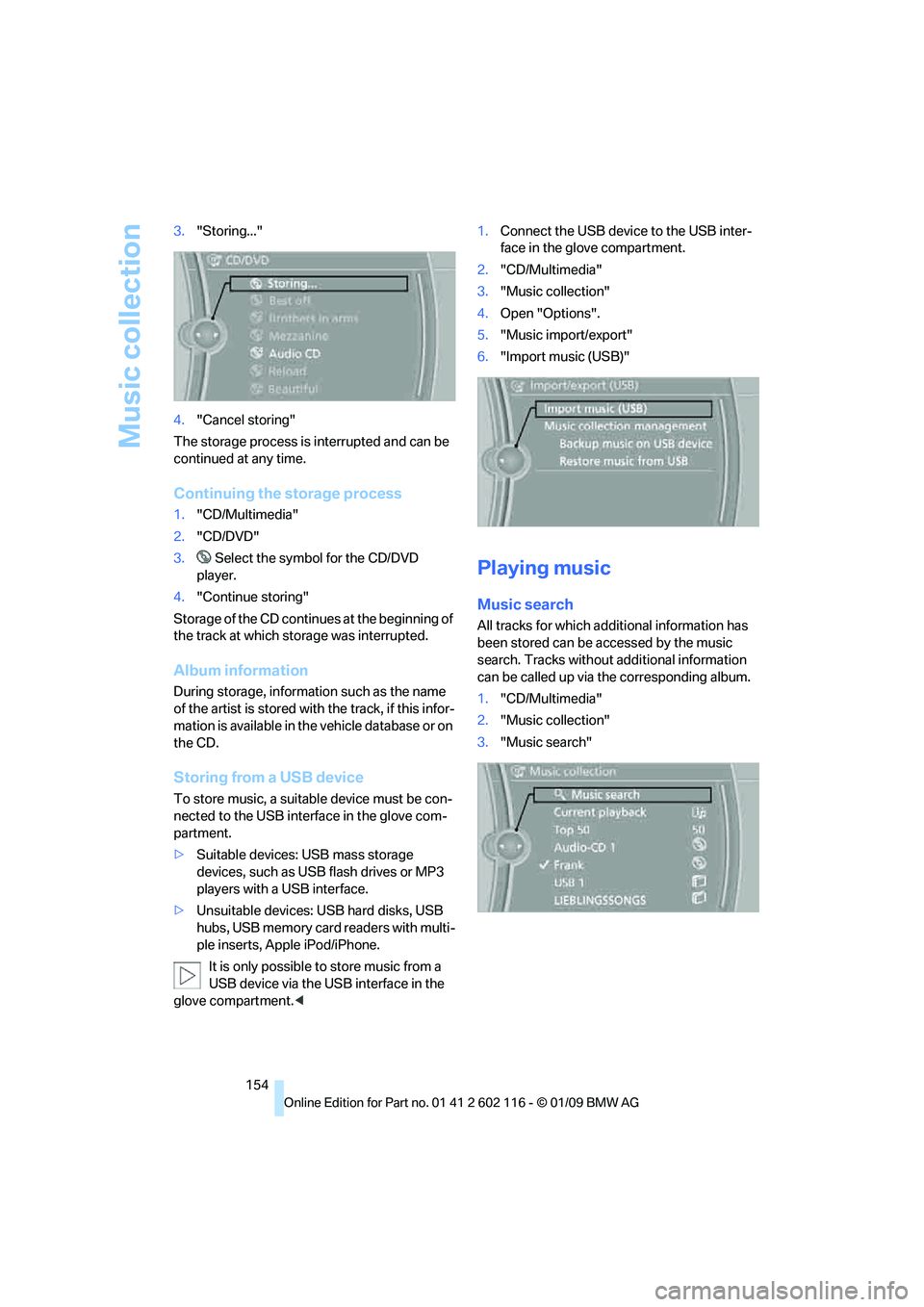
Connect the USB device to the USB inter-
face in the glove compartment.
2. "CD/Multimedia"
3. "Music collection"
4. Open "Options".
5. "Music import/export"
6. "Import music (USB)"
Playing music
Music search
All tracks for which additional information has
been stored can be accessed by the music
search. Tracks without additional information
can be called up via th e corresponding album.
1. "CD/Multimedia"
2. "Music collection"
3. "Music search"
Page 158 of 248
Music collection
156
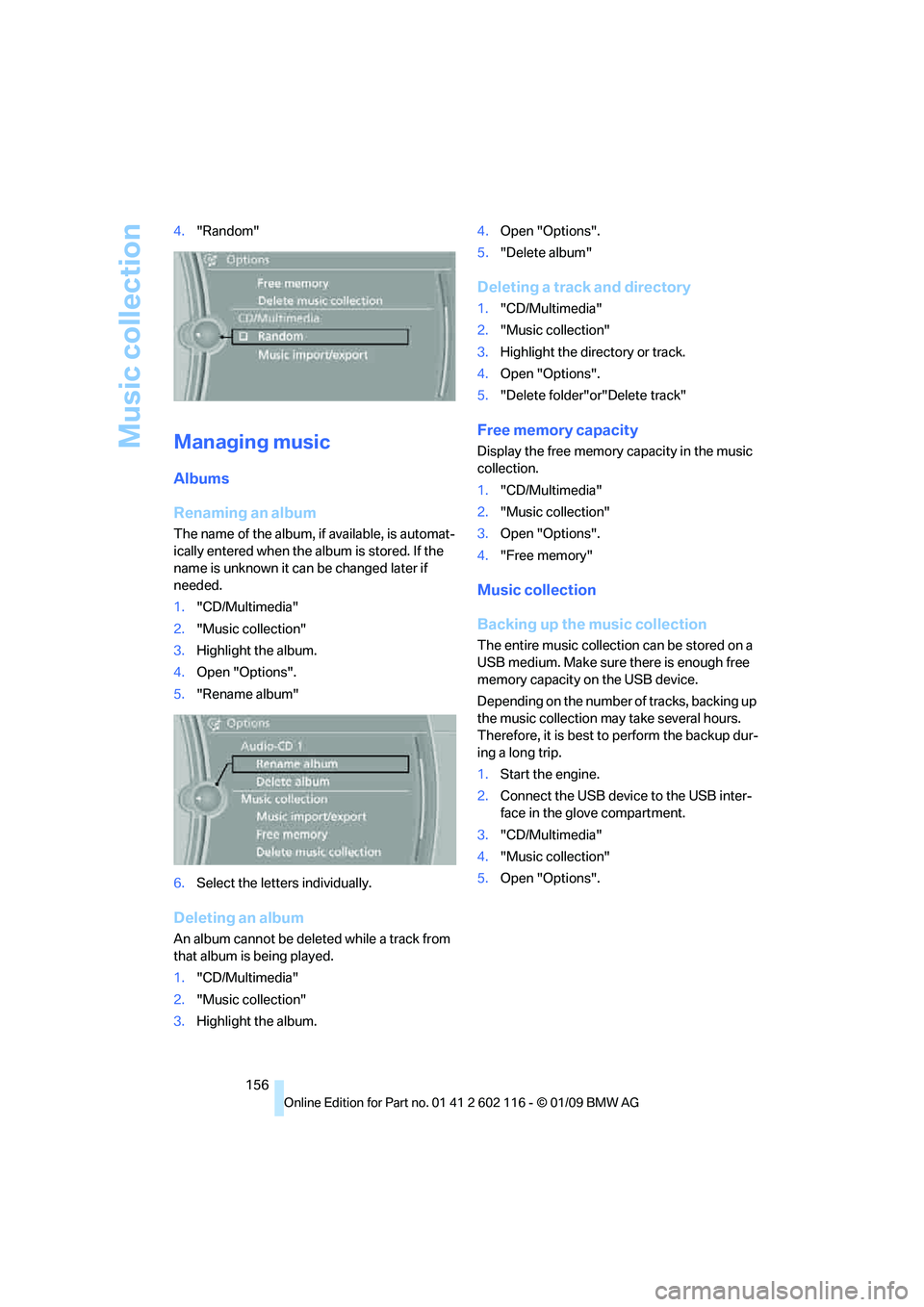
4.
"Random"
Managing music
Albums
Renaming an album
The name of the album, if available, is automat-
ically entered when the album is stored. If the
name is unknown it can be changed later if
needed.
1."CD/Multimedia"
2. "Music collection"
3. Highlight the album.
4. Open "Options".
5. "Rename album"
6. Select the letters individually.
Deleting an album
An album cannot be dele ted while a track from
that album is being played.
1. "CD/Multimedia"
2. "Music collection"
3. Highlight the album. 4.
Open "Options".
5. "Delete album"
Deleting a track and directory
1."CD/Multimedia"
2. "Music collection"
3. Highlight the directory or track.
4. Open "Options".
5. "Delete folder"or"Delete track"
Free memory capacity
Display the free memory capacity in the music
collection.
1. "CD/Multimedia"
2. "Music collection"
3. Open "Options".
4. "Free memory"
Music collection
Backing up the music collection
The entire music collection can be stored on a
USB medium. Make sure there is enough free
memory capacity on the USB device.
Depending on the number of tracks, backing up
the music collection may take several hours.
Therefore, it is best to perform the backup dur-
ing a long trip.
1.Start the engine.
2. Connect the USB device to the USB inter-
face in the glove compartment.
3. "CD/Multimedia"
4. "Music collection"
5. Open "Options".
Page 166 of 248
Telephone
164
Telephone
The concept
Your BMW is equipped with a full preparation
package mobile phone.After pairing a suitable
mobile phone with the vehicle once, you can
operate the mobile phone via the iDrive, the
buttons on the steering wheel or using voice
commands
*.
Once a mobile phone has been paired with your
vehicle, it is automatically recognized as soon
as it is inside the vehicl e while the engine is run-
ning or the ignition is switched on. You can
store the pairing data for up to four mobile
phones simultaneously . If several mobile
phones are detected at the same time, the
mobile phone last paired can be operated via
the vehicle.
Using the telephone inside
the vehicle
Using the snap-in adapter*
The so-called snap-in adapter, a holder for
mobile phones, allows you to charge the mobile
phone's battery and connect the mobile phone
to your vehicle's outside antenna. This ensures
better network reception and consistent repro-
duction quality. Please contact your
BMW center to find ou t for which mobile
phones there are snap-in adapters available.
For your safety
A car phone makes life more convenient in
many ways, and can even save lives in an emer-
gency. While you should consult your mobile
phone's separate operating instructions for a
detailed description of safety precautions and
information, we request that you direct your
particular attention to the following:
Only make entries when the traffic situa-
tion allows you to do so. Do not hold the
mobile phone in your hand while you are driving;
use the hands-free system instead. If you do not observe this precau
tion, your being dis-
tracted can endanger vehicle occupants and
other road users. <
Suitable mobile phones
Please ask your BMW center which mobile
phones with Bluetooth interface are supported
by the mobile phone pr eparation package and
which mobile phones are compatible with the
snap-in adapter. By virtue of their particular
software versions, thes e mobile phones sup-
port the functions described in this Owner's
Manual. Malfunctions may occur with other
mobile phones.
Operating options
You can operate the mobile phone* using:
> Buttons on the steering wheel, refer to
page 10
> iDrive, refer to page 16
> Voice commands
*, refer to page 172
> Programmable memory keys, refer to
page 21
Avoid operating a mobile phone recognized by
the vehicle via the mobile phone's keypad, oth-
erwise malfunctions may result.
Start-up
Pairing the mobile phone with the
vehicle
The following prerequisites must be met:
> Compatible mobile phone: The mobile
phone is supported by the full preparation
package mobile phone. You can obtain
information on the Internet at:
www.bmw.com/bluetooth
> The mobile phone is ready to operate.
*
Page 175 of 248
173
Entertainment
Reference
At a glance
Controls
Driving tips
Communications
Navigation
Mobility
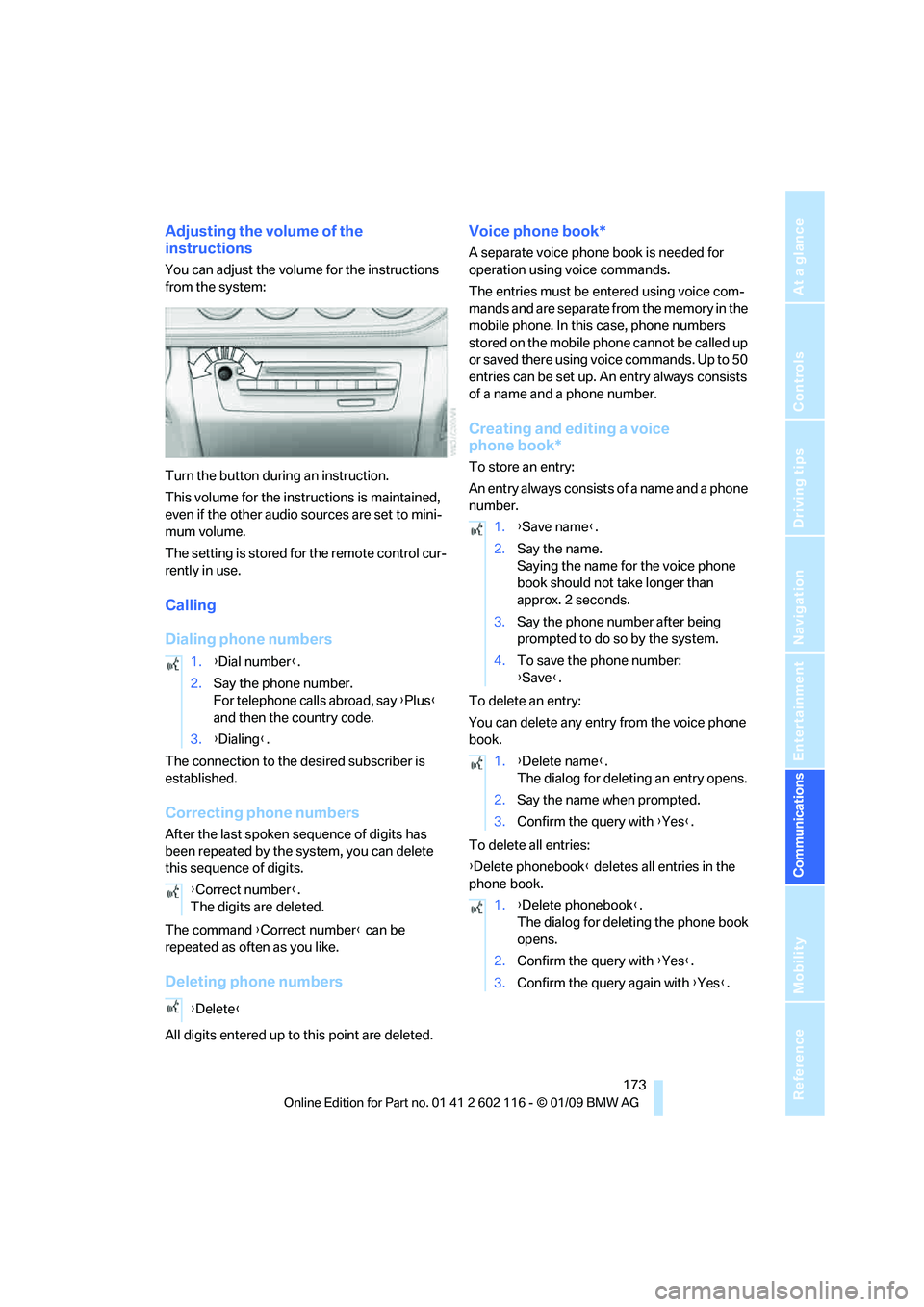
Adjusting the volume of the
instructions
You can adjust the volume for the instructions
from the system:
Turn the button during an instruction.
This volume for the instructions is maintained,
even if the other audio sources are set to mini-
mum volume.
The setting is stored for the remote control cur-
rently in use.
Calling
Dialing phone numbers
The connection to the desired subscriber is
established.
Correcting phone numbers
After the last spoken sequence of digits has
been repeated by the system, you can delete
this sequence of digits.
The command {Correct number } can be
repeated as often as you like.
Deleting phone numbers
All digits entered up to this point are deleted.
Voice phone book*
A separate voice phone book is needed for
operation using voice commands.
The entries must be entered using voice com-
mands and are separate from the memory in the
mobile phone. In this case, phone numbers
stored on the mobile phone cannot be called up
or saved there using voice commands. Up to 50
entries can be set up. An entry always consists
of a name and a phone number.
Creating and editing a voice
phone book*
To store an entry:
An entry always consists of a name and a phone
number.
To delete an entry:
You can delete any entr y from the voice phone
book.
To delete all entries:
{ Delete phonebook } deletes all entries in the
phone book.
1.
{Dial number }.
2. Say the phone number.
For telephone calls abroad, say {Plus }
and then the country code.
3. {Dialing} .
{ Correct number }.
The digits are deleted.
{ Delete }
1.{Save name }.
2. Say the name.
Saying the name for the voice phone
book should not take longer than
approx. 2 seconds.
3. Say the phone number after being
prompted to do so by the system.
4. To save the phone number:
{Save }.
1. {Delete name }.
The dialog for deleting an entry opens.
2. Say the name when prompted.
3. Confirm the query with {Yes }.
1. {Delete phonebook }.
The dialog for deleting the phone book
opens.
2. Confirm the query with {Yes }.
3. Confirm the query again with {Yes }.
Page 214 of 248
Replacing components
212
Vehicle battery
Battery care
The battery is 100 % maintenance-free, the
electrolyte will last for the life of the battery
when the vehicle is operated in a temperate cli-
mate. Your BMW center will be glad to advise in
all matters concerning the battery.
Charging the battery
Only charge the battery in the vehicle via the
terminals in the engine compartment with the
engine off. Connections, refer to Jump starting
on page 214.
Disposal
Have old batteries disposed of by your
BMW center or hand them in to a recy-
cling center. Maintain th e battery in an upright
position for transport and storage. Always
secure the battery agains t tipping over during
transport. <
Power failure
After a temporary power lo ss, the functioning of
some equipment may be limited and require
reinitialization. Individual settings may likewise
have been lost and will have to be programmed:
> Time and date
These values must be updated, refer to
page 71.
> Radio
In some cases, statio ns may have to be
stored again, refer to page 142.
> Navigation system
Operability must be waited for, refer to
page 118.
> Seat and mirror memory
The positions must be stored again, refer to
page 43.
> Inside rearview mirror with digital compass
The system must be calibrated, refer to
page 101.
Fuses
Never attempt to repa ir a blown fuse and
do not replace a defective fuse with a sub-
stitute of another color or amperage rating, oth-
erwise this could lead to a circuit overload, ulti-
mately resulting in a fire in the vehicle. <
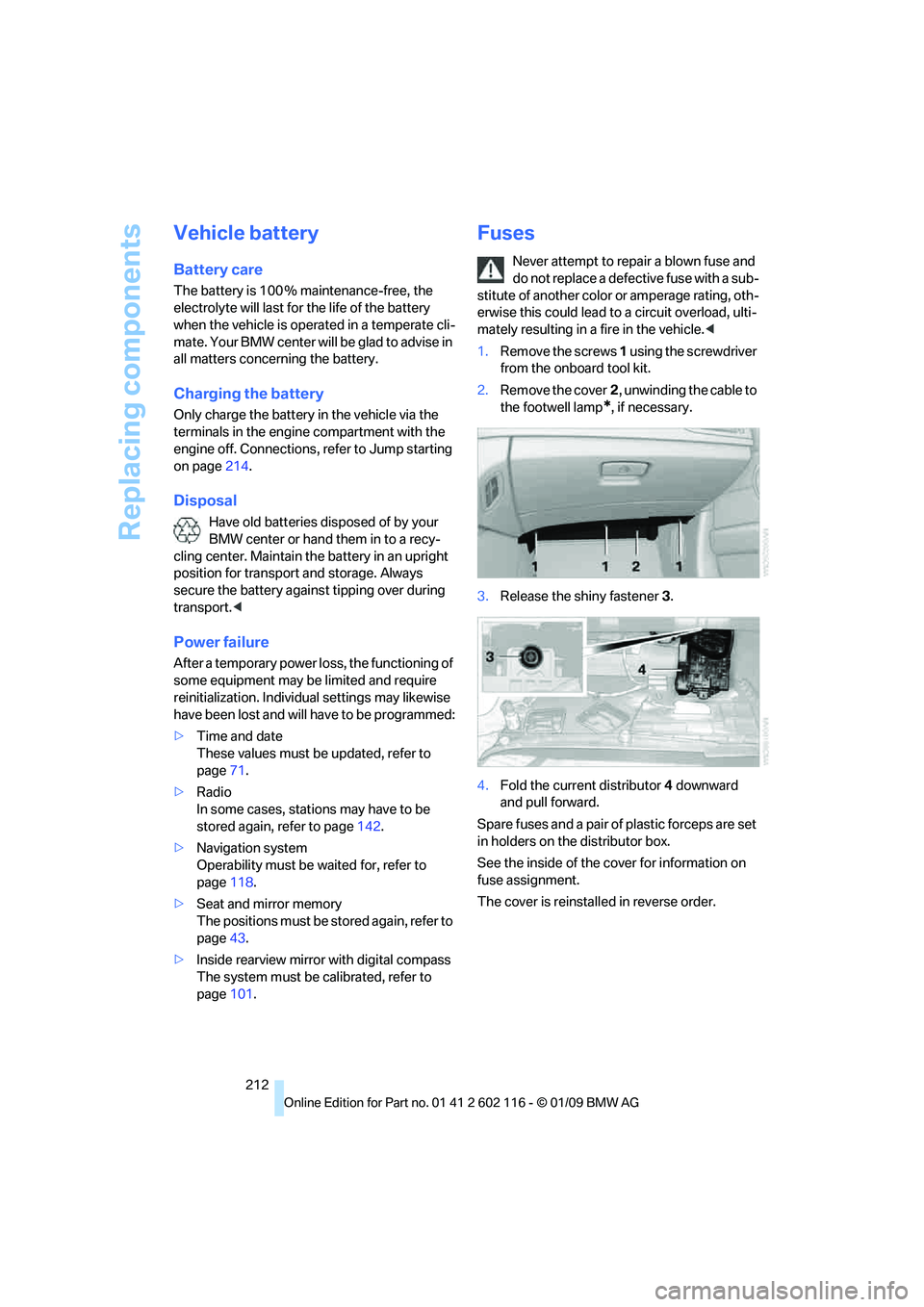
1. Remove the screws 1 using the screwdriver
from the onboard tool kit.
2. Remove the cover 2, unwinding the cable to
the footwell lamp
*, if necessary.
3. Release the shiny fastener 3.
4. Fold the current distributor 4 downward
and pull forward.
Spare fuses and a pair of plastic forceps are set
in holders on the distributor box.
See the inside of the cover for information on
fuse assignment.
The cover is reinsta lled in reverse order.
Page 237 of 248
Reference 235
At a glance
Controls
Driving tips
Communications
Navigation
Entertainment
Mobility
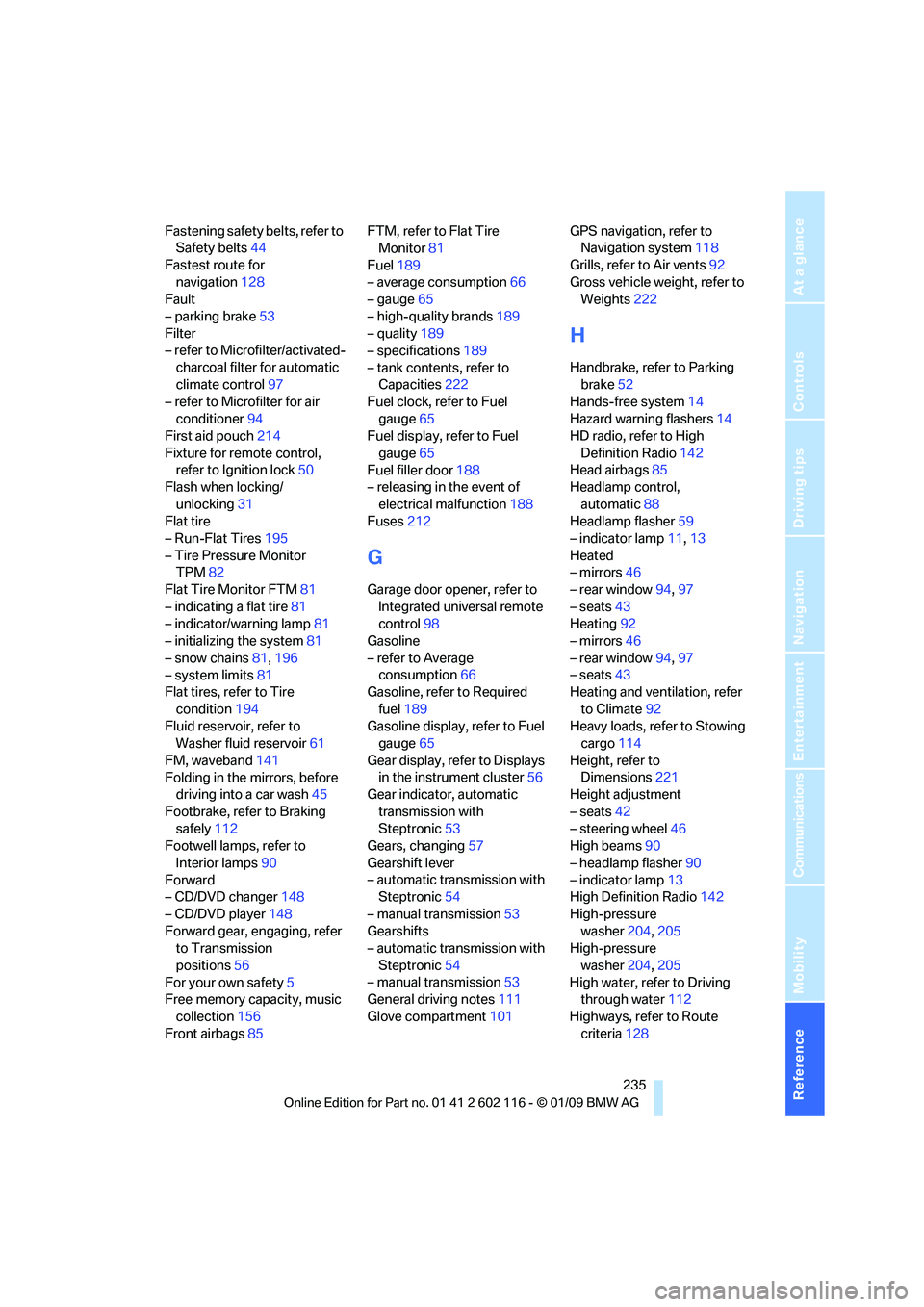
Fastening safety belts, refer to Safety belts 44
Fastest route for navigation 128
Fault
– parking brake 53
Filter
– refer to Microfilter/activated-
charcoal filter for automatic
climate control 97
– refer to Microfilter for air
conditioner 94
First aid pouch 214
Fixture for remote control, refer to Ignition lock 50
Flash when locking/
unlocking 31
Flat tire
– Run-Flat Tires 195
– Tire Pressure Monitor TPM 82
Flat Tire Monitor FTM 81
– indicating a flat tire 81
– indicator/warning lamp 81
– initializing the system 81
– snow chains 81,196
– system limits 81
Flat tires, refer to Tire
condition 194
Fluid reservoir, refer to Washer fluid reservoir 61
FM, waveband 141
Folding in the mirrors, before driving into a car wash 45
Footbrake, refer to Braking safely 112
Footwell lamps, refer to
Interior lamps 90
Forward
– CD/DVD changer 148
– CD/DVD player 148
Forward gear, engaging, refer to Transmission
positions 56
For your own safety 5
Free memory capacity, music
collection 156
Front airbags 85 FTM, refer to Flat Tire
Monitor 81
Fuel 189
– average consumption 66
– gauge 65
– high-quality brands 189
– quality 189
– specifications 189
– tank contents, refer to Capacities 222
Fuel clock, refer to Fuel
gauge 65
Fuel display, refer to Fuel
gauge 65
Fuel filler door 188
– releasing in the event of
electrical malfunction 18
8
Fuses 212
G
Garage door opener, refer to
Integrated universal remote
control 98
Gasoline
– refer to Average consumption 66
Gasoline, refer to Required
fuel 189
Gasoline display, refer to Fuel gauge 65
Gear display, refer to Displays in the instrument cluster 56
Gear indicator, automatic
transmission with
Steptronic 53
Gears, changing 57
Gearshift lever
– automatic transmission with Steptronic 54
– manual transmission 53
Gearshifts
– automatic transmission with
Steptronic 54
– manual transmission 53
General driving notes 111
Glove compartment 101GPS navigation, refer to
Navigation system 118
Grills, refer to Air vents 92
Gross vehicle weight, refer to Weights 222
H
Handbrake, refer to Parking
brake 52
Hands-free system 14
Hazard warning flashers 14
HD radio, refer to High
Definition Radio 142
Head airbags 85
Headlamp control,
automatic 88
Headlamp flasher 59
– indicator lamp 11,13
Heated
– mirrors 46
– rear window 94,97
– seats 43
Heating 92
– mirrors 46
– rear window 94,97
– seats 43
Heating and ventilation, refer
to Climate 92
Heavy loads, refer to Stowing cargo 114
Height, refer to Dimensions 221
Height adjustment
– seats 42
– steering wheel 46
High beams 90
– headlamp flasher 90
– indicator lamp 13
High Definition Radio 142
High-pressure washer 204,205
High-pressure
washer 204,205
High water, refer to Driving through water 112
Highways, refer to Route criteria 128
Page 238 of 248
Everything from A to Z
236
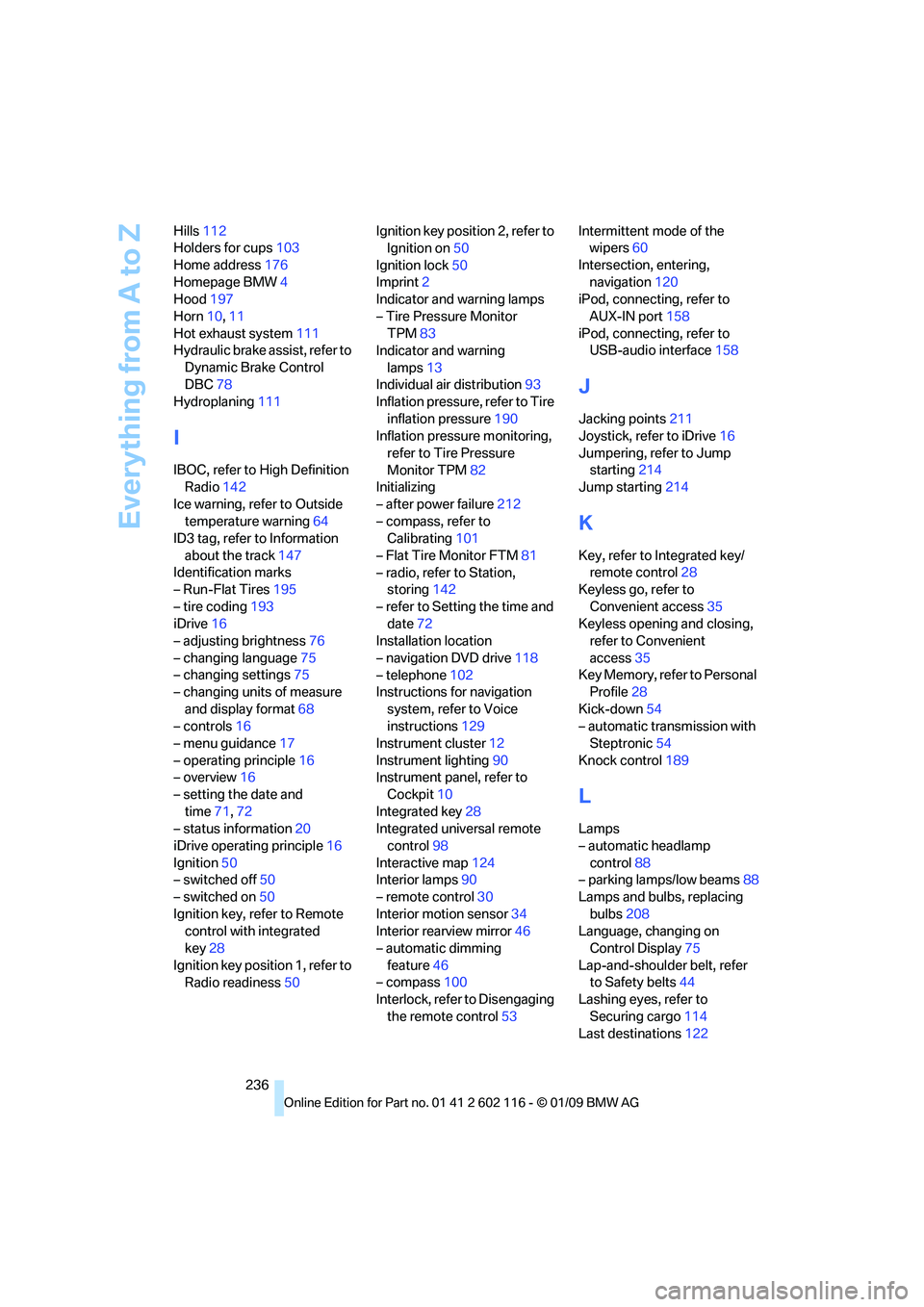
Hills
112
Holders for cups 103
Home address 176
Homepage BMW 4
Hood 197
Horn 10,11
Hot exhaust system 111
Hydraulic brake assist, refer to
Dynamic Brake Control
DBC 78
Hydroplaning 111
I
IBOC, refer to High Definition
Radio 142
Ice warning, refer to Outside temperature warning 64
ID3 tag, refer to Information
about the track 147
Identification marks
– Run-Flat Tires 195
– tire coding 193
iDrive 16
– adjusting brightness 76
– changing language 75
– changing settings 75
– changing units of measure
and display format 68
– controls 16
– menu guidance 17
– operating principle 16
– overview 16
– setting the date and
time 71,72
– status information 20
iDrive operating principle 16
Ignition 50
– switched off 50
– switched on 50
Ignition key, refer to Remote control with integrated
key 28
Ignition key position 1, refer to Radio readiness 50Ignition key position 2, refer to
Ignition on 50
Ignition lock 50
Imprint 2
Indicator and warning lamps
– Tire Pressure Monitor TPM 83
Indicator and warning
lamps 13
Individual air distribution 93
Inflation pressure, refer to Tire
inflation pressure 190
Inflation pressure monitoring,
refer to Tire Pressure
Monitor TPM 82
Initializing
– after power failure 212
– compass, refer to Calibrating 101
– Flat Tire Monitor FTM 81
– radio, refer to Station, storing 142
– refer to Setting the time and date 72
Installation location
– navigation DVD drive 118
– telephone 102
Instructions for navigation
system, refer to Voice
instructions 129
Instrument cluster 12
Instrument lighting 90
In
strument panel, refer to Cockpit 10
Integrated key 28
Integrated universal remote control 98
Interactive map 124
Interior lamps 90
– remote control 30
Interior motion sensor 34
Interior rearview mirror 46
– automatic dimming
feature 46
– compass 100
Interlock, refer to Disengaging
the remote control 53Intermittent mode of the
wipers 60
Intersection, entering, navigation 120
iPod, connecting, refer to
AUX-IN port 158
iPod, connecting, refer to USB-audio interface 158
J
Jacking points211
Joystick, refer to iDrive 16
Jumpering, refer to Jump starting 214
Jump starting 214
K
Key, refer to Integrated key/
remote control 28
Keyless go, refer to
Convenient access 35
Keyless opening and closing, refer to Convenient
access 35
Key Memory, refer to Personal Profile 28
Kick-down 54
– automatic transmission with Steptronic 54
Knock control 189
L
Lamps
– automatic headlamp
control 88
– parking lamps/low beams 88
Lamps and bulbs, replacing
bulbs 208
Language, changing on Control Display 75
Lap-and-shoulder belt, refer to Safety belts 44
Lashing eyes, refer to
Securing cargo 114
Last destinations 122