USB port BMW Z4 SDRIVE35I 2009 Owners Manual
[x] Cancel search | Manufacturer: BMW, Model Year: 2009, Model line: Z4 SDRIVE35I, Model: BMW Z4 SDRIVE35I 2009Pages: 248, PDF Size: 7.63 MB
Page 103 of 248
Controls
101Reference
At a glance
Driving tips
Communications
Navigation
Entertainment
Mobility
Calibrating the digital compass
The digital compass must be calibrated in the
following situations:
> An incorrect compass direction is shown.
> The compass direction shown does not
change although the direction of
travel does.
> Not all compass directions are shown.
Procedure
1.Make sure that no la rge metal objects or
overhead power lines are in the vicinity of
your vehicle and that you have enough
space to drive in a circle.
2. Set the currently valid compass zone.
3. ensure that the retractable hardtop is fully
closed.
4. Press the adjustment button for approx.
6-7 seconds to call up C. Then drive in at
least one full circle at a speed of no more
than 4mph or 7km/h.
If calibration is successful, the display
changes from C to a compass direction.
5. Open the retractable hardtop fully and
repeat step 4.
Setting right-hand/left-hand steering
Your digital compass is factory-set to right-
hand or left-hand steeri ng, in accordance with
your vehicle.
Setting the language
You can set the language of the display:
Press the adjustment button for approx.
12-13 seconds. Briefly press the adjustment
button again to switch between English, "E",
and German, "O".
The setting is automatically saved after approx.
10 seconds.
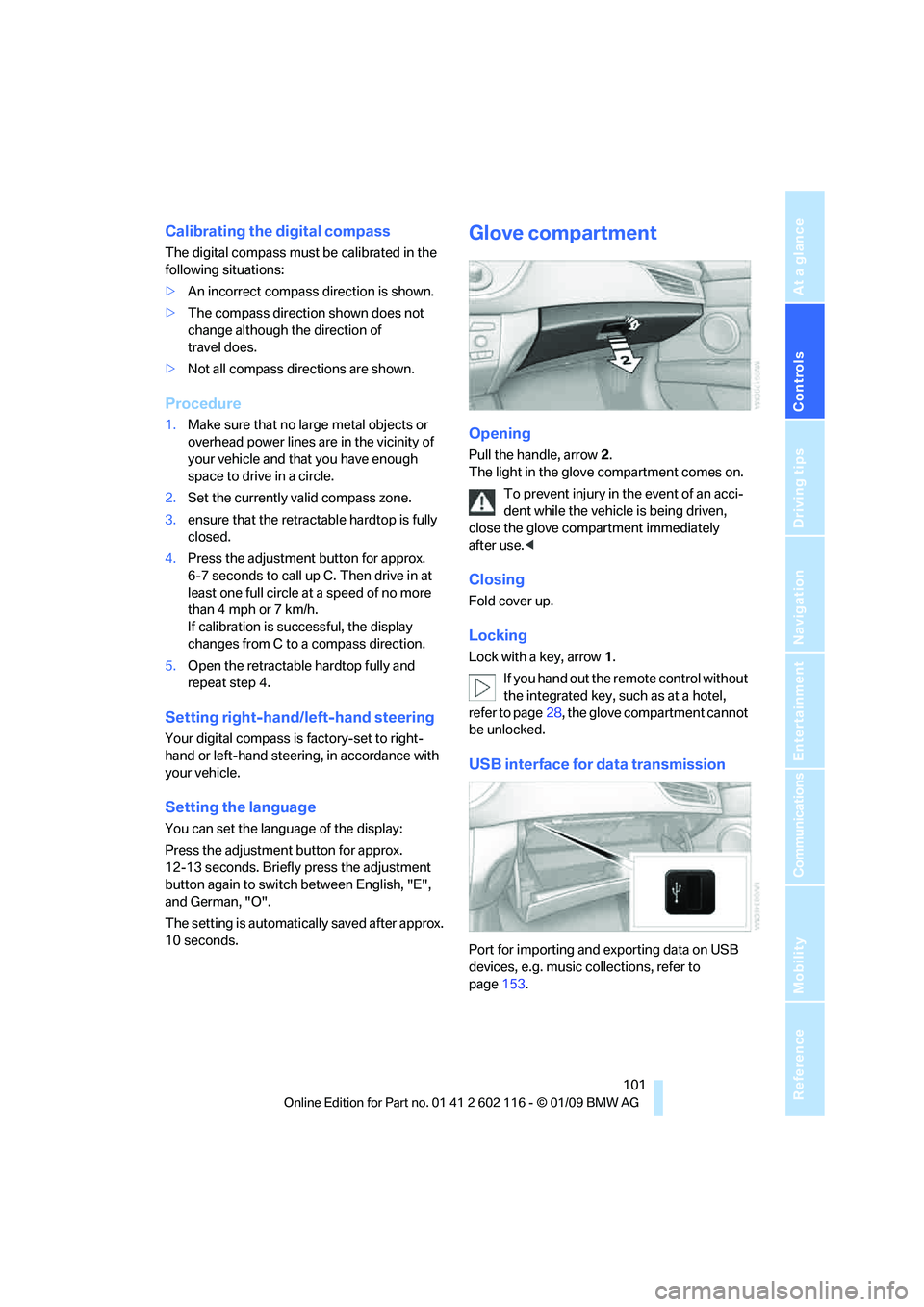
Glove compartment
Opening
Pull the handle, arrow 2.
The light in the glove compartment comes on.
To prevent injury in the event of an acci-
dent while the vehicle is being driven,
close the glove compartment immediately
after use. <
Closing
Fold cover up.
Locking
Lock with a key, arrow 1.
If you hand out the remote control without
the integrated key, such as at a hotel,
refer to page 28, the glove compartment cannot
be unlocked.
USB interface for data transmission
Port for importing and exporting data on USB
devices, e.g. music collections, refer to
page 153.
Page 104 of 248
Practical interior accessories
102
Observe the following when connecting:
>
Do not use force when plugging the con-
nector into the USB audio interface.
> Do not connect devices such as fans or
lamps to the USB audio interface.
> Do not connect a USB hard disk.
> Do not use the USB in terface to recharge
external devices.
Center armrest
Storage compartment
The center armrest contains either two cup
holders, a compartment or the cover for the
snap-in adapter
*, depending on the equipment
version. For more details on this mobile phone
cradle, see page 174.
Locking the storage compartment*
When you lock the vehicle from the outside, the
storage compartment in the center armrest is
locked as well.
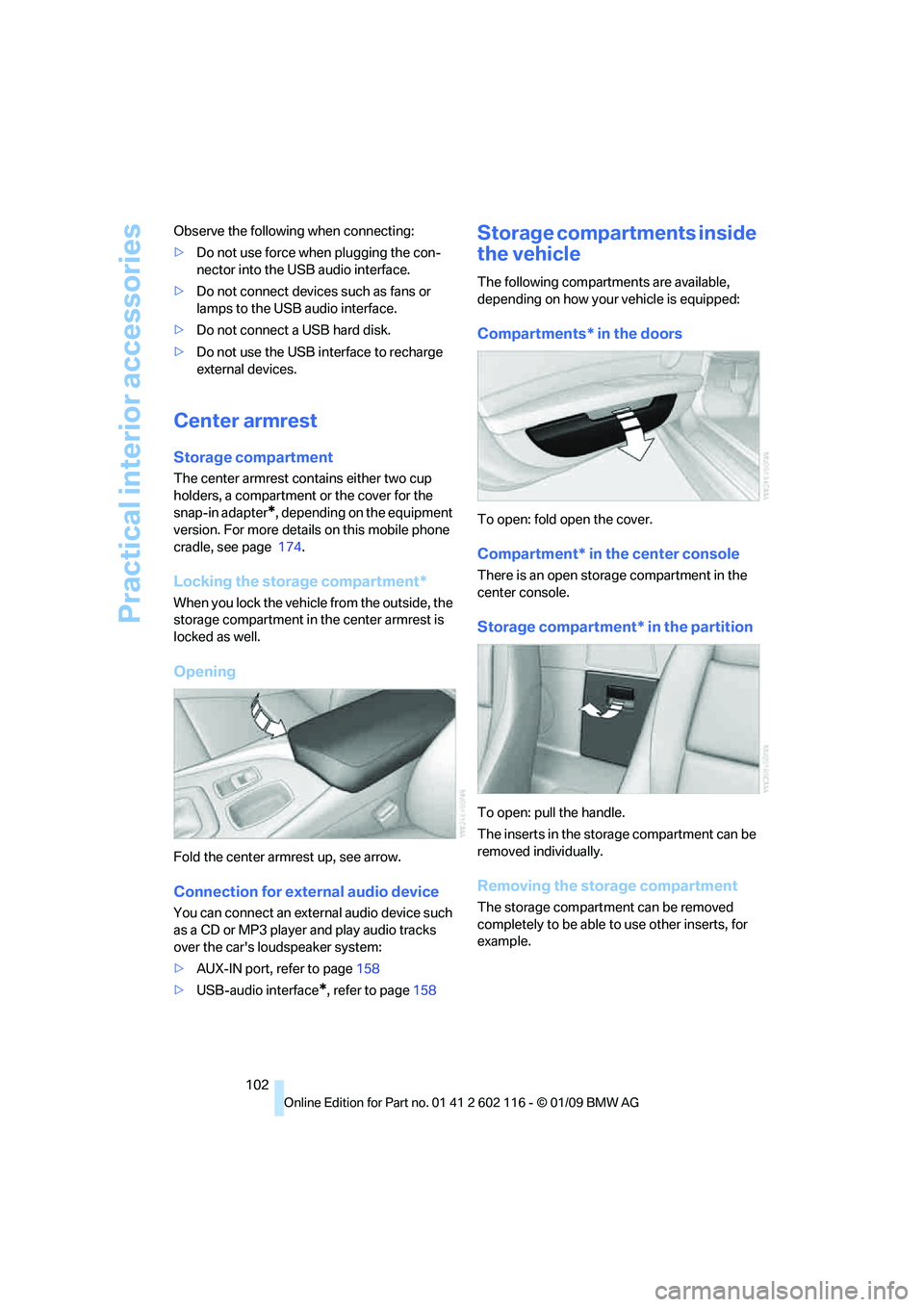
Opening
Fold the center armrest up, see arrow.
Connection for exte rnal audio device
You can connect an external audio device such
as a CD or MP3 player and play audio tracks
over the car's loudspeaker system:
>AUX-IN port, refer to page 158
> USB-audio interface
*, refer to page 158
Storage compartments inside
the vehicle
The following compartments are available,
depending on how your vehicle is equipped:
Compartments* in the doors
To open: fold open the cover.
Compartment* in the center console
There is an open storage compartment in the
center console.
Storage compartment* in the partition
To open: pull the handle.
The inserts in the storage compartment can be
removed individually.
Removing the storage compartment
The storage compartment can be removed
completely to be able to use other inserts, for
example.
Page 156 of 248
Music collection
154
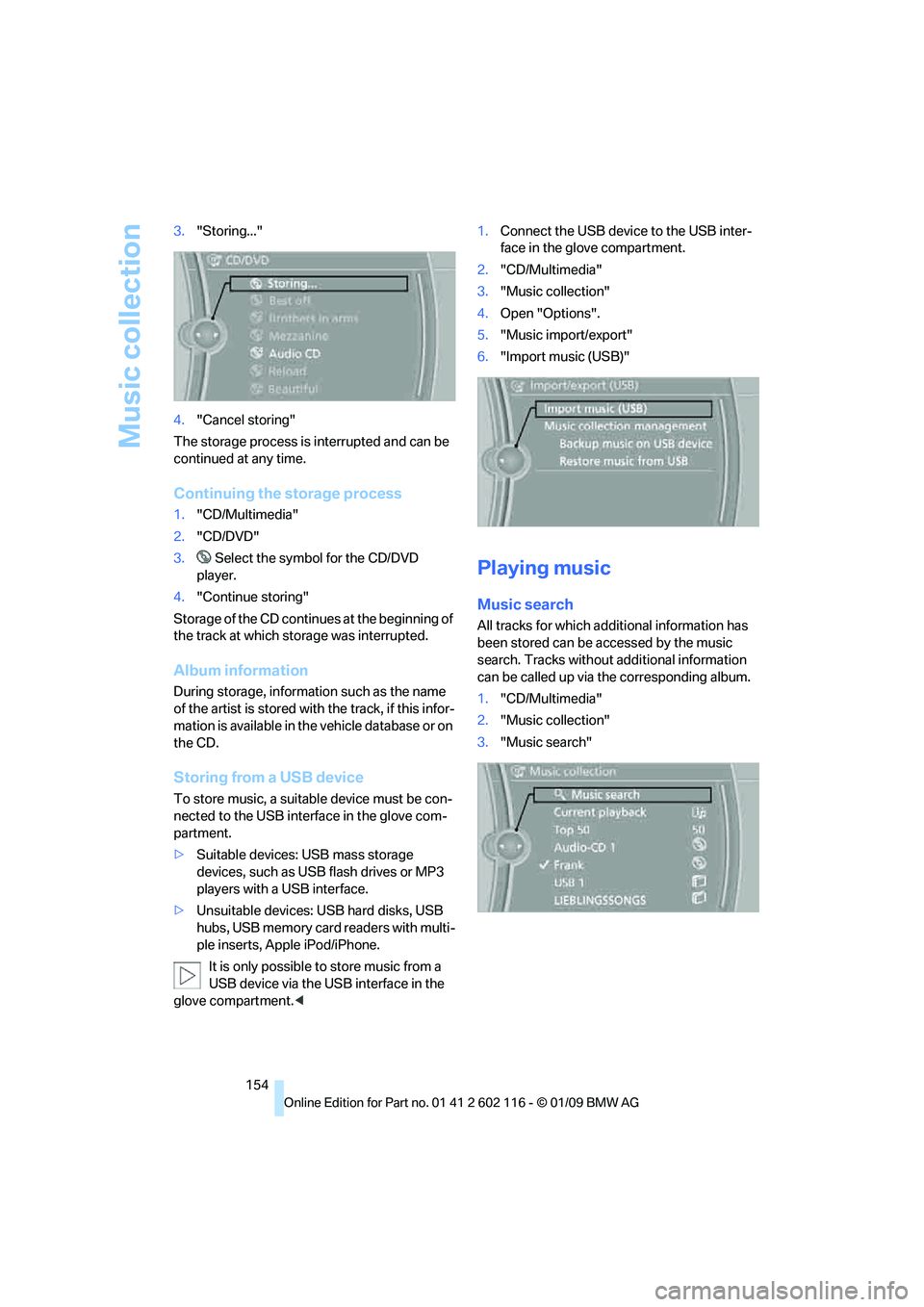
3.
"Storing..."
4. "Cancel storing"
The storage process is interrupted and can be
continued at any time.
Continuing the storage process
1. "CD/Multimedia"
2. "CD/DVD"
3. Select the symbol for the CD/DVD
player.
4. "Continue storing"
Storage of the CD continues at the beginning of
the track at which storage was interrupted.
Album information
During storage, information such as the name
of the artist is stored with the track, if this infor-
mation is available in th e vehicle database or on
the CD.
Storing from a USB device
To store music, a suitable device must be con-
nected to the USB interface in the glove com-
partment.
> Suitable devices: USB mass storage
devices, such as USB flash drives or MP3
players with a USB interface.
> Unsuitable devices: USB hard disks, USB
hubs, USB memory card readers with multi-
ple inserts, Apple iPod/iPhone.
It is only possible to store music from a
USB device via the USB interface in the
glove compartment. < 1.
Connect the USB device to the USB inter-
face in the glove compartment.
2. "CD/Multimedia"
3. "Music collection"
4. Open "Options".
5. "Music import/export"
6. "Import music (USB)"
Playing music
Music search
All tracks for which additional information has
been stored can be accessed by the music
search. Tracks without additional information
can be called up via th e corresponding album.
1. "CD/Multimedia"
2. "Music collection"
3. "Music search"
Page 159 of 248
Navigation
Entertainment
Driving tips
157Reference
At a glance
Controls
Communications
Mobility
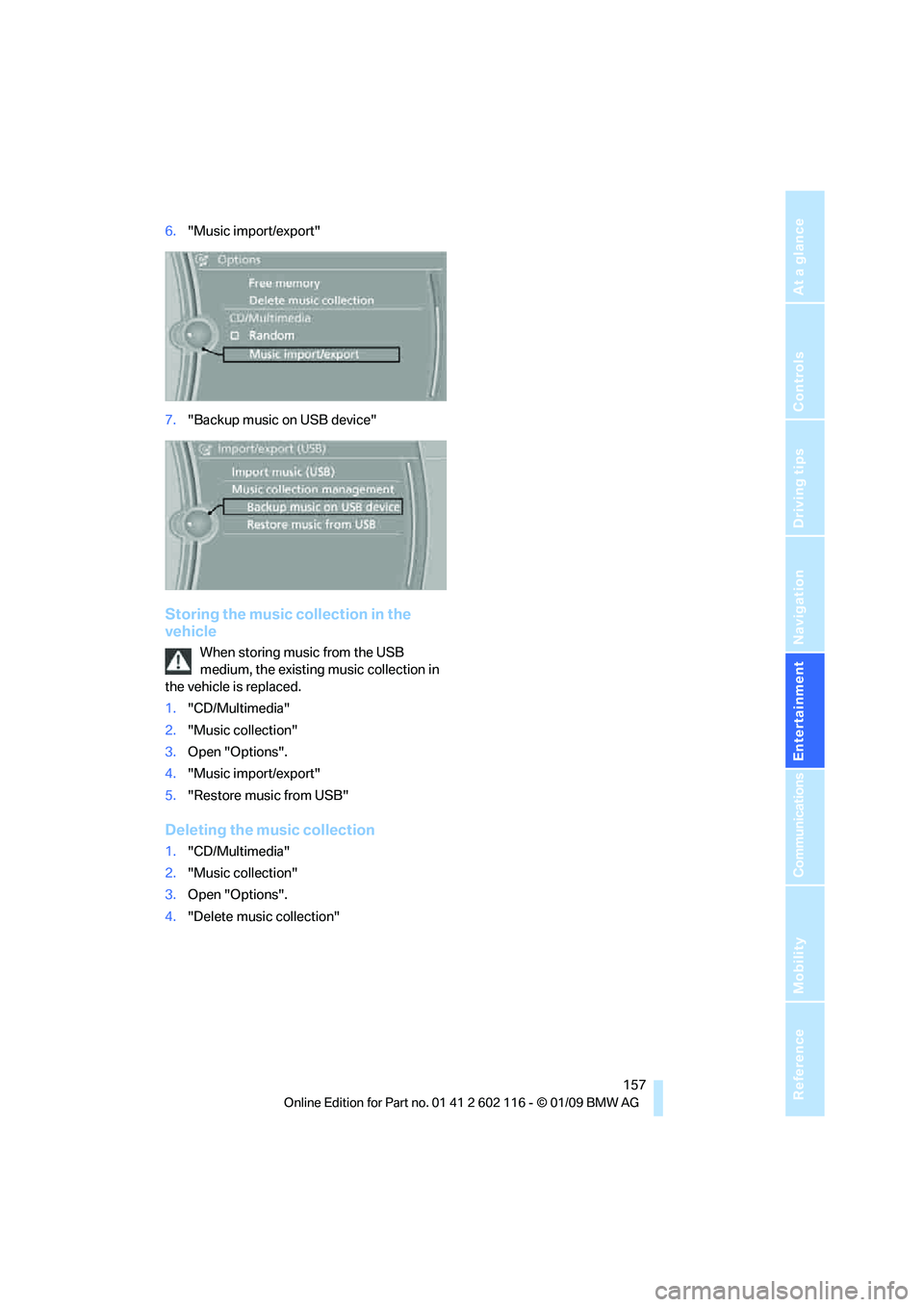
6."Music import/export"
7. "Backup music on USB device"
Storing the music collection in the
vehicle
When storing music from the USB
medium, the existing music collection in
the vehicle is replaced.
1. "CD/Multimedia"
2. "Music collection"
3. Open "Options".
4. "Music import/export"
5. "Restore music from USB"
Deleting the music collection
1."CD/Multimedia"
2. "Music collection"
3. Open "Options".
4. "Delete music collection"
Page 160 of 248
External devices
158
External devices
AUX-IN port
You can connect an external audio device, for
instance an MP3 player, and play audio tracks
over the car's loudspeaker system. You can
adjust the tone using iDrive.
Connecting
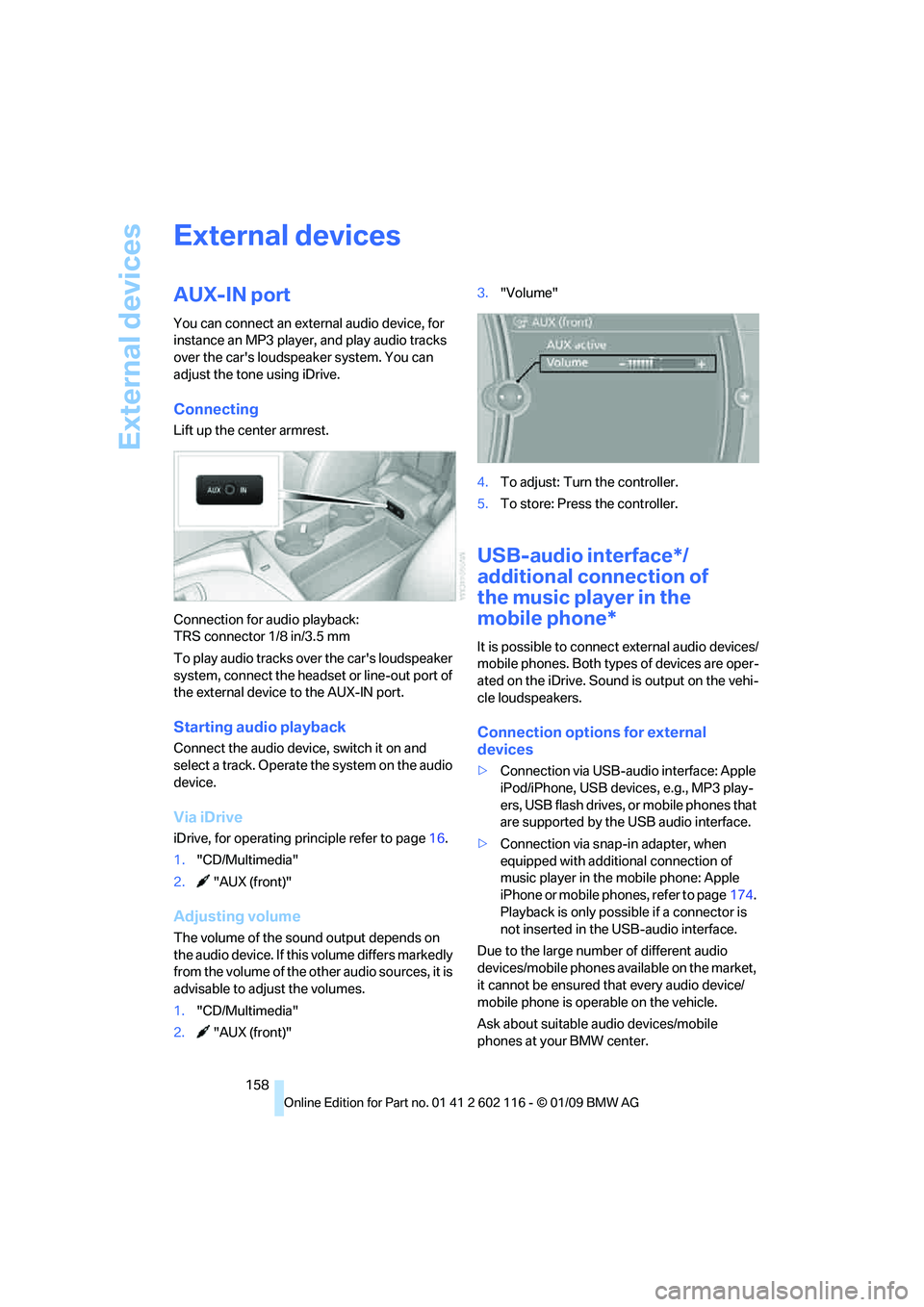
Lift up the center armrest.
Connection for audio playback:
TRS connector 1/8 in/3.5 mm
To play audio tracks over the car's loudspeaker
system, connect the headset or line-out port of
the external device to the AUX-IN port.
Starting audio playback
Connect the audio device, switch it on and
select a track. Operate the system on the audio
device.
Via iDrive
iDrive, for operating pr inciple refer to page16.
1. "CD/Multimedia"
2. "AUX (front)"
Adjusting volume
The volume of the sound output depends on
the audio device. If this volume differs markedly
from the volume of the other audio sources, it is
advisable to adjust the volumes.
1. "CD/Multimedia"
2. "AUX (front)" 3.
"Volume"
4. To adjust: Turn the controller.
5. To store: Press the controller.
USB-audio interface*/
additional connection of
the music player in the
mobile phone*
It is possible to connec t external audio devices/
mobile phones. Both types of devices are oper-
ated on the iDrive. Sound is output on the vehi-
cle loudspeakers.
Connection options for external
devices
> Connection via USB-audio interface: Apple
iPod/iPhone, USB devices, e.g., MP3 play-
ers, USB flash drives, or mobile phones that
are supported by the USB audio interface.
> Connection via snap-in adapter, when
equipped with additional connection of
music player in the mobile phone: Apple
iPhone or mobile phones, refer to page 174.
Playback is only possib le if a connector is
not inserted in the USB-audio interface.
Due to the large number of different audio
devices/mobile phones av ailable on the market,
it cannot be ensured that every audio device/
mobile phone is operable on the vehicle.
Ask about suitable audio devices/mobile
phones at your BMW center.
Page 161 of 248
Navigation
Entertainment
Driving tips
159Reference
At a glance
Controls
Communications
Mobility
Audio files
Standard audio formats, e.g. MP3, WMA, WAV
(PCM) and AAC, and playlists in the M3U format
can be played.
Connecting via USB-audio interface
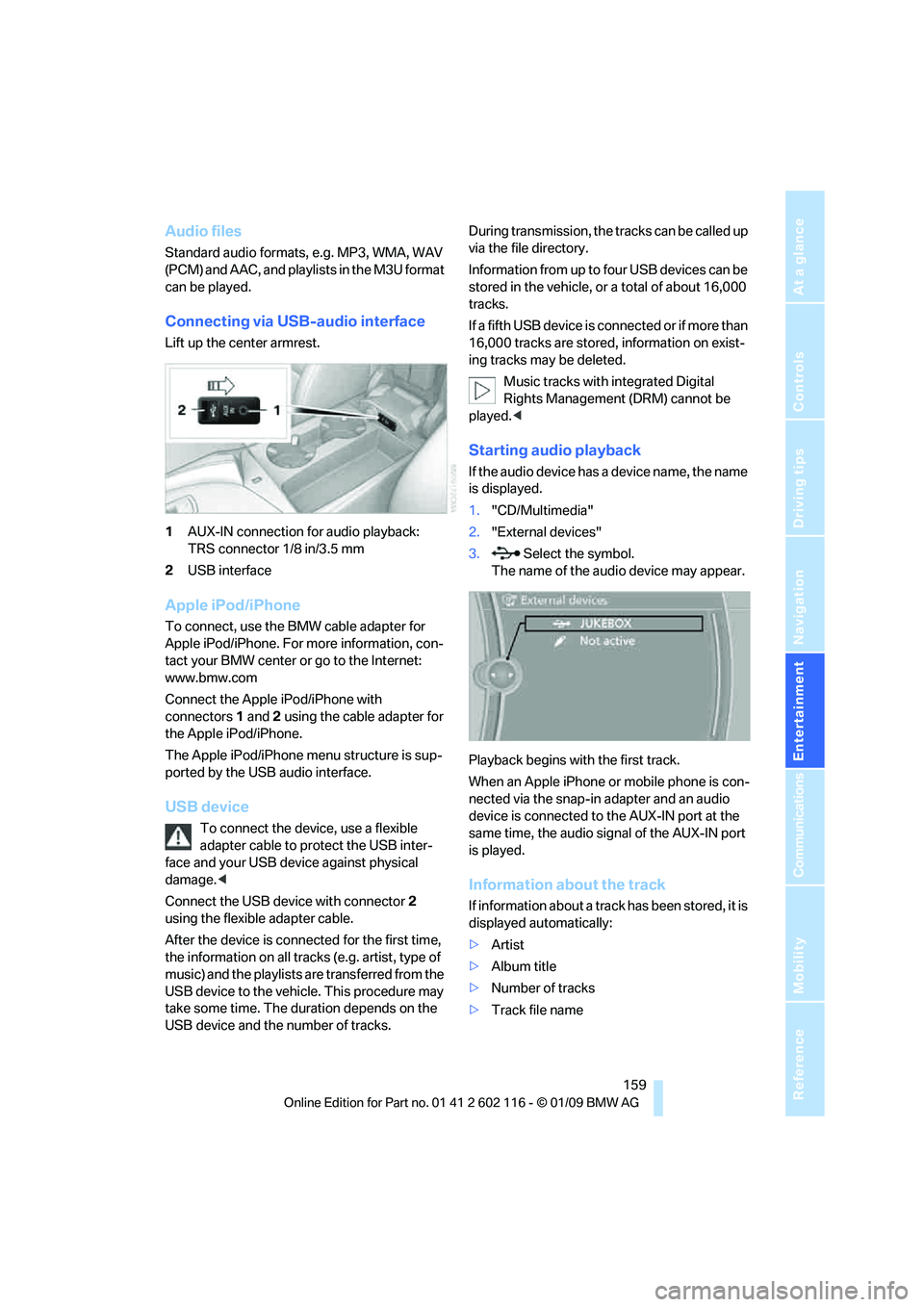
Lift up the center armrest.
1AUX-IN connection for audio playback:
TRS connector 1/8 in/3.5 mm
2 USB interface
Apple iPod/iPhone
To connect, use the BMW cable adapter for
Apple iPod/iPhone. For more information, con-
tact your BMW center or go to the Internet:
www.bmw.com
Connect the Apple iPod/iPhone with
connectors 1 and 2 using the cable adapter for
the Apple iPod/iPhone.
The Apple iPod/iPhone menu structure is sup-
ported by the USB audio interface.
USB device
To connect the device, use a flexible
adapter cable to protect the USB inter-
face and your USB device against physical
damage. <
Connect the USB device with connector 2
using the flexible adapter cable.
After the device is connected for the first time,
the information on all trac ks (e.g. artist, type of
music) and the playlists are transferred from the
USB device to the vehicle. This procedure may
take some time. The du ration depends on the
USB device and the number of tracks. During transmission, the tracks can be called up
via the file directory.
Information from up to four USB devices can be
stored in the vehicle, or a total of about 16,000
tracks.
I f a f i f t h U S B d e v i c e i s c o n n e c t e d o r i f m o r e t h a n
16,000 tracks are stored, information on exist-
ing tracks may be deleted.
Music tracks with integrated Digital
Rights Management (DRM) cannot be
played. <
Starting audio playback
If the audio device has a device name, the name
is displayed.
1."CD/Multimedia"
2. "External devices"
3. Select the symbol.
The name of the audio device may appear.
Playback begins with the first track.
When an Apple iPhone or mobile phone is con-
nected via the snap-in adapter and an audio
device is connected to the AUX-IN port at the
same time, the audio signal of the AUX-IN port
is played.
Information about the track
If information about a track has been stored, it is
displayed automatically:
> Artist
> Album title
> Number of tracks
> Track file name
Page 163 of 248
Navigation
Entertainment
Driving tips
161Reference
At a glance
Controls
Communications
Mobility
Notes on connecting
>The connected audio device is supplied
with max. 500 mA current if this is sup-
ported by the device. Therefore, do not
connect the device to the power socket in
the vehicle.
> Do not forcibly connect the plug to the USB
interface.
> Do not connect devices such as fans or
lamps to the USB-audio interface.
> Do not connect USB hard disks.
> Do not use the USB-audio interface to
charge external devices.
Page 238 of 248
Everything from A to Z
236
Hills
112
Holders for cups 103
Home address 176
Homepage BMW 4
Hood 197
Horn 10,11
Hot exhaust system 111
Hydraulic brake assist, refer to
Dynamic Brake Control
DBC 78
Hydroplaning 111
I
IBOC, refer to High Definition
Radio 142
Ice warning, refer to Outside temperature warning 64
ID3 tag, refer to Information
about the track 147
Identification marks
– Run-Flat Tires 195
– tire coding 193
iDrive 16
– adjusting brightness 76
– changing language 75
– changing settings 75
– changing units of measure
and display format 68
– controls 16
– menu guidance 17
– operating principle 16
– overview 16
– setting the date and
time 71,72
– status information 20
iDrive operating principle 16
Ignition 50
– switched off 50
– switched on 50
Ignition key, refer to Remote control with integrated
key 28
Ignition key position 1, refer to Radio readiness 50Ignition key position 2, refer to
Ignition on 50
Ignition lock 50
Imprint 2
Indicator and warning lamps
– Tire Pressure Monitor TPM 83
Indicator and warning
lamps 13
Individual air distribution 93
Inflation pressure, refer to Tire
inflation pressure 190
Inflation pressure monitoring,
refer to Tire Pressure
Monitor TPM 82
Initializing
– after power failure 212
– compass, refer to Calibrating 101
– Flat Tire Monitor FTM 81
– radio, refer to Station, storing 142
– refer to Setting the time and date 72
Installation location
– navigation DVD drive 118
– telephone 102
Instructions for navigation
system, refer to Voice
instructions 129
Instrument cluster 12
Instrument lighting 90
In
strument panel, refer to Cockpit 10
Integrated key 28
Integrated universal remote control 98
Interactive map 124
Interior lamps 90
– remote control 30
Interior motion sensor 34
Interior rearview mirror 46
– automatic dimming
feature 46
– compass 100
Interlock, refer to Disengaging
the remote control 53Intermittent mode of the
wipers 60
Intersection, entering, navigation 120
iPod, connecting, refer to
AUX-IN port 158
iPod, connecting, refer to USB-audio interface 158
J
Jacking points211
Joystick, refer to iDrive 16
Jumpering, refer to Jump starting 214
Jump starting 214
K
Key, refer to Integrated key/
remote control 28
Keyless go, refer to
Convenient access 35
Keyless opening and closing, refer to Convenient
access 35
Key Memory, refer to Personal Profile 28
Kick-down 54
– automatic transmission with Steptronic 54
Knock control 189
L
Lamps
– automatic headlamp
control 88
– parking lamps/low beams 88
Lamps and bulbs, replacing
bulbs 208
Language, changing on Control Display 75
Lap-and-shoulder belt, refer to Safety belts 44
Lashing eyes, refer to
Securing cargo 114
Last destinations 122
Page 240 of 248
Everything from A to Z
238
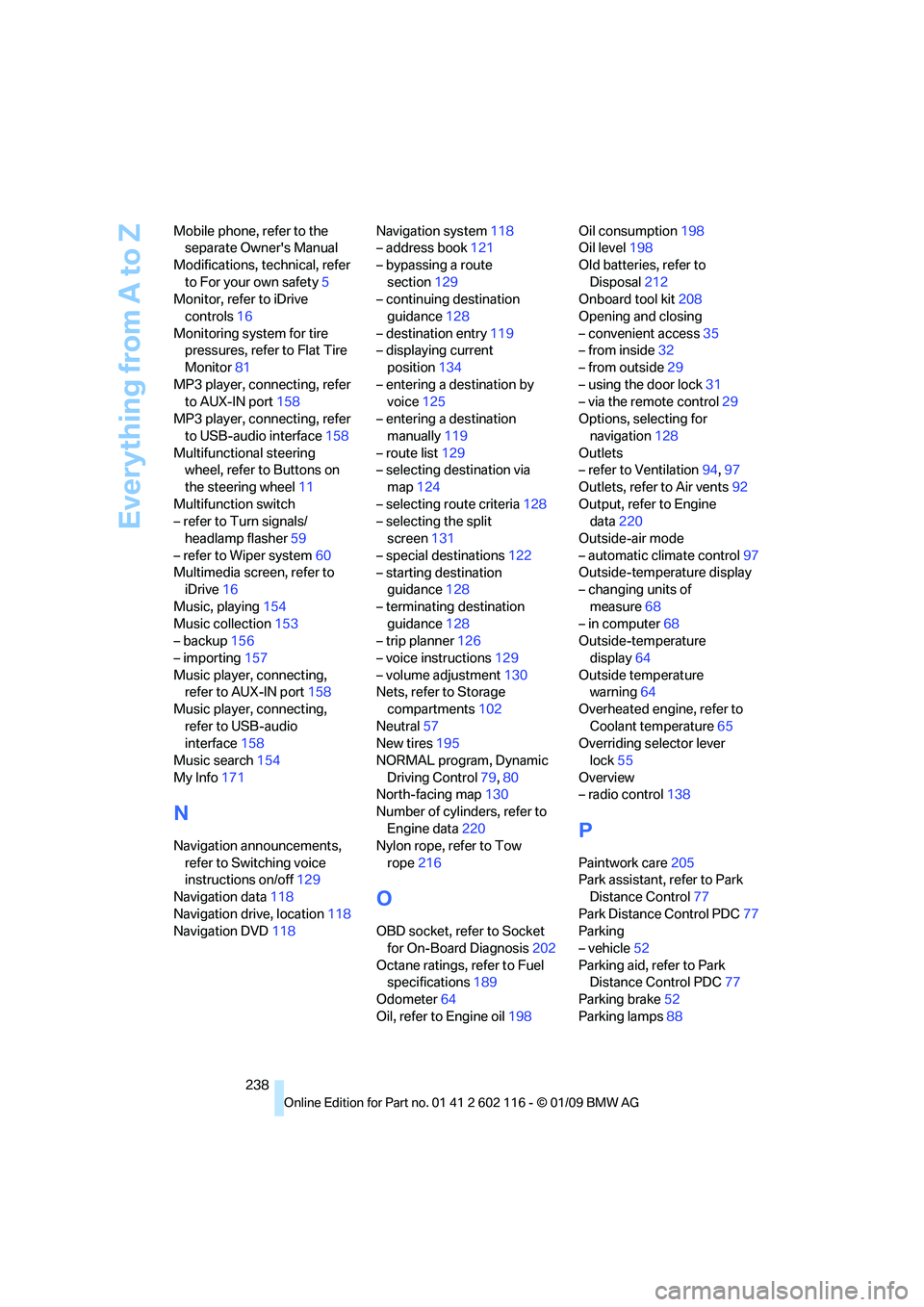
Mobile phone, refer to the
separate Owner's Manual
Modifications, te chnical, refer
to For your own safety 5
Monitor, refer to iDrive
controls 16
Monitoring system for tire pressures, refer to Flat Tire
Monitor 81
MP3 player, connecting, refer to AUX-IN port 158
MP3 player, connecting, refer to USB-audio interface 158
Multifunctional steering wheel, refer to Buttons on
the steering wheel 11
Multifunction switch
– refer to Turn signals/ headlamp flasher 59
– refer to Wiper system 60
Multimedia screen, refer to iDrive 16
Music, playing 154
Music collection 153
– backup 156
– importing 157
Music player, connecting, refer to AUX-IN port 158
Music player, connecting, refer to USB-audio
interface 158
Music search 154
My Info 171
N
Navigation announcements,
refer to Switching voice
instructions on/off 129
Navigation data 118
Navigation drive, location 118
Navigation DVD 118 Navigation system
118
– address book 121
– bypassing a route section 129
– continuing destination
guidance 128
– destination entry 119
– displaying current
position 134
– entering a destination by voice 125
– entering a destination manually 119
– route list 129
– selecting destination via map 124
– selecting route criteria 128
– selecting the split screen 131
– special destinations 122
– starting destination guidance 128
– terminating destination guidance 128
– trip planner 126
– voice instructions 129
– volume adjustment 130
Nets, refer to Storage
compartments 102
Neutral 57
New tires 195
NORMAL program, Dynamic Driving Control 79,80
North-facing map 130
Number of cylinders, refer to Engine data 220
Nylon rope, refer to Tow
rope 216
O
OBD socket, refer to Socket
for On-Board Diagnosis 202
Octane ratings, refer to Fuel specifications 189
Odometer 64
Oil, refer to Engine oil 198Oil consumption
198
Oil level 198
Old batteries, refer to Disposal 212
Onboard tool kit 208
Opening and closing
– convenient access 35
– from inside 32
– from outside 29
– using the door lock 31
– via the remote control 29
Options, selecting for navigation 128
Outlets
– refer to Ventilation 94,97
Outlets, refer to Air vents 92
Output, refer to Engine data 220
Outside-air mode
– automatic climate control 97
Outside-temperature display
– changing units of
measure 68
– in computer 68
Outside-temperature
display 64
Outside temperature warning 64
Overheated engine, refer to Coolant temperature 65
Overriding selector lever
lock 55
Overview
– radio control 138
P
Paintwork care 205
Park assistant, refer to Park Distance Control 77
Park Distance Control PDC 77
Parking
– vehicle 52
Parking aid, refer to Park Distance Control PDC 77
Parking brake 52
Parking lamps 88
Page 245 of 248
Reference 243
At a glance
Controls
Driving tips
Communications
Navigation
Entertainment
Mobility
Transmission lock, releasing manually 58
Transmission positions 56
Transporting children safely 48
Transport securing devices, refer to Securing cargo 114
Tread depth, refer to Minimum
tire tread 194
Trip-distance counter, refer to Trip odometer 64
Triple turn signal activation 59
Trip odometer 64
Trip planner 126
Turning circle, refer to Dimensions 221
Turn signal indicators
– indicator/warning lamp 12
– triple turn signal 59
Turn signals 59
Tying down loads, refer to Cargo loading 114
U
Uniform Tire Quality Grading/
UTQR 193
Units
– average consumption 68
– temperature 68
Universal garage door opener,
refer to Integrated universal
remote control 98
Universal mobile phone
preparation package, refer
to separate Owner's Manual
Universal remote control 98
Unlatching, refer to Unlocking 35
Unlocking
– from inside 32
– from outside 29
– luggage compartment lid 35
– setting unlocking characteristics 29
– without remote control, refer
to Convenient access 35
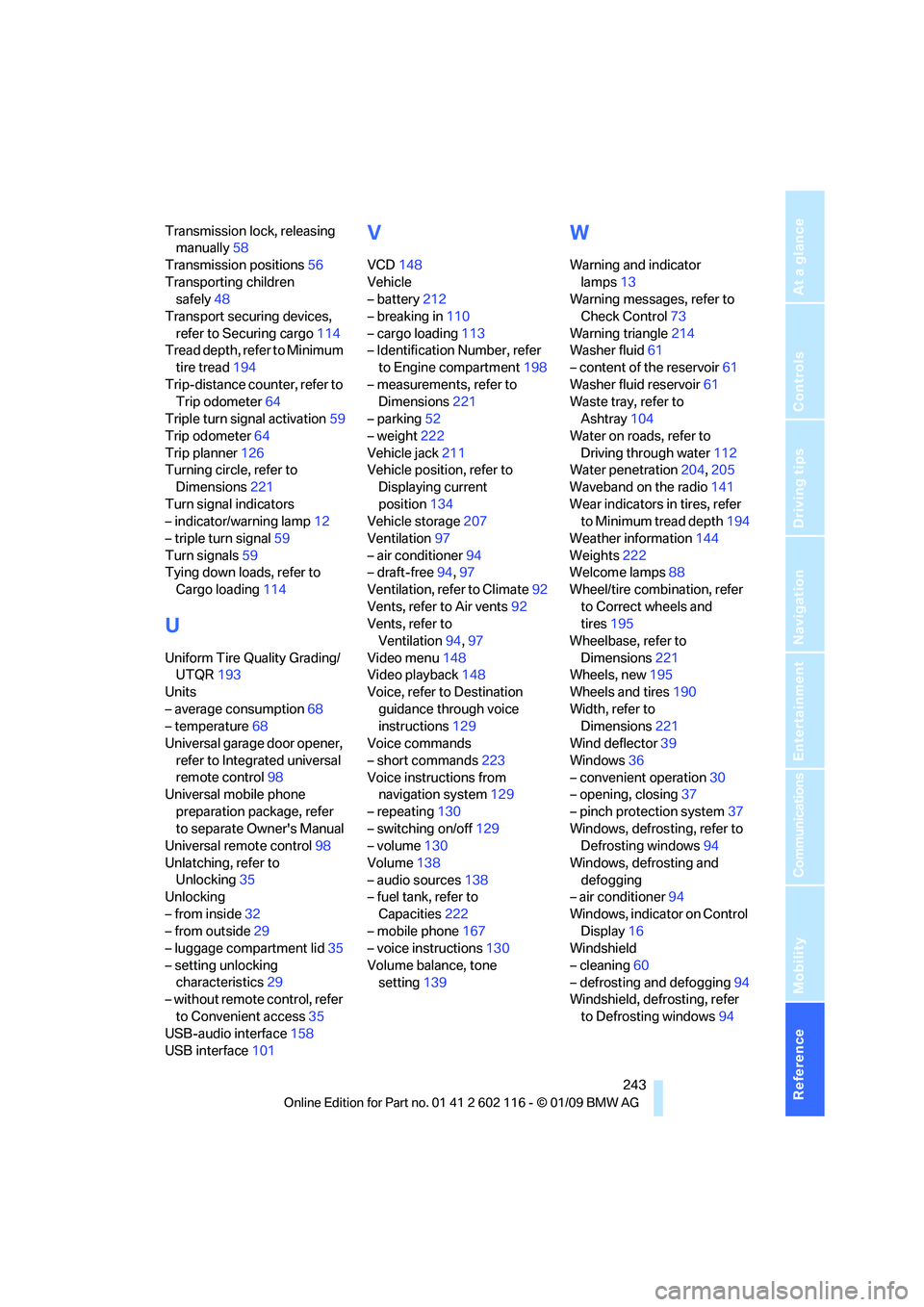
USB-audio interface 158
USB interface 101
V
VCD148
Vehicle
– battery 212
– breaking in 110
– cargo loading 113
– Identification Number, refer
to Engine compartment 198
– measurements, refer to Dimensions 221
– parking 52
– weight 222
Vehicle jack 211
Vehicle position, refer to Displaying current
position 134
Vehicle storage 207
Ventilation 97
– air conditioner 94
– draft-free 94,97
Ventilation, refer to Climate 92
Vents, refer to Air vents 92
Vents, refer to Ventilation 94,97
Video menu 148
Video playback 148
Voice, refer to Destination
guidance through voice
instructions 129
Voice commands
– short commands 223
Voice instructions from navigation system 129
– repeating 130
– switching on/off 129
– volume 130
Volume 138
– audio sources 138
– fuel tank, refer to
Capacities 222
– mobile phone 167
– voice instructions 130
Volume balance, tone setting 139
W
Warning and indicator
lamps 13
Warning messages, refer to
Check Control 73
Warning triangle 214
Washer fluid 61
– content of the reservoir 61
Washer fluid reservoir 61
Waste tray, refer to
Ashtray 104
Water on roads, refer to
Driving through water 112
Water penetration 204,205
Waveband on the radio 141
Wear indicators in tires, refer to Minimum tread depth 194
Weather information 144
Weights 222
Welcome lamps 88
Wheel/tire combination, refer
to Correct wheels and
tires 195
Wheelbase, refer to
Dimensions 221
Wheels, new 195
Wheels and tires 190
Width, refer to Dimensions 221
Wind deflector 39
Windows 36
– convenient operation 30
– opening, closing 37
– pinch protection system 37
Windows, defrosting, refer to Defrosting windows 94
Windows, defrosting and defogging
– air conditioner 94
Windows, indicator on Control Display 16
Windshield
– cleaning 60
– defrosting and defogging 94
Windshield, defrosting, refer
to Defrosting windows 94