language BMW Z4 SDRIVE35I 2009 Owners Manual
[x] Cancel search | Manufacturer: BMW, Model Year: 2009, Model line: Z4 SDRIVE35I, Model: BMW Z4 SDRIVE35I 2009Pages: 248, PDF Size: 7.63 MB
Page 24 of 248
Letters and numbers
22
Letters and numbers
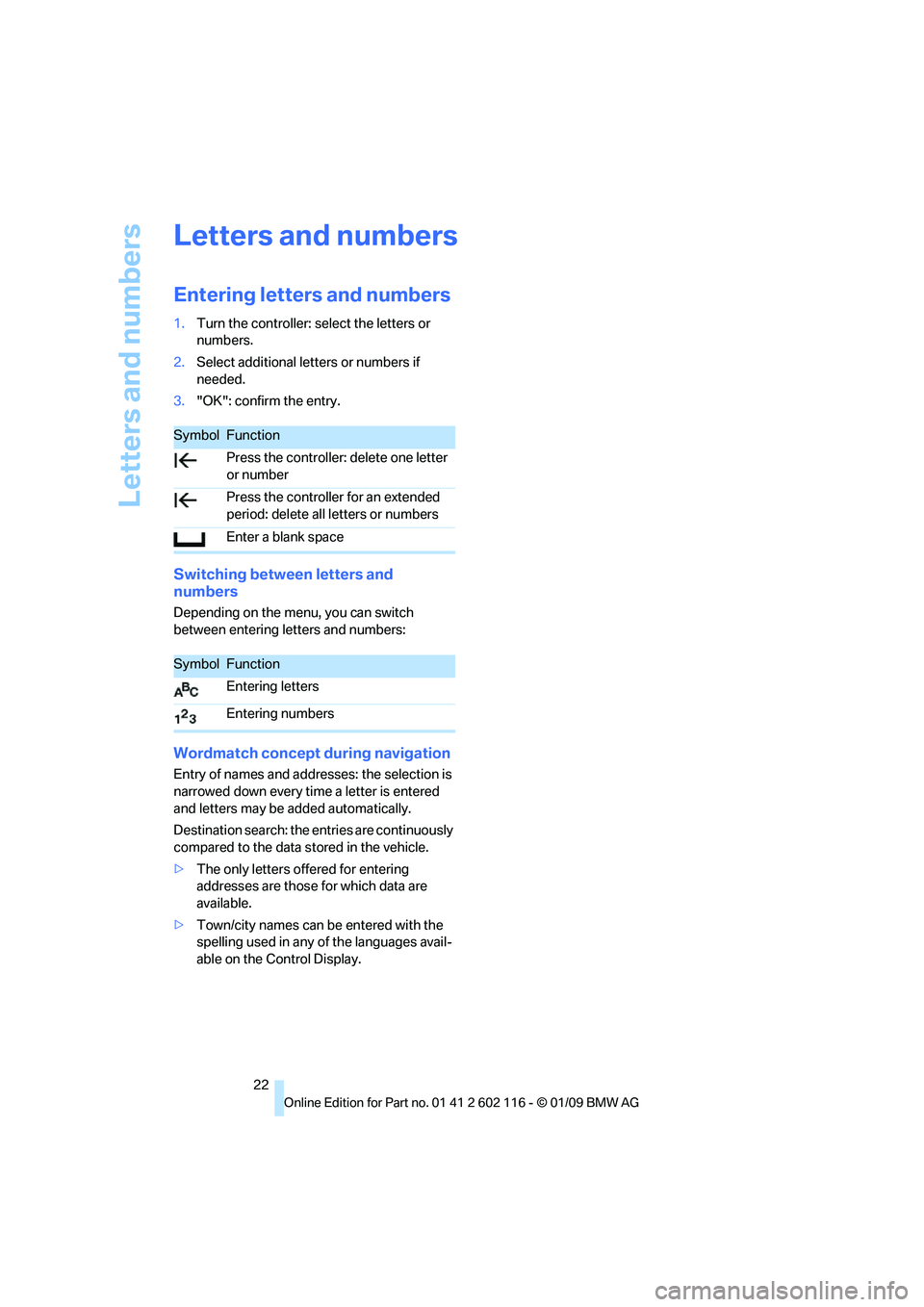
Entering letters and numbers
1.Turn the controller: select the letters or
numbers.
2. Select additional letters or numbers if
needed.
3. "OK": confirm the entry.
Switching between letters and
numbers
Depending on the menu, you can switch
between entering letters and numbers:
Wordmatch concept during navigation
Entry of names and addresses: the selection is
narrowed down every time a letter is entered
and letters may be added automatically.
Destination search: the entries are continuously
compared to the data stored in the vehicle.
> The only letters of fered for entering
addresses are those for which data are
available.
> Town/city names can be entered with the
spelling used in any of the languages avail-
able on the Control Display.
SymbolFunction
Press the controller: delete one letter
or number
Press the controller for an extended
period: delete all letters or numbers
Enter a blank space
SymbolFunction
Entering letters
Entering numbers
Page 25 of 248
At a glance
23Reference
Controls
Driving tips
Communications
Navigation
Entertainment
Mobility
Voice activation system
The concept
The voice activation system allows you to con-
trol operation of various vehicle systems with-
out removing your hands from the steering
wheel.
Individual menu items on the Control Display
can be spoken as commands. It is not neces-
sary to use the controller.
The voice activation system transforms your
oral commands into control signals for the
selected systems and provides support in the
form of instructions or questions.
the voice activation system uses a special
microphone located in the area of the steering
column.
Precondition
Via iDrive, select the language in which the
voice activation system is operating, so that the
spoken commands can be identified. Selecting
the language for iDrive, refer to page 75.
Symbols in the Owner's Manual
Saying commands
Activating voice activation system
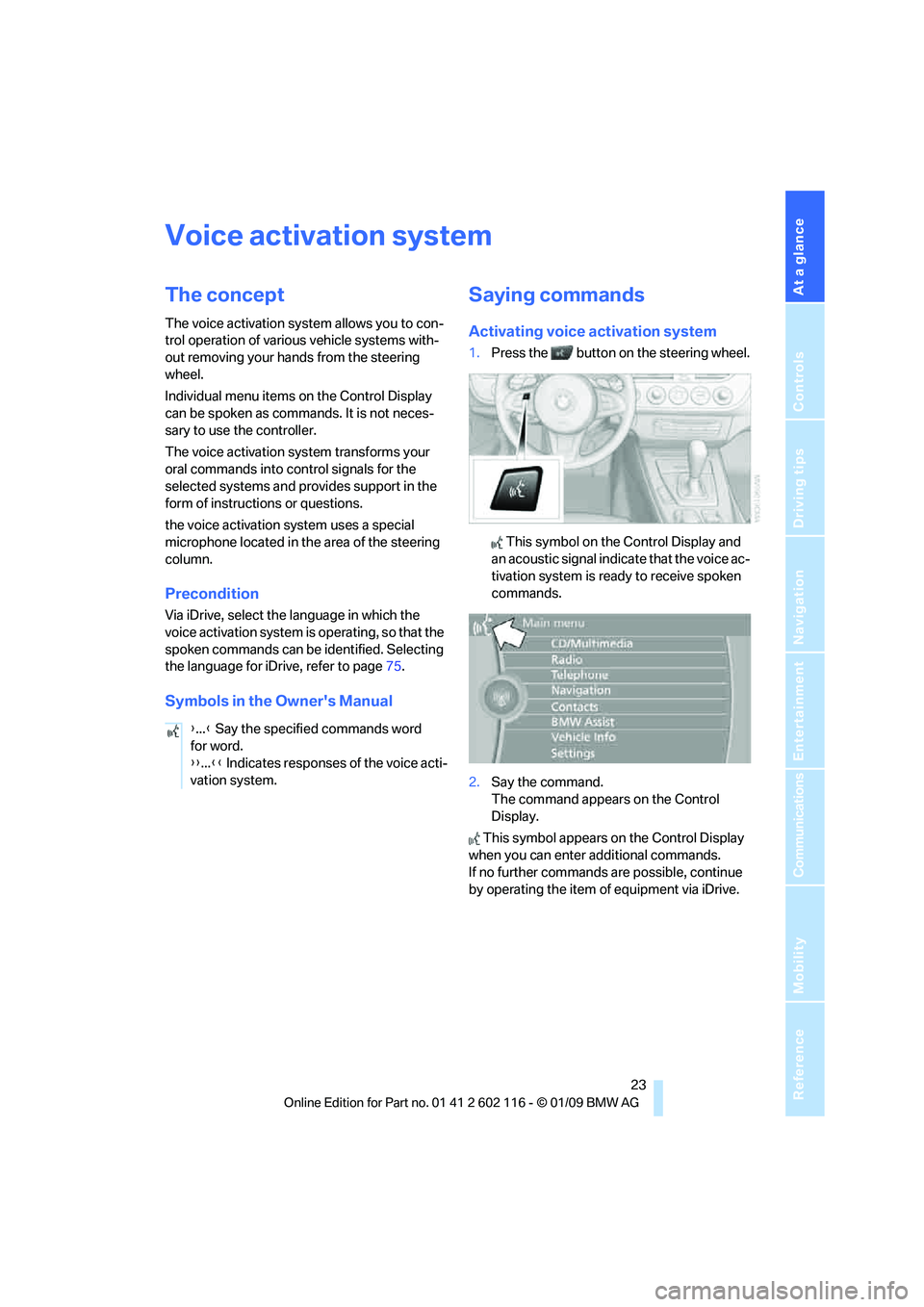
1. Press the button on the steering wheel.
This symbol on the Control Display and
an acoustic signal indicate that the voice ac-
tivation system is ready to receive spoken
commands.
2. Say the command.
The command appears on the Control
Display.
This symbol appears on the Control Display
when you can enter additional commands.
If no further commands are possible, continue
by operating the item of equipment via iDrive.
{
...} Say the specified commands word
for word.
{{ ...}} Indicates responses of the voice acti-
vation system.
Page 26 of 248
Voice activation system
24
Terminating or canceling voice
activation system
Press the button on the steering wheel or
In dialogs that call for a text of your choice, the
procedure can only be canceled using the but-
ton on the steering wheel.
Possible commands
The commands available in each case depend
on the menu item selected on the Control
Display.
Having the possible commands read aloud
For example, if "CD/DVD" is selected, the com-
mands for operating CD/Multimedia are read
aloud.
Calling up functions immediately via
short commands
Short commands enable yo u to perform certain
functions immediately, irrespective of which
menu item is selected, refer to page 223.
Example: selecting the track of a CD
1.If necessary, switch on entertainment audio
output.
2. Press the button on the steering wheel.
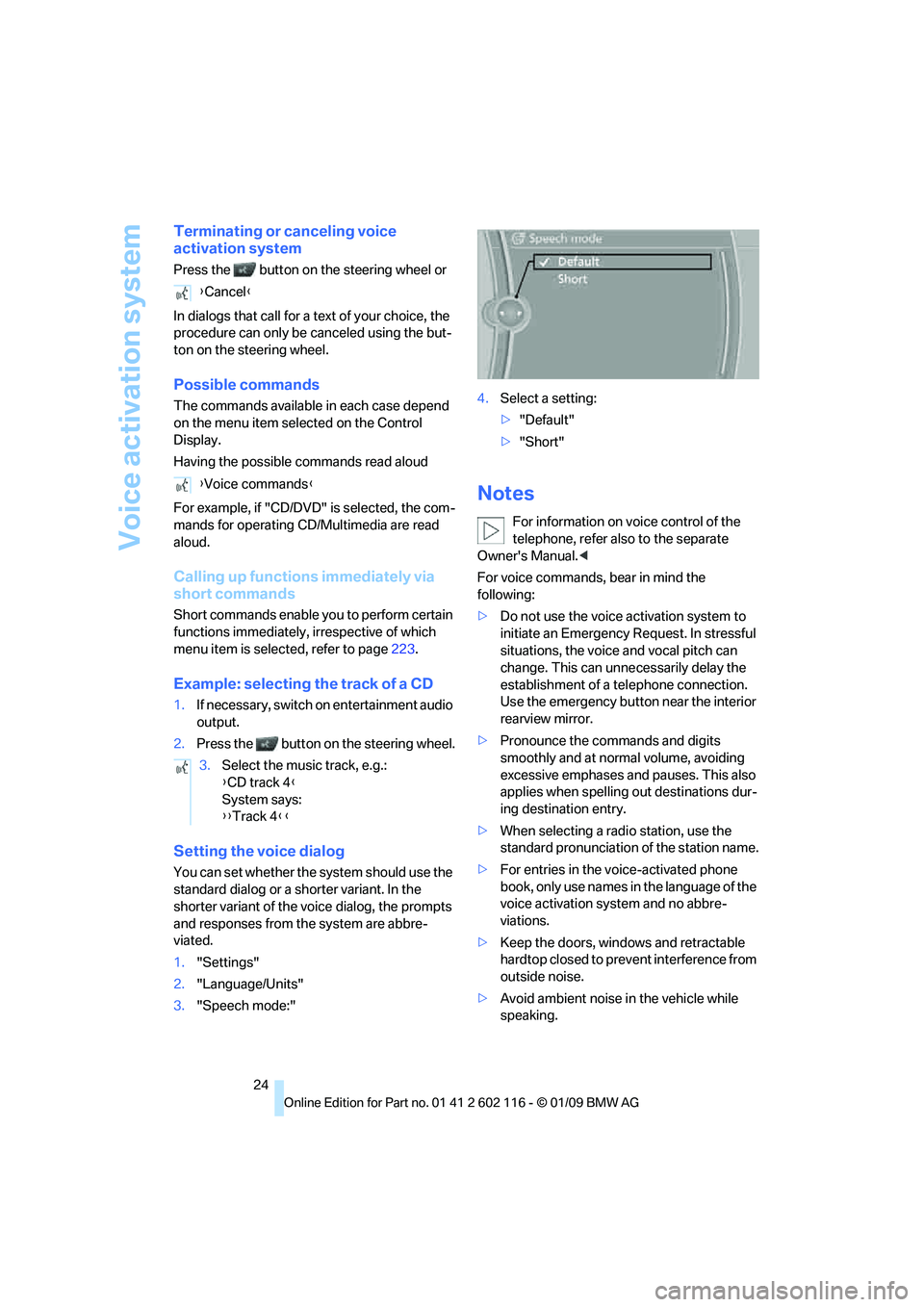
Setting the voice dialog
You can set whether the system should use the
standard dialog or a shorter variant. In the
shorter variant of the voice dialog, the prompts
and responses from the system are abbre-
viated.
1."Settings"
2. "Language/Units"
3. "Speech mode:" 4.
Select a setting:
>"Default"
> "Short"
Notes
For information on voice control of the
telephone, refer also to the separate
Owner's Manual. <
For voice commands, bear in mind the
following:
> Do not use the voice activation system to
initiate an Emergency Request. In stressful
situations, the voice and vocal pitch can
change. This can unne cessarily delay the
establishment of a telephone connection.
Use the emergency button near the interior
rearview mirror.
> Pronounce the commands and digits
smoothly and at normal volume, avoiding
excessive emphases and pauses. This also
applies when spelling out destinations dur-
ing destination entry.
> When selecting a radio station, use the
standard pronunciation of the station name.
> For entries in the voice-activated phone
book, only use names in the language of the
voice activation system and no abbre-
viations.
> Keep the doors, windows and retractable
hardtop closed to prev ent interference from
outside noise.
> Avoid ambient noise in the vehicle while
speaking.
{
Cancel }
{ Voice commands }
3. Select the music track, e.g.:
{CD track 4 }
System says:
{{ Track 4 }}
Page 31 of 248
Controls
29Reference
At a glance
Driving tips
Communications
Navigation
Entertainment
Mobility
>Settings for the display on the Control Dis-
play and in the instrument cluster:
>12h/24h format of the clock, refer to
page 71
> Date format, refer to page 72
> Brightness of Control Display, refer to
page 76
> Language on the Control Display, refer
to page 75
> Units of measure for fuel consumption,
distance covered/remaining distances,
and temperature, refer to page 68
> Show visual warning for Park Distance Con-
trol PDC
*, refer to page 77
> Light settings:
>Welcome lamps, refer to page 88
> Pathway lighting, refer to page 89
> Daytime running lamps, refer to page 89
> Automatic climate control: activating/deac-
tivating AUTO program, cooling function
and automatic recirculated-air control, set-
ting temperature, air fl ow rate and distribu-
tion, refer to page 95 ff
> Entertainment:
>Audio volume, refer to page 138
> Tone control, refer to page 138
> Volume, refer to page 139
Central locking system
The concept
The central locking system functions when the
driver's door is closed.
The system simultaneously engages and
releases the locks on the following:
>Doors
> Luggage compartment lid
> Fuel filler door
> Center armrest
*
Operating from outside
>Via the remote control
> Using the door lock
> In cars with convenient access
*, via the
handles on the driver's and passenger's
doors
In addition, if the remo te control is used, the
welcome lamps, interior lamps and the door's
courtesy lamps
* are switched on or off. The
alarm system
* is also armed or disarmed.
For further details of the alarm system,
refer to
page 33.
Operating from inside
By means of the button for central locking, refer
to page 32.
In the event of a sufficiently severe accident, the
central locking system un locks automatically. In
addition, the hazard warning flashers and inte-
rior lamps come on.
Opening and closing:
Using the remote control
Persons or animals in a parked vehicle
could lock the doors from the inside. You
should therefore take the remote control with
you when you leave the ve hicle so that the latter
can be opened from outside. <
To operate the retractable hardtop with
the remote control, the doors and lug-
gage compartment lid must be closed and the
cargo bay partition must be folded down and
engaged on both sides. Refer also to page38.<
Unlocking
Press the button.
The interior lamps, the courtesy lamps
* and the
welcome lamps come on.
Setting unlocking characteristics
You can set whether only the driver's door or
the entire vehicle is to be unlocked when the
button is pressed for the first time.
Page 70 of 248
Everything under control
68
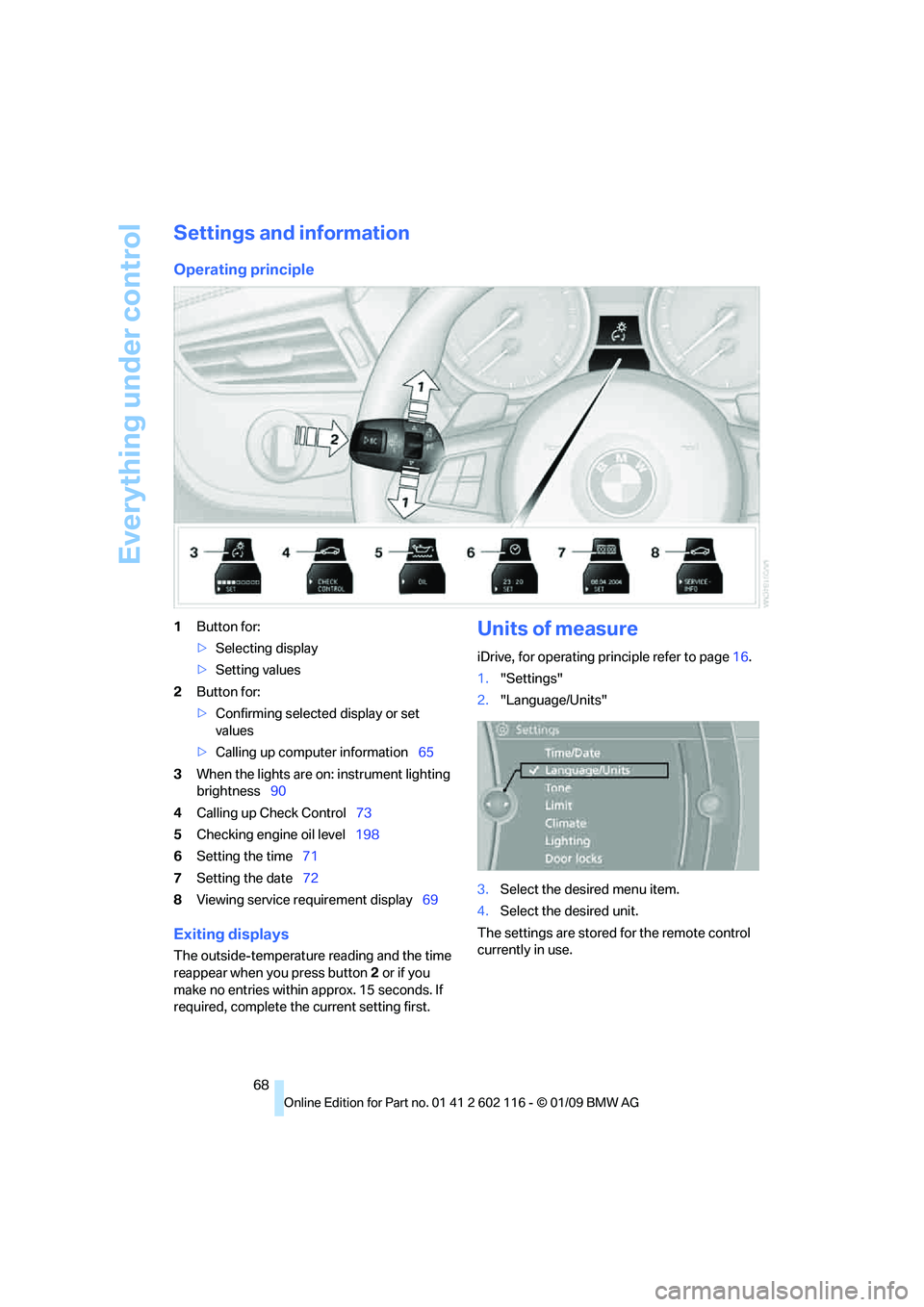
Settings and information
Operating principle
1Button for:
>Selecting display
> Setting values
2 Button for:
>Confirming selected display or set
values
> Calling up computer information 65
3 When the lights are on: instrument lighting
brightness 90
4 Calling up Check Control 73
5 Checking engine oil level 198
6 Setting the time 71
7 Setting the date 72
8 Viewing service re quirement display 69
Exiting displays
The outside-temperature reading and the time
reappear when you press button 2 or if you
make no entries within approx. 15 seconds. If
required, complete the current setting first.
Units of measure
iDrive, for operating principle refer to page16.
1. "Settings"
2. "Language/Units"
3. Select the desired menu item.
4. Select the desired unit.
The settings are stored for the remote control
currently in use.
Page 77 of 248
Controls
75Reference
At a glance
Driving tips
Communications
Navigation
Entertainment
Mobility
3."Limit:"
4. Turn the controller until the desired limit is
displayed.
5. Press the controller.
The speed limit is stored.
Applying your current speed as
the limit
1. "Settings"
2. "Limit"
3. "Select current speed"
4. Press the controller.
The system adopts your current speed as the
limit.
Activating/deactivating the limit
1. "Settings"
2. "Limit"
3. "Limit warning"
4. Press the controller.
The limit warning is switched on.
Settings on the Control
Display
Language on the Control Display
Setting the language
iDrive, for operating pr inciple refer to page16.
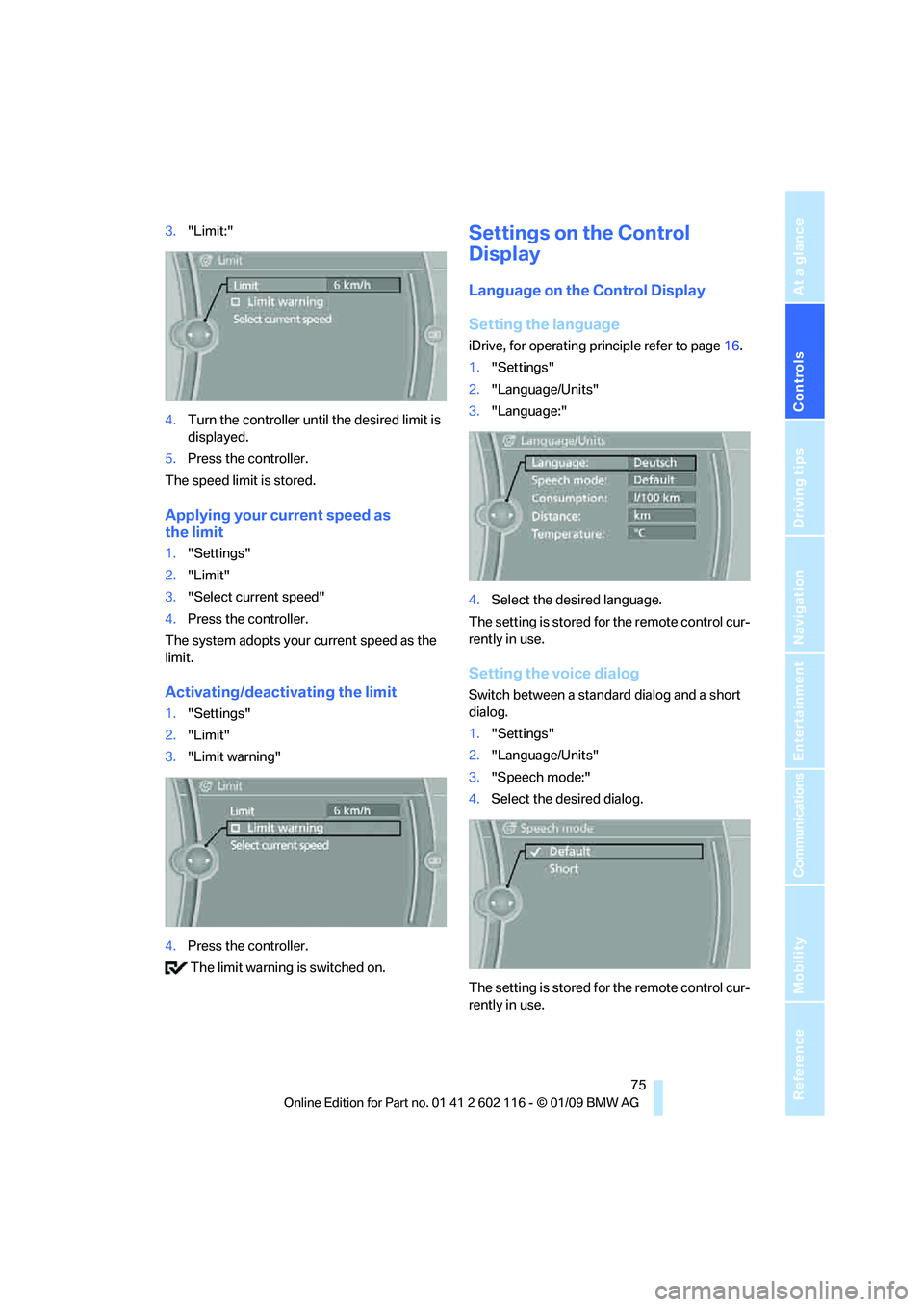
1. "Settings"
2. "Language/Units"
3. "Language:"
4. Select the desired language.
The setting is stored for the remote control cur-
rently in use.
Setting the voice dialog
Switch between a standard dialog and a short
dialog.
1. "Settings"
2. "Language/Units"
3. "Speech mode:"
4. Select the desired dialog.
The setting is stored for the remote control cur-
rently in use.
Page 102 of 248
Practical interior accessories
100
Digital compass*
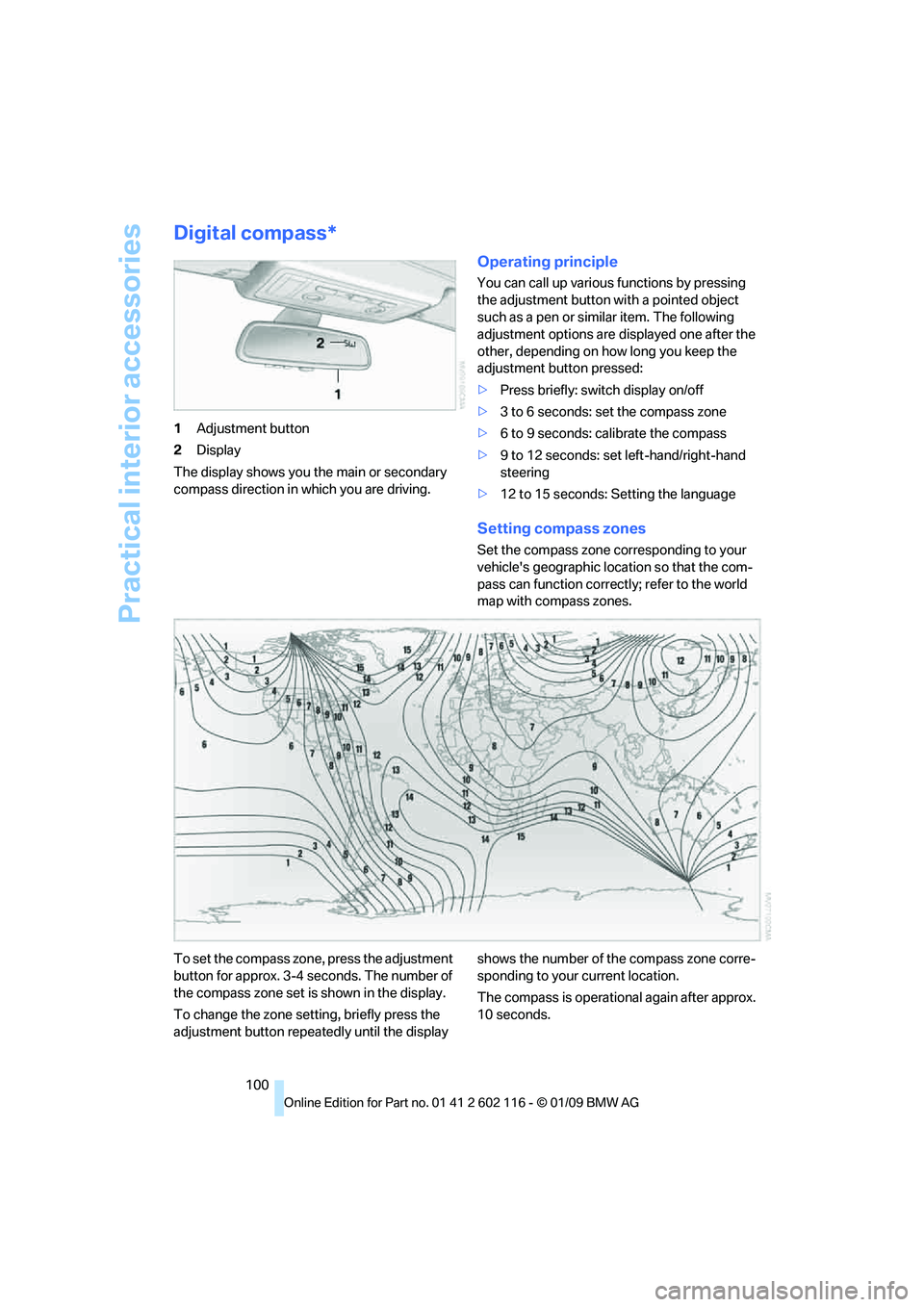
1Adjustment button
2 Display
The display shows you the main or secondary
compass direction in which you are driving.
Operating principle
You can call up various functions by pressing
the adjustment button with a pointed object
such as a pen or similar item. The following
adjustment options are displayed one after the
other, depending on how long you keep the
adjustment button pressed:
> Press briefly: switch display on/off
> 3 to 6 seconds: set the compass zone
> 6 to 9 seconds: calibrate the compass
> 9 to 12 seconds: set left-hand/right-hand
steering
> 12 to 15 seconds: Setting the language
Setting compass zones
Set the compass zone corresponding to your
vehicle's geographic loca tion so that the com-
pass can function correctl y; refer to the world
map with compass zones.
To set the compass zone, press the adjustment
button for approx. 3-4 seconds. The number of
the compass zone set is shown in the display.
To change the zone se tting, briefly press the
adjustment button repeat edly until the display shows the number of the compass zone corre-
sponding to your current location.
The compass is operational again after approx.
10 seconds.
Page 103 of 248
Controls
101Reference
At a glance
Driving tips
Communications
Navigation
Entertainment
Mobility
Calibrating the digital compass
The digital compass must be calibrated in the
following situations:
> An incorrect compass direction is shown.
> The compass direction shown does not
change although the direction of
travel does.
> Not all compass directions are shown.
Procedure
1.Make sure that no la rge metal objects or
overhead power lines are in the vicinity of
your vehicle and that you have enough
space to drive in a circle.
2. Set the currently valid compass zone.
3. ensure that the retractable hardtop is fully
closed.
4. Press the adjustment button for approx.
6-7 seconds to call up C. Then drive in at
least one full circle at a speed of no more
than 4mph or 7km/h.
If calibration is successful, the display
changes from C to a compass direction.
5. Open the retractable hardtop fully and
repeat step 4.
Setting right-hand/left-hand steering
Your digital compass is factory-set to right-
hand or left-hand steeri ng, in accordance with
your vehicle.
Setting the language
You can set the language of the display:
Press the adjustment button for approx.
12-13 seconds. Briefly press the adjustment
button again to switch between English, "E",
and German, "O".
The setting is automatically saved after approx.
10 seconds.
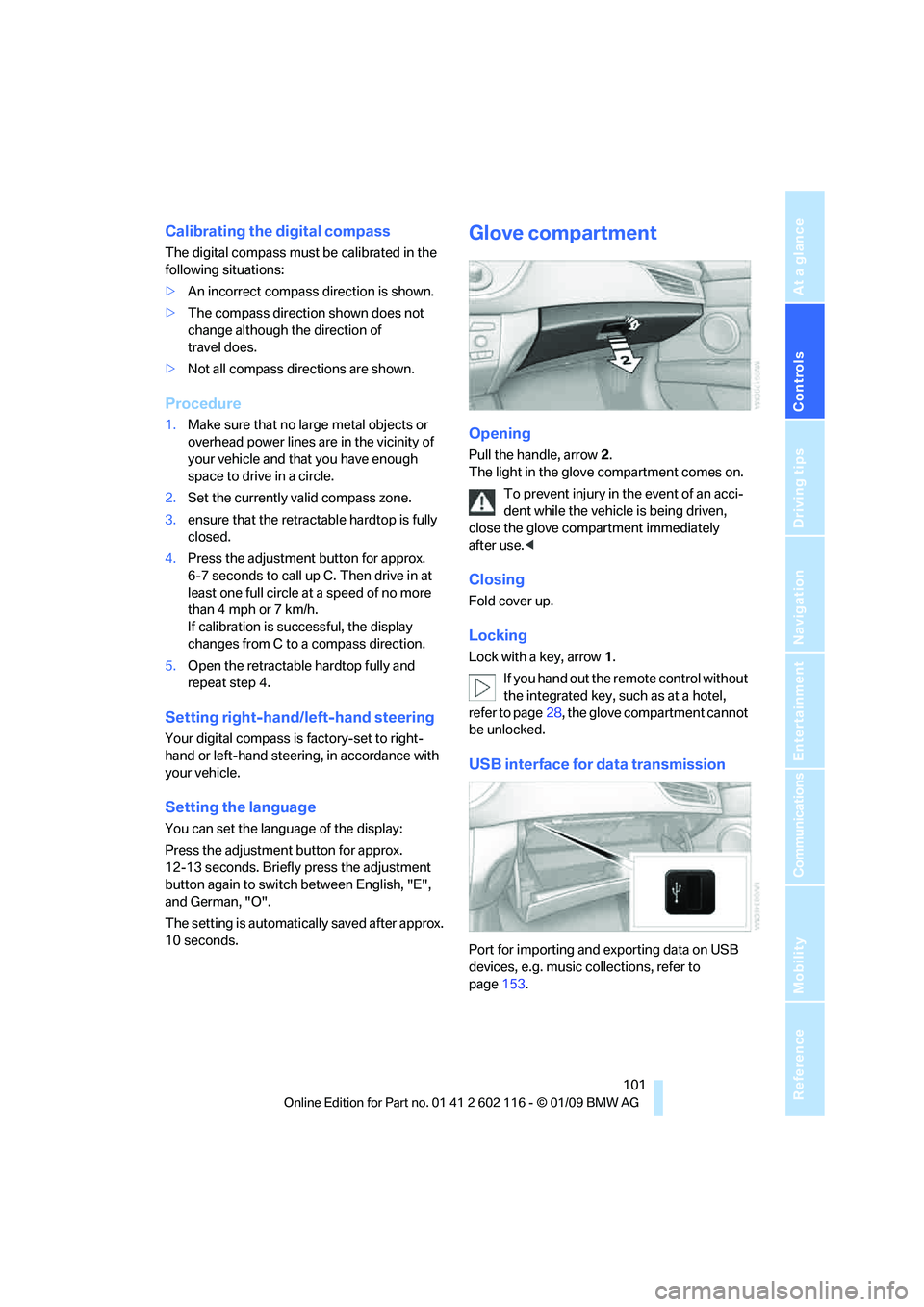
Glove compartment
Opening
Pull the handle, arrow 2.
The light in the glove compartment comes on.
To prevent injury in the event of an acci-
dent while the vehicle is being driven,
close the glove compartment immediately
after use. <
Closing
Fold cover up.
Locking
Lock with a key, arrow 1.
If you hand out the remote control without
the integrated key, such as at a hotel,
refer to page 28, the glove compartment cannot
be unlocked.
USB interface for data transmission
Port for importing and exporting data on USB
devices, e.g. music collections, refer to
page 153.
Page 127 of 248
Navigation
Driving tips
125Reference
At a glance
Controls
Communications
Entertainment
Mobility
Entering a destination by
voice commands*
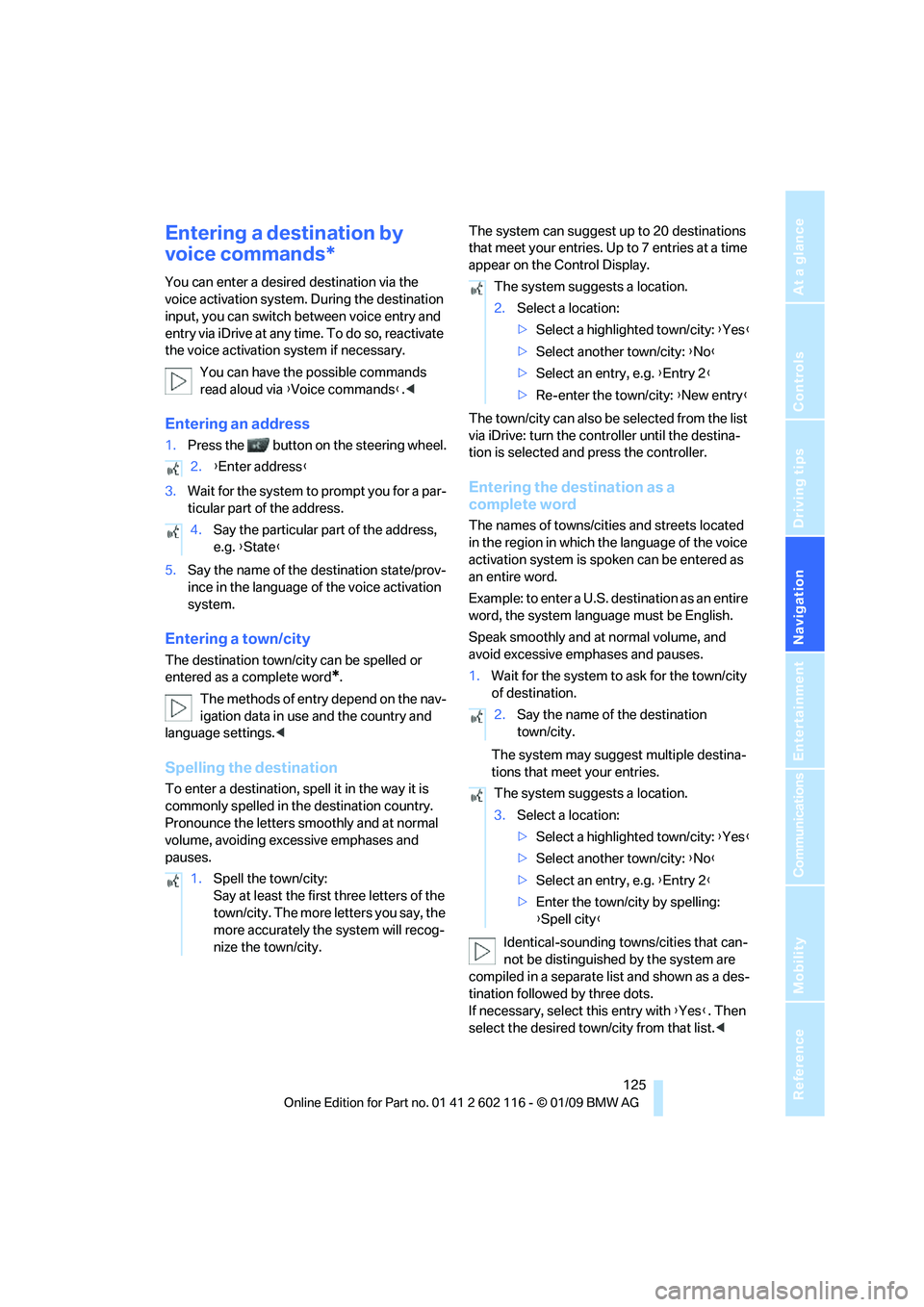
You can enter a desired destination via the
voice activation system. During the destination
input, you can switch between voice entry and
entry via iDrive at any ti me. To do so, reactivate
the voice activation system if necessary.
You can have the possible commands
read aloud via {Voice commands }.<
Entering an address
1. Press the button on the steering wheel.
3. Wait for the system to prompt you for a par-
ticular part of the address.
5. Say the name of the destination state/prov-
ince in the language of the voice activation
system.
Entering a town/city
The destination town/cit y can be spelled or
entered as a complete word
*.
The methods of entry depend on the nav-
igation data in use and the country and
language settings. <
Spelling the destination
To enter a destination, sp ell it in the way it is
commonly spelled in the destination country.
Pronounce the letters smoothly and at normal
volume, avoiding excessive emphases and
pauses. The system can suggest up to 20 destinations
that meet your entries. Up to 7 entries at a time
appear on the Control Display.
The town/city can also be
selected from the list
via iDrive: turn the controller until the destina-
tion is selected and press the controller.
Entering the destination as a
complete word
The names of towns/cities and streets located
in the region in which th e language of the voice
activation system is spoken can be entered as
an entire word.
Example: to enter a U.S. destination as an entire
word, the system language must be English.
Speak smoothly and at normal volume, and
avoid excessive emphases and pauses.
1. Wait for the system to ask for the town/city
of destination.
The system may suggest multiple destina-
tions that meet your entries.
Identical-sounding towns/cities that can-
not be distinguished by the system are
compiled in a separate list and shown as a des-
tination followed by three dots.
If necessary, select this entry with {Yes }. Then
select the desired tow n/city from that list.<
2.
{Enter address }
4. Say the particular part of the address,
e.g. {State }
1. Spell the town/city:
Say at least the first three letters of the
town/city. The more letters you say, the
more accurately th e system will recog-
nize the town/city.
The system suggests a location.
2. Select a location:
>Select a highlighted town/city: {Yes }
> Select another town/city: {No }
> Select an entry, e.g. {Entry 2 }
> Re-enter the town/city: {New entry }
2. Say the name of the destination
town/city.
The system suggests a location.
3. Select a location:
>Select a highlighted town/city: {Yes }
> Select another town/city: {No }
> Select an entry, e.g. {Entry 2 }
> Enter the town/city by spelling:
{Spell city }
Page 151 of 248
Navigation
Entertainment
Driving tips
149Reference
At a glance
Controls
Communications
Mobility
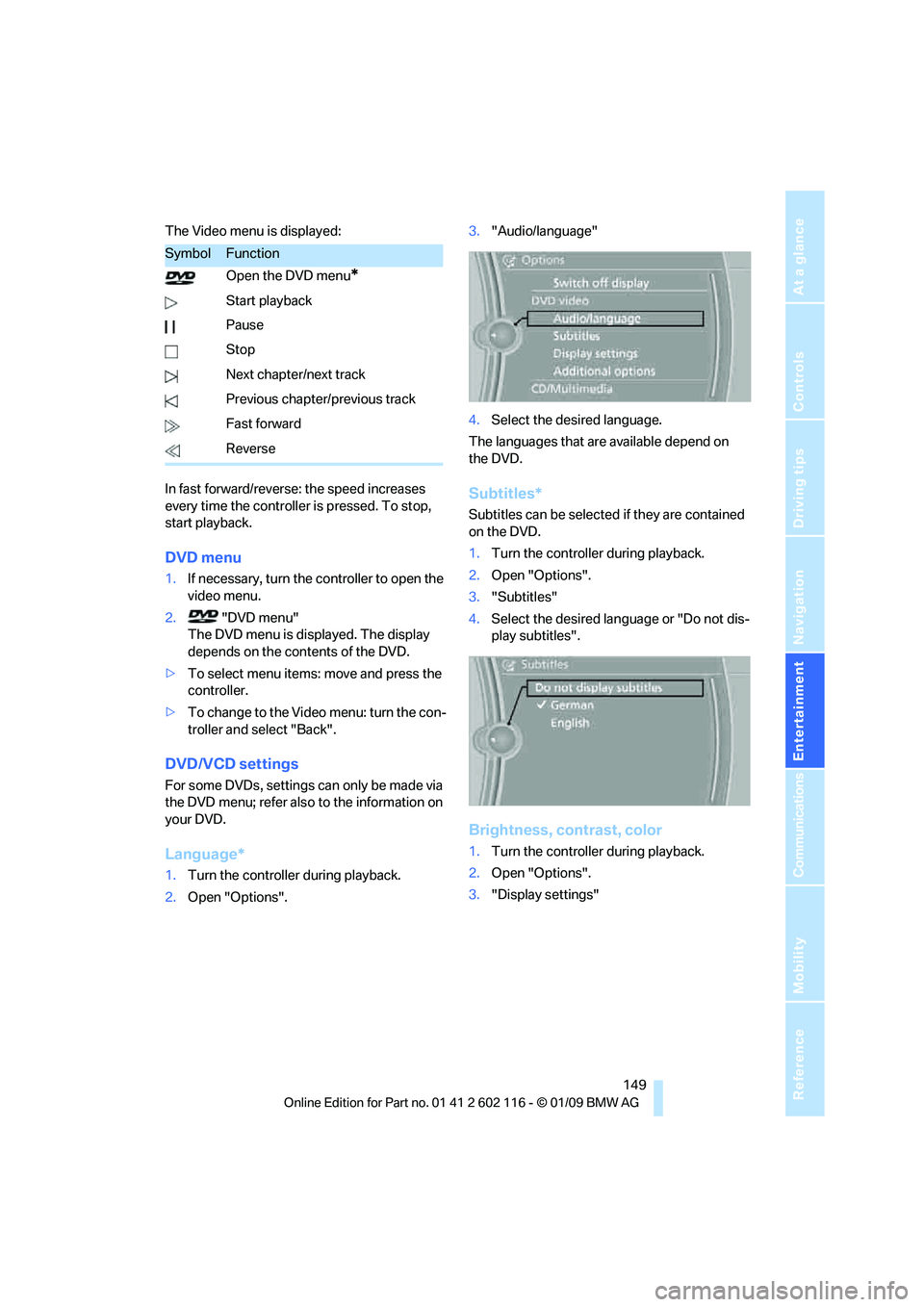
The Video menu is displayed:
In fast forward/reverse: the speed increases
every time the controller is pressed. To stop,
start playback.
DVD menu
1.If necessary, turn the controller to open the
video menu.
2. "DVD menu"
The DVD menu is displayed. The display
depends on the contents of the DVD.
> To select menu items: move and press the
controller.
> To change to the Vide o menu: turn the con-
troller and select "Back".
DVD/VCD settings
For some DVDs, settings can only be made via
the DVD menu; refer also to the information on
your DVD.
Language*
1. Turn the controller during playback.
2. Open "Options". 3.
"Audio/language"
4. Select the desired language.
The languages that are available depend on
the DVD.
Subtitles*
Subtitles can be selected if they are contained
on the DVD.
1. Turn the controller during playback.
2. Open "Options".
3. "Subtitles"
4. Select the desired language or "Do not dis-
play subtitles".
Brightness, contrast, color
1.Turn the controller during playback.
2. Open "Options".
3. "Display settings"
SymbolFunction
Open the DVD menu
*
Start playback
Pause
Stop
Next chapter/next track
Previous chapter/previous track
Fast forward
Reverse