radio BMW Z4 SDRIVE35I 2012 Owner's Manual
[x] Cancel search | Manufacturer: BMW, Model Year: 2012, Model line: Z4 SDRIVE35I, Model: BMW Z4 SDRIVE35I 2012Pages: 220, PDF Size: 9.9 MB
Page 116 of 220
Professional RadioVehicle equipment
This chapter describes all series equipment as
well as country-specific and special equipment
offered for this model series.Therefore, it alsodescribes equipment that may not be found in
your vehicle, for instance due to the selected
special equipment or the country version. This
also applies to safety-related functions and sys‐
tems.
General information
At a glance
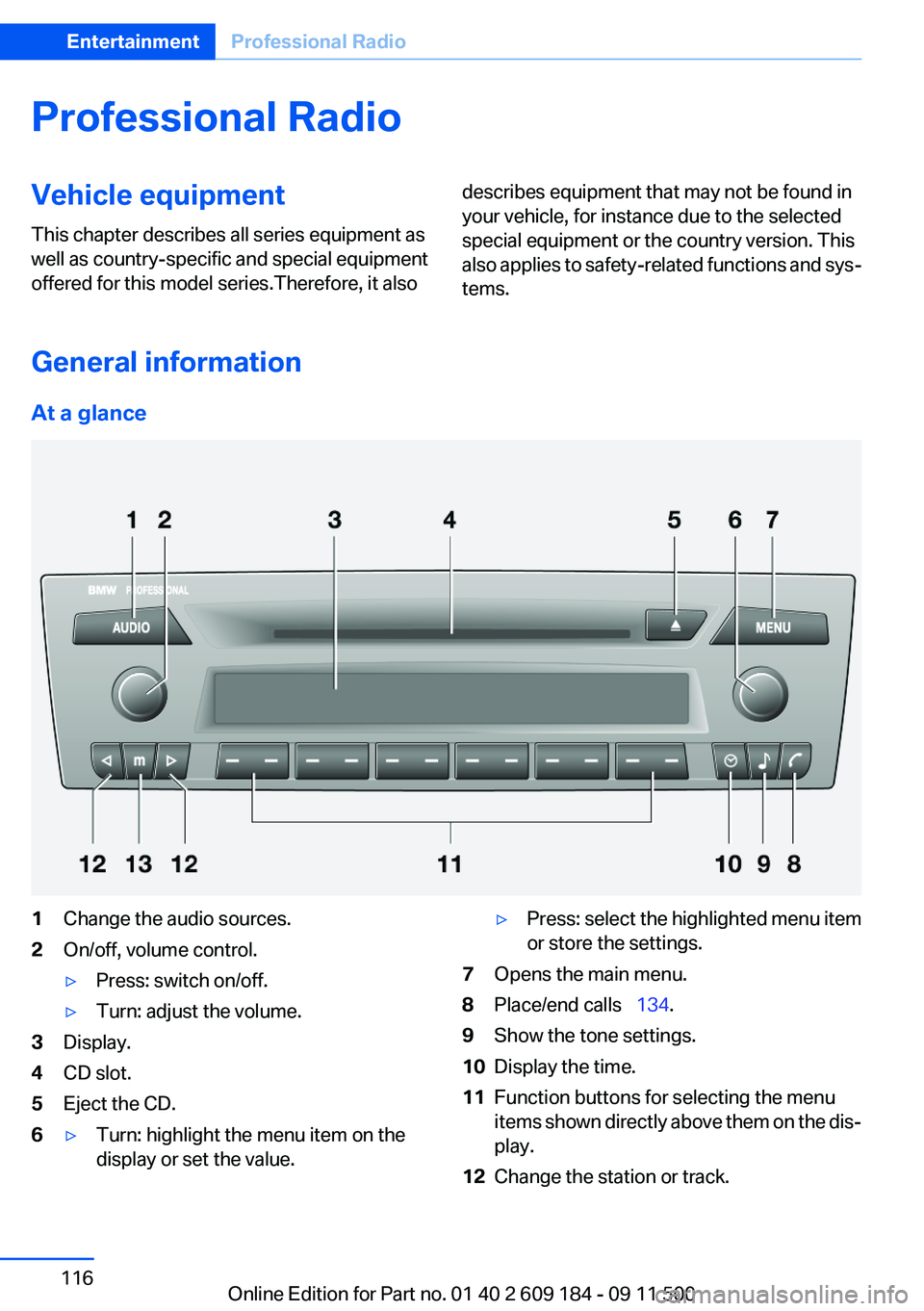
1Change the audio sources.2On/off, volume control.▷Press: switch on/off.▷Turn: adjust the volume.3Display.4CD slot.5Eject the CD.6▷Turn: highlight the menu item on the
display or set the value.▷Press: select the highlighted menu item
or store the settings.7Opens the main menu.8Place/end calls 134.9Show the tone settings.10Display the time.11Function buttons for selecting the menu
items shown directly above them on the dis‐
play.12Change the station or track.Seite 116EntertainmentProfessional Radio116
Online Edition for Part no. 01 40 2 609 184 - 09 11 500
Page 117 of 220
13Manually select the frequency.Representation in the Owner's Manual
"..." Identifies radio display texts used to select
individual functions.
Menu navigation
Opening menu items
To display the menu items:▷ Press the button for the audio sour‐
ces menu.▷ Press the button for the main menu.
Selecting menu items
There are two ways to select a menu item on the
display.
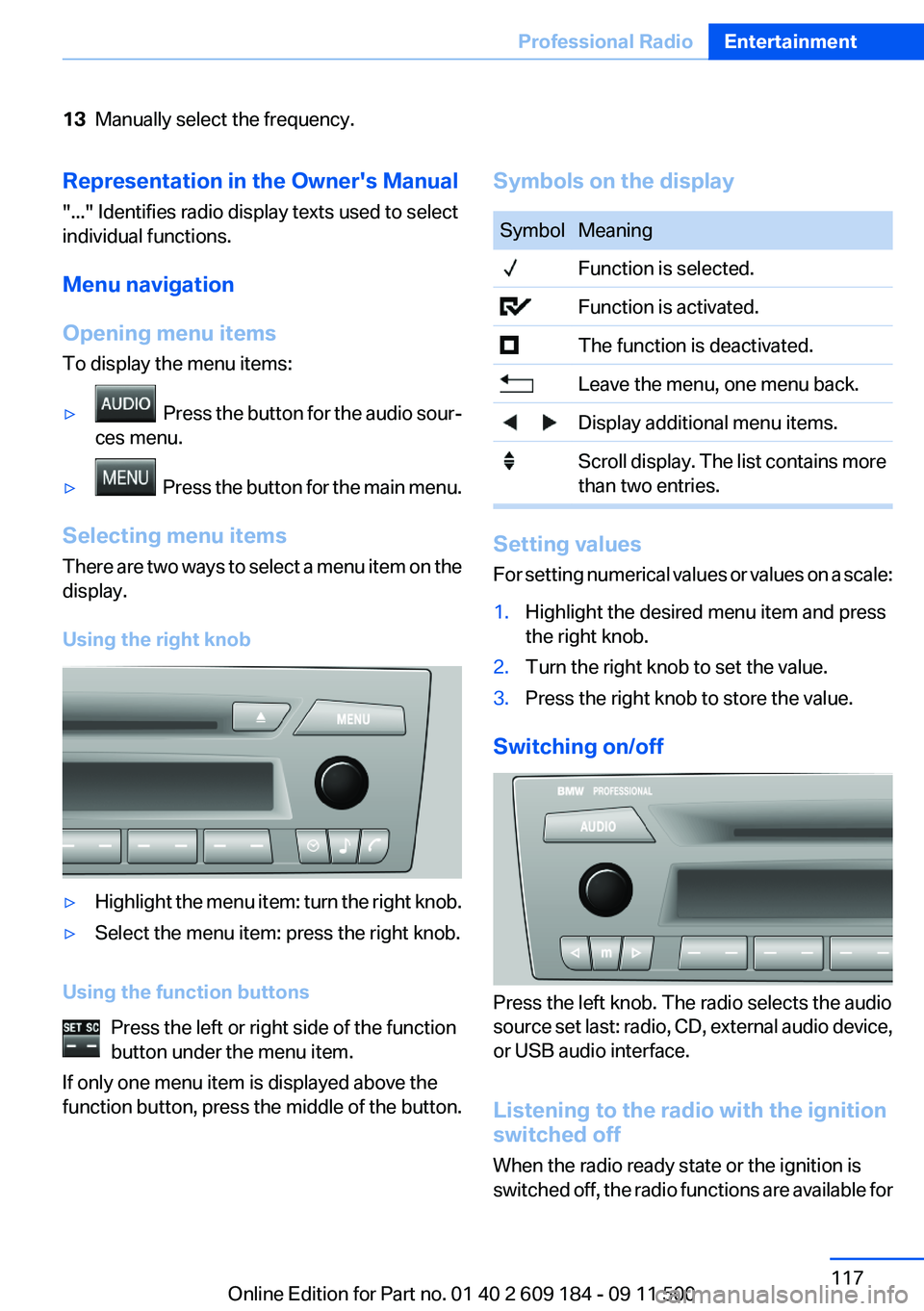
Using the right knob
▷Highlight the menu item: turn the right knob.▷Select the menu item: press the right knob.
Using the function buttons Press the left or right side of the function
button under the menu item.
If only one menu item is displayed above the
function button, press the middle of the button.
Symbols on the displaySymbolMeaning Function is selected. Function is activated. The function is deactivated. Leave the menu, one menu back. Display additional menu items. Scroll display. The list contains more
than two entries.
Setting values
For setting numerical values or values on a scale:
1.Highlight the desired menu item and press
the right knob.2.Turn the right knob to set the value.3.Press the right knob to store the value.
Switching on/off
Press the left knob. The radio selects the audio
source set last: radio, CD, external audio device,
or USB audio interface.
Listening to the radio with the ignition
switched off
When the radio ready state or the ignition is
switched off, the radio functions are available for
Seite 117Professional RadioEntertainment117
Online Edition for Part no. 01 40 2 609 184 - 09 11 500
Page 118 of 220
approx. 20 minutes. To listen to the radio, switch
it back on.
To spare the battery, ensure that the radio is
switched off when you leave the vehicle.
Adjusting the volume
Turn the left knob. The setting is stored for the
remote control currently in use.
When a call is placed using the hands-free sys‐
tem, the audio sources are muted.
Speed-dependent volume and volumes
of PDC signal tone and gong▷"PDC" : volume of the PDC signal tone com‐
pared to the audio sources.▷"GONG": volume of the gong compared to
the audio sources.▷"S-VOL": speed-dependent volume con‐
trol.
Set the audio sources to a high volume to be able
to adjust the volume of the signal tones more
easily.
1. Press the button.2. Select the symbol if necessary.3.Select the desired volume setting.4.Set the desired volume and press the right
knob.
Volume of external audio devices
An external audio device such as an MP3 player
can be connected via the AUX-IN port in the
center armrest and the audio tracks can be
played over the car's loudspeaker system.
The volume of the external audio device can be
adjusted to the car radio.
1. Press the button.2."AUX"3."Vol-AUX"4.Set the desired volume and press the right
knob.Tone settings▷"BASS": depth adjustment.▷"TREBLE": treble adjustment.▷"FADER": front/rear volume distribution.▷"BAL": left/right volume distribution.▷"DOLBY": spatial acoustics effect.▷"EQSET": equalizer setting.
Setting the treble, bass, and volume
distribution
1. Press the button.2.Highlight the desired tone setting and press
the right knob.3.Create the desired setting and press the
right knob.
Switching on the spatial acoustics
effect
1. Press the button.2. Select the symbol if necessary.3."DOLBY"
Equalizer
1."EQSET"2.Press the button of the desired frequency
range.3.Create the settings and press the right knob.
Resetting the equalizer
1. Press the button.2.Turn the right knob.3."EQSET"4."RESET"
Resetting the tone settings
The tone settings are reset to medium values.
1. Press the button.
Seite 118EntertainmentProfessional Radio118
Online Edition for Part no. 01 40 2 609 184 - 09 11 500
Page 119 of 220
2."RESET"
Time
Displaying the time
Press the button.
When the ignition or the radio ready state is
switched off, the time is displayed for several
seconds.
Setting the time, date, and time format
1.Switch on the radio ready state or the igni‐
tion.2. Press the button.3."CONFIG"4."TIME"5.Select the desired category.6.Create the settings and press the right knob.
Setting the units of measure of the
computer and the language
1.Switch on the radio ready state or the igni‐
tion.2. Press the button.3."CONFIG"4.▷"DIST": change the unit of measure for
the range.▷"LANG": select the language of the dis‐
play texts.▷"CONSMP" : change the unit of measure
for the average fuel consumption.▷"TEMP" : change the unit of measure for
the external temperature.5.Highlight the desired menu item and press
the button.6.Create the desired setting.
The settings of the units of measure are adopted
for display on the radio and in the instrument
cluster and are stored in the remote control cur‐
rently in use.
Computer
The following vehicle information can be call up
via the computer:▷Average fuel consumption▷Average speed▷Range▷External temperature
Displaying information
1.Switch on the radio ready state or the igni‐
tion.2. Press the button.3."COMP"
Average fuel consumption
The average fuel consumption is calculated for
the time during which the engine is running.
To start calculation of the average fuel con‐
sumption:
1."CONSMP"2."RESET"
The previous display is set to zero and the sys‐
tem begins recalculating the average fuel con‐
sumption.
Average speed
The average speed is calculated for the time
during which the engine is running.
To start calculation of the average speed:
1."SPEED"2."RESET"
Estimated range
"RANGE"
The display shows the distance that can be
driven on the remaining fuel quantity, taking into
Seite 119Professional RadioEntertainment119
Online Edition for Part no. 01 40 2 609 184 - 09 11 500
Page 120 of 220
consideration the average fuel consumption up
to that point.
The computer only registers fuel quantities
above approx. 1 gal/4 liters when refueling.
Radio
Listening to the radio
The radio is designed for reception in the FM
and AM wavebands.1.Switch on the radio, refer to page 117.2. Press this button if necessary.3."TUNER"4."FM" or"AM"
Press the corresponding button repeatedly
until the desired waveband is displayed.▷FM: FM1, FM2, FMA▷AM: AM, AMA
Selecting a station
The setting is stored for the remote control cur‐
rently in use.
Next station
Press the button.
The next station with reception is selected.
Selecting the station manually by
frequency
1. Press the button.2.▷Press the respective function button to
set the desired frequency.▷Turn the right knob until the desired fre‐
quency is set.Automatically updating the stations
with the best reception, AUTOSTORE
In the FMA and AMA memory levels, stations are
automatically stored according to their recep‐
tion strength. If the AUTOSTORE function is not
used, six stations can be manually stored in each
of the FMA and AMA memory levels.1."FM" or"AM"
Press the corresponding button until the fol‐
lowing is displayed:
"AUTOSTORE"
It may take several seconds for the stations to
be stored and for one of these stations to be
played back.
Briefly playing and selecting a station
"SC"
All stations with reception are played briefly.
To interrupt the function and select a station:
"SC"
Storing and retrieving a station
Memory locations
It is possible to store up to 30 stations.
▷FM1, FM2, AM: six stations each.▷FMA, AMA: the six stations with the best re‐
ception (automatically) or any six stations
(manually).
Storing a station
1."FM" or"AM"
Select the desired function repeatedly until
the desired waveband is displayed.2.Select the station.3.▷"1" ... "12" for FM stations.▷"1" ... "6" for AM stations.▷"A1" ... "A6" for automatically stored
stations.Seite 120EntertainmentProfessional Radio120
Online Edition for Part no. 01 40 2 609 184 - 09 11 500
Page 121 of 220
Press and hold the function button under the
desired memory location until the station is
audible again after a brief interruption.
Retrieving a stored station
1."FM" or"AM"
Select the desired function repeatedly until
the desired waveband is displayed.2.▷"1" ... "12" for FM stations.▷"1" ... "6" for AM stations.▷"A1" ... "A6" for automatically stored
stations.
Press and hold the desired function button
or turn the right knob until the desired sta‐
tion is displayed.
Radio Data System, RDS
RDS broadcasts additional information, such as
the station name or text messages, in the FM
waveband. When playing a station with multiple
frequencies, the system automatically switches
to the frequency with the best reception, if
needed.
Some stations broadcast the type of program
received, or PTY, via RDS. This information is
displayed briefly when the station is selected, for
instance NEWS.
PTY can also be used to display catastrophe
alerts, such as "ALARM".
The alert is issued on the loudspeakers.
Switching the RDS on/off
1."SET"2."RDS"
When the RDS is switched off, the PTY function
is switched off as well.
Switching the program type display on/
off
1."SET"2."PTY"HD Radio™ reception
Many stations broadcast both analog and digital
signals. These stations can be received digitally
and therefore with better sound quality. A digital
radio network must be available to be able to re‐
ceive digital stations.
License conditions
HD Radio™ technology manufactured under li‐
cense from iBiquity Digital Corp. U. S. and For‐
eign Patents. HD Radio™ and the HD and HD
Radio logos are proprietary trademarks of iBiq‐
uity Digital Corp.
Activating/deactivating digital radio
reception1. Press the button.2."TUNER"3."SET"4."HD"
Displays
▷"HD": a station is received digitally.▷"(HD)": a station broadcasts digital signals
but digital radio reception is switched off.
In areas in which the selected station is not con‐
tinuously received in digital mode, playback
switches between analog and digital reception.
In this case, switch off digital radio reception.
Selecting the programs of a digital
station
Some stations broadcast multiple programs. To
select one of these programs:
1. Press the button repeatedly until
the desired digital station is displayed. If a
station broadcasts multiple programs, the
following display appears, for example:
"HD1"2."LIST"Seite 121Professional RadioEntertainment121
Online Edition for Part no. 01 40 2 609 184 - 09 11 500
Page 122 of 220
3."HD1" ... "HD8" Select the desired program.
Up to eight programs can be selected per
station.
Displaying additional information
For digital stations, additional information can
be displayed on the current track, such as the
name of the artist.
"INFO"
Operational displays
▷"acquiring" : the system is looking for digital
stations.▷"No Signal" : no digital stations are being re‐
ceived.
Satellite radio
Over 100 different channels with high fidelity
can be received. The channels are offered in
fixed packages and must be activated.
You may experience signal drops and muting
events related to this new technology.
Activating or deactivated channels
1. Press the button.2."SAT"3."CAT"4.Select the desired category.
The channels are displayed.
This symbol identifies the current chan‐
nel.
Activating
1.Turn the right knob to select a channel that
is not yet activated.2.Press the right knob to confirm a channel.
A phone number and the electronic serial
number, ESN, are displayed. The electronic
serial number is required for activation.3.To have the channels activated, call the
phone number.Deactivating1. Press the button.2."SAT"3."SAT"
Hold the button down.
A phone number and the electronic serial
number, ESN, are displayed. The electronic
serial number is required for deactivation.4.To have the channels deactivated, call the
phone number.
Selecting and storing a channel
1. Press the button.2."SAT"3."CAT"4.Select the desired category.5.Select the desired channel.
To display all channels:
"ALL"
To store a channel:
1. Select the symbol.2."SAT"
Press the button repeatedly until the desired
memory level, SAT 1 or SAT 2, is reached.3."1" ... "6"
Press and hold the function button under the
desired memory location until the channel is
audible again after a brief interruption.
Changing to the current channel
"CURR"
Additional information
The name of the channel and additional infor‐
mation on the current track are displayed, such
as the name of the artist.
1.Select the desired channel.2."INFO"Seite 122EntertainmentProfessional Radio122
Online Edition for Part no. 01 40 2 609 184 - 09 11 500
Page 123 of 220
Changing the channel using the buttons
Press the button for the correspond‐
ing direction. The next enabled channel is
opened.
Search
1. Press and hold the button for the
corresponding direction. The activated
channels appear on the display one after the
other.2.Release the button to select the displayed
channel.
Notes
When there is a signal blockage or the transmis‐
sion is suspended momentarily for more than
4 seconds, a message will appear on the display.
Service may be interrupted or unavailable for
specific reasons such as environmental or topo‐
graphic conditions and others that Satellite
Radio cannot directly control. Signal may not be
available under tunnels, in parking garages, next
to tall buildings, nearby trees with dense foliage,
nearby mountains or other possible strong sour‐
ces of radio interference. Service should resume
normally after the source of signal unavailability
has been cleared.
CD/multimedia
CD player and CD/DVD changer
Filling the CD player
Insert the CD into the CD drive with the printed
side up.
Playback begins automatically.
Reading can take a few minutes with com‐
pressed audio files.
Starting the CD player
A CD is contained in the CD player.1.Switch on the car radio if necessary.2. Press the button.3."CD"
Starting the CD/DVD changer
1.Switch on the car radio if necessary.2.Fill the CD/DVD compartments, refer to
page 125.3. Press the button.4."DVD"5.Press the button of the desired CD/DVD
number.
The corresponding CD/DVD number is shown
on the display. At the end of the last track, the
device changes to the next CD/DVD.
Skipping to another track
Press the button repeatedly until the
desired track is played.
With the right knob:
Turn the right knob until the desired track is
played back.
Fast forward/reverse
Hold the button down.
Tracks can be heard but are distorted.
Briefly playing and selecting a track
"SC"
All tracks are played briefly one after the other.
To interrupt the function and select a track:
"SC"
Random playback
"RND"
Seite 123Professional RadioEntertainment123
Online Edition for Part no. 01 40 2 609 184 - 09 11 500
Page 124 of 220
To end random playback:
"RND"
Compressed audio files
CD players and CD/DVD changers can play back
CDs or DVDs with compressed audio data: MP3
and WMA.
Selecting a track1."LIST"2.Select the desired directory using the right
knob.▷ : press the right knob to open a di‐
rectory.▷ : press the right knob to close a di‐
rectory.3.Select other directories if you wish.4.Highlight the desired track and press the
right knob.
You can scroll through the directories during
playback.
To change to the current track:
"CURR"
Displaying information on the track
Any information stored on the currently selected
track can be displayed.
1."LIST"2."TRACK"CD/DVD changer
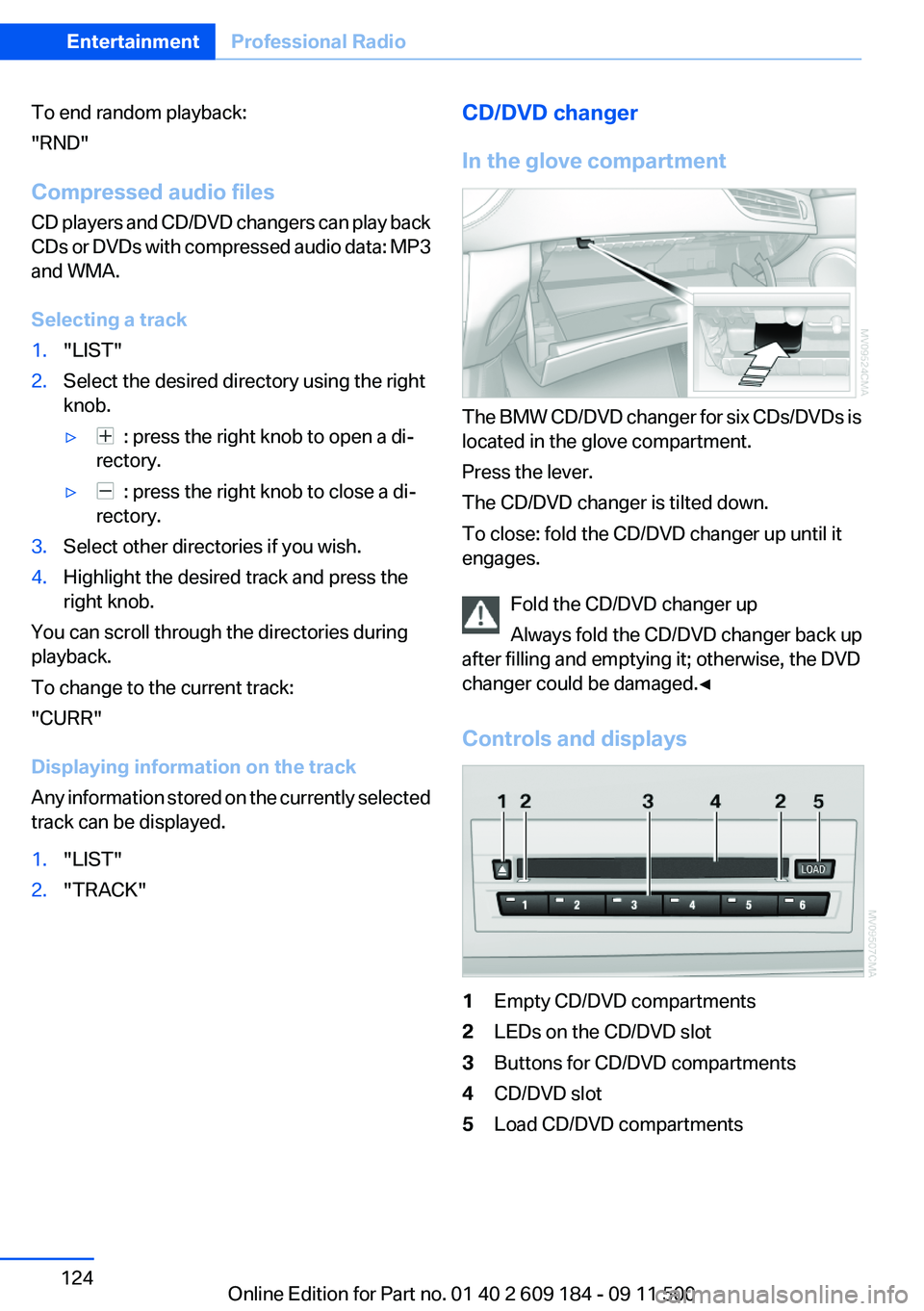
In the glove compartment
The BMW CD/DVD changer for six CDs/DVDs is
located in the glove compartment.
Press the lever.
The CD/DVD changer is tilted down.
To close: fold the CD/DVD changer up until it
engages.
Fold the CD/DVD changer up
Always fold the CD/DVD changer back up
after filling and emptying it; otherwise, the DVD
changer could be damaged.◀
Controls and displays
1Empty CD/DVD compartments2LEDs on the CD/DVD slot3Buttons for CD/DVD compartments4CD/DVD slot5Load CD/DVD compartmentsSeite 124EntertainmentProfessional Radio124
Online Edition for Part no. 01 40 2 609 184 - 09 11 500
Page 125 of 220
Loading the CD/DVD compartments
individually1. Press the button.
The LED on the first empty compartment
flashes.2.Select another compartment if necessary.3.Wait for the LEDs on the DVD slot to flash.4.Insert a single CD or DVD in the middle.
The CD/DVD is drawn in automatically and
placed into the selected compartment.
Sliding in CDs/DVDs
Do not insert the CD/DVD until the LEDs
on the DVD slot are flashing; otherwise, the CD/
DVD or the CD/DVD changer could be damaged.
Do not continue to push on the CD/DVD; this
may cause it to jam and prevent it from being
able to eject again.◀
Filling all vacant CD/DVD
compartments
1. Press the button for a longer period.
The LEDs on the empty CD compartments
flash.2.Wait for the LEDs on the DVD slot to begin
flashing and then insert each CD or DVD into
the center of the slot.
The CDs/DVDs are drawn in automatically
and placed into the vacant compartments.
Sliding in CDs/DVDs
Do not insert the CD/DVD until the LEDs
on the DVD slot are flashing; otherwise, the CD/
DVD or the CD/DVD changer could be damaged.
Do not continue to push on the CD/DVD; this
may cause it to jam and prevent it from being
able to eject again.◀
After they are inserted, it may take several mi‐
nutes for the CDs/DVDs to be read in.
Removing a single CD/DVD1. Press the button.2.Select the CD/DVD compartment.
The CD/DVD is partially ejected.3.Remove the CD/DVD.
Removing all CDs/DVDs
1. Press the button for a longer period.2.Remove the CDs/DVDs.
Malfunctions
If all LEDs on the CD/DVD changer flash rapidly,
the system is malfunctioning.
To eliminate the malfunction:
1.Press one of the buttons:▷▷
The CD/DVD last inserted is ejected.
2.Remove the CD/DVD.
If the LEDs stop flashing rapidly, the CD/DVD
changer is functional again.
Audio playback
The audio track of a DVD can be played back
even if video playback is not possible in the ve‐
hicle.
Only the main film without the previews or extras
can be played back.
Starting playback
A DVD is located in the DVD changer.
1. 2."DVD"3.Select the desired DVD.Seite 125Professional RadioEntertainment125
Online Edition for Part no. 01 40 2 609 184 - 09 11 500