display BMW Z4 SDRIVE35I ROADSTER 2010 Owners Manual
[x] Cancel search | Manufacturer: BMW, Model Year: 2010, Model line: Z4 SDRIVE35I ROADSTER, Model: BMW Z4 SDRIVE35I ROADSTER 2010Pages: 254, PDF Size: 8.04 MB
Page 178 of 254
Telephone
176
Editing a contact
The entries in the contacts can be changed.
When a contact from the mobile phone is
changed, the changes are not stored on the
mobile phone. A copy of the entry is stored in
the vehicle.
1.Highlight the contact.
2.Open "Options".
3."Edit entry"
The contact can be edited.
Redialing
The eight phone numbers dialed last are stored.
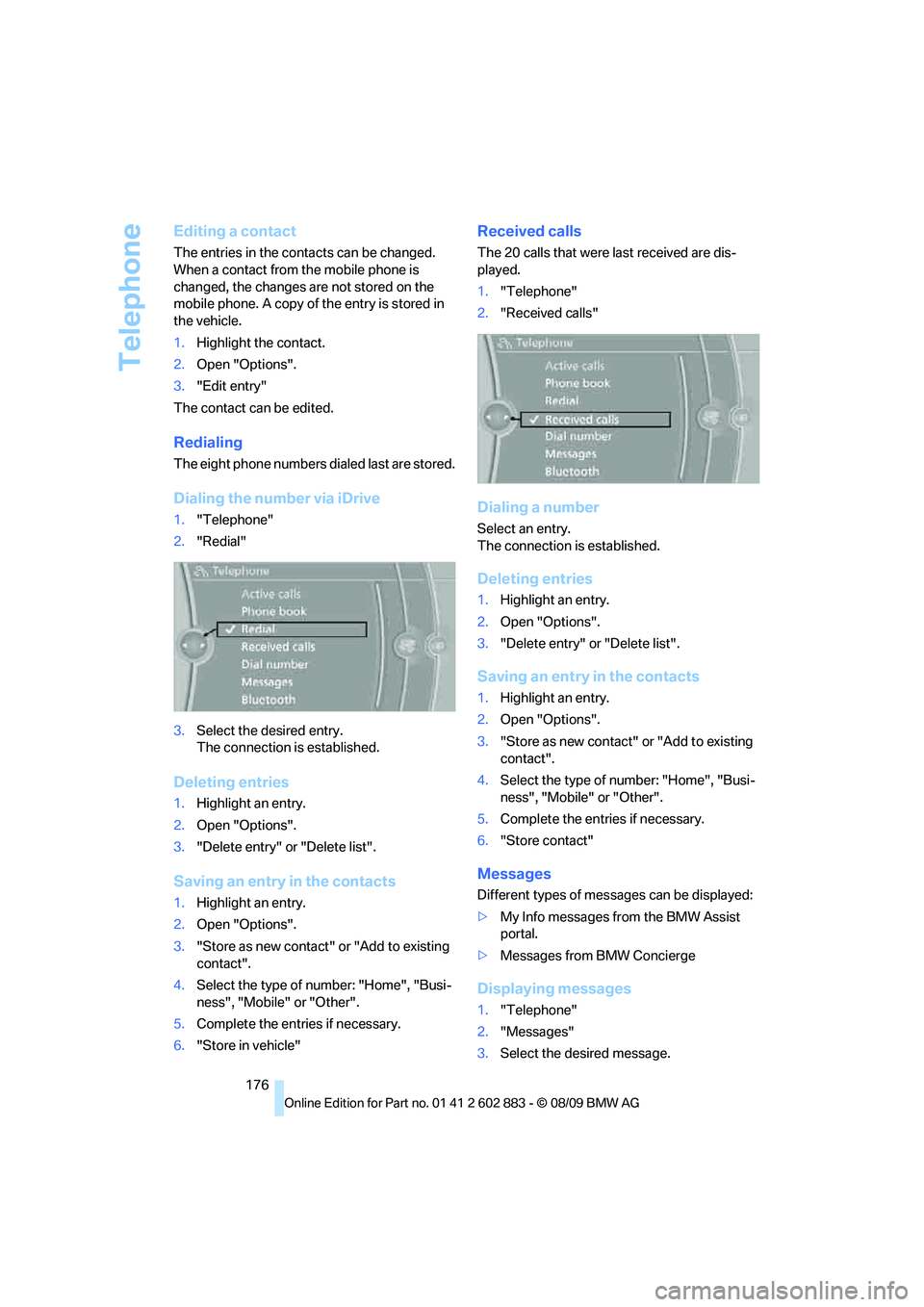
Dialing the number via iDrive
1."Telephone"
2."Redial"
3.Select the desired entry.
The connection is established.
Deleting entries
1.Highlight an entry.
2.Open "Options".
3."Delete entry" or "Delete list".
Saving an entry in the contacts
1.Highlight an entry.
2.Open "Options".
3."Store as new contact" or "Add to existing
contact".
4.Select the type of number: "Home", "Busi-
ness", "Mobile" or "Other".
5.Complete the entries if necessary.
6."Store in vehicle"
Received calls
The 20 calls that were last received are dis-
played.
1."Telephone"
2."Received calls"
Dialing a number
Select an entry.
The connection is established.
Deleting entries
1.Highlight an entry.
2.Open "Options".
3."Delete entry" or "Delete list".
Saving an entry in the contacts
1.Highlight an entry.
2.Open "Options".
3."Store as new contact" or "Add to existing
contact".
4.Select the type of number: "Home", "Busi-
ness", "Mobile" or "Other".
5.Complete the entries if necessary.
6."Store contact"
Messages
Different types of messages can be displayed:
>My Info messages from the BMW Assist
portal.
>Messages from BMW Concierge
Displaying messages
1."Telephone"
2."Messages"
3.Select the desired message.
Page 179 of 254
177
Entertainment
Reference
At a glance
Controls
Driving tips Communications
Navigation
Mobility
My Info
Starting destination guidance:
1.Select the message that contains the
desired destination.
2. "Start guidance" or "Add as
another dest.".
Dialing the number in the message:
1.Select the message that contains the
desired number.
2. "Call"
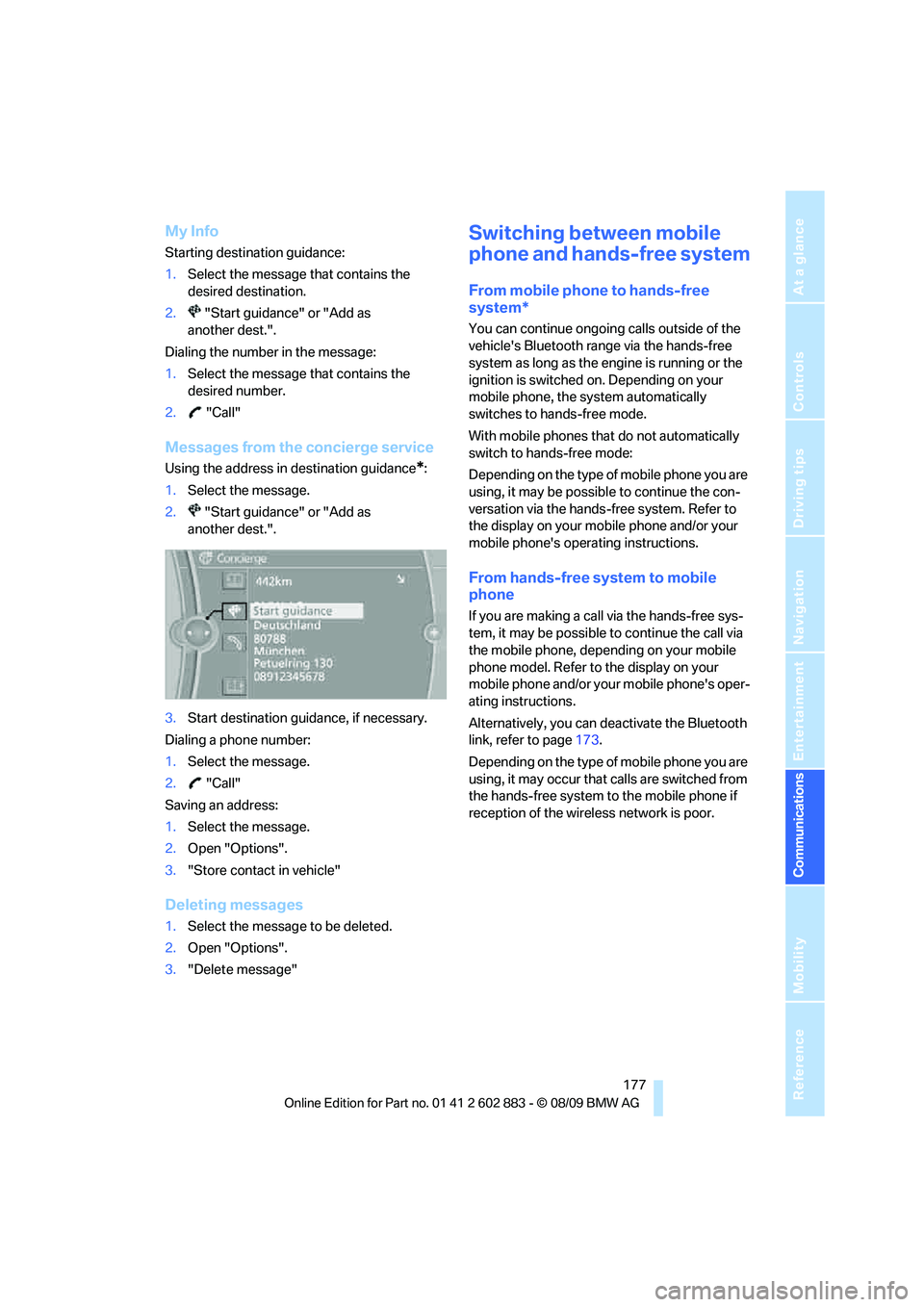
Messages from the concierge service
Using the address in destination guidance*:
1.Select the message.
2. "Start guidance" or "Add as
another dest.".
3.Start destination guidance, if necessary.
Dialing a phone number:
1.Select the message.
2. "Call"
Saving an address:
1.Select the message.
2.Open "Options".
3."Store contact in vehicle"
Deleting messages
1.Select the message to be deleted.
2.Open "Options".
3."Delete message"
Switching between mobile
phone and hands-free system
From mobile phone to hands-free
system*
You can continue ongoing calls outside of the
vehicle's Bluetooth range via the hands-free
system as long as the engine is running or the
ignition is switched on. Depending on your
mobile phone, the system automatically
switches to hands-free mode.
With mobile phones that do not automatically
switch to hands-free mode:
Depending on the type of mobile phone you are
using, it may be possible to continue the con-
versation via the hands-free system. Refer to
the display on your mobile phone and/or your
mobile phone's operating instructions.
From hands-free system to mobile
phone
If you are making a call via the hands-free sys-
tem, it may be possible to continue the call via
the mobile phone, depending on your mobile
phone model. Refer to the display on your
mobile phone and/or your mobile phone's oper-
ating instructions.
Alternatively, you can deactivate the Bluetooth
link, refer to page173.
Depending on the type of mobile phone you are
using, it may occur that calls are switched from
the hands-free system to the mobile phone if
reception of the wireless network is poor.
Page 180 of 254
Telephone
178
Operation by voice
commands*
The concept
>You can operate your mobile phone without
having to take a hand off the steering wheel.
>Most menu items on the Control Display
can be voiced as commands. The voice
activation system supports you by making
announcements and asking questions.
>{...} Verbal instructions to use with the voice
activation system.
Requirements
The same prerequisites apply as for operation
via iDrive, refer to page173.
Saying commands
Activating voice activation system
1.Briefly press the button on the steering
wheel.
A sound signal indicates that you can say
commands.
2.Say the command.
Ending/canceling operation by voice
commands
Briefly press the button on the steering
wheel
or
In dialogs not involving voice commands, i.e.,
when you are speaking only text, e.g., a name,
canceling is possible only via the button on the
steering wheel.
Having the possible commands read
aloud
The system recognizes specific commands
that must be pronounced exactly word for word.
You can have the possible commands for any
function read aloud to you:
Digits from zero to nine are recognized.
You can say each digit individually or group
them into a sequence to accelerate the input.
Using alternative commands
Often there is more than a single command to
run a function, e.g.:
Example: dialing phone numbers
Start the dialog:
Press the button on the steering wheel.
{Cancel}.
{Help}.
{Dial name} or {Name}.
You sayVoice command response
{Dial number}{{Please say the number}}
For instance, {123 456 7890}Depending on your equipment version:
{{123 456 7890. Continue ?}}
{Dialing}{{Dialing number}}
Page 184 of 254
Contacts
182
Contacts
You can create and edit contacts. The contacts
from the mobile phone
* are displayed as well if
this function is supported by the mobile phone.
The addresses can be used as destinations for
navigation and the phone numbers can be
dialed.
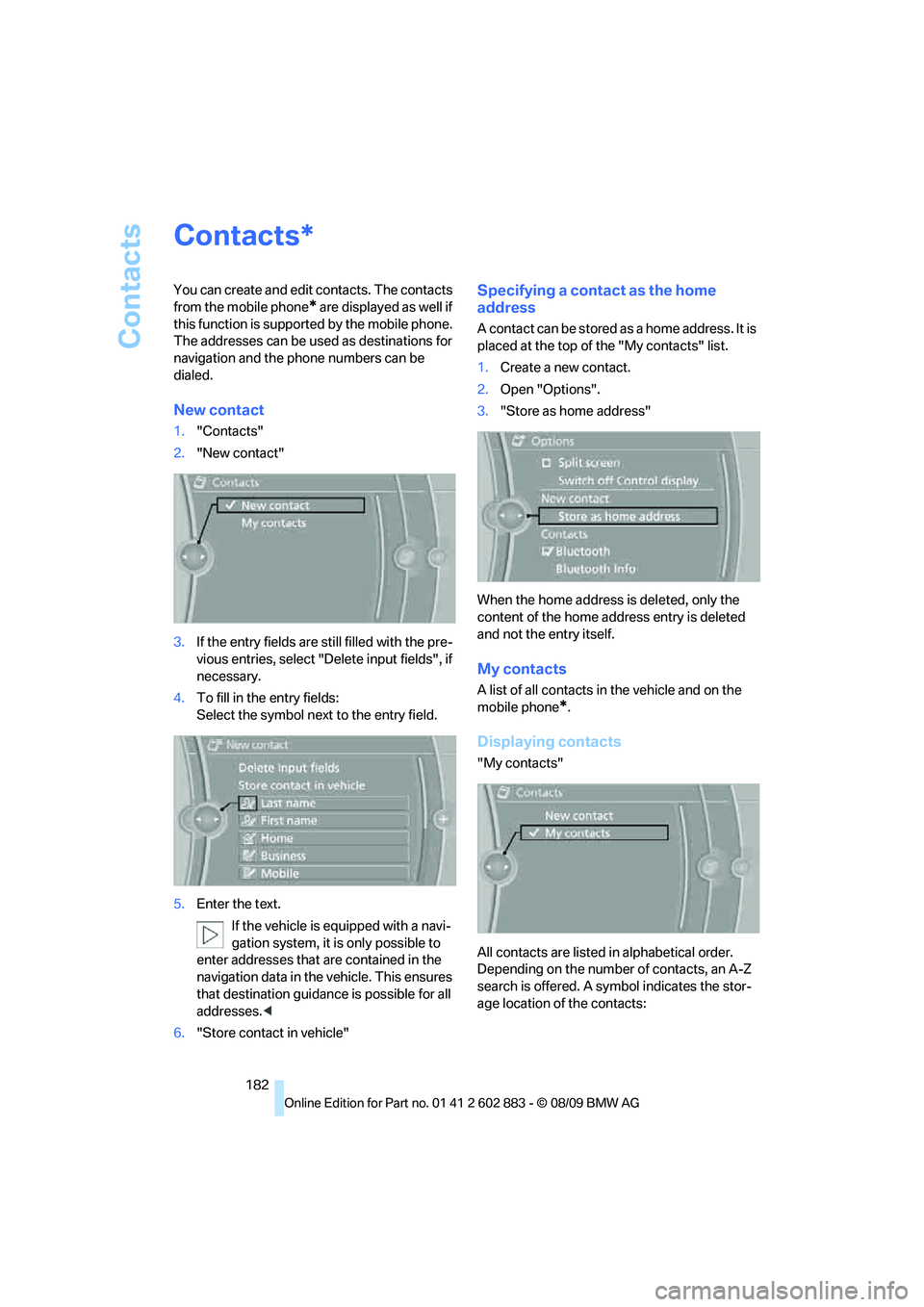
New contact
1."Contacts"
2."New contact"
3.If the entry fields are still filled with the pre-
vious entries, select "Delete input fields", if
necessary.
4.To fill in the entry fields:
Select the symbol next to the entry field.
5.Enter the text.
If the vehicle is equipped with a navi-
gation system, it is only possible to
enter addresses that are contained in the
navigation data in the vehicle. This ensures
that destination guidance is possible for all
addresses.<
6."Store contact in vehicle"
Specifying a contact as the home
address
A contact can be stored as a home address. It is
placed at the top of the "My contacts" list.
1.Create a new contact.
2.Open "Options".
3."Store as home address"
When the home address is deleted, only the
content of the home address entry is deleted
and not the entry itself.
My contacts
A list of all contacts in the vehicle and on the
mobile phone
*.
Displaying contacts
"My contacts"
All contacts are listed in alphabetical order.
Depending on the number of contacts, an A-Z
search is offered. A symbol indicates the stor-
age location of the contacts:
*
Page 185 of 254
183
Entertainment
Reference
At a glance
Controls
Driving tips Communications
Navigation
Mobility
Displaying the detailed view*
Select the desired contact.
All fields that have been filled in for that contact
are displayed.
Selecting a contact as the navigation
destination
1."My contacts"
2.Select the desired contact.
3.Select the desired address.
Contacts from the mobile phone
* may contain
addresses that do not match the navigation
data contained in the vehicle and thus cannot
be used for destination guidance. In this case:
Manually correct the address.
Checking the address as a destination*
An address that is to be used for destination
guidance must match the navigation data con-
tained in the vehicle. An address that is stored
on the mobile phone can be matched to the
navigation data.
1.Select the desired contact and highlight the
address.
2.Open "Options".
3."Check as destination"
4.Correct and store the address, if necessary.
After an address has been corrected, the con-
tact can be stored in the vehicle. The address is
not changed on the mobile phone.
Dialing a phone number*
1."My contacts"
2.Select the desired contact.
3.Select the desired phone number.
The connection is established.
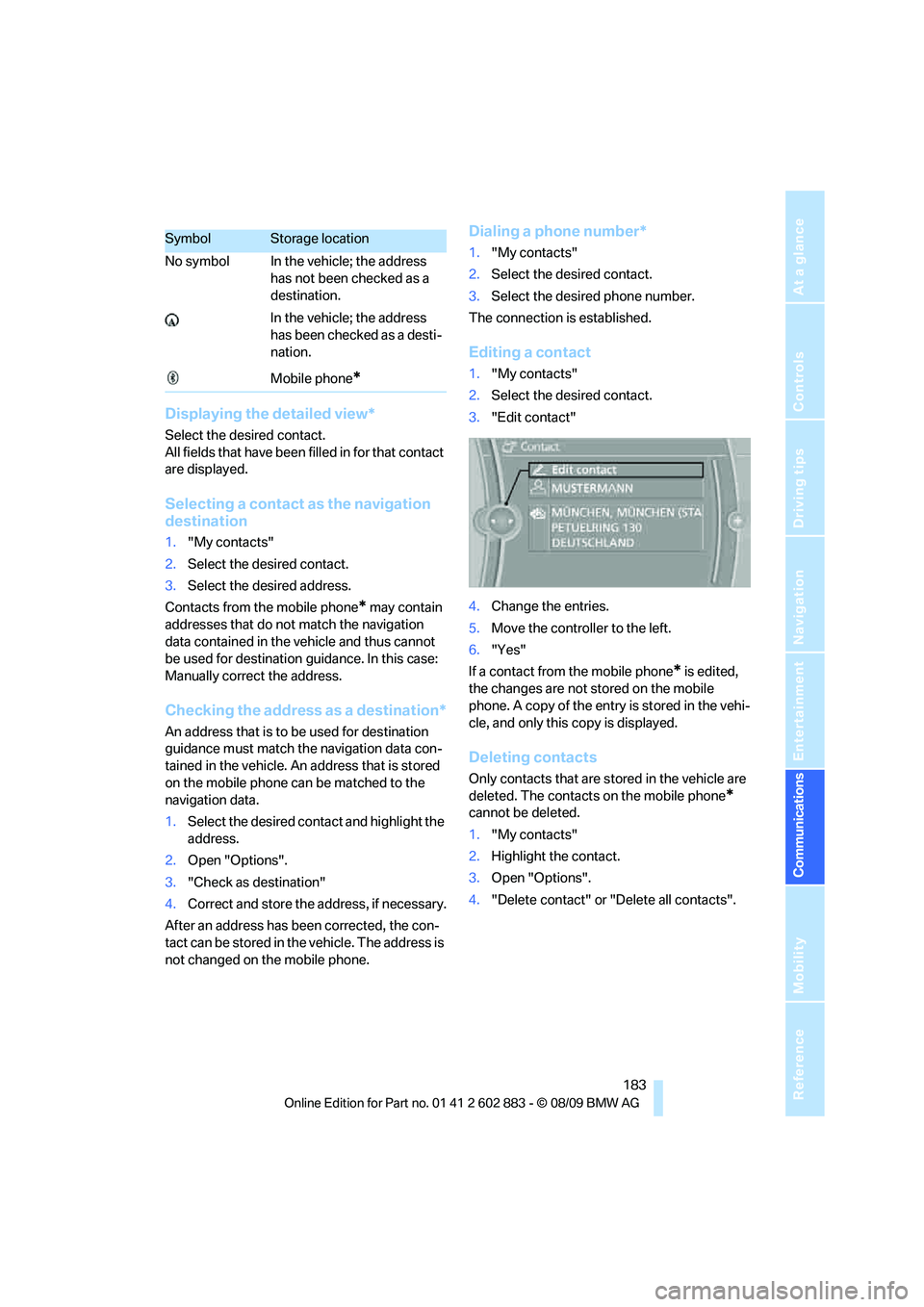
Editing a contact
1."My contacts"
2.Select the desired contact.
3."Edit contact"
4.Change the entries.
5.Move the controller to the left.
6."Yes"
If a contact from the mobile phone
* is edited,
the changes are not stored on the mobile
phone. A copy of the entry is stored in the vehi-
cle, and only this copy is displayed.
Deleting contacts
Only contacts that are stored in the vehicle are
deleted. The contacts on the mobile phone
*
cannot be deleted.
1."My contacts"
2.Highlight the contact.
3.Open "Options".
4."Delete contact" or "Delete all contacts".
SymbolStorage location
No symbol In the vehicle; the address
has not been checked as a
destination.
In the vehicle; the address
has been checked as a desti-
nation.
Mobile phone
*
Page 187 of 254
185
Entertainment
Reference
At a glance
Controls
Driving tips Communications
Navigation
Mobility
TeleService*
TeleService supports communication with your
BMW center.
>Data on the vehicle's service requirements
can be sent directly to the BMW center. In
this way, the BMW center can plan its work
in advance. This shortens the duration of
the service appointment.
>In the event of a breakdown, data on the
vehicle's condition can be sent directly to
Roadside Assistance
*.
>The service varies by country.
>Connection costs may ensue.
>Services may be restricted abroad.
Requirements
>BMW Assist is activated.
>Wireless reception is available.
>The engine is running.
Concierge service*
When you call the BMW Assist Concierge, you
can obtain information about, for example, res-
taurants, emergency pharmacy services, gas
stations or hotels, as well as receive the corre-
sponding telephone numbers and addresses.
You can then dial a phone number directly or
use an address for destination guidance
*.
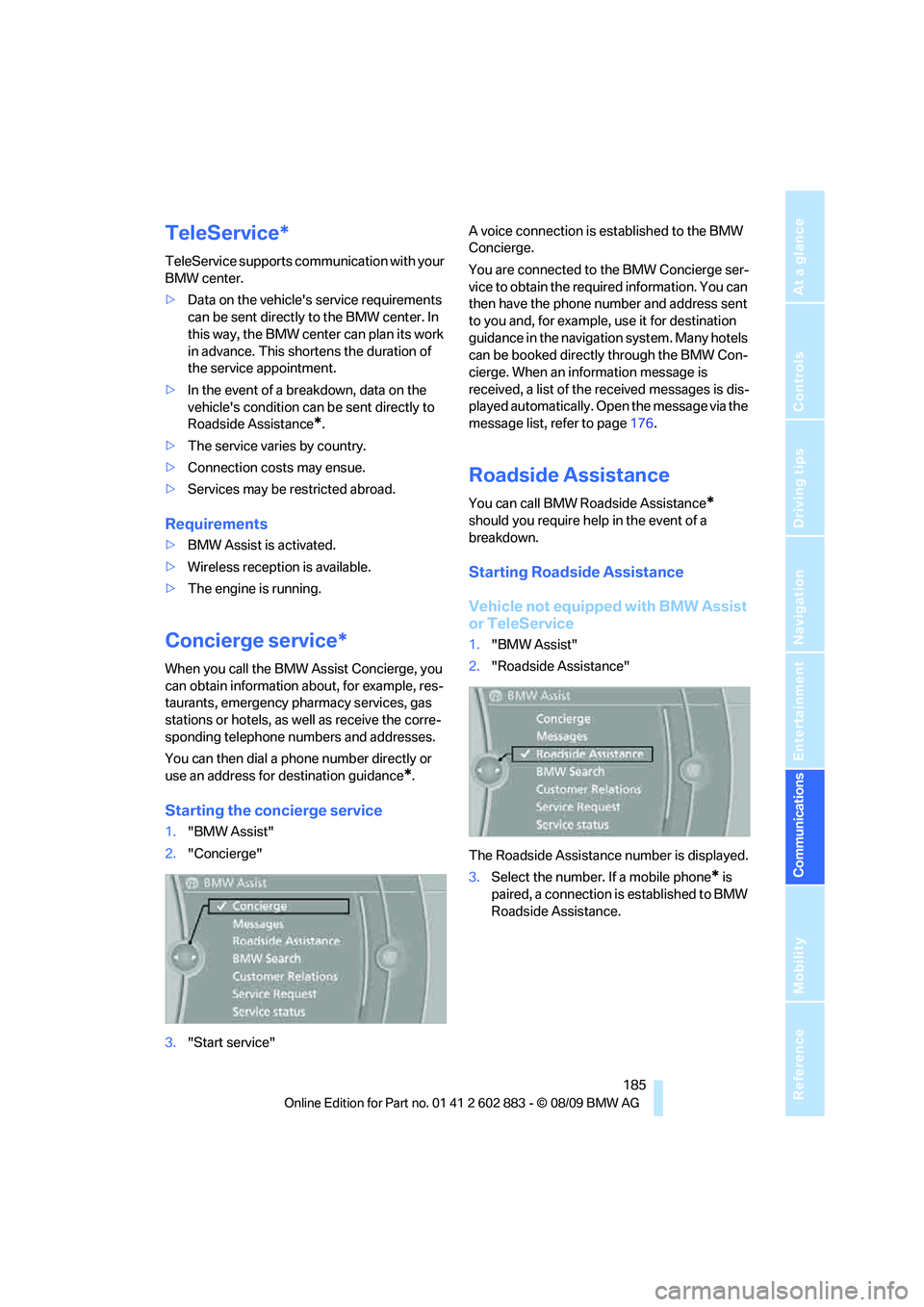
Starting the concierge service
1."BMW Assist"
2."Concierge"
3."Start service"A voice connection is established to the BMW
Concierge.
You are connected to the BMW Concierge ser-
vice to obtain the required information. You can
then have the phone number and address sent
to you and, for example, use it for destination
guidance in the navigation system. Many hotels
can be booked directly through the BMW Con-
cierge. When an information message is
received, a list of the received messages is dis-
played automatically. Open the message via the
message list, refer to page176.
Roadside Assistance
You can call BMW Roadside Assistance*
should you require help in the event of a
breakdown.
Starting Roadside Assistance
Vehicle not equipped with BMW Assist
or TeleService
1."BMW Assist"
2."Roadside Assistance"
The Roadside Assistance number is displayed.
3.Select the number. If a mobile phone
* is
paired, a connection is established to BMW
Roadside Assistance.
Page 188 of 254
BMW Assist
186
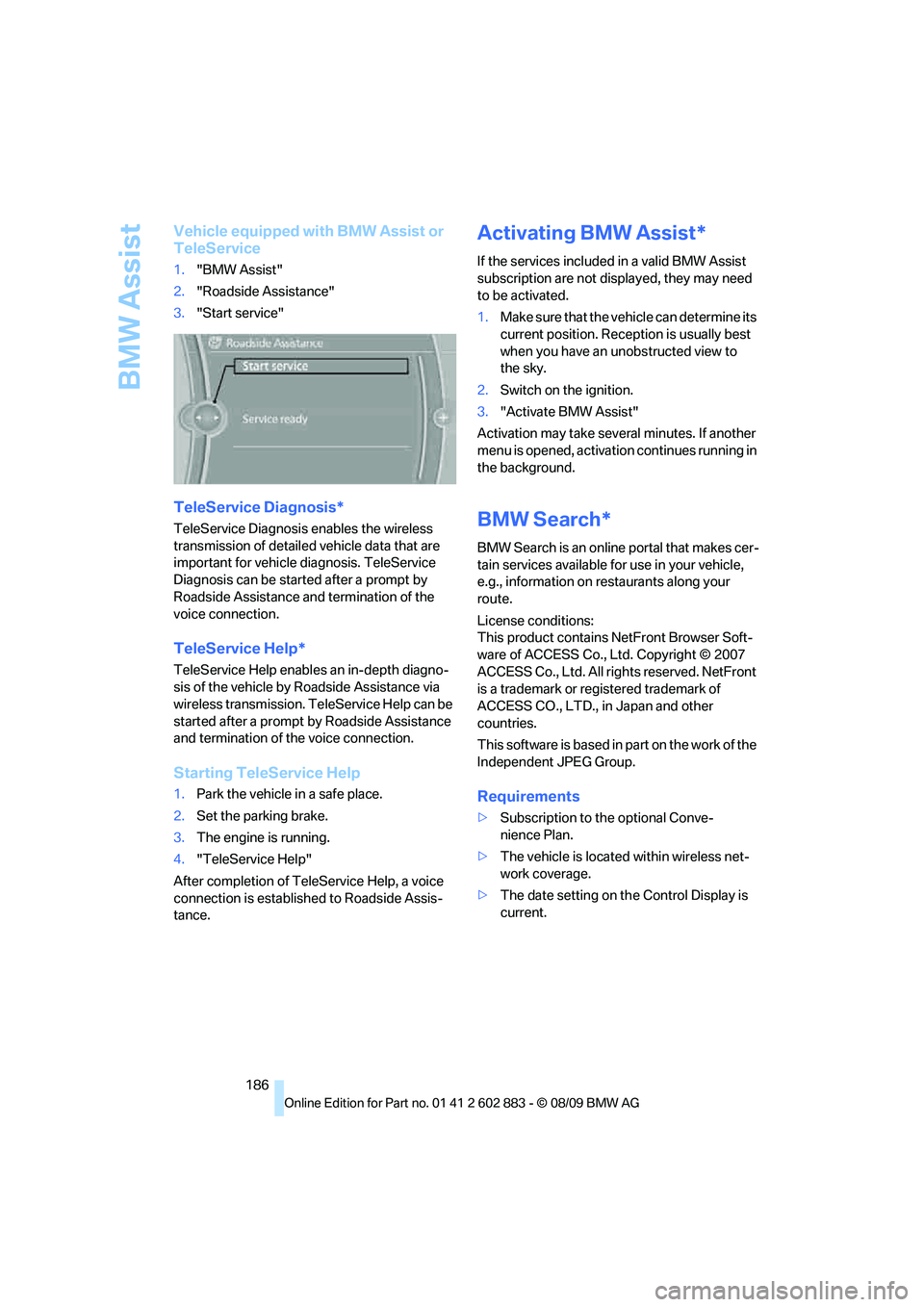
Vehicle equipped with BMW Assist or
TeleService
1."BMW Assist"
2."Roadside Assistance"
3."Start service"
TeleService Diagnosis*
TeleService Diagnosis enables the wireless
transmission of detailed vehicle data that are
important for vehicle diagnosis. TeleService
Diagnosis can be started after a prompt by
Roadside Assistance and termination of the
voice connection.
TeleService Help*
TeleService Help enables an in-depth diagno-
sis of the vehicle by Roadside Assistance via
wireless transmission. TeleService Help can be
started after a prompt by Roadside Assistance
and termination of the voice connection.
Starting TeleService Help
1.Park the vehicle in a safe place.
2.Set the parking brake.
3.The engine is running.
4."TeleService Help"
After completion of TeleService Help, a voice
connection is established to Roadside Assis-
tance.
Activating BMW Assist*
If the services included in a valid BMW Assist
subscription are not displayed, they may need
to be activated.
1.Make sure that the vehicle can determine its
current position. Reception is usually best
when you have an unobstructed view to
the sky.
2.Switch on the ignition.
3."Activate BMW Assist"
Activation may take several minutes. If another
menu is opened, activation continues running in
the background.
BMW Search*
BMW Search is an online portal that makes cer-
tain services available for use in your vehicle,
e.g., information on restaurants along your
route.
License conditions:
This product contains NetFront Browser Soft-
ware of ACCESS Co., Ltd. Copyright © 2007
ACCESS Co., Ltd. All rights reserved. NetFront
is a trademark or registered trademark of
ACCESS CO., LTD., in Japan and other
countries.
T h i s s o f t w a r e i s b a s e d i n p a r t o n t h e w o r k o f t h e
Independent JPEG Group.
Requirements
>Subscription to the optional Conve-
nience Plan.
>The vehicle is located within wireless net-
work coverage.
>The date setting on the Control Display is
current.
Page 189 of 254
187
Entertainment
Reference
At a glance
Controls
Driving tips Communications
Navigation
Mobility
Starting BMW Search
1."BMW Assist"
2."BMW Search"
3.Select "OK", if necessary.
The BMW Search start page is displayed.
Using BMW Search
To select and display content:
>Turn the controller to highlight an element.
>Press the controller to display an element.
Opening the start page
1.Open "Options".
2."Home"
Loading a new page
1.Open "Options".
2."Reload"
Canceling
1.Open "Options".
2."Cancel loading"
Customer Relations
At a glance
Contact Customer Relations for information on
all aspects of your vehicle.
Calling Customer Relations
Vehicle equipped with BMW Assist or
TeleService
1."BMW Assist"
2."Customer Relations"
3."Start service"
A voice connection is established to Customer
Relations.
Vehicle not equipped with BMW Assist
or TeleService
1."BMW Assist"
2."Customer Relations"
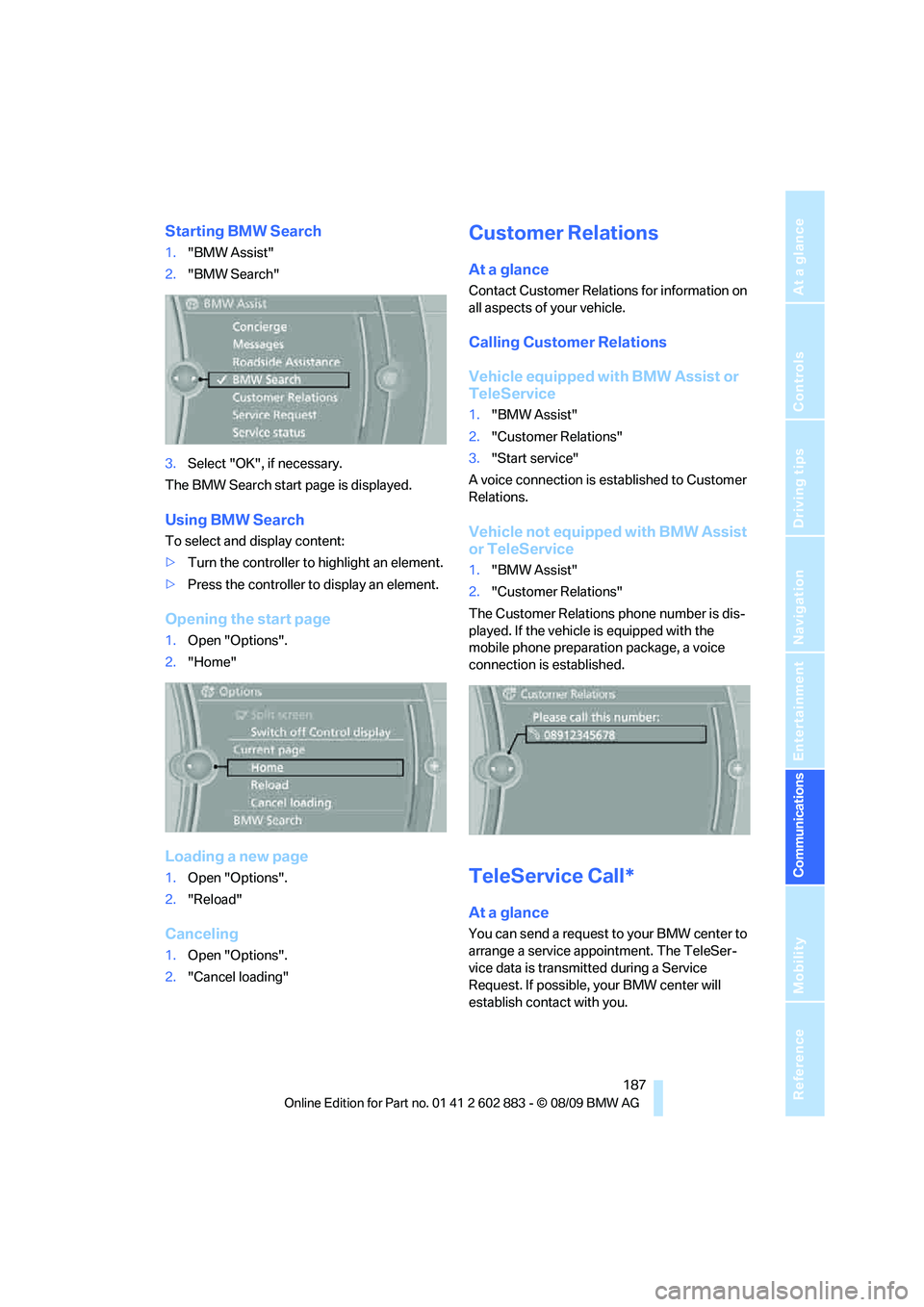
The Customer Relations phone number is dis-
played. If the vehicle is equipped with the
mobile phone preparation package, a voice
connection is established.
TeleService Call*
At a glance
You can send a request to your BMW center to
arrange a service appointment. The TeleSer-
vice data is transmitted during a Service
Request. If possible, your BMW center will
establish contact with you.
Page 190 of 254
BMW Assist
188
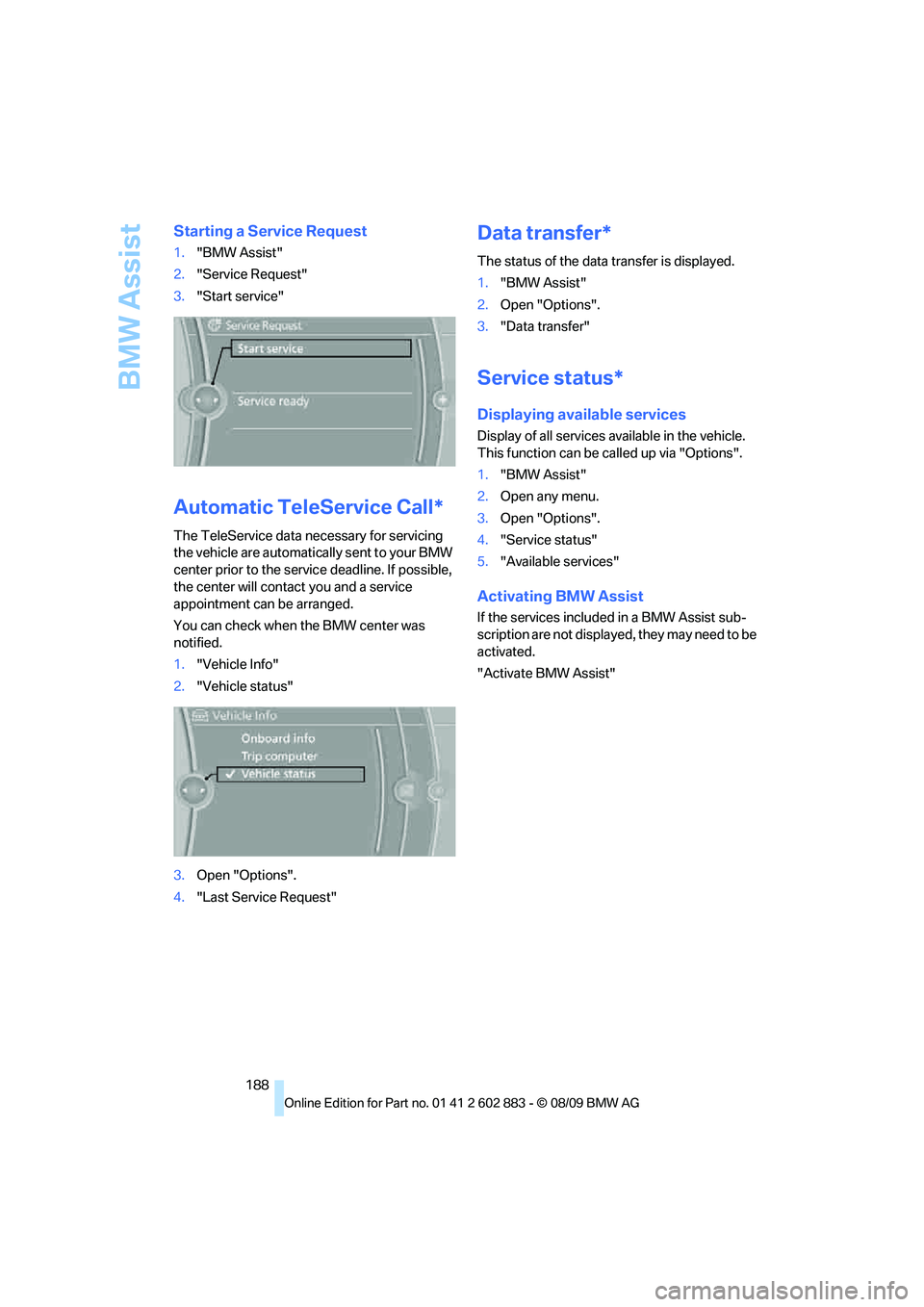
Starting a Service Request
1."BMW Assist"
2."Service Request"
3."Start service"
Automatic TeleService Call*
The TeleService data necessary for servicing
the vehicle are automatically sent to your BMW
center prior to the service deadline. If possible,
the center will contact you and a service
appointment can be arranged.
You can check when the BMW center was
notified.
1."Vehicle Info"
2."Vehicle status"
3.Open "Options".
4."Last Service Request"
Data transfer*
The status of the data transfer is displayed.
1."BMW Assist"
2.Open "Options".
3."Data transfer"
Service status*
Displaying available services
Display of all services available in the vehicle.
This function can be called up via "Options".
1."BMW Assist"
2.Open any menu.
3.Open "Options".
4."Service status"
5."Available services"
Activating BMW Assist
If the services included in a BMW Assist sub-
scription are not displayed, they may need to be
activated.
"Activate BMW Assist"
Page 194 of 254
Refueling
192
Refueling
Always switch off the engine before refu-
eling; otherwise, fuel cannot be added to
the tank and a message will be displayed.<
Take all precautionary measures and
observe all applicable regulations when
handling fuel. Do not carry any spare fuel con-
tainers in your vehicle. They can develop a leak
and cause an explosion or cause a fire in the
event of an accident.<
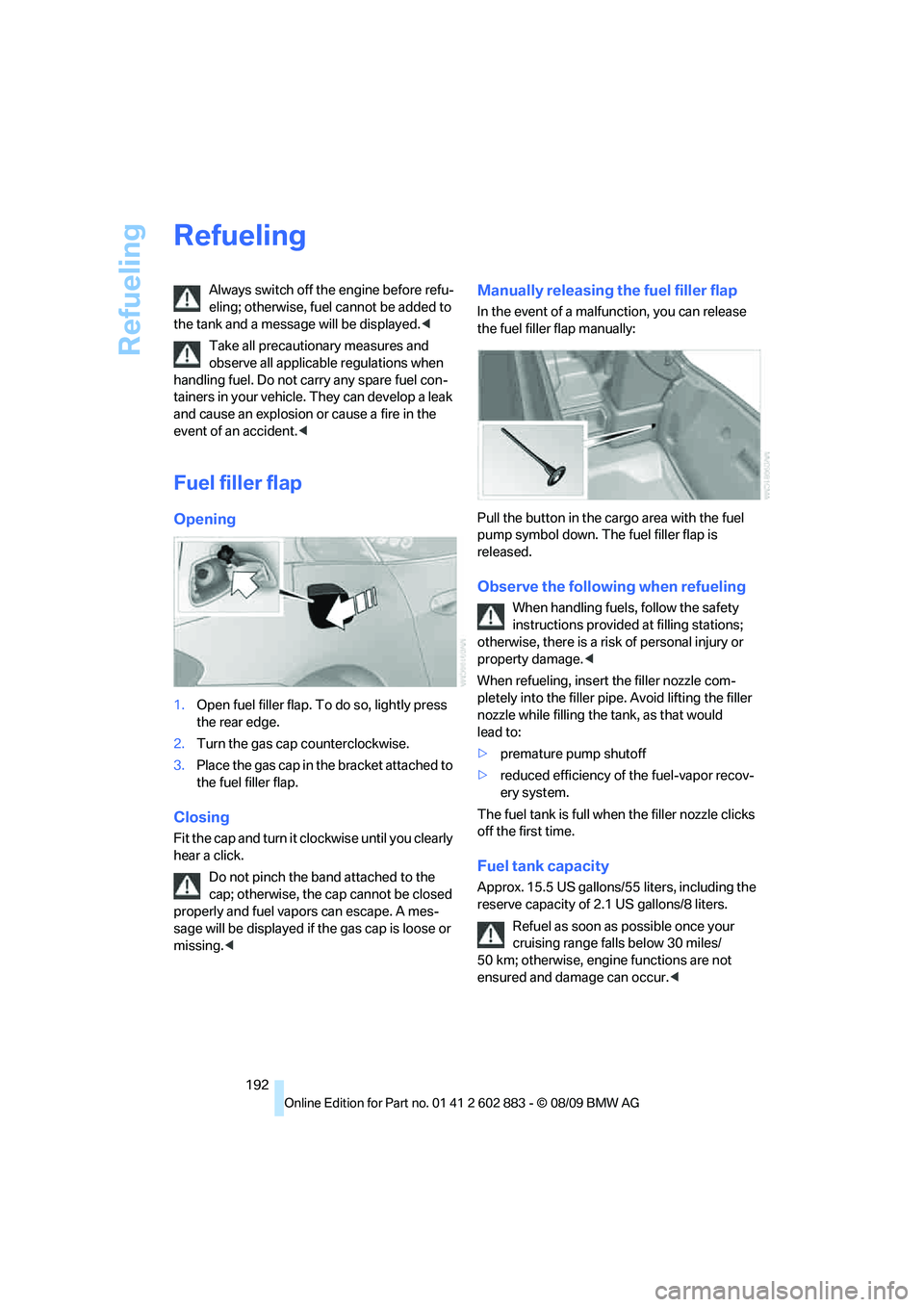
Fuel filler flap
Opening
1.Open fuel filler flap. To do so, lightly press
the rear edge.
2.Turn the gas cap counterclockwise.
3.Place the gas cap in the bracket attached to
the fuel filler flap.
Closing
Fit the cap and turn it clockwise until you clearly
hear a click.
Do not pinch the band attached to the
cap; otherwise, the cap cannot be closed
properly and fuel vapors can escape. A mes-
sage will be displayed if the gas cap is loose or
missing.<
Manually releasing the fuel filler flap
In the event of a malfunction, you can release
the fuel filler flap manually:
Pull the button in the cargo area with the fuel
pump symbol down. The fuel filler flap is
released.
Observe the following when refueling
When handling fuels, follow the safety
instructions provided at filling stations;
otherwise, there is a risk of personal injury or
property damage.<
When refueling, insert the filler nozzle com-
pletely into the filler pipe. Avoid lifting the filler
nozzle while filling the tank, as that would
lead to:
>premature pump shutoff
>reduced efficiency of the fuel-vapor recov-
ery system.
The fuel tank is full when the filler nozzle clicks
off the first time.
Fuel tank capacity
Approx. 15.5 US gallons/55 liters, including the
reserve capacity of 2.1 US gallons/8 liters.
Refuel as soon as possible once your
cruising range falls below 30 miles/
50 km; otherwise, engine functions are not
ensured and damage can occur.<