CD changer BMW Z4 SDRIVE35I ROADSTER 2010 Owners Manual
[x] Cancel search | Manufacturer: BMW, Model Year: 2010, Model line: Z4 SDRIVE35I ROADSTER, Model: BMW Z4 SDRIVE35I ROADSTER 2010Pages: 254, PDF Size: 8.04 MB
Page 5 of 254
Reference
At a glance
Controls
Driving tips
Communications
Navigation
Entertainment
Mobility
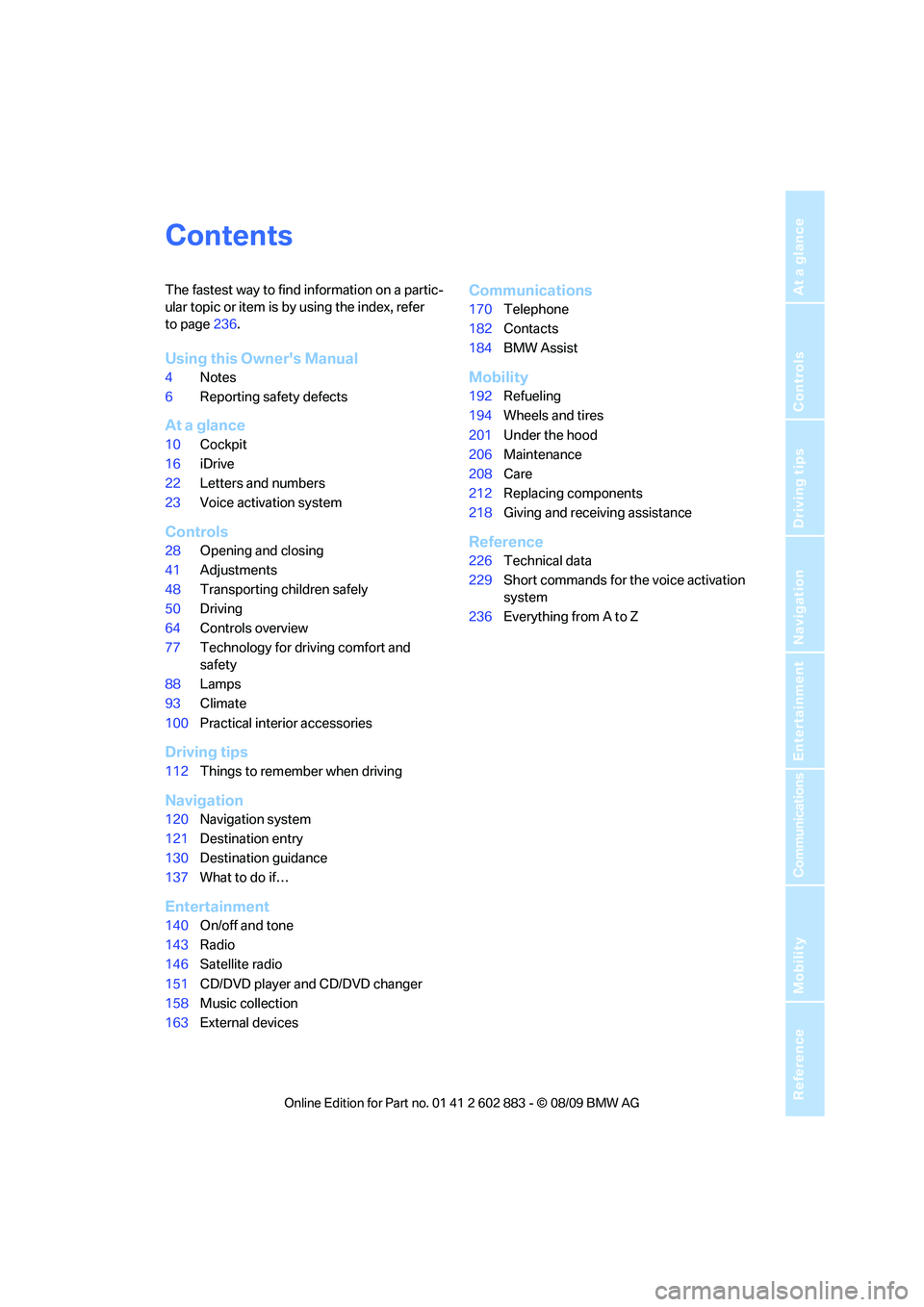
Contents
The fastest way to find information on a partic-
ular topic or item is by using the index, refer
to page236.
Using this Owner's Manual
4Notes
6Reporting safety defects
At a glance
10Cockpit
16iDrive
22Letters and numbers
23Voice activation system
Controls
28Opening and closing
41Adjustments
48Transporting children safely
50Driving
64Controls overview
77Technology for driving comfort and
safety
88Lamps
93Climate
100Practical interior accessories
Driving tips
112Things to remember when driving
Navigation
120Navigation system
121Destination entry
130Destination guidance
137What to do if…
Entertainment
140On/off and tone
143Radio
146Satellite radio
151CD/DVD player and CD/DVD changer
158Music collection
163External devices
Communications
170Telephone
182Contacts
184BMW Assist
Mobility
192Refueling
194Wheels and tires
201Under the hood
206Maintenance
208Care
212Replacing components
218Giving and receiving assistance
Reference
226Technical data
229Short commands for the voice activation
system
236Everything from A to Z
Page 142 of 254
On/off and tone
140
On/off and tone
The following audio and video sources share
the same control elements and adjustments:
>Radio
>CD/DVD player
>CD/DVD changer
*
>Video*
>External devices, e.g., MP3 player
Controls
The audio and video sources can be controlled
using the:
>Buttons near the CD/DVD player
>iDrive
>Buttons on the steering wheel, refer
to page10
>Programmable memory keys, refer
to page21
>Voice activation system
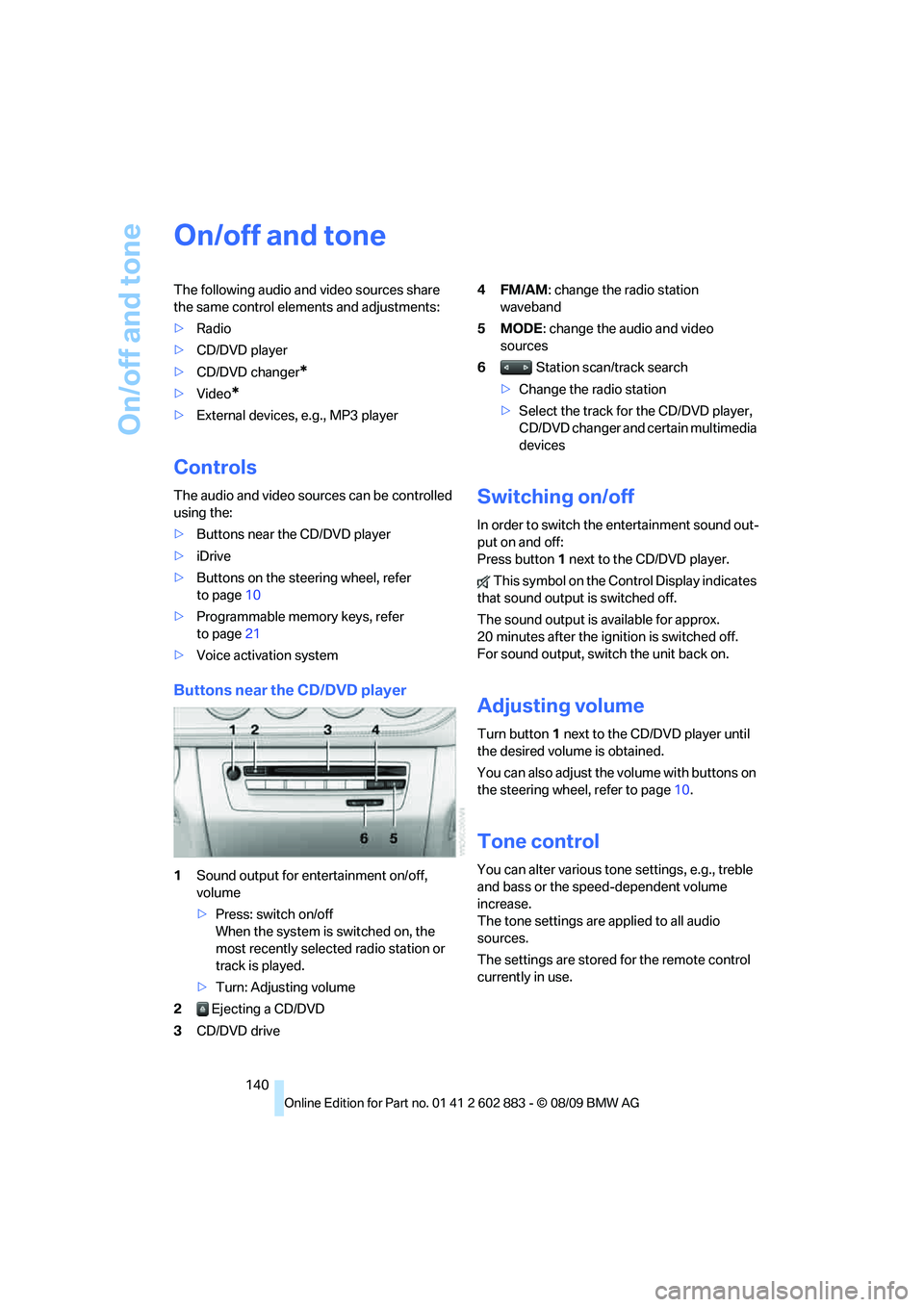
Buttons near the CD/DVD player
1Sound output for entertainment on/off,
volume
>Press: switch on/off
When the system is switched on, the
most recently selected radio station or
track is played.
>Turn: Adjusting volume
2 Ejecting a CD/DVD
3CD/DVD drive4FM/AM: change the radio station
waveband
5MODE: change the audio and video
sources
6 Station scan/track search
>Change the radio station
>Select the track for the CD/DVD player,
CD/DVD changer and certain multimedia
devices
Switching on/off
In order to switch the entertainment sound out-
put on and off:
Press button1 next to the CD/DVD player.
This symbol on the Control Display indicates
that sound output is switched off.
The sound output is available for approx.
20 minutes after the ignition is switched off.
For sound output, switch the unit back on.
Adjusting volume
Turn button1 next to the CD/DVD player until
the desired volume is obtained.
You can also adjust the volume with buttons on
the steering wheel, refer to page10.
Tone control
You can alter various tone settings, e.g., treble
and bass or the speed-dependent volume
increase.
The tone settings are applied to all audio
sources.
The settings are stored for the remote control
currently in use.
Page 153 of 254
Navigation
Entertainment
Driving tips
151Reference
At a glance
Controls
Communications
Mobility
CD/DVD player and CD/DVD changer
CD/DVD playback
Inserting a CD/DVD
Insert the CD/DVD into the drive with the
printed side up. The CD/DVD is drawn in auto-
matically.
Playback starts automatically if the sound out-
put is on. When playing CDs/DVDs with com-
pressed audio files, it may take several minutes
to read in the data, depending on the directory
structure.
Playable formats
CD/DVD player
>DVD: DVD-ROM, DVD-R, DVD+R, DVD-
RW, DVD+RW, DVD-R DL, DVD+R DL, DVD
audio (video part only), DVD video
>CD: CD-ROM, CD-R, CD-RW, CD-DA,
VCD, SVCD
>Compressed audio files: MP3, WMA, AAC
CD changer
*
>CD: CD-ROM, CD-R, CD-RW, CD-DA
DVD changer
*
>DVD: DVD-ROM, DVD-R, DVD+R, DVD-
RW, DVD+RW, DVD-R DL, DVD+R DL, DVD
audio (video part only), DVD video, CD: CD-
ROM, CD-R, CD-RW, CD-DA, VCD, SVCD
Starting playback
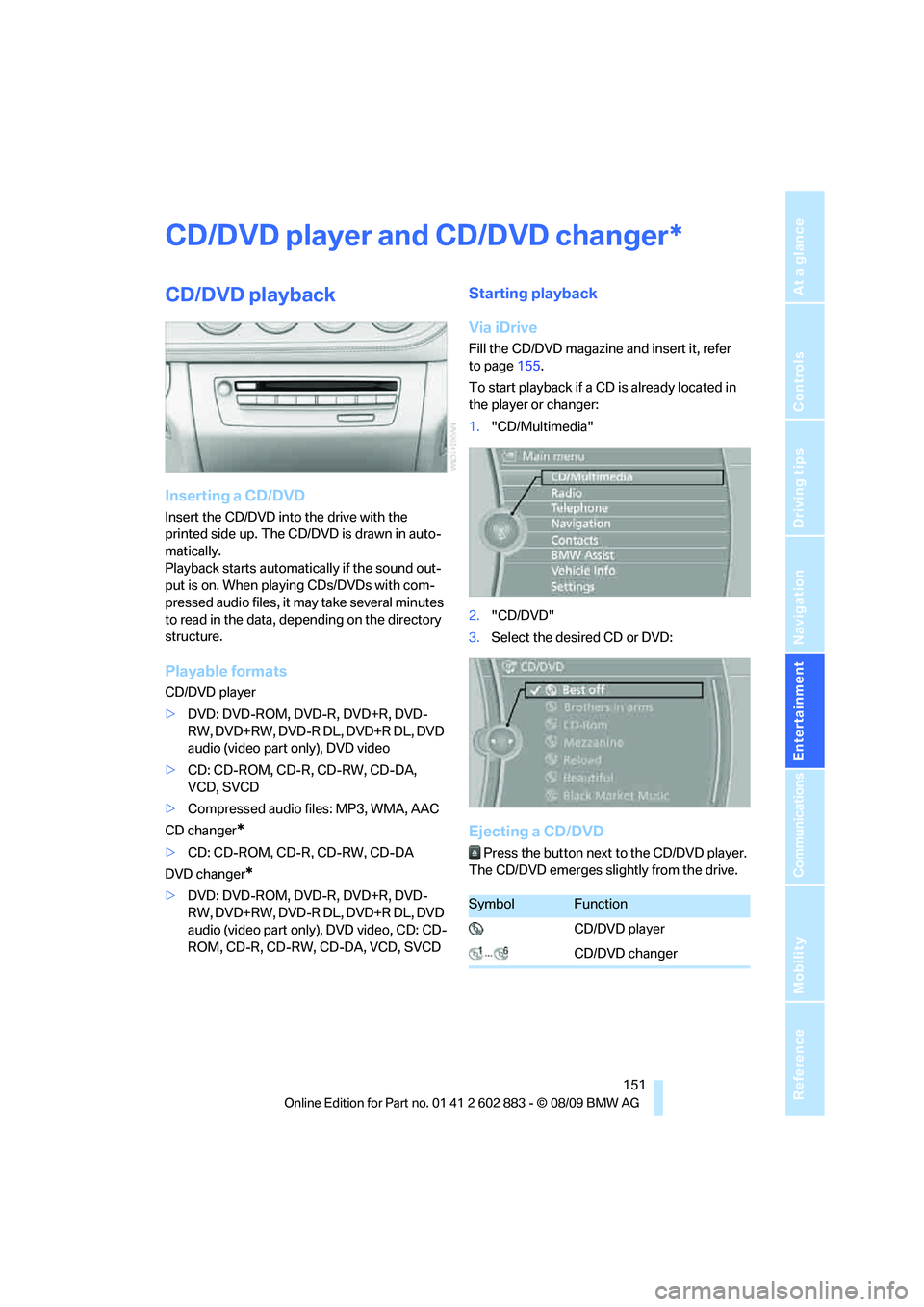
Via iDrive
Fill the CD/DVD magazine and insert it, refer
to page155.
To start playback if a CD is already located in
the player or changer:
1."CD/Multimedia"
2."CD/DVD"
3.Select the desired CD or DVD:
Ejecting a CD/DVD
Press the button next to the CD/DVD player.
The CD/DVD emerges slightly from the drive.
*
SymbolFunction
CD/DVD player
CD/DVD changer
Page 154 of 254
CD/DVD player and CD/DVD changer
152
Audio playback
Selecting a track using the button
Press the button for the appropriate
direction as often as necessary until the desired
track is reached.
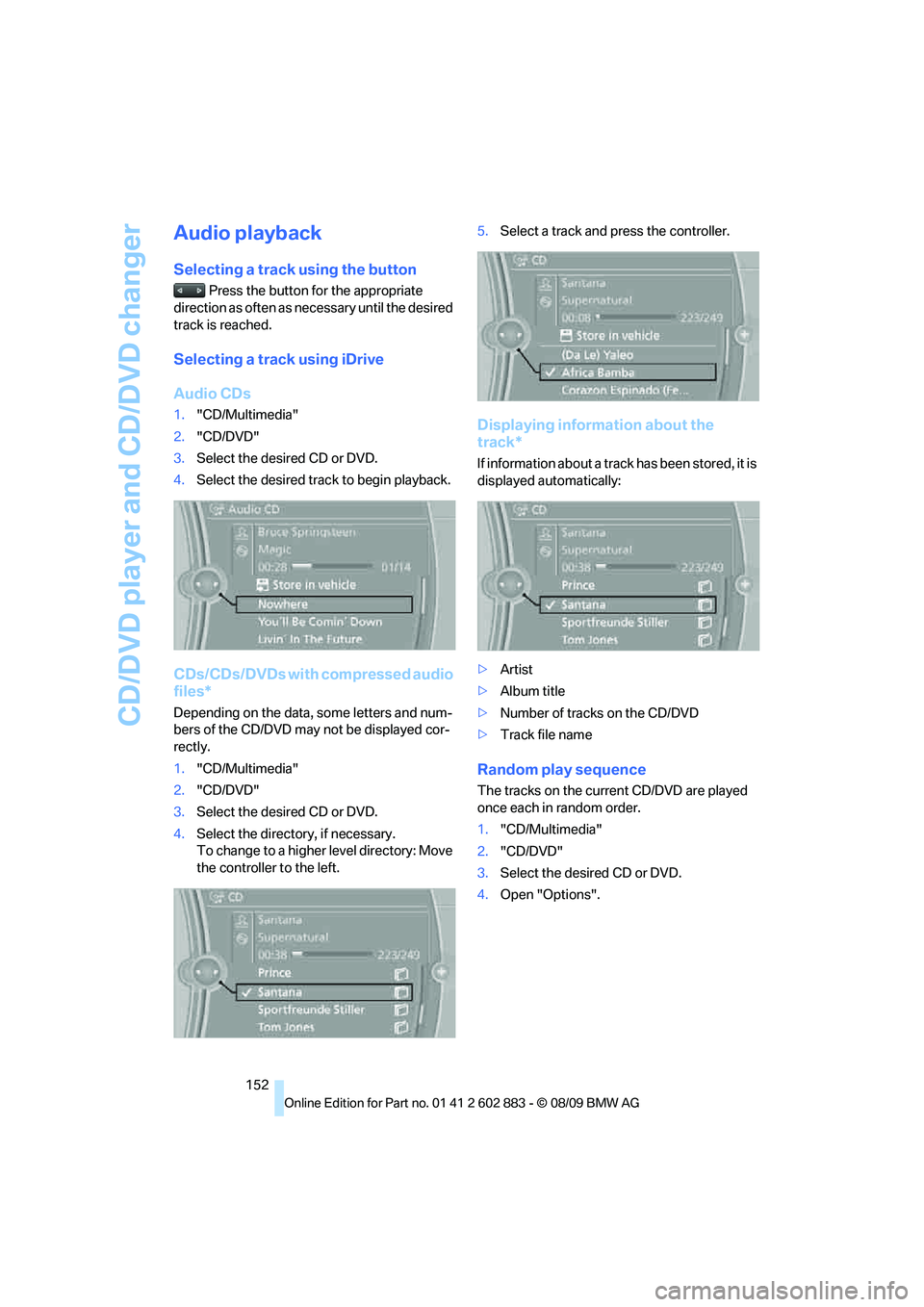
Selecting a track using iDrive
Audio CDs
1."CD/Multimedia"
2."CD/DVD"
3.Select the desired CD or DVD.
4.Select the desired track to begin playback.
CDs/CDs/DVDs with compressed audio
files*
Depending on the data, some letters and num-
bers of the CD/DVD may not be displayed cor-
rectly.
1."CD/Multimedia"
2."CD/DVD"
3.Select the desired CD or DVD.
4.Select the directory, if necessary.
To change to a higher level directory: Move
the controller to the left.5.Select a track and press the controller.
Displaying information about the
track*
If information about a track has been stored, it is
displayed automatically:
>Artist
>Album title
>Number of tracks on the CD/DVD
>Track file name
Random play sequence
The tracks on the current CD/DVD are played
once each in random order.
1."CD/Multimedia"
2."CD/DVD"
3.Select the desired CD or DVD.
4.Open "Options".
Page 156 of 254
CD/DVD player and CD/DVD changer
154
Video menu
To open the Video menu:
1.Turn the controller during playback.
2.Press the controller when "Back" is dis-
played.
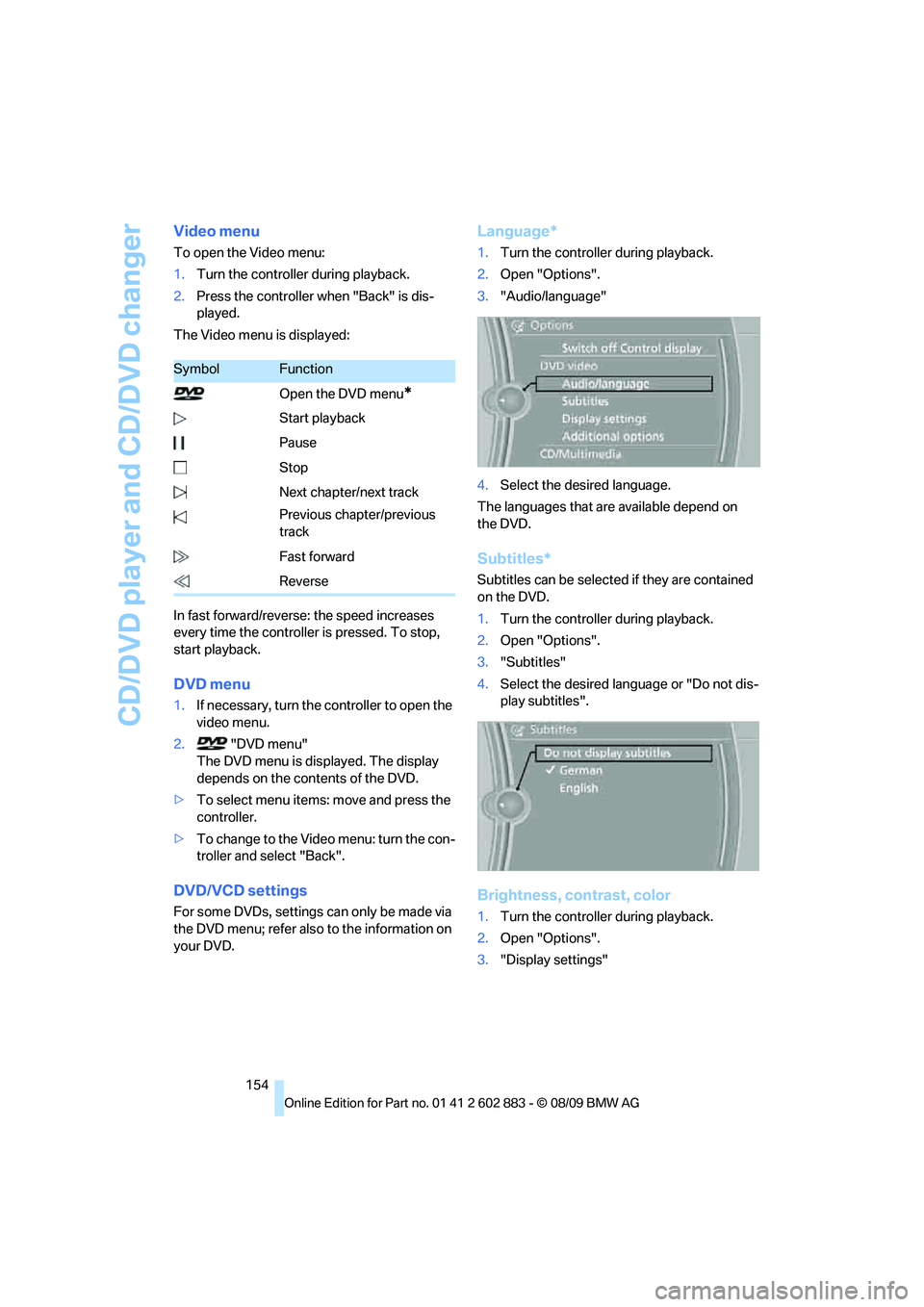
The Video menu is displayed:
In fast forward/reverse: the speed increases
every time the controller is pressed. To stop,
start playback.
DVD menu
1.If necessary, turn the controller to open the
video menu.
2. "DVD menu"
The DVD menu is displayed. The display
depends on the contents of the DVD.
>To select menu items: move and press the
controller.
>To change to the Video menu: turn the con-
troller and select "Back".
DVD/VCD settings
For some DVDs, settings can only be made via
the DVD menu; refer also to the information on
your DVD.
Language*
1.Turn the controller during playback.
2.Open "Options".
3."Audio/language"
4.Select the desired language.
The languages that are available depend on
the DVD.
Subtitles*
Subtitles can be selected if they are contained
on the DVD.
1.Turn the controller during playback.
2.Open "Options".
3."Subtitles"
4.Select the desired language or "Do not dis-
play subtitles".
Brightness, contrast, color
1.Turn the controller during playback.
2.Open "Options".
3."Display settings"
SymbolFunction
Open the DVD menu
*
Start playback
Pause
Stop
Next chapter/next track
Previous chapter/previous
track
Fast forward
Reverse
Page 157 of 254
Navigation
Entertainment
Driving tips
155Reference
At a glance
Controls
Communications
Mobility
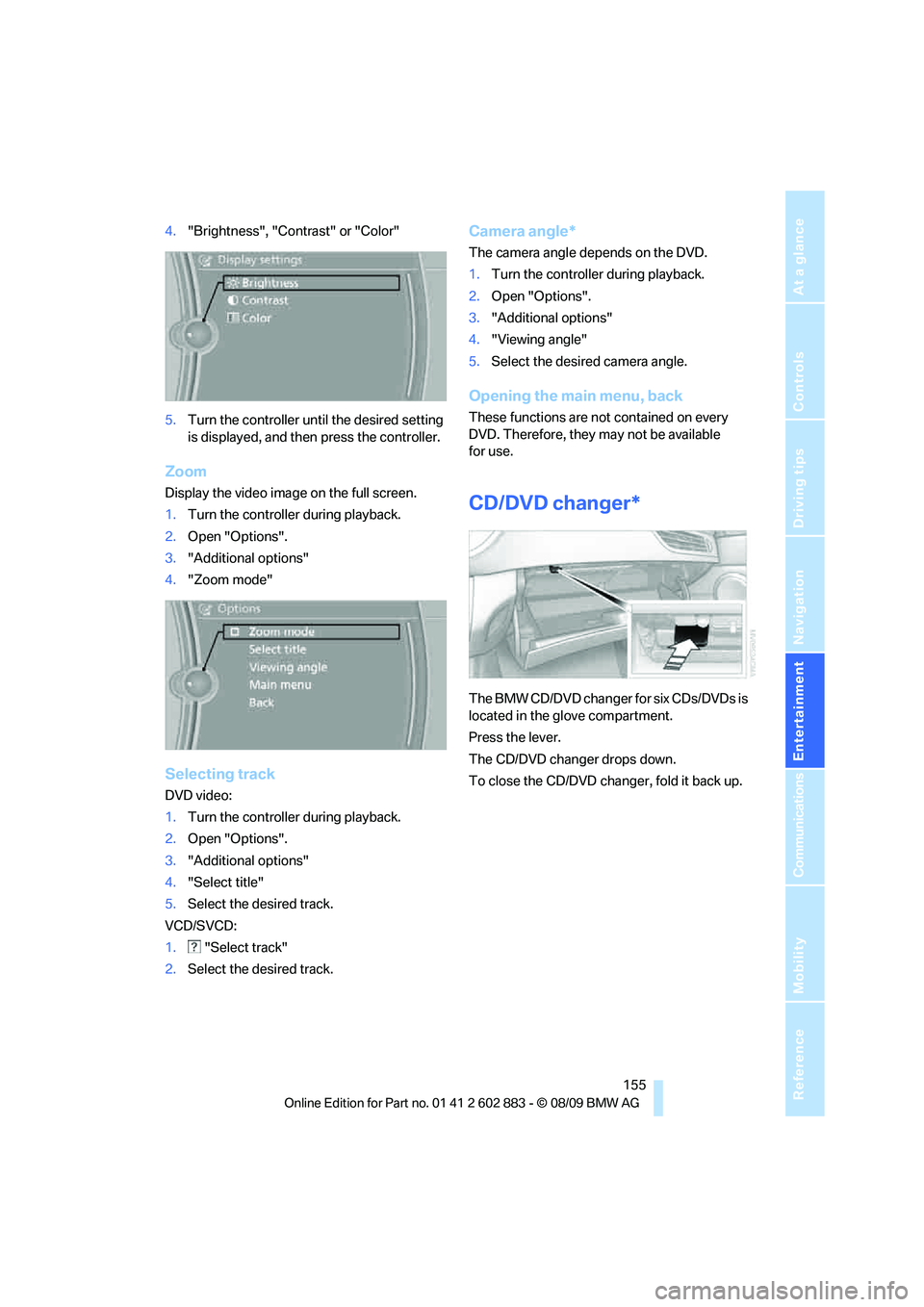
4."Brightness", "Contrast" or "Color"
5.Turn the controller until the desired setting
is displayed, and then press the controller.
Zoom
Display the video image on the full screen.
1.Turn the controller during playback.
2.Open "Options".
3."Additional options"
4."Zoom mode"
Selecting track
DVD video:
1.Turn the controller during playback.
2.Open "Options".
3."Additional options"
4."Select title"
5.Select the desired track.
VCD/SVCD:
1. "Select track"
2.Select the desired track.
Camera angle*
The camera angle depends on the DVD.
1.Turn the controller during playback.
2.Open "Options".
3."Additional options"
4."Viewing angle"
5.Select the desired camera angle.
Opening the main menu, back
These functions are not contained on every
DVD. Therefore, they may not be available
for use.
CD/DVD changer*
The BMW CD/DVD changer for six CDs/DVDs is
located in the glove compartment.
Press the lever.
The CD/DVD changer drops down.
To close the CD/DVD changer, fold it back up.
Page 158 of 254
CD/DVD player and CD/DVD changer
156
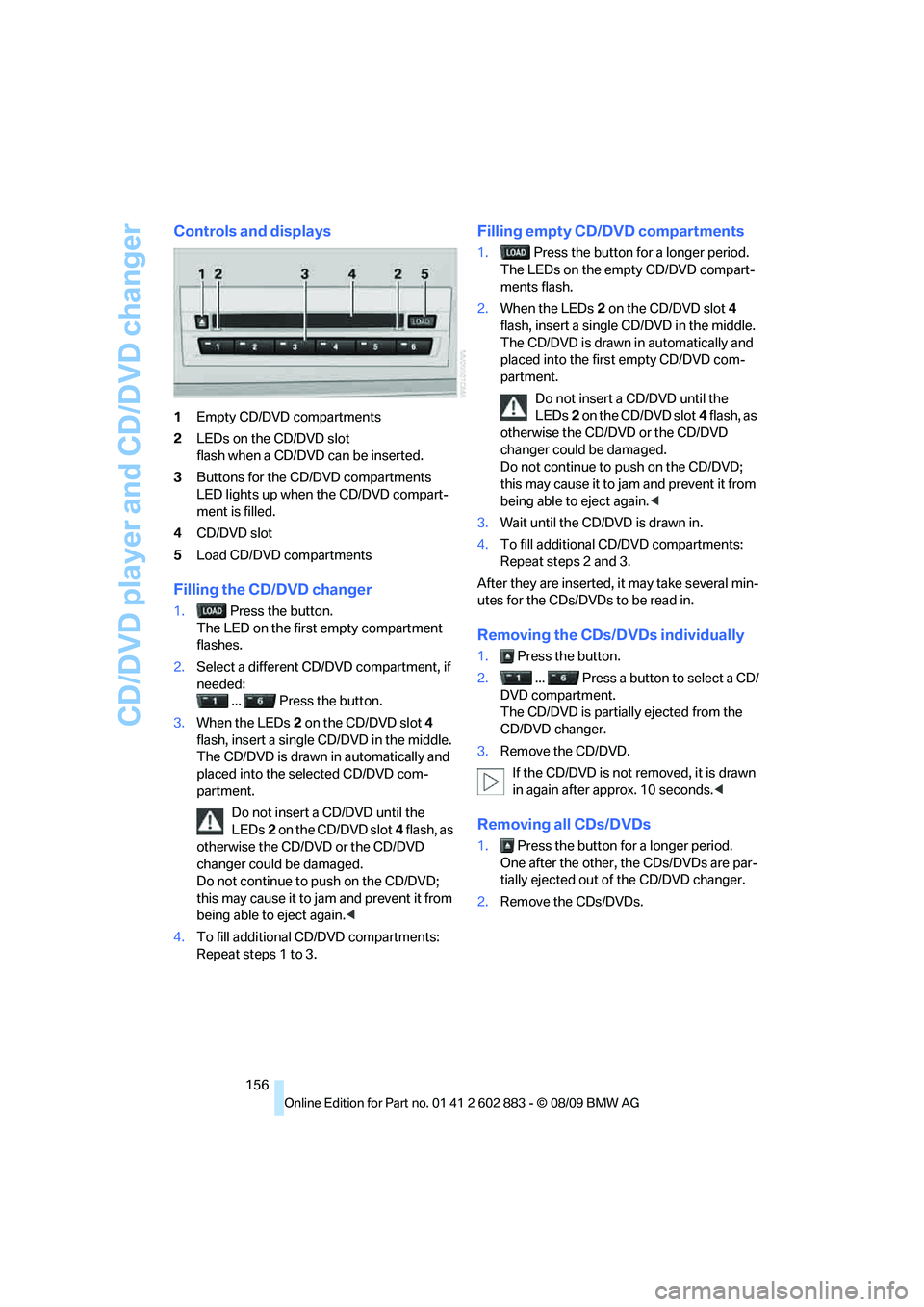
Controls and displays
1Empty CD/DVD compartments
2LEDs on the CD/DVD slot
flash when a CD/DVD can be inserted.
3Buttons for the CD/DVD compartments
LED lights up when the CD/DVD compart-
ment is filled.
4CD/DVD slot
5Load CD/DVD compartments
Filling the CD/DVD changer
1. Press the button.
The LED on the first empty compartment
flashes.
2.Select a different CD/DVD compartment, if
needed:
... Press the button.
3.When the LEDs 2 on the CD/DVD slot4
flash, insert a single CD/DVD in the middle.
The CD/DVD is drawn in automatically and
placed into the selected CD/DVD com-
partment.
Do not insert a CD/DVD until the
LEDs2 on the CD/DVD slot4 flash, as
otherwise the CD/DVD or the CD/DVD
changer could be damaged.
Do not continue to push on the CD/DVD;
this may cause it to jam and prevent it from
being able to eject again.<
4.To fill additional CD/DVD compartments:
Repeat steps 1 to 3.
Filling empty CD/DVD compartments
1. Press the button for a longer period.
The LEDs on the empty CD/DVD compart-
ments flash.
2.When the LEDs 2 on the CD/DVD slot4
flash, insert a single CD/DVD in the middle.
The CD/DVD is drawn in automatically and
placed into the first empty CD/DVD com-
partment.
Do not insert a CD/DVD until the
LEDs2 on the CD/DVD slot4 flash, as
otherwise the CD/DVD or the CD/DVD
changer could be damaged.
Do not continue to push on the CD/DVD;
this may cause it to jam and prevent it from
being able to eject again.<
3.Wait until the CD/DVD is drawn in.
4.To fill additional CD/DVD compartments:
Repeat steps 2 and 3.
After they are inserted, it may take several min-
utes for the CDs/DVDs to be read in.
Removing the CDs/DVDs individually
1. Press the button.
2. ... Press a button to select a CD/
DVD compartment.
The CD/DVD is partially ejected from the
CD/DVD changer.
3.Remove the CD/DVD.
If the CD/DVD is not removed, it is drawn
in again after approx. 10 seconds.<
Removing all CDs/DVDs
1. Press the button for a longer period.
One after the other, the CDs/DVDs are par-
tially ejected out of the CD/DVD changer.
2.Remove the CDs/DVDs.
Page 159 of 254
Navigation
Entertainment
Driving tips
157Reference
At a glance
Controls
Communications
Mobility
Malfunctions
If all LEDs on the CD/DVD changer flash rapidly,
the system is malfunctioning.
To correct the malfunction:
1.Press the or button.
The CD/DVD inserted last is ejected.
2.Remove the CD/DVD.
If the LEDs stop flashing rapidly, the CD/DVD
changer is functional again.
Notes
BMW CD/DVD players and changers are
officially designated Class 1 laser prod-
ucts. Do not operate if the cover is damaged;
otherwise, severe eye damage can result.
Do not use self-recorded CDs/DVDs with labels
applied as these can become detached during
playback due to heat build-up and can cause
irreparable damage to the device.
Only use round CDs/DVDs with a standard
diameter of 4.7 in/12 cm and do not play CDs/
DVDs with an adapter, e.g., Single-CDs; other-
wise, the CDs or the adapter can jam and will no
longer eject.
Do not use a combined CD/DVD, e.g., DVD
Plus;
otherwise, the CD/DVD can jam and will no
longer eject.<
General malfunctions
BMW CD/DVD changers and players have been
optimized for performance in vehicles. In some
instances they may be more sensitive to faulty
CDs/DVDs than stationary devices would be.
If a CD/DVD cannot be played, first check if it
has been inserted correctly.
Humidity
High levels of humidity can lead to condensa-
tion on the CD/DVD or the laser's scan lens and
temporarily prevent playback.
Malfunctions with individual CDs/DVDs
If malfunctions occur only with particular CDs/
DVDs, this may be due to one of the following
reasons.
Self-recorded CDs/DVDs
Possible reasons for malfunctions with self-
recorded CDs/DVDs are inconsistent data-cre-
ation or recording processes, or poor quality or
old age of the CD/DVD blank.
Only label CDs/DVDs on the top, with a pen
designed for this purpose.
Damage
Avoid leaving fingerprints, as well as dust,
scratches or moisture on the CDs/DVDs.
Keep CDs/DVDs in protective sleeves or cases.
Do not subject CDs/DVDs to temperatures over
1227/506, high levels of humidity or direct
sunlight.
CDs/DVDs with copy protection
CDs/DVDs are often copy-protected by the
manufacturer. This can mean that some CDs/
DVDs cannot be played or can only be played to
a limited extent.
MACROVISION
This product contains copyrighted technology
that is based on multiple registered US patents
and the intellectual property of the Macrovision
Corporation and other manufacturers. The use
of this copy protection must be approved by
Macrovision. Media protected by this product -
unless otherwise agreed with Macrovision -
may only be used for private purposes. Copying
of this technology is prohibited.
Page 240 of 254
Everything from A to Z
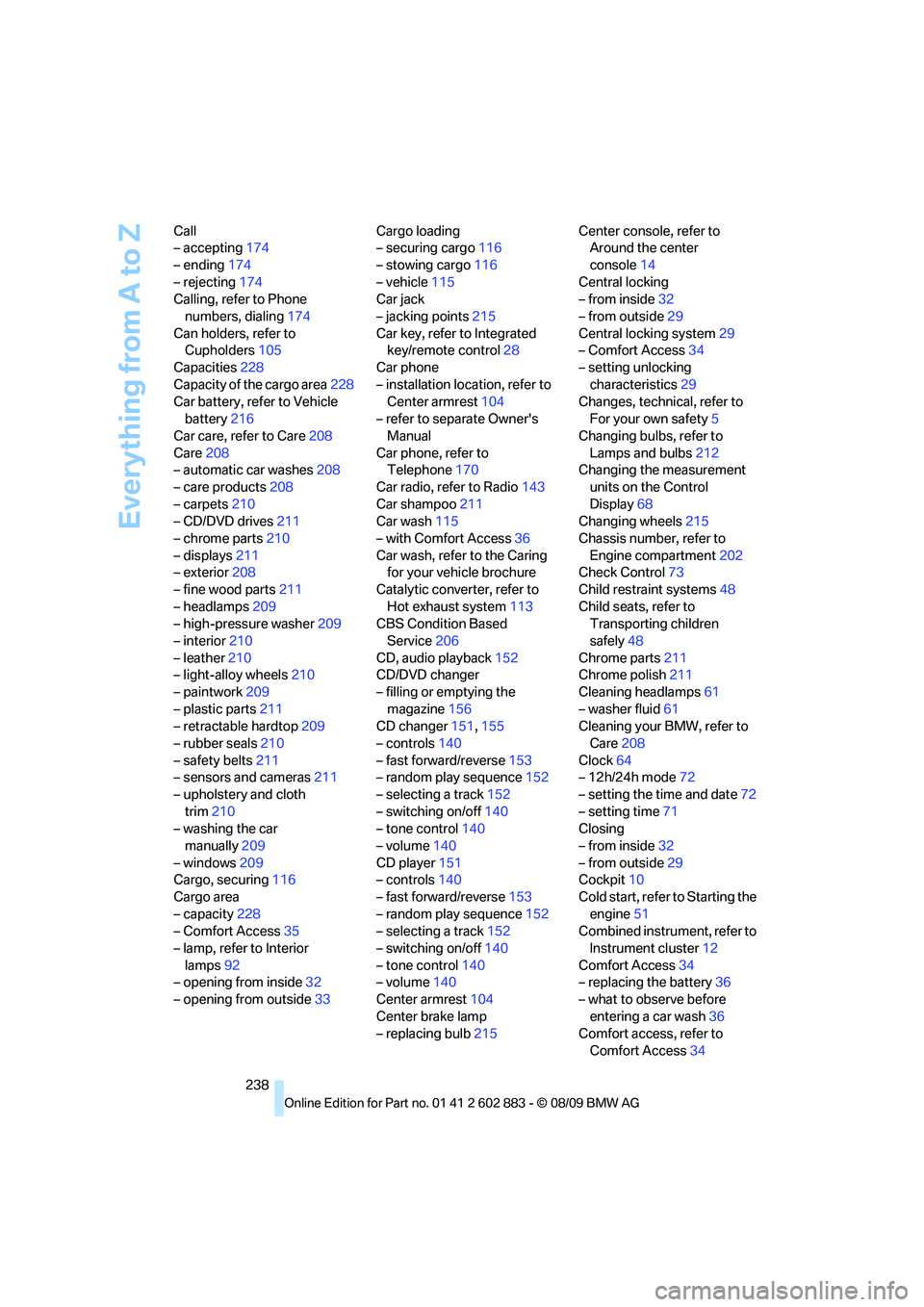
238 Call
– accepting174
– ending174
– rejecting174
Calling, refer to Phone
numbers, dialing174
Can holders, refer to
Cupholders105
Capacities228
Capacity of the cargo area228
Car battery, refer to Vehicle
battery216
Car care, refer to Care208
Care208
– automatic car washes208
– care products208
– carpets210
– CD/DVD drives211
– chrome parts210
– displays211
– exterior208
– fine wood parts211
– headlamps209
– high-pressure washer209
– interior210
– leather210
– light-alloy wheels210
– paintwork209
– plastic parts211
– retractable hardtop209
– rubber seals210
– safety belts211
– sensors and cameras211
– upholstery and cloth
trim210
– washing the car
manually209
– windows209
Cargo, securing116
Cargo area
– capacity228
– Comfort Access35
– lamp, refer to Interior
lamps92
– opening from inside32
– opening from outside33Cargo loading
– securing cargo116
– stowing cargo116
– vehicle115
Car jack
– jacking points215
Car key, refer to Integrated
key/remote control28
Car phone
– installation location, refer to
Center armrest
104
– refer to separate Owner's
Manual
Car phone, refer to
Telephone170
Car radio, refer to Radio143
Car shampoo211
Car wash115
– with Comfort Access36
Car wash, refer to the Caring
for your vehicle brochure
Catalytic converter, refer to
Hot exhaust system113
CBS Condition Based
Service206
CD, audio playback152
CD/DVD changer
– filling or emptying the
magazine156
CD changer151,155
– controls140
– fast forward/reverse153
– random play sequence152
– selecting a track152
– switching on/off140
– tone control140
– volume140
CD player151
– controls140
– fast forward/reverse153
– random play sequence152
– selecting a track152
– switching on/off140
– tone control140
– volume140
Center armrest104
Center brake lamp
– replacing bulb215Center console, refer to
Around the center
console14
Central locking
– from inside32
– from outside29
Central locking system29
– Comfort Access34
– setting unlocking
characteristics29
Changes, technical, refer to
For your own safety5
Changing bulbs, refer to
Lamps and bulbs212
Changing the measurement
units on the Control
Display68
Changing wheels215
Chassis number, refer to
Engine compartment202
Check Control73
Child restraint systems48
Child seats, refer to
Transporting children
safely48
Chrome parts211
Chrome polish211
Cleaning headlamps61
– washer fluid61
Cleaning your BMW, refer to
Care208
Clock64
– 12h/24h mode72
– setting the time and date72
– setting time71
Closing
– from inside32
– from outside29
Cockpit10
Cold start, refer to Starting the
engine51
Combined instrument, refer to
Instrument cluster12
Comfort Access34
– replacing the battery36
– what to observe before
entering a car wash36
Comfort access, refer to
Comfort Access34
Page 242 of 254
Everything from A to Z
240 Display, refer to iDrive
controls16
Display lighting, refer to
Instrument lighting91
Displays
– on the Control Display16
Displays, refer to Instrument
cluster12
Displays and controls10
Disposal
– coolant204
– remote control battery36
– vehicle battery216
Distance remaining to service,
refer to Service
requirements69
Distance warning, refer to
Park Distance Control
PDC77
Door key, refer to Remote
control with integrated
key28
Door lock31
Doors, emergency
operation31
DOT Quality Grades197
Draft-free ventilation95,98
Drinks holders, refer to
Cupholders105
Drive mode56
Drive-off assistance, refer to
Dynamic Stability Control
DSC78
Drive-off assistant80
Driving lamps, refer to Parking
lamps/low beams88
Driving notes112
Driving off on hills, refer to
Drive-off assistant80
Driving position, engaging,
refer to Transmission
positions56
Driving stability control
systems78,79
Driving through water114
Driving tips, refer to Driving
notes112
DSC Dynamic Stability
Control78Dual clutch transmission55
– kickdown56
DVD
– country codes153
– settings154
– video playback153
DVD changer155
– malfunctions157
DVD changer, refer to CD
changer151
DVD menu154
DVD player, refer to CD
player151
DVD video153
Dynamic Brake Control
DBC78
Dynamic destination
guidance131
Dynamic Driving Control79
E
Eject button, refer to Buttons
on the CD/DVD player140
Electrical malfunction
– door lock31
– driver's door31
– fuel filler flap192
– M dual clutch transmission
with Drivelogic58
Electric seat adjustment42
Electric steering wheel lock
– with Comfort Access35
Electronic brake-force
distribution EBV78
Electronic oil level check202
Electronic Stability Program
ESP, refer to Dynamic
Stability Control DSC78
Emergency actuation,
automatic transmission,
refer to Overriding selector
lever lock55
Emergency operation
– fuel filler flap, manual
release192
Emergency operation, refer to
Manual operation
– door lock31Emergency release
– luggage compartment lid
from inside33
Emergency Request218
Emergency services, refer to
Roadside Assistance218
Energy, saving
– saving fuel112
Engine
– breaking in112
– data226
– overheated, refer to Coolant
temperature65
– speed226
– starting51
– starting, Comfort Access34
– switching off52
Engine compartment202
Engine coolant, refer to
Coolant204
Engine oil
– adding204
– additives, refer to Specified
engine oils204
– alternative oil types204
– BMW Maintenance
System206
– capacity228
– checking level202
– intervals between changes,
refer to Service
requirements69
– specified engine oils204
Engine output, refer to Engine
data226
Engine speed, refer to Engine
data226
Engine starting, refer to
Starting the engine51
Entering special destinations
by name126
Entering the
address121,127
Entry lamps, refer to Interior
lamps92
Entry map for destination126
Equalizer, tone setting141
Error messages, refer to
Check Control73