display BMW Z4 SDRIVE35IS 2015 User Guide
[x] Cancel search | Manufacturer: BMW, Model Year: 2015, Model line: Z4 SDRIVE35IS, Model: BMW Z4 SDRIVE35IS 2015Pages: 289, PDF Size: 7.16 MB
Page 25 of 289
Function is activated.
The function is deactivated.
Example: setting the clock Setting the clock
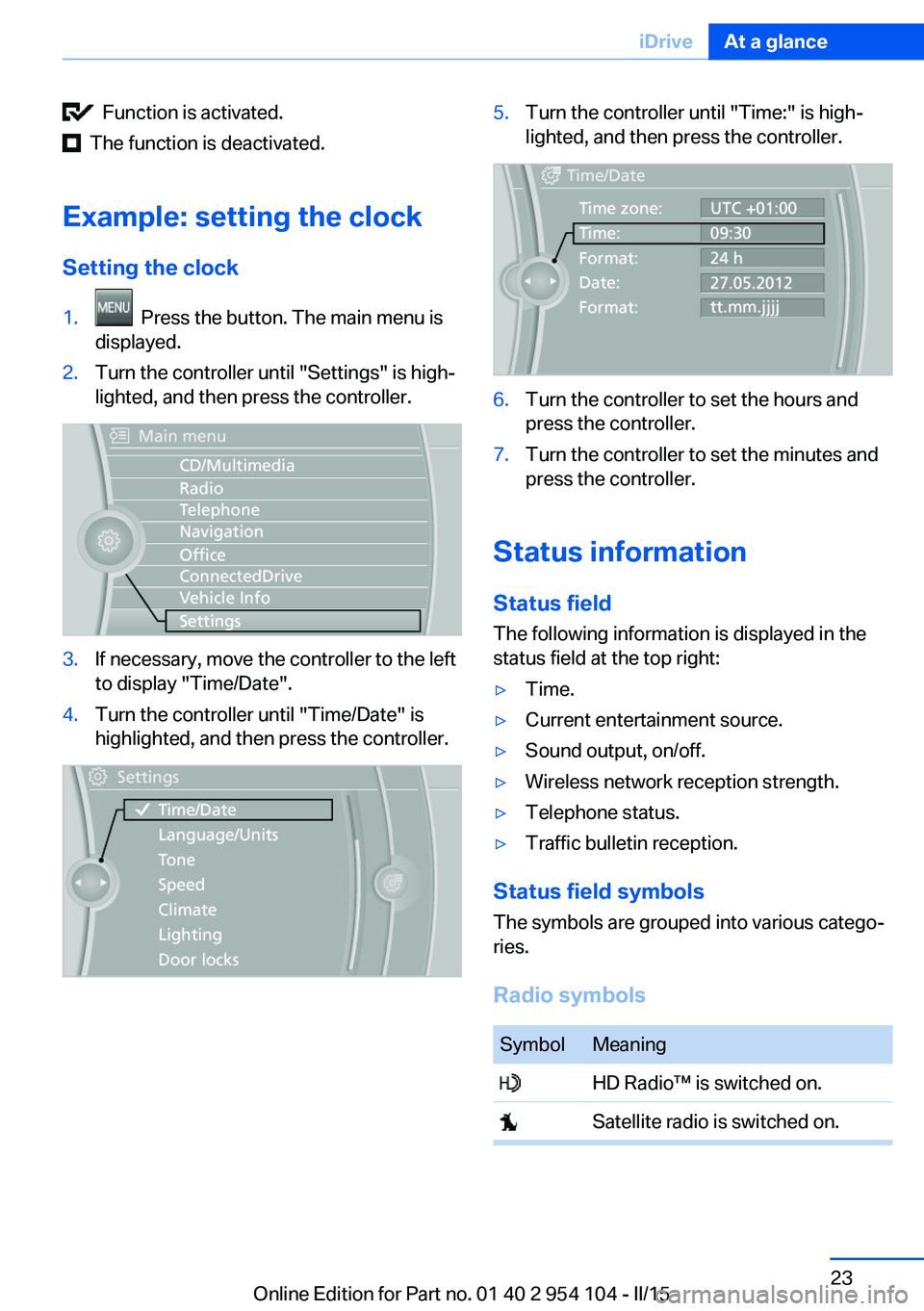
1. Press the button. The main menu is
displayed.2.Turn the controller until "Settings" is high‐
lighted, and then press the controller.3.If necessary, move the controller to the left
to display "Time/Date".4.Turn the controller until "Time/Date" is
highlighted, and then press the controller.5.Turn the controller until "Time:" is high‐
lighted, and then press the controller.6.Turn the controller to set the hours and
press the controller.7.Turn the controller to set the minutes and
press the controller.
Status information
Status field The following information is displayed in the
status field at the top right:
▷Time.▷Current entertainment source.▷Sound output, on/off.▷Wireless network reception strength.▷Telephone status.▷Traffic bulletin reception.
Status field symbols
The symbols are grouped into various catego‐
ries.
Radio symbols
SymbolMeaning HD Radio™ is switched on. Satellite radio is switched on.Seite 23iDriveAt a glance23
Online Edition for Part no. 01 40 2 954 104 - II/15
Page 26 of 289
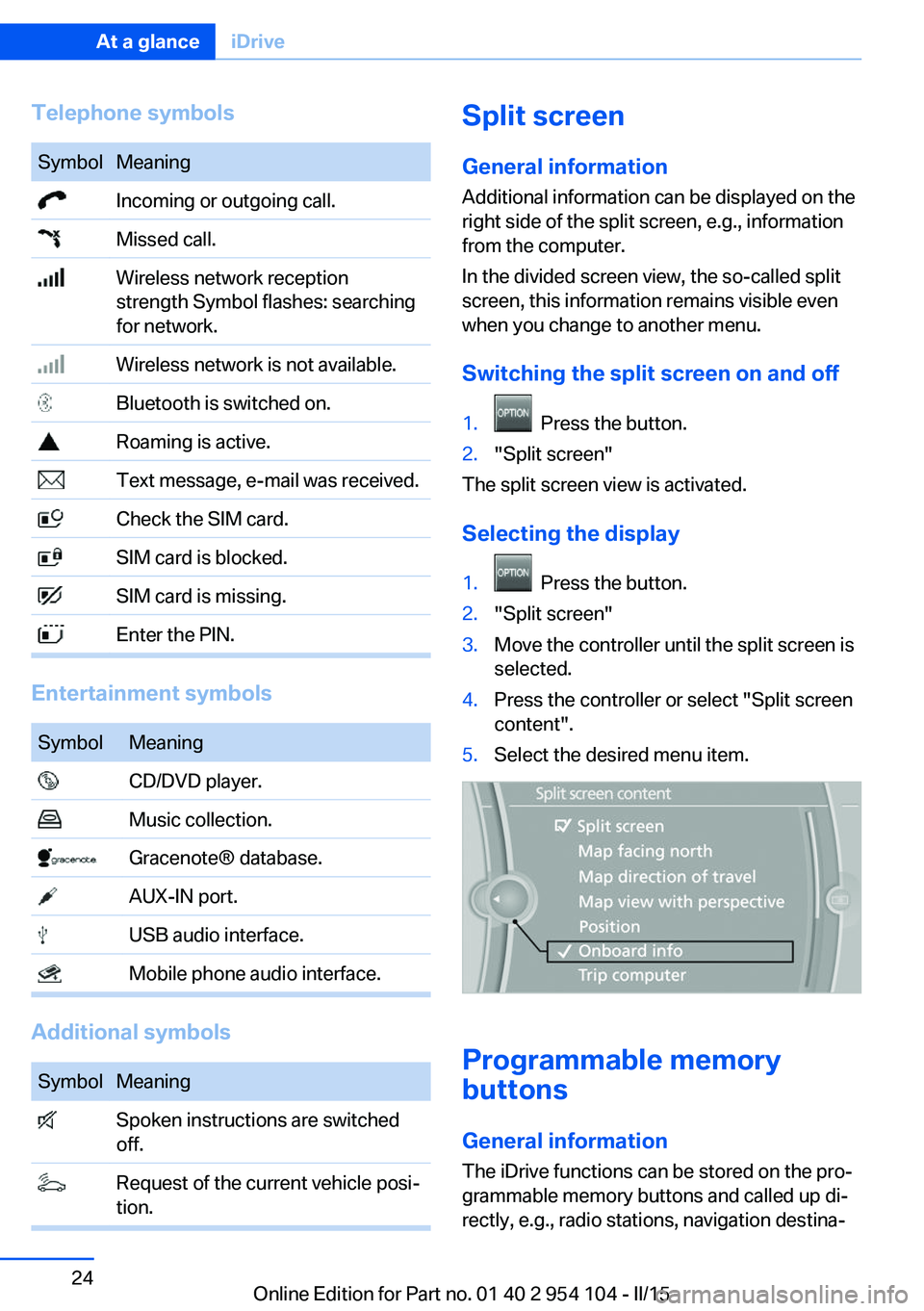
Telephone symbolsSymbolMeaning Incoming or outgoing call. Missed call. Wireless network reception
strength Symbol flashes: searching
for network. Wireless network is not available. Bluetooth is switched on. Roaming is active. Text message, e-mail was received. Check the SIM card. SIM card is blocked. SIM card is missing. Enter the PIN.
Entertainment symbols
SymbolMeaning CD/DVD player. Music collection. Gracenote® database. AUX-IN port. USB audio interface. Mobile phone audio interface.
Additional symbols
SymbolMeaning Spoken instructions are switched
off. Request of the current vehicle posi‐
tion.Split screen
General information Additional information can be displayed on the
right side of the split screen, e.g., information
from the computer.
In the divided screen view, the so-called split
screen, this information remains visible even when you change to another menu.
Switching the split screen on and off1. Press the button.2."Split screen"
The split screen view is activated.
Selecting the display
1. Press the button.2."Split screen"3.Move the controller until the split screen is
selected.4.Press the controller or select "Split screen
content".5.Select the desired menu item.
Programmable memory
buttons
General information
The iDrive functions can be stored on the pro‐
grammable memory buttons and called up di‐
rectly, e.g., radio stations, navigation destina‐
Seite 24At a glanceiDrive24
Online Edition for Part no. 01 40 2 954 104 - II/15
Page 27 of 289
tions, phone numbers and entry points into the
menu.
The settings are stored for the remote control
currently in use.
Saving a function1.Highlight the function via the iDrive.2. Press the desired button for more
than two seconds.
Running a function
Press the button.
The function will run immediately. This
means, for example, that the number is dialed
when a phone number is selected.
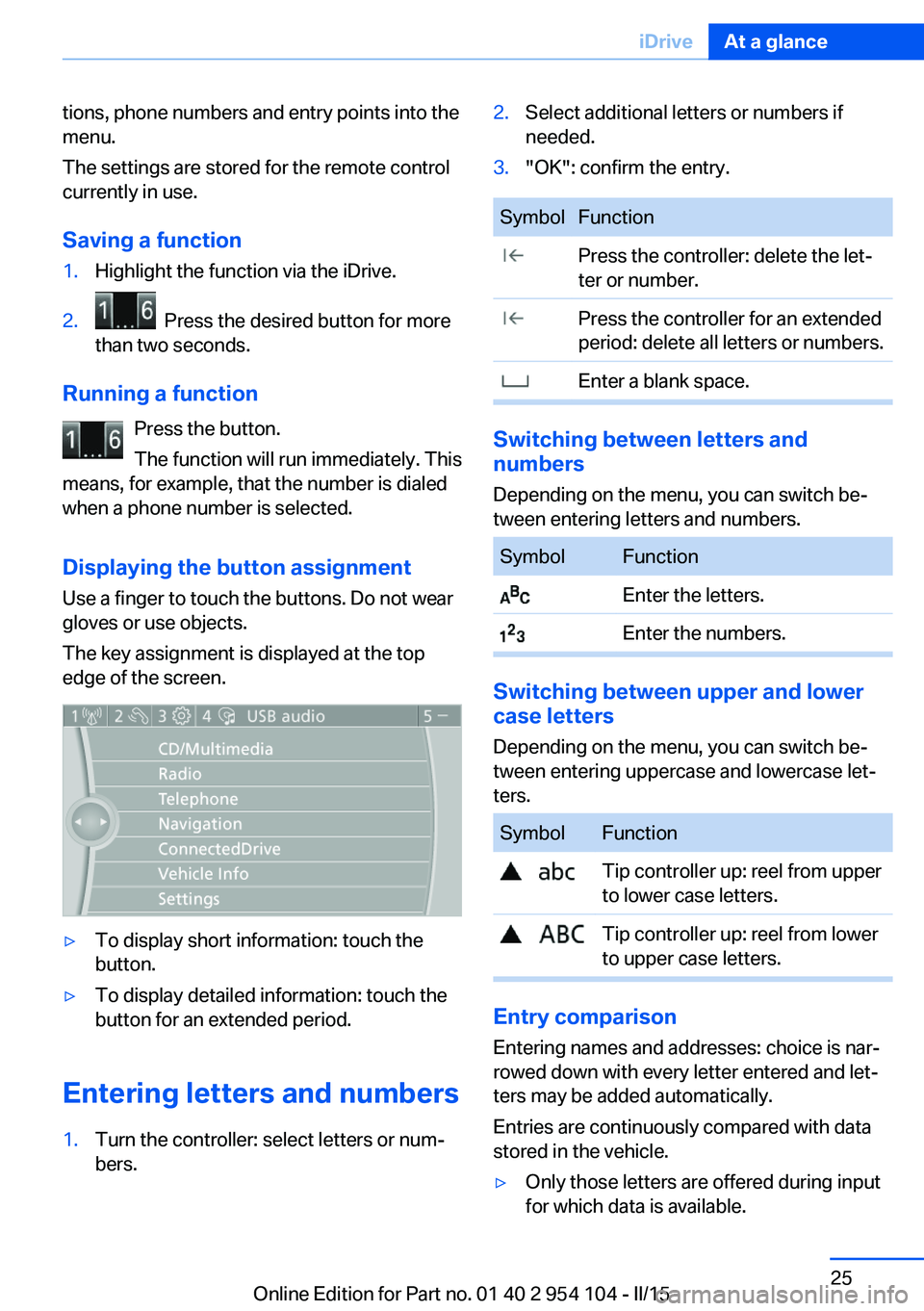
Displaying the button assignment Use a finger to touch the buttons. Do not wear
gloves or use objects.
The key assignment is displayed at the top
edge of the screen.
▷To display short information: touch the
button.▷To display detailed information: touch the
button for an extended period.
Entering letters and numbers
1.Turn the controller: select letters or num‐
bers.2.Select additional letters or numbers if
needed.3."OK": confirm the entry.SymbolFunction Press the controller: delete the let‐
ter or number. Press the controller for an extended
period: delete all letters or numbers. Enter a blank space.
Switching between letters and
numbers
Depending on the menu, you can switch be‐
tween entering letters and numbers.
SymbolFunction Enter the letters. Enter the numbers.
Switching between upper and lower
case letters
Depending on the menu, you can switch be‐
tween entering uppercase and lowercase let‐
ters.
SymbolFunction Tip controller up: reel from upper
to lower case letters. Tip controller up: reel from lower
to upper case letters.
Entry comparison
Entering names and addresses: choice is nar‐
rowed down with every letter entered and let‐
ters may be added automatically.
Entries are continuously compared with data
stored in the vehicle.
▷Only those letters are offered during input
for which data is available.Seite 25iDriveAt a glance25
Online Edition for Part no. 01 40 2 954 104 - II/15
Page 28 of 289
▷Target search: names of locations may be
entered in languages available through
Control Display.Seite 26At a glanceiDrive26
Online Edition for Part no. 01 40 2 954 104 - II/15
Page 29 of 289
Voice activation systemVehicle equipment
This chapter describes all series equipment as
well as country-specific and special equipment
offered for this model series. Therefore, it also
describes equipment that may not be found in
your vehicle, for instance due to the selected
special equipment or the country version. This
also applies to safety-related functions and
systems.
When using the features and systems descri‐
bed here, adhere to local regulations.
The concept▷Most functions that are displayed on the
Control Display can be operated with the
voice activation system using spoken com‐
mands. The system prompts you to make
your entries.▷Functions that can only be used when the
vehicle is stationary cannot be operated
using the voice activation system.▷The system uses a special microphone on
the driver's side.▷›...‹ Verbal instructions in the Owner's
Manual to use with the voice activation
system.
Requirements
Via the Control Display, set a language that is
also supported by the voice activation system
so that the spoken commands can be identi‐
fied.
Set the language, refer to page 80.
Using voice activation
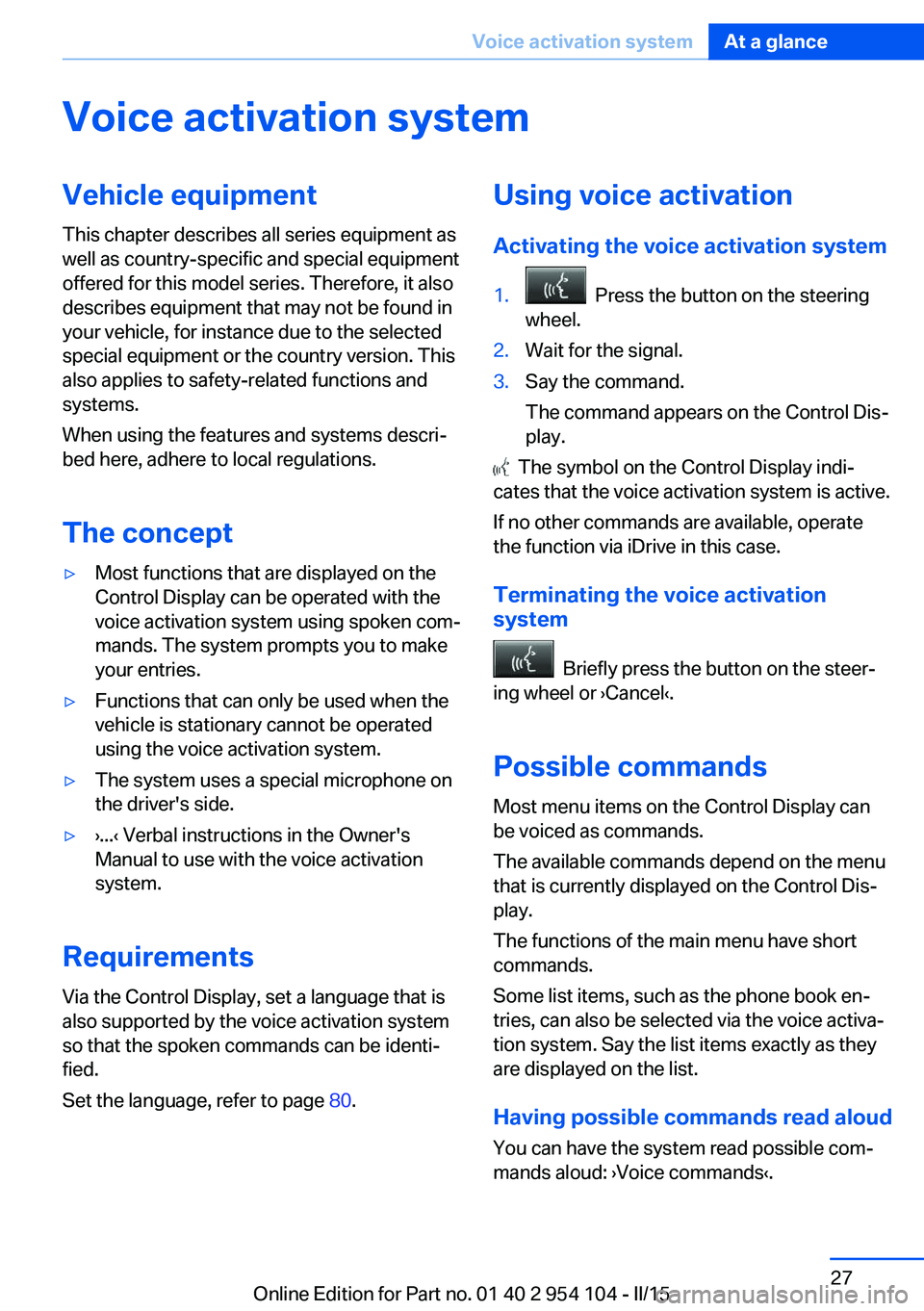
Activating the voice activation system1. Press the button on the steering
wheel.2.Wait for the signal.3.Say the command.
The command appears on the Control Dis‐
play.
The symbol on the Control Display indi‐
cates that the voice activation system is active.
If no other commands are available, operate
the function via iDrive in this case.
Terminating the voice activation
system
Briefly press the button on the steer‐
ing wheel or ›Cancel‹.
Possible commands
Most menu items on the Control Display can
be voiced as commands.
The available commands depend on the menu
that is currently displayed on the Control Dis‐
play.
The functions of the main menu have short
commands.
Some list items, such as the phone book en‐
tries, can also be selected via the voice activa‐
tion system. Say the list items exactly as they
are displayed on the list.
Having possible commands read aloud You can have the system read possible com‐
mands aloud: ›Voice commands‹.
Seite 27Voice activation systemAt a glance27
Online Edition for Part no. 01 40 2 954 104 - II/15
Page 30 of 289
For example, if the "Settings" menu is dis‐
played, the commands for the settings are
read out loud.
Executing functions using short
commands
Functions on the main menu can be performed
directly by means of short commands, usually
irrespective of which menu item is currently selected, for instance ›Vehicle status‹.
List of short commands of the voice activation
system, refer to page 266.
Help dialog for the voice activation
system
Calling up help dialog: ›Help‹
Additional commands for the help dialog:▷›Help with examples‹: information about the
current operating options and the most im‐
portant commands for them are an‐
nounced.▷›Help with voice activation‹: information
about the principle of operation for the
voice activation system is announced.
Example: playing back a CD
Via the main menu The commands of the menu items are spoken
out loud, in the same way as they are selected
via the controller.
1.Switch on the Entertainment sound output
if necessary.2. Press the button on the steering
wheel.3.›C D and multimedia‹
The medium last played is played back.4.›C D‹5.›C D drive‹
The CD is played back.6. Press the button on the steering
wheel again to select a specific track.7.›Track ...‹ e.g., CD track 4.
Via short commands
Playback of the CD can also be started using a
short command.
1.Switch on the Entertainment sound output
if necessary.2. Press the button on the steering
wheel.3.›C D drive Track ...‹ e.g., CD track 4.
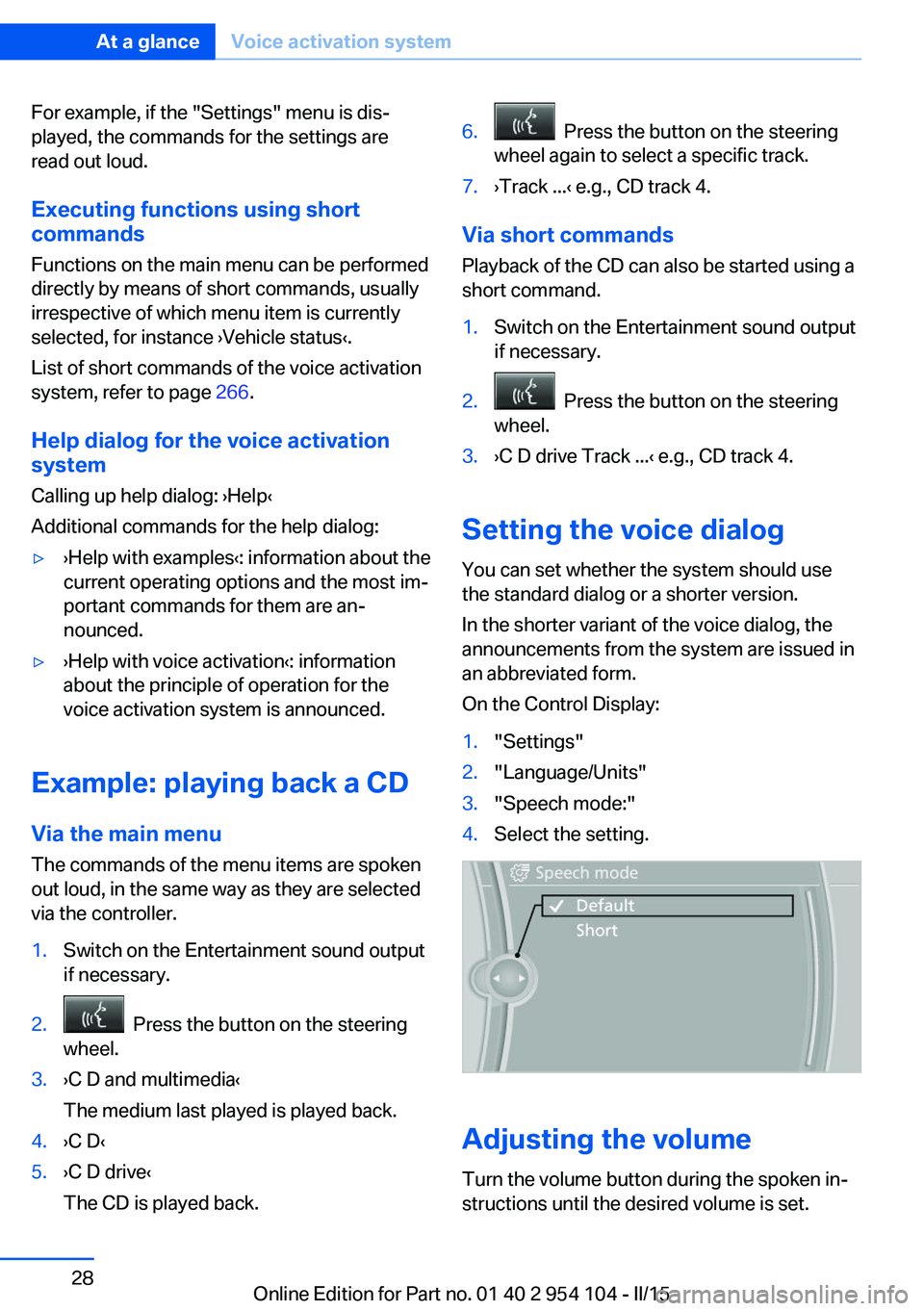
Setting the voice dialog
You can set whether the system should use
the standard dialog or a shorter version.
In the shorter variant of the voice dialog, the
announcements from the system are issued in
an abbreviated form.
On the Control Display:
1."Settings"2."Language/Units"3."Speech mode:"4.Select the setting.
Adjusting the volume
Turn the volume button during the spoken in‐
structions until the desired volume is set.
Seite 28At a glanceVoice activation system28
Online Edition for Part no. 01 40 2 954 104 - II/15
Page 35 of 289
▷The settings are automatically saved in the
profile currently activated.▷The remote control used is detected when
the vehicle is unlocked and the stored pro‐
file is called up.▷Your personal settings will be recognized
and called up again even if the vehicle has
been used in the meantime by someone
else with another remote control.
The individual settings are stored for a maxi‐
mum of four remote controls. They are stored
for two remote controls if Comfort Access is in
use.
Personal Profile settingsThe following functions and settings can be
stored in a profile.
More information on the settings can be found
under:
▷Assigning the programmable memory but‐
tons, refer to page 24.▷Response of the central locking system
when the car is being unlocked, refer to
page 34.▷Automatic locking of the vehicle, refer to
page 37.▷Automatic retrieval of the driver's seat and
exterior mirror positions after unlocking,
refer to page 36.▷Triple turn signal activation, refer to
page 62.▷Settings for the display on the Control Dis‐
play and in the instrument cluster:▷12h/24h clock format, refer to
page 78.▷Date format, refer to page 79.▷Brightness of the Control Display, refer
to page 80.▷Language on the Control Display, refer
to page 80.▷Split screen, refer to page 24.▷Units of measure for fuel consumption,
distance covered/remaining distances,
and temperature, refer to page 78.▷Volume of PDC Park Distance Control, re‐
fer to page 108.▷Light settings:▷Welcome lights, refer to page 87.▷Headlight courtesy delay feature, refer
to page 88.▷Daytime running lights, refer to
page 88.▷High-beam Assistant, refer to
page 89.▷Automatic climate control: AUTO program,
cooling function, and automatic recircu‐
lated air control activated/deactivated,
temperature, air flow rate, and air distribu‐
tion, refer to page 112.▷Navigation:▷Voice activation, refer to page 153.▷Map view settings, refer to page 155.▷Route criteria, refer to page 151.▷Entertainment:▷Tone control, refer to page 162.▷Radio, stored stations, refer to
page 170.▷CD/multimedia, audio source listened
to last, refer to page 172.▷Telephone:▷Volume, refer to page 198.
Central locking system
The concept The central locking system becomes active
when the driver's door is closed.
The system simultaneously engages and re‐
leases the locks on the following:
▷Doors.Seite 33Opening and closingControls33
Online Edition for Part no. 01 40 2 954 104 - II/15
Page 43 of 289
After the engine is switched off, the engine can
only be restarted within approx. 10 seconds.
The indicator lamp in the instrument
cluster comes on and a message ap‐
pears on the Control Display: replace
the remote control battery.
Replacing the battery
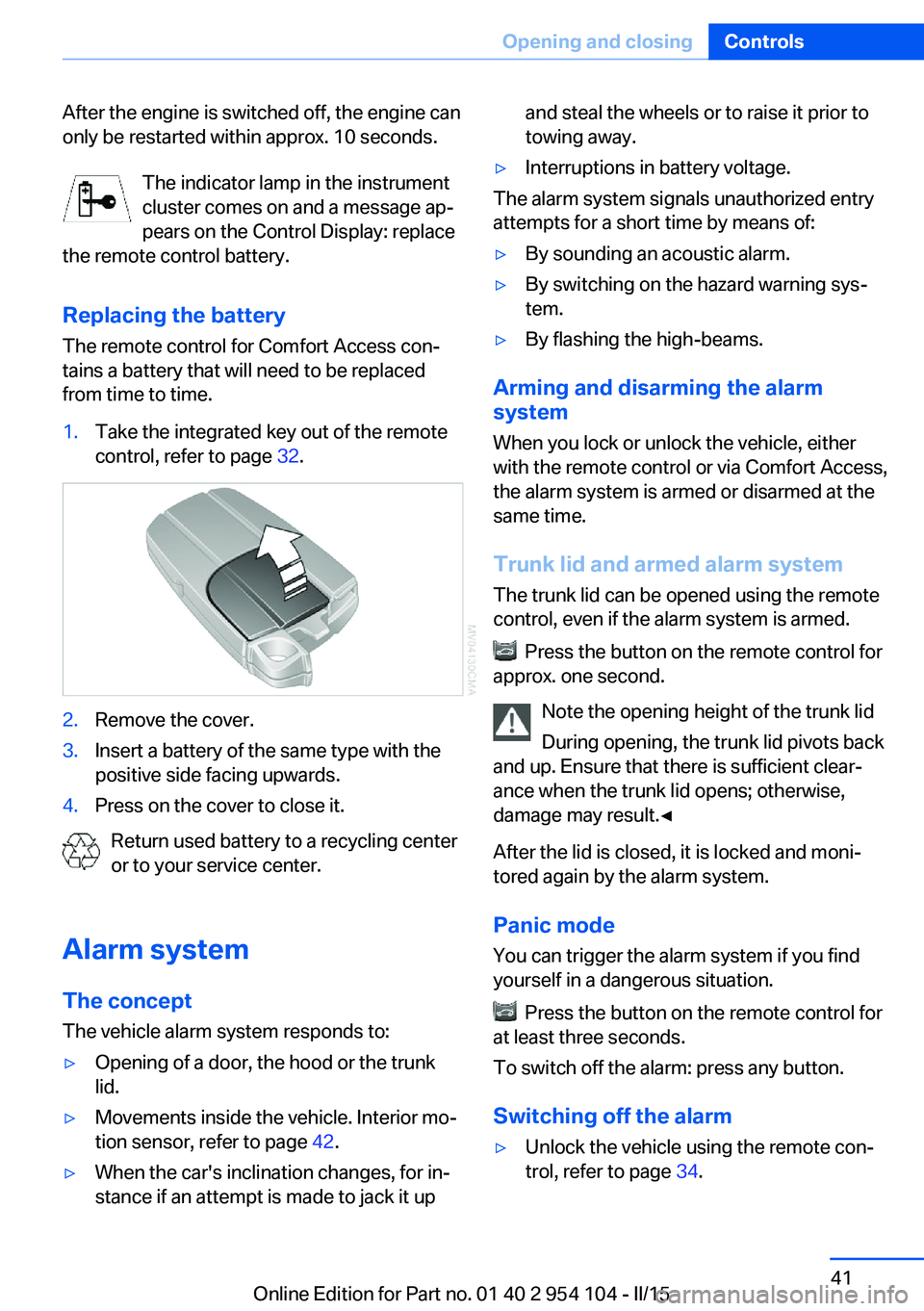
The remote control for Comfort Access con‐
tains a battery that will need to be replaced
from time to time.1.Take the integrated key out of the remote
control, refer to page 32.2.Remove the cover.3.Insert a battery of the same type with the
positive side facing upwards.4.Press on the cover to close it.
Return used battery to a recycling center
or to your service center.
Alarm system The conceptThe vehicle alarm system responds to:
▷Opening of a door, the hood or the trunk
lid.▷Movements inside the vehicle. Interior mo‐
tion sensor, refer to page 42.▷When the car's inclination changes, for in‐
stance if an attempt is made to jack it upand steal the wheels or to raise it prior to
towing away.▷Interruptions in battery voltage.
The alarm system signals unauthorized entry
attempts for a short time by means of:
▷By sounding an acoustic alarm.▷By switching on the hazard warning sys‐
tem.▷By flashing the high-beams.
Arming and disarming the alarm
system
When you lock or unlock the vehicle, either
with the remote control or via Comfort Access,
the alarm system is armed or disarmed at the
same time.
Trunk lid and armed alarm systemThe trunk lid can be opened using the remote
control, even if the alarm system is armed.
Press the button on the remote control for
approx. one second.
Note the opening height of the trunk lid
During opening, the trunk lid pivots back
and up. Ensure that there is sufficient clear‐
ance when the trunk lid opens; otherwise,
damage may result.◀
After the lid is closed, it is locked and moni‐
tored again by the alarm system.
Panic mode
You can trigger the alarm system if you find
yourself in a dangerous situation.
Press the button on the remote control for
at least three seconds.
To switch off the alarm: press any button.
Switching off the alarm
▷Unlock the vehicle using the remote con‐
trol, refer to page 34.Seite 41Opening and closingControls41
Online Edition for Part no. 01 40 2 954 104 - II/15
Page 46 of 289
Retractable hardtopGeneral information
Adhere to the following instructions:▷It is advisable that you close the retractable
hardtop when you park the vehicle. Not
only does the closed hardtop protect the
vehicle interior against unanticipated
weather damage, it also offers theft protec‐
tion. However, even when the hardtop is
closed, valuables should only be stored in
the locked cargo area.▷Do not attach roof rack systems to the re‐
tractable hardtop, and in particular do not
attach magnetic racks.▷Do not attach rack systems to the trunk lid,
and in particular do not attach magnetic
racks.▷When the retractable hardtop is operated,
the trunk lid swings back and up.
Before operating the retractable hardtop,
ensure that there is enough clearance, e.g.,
in tight parking spaces.▷If you open the hardtop while it is wet, e.g.,
after driving in the rain, water may drip into
the cargo area.
If necessary, remove items from the cargo
area beforehand to avoid water stains or
soiling.▷Opening and closing while the vehicle is
moving can cause air turbulence in the
cargo area.
Properly stow away objects in the cargo
area.▷At temperatures below 14 ℉/-10 ℃, the
retractable hardtop cannot be moved.
A message appears on the Control Display.
Do not touch the mechanism and keep
the opening path clear.
During opening and closing, do not reach into
the mechanism and keep children away from
the opening path of the retractable hardtop;
otherwise, there is the risk of injury.◀
Do not place objects on the retractable
hardtop.
Do not place any objects on the retractable
hardtop or on the trunk lid; otherwise, they
could fall during movements of the retractable
hardtop and cause damage or injury.◀
Before opening and closing Always open or close the hardtop fully.
Do not let the hardtop stop in an inter‐
mediate position when opening or closing.
Otherwise, there is the danger of personal in‐
jury since the hardtop will be lowered automat‐
ically after a few minutes.◀▷Observe the safety precautions above.▷Ensure that the trunk lid is closed.▷The vehicle should be parked on fairly level
ground. Excessive angle is indicated by a
light.▷Fold down the cargo area partition and
make sure it engages, refer to the instruc‐
tions below.▷Do not place any objects next to or on the
cargo area partition and close the storage
compartment on the left side of the cargo
area.▷Do not exceed the maximum loading
height under the cargo area partition; refer
to the label in the cargo area showing a line
indicating the maximum height.Seite 44ControlsOpening and closing44
Online Edition for Part no. 01 40 2 954 104 - II/15
Page 47 of 289
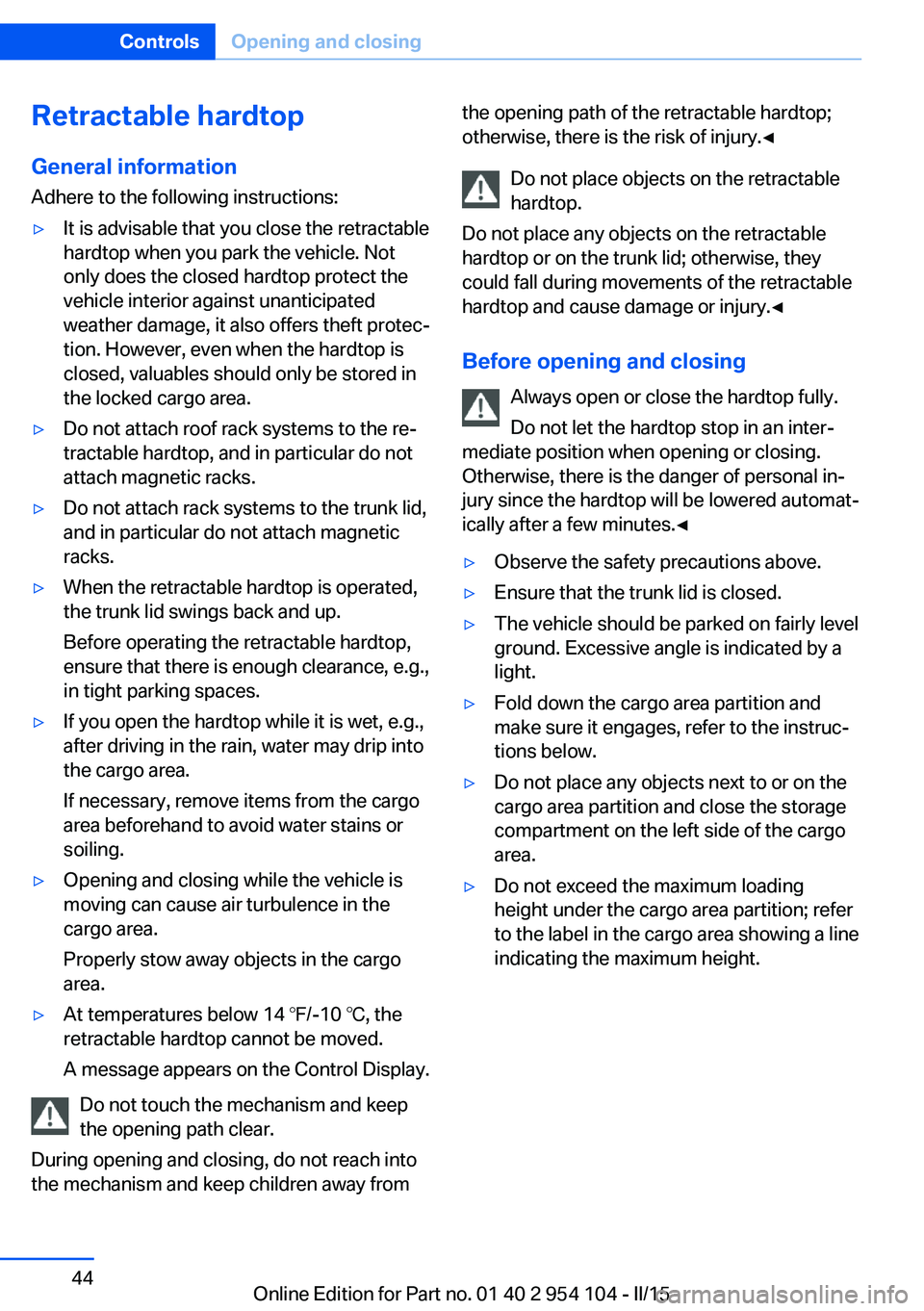
Folding down the cargo area partition
Before opening the hardtop, close the cargo
area partition, arrow, and make sure it engages
on both sides.
Opening and closing In the radio ready state or beyond, refer to
page 58, and when the vehicle is stationary:
If possible, conserve the battery by only oper‐
ating the retractable hardtop when the engine
is running.
Before closing the retractable hardtop, remove
all foreign objects from the windshield frame
as these could prevent the hardtop from clos‐
ing properly.
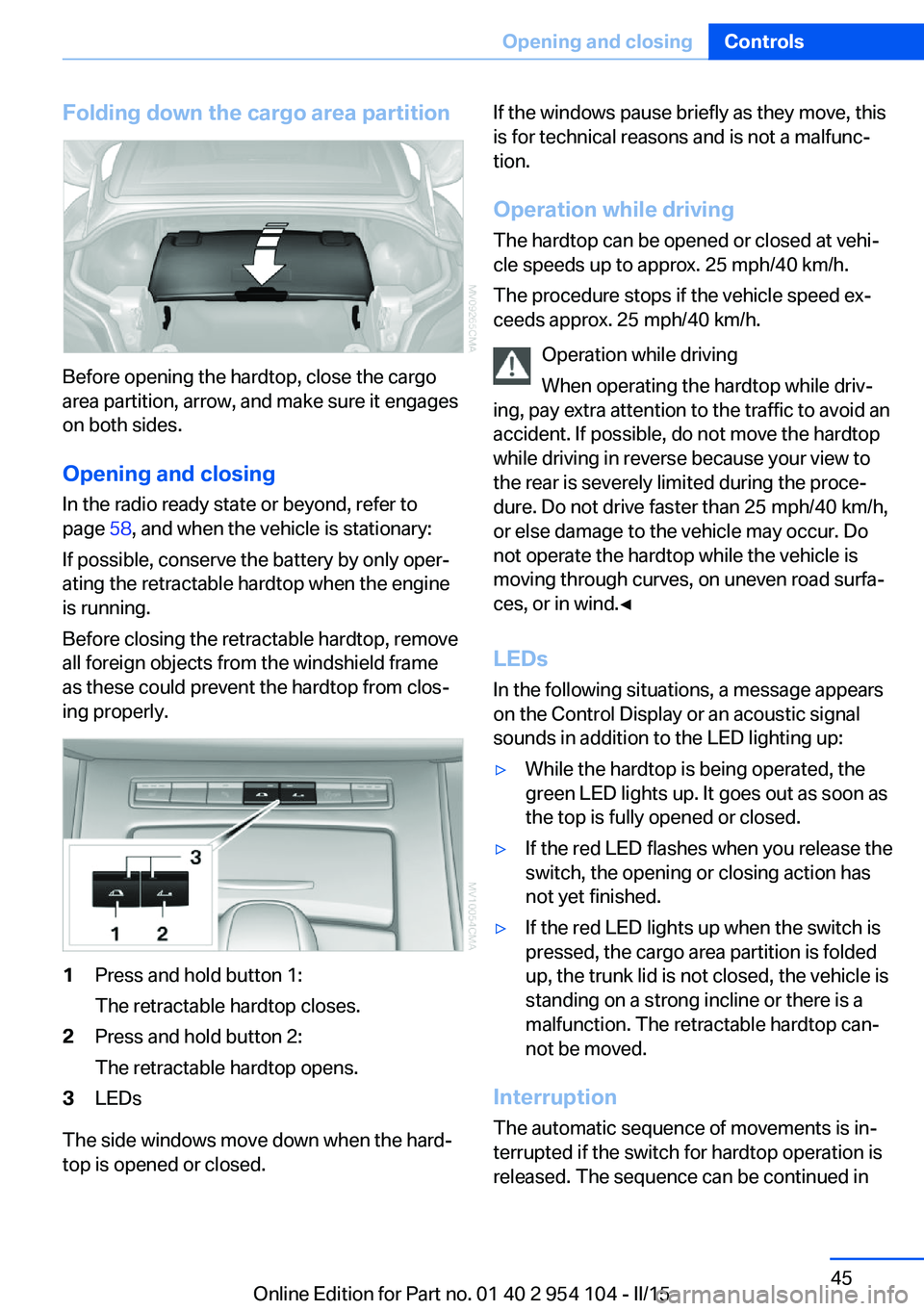
1Press and hold button 1:
The retractable hardtop closes.2Press and hold button 2:
The retractable hardtop opens.3LEDs
The side windows move down when the hard‐
top is opened or closed.
If the windows pause briefly as they move, this
is for technical reasons and is not a malfunc‐
tion.
Operation while driving
The hardtop can be opened or closed at vehi‐
cle speeds up to approx. 25 mph/40 km/h.
The procedure stops if the vehicle speed ex‐
ceeds approx. 25 mph/40 km/h.
Operation while driving
When operating the hardtop while driv‐
ing, pay extra attention to the traffic to avoid an
accident. If possible, do not move the hardtop
while driving in reverse because your view to
the rear is severely limited during the proce‐
dure. Do not drive faster than 25 mph/40 km/h,
or else damage to the vehicle may occur. Do
not operate the hardtop while the vehicle is
moving through curves, on uneven road surfa‐
ces, or in wind.◀
LEDs
In the following situations, a message appears
on the Control Display or an acoustic signal
sounds in addition to the LED lighting up:▷While the hardtop is being operated, the
green LED lights up. It goes out as soon as
the top is fully opened or closed.▷If the red LED flashes when you release the
switch, the opening or closing action has
not yet finished.▷If the red LED lights up when the switch is
pressed, the cargo area partition is folded
up, the trunk lid is not closed, the vehicle is
standing on a strong incline or there is a
malfunction. The retractable hardtop can‐
not be moved.
Interruption
The automatic sequence of movements is in‐
terrupted if the switch for hardtop operation is
released. The sequence can be continued in
Seite 45Opening and closingControls45
Online Edition for Part no. 01 40 2 954 104 - II/15