transmission BMW Z4 SDRIVE35IS 2015 Owner's Manual
[x] Cancel search | Manufacturer: BMW, Model Year: 2015, Model line: Z4 SDRIVE35IS, Model: BMW Z4 SDRIVE35IS 2015Pages: 289, PDF Size: 7.16 MB
Page 134 of 289
Objects in the area around the pedalsNo objects in the area around the pedals
Keep floor mats, carpets, and any other
objects out of the area of motion of the pedals;
otherwise, the function of the pedals could be
impeded while driving
Do not place additional floor mats over existing
mats or other objects.
Only use floor mats that have been approved
for the vehicle and can be properly fixed in
place.
Ensure that the floor mats are securely fas‐
tened again when they are returned after being
removed, such as for cleaning.◀
Driving in wet conditionsWhen roads are wet or there is heavy rain,
briefly exert gentle pressure on the brake pedal
every few miles.
Ensure that this action does not endanger
other road users.
The heat generated in this process helps dry
the brake discs and pads.
In this way braking efficiency will be available
when you need it.
Hills
Drive long or steep downhill gradients in the
gear in which the least braking is required.
Otherwise, the brake system may overheat, re‐
sulting in a reduction in the brake system effi‐
ciency.
You can increase the engine's braking effect
by shifting down, going all the way to first gear,
if necessary.
Downshifting in manual mode of the 8-gear
Sport automatic transmission, refer to
page 67.
Downshifting in manual mode of the 7-gear
Sport automatic transmission with dual clutch,
refer to page 70.Avoid load on the brakes
Avoid placing excessive load on the
brake system. Light but consistent brake pres‐
sure can lead to high temperatures, brake wear
and possibly even brake failure.◀
Do not drive in neutral
Never drive with the transmission in neu‐
tral, with the engine switched off or with the
clutch depressed; otherwise, you will have nei‐
ther the braking action of the engine or nor its
power assistance when braking or steering.◀
Brake disc corrosion Corrosion on the brake discs and contamina‐
tion on the brake pads are furthered by:▷Low mileage.▷Extended periods when the vehicle is not
used at all.▷Infrequent use of the brakes.
Corrosion occurs when the minimum pressure
that must be exerted by the pads during brake
applications to clean the discs is not reached.
Should corrosion form on the brake discs, the
brakes will tend to respond with a pulsating ef‐
fect that generally cannot be corrected.
Condensation under the parked
vehicle
When using the automatic climate control,
condensation water develops that exits under‐
neath the vehicle.
Therefore, traces of condensed water under
the vehicle are normal.
Loading Overloading the vehicle
To avoid exceeding the approved carry‐
ing capacity of the tires, never overload the ve‐
hicle. Overloading can lead to overheating and
increases the rate at which damage develops
Seite 132Driving tipsThings to remember when driving132
Online Edition for Part no. 01 40 2 954 104 - II/15
Page 161 of 289
What to do if...▷The current transmission position cannot
be displayed?
The vehicle is located in an unrecognized
region, is in a poor reception area, or the
system is currently determining the posi‐
tion. Reception is usually best when you
have an unobstructed view of the sky.▷The destination without street information
is not used for route guidance?
When city has been input, no downtown
can be determined. Input any street in the
selected city and start destination guid‐
ance.▷The destination is not used for route guid‐
ance?
The destination data is not contained in the
navigation data. Select a destination that is
as close as possible to the original.▷Letters for destination input cannot be se‐
lected?
The stored data do not contain the data of
the destination. Select a destination that is
as close as possible to the original.▷Is the map displayed in shades of gray?
"Traffic conditions/gray map" active:
The Control Display changes to a black
and white display. This enables a better
view of the traffic bulletins.▷Spoken instructions are no longer output
during route guidance in front of intersec‐
tions?
The area has not yet been fully recorded,
or you have left the recommended route
and the system requires a few seconds to
calculate a new route suggestion.Seite 159What to do if...Navigation159
Online Edition for Part no. 01 40 2 954 104 - II/15
Page 170 of 289
Via direct channel entry1."Radio"2."Satellite radio"3. "Set channel"4.Turn the controller until the desired chan‐
nel is reached and press the controller.
Storing a channel
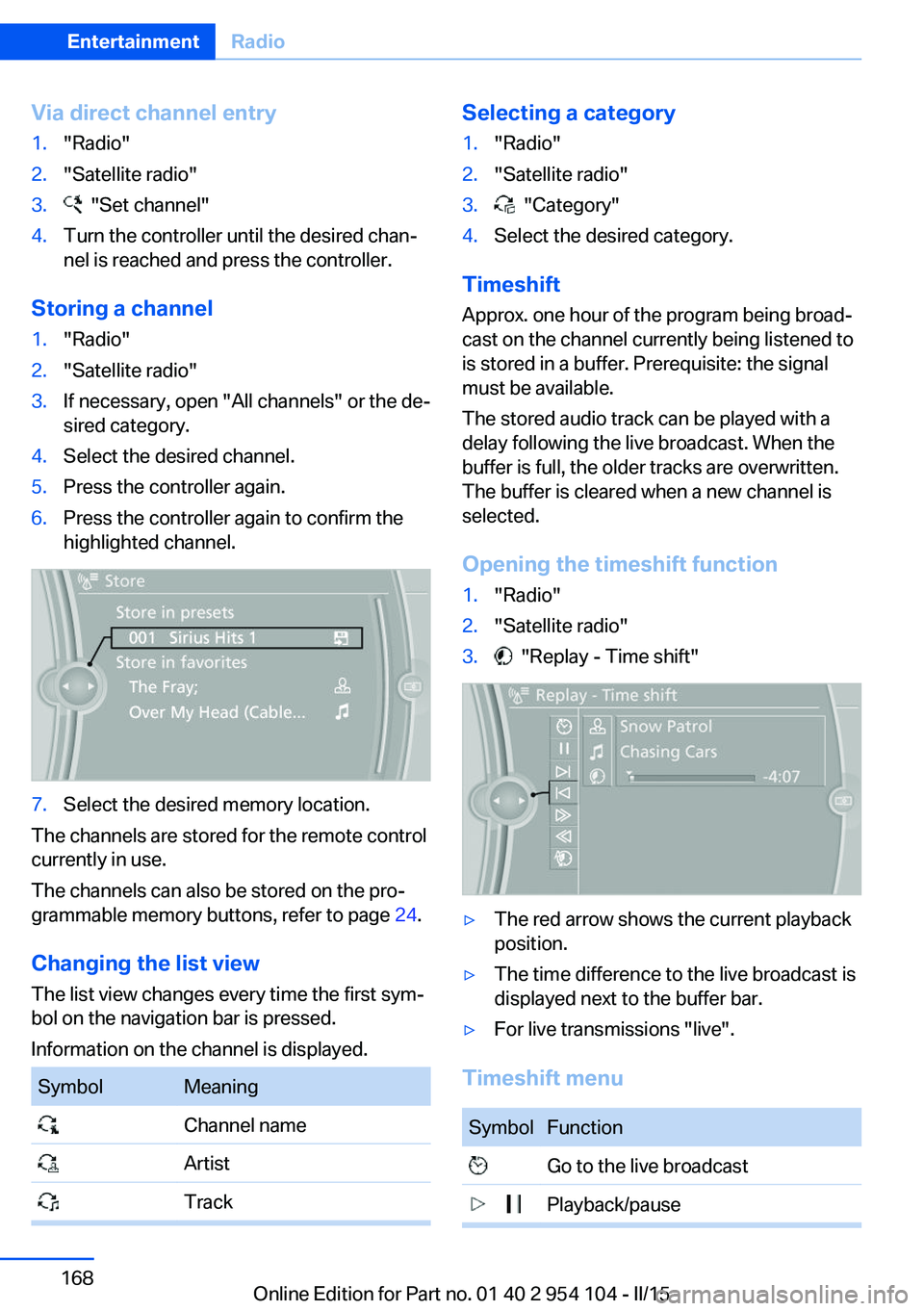
1."Radio"2."Satellite radio"3.If necessary, open "All channels" or the de‐
sired category.4.Select the desired channel.5.Press the controller again.6.Press the controller again to confirm the
highlighted channel.7.Select the desired memory location.
The channels are stored for the remote control
currently in use.
The channels can also be stored on the pro‐
grammable memory buttons, refer to page 24.
Changing the list view
The list view changes every time the first sym‐
bol on the navigation bar is pressed.
Information on the channel is displayed.
SymbolMeaning Channel name Artist TrackSelecting a category1."Radio"2."Satellite radio"3. "Category"4.Select the desired category.
Timeshift
Approx. one hour of the program being broad‐
cast on the channel currently being listened to
is stored in a buffer. Prerequisite: the signal
must be available.
The stored audio track can be played with a
delay following the live broadcast. When the
buffer is full, the older tracks are overwritten.
The buffer is cleared when a new channel is
selected.
Opening the timeshift function
1."Radio"2."Satellite radio"3. "Replay - Time shift"▷The red arrow shows the current playback
position.▷The time difference to the live broadcast is
displayed next to the buffer bar.▷For live transmissions "live".
Timeshift menu
SymbolFunction Go to the live broadcast Playback/pauseSeite 168EntertainmentRadio168
Online Edition for Part no. 01 40 2 954 104 - II/15
Page 186 of 289
Connecting
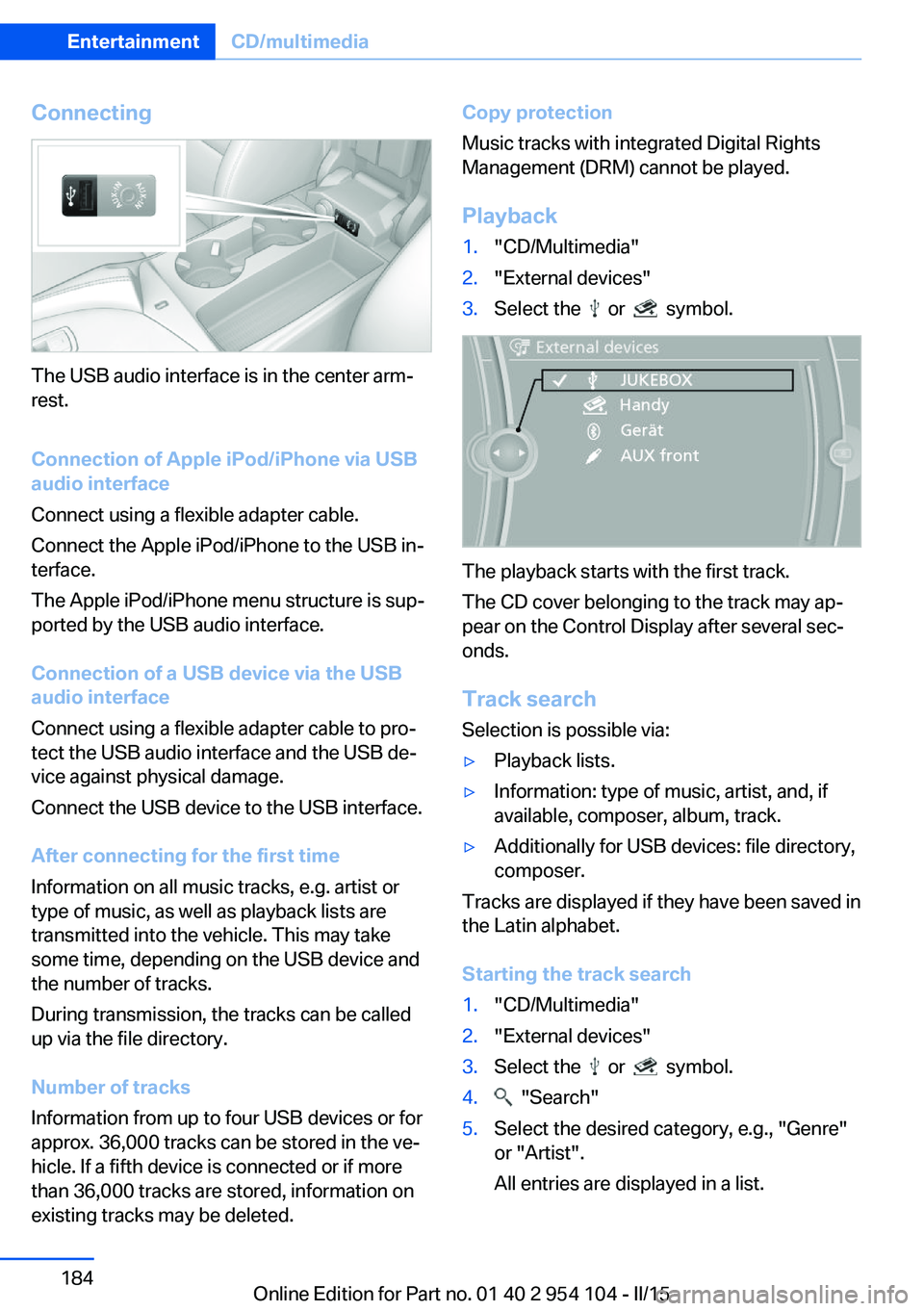
The USB audio interface is in the center arm‐
rest.
Connection of Apple iPod/iPhone via USB
audio interface
Connect using a flexible adapter cable.
Connect the Apple iPod/iPhone to the USB in‐
terface.
The Apple iPod/iPhone menu structure is sup‐
ported by the USB audio interface.
Connection of a USB device via the USB
audio interface
Connect using a flexible adapter cable to pro‐
tect the USB audio interface and the USB de‐
vice against physical damage.
Connect the USB device to the USB interface.
After connecting for the first time
Information on all music tracks, e.g. artist or
type of music, as well as playback lists are
transmitted into the vehicle. This may take
some time, depending on the USB device and
the number of tracks.
During transmission, the tracks can be called
up via the file directory.
Number of tracks
Information from up to four USB devices or for
approx. 36,000 tracks can be stored in the ve‐
hicle. If a fifth device is connected or if more
than 36,000 tracks are stored, information on
existing tracks may be deleted.
Copy protection
Music tracks with integrated Digital Rights
Management (DRM) cannot be played.
Playback1."CD/Multimedia"2."External devices"3.Select the or symbol.
The playback starts with the first track.
The CD cover belonging to the track may ap‐
pear on the Control Display after several sec‐
onds.
Track search Selection is possible via:
▷Playback lists.▷Information: type of music, artist, and, if
available, composer, album, track.▷Additionally for USB devices: file directory,
composer.
Tracks are displayed if they have been saved in
the Latin alphabet.
Starting the track search
1."CD/Multimedia"2."External devices"3.Select the or symbol.4. "Search"5.Select the desired category, e.g., "Genre"
or "Artist".
All entries are displayed in a list.Seite 184EntertainmentCD/multimedia184
Online Edition for Part no. 01 40 2 954 104 - II/15
Page 200 of 289
▷Switch the mobile phone off and on again.▷Is the ambient temperature too high or
low? Do not expose the mobile phone to
extreme environmental conditions.
The telephone functions are not available.
▷Is the mobile phone paired as an additional
telephone and is the additional telephone
function deactivated? Activate the func‐
tion.▷Is an outgoing call not possible? Connect
the mobile phone as a telephone.
No phone book entries or only some phone
book entries are displayed, or they are incom‐
plete.
▷Transmission of the phone book entries is
not yet complete.▷It is possible that only the phone book en‐
tries of the mobile phone or the SIM card
are transmitted.▷It may not be possible to display phone
book entries with special characters.▷The number of phone book entries to be
stored is too high.▷Is the data volume of the contact too large,
e. g., due to stored information such as
notes? Reduce the data volume of the con‐
tact.▷Is the mobile phone connected as an audio
source or additional telephone? The mo‐
bile phone must be connected as a tele‐
phone.
The phone connection quality is poor.
▷The strength of the Bluetooth signal on the
mobile phone can be adjusted, depending
on the mobile phone.▷Insert the mobile phone into the snap-in
adapter or place it in the area of the center
console.▷Adjust the volume of the microphone and
loudspeakers separately.If all points in this list have been checked and
the required function is still not available, con‐
tact Customer Relations or the service center.
Controls
Adjusting the volume
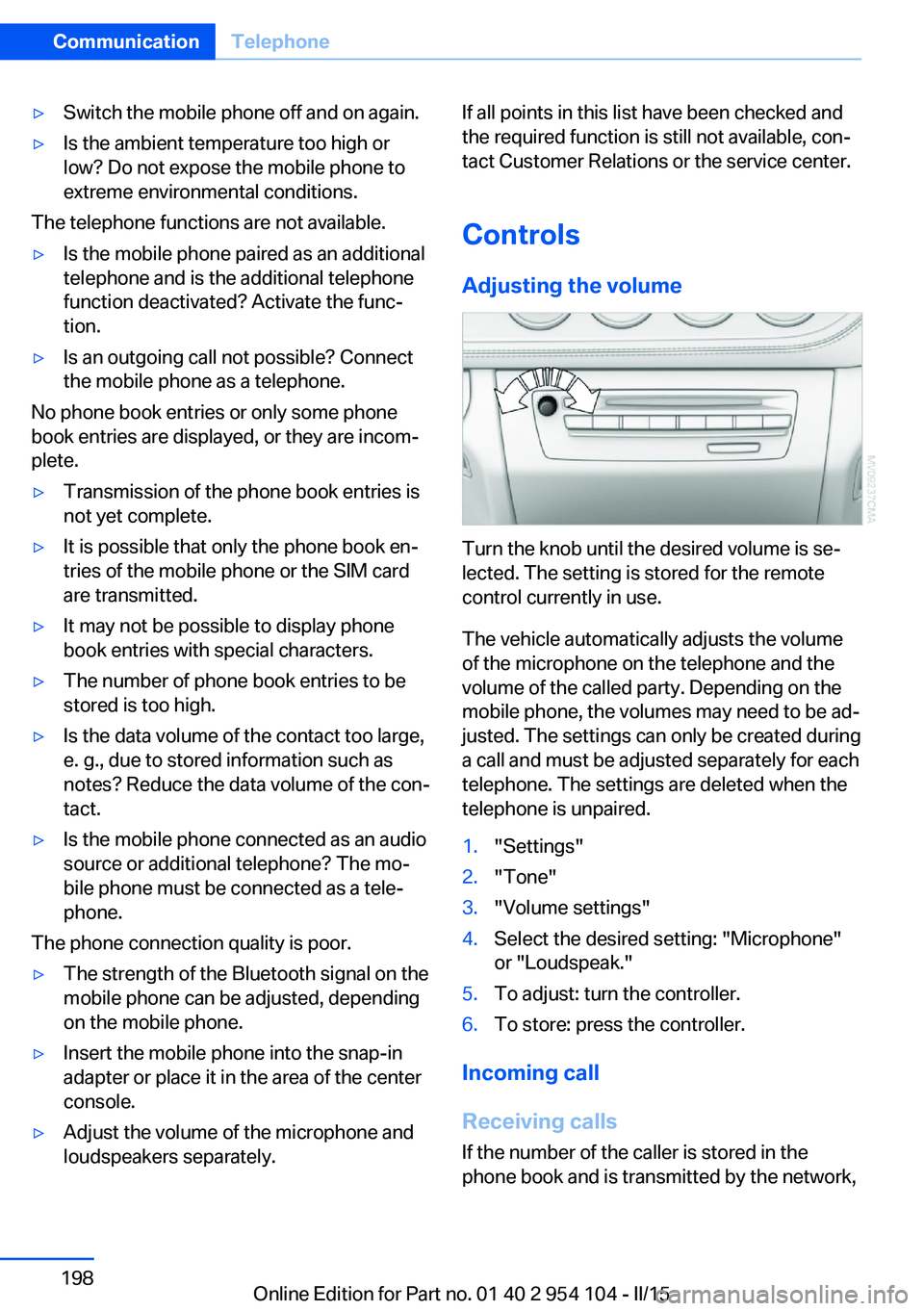
Turn the knob until the desired volume is se‐
lected. The setting is stored for the remote
control currently in use.
The vehicle automatically adjusts the volume
of the microphone on the telephone and the
volume of the called party. Depending on the
mobile phone, the volumes may need to be ad‐
justed. The settings can only be created during
a call and must be adjusted separately for each
telephone. The settings are deleted when the
telephone is unpaired.
1."Settings"2."Tone"3."Volume settings"4.Select the desired setting: "Microphone"
or "Loudspeak."5.To adjust: turn the controller.6.To store: press the controller.
Incoming call
Receiving calls If the number of the caller is stored in the
phone book and is transmitted by the network,
Seite 198CommunicationTelephone198
Online Edition for Part no. 01 40 2 954 104 - II/15
Page 210 of 289
Show contact picturesPictures stored with the contacts are stored in
the vehicle when the mobile phone is con‐
nected to the vehicle. The number of transmit‐ ted pictures depends on the mobile phone.
The mobile phone must support this function.1."Office"2."Contacts"3.Open "Options".4."Configure Bluetooth®"5."Show images"
Display of all contact pictures is activated or
deactivated.
Deleting contacts
Only contacts that are stored in the vehicle are
deleted. The contacts on the mobile phone
cannot be deleted.
1."Office"2."Contacts"3.Highlight the contact.4.Open "Options".5."Delete contact" or "Delete all contacts"6.If necessary. "Yes"
Messages
General information
Whether or not text messages and e-mails
from the mobile phone are displayed depends
on whether transmission from the mobile
phone to the vehicle is supported. Text mes‐
sages and e-mails may not be supported by
the service provider, or the function may need
to be enabled separately. After the mobile
phone is first paired, transmission may take
several minutes. Messages are only displayed
in full length when the vehicle is stationary.
Messages from the additional telephone are
not transmitted.
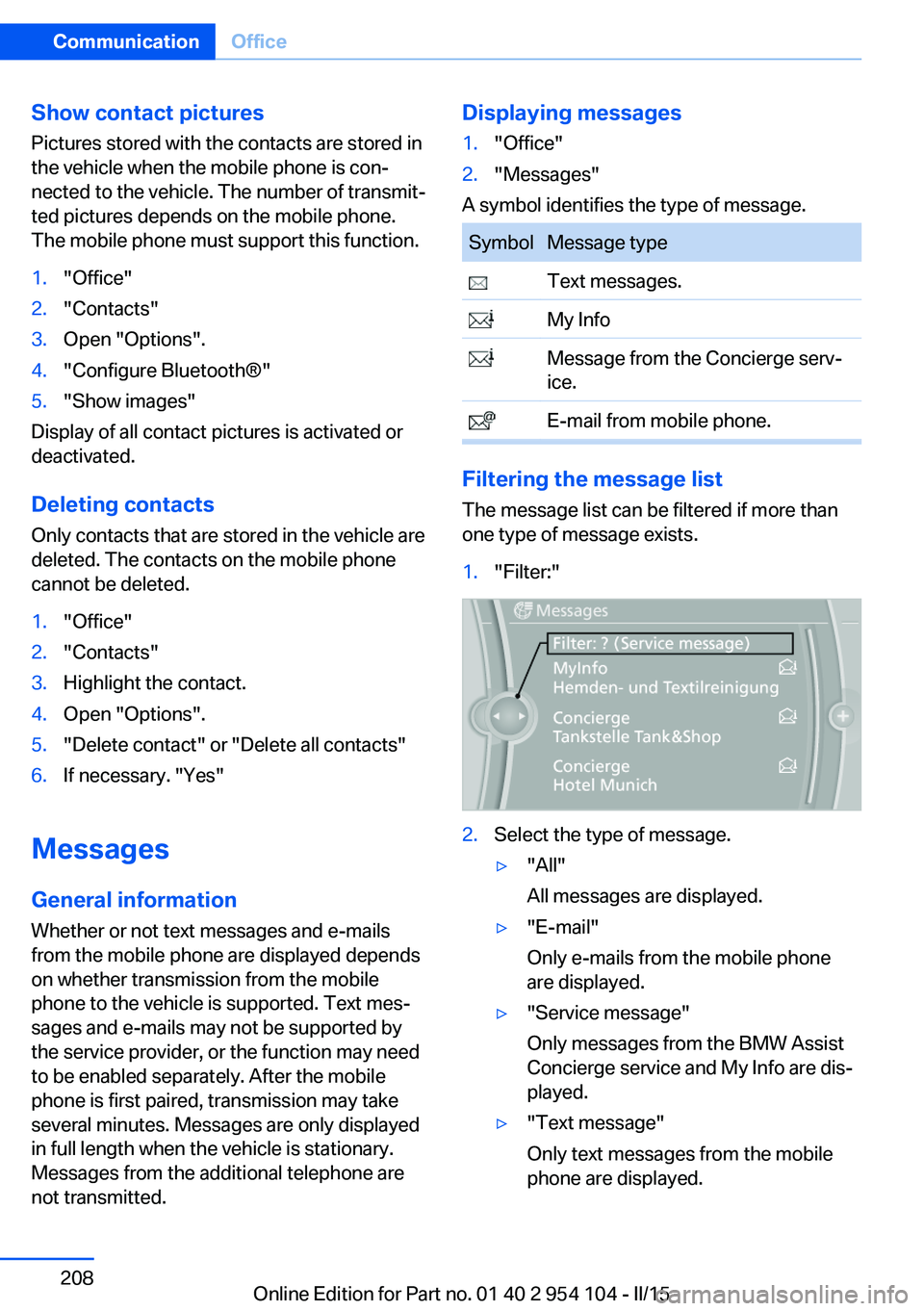
Displaying messages1."Office"2."Messages"
A symbol identifies the type of message.
SymbolMessage type Text messages. My Info Message from the Concierge serv‐
ice. E-mail from mobile phone.
Filtering the message list
The message list can be filtered if more than
one type of message exists.
1."Filter:"2.Select the type of message.▷"All"
All messages are displayed.▷"E-mail"
Only e-mails from the mobile phone
are displayed.▷"Service message"
Only messages from the BMW Assist
Concierge service and My Info are dis‐
played.▷"Text message"
Only text messages from the mobile
phone are displayed.Seite 208CommunicationOffice208
Online Edition for Part no. 01 40 2 954 104 - II/15
Page 220 of 289
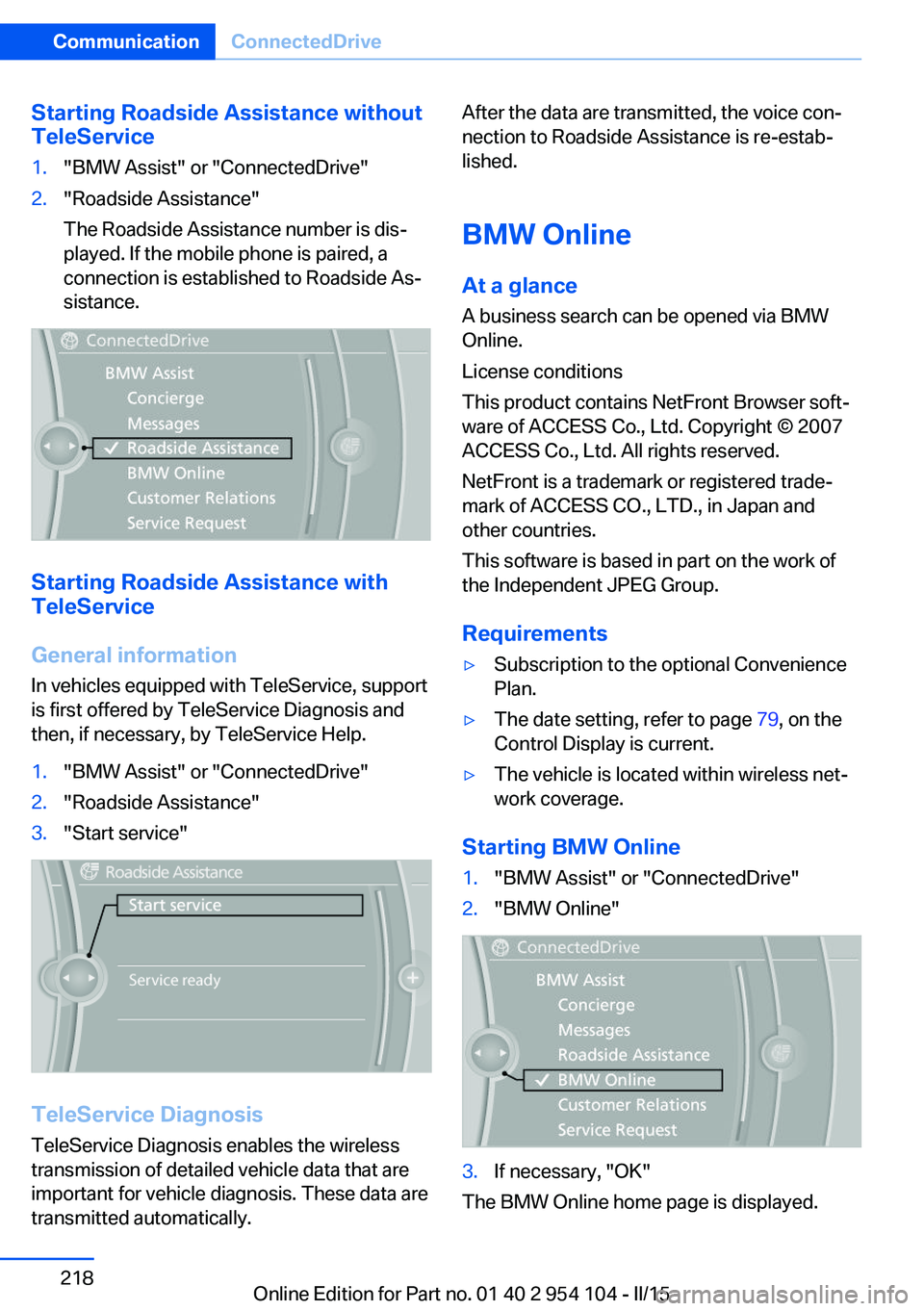
Starting Roadside Assistance without
TeleService1."BMW Assist" or "ConnectedDrive"2."Roadside Assistance"
The Roadside Assistance number is dis‐
played. If the mobile phone is paired, a
connection is established to Roadside As‐
sistance.
Starting Roadside Assistance with
TeleService
General information
In vehicles equipped with TeleService, support
is first offered by TeleService Diagnosis and
then, if necessary, by TeleService Help.
1."BMW Assist" or "ConnectedDrive"2."Roadside Assistance"3."Start service"
TeleService Diagnosis
TeleService Diagnosis enables the wireless
transmission of detailed vehicle data that are
important for vehicle diagnosis. These data are
transmitted automatically.
After the data are transmitted, the voice con‐
nection to Roadside Assistance is re-estab‐
lished.
BMW Online
At a glance
A business search can be opened via BMW
Online.
License conditions
This product contains NetFront Browser soft‐
ware of ACCESS Co., Ltd. Copyright © 2007
ACCESS Co., Ltd. All rights reserved.
NetFront is a trademark or registered trade‐
mark of ACCESS CO., LTD., in Japan and
other countries.
This software is based in part on the work of
the Independent JPEG Group.
Requirements▷Subscription to the optional Convenience
Plan.▷The date setting, refer to page 79, on the
Control Display is current.▷The vehicle is located within wireless net‐
work coverage.
Starting BMW Online
1."BMW Assist" or "ConnectedDrive"2."BMW Online"3.If necessary, "OK"
The BMW Online home page is displayed.
Seite 218CommunicationConnectedDrive218
Online Edition for Part no. 01 40 2 954 104 - II/15
Page 223 of 289
▷Corresponding mobile wireless contract.
Any additionally incurred costs are not a
part of Apps.▷Use only BMW approved software applica‐
tions; otherwise, it may result in malfunc‐
tions.
Information about suitable mobile phones,
available software applications and their instal‐
lation can be found at www.bmw.com/connec‐
tivity or at the service center.
Create the entries.
Make entries only when traffic and road
conditions allow. Otherwise, the vehicle occu‐
pants and other road users may be put in dan‐
ger because of the distraction from driving.
For reasons of safety, some software applica‐
tions are usable only while the vehicle is sta‐
tionary.◀
Operating Apps
1.Connect the mobile phone via the snap-in
adapter or via the USB audio interface.2."ConnectedDrive"3.Select the desired software application.
Displaying status
Information about the currently available soft‐
ware applications can be displayed.
1."ConnectedDrive"2."BMW apps"
Notes
▷The ranges of Apps that can be displayed
on the Control Display depend on the
range of installed software applications on
the mobile phone.▷The data transmission of the software ap‐
plications from the mobile phone to the ve‐
hicle can last some time. Some software
applications depend on the speed of the
available Internet connection of the mobile
phone.▷Some mobile phones cannot simultane‐
ously use Apps and the Bluetooth hands-
free system.
If necessary, restart the software applica‐
tion on the mobile phone after a phone
conversation.
Remote Services
With Remote Services, a connection can be
established between a mobile phone and the
vehicle. This connection can be used, for ex‐
ample, to lock and unlock the vehicle.
Depending on the vehicle, additional functions
may be available.
To be able to use the functions, the My BMW
Remote app must be downloaded. Operation
takes place via the app.
Alternatively, the functions can also be used
via the ConnectedDrive Hotline.
The operating instructions for the My BMW
Remote app can be found on the Connected‐
Drive portal or at www.bmw.com.
Seite 221ConnectedDriveCommunication221
Online Edition for Part no. 01 40 2 954 104 - II/15
Page 255 of 289
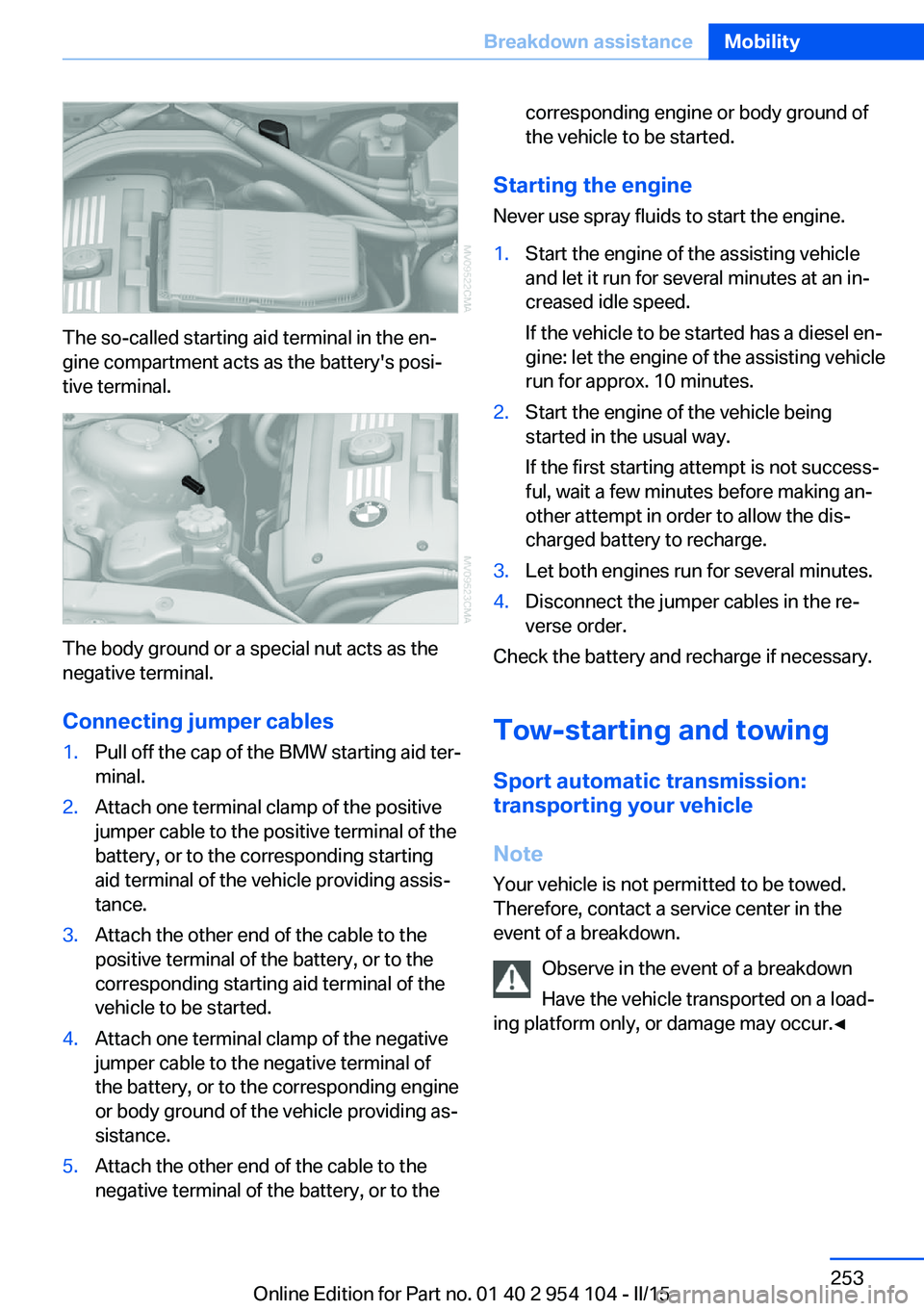
The so-called starting aid terminal in the en‐
gine compartment acts as the battery's posi‐
tive terminal.
The body ground or a special nut acts as the
negative terminal.
Connecting jumper cables
1.Pull off the cap of the BMW starting aid ter‐
minal.2.Attach one terminal clamp of the positive
jumper cable to the positive terminal of the
battery, or to the corresponding starting
aid terminal of the vehicle providing assis‐
tance.3.Attach the other end of the cable to the
positive terminal of the battery, or to the
corresponding starting aid terminal of the
vehicle to be started.4.Attach one terminal clamp of the negative
jumper cable to the negative terminal of
the battery, or to the corresponding engine
or body ground of the vehicle providing as‐
sistance.5.Attach the other end of the cable to the
negative terminal of the battery, or to thecorresponding engine or body ground of
the vehicle to be started.
Starting the engine
Never use spray fluids to start the engine.
1.Start the engine of the assisting vehicle
and let it run for several minutes at an in‐
creased idle speed.
If the vehicle to be started has a diesel en‐
gine: let the engine of the assisting vehicle
run for approx. 10 minutes.2.Start the engine of the vehicle being
started in the usual way.
If the first starting attempt is not success‐
ful, wait a few minutes before making an‐
other attempt in order to allow the dis‐
charged battery to recharge.3.Let both engines run for several minutes.4.Disconnect the jumper cables in the re‐
verse order.
Check the battery and recharge if necessary.
Tow-starting and towing Sport automatic transmission:
transporting your vehicle
Note
Your vehicle is not permitted to be towed.
Therefore, contact a service center in the
event of a breakdown.
Observe in the event of a breakdown
Have the vehicle transported on a load‐
ing platform only, or damage may occur.◀
Seite 253Breakdown assistanceMobility253
Online Edition for Part no. 01 40 2 954 104 - II/15
Page 256 of 289
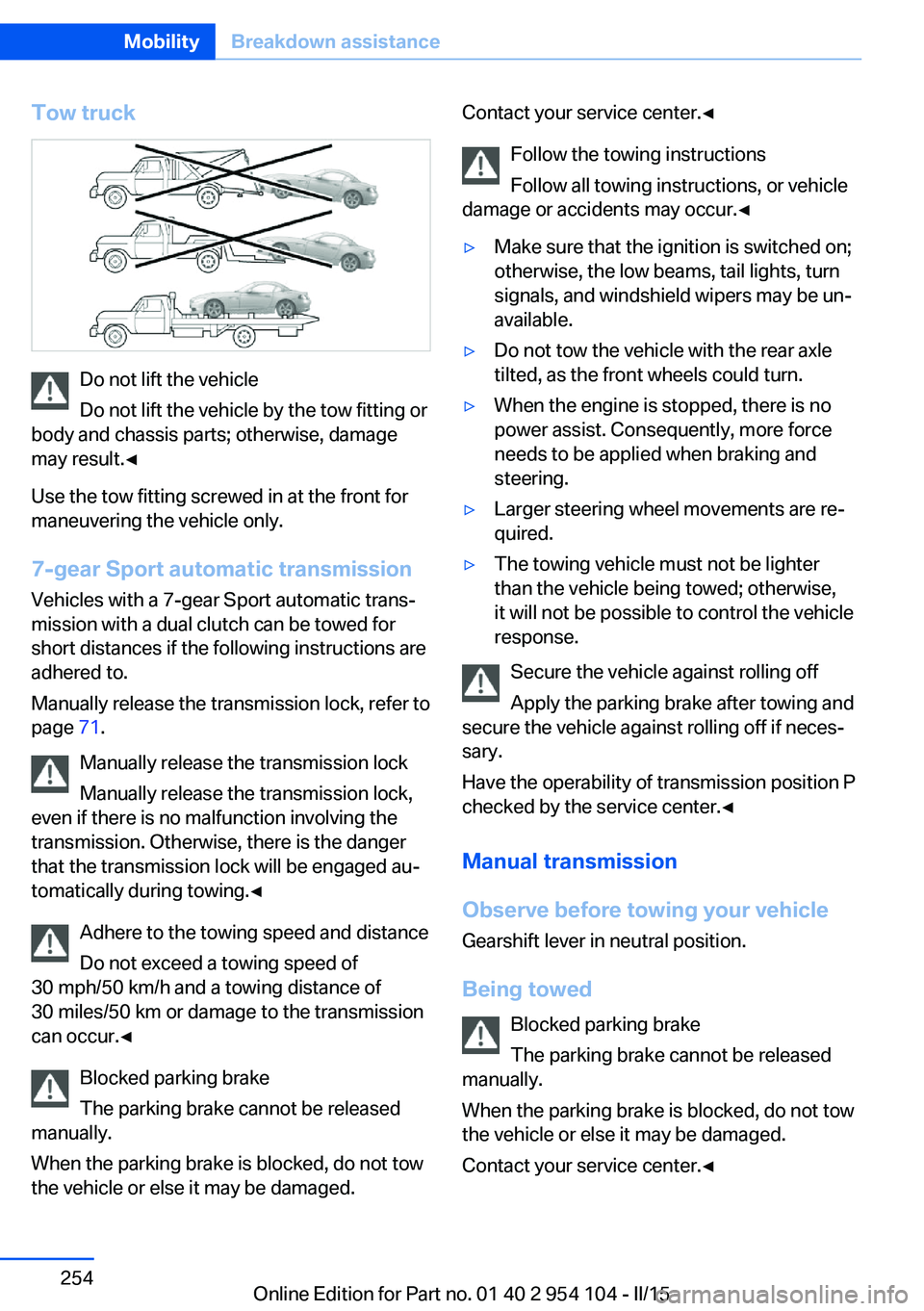
Tow truck
Do not lift the vehicle
Do not lift the vehicle by the tow fitting or
body and chassis parts; otherwise, damage
may result.◀
Use the tow fitting screwed in at the front for
maneuvering the vehicle only.
7-gear Sport automatic transmission
Vehicles with a 7-gear Sport automatic trans‐
mission with a dual clutch can be towed for
short distances if the following instructions are
adhered to.
Manually release the transmission lock, refer to
page 71.
Manually release the transmission lock
Manually release the transmission lock,
even if there is no malfunction involving the
transmission. Otherwise, there is the danger
that the transmission lock will be engaged au‐
tomatically during towing.◀
Adhere to the towing speed and distance
Do not exceed a towing speed of
30 mph/50 km/h and a towing distance of
30 miles/50 km or damage to the transmission
can occur.◀
Blocked parking brake
The parking brake cannot be released
manually.
When the parking brake is blocked, do not tow
the vehicle or else it may be damaged.
Contact your service center.◀
Follow the towing instructions
Follow all towing instructions, or vehicle
damage or accidents may occur.◀▷Make sure that the ignition is switched on;
otherwise, the low beams, tail lights, turn
signals, and windshield wipers may be un‐
available.▷Do not tow the vehicle with the rear axle
tilted, as the front wheels could turn.▷When the engine is stopped, there is no
power assist. Consequently, more force
needs to be applied when braking and
steering.▷Larger steering wheel movements are re‐
quired.▷The towing vehicle must not be lighter
than the vehicle being towed; otherwise,
it will not be possible to control the vehicle
response.
Secure the vehicle against rolling off
Apply the parking brake after towing and
secure the vehicle against rolling off if neces‐
sary.
Have the operability of transmission position P
checked by the service center.◀
Manual transmission
Observe before towing your vehicle Gearshift lever in neutral position.
Being towed Blocked parking brake
The parking brake cannot be released
manually.
When the parking brake is blocked, do not tow
the vehicle or else it may be damaged.
Contact your service center.◀
Seite 254MobilityBreakdown assistance254
Online Edition for Part no. 01 40 2 954 104 - II/15