buttons BMW Z4 SDRIVE35IS 2015 Owners Manual
[x] Cancel search | Manufacturer: BMW, Model Year: 2015, Model line: Z4 SDRIVE35IS, Model: BMW Z4 SDRIVE35IS 2015Pages: 289, PDF Size: 7.16 MB
Page 15 of 289
At a glance
These overviews of buttons, switches and
displays are intended to familiarize you with your
vehicle. You will also become quickly acquainted with the available control concepts and options.Online Edition for Part no. 01 40 2 954 104 - II/15
Page 17 of 289
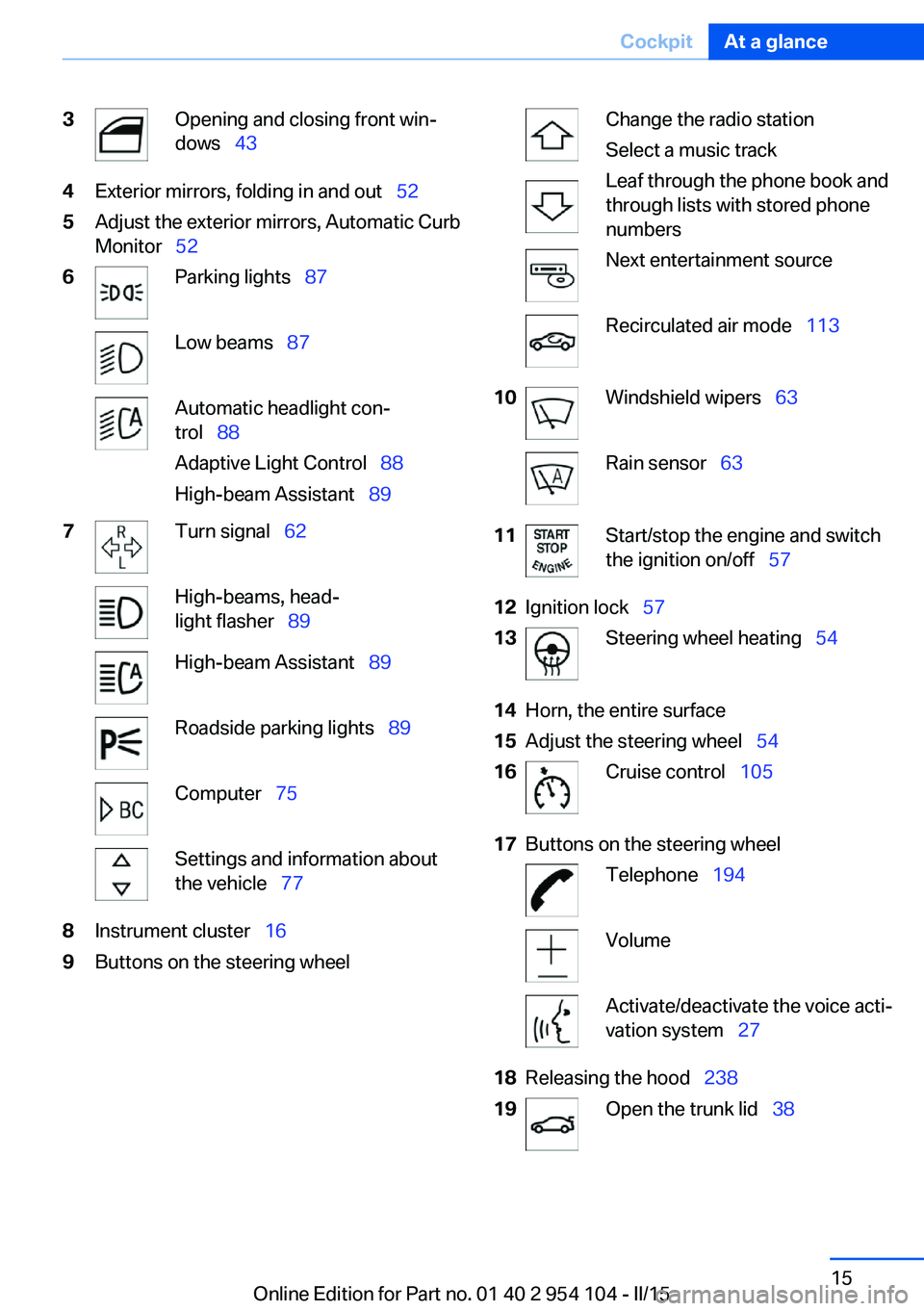
3Opening and closing front win‐
dows 434Exterior mirrors, folding in and out 525Adjust the exterior mirrors, Automatic Curb
Monitor 526Parking lights 87Low beams 87Automatic headlight con‐
trol 88
Adaptive Light Control 88
High-beam Assistant 897Turn signal 62High-beams, head‐
light flasher 89High-beam Assistant 89Roadside parking lights 89Computer 75Settings and information about
the vehicle 778Instrument cluster 169Buttons on the steering wheelChange the radio station
Select a music track
Leaf through the phone book and
through lists with stored phone
numbersNext entertainment sourceRecirculated air mode 11310Windshield wipers 63Rain sensor 6311Start/stop the engine and switch
the ignition on/off 5712Ignition lock 5713Steering wheel heating 5414Horn, the entire surface15Adjust the steering wheel 5416Cruise control 10517Buttons on the steering wheelTelephone 194VolumeActivate/deactivate the voice acti‐
vation system 2718Releasing the hood 23819Open the trunk lid 38Seite 15CockpitAt a glance15
Online Edition for Part no. 01 40 2 954 104 - II/15
Page 20 of 289
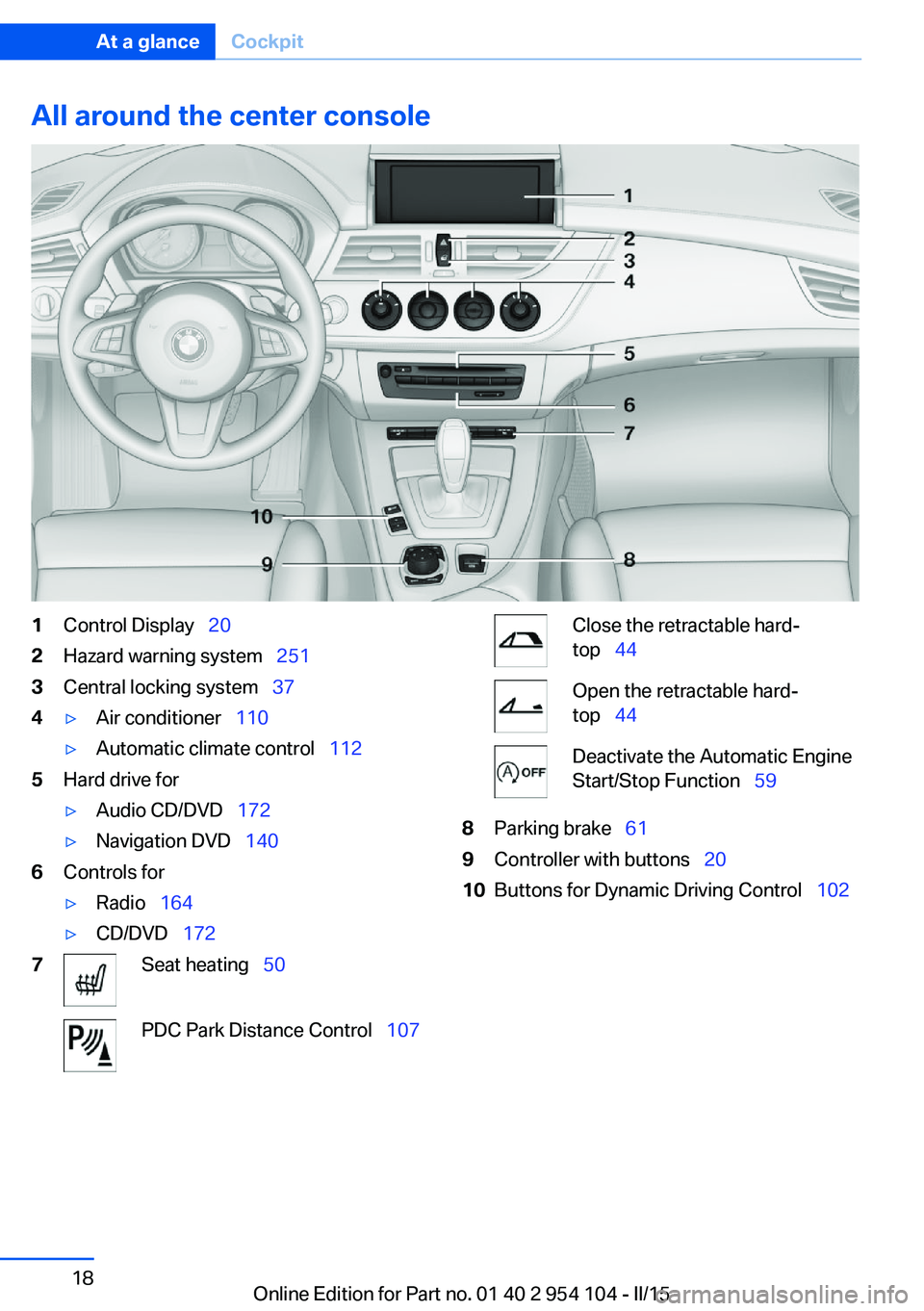
All around the center console1Control Display 202Hazard warning system 2513Central locking system 374▷Air conditioner 110▷Automatic climate control 1125Hard drive for▷Audio CD/DVD 172▷Navigation DVD 1406Controls for▷Radio 164▷CD/DVD 1727Seat heating 50PDC Park Distance Control 107Close the retractable hard‐
top 44Open the retractable hard‐
top 44Deactivate the Automatic Engine
Start/Stop Function 598Parking brake 619Controller with buttons 2010Buttons for Dynamic Driving Control 102Seite 18At a glanceCockpit18
Online Edition for Part no. 01 40 2 954 104 - II/15
Page 22 of 289
iDriveVehicle equipment
This chapter describes all series equipment as
well as country-specific and special equipment
offered for this model series. Therefore, it also
describes equipment that may not be found in
your vehicle, for instance due to the selected
special equipment or the country version. This
also applies to safety-related functions and
systems.
When using the features and systems descri‐
bed here, adhere to local regulations.
The concept The iDrive combines the functions of a multi‐
tude of switches. Thus, these functions can be
operated from a central location.
Using the iDrive during a trip
To avoid becoming distracted and pos‐
ing an unnecessary hazard to your vehicle's
occupants and to other road users, never at‐
tempt to use the controls or enter information
unless traffic and road conditions allow this.◀
Controls at a glance Controls1Control Display2Controller with buttonsThe buttons can be used to open the me‐
nus directly. The controller can be used to
select menu items and create the settings.
Control Display
Notes
▷To clean the Control Display, follow the
care instructions, refer to page 260.▷Do not place objects close to the Control
Display; otherwise, the Control Display can
be damaged.
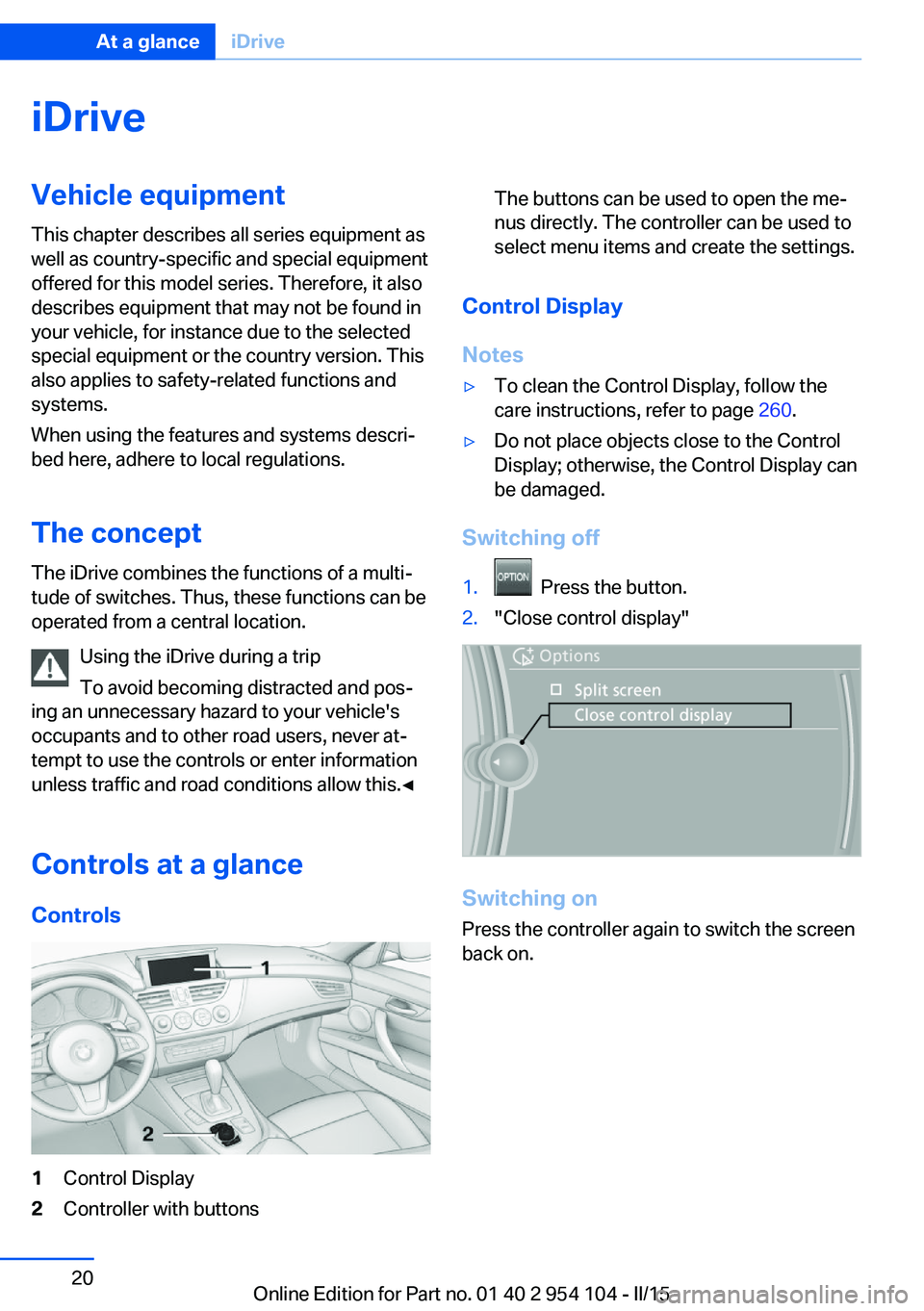
Switching off
1. Press the button.2."Close control display"
Switching on
Press the controller again to switch the screen
back on.
Seite 20At a glanceiDrive20
Online Edition for Part no. 01 40 2 954 104 - II/15
Page 23 of 289
Controller
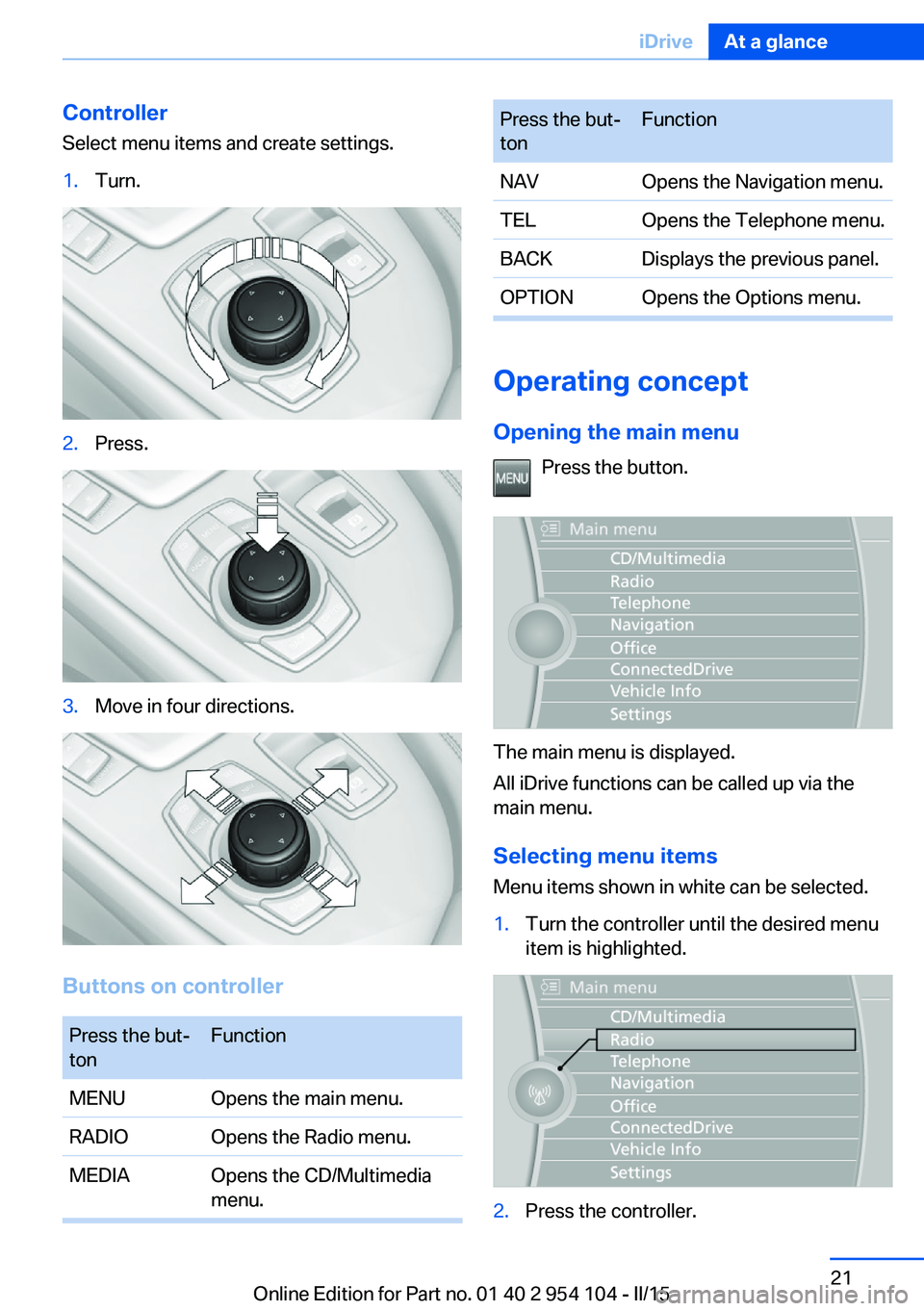
Select menu items and create settings.1.Turn.2.Press.3.Move in four directions.
Buttons on controller
Press the but‐
tonFunctionMENUOpens the main menu.RADIOOpens the Radio menu.MEDIAOpens the CD/Multimedia
menu.Press the but‐
tonFunctionNAVOpens the Navigation menu.TELOpens the Telephone menu.BACKDisplays the previous panel.OPTIONOpens the Options menu.
Operating concept
Opening the main menu Press the button.
The main menu is displayed.
All iDrive functions can be called up via the
main menu.
Selecting menu items
Menu items shown in white can be selected.
1.Turn the controller until the desired menu
item is highlighted.2.Press the controller.Seite 21iDriveAt a glance21
Online Edition for Part no. 01 40 2 954 104 - II/15
Page 26 of 289
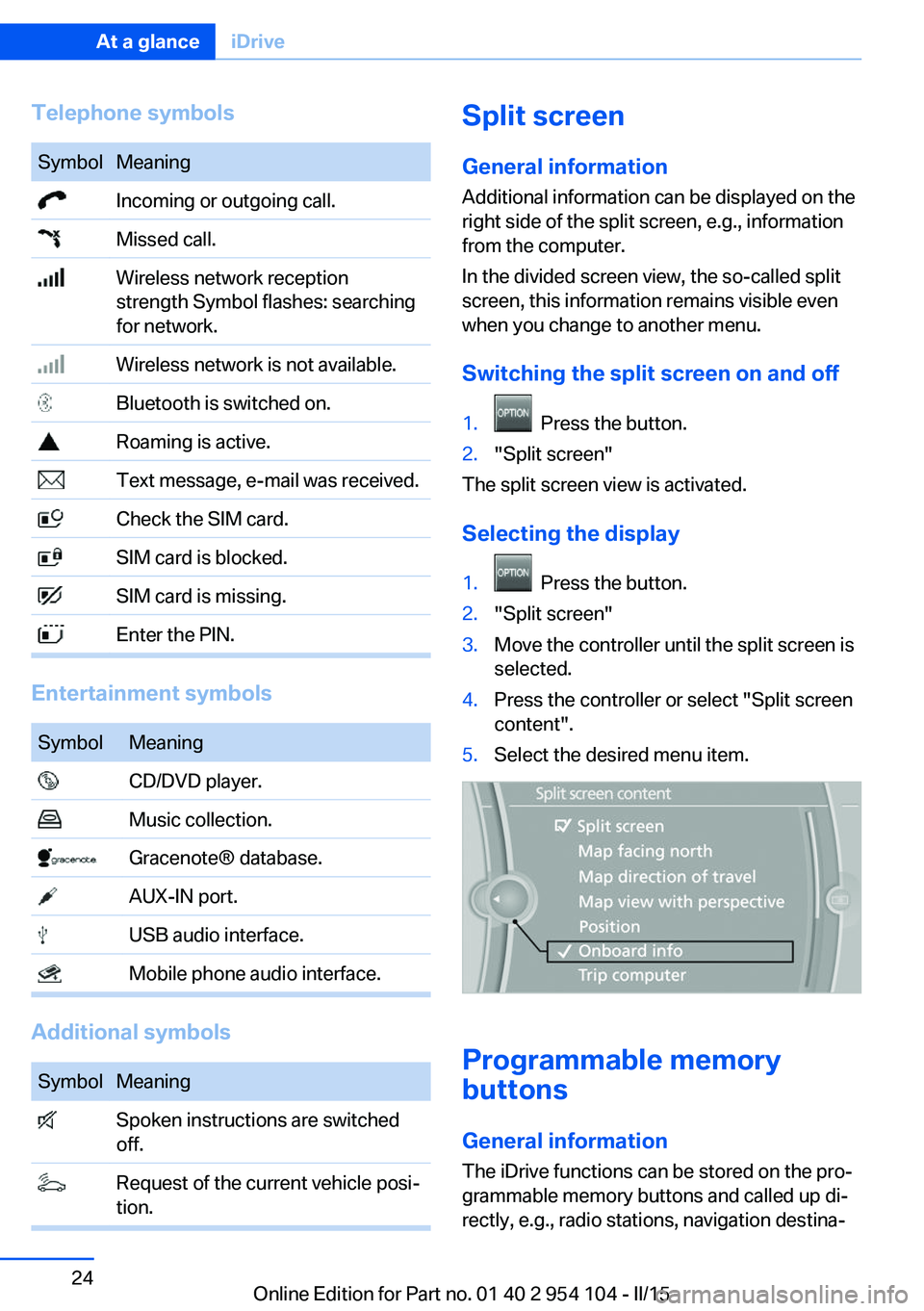
Telephone symbolsSymbolMeaning Incoming or outgoing call. Missed call. Wireless network reception
strength Symbol flashes: searching
for network. Wireless network is not available. Bluetooth is switched on. Roaming is active. Text message, e-mail was received. Check the SIM card. SIM card is blocked. SIM card is missing. Enter the PIN.
Entertainment symbols
SymbolMeaning CD/DVD player. Music collection. Gracenote® database. AUX-IN port. USB audio interface. Mobile phone audio interface.
Additional symbols
SymbolMeaning Spoken instructions are switched
off. Request of the current vehicle posi‐
tion.Split screen
General information Additional information can be displayed on the
right side of the split screen, e.g., information
from the computer.
In the divided screen view, the so-called split
screen, this information remains visible even when you change to another menu.
Switching the split screen on and off1. Press the button.2."Split screen"
The split screen view is activated.
Selecting the display
1. Press the button.2."Split screen"3.Move the controller until the split screen is
selected.4.Press the controller or select "Split screen
content".5.Select the desired menu item.
Programmable memory
buttons
General information
The iDrive functions can be stored on the pro‐
grammable memory buttons and called up di‐
rectly, e.g., radio stations, navigation destina‐
Seite 24At a glanceiDrive24
Online Edition for Part no. 01 40 2 954 104 - II/15
Page 27 of 289
tions, phone numbers and entry points into the
menu.
The settings are stored for the remote control
currently in use.
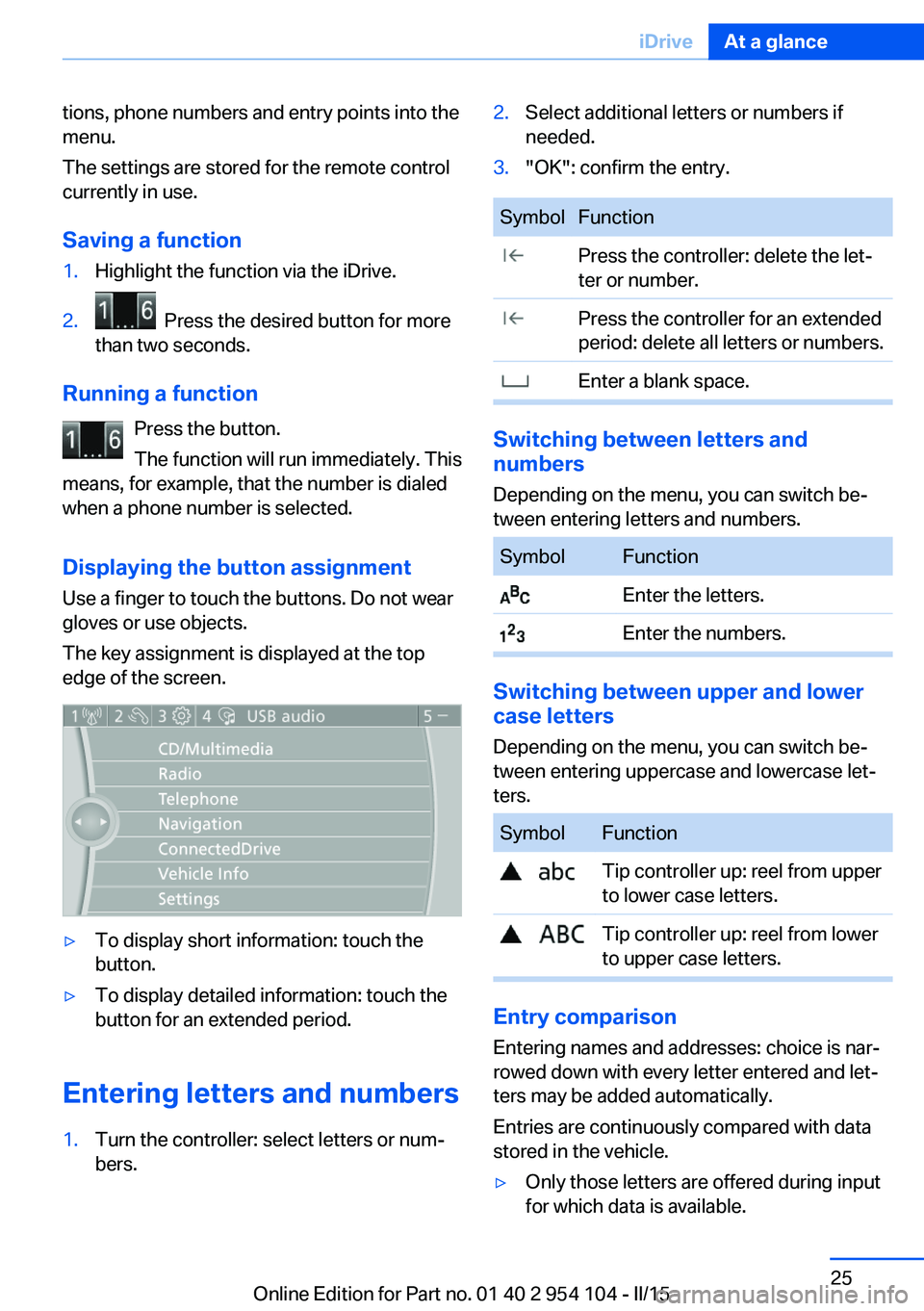
Saving a function1.Highlight the function via the iDrive.2. Press the desired button for more
than two seconds.
Running a function
Press the button.
The function will run immediately. This
means, for example, that the number is dialed
when a phone number is selected.
Displaying the button assignment Use a finger to touch the buttons. Do not wear
gloves or use objects.
The key assignment is displayed at the top
edge of the screen.
▷To display short information: touch the
button.▷To display detailed information: touch the
button for an extended period.
Entering letters and numbers
1.Turn the controller: select letters or num‐
bers.2.Select additional letters or numbers if
needed.3."OK": confirm the entry.SymbolFunction Press the controller: delete the let‐
ter or number. Press the controller for an extended
period: delete all letters or numbers. Enter a blank space.
Switching between letters and
numbers
Depending on the menu, you can switch be‐
tween entering letters and numbers.
SymbolFunction Enter the letters. Enter the numbers.
Switching between upper and lower
case letters
Depending on the menu, you can switch be‐
tween entering uppercase and lowercase let‐
ters.
SymbolFunction Tip controller up: reel from upper
to lower case letters. Tip controller up: reel from lower
to upper case letters.
Entry comparison
Entering names and addresses: choice is nar‐
rowed down with every letter entered and let‐
ters may be added automatically.
Entries are continuously compared with data
stored in the vehicle.
▷Only those letters are offered during input
for which data is available.Seite 25iDriveAt a glance25
Online Edition for Part no. 01 40 2 954 104 - II/15
Page 34 of 289
Opening and closingVehicle equipment
This chapter describes all series equipment as
well as country-specific and special equipment
offered for this model series. Therefore, it also
describes equipment that may not be found in
your vehicle, for instance due to the selected
special equipment or the country version. This
also applies to safety-related functions and
systems.
When using the features and systems descri‐
bed here, adhere to local regulations.
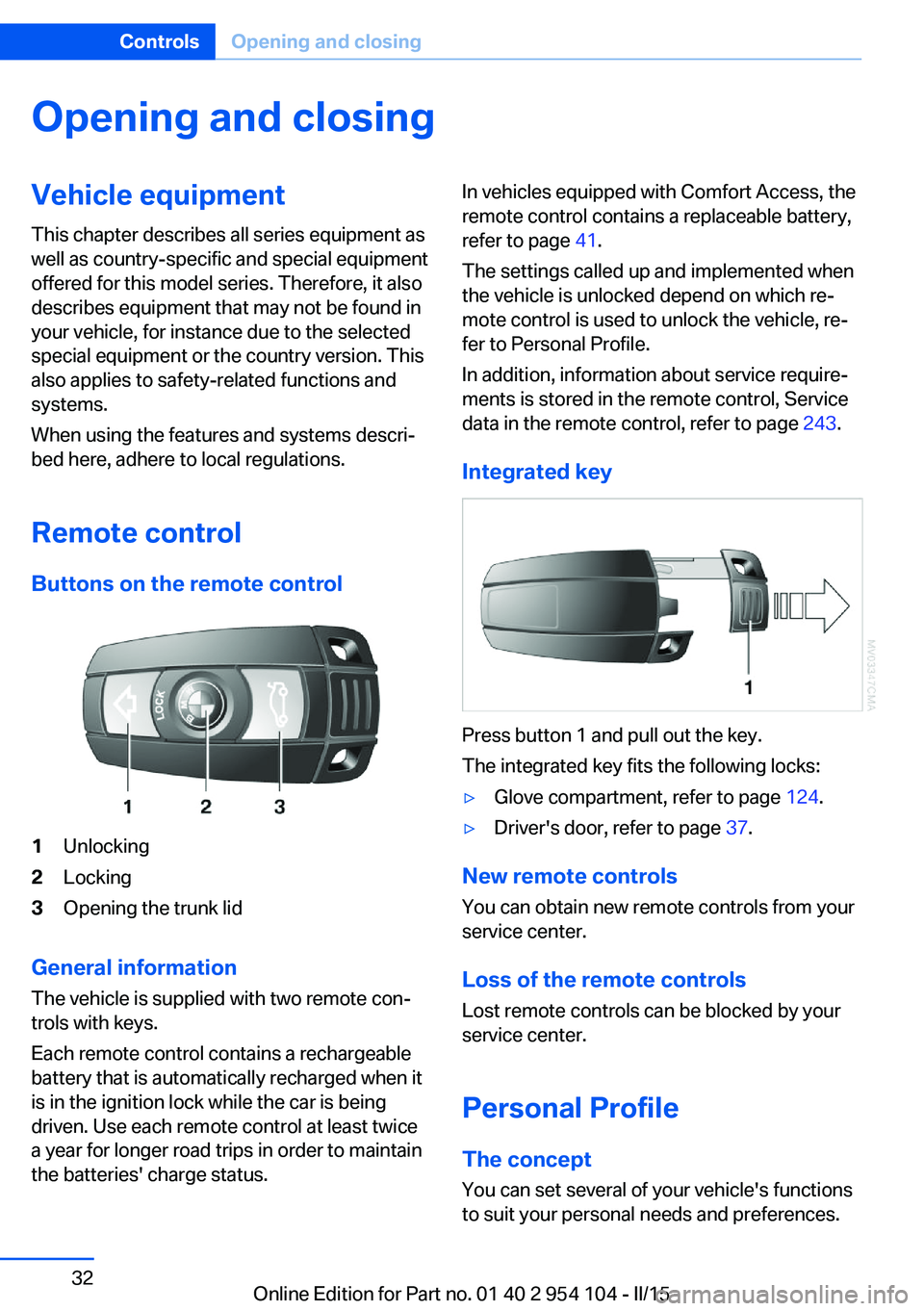
Remote control Buttons on the remote control1Unlocking2Locking3Opening the trunk lid
General information
The vehicle is supplied with two remote con‐
trols with keys.
Each remote control contains a rechargeable
battery that is automatically recharged when it
is in the ignition lock while the car is being
driven. Use each remote control at least twice
a year for longer road trips in order to maintain
the batteries' charge status.
In vehicles equipped with Comfort Access, the
remote control contains a replaceable battery,
refer to page 41.
The settings called up and implemented when
the vehicle is unlocked depend on which re‐
mote control is used to unlock the vehicle, re‐
fer to Personal Profile.
In addition, information about service require‐
ments is stored in the remote control, Service
data in the remote control, refer to page 243.
Integrated key
Press button 1 and pull out the key.
The integrated key fits the following locks:
▷Glove compartment, refer to page 124.▷Driver's door, refer to page 37.
New remote controls
You can obtain new remote controls from your
service center.
Loss of the remote controls
Lost remote controls can be blocked by your
service center.
Personal Profile The concept
You can set several of your vehicle's functions
to suit your personal needs and preferences.
Seite 32ControlsOpening and closing32
Online Edition for Part no. 01 40 2 954 104 - II/15
Page 42 of 289
Locking
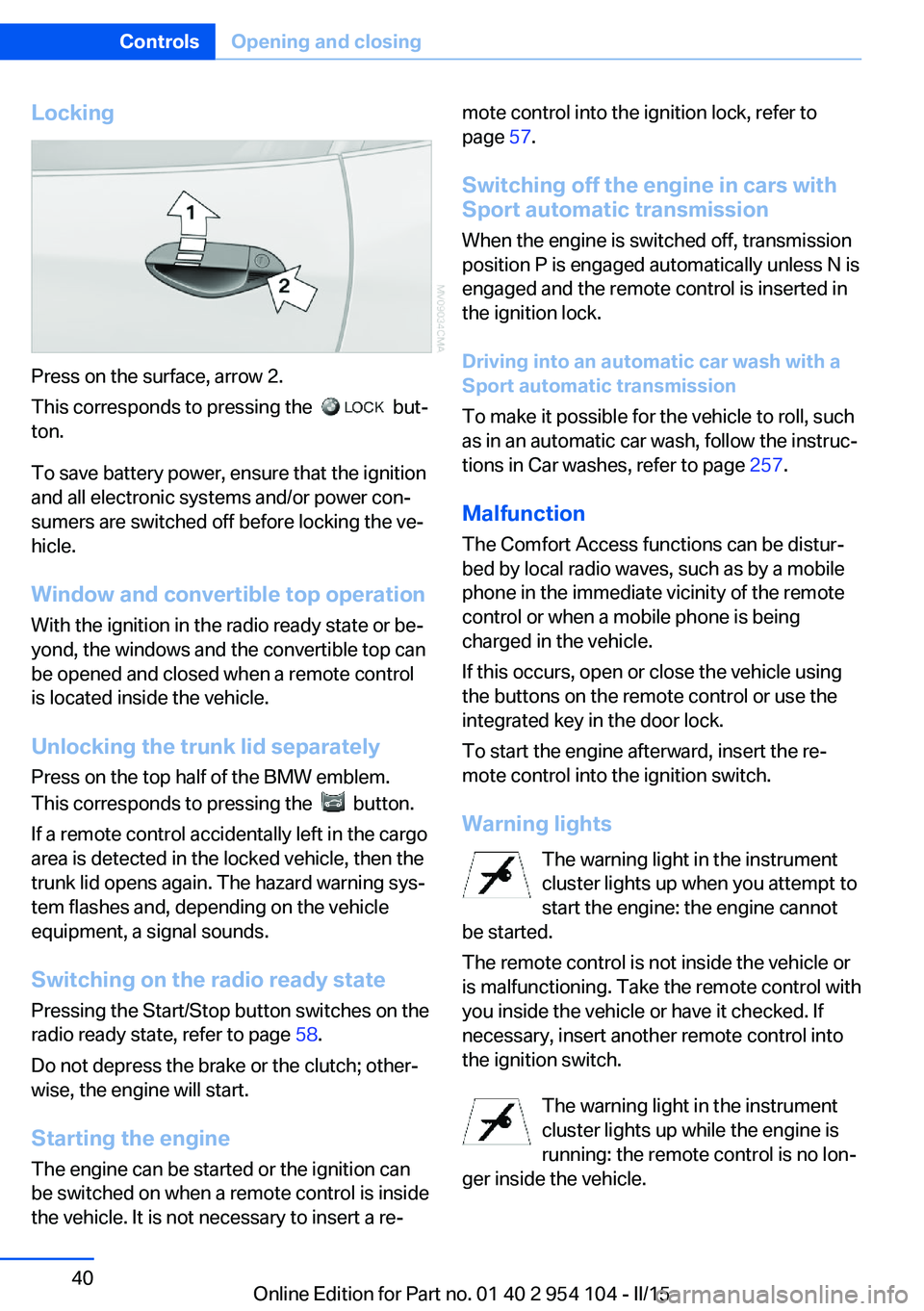
Press on the surface, arrow 2.
This corresponds to pressing the
but‐
ton.
To save battery power, ensure that the ignition
and all electronic systems and/or power con‐
sumers are switched off before locking the ve‐
hicle.
Window and convertible top operation
With the ignition in the radio ready state or be‐
yond, the windows and the convertible top can
be opened and closed when a remote control
is located inside the vehicle.
Unlocking the trunk lid separately
Press on the top half of the BMW emblem.
This corresponds to pressing the
button.
If a remote control accidentally left in the cargo
area is detected in the locked vehicle, then the
trunk lid opens again. The hazard warning sys‐
tem flashes and, depending on the vehicle
equipment, a signal sounds.
Switching on the radio ready state
Pressing the Start/Stop button switches on the
radio ready state, refer to page 58.
Do not depress the brake or the clutch; other‐
wise, the engine will start.
Starting the engine
The engine can be started or the ignition can
be switched on when a remote control is inside
the vehicle. It is not necessary to insert a re‐
mote control into the ignition lock, refer to
page 57.
Switching off the engine in cars with
Sport automatic transmission
When the engine is switched off, transmission
position P is engaged automatically unless N is
engaged and the remote control is inserted in
the ignition lock.
Driving into an automatic car wash with a
Sport automatic transmission
To make it possible for the vehicle to roll, such
as in an automatic car wash, follow the instruc‐
tions in Car washes, refer to page 257.
Malfunction
The Comfort Access functions can be distur‐
bed by local radio waves, such as by a mobile
phone in the immediate vicinity of the remote
control or when a mobile phone is being
charged in the vehicle.
If this occurs, open or close the vehicle using
the buttons on the remote control or use the
integrated key in the door lock.
To start the engine afterward, insert the re‐
mote control into the ignition switch.
Warning lights The warning light in the instrument
cluster lights up when you attempt to
start the engine: the engine cannot
be started.
The remote control is not inside the vehicle or
is malfunctioning. Take the remote control with
you inside the vehicle or have it checked. If
necessary, insert another remote control into
the ignition switch.
The warning light in the instrument
cluster lights up while the engine is
running: the remote control is no lon‐
ger inside the vehicle.Seite 40ControlsOpening and closing40
Online Edition for Part no. 01 40 2 954 104 - II/15
Page 54 of 289
Comfort function1.Open the driver's door or switch on the
radio ready state, refer to page 57.2.Briefly press the desired memory but‐
ton 1 or 2.
The seat is automatically moved to the stored
position.
The procedure stops when a switch for adjust‐
ing the seat or one of the buttons is pressed.
Safety mode
1.Close the driver's door and switch the igni‐
tion on or off, refer to page 57.2.Press and hold the desired button 1 or 2
until the adjustment procedure is com‐
pleted.
Mirrors
Exterior mirrors
General information The mirror on the passenger side is more
curved than the driver's mirror.
Estimating distances correctly
Objects reflected in the mirror are closer
than they appear. Do not estimate the distance
to the traffic behind you based on what you
see in the mirror, as this will increase your risk
of an accident.◀
The setting for the exterior mirrors is stored for
the remote control currently in use. The stored
position is called up automatically when the
vehicle is unlocked.
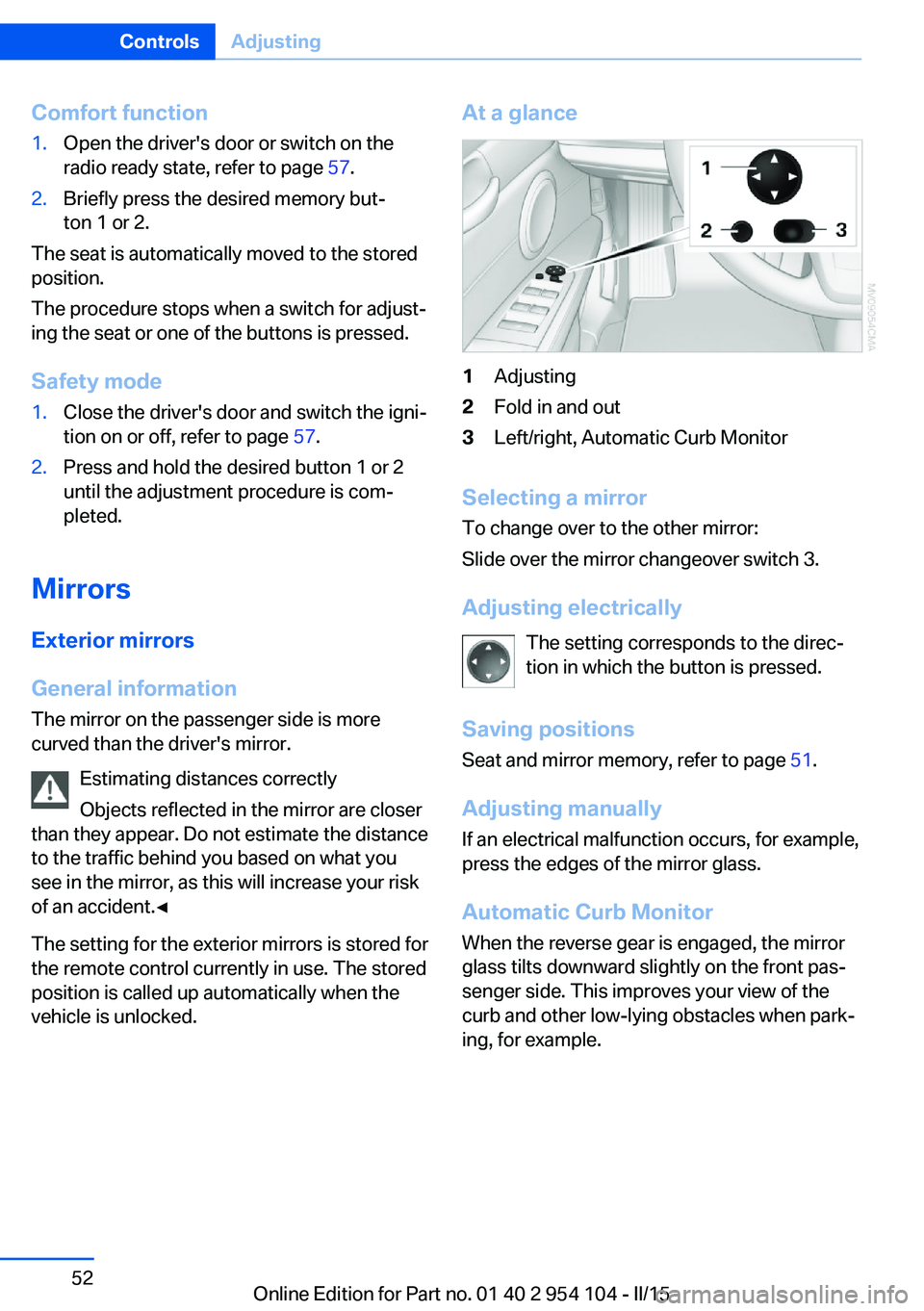
At a glance1Adjusting2Fold in and out3Left/right, Automatic Curb Monitor
Selecting a mirror
To change over to the other mirror:
Slide over the mirror changeover switch 3.
Adjusting electrically The setting corresponds to the direc‐
tion in which the button is pressed.
Saving positions Seat and mirror memory, refer to page 51.
Adjusting manually If an electrical malfunction occurs, for example,
press the edges of the mirror glass.
Automatic Curb Monitor When the reverse gear is engaged, the mirror
glass tilts downward slightly on the front pas‐
senger side. This improves your view of the
curb and other low-lying obstacles when park‐
ing, for example.
Seite 52ControlsAdjusting52
Online Edition for Part no. 01 40 2 954 104 - II/15