manual radio set BUICK CASCADA 2016 Owner's Guide
[x] Cancel search | Manufacturer: BUICK, Model Year: 2016, Model line: CASCADA, Model: BUICK CASCADA 2016Pages: 381, PDF Size: 5.52 MB
Page 165 of 381
Buick Cascada Owner Manual (GMNA-Localizing-U.S-9186636) - 2016 - crc -
3/9/16
164 Infotainment System
3. Touch SoftwareVersions Menu.
4. Touch Clear and Reset Radio.
5. Touch Yes.
Pair the phone again and the device
will have to index again.
Bluetooth Audio and Voice
Recognition
See Bluetooth Audio 0164 and
Voice Recognition 0191 for
information on using voice
recognition with Bluetooth audio.
Make sure all devices have the
latest software downloaded.
Auxiliary Devices
If equipped, this vehicle has an
auxiliary input jack in the center
stack. Possible auxiliary audio
sources include:
. Laptop computer
. MP3 player
. Tape player This jack is not an audio output. Do
not plug headphones into the
auxiliary input jack. Set up any
auxiliary device while the vehicle is
in P (Park).
Connect a 3.5 mm (1/8 in) cable
from the auxiliary device to the
auxiliary input jack. When a device
is connected, the system
automatically begins playing audio
from the device over the vehicle
speakers.
If an auxiliary device has already
been connected, but a different
source is currently active, do one of
the following:
.
Press SRCE to scroll all of the
available audio source screens,
until the AUX source screen is
selected.
. Say “Play Front AUX” using
voice recognition to play the
auxiliary device. See Voice
Recognition 0191.
. Touch AUX on the Home Page.
Bluetooth Audio
If equipped, music may be played
from a paired Bluetooth device. See
“Pairing a Phone/Device” under
Bluetooth 0197.
To play music through a Bluetooth
device : 1. Power on the device, pair, and connect the device.
2. Music can be launched by doing one of the following:
.Touch Bluetooth on the
Home Page.
. Press SRCE until Bluetooth
Audio is selected.
. Press SRC on the steering
wheel controls until
Bluetooth Audio is selected.
See Steering Wheel
Controls 0130.
. Use voice recognition. See
Voice Recognition 0191.
The music can be controlled by
either the infotainment controls or
the controls on the device.
Page 184 of 381
Buick Cascada Owner Manual (GMNA-Localizing-U.S-9186636) - 2016 - crc -
3/9/16
Infotainment System 183
Save :Touch to save the
downloaded destination to the
address book.
Call : Touch to initiate a call with
Bluetooth Phone or OnStar
Hands-Free Calling (if available).
Save as Home : Touch to set an
address as a home destination.
Route Guidance Active
If an OnStar destination is
downloaded while route guidance is
already active, the system displays
a pop-up screen with the following
screen function:
. Touch Start Guidance; the
navigation system adds the
downloaded destination before
the next waypoint of the existing
route (closest to the current
vehicle position).
. All other buttons on the pop-up
screen operate as described
under “Route Guidance Not
Active.” Previous Destinations
Previously downloaded OnStar
destinations are saved under
Previous Destinations in the
navigation system, where they can
be accessed or saved to the
Address Book.
Configure Menu
The Configuration Menu is used to
adjust features and preferences,
such as Sound, Radio, Nav
(Navigation), Display, or Time
Settings.
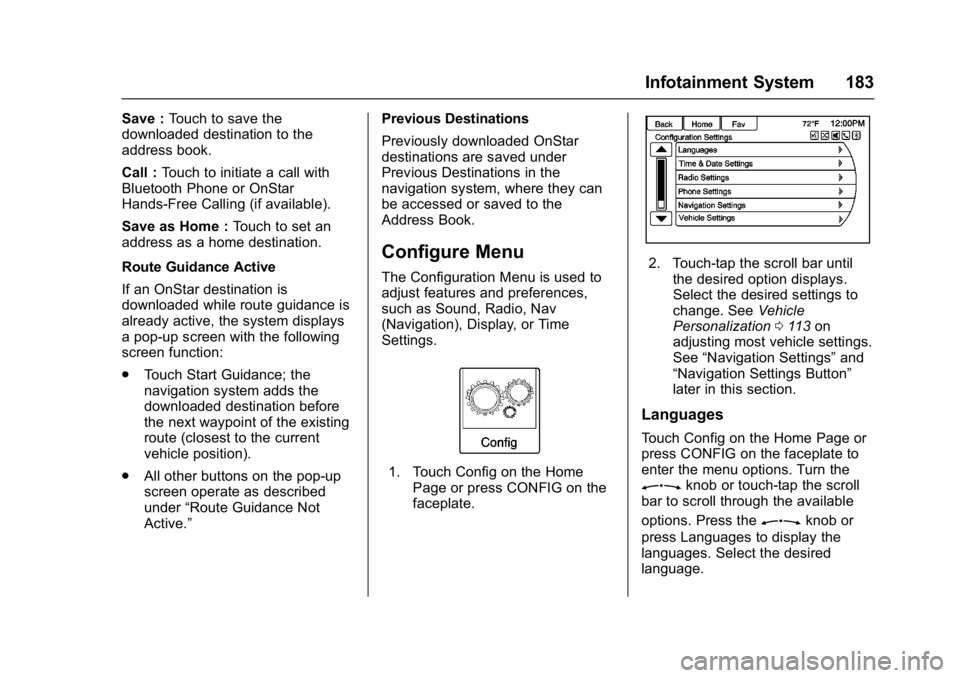
1. Touch Config on the Home
Page or press CONFIG on the
faceplate.
2. Touch-tap the scroll bar untilthe desired option displays.
Select the desired settings to
change. See Vehicle
Personalization 0113 on
adjusting most vehicle settings.
See “Navigation Settings” and
“Navigation Settings Button”
later in this section.
Languages
Touch Config on the Home Page or
press CONFIG on the faceplate to
enter the menu options. Turn the
Zknob or touch-tap the scroll
bar to scroll through the available
options. Press the
Zknob or
press Languages to display the
languages. Select the desired
language.
Page 185 of 381
Buick Cascada Owner Manual (GMNA-Localizing-U.S-9186636) - 2016 - crc -
3/9/16
184 Infotainment System
Time and Date Settings
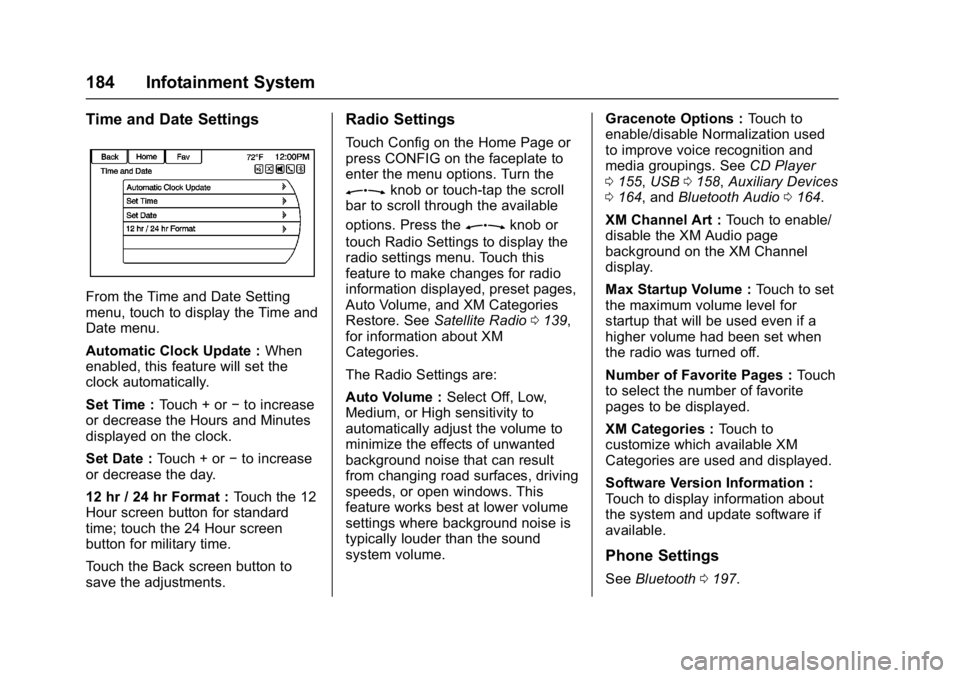
From the Time and Date Setting
menu, touch to display the Time and
Date menu.
Automatic Clock Update :When
enabled, this feature will set the
clock automatically.
Set Time : Touch + or−to increase
or decrease the Hours and Minutes
displayed on the clock.
Set Date : Touch + or −to increase
or decrease the day.
12 hr / 24 hr Format : Touch the 12
Hour screen button for standard
time; touch the 24 Hour screen
button for military time.
Touch the Back screen button to
save the adjustments.
Radio Settings
Touch Config on the Home Page or
press CONFIG on the faceplate to
enter the menu options. Turn the
Zknob or touch-tap the scroll
bar to scroll through the available
options. Press the
Zknob or
touch Radio Settings to display the
radio settings menu. Touch this
feature to make changes for radio
information displayed, preset pages,
Auto Volume, and XM Categories
Restore. See Satellite Radio 0139,
for information about XM
Categories.
The Radio Settings are:
Auto Volume : Select Off, Low,
Medium, or High sensitivity to
automatically adjust the volume to
minimize the effects of unwanted
background noise that can result
from changing road surfaces, driving
speeds, or open windows. This
feature works best at lower volume
settings where background noise is
typically louder than the sound
system volume. Gracenote Options :
Touch to
enable/disable Normalization used
to improve voice recognition and
media groupings. See CD Player
0 155, USB 0158, Auxiliary Devices
0 164, and Bluetooth Audio 0164.
XM Channel Art : Touch to enable/
disable the XM Audio page
background on the XM Channel
display.
Max Startup Volume : Touch to set
the maximum volume level for
startup that will be used even if a
higher volume had been set when
the radio was turned off.
Number of Favorite Pages : Touch
to select the number of favorite
pages to be displayed.
XM Categories : Touch to
customize which available XM
Categories are used and displayed.
Software Version Information :
Touch to display information about
the system and update software if
available.
Phone Settings
See Bluetooth 0197.
Page 189 of 381
Buick Cascada Owner Manual (GMNA-Localizing-U.S-9186636) - 2016 - crc -
3/9/16
188 Infotainment System
Previously stored bread crumbs can
be loaded from the Saved menu
item, and then displayed by
selecting Show on Map.
Route Simulation
Select to display a route simulation.
Use Last Known Position :Select
to start the simulation from the last
known position.
Use Previous Destination : Select
to start the simulation from a
previous destination.
Use Specified Location : Select to
start the simulation from a specified
location.
Once the starting position for the
simulation is selected, select
Navigation and the Map display will
be in Simulation mode. SIMis
displayed on the map.
Select and enter the destination as
for a normal journey and select Start
Guidance to calculate the route in
Simulation mode.
Touch Next to skip to the next turn,
or touch Stop to pause the
simulation. To stop the simulation, press DEST
and select Cancel Guidance.
To exit from Simulation mode, return
to the Navigation Settings menu,
select Route Simulation, then select
Cancel Route Simulation.
Vehicle Settings
See
Vehicle Personalization 0113.
Display Settings
Touch Config on the Home Page or
press CONFIG on the faceplate,
then select Display Settings from
the list.
The following options may display:
Home Page Menu : Touch to
customize the first page of the
Home Page.
Rear Camera Options : Touch to
enable or disable Symbols and
Guide Lines..
Display Off : Touch to turn off the
display. The display will return when
any radio buttons are pressed or the
screen is touched (if equipped). Map Settings :
Touch to enter the
submenu to change Map Display
settings and enable Speed Limit
display on map.
Map Display : Touch to change the
screen background.
. The Automatic setting adjusts
the screen background
automatically depending on the
exterior lighting conditions.
. The Day setting brightens the
map background.
. The Night setting darkens the
map background.
To change the overall brightness
setting for the display, use the
vehicle interior lighting instrument
panel illumination control.
Speed Limits : Touch to enable or
disable displayed speed limits on
the map.
Page 193 of 381
Buick Cascada Owner Manual (GMNA-Localizing-U.S-9186636) - 2016 - crc -
3/9/16
192 Infotainment System
.When the system does not
recognize the command, the
system says “Pardon.”
. If experiencing difficulty with the
system recognizing a command,
confirm that the command is
correct. Try saying the command
clearly or wait for a brief moment
after the tone.
. Background noise such as a
climate control fan positioned on
high, open windows, and very
loud outside noises, even if the
windows are closed, can cause
voice commands to be
misunderstood.
. The system is able to recognize
commands in different
languages, such as English,
Canadian French, and Spanish.
The system only recognizes
commands based on the
language selected.
. To increase or decrease the
voice volume during a voice
recognition session, turn the
volume knob of the radio,
or press the volume steering
wheel control. If the volume is adjusted during a voice
recognition session, a Volume
bar appears on the screen
showing the voice volume level
as it is being adjusted. This also
changes the volume of the
guidance prompts.
. When using navigation
commands, take the time to
become familiar with the
address. Long delays when
giving the address can result in
the system not recognizing the
address or routing to a different
location than intended.
. When providing the house
number portion of the address,
the system recognizes both digit
format and numerical text. An
example would be to say,
“3-0-0-0-1” or“Thirty
Thousand One.”
. If the system provides the
destination in another country on
several attempts, say the
“Change Country” command and
say the country of interest. The
country default is the United
States. To enter a destination in Canada or Mexico, the country
will first have to be changed in
the system.
Voice Recognition Help
To enter the help playback session,
clearly speak one of the help
commands.
Help :
The system plays back more
specific help commands such as
Radio Settings to choose from.
Radio : Use this command to learn
about how to select a band (AM,
FM, or SiriusXM), and how to
change radio stations by speaking
frequency numbers.
Phone : Use this command to learn
about how to dial, pair a device,
or delete a device.
My Media : Use this command to
learn how to play specific tracks,
artists, albums, devices connected
to the USB port, or to change
sources.
Settings : Use this command to
learn about how to turn Verbose on
or off, or set the language.
Page 199 of 381

Buick Cascada Owner Manual (GMNA-Localizing-U.S-9186636) - 2016 - crc -
3/9/16
198 Infotainment System
PHONE :Press to enter the Phone
main menu. Press and hold to mute
or unmute.
Voice Recognition
The voice recognition system uses
commands to control the system
and dial phone numbers.
When using voice recognition:
. The system may not recognize
voice commands if there is too
much background noise.
. A tone sounds to indicate that
the system is ready for a voice
command. Wait for the tone and
then speak.
. Speak clearly in a calm and
natural voice.
See Voice Recognition 0191.
Audio System
Sound comes through the vehicle's
front audio system speakers and
overrides the audio system. Use the
VOL/
nknob during a call to
change the volume level. The adjusted volume level remains in
memory for later calls. The system
maintains a minimum volume level.
See
Voice Recognition 0191.
Bluetooth Audio
See Bluetooth Audio 0164.
Pairing with Infotainment
Controls
A Bluetooth-enabled cell phone
must be paired and then connected
to the vehicle before it can be used.
See the cell phone manufacturer's
user guide for Bluetooth functions
before pairing the cell phone. If a
Bluetooth phone is not connected,
calls will be made using OnStar
Hands-Free Calling, if available.
See OnStar Overview 0360.
Pairing Information
. A Bluetooth-enabled phone and
an audio playback device can be
paired to the system at the
same time.
. Up to five devices can be paired
to the Bluetooth system. .
The pairing process is disabled
when the vehicle is moving.
. Pairing only needs to be
completed once, unless the
pairing information on the cell
phone changes or the cell phone
is deleted from the system.
. Only one paired cell phone can
be connected to the Bluetooth
system at a time.
. If multiple paired cell phones are
within range of the system, the
radio will connect to the first
phone in the list or to the phone
that was previously connected.
Pairing a Phone/Device 1. Press CONFIG or PHONE.
2. Select Phone Settings.
3. Select Pair Device (Phone). The radio displays “Please
start Bluetooth search on your
phone. Confirm or enter
number :”. If the device
supports a four-digit Personal
Identification Number (PIN), it
will display. The PIN is used in
Step 5.
Page 205 of 381

Buick Cascada Owner Manual (GMNA-Localizing-U.S-9186636) - 2016 - crc -
3/9/16
204 Infotainment System
3. Say each digit, one at a time,to dial. After each digit is
entered, the system repeats
back the digit it heard followed
by a tone. After the last digit
has been entered, say “Dial.”
If an unwanted number is repeated
back, say “Clear”to clear the last
number.
Once connected, the person called
will be heard through the audio
speakers.
Using the “Redial”Command
1. Press
b/g. The system
responds “Please say a
command,” followed by a tone.
2. After the tone, say “Redial.”
The system dials the last
number called from the
connected cell phone.
Once connected, the person called
will be heard through the audio
speakers.
Clearing the System
Unless information is deleted out of
the vehicle Bluetooth system, it will
be retained. This includes phone
pairing information. For directions
on how to delete this information,
see “Deleting a Paired Phone/
Device.” previously in this section.
Text Messaging
For vehicles equipped with
Bluetooth capability, the system,
if equipped with text messaging, can
display text messages, play back a
message over the audio system,
and send a predefined message.
Not all phones support all functions
and work with Bluetooth. The radio
only supports the receipt of SMS
text messages. A request may need
to be accepted on the phone or
some phone settings may need to
be changed to allow text messaging
to function. See the cell phone
manufacturer ’s user guide. Using Text Messaging1. Touch Messages on the Home
Page or select Text Messages
from the Phone main screen.
Until all text messages are
retrieved, the Home Page icon
will remain gray and the Phone
main screen option will be
removed.
This feature will be disabled if
the paired Bluetooth device
does not support SMS text
messaging.
Page 207 of 381
Buick Cascada Owner Manual (GMNA-Localizing-U.S-9186636) - 2016 - crc -
3/9/16
206 Infotainment System
.Select Listen to hear the
message through voice
recognition.
. Select View to view the
message. Viewing is not
available while the vehicle is in
motion.
. Select Reply to reply to the
message using a predefined
message.
. Select Call to dial the contact or
number associated with the text.
. Select Dismiss to close out the
incoming pop-up message
screen.
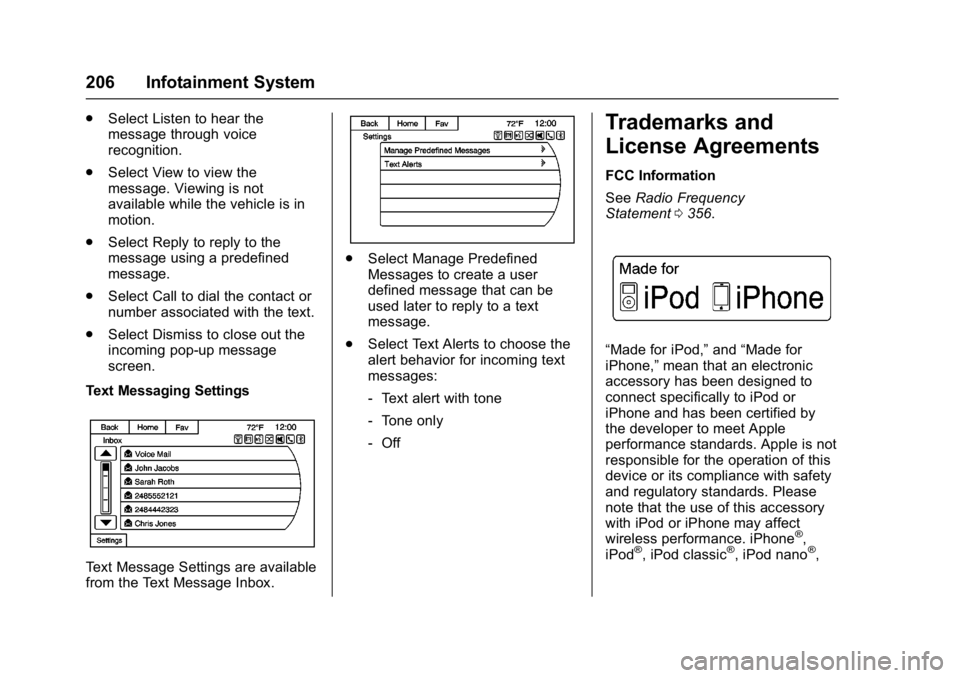
Text Messaging Settings
Text Message Settings are available
from the Text Message Inbox.
. Select Manage Predefined
Messages to create a user
defined message that can be
used later to reply to a text
message.
. Select Text Alerts to choose the
alert behavior for incoming text
messages:
‐Text alert with tone
‐ Tone only
‐ Off
Trademarks and
License Agreements
FCC Information
See Radio Frequency
Statement 0356.
“Made for iPod,” and“Made for
iPhone,” mean that an electronic
accessory has been designed to
connect specifically to iPod or
iPhone and has been certified by
the developer to meet Apple
performance standards. Apple is not
responsible for the operation of this
device or its compliance with safety
and regulatory standards. Please
note that the use of this accessory
with iPod or iPhone may affect
wireless performance. iPhone
®,
iPod®, iPod classic®, iPod nano®,
Page 209 of 381

Buick Cascada Owner Manual (GMNA-Localizing-U.S-9186636) - 2016 - crc -
3/9/16
208 Infotainment System
Manufactured under license from
Dolby Laboratories. Dolby and the
double-D symbol are trademarks of
Dolby Laboratories.
Map End User License
Agreement (Optional
Equipment Applies Where
Equipped)
END USER TERMS
The Map Data Disc (“Data”) is
provided for your personal, internal
use only and not for resale. It is
protected by copyright, and is
subject to the following terms (this
“End User License Agreement”) and
conditions which are agreed to by
you, on the one hand, and HERE
North America, LLC (“HERE”) and
its licensors (including their
licensors and suppliers) on the
other hand.In addition, the Lonely Planet Travel
Guide content is subject to the
following supplier notices (if
equipped):
© 2014 Lonely Planet Publications
Pty Ltd. All rights reserved.
PANASONIC and its content
providers have tried to make this
information as accurate as possible,
but it is provided
“as is”and
PANASONIC and its content
providers accept no responsibility
for any loss, injury or inconvenience
resulting from this information. You
should verify critical information (like
visas, health and safety) before you
travel.
TERMS AND CONDITIONS
Personal Use Only. You agree to
use this Data together with the
General Motors MyLink or IntelliLink
Connected Navigation Radio
Platform for the solely personal,
non-commercial purposes for which
you were licensed, and not for
service bureau, time-sharing or
other similar purposes. Accordingly,
but subject to the restrictions set
forth in the following paragraphs, you agree not to otherwise
reproduce, copy, modify, decompile,
disassemble, create any derivative
works of, or reverse engineer any
portion of this Data, and may not
transfer or distribute it in any form,
for any purpose, except to the
extent permitted by mandatory laws.
Restrictions
Except where you have been
specifically licensed to do so by
PANASONIC, and without limiting
the preceding paragraph, you may
not (a) use this Data with any
products, systems, or applications
installed or otherwise connected to
or in communication with vehicles,
capable of vehicle navigation,
positioning, dispatch, real time route
guidance, fleet management or
similar applications; or (b) with or in
communication with any positioning
devices or any mobile or
wireless-connected electronic or
computer devices, including without
limitation cellular phones, palmtop
and handheld computers, pagers,
and personal digital assistants
or PDAs
Page 215 of 381
Buick Cascada Owner Manual (GMNA-Localizing-U.S-9186636) - 2016 - crc -
3/9/16
214 Climate Controls
automatically when the interior
temperature is cold and the outside
temperature is about 4 °C (40 °F)
and below. The auto rear defogger
turns off automatically after about
10 minutes. At higher speeds, the
rear window defogger may stay on
continuously.
If equipped with heated outside
rearview mirrors, they turn on when
the rear window defogger button is
on and help to clear fog or frost from
the surface of the mirrors. See
Heated Mirrors033.
Caution
Do not try to clear frost or other
material from the inside of the
front windshield and rear window
with a razor blade or anything
else that is sharp. This may
damage the rear window
defogger grid and affect the
radio's ability to pick up stations
clearly. The repairs would not be
covered by the vehicle warranty.
MorL:Press to turn the heated
seats on or off. See Heated Front
Seats 049.
(:If equipped, press to turn the
heated steering wheel on or off. See
Heated Steering Wheel 094.
Remote Start Climate Control
Operation : If equipped with the
remote vehicle start feature, the
climate control system may run
when the vehicle is started remotely.
The system uses the driver ’s
previous settings to heat or cool the
inside of the vehicle. The rear defog
may come on during remote start
based on cold ambient conditions.
The rear defog indicator light does
not come on during a remote start.
If the vehicle has front heated seats,
they may come on during a remote
start. The heated seat indicator
lights do not come on during a
remote start. See Remote Vehicle
Start 049 and Heated Front
Seats 049.
Air Vents
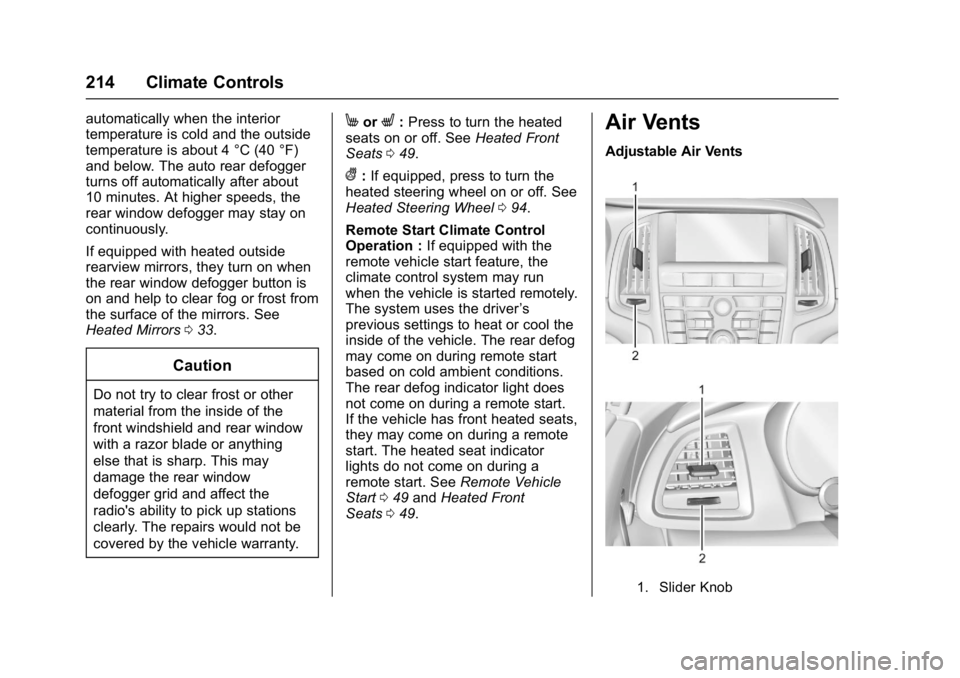
Adjustable Air Vents
1. Slider Knob