steering wheel BUICK CASCADA 2016 Owner's Guide
[x] Cancel search | Manufacturer: BUICK, Model Year: 2016, Model line: CASCADA, Model: BUICK CASCADA 2016Pages: 381, PDF Size: 5.52 MB
Page 132 of 381
Buick Cascada Owner Manual (GMNA-Localizing-U.S-9186636) - 2016 - crc -
3/9/16
Infotainment System 131
Use the thumbwheel to select the
next or previous favorite radio
station, CD, MP3 track, USB, and
Bluetooth Audio.
Use
_SRC to skip to the next song
or show using Pandora or Stitcher.
See Pandora Internet Radio 0146
or Stitcher Internet Radio 0150.
+
x− :Press + to increase the
volume. Press −to decrease.
See Steering Wheel Controls 093.
Using the System
The infotainment system is
controlled by touching the screen,
and by using the knobs and other
buttons.
Voice recognition, through the
steering wheel controls, can be
used to control the infotainment
features.
Press
b/gon the steering wheel
controls to begin voice recognition.
See Voice Recognition 0191.
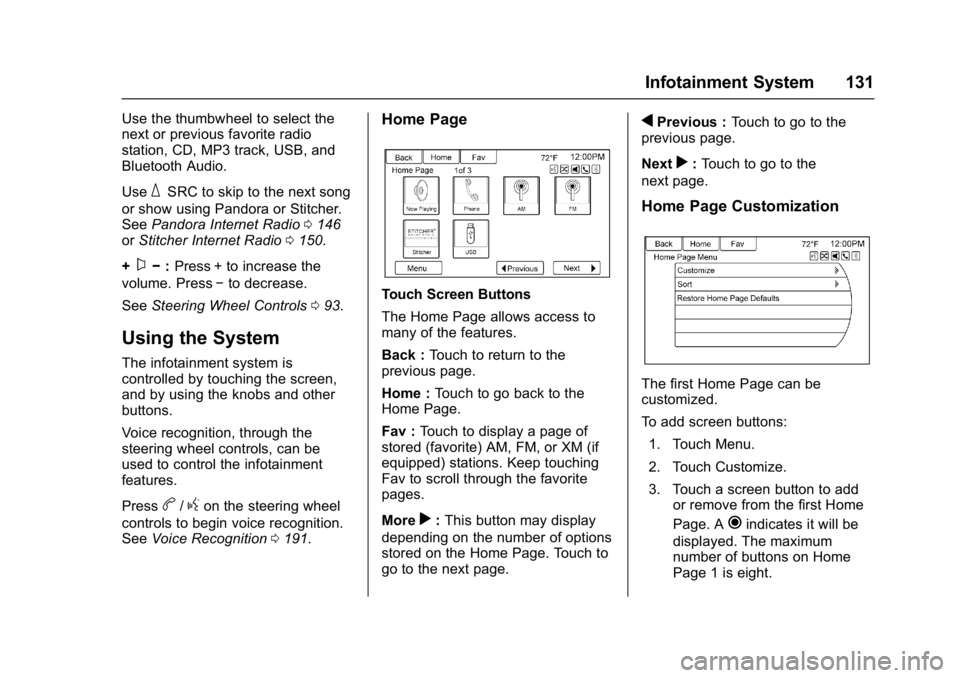
Home Page
Touch Screen Buttons
The Home Page allows access to
many of the features.
Back : Touch to return to the
previous page.
Home : Touch to go back to the
Home Page.
Fav : Touch to display a page of
stored (favorite) AM, FM, or XM (if
equipped) stations. Keep touching
Fav to scroll through the favorite
pages.
More
r: This button may display
depending on the number of options
stored on the Home Page. Touch to
go to the next page.
qPrevious : Touch to go to the
previous page.
Next
r: Touch to go to the
next page.
Home Page Customization
The first Home Page can be
customized.
To add screen buttons:
1. Touch Menu.
2. Touch Customize.
3. Touch a screen button to add or remove from the first Home
Page. A
hindicates it will be
displayed. The maximum
number of buttons on Home
Page 1 is eight.
Page 137 of 381
Buick Cascada Owner Manual (GMNA-Localizing-U.S-9186636) - 2016 - crc -
3/9/16
136 Infotainment System
Caution
Do not attach a device with a
suction cup to the display. This
may cause damage and would
not be covered by the vehicle
warranty.
Software Updates
See www.buick.com for software
updates.
Radio
AM-FM Radio
Playing the Radio
O/n:
. Press to turn the radio on or off.
. Turn to increase or decrease the
volume of the active source.
The steering wheel controls can
also be used to adjust the volume.
See Steering Wheel Controls 0130.
Radio Operation
The radio will work when the key is
in ON/RUN or ACC/ACCESSORY.
When the key is turned from ON/
RUN to LOCK/OFF, the radio will
continue to work for 10 minutes or
until the driver door is opened.
The radio can be turned on by
pressing the power button on the
radio and will stay on for
10 minutes. Opening the driver door
will not turn the radio off when
pressing the power button. Some radios may stay on longer
and reset the time for 10 minutes if
there are any additional presses of
the radio button.
The radio can be turned off at any
time by pressing the power button.
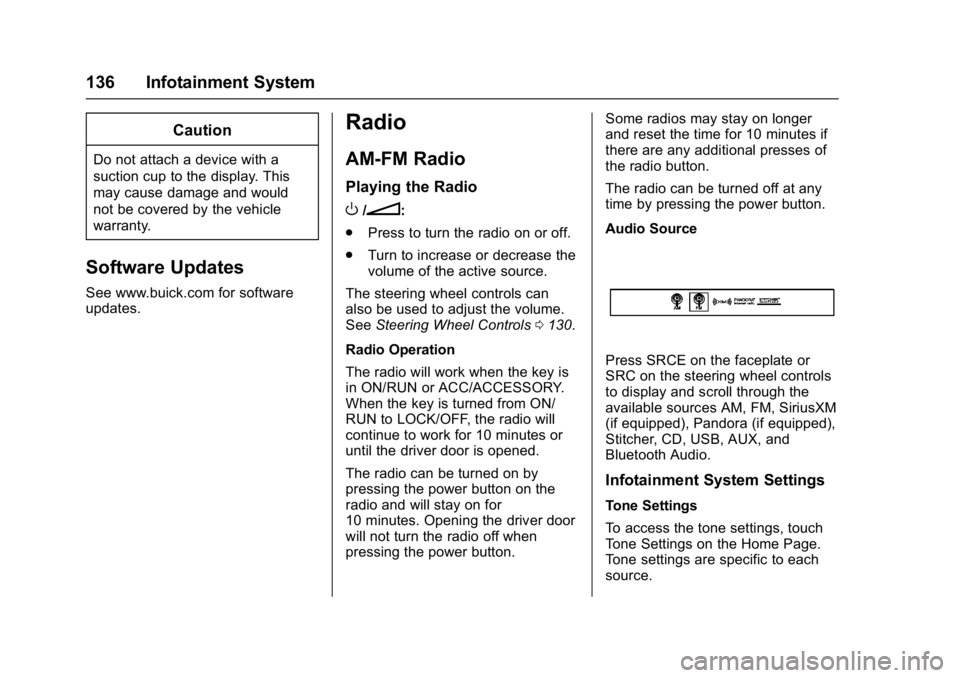
Audio Source
Press SRCE on the faceplate or
SRC on the steering wheel controls
to display and scroll through the
available sources AM, FM, SiriusXM
(if equipped), Pandora (if equipped),
Stitcher, CD, USB, AUX, and
Bluetooth Audio.
Infotainment System Settings
Tone Settings
To access the tone settings, touch
Tone Settings on the Home Page.
Tone settings are specific to each
source.
Page 138 of 381
Buick Cascada Owner Manual (GMNA-Localizing-U.S-9186636) - 2016 - crc -
3/9/16
Infotainment System 137
To adjust the settings:
.Bass: Touch + or −to change
the level.
. Mid (Midrange): Touch + or −to
change the level.
. Treble: Touch + or −to change
the level.
. EQ: Press or turn the
Z
knob to cycle through the preset
EQ options.
. Fade: Touch F or R for more
sound from the front or rear
speakers. The middle position
balances the sound between the
front and rear speakers.
. Balance: Touch L or R for more
sound from the left or right
speakers. The middle position
balances the sound between the
left and right speakers.
Finding a Station
Press SRCE on the faceplate or
press SRC on the steering wheel
controls to select AM, FM, SiriusXM
(if equipped), Pandora (if equipped),
Stitcher (if equipped), CD, USB,
AUX, and Bluetooth Audio. Turn the
Zknob to find a radio
station. To select a preset station,
press FAV 1/2/3 to scroll through the
favorite pages and then press a
preset button on the radio or the
screen button.
Seeking a Station
Press
s ©or¨\to search for a
station.
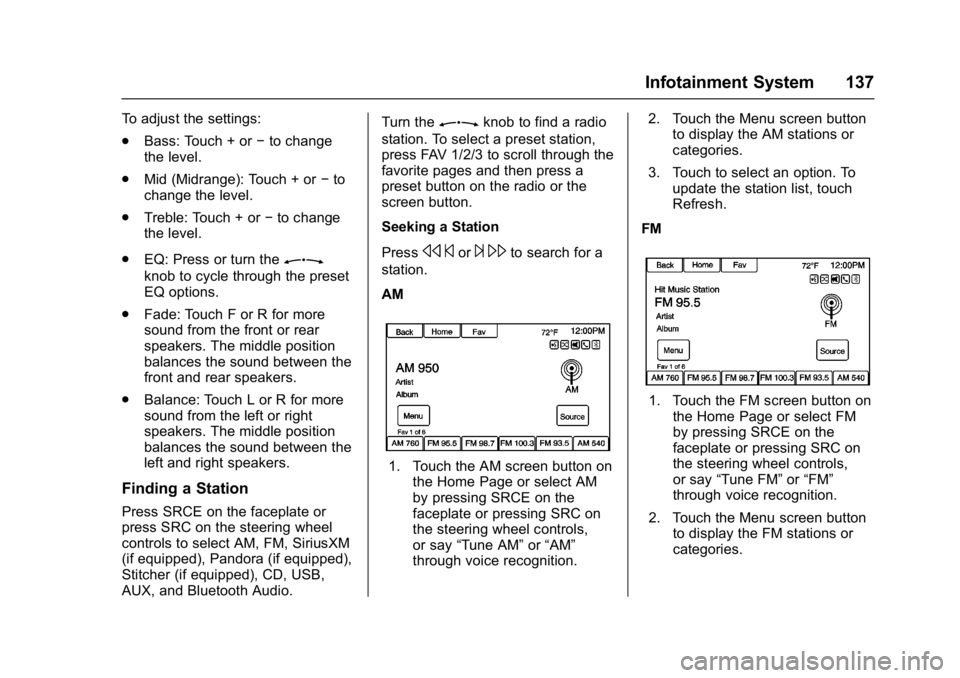
AM
1. Touch the AM screen button on the Home Page or select AM
by pressing SRCE on the
faceplate or pressing SRC on
the steering wheel controls,
or say “Tune AM” or“AM”
through voice recognition. 2. Touch the Menu screen button
to display the AM stations or
categories.
3. Touch to select an option. To update the station list, touch
Refresh.
FM
1. Touch the FM screen button on the Home Page or select FM
by pressing SRCE on the
faceplate or pressing SRC on
the steering wheel controls,
or say “Tune FM” or“FM”
through voice recognition.
2. Touch the Menu screen button to display the FM stations or
categories.
Page 139 of 381
Buick Cascada Owner Manual (GMNA-Localizing-U.S-9186636) - 2016 - crc -
3/9/16
138 Infotainment System
3. Touch to select an option. Toupdate the station list, touch
Refresh.
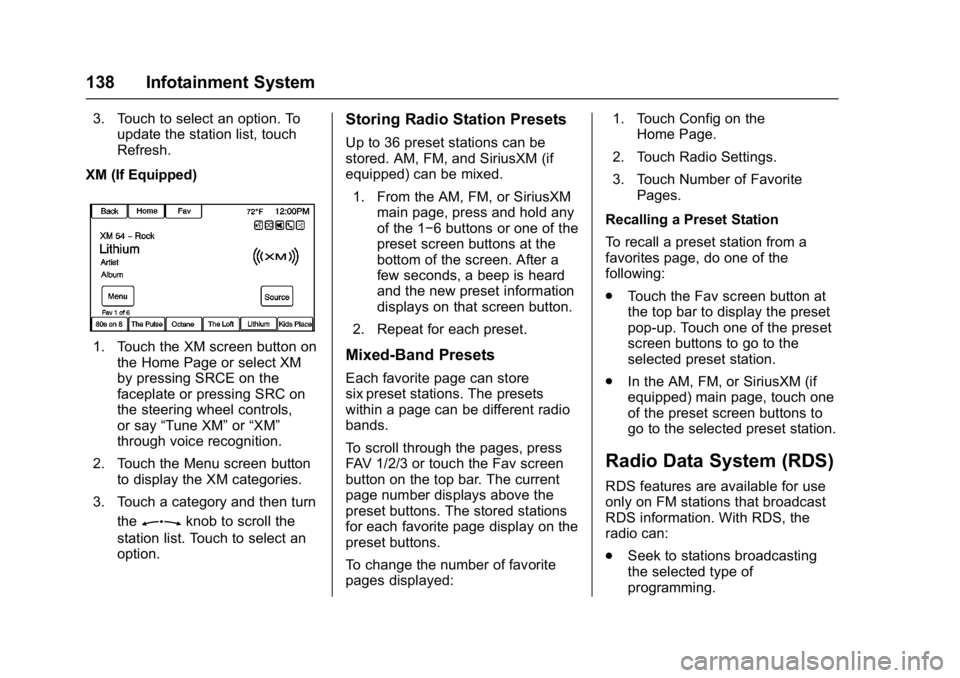
XM (If Equipped)
1. Touch the XM screen button on the Home Page or select XM
by pressing SRCE on the
faceplate or pressing SRC on
the steering wheel controls,
or say “Tune XM” or“XM”
through voice recognition.
2. Touch the Menu screen button to display the XM categories.
3. Touch a category and then turn the
Zknob to scroll the
station list. Touch to select an
option.
Storing Radio Station Presets
Up to 36 preset stations can be
stored. AM, FM, and SiriusXM (if
equipped) can be mixed.
1. From the AM, FM, or SiriusXM main page, press and hold any
of the 1−6 buttons or one of the
preset screen buttons at the
bottom of the screen. After a
few seconds, a beep is heard
and the new preset information
displays on that screen button.
2. Repeat for each preset.
Mixed-Band Presets
Each favorite page can store
six preset stations. The presets
within a page can be different radio
bands.
To scroll through the pages, press
FAV 1/2/3 or touch the Fav screen
button on the top bar. The current
page number displays above the
preset buttons. The stored stations
for each favorite page display on the
preset buttons.
To change the number of favorite
pages displayed: 1. Touch Config on the
Home Page.
2. Touch Radio Settings.
3. Touch Number of Favorite Pages.
Recalling a Preset Station
To recall a preset station from a
favorites page, do one of the
following:
. Touch the Fav screen button at
the top bar to display the preset
pop-up. Touch one of the preset
screen buttons to go to the
selected preset station.
. In the AM, FM, or SiriusXM (if
equipped) main page, touch one
of the preset screen buttons to
go to the selected preset station.
Radio Data System (RDS)
RDS features are available for use
only on FM stations that broadcast
RDS information. With RDS, the
radio can:
.Seek to stations broadcasting
the selected type of
programming.
Page 148 of 381

Buick Cascada Owner Manual (GMNA-Localizing-U.S-9186636) - 2016 - crc -
3/9/16
Infotainment System 147
To relaunch Pandora, press SRCE
on the faceplate or press SRC on
the steering wheel controls.
If nothing happens when the
available Pandora screen button is
touched, download the latest
Pandora application and retry.
Pandora will always be highlighted
on the Home Page when an iPhone,
iPad, or iPod touch is connected
using the USB port. To use, log into
your account.
If the“Please See Device” message
is shown, the login screen may
display on the device.
If Pandora is shut down on the
phone or another audio app is used,
Pandora may not start on the next
ignition cycle. If iPod source is
selected, it may show iPod and then
switch to Pandora.
Using an Android Phone
1. Pair the Android phone using Bluetooth. 2. Use one of the following to
launch:
.Launch the application on
the device.
. Touch Pandora on the
Home Page.
. Press
b/gand say
“Pandora” or“Tune
Pandora.”
After Pandora has been launched,
press SRCE on the faceplate or
press SRC on the steering wheel
controls to access Pandora
features.
If nothing happens when the
available Pandora screen button is
touched, download the latest
Pandora application and retry.
If the “Please See Device” message
is shown, the login screen may
display on the device.
If the “Please Unlock the Phone or
Restart the App and Try again”
message is shown, then the phone
may be locked. Unlock the phone, close the app, and then restart the
app to ensure proper
communication.
Using a BlackBerry Phone
The phone must be unlocked. To
launch Pandora service:
1. Pair the BlackBerry phone using Bluetooth.
2. Use one of the following to launch:
.Launch the application on
the device.
. Touch Pandora on the
Home Page.
. Press
b/gand say
“Pandora” or“Tune
Pandora.”
After Pandora has been launched,
press SRCE on the faceplate or
press SRC on the steering wheel
controls to access Pandora
features.
If nothing happens when the
available Pandora screen button is
pressed, download the latest
Pandora application and retry.
Page 149 of 381
Buick Cascada Owner Manual (GMNA-Localizing-U.S-9186636) - 2016 - crc -
3/9/16
148 Infotainment System
If the“Please See Device” message
is shown, the login screen may
display on the device.
If the “Please Unlock the Phone or
Restart the App and Try again”
message is shown, then your phone
may be locked. Unlock the phone,
close the app, then restart the app
to ensure proper communication.
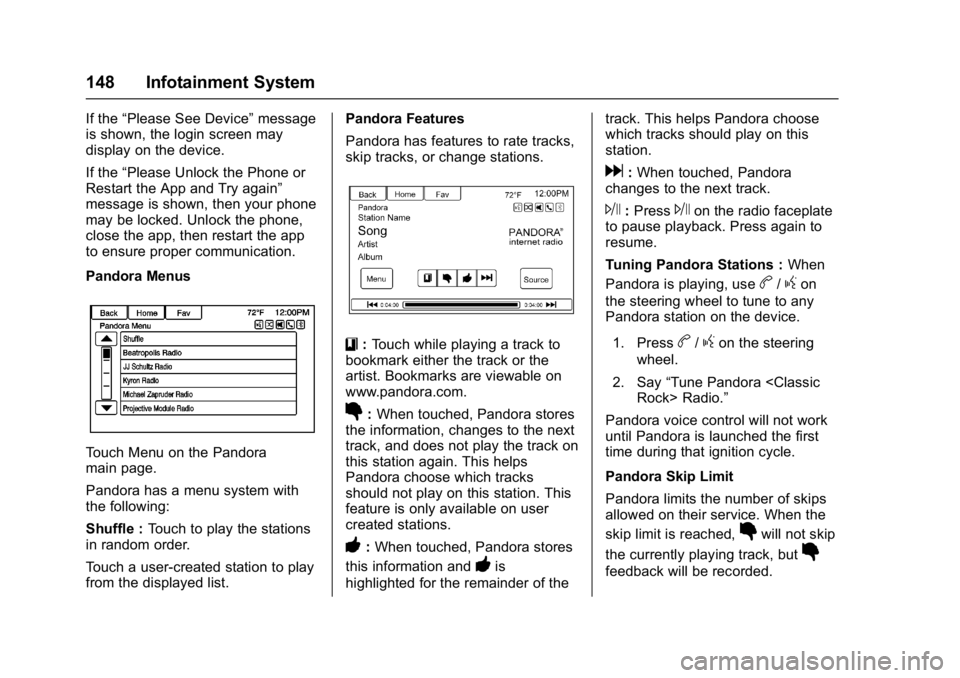
Pandora Menus
Touch Menu on the Pandora
main page.
Pandora has a menu system with
the following:
Shuffle : Touch to play the stations
in random order.
Touch a user-created station to play
from the displayed list. Pandora Features
Pandora has features to rate tracks,
skip tracks, or change stations.
}:
Touch while playing a track to
bookmark either the track or the
artist. Bookmarks are viewable on
www.pandora.com.
}: When touched, Pandora stores
the information, changes to the next
track, and does not play the track on
this station again. This helps
Pandora choose which tracks
should not play on this station. This
feature is only available on user
created stations.
-: When touched, Pandora stores
this information and
-is
highlighted for the remainder of the track. This helps Pandora choose
which tracks should play on this
station.
d:
When touched, Pandora
changes to the next track.
J: PressJon the radio faceplate
to pause playback. Press again to
resume.
Tuning Pandora Stations : When
Pandora is playing, use
b/gon
the steering wheel to tune to any
Pandora station on the device.
1. Press
b/gon the steering
wheel.
2. Say “Tune Pandora
Pandora voice control will not work
until Pandora is launched the first
time during that ignition cycle.
Pandora Skip Limit
Pandora limits the number of skips
allowed on their service. When the
skip limit is reached,
}will not skip
the currently playing track, but
}
feedback will be recorded.
Page 152 of 381

Buick Cascada Owner Manual (GMNA-Localizing-U.S-9186636) - 2016 - crc -
3/9/16
Infotainment System 151
.On an iPhone, iPad, or iPod
touch, go to the iTunes Store
and search for Stitcher.
Launching Stitcher
Connect the iPhone, iPad, or iPod
touch to the USB port, or connect
Android through Bluetooth. See
Auxiliary Devices 0164 orBluetooth
0 197. For first-time use, set up the
stations before connecting to the
vehicle. The Stitcher icon will be
available on the Home Page and
source pop-up displays if the latest
application is installed on the
device.
Using the iPhone, iPod touch,
or an iPad
1. Plug the device into the USB port. The phone screen must
be unlocked.
2. Use one of the following to launch :
.Press the application on the
device.
. Touch Stitcher on the
Home Page. .
Press
b/gand say
“Stitcher” or“Tune Stitcher.”
. Accept any notifications on
the device screen.
3. If Stitcher does not begin playing, select a category and
then a station.
After Stitcher has been launched,
press SRCE on the faceplate or
press SRC on the steering wheel
controls to access Stitcher features.
If nothing happens when the
available Stitcher screen button is
touched, download the latest
Stitcher application and retry.
Stitcher will always be highlighted
on the Home Page when an iPhone,
iPad, or iPod touch is connected
using the USB port. To use, log into
your account.
If the “Please See Device” message
is shown, the login screen may
display on the device.
If the “Please Unlock the Phone or
Restart the App and Try again”
message is shown, then the phone
may be locked. Unlock the phone, close the app, then restart the app
and make sure the home page is
visible on the phone/device.
Using an Android Phone
1. Pair the Android phone using Bluetooth.
2. Use one of the following to launch:
.Press the application on the
device.
. Touch Stitcher on the
Home Page.
. Press
b/gand say
“Stitcher” or“Tune Stitcher.”
3. If Stitcher does not begin playing, select a category and
then a station.
After Stitcher has been launched,
press SRCE on the faceplate or
press SRC on the steering wheel
controls to access Stitcher features.
If nothing happens when the
available Stitcher screen button is
touched, download the latest
Stitcher application and retry.
Page 161 of 381
Buick Cascada Owner Manual (GMNA-Localizing-U.S-9186636) - 2016 - crc -
3/9/16
160 Infotainment System
.The following restrictions apply
for the data stored on a USB
MP3 player or USB device:
‐Maximum folder structure
depth: 8 levels.
‐ Maximum number of MP3/
WMA files that can be
displayed: 10,000.
‐ Playlist entries must be in the
form of relative paths.
‐ The system attribute for
folders/files that contain audio
data must not be set.
To play a USB device, do one of the
following:
. Connect the USB and it begins
to play.
. Touch Now Playing on the
Home Page.
. Press SRCE to scroll until the
USB source screen is available.
. Press
b/gon the steering
wheel controls to play CD, Artist,
Album, Song Title, or Song
Genre. See Voice
Recognition 0191. The following playlist formats are
supported:
.
M3U (Standard and Extended)
. iTunes
. PLS (Standard)
. WAX
. ASX
. RMP
The radio supports plugging a cell
phone in as a USB drive as long as
the cell phone supports USB mass
storage class or has USB disc drive
support enabled.
While the USB source is active, use
the following to operate USB
function:
ZKnob : Turn to scroll through
the list. Turn quickly to fast scroll
alphabetically through large lists.
J: Touch to start, pause,
or resume play of the current media
source.
s ©: .
Touch to seek to the beginning
of the current or previous track.
If the track has been playing for
less than five seconds, the
previous track plays. If playing
longer than five seconds, the
current track restarts.
. Touch and hold to reverse
quickly through playback.
Release to return to playing
speed. Elapsed time displays.
¨\:
. Touch to seek to the next track.
. Touch and hold to advance
quickly through playback.
Release to return to playing
speed. Elapsed time displays.
USB Menu
The following are available through
the USB Menu:
Shuffle: Touch to play the tracks
randomly. Touch again to stop
shuffle.
Play More Like This:
1. Touch to automatically create a playlist of songs that are like
the song currently playing.
Page 165 of 381
Buick Cascada Owner Manual (GMNA-Localizing-U.S-9186636) - 2016 - crc -
3/9/16
164 Infotainment System
3. Touch SoftwareVersions Menu.
4. Touch Clear and Reset Radio.
5. Touch Yes.
Pair the phone again and the device
will have to index again.
Bluetooth Audio and Voice
Recognition
See Bluetooth Audio 0164 and
Voice Recognition 0191 for
information on using voice
recognition with Bluetooth audio.
Make sure all devices have the
latest software downloaded.
Auxiliary Devices
If equipped, this vehicle has an
auxiliary input jack in the center
stack. Possible auxiliary audio
sources include:
. Laptop computer
. MP3 player
. Tape player This jack is not an audio output. Do
not plug headphones into the
auxiliary input jack. Set up any
auxiliary device while the vehicle is
in P (Park).
Connect a 3.5 mm (1/8 in) cable
from the auxiliary device to the
auxiliary input jack. When a device
is connected, the system
automatically begins playing audio
from the device over the vehicle
speakers.
If an auxiliary device has already
been connected, but a different
source is currently active, do one of
the following:
.
Press SRCE to scroll all of the
available audio source screens,
until the AUX source screen is
selected.
. Say “Play Front AUX” using
voice recognition to play the
auxiliary device. See Voice
Recognition 0191.
. Touch AUX on the Home Page.
Bluetooth Audio
If equipped, music may be played
from a paired Bluetooth device. See
“Pairing a Phone/Device” under
Bluetooth 0197.
To play music through a Bluetooth
device : 1. Power on the device, pair, and connect the device.
2. Music can be launched by doing one of the following:
.Touch Bluetooth on the
Home Page.
. Press SRCE until Bluetooth
Audio is selected.
. Press SRC on the steering
wheel controls until
Bluetooth Audio is selected.
See Steering Wheel
Controls 0130.
. Use voice recognition. See
Voice Recognition 0191.
The music can be controlled by
either the infotainment controls or
the controls on the device.
Page 192 of 381

Buick Cascada Owner Manual (GMNA-Localizing-U.S-9186636) - 2016 - crc -
3/9/16
Infotainment System 191
Database Coverage
Explanations
Coverage areas vary with respect to
the level of map detail available for
any given area. Some areas feature
greater levels of detail than others.
If this happens, it does not mean
there is a problem with the system.
As the map data is updated, more
detail can become available for
areas that previously had limited
detail. SeeMap Data
Updates 0190.
Voice Recognition
Voice recognition allows for
hands-free operation of the
infotainment system features.
Voice recognition can be used when
the radio is on or when Retained
Accessory Power (RAP) is active.
See Retained Accessory Power
(RAP) 0230. The system maintains
a minimum volume level.
Using Voice Recognition
1. Pressb/gon the steering
wheel. The audio system
mutes. A voice prompt states,
“Please say a command.” Wait
until the tone is heard before
speaking.
If there is no tone, make sure
that the volume is turned up.
While voice recognition is
active, the system displays a
g
symbol in the top right of the
screen.
2. Clearly speak one of the commands listed later in this
section. Press
b/gtwice on the steering
wheel to skip the voice prompt
messages.
Canceling Voice Recognition
1. Press and release$/ion
the steering wheel control to
cancel a command, if the
system response does not
match the voice command,
or say “Goodbye” or“Cancel.”
2. The system replies, “Goodbye.”
Helpful Hints for Speaking
Commands
.
When multiple commands are
available, choose the command
that works best for you.
. Words in parentheses are
optional. For example, for the
command “Tune FM
(frequency),” saying“Tune FM
87.7” or“Tune FM” are both
valid commands.
. When the command is
recognized, the system will
either perform the function or
ask to confirm the choice.