manual radio set BUICK ENCLAVE 2011 User Guide
[x] Cancel search | Manufacturer: BUICK, Model Year: 2011, Model line: ENCLAVE, Model: BUICK ENCLAVE 2011Pages: 388, PDF Size: 5.26 MB
Page 154 of 388

Black plate (4,1)Buick Verano Owner Manual - 2012 - CRC - 1/10/12
7-4 Infotainment System
Overview (Radio with CD
and Touchscreen)
Infotainment System Overview
The infotainment system in the
vehicle is a touch screen system.
It is controlled by touching the
screen buttons, the TUNE/MENU
knob, preset buttons, and other
buttons on the faceplate.
The TUNE/MENU knob can be
turned and then pressed to
complete any of the highlighted
screen functions.
The preset buttons can be pressed
to select the appropriate screen
button function as shown on the
display.
Overview (Radio with CD and Touchscreen)
A. HOME (Home Page)
.See “Home Page”
following in this section. B. Buttons 1−6.The preset buttons
numbered one through
six can be used to select
stored AM, FM, and XM
(if equipped) stations.
Page 155 of 388

Black plate (5,1)Buick Verano Owner Manual - 2012 - CRC - 1/10/12
Infotainment System 7-5
C.s©(Previous/Reverse)
.Press to seek to the
beginning of the current or
previous track. If the track
has been playing for less
than five seconds, it seeks
the previous track. If longer
than five seconds, the
current track starts from
the beginning.
.Press and hold to quickly
reverse through a track.
Release the button to
return to playing speed.
See CD Player on
page 7‑22 andMP3 on
page 7‑25 for more
information.
.For AM, FM, or XM (if
equipped), press to seek to
the previous strong station. D.
O/VOL (Power/Volume)
.Press to turn the system
on and off.
.Turn to adjust the volume.
E.
¨ \(Next/Forward)
.Press to seek the next
track.
.Press and hold to fast
forward through a track.
.Release the button to
return to playing speed.
See CD Player on
page 7‑22 andMP3 on
page 7‑25 for more
information.
.For AM, FM, or XM (if
equipped), press to seek to
the next strong station. F. FAV 1-2-3 (Favorites Page)
.Press to display the
current page number
above the preset buttons.
The stored stations for
each list display on the
touch-sensitive preset
buttons at the bottom of
the screen. The number
of preset FAV lists
can be changed in the
Configuration Menu.
G. SRCE (Source)
.Press to change the audio
sources such as AM-FM
Radio, XM™ (if equipped),
CD, and AUX.
H.
p/j(Play/Pause)
.Press to start, pause, and
resume playback. See CD
Player on page 7‑22 and
MP3 on page 7‑25 for
more information.
Page 156 of 388

Black plate (6,1)Buick Verano Owner Manual - 2012 - CRC - 1/10/12
7-6 Infotainment System
I.V/8(Phone/Mute)
.SeeBluetooth
(Infotainment Controls) on
page 7‑31 orBluetooth
(Overview) on page 7‑30
or Bluetooth (Voice
Recognition) on page 7‑35
for more information.
J. CD Slot
K. TONE
.Press to access the sound
menu screen to adjust
bass, midrange, and treble.
See AM-FM Radio on
page 7‑12 for more
information.
L.
/BACK
.Press to return to the
previous screen in a menu.
.If on a page accessed
directly by a faceplate
button or Home Page
screen button,
pressing
/BACK will
go to the previous menu. M. TUNE/MENU
.Turn to highlight a feature.
Press to activate the
highlighted feature.
.Turn to manually change
the radio station.
N. CONFIG (Configuration)
.Press to adjust features
for radio, display, phone,
vehicle, and time.
O. INFO (Information)
.Press to scroll through an
audio information screen.
P.
Z(Eject)
.Press to eject a disc from
the CD player. See CD
Player on page 7‑22.
Q.
H(Clock)
.Press to set the time.
R. AS 1-2 (Autostore)
Touch Screen Buttons
Touch screen buttons are on the
screen and highlighted when a
feature is available. Some screen
buttons highlight when active and
gray out when inactive.
Home Page
The infotainment system displays a
home page that makes accessing
many of the features an easy
process.
Back: If on page 2 of the Home
Page, press Back to return to
page 1 of the Home Page. If on
page 1, Back serves no function.
Home: While navigating through
other menus, press to go back to
the Home Page to start a different
feature.
Fav: Press to display a page of
stored (favorite) AM, FM, or XM (if
equipped) stations. Keep pressing
Fav to scroll through the favorite
pages.
Page 158 of 388
Black plate (8,1)Buick Verano Owner Manual - 2012 - CRC - 1/10/12
7-8 Infotainment System
Press the AUX screen button to
access any connected auxiliary
device. SeeAuxiliary Devices on
page 7‑26.
Time and Date Settings
From the Time and Date Settings
screen button, press to display the
Time and Date Settings menu.
Set Time: Press + or−to increase
or decrease the Hours and Minutes
displayed on the clock.
Set Date: Press + or−to increase
or decrease the day.
12/24 HR Format: Press the
12 Hours screen button for standard
time; press the 24 Hours screen
button for military time.
Set Date Format: Depending on
the region, the following date
formats may be available: MM/DD/
YYYY, DD.MM.YYYY, or YYYY/
MM/DD.
Day + or Day −:Press the Day +
or Day −display buttons to increase
or decrease the day. Display:
Press Display to turn the
display of the clock on the screen
On or Off.
Radio Settings
Press the Config button on the
Home Page or the CONFIG button
on the faceplate to enter the menu
options. Turn the TUNE/MENU knob
or touch-tap the scroll bar to scroll
through the available options. Press
the TUNE/MENU knob or press
Radio Settings to display the radio
settings menu. Press this feature to
make changes for radio information
displayed, preset pages, Auto
Volume Control, and XM Categories
Restore. See Satellite Radio on
page 7‑17 (if equipped), for more
information about XM Categories.
The Radio Settings are:
Speed Dependent Volume:
Select OFF, Low, Medium, or High
sensitivity to automatically adjust
the volume to minimize the effects
of unwanted background noise that
can result from changing road
surfaces, driving speeds, or open windows. This feature works best
at lower volume settings where
background noise is typically louder
than the sound system volume.
Startup Volume:
Press to set the
maximum volume level for startup
that will be used even if a higher
volume had been set when the radio
was turned off.
Radio Favorites: Press to select
the number of FAV pages to be
used in the system.
Add/Remove XM Categories:
Press to customize which available
XM Categories are used and
displayed in the system.
Phone Settings
See Bluetooth (Infotainment
Controls) on page 7‑31 orBluetooth
(Overview) on page 7‑30 or
Bluetooth (Voice Recognition) on
page 7‑35 in the“Phone” section for
more information on phone settings.
Page 159 of 388
Black plate (9,1)Buick Verano Owner Manual - 2012 - CRC - 1/10/12
Infotainment System 7-9
Vehicle Settings
SeeVehicle Personalization on
page 5‑30 for more information.
Display Settings
Press the Config button on the
Home Page or the CONFIG button
on the faceplate, then select Display
Settings from the list.
The following options may display:
Dimming Mode: Press to change
the screen background. The
Automatic setting adjusts the
screen background automatically
depending on the exterior lighting
conditions.
To change the overall brightness
setting for the display, use the
vehicle interior lighting instrument
panel illumination control.
Languages
The vehicle supports English,
French (Canadian), and Spanish.
The default language is English. Turn the TUNE/MENU knob to
highlight the language. Press
TUNE/MENU to change the display
language.
English and Metric Unit
Conversion
To change the display units between
English and metric units, see
Driver
Information Center (DIC) on
page 5‑21.
Operation
Controls
The infotainment system is
operated by using the pushbuttons,
multifunction knobs, menus shown
on the display, and steering wheel
controls, if equipped.
Turning the System On or Off
O/VOL (Power/Volume): Press to
turn the system on and off. Automatic Switch-Off
If the infotainment system has
been turned on after the ignition is
turned off, the system will turn off
automatically after 10 minutes.
Volume Control
O/VOL (Power/Volume):
Turn to
adjust the volume.
V/8(Phone/Mute): Press to
mute the infotainment system.
Press
V/8again, or turn
the
O/VOL knob to cancel mute.
Menu System (Radio with CD)
The Menu system for the uplevel
infotainment system appears
on the display screen.
Controls
The TUNE/MENU knob
and
/BACK are used to
navigate the menu system.
Page 161 of 388
Black plate (11,1)Buick Verano Owner Manual - 2012 - CRC - 1/10/12
Infotainment System 7-11
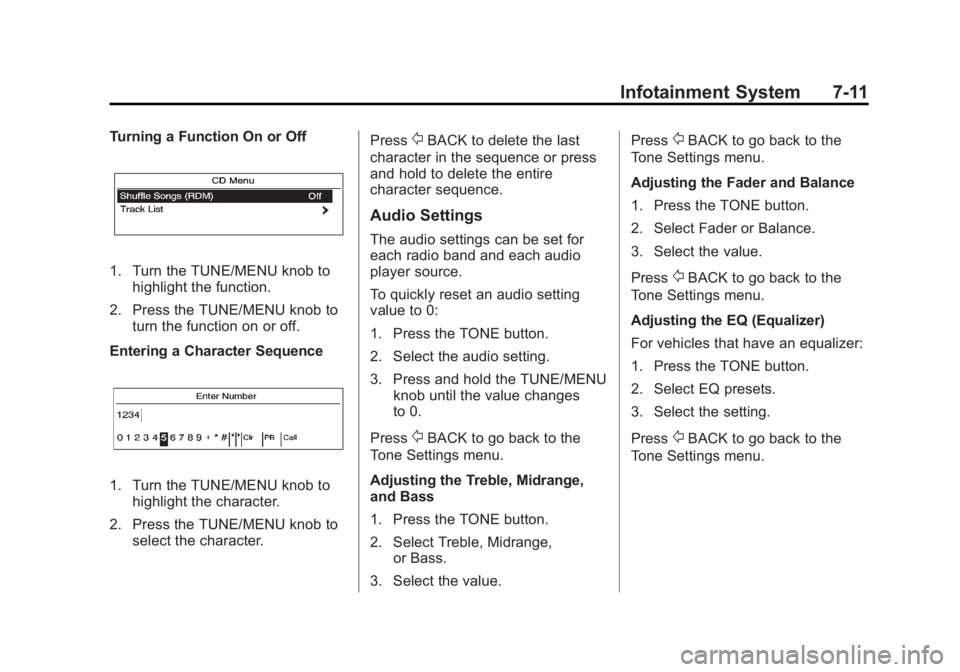
Turning a Function On or Off
1. Turn the TUNE/MENU knob tohighlight the function.
2. Press the TUNE/MENU knob to turn the function on or off.
Entering a Character Sequence
1. Turn the TUNE/MENU knob to highlight the character.
2. Press the TUNE/MENU knob to select the character. Press
/BACK to delete the last
character in the sequence or press
and hold to delete the entire
character sequence.
Audio Settings
The audio settings can be set for
each radio band and each audio
player source.
To quickly reset an audio setting
value to 0:
1. Press the TONE button.
2. Select the audio setting.
3. Press and hold the TUNE/MENU knob until the value changes
to 0.
Press
/BACK to go back to the
Tone Settings menu.
Adjusting the Treble, Midrange,
and Bass
1. Press the TONE button.
2. Select Treble, Midrange, or Bass.
3. Select the value. Press
/BACK to go back to the
Tone Settings menu.
Adjusting the Fader and Balance
1. Press the TONE button.
2. Select Fader or Balance.
3. Select the value.
Press
/BACK to go back to the
Tone Settings menu.
Adjusting the EQ (Equalizer)
For vehicles that have an equalizer:
1. Press the TONE button.
2. Select EQ presets.
3. Select the setting.
Press
/BACK to go back to the
Tone Settings menu.
Page 162 of 388

Black plate (12,1)Buick Verano Owner Manual - 2012 - CRC - 1/10/12
7-12 Infotainment System
System Settings
Configuring the Number of
Favorite Pages
To configure the number of available
favorite pages:
1. Press the CONFIG button.
2. Select Radio Settings.
3. Select Radio Favorites.
4. Select the number of availablefavorite pages.
5. Press
/BACK to go back to the
System Configuration menu.
Auto Volume
The auto volume feature
automatically adjusts the radio
volume to compensate for road and
wind noise as the vehicle speeds up
or slows down, so that the volume
level is consistent. The level of volume compensation
can be selected, or the auto volume
feature can be turned off.
1. Press the CONFIG button.
2. Select Radio Settings.
3. Select Auto Volume.
4. Select the setting.
5. Press
/BACK to go back to the
System Configuration menu.
Maximum Startup Volume
The maximum volume played when
the radio is first turned on can
be set.
1. Press the CONFIG button.
2. Select Radio Settings.
3. Select Maximum Startup Volume.
4. Select the setting.
5. Press
/BACK to go back to the
System Configuration menu.
Radio
AM-FM Radio
For vehicles equipped with the
MyLink or IntelliLink infotainment
system, see the separate MyLink/
IntelliLink Features and Functions
Guide for more information.
Control Buttons
The buttons used to control the
radio are:
O/VOL (Power/Volume):
.Press to turn the radio on or off.
.Turn the knob to increase or
decrease the volume. The
volume is adjusted for the
current audio source or voice
prompts.
RADIO/BAND (Radio with CD
Only): Press to turn the radio on
and choose between AM, FM, and
XM™, if equipped.
Page 163 of 388
Black plate (13,1)Buick Verano Owner Manual - 2012 - CRC - 1/10/12
Infotainment System 7-13
TUNE/MENU:Turn to navigate the
available menus and to search for
stations.
INFO: Press to display additional
information that may be available for
the current song.
s ©or¨\: Press to search for
stations.
FAV 1-2-3: Press to open the
favorites list and select the
favorites page.
Buttons 1−6: Press to select
preset stations.
AS 1-2 (Autostore): Press to open
the autostore list.
SRCE (Source/Radio with CD and
Touchscreen Only): Press to
select the AM, FM, or XM (if
equipped) band.
The audio sources can also be
changed by using the steering
wheel controls. See Steering Wheel
Controls on page 5‑2 for more
information.
Radio Menus (Radio with CD)
Radio menus are available for AM
and FM.
Turn the TUNE/MENU knob to open
the main radio menu for that band.
Selecting a Band
Press the RADIO/BAND button to
choose AM, FM, or XM, if equipped.
The last station that was playing
starts playing again.
Selecting a Station
Seek Tuning
If the radio station is not known:
Briefly press
s ©or¨\to
automatically search for the next
available station. If a station is not
found, the radio switches to a more
sensitive search level. If a station
still is not found, the frequency that
was last active begins to play. If the radio station is known:
Press and hold
s
©or¨\until
the station on the display is
reached, then release the button.
Manual Tuning
Turn the TUNE/MENU knob to
select the frequency on the display.
Favorites List
1. Turn the TUNE/MENU knob.
2. Select Favorites List.
3. Select the station.
Station Lists
1. Turn the TUNE/MENU knob.
2. Select AM or FM Station List. All receivable stations in the current
reception area are displayed. If a
station list has not been created,
an automatic station search
is done.
3. Select the station.
Page 164 of 388
Black plate (14,1)Buick Verano Owner Manual - 2012 - CRC - 1/10/12
7-14 Infotainment System
Category Lists
Most stations that broadcast an
RDS program type code specify the
type of programming transmitted.
Some stations change the program
type code depending on the
content. The system stores the RDS
stations sorted by program type in
the FM category list.
To search for a programming type
determined by station:
1. Turn the TUNE/MENU knob.
2. Select FM category list. A list ofall programming types available
displays.
3. Select the programming type. A list of stations that transmit
programming of the selected
type displays.
4. Select the station.
The category lists are updated when
the station lists are updated. Updating Station & Category Lists
If stations stored in the station list
can no longer be received:
1. Turn the TUNE/MENU knob.
2. Select Update AM or FM Station
List, if the stations stored in
the station list are no longer
received. A station search will be
completed and the first station in
the updated list will play.
To cancel the station search, press
the TUNE/MENU knob.
Radio Menus (Radio with CD
and Touchscreen)
Tone Menu
To access the sound menu, press
the TONE button.
Use the sound menu to adjust the
following features:
.Bass
.Middle
.Treble
.EQ
.Fade
.Balance
Setting the Tone
To adjust the bass, treble, and
midrange:
.Bass: Press Base and then +
or - to change the level.
.Middle (Midrange): Press Middle
and then + or - to change the
level.
.Treble: Press Treble and
then + or - to change the level.
Adjusting the Speakers
Scroll through the settings by
turning the TUNE/MENU knob.
Press this knob to select Fade or
Balance.
To adjust the speaker fade:
.Press F (Front) or R (Rear) to
change from the front or rear
speakers. Turn the TUNE/MENU
knob for more sound from the
left or right speakers.
Page 165 of 388
Black plate (15,1)Buick Verano Owner Manual - 2012 - CRC - 1/10/12
Infotainment System 7-15
To adjust the speaker balance:
.Press L (Left) or R (Right) to
change from the left or right
speakers.
EQ Settings
EQ (Equalization): The EQ
settings are selected through the
sound menu. EQ provides a choice
of Manual or Talk. Turn the TUNE/
MENU knob to highlight. Press
TUNE/MENU to select Manual
or Talk.
Radio Settings
To access the Radio Settings menu:
1. Press the CONFIG button.
2. Turn the TUNE/MENU knob until
Radio Settings displays. Press
the TUNE/MENU knob to display
other options within that feature.
Audio system settings or features
can be customized for:
.Audio Cue Options
.Auto Volume
.Gracenote Options
.Startup Volume
.Number of Favorite Pages
.XM Categories
.RDS
.Software Version Menus
Audio Cue Options: Audio Cue
Volume: Press + or - or turn the
TUNE/MENU knob to increase or
decrease the audio cue volume.
Turn the TUNE/MENU knob to On
or Off to turn Audio Cues on or off.
Auto Volume: Turn the TUNE/
MENU knob to select volume Off,
Low, Medium, or High.
Gracenote Options: Press the
TUNE/MENU knob to turn
Normalization on or off.
Startup Volume: Press + or - or
turn the TUNE/MENU knob to
increase or decrease the
infotainment startup volume. Number of Favorite Pages:
Turn
the TUNE/MENU knob to highlight
the number of favorites. Press the
TUNE/MENU knob to select.
XM Categories: If equipped, turn
the TUNE/MENU knob to highlight
the category. Press the TUNE/
MENU knob to select. Turn the
TUNE/MENU knob to Show all XM
Categories to display all categories.
RDS: Press the TUNE/MENU knob
to turn RDS on or off.
Software Version Menus: Turn the
TUNE/MENU knob to highlight the
menu. Press the TUNE/MENU knob
to select software menu.
Finding a Station
Select a band such as AM, FM,
or XM (if equipped).
Turn the TUNE/MENU knob to find
a radio station. To select a preset
station, press the corresponding
preset button.
See “Mixed-Band Presets” following
for more information.