radio controls BUICK ENCLAVE 2012 User Guide
[x] Cancel search | Manufacturer: BUICK, Model Year: 2012, Model line: ENCLAVE, Model: BUICK ENCLAVE 2012Pages: 382, PDF Size: 5.43 MB
Page 123 of 382
Black plate (21,1)Buick Verano Owner Manual - 2013 - crc - 10/17/12
Instruments and Controls 5-21
Information Displays
Driver Information
Center (DIC)
The Driver Information Center (DIC)
displays information about the
vehicle. It also displays warning
messages if a system problem is
detected. SeeVehicle Messages on
page 5‑24. All messages appear in
the DIC display in the center of the
instrument cluster.
On some models, the DIC may have
some warning lights or indicators
shown in the top portion of the
display. See Warning Lights,
Gauges, and Indicators on
page 5‑7.
The vehicle may also have features
that can be customized through the
controls on the radio. See Vehicle
Personalization on page 5‑30.
DIC Operation and Displays
The DIC has different displays
which can be accessed by using the
DIC buttons on the turn signal lever.
The DIC displays trip, fuel, and
vehicle system information, and
warning messages if a system
problem is detected.
The bottom of the DIC display
shows the position of the shift lever
and the odometer. It may also show
the direction the vehicle is driving.
In cold weather the DIC display may
change slowly. This is normal and
will move more quickly as the
vehicle's interior temperature rises.
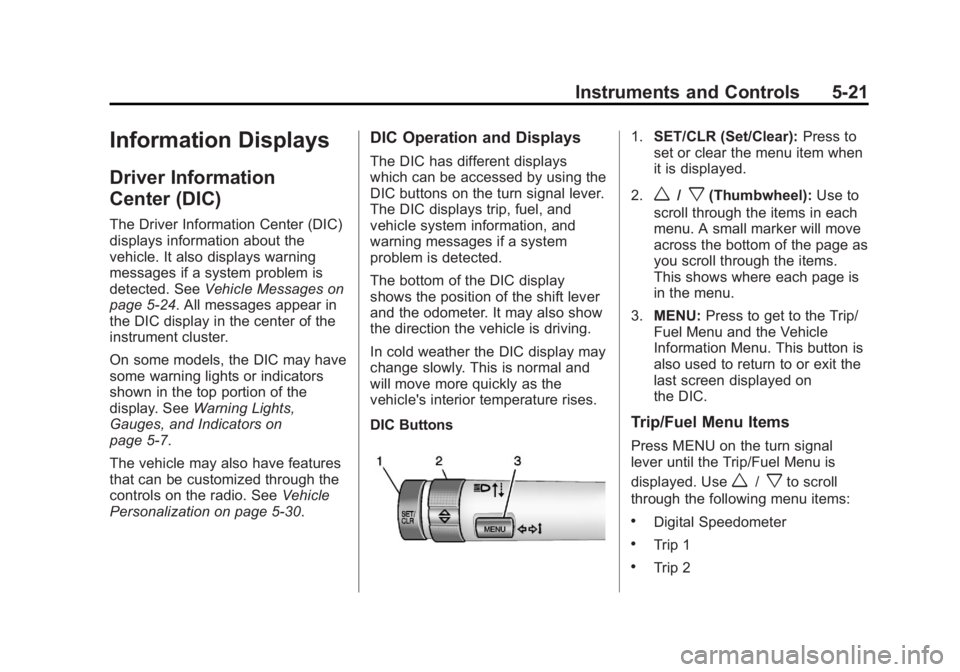
DIC Buttons
1. SET/CLR (Set/Clear): Press to
set or clear the menu item when
it is displayed.
2.
w/x(Thumbwheel): Use to
scroll through the items in each
menu. A small marker will move
across the bottom of the page as
you scroll through the items.
This shows where each page is
in the menu.
3. MENU: Press to get to the Trip/
Fuel Menu and the Vehicle
Information Menu. This button is
also used to return to or exit the
last screen displayed on
the DIC.
Trip/Fuel Menu Items
Press MENU on the turn signal
lever until the Trip/Fuel Menu is
displayed. Use
w/xto scroll
through the following menu items:
.Digital Speedometer
.Trip 1
.Trip 2
Page 132 of 382
Black plate (30,1)Buick Verano Owner Manual - 2013 - crc - 10/17/12
5-30 Instruments and Controls
Vehicle
Personalization
The audio system controls are used
to access the personalization
menus for customizing vehicle
features.
CONFIG (Configuration):Press to
access the Configuration
Settings menu.
TUNE/MENU: Press the center of
this knob to enter the menus and
select menu items. This feature is
unavailable with navigation radios.
Turn the knob to scroll through the
menus.
/BACK: Press to exit or move
backward in a menu.
Entering the Personalization
Menus
1. Press CONFIG to access the Configuration Settings menu. 2. Turn the TUNE/MENU knob to
highlight Vehicle Settings. Press
the CONFIG button until Vehicle
is highlighted on vehicles with a
navigation system only.
3. Press the center of the TUNE/ MENU knob to select the Vehicle
Settings menu. The key must be
in the ON/RUN position.
The following list of menu items may
be available:
.Climate and Air Quality
.Comfort and Convenience
.Collision/Detection Systems
.Lighting
.Power Door Locks
.Remote Lock/Unlock/Start
.Return to Factory Settings?
Turn the TUNE/MENU knob to
highlight the menu. Press the
TUNE/MENU knob to select it. Each
of the menus is detailed in the
following information. Vehicles with a navigation system
will display a checkmark to indicate
this feature is on.
Climate and Air Quality
If equipped, select the Climate and
Air Quality menu and the following
may be displayed:
.Auto Fan Speed
.Remote Start Auto Heat Seats
.Auto Defog
.Auto Rear Defog
Auto Fan Speed
This will allow you to select the
automatic fan speed. This feature
sets the climate control fan speed to
maintain the interior temperature.
Press the TUNE/MENU knob when
Auto Fan Speed is highlighted to
open the menu. Turn the knob to
highlight High, Medium, or Low.
Press
/BACK to confirm the
selection and move back to the
last menu.
Page 145 of 382
Black plate (1,1)Buick Verano Owner Manual - 2013 - crc - 10/17/12
Infotainment System 7-1
Infotainment
System
Introduction
Infotainment . . . . . . . . . . . . . . . . . . . 7-1
Theft-Deterrent Feature . . . . . . . 7-2
Overview (Radio with CD) . . . . . 7-2
Operation . . . . . . . . . . . . . . . . . . . . . 7-4
Radio
AM-FM Radio . . . . . . . . . . . . . . . . . 7-7
Satellite Radio . . . . . . . . . . . . . . . 7-10
Radio Reception . . . . . . . . . . . . . 7-13
Backglass Antenna . . . . . . . . . . 7-14
Satellite Radio Antenna . . . . . . 7-14
Multi-Band Antenna . . . . . . . . . . 7-14
Audio Players
CD Player . . . . . . . . . . . . . . . . . . . 7-15
Auxiliary Devices . . . . . . . . . . . . 7-17
Phone
Bluetooth (Overview) . . . . . . . . 7-20
Bluetooth (InfotainmentControls) . . . . . . . . . . . . . . . . . . . 7-21
Bluetooth (Voice Recognition) . . . . . . . . . . . . . . . 7-25
Trademarks and License
Agreements
Trademarks and LicenseAgreements . . . . . . . . . . . . . . . . 7-31
Introduction
Infotainment
Read the following pages to
become familiar with the audio
system's features.
{WARNING
Taking your eyes off the road for
extended periods could cause a
crash resulting in injury or death
to you or others. Do not give
extended attention to infotainment
tasks while driving.
This system provides access to
many audio and non‐audio listings.
To minimize taking your eyes off the
road while driving, do the following
while the vehicle is parked:
.Become familiar with the
operation and controls of the
audio system.
Page 148 of 382
Black plate (4,1)Buick Verano Owner Manual - 2013 - crc - 10/17/12
7-4 Infotainment System
Operation
Controls
The infotainment system is operated
by using the pushbuttons,
multifunction knobs, menus shown
on the display, and steering wheel
controls, if equipped.
Turning the System On or Off
O/VOL (Power/Volume):Press to
turn the system on and off.
Automatic Switch-Off
If the infotainment system has been
turned on after the ignition is turned
off, the system will turn off
automatically after 10 minutes.
Volume Control
O/VOL (Power/Volume): Turn to
adjust the volume.
V/8(Phone/Mute): Press to
mute the infotainment system. Press
V/8again, or turn theO/VOL
knob to cancel mute.
Menu System (Radio with CD)
For radios with cd and touchscreen,
see “Using the System” in the
infotainment manual.
Controls
The TUNE/MENU knob and
/
BACK are used to navigate the
menu system.
TUNE/MENU:
Press to:
.Enter the menu system.
.Select or activate the highlighted
menu option.
.Confirm a set value.
.Turn a system setting on or off.
Turn to:
.Highlight a menu option.
.Select a value.
/BACK:
Press to:
.Exit a menu.
.Return from a submenu screen
to the previous menu screen.
.Delete the last character in a
sequence.
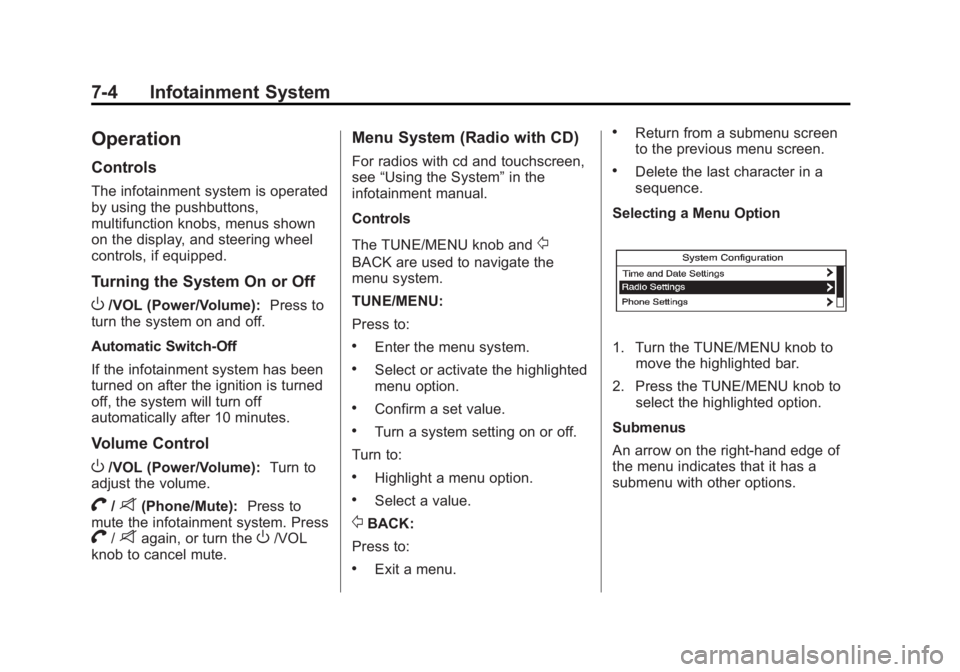
Selecting a Menu Option
1. Turn the TUNE/MENU knob to move the highlighted bar.
2. Press the TUNE/MENU knob to select the highlighted option.
Submenus
An arrow on the right-hand edge of
the menu indicates that it has a
submenu with other options.
Page 161 of 382
Black plate (17,1)Buick Verano Owner Manual - 2013 - crc - 10/17/12
Infotainment System 7-17
.The disc is dirty, scratched, wet,
or upside down.
.The air is very humid. Try the
disc again later.
.There was a problem while
burning the disc.
.The label is caught in the CD
player.
If the CD is not playing correctly, for
any other reason, try a known
good CD.
If any error continues, contact your
dealer.
Auxiliary Devices
For vehicles equipped with radios
with cd and touchscreen, see
“Auxiliary Devices” in the
infotainment manual.
The optional AUX input allows
portable devices to connect to the
vehicle using the 3.5 mm (1/8 in)
auxiliary jack or USB port. Portable devices are controlled by
using the menu system described in
Operation on page 7‑4.
The AUX input and USB port are in
the center console.
3.5 mm Jack
Connect a 3.5 mm (1/8 in) cable to
the auxiliary input jack to use a
portable audio player.
Playback of an audio device that is
connected to the 3.5 mm jack can
only be controlled using the controls
on the device.
Adjusting the Volume
Turn the
O/VOL knob to adjust the
volume of the infotainment system
after the volume level has been set
on the portable audio device.
USB Port
Not all USB drives are compatible
with the USB port. Check the height
of the USB drive prior to closing the
arm rest. For vehicles with a USB port, the
following devices may be connected
and controlled by the infotainment
system:
.iPods
.PlaysForSure Devices (PFDs)
.USB Drives
.Zunes®
Not all iPods, PFDs, USB drives,
and Zunes are compatible with the
infotainment system. Devices are
also charged while plugged into the
USB port.
Connecting and Controlling
an iPod™
Not all iPods can be controlled by
the infotainment system.
Connecting an iPod
Connect the iPod to the USB port.
Searching for a Track
Tracks that are found can be
searched for by:
.Playlists
Page 164 of 382
Black plate (20,1)Buick Verano Owner Manual - 2013 - crc - 10/17/12
7-20 Infotainment System
Phone
Bluetooth (Overview)
For vehicles equipped with radios
with cd and touchscreen, see
“Bluetooth”in the infotainment
manual.
For vehicles equipped with
Bluetooth capability, the system can
interact with many cell phones,
allowing:
.Placement and receipt of calls in
a hands-free mode.
.Sharing of the cell phone’s
address book or contact list with
the vehicle.
To minimize driver distraction,
before driving, and with the vehicle
parked:
.Become familiar with the
features of the cell phone.
Organize the phone book and
contact lists clearly and delete duplicate or rarely used entries.
If possible, program speed dial
or other shortcuts.
.Review the controls and
operation of the infotainment
system.
.Pair cell phone(s) to the vehicle.
The system may not work with
all cell phones. See
“Pairing”in
this section for more information.
.If the cell phone has voice
dialing capability, learn to use
that feature to access the
address book or contact list. See
“Voice Pass-Thru” in this section
for more information.
.See “Storing and Deleting Phone
Numbers” in this section for
more information.
{WARNING
When using a cell phone, it can
be distracting to look too long or
too often at the screen of the
(Continued)
WARNING (Continued)
phone or the infotainment
(navigation) system. Taking your
eyes off the road too long or too
often could cause a crash
resulting in injury or death. Focus
your attention on driving.
Vehicles with a Bluetooth system
can use a Bluetooth-capable cell
phone with a Hands-Free Profile to
make and receive phone calls. The
infotainment system and voice
recognition are used to control the
system. The system can be used
while in ON/RUN or ACC/
ACCESSORY. The range of the
Bluetooth system can be up to 9.1 m
(30 ft). Not all phones support all
functions and not all phones work
with the Bluetooth system. See
www.gm.com/bluetooth for more
information about compatible
phones.
Page 165 of 382
Black plate (21,1)Buick Verano Owner Manual - 2013 - crc - 10/17/12
Infotainment System 7-21
Bluetooth Controls
Use the buttons located on the
infotainment system and the
steering wheel to operate the
Bluetooth system.
Steering Wheel Controls
b/g(Push to Talk):Press to
answer incoming calls, confirm
system information, and start voice
recognition.
$/i(Mute/End Call): Press to
end a call, reject a call, or cancel an
operation.
Infotainment System Controls
If equipped, the infotainment system
allows certain controls to be
selected on the infotainment display.
For information about how to
navigate the menu system using the
infotainment controls, see Operation
on page 7‑4.
V/8(Phone/Mute): Press to
enter the Phone main menu. Press
to mute the audio system.
Voice Recognition
The voice recognition system uses
commands to control the system
and dial phone numbers.
Noise: The system may not
recognize voice commands if there
is too much background noise.
When to Speak: A tone sounds to
indicate that the system is ready for
a voice command. Wait for the tone
and then speak.
How to Speak: Speak clearly in a
calm and natural voice.
Audio System
When using the Bluetooth system,
sound comes through the vehicle's
front audio system speakers and
overrides the audio system. Use the
O/VOL knob during a call to
change the volume level. The
adjusted volume level remains in
memory for later calls. The system
maintains a minimum volume level.
Other Information
The Bluetooth®word mark and
logos are owned by the Bluetooth®
SIG, Inc. and any use of such marks
by General Motors is under license.
Other trademarks and trade names
are those of their respective owners.
See Radio Frequency Statement on
page 13‑20 for information
regarding Part 15 of the Federal
Communications Commission (FCC)
rules and Industry Canada
Standards RSS-GEN/210/220/310.
Bluetooth (Infotainment
Controls)
For vehicles equipped with radios
with cd and touchscreen, see
“Bluetooth” in the infotainment
manual.
For information about how to
navigate the menu system using the
infotainment controls, see Operation
on page 7‑4.
Page 183 of 382
Black plate (5,1)Buick Verano Owner Manual - 2013 - crc - 10/17/12
Climate Controls 8-5
Rear Window Defogger
=(Rear Window Defogger):
Press to turn the rear window
defogger on or off.
The rear window defogger turns off
automatically after about
10 minutes. If turned on again it
runs for about five minutes before
turning off.
The rear window defogger can be
set to automatic operation; see
“Climate and Air Quality” under
Vehicle Personalization on
page 5‑30. When auto rear defog is
selected, the rear window defogger
turns on automatically when the
interior temperature is cold and the
outside temperature is about 4°C
(40°F) and below. The auto rear
defogger turns off automatically
after about 10 minutes. At higher
speeds, the rear window defogger
may stay on continuously.
For vehicles with heated outside
rearview mirrors, they turn on when
the rear window defogger button is on and help to clear fog or frost from
the surface of the mirrors. See
Heated Mirrors on page 2‑15.
Notice:
Do not try to clear frost
or other material from the inside
of the front windshield and rear
window with a razor blade or
anything else that is sharp. This
may damage the rear window
defogger grid and affect the
radio's ability to pick up stations
clearly. The repairs would not be
covered by the vehicle warranty.
MorL(Heated Seats, If
Equipped): Press to turn the
heated seats on or off. See Heated
Front Seats on page 3‑6.
((Heated Steering Wheel, If
Equipped): Press to turn the
heated steering wheel on or off. See
Heated Steering Wheel on
page 5‑3.
Remote Start Climate Control
Operation: For vehicles with the
remote vehicle start feature, the
climate control system may run
when the vehicle is started remotely. The system uses the driver
’s
previous settings to heat or cool the
inside of the vehicle. The rear defog
may come on during remote start
based on cold ambient conditions.
The rear defog indicator light does
not come on during a remote start.
If the vehicle has front heated seats,
they may come on during a remote
start. The heated seat indicator
lights do not come on during a
remote start. See Remote Vehicle
Start on page 2‑8 andHeated Front
Seats on page 3‑6.
Sensors
The solar sensor, located on top of
the instrument panel near the
windshield, monitors the solar heat.
The climate control system uses the
sensor information to adjust the
temperature, fan speed,
recirculation, and air delivery mode
for best comfort.
If the sensor is covered, the
automatic climate control system
may not work properly.