start BUICK ENCLAVE 2012 Workshop Manual
[x] Cancel search | Manufacturer: BUICK, Model Year: 2012, Model line: ENCLAVE, Model: BUICK ENCLAVE 2012Pages: 382, PDF Size: 5.43 MB
Page 135 of 382

Black plate (33,1)Buick Verano Owner Manual - 2013 - crc - 10/17/12
Instruments and Controls 5-33
If Off is selected, the Open Door
Anti Lock Out feature may be
enabled through an additional menu
selection.
Press the TUNE/MENU knob when
Open Door Anti Lock Out is
highlighted to select On or Off.
Press
/BACK to return to the
last menu.
Passive Door Unlock
This allows selection of which doors
are unlocked by pressing the button
on the outside door handle.
Press the TUNE/MENU knob when
Passive Door Unlock is highlighted.
Turn the knob to select All Doors or
Driver Door. Press the TUNE/MENU
knob to confirm and go back to the
last menu.
Remote Lock/Unlock/Start
Select Remote Lock, Unlock, Start
and the following will be displayed
(depending on the system):
.Remote Lock Feedback
.Remote Door Unlock
.Remote Unlock Feedback
Remote Lock Feedback
This allows selection of what type of
feedback is given when locking the
vehicle with the RKE transmitter.
Press the TUNE/MENU knob when
Remote Lock Feedback is
highlighted. Turn the knob to select
Lights and Horn, Lights Only, Horn
Only, or Off. Press the TUNE/MENU
knob to confirm and go back to the
last menu.
Remote Door Unlock
This allows selection of which doors
will unlock when pressing
Kon the
RKE transmitter.
Press the TUNE/MENU knob when
Remote Door Unlock is highlighted.
Turn the knob to select All Doors or
Driver Door Only. When set to
Driver Door Only, the driver door will
unlock the first time
Kis pressed
and all doors will unlock when
Kis
pressed a second time. When set to All Doors, all of the doors will unlock
at the first press of
K. Press the
TUNE/MENU knob to confirm and
go back to the last menu.
Remote Unlock Feedback
If equipped, this allows selection of
what type of feedback is given when
unlocking the vehicle with the RKE
transmitter.
Press the TUNE/MENU knob when
Remote Unlock Feedback is
highlighted. Turn the knob to select
On or Off. Press the TUNE/MENU
knob to confirm and go back to the
last menu.
Return to Factory Settings?
Select Return to Factory Settings?
to return all vehicle personalization
to the default settings. Turn the
knob to select Yes or No. Press the
TUNE/MENU knob to confirm and
go back to the last menu.
Page 140 of 382
Black plate (4,1)Buick Verano Owner Manual - 2013 - crc - 10/17/12
6-4 Lighting
Turn and Lane-Change
Signals
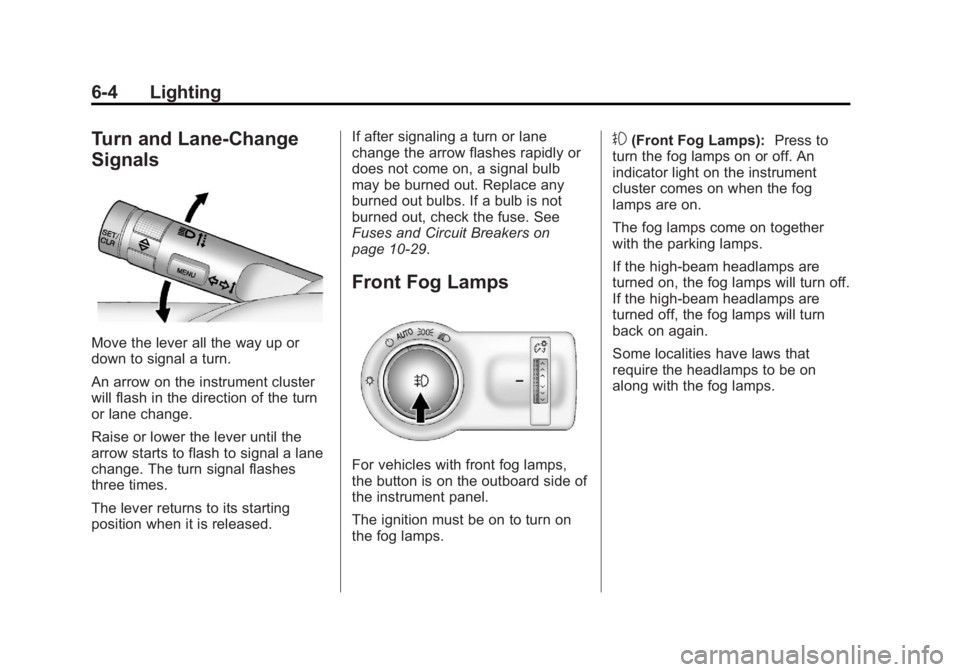
Move the lever all the way up or
down to signal a turn.
An arrow on the instrument cluster
will flash in the direction of the turn
or lane change.
Raise or lower the lever until the
arrow starts to flash to signal a lane
change. The turn signal flashes
three times.
The lever returns to its starting
position when it is released.If after signaling a turn or lane
change the arrow flashes rapidly or
does not come on, a signal bulb
may be burned out. Replace any
burned out bulbs. If a bulb is not
burned out, check the fuse. See
Fuses and Circuit Breakers on
page 10‑29.
Front Fog Lamps
For vehicles with front fog lamps,
the button is on the outboard side of
the instrument panel.
The ignition must be on to turn on
the fog lamps.
#(Front Fog Lamps):
Press to
turn the fog lamps on or off. An
indicator light on the instrument
cluster comes on when the fog
lamps are on.
The fog lamps come on together
with the parking lamps.
If the high-beam headlamps are
turned on, the fog lamps will turn off.
If the high-beam headlamps are
turned off, the fog lamps will turn
back on again.
Some localities have laws that
require the headlamps to be on
along with the fog lamps.
Page 150 of 382

Black plate (6,1)Buick Verano Owner Manual - 2013 - crc - 10/17/12
7-6 Infotainment System
3. Select the value.
Press
/BACK to go back to the
Tone Settings menu.
Adjusting the Fader and Balance
1. Press the TONE button.
2. Select Fader or Balance.
3. Select the value.
Press
/BACK to go back to the
Tone Settings menu.
Adjusting the EQ (Equalizer)
For vehicles that have an equalizer:
1. Press the TONE button.
2. Select EQ presets.
3. Select the setting.
Press
/BACK to go back to the
Tone Settings menu.
System Settings
Configuring the Number of
Favorite Pages
To configure the number of available
favorite pages:
1. Press the CONFIG button.
2. Select Radio Settings.
3. Select Radio Favorites.
4. Select the number of available favorite pages.
5. Press
/BACK to go back to the
System Configuration menu.
Auto Volume
The auto volume feature
automatically adjusts the radio
volume to compensate for road and
wind noise as the vehicle speeds up
or slows down, so that the volume
level is consistent. The level of volume compensation
can be selected, or the auto volume
feature can be turned off.
1. Press the CONFIG button.
2. Select Radio Settings.
3. Select Auto Volume.
4. Select the setting.
5. Press
/BACK to go back to the
System Configuration menu.
Maximum Startup Volume
The maximum volume played when
the radio is first turned on can
be set.
1. Press the CONFIG button.
2. Select Radio Settings.
3. Select Maximum Startup Volume.
4. Select the setting.
5. Press
/BACK to go back to the
System Configuration menu.
Page 151 of 382
Black plate (7,1)Buick Verano Owner Manual - 2013 - crc - 10/17/12
Infotainment System 7-7
Radio
AM-FM Radio
For vehicles equipped with radios
with cd and touchscreen, see
“AM-FM Radio”in the infotainment
manual.
Control Buttons
The buttons used to control the
radio are:
O/VOL (Power/Volume):
.Press to turn the radio on or off.
.Turn the knob to increase or
decrease the volume. The
volume is adjusted for the
current audio source or voice
prompts.
RADIO/BAND: Press to turn the
radio on and choose between AM,
FM, and SiriusXM
®, if equipped.
TUNE/MENU: Turn to navigate the
available menus and to search for
stations. INFO:
Press to display additional
information that may be available for
the current song.
s ©or¨\: Press to search for
stations.
FAV 1-2-3: Press to open the
favorites list and select the
favorites page.
Buttons 1−6: Press to select
preset stations.
AS 1-2 (Autostore): Press to open
the autostore list.
Radio Menus
Radio menus are available for AM
and FM.
Turn the TUNE/MENU knob to open
the main radio menu for that band.
Selecting a Band
Press the RADIO/BAND button to
choose AM, FM, or SiriusXM,
if equipped. The last station that
was playing starts playing again. Selecting a Station
Seek Tuning
If the radio station is not known:
Briefly press
s
©or¨\to
automatically search for the next
available station. If a station is not
found, the radio switches to a more
sensitive search level. If a station
still is not found, the frequency that
was last active begins to play.
If the radio station is known:
Press and hold
s ©or¨\until
the station on the display is
reached, then release the button.
Manual Tuning
Turn the TUNE/MENU knob to
select the frequency on the display.
Favorites List
1. Turn the TUNE/MENU knob.
2. Select Favorites List.
3. Select the station.
Page 152 of 382
Black plate (8,1)Buick Verano Owner Manual - 2013 - crc - 10/17/12
7-8 Infotainment System
Station Lists
1. Turn the TUNE/MENU knob.
2. Select AM or FM Station List. Allreceivable stations in the current
reception area are displayed. If a
station list has not been created,
an automatic station search
is done.
3. Select the station.
Category Lists
Most stations that broadcast an
RDS program type code specify the
type of programming transmitted.
Some stations change the program
type code depending on the
content. The system stores the RDS
stations sorted by program type in
the FM category list.
To search for a programming type
determined by station:
1. Turn the TUNE/MENU knob.
2. Select FM category list. A list of all programming types available
displays. 3. Select the programming type.
A list of stations that transmit
programming of the selected
type displays.
4. Select the station.
The category lists are updated when
the station lists are updated.
Updating Station & Category Lists
If stations stored in the station list
can no longer be received:
1. Turn the TUNE/MENU knob.
2. Select Update AM or FM Station List, if the stations stored in the
station list are no longer
received. A station search will be
completed and the first station in
the updated list will play.
To cancel the station search, press
the TUNE/MENU knob.
Radio Settings
To access the Radio Settings menu:
1. Press the CONFIG button. 2. Turn the TUNE/MENU knob until
Radio Settings displays. Press
the TUNE/MENU knob to display
other options within that feature.
Audio system settings or features
can be customized for:
.Audio Cue Options
.Auto Volume
.Gracenote Options
.Startup Volume
.Number of Favorite Pages
.XM Categories
.RDS
.Software Version Menus
Audio Cue Options: Audio Cue
Volume: Turn the TUNE/MENU
knob to increase or decrease the
audio cue volume.
Turn the TUNE/MENU knob to On
or Off to turn Audio Cues on or off.
Auto Volume: Turn the TUNE/
MENU knob to select volume Off,
Low, Medium, or High.
Page 153 of 382
Black plate (9,1)Buick Verano Owner Manual - 2013 - crc - 10/17/12
Infotainment System 7-9
Gracenote Options:Press the
TUNE/MENU knob to turn
Normalization on or off.
Startup Volume: Turn the TUNE/
MENU knob to increase or decrease
the infotainment startup volume.
Number of Favorite Pages: Turn
the TUNE/MENU knob to highlight
the number of favorites. Press the
TUNE/MENU knob to select.
XM Categories: If equipped, turn
the TUNE/MENU knob to highlight
the category. Press the TUNE/
MENU knob to select. Turn the
TUNE/MENU knob to Show all XM
Categories to display all categories.
RDS: Press the TUNE/MENU knob
to turn RDS on or off.
Software Version Menus: Turn the
TUNE/MENU knob to highlight the
menu. Press the TUNE/MENU knob
to select software menu.
Finding a Station
Select a band such as AM, FM,
or SIriusXM (if equipped). Turn the TUNE/MENU knob to find
a radio station. To select a preset
station, press the corresponding
preset button.
See
“Mixed-Band Presets” following
for more information.
Seeking a Station
Press
s ©or¨\to search for a
station.
Storing a Station as a Favorite
Up to 36 preset stations can be
stored. Each page can store
six preset stations. The presets
within a page can be from different
radio bands.
To scroll through the pages, press
the FAV 1-2-3 (favorites) button. The
current page number displays above
the preset buttons. The stored
stations for each list display at the
bottom of the screen. The number of
preset FAV lists can be changed. To store a radio station to a
favorites page:
1. Press the RADIO/BAND button
until the desired band is
selected.
2. Turn the TUNE/MENU knob to the station.
3. Press the FAV 1-2-3 button to scroll the list.
4. Press and hold one of the preset buttons for more than
two seconds. The station
frequency appears on the preset
button at the bottom of the
display.
5. Repeat the steps for each preset in each page.
To recall a preset station from a
favorites page:
1. Press the FAV 1-2-3 button to scroll to the page.
2. Press the preset button. The stored preset station is recalled.
Page 162 of 382
Black plate (18,1)Buick Verano Owner Manual - 2013 - crc - 10/17/12
7-18 Infotainment System
.Artists
.Albums
.Song Titles
.Podcasts
.Genres
.Audio Books
.Composers
To search for tracks:
1. Turn the TUNE/MENU knob.
2. Select Search.
3. Select: Playlists, Artists, Albums, Song Titles, Podcasts, Genres,
Audio Books, or Composers.
4. Select the track.
Shuffle
Turn the TUNE/MENU knob and set
Shuffle Songs (Random) to On or
Off, then press the
/BACK button
to return to the main screen.
On: Plays tracks in the current
folder in random order. Off:
Plays tracks in the current
folder in sequential order.
Repeat
Turn the TUNE/MENU knob and set
Repeat to On or Off, then press the
/BACK button to return to the main
screen.
On: Repeats the current track.
Off: Starts playback from the
beginning of the current track after
the last track finishes.
Connecting and Controlling a
PlaysForSure Device (PFD)
or Zune
Connecting a PFD or Zune
Connect the PFD or Zune to the
USB port.
Searching for a Track
Tracks can be searched for by:
.Playlists
.Artists
.Albums
.Song Titles
.Podcasts
.Genres
To search for tracks:
1. Turn the TUNE/MENU knob.
2. Select Search.
3. Select: Playlists, Artists, Albums, Song Titles, Podcasts,
or Genres.
4. Select the track.
Shuffle Functionality
Turn the TUNE/MENU knob and set
Shuffle Songs (Random) to On
or Off.
On: Plays current tracks in random
order.
Off: Plays current tracks in
sequential order.
Repeat Functionality
Turn the TUNE/MENU knob and set
Repeat to On or Off.
Repeat On: Repeats the current
track.
Page 163 of 382
Black plate (19,1)Buick Verano Owner Manual - 2013 - crc - 10/17/12
Infotainment System 7-19
Repeat Off:Starts playback from
the beginning of the current track
after the last track finishes.
Connecting and Controlling a
USB Drive
The infotainment system can only
play back .mp3 and .wma files from
a USB drive.
Only the first 10,000 songs are
recognized on the device.
When a device is not supported, the
message “No supported data found.
You can safely disconnect the
device” appears.
Connecting a USB Drive
Connect the USB drive to the
USB port.
Searching for a Track
It is normal for the search feature to
take some time to display the
information after reading the device
due to the amount of information
stored. Files that do not have any meta
data stored in the ID3 tag display as
Unknown.
Tracks can be searched for by:
.Playlists*
.Artists
.Albums
.Song Titles
.Genres
.Folder View
*This only displays if a playlist is
found on the device.
To search for tracks:
1. Turn the TUNE/MENU knob.
2. Select Search.
3. Select: Playlists, Artists, Albums, Song Titles, Genres,
or Folder View.
4. Select the track. Shuffle Functionality
Turn the TUNE/MENU knob and set
Shuffle Songs (Random) to On
or Off.
On:
Plays current tracks in random
order.
Off: Plays current tracks in
sequential order.
Repeat Functionality
Turn the TUNE/MENU knob and set
Repeat to On or Off.
Repeat On: Repeats the current
track.
Repeat Off: Starts playback from
the beginning of the current track
after the last track finishes.
Page 165 of 382
Black plate (21,1)Buick Verano Owner Manual - 2013 - crc - 10/17/12
Infotainment System 7-21
Bluetooth Controls
Use the buttons located on the
infotainment system and the
steering wheel to operate the
Bluetooth system.
Steering Wheel Controls
b/g(Push to Talk):Press to
answer incoming calls, confirm
system information, and start voice
recognition.
$/i(Mute/End Call): Press to
end a call, reject a call, or cancel an
operation.
Infotainment System Controls
If equipped, the infotainment system
allows certain controls to be
selected on the infotainment display.
For information about how to
navigate the menu system using the
infotainment controls, see Operation
on page 7‑4.
V/8(Phone/Mute): Press to
enter the Phone main menu. Press
to mute the audio system.
Voice Recognition
The voice recognition system uses
commands to control the system
and dial phone numbers.
Noise: The system may not
recognize voice commands if there
is too much background noise.
When to Speak: A tone sounds to
indicate that the system is ready for
a voice command. Wait for the tone
and then speak.
How to Speak: Speak clearly in a
calm and natural voice.
Audio System
When using the Bluetooth system,
sound comes through the vehicle's
front audio system speakers and
overrides the audio system. Use the
O/VOL knob during a call to
change the volume level. The
adjusted volume level remains in
memory for later calls. The system
maintains a minimum volume level.
Other Information
The Bluetooth®word mark and
logos are owned by the Bluetooth®
SIG, Inc. and any use of such marks
by General Motors is under license.
Other trademarks and trade names
are those of their respective owners.
See Radio Frequency Statement on
page 13‑20 for information
regarding Part 15 of the Federal
Communications Commission (FCC)
rules and Industry Canada
Standards RSS-GEN/210/220/310.
Bluetooth (Infotainment
Controls)
For vehicles equipped with radios
with cd and touchscreen, see
“Bluetooth” in the infotainment
manual.
For information about how to
navigate the menu system using the
infotainment controls, see Operation
on page 7‑4.
Page 166 of 382
Black plate (22,1)Buick Verano Owner Manual - 2013 - crc - 10/17/12
7-22 Infotainment System
Pairing
A Bluetooth-enabled cell phone
must be paired to the Bluetooth
system and then connected to the
vehicle before it can be used. See
your cell phone manufacturer's user
guide for Bluetooth functions before
pairing the cell phone. If a Bluetooth
phone is not connected, calls will be
made using OnStar Hands-Free
Calling, if available. SeeOnStar
Overview on page 14‑1.
Pairing Information
.A Bluetooth phone with MP3
capability cannot be paired to
the vehicle as a phone and an
MP3 player at the same time.
.Up to five cell phones can be
paired to the Bluetooth system.
.The pairing process is disabled
when the vehicle is moving.
.Pairing only needs to be
completed once, unless the
pairing information on the cell
phone changes or the cell phone
is deleted from the system.
.Only one paired cell phone can
be connected to the Bluetooth
system at a time.
.If multiple paired cell phones are
within range of the system, the
system connects to the first
available paired cell phone in the
order that they were first paired
to the system. To link to a
different paired phone, see
“Linking to a Different Phone”
later in this section.
Pairing a Phone
1. Press the CONFIG button.
2. Select Phone Settings or Bluetooth Settings.
3. Select Bluetooth.
4. Select Pair Device (Phone). A four-digit Personal
Identification Number (PIN)
appears on the display. The PIN
is used in Step 6. 5. Start the pairing process on the
cell phone to be paired to the
vehicle. See the cell phone
manufacturer's user guide for
information on this process.
6. Locate the device named “Your
Vehicle” in the list on the cell
phone. Follow the instructions
on the cell phone to enter the
PIN provided in Step 4. After the
PIN is successfully entered, the
system prompts you to provide a
name for the paired cell phone.
This name will be used to
indicate which phones are
paired and connected to the
vehicle. The system responds
with “
successfully paired” after the
pairing process is complete.
7. Repeat Steps 1 through 6 to pair additional phones.
Listing All Paired and Connected
Phones
1. Press the CONFIG button.