Trans BUICK ENCLAVE 2013 Owner's Guide
[x] Cancel search | Manufacturer: BUICK, Model Year: 2013, Model line: ENCLAVE, Model: BUICK ENCLAVE 2013Pages: 392, PDF Size: 4.27 MB
Page 141 of 392

Black plate (35,1)Buick Verano Owner Manual (GMNA-Localizing-U.S./Canada/Mexico-
6042574) - 2014 - crc - 10/18/13
Instruments and Controls 5-35
Open Door Anti Lock Out
When on, all doors will lock. The
driver door will then unlock if door
locking is requested while the driver
door is open, and disable the Delay
Door Lock feature.
Even when this feature is off, the
driver is protected from accidental
lockouts when the key is in the
ignition.
If Off is selected, the Open Door
Anti Lock Out feature may be
enabled through an additional menu
selection.
Press the TUNE/MENU knob when
Open Door Anti Lock Out is
highlighted to select On or Off.
Press
/BACK to return to the
last menu.
Auto Door Unlock
This allows selection of which of the
doors will automatically unlock when
the vehicle is shifted into P (Park). Press the TUNE/MENU knob when
Auto Door Unlock is highlighted.
Turn the knob to select All Doors,
Driver Door, or Off. Press the TUNE/
MENU knob to confirm and press
BACK to go back to the last menu.
Press
/BACK to return to the
last menu.
Delay Door Lock
When on, this feature will delay the
locking of the doors until
five seconds after the last door is
closed. Press either the power lock
button or
Qon the RKE transmitter
twice to override the delay locking
feature and immediately lock all of
the doors.
Press the TUNE/MENU knob when
Delay Door Lock is highlighted to
select On or Off. Press
/BACK to
return to the last menu.
Remote Lock/Unlock/Start
Select Remote Lock/Unlock/Start
and the following may be displayed
(depending on the system):
.Remote Lock Feedback
.Remote Door Unlock
.Remote Unlock Feedback
Remote Lock Feedback
This allows selection of what type of
feedback is given when locking the
vehicle with the RKE transmitter.
Press the TUNE/MENU knob when
Remote Lock Feedback is
highlighted. Turn the knob to select
Lights and Horn, Lights Only, Horn
Only, or Off. Press the TUNE/MENU
knob to confirm and go back to the
last menu.
Page 142 of 392
Black plate (36,1)Buick Verano Owner Manual (GMNA-Localizing-U.S./Canada/Mexico-
6042574) - 2014 - crc - 10/18/13
5-36 Instruments and Controls
Remote Door Unlock
This allows selection of which doors
will unlock when pressing
Kon the
RKE transmitter.
Press the TUNE/MENU knob when
Remote Door Unlock is highlighted.
Turn the knob to select All Doors or
Driver Door Only. When set to
Driver Door Only, the driver door will
unlock the first time
Kis pressed
and all doors will unlock when
Kis
pressed a second time. When set to
All Doors, all of the doors will unlock
at the first press of
K. Press the
TUNE/MENU knob to confirm and
go back to the last menu. Remote Unlock Feedback
If equipped, this allows selection of
what type of feedback is given when
unlocking the vehicle with the RKE
transmitter.
Press the TUNE/MENU knob when
Remote Unlock Feedback is
highlighted. Turn the knob to select
Flash Lights or Off. Press the
TUNE/MENU knob to confirm and
go back to the last menu.
Return to Factory Settings?
Select Return to Factory Settings?
to return all vehicle personalization
to the default settings. Turn the
knob to select Yes or No. Press the
TUNE/MENU knob to confirm and
go back to the last menu.
Universal Remote
System
See
Radio Frequency Statement on
page 13-15.
Universal Remote System
Programming
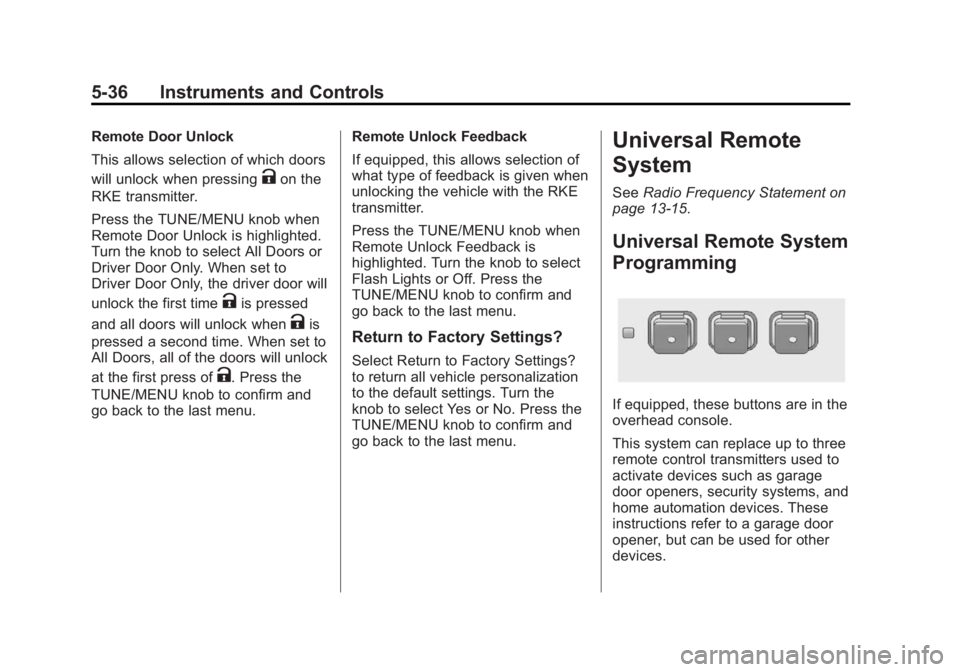
If equipped, these buttons are in the
overhead console.
This system can replace up to three
remote control transmitters used to
activate devices such as garage
door openers, security systems, and
home automation devices. These
instructions refer to a garage door
opener, but can be used for other
devices.
Page 143 of 392
Black plate (37,1)Buick Verano Owner Manual (GMNA-Localizing-U.S./Canada/Mexico-
6042574) - 2014 - crc - 10/18/13
Instruments and Controls 5-37
Do not use the Universal Remote
system with any garage door opener
that does not have the stop and
reverse feature. This includes any
garage door opener model
manufactured before April 1, 1982.
Read these instructions completely
before programming the Universal
Remote system. It may help to have
another person assist with the
programming process.
Keep the original hand-held
transmitter for use in other vehicles
as well as for future programming.
Erase the programming when
vehicle ownership is terminated.
See“Erasing Universal Remote
System Buttons” later in this
section.
To program a garage door opener,
park outside directly in line with and
facing the garage door opener
receiver. Clear all people and
objects near the garage door. Make sure the hand-held transmitter
has a new battery for quick and
accurate transmission of the
radio-frequency signal.
Programming the Universal
Remote System
For questions or help programming
the Universal Remote system, call
1-800-355-3515 or see
www.homelink.com.
Programming involves
time-sensitive actions, and may time
out causing the procedure to be
repeated.
To program up to three devices:
1. Hold the end of the hand-held
transmitter about 3 to 8 cm (1 to
3 in) away from the Universal
Remote system buttons with the
indicator light in view. The
hand-held transmitter was
supplied by the manufacturer of
the garage door opener receiver. 2. At the same time, press and
hold both the hand-held
transmitter button and one of the
three Universal Remote system
buttons to be used to operate
the garage door. Do not release
either button until the indicator
light changes from a slow to a
rapid flash. Then release both
buttons.
Some garage door openers may
require substitution of Step 2
with the procedure under “Radio
Signals for Canada and Some
Gate Operators” later in this
section.
3. Press and hold the newly programmed Universal Remote
system button for five seconds
while watching the indicator light
and garage door activation.
.If the indicator light stays on
continuously or the garage
door moves when the
button is pressed, then
Page 144 of 392
Black plate (38,1)Buick Verano Owner Manual (GMNA-Localizing-U.S./Canada/Mexico-
6042574) - 2014 - crc - 10/18/13
5-38 Instruments and Controls
programming is complete.
There is no need to
complete Steps 4–6.
.If the indicator light does
not come on or the garage
door does not move, a
second button press may
be required. For a second
time, press and hold the
newly programmed button
for five seconds. If the light
stays on or the garage door
moves, programming is
complete.
.If the indicator light blinks
rapidly for two seconds,
then changes to a solid light
and the garage door does
not move, continue with
programming Steps 4–6.
Learn or Smart Button
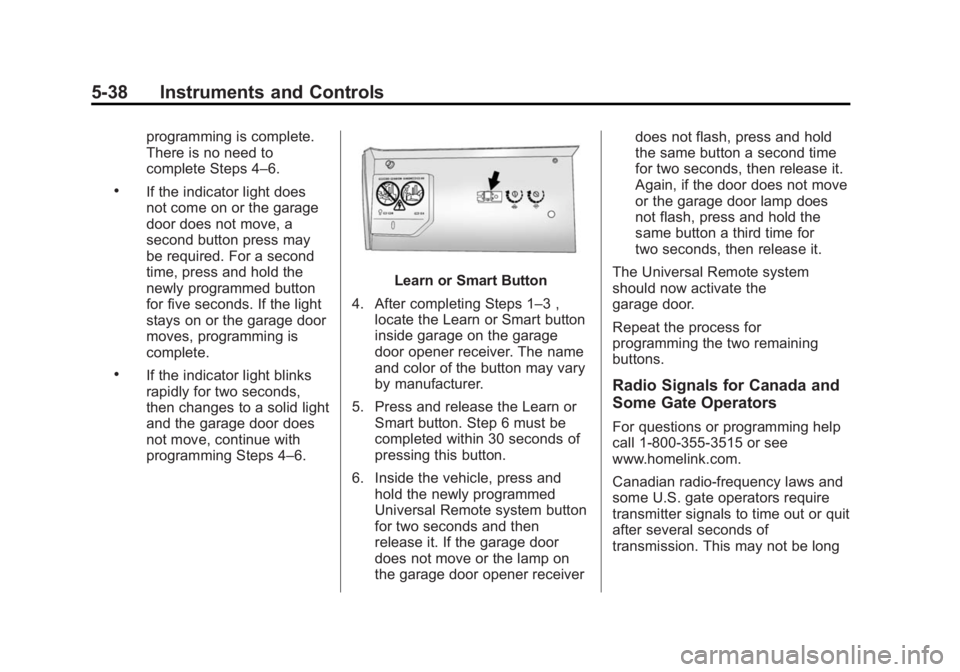
4. After completing Steps 1–3 , locate the Learn or Smart button
inside garage on the garage
door opener receiver. The name
and color of the button may vary
by manufacturer.
5. Press and release the Learn or Smart button. Step 6 must be
completed within 30 seconds of
pressing this button.
6. Inside the vehicle, press and hold the newly programmed
Universal Remote system button
for two seconds and then
release it. If the garage door
does not move or the lamp on
the garage door opener receiver does not flash, press and hold
the same button a second time
for two seconds, then release it.
Again, if the door does not move
or the garage door lamp does
not flash, press and hold the
same button a third time for
two seconds, then release it.
The Universal Remote system
should now activate the
garage door.
Repeat the process for
programming the two remaining
buttons.
Radio Signals for Canada and
Some Gate Operators
For questions or programming help
call 1-800-355-3515 or see
www.homelink.com.
Canadian radio-frequency laws and
some U.S. gate operators require
transmitter signals to time out or quit
after several seconds of
transmission. This may not be long
Page 145 of 392
Black plate (39,1)Buick Verano Owner Manual (GMNA-Localizing-U.S./Canada/Mexico-
6042574) - 2014 - crc - 10/18/13
Instruments and Controls 5-39
enough for the Universal Remote
system to pick up the signal during
programming.
If the programming did not work,
replace Step 2 under“Programming
the Universal Remote System” with
the following:
Press and hold the Universal
Remote system button while
pressing and releasing the
hand-held transmitter button every
two seconds until the signal has
been successfully accepted by the
Universal Remote system. The
Universal Remote system indicator
light will flash slowly at first and then
rapidly. Proceed with Step 3 under
“Programming the Universal Remote
System” to complete.Universal Remote System
Operation
Using the Universal Remote
System
Press and hold the appropriate
Universal Remote system button for
at least one-half second. The
indicator light will come on while the
signal is being transmitted.
Erasing Universal Remote
System Buttons
Erase all programmed buttons when
vehicle ownership is terminated.
To erase:
1. Press and hold the two outside
buttons until the indicator light
begins to flash. This should take
about 10 seconds.
2. Release both buttons.
Reprogramming a Single
Universal Remote System
Button
To reprogram any of the system
buttons:
1. Press and hold any one of the buttons. Do not release the
button.
2. The indicator light will begin to flash after 20 seconds. Without
releasing the button, proceed
with Step 1 under “Programming
the Universal Remote System.”
Page 149 of 392

Black plate (3,1)Buick Verano Owner Manual (GMNA-Localizing-U.S./Canada/Mexico-
6042574) - 2014 - crc - 10/18/13
Lighting 6-3
Automatic Headlamp
System
When it is dark enough outside and
the exterior lamp control is in the
automatic position, the headlamps
come on automatically. SeeExterior
Lamp Controls on page 6-1.
The vehicle has a light sensor on
top of the instrument panel. Make
sure it is not covered, or the
headlamps will be on when they are
not needed. The system may also turn on the
headlamps when driving through a
parking garage or tunnel.
Lights On with Wipers
If the windshield wipers are
activated in daylight with the engine
on, and the exterior lamp control is
in AUTO, the headlamps, parking
lamps, and other exterior lamps
come on. The transition time for the
lamps coming on varies based on
wiper speed. When the wipers are
not operating, these lamps turn off.
Move the exterior lamp control to
P
or;to disable this feature.
Hazard Warning Flashers
|(Hazard Warning Flasher):
Press and momentarily hold this
button to make the front and rear
turn signal lamps flash on and off.
This warns others that you are
having trouble. Press and
momentarily hold again to turn the
flashers off.
Page 152 of 392
Black plate (6,1)Buick Verano Owner Manual (GMNA-Localizing-U.S./Canada/Mexico-
6042574) - 2014 - crc - 10/18/13
6-6 Lighting
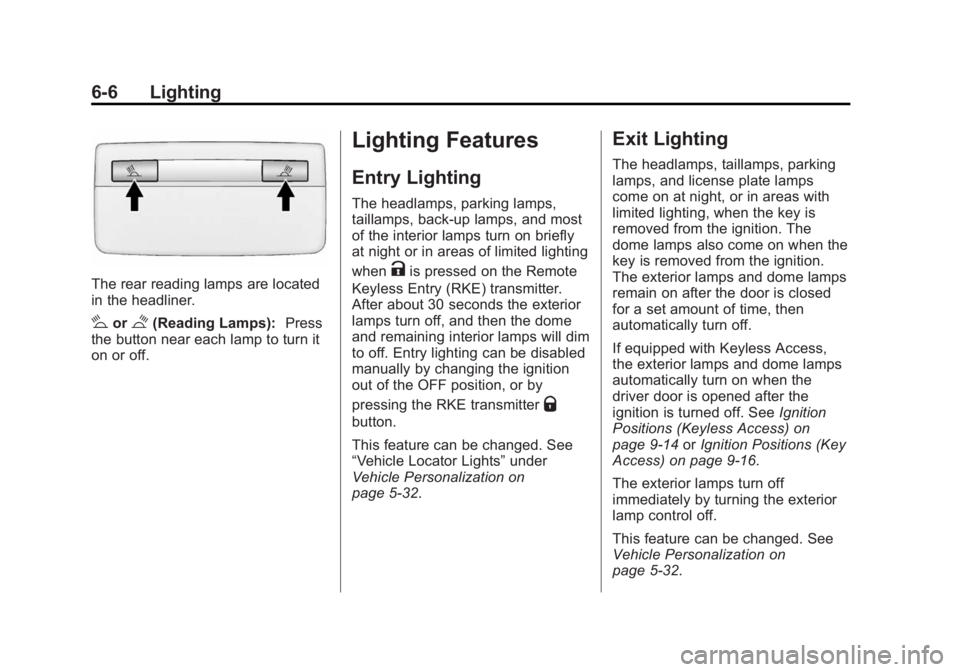
The rear reading lamps are located
in the headliner.
#or$(Reading Lamps):Press
the button near each lamp to turn it
on or off.
Lighting Features
Entry Lighting
The headlamps, parking lamps,
taillamps, back-up lamps, and most
of the interior lamps turn on briefly
at night or in areas of limited lighting
when
Kis pressed on the Remote
Keyless Entry (RKE) transmitter.
After about 30 seconds the exterior
lamps turn off, and then the dome
and remaining interior lamps will dim
to off. Entry lighting can be disabled
manually by changing the ignition
out of the OFF position, or by
pressing the RKE transmitter
Q
button.
This feature can be changed. See
“Vehicle Locator Lights” under
Vehicle Personalization on
page 5-32.
Exit Lighting
The headlamps, taillamps, parking
lamps, and license plate lamps
come on at night, or in areas with
limited lighting, when the key is
removed from the ignition. The
dome lamps also come on when the
key is removed from the ignition.
The exterior lamps and dome lamps
remain on after the door is closed
for a set amount of time, then
automatically turn off.
If equipped with Keyless Access,
the exterior lamps and dome lamps
automatically turn on when the
driver door is opened after the
ignition is turned off. See Ignition
Positions (Keyless Access) on
page 9-14 orIgnition Positions (Key
Access) on page 9-16.
The exterior lamps turn off
immediately by turning the exterior
lamp control off.
This feature can be changed. See
Vehicle Personalization on
page 5-32.
Page 162 of 392
Black plate (8,1)Buick Verano Owner Manual (GMNA-Localizing-U.S./Canada/Mexico-
6042574) - 2014 - crc - 10/18/13
7-8 Infotainment System
Station Lists
1. Turn the TUNE/MENU knob.
2. Select AM or FM Station List. Allreceivable stations in the current
reception area are displayed. If a
station list has not been created,
an automatic station search
is done.
3. Select the station.
Category Lists
Most stations that broadcast an
RDS program type code specify the
type of programming transmitted.
Some stations change the program
type code depending on the
content. The system stores the RDS
stations sorted by program type in
the FM category list.
To search for a programming type
determined by station:
1. Turn the TUNE/MENU knob.
2. Select FM category list. A list of all programming types available
displays. 3. Select the programming type.
A list of stations that transmit
programming of the selected
type displays.
4. Select the station.
The category lists are updated when
the station lists are updated.
Updating Station & Category Lists
If stations stored in the station list
can no longer be received:
1. Turn the TUNE/MENU knob.
2. Select Update AM or FM Station List, if the stations stored in the
station list are no longer
received. A station search will be
completed and the first station in
the updated list will play.
To cancel the station search, press
the TUNE/MENU knob.
Radio Settings
To access the Radio Settings menu:
1. Press the CONFIG button. 2. Turn the TUNE/MENU knob until
Radio Settings displays. Press
the TUNE/MENU knob to display
other options within that feature.
Audio system settings or features
can be customized for:
.Auto Volume
.Maximum Start Up Volume
.Radio Favorites
.RDS Options
.XM Categories
Auto Volume: Turn the TUNE/
MENU knob to select volume Off,
Low, Medium, or High.
Maximum Start Up Volume: Turn
the TUNE/MENU knob to increase
or decrease the infotainment startup
volume.
Radio Favorites: Turn the TUNE/
MENU knob to highlight the number
of favorites. Press the TUNE/MENU
knob to select.
RDS Options: Press the TUNE/
MENU knob to turn RDS on or off.
Page 183 of 392

Black plate (29,1)Buick Verano Owner Manual (GMNA-Localizing-U.S./Canada/Mexico-
6042574) - 2014 - crc - 10/18/13
Infotainment System 7-29
3. Use the dial or call command todial the number of the third party
to be called.
4. Once the call is connected, press
b/gto link all callers
together.
Ending a Call
Press$/ito end a call.
Muting a Call
During a call, all sounds from inside
the vehicle can be muted so that the
person on the other end of the call
cannot hear them.
To mute a call, press
b/g, and
then say “Mute Call.”
To cancel mute, press
b/g, and
then say “Un-mute Call.”
Transferring a Call
Audio can be transferred between
the Bluetooth system and the cell
phone. The cell phone must be paired and
connected with the Bluetooth
system before a call can be
transferred. The connection process
can take up to two minutes after the
ignition is turned to ON/RUN.
To Transfer Audio from the
Bluetooth System to a Cell Phone
During a call with the audio in the
vehicle:
1. Press
b/g.
2. Say “Transfer Call.”
To Transfer Audio to the Bluetooth
System from a Cell Phone
During a call with the audio on the
cell phone, press
b/g. The audio
transfers to the vehicle. If the audio
does not transfer to the vehicle, use
the audio transfer feature on the cell
phone. See your cell phone
manufacturer's user guide for more
information.
Voice Pass-Thru
Voice pass-thru allows access to the
voice recognition commands on the
cell phone. See your cell phone
manufacturer's user guide to see if
the cell phone supports this feature.
To access contacts stored in the cell
phone:
1. Press
b/g. The system
responds “Ready,”followed by
a tone.
2. Say “Bluetooth.” This command
can be skipped.
3. Say “Voice.” The system
responds “OK, accessing
The cell phone's normal prompt
messages will go through their cycle
according to the phone's operating
instructions.
Page 187 of 392
Black plate (33,1)Buick Verano Owner Manual (GMNA-Localizing-U.S./Canada/Mexico-
6042574) - 2014 - crc - 10/18/13
Infotainment System 7-33
Gracenote Software, and Gracenote
Servers for your own personal
non-commercial use only. You agree
not to assign, copy, transfer or
transmit the Gracenote Software or
any Gracenote Data to any third
party.
YOU AGREE NOT TO USE OR
EXPLOIT GRACENOTE DATA, THE
GRACENOTE SOFTWARE, OR
GRACENOTE SERVERS, EXCEPT
AS EXPRESSLY PERMITTED
HEREIN. You agree that your
non-exclusive license to use the
Gracenote Data, the Gracenote
Software, and Gracenote Servers
will terminate if you violate these
restrictions. If your license
terminates, you agree to cease any
and all use of the Gracenote Data,
the Gracenote Software, and
Gracenote Servers.
Gracenote reserves all rights in
Gracenote Data, the Gracenote
Software, and the Gracenote
Servers, including all ownership
rights.Under no circumstances will
Gracenote become liable for any
payment to you for any information
that you provide. You agree that
Gracenote, Inc. may enforce its
rights under this Agreement against
you directly in its own name.
The Gracenote service uses a
unique identifier to track queries for
statistical purposes.
The purpose of a randomly
assigned numeric identifier is to
allow the Gracenote service to
count queries without knowing
anything about who you are. For
more information, see the web page
for the Gracenote Privacy Policy for
the Gracenote service.
The Gracenote Software and each
item of Gracenote Data are licensed
to you
“AS IS.” Gracenote makes no
representations or warranties,
express or implied, regarding the
accuracy of any Gracenote Data
from in the Gracenote Servers. Gracenote reserves the right to
delete data from the Gracenote
Servers or to change data
categories for any cause that
Gracenote deems sufficient.
No warranty is made that the
Gracenote Software or Gracenote
Servers are error-free or that
functioning of Gracenote Software
or Gracenote Servers will be
uninterrupted.
Gracenote is not obligated to
provide you with new enhanced or
additional data types or categories
that Gracenote may provide in the
future and is free to discontinue its
services at any time.
Gracenote disclaims all warranties
express or implied, including, but
not limited to, implied warranties of
merchantability, fitness for a
particular purpose, title, and
non-infringement. Gracenote does
not warrant the results that will be
obtained by your use of the
Gracenote Software or any
Gracenote Server. In no case will