jack BUICK ENCLAVE 2018 Infotainment System Guide
[x] Cancel search | Manufacturer: BUICK, Model Year: 2018, Model line: ENCLAVE, Model: BUICK ENCLAVE 2018Pages: 88, PDF Size: 0.99 MB
Page 6 of 88
Buick Infotainment System (GMNA-Localizing-U.S./Canada-10999317) -
2018 - CRC - 7/31/17
Introduction 5
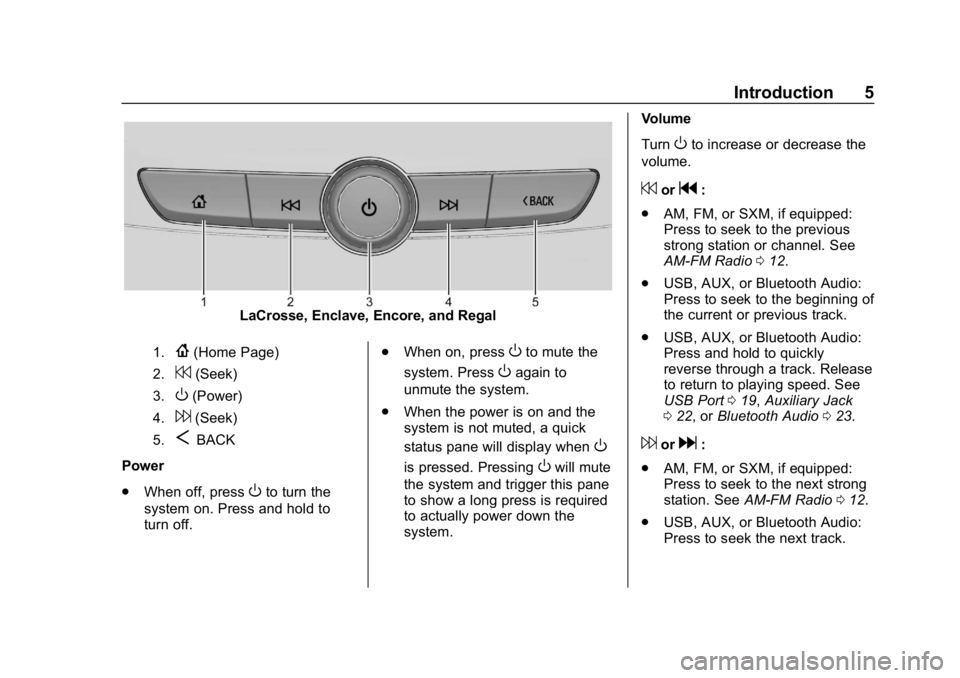
LaCrosse, Enclave, Encore, and Regal
1.{(Home Page)
2.7(Seek)
3.O(Power)
4.6(Seek)
5.SBACK
Power
. When off, press
Oto turn the
system on. Press and hold to
turn off. .
When on, press
Oto mute the
system. Press
Oagain to
unmute the system.
. When the power is on and the
system is not muted, a quick
status pane will display when
O
is pressed. PressingOwill mute
the system and trigger this pane
to show a long press is required
to actually power down the
system. Volume
Turn
Oto increase or decrease the
volume.
7org:
. AM, FM, or SXM, if equipped:
Press to seek to the previous
strong station or channel. See
AM-FM Radio 012.
. USB, AUX, or Bluetooth Audio:
Press to seek to the beginning of
the current or previous track.
. USB, AUX, or Bluetooth Audio:
Press and hold to quickly
reverse through a track. Release
to return to playing speed. See
USB Port 019, Auxiliary Jack
0 22, or Bluetooth Audio 023.
6ord:
. AM, FM, or SXM, if equipped:
Press to seek to the next strong
station. See AM-FM Radio 012.
. USB, AUX, or Bluetooth Audio:
Press to seek the next track.
Page 7 of 88
Buick Infotainment System (GMNA-Localizing-U.S./Canada-10999317) -
2018 - CRC - 7/31/17
6 Introduction
.USB, AUX, or Bluetooth Audio:
Press and hold to fast forward
through a track. Release to
return to playing speed. See
USB Port 019, Auxiliary Jack
0 22, or Bluetooth Audio 023.
{:Press to go to the Home Page.
See “Home Page” in this section.
RADIO : Press to change the audio
source to AM, FM, or SXM,
if equipped.
MEDIA : Press to change the media
source to USB, Bluetooth, or AUX.
MENU : Turn to highlight a feature.
Press to activate the highlighted
feature.
TONE : Press to adjust the Bass,
Midrange, Treble, or Surround,
if equipped. See AM-FM Radio
0 12.
qBACK orSBACK : Press to
return to the previous screen in
a menu. Home Page
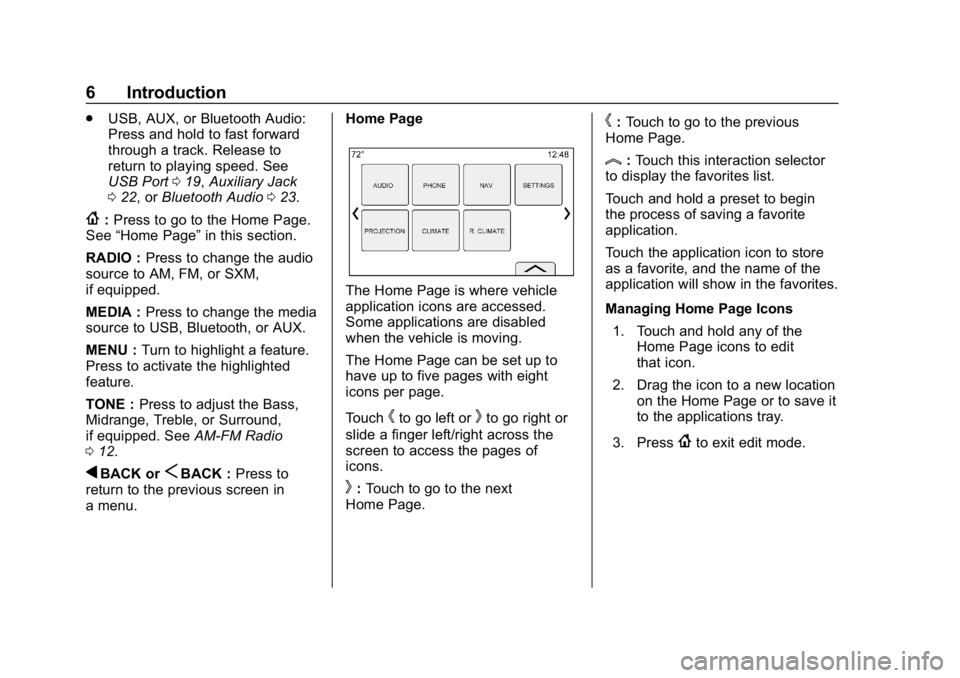
The Home Page is where vehicle
application icons are accessed.
Some applications are disabled
when the vehicle is moving.
The Home Page can be set up to
have up to five pages with eight
icons per page.
Touch
hto go left orkto go right or
slide a finger left/right across the
screen to access the pages of
icons.
k: Touch to go to the next
Home Page.
h: Touch to go to the previous
Home Page.
l: Touch this interaction selector
to display the favorites list.
Touch and hold a preset to begin
the process of saving a favorite
application.
Touch the application icon to store
as a favorite, and the name of the
application will show in the favorites.
Managing Home Page Icons
1. Touch and hold any of the Home Page icons to edit
that icon.
2. Drag the icon to a new location on the Home Page or to save it
to the applications tray.
3. Press
{to exit edit mode.
Page 23 of 88
Buick Infotainment System (GMNA-Localizing-U.S./Canada-10999317) -
2018 - CRC - 7/31/17
22 Audio Players
displays the file name as the track
name if the song information is not
available.
Supported Apple Devices
To view supported devices in the
U.S., see www.my.buick.com/learn.
Loss of Audio
If a phone currently paired over
Bluetooth is plugged in with a USB
cable, the system will automatically
mute the phone audio. Playback
can be resumed by changing the
audio source from Bluetooth to USB
cable.
Source USB from Media on the
infotainment display to resume
playback.
Bluetooth Streaming Audio and
Voice Recognition
SeeBluetooth Audio 023 for
information using voice recognition
with Bluetooth streaming audio.
Make sure all devices have the
latest software downloaded.Auxiliary Jack
This vehicle has an auxiliary input
jack in the center console under the
armrest. Possible auxiliary audio
sources include:
. Laptop computer
. Audio music player
This jack is not an audio output. Do
not plug headphones into the
auxiliary input jack. Set up an
auxiliary device while the vehicle is
in P (Park).
Connect a 3.5 mm (1/8 in) cable
from the auxiliary device to the
auxiliary input jack. When a device
is connected, the system can play
audio from the device over the
vehicle speakers.
If an auxiliary device has already
been connected, but a different
source is currently active, touch
Media on the infotainment display to
scroll through audio sources, until
the AUX source displays. Playing from the AUX Port
An auxiliary device is played
through the audio system and
controlled through the device itself.
AUX Menu
Press MENU on the center stack to
display the AUX menu and the
following may display:
Tone Settings :
Select to adjust
Bass, Midrange, Treble, Balance,
Fade, and EQ (Equalizer). See
AM-FM Radio 012.
Auto Volume (If Equipped) : This
feature adjusts the volume based on
the vehicle speed. See AM-FM
Radio 012.
Bose AudioPilot Noise
Compensation Technology (If
Equipped) : This feature adjusts
the volume based on the noise in
the vehicle and speed. See AM-FM
Radio 012.
DSP Modes (If Equipped) : With a
Bose Centerpoint sound system,
adjusts the DSP modes. See “DSP
Modes (If Equipped)” inAM-FM
Radio 012.
Page 85 of 88

Buick Infotainment System (GMNA-Localizing-U.S./Canada-10999317) -
2018 - CRC - 7/31/17
84 Index
IndexA
Accepting or Declining a Call . . . . 62
AgreementsTrademarks and License . . . . . . . . 74
AM . . . . . . . . . . . . . . . . . . . . . . . . . . . . . . 17
AM-FM Radio . . . . . . . . . . . . . . . . . . . . 12
AM, FM, and SXM Categories . . . 14
Antenna
Backglass. . . . . . . . . . . . . . . . . . . . . . . 17
Multi-band. . . . . . . . . . . . . . . . . . . . . . . 18
Apple CarPlay and Android Auto . . . . . . . . . . . . . . . . . . . 66
Applications Tray . . . . . . . . . . . . . . . . . 9
Audio Bluetooth. . . . . . . . . . . . . . . . . . . . . . . . 23
Audio System . . . . . . . . . . . . . . . . . . . . 59
Auxiliary Jack . . . . . . . . . . . . . . . . . . . . 22
Avoiding Untrusted Media Devices . . . . . . . . . . . . . . . . . . . . . . . . 19
B
Backglass Antenna . . . . . . . . . . . . . . 17
Bluetooth . . . . . . . . . . . . . . . . . . . . . . . . 68Overview . . . . . . . . 59, 60, 63
Bluetooth Audio . . . . . . . . . . . . . . . . . 23
Bluetooth Controls . . . . . . . . . . . . . . . 59
C
Call Waiting . . . . . . . . . . . . . . . . . . . . . . 62
Canceling Voice Recognition . . . . 53
Cell Phone Usage . . . . . . . . . . . . . . . 17
Character Handwriting Recognition . . . . . . . . . . . . . . . . . . . . 36
Cleaning High Gloss Surfaces and Vehicle Information and
Radio Displays . . . . . . . . . . . . . . . . . 10
Clearing the System . . . . . . . . . . . . . 64
Controls
Steering Wheel. . . . . . . . . . . . . . . . . . . 7
Coverage Explanations . . . . . . . . . . 51
D
Database Coverage Explanations . . . . . . . . . . . . . . . . . . . 51
Destination . . . . . . . . . . . . . . . . . . . . . . 34
Detailed Areas . . . . . . . . . . . . . . . . . . . 33
Display . . . . . . . . . . . . . . . . . . . . . . . . . . 69
Driver Teen . . . . . . . . . . . . . . . . . . . . . . . . . . . . 70
Dual Tone Multi-Frequency (DTMF) Tones . . . . . . . . . . . . . . . . . . 63
E
Ending a Call . . . . . . . . . . . . . . . . . . . . 63
English and Metric Unit
Conversion . . . . . . . . . . . . . . . . . . . . . 70
Page 86 of 88

Buick Infotainment System (GMNA-Localizing-U.S./Canada-10999317) -
2018 - CRC - 7/31/17
Index 85
F
Finding a Station . . . . . . . . . . . . . . . . 13
FM . . . . . . . . . . . . . . . . . . . . . . . . . . . . . . 17
G
Global PositioningSystem (GPS) . . . . . . . . . . . . . . . . . . 49
Guidance Problems with the Route . . . . . . . . 50
H
HD Radio Technology . . . . . . . . . . . 15
Helpful Hints for SpeakingCommands . . . . . . . . . . . . . . . . . . . . . 53
Home Page Features . . . . . . . . . . . . . 8
I
If the System Needs Service . . . . . 50
Infotainment . . . . . . . . . . . . . . . . . . . . . . 2
Infotainment Display Features . . . . 9
Infotainment Gestures . . . . . . . . . . . . 9
Infotainment System . . . . . . . . . . . . . . 4
Infotainment System Settings . . . . 12
Introduction . . . . . . . . . . . . . . . . . . . . . . . 2
J
Jack Auxiliary. . . . . . . . . . . . . . . . . . . . . . . . . 22
L
Language . . . . . . . . . . . . . . . . . . . . . . . . 67
M
Making a Call . . . . . . . . . . . . . . . . . . . . 63
Making a Call Using Contactsand Recent Calls . . . . . . . . . . . . . . . 61
Making a Call Using the Keypad . . . . . . . . . . . . . . . . . . . . . . . . . 62
Map Adjustments . . . . . . . . . . . . . . . . 31
Map Data Updates . . . . . . . . . . . . . . . 51
Map End User License Agreement . . . . . . . . . . . . . . . . . . . . . 78
Maps . . . . . . . . . . . . . . . . . . . . . . . . . . . . 32
Media Avoiding Untrusted Devices . . . . . 19
Messaging Text . . . . . . . . . . . . . . . . . . . . . . . . . . . . . 64
Mixed-Audio Favorites . . . . . . . . . . . 15
Multi-band Antenna . . . . . . . . . . . . . . 18
N
Navigation Destination. . . . . . . . . . . . . . . . . . . . . . 34
Using the System . . . . . . . . . . . . . . . 25
Navigation Symbols . . . . . . . . . . . . . 33
O
OnStar 4G LTE . . . . . . . . . . . . . . . . . . 24
OnStar Smart Driver . . . . . . . . . . . . . 24
OnStar System . . . . . . . . . . . . . . 24, 48
Over-the-Air Software Updates . . . . . . . . . . . . . . . . . . . . 11, 69
Overview . . . . . . . . . . . . . . . . . . . . . . . . . 2
P
Pairing . . . . . . . . . . . . . . . . . . . . . . . . . . . 60
Phone Apple CarPlay andAndroid Auto. . . . . . . . . . . . . . . . . . . 66
Bluetooth . . . . . . . . 59, 60, 63
Playing from a USB . . . . . . . . . . . . . . 19
Playing the Radio . . . . . . . . . . . . . . . . 12
Port
USB. . . . . . . . . . . . . . . . . . . . . . . . . . . . . 19
Positioning Vehicle . . . . . . . . . . . . . . . . . . . . . . . . . . 49
Problems with Route Guidance . . . . . . . . . . . . . . . . . . . . . . 50
R
Radio . . . . . . . . . . . . . . . . . . . . . . . . . . . . 67HD Radio Technology . . . . . . . . . . . 15
Radio Reception . . . . . . . . . . . . . . . . . 16