mute BUICK ENCLAVE 2018 Infotainment System Guide
[x] Cancel search | Manufacturer: BUICK, Model Year: 2018, Model line: ENCLAVE, Model: BUICK ENCLAVE 2018Pages: 88, PDF Size: 0.99 MB
Page 6 of 88
Buick Infotainment System (GMNA-Localizing-U.S./Canada-10999317) -
2018 - CRC - 7/31/17
Introduction 5
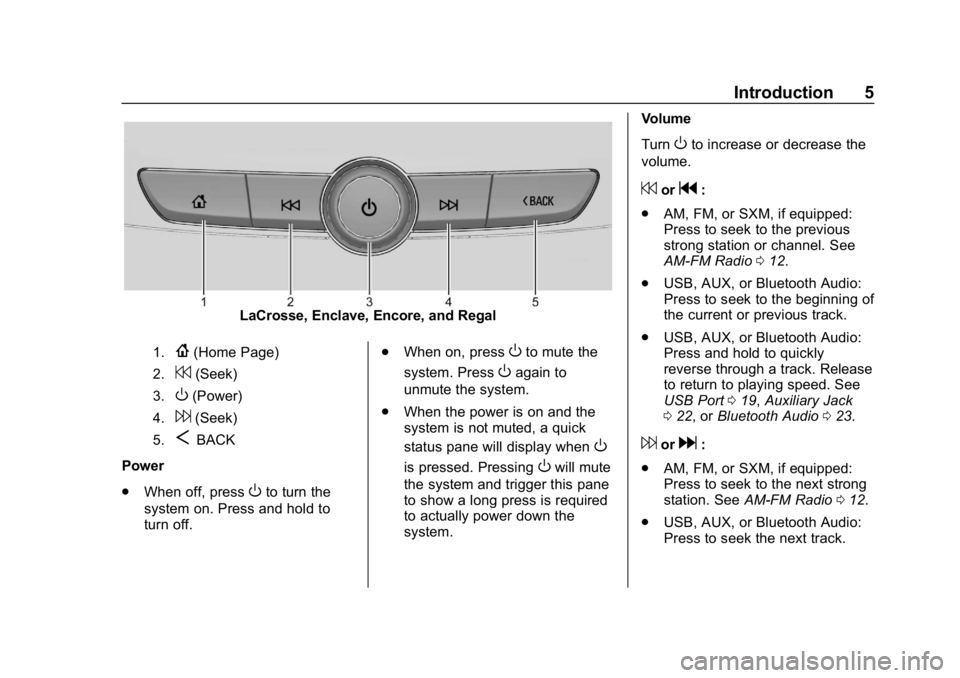
LaCrosse, Enclave, Encore, and Regal
1.{(Home Page)
2.7(Seek)
3.O(Power)
4.6(Seek)
5.SBACK
Power
. When off, press
Oto turn the
system on. Press and hold to
turn off. .
When on, press
Oto mute the
system. Press
Oagain to
unmute the system.
. When the power is on and the
system is not muted, a quick
status pane will display when
O
is pressed. PressingOwill mute
the system and trigger this pane
to show a long press is required
to actually power down the
system. Volume
Turn
Oto increase or decrease the
volume.
7org:
. AM, FM, or SXM, if equipped:
Press to seek to the previous
strong station or channel. See
AM-FM Radio 012.
. USB, AUX, or Bluetooth Audio:
Press to seek to the beginning of
the current or previous track.
. USB, AUX, or Bluetooth Audio:
Press and hold to quickly
reverse through a track. Release
to return to playing speed. See
USB Port 019, Auxiliary Jack
0 22, or Bluetooth Audio 023.
6ord:
. AM, FM, or SXM, if equipped:
Press to seek to the next strong
station. See AM-FM Radio 012.
. USB, AUX, or Bluetooth Audio:
Press to seek the next track.
Page 8 of 88
Buick Infotainment System (GMNA-Localizing-U.S./Canada-10999317) -
2018 - CRC - 7/31/17
Introduction 7
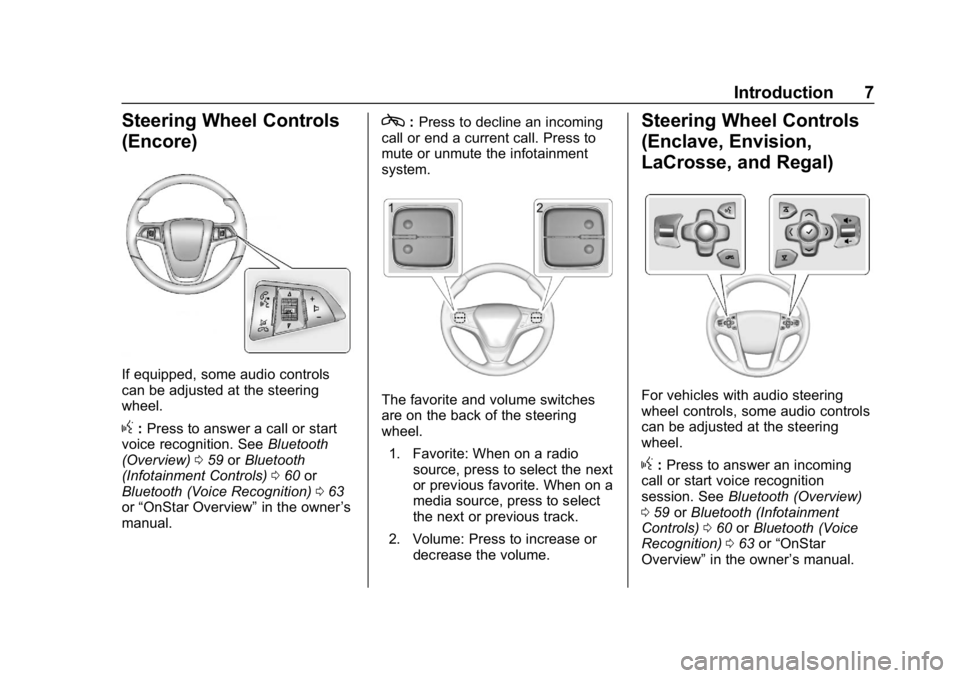
Steering Wheel Controls
(Encore)
If equipped, some audio controls
can be adjusted at the steering
wheel.
g:Press to answer a call or start
voice recognition. See Bluetooth
(Overview) 059 orBluetooth
(Infotainment Controls) 060 or
Bluetooth (Voice Recognition) 063
or “OnStar Overview” in the owner’s
manual.
c: Press to decline an incoming
call or end a current call. Press to
mute or unmute the infotainment
system.
The favorite and volume switches
are on the back of the steering
wheel.
1. Favorite: When on a radio source, press to select the next
or previous favorite. When on a
media source, press to select
the next or previous track.
2. Volume: Press to increase or decrease the volume.
Steering Wheel Controls
(Enclave, Envision,
LaCrosse, and Regal)
For vehicles with audio steering
wheel controls, some audio controls
can be adjusted at the steering
wheel.
g:Press to answer an incoming
call or start voice recognition
session. See Bluetooth (Overview)
0 59 orBluetooth (Infotainment
Controls) 060 orBluetooth (Voice
Recognition) 063 or“OnStar
Overview” in the owner ’s manual.
Page 9 of 88
Buick Infotainment System (GMNA-Localizing-U.S./Canada-10999317) -
2018 - CRC - 7/31/17
8 Introduction
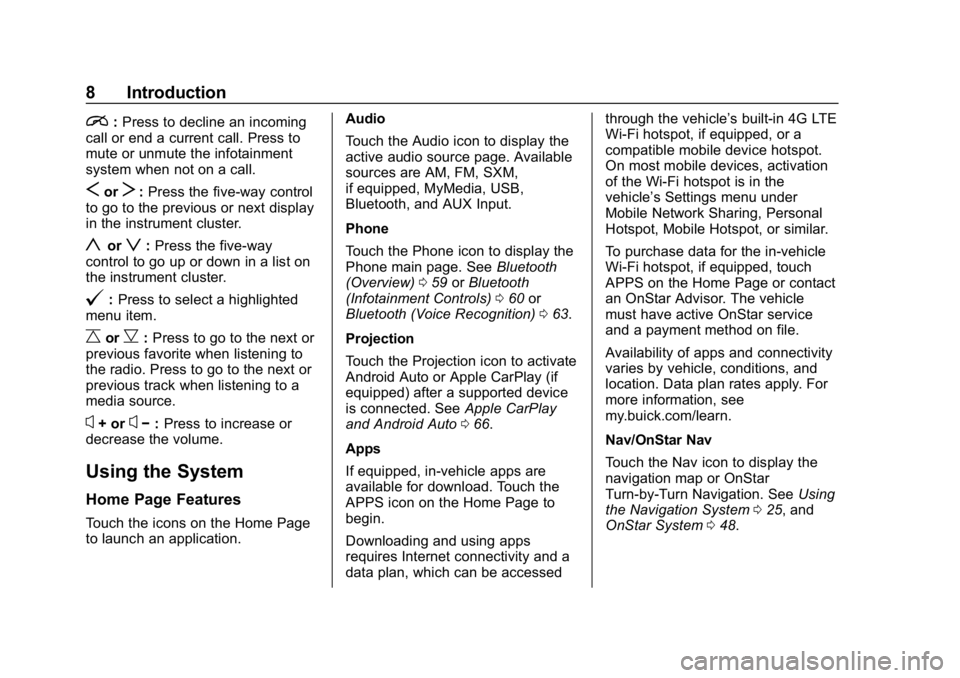
i:Press to decline an incoming
call or end a current call. Press to
mute or unmute the infotainment
system when not on a call.
SorT: Press the five-way control
to go to the previous or next display
in the instrument cluster.
yorz: Press the five-way
control to go up or down in a list on
the instrument cluster.
@: Press to select a highlighted
menu item.
CorB: Press to go to the next or
previous favorite when listening to
the radio. Press to go to the next or
previous track when listening to a
media source.
x+ orx− :Press to increase or
decrease the volume.
Using the System
Home Page Features
Touch the icons on the Home Page
to launch an application. Audio
Touch the Audio icon to display the
active audio source page. Available
sources are AM, FM, SXM,
if equipped, MyMedia, USB,
Bluetooth, and AUX Input.
Phone
Touch the Phone icon to display the
Phone main page. See
Bluetooth
(Overview) 059 orBluetooth
(Infotainment Controls) 060 or
Bluetooth (Voice Recognition) 063.
Projection
Touch the Projection icon to activate
Android Auto or Apple CarPlay (if
equipped) after a supported device
is connected. See Apple CarPlay
and Android Auto 066.
Apps
If equipped, in-vehicle apps are
available for download. Touch the
APPS icon on the Home Page to
begin.
Downloading and using apps
requires Internet connectivity and a
data plan, which can be accessed through the vehicle’
s built-in 4G LTE
Wi-Fi hotspot, if equipped, or a
compatible mobile device hotspot.
On most mobile devices, activation
of the Wi-Fi hotspot is in the
vehicle’s Settings menu under
Mobile Network Sharing, Personal
Hotspot, Mobile Hotspot, or similar.
To purchase data for the in-vehicle
Wi-Fi hotspot, if equipped, touch
APPS on the Home Page or contact
an OnStar Advisor. The vehicle
must have active OnStar service
and a payment method on file.
Availability of apps and connectivity
varies by vehicle, conditions, and
location. Data plan rates apply. For
more information, see
my.buick.com/learn.
Nav/OnStar Nav
Touch the Nav icon to display the
navigation map or OnStar
Turn-by-Turn Navigation. See Using
the Navigation System 025, and
OnStar System 048.
Page 17 of 88
Buick Infotainment System (GMNA-Localizing-U.S./Canada-10999317) -
2018 - CRC - 7/31/17
16 Radio
HD Radio Troubleshooting
Digital Audio Delay :Wait for the
signal to process. This can take
several seconds.
Volume Change, Audio Skip,
Echo, Digital Audio Lost : Station
signal strength may be weak, the
station is out of range, or the station
may be out of alignment. Verify
proper reception on another station.
If the HD Radio signal loses
reception while listening to HD1, the
radio will go back to the analog
version of the radio station.
If the HD Radio signal loses
reception while listening to stations
HD2 to HD8, the radio mutes until
the signal can be recovered or until
the station is changed.
HD Radio reception can be disabled
if driving in a weak signal area.
Touch HD Radio On/Off to toggle
HD Radio reception on and off.Satellite Radio
SiriusXM Satellite Radio
Service (If Equipped)
Vehicles with a valid SiriusXM
satellite radio subscription can
receive SiriusXM programming.
SiriusXM satellite radio has a wide
variety of programming and
commercial-free music, coast to
coast, and in digital-quality sound.
See www.siriusxm.com or call
1-888-601-6296 in the U.S. In
Canada, see www.siriusxm.ca or
call 1-877-438-9677.
When SiriusXM is active, the
channel name, number, category
name, song title, and artist show on
the infotainment display.
SiriusXM Menu
SiriusXM has a menu to adjust
different features.
Touching Menu in the infotainment
display may show the following:
Tone Settings : Touch + or−to
adjust the tone settings. See AM-FM
Radio 012. TuneSelect :
For SiriusXM only, this
feature allows for an alert to be set
for artists or songs that are played
on any channel. Touch Manage
Tune Select to turn the alerts On
and Off or manage the saved
selection of Artists or Songs. To
unselect an alert, touch the Song or
Artist. To delete an alert, touch −.
Touch the Back icon on the
infotainment display to go back to
the previous menu.
Auto Volume (If Equipped) : This
feature adjusts the volume based on
the vehicle speed. See AM-FM
Radio 012.
Bose AudioPilot Noise
Compensation Technology (If
Equipped) : This feature adjusts
the volume based on the noise in
the vehicle and speed. See AM-FM
Radio 012.
Radio Reception
Unplug electronic devices from the
accessory power outlets if there is
interference or static in the radio.
Page 23 of 88
Buick Infotainment System (GMNA-Localizing-U.S./Canada-10999317) -
2018 - CRC - 7/31/17
22 Audio Players
displays the file name as the track
name if the song information is not
available.
Supported Apple Devices
To view supported devices in the
U.S., see www.my.buick.com/learn.
Loss of Audio
If a phone currently paired over
Bluetooth is plugged in with a USB
cable, the system will automatically
mute the phone audio. Playback
can be resumed by changing the
audio source from Bluetooth to USB
cable.
Source USB from Media on the
infotainment display to resume
playback.
Bluetooth Streaming Audio and
Voice Recognition
SeeBluetooth Audio 023 for
information using voice recognition
with Bluetooth streaming audio.
Make sure all devices have the
latest software downloaded.Auxiliary Jack
This vehicle has an auxiliary input
jack in the center console under the
armrest. Possible auxiliary audio
sources include:
. Laptop computer
. Audio music player
This jack is not an audio output. Do
not plug headphones into the
auxiliary input jack. Set up an
auxiliary device while the vehicle is
in P (Park).
Connect a 3.5 mm (1/8 in) cable
from the auxiliary device to the
auxiliary input jack. When a device
is connected, the system can play
audio from the device over the
vehicle speakers.
If an auxiliary device has already
been connected, but a different
source is currently active, touch
Media on the infotainment display to
scroll through audio sources, until
the AUX source displays. Playing from the AUX Port
An auxiliary device is played
through the audio system and
controlled through the device itself.
AUX Menu
Press MENU on the center stack to
display the AUX menu and the
following may display:
Tone Settings :
Select to adjust
Bass, Midrange, Treble, Balance,
Fade, and EQ (Equalizer). See
AM-FM Radio 012.
Auto Volume (If Equipped) : This
feature adjusts the volume based on
the vehicle speed. See AM-FM
Radio 012.
Bose AudioPilot Noise
Compensation Technology (If
Equipped) : This feature adjusts
the volume based on the noise in
the vehicle and speed. See AM-FM
Radio 012.
DSP Modes (If Equipped) : With a
Bose Centerpoint sound system,
adjusts the DSP modes. See “DSP
Modes (If Equipped)” inAM-FM
Radio 012.
Page 27 of 88
Buick Infotainment System (GMNA-Localizing-U.S./Canada-10999317) -
2018 - CRC - 7/31/17
26 Navigation
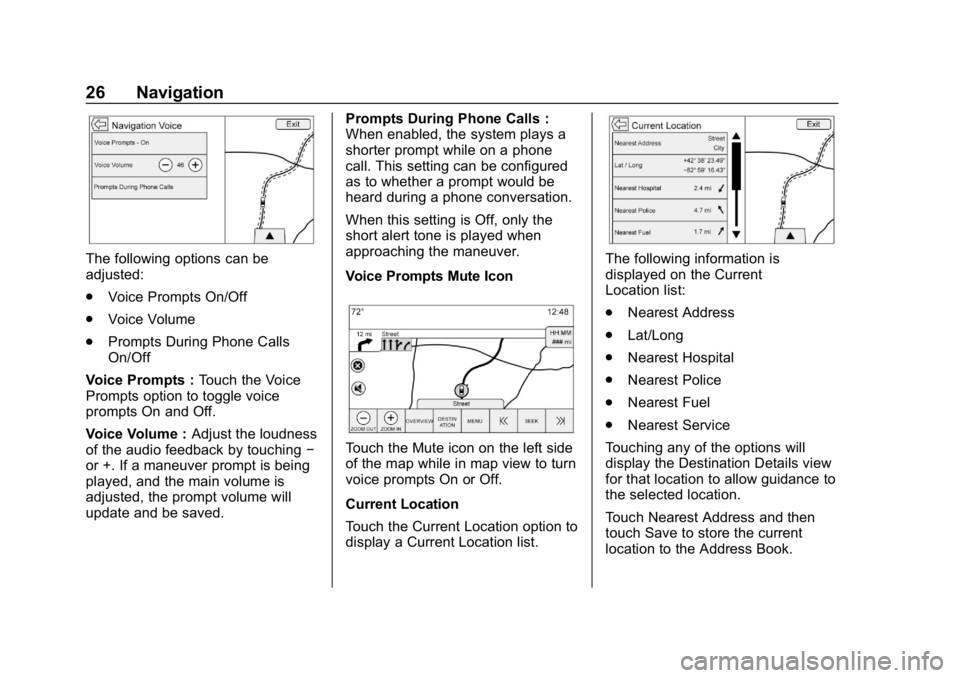
The following options can be
adjusted:
.Voice Prompts On/Off
. Voice Volume
. Prompts During Phone Calls
On/Off
Voice Prompts : Touch the Voice
Prompts option to toggle voice
prompts On and Off.
Voice Volume : Adjust the loudness
of the audio feedback by touching −
or +. If a maneuver prompt is being
played, and the main volume is
adjusted, the prompt volume will
update and be saved. Prompts During Phone Calls :
When enabled, the system plays a
shorter prompt while on a phone
call. This setting can be configured
as to whether a prompt would be
heard during a phone conversation.
When this setting is Off, only the
short alert tone is played when
approaching the maneuver.
Voice Prompts Mute Icon
Touch the Mute icon on the left side
of the map while in map view to turn
voice prompts On or Off.
Current Location
Touch the Current Location option to
display a Current Location list.
The following information is
displayed on the Current
Location list:
.
Nearest Address
. Lat/Long
. Nearest Hospital
. Nearest Police
. Nearest Fuel
. Nearest Service
Touching any of the options will
display the Destination Details view
for that location to allow guidance to
the selected location.
Touch Nearest Address and then
touch Save to store the current
location to the Address Book.
Page 53 of 88
Buick Infotainment System (GMNA-Localizing-U.S./Canada-10999317) -
2018 - CRC - 7/31/17
52 Voice Recognition
Voice Recognition
Voice recognition allows for
hands-free operation within the
navigation, audio, phone, and
weather applications. This feature
can be started by pressing
gon the
steering wheel controls or by
touching
gon the infotainment
display.
However, not all features within
these areas are supported by voice
commands. Generally, only complex
tasks that require multiple manual
interactions to complete are
supported by voice commands.
For example, tasks that take more
than one or two touches such as
selecting a song or artist to play
from a media device would be
supported by voice commands.
Other tasks, like adjusting the
volume or seeking up or down, are
audio features that are easily
performed by pressing one or two
controls, and are not supported by
voice commands. In general there are flexible ways to
speak commands for completing the
tasks. Most of them, except
destination entry and voice keypad,
can be completed in a single
command. If the task takes more
than one command to complete, the
first command should be to indicate
the kind of task to be performed, like
“Navigation Destination Entry.”
The
system replies with prompts that
lead you through a dialog to enter
the necessary information. For
example, if a destination for route
guidance is needed, say
“Navigation” or“Destination Entry.”
Voice recognition can be used when
the ignition is on or when Retained
Accessory Power (RAP) is active.
See “Retained Accessory Power
(RAP)” in the owner ’s manual.
Using Voice Recognition
Voice recognition becomes available
once the system has been
initialized. This begins when the
ignition is turned on. Initialization
may take a few moments. 1. Press
gon the steering wheel
controls to activate voice
recognition, or touch
gon the
infotainment display.
2. The audio system mutes and the system plays a prompt
followed by a beep.
3. Wait until after the beep completes, then clearly speak
one of the commands
described in this section.
A voice recognition system
prompt can be interrupted while
it is playing by pressing
gon
the steering wheel controls
again.
For example, if the prompt
seems to be taking too long to
finish, press
gagain and the
beep should happen
right away.
Page 60 of 88
Buick Infotainment System (GMNA-Localizing-U.S./Canada-10999317) -
2018 - CRC - 7/31/17
Phone 59
Phone
Bluetooth (Overview)
The Bluetooth-capable system can
interact with many cell phones,
allowing:
.Placement and receipt of calls in
a hands-free mode.
. Sharing of the cell phone’s
address book or contact list with
the vehicle.
To minimize driver distraction,
before driving, and with the vehicle
parked:
. Become familiar with the
features of the cell phone.
Organize the phone book and
contact lists clearly and delete
duplicate or rarely used entries.
If possible, program speed dial
or other shortcuts.
. Review the controls and
operation of the infotainment
system. .
Pair cell phone(s) to the vehicle.
The system may not work with
all cell phones. See “Pairing”in
this section.
Vehicles with a Bluetooth system
can use a Bluetooth-capable cell
phone with a Hands-Free Profile to
make and receive phone calls. The
infotainment system and voice
recognition are used to control the
system. The system can be used
with the ignition on or in ACC/
ACCESSORY. The range of the
Bluetooth system can be up to 9.1 m
(30 ft). Not all phones support all
functions and not all phones work
with the Bluetooth system. See
www.gm.com/bluetooth for more
information about compatible
phones.
Bluetooth Controls
Use the infotainment display
features on the infotainment system
or press the steering wheel icon to
operate the Bluetooth system. Steering Wheel Controls
g:
Press to answer incoming calls,
confirm system information, and
start voice recognition.
c: Press to end a call, decline a
call, or cancel an operation. Press
to mute or unmute the infotainment
system when not on a call.
Infotainment System Features
For information about how to
navigate the menu system using the
infotainment features, see
Infotainment 02.
Phone : Touch the Home Page to
enter the phone main menu.
Audio System
When using the Bluetooth system,
sound comes through the vehicle's
front audio system speakers and
overrides the audio system. Press
Oduring a call to change the
volume level. The adjusted volume
level remains in memory for later
calls. The system maintains a
minimum volume level.
Page 63 of 88
Buick Infotainment System (GMNA-Localizing-U.S./Canada-10999317) -
2018 - CRC - 7/31/17
62 Phone
2. Touch Contacts.
3. Touch the name to call.
4. Touch the desired contactnumber to call.
To make a call using the Recent
Calls menu: 1. Touch Phone on the Home Page.
2. Touch Recent.
3. Touch the name or number to call.
4. If necessary, select between Missed, Recent, and Sent calls
by touching View in the top
right corner of the list.
Making a Call Using the
Keypad
To make a call by dialing the
numbers:
1. Touch Phone on the Home Page.
2. Touch Keypad and enter a phone number.
3. Touch Call to start dialing the number.
Accepting or Declining a Call
When an incoming call is received,
the infotainment system mutes and
a ring tone is heard in the vehicle.
Accepting a Call
To accept a call:
.Press
gon the steering wheel
controls.
. Touch Answer on the
infotainment display.
Declining a Call
To decline a call:
. Press
con the steering wheel
controls.
. Touch Ignore on the infotainment
display.
Call Waiting
Call waiting must be supported on
the Bluetooth phone and enabled by
the wireless service carrier to work. Accepting a Call
To accept a call-waiting call:
.
Press
gon the steering wheel
controls.
. Touch Switch on the
infotainment display.
Declining a Call
To decline a call-waiting call:
. Press
con the steering wheel
controls.
. Touch Ignore on the infotainment
display.
Switching Between Calls (Call
Waiting Calls Only)
To switch between calls, touch
Phone on the Home Page to display
“Call View.” While in Call View,
touch the call information of the call
on hold to change calls.
Three-Way Calling
Three-way calling must be
supported on the Bluetooth phone
and enabled by the wireless service
carrier to work.
Page 73 of 88
Buick Infotainment System (GMNA-Localizing-U.S./Canada-10999317) -
2018 - CRC - 7/31/17
72 Settings
Teen Driver Speed Warning :
Allows for setting a visual and
audible warning when a certain
speed is exceeded. The speed
warning is selectable from 64 km/h
(40 mph) to 121 km/h (75 mph). The
speed warning does not limit the
speed of the vehicle.
Teen Driver Speed Limiter (If
Equipped) :Allows the maximum
speed of the vehicle to be limited to
137 km/h (85 mph). When the speed
limiter is turned On and the vehicle
is started with a Teen Driver key, the
DIC displays a message that the top
speed is limited to 137 km/h
(85 mph).
When Teen Driver is Active:
. The radio will mute when the
driver seat belt is not fastened,
and in some vehicles, when the
right front passenger seat belt is
not fastened. The audio from
any device paired to the vehicle
will also be muted.
. Certain electronic devices
placed on the front passenger
seat could cause the passenger sensing system to falsely sense
an unbuckled front passenger
and mute the radio. See
“Passenger Sensing System”
in
the owner's manual.
. Some safety systems, such as
Forward Automatic Braking,
if equipped and supported,
cannot be turned off.
. The gap setting for the Forward
Collision Alert and Adaptive
Cruise Control, if equipped,
cannot be changed.
. Super Cruise, if equipped, is not
available.
. Enhanced Low Fuel Warning (if
equipped) –When the vehicle is
low on fuel, the low fuel light on
the instrument cluster flashes
and the DIC low fuel warning
cannot be dismissed.
Report Card
The vehicle owner must secure the
driver ’s consent to record certain
vehicle data when the vehicle is
driven with a registered Teen Driver key. There is one Report Card per
vehicle. Data is not recorded when
Teen Driver is not active.
The Report Card data is collected
from the time Teen Driver is
activated or the last time the Report
Card was reset. The following items
may be recorded:
.
Distance Driven –the total
distance driven.
. Maximum Speed –the maximum
vehicle speed recorded.
. Overspeed Warnings –the
number of times the speed
warning setting was exceeded.
. Forward Collision Alerts –the
number of times the driver was
notified when approaching a
vehicle ahead too quickly and at
potential risk for a crash.
. Forward Collision Avoidance
Braking (if equipped) –Also
referred to as Forward Automatic
Braking, this is the number of
times the vehicle detected that a
forward collision was imminent
and applied the brakes.