Esu BUICK ENCLAVE 2021 User Guide
[x] Cancel search | Manufacturer: BUICK, Model Year: 2021, Model line: ENCLAVE, Model: BUICK ENCLAVE 2021Pages: 369, PDF Size: 11.58 MB
Page 77 of 369

Buick Enclave Owner Manual (GMNA-Localizing-U.S./Canada/Mexico-
14637843) - 2021 - CRC - 12/9/20
76 Seats and Restraints
To remove the head restraint:1. Partially fold the seatback forward. See Rear Seats 041 for additional
information.
2. Press both buttons on the head restraint posts at the same time, and pull up on
the head restraint.
3. Store the head restraint in the cargo area of the vehicle.
4. When the child restraint is removed, reinstall the head restraint before the
seating position is used.
{Warning
With head restraints that are not
installed and adjusted properly, there is a
greater chance that occupants will suffer
a neck/spinal injury in a crash. Do not
drive until the head restraints for all
occupants are installed and adjusted
properly.
To reinstall the head restraint:
1. Insert the head restraint posts into the holes in the top of the seatback. The
notches on the posts must face the
driver side of the vehicle.
2. Push the head restraint down. 3. Try to move the head restraint to make
sure that it is locked in place.
Replacing LATCH System Parts
After a Crash
{Warning
A crash can damage the LATCH system in
the vehicle. A damaged LATCH system
may not properly secure the child
restraint, resulting in serious injury or
even death in a crash. To help make sure
the LATCH system is working properly
after a crash, see your dealer to have the
system inspected and any necessary
replacements made as soon as possible.
If the vehicle has the LATCH system and it
was being used during a crash, new LATCH
system parts may be needed.
New parts and repairs may be necessary
even if the LATCH system was not being
used at the time of the crash.
Page 83 of 369
Buick Enclave Owner Manual (GMNA-Localizing-U.S./Canada/Mexico-
14637843) - 2021 - CRC - 12/9/20
82 Storage
Storage
Storage Compartments
Storage Compartments . . . . . . . . . . . . . . . . . 82
Glove Box . . . . . . . . . . . . . . . . . . . . . . . . . . . . . . 82
Cupholders . . . . . . . . . . . . . . . . . . . . . . . . . . . . . 82
Sunglasses Storage . . . . . . . . . . . . . . . . . . . . . 82
Center Console Storage . . . . . . . . . . . . . . . . . 83
Additional Storage Features
Cargo Management System . . . . . . . . . . . . 83
Roof Rack System
Roof Rack System . . . . . . . . . . . . . . . . . . . . . . 85
Storage Compartments{
Warning
Do not store heavy or sharp objects in
storage compartments. In a crash, these
objects may cause the cover to open and
could result in injury.
Glove Box
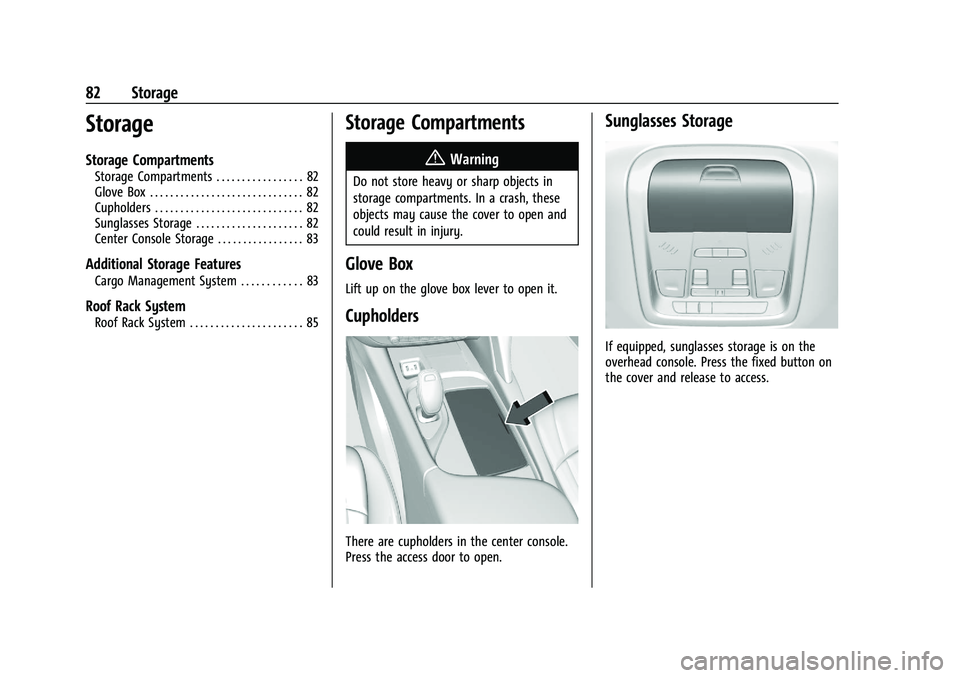
Lift up on the glove box lever to open it.
Cupholders
There are cupholders in the center console.
Press the access door to open.
Sunglasses Storage
If equipped, sunglasses storage is on the
overhead console. Press the fixed button on
the cover and release to access.
Page 86 of 369

Buick Enclave Owner Manual (GMNA-Localizing-U.S./Canada/Mexico-
14637843) - 2021 - CRC - 12/9/20
Storage 85
Warning (Continued)
maneuver potentially impacting vehicle
occupants. Someone could be injured. Be
sure to return the cover to the closed
position and latch before driving.
Roof Rack System{
Warning
If something is carried on top of the
vehicle that is longer or wider than the
roof rack—like paneling, plywood, or a
mattress —the wind can catch it while
the vehicle is being driven. The item
being carried could be violently torn
off, and this could cause a collision and
damage the vehicle. Never carry
something longer or wider than the roof
rack on top of the vehicle unless using a
GM certified accessory carrier.
If equipped, the roof rack can be used to
load items. For roof racks that do not have
crossrails included, GM certified crossrails
can be purchased as an accessory. See your
dealer.
Caution
Loading cargo on the roof rack that
weighs more than 100 kg (220 lb) or
hangs over the rear or sides of the
vehicle may damage the vehicle. Do not
load cargo exceeding 100 kg (220 lbs) and
always load cargo so that it rests evenly
between the crossrails and does not block
the vehicle lamps or windows. Fasten the
cargo securely.
To prevent damage or loss of cargo when
driving, check to make sure crossrails and
cargo are securely fastened. Loading cargo
on the roof rack will make the vehicle’s
center of gravity higher. Avoid high speeds, sudden starts, sharp turns, sudden braking,
or abrupt maneuvers; otherwise it may
result in loss of control. If driving for a long
distance, on rough roads, or at high speeds,
occasionally stop the vehicle to make sure
the cargo remains in its place. Do not
exceed the maximum vehicle capacity when
loading the vehicle. For more information on
vehicle capacity and loading, see
Vehicle
Load Limits 0200.
Page 96 of 369
Buick Enclave Owner Manual (GMNA-Localizing-U.S./Canada/Mexico-
14637843) - 2021 - CRC - 12/9/20
Instruments and Controls 95
.Info App. This is where the selected Driver
Information Center (DIC) displays can be
viewed. SeeDriver Information Center
(DIC) (Base Level) 0109 or
Driver Information Center (DIC) (Uplevel)
0 111.
.Audio
.Navigation
.Phone
.Options
Home
Presshorkto select the Home Page.
The home page is a view of information
that can be turned on or off by the driver
via the Home Page settings in the
Options menu.
Audio
Presshorkto select the Audio menu. In
the Audio menu browse for music, select
from the favorites, or change the audio
source. Use
lorgto change the station
or go to the next or previous track.
Navigation
Presshorkto select the Navigation menu.
If there is no active route, you can resume
the last route and turn the voice prompts
on/off. If there is an active route, press
V
to cancel or resume route guidance or turn
the voice prompts on or off.
Phone
Presshorkto select the Phone menu. In
the Phone menu, if there is no active phone
call, view recent calls, or scroll through
contacts. If there is an active call, mute the
phone or switch to handset operation.
Options
Presshorkto select the Options menu. Use
lorgto scroll through items in the
Options menu.
Units : While the Options application is
highlighted, press
lorgto select Units,
then press
Vto enter the Units menu.
If equipped, choose English, Imperial,
or metric units by pressing
Vwhile the
desired item is highlighted. A checkmark will
be displayed next to the selected item. Info Pages :
While the Options application is
highlighted, press
lorgto select Info
Pages, then press
Vto enter the Info
Pages menu.
Home Page Options : Select the available
elements to display. Not all elements will be
available on all vehicles: Speedometer,
Active Safety, Speed Sign, Time,
Temperature, and Fuel Range.
Speed Warning : The Speed Warning display
allows the driver to set a speed that they
do not want to exceed. While the Options
application is highlighted, press
lorgto
select Speed Warning, then press
Vto
enter the Speed Warning menu.
Press
lorgto adjust the value. PressV
to set the speed.
Software Information : Displays open source
software information.
Page 98 of 369
Buick Enclave Owner Manual (GMNA-Localizing-U.S./Canada/Mexico-
14637843) - 2021 - CRC - 12/9/20
Instruments and Controls 97
viewed. SeeDriver Information Center
(DIC) (Base Level) 0109 or
Driver Information Center (DIC) (Uplevel)
0 111.
.Audio
.Phone
.Navigation
.Options
Audio
Press
Vto select the Audio app, then press
kto enter the Audio menu. In the Audio
menu browse for music, select from the
favorites, or change the audio source. Use
lorgto change the station or go to the
next or previous track.
Phone
Press
Vto select the Phone app, then press
kto enter the Phone menu. In the Phone
menu, if there is no active phone call, view
recent calls, or scroll through contacts.
If there is an active call, mute the phone or
switch to handset operation. Navigation
Press
Vto select the Navigation app, then
press
kto enter the Navigation menu.
If there is no active route, you can resume
the last route and turn the voice prompts
on/off. If there is an active route, press
V
to cancel or resume route guidance or turn
the voice prompts on or off.
Options
Press
Vto select the Options app, then
press
kto enter the Options menu. Usel
orgto scroll through items in the
Options menu.
Units : Press
kwhile Units is displayed to
enter the Units menu. Choose English,
Imperial, or metric units by pressing
V
while the desired item is highlighted.
A checkmark will be displayed next to the
selected item.
Display Themes : There are two instrument
cluster display configurations to choose
from: Sport and Touring.
Info Pages : Press
kwhile Info Pages is
displayed to enter the Info Pages menu and
select the items to be displayed in the Info app. See
Driver Information Center (DIC)
(Base Level) 0109 or
Driver Information Center (DIC) (Uplevel)
0 111.
Speed Warning : The Speed Warning display
allows the driver to set a speed that they
do not want to exceed. To set the Speed
Warning press
kwhen Speed Warning is
displayed.
Scroll to set speed and press
k. Presslor
gto adjust the value. PressVto set the
speed.
Once the speed is set, this feature can be
turned off by pressing
Vwhile viewing this
page. If the selected speed limit is exceeded,
a pop-up warning is displayed with a chime.
Software Information : Displays open source
software information.
Speedometer
The speedometer shows the vehicle's speed
in either kilometers per hour (km/h) or
miles per hour (mph).
Odometer
The odometer shows how far the vehicle has
been driven, in either kilometers or miles.
Page 142 of 369
Buick Enclave Owner Manual (GMNA-Localizing-U.S./Canada/Mexico-
14637843) - 2021 - CRC - 12/9/20
Infotainment System 141
Storing and Recalling Media Favorites
To store media favorites, touch the Browse
menu to display a list of media types.
Touch one of the following Browse options
to save a favorite:
Playlists :Touch
Hnext to any playlist to
store the playlist as a favorite. Touch a
saved favorite to recall a favorite playlist.
The first song in the playlist begins to play.
Artists : Touch
Hnext to any artist to
store the artist as a favorite. Touch a saved
favorite to recall a favorite artist. The first
song in the artist list begins to play.
Songs : Touch
Hnext to any song to store
the song as a favorite. Touch a saved
favorite to recall a favorite song.
Albums : Touch
Hnext to any album to
store the album as a favorite. Touch a saved
favorite to recall a favorite album. The first
song in the album list begins to play.
Genres : Touch
Hnext to any genre to
store the genre as a favorite. Touch a saved
favorite to recall a favorite genre. The first
song of the genre begins to play. Podcasts :
Touch
Hnext to any podcast to
store the podcast as a favorite. Touch a
saved favorite to recall a favorite podcast.
The podcast begins to play.
Audiobooks : Touch
Hnext to any
audiobook to store the audiobook as a
favorite. Touch a saved favorite to recall a
favorite audiobook. The first chapter in the
audiobook begins to play.
Media Playback and Mute
USB playback will be paused if the system is
muted. If the steering wheel mute control is
pressed again, playback will resume.
If the source is changed while in mute,
playback resumes and audio will unmute.
Auxiliary Jack
This vehicle has an auxiliary input jack in
the center console. Possible auxiliary audio
sources include:
.Laptop computer
.Audio music player
This jack is not an audio output. Do not
plug headphones into the auxiliary input
jack. Set up an auxiliary device while the
vehicle is in P (Park). Connect a 3.5 mm (1/8 in) cable from the
auxiliary device to the auxiliary input jack.
When a device is connected, the system can
play audio from the device over the vehicle
speakers.
If an auxiliary device has already been
connected, but a different source is currently
active, touch More and then touch AUX to
make the source active.
Shuffle and Browse are not available in the
AUX source menu.
Bluetooth Audio
Music may be played from a paired
Bluetooth device. See
Bluetooth (Pairing and
Using a Phone) 0161 or
Bluetooth (Overview) 0160 for help pairing
a device.
Volume and song selection may be
controlled by using the infotainment
controls or the mobile device. If Bluetooth is
selected and no volume is present, check the
volume setting on the infotainment system.
Music can be launched by touching
Bluetooth from the recent sources list on
the left of the display or by touching the
More option and then touching the
Bluetooth device.
Page 144 of 369
Buick Enclave Owner Manual (GMNA-Localizing-U.S./Canada/Mexico-
14637843) - 2021 - CRC - 12/9/20
Infotainment System 143
Account
The Account tab displays a snapshot of the
account linked with the vehicle. If there is
no such account, this tab will show all
values as——. The call advisor call icon will
be active even if there is no active account.
Advisor Call
Selecting Advisor Call is the same as
pressing
Qor calling 1-888-4ONSTAR
(1-888-466-7827). The X option in the upper
right corner of the screen does not end the
call, but returns to the previous screen.
Turn-by-Turn Directions
With a connected plan, an OnStar Advisor
can download a destination to the vehicle or
its embedded navigation system,
if equipped. Select Turn-by-Turn Directions
from the Services tab of the OnStar app to
call an Advisor or select a recent or favorite
destination. Touch the navigation icons to
select home, address or place. A destination
transfer from OnStar will show the detail
view of the destination when it is
transferred from OnStar to the Navigation
application. See www.onstar.com for a
coverage map. Services vary by model. Map
coverage is available in the United States,
Puerto Rico, and Canada. Wi-Fi Hotspot
Touch to display the Settings page, which
shows the configurations for the vehicle
hotspot and allows them to be changed.
For more information, see www.onstar.com.
Navigation
Using the Navigation System
If equipped, launch the Nav application by
touching the Nav icon on the Home Page or
on the shortcut tray near the bottom of the
infotainment display.
When the Nav application is launched for
the first time, a product walkthrough is
available. Use of the feature requires the
Terms and Conditions and the Privacy
statement to be confirmed. If available and
signed into a profile, it is also suggested to
enable and confirm Predictive Navigation.
Predictive Navigation (If Equipped)
If Predictive Navigation is available and
confirmed, this feature learns preferences by
remembering where the vehicle has been.
It uses the locations and navigation history
to personalize routes and results.
Predictive Navigation may learn elements
such as:
.Personalized routes based on preferred
streets.
.Search results that provide best matches
at the top of the list.
.Predictive traffic.
.Local map content updating.
Predictive Navigation can also be enabled or
disabled at a later time by touching
A
(Options). While in Options, touch Settings,
then Map and Navigation Settings, and then
Predictive Navigation. See Settings0165.
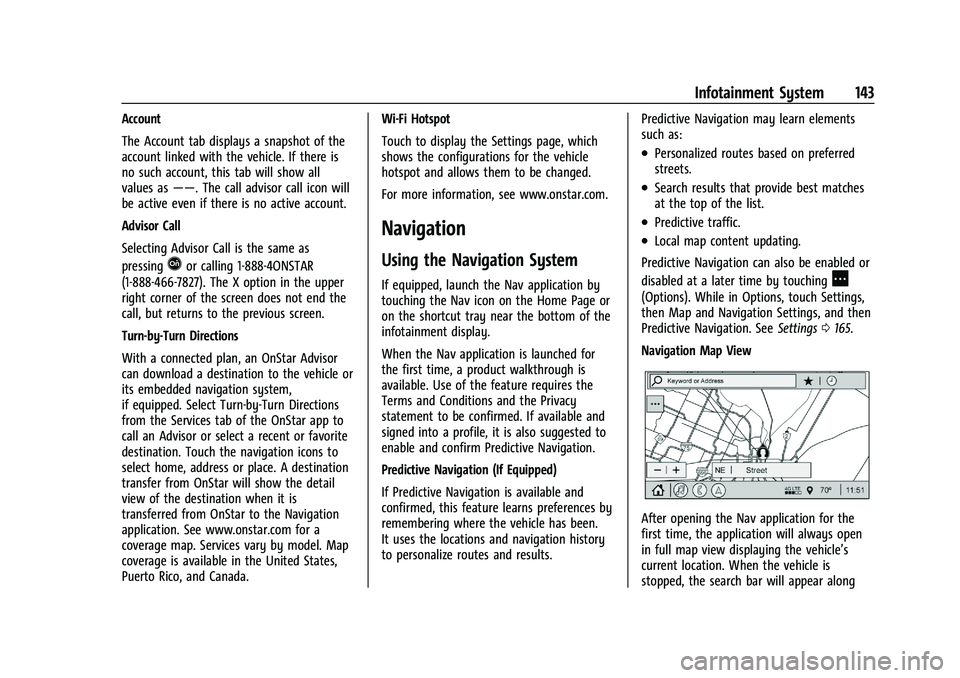
Navigation Map View
After opening the Nav application for the
first time, the application will always open
in full map view displaying the vehicle’s
current location. When the vehicle is
stopped, the search bar will appear along
Page 147 of 369
Buick Enclave Owner Manual (GMNA-Localizing-U.S./Canada/Mexico-
14637843) - 2021 - CRC - 12/9/20
146 Infotainment System
.Clear Recent Destinations–Touch\to
clear the recent destinations.
.Clear Search History –Touch\to clear
the search history.
About
Touch to display software information,
such as:
.Telenav Terms and Conditions
.Telenav Privacy Statement
.Navigation Version
Maps
The Navigation application requires a map
database to run. It is stored on an SD card
that is connected to the infotainment
system. If the map database is not available,
a missing SD card error message will be
displayed.
SD Card Error Messages
The SD card only works for one unique
vehicle. The SD card must pass
authentication verification to be used for
that specific vehicle. If the SD card has a
switch that can be set to read-only mode,
ensure that it is in the upward position and
not in read-only. Potential error scenarios and messages
include:
.The SD card has initialized for the first
time:
“Once initialized, this SD card can
only be used for navigation in this
vehicle.”
.The SD card is not working properly: “SD
card is not functioning properly.
(Error Code).”
.The SD card is not paired with the
existing system: “This SD card is not valid
in this vehicle for navigation. See Owner’s
Manual for more detail or visit your
dealer. (Error Code).”
.The SD card has been removed from the
slot: “SD card has been removed.
(Error Code).”
Touch Confirm to resume after the
initialization error message. For the other
messages, touch OK to return to the
Home Page.
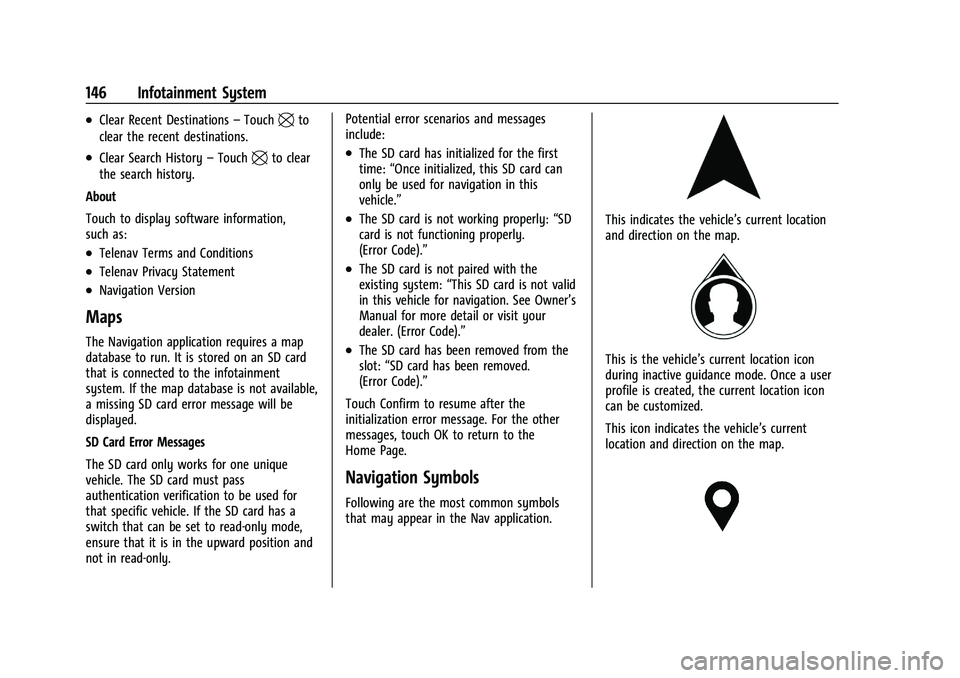
Navigation Symbols
Following are the most common symbols
that may appear in the Nav application.
This indicates the vehicle’s current location
and direction on the map.
This is the vehicle’s current location icon
during inactive guidance mode. Once a user
profile is created, the current location icon
can be customized.
This icon indicates the vehicle’s current
location and direction on the map.
Page 148 of 369
Buick Enclave Owner Manual (GMNA-Localizing-U.S./Canada/Mexico-
14637843) - 2021 - CRC - 12/9/20
Infotainment System 147
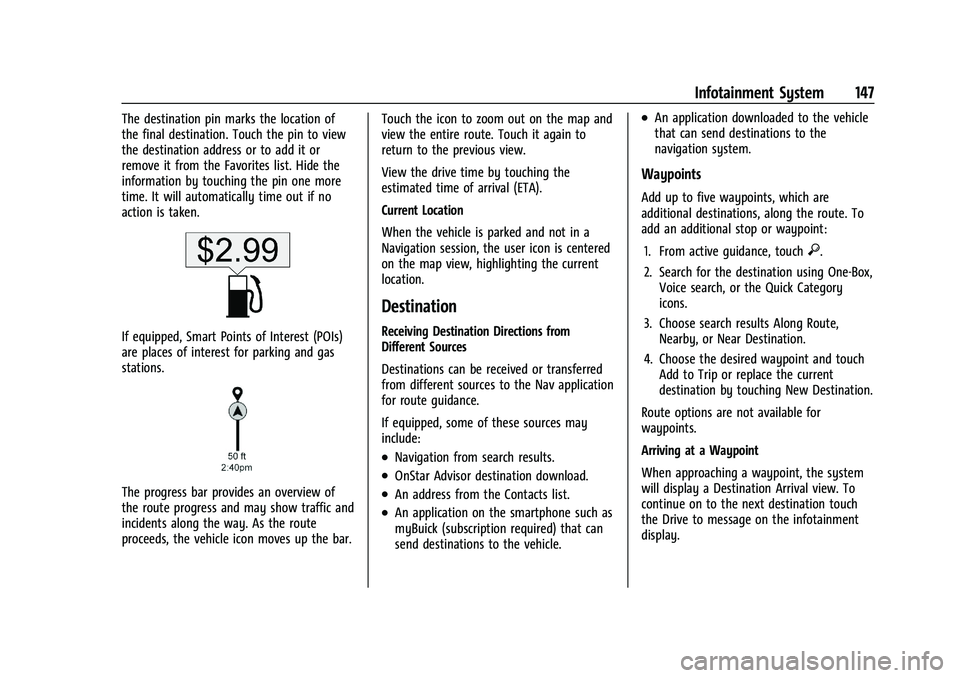
The destination pin marks the location of
the final destination. Touch the pin to view
the destination address or to add it or
remove it from the Favorites list. Hide the
information by touching the pin one more
time. It will automatically time out if no
action is taken.
If equipped, Smart Points of Interest (POIs)
are places of interest for parking and gas
stations.
The progress bar provides an overview of
the route progress and may show traffic and
incidents along the way. As the route
proceeds, the vehicle icon moves up the bar.Touch the icon to zoom out on the map and
view the entire route. Touch it again to
return to the previous view.
View the drive time by touching the
estimated time of arrival (ETA).
Current Location
When the vehicle is parked and not in a
Navigation session, the user icon is centered
on the map view, highlighting the current
location.
Destination
Receiving Destination Directions from
Different Sources
Destinations can be received or transferred
from different sources to the Nav application
for route guidance.
If equipped, some of these sources may
include:
.Navigation from search results.
.OnStar Advisor destination download.
.An address from the Contacts list.
.An application on the smartphone such as
myBuick (subscription required) that can
send destinations to the vehicle.
.An application downloaded to the vehicle
that can send destinations to the
navigation system.
Waypoints
Add up to five waypoints, which are
additional destinations, along the route. To
add an additional stop or waypoint:
1. From active guidance, touch
}.
2. Search for the destination using One-Box, Voice search, or the Quick Category
icons.
3. Choose search results Along Route, Nearby, or Near Destination.
4. Choose the desired waypoint and touch Add to Trip or replace the current
destination by touching New Destination.
Route options are not available for
waypoints.
Arriving at a Waypoint
When approaching a waypoint, the system
will display a Destination Arrival view. To
continue on to the next destination touch
the Drive to message on the infotainment
display.
Page 149 of 369
Buick Enclave Owner Manual (GMNA-Localizing-U.S./Canada/Mexico-
14637843) - 2021 - CRC - 12/9/20
148 Infotainment System
If the vehicle passes the waypoint or gets
out of the current route, the system will
automatically reroute back to this waypoint.
At the same time, it will show a Drive to
icon along with the next waypoint address
so the current waypoint can be skipped and
guidance can resume to the next waypoint
or destination.
Editing a Waypoint
When waypoints are added during active
guidance, the system allows a stop to be
deleted or the order to be changed. To edit
a waypoint:1. Touch
A.
2. Touch Edit Destinations.
.Modify destination order by touching
and holding the arrow until it is
highlighted. Drag to move the
waypoint up or down the list.
.Delete a waypoint by touchingY.
A pop-up will appear to confirm
waypoint removal. Once the request
is confirmed, the system will remove
the address from the destinations list.
Touch
zon the top right corner so
the system can recalculate the route. If there is only one address in the
destinations list, the system will
disable the move and delete
functions. The system will not allow
the final destination to be deleted.
Map Information
Road network attributes are contained in the
map database for map information.
Attributes include information such as street
names, street addresses, and turn
restrictions. A detailed area includes all
major highways, service roads, and
residential roads. The detailed areas include
Places of Interest (POIs) such as restaurants,
airports, banks, hospitals, police stations, gas
stations, tourist attractions, and historical
monuments.
If the vehicle does not have an applicable
service plan, the map database may not
include data for newly constructed areas or
map database corrections that are
completed after production. The navigation
system provides full route guidance in the
detailed map areas.
Zoom Control
The zoom control display is shown on the
map view. A few ways to zoom in or
out are:
.Touch + or
–to zoom in or out on
the map.
.Double tap with one finger to zoom in or
single tap with two fingers to zoom out
on the map.
.Use the index finger and thumb to zoom
out by pinching and then zoom in by
spreading those two fingers on the map.
Map Gestures and Map Scale
Use the following gestures on the
infotainment display to adjust the map scale
and display options.
.Pinch to zoom in or out.
.Pan the map.
.Use two fingers to tilt down and change
from 2D to 3D. Tilt up to change back
to 2D.
.Rotate the map.
See Using the System 0132.
Mute
When in active guidance, the audio prompts
while using navigation can be muted. Touch
the speaker icon on the right side of the
upper bar. A slash will appear on the
speaker to indicate voice guidance is muted.