instrument cluster BUICK ENCLAVE 2021 User Guide
[x] Cancel search | Manufacturer: BUICK, Model Year: 2021, Model line: ENCLAVE, Model: BUICK ENCLAVE 2021Pages: 369, PDF Size: 11.58 MB
Page 113 of 369

Buick Enclave Owner Manual (GMNA-Localizing-U.S./Canada/Mexico-
14637843) - 2021 - CRC - 12/9/20
112 Instruments and Controls
DIC Info Page Options
The info pages on the DIC can be turned on
or off through the Options menu.1. Press
hto access the cluster applications.
2. Press
lorgto scroll to the Options
application.
3. Press
Vto enter the Options menu.
4. Scroll to Info Pages and press
k.
5. Press
lorgto move through the list
of possible information displays.
6. Press
Vwhile an item is highlighted to
select or deselect that item. When an
item is selected, a checkmark will appear
next to it.
DIC Info Pages
The following is the list of all possible DIC
info page displays. Some may not be
available for your particular vehicle. Some
items may not be turned on by default but
can be turned on through the Options app.
See “DIC Info Page Options” earlier in this
section. Speed :
Shows the vehicle speed in either
kilometers per hour (km/h) or miles per
hour (mph). The vehicle odometer is also
shown on this page.
Trip A or Trip B, Average Fuel Economy, and
Average Speed : Shows the current distance
traveled, in either kilometers (km) or
miles (mi), since the trip odometer was last
reset.
The Average Fuel Economy display shows
the approximate average liters per
100 kilometers (L/100 km) or miles per
gallon (mpg). This number is calculated
based on the number of L/100 km (mpg)
recorded since the last time this menu item
was reset. This number reflects only the
approximate average fuel economy that the
vehicle has right now, and will change as
driving conditions change.
The Average Speed display shows the
average speed of the vehicle in kilometers
per hour (km/h) or miles per hour (mph).
This average is calculated based on the
various vehicle speeds recorded since the
last reset of this value. Press and hold
Vwhile this display is active
to reset the trip odometer, the average fuel
economy, and the average speed. Or press
k
and select reset in the menu.
Fuel Range and Instantaneous Fuel
Economy : Shows the approximate distance
the vehicle can be driven without refueling.
LOW will be displayed when the vehicle is
low on fuel. The fuel range estimate is
based on an average of the vehicle's fuel
economy over recent driving history and the
amount of fuel remaining in the fuel tank.
The Instantaneous Fuel Economy display
shows the current fuel economy in either
liters per 100 kilometers (L/100 km) or miles
per gallon (mpg). This number reflects only
the approximate fuel economy that the
vehicle has right now and changes
frequently as driving conditions change.
Timer and Fuel Used : Can be used as a
timer. To start the timer, press
Vwhile this
display is active. The display will show the
amount of time that has passed since the
timer was last reset. To stop the timer,
press
Vbriefly while this display is active
and the timer is running. To reset the timer
to zero, press and hold
Vwhile this display
is active.
Page 123 of 369
Buick Enclave Owner Manual (GMNA-Localizing-U.S./Canada/Mexico-
14637843) - 2021 - CRC - 12/9/20
122 Lighting
Lighting
Exterior Lighting
Exterior Lamp Controls . . . . . . . . . . . . . . . . . 122
Exterior Lamps Off Reminder . . . . . . . . . . 123
Headlamp High/Low-Beam Changer . . . . 123
Flash-to-Pass . . . . . . . . . . . . . . . . . . . . . . . . . . . 124
Daytime Running Lamps (DRL) . . . . . . . . . 124
Automatic Headlamp System . . . . . . . . . . 124
Hazard Warning Flashers . . . . . . . . . . . . . . 125
Turn and Lane-Change Signals . . . . . . . . . 125
Interior Lighting
Instrument Panel IlluminationControl . . . . . . . . . . . . . . . . . . . . . . . . . . . . . . . 125
Courtesy Lamps . . . . . . . . . . . . . . . . . . . . . . . 126
Dome Lamps . . . . . . . . . . . . . . . . . . . . . . . . . . 126
Reading Lamps . . . . . . . . . . . . . . . . . . . . . . . . 126
Lighting Features
Entry Lighting . . . . . . . . . . . . . . . . . . . . . . . . . 127
Exit Lighting . . . . . . . . . . . . . . . . . . . . . . . . . . . 127
Battery Load Management . . . . . . . . . . . . . 127
Battery Power Protection . . . . . . . . . . . . . . 128
Exterior Lighting Battery Saver . . . . . . . . 128
Exterior Lighting
Exterior Lamp Controls
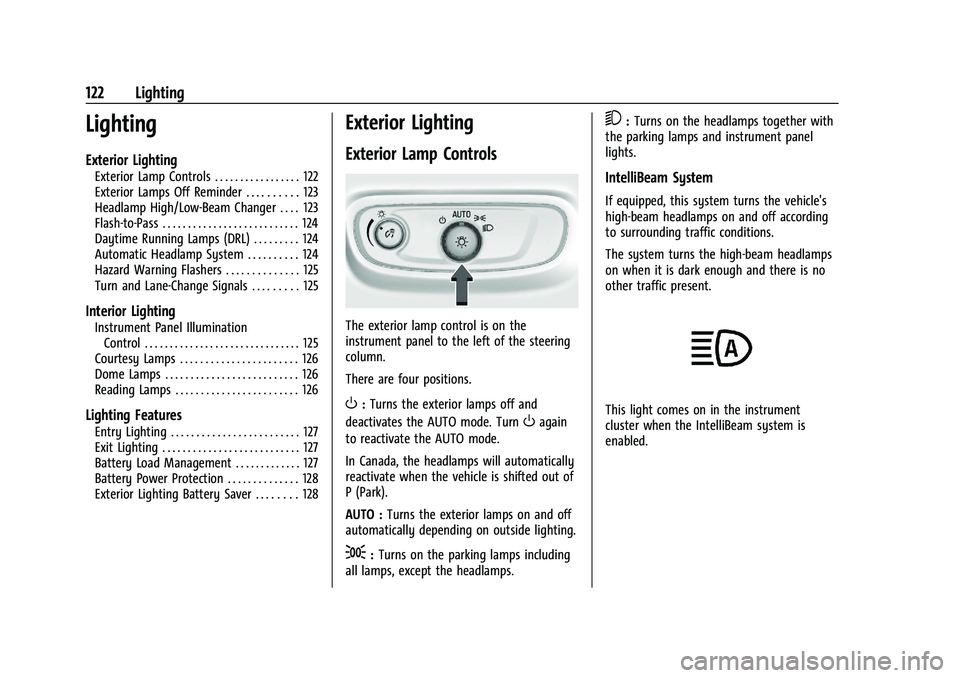
The exterior lamp control is on the
instrument panel to the left of the steering
column.
There are four positions.
O: Turns the exterior lamps off and
deactivates the AUTO mode. Turn
Oagain
to reactivate the AUTO mode.
In Canada, the headlamps will automatically
reactivate when the vehicle is shifted out of
P (Park).
AUTO : Turns the exterior lamps on and off
automatically depending on outside lighting.
;: Turns on the parking lamps including
all lamps, except the headlamps.
5: Turns on the headlamps together with
the parking lamps and instrument panel
lights.
IntelliBeam System
If equipped, this system turns the vehicle's
high-beam headlamps on and off according
to surrounding traffic conditions.
The system turns the high-beam headlamps
on when it is dark enough and there is no
other traffic present.
This light comes on in the instrument
cluster when the IntelliBeam system is
enabled.
Page 124 of 369
Buick Enclave Owner Manual (GMNA-Localizing-U.S./Canada/Mexico-
14637843) - 2021 - CRC - 12/9/20
Lighting 123
Turning On and Enabling IntelliBeam
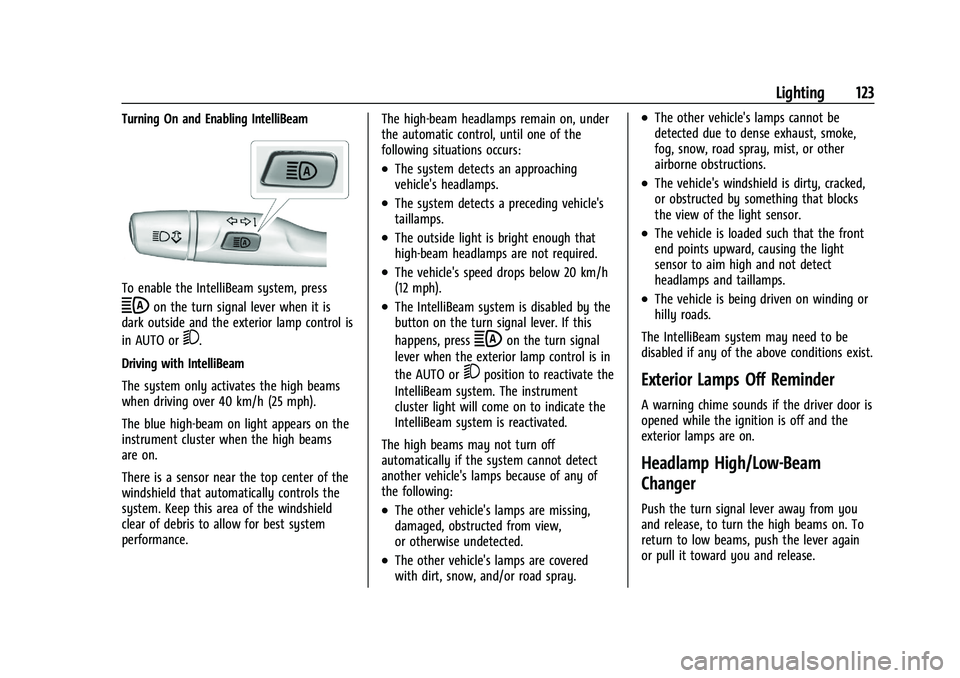
To enable the IntelliBeam system, press
bon the turn signal lever when it is
dark outside and the exterior lamp control is
in AUTO or
5.
Driving with IntelliBeam
The system only activates the high beams
when driving over 40 km/h (25 mph).
The blue high-beam on light appears on the
instrument cluster when the high beams
are on.
There is a sensor near the top center of the
windshield that automatically controls the
system. Keep this area of the windshield
clear of debris to allow for best system
performance. The high-beam headlamps remain on, under
the automatic control, until one of the
following situations occurs:
.The system detects an approaching
vehicle's headlamps.
.The system detects a preceding vehicle's
taillamps.
.The outside light is bright enough that
high-beam headlamps are not required.
.The vehicle's speed drops below 20 km/h
(12 mph).
.The IntelliBeam system is disabled by the
button on the turn signal lever. If this
happens, press
bon the turn signal
lever when the exterior lamp control is in
the AUTO or
5position to reactivate the
IntelliBeam system. The instrument
cluster light will come on to indicate the
IntelliBeam system is reactivated.
The high beams may not turn off
automatically if the system cannot detect
another vehicle's lamps because of any of
the following:
.The other vehicle's lamps are missing,
damaged, obstructed from view,
or otherwise undetected.
.The other vehicle's lamps are covered
with dirt, snow, and/or road spray.
.The other vehicle's lamps cannot be
detected due to dense exhaust, smoke,
fog, snow, road spray, mist, or other
airborne obstructions.
.The vehicle's windshield is dirty, cracked,
or obstructed by something that blocks
the view of the light sensor.
.The vehicle is loaded such that the front
end points upward, causing the light
sensor to aim high and not detect
headlamps and taillamps.
.The vehicle is being driven on winding or
hilly roads.
The IntelliBeam system may need to be
disabled if any of the above conditions exist.
Exterior Lamps Off Reminder
A warning chime sounds if the driver door is
opened while the ignition is off and the
exterior lamps are on.
Headlamp High/Low-Beam
Changer
Push the turn signal lever away from you
and release, to turn the high beams on. To
return to low beams, push the lever again
or pull it toward you and release.
Page 125 of 369
Buick Enclave Owner Manual (GMNA-Localizing-U.S./Canada/Mexico-
14637843) - 2021 - CRC - 12/9/20
124 Lighting
This indicator light turns on in the
instrument cluster when the high-beam
headlamps are on.
Flash-to-Pass
This feature is used to signal to the vehicle
ahead that you want to pass.
If the headlamps are off or in the low-beam
position, pull the turn signal lever toward
you to momentarily switch to high beams.
Release the lever to turn the high-beam
headlamps off.
Daytime Running Lamps (DRL)
DRL can make it easier for others to see the
front of your vehicle during the day. Fully
functional DRL are required on all vehicles
first sold in Canada.
The dedicated DRL will come on when all of
the following conditions are met:
.The ignition is on.
.The exterior lamp control is in AUTO.
.The light sensor determines it is daytime.
.The parking brake is released or the
vehicle is not in P (Park).
The taillamps, instrument panel lights, and
other lamps will not be on.
The DRL turn off when the headlamps are
turned to
Oor the ignition is off. For
vehicles sold in Canada, this control only
works when the vehicle is parked.
Automatic Headlamp System
When the exterior lamp control is set to
AUTO and it is dark enough outside, the
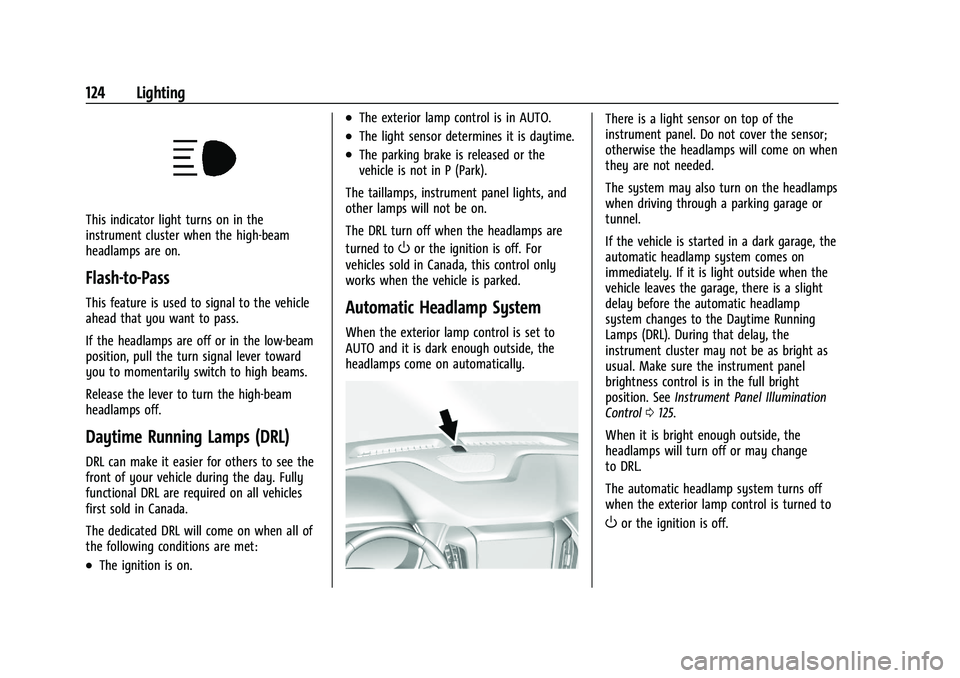
headlamps come on automatically.
There is a light sensor on top of the
instrument panel. Do not cover the sensor;
otherwise the headlamps will come on when
they are not needed.
The system may also turn on the headlamps
when driving through a parking garage or
tunnel.
If the vehicle is started in a dark garage, the
automatic headlamp system comes on
immediately. If it is light outside when the
vehicle leaves the garage, there is a slight
delay before the automatic headlamp
system changes to the Daytime Running
Lamps (DRL). During that delay, the
instrument cluster may not be as bright as
usual. Make sure the instrument panel
brightness control is in the full bright
position. See Instrument Panel Illumination
Control 0125.
When it is bright enough outside, the
headlamps will turn off or may change
to DRL.
The automatic headlamp system turns off
when the exterior lamp control is turned to
Oor the ignition is off.
Page 126 of 369
Buick Enclave Owner Manual (GMNA-Localizing-U.S./Canada/Mexico-
14637843) - 2021 - CRC - 12/9/20
Lighting 125
Lights On with Wipers
If the windshield wipers are activated in
daylight with the engine on, and the
exterior lamp control is in AUTO, the
headlamps, parking lamps, and other
exterior lamps come on. The transition time
for the lamps coming on varies based on
wiper speed. When the wipers are not
operating, these lamps turn off. Move the
exterior lamp control to
Oor;to disable
this feature.
Hazard Warning Flashers
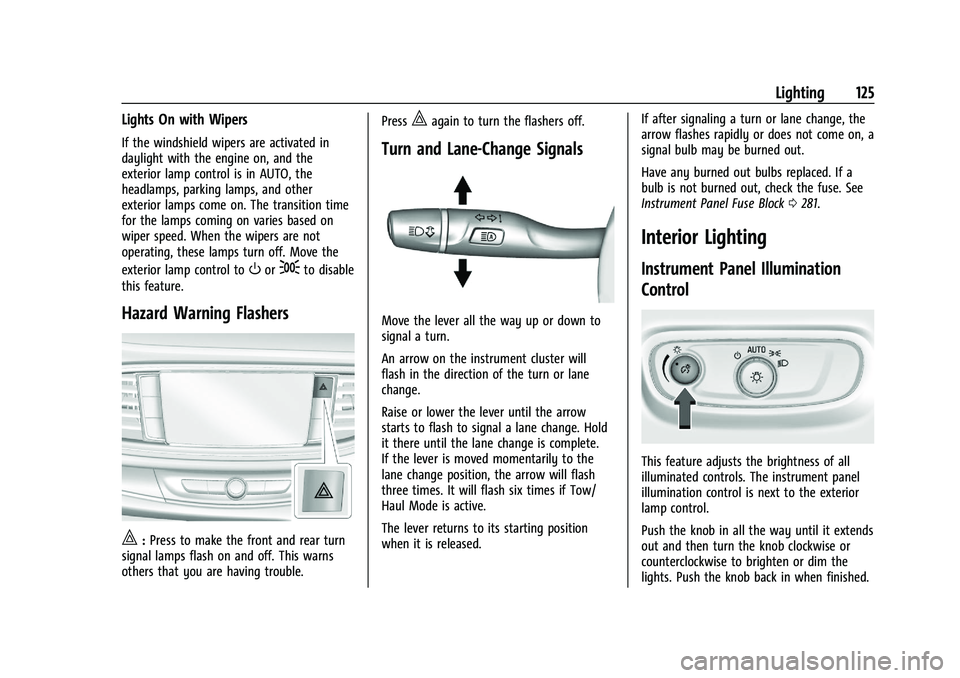
|: Press to make the front and rear turn
signal lamps flash on and off. This warns
others that you are having trouble. Press
|again to turn the flashers off.
Turn and Lane-Change Signals
Move the lever all the way up or down to
signal a turn.
An arrow on the instrument cluster will
flash in the direction of the turn or lane
change.
Raise or lower the lever until the arrow
starts to flash to signal a lane change. Hold
it there until the lane change is complete.
If the lever is moved momentarily to the
lane change position, the arrow will flash
three times. It will flash six times if Tow/
Haul Mode is active.
The lever returns to its starting position
when it is released.
If after signaling a turn or lane change, the
arrow flashes rapidly or does not come on, a
signal bulb may be burned out.
Have any burned out bulbs replaced. If a
bulb is not burned out, check the fuse. See
Instrument Panel Fuse Block
0281.
Interior Lighting
Instrument Panel Illumination
Control
This feature adjusts the brightness of all
illuminated controls. The instrument panel
illumination control is next to the exterior
lamp control.
Push the knob in all the way until it extends
out and then turn the knob clockwise or
counterclockwise to brighten or dim the
lights. Push the knob back in when finished.
Page 130 of 369
Buick Enclave Owner Manual (GMNA-Localizing-U.S./Canada/Mexico-
14637843) - 2021 - CRC - 12/9/20
Infotainment System 129
Infotainment System
Introduction
Introduction . . . . . . . . . . . . . . . . . . . . . . . . . . . 129
Overview . . . . . . . . . . . . . . . . . . . . . . . . . . . . . . 130
Steering Wheel Controls . . . . . . . . . . . . . . . 131
Using the System . . . . . . . . . . . . . . . . . . . . . . 132
Software Updates . . . . . . . . . . . . . . . . . . . . . . 135
Radio
AM-FM Radio . . . . . . . . . . . . . . . . . . . . . . . . . . 135
HD Radio Technology . . . . . . . . . . . . . . . . . . 136
Radio Data System (RDS) . . . . . . . . . . . . . . 137
Satellite Radio . . . . . . . . . . . . . . . . . . . . . . . . . 137
Radio Reception . . . . . . . . . . . . . . . . . . . . . . . 138
Multi-Band Antenna . . . . . . . . . . . . . . . . . . . 138
Audio Players
Avoiding Untrusted Media Devices . . . . . 138
USB Port . . . . . . . . . . . . . . . . . . . . . . . . . . . . . . . 138
Auxiliary Jack . . . . . . . . . . . . . . . . . . . . . . . . . . 141
Bluetooth Audio . . . . . . . . . . . . . . . . . . . . . . . 141
OnStar System
OnStar System . . . . . . . . . . . . . . . . . . . . . . . . 142
Navigation
Using the Navigation System . . . . . . . . . . 143
Maps . . . . . . . . . . . . . . . . . . . . . . . . . . . . . . . . . . 146
Navigation Symbols . . . . . . . . . . . . . . . . . . . 146
Destination . . . . . . . . . . . . . . . . . . . . . . . . . . . . 147OnStar System . . . . . . . . . . . . . . . . . . . . . . . . . 153
Global Positioning System (GPS) . . . . . . . 153
Vehicle Positioning . . . . . . . . . . . . . . . . . . . . . 153
Problems with Route Guidance . . . . . . . . 154
If the System Needs Service . . . . . . . . . . . 154
Map Data Updates . . . . . . . . . . . . . . . . . . . . 154
Database Coverage Explanations . . . . . . . 155
Voice Recognition
Voice Recognition . . . . . . . . . . . . . . . . . . . . . . 155
Phone
Bluetooth (Overview) . . . . . . . . . . . . . . . . . . 160
Bluetooth (Pairing and Using a
Phone) . . . . . . . . . . . . . . . . . . . . . . . . . . . . . . . 161
Apple CarPlay and Android Auto . . . . . . 164
Settings
Settings . . . . . . . . . . . . . . . . . . . . . . . . . . . . . . . 165
Teen Driver . . . . . . . . . . . . . . . . . . . . . . . . . . . . 171
Trademarks and License Agreements
Trademarks and License Agreements . . . . . . . . . . . . . . . . . . . . . . . . . . 174
Introduction
Read the following pages to become familiar
with the features.
{Warning
Taking your eyes off the road for too
long or too often while using any
infotainment feature can cause a crash.
You or others could be injured or killed.
Do not give extended attention to
infotainment tasks while driving. Limit
your glances at the vehicle displays and
focus your attention on driving. Use voice
commands whenever possible.
The infotainment system has built-in
features intended to help avoid distraction
by disabling some features when driving.
These features may gray out when they are
unavailable. Many infotainment features are
also available through the instrument cluster
and steering wheel controls.
Before driving:
.Become familiar with the operation,
center stack controls, steering wheel
controls, and infotainment display.
Page 133 of 369
Buick Enclave Owner Manual (GMNA-Localizing-U.S./Canada/Mexico-
14637843) - 2021 - CRC - 12/9/20
132 Infotainment System
SorT:Press the five-way control to go
to the previous or next display in the
instrument cluster.
yorz: Press the five-way control to go
up or down in a list on the instrument
cluster.
V: Press to select a highlighted menu item.
CorB: Press to go to the next or
previous favorite when listening to the
radio. Press to go to the next or previous
track when listening to a media source.
x+ orx– :Press to increase or decrease
the volume.
Using the System
Audio
Touch the Audio icon to display the active
audio source page. Examples of available
sources may include AM, FM, SXM (if
equipped), USB, and Bluetooth.
Phone
Touch the Phone icon to display the Phone
main page. See Bluetooth (Pairing and Using
a Phone) 0161 or
Bluetooth (Overview) 0160.
Nav
If equipped, touch the Nav icon to display
the navigation map. See Using the
Navigation System 0143.
Climate
If equipped, touch the Climate icon to
display the Climate main page. See Dual
Automatic Climate Control System 0183.
Wi-Fi Hotspot
Touch the Wi-Fi Hotspot icon to display the
Wi-Fi Hotspot information. See Settings
0 165.
Users
If equipped, touch the Users icon to sign in
or create a new user profile, and follow the
on-screen instructions.
Only four user profiles can be active at one
time in the vehicle. It may be necessary to
remove a profile from the menu before
creating or signing into an existing profile.
The removed profile can be logged into at a
later time.
Settings
Touch the Settings icon to display the
Settings menu. See Settings0165.
Apple CarPlay
Touch the Apple CarPlay icon to activate
Apple CarPlay (if equipped) after a
supported device is connected. See Apple
CarPlay and Android Auto 0164.
Android Auto
Touch the Android Auto icon to activate
Android Auto (if equipped) after a supported
device is connected. See Apple CarPlay and
Android Auto 0164.
Apps
If equipped, in-vehicle apps are available for
download. Touch the Apps icon on the
Home Page to begin.
Downloading and using in-vehicle apps
requires Internet connectivity which can be
accessed with a data plan through the
vehicle’s built-in 4G LTE Wi-Fi hotspot,
if equipped, or a compatible mobile device
hotspot. On most mobile devices, activation
of the Wi-Fi hotspot is in the device’s
Settings menu under Mobile Network
Sharing, Personal Hotspot, Mobile Hotspot,
or similar.
Page 156 of 369
Buick Enclave Owner Manual (GMNA-Localizing-U.S./Canada/Mexico-
14637843) - 2021 - CRC - 12/9/20
Infotainment System 155
If the vehicle is equipped with Connected
Navigation, which is a subscription service
that enables certain features of the
navigation system, such as Traffic, Smart
Search/Routing, and Predictive Navigation,
then the system will download the latest
map data from the cloud.
Database Coverage Explanations
Coverage areas vary with respect to the
level of map detail available for any given
area. Some areas feature greater levels of
detail than others. If this happens, it does
not mean there is a problem with the
system. As the map data is updated, more
detail can become available for areas that
previously had limited detail. SeeMap Data
Updates 0154.
Voice Recognition
If equipped, voice recognition allows for
hands-free operation within the navigation,
audio, phone, and weather applications. This
feature can be started by pressing
gon the
steering wheel or touching
gon the
infotainment display. However, not all features within these areas
are supported by voice commands.
Generally, only complex tasks that require
multiple manual interactions to complete
are supported by voice commands.
For example, tasks that take more than one
or two touches, such as a song or artist to
play from a media device, would be
supported by voice commands. Other tasks,
like adjusting the volume or seeking up or
down, are audio features that are easily
performed by touching one or two options,
and are not supported by voice commands.
In general there are flexible ways to speak
commands for completing the tasks.
If your language supports it, try stating a
one-shot command, such as
“Directions to
address
while stating the address during the
command. Another example of a one-shot
Destination Entry command is, “Directions to
Place of Interest at
commands do not work, try saying, “Take
me to Place of Interest” or“Find address”
and the system will walk you through by
asking additional questions.
Hybrid Speech Recognition
If equipped, this feature helps distinguish
words by using Internet-based information
along with the system’s voice recognition
database. This allows you to speak more
naturally when using voice recognition.
Using Voice Recognition
Voice recognition becomes available once
the system has been initialized. This begins
when the ignition is turned on. Initialization
may take a few moments.
1. Press
gon the steering wheel controls
to activate voice recognition.
2. The audio system mutes and the system plays a prompt.
3. Clearly speak one of the commands described in this section.
A voice recognition system prompt can
be interrupted while it is playing by
pressing
gagain.
Once voice recognition is started, both the
infotainment display and instrument cluster
show the selections and visual dialog
content. These displays can be turned on or
off in the Tutorial Mode under Settings
0 165.
Page 171 of 369
Buick Enclave Owner Manual (GMNA-Localizing-U.S./Canada/Mexico-
14637843) - 2021 - CRC - 12/9/20
170 Infotainment System
.Reset Music Index: This allows the music
index to be reset if you are having
difficulty accessing all of the media
content on your device.
Touch Yes or No.
Climate
If equipped, touch and the following may
display:
.Auto Fan Speed: This setting specifies the
amount of airflow when the climate
control fan setting is Auto Fan.
Touch Low, Medium, or High.
.Air Quality Sensor: This setting switches
the system into Recirculation Mode based
on the quality of the outside air.
Touch Off, Low Sensitivity, or High
Sensitivity.
.Auto Cooled Seats: This setting
automatically turns on and regulates the
ventilated seats when the cabin
temperature is warm.
Touch the controls on the infotainment
display to disable or enable.
.Auto Heated Seats: This setting
automatically turns on and regulates the
heated seats when the cabin temperature is cool. The auto heated seats can be
turned off by using the heated seat
controls on the center stack.
Touch the controls on the infotainment
display to disable or enable.
.Auto Defog: This setting automatically
turns the front defogger on when the
vehicle engine is started.
Touch the controls on the infotainment
display to disable or enable.
.Auto Rear Defog: This setting
automatically turns the rear window
defogger on when the vehicle engine is
started.
Touch the controls on the infotainment
display to disable or enable.
.Ionizer: This setting purifies the air in the
interior of the vehicle..
Touch the controls on the infotainment
display to disable or enable.
Navigation
Touch and the following may display:
.Set Up My Places
.Map Preferences
.Route Preferences
.Navigation Voice Control
.Traffic Preferences
.Alert Preferences
.Manage History
.Predictive Navigation
.About
See Using the Navigation System 0143.
Phone
Touch and the following may display:
.My Number: Displays the cell phone
number of the Bluetooth connected
device.
.Active Call View: Shows active call display
when answering a call.
Touch the controls on the infotainment
display to disable or enable.
.Privacy: Only show call alerts in the
instrument cluster.
Touch Off or On.
.Sort Contacts: Touch to sort by first or
last name.
.Re-sync Device Contacts: Allows the device
contacts to re-sync if you are having
difficulty accessing all of the contacts on
your cell phone.
.Delete All Vehicle Contacts: Touch to
delete all vehicle stored contacts.
Page 174 of 369
Buick Enclave Owner Manual (GMNA-Localizing-U.S./Canada/Mexico-
14637843) - 2021 - CRC - 12/9/20
Infotainment System 173
On certain vehicles, when the Speed Limiter
is turned ON, the vehicle’s maximum
acceleration will be limited. The DIC will
display a message that the acceleration is
limited.
Teen Driver Speed Warning :Allows the
speed warning to be turned on or off. Touch
Set Teen Driver Speed Warning to set the
warning speed.
Set Teen Driver Speed Warning : Displays a
warning in the DIC when exceeding a
selectable speed. Choose the desired speed
warning level. The speed warning does not
limit the speed of the vehicle.
SiriusXM Explicit Content Filter (if
equipped) : Allows the SiriusXM Explicit
Content Filter to be turned ON or OFF.
When ON, the teen driver will not be able
to listen to SiriusXM stations that contain
explicit content, and the Explicit Content
Filter selection in the Audio Settings will be
unavailable for change.
When Teen Driver is Active:
.The radio will mute when the driver seat
belt, and in some vehicles the front
passenger seat belt, is not buckled. The
audio from any device paired to the
vehicle will also be muted.
.If an object, such as a briefcase, handbag,
grocery bag, laptop, or other electronic
device, is on the front passenger seat, it
could cause the radio to mute. If this
happens, remove the object from the
seat. See Passenger Sensing System 057.
.Some safety systems, such as Forward
Collision Alert, if equipped, cannot be
turned off. They may include: Park Assist,
Side Blind Zone Alert, Lane Change Alert,
Rear Cross Traffic Alert, Forward Collision
Alert, Automatic Emergency Braking,
Pedestrian Braking, Lane Departure
Warning, Lane Keep Assist, Daytime
Running Lamps/Automatic Light Control,
Traction Control, Stability Control, and
Antilock Brakes.
.The gap setting for the Forward Collision
Alert and Adaptive Cruise Control,
if equipped, cannot be changed.
.When trying to change a safety feature
that is not configurable in Teen Driver,
the feature may be grayed out or
removed from the infotainment menu,
or the DIC will display a message
indicating that Teen Driver is active and
the action is not available.
.Super Cruise, if equipped, is not available.
.Enhanced Low Fuel Warning (if equipped)
–When the vehicle is low on fuel, the
low fuel light on the instrument cluster
flashes and the DIC low fuel warning
cannot be dismissed.
.Do not tow a trailer.
Report Card
The vehicle owner must secure the driver’s
consent to record certain vehicle data when
the vehicle is driven with a registered Teen
Driver key. There is one Report Card per
vehicle. Data is only recorded when a
registered Teen Driver key is used to
operate the vehicle.
The Report Card data is collected from the
time Teen Driver is activated or the last
time the Report Card was reset. The
following items may be recorded:
.Distance Driven –the total distance
driven.
.Maximum Speed –the maximum vehicle
speed detected.
.Overspeed Warnings –the number of
times the speed warning setting was
exceeded.
.Wide Open Throttle –the number of
times the accelerator pedal was pressed
nearly all the way down.