call answer BUICK ENCLAVE 2023 Owners Manual
[x] Cancel search | Manufacturer: BUICK, Model Year: 2023, Model line: ENCLAVE, Model: BUICK ENCLAVE 2023Pages: 366, PDF Size: 6.62 MB
Page 133 of 366
Buick Enclave Owner Manual (GMNA-Localizing-U.S./Canada/Mexico-
16411536) - 2023 - CRC - 3/28/22
132 Infotainment System
Release to return to playing speed.
SeeUSB Port 0139 or
Bluetooth Audio 0142.
3.O(Power)
.Press to turn the power on.
.Press to mute/unmute the system
when on.
.Press and hold to display the
power off screen or the option to
display the power off screen.
.Turn to decrease or increase the
volume.
4.6
.Radio: Press and release to go to
the next station or channel. Press
and hold to fast seek the next
track or strongest station or
channel.
.USB/Bluetooth: Press to seek the
next track. Press and hold to fast
forward through a track. Release to
return to playing speed. See USB
Port 0139 or
Bluetooth Audio 0142.
5.SBACK
.BACK may include an arrow or not
next to the icon. Either way, the
function is the same. Press
S
BACK to return to the previous
display in a menu.
Home Page
The Home Page is where vehicle application
icons are accessed. Some applications are
disabled when the vehicle is moving.
Swipe left or right across the display to
access the pages of icons.
Managing Home Page Icons 1. Touch and hold any of the Home Page icons to enter edit mode.
2. Continue holding the icon and drag it to the desired position.
3. Release your finger to drop the icon in the desired position.
4. To move an application to another page, drag the icon to the edge of the display
toward the desired page.
5. Continue dragging and dropping application icons as desired.
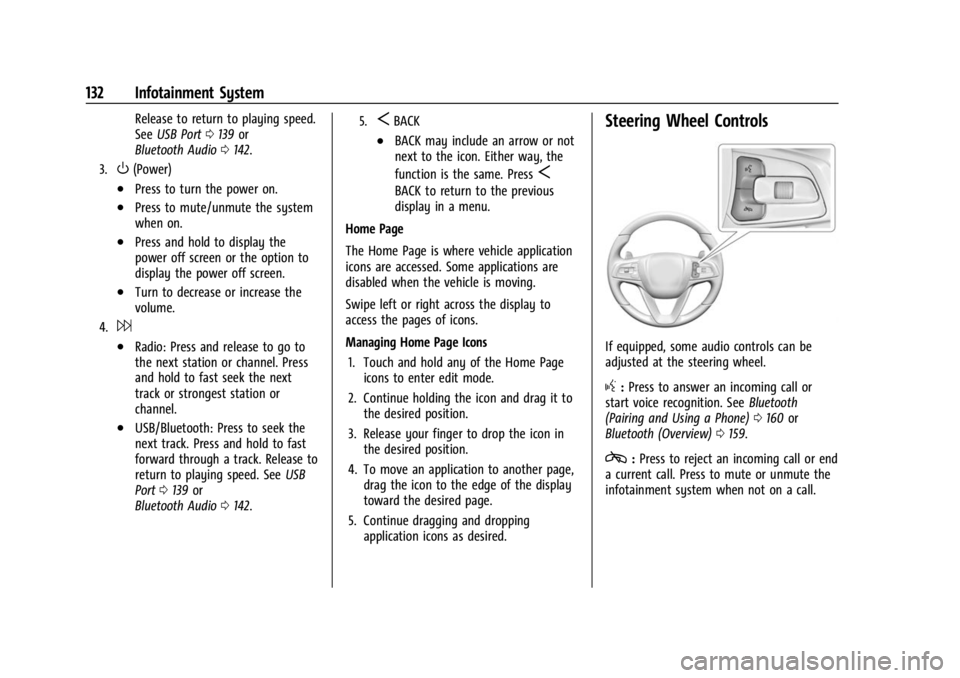
Steering Wheel Controls
If equipped, some audio controls can be
adjusted at the steering wheel.
g:Press to answer an incoming call or
start voice recognition. See Bluetooth
(Pairing and Using a Phone) 0160 or
Bluetooth (Overview) 0159.
c:Press to reject an incoming call or end
a current call. Press to mute or unmute the
infotainment system when not on a call.
Page 161 of 366
Buick Enclave Owner Manual (GMNA-Localizing-U.S./Canada/Mexico-
16411536) - 2023 - CRC - 3/28/22
160 Infotainment System
Controls
Use the controls on the center stack and the
steering wheel to operate the Bluetooth
system.
Steering Wheel Controls
g:Press to answer incoming calls and start
voice recognition on your connected
Bluetooth mobile device.
i: Press to end a call, decline a call,
or cancel an operation. Press to mute or
unmute the infotainment system when not
on a call.
Infotainment System Controls
For information about how to navigate the
menu system using the infotainment
controls, see Overview0131.
Audio System
When using the Bluetooth mobile device
system, sound comes through the vehicle's
front audio system speakers and overrides
the audio system. The volume level while on
a mobile device call can be adjusted by
pressing the steering wheel controls or the
volume control on the center stack. The adjusted volume level remains in memory
for later calls. The volume cannot be
lowered beyond a certain level.
Bluetooth (Pairing and Using a
Phone)
Pairing
A Bluetooth-enabled mobile device must be
paired to the Bluetooth system and then
connected to the vehicle before it can be
used. See the mobile device manufacturer's
user guide for Bluetooth functions before
pairing the device.
Pairing Information
.If no mobile device has been connected,
the Phone main page on the infotainment
display will show the Connect Phone
option. Touch this option to connect.
Another way to connect is to touch the
Phones tab at the top right of the display
and then touch Add Phone.
.A Bluetooth smartphone with music
capability can be paired to the vehicle as
a smartphone and a music player at the
same time.
.Up to 10 devices can be paired to the
Bluetooth system.
.The pairing process is disabled when the
vehicle is moving.
.Pairing only needs to be completed once,
unless the pairing information on the cell
phone changes or the cell phone is
deleted from the system.
.If multiple paired cell phones are within
range of the system, the system connects
to the paired cell phone that is set to
First to Connect. If there is no cell phone
set to First to Connect, it will link to the
cell phone which was used last. To link to
a different paired cell phone, see
“Linking
to a Different Phone” later in this section.
Pairing a Phone 1. Make sure Bluetooth has been enabled on the cell phone before the pairing
process is started.
2. Touch the Phone icon on the Home Page or the phone icon on the shortcut tray
near the bottom of the display.
3. Touch Phones at the top of the infotainment display. There is also a
Connect Phones option in the middle of
the Phone display which will shortcut to
the Phone List menu.
4. Touch Add Phone.
Page 164 of 366
Buick Enclave Owner Manual (GMNA-Localizing-U.S./Canada/Mexico-
16411536) - 2023 - CRC - 3/28/22
Infotainment System 163
Searching Contacts Using the Keypad
To search for contacts using the keypad:1. Touch the Phone icon on the Home Page.
2. Touch Keypad and enter partial phone numbers or contact names using the
digits on the keypad to search.
Results will show on the right side of the
display. Touch one to place a call.
Accepting or Declining a Call
When an incoming call is received, the
infotainment system mutes and a ring tone
is heard in the vehicle.
Accepting a Call
There are two ways to accept a call:
.Pressgon the steering wheel controls.
.Touch Answer on the infotainment
display.
Declining a Call
There are two ways to decline a call:
.Pression the steering wheel controls.
.Touch Ignore on the infotainment display.
Call Waiting
Call waiting must be supported on the
Bluetooth cell phone and enabled by the
wireless service carrier to work.
Accepting a Call
Press
gto answer, then touch Switch on
the infotainment display.
Declining a Call
Press
ito decline, then touch Ignore on
the infotainment display
Switching Between Calls (Call Waiting
Calls Only)
To switch between calls, touch Phone on the
Home Page to display Call View. While in
Call View, touch the call information of the
call on hold to change calls.
Three-Way Calling
Three-way calling must be supported on the
Bluetooth cell phone and enabled by the
wireless service carrier to work.
To start a three-way call while in a
current call:
1. In the Call View, touch Add Call to add another call. 2. Initiate the second call by selecting from
Recents, Contacts, or Keypad.
3. When the second call is active, touch the merge icon to conference the three-way
call together.
Ending a Call
.Pression the steering wheel controls.
.Touch#on the infotainment display,
next to a call, to end only that call.
Dual Tone Multi-Frequency (DTMF) Tones
The in-vehicle Bluetooth system can send
numbers during a call. This is used when
calling a menu-driven phone system. Use the
Keypad to enter the number.
Apple CarPlay and Android Auto
If equipped, Android Auto and/or Apple
CarPlay capability may be available through
a compatible smartphone. If available, the
Android Auto and Apple CarPlay icons will
change from gray to color on the Home
Page of the infotainment display.
To use Android Auto and/or Apple CarPlay:
Page 338 of 366

Buick Enclave Owner Manual (GMNA-Localizing-U.S./Canada/Mexico-
16411536) - 2023 - CRC - 3/28/22
Customer Information 337
Mediation/Arbitration Program
c/o Customer Care Centre
General Motors of Canada Company
500 Wentworth Street W
Oshawa, ON L1J 0C5
The inquiry should be accompanied by the
Vehicle Identification Number (VIN).
Customer Assistance Offices
Buick is committed to assisting customers.
Visit us online at www.buick.com/support
(U.S.) or www.my.buick.ca (Canada) to chat
with us or find answers to commonly asked
questions, tips, vehicle how-to instructions,
and available support services.
Need more help? Use the phone numbers or
mailing addresses below for additional
assistance.
United States and Puerto Rico
Buick Customer Assistance Center
P.O. Box 33136
Detroit, MI 48232-5136
1-800-521-7300
1-800-832-8425 (For Text Telephone devices
(TTYs))
Roadside Assistance: 1-800-252-1112From U.S. Virgin Islands:
1-800-496-9994
Canada
Customer Care Centre
General Motors of Canada Company
500 Wentworth Street W
Oshawa, ON L1J 0C5
1-800-263-3777 (English)
1-800-263-7854 (French)
1-800-263-3830 (For Text Telephone devices
(TTYs))
Roadside Assistance: 1-800-268-6800
All Overseas Locations
Please contact the local General Motors
Business Unit.
Customer Assistance for Text
Telephone (TTY) Users
To assist customers who are deaf, hard of
hearing, or speech-impaired and who use
Text Telephones (TTYs), Buick has TTY
equipment available at its Customer
Assistance Center. Any TTY user can
communicate with Buick by dialing:
1-800-832-8425. TTY users in Canada can dial
1-800-263-3830.
Online Account
Create a Buick Account (U.S.) at
buick.com
Learn more about your vehicle features,
shop for and manage your connected
services and OnStar plans, and access
diagnostic information specific to your
vehicle.
Membership Benefits
E:
Download owner’s manuals and view
vehicle-specific how-to videos.
G: View maintenance schedules, alerts, and
Vehicle Diagnostic Information. Schedule
service appointments.
I: View service records from your
dealership and add your own.
D: Select a dealer and view locations,
maps, phone numbers, and hours.
r: Track your vehicle’s warranty
information.
J: View active recalls by Vehicle
Identification Number (VIN). See Vehicle
Identification Number (VIN) 0331.